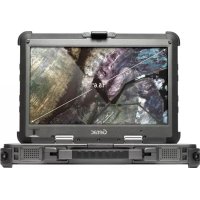
X500 - Laptop Getac - Free user manual and instructions
Find the device manual for free X500 Getac in PDF.



| Product type | Rugged laptop |
| Brand | Getac |
| Model | X500 |
| Dimensions | Approximately 340 x 280 x 40 mm |
| Weight | Approximately 4 kg |
| Power supply | AC adapter 100-240V, 50-60 Hz; Rechargeable lithium-ion battery |
| Battery life | Varies depending on usage; full charge ~4 h (off) or ~7 h (on) |
| Screen | Touchscreen with special protective coating |
| Operating system | Windows (preinstalled) |
| Main features | Rugged, waterproof, dust resistant, touchscreen, waterproof keyboard, system recovery |
| Maintenance and cleaning | Clean exterior with soft cloth dampened with water or non-alkaline detergent; screen with soft lint-free cloth; touchpad with adhesive tape |
| Security | Lid lock, water and dust protection |
| Spare parts and repairability | Battery, AC adapter; technical support and downloads on Getac website |
| Operating temperature | 0 °C to 55 °C (32 °F to 131 °F) |
| Charging temperature | 10 °C to 30 °C (50 °F to 86 °F) |
| General information | Getac X500 rugged laptop, designed for demanding environments |
Frequently Asked Questions - X500 Getac
User questions about X500 Getac
0 question about this device. Answer the ones you know or ask your own.
Ask a new question about this device
Download the instructions for your Laptop in PDF format for free! Find your manual X500 - Getac and take your electronic device back in hand. On this page are published all the documents necessary for the use of your device. X500 by Getac.
USER MANUAL X500 Getac
The Bluetooth® word mark and logos are registered trademarks owned by Bluetooth SIG, Inc. All other brand and product names are trademarks or registered trademarks of their respective owners.
NOTE
The information in this manual is subject to change without notice.
Depending on the model you purchased, the appearance of your computer may not be exactly the same as those shown in this guide.
Before You Begin
For complete information of the product, refer to the User's Manual (in PDF format) on your Window's desktop or Driver Disc (if provided).
You can download the latest manual and drivers by accessing the Getac web link at http://www.getac.com Support
Download. In case you are unable to download the manual file and/or driver file, contact your authorized dealer for assistance.
Getting the Computer Running
Installing the Battery Pack
Install the battery pack if it has not been installed in your computer.
- Locate the battery compartment on the right side of the computer.
- Slide the latch toward the right to unlock () and then push down the latch to release the cover.

- With the strip facing outward, insert the battery pack all the way into the compartment.
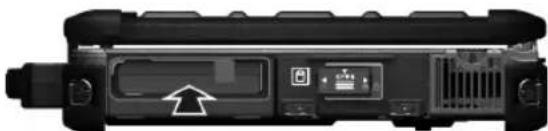
- Close the cover. When closing, engage the latch and then slide the latch toward the left to lock (B).
Connecting to AC Power and Starting Up
The first time you use your computer, use the AC adapter.
- Plug the DC cord of the AC adapter to the power connector of the computer (0).
- Plug the female end of the AC power cord to the AC adapter and the male end to an electrical outlet (2).
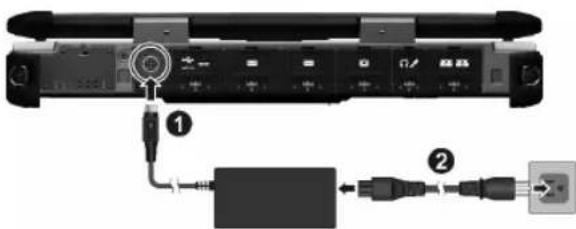
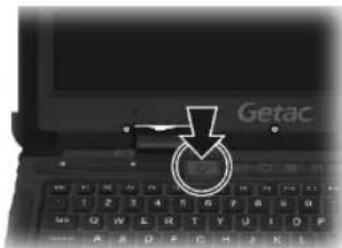
- Press the power button ( ) to start up the computer. The operating system such as Windows should start.
Charging the Battery
To charge the battery, connect the AC adapter to the computer and an electrical outlet. The Battery Charge Indicator (E) on the computer glows amber to indicate that charging is in progress. When the battery is fully charged, the Battery Charge Indicator glows green.
It takes approximately 4 hours to fully charge the battery when the computer is off and approximately 7 hours when the computer is on.
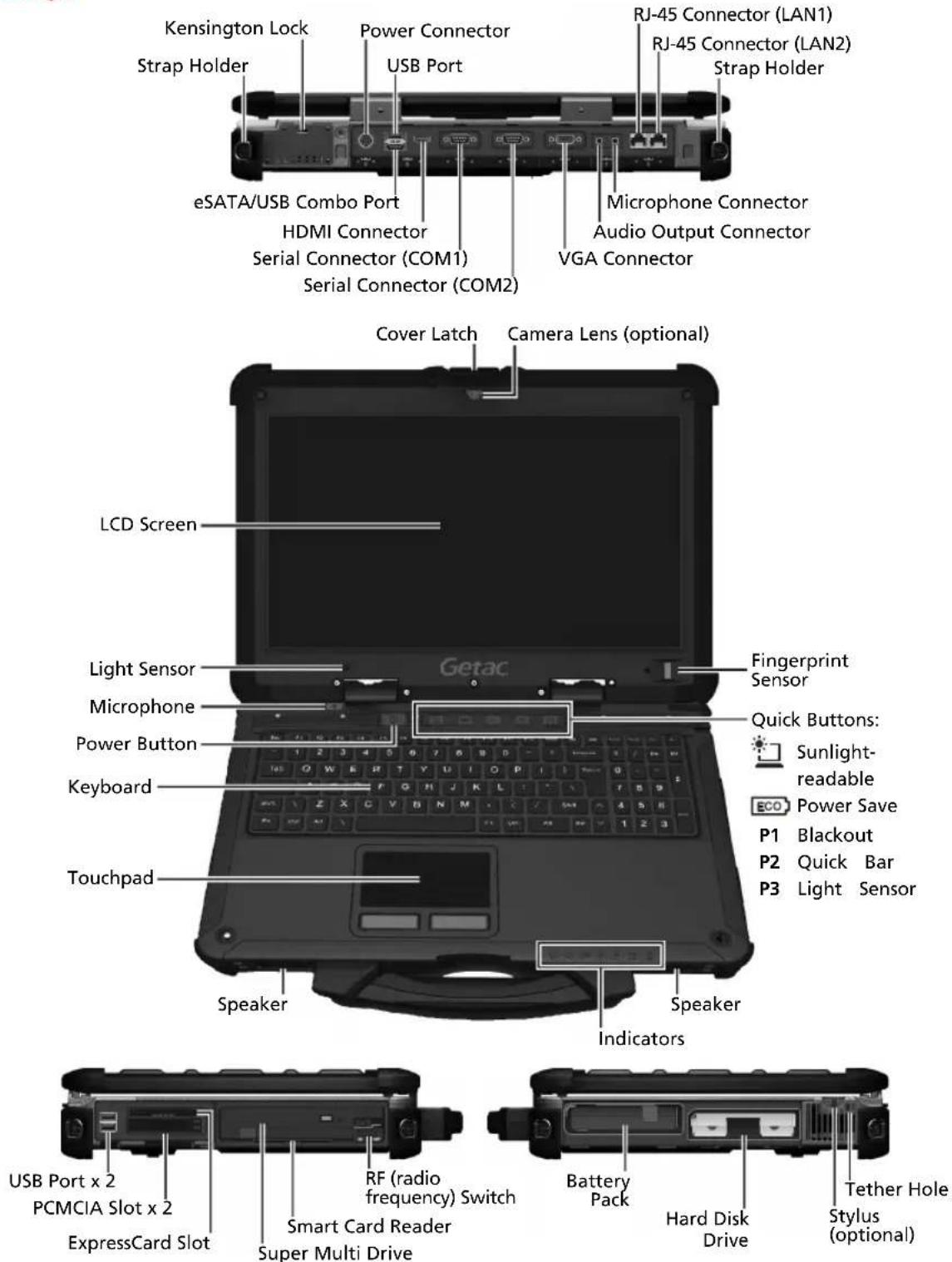
Taking a Look at the Computer
CAUTION: You need to open the protective covers to access the connectors or devices inside. When not accessing a connector or device, make sure to close the cover completely for water-, dust-, and fire-proof integrity of your computer. (Engage the locking mechanism if existing.)
Using System Recovery
Use System Recovery when:
The Windows operating system does not start at all.
- You want to restore the system to the factory state.
WARNING: All data on the hard disk drive will be lost.
To run System Recovery:
- Connect the AC adapter.
- Turn on the computer. During system startup when the Getac logo screen appears, press Ctrl + Alt + F2 keys for four seconds.
- In the screen that appears, select Recovery to start the recovery process.
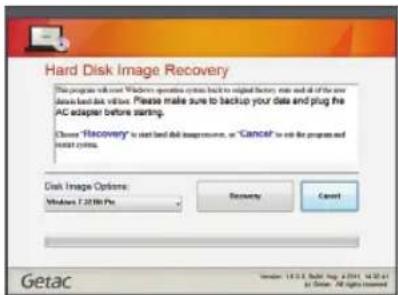
- The progress bar shows the percentage completed. When it reaches 100% , the system turns off.
- Turn on the computer. The Windows setup wizard starts. Follow the onscreen prompts to continue.
- When the system restarts, the installer screen appears. The installer will perform system hardware detection and driver installation.
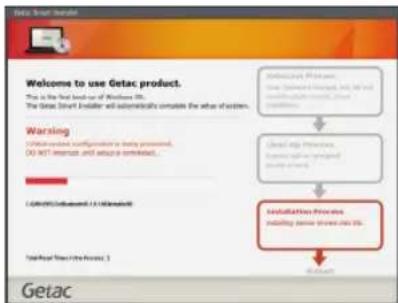
- When completed, the system restarts and displays Windows desktop.
Taking Care of the Computer
Location Guidelines
- For optimal performance, use the computer where the recommended temperature is between 0^ (32^) and 55^ (131^) - actual operating temperature depending on product specifications.
- Avoid placing the computer in a location subject to high humidity, extreme temperatures, mechanical vibration, direct sunlight, or heavy dust. Using in extreme environments for long periods can result in product deterioration and a shortened product life.
- Operating in an environment with metallic dust is not allowed.
- Place the computer on a flat and steady surface. Do not stand the computer on its side or store it in an upside-down position. A strong impact by dropping or hitting may damage the computer.
- Do not cover or block any ventilation openings on the computer. For example, do not place the computer on a bed, sofa, rug, or other similar surface. Otherwise, overheating may occur that results in damage to the computer.
- As the computer can become very hot during operation, keep it away from objects that are vulnerable to heat.
- Keep the computer at least 13cm (5 inches) away from electrical appliances that can generate a strong magnetic field such as a TV, refrigerator, motor, or a large audio speaker.
- Avoid moving the computer abruptly from a cold to a warm place. A temperature difference of more than 10^ (18^) may cause condensation inside the unit, which may damage the storage media.
General Guidelines
- Do not expose your skin to the computer when operating it in a very hot or cold environment.
-
Do not place heavy objects on top of the computer as this may damage the display.
-
The screen surface is easily scratched. Avoid touching it with a sharp object such as a pen or pencil.
- LCD image sticking occurs when a fixed pattern is displayed on the screen for a prolonged period of time. You can avoid the problem by limiting the amount of static content on the display. It is recommended that you use a screen saver or turn off the display when it is not in use.
- To maximize the life of the backlight in the display, allow the backlight to automatically turn off as a result of power management.
Cleaning Guidelines
- Never clean the computer with its power on.
- Use a soft cloth moistened with water or a non-alkaline detergent to wipe the exterior of the computer.
- Gently wipe the display with a soft, lint-free cloth. Do not use alcohol or detergent on the display.
- Dust or grease on the touchpad can affect its sensitivity. Clean the pad by using adhesive tape to remove the dust and grease on its surface.
- If water or liquid is split onto the computer, wipe it dry and clean when possible. Though your computer is water-proof, do not leave the computer wet when you can dry it.
- In case water or liquid is spilt into the keyboard, immediately turn off the computer and unplug the AC adapter. Then tilt the keyboard 90 degrees to the right (where the drainpipe ends are located) to let the liquid flow out of the keyboard. Make sure to clean up any part of the spill you can get to. Though the keyboard of your computer is spill-proof, liquid will remain in the keyboard enclosure if you don't remove it. Wait for the keyboard to air dry before using the computer again.
- If the computer gets wet where the temperature is 0^ C (32°F) or below, freeze damage may occur. Make sure to dry the wet computer.
Battery Pack Guidelines
- Recharge the battery pack when it is nearly discharged. When recharging, make sure that the battery pack is fully charged. Doing so may avoid harm to the battery pack.
- The battery pack is a consumable product and the following conditions will shorten its life:
when frequently charging the battery pack
- when using, charging, or storing the battery in high temperature condition
- To avoid hastening the deterioration of the battery pack thereby prolonging its useful life, minimize the number of times you charge it so as not to frequently increase its internal temperature.
- Charge the battery pack between 10^ 30^ ( 50^ 86^ ) temperature range. A higher environment temperature will cause the battery pack's temperature to rise. Avoid charging the battery pack inside a closed vehicle and in hot weather condition.
Also, charging will not start if the battery pack is not within the allowed temperature range.
It is recommended that you do not charge the battery pack more than once a day.
It is recommended that you charge the battery pack with the computer's power off.
To maintain the battery pack's operating efficiency when removed from the computer, store it in a cool dark place and with 30% 40% charge remaining.
- Important guidelines when using the battery pack.
When installing or removing the battery pack take note of the following:
- avoid installing or removing the battery pack when the computer is in Sleep mode. Abruptly removing the battery pack may cause loss of data or the computer may become unstable.
- avoid touching the battery pack terminals or damage may occur, thereby causing improper operation to it or the computer.
The computer's input voltage and surrounding temperature will directly affect the battery pack's charge and discharge time:
- charging time will be prolonged when the computer is turned on.
To shorten the charging time, it is recommended that you place the computer in Sleep or hibernation mode.
-
a low temperature will prolong the charging time as well as hasten the discharge time.
-
When using battery power in an extremely low temperature environment, you may experience shortened operating time and incorrect battery level reading. This phenomenon comes from the chemical characteristics of batteries. The appropriate operating temperature for the battery is -10^ 50^ ( 14^ 122^ ).
Touchscreen Guidelines
-
Use the finger or the included stylus on the display. Using a sharp or metallic object other than your finger or stylus may cause scratches and damage the display, thereby causing errors.
-
Use a soft cloth to remove dirt on the display. The touchscreen surface has a special protective coating that prevents dirt from sticking to it. Not using a soft cloth may cause damage to the special protective coating on the touchscreen surface.
-
Turn off the computer power when cleaning the display. Cleaning the display with the power on may cause improper operation.
-
Do not use excessive force on the display. Avoid moving the computer while holding the display or twisting the display. Avoid placing objects on top of the display as this may cause the glass to break thereby damaging the display.
-
Using the touchscreen during low temperature (less than 5^ ) may cause a slower response time. This is normal. A normal response time may be restored upon returning to room temperature.
-
When there is a noticeable discrepancy in the placement of the stylus on the screen and the indicated position of the onscreen pointer, use the calibration utility to recalibrate the touchscreen display.
Bevor Sie beginnen
- NOTE
- Before You Begin
- Getting the Computer Running
- Connecting to AC Power and Starting Up
- Charging the Battery
- Taking a Look at the Computer
- Using System Recovery
- Taking Care of the Computer
- Location Guidelines
- General Guidelines
- Cleaning Guidelines
- Battery Pack Guidelines
- Touchscreen Guidelines
- Bevor Sie beginnen
Brand : Getac
Model : X500
Category : Laptop