USER MANUAL B5006UHD BRANDT
DESCRIPTION DUPRODUIT. 3
ASSEMBLAGE. 4
TELECOMMANDE 5
BRANCHEMENTS 6
FONCTIONS DE BASE 10
UTILISER LES MENUS. 11
SPECIFICATIONS. 16
DEPANNAGE 16
MISE AU REBUT. 17
Inforations concernant la licence
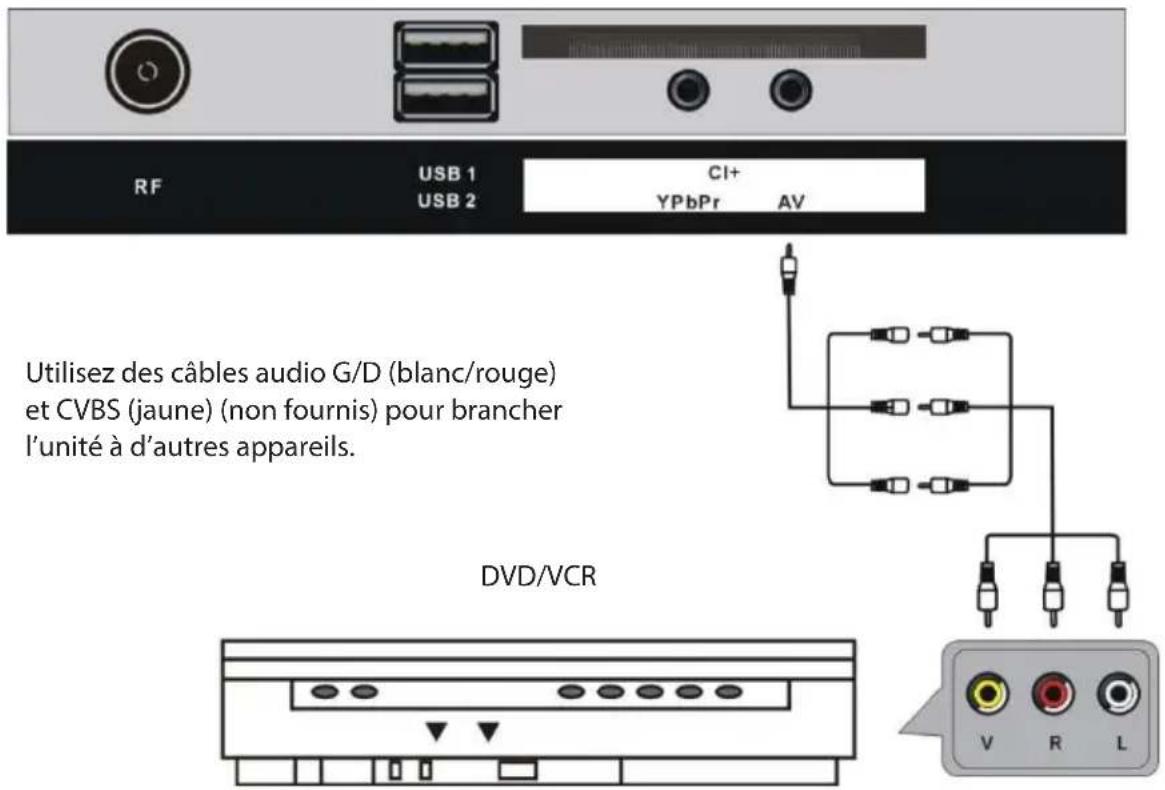
Branchement AV (video composite)
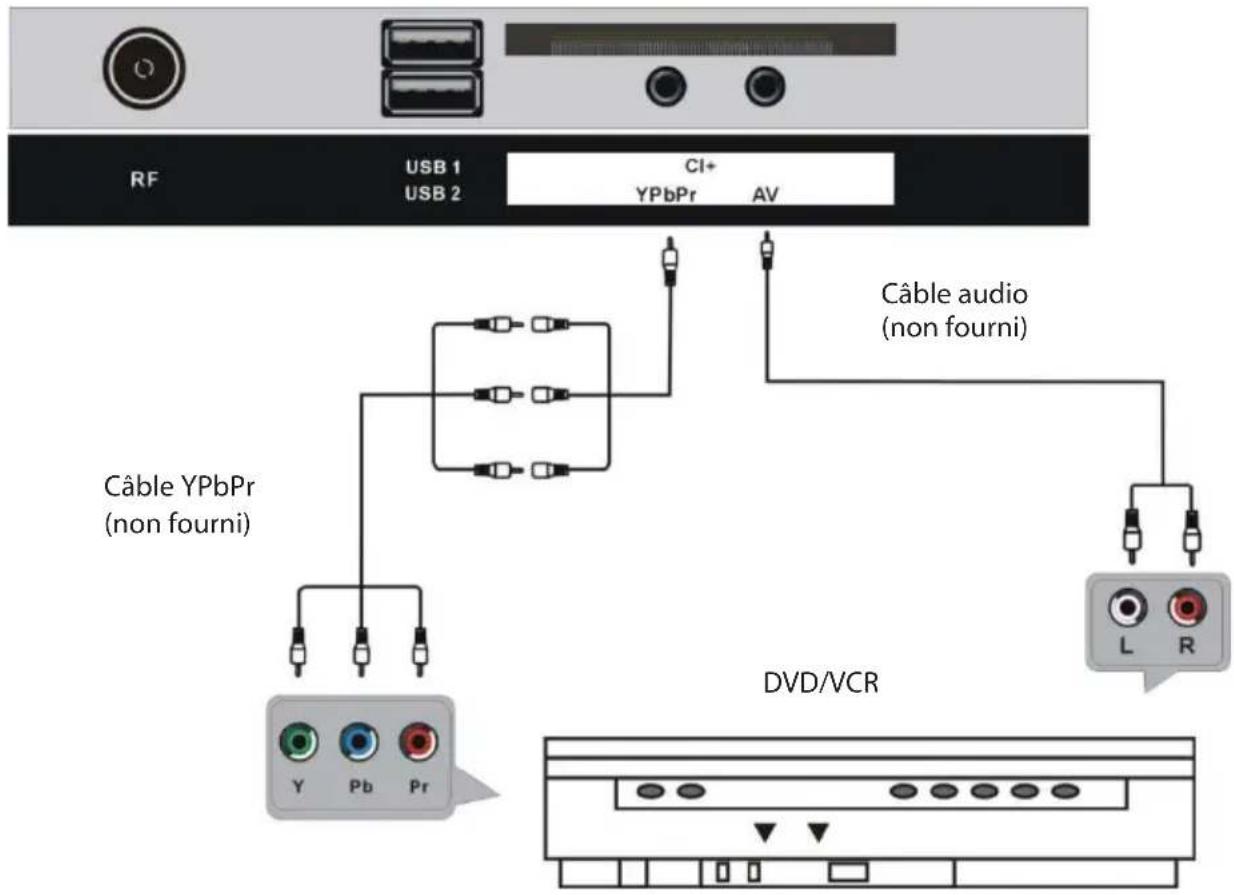
Branchement YPbPr
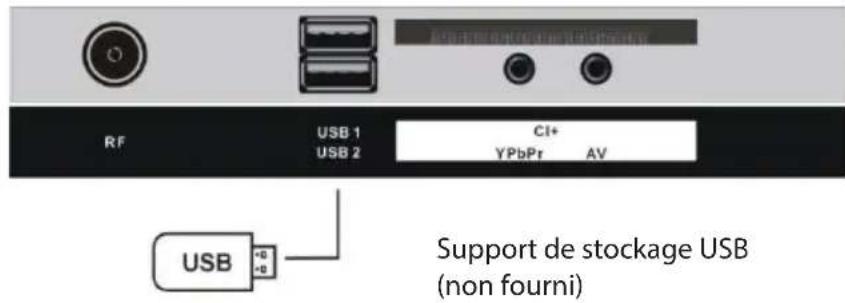
Branchement USB
Hotline Darty France
DLC (Dynamic Luminance Control)
Nota: Los parámetros en el submenu de " Tipo digital" soloSEOSEOSEOSEOSEOSEOSEOSEOSEOSEOSEOSEOSEOSEOSEOSEOSEOSEOSEOSEOSEOSEOSEOSEOSEOSEOSEOSEOSEOSEOSEOSEOSEOSEOSEOSEOSEOSEOSEOSEOSEOSEOSEOSEOSEOSEOSEOSEOSEOSEOSEOSEOSEOSEOSEOSEOSEOSEOSEOSEOSEOSEOSEOSEOSEOSEOSEOSEOSEOSEOSEOSEOSEOSEOSEOSEOSEOSEOSEOSEOSEOSEOSEOSEOSEOSEOSEOSEOSEOSEOSEOSEOSEOSEOSEOSEOSEOSEOSEOSEO SEO SEO SEO SEO SEO SEO SEO SEO SEO SEO SEO SEO SEO SEO SEO SEO SEO SEO SEO SEO SEO SEO SEO SEO SEO SEO SEO SEO SEO SEO SEO SEO SEO SEO SEO SEO SEO SEO SEO SEO SEO SEO SEO SEO SEO SEO SEO SEO SEO SEO SEO SEO SEO SEO SEO SEO SEO SEO SEO SEO SEO SEO SEO SEO SEO SEO SEO SEO SEO SEO SEO SEO SEO SEO SEO SEO SEO SEO SEO SEO SEO SEO SEO SEO SEO SEO SEO SEO SEO SEO SEO SEO SEO SEO SEO SEO SEO SEO SEO SEOseoSEOSEOSEOSEOSEOSEOSEOSEOSEOSEOSEOSEOSEOSEOSEOSEOSEOSEOSEOSEOSEOSEOSEOSEOSEOSEOSEOSEOSEOSEOSEOSEOSEOSEOSEOSEOSEOSEOSEOSEOSEOSEOSEOSEOSEOSEOSEOSEOSEOSEOSEO
Estamerican software, which is a part of the National Institute of Science and Technology's National Research Service, provides information on the use of this software in research, teaching, and consulting activities.
5. Hora

Reloj
- DVB and the DVB logo are trademarks of the DVB project.
- Manufactured under license from Dolby Laboratories. Dolby and the double-D symbol are trademarks of Dolby Laboratories.
- The terms HDMI and HDMI High-Definition Multimedia Interface, and the HDMI logo are trademarks or registered trademarks of HDMI Licensing LLC in the United States and other countries.
WARNING
- This appliance is intended for domestic household use only and should not be used for any other purpose or in any other application, such as for non domestic use or in a commercial environment.
- Ventilation
Allow at least a 10cm gap all around the product.
-
The ventilation should not be impeded by covering the ventilation openings with items, such as newspapers, table-cloths, curtains, etc.
-
No naked flame sources, such as lighted candles, should be placed on the apparatus.
-
Attention should be drawn to the environmental aspects of battery disposal. Don't throw used batteries in dustbin. Please contact your retailer in order to protect the environment.
-
This apparatus is not suitable for use in a tropical climate.
-
The apparatus shall not be exposed to dripping or splashing and that no objects filled with liquids, such as vases, shall be placed on the apparatus.
-
To protect the environment, use local recycling facilities for battery disposal.
-
Batteries (battery pack or batteries installed) shall not be exposed to excessive heat such as sunshine, fire or the like.
- CAUTION
Danger of explosion if battery is incorrectly replaced. Replace only with the same or equivalent type.
- Where the MAINS plug or an appliance coupler is used as the disconnect device, the disconnect device shall remain readily operable.
.
IMPORTANT SAFETY INSTRUCTIONS

TO REDUCE THE RISK OF ELECTRIC SHOCK DO NOT REMOVE COVER. NO USER SERVICEABLE PARTS INSIDE. REFER TO QUALIFIED SERVICE PERSONNEL.

This marking indicates that the unit
complies with the European radio equipment directive.

This symbol indicates that the unit has
double insulation.

This symbol indicates that there are
important operating and maintenance instructions in the documentation accompanying this unit.

This symbol indicates that dangerous
voltage constituting a risk of electric shock is present within this unit.
- Read these instructions and keep them for further reference. Follow all instructions.
- Do not use this apparatus near water.
- Clean only with a dry cloth.
- Do not install near any heat sources such as radiators, heat registers, stoves, or other apparatus (including amplifiers) that produce heat.
- Unplug this apparatus during lightning storms or when unused for long periods of time.
- When cleaning, unplug the power cord and wipe gently with a soft cloth to prevent scratching. Do not spray water or other liquids directly on the TV as electric shock may occur. Do not clean with chemicals such as alcohol, thinners or benzine.
Install your TV where there is proper ventilation. Do not install in a confined space such as a bookcase. Do not cover the product with cloth or other materials while plugged. Do not install in excessively dusty places.
- Do not press strongly upon the panel with a hand or a sharp object such as a nail, pencil or pen, or make a scratch on it.
- Do not allow an impact shock or any objects to fall into the product, and do not drop anything onto the screen.
PRODUCT DESCRIPTION
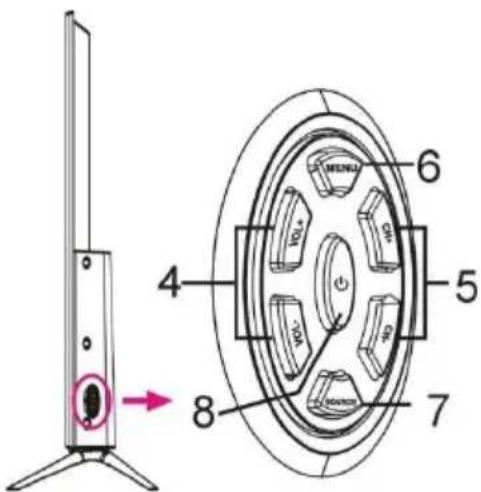
Front and Side Views
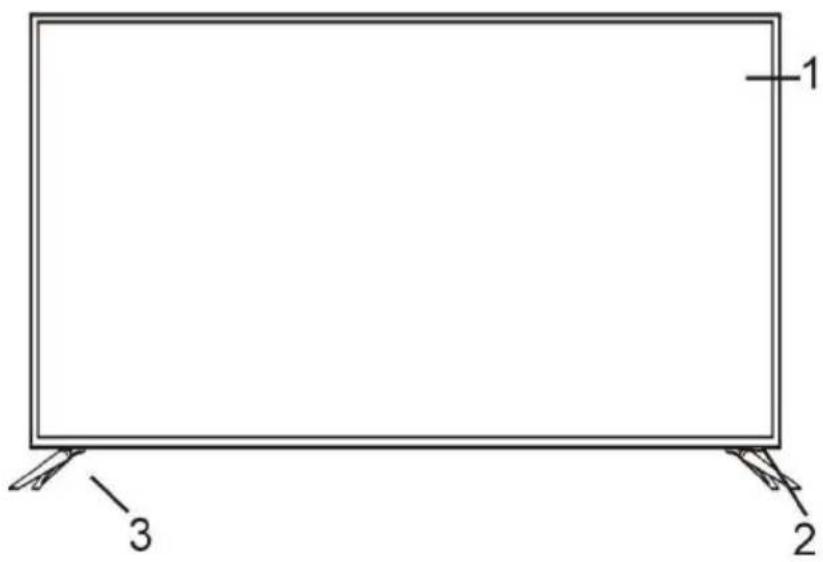
- Screen
- Remote control sensor / Power indicator
- Stand
- VOL+/- button: Adjust the volume level
- CH + / - button: Select previous/next channel or move up/down
- MENU button: Access the main menu.
- SOURCE button: Change the input source.
- button: Turn the power on or off.
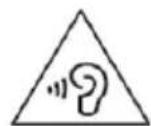
To prevent possible
hearing damage, do not listen at high volume levels for long periods.
Back View
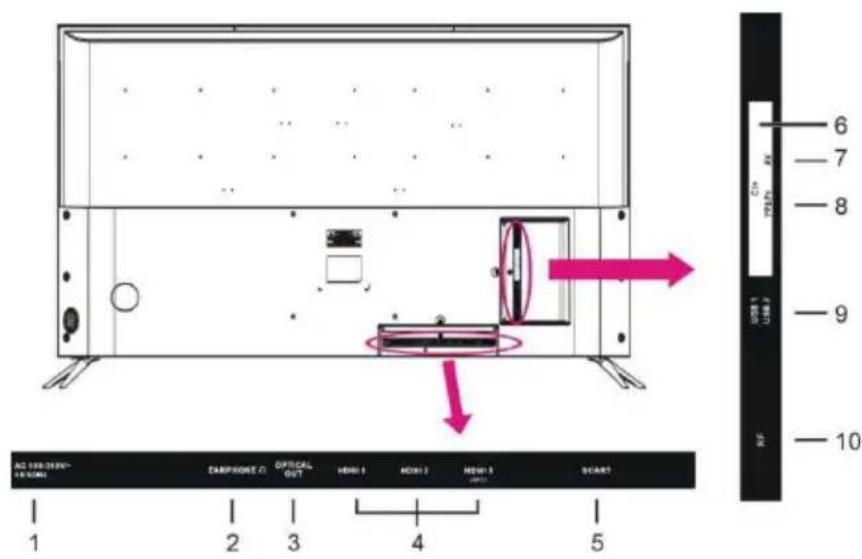
- Power input
- EARPHONE jack
- OPTICAL output port
4.HDMI 1/2/3 port
- SCART port
- Cl+ port
7.AV port
- YPbPr port
- USB 1/2 port
10.RF port
ASSEMBLING
Attaching the Stand
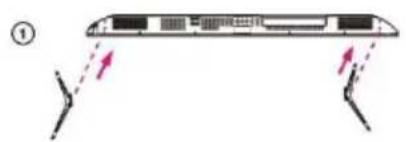
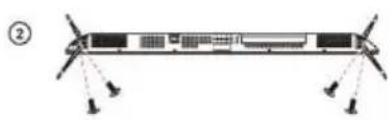
CAUTION: When attaching the stand to the TV set, place the screen facing down on a cushioned table or flat surface to protect the screen from scratches.
Mounting on a Wall
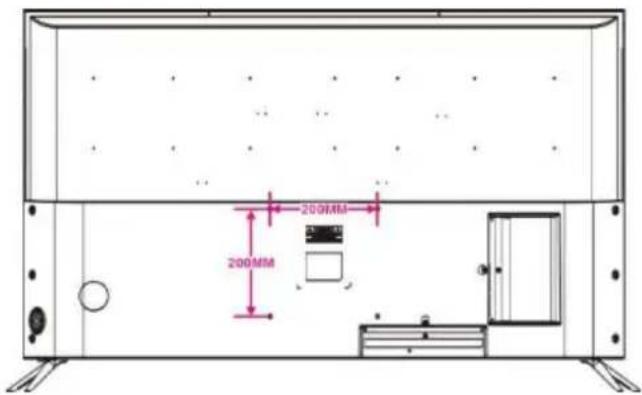
CAUTION:
- Remove the stand before installing the TV on a wall mount by performing the stand attachment in reverse.
- The distance between the holes is 200 × 200 mm in width and height.
- Tighten the screws (M6x12mm) firmly to prevent the TV from tilting forward. Do not over tighten.
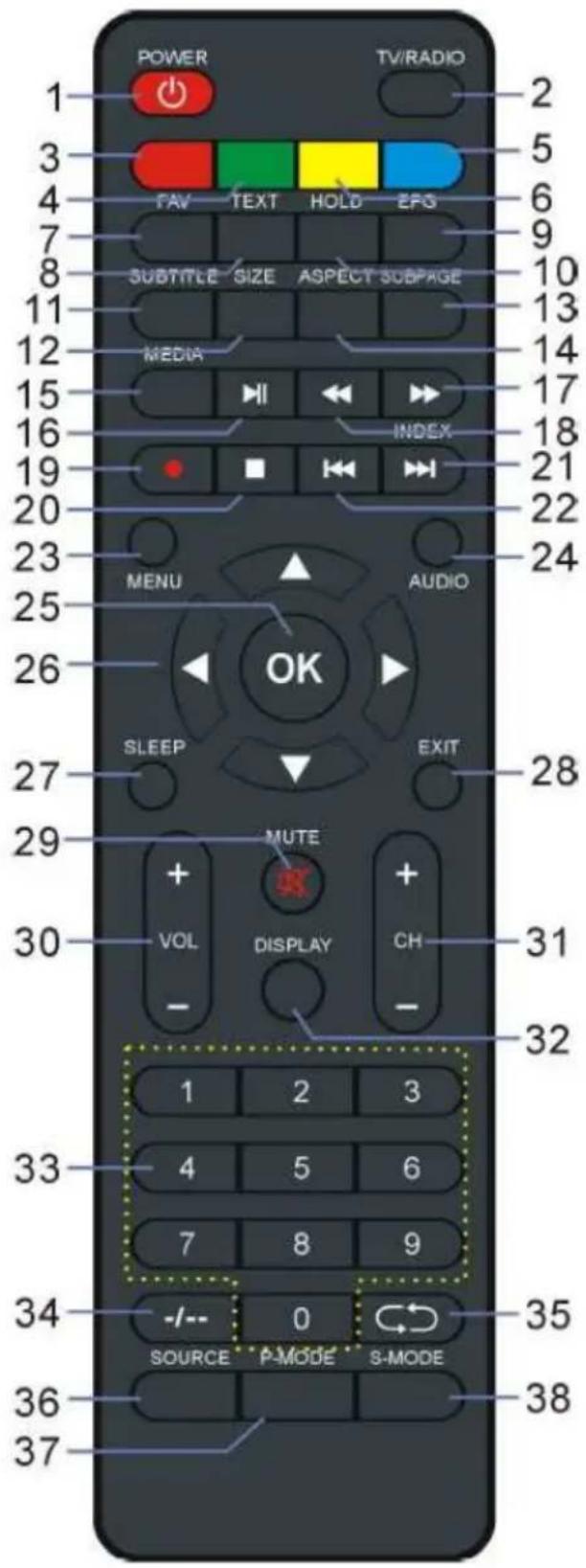
REMOTE CONTROL
- Power/standby
- TV/RADIO
- RED Colored buttons
- GREEN Used for the selection, navigation and
- BLUE operation of various functions. 6. YELLOW
- FAV - Display the favorite channel list.
- TEXT - Display the available Teletext.
- EPG - Display the electronic program guide.
- HOLD - Hold the Teletext.
- SUBTITLE - Enable/disable subtitles.
- SIZE - Switch Teletext size.
- SUBPAGE - Access Teletext sub-page.
- ASPECT - Change aspect ratio.
- MDEIA - Access USB mode.
16.▶Playback start/pause
- Move fast forward
- Move fast backward
- (DTV) - Start recording when watching available digital programs
- Stop playing
- Play the next file.
INDEX - Display the record list or Teletext index.
- Play the previous file.
- MENU
- AUDIO
- OK - Confirm selection
26.1/▼/
- SLEEP - Set the desired sleep time.
- EXIT
- MUTE
- VOL+:/: Adjust the volume level.
- CH + / - Scroll through the saved channels.
- DISPLAY - Display the available program information.
- Numeric buttons (0-9) - Change channels.
- --: Switch the digit when watching programs.
- Return to previous channel.
- SOURCE - Select a desired input source.
- P-MODE - Access the picture mode.
- S-MODE - Access the sound mode.
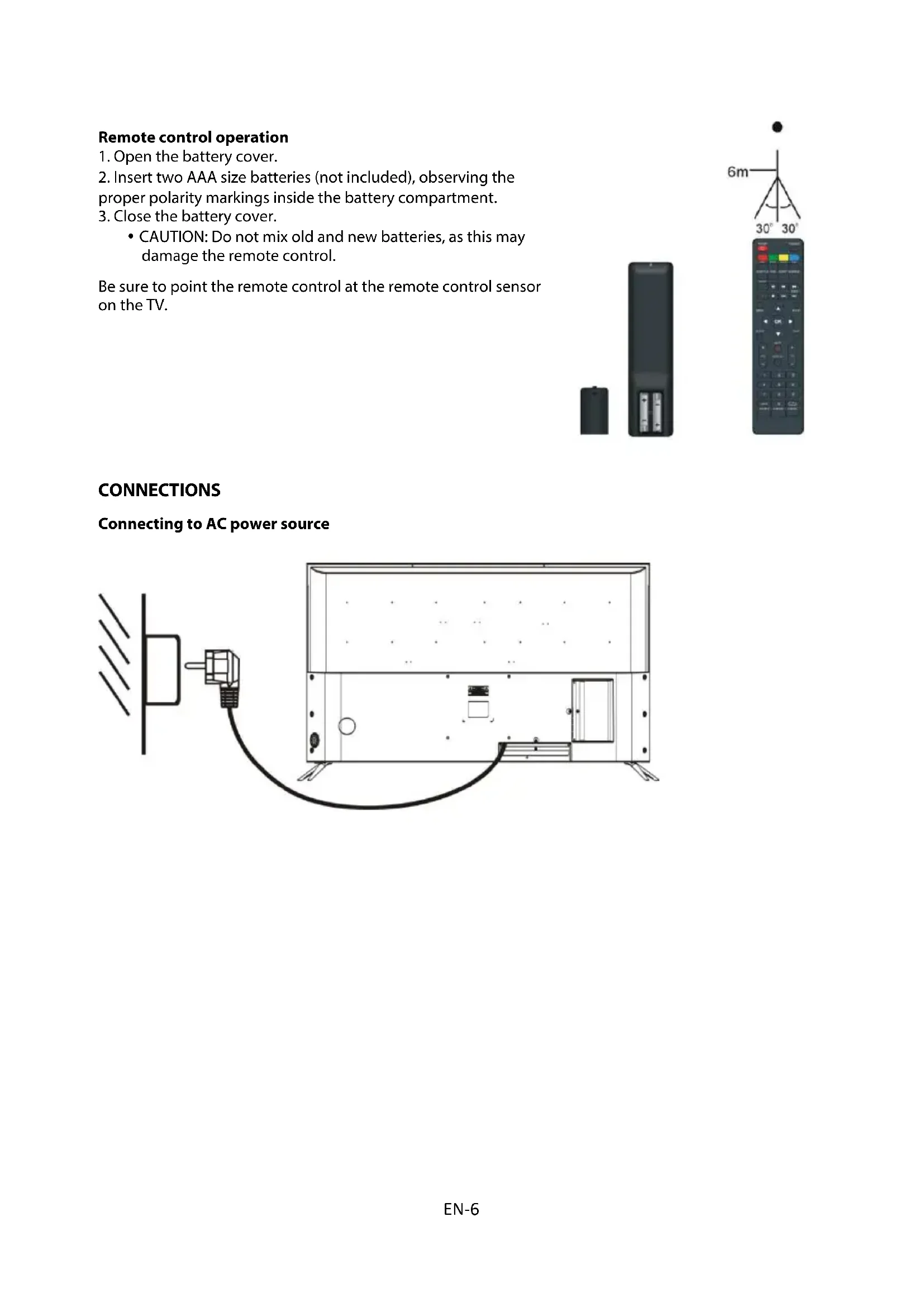
Remote control operation
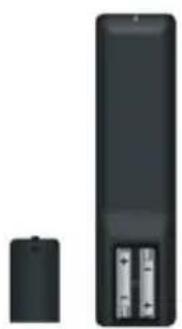
- Open the battery cover.
- Insert two AAA size batteries (not included), observing the proper polarity markings inside the battery compartment.
- Close the battery cover.
- CAUTION: Do not mix old and new batteries, as this may damage the remote control.
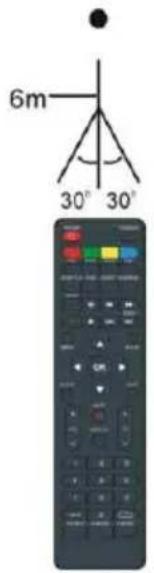
Be sure to point the remote control at the remote control sensor on the TV.
CONNECTIONS
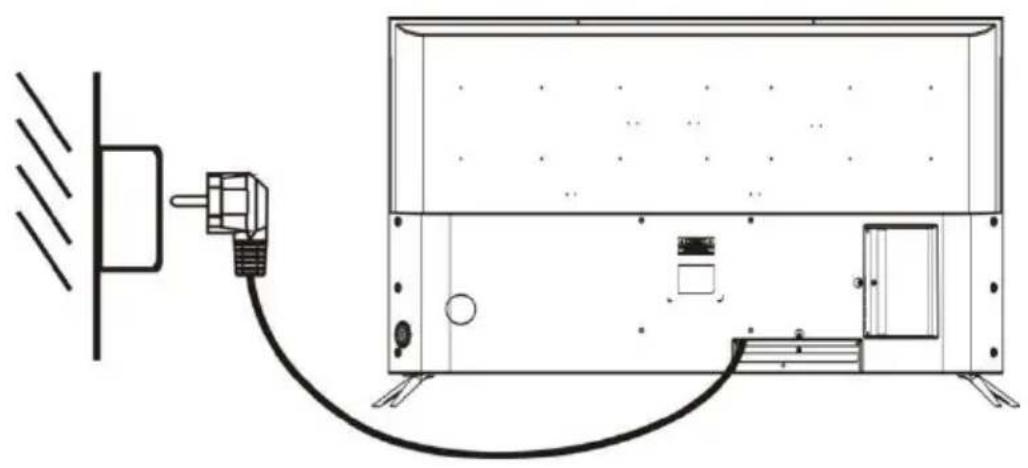
Connecting to AC power source
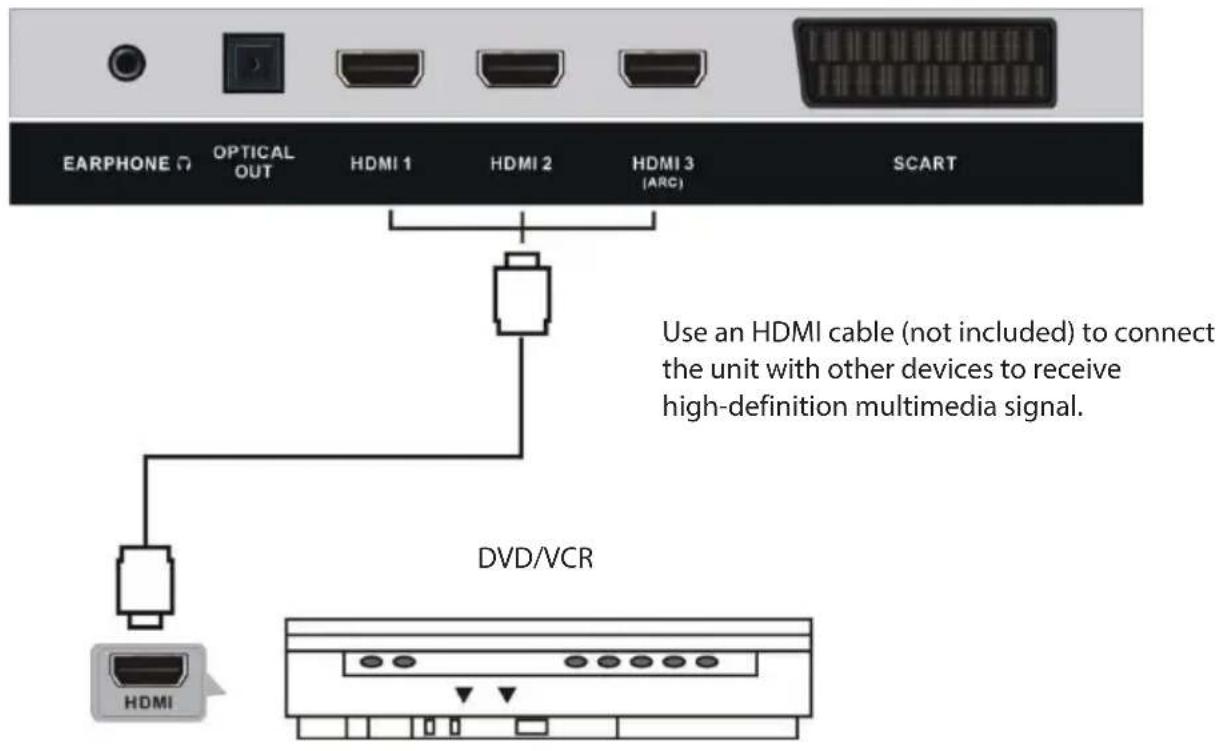
HDMI connection
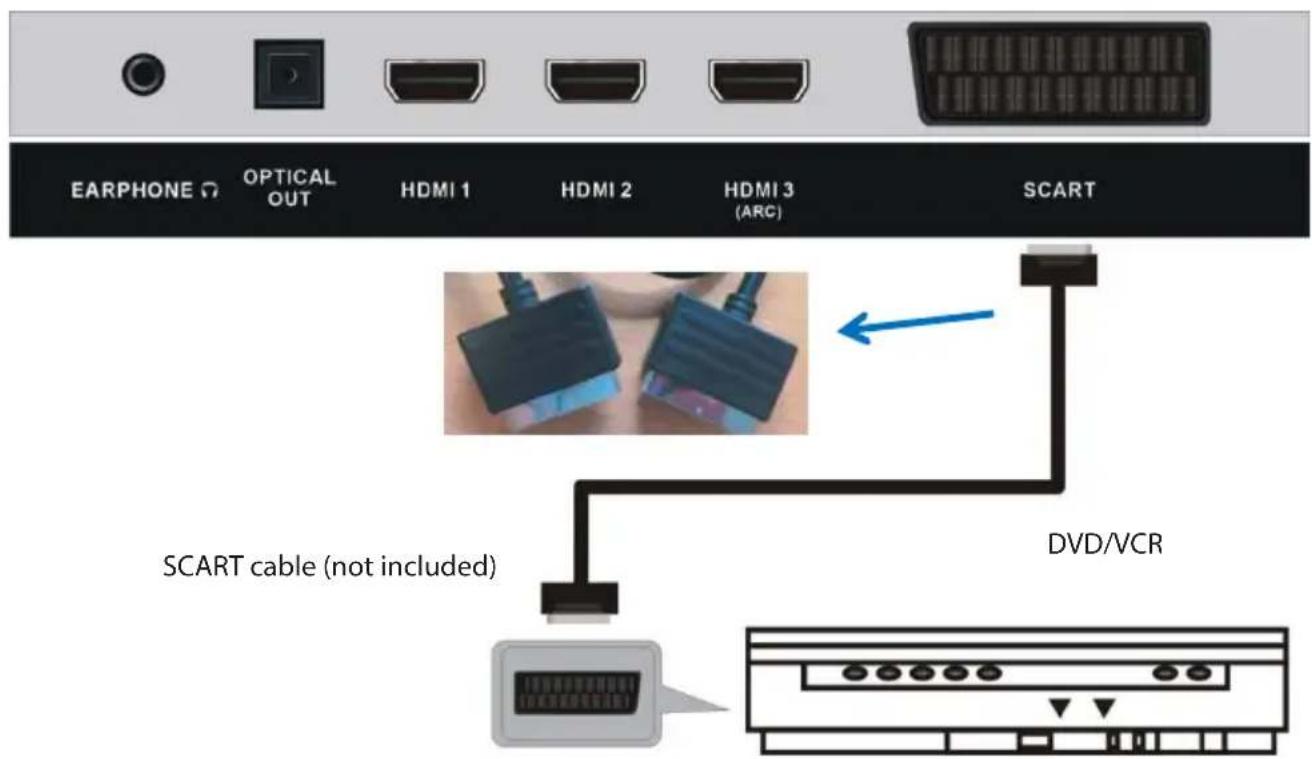
SCART connection
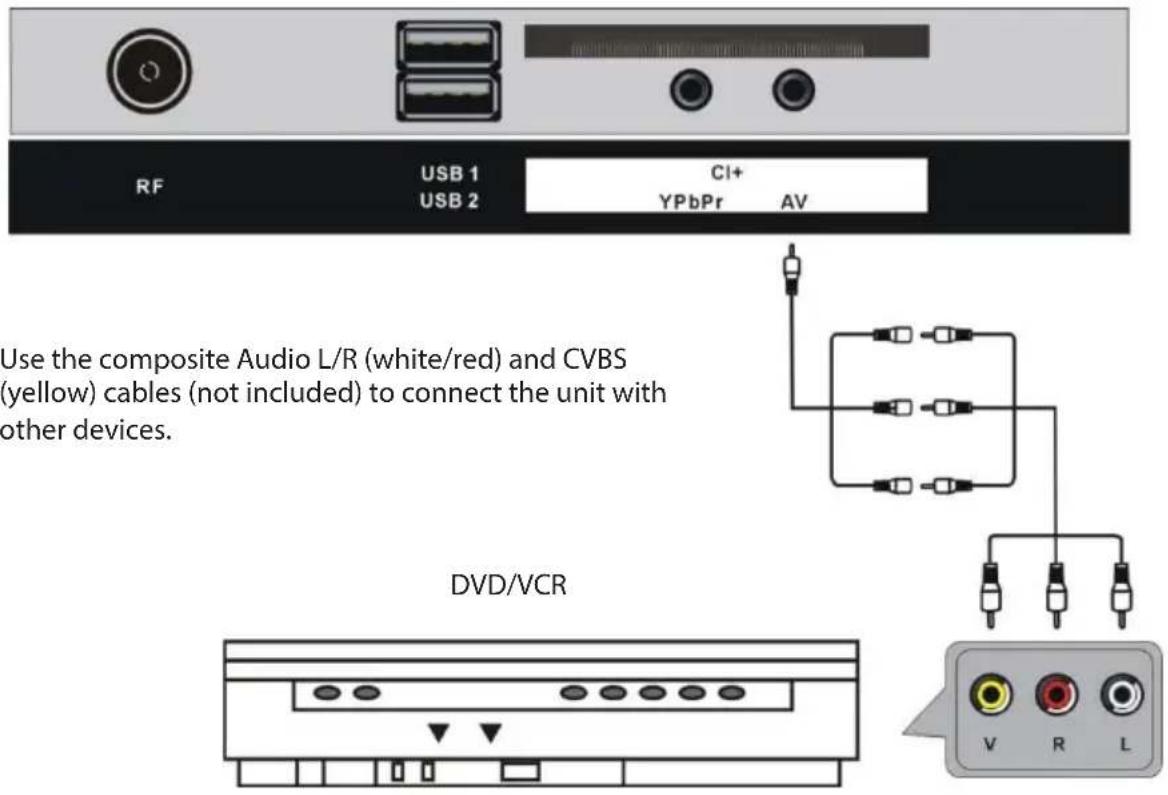
AV (Composite video) connection
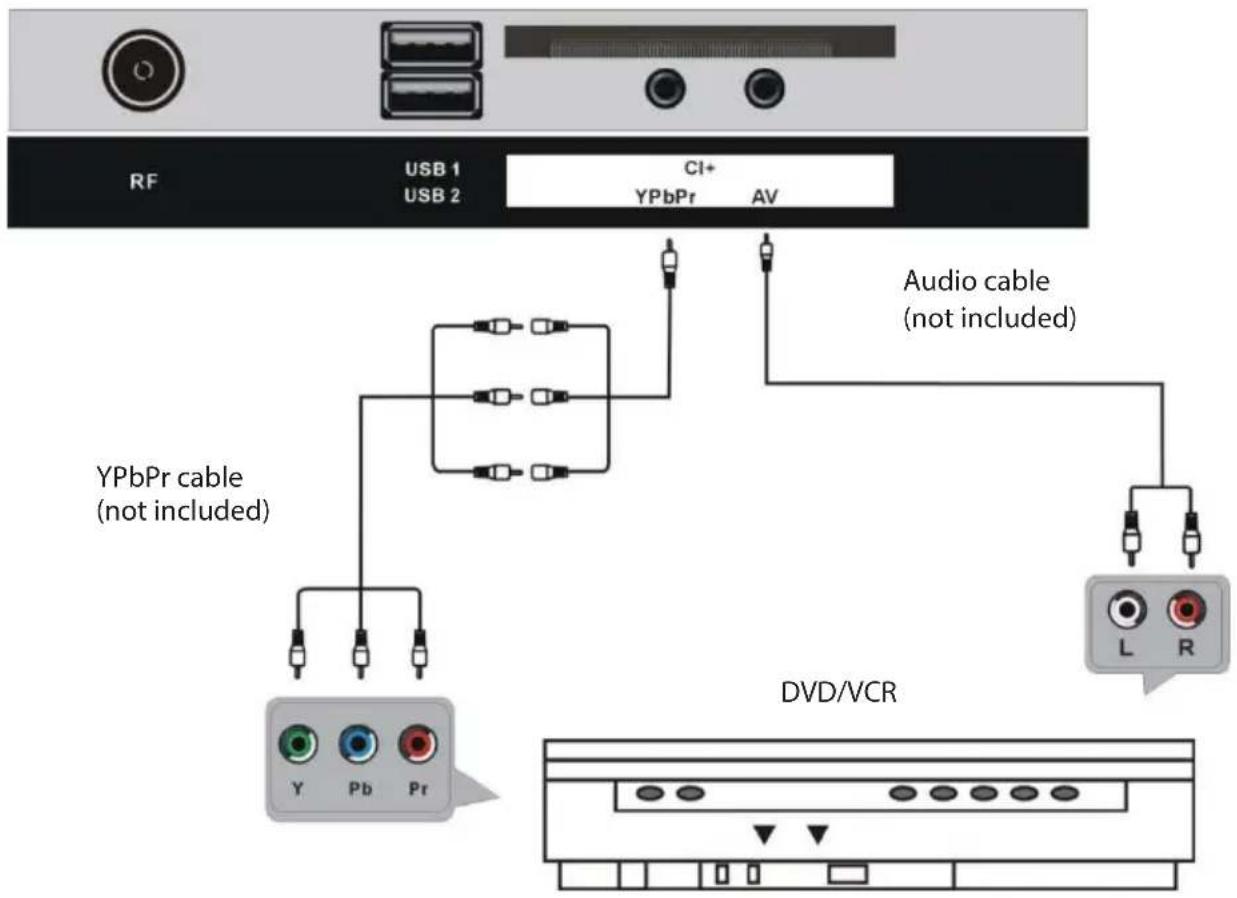
YPbPr connection
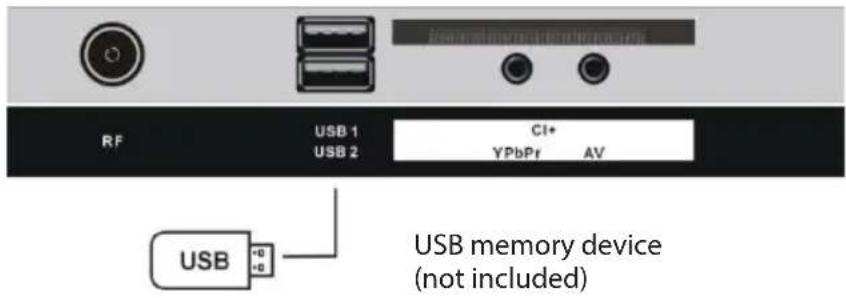
USB connection
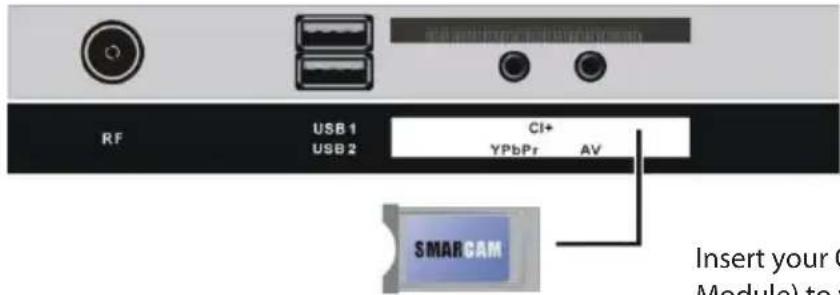
Insert a CI card
Insert your CI card (Conditional Access Module) to watch special digital channels in your area.
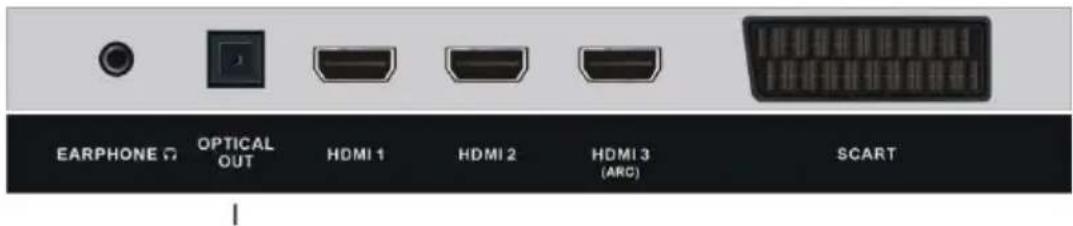
OPTICAL connection
Use a optical cable (not included) to connect the unit with an amplifier or other audio decoding devices for audio signal output.
BASIC OPERATION
Make sure all necessary connections are correctly made before connecting the unit to the wall socket and turning on the power.
Watching TV
- Press the button to power on the unit.
- Press the SOURCE button to select analog (ATV) or digital (DTV) as input source.
- Choose the channel by pressing CH+ or CH- or by pressing the numeric buttons (combined [-/-] if necessary) to
input the channel number directly.
Electronic Program Guide (EPG)
EPG stands for Digital Electronic Program Guide. It is supplied by the program providers and offers information about the programs to be broadcast. You can access it in digital mode by pressing the EPG button on the remote control, the menu will appear on the screen, as below:
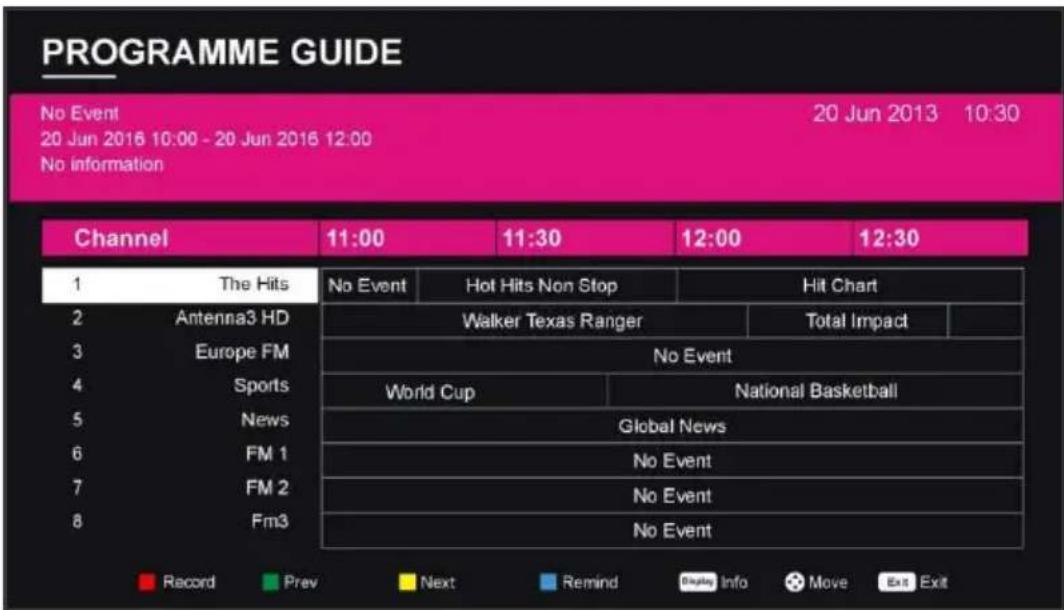
Press / navigation button to select preferred program
Press / navigation button to switch between left column and right column.
- Press the RED button to set a recording.
- Press the BLUE button to set a reminder.
- Press the GREEN button to display the program guide of the previous day.
- Press the YELLOW button to display the program guide of the following day.
Recording
- In DTV mode, insert a formatted USB storage device, then press to record the program you are watching.
The record menu will be showed on the screen.

-
Press to move the cursor and use the numeric buttons to input your desired value and press OK to confirm your setting.
-
Press initiate a dialog box and select [Yes] to stop recording. To dismiss the dialog box, select [No].
To watch recorded programs, press INDEX to initiate the Record List menu. Press to select a recorded file and press OK to start playback.
Time-shift function
The time-shift function allows you to pause the live TV signal, then resume playback at your convenience.
- While in DTV mode, insert a formatted USB storage device to your TV.
- Press to initiate time-shift mode and pause the program.
- Press stop playing and press again to initiate a dialog box. Select [Yes] to exit time-shift mode and return to live TV signal.
The MENU button allows you to access the variety of TV settings for you to customize the settings.
/: allow you to highlight options where applicable.
OK: Allow you to confirm the setting or advance to the next screen.
Allow you to move back to the previous screen or adjust the value.
: Allow you to move to the next screen or adjust the value.
First time installation
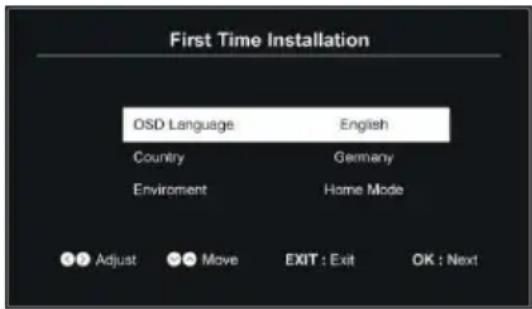
When turning on the TV for the first time, the below installation menu will be displayed:
Step 1
OSD Language: select the on-screen menu language.
Country: select your country.
Environment: select Home or Store mode.
Step 2
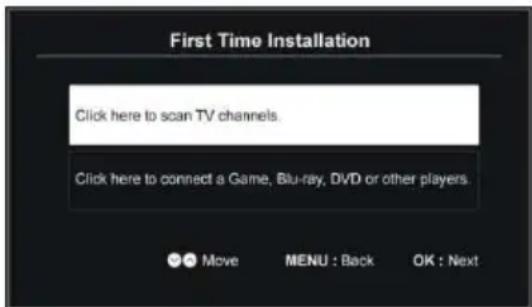
- When Step 1 finished, press OK to enter next page.
- Use / navigation button to highlight an option and press OK to enter subpage.
When "Click...scan TV Channels" is entered:
- Select Tuning Mode and Digital Type using navigation buttons and press OK to start auto tuning.
Note: Items following Digital Type are adjustable only when Digital Type is DVB-C and these items vary for different digital type.
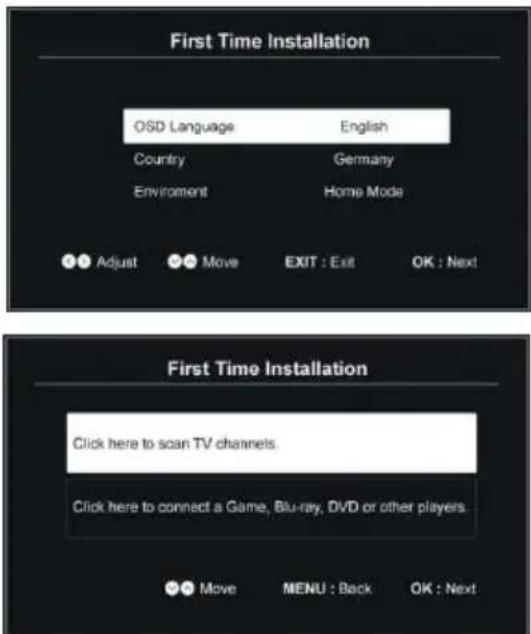
When "Click...other players" is entered:
- Select an available input source.
Note: To play an external device, connect it to related terminal on TV back first.
1. Picture

Picture Mode
- Press UP/DOWN/LEFT/RIGHT navigation buttons to select an option.
Picture Mode: available options: Standard, Movie, Dynamic, User.
Brightness / Contrast / Colour / Sharpness: adjustable value: 0-100.
Notes: When changed Brightness, Contrast, Colour or Sharpness, Picture Mode will turn to "User"
automatically. Tint is adjustable only for NTSC system.
Face Color
Adjust this option if face color displayed on screen looks a little abnormal.
Color Temp
This item is used to adjust the optimum color temperature for suitable viewing.
Available options: Normal, Warm, Cool.
Noise Reduction
Available options: Off, Weak, Middle, Strong
2. Audio

Sound Mode
- Press UP/DOWN/LEFT/RIGHT navigation buttons to select an option.
Sound Mode: available options: Standard, Music, Movie, User.
Bass / Treble: adjustable value: 0-100.
Note: When changed Bass or Treble, Sound Mode will turn to "User" automatically.
Balance
This item is used to adjust the audio output between left and right speaker from -50 to 50.
SPDIF Mode
Available options: Auto, PCM, Off.
Surround Sound
Turn on/off Surround Sound for better sound experience.
Auto Volume
This item is used to set Auto Volume ON or OFF.
AD Switch
This item is used to turn on/off Audio Description function. For Visually Impaired users, this function can help to know a certain scene or action through the narration, instead of see it.
Notes:
- AD Switch function works only when you are viewing programs that contain related narration information.
- The users can adjust AD Volume when AD Switch is on.
Speaker Delay
Adjust this option if TV picture and sound doesn't work simultaneously.
SPDIF Delay
Adjust this option if TV picture and sound doesn't work simultaneously.
3. Channel

DVB Antenna
- Press LEFT/RIGHT navigation button to select DVB-T or DVB-C.
Auto Scan
- Press OK or RIGHT navigation button to enter it.
- Use navigation buttons to set the Country, Tuning Mode and LCN.
Note: Users can see and set Scan Mode and following items only when "Antenna" is DVB-C.
- When finished above settings, highlight "Auto Scan" and press OK to start program tuning.
DTV Manual Tuning
Scan available programs manually.
Programme Edit
Edit a program that TV received. (delete, skip or set a favorite program).
Channel List
Display the list of all programs that TV received.
Favourite List
Display the list of favorite programs which you set in [Program Edit].
When an available CAM (Conditional Access Module) card is connected to the CI slot, the users can view related information or manage your CAM card.
This item is used to display signal details, for example: signal quality and strength.
4. Setup

OSD Language
This item is used to select desired on-screen display language.
Subtitle Language
This item is used to select desired subtitle language.
Audio Language
This item is used to select desired audio language.
TTX Language
This item is used to select desired teletext language.
Hearing Impaired
This item is used to turn on/off Hearing Impaired function. For Hearing Impaired users, this function can assist help to know a certain scene or action through the caption, instead of hearing it.
Note: Hearing Impaired function works only when you are viewing programs that contain related caption information.
Aspect Mode
This item is used to adjust the video size.
Available options: Auto, 4:3, 16:9, Zoom1, Zoom2.
Note: The available video size may be different for different input source.
Blue Screen
This item is used to turn on/off Blue Screen. The screen background will turn blue at very weak or no signal condition, if Blue Screen is ON.
This item is used to select HDMI version.
Available options: HDMI 1.4, HDMI 2.0.
HDMI CEC
To use HDMI CEC function:
- Make sure the HDMI device (Amplifier, etc.) is connected correctly.
- Press SOURCE button on the unit or remote control to select HDMI input source.
Note :HDMI ARC is for HDMI 3 port only.
DLC (Dynamic Luminance Control)
This item is used to turn on/off dynamic luminance control.
PVR Option
- Insert your USB memory device into the USB slot first.
- Open the Recorded List / Schedule List, start Recording, set a Reminder and manage PVR File System.
Home Mode
This item is used to select Home Mode or Store Mode (the brightness is higher than Home Mode).
This item is used to recall factory default settings.
Software Update (USB)
This item is used to update software through the USB memory device.
5. Time

Clock
It displays current system time when an available channel was saved.
Sleep Timer
This item is used to set the automatic sleep time when no signals.
This item is used to select desired Auto Sleep (standby) duration when no operations were done through the remote control.
Available options: Off, 3/4/5 hours.
Time Zone
This item is used to select desired time zone.
DST (Daylight Saving Time)
This item is used to turn on/off Daylight Saving Time
OSD Active Time
This item is used to select desired OSD menu active time.
Available options: Off, 5/15/30/60/180 seconds.
6. Lock

-
When entered "Lock", input the factory default password "0000" using number buttons on remote control.
-
Press UP/DOWN navigation button to select preferred item.
Note: If you forget the password, please use the universal password "8899".
Set Password
Input a new password twice using number buttons on remote control to set a new password.
System Lock
This item is used to turn on/off Lock System.
Channel Lock
Lock/unlock a channel.
Parental Guidance
This item is used to select desired program rating.
Available options: Off, 4-18.
Key Lock
This item is used to turn on/off key lock.
Hotel Setting
This item is used to setup Hotel Lock.
SPECIFICATIONS
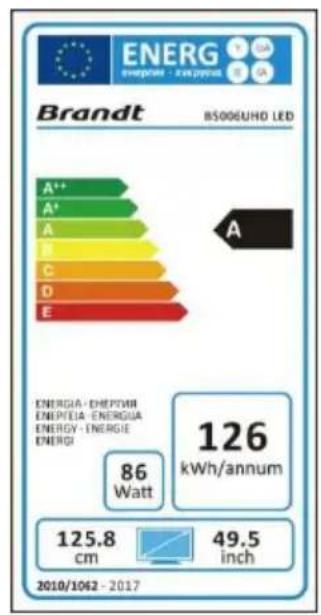
| Panel size | 49.5 inches |
| Panel resolution | 3840 x 2160 |
| Aspect ratio | 16:9 |
| Contrast ratio | 3000:1 |
| Life time | 30,000 hours |
| USB multimedia playback format | Movie: AVI, MPEG 1/2
Music: MP3
Photo: JPG/JPEG
Text: TXT |
| Power consumption | <120W |
| Power rating | AC 100-240V~ 50/60Hz |
| USB output | 5V--- 500mA |
| Dimensions DxLxH (with foot) | 224 x 1184 x709 mm |
| Dimensions DxLxH (without foot) | 73 x 1124 x649 mm |
---Direct Current
Alternating Current
TROUBLESHOOTING
| Problem | Possible Solution |
| The screen does not appear/illuminate. | 1. Check that the power plug is securely into the mains socket.
2. Check the power is on. |
| The screen appears, but there is no sound. | 1. Press the MUTE button.
2. Increase the sound level by pressing the volume adjustment buttons
3. Check that the sound terminal of your external input is connected properly.
4. Check that the audio cables are connected properly.
5. Select and check any other input. |
| Noise or poor picture | Stop using wireless telephones, hair dryers or other electrical appliances near the TV. |
| The remote control does not work. | 1. Check if the TV is not switched on.
2. Check that the batteries of the remote control are inserted properly.
3. Check for any obstacles between the TV remote sensor and the remote control. Remove them if necessary.
4. If the batteries have no power, replace them with two new batteries off the same type. |
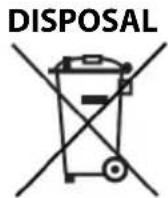
As a responsible retailer we care about the environment. As such we urge you to follow the correct disposal procedure for the appliance and packaging materials. This will help conserve natural resources and ensure that it is recycled in a manner that protects health and the environment.
You must dispose of this appliance and its packaging according to local laws and regulations. Because this appliance contains electronic components, the appliance and its accessories must be disposed of separately from household waste when the appliance reaches its end of life.
Contact your local authority to learn about disposal and recycling. The appliance should be taken to your local collection point for recycling. Some collection points accept appliance free of charge.
We apologise for any inconvenience caused by minor inconsistencies in these instructions, which may occur as a result of product improvement and development.
Ets Darty & fils ©129 Avenue Gallieni 93140 Bondy France 29 / 04 / 2019
Product Description -
We declare that the above product has been evaluated and deemed to comply with the requirements of the listed European Directives and standards:
The person responsible for this declaration is:
Position - Poste: General Manager Direct Sourcing
Signature - Signature:
Place, Date / Lieu, Date :
Bondy, 23/04/2019