ManualGo.com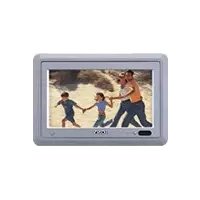
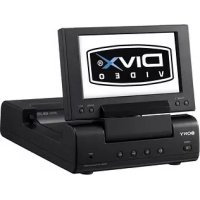
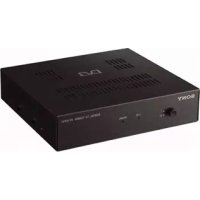
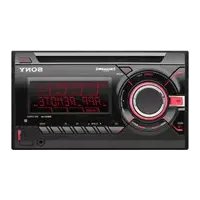
XVMH65 - Car stereo SONY - Free user manual and instructions
Find the device manual for free XVMH65 SONY in PDF.

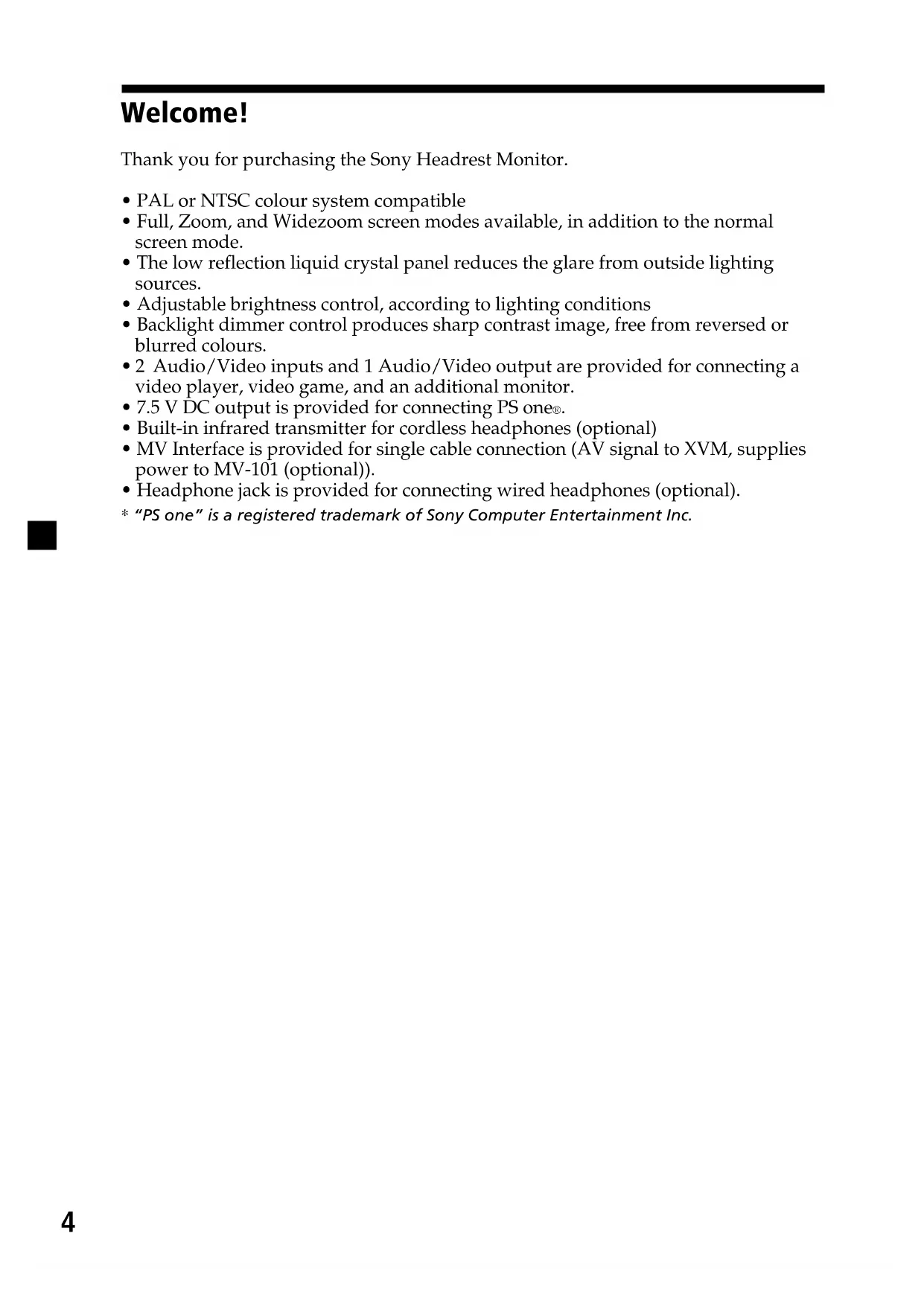


| Technical Features | 6.5-inch touchscreen, 800 x 480 pixel resolution, compatibility with audio and video formats, built-in Bluetooth, USB input, video output, compatibility with Apple CarPlay and Android Auto. |
|---|---|
| Usage | Easy to use thanks to the touch interface, quick access to audio and navigation functions, ability to connect devices via Bluetooth or USB. |
| Maintenance and Repair | Regularly check connections and firmware updates, clean the screen with a soft cloth, consult a professional for internal repairs. |
| Safety | Secure installation recommended by a professional, do not use the touchscreen while driving to avoid distractions. |
| General Information | Compatible with most vehicles, limited warranty, consult the user manual for detailed instructions. |
Frequently Asked Questions - XVMH65 SONY
Download the instructions for your Car stereo in PDF format for free! Find your manual XVMH65 - SONY and take your electronic device back in hand. On this page are published all the documents necessary for the use of your device. XVMH65 by SONY.
USER MANUAL XVMH65 SONY
- Full, Zoom, and Widezoom screen modes available, in addition to the normal screen mode.
- The low reflection liquid crystal panel reduces the glare from outside lighting sources.
- Adjustable brightness control, according to lighting conditions
- Backlight dimmer control produces sharp contrast image, free from reversed or blurred colours.
- 2 Audio/Video inputs and 1 Audio/Video output are provided for connecting a video player, video game, and an additional monitor.
- 7.5 V DC output is provided for connecting PS one
- Built-in infrared transmitter for cordless headphones (optional)
- MV Interface is provided for single cable connection (AV signal to XVM, supplies power to MV-101 (optional)).
- Headphone jack is provided for connecting wired headphones (optional).
- “PS one” is a registered trademark of Sony Computer Entertainment Inc.5 Precautions To avoid the risk of serious injury or accident, read the following precautions before installing and operating the unit. On safety Comply with your local traffic rules and regulations.
- While driving - The driver must not watch or operate the monitor. It may lead to distraction and cause an accident. - The driver must not use the headphones. It may lead to distraction and cause an accident. Park the car in a safe place when the driver watch and operate the monitor, or use headphones.
- After installing - Take care not to bump your head against the unit when getting up from the back seat. - Take extra care not to wind the wire of the headphones around your neck avoiding injury or suffocation in the event of a sudden movement of the vehicle. - Keep small articles out of the reach of children. On installation
- Installing this unit requires technical expertise. This unit should be installed by a qualified technician or service personnel.
- If you try to install this unit by yourself, do it properly, referring to the installation and wiring diagrams in this operating manual. Improper installation may result in fire or electric shock.
- Before installation, be sure to turn the ignition switch to the OFF position or take the key out. Installing this unit with the ignition on may cause battery drain or a short circuit.
- Do not damage any pipes, tubes, the fuel tank or electric wiring when installing this unit. This can cause a fire. If you drill a hole in car panels, make sure that any hidden car parts will not be damaged.
- Do not use any nuts or bolts for safety devices such as steering linkage, fuel supply or braking systems. This can cause a fire or an accident.
- Take care to prevent cords and wires from getting tangled or crimped in the moving portion of a seat rail. continue to next page t6 Where to install Before installing this unit, please check your local traffic rules and regulations. Do not install this unit where: - It will obstruct the driver’s view. - It will obstruct the operation of the airbag system. - It will obstruct the operation of the vehicle, especially the steering wheel, shift lever, or brake pedal. -A driver or passengers may injure themselves when getting into or out of the car. Before installing Make sure that the POWER SELECT switch is set to the correct position. A*: If your car has an accessory position on the ignition key. B : If your car has no accessory position on the ignition key.
- A is the factory preset position. When the POWER SELECT switch is set to B Press (POWER) on the monitor to turn on. The monitor does not turn on by pressing (POWER) on the card remote commander. Note Be sure to turn off the monitor after driving your car. To turn off the monitor, follow the operations below: – Press (POWER) on the monitor. – Press (POWER) on the card remote commander. If the power is left on, it will cause battery drain.
If you have any questions or problems concerning your unit that are not covered in this manual, please consult your nearest Sony dealer. POWER SELECT switch7 Attaching and detaching the monitor Detaching the monitor from the case Note Be careful not to pull out the cable too much when detaching the monitor from the case. 1 Insert a plastic card between the case and the top of the monitor. The catches are released, and you can detach the monitor from the case. 2 Pull out the Monitor cable on the rear while pressing 1. Attaching the monitor to the case Set the monitor to the case securely until you hear click sound.
Monitor cableCatchesPlastic card8 Location of controls 1 Receptor for the card remote commander/Transmitter for the cordless headphones 2 IR ON/OFF button* Press to turn on or off the transmitter for the cordless headphones. Monitor 3 POWER button 4 Monitor cable connector 5 POWER SELECT switch For details, refer to page 6.
- If interference occurs while using several cordless headphones If several monitors are installed, and used simultaneously, interference may occur. In this case, press (IR on/off) on the unit to turn off the transmitter for the cordless headphones, and use wired headphones instead.9
- For function details, refer to the operating instructions supplied with the DVD player.
- Sony DVD changer DVX-100 is not controllable with this card remote commander.10
Operation Selecting the input source You can select the input source and colour system. 1 Press (POWER). The power is turned on. Tip If your car has no ACC (accessory) position on the ignition key switch, and the POWER SELECT switch is set to the B position, the monitor does not turn on by pressing (POWER) on the card remote commander (page 6). 2 Press (INPUT) to select the desired input source. Each time you press (INPUT), the indication changes in the following sequence:
- To select the connected Sony DVD player MV-101 Press (INPUT) repeatedly to select “VIDEO 3.” 3 Press V or v to select PAL or NTSC colour system. Press either button while the source indication (such as “VIDEO 1”) is displayed.11 Setting the screen mode In addition to the normal mode, full, zoom, and widezoom modes are also available. Press (MODE) repeatedly. The current mode is displayed on the screen first. Each time the button is pressed, the screen mode swiches in the following sequence: The screen mode is set after 5 seconds without pressing (MODE). Tip Images may appear coarse-grained when viewed in the zoom mode.
MENU DISPLAYENTER VOL SUBTITLEAUDIO OFF MODE NormalNormalZoomZoomFullFullWideWide Normal (regular) An image with an aspect ratio of 4 to 3 (regular image). Zoom An image with an aspect ratio of 4 to 3 enlarged to the left and right edges of the screen, with the overflowing parts (top and bottom) cut off to fill the screen. Full An image with an aspect ratio of 4 to 3 enlarged to the left and right edges of the screen. Widezoom An image with an aspect ration of 4 to 3, with only the left and right sides of the image being enlarged to fill the screen.12 Changing the display settings You can adjust the display settings manually if the display is hard to see from the position where you are seated. 1 Press (MENU). The “Picture” screen appears. Each time you press (MENU), the setting screen changes in the following sequence:
- Appears only when the NTSC colour system is selected. 2 Press V or v to adjust to the desired setting. When “Picture” is selected When “Brightness” is selected
Picture 32 or MENU.Press Vv, The setting value of theitem selected appears in thisarea. B Picture B Brightness B Color B Hue* B Dimmer Menu Off b Blue Back b Mode b Video Adjustloading-circle-114 Adjusting the volume You can adjust the volume of the wired headphones and the connected equipment with the supplied card remote commander. Press (VOL)(+) or (VOL)(–) on the card remote commander. Quickly attenuating the sound Press (ATT) on the card remote commander. To restore the previous volume level Press (ATT) again. Connecting headphones There is an output jack (mini phono plug) for wired headphones on the connection box. Adjust the volume using (VOL)(+) or (VOL)(–) on the card remote commander. Using cordless headphones You can use infrared cordless headphones, MDR-IF0140 (optional) with the unit. Please refer to the operating instructions for MDR-IF0140. Notes• The volume of the cordless headphones cannot be adjusted with the supplied cardremote commander. Use the volume control on the cordless headphones.• For your safety, do not use the headphones while driving your car.• Do not leave the headphones in a place subject to direct sunlight, or in a hightemperature.• If the cordless headphones are used while exposed to direct sunlight, sensitivity of theinfrared receptor may deteriorate, and inferior quality sound may result.
- If interference occurs while using several cordless headphones, press (IR on/off) on the unit to turn off the transmitter for the cordless headphones, and use wired headphonesinstead. ATT On
MENU DISPLAYENTER VOL SUBTITLEAUDIO OFF ATT VOL+/–15 Connections Installation diagram Refer to the installation diagram and ask a qualified technician for the installation of the unit. Be sure to securely fasten all equipment to the car chassis, etc., to prevent them moving while your car is in motion. Note All equipment other than one Headrest Monitor and one Connection Box is optional. Sony mobile DVD player
Front Left speaker Rear Left speaker Subwoofer Tweeter Left Head unit Tweeter Right Front Right speaker Rear Right speaker Headrest Monitor Headrest Monitor Notes on the locations for PS one
— on a dashboard, or in a place subject to direct sunlight. — in a place near magnetic source such as magnets, speakers and a TV/Monitor. — on an unstable or uneven surface. — in a place subject to excessive vibration. — in a place subject to excessive dust or dirt. — in poorly ventilated or humid place. — in a place to subject to temperature extremes (below 5˚C or above 35˚C). Refer to the operating instructions supplied to PS one
Connection diagram Headrest Monitor XVM-H65 (6.5-inch wide colour LCD Monitor) Headrest Monitor XVM-H65 (optional) Refer to the connection diagram for the proper connections. You can make connections shown in A area. Please ask a qualified technician for the other connections. Connection box XA-113 (optional) Monitor cable (5 m) (optional) Front: Connection box XA-113 Rear:
7.5 V (max 2 A) DC Output
Remote Signal (IR) Output*
DVD (MV) connector is only for MV-101. For details, refer to the Installation/Connections manual supplied with MV-101.
(optional) To 7.5 V DC OutputTo Audio L/R/Video Input Remote Commander Signal receiver cord (5m) (Stereo Mini jack) RCA pin cord (optional) To Remote Signal (IR) Output RCA pin cord (optional) Sony mobile DVD player DVX-11A (optional) Precautions on PS one
- Be sure to fasten PS one
in a safe place securely.
- For your safety, do not use PS one
while driving your car.
- Make sure that the operating voltage of PS one
is 7.5 V. Other voltages may cause malfunction, or damage PS one
- “PS one” is a registered trademark of Sony Computer Entertainment Inc. GND (1 m) Back-up (5 m) To a metal surface of the car chassis To car battery (12 V) To ignition switch (ACC position) 4 Pin Power connector ACC (5 m) Fuse (8 A) Fuse (1 A) Red Yellow Black GND (1 m) POWER REM (5 m) Blue/White striped Max. supply current 0.3 A To a power amplifier Black Filter box AV Cable (integrated audio/video) (optional)18
+ side up Additional Information Maintenance Fuse replacement When replacing the fuse, be sure to use one matching the amperage rating stated onthe original fuse. If the fuse blows, check the power connection and replace the fuse.If the fuse blows again after replacement, there may be an internal malfunction. Insuch a case, consult your nearest Sony dealer.WarningNever use a fuse with an amperage rating exceeding the one supplied with the unitas this could damage the unit. Replacing the lithium battery Under normal conditions, batteries will last approximately 1 year. (The service lifemay be shorter, depending on the conditions of use.)When the battery becomes weak, the range of the card remote commander becomesshorter. Replace the battery with a new CR2025 lithium battery. Use of any otherbattery may present a risk of fire or explosion.Notes on lithium battery• Keep the lithium battery out of the reach of children. Should the battery beswallowed, immediately consult a doctor.• Wipe the battery with a dry cloth to assure a good contact.• Be sure to observe the correct polarity when installing the battery.• Do not hold the battery with metallic tweezers, otherwise a short-circuit may occur. WARNING Battery may explode if mistreated.Do not recharge, disassemble, or dispose of in fire.19 About the liquid crystal display (LCD) panel Do not press on the LCD panel on the unit as doing so can distort the picture or cause a malfunction. The picture may become unclear, or the LCD panel may be damaged. Notes on cleaning — Clean the LCD panel with a slightly damp soft cloth. — Do not use solvents such as benzine, thinner, commercially available cleaners or antistatic spray.
- Do not use the unit in temperatures under 5 °C or over 45 °C.
- If your car was parked in a cold or hot place, the picture may not be clear. The monitor is not damaged. The picture will become clear after the temperature in your car becomes normal. Some stationary blue or red dots may appear on the monitor. These are called bright spots, and can happen with any LCD. The LCD panel is highly sophisticated, and more than 99.99 % of the segments used in the panel are flawless. However, there is a possibility that less than 0.01 % of the segments are defective and may not light up properly.20 Specifications Monitor System Liquid crystal colour display Drive system TFT-LCD active matrix system Picture size 6.5 inches wide screen (16:9) 144 × 77 mm, 163 mm (w/h, d) Picture segment 336,960 (w 1440 × h 234) dots Power requirements 12 V DC car battery (negative ground) Current drain Approx. 700 mA Dimensions 164 × 103 × 29 mm (w/h/d) Operating temperature 5 °C – 45 °C Mass Approx. 370 g Connection box XA-113 A/V Output Output Impedance: less than 220 Ω less than 100 pF Output Level: 0 dBs ±0.3 dB (0.775 V rms) (Vol Max) Video: 75 Ω 1Vp-p A/V Input ×2 Input Impedance: more than 10 K Ω less than 1000 pF Input Level: ±1.3 dBs +0/–0.3 dB (0.775 V rms) Video: 75 Ω 1 Vp-p DC output 7.5 V (max 2 A) Dimensions 150 × 42 × 80 mm (w/h/d) Mass 250 g Card remote commander RM-X122 Power requirements CR2025 lithium battery Operable range Approx. 2.5 m Dimensions 52 × 125 × 10 mm (w/h/d) Mass Approx. 40 g (including batteries) Supplied accessories Connection box XA-113 (1) Card remote commander RM-X122 (with supplied battery) (1) Power supply cord (1) DC-DC cord (3 m) (1) Stereo Mini Plug-to-Plug cable (5 m) (1) Monitor cable (5 m) (1) Collar (1) Operating Instructions (1) Optional accessories DVD player DVX-11A, MV-101 Cordless headphones MDR-IF0140 PS one
Design and specifications are subject to change without notice.21 Troubleshooting The following checklist will help you solve problems you may encounter with your unit. Before going through the checklist below, check the connection and operating procedures. General No picture Good picture, but no sound Dotted lines or stripes No picture when you connect the optional equipment Makes noise when the ignition key is in the ON, ACC, or OFF position. No response when pressing the buttons on the card remote commander
- The power cord or battery has been disconnected.