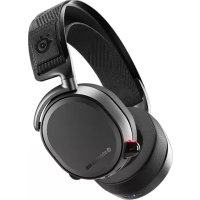
Arctis Pro Wireless - Headphones STEELSERIES - Free user manual and instructions
Find the device manual for free Arctis Pro Wireless STEELSERIES in PDF.



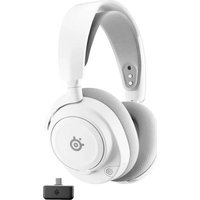
| Product type | Wireless headset with microphone |
| Brand | SteelSeries |
| Model | Arctis Pro Wireless |
| Connectivity | Wireless (2.4 GHz), Bluetooth |
| Battery life | Up to 20 hours (with included battery, additional battery for extension) |
| Battery type | Rechargeable lithium-ion (2 batteries included) |
| Compatibility | PC, Mac, PlayStation 4, Xbox One (via adapter), Nintendo Switch, mobile devices |
| Surround sound | DTS Headphone:X v2.0 and SteelSeries Engine 7.1 Surround Sound |
| Microphone | Retractable microphone with noise cancellation |
| Controls | Volume control wheel, Bluetooth button, ChatMix wheel, microphone adjustment wheel, secondary button |
| Wireless transmitter | With OLED screen, control wheel, optical input/output and USB |
| Included accessories | Wireless transmitter, USB audio cable, optical audio cable, power cable, mobile audio cable, mobile charging cable, product information guide |
| Weight (headset) | Approximately 430 g |
| Frequency response | 20 – 40,000 Hz |
| Impedance | 32 ohms |
| Sensitivity | 98 dB SPL |
| Care and cleaning | Clean with a soft dry cloth; do not use solvents or water on electronic components |
| Safety | Maintain a distance of at least 20 cm between the transmitter and any person; avoid prolonged listening at high volume |
| Spare parts and repairability | Spare parts available at steelseries.com; ear cushions, headband, batteries |
| Warranty | 2 years (depending on country) |
Frequently Asked Questions - Arctis Pro Wireless STEELSERIES
User questions about Arctis Pro Wireless STEELSERIES
0 question about this device. Answer the ones you know or ask your own.
Ask a new question about this device
Download the instructions for your Headphones in PDF format for free! Find your manual Arctis Pro Wireless - STEELSERIES and take your electronic device back in hand. On this page are published all the documents necessary for the use of your device. Arctis Pro Wireless by STEELSERIES.
USER MANUAL Arctis Pro Wireless STEELSERIES
PRODUCT INFORMATION GUIDE
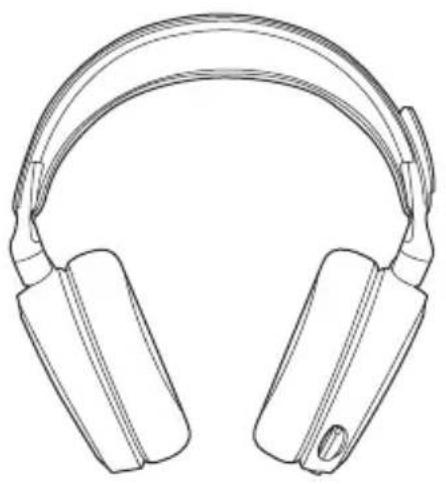
CONTENTS
Welcome 2
SteelSeries Engine 3
Product overview 5-8
Power On/Off 9
Bluetooth 10
Setup PS4 Pro/Original 11-12
Setup PS4 Slim 13-16
Setup PC/Mac 17-18
Ski Goggle Headband 19
Battery 20
Speakerplate
Transmitter Operation 22
Translations
Espanci 28
同休中义 27
日本讲 33
38
Deutsch 43
Pcckn 48
Frances 53
Regulatory 71
WELCOME TO
ARCTIS PRO WIRELESS
History showed us that gaming headsets rarely looked good and sounded worse, so we made Arctics and put all other headsets on notice. Next, the audiophiles said that a gaming headset could never stand up to dedicated headphones, so we made Arctics Pro and changed the game.
Like you, we are exports pros, pubstars, 5am ralders, 1hp heroes, streamers and dreamers. Your Arctis Pro was forged out of our belief that gaming isn't your way to escape reality, it's your path to rewrite it.
steelseries
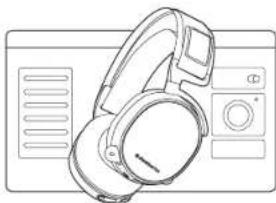
STEELSERIES ENGINE
Download SteelSeries Engine to control the Wireless Transmitter from PC, and to integrate with Engine Apps (like displaying Discord info on the OLED screen). steelseries.com/engine
SOFTWARE REQUIREMENTS
Platforms
Windows7+
Mac OS X 10.8 +
120 MB of free hard drive space for installation
DTS-Headphone:X.7.1 Surround available on Windows only.Software Installation required.
PACKAGE CONTENTS
Headset
Wireless Transmitter
Additional Battery
USB Audio Cable
Optical Audio Cable
Power Cable
Mobile Audio Cable
Mobile Charging Cable
SYSTEM REQUIREMENTS // COMPATIBILITY
PC
120 MB of free hard drive space for installation
PRODUCT OVERVIEW
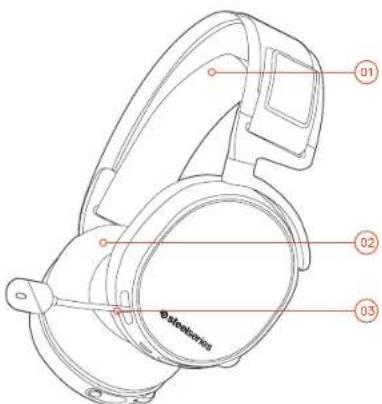
01 Ski goggle headband
02 Airweave ear cushions
03 ClearCast microphone
Find accessories and replacement parts at steelseries.com/gaming-accessories
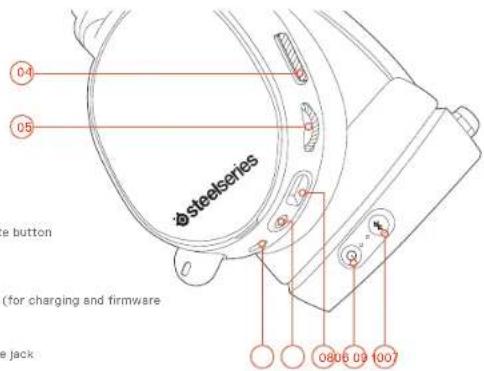
04 Microphone mute button
05 Control Wheel
06 Micro-USB jack (for charging and firmware updates)
07 Headphone share jack
08 Mobile audio cable jack
09 Power button
10 Bluetooth button
Find accessories and replacement parts at steelseries.com/gaming-accessories
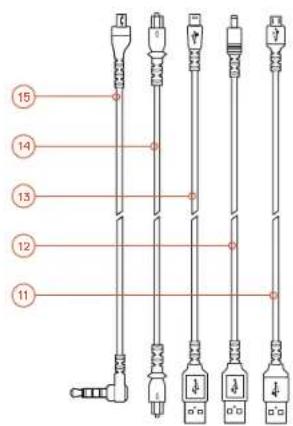
11 Mobile charging cable
12 Power Cable
15 USB Audio Cable
14 Optical Audio Cable
15 Mobile audio cable
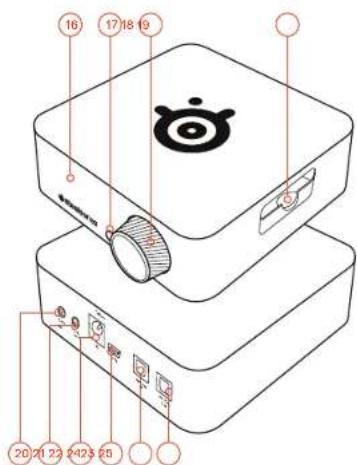
16 OLEDscreen
17 Secondary button
18 Contral knab
19 Battery charging slot
20 Line In jack
21 Line Out Jack
22 DC Jack
23 Mini USB jack
24 Optical In
25 Optical out
POWER ON/OFF
find help at support.steelseries.com
BLUETOOTH
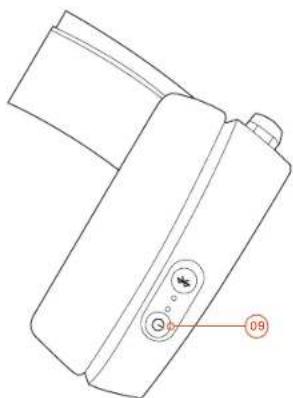
POWERON
Power the headet on or off press and hold the power button for 2 seconds.
PAIRING
The headset is already paired to the transmitter when it arrives. In the event you need to re-pair, go into the pairing menu and follow the on-screen instructions
Option > System > Pairing
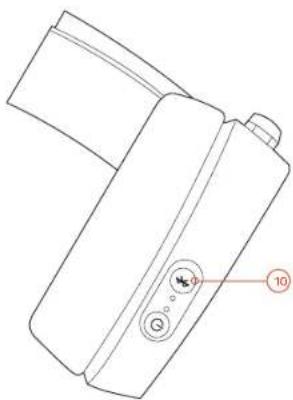
POWERON
To turn Bluetooth off, press and hold the Bluetooth button 10
PAIRING
With Bluetooth off, press and hold Bluetooth button (10) for 6 seconds.
CONTROL
ANSWER/END VOICE CALL single - press the Bluetooth button 10
II PLXYPAUSE MUSIC single·press the Bluetooth button 10
SKIP TRACK double·press Bluetooth button 10
SETUP PS4 PRO AND ORIGINAL
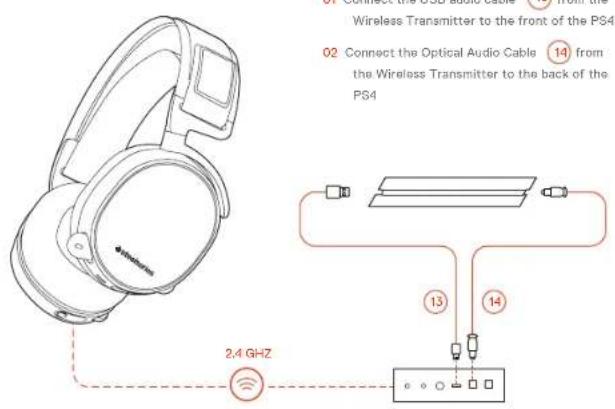
HARDWARE INSTALLATION
WIRELESS TRANSMITTER SETTINGS
Main Menu > Source > PS4
PS4 AUDIO SETTINGS
PS4 SETTING > SOUND AND SCREEN > AUDIO OUTPUT SETTING
Primary Output Port Digital Out (Optical)
Audio Format (Priority) Bitstream (Dolby)
DEVICES > AUDIO DEVICES
Output to Headphones Chat Audio
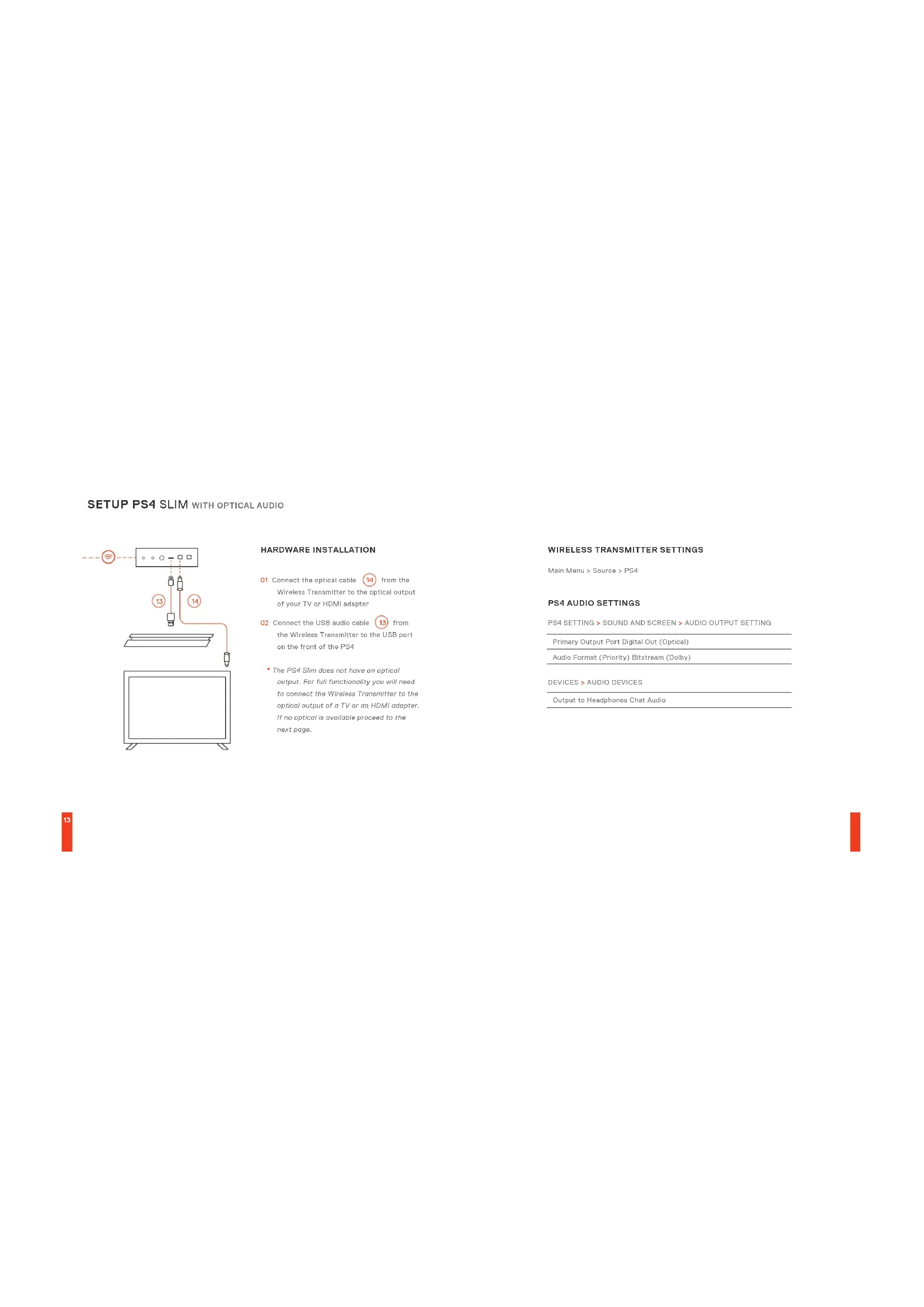
SETUP PS4 SLIM WITH OPTICAL AUDIO
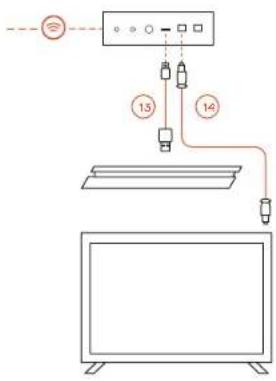
HARDWARE INSTALLATION
01 Connect the optical cable 14 from the Wireless Transmitter to the optical output of your TV or HDMI adapter
02. Connect the USB audio cable 13 from the Wireless Transmitter to the USB port on the front of the PS4
The PS4 Slim does not have an optical output. For full functionality you will need to connect the Wireless Transmitter to the optical output of a TV or on HDMI adapter, if no optical is available proceed to the next page.
WIRELESS TRANSMITTER SETTINGS
Main Menu > Source > PS4
PS4 AUDIO SETTINGS
PS4 SETTING > SOUND AND SCREEN > AUDIO OUTPUT SETTING
Primary Output Port Digital Out (Optical)
Audio Format (Priority) Bitstream (Dolby)
DEVICES > AUDIO DEVICES
Output to Headphones Chat Audio
SETUP PS4 SLIM WITHOUT OPTICAL AUDIO
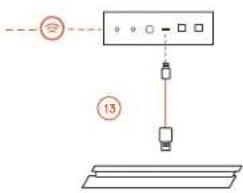
HARDWARE INSTALLATION
01 Connect the USB audio cable 13 from the Wireless Transmitter to the USB port on the front of the PS4
Without optical audio, surround sound and ChatMix features will be unavailable.
WIRELESS TRANSMITTER SETTINGS
Main Menu > Source > PS4
PS4 AUDIO SETTINGS
DEVICES > AUDIO DEVICES
Output to Headphones All Audio
SETUP PC/MAC find help at support.steeleries.com
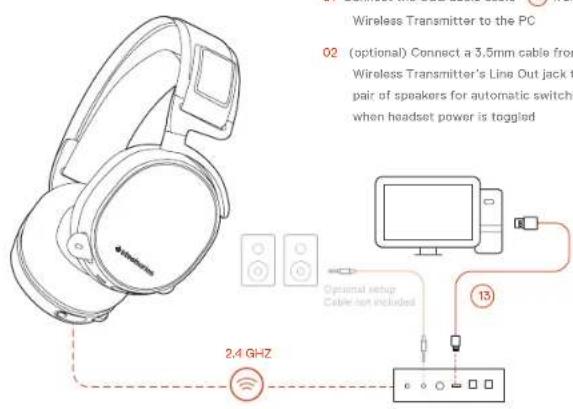
HARDWARE INSTALLATION
SETTINGS
Main Menu > Source > PC
WINDOWS SOUND SETTINGS
01 Under "Playback" highlight Arctis Pro Game Audio and select "Set Default"
02 Select Arctic Pro Chat Audio and select "Set Default Communications Device"
03 Under "Recording" highlight Arctic Pro Chat Audio and select "Set Default"
MAC SOUND SETTINGS
01 Go to System Preferences > Sound
02. Under 'Output' select Arctics Pro Game Audio
03 Under 'Input' select Arctis Pro Microphone
04 In your VoIP (chat) application select Arctis Pro Chat Audio as the default audio device
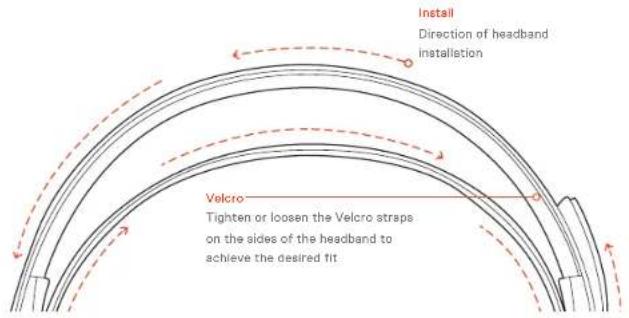
SKIGOGGLEHEADBAND
accessory headbands available at steeleries.com
BATTERY find help at support.steelseries.com
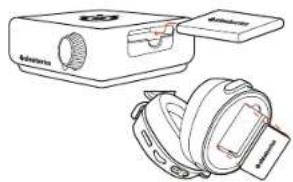
BATTERY SWAPPING
To charge additional battery, place the battery inside the charging slot on the transmitter
MOBILE CHARGING
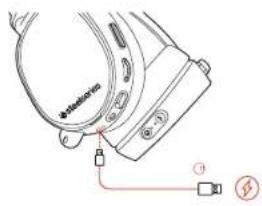
To charge headset while using or on the go, connect the Mobile Charging Cable from the micro-USB port on the headset to any USB power source
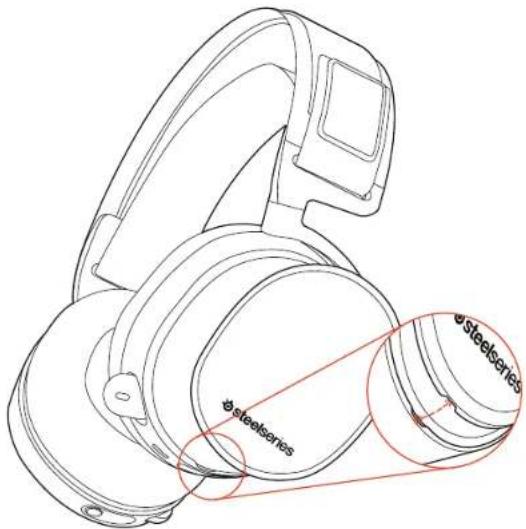
SPEAKER PLATE
accessories available at steeleries.com
- Rotate the control knob to adjust volume
Presa and release the control knob to enter the menu (to adjust EQ, set ChatMix, and customize settings) - Press and hold the secondary button to toggle surround
MAIN MENU
- Rotate the control knob to scroll through the menu
Press and release the control knob to select menu items - Press and release the secondary button to go back one step
ESPANOL
STEELSERIES ENGINE
SteelSeries71SurroundingWindows2000
用法及示例
-不助点以sopportsteels.com(@)上
製品概要
01 又半二儿
02Airwee不一
IM ClearCost
04√兑清言求
56 二小一儿水不一儿
D. ①②③
7△+20共有
08×不一
00
10Biliooth
11.王不存元
12 源小
1365-74
14 光学式才(才)儿
15十山不才一(才)
16 OLED自
17七元不
10.□一儿水一儿
1974-10-1
20 Time in 3D space
21LineOut
- 5.4.17
23 Minu 50分少
24 Optical In
25 Optical Oil
Wireless Transmission
Zusätzlicher Akku
US-Audioibel
Daa paaa -Kakmne Kcnky Buelcoth
YCTAHOBKA PS4 PRO IN OPMTHAHALBOHO OBOPYOBAHAI
01 PtoKIOHHTe 3ByKOBOI USB-Ka6eJIb oT
6ecnpoOho nepaK npTyHa
nepdneHnHaHe
02Pnoknnneontnuecknxab
6ecnprojnoDoro nepedatnK npoy 8 Zaehne PAnenH PS4
HACTPOKIN BECNPOBOHO
NEPEDATMKA
TnBHe MeHO>MCrHk>PS4
HACTPOIMKIN3BYKAPS4
HactpoKn Ps4>3BkyN 3KpaH>
Napanetpb3aykooroBbXo#a
A#papopat (npapop) > BtBosn notok (Dolay)
yctpoCTBa >3BykoBbIyeCTpoCTBa
BxHgHbHbHbHM>SyKUHTB
YCTAHOBKA HAP54 SLIM
COTTNNEKAN BYNCKAENEM
BHHHHE CNTMA PSI SIT He OHaJIeHa
CHHECKHM BILKOUSM, DIOI DPOCTYIB K COTHOMY
GametDACXOTTHCKOYBbXyTeTcA50CA
HHDVI-1A7T28E001073654139001b
DcYcHcyE, HpeyHekCnHouAICAHH
C1 TnKTHHHTOOTTNHCHKABOBCT
6ecpcaocno CnpaepnnaeK 10000000000000000000000000000000000000000000000000
Q2IOPKCHHTO 8NKOPOUUSBK05CNEOT
cecprccnncnepenapwnk k USB-nopy H
nepoepnahmP64
HACTPOIKNBECNPOBOIDHO
TnBHeMEOHIO>HCIOHIO>PSI
HACTPOUKN 3BYKAPPS4
Hactochnik P5>3yekNkpan >Pnapemtpb 3ykoBoro BvkoDa
IOTP CCHOS-FOO BEXDOA>JXp2000BEXDO (CENTHON-CHEK)
AyooooPOMT [PmOoPOT] > 5MTOH HIN TIOK (Dooy)
yctpoHCTBa >3BykoBbIe yctpoHCTBa
BxckK HbUHnKAM>3Byk 8NTA
YCTAHOBKA HA PS4 SLIM
0307HOCXoAaYIOKAaTJ
3HHHNNHBAE6B10000CBOOAOBDABD8A 4yKJHN-5oyKooOyT-N ChATMIX 10ocDytNb
01 TopoiKIOIe 38KcHON USB-KaBbIOT o
6ecnpoBocIO KTO npedatmKu KUS-NOpy H
TepenHINI INIIN PS1
HACTPOKNU3BYKAPS4
yctpoHCTBa >3dykoBHe yctpoHCTBa > BbxOcK
HAYUHKAMBCEHECTPOKNU3EYS
YCTAHOBKA HA KOMNBIOTEPE
102KHOHHTO 3YKOOP USKB KAOBTOCT
60CIOOOBHOHO NPODAPTHKA KCMBTOTOPY
10008370HIO TIOKIOHOHO 3.5MM
KABENI TO P3AHEM LHPHHBOHO BHXOJA
660000BHOHO NEPEATNA K PAPE KOCHOK
JUSSSOMNNECKO INEPKCHINNNH 38K BYP
BKIOOHHOHN BIKKIOCHHNKLYHKHO
NapametpbBecnpoBodHoro nepedaTnka
03Bpa#ene
Audio Audio Comprise VONOTOPRAP No. 1000H-HEMID
HACTPOK3BYKAJIMAC
01OikpoIeYCTAHOBKCACTEMU>3Byk
02 B paegeBuxon Haeepre Aclis Pro Game Audio
03 Ba paqaeB+X6Oy HbGaeNcE Arcils Pro Microphone
04 B npnoknnm VoP (vat) 166eprent Arcs Pro
Chat Audio B kncctc syckoor yocqovktaa
no yomnnae
NbIXHOE OROJIOBBe HAYUHNKOB
NnK 100000000000000000000000000000000000000000000000
OIOIOIOIOIOIOIOIOIOIOIOIOIOIOIOIOIOIOIOIOIOIOIOIOIOIOIOIOIOIOIOIOIOIOIOIOIOIOIOIOIOIOIOIOIOIOIOIOIOIOIOIOIOIOIOIOIOIOIOIOIOIOIOIOIOIOIOIOIOIOIO
AKKYMЛТTOP
CMEHAAKKYMYBTOPA
DINABAPKJN JIHNHIMHTHEE KEEK YMMNTIEPTE NAMCTTTOO E S AHPN NO 11000 ROPDAAIAH
MOBnIbHAR3APRkA
"Tocarapabinty HauyniHAI XOUYI, 20240010nptatrrnepaepbipnKab6e37MkCPO-USB TcnprHaiNtHAKK KIOLOMY MCTNNYIKYTVIISB C USB-CD3900X.
BECNPOBOHOH NPEPATNUK
TnabHbN 3KpAH
Pnoeepnre pnyk yrpasnehna dpa npeynpocck 386
Hakimite m O'ttmytme pyky npypanenhy, 0to5b Hoihi M Heo (Hui hienpocn knaaiaeaia
NIOOCHI-12h-12h PNOB/PTOc, a TAOKO Dn
ycytaon 10 ChatMx
HIMMIMI HYQNBOOYDAPTOBIOHOKNOY, YQOBb SKINOH4MbIKBKOHOBTB8BXBOKPY
Mehko
PbOeHnEpyKyIpyaBEBN,dyIpyckpykMgHI0
HOMMOTTO HOTCTTNO PNYVYPDQIOIINDB 845003PANTKOTMBHO
HOKIMITO HONGYITCHO TDOOYO KINOHYI DIAKOSHIPOH HUI HUJI HAIJU
FRANCAIS
STEELSERIES ENGINE
VUE D'ENSEMBLE DU PRODUIT
01 Sangge do livettes de skr?
02 Coussrea d'creille AirWeave
03 Microphone ClearCase
Option > System > Appraisal
Format audio (Pricii) > Bitstream (Doby)
Monoprincipal > Source > FS4
PARAMÉTRES AUDIO PS4
Parametres Ps4 > Son Et Écran > Parametres De Sortie Audio
Menur principal > Source > FC
PARAMETRES SON WINDOWS
Calegia cavo audio USB dial transmitterswireless at PC
05 Pugue do tabo principal
C9 Botao de igar
10 Rotao de Bluetooth
11 Cabo de recarga movel
12 Cabo de energia
13 Cao de audio US8
Cabo de audio cco
13 Cando de suito move
15.Tel.OLED
17 Hidao securcado
- Hode de contrôle
19 Etnocdo cngda toteria
20 Luguee entnada
-
Pugua do sida
-
Fluguedcabe de energea
26 Fugue Mini LSH
24 Entada buca
25 Sardos
Faxas disponveis am steelaeries.com
BATERIA
TROCA DE BATERIA
Para camrear a baterra adiondo, comoque a bateria.
dontro do esponq de cargo re transmisor:
CARREGAMENTO MOVEL
steelseries.com/engine
WYMAGANIA OPROGRAMOWANIA
Platform
W
Mac CSX 10.8-
PS4 (Pc, Slim, Original)
INFORMACJE O PRODUKCIE
01Cpaskpaoka
02 Poduszki Airwosve4
GoMantonClearCar
Przyosk wyciszaria mikroform
05Rolls ustanier
06 Port Micro-USB (co-leadwane) (actualzage)
000
07.10.1986 12:30 PM
12
0312758.2B
H
11Zewo do hokwirimolnepa
Frzewd/asyania
Federal Communication Commission Interference Statement
This device complies with Part 15 of the FOD Rules. Operation is subject to the following two conditions: (1) The device must be able to operate in a temperature-controlled environment; and (2) the device must accept any intermediate included. Including Interferences may cause undesired operation.
This equipment has been tested and found to comply with the limits for a Class E digital device, pursuant to Part 15 of the FCC Rules. These tests are designed to provide reasonable protection against harmful interference from electromagnetic radiation. The equipment is not intended to be used in any way other than for use in radio communications. However, there is no guarantee that interference will not occur in a particular installation. If this equipment does cause harmful interference to radio or television reception, which can be determined by the equipment owner and call center, the user is encouraged to try to correct the interference by one or more following actions.
Fecant or caksele the reolwing antenna.
Increase the perssation between the equipment and receiv
- Connect the equipment into an outlet on a outlet of different. From that to which the receiver is connected.
- Consult the driver or an experienced radio/TV technician for help.
FOC Statute: Any changes or modifications not expressly approved by the party responsible for compliance could hold the user's authority to operate the equipment.
This transmitter must not be co located or operating in conjunction with any other antenna or transmitter. Operations in the 50Hz products are restricted to indoor usage only.
Radiation Exposure Statement
This equipment coincides with FCC radiation exposure limits set forth for an uncontrolled environment. This equipment should be installed and operated with minimum distance 20cm between the radiator & your body Note: The country code selection is for non-US model only end is not available to all US model. Per FCC regulation, all WIR product market in US must belong to US operator channels only.
Industry Canada Statement:
This device complies with RSS 2.10 of the Industry Code Basis Rules. Option is subject to the following two conditions: (i) The device must be used in accordance with the Industry Code Basis Rules; (ii) The device must accept any interference assessed, including microstrip that may cause undesired operation.
Radiation Exposure Statement:
This equipment complies with IC radiation exposure limits set forth for an uncontrolled environment. This equipment should be installed and operated with minimum distance 20cm between the radiator & your body.
This Case Bldg r appnctus conlcks with Canadian (C) 003
Europe-EU Declaration of Conformity
Hired, Steve Serra Apa. describes that the equipment which is compliance with directive RoHS 2.0 (2015/833/EU, RLE D'2014/63/EU, 2016 Directive (2016/36/EU), and LVD (2013/36/EU) when leased by a third party.
The "Full text of the EU disclosure of conformity is available at the following Internet address: https://stocksonline.com/
Stock/Restricted Stock,锁定 conditions. To date, based on the three-boxes from our suppliers indicates that our products shall comply to the EU statutory company with REACH Registration, Evaluation, Authorization, and Postfix of Chemicals (I-G) (107/2070) compliance program. We are fully committed to ensuring REACH compliance on the products and ensuring accurate REACH compliance status for all of products.
WEEE
This product must not be disposed of with your other household waste or treat them in compliance with the law regulations or contact your local city office, your household waste disposal service or the shop where you are living.
Safety Guideline for Lithium Battery
Please keep follow all listed Important warnings and cautions below while using this battery pack to avoid any damage or hazard.
This product must not be disposed of with your office housewages or trust them in compliancy with the regulations of the UK. Your local city office, your household waste disposal service or the shop where you purchased the product.
"CAUTION!" Risk of explosion if battery pack is not replace by same type as specified by the manufacturer.
-
the battery poorly i and i^ shall not be connected and charged reversely. Risk of explosion if the battery poorly i and i^ is reversed.
-
Please keep this battery pack away from fire and high heat sources due to explosion, right, happen. Do not place your battery pack close to any heater or hot liquid.
-
This battery pack shall not be in contact with any sharp or kink objects other.
-
This barley pack shall not be exposed to moisture, drying or adenosing.
-
If any electrolyte flow out of the battery pack when touch the user's eyes and skin, please seek medical advice immediately.
Custom Union Compliance
(Russel/Bonin/Kazakhatn)

Direct Current

ACMA Complence (Austanae New Zainr)

More information and support from https://steelseries.com
Model No. 10/2017/15/03
Hated(增:原:SV,100mM
Accessories Information:
learn more at steelseries.com


- CONTENTS
- WELCOME TO
- ARCTIS PRO WIRELESS
- STEELSERIES ENGINE
- SOFTWARE REQUIREMENTS
- PACKAGE CONTENTS
- SYSTEM REQUIREMENTS // COMPATIBILITY
- PRODUCT OVERVIEW
- POWER ON/OFF
- BLUETOOTH
- POWERON
- PAIRING
- CONTROL
- SETUP PS4 PRO AND ORIGINAL
- WIRELESS TRANSMITTER SETTINGS
- PS4 AUDIO SETTINGS
- SETUP PS4 SLIM WITH OPTICAL AUDIO
- HARDWARE INSTALLATION
- SETTINGS
- WINDOWS SOUND SETTINGS
- MAC SOUND SETTINGS
- SKIGOGGLEHEADBAND
- BATTERY find help at support.steelseries.com
- BATTERY SWAPPING
- MOBILE CHARGING
- SPEAKER PLATE
- MAIN MENU
- ESPANOL
- 用法及示例
- 製品概要
- YCTAHOBKA PS4 PRO IN OPMTHAHALBOHO OBOPYOBAHAI
- HACTPOKIN BECNPOBOHO
- NEPEDATMKA
- HACTPOIMKIN3BYKAPS4
- YCTAHOBKA HAP54 SLIM
- HACTPOIKNBECNPOBOIDHO
- HACTPOUKN 3BYKAPPS4
- YCTAHOBKA HA PS4 SLIM
- HACTPOKNU3BYKAPS4
- YCTAHOBKA HA KOMNBIOTEPE
- NapametpbBecnpoBodHoro nepedaTnka
- HACTPOK3BYKAJIMAC
- NbIXHOE OROJIOBBe HAYUHNKOB
- AKKYMЛТTOP
- MOBnIbHAR3APRkA
- BECNPOBOHOH NPEPATNUK
- TnabHbN 3KpAH
- Mehko
- FRANCAIS
- VUE D'ENSEMBLE DU PRODUIT
- PARAMÉTRES AUDIO PS4
- Parametres Ps4 > Son Et Écran > Parametres De Sortie Audio
- PARAMETRES SON WINDOWS
- BATERIA
- TROCA DE BATERIA
- CARREGAMENTO MOVEL
- WYMAGANIA OPROGRAMOWANIA
- INFORMACJE O PRODUKCIE
- Federal Communication Commission Interference Statement
- Radiation Exposure Statement
- Industry Canada Statement:
- Radiation Exposure Statement:
- Europe-EU Declaration of Conformity
- WEEE
- Safety Guideline for Lithium Battery
Brand : STEELSERIES
Model : Arctis Pro Wireless
Category : Headphones