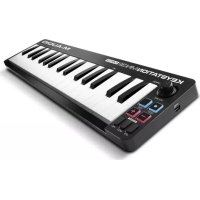
USER MANUAL Keystation Mini 32 MK3 M-AUDIO
User Guide (English)
Introduction
Thank you for purchasing the Keystation Mini 32 MK3. At M-Audio, we know how serious music is to you. That's why we design our equipment with only one thing in mind—to make your performance the best it can be.
Box Contents
M-Audio Keystation Mini 32 MK3
Software Download Card
USB Cable
Quickstart Guide
Safety & Warranty Manual
Support
For the latest information about this product (system requirements, compatibility information, etc.) and product registration, visit m-audio.com/Keystationmini32.
For additional product support, visit m-audio.com/support.
Connecting Your Keyboard
- Plug the USB cable provided with your Keystation Mini 32 MK3 keyboard to a free USB port on your computer.
- Plug the other end of the USB cable into the USB input on the Keystation Mini 32 MK3 keyboard.
The single USB cable not only powers the keyboard but also sends MIDI data to and from your computer system.
If you intend to use your Keystation Mini 32 MK3 with a USB hub, make sure the USB hub uses an external power supply. Using a passive USB hub which does not use a power supply may not provide enough power if other devices are connected to the hub.
We do not recommend connecting an audio interface to the same USB hub as the Keystation Mini 32 MK3.
You can also use Keystation Mini 32 MK3 with your iPad to control supported music creation apps.
Connecting your Keystation Mini 32 MK3 to an iPad requires the iPad Camera Connection Kit, which is available from the Apple Store.
Getting Started
Once you have finished the installation, you will need to configure your music software for use with Keystation Mini 32 MK3. Connect Keystation Mini 32 MK3 to your computer and then open your software. In your software's Preferences, Options, or Device Set-Up menu, select Keystation Mini 32 MK3. (In Windows XP SP3, Keystation Mini 32 MK3 will appear in your software under the name USB Audio Device.) Windows Vista, Windows 8, Windows 7, and MacOS will recognize the device as Keystation Mini 32 MK3.
For further information about configuring your software to receive MIDI data from your Keystation Mini 32 MK3, and using software instruments with the application, refer to the documentation provided with that product.
Software
We've included Pro Tools | First M-Audio Edition with your Keystation Mini 32 MK3 so you can get started making music with professional software right out of the box. For Pro Tools | First M-Audio Edition, register your Keystation Mini 32 MK3 on m-audio.com, and follow the Pro Tools | First M-Audio Edition install instructions in your user account.
Virtual Instruments
Follow the instructions on the software download card for installing the included virtual instrument plugins. After installation, most DAWs will not load virtual instrument plugins automatically. In order to access the virtual instrument plugins with Pro Tools | First M-Audio Edition, you will need to choose the plugin folder for the software to scan:
Pro Tools | First M-Audio Edition AAX plugin folders: Windows (32-bit): C:\Program Files (x86)\Common Files\Avid\Audio\Plug-Ins Windows (64-bit): C:\Program Files\Common Files\Avid\Audio\Plug-Ins macOS: Macintosh HD/Library/Application Support/Avid/Audio/Plug-Ins
Once you have finished the installation, you will need to configure your music software for use with Keystation Mini 32 MK3. Connect Keystation Mini 32 MK3 to your computer and then open your software. In your software's Preferences, Options, or Device Setup menu, select Keystation Mini 32 MK3. (In Windows XP, Keystation Mini 32 MK3 will appear in your software under the name USB Audio Device.)
- Connect Keystation Mini 32 MK3 to an available USB port on your computer using the supplied USB cable, and launch Pro Tools | First M-Audio Edition.
- Open or Create a Project.
- Select the Setup pulldown menu and open MIDI Input Devices. Enable MIDI Input from the Keystation Mini 32 MK3 by clicking the box next to the Keystation Mini 32 MK3.
- Select the Setup pulldown menu and open Playback Engine. Choose your audio device from the Playback Engine pulldown menu.
- To create a new Instrument track, select the Track pulldown menu and select New.
- In the New pulldown menu, select Stereo, and then Instrument Track.
- In the newly created track, add an Insert to your track by clicking in your track's Inserts A-E and selecting Multichannel Plugin > Instrument and select the instrument you would like to use, such as Xpand!2 (Stereo). The plugin can now be triggered with Keystation Mini 32 MK3.
Note: Windows users will need either an external soundcard (such as the M-Track 2X2) or a low-latency ASIO driver.
Keybed
The Keystation Mini 32 MK3 keybed has 2 1/2 playable octaves. The range of the keyboard is approximately in the middle of an 88 note keyboard. Using the Octave "+" or "-" buttons, you can access the full 88 keyboard range of a large piano keyboard.
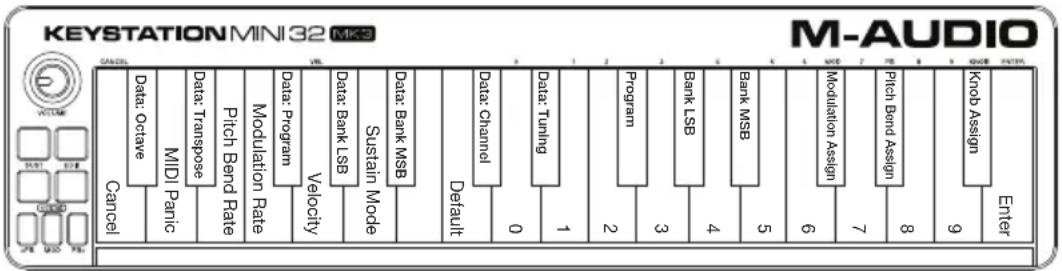
The assignable Octave buttons are used to shift the keyboard up or down in one-octave increments (12 semitones at a time). This extends the range of the keyboard up to four Octaves in either direction, which lets you play notes that lie outside of the 32 keys.
In their default state, such as when you first switch on your Keystation keyboard, the buttons are backlit in red. However, when you press either of them the color of that button turns green indicating that the octave change is active.
If you press the octave "+" button once, the button will turn green indicating the keyboard's octave is now shifted up. If you press the octave "+" key again, you will shift one more octave up, and so on.
To shift the octave down, press the octave " -" button and notice that the button turns green. If only the octave " -" key is lit green, the octave is shifted down and, if only the octave "+" key is lit in green, the octave is shifted up.
To return the octave shift to 0, press both the octave "+" and "-" buttons together. Both LEDs will return to their normal red color at half brightness, indicating that the octave shift has returned to 0.
You can assign other functions to these buttons in Edit Mode.
As the name indicates, the assignable pitch bend buttons are primarily used to bend the notes played on the keyboard up or down. Pressing and releasing these buttons while playing lets you play phrases not normally associated with keyboards, such as guitar-style phrases.
Your sound source determines if and how far you can bend the note. The usual setting is two semitones; however you should refer to the documentation provided with your sound source for information about how to change the Pitch Bend range.
You can also reassign these buttons in Edit Mode.
The modulation button takes the place of a wheel that is typically used for modulation of the sound you are playing. The depression of the button mimics the rotation of a wheel. This type of real-time controller was originally introduced on electronic keyboard instruments to give the performer options such as adding vibrato, just like players of acoustic instruments do.
Just like the pitch bend buttons, the modulation button is fully MIDI-assignable.
The default Continuous Controller number (MIDI CC) for Modulation is 1.
You can also reassign this button in Edit Mode.
Volume Knob
The Volume Knob sends a MIDI message that controls the volume of the notes you are playing.
The Volume Knob is assigned the default Continuous Controller number (MIDI CC) of 7 and can also be assigned to different parameters, such as pan (balance), attack, reverb, chorus and many more.
Refer to your MIDI hardware or software documentation to confirm that it is able to receive MIDI Volume messages.
The Sustain button can be used for sustaining the sound that you are playing, without having to keep your hands on the keyboard (just like the sustain pedal on a piano). Pressing the Sustain button engages Sustain; pressing it again disengages Sustain.
You can change how this button behaves in Edit Mode.
The Edit button is used to access the advanced Keystation Mini 32 MK3 functions located on the keybed.
Pressing the Edit button switches your keyboard into Edit Mode. The Edit button turns blue, and you can use the keys to select various advanced functions and enter data.
Depending on the function, your keyboard will exit Edit Mode as soon as a function is selected, or the Cancel or Enter keys are pressed. At this point, the Edit button light will dim, and the keyboard can be used for playing notes again.
Edit Mode
By default the Octave "+" and "-" buttons are used for shifting the Keystation Mini 32 MK3 keybed up or down one octave at a time. Whenever you power up the keyboard, the octave setting will be at the default value of "0," and the buttons will be red in color at half-brightness.
When the "+" button is used for raising the octave it will either illuminate or flash at full-brightness based on the octave chosen, and the "-" remains at half-brightness. Pressing the "-" button has the opposite effect, such that it will illuminate or flash at full-brightness based on the octave chosen, while the "+" button remains at half-brightness. The following table lists the colors used to identify each octave:
| OFF | GREEN | ORANGE | RED | RED Flashing |
| 0 | | +1 | +2 | +3 |
| 0 | | -1 | -2 | -3 |
+4
-4
If the Octave buttons have been assigned to one of the 6 additional functions as described in "Reassigning the Octave Buttons", you can reassign and use them for their default function (Octave) using the method described below.
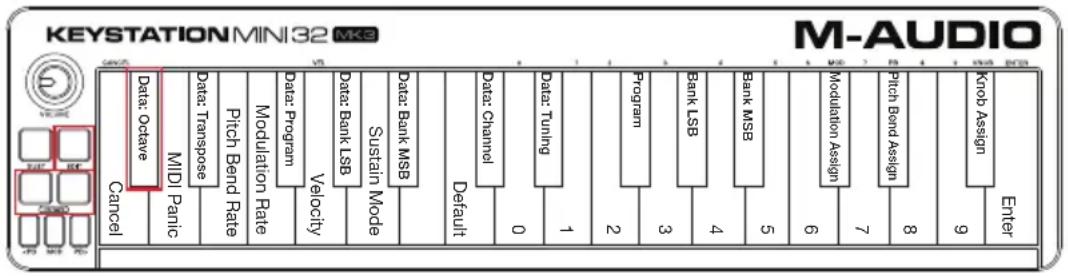
- Press the Edit button. The Edit button light will illuminate to full brightness indicating that the keyboard is in Edit mode.
- Press the "DATA = OCTAVE" key (C#, first black key on the left).
The keyboard exits Edit mode as soon as the "DATA = OCTAVE" key is pressed and both Octave buttons "+" and "-" will be red at half-brightness.
- Press either the "+" or "-" button to raise or lower the octave.
To return to the default octave setting:
Simultaneously press the "+" and "-" buttons. Both buttons will return to red at half-brightness.
The Data=Octave assignment is retained when the keyboard is turned off.
In addition to setting an octave shift, the Octave "+" and "-" buttons can also be assigned to control any one of the six additional MIDI functions described in this section.
In the diagram below, you will see that the first 7 black keys are labeled "DATA = _. Use these keys to select which function to assign to the Octave buttons. When assigned to these functions, both buttons will remain lit, regardless of the current setting of that function.
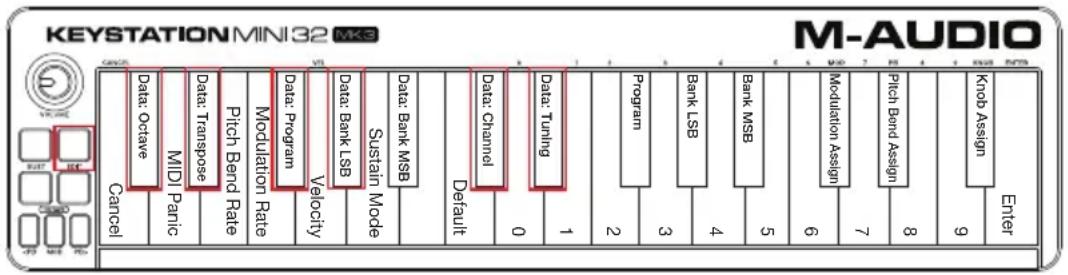
The six additional functions that you can assign the Octave buttons to are described in the following sections.
Transpose
In some cases it may be useful to raise or lower the pitch by a number of semitones (half-steps) as opposed to an entire octave. For example, if you are playing a song with a singer that is having difficulty singing the top notes, you may want to reduce the pitch by one or two semitones. This is achieved using the Transpose function. When assigned to this parameter, the keyboard can be transposed a maximum of one octave in either direction. The Data=Octave assignment is retained when the keyboard is turned off.
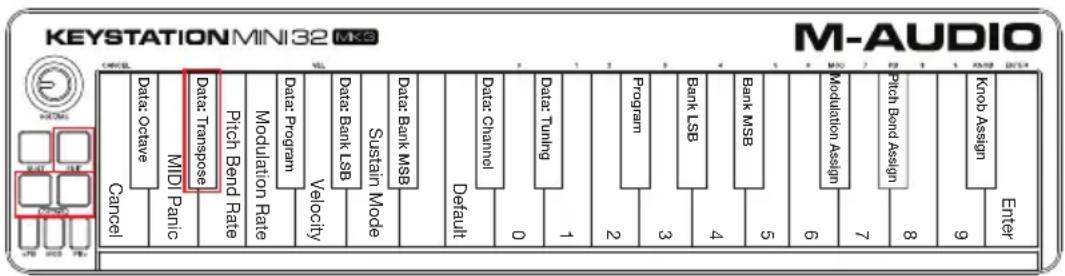
- Press the Edit button. The Edit button light will illuminate to full brightness.
- Press the "DATA = TRANSPOSE" key, (D#, 2nd black key from the left).
The keyboard exits Edit Mode as soon as the "DATA = TRANSPOSE" key is pressed, and the Edit light will return to half brightness.
- Press the "+" key and you will hear the pitch of the note get higher. Press the "-" key and you will hear the pitch get lower.
- Press both "+" and "-" together to cancel Transpose and return Transpose to zero.
The DATA=TRANSPOSE assignment is retained when the keyboard is turned off.
Program Change
Program Changes are used to change the instrument or voice you are using. For example, you could use this function to change the instrument to a bass sound.
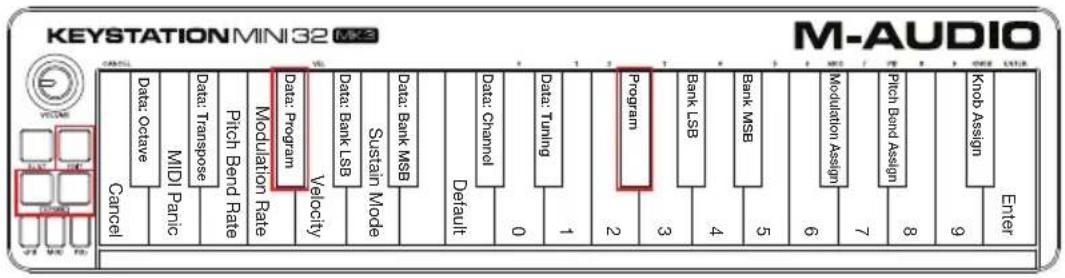
You can send a program change by:
- Sending an Incremental or Decremental program change using the Octave buttons in conjunction with the "Data=Program" key, which lets you step through each program number in either direction. If your MIDI hardware or software can receive MIDI Program changes, the buttons will increment or decrement between 0 and 127.
-or-
- Entering the program number using the numerical keys (0 - 9) in conjunction with the "PROGRAM" key on your Keystation Mini 32 MK3.
Both methods are explained below:
To send Incremental or Decremental Program Change messages:
- Press the Edit button to engage Edit Mode. The Edit button light will illuminate to full brightness.
- Press the "Data=Program" key, which is the black key above F (F#, 3rd black key from the left).
- The Edit Mode button will return to half brightness as soon as the "Data=Program" key has been pressed.
- Press the Octave ^+ or - button to step upwards or downwards through the sounds while continuing to play notes, until you find the instrument you want to use.
Pressing the "+" and "-" buttons simultaneously will recall Program 0, which selects a grand piano sound if you are playing a General MIDI (GM) Instrument.
The Data=Program assignment is retained when the keyboard is turned off. However, the setting is not.
To send a Program Change message using the numerical keys:
- Press the Edit button to enter Edit Mode. The Edit button will illuminate to full brightness.
- Press the "PROGRAM" key (F#, 6th black key from the right).
- Use the numerical keys (0 - 9) to enter the program number for the instrument you wish to play.
- Press the "ENTER" key (G, last white key on the right) to exit Edit Mode. The Edit button will return to half brightness indicating that programming is complete.
If you have made an error while entering the numerical data value, press the CANCEL key (C, first white key on the left). This exits Edit Mode without sending a program change message.
To return Program function to the default setting (Program 0):
- Press the Edit button to enter Edit Mode. The Edit button will illuminate to full brightness.
- Press the "PROGRAM" key (F#, 6th black key from the right as indicated in the graphic above).
- Press the "DEFAULT" key (C, 8th white key from the left). The Edit light will dim to half brightness indicating that programming is complete.
The program change message has been sent, selecting the default value of General MIDI Instrument "0" (Grand Piano).
Bank LSB and Bank MSB
Program Changes are most commonly used to change instruments and voices. However, the number of instruments accessible via Program Changes is limited to 128. However, some devices have more than 128 patches and require a different method of accessing these extra sounds. Most modern hardware synthesizers and many software synthesizer programs have hundreds of patches that are organized in banks of sounds.
Generally, these devices use Bank LSB and Bank MSB messages to access the banks, then use program changes within the banks to access specific patches. Most devices only accept MSB messages, but you should refer to the documentation for your device or software to confirm which bank message must be sent first, as this is determined by each manufacturer.
You can send either message type by:
- Sending an Incremental or Decremental change using the Octave buttons, which lets you step through each bank number in either direction.
-or-
- Entering the bank number using the numerical keys (0 - 9) on your Keystation Mini 32 MK3. Both methods are explained below for each message type:
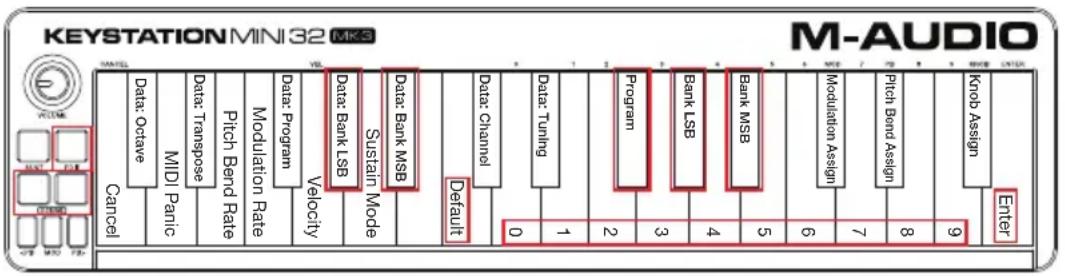
- Press the Edit button to enter Edit Mode. The Edit button will illuminate to full brightness.
- Press the "DATA = BANK LSB" key (G#, 4th black key from the left).
- Press the Octave "+" or "-" button to step upwards or downwards through the Bank LSB values. This takes you through each bank of sounds.
- Press the Edit button to enter Edit Mode. The Edit button will illuminate to full brightness.
- Press the "Data = Bank MSB" key (A#, 5th black key from the left).
- Press the Octave "+" or "-" button to step upwards or downwards through the Bank MSB values. This takes you through each bank of sounds.
The Data = Bank LSB, Data = Bank MSB value or any data assigned to LSB or MSB is not retained when the keyboard is turned off. However, the assignment data keys will be.
To send Bank LSB Changes using the numerical keys:
- Press the Edit button to enter Edit Mode. The Edit button will illuminate to full brightness.
- Press the "BANK LSB" key (G#, 5th black key from the right).
- Use the numerical keys (0 - 9) to enter the Bank LSB number for the bank of sounds you wish to access.
- Press the "ENTER" key (G, last white key on the right). The Edit button will return to half brightness indicating that programming is complete.
To send Bank MSB Changes using the numerical keys:
- Press the Edit button to enter Edit Mode. The Edit button will illuminate to full brightness.
- Press the "BANK MSB" key (A#, 4th black key from the right).
- Use the numerical keys (0 - 9) to enter the Bank MSB number for the bank of sounds you wish to access.
- Press the "ENTER" key (G, last white key on the right). The Edit button will return to half brightness indicating that programming is complete.
To recall the default bank number (0):
Simultaneously press the "+" and "-" buttons.
Channel
MIDI data from the keyboard can be sent on any of 16 MIDI Channels. However, certain MIDI devices and software require transmission of MIDI data on a specific channel number. If this is the case, you can change the MIDI channel number as described below.
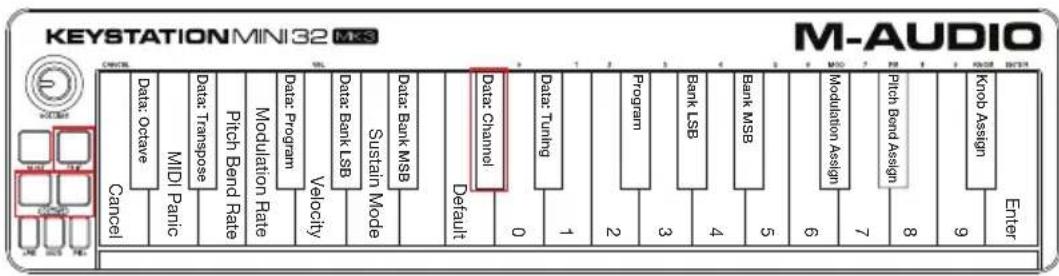
To change the MIDI Channel number:
- Press the Edit button to enter Edit Mode. The Edit button will illuminate to full brightness.
- Press the "DATA = CHANNEL" (named C#, 6th black key from the left). The Edit button light will return to half-brightness.
- Press the Octave ^+ or - button to step upwards or downwards through the MIDI Channel numbers.
Pressing both the "+" and "-" buttons together will recall Channel 1. When Channel 16 is reached and "+" is pressed, Channel 1 will be selected. The "+" and "-" button LEDs will not change, since it is not possible to have a Channel with a negative value. For example, if a device specifies that you need to send data on Channel 10, press the + button nine times to change from the channel 1 to select Channel 10.
The Data=Channel value is retained when the keyboard is turned off.
Tuning
The Tuning function can be used to alter the instrument being controlled to have its pitch shifted to be slightly sharp or slightly flat. The default Tuning value is 64, and it can be raised to 128 or lowered to 0 as described below.
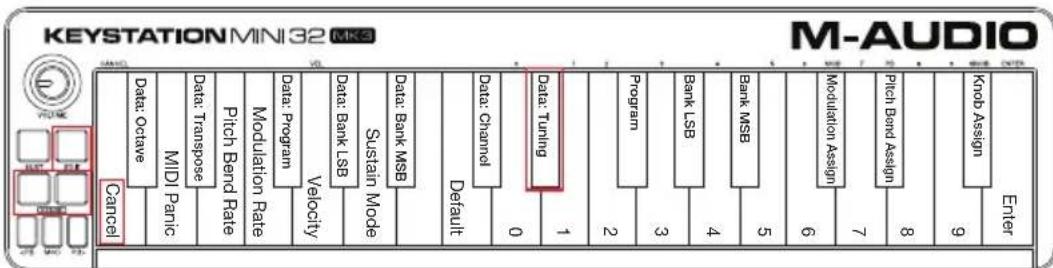
Check your third-party hardware or software documentation to confirm that your sound source responds to "MIDI Master Tune."
To assign the "+" and "-" keys to control the Tuning function:
- Press the Edit button to enter into Edit Mode. The Edit button light will illuminate to full brightness.
- Press the "DATA = TUNING" key (D#, seventh black key from the right). The Edit button will return to half-brightness. The Octave "+" button will illuminate green, and the "-" button will be red.
- Press "+" or "-" while continuing to play notes until the instrument is tuned to the pitch that you want.
Selecting a value below the default setting of 64, changes the Octave "-" button from red to green. Selecting a value greater than 64, changes the Octave "+" button from red to green.
To return the tuning to the default setting (concert pitch):
Press the Octave - and +^ buttons simultaneously. Both buttons will return to their default value of red at half-brightness.
It is possible to assign other MIDI controls to the Modulation button, such as:
01 Modulation
07 Volume
10 Pan (balance)
05 Portamento
There are 131 parameters in total including the 128 standard MIDI Control Change messages (MIDI CCs). However, for these parameters to have any effect on the sound, the receiving MIDI device or software must be able to read and respond to these MIDI effect messages. Most devices will at least respond to volume, modulation, and pan data.
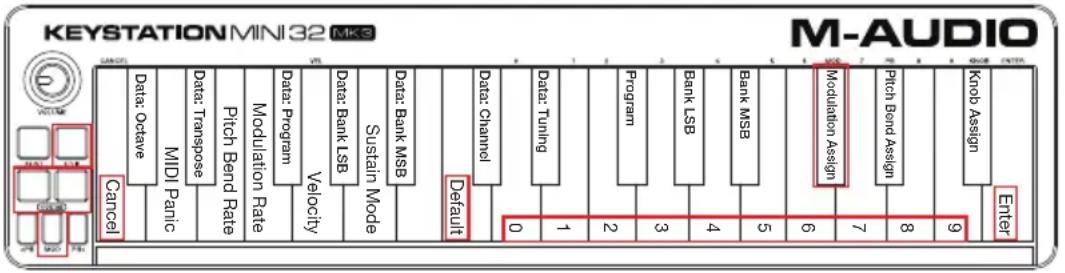
The process of assigning an effect to the Modulation button and reverting to the default setting is explained below.
These instructions use the example of assigning the parameter number 131 (Channel Aftertouch) to the Modulation button, but the concept also applies when assigning other parameters.
- Press the Edit button. The Edit button light will illuminate to full brightness.
- Press the "MOD ASSIGN" key (C#, 3rd black key from the left).
- Press E (10th white key from the right) to enter "1."
- Press G (8th white key from the right) to enter "3."
- Press E (10th white key from the right) to enter "1."
- Press the "ENTER" key (G, last white key on the right). The Edit button will dim to half brightness indicating that programming is complete.
If you have made an error while entering the numerical data value, you can press the CANCEL key (C, first white key on the left) to exit Edit Mode without changing the effect assigned to the Modulation button.
The Modulation button assignment is retained when the keyboard is turned off.
- Press the Edit button to engage Edit Mode and the Edit button light will illuminate to full brightness.
- Press the "MOD ASSIGN" key (C#, 3rd black key from the left).
- Press the "DEFAULT" key (C, 8th white key from the left). The Edit light will dim to half brightness indicating that programming is complete.
Modulation Rate
It is possible to alter the sensitivity of the Modulation button effects using the "Mod Rate" function. This lets you adjust the ramp up time for effects assigned to the Modulation button. The range for Modulation Rate is 0 - 127, with a default setting of 64. The lower the value, the slower the rate and vice versa.
As an example, the following set of instructions and accompanying table of values explains how to use the "Mod Rate" function when changing the ramp time from the default value of 64 to 127.
| Value Rate | |
| 0 Ramp occurs slowly | |
| 64 [default] Ramp occurs relatively quickly |
| 126 Ramp occurs very quickly | |
| 127 No ramp. Only one value is sent – min. or max |
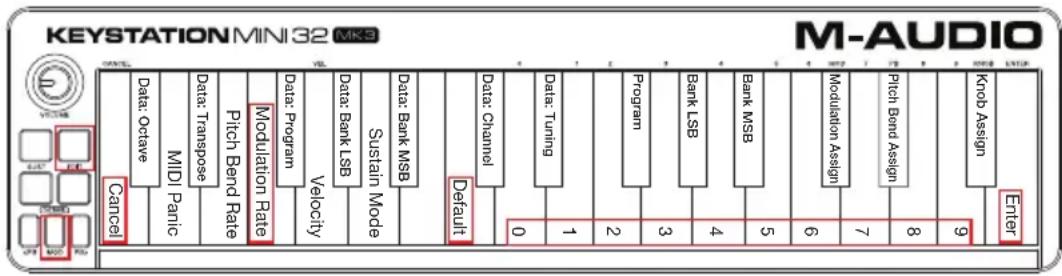
To adjust the Modulation Rate:
- Press the Edit button. The Edit button light will illuminate to full brightness.
- Press the "Mod Rate" key (F, 4th white key from the left).
- Press E (10th white key from the right) to enter "1."
- Press F (9th white key from the right) to enter "2."
- Press D (4th white key from the right) to enter "7."
If you have made an error while entering the numerical data value, you can press the "CANCEL" key (C, first white key on the left) to exit Edit Mode without making any changes.
As an alternative to steps 3 through 5, you can use the "+" and "-" buttons to change the value.
- Press the "ENTER." key (G, last white key on the right.)
- Press the "Mod" button to hear change in the effect rate.
The Mod Rate value is retained when the keyboard is turned off.
To return the Modulation Rate to the default settings:
- Press the Edit button. The Edit button light will illuminate to full brightness.
- Press the "Mod Rate" key (F, 4th white key from the left).
- Press the "DEFAULT" key (C, 8th white key from the left). The Edit light will dim to half brightness indicating that programming is complete.
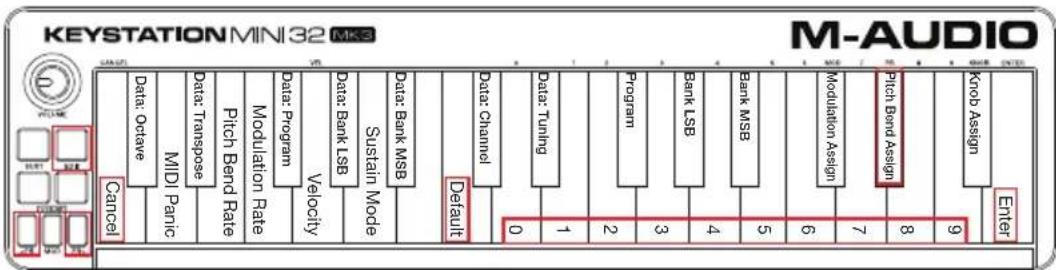
- Press the Edit button. The Edit button light will illuminate to full brightness.
- Press the "PB ASSIGN" key (D#, 2nd black key from the right).
- Use the Numerical Data Entry keys (0-9) to enter the number of the effect.
If you have made an error while entering the numerical data value, you can press the "CANCEL" key (C, first white key on the left) to exit Edit Mode without making any changes. As an alternative to steps 3 through 5, you can use the "+" and "-" buttons to change the value.
- Press the "ENTER" key (G, last white key on the right); the Edit light will dim to half brightness indicating that programming is complete.
- Press the Pitch Bend > button to increase the value of the effect.
The Pitch Bend button assignments are retained when the keyboard is turned off.
- Press the Edit button. The Edit button light will illuminate to full brightness.
- Press the "PB ASSIGN" key (D#, 2nd black key from the right).
- Press the "DEFAULT" key (C, 8th white key from the left). The Edit light will dim to half brightness indicating that programming is complete.
Pitch Bend Rate
It is possible to alter the sensitivity of the Pitch Bend buttons using the Pitch Bend Rate function. This lets you adjust the pitch bend ramp up time. The default setting is 80, with a range of 0 - 127. As shown in the following table, the lower the value, the slower the Pitch Bend Rate and vice versa.
| Value Rate | |
| 0 Ramp occurs slowly | |
| 80 [default] Ramp occurs relatively quickly | |
| 126 Ramp occurs very quickly | |
| 127 No ramp. Only one value is sent – min. or max | |
The Pitch Bend Rate can be adjusted using the "PB RATE" key in conjunction with the numerical keys. The following instructions use the example of changing the Pitch Bend Rate to 127.
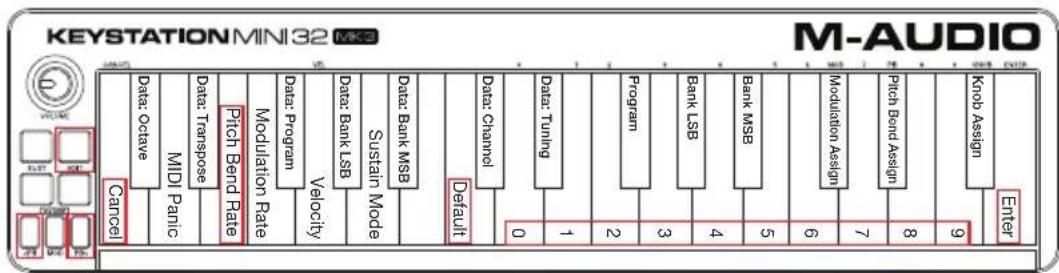
To adjust the Pitch Bend Rate:
- Press the Edit button to engage Edit Mode and the Edit button light will illuminate to full brightness.
- Press the "PB RATE" key (E, 3rd white key from the left).
- Press E (10th white key from the right) to enter "1."
- Press F (9th white key from the right) to enter "2."
- Press D (4th white key from the right) to enter "7."
If you make an error while entering the value, press the "CANCEL" key to exit Edit Mode without making any changes. As an alternative to steps 3 through 5, you can use the "+" and "-" buttons to change the value.
- Press the "ENTER" key (G, last white key on the right); the Edit light will dim to half brightness indicating that programming is complete.
- Press the "PB>" button while playing to hear how the Pitch Bend will occur faster than before.
The PB Rate setting is retained when the keyboard is turned off.
To return the Pitch Bend Rate to the default setting:
- Press the Edit button. The Edit button light will illuminate to full brightness.
- Press the "PB RATE" key (E, 3rd white key from the left).
- Press the "DEFAULT" key (C, 8th white key from the left). The Edit light will dim to half brightness indicating that programming is complete.
Volume Knob
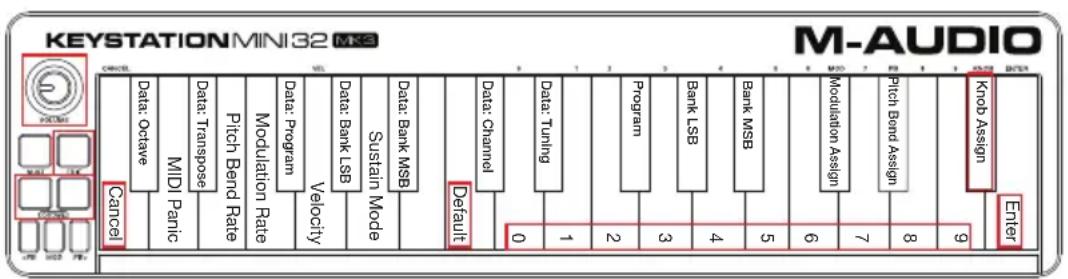
To assign the Volume Knob to an effect:
- Press the Edit button. The Edit button light will illuminate to full brightness.
- Press the "KNOB ASSIGN" key (F#, 1st black key from the right).
- Use the Numerical Data Entry keys (0 - 9) to enter the number of the parameter you want to assign to the Volume Knob.
If you have made an error while entering the parameter number, you can press the "CANCEL" key (C, first white key on the left) to exit Edit Mode without making any changes. As an alternative to step 3, you can use the "+" and "-" buttons to change the parameter.
- Press the "ENTER" key (G, last white key on the right); the Edit light will dim to half brightness indicating that programming is complete.
- Move the Volume knob clockwise to increase the parameter value.
The Volume Knob assignment is retained when the keyboard is turned off.
To return the Volume Knob to its default parameter (07 - Volume):
- Press the Edit button. The Edit button light will illuminate to full brightness.
- Press the "KNOB ASSIGN" key (F#, 1st black key from the right).
- Press the "DEFAULT" key (C, 8th white key from the left). The Edit light will dim to half brightness indicating that programming is complete.
Velocity
When you play your Keystation Mini 32 MK3, the sound you hear will be affected by how hard you press the key. Pressing the key very lightly will result in the sound from your software being heard very softly, while pressing the key very hard will result in it being heard very loudly. Normal playing will result in the sound from your software to be heard somewhere in between.
Your Keystation Mini 32 MK3 offers the velocity settings described in the table below, called Velocity Curves. While the keyboard is in Edit mode, you can follow the instructions below to choose a Velocity Curve that either suits your playing style or the kind of "feel" or dynamics you want an instrument part to have.
| Value entered Curve Notes | |
| 0 | Low | The curve generates lower velocities for the same force, making it easier to play softly. |
| 1 [default setting] Normal | This curve is mid-way between the other two. | |
| 2 | High | The curve generates higher velocities for the same force, making it easier to play loudly. |
| 3 | Stepped | This curve outputs velocity values of 100 and 127 only, as used in some drum machines. |
| From 4 to 127 Fixed | | Velocity is fixed at the selected value. All notes will play at the specified velocity. |
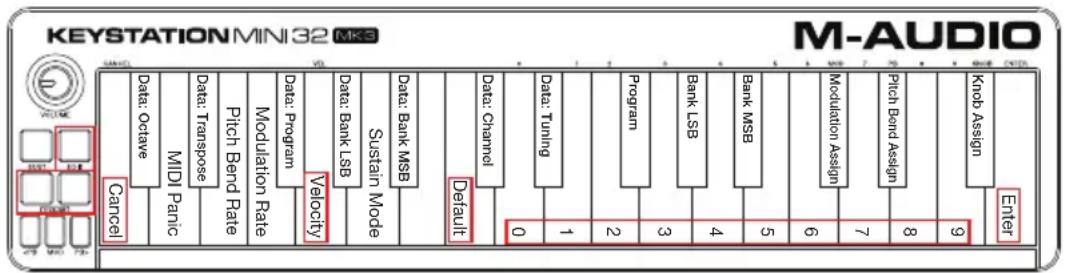
To select a new Velocity Curve:
- Press the Edit button to engage Edit Mode and the Edit button light will illuminate to full brightness.
- Press the "VELOCITY" key (G, 5th white key from the left).
- Use the Numerical Data Entry keys (0 - 9) to enter the number of the Velocity Curve you want to use. If you have made an error while entering the Effect number, you can press the "CANCEL" key (C, first white key on the left) to exit Edit Mode without making any changes.
As an alternative to step 3, you can use the "+" and "-" buttons to change the value.
- Press the "Enter" key G (last white key on the right) to commit the change. The Edit button will dim to normal half brightness indicating that programming is complete.
The Velocity Curve setting is retained when the keyboard is turned off.
- Press the Edit button to engage Edit Mode. The Edit button light will illuminate to full brightness.
- Press G (5th white key from the left), representing "Velocity."
- Press C (8th white key from the left), representing "Default", the Edit light will dim to half brightness indicating that programming is complete.
Sustain Mode
The Sustain button can work in two different modes called Latching and Momentary. Latching mode is the default setting in which momentarily pressing the Sustain button and playing a note causes it to sustain after it has been played without keeping your hands on the keyboard. However, the sound will not stop until the button is pressed again.
Momentary mode works in the same manner as a traditional sustain pedal, such that holding the Sustain button down and playing a note causes it to sustain until the button is released.
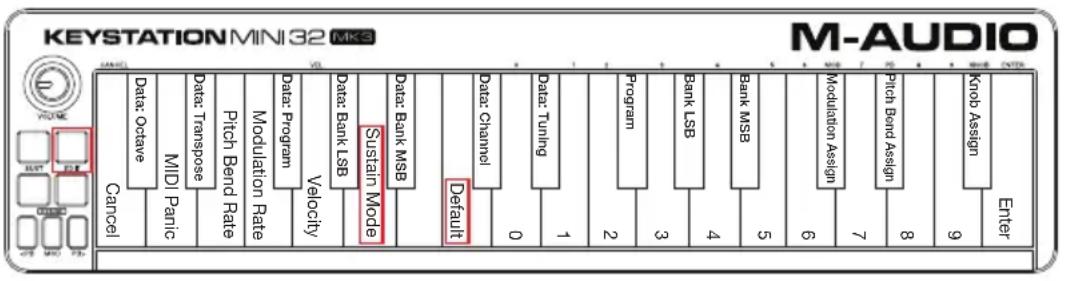
To change the Sustain mode from Latching to Momentary:
- Press the Edit button. The Edit button light will illuminate to full brightness.
- Press the "SUSTAIN MODE" key (A, 6th white key from the left). The Edit mode button will dim to half brightness indicating that programming is complete.
Now holding the Sustain button down and playing a note will cause it to sustain until the button is released.
The Sustain Mode setting is retained when the keyboard is turned off.
- Press the Edit button. The Edit button light will illuminate to full brightness.
- Press the "SUSTAIN MODE" key (A, 6th white key from the left). The Edit mode button will dim to half brightness indicating that programming is complete.
Now pressing the Sustain button and playing a note will cause it to sustain until the button is pressed a second time.
Troubleshooting
Troubleshooting MIDI Functionality
Keystation Mini 32 MK3 has been designed to make working with MIDI on your computer as simple as possible. However, you may experience some difficulties. In many cases, the keyboard is not at fault, as the problem lies with the receiving device or software. To counter this, the Panic and Full Reset functions are available to assist you.
If there are notes that will not stop playing, or if you find there is an effect on a voice that you do not want, you can send a Reset All Controllers MIDI message.
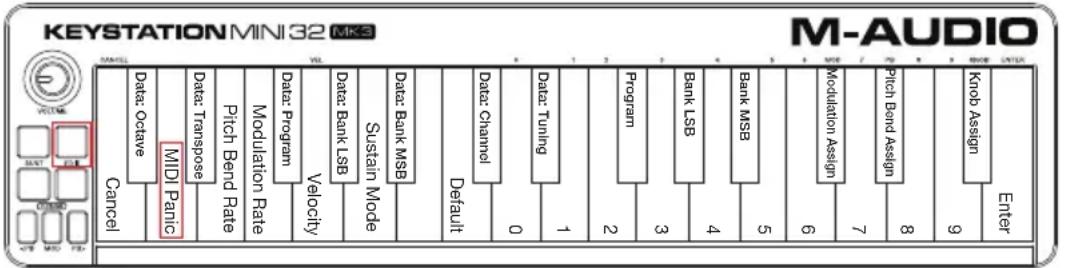
To send a Reset All Controllers message:
- Press the Edit button to enter Edit Mode and the Edit button will illuminate to full brightness.
-
Press the "PANIC." key (D, 2nd white key from the left):
-
An "All Notes off" MIDI message is sent.
MIDI Controller 121, Value 0 and MIDI Controller 123, Value 0 is sent out on ALL MIDI Channels 1 - 16
- Edit Mode will disengage as soon as the Panic button is pressed, the Edit light will go to half brightness indicating that programming is complete.
Full Reset
To send a Full Reset message:
- Make sure your computer is running.
- Switch on the Keystation Mini 32 MK3 by plugging in the USB Cable from your computer while simultaneously holding down the Octave "+" and "-" buttons.
This will reset all Data= and controller assignments to the following values:
| Parameter Factory Default | |
| Program Number 000 | |
| Bank MSB Number 000 | |
| Bank LSB Number 000 | |
| Channel Number 00 (channel 1) | |
| Octave shift 000 | |
| Transpose shift 000 | |
| Modulation Button MIDI CC 001 | |
| Volume Knob MIDI CC 007 | |
| Pitch Bend Buttons Pitch Bend | |
| Octave Buttons - Assignment Data = Octave |
| Velocity | 1 |
=
General Troubleshooting
Here are answers to common questions you may have while using your Keystation keyboard:
My M-Audio hardware suddenly stopped working.
If your M-Audio hardware suddenly stops working, try the following:
- Disconnect, wait 10 seconds, reconnect.
- Try connecting to different USB ports.
- Try using a different USB cable.
I have plugged the Keystation into my computer but the lights on the keyboard will not work.
Not all USB ports are powerful enough for a device such as a Keystation Mini 32 MK3. Try plugging it into another USB Port to see if that remedies the problem. You can also connect a powered USB hub to your computer and then plug your Keystation Mini 32 MK3 into the hub.
When I press a key, there is a delay before I hear the note.
This delay, which occurs more often on Windows systems, is known as latency. This issue is caused by the time it takes for your recording software to receive and process the MIDI data transmitted from your Keystation Mini 32 MK3, and then send the resulting audio signal to your audio interface or sound card, and out to your speakers or headphones.
Make sure you are using a compatible audio interface. Refer to m-audio.com for a selection of USB, PCI and FireWire audio interfaces.
To reduce the amount of latency, you will need to select a new driver from the available choices listed in the audio preferences (or audio options) window within your software. If you are not sure how to access the audio preferences, refer to the documentation provided with your software for instructions about how to do so.
The following screenshot is an example of the different settings you are likely to find in the audio preferences for your software. However, you should refer to the user guide for the program as the layout or the window may be different. Looking at the window, you will notice that the current driver being used by your software appears in one of the sections, and that the current amount of latency appears is another section.
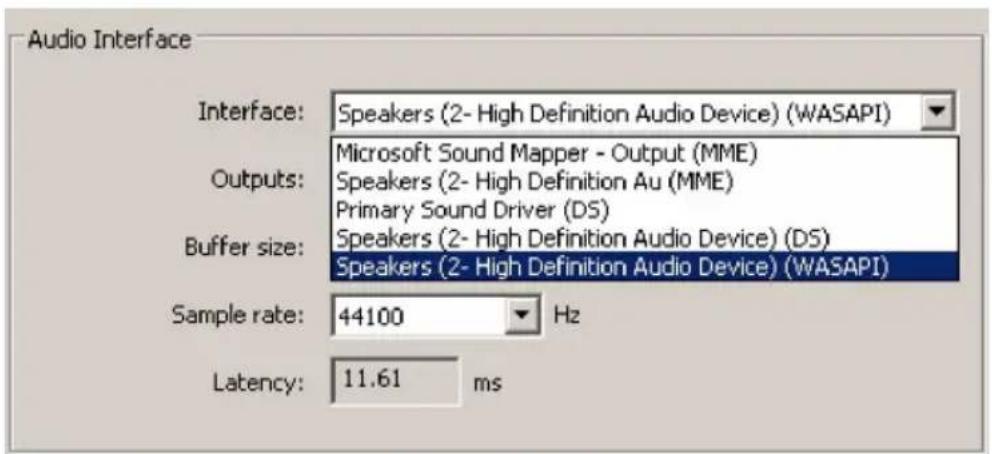
Windows Vista, Windows 7, and Windows 8 users should refer to the documentation or the manufacturer's website for their audio interface or sound card, to confirm that it is a WASAPI compatible device.
If you are still experiencing a latency issue, you can find further troubleshooting information on our website at: m-audio.com/support.
macOS: Macintosh HD/Library/Application Support/Avid/Audio/Plug-Ins
Assistance technique
macOS: Macintosh HD/Bibliothèque/Application Support/Avid/Audio/Plug-ins
Boutons Octave (Octave)
Bouton de sustain (Sust)
Pro Tools | First M-Audio Edition/AAX cartelle plugin:
Windows (32-bit): C:\Program Files (x86)\Common Files\Avid\Audio\Plug-Ins
Windows (64-bit): C:\Program Files\Common Files\Avid\Audio\Plug-Ins
macOS: Macintosh HD/Library/Application Support/Avid/Audio/Plug-Ins
Pulsanti Octave (Octave)
Pro Tools | First M-Audio Edition/AAX Plugin-Ordner:
macOS: Macintosh HD/Library/Application Support/Avid/Audio/Plug-Ins
Oktav-Taster (Octave)
Wheel and Fader User Assignments
| 00 Bank Select 38 Data Entry LSB 112 Controller 112 | | |
| 01 Modulation 39 Channel Volume LSB 113 Controller 113 | | |
| 02 Breath Control 40 Balance LSB 114 Controller 114 | | |
| 03 Controller 3 41 Controller 41 115 Controller 115 | | |
| 04 Foot Control 42 Pan LSB 116 Controller 116 | | |
| 05 Porta Time 43 Expression LSB 117 Controller 117 | | |
| 06 Data Entry 44 Controller 44 118 Controller 118 | | |
| 07 Channel Volume 45 Controller 45 119 Controller 119 | | |
| 08 Balance 46 Controller 46 | | Channel Mode Messages: |
| 09 Controller 9 47 Controller 47 120 All Sound off | | |
| 10 Pan 48 Gen Purpose 1 LSB 121 Reset all Controllers | | |
| 11 Expression | 49 Gen Purpose 2 LSB 122 Local Control | |
| 12 Effects Controller 1 | 50 Gen Purpose 3 LSB 123 All Notes Off | |
| 13 Effects Controller 2 | 51 Gen Purpose 4 LSB 124 Omni Off | |
| 14 Controller 14 52 Controller 52 125 Omni On | | |
| 15 Controller 15 53 Controller 53 126 Mono On (Poly Off) | | |
| 16 Gen Purpose 1 | 54 Controller 54 127 Poly On (Mono Off) | |
| 17 Gen Purpose 2 | 55 Controller 55 Extra RPN Messages: | |
| 18 Gen Purpose 3 | 56 Controller 56 128 Pitch Bend sensitivity | |
| 19 Gen Purpose 4 | 57 Controller 57 129 Fine Tune | |
| 20 Controller 20 58 Controller 58 130 Coarse Tune | | |
| 21 Controller 21 | 59 Controller 59 131 Channel Pressure | |
| 22 Controller 22 60 Controller 60 | | |
| 23 Controller 23 61 Controller 61 | | |
| 24 Controller 24 62 Controller 62 | | |
| 25 Controller 25 63 Controller 63 | | |
| 26 Controller 26 64 Sustain Pedal | | |
| 27 Controller 27 65 Portamento | | |
| 28 Controller 28 66 Sostenuto | | |
| 29 Controller 29 67 Soft Pedal | | |
| 30 Controller 30 68 Legato Pedal | | |
| 31 Controller 31 69 Hold 2 | | |
| 32 Bank Select LSB | 70 Sound Variation | |
| 33 Modulation LSB | 71 Resonance | |
| 34 Breath Control LSB | 72 Release Time | |
| 35 Controller 35 73 Attack Time | | |
| 36 Foot Control LSB | 74 Cut-off Frequency | |
| 37 Porta Time LSB | 75 Controller 75 | |
| 38 Data Entry LSB 76 Controller 76 | | |
| 39 Channel Volume LSB 77 Controller 77 | | |
| 40 Balance LSB 78 Controller 78 | | |
| 41 Controller 41 79 Controller 79 | | |
| 42 Pan LSB 80 Gen Purpose 5 | | |
Technical Specifications
| Power | USB bus powered |
| Dimensions (Length x Width x Height) | 16.46" x 4.13" x 0.78"; 418 mm x 105 mm x 20 mm |
| Weight | 1 lb.; 0.45 kg |
Specifications are subject to change without notice.
Trademarks and Licenses
M-Audio is a trademark of inMusic Brands, Inc., registered in the U.S. and other countries.
AAX, Avid, and Pro Tools are registered trademarks of Avid Technology, Inc. in the U.S. and other countries.
Apple Store, iPad, and MacOS are trademarks or service marks of Apple Inc., registered in the U.S. and other countries.
Windows is a registered trademark of Microsoft Corporation in the United States and other countries.
All other product or company names are trademarks or registered trademarks of their respective owners.
WARNING: This product contains chemicals, including lead, known to the State of California to cause cancer, and birth defects or other reproductive harm. Wash hands after handling.
m-audio.com