
eKeys - MIDI Keyboard M-AUDIO - Free user manual and instructions
Find the device manual for free eKeys M-AUDIO in PDF.


| Product Type | MIDI Keyboard Controller |
| Brand | M-Audio (Evolution) |
| Model | eKeys |
| Number of Keys | 49 (full-size, velocity-sensitive) |
| Connectivity | USB (Class-compliant, no driver needed for Windows XP/Mac OS X) |
| Power Supply | USB bus-powered |
| Dimensions (Approx.) | 810 x 150 x 60 mm (31.9 x 5.9 x 2.4 in) |
| Weight (Approx.) | 1.2 kg (2.6 lbs) |
| Supported Operating Systems | Windows 98/ME/2000/XP, Mac OS X |
| Included Software | PictureBoard, Music Teacher, Sound Studio |
| MIDI Channels | 16 |
| Controls | None (keyboard only) |
| Sustain Pedal Input | 1/4" TS (polarity detection on power-up) |
| Compliance | FCC Class B, CE |
| Cleaning | Wipe with a dry, soft cloth. Do not use solvents. |
| Storage Temperature | 0°C to 40°C (32°F to 104°F) |
Frequently Asked Questions - eKeys M-AUDIO
User questions about eKeys M-AUDIO
0 question about this device. Answer the ones you know or ask your own.
Ask a new question about this device
Download the instructions for your MIDI Keyboard in PDF format for free! Find your manual eKeys - M-AUDIO and take your electronic device back in hand. On this page are published all the documents necessary for the use of your device. eKeys by M-AUDIO.
USER MANUAL eKeys M-AUDIO
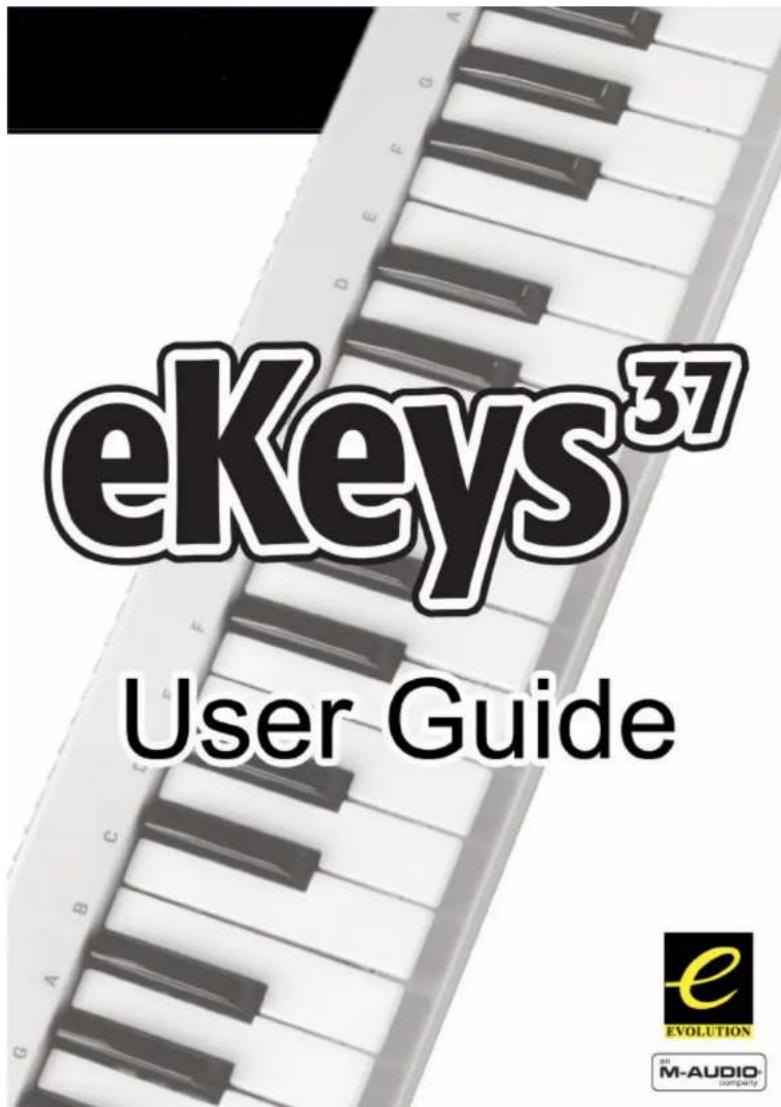
Evolution eKeys Keyboard User Manual

Modifications not authorized by the manufacturer may void users authority to operate this device.
Note:
This equipment has been tested and found to comply with the limits for a Class B digital device, pursuant to Part 15 of the FCC Rules. These limits are designed to provide reasonable protection against harmful interference in a residential installation. This equipment generates, uses and can radiate radio frequency energy and, if not installed and used in accordance with the instructions, may cause harmful interference to radio communications. However, there is no guarantee that interference will not occur in a particular installation. If this equipment does cause harmful interference to radio or television reception, which can be determined by turning the equipment off and on, the user is encouraged to try to correct the interference by one or more of the following measures:
-Reorient or relocate the receiving antenna.
-Increase the separation between the equipment and receiver.
-Connect the equipment into an outlet on a circuit different from that to which the receiver is connected.
- Consult the dealer or an experienced radio/TV technician for help.
VST is a trademark of Steinberg Soft- und Hardware GmbH
ASIO is a trademark of Steinberg Soft- und Hardware GmbH
DirectX is copyright 2002 Microsoft
Sound Studio II. PictureBoard and Music Teacher are copyright 2003 Evolution Electronics
Ltd. All rights reserved

an M-AUDIO company
Evolution eKeys Keyboard User Manual
Evolution eKeys Keyboard User Manual
Introduction
Congratulations on your purchase of the Evolution eKeys computer music package. The package contains the eKeys USB music keyboard along with software covering diverse approaches to learning and making music on your PC computer.
PictureBoard is an exciting tool for general early learning and musical fun. You can play sounds and trigger pictures using the eKeys keyboard which helps to teach essentials such as numbers, animal names and the alphabet. Comes with a huge collection of pictures and soundsets to keep everyone entertained.
Music Teacher contains lessons and practise guides so you can learn from scratch or simply run through a quick refreshment course. Use the software to grade your ability to play both notes and rhythm.
Sound Studio is your complete PC recording studio. Record tracks using both MIDI and audio, and use the extensive editing tools and other features to make professional sounding compositions.
We hope you will have as much fun playing and working with eKeys as we had creating it. Now it is time to unleash your creativity.
What's In The Package?
Your Evolution eKeys package should contain the following items:
• Evolution eKeys USB keyboard
- User Manual
- eKeys Installer CD-ROM
If any of the above listed items are missing, please contact the retailer you purchased the product from.
About The Manual
This instruction manual covers the operation of the eKeys USB keyboard. We do not explain how to set it up, however with third party music software. Most programs will work straight away with the eKeys keyboard.
To learn about the included software PictureBoard, Music Teacher and Sound Studio, please insert the eKeys Installer CD-Rom and click "Software Installation". Once installed you can read more about how to operate these great programs in their respective help menus.
Before You Connect Your Keyboard...
You are probably eager to plug in your eKeys keyboard and get started, but it's sensible to check the installation documentation first.
The single USB cable not only powers the keyboard but also sends MIDI data to and from your computer system.
Windows XP & Mac OS X
If you are using Windows XP or Mac OS X you can now simply plug the keyboard in to an available USB port. Because the eKeys keyboard is class compliant it will work with out any further installation.
Installing Drivers For Windows 98/ME
- Power up your PC.
- Insert the eKeys Installer CD-ROM.
The installer should open automatically. If not, select run from the start menu and type d:\setup.exe where 'd' is your CD-ROM drive, then press ENTER. - Click on 'install drivers'.
- Follow instructions on screen.
- When finished exit setup.
- Plug in the eKeys.
Windows will proceed with the installation of a USB driver and a MIDI driver. Please re-start your PC once the installation is complete.
Installing Drivers For Windows 2000
-
Power up your PC.
-
Insert the eKeys Installer CD-ROM.
The installer should open automatically. If not, select run from the start menu and type d:\setup.exe where 'd' is your CD-ROM drive, then press ENTER.
-
Click on 'Driver Installer'.
-
Follow instructions on screen.
-
When finished exit setup.
-
Plug in the eKeys keyboard.
Windows will automatically recognise the keyboard and ask for the Evolution Installer CD-ROM.
- Select the CD-ROM drive and click OK.
Windows will then ask you to select the CD-ROM drive again for the MIDI driver.
- If Windows reports the drivers have not been digitally signed, click on
'Continue Installation'.
-
Select the drive once more.
-
Click OK
Please restart your PC once the installation is complete.
Getting Started
Assuming the installation process was completed successfully, it is now time to have a closer look at the eKeys keyboard. However, at the moment, when you press a key you will not hear any sound. This is because when you press a key, the keyboard sends out MIDI data. MIDI data gives instructions on how a sound should play, but in order to hear that sound you need some software which can read this MIDI data, and play sound back accordingly. We have provided such software on the Evolution eKeys Installer CD-ROM.
If you have not done so already, install 'PictureBoard' from the CD-ROM. To do this insert the CD-ROM and click on 'Software Installer'. Make sure 'PictureBoard' is selected for installation. When the installation is complete, open PictureBoard.
PictureBoard is a great piece of software that will play a sound, and trigger an image when a key is pressed.
The piano set should automatically have been opened for you. If not, click on 'Open' and select the 'Piano.MB' file.
Press a key on the keyboard. You should now hear a piano, and see a key on the onscreen keyboard in PictureBox light up.
If you do not see this, click on the preferences menu and select 'MIDI devices'. Select "USB MIDI in", or if you are a Windows XP user, "USB Audio Device" as the MIDI input.
The Piano set in PictureBoard enables you to play the keyboard like a grand piano. Go on – give it a try!
About the Keyboard
Each white key on the eKeys is labelled with a letter. The letter represents the note you play.
Although the black keys are not labelled, they also have names. The name of a black key will be something like F# or Eb. If a black key is expressed with a # sign, it is referring to the black key above the white note. For example F# refers to the black key above F. If a black key is expressed with a b sign, it is referring to the black key below the white note. For example Eb refers to the black key below E.
So, as an example, the black Key between C and D3 is both C# and Db.
The keyboard is sectioned into octaves. There are 12 notes in an octave, 5 black notes and 7 white notes.
Play the bottom key labelled F on the keyboard. This will light up the corresponding key on the onscreen keyboard in PictureBox. Now press the next F along on your eKeys. The key that now lights up on the PictureBox keyboard is 1 octave higher.
Setting up the Software
Before you use the software, it's a good idea to set up it up so that it is communicating with the eKeys properly. Once you have set this up, your settings will be saved so that each time you open the software, it will be communicating with the eKeys straight away.
If you have not done so already, install Music teacher v3.0 and Sound Studio II. Open up Music Teacher or Sound Studio II by double-clicking on the icon on your desktop. Play the eKeys keyboard. Can you hear any sound? If so all is good and you can go on to set up the other program.
If not select 'Devices...' from the Options menu ('MIDI Devices' in Sound Studio II). Here you have a list of MIDI inputs and outputs. Make sure the eKeys is selected as the MIDI input device. If you plugged the eKeys straight in to Windows XP and are not using Evolution's drivers, the eKeys will be called 'USB Audio Device'. In all other cases, the eKeys will be called 'USB MIDI in'.
In the MIDI Outputs you should select the output with 'synth' or 'synthesis' in the name. Make sure it is the only MIDI output that is selected. Selected devices are highlighted blue.
Click on 'OK' to save the settings. You should now be able to hear a piano sound when you play the eKeys. If not, go back in to Devices and select the next MIDI output. Click to de-select the previous MIDI output and click 'OK'. Try the eKeys again. Repeat this process for each MIDI output in turn until you can hear sound.
Useful MIDI data
General MIDI Instruments
| Piano | Bass | Reed | Synth Effects |
| Acoustic Grand Piano | 32 Acoustic Bass | 64 Soprano Sax | 96 SFX Rain |
| Bright Acoustic Piano | 33 Electric Fingered | 65 Alto Sax | 97 SFX Soundtrack |
| Electric grand Piano | Bass | 66 Tenor Sax | 98 SFX Crystal |
| Honky Tonk Piano | 34 Electric Picked Bass | 67 Baritone Sax | 99 SFX Atmosphere |
| Electric Piano 1 | 35 Fretless Bass | 68 Oboe | 100 SFX Brightness |
| Electric Piano 2 | 36 Slap Bass 1 | 69 English Horn | 101 SFX Goblins |
| Harpsichord | 37 Slap Bass 2 | 70 Bassoon | 102 SFX Echoes |
| Clavinet | 38 Syn Bass 1 | 71 Clarinet | 103 SFX Sci-Fi |
| 39 Syn Bass 2 | |||
| Chromatic Percussion | Strings/Orchestra | Pipe | Ethnic |
| Celesta | 40 Violin | 72 Piccolo | 104 Sitar |
| Glockenspiel | 41 Viola | 73 Flute | 105 Banjo |
| Music Box | 42 Cello | 74 Recorder | 106 Shamisen |
| Vibraphone | 43 Contrabass | 75 Pan Flute | 107 Koto |
| Marimba | 44 Tremolo Strings | 76 Bottle Blow | 108 Kalimba |
| Xylophone | 45 Pizzicato Strings | 77 Shakuhachi | 109 Bag Pipe |
| Tubular bells | 46 Orchestral Harp | 78 Whistle | 110 Fiddle |
| Dulcimer | 47 Timpanl | 79 Ocarlna | 111 Shanai |
| Organ | Ensemble | Synth Lead | Percussive |
| Drawbar Organ | 48 String Ensemble 1 | 80 Syn Square Wave | 112 Tinkle Bell |
| Percussive Organ | 49 String Ensemble 2(Slow) | 81 Syn Sawtooth Wave | 113 Agogo |
| Rock Organ | 82 Syn Calllope | 114 Steel Drums | |
| Church Organ | 50 Syn Strings 1 | 83 Syn Chiff | 115 Woodblock |
| Reed Organ | 51 Syn Strings 2 | 84 Syn Charang | 116 Taiko Drum |
| Accordion | 52 Choir Aahs | 85 Syn Voice | 117 Melodic Tom |
| Harmonica | 53 Voice Oohs | 86 Syn Fifths Sawtooth | 118 Syn Drum |
| Tango Accordion | 54 Syn Choir55 Orchestral Hit | Wave87 Syn Brass & Lead | 119 Reverse Cymbal |
| Guitar | Brass | Synth Pad | Sound Effects |
| Nylon Acoustic | 56 Trumpet | 88 New Age Syn Pad | 120 Guitar Fret Noise |
| Steel Acoustic | 57 Trombone | 89 Warm Syn Pad | 121 Breath Noise |
| Jazz Electric | 58 Tuba | 90 Polysynth Syn Pad | 122 Seashore |
| Clean Electric | 59 Muted Trumpet | 91 Choir Syn Pad | 123 Bird Tweet |
| Muted Electric | 60 French Horn | 92 Bowed Syn Pad | 124 Telephone Ring |
| Overdrive | 61 Brass Section | 93 Metal Syn Pad | 125 Helicopter |
| Distorted | 61 Syn Brass 1 | 94 Halo Syn Pad | 126 Applause |
| Harmonics | 62 Syn Brass 2 | 95 Sweep Syn Pad | 127 Gun Shot |
Caution : Electro Static Discharge, Electrical Fast Transient and Conducted RF interference may cause the unit to malfunction. In such case unplug the unit and plug in again to restore normal operation.
My Evolution hardware suddenly stopped working after having been working fine since installation.
Switch off the unit and leave for 10 seconds. Then restart your computer and try again. If the problem persists you may have to re-install the drivers for the unit.
My drivers are listed in the Device Manager and are said to be working OK, but the keyboard is not recognised in any software.
Win2000 and XP have a limitation to how many MIDI device drivers you can have installed at any one time. There is no indication that you are using the maximum number of drivers - the drivers will install as if there is not a problem.
To fix this problem: Go to http://www.evolution.co.uk/support/faq/index.html and locate the above question. You will find a link to an exe file that will solve this problem for you.
I have plugged in a sustain pedal to my Evolution keyboard, but it works the wrong way round.
The polarity of the sustain pedal is calculated by the keyboard when it is powered up. On power up, the sustain pedal is assumed to be in the OFF position. So, if you want the sustain pedal to be off when it is unpressed, make sure the pedal is unpressed when you power up.
When I press a key, there is a delay before I hear any sound.
This delay is known as latency.
Latency with MIDI signals is usually due to the soft-synth you are using. MIDI data is simply control data. The MIDI is read by the soft-synth. The soft-synth then completes a large number of complex calculations, in order to produce the sound you hear. All this takes time.
We recommend getting a proper soundcard. You can get a decent one these days for under £30. If you already have an adequate sound card, try re-installing the latest drivers for the sound card, or try reducing the buffer sizes of the audio drivers. You can do this in the Sound Studio II and Sound Studio Pro II programs by going to 'Audio' – 'Audio system settings' where you can reduce the buffer sizes of the MME or ASIO drives.
I can't get any sound from my Evolution Software.
In your software go to Options|Devices. Here you will see a list of MIDI Inputs and MIDI outputs.
If you have MIDI inputs available, if no driver names appear in the Output column, you need to re-install your soundcard or update the soundcard drivers.
The output column allows you to choose which output driver you want for generating the MIDI sounds. Most soundcards will have an option such as "FM synth" or "SBLive Synth". Click on these driver names to use the sounds of your soundcard for playback of MIDI data. If you just have a sound chip, the software synth to select may be similar to "Microsoft SW synth". Click on the driver name of your choice.
Rule of Thumb: Go back in to Devices and select the next MIDI output. Click to de-select the previous MIDI output and click 'OK'. Try the keyboard again. Repeat this process for each MIDI output in turn until you can hear sound.
Contact Details
For additional files, help or drivers for this product, it is best to look on our main website http://www.m-audio.com.
If you have any questions, comments or suggestions about this product, or any other M-Audio or Evolution product, we invite you to contact us directly by using the following information:
M-AUDIO US
45 E. Saint Joseph St.
Arcadia, CA 91006-2861
U.S.A
Sales information : 626-445-2842
Sales information (e-mail): info@m-audio.com
Technical Support: 626-445-8495
Technical Support (e-mail): techsupt@m-audio.com
Fax: 626-445-7564
Internet Home Page: http://www.m-audio.com
M-AUDIO UK
Unit 5, Saracen Industrial Park
Mark Rd.
Hemel Hempstead,
Herts.
HP2 7BJ
England
Sales Information: 01442 416 590
Sales Information(c-mail): info@maudio.co.uk
Technical Support: 01309 671 301
Technical Support (c-mail): support@maudio.co.uk
Fax: 01442 246 832
Internet Home Page: http://www.maudio.co.uk
M-AUDIO Japan
2-18-10 Marunouchi
Naka-Ku, Nagoya 460-0002
Japan
Tel: 81-52-218-3375
Email: support@m-audio.co.jp
Internet Home Page: http://www.m-audio.co.jp
M-AUDIO Deutschland (Germany)
Kuhallmand 34
D-74613 Ohringen
Germany
Sales Information: 07941 98 7000
Sales Information(e-mail): info@m-audio.de
Technical Support: 07941 98 70030
Technical Support (e-mail): support@m-audio.de
Fax: 07941 98 70070
Internet Home Page: http://www.m-audio.de
M-AUDIO Canada
1400 St. Jean-Baptiste Ave., #150
Quebec City,
QC G2E 5B7
Canada
Tel: 1-866-872-0444
Fax: 1-478-872-0034
Email: techcanada@m-audio.com
Internet Home Page: http://www.m-audio.ca
Evolution Electronics Ltd. (UK)
8 Church Sq.
Leighton Buzzard,
Beds,
LU71AE
United Kingdom
Sales Information: +44 (0) 1525 372621
Sales Information (e-mail): sales@cvolution.co.uk
Technical Support: +44 (0) 1525 218999
Technical Support (e-mail): support@evolution.co.uk
Fax: +44 (0) 1525 383228
Internet Home Page: http://www.evolution.co.uk


- Note:
- Introduction
- What's In The Package?
- About The Manual
- Before You Connect Your Keyboard...
- Windows XP & Mac OS X
- Installing Drivers For Windows 98/ME
- Installing Drivers For Windows 2000
- Getting Started
- About the Keyboard
- Setting up the Software
- Useful MIDI data
- Contact Details
- M-AUDIO US
- M-AUDIO UK
- M-AUDIO Japan
- M-AUDIO Deutschland (Germany)
- M-AUDIO Canada
- Evolution Electronics Ltd. (UK)
Brand : M-AUDIO
Model : eKeys
Category : MIDI Keyboard