
M590 - Mouse LOGITECH - Free user manual and instructions
Find the device manual for free M590 LOGITECH in PDF.
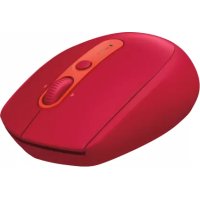



| Product Type | Silent Wireless Mouse |
| Connectivity Technology | Bluetooth Low Energy and Unifying USB Receiver |
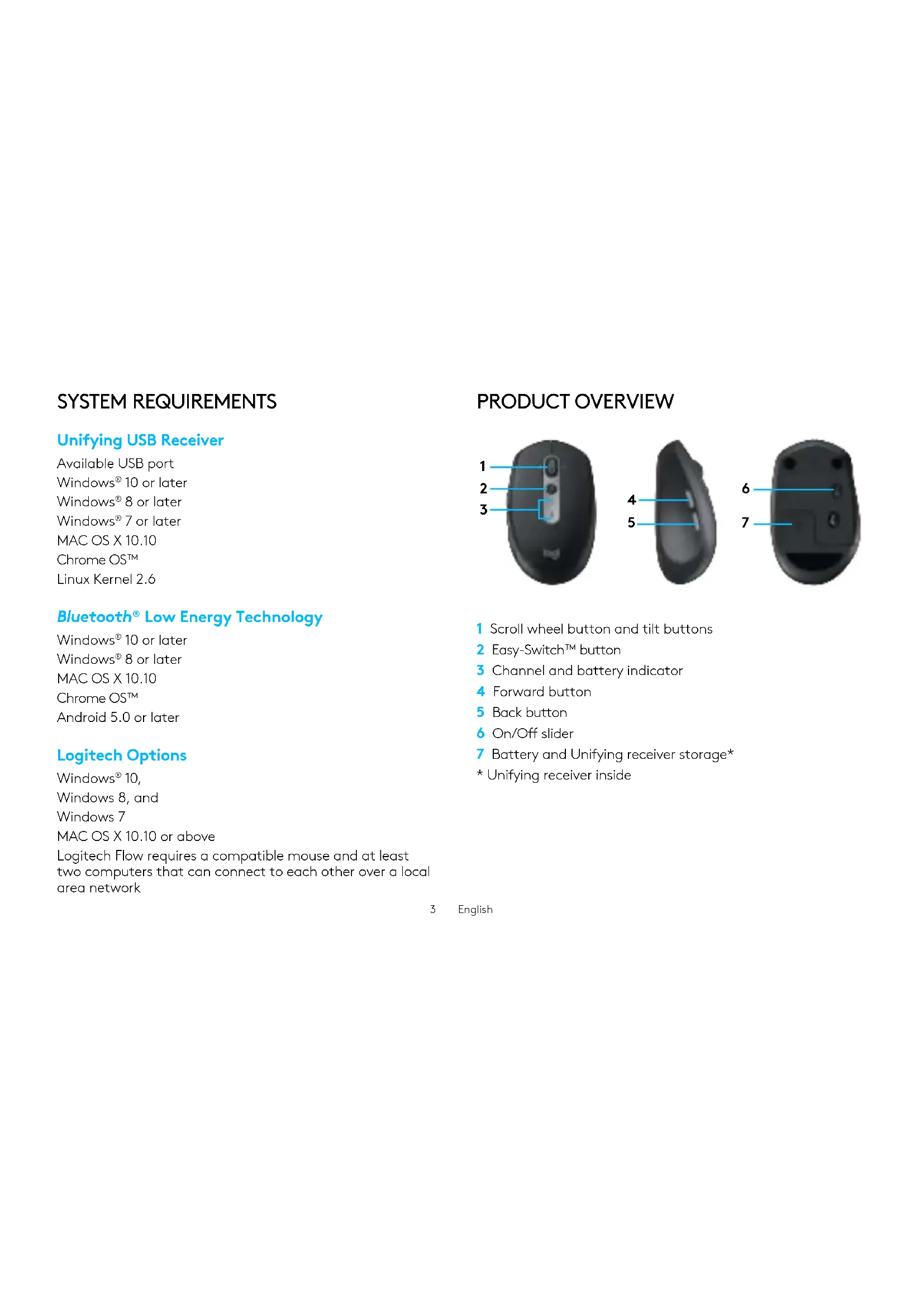
| Number of Buttons | 7 (including tilt wheel, Forward/Back buttons, Easy-Switch, On/Off) |
| Scroll Wheel | Tiltable (left/right) and clickable |
| Easy-Switch Button | Allows switching between 2 channels (Bluetooth or Unifying) |
| Number of Connectable Devices | Up to 2 computers |
| Power Supply | 1 AA battery (included) |
| Battery Life | Up to 24 months (depending on usage) |
| Battery Indicator | LED charge level indicator |
| Unifying Receiver | Integrated in battery compartment, supports up to 6 devices |
| Wireless Range | Approximately 10 meters (depending on environment) |
| System Compatibility (Bluetooth) | Windows 10/8/7, Mac OS X 10.10, Chrome OS, Android 5.0 or later |
| System Compatibility (Unifying) | Windows 10/8/7, Mac OS X 10.10, Chrome OS, Linux kernel 2.6 |
| Configuration Software | Logitech Options (Windows and Mac) |
| Logitech Flow Feature | Allows working on multiple computers by dragging the cursor between them (requires local network) |
| Click Noise Level | Silent (90% noise reduction compared to a standard mouse) |
| Maintenance and Cleaning | Clean with a soft, slightly damp cloth; do not use abrasive cleaners |
| Safety Precautions | Do not expose to moisture or extreme temperatures; remove battery if not used for extended periods |
| Spare Parts | Standard AA battery available commercially; Unifying receiver optional |
| Repairability | Battery replacement accessible; no user-serviceable parts other than battery |
| Warranty | Limited 2-year warranty (depending on country) |
Frequently Asked Questions - M590 LOGITECH
User questions about M590 LOGITECH
0 question about this device. Answer the ones you know or ask your own.
Ask a new question about this device
Download the instructions for your Mouse in PDF format for free! Find your manual M590 - LOGITECH and take your electronic device back in hand. On this page are published all the documents necessary for the use of your device. M590 by LOGITECH.
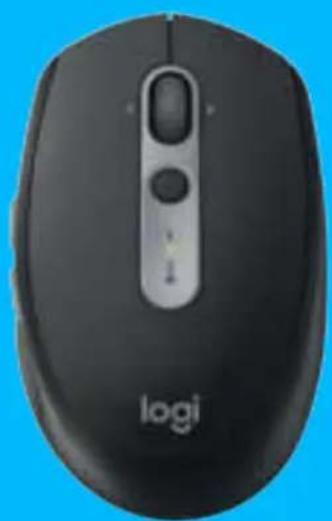
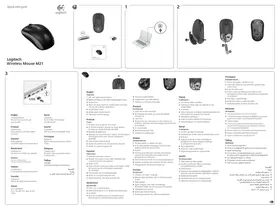
USER MANUAL M590 LOGITECH
logitech®

3 ENGLISH 7 FRANÇAIS 12 ESPAÑOL 17 PORTUGUÊS
SYSTEM REQUIREMENTS
Unifying USB Receiver
Available USB port
Windows® 10 or later
Windows® 8 or later
Windows® 7 or later
MAC OS X 10.10
Chrome OS™
Linux Kernel 2.6
Bluetooth® Low Energy Technology
Windows® 10 or later
Windows® 8 or later
MAC OS X 10.10
Chrome OS™
Android 5.0 or later
Logitech Options
Windows® 10,
Windows 8, and
Windows 7
MAC OS X 10.10 or above
Logitech Flow requires a compatible mouse and at least two computers that can connect to each other over a local area network
PRODUCT OVERVIEW
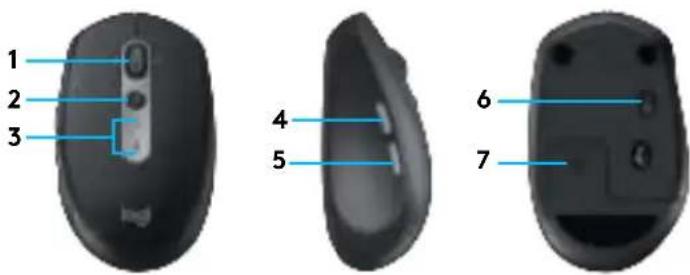
1 Scroll wheel button and tilt buttons 2 Easy-Switch™ button 3 Channel and battery indicator 4 Forward button 5 Back button 6 On/Off slider 7 Battery and Unifying receiver storage* * Unifying receiver inside
CONNECT
Bluetooth wireless technology
In case you have limited USB slots, you can connect your M585 or M590 Silent mouse to your computer using Bluetooth. For compatibility requirements, please refer to system requirements
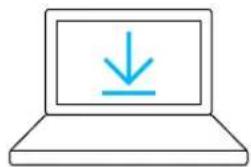
www.logitech.com/options
1 Download Logitech Options, click Add Devices, and select Add Bluetooth Device
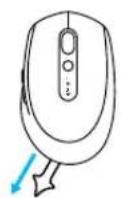
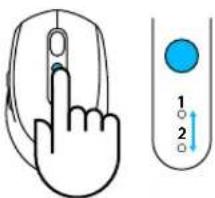
2 Remove pull tab or make sure your mouse is ON
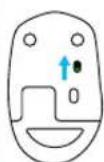

3 Short press Easy-Switch button to select desired channel



4 Long press Easy-Switch button to enter pairing mode
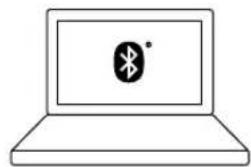
5 Find your M585/M90 mouse on the list of Bluetooth devices and connect
Logitech M585/M590 Silent can connect to one computer on the two provided channels using Bluetooth.
Unifying USB receiver
One tiny receiver for up to six Unifying devices. Plug it and leave it, then connect additional mice and keyboards to one computer.
First time out of the box
www.logitech.com/options
1 Download Logitech Options, click Add Devices, and select Add Unifying Device
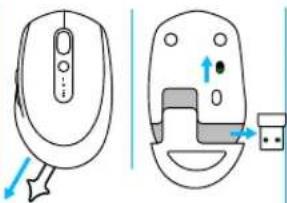
2 Remove pull tab or make sure your mouse is on and extract Unifying receiver from battery hatch
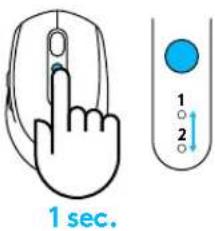
3 Short press Easy-Switch button to select desired channel
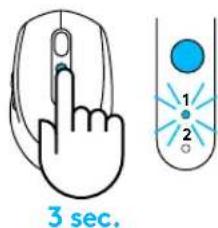
4 Long press Easy-Switch button to enter pairing mode
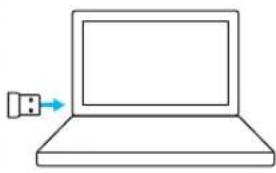
5 Insert Unifying USB receiver
Repair with an existing Unifying receiver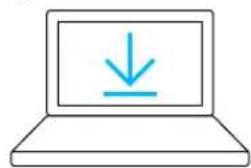
www.logitech.com/unifying
1 Download Logitech Unifying Software
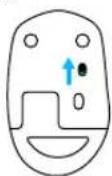
2 Make sure your mouse is On
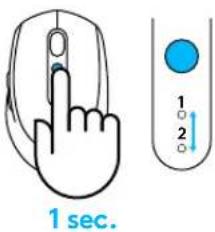
3 Short press Easy-Switch button to select desired channel
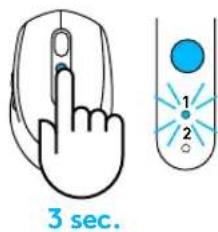
4 Long press Easy-Switch button to enter pairing mode

5 Open Unifying software and follow onscreen instructions
Connecting to 2 systems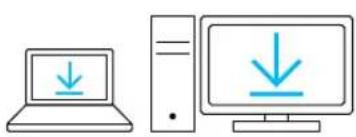
www.logitech.com/options
1 Download Logitech Options on both systems
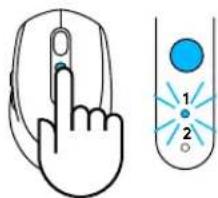
3 sec. 3 sec.
2 Make sure your mouse is On
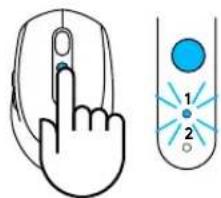
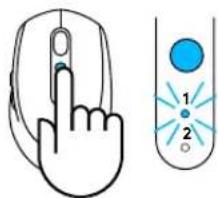
3 Long press Easy-Switch button to enter pairing mode

unifying
Bluetooth
4 Connect to your first computer via either Unifying USB receiver or Bluetooth
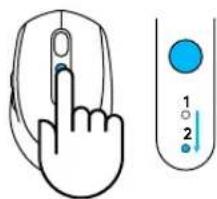
1 sec. 3 sec.
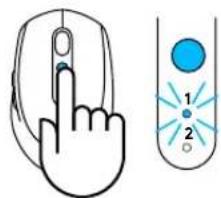
5 Short press Easy-Switch button to switch to next channel
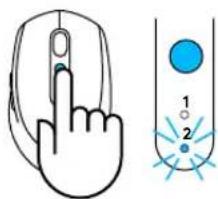
6 Long press Easy-Switch button to enter pairing mode
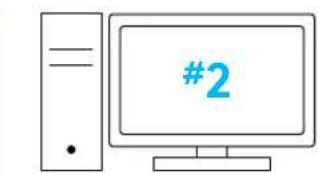
unifying™
Bluetooth
7 Connect to your second computer via Unifying USB receiver or Bluetooth


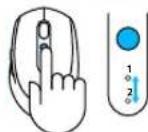
8 Enable FLOW through Logitech Options or press Easy-Switch button to switch between devices
Logitech M585/590 Silent can connect to up to two computers with either Bluetooth or Logitech Unifying receiver. One receiver is included in the box.
SYSTEM REQUIREMENTS
www.logitech.com/options
www.logitech.com/unifying
3 sec. 3 sec.
www.logitech.com/options
3 sec. 3 sec.
1 sec. 3 sec.
unifying™
Bluetooth
Unifying USB receiver
Available USB port
www.logitech.com/options
Unifying USB receiver
www.logitech.com/options
5 Insert the Unifying USB receiver
1 Download the Logitech Unifying software
Unifying USB receiver
www.logitech.com/options
5 Locate your M585/M90 mouse in the list of Bluetooth devices and connect
Unifying USB receiver
www.logitech.com/options
5 Insert the Unifying USB receiver
www.logitech.com/unifying
1 Download the Logitech Unifying software

2 Make sure the mouse is turned on
www.logitech.com/options
1 Download Logitech Options on both systems
3s3s
2 Make sure the mouse is turned on
1s3s
© 2017 Logitech. Logitech, Logi, and other Logitech marks are owned by Logitech and may be registered. All other trademarks are the property of their respective owners.


Brand : LOGITECH
Model : M590
Category : Mouse