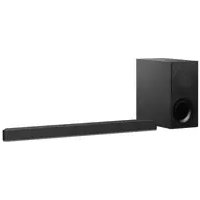
HTRT3 - Soundbar SONY - Free user manual and instructions
Find the device manual for free HTRT3 SONY in PDF.



| Technical specifications | SONY HTRT3 soundbar, 300W power, Bluetooth technology, compatibility with Dolby Digital and DTS audio formats. |
|---|---|
| Dimensions | Bar dimensions: 900 mm x 64 mm x 90 mm, weight: 2.5 kg. |
| Connectivity | HDMI, optical, auxiliary, and USB inputs, HDMI ARC output. |
| Usage | Easy installation under a television, use with remote controls, possibility to adjust sound via the mobile app. |
| Maintenance and repair | Clean with a soft cloth, avoid moisture, consult the manual for troubleshooting procedures. |
| Safety | Do not expose to water, use only with the supplied power supply, follow electrical safety instructions. |
| General information | 2-year warranty, technical support available, included accessories: remote control, HDMI and audio cables. |
Frequently Asked Questions - HTRT3 SONY
User questions about HTRT3 SONY
0 question about this device. Answer the ones you know or ask your own.
Ask a new question about this device
Download the instructions for your Soundbar in PDF format for free! Find your manual HTRT3 - SONY and take your electronic device back in hand. On this page are published all the documents necessary for the use of your device. HTRT3 by SONY.
USER MANUAL HTRT3 SONY
Operating Instructions US
Mode d'emploi FR
For the customers in the USA
Owner's Record
The model and serial numbers are located at the rear exterior of the Subwoofer. Record these numbers in the space provided below. Refer to them whenever you call upon your Sony dealer regarding this product. Model No.
Serial No.
WARNING
To reduce the risk of fire or electric shock, do not expose this apparatus to rain or moisture.
To reduce the risk of fire, do not cover the ventilation opening of the appliance with newspapers, tablecloths, curtains, etc.
Do not expose the appliance to naked flame sources (for example, lighted candles).
To reduce the risk of fire or electric shock, do not expose this appliance to dripping or splashing, and do not place objects filled with liquids, such as vases, on the appliance.
Do not install the appliance in a confined space, such as a bookcase or built-in cabinet.
Do not expose batteries or appliances with battery-installed to excessive heat, such as sunshine and fire.
To prevent injury, this apparatus must be securely placed on the cabinet or attached to the floor/wall in accordance with the installation instructions.
Indoor use only.
On power sources
-
The unit is not disconnected from the mains as long as it is connected to the AC outlet, even if the unit itself has been turned off.
-
As the main plug is used to disconnect the unit from the mains, connect the unit to an easily accessible AC outlet. Should you notice an abnormality in the unit, disconnect the main plug from the AC outlet immediately.
For the customers in the USA
This symbol is intended to alert the user to the presence of uninsulated "dangerous
voltage" within the product's enclosure that may be of sufficient magnitude to constitute a risk of electric shock to persons.

This symbol is intended to alert the user to the presence of important operating and
maintenance (servicing) instructions in the literature accompanying the appliance.
Properly shielded and grounded cables and connectors must be used for connection to host computers and/or peripherals in order to meet FCC emission limits.
NOTE:
This equipment has been tested and found to comply with the limits for a Class B digital device, pursuant to Part 15 of the FCC Rules. These limits are designed to provide reasonable protection against harmful interference in a residential installation. This equipment generates, uses and can radiate radio frequency energy and, if not installed and used in accordance with the instructions, may cause harmful interference to radio communications.
However, there is no guarantee that interference will not occur in a particular installation. If this equipment does cause harmful interference to radio or television reception, which can be determined by turning the equipment off and on, the user is encouraged to try to correct the interference by one or more of the following measures:
Reorient or relocate the receiving antenna.
- Increase the separation between the equipment and receiver.
- Connect the equipment into an outlet on a circuit different from that to which the receiver is connected.
- Consult the dealer or an experienced radio/TV technician for help.
CAUTION
You are cautioned that any changes or modifications not expressly approved in this manual could void your authority to operate this equipment.
This equipment must not be co-located or operated in conjunction with any other antenna or transmitter.
This equipment complies with FCC radiation exposure limits set forth for an uncontrolled environment and meets the FCC radio frequency (RF) Exposure Guidelines. This equipment has very low levels of RF energy that is deemed to comply without maximum permissive exposure evaluation (MPE).
Important Safety Instructions
1) Read these instructions.
2) Keep these instructions.
3) Heed all warnings.
4) Follow all instructions.
5) Do not use this apparatus near water.
6) Clean only with dry cloth.
7) Do not block any ventilation openings. Install in accordance with the manufacturer's instructions.
8) Do not install near any heat sources such as radiators, heat registers, stoves, or other apparatus (including amplifiers) that produce heat.
9) Do not defeat the safety purpose of the polarized or grounding-type plug. A polarized plug has two blades with one wider than the other. A grounding type plug has two blades and a third grounding prong. The wide blade or the third prong are provided for your safety. If the provided plug does not fit into your outlet, consult an electrician for replacement of the obsolete outlet.
10) Protect the power cord from being walked on or pinched particularly at plugs, convenience receptacles, and the point where they exit from the apparatus.
11) Only use attachments/accessories specified by the manufacturer.
12) Use only with the cart, stand, tripod, bracket, or table specified by the manufacturer, or sold with the apparatus. When a cart is used, use caution when moving the cart/ apparatus combination to avoid injury from tip-over.

13) Unplug this apparatus during lightning storms or when unused for long periods of time.
14) Refer all servicing to qualified service personnel. Servicing is required when the apparatus has been damaged in any way, such as power-supply cord or plug is damaged, liquid has been spilled or objects have fallen into the apparatus, the apparatus has been exposed to rain or moisture, does not operate normally, or has been dropped.
For the customers in Canada
Properly shielded and grounded cables and connectors must be used for connection to host computers and/or peripherals.
This device complies with Industry Canada's licence-exempt RSSs. Operation is subject to the following two conditions:
(1) This device may not cause interference; and
(2) This device must accept any interference, including interference that may cause undesired operation of the device.
This equipment complies with IC radiation exposure limits set forth for an uncontrolled environment and meets RSS-102 of the IC radio frequency (RF) Exposure rules.
This equipment has very low levels of RF energy that is deemed to comply without maximum permissive exposure evaluation (MPE). But it is desirable that it should be installed and operated keeping the radiator at least 20~cm or more away from person's body.
Copyrights and Trademarks
This system incorporates Dolby Digital.
* Manufactured under license from Dolby Laboratories. Dolby and the double-D symbol are trademarks of Dolby Laboratories.
- The BLUETOOTH® word mark and logos are registered trademarks owned by Bluetooth SIG, Inc. and any use of such marks by Sony Corporation is under license. Other trademarks and trade names are those of their respective owners.
- The terms HDMI and HDMI High-Definition Multimedia Interface, and the HDMI Logo are trademarks or registered trademarks of HDMI Licensing Administrator, Inc. in the United States and other countries.
- The N-Mark is a trademark or registered trademark of NFC Forum, Inc. in the United States and in other countries.
- Android™ is a trademark of Google LLC.
- Google Play is a trademark of Google LLC.
MPEG Layer-3 audio coding technology and patents licensed from Fraunhofer IIS and Thomson. - Windows Media is either a registered trademark or trademark of Microsoft Corporation in the United States and/or other countries.
- This product is protected by certain intellectual property rights of Microsoft Corporation. Use or distribution of such technology outside of this product is prohibited without a license from Microsoft or an authorized Microsoft subsidiary.
- "BRAVIA" is a trademark of Sony Corporation.
- "ClearAudio+" is a trademark of Sony Corporation.
- "PlayStation" is a registered trademark of Sony Computer Entertainment Inc.
- Apple, iPhone, iPod, and iPod touch are trademarks of Apple Inc., registered in the U.S. and other countries.
Use of the Made for Apple badge means that an accessory has been designed to connect specifically to the Apple product(s) identified in the badge, and has been certified by the developer to meet Apple performance standards. Apple is not responsible for the operation of this device or its compliance with safety and regulatory standards.
Compatible iPhone/iPod models
The compatible iPhone/iPod models are as follows. Update your iPhone/iPod with the latest software before using with the system.
Made for:
- iPhone 6s/iPhone 6s Plus/iPhone 6/ iPhone 6 Plus/iPhone 5s/iPhone 5c/ iPhone 5
- iPod touch (6th generation)/ iPod touch (5th generation)
- Other system and product names are generally trademarks or registered trademarks of the manufacturers. ^TM and ^ marks are not indicated in this document.
About these operating instructions
The instructions in these Operating Instructions describe the controls on the remote control. You can also use the controls on the Subwoofer if they have the same or similar names as those on the remote control.
Some illustrations are presented as conceptual drawings, and may be different from the actual products.
The default setting is underlined.
The text enclosed in double quotation mark (^ - ^ ) appears in the front panel display.
Table of Contents
Connecting Startup Guide (separate document)
About these operating instructions 5
Guide to parts and controls .... 7
Listening
Listening to sound from the connected devices 11
Listening to music from a USB device 12
Sound Adjustment
Enjoying sound effects 13
BLUETOOTH Functions
Listening to music from a BLUETOOTH device 14
Controlling the system using a smartphone or tablet (Sony | Music Center) 16
Settings and Adjustments
Using the setup display 17
Other Functions
Using the Control for HDMI function 20
Using the "BRAVIA" Sync function 21
Saving power in standby mode 22
Mounting the Bar Speaker and the Surround Speakers on a wall 22
Operating the system using the remote control 23
Adjusting the volume of Subwoofer 23
Additional Information
Precautions 24
Troubleshooting 25
Playable types of files 29
Supported audio formats 29
Specifications 30
On BLUETOOTH communication 31
Guide to parts and controls
For more information, refer to the pages indicated in parentheses.
Subwoofer
Top panel
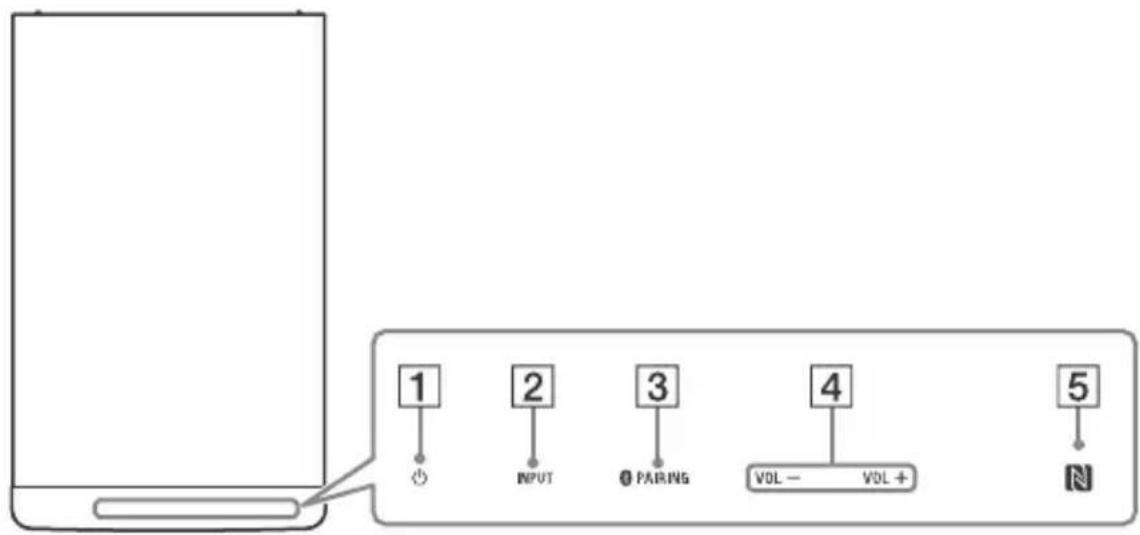
1 (power) touch key
Turns on the system, or sets it to standby mode.
2 INPUT touch key
Selects the device you want to use.
3 PAIRING touch key
4 VOL (volume) +/- touch key
5 N (N-Mark) (page 15)
Position the NFC-compatible device near this indication to activate the NFC function.
About touch keys
The touch keys work when you touch them lightly. Do not press on them with excessive force.
Front panel
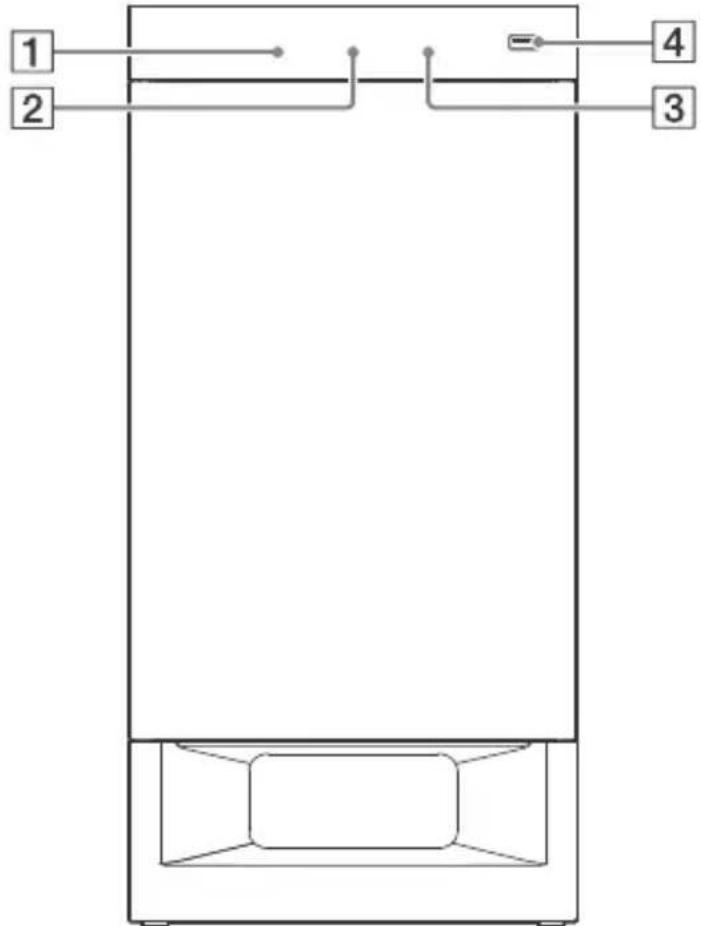
Remote control sensor (page 23)
2 Front panel display
3 Blue LED indicator Shows the BLUETOOTH status as follows.
| During BLUETOOTH pairing | Flashes quickly |
| The system is attempting to connect with a BLUETOOTH device | Flashes |
| The system has established connection with a BLUETOOTH device | Lights up |
4 (USB) port (page 12)
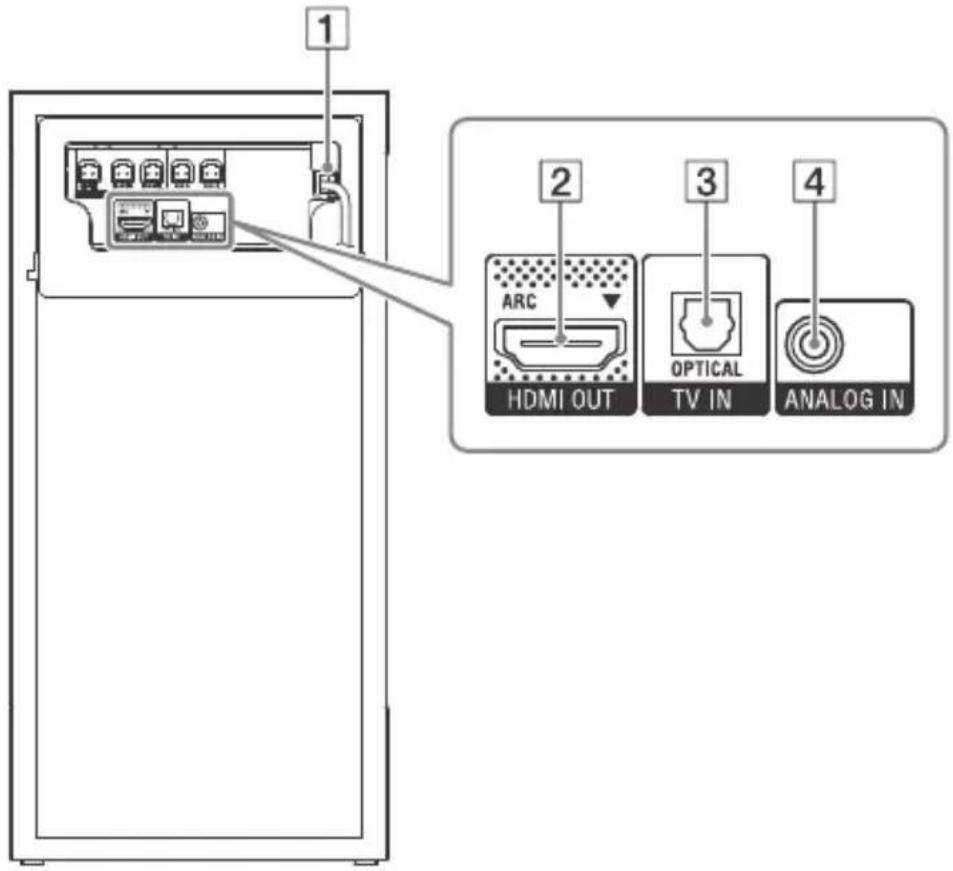
Rear panel
1 AC power cord (mains lead)
HDMI OUT (ARC) jack
3 TV IN (OPTICAL) jack
4 ANALOG IN jack
Remote control
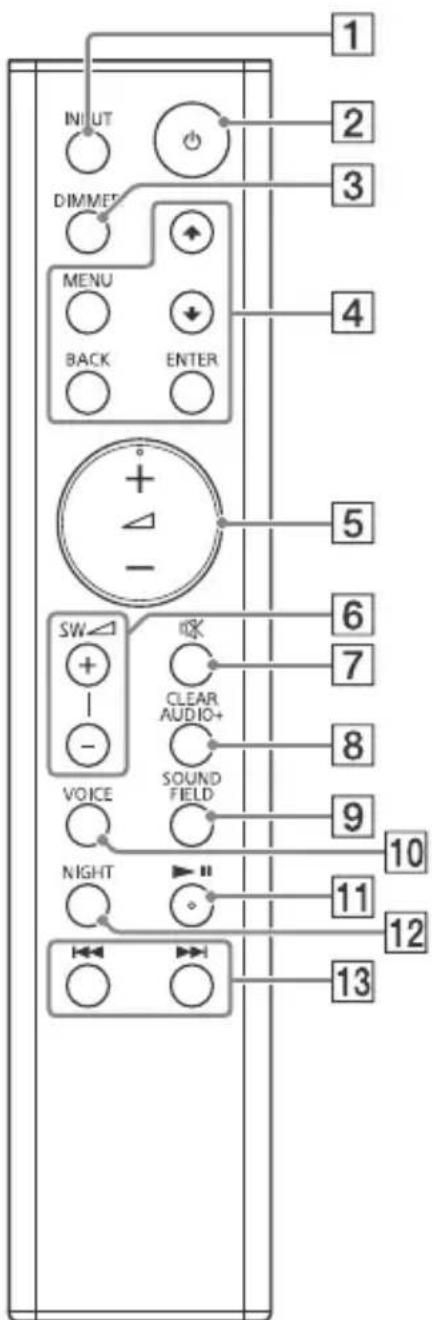
1 INPUT (page 11)
2 (power)
Turns on the system, or sets it to standby mode.
3 DIMMER
Adjusts the brightness of the front panel display.
"BRIGHT" "DARK" "OFF"
- The front panel display is turned off when "OFF" is selected. It turns on automatically when you press any buttons, then turns off again if you do not operate the system for several seconds. However, in some cases, the front panel display may not turn off. In this case, the brightness of the front panel display is same as "DARK".
4 MENU
Turns on/off the menu in the front panel display.

Selects the menu items.
ENTER
Enters the selection.
BACK
Return to the previous display.
Stops USB playback.
5 (volume) +^ / -
Adjusts the volume.
Adjusts the volume of bass sound.
(muting)
Turns off the sound temporarily.
8 CLEARAUDIO+
Automatically selects the suitable sound setting for the sound source.
9 SOUND FIELD (page 13)
Selects a sound mode.
10 VOICE (page 13)
11 ^* (play/pause)
Pauses or resumes playback.
12 NIGHT (page 13)
13 1/1 (previous/next/ rewind/fast forward)
Press to select the previous/next track or file.
Hold down to search backward on forward.
- The ▷ and + buttons have a tactile dot. Use the tactile dot as a reference when operating the remote control.
Listening
Listening to sound from the connected devices
Press INPUT repeatedly.
When you press INPUT once, the current device appears in the front panel display, then each time you press INPUT, the device changes cyclically as follows.
"TV" "ANALOG" "BT" "USB"
"TV"
Device (TV, etc.) that is connected to the TV IN (OPTICAL) jack, or a TV compatible with the Audio Return Channel function that is connected to the HDMI OUT (ARC) jack
"ANALOG"
Device (Digital media player, etc.) that is connected to the ANALOG IN jack
"BT"
BLUETOOTH device that supports A2DP (page 14)
"USB"
USB device that is connected to the USB port (page 12)
Listening to music from a USB device
You can play music files on a connected USB device.
For playable types of files, see "Playable types of files" (page 29).
1 Connect the USB device to the (USB) port.
Refer to the operating instructions of the USB device before connecting.
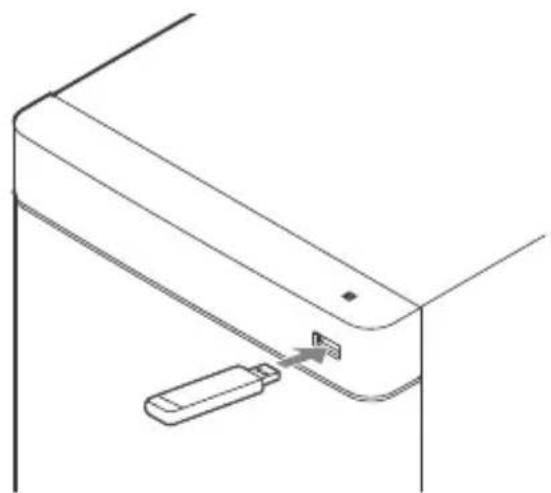
2 Press INPUT repeatedly to select "USB".
The USB content list appears on the TV screen.
3 Press / to select the content you want, then press ENTER.
The selected content starts playing.
4 Adjust the volume.
- Adjust the volume of the system by pressing + / -
- Adjust the volume of Subwoofer by pressing SW + / -
Note
Do not remove the USB device during operation. To avoid data corruption or damage to the USB device, turn the system off before removing the USB device.
Information of USB device on the TV screen
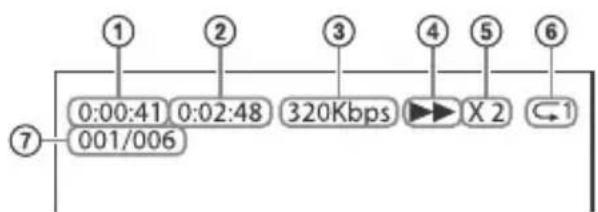
① Playing time
② Total playing time
③ Bit rate
④ Playback status
⑤ Rewind/fast forward speed
⑥ Repeat play status
Selected file index/Total files in the folder
Notes
Depending on the source being played, some information may not be displayed.
Depending on the play mode, the information displayed may be different.
Sound Adjustment
Enjoying sound effects
You can easily enjoy pre-programmed sound fields that are tailored to different kinds of sound sources.
Selecting the sound field
Press SOUND FIELD repeatedly until the sound field you want appears in the front panel display.
"CLEARAUDIO+
You can enjoy the sound with Sony-recommended sound field. Sound field is automatically optimized according to playback content and function.
"MOVIE"
Sounds are played back with surround effects, and they are realistic and powerful, making them suitable for movies.
"MUSIC"
Sound effects are optimized for listening to music.
"SPORTS"
Commentary is clear, cheers are heard as surround-sound, and sounds are realistic.
"GAME"
Sounds are powerful and realistic, suitable for game play.
"STANDARD"
Sound that corresponds to every source.
Tip
You can also press CLEARAUDIO+ to select "CLEARAUDIO+".
Using the Night Mode function
This function is useful when watching movies late at night. You will be able to hear the dialog clearly even at a low volume level.
Press NIGHT to select "N.ON".
To inactivate the Night Mode function, press NIGHT to select "N.OFF".
Using the Clear Voice function
This function helps make dialogs clearer.
Press VOICE repeatedly.
- "UP OFF": The Clear Voice function is turned off.
- "UP 1": Dialogue range is enhanced.
- "UP 2": Dialogue range is enhanced, and the parts of range difficult to be discerned by the elderly are boosted.
BLUETOOTH Functions
Listening to music from a BLUETOOTH device
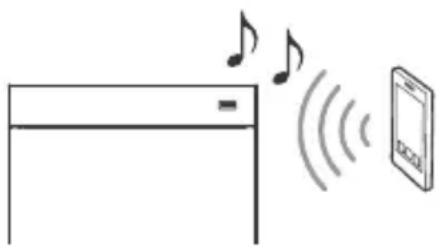
Pairing this system with a BLUETOOTH device
Pairing is an operation where BLUETOOTH devices register with each other beforehand. Once a pairing operation is performed, it does not need to be performed again.
1 Place the BLUETOOTH device within 1 meter (3.3 feet) from the Subwoofer.
2 Press PAIRING on the Subwoofer. The blue LED indicator flashes quickly during BLUETOOTH pairing.
3 Turn on the BLUETOOTH function, and then select "HT-RT3" after searching for it on the BLUETOOTH device.
Perform this step within 5 minutes, otherwise pairing mode will be canceled.
When the BLUETOOTH connection is established, the blue LED indicator lights up.
Notes
- If passkey is required on the BLUETOOTH device, enter "0000". Passkey may be called "Passcode", "PIN code", "PIN number" or "Password".
- You can pair up to 9 BLUETOOTH devices. If the 10th BLUETOOTH device is paired, the least recently connected device will be replaced by the new one.
Listening to music from the paired device
1 Turn the BLUETOOTH function of the paired device to on.
2 Press INPUT repeatedly to select "BT".
The system automatically reconnects to the BLUETOOTH device it was most recently connected to. When the BLUETOOTH connection is established, the blue LED indicator lights up.
3 Start playback on the BLUETOOTH device.
4 Adjust the volume.
- Adjust the volume of the BLUETOOTH device.
- Adjust the volume of the system by pressing + / -
- Adjust the volume of Subwoofer by pressing SW + / -
Notes
- Once the system and the BLUETOOTH device are connected, you can control playback by pressing and
- You can connect to the system from a paired BLUETOOTH device even when the system is standby mode, if you set the "BTSTB" to "ON" (page 18).
- The audio playback on this system may be delayed from that on the BLUETOOTH device because of the characteristics of the BLUETOOTH wireless technology.
Tip
You can enable or disable codec AAC from BLUETOOTH device (page 18).
To disconnect the BLUETOOTH device
Perform any of the following items.
- Press PAIRING on the Subwoofer again.
- Disable the BLUETOOTH function on the BLUETOOTH device.
- Turn off the system or the BLUETOOTH device.
Connecting to a remote device by One-touch function (NFC)
NFC (Near Field Communication) is a technology enabling short-range wireless communication between various devices. By holding an NFC-compatible remote device near to the N-Mark on the Subwoofer, the system and remote device proceed to complete pairing and the BLUETOOTH connection automatically.
Compatible remote devices
Remote devices with a built-in NFC function (OS:Android 2.3.3 or later, excluding Android 3.x)
Notes
The system only can recognize and connect to one NFC-compatible remote device at a time.
Depending on your remote device, you may need to perform the following items on your remote device in advance.
- Turn on the NFC function. For details, refer to the operating instructions of the remote device.
If your remote device is having an older OS version than Android 4.1.x, download and start the "NFC Easy Connect" application. "NFC Easy Connect" is a free application for Android remote devices that can be obtained from Google PlayTM. (The application may not be available in some countries/regions.)
1 Hold the remote device near to the N-Mark on the Subwoofer until the remote device vibrates.
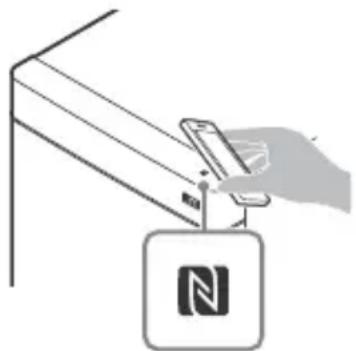
Follow the on-screen instructions displayed on the remote device, and complete the procedure for BLUETOOTH connection.
When the BLUETOOTH connection is established, the blue LED indicator lights up.
2 Start playback of audio source on the remote device.
For details on playback operations, refer to the operating instructions of your remote device.
3 Adjust the volume.
- Adjust the volume of the BLUETOOTH device.
- Adjust the volume of the system by pressing + / -
- Adjust the volume of Subwoofer by pressing SW + / -
Tip
If pairing and the BLUETOOTH connection fail, do the following.
- Hold the remote device near to the N-Mark on the Subwoofer again.
- Remove the case from the remote device if using a commercially available remote device case.
Relaunch "NFC Easy Connect" application.
To stop playback by One-touch function
Hold the remote device near to the N-Mark on the Subwoofer again.

Controlling the system using a smartphone or tablet (Sony | Music Center)
Sony | Music Center is an application for controlling compatible Sony audio devices using the mobile device such as a smartphone or tablet.
For details about Sony | Music Center, refer to the following URL. http://www.sony.net/smcqa/
Sony | Music Center allows you to:
- enjoy music at home seamlessly.
- change commonly used settings, select the input of the system, and adjust the volume.
- enjoy music content stored on a smartphone with the system.
- enjoy music visually with your smartphone display.
Notes
- Sony | Music Center uses the BLUETOOTH function of the system.
- What you can control with Sony | Music Center varies depending on the connected device. The specification and design of the application may change without notice.
Using Sony | Music Center
1 Download free Sony | Music Center app on the mobile device.
2 Connect the system and mobile device with the BLUETOOTH connection (page 14).
3 Start Sony | Music Center.
4 Operate by following the Sony | Music Center screen.
Note
Use the latest version of Sony | Music Center.
Using the setup display
You can set the following items with the menu.
Your settings are retained even if you disconnect the AC power cord (mains lead).
1 Press MENU to turn on the menu in the front panel display.
2 Press BACK/+/ENTER repeatedly to select the item and press ENTER to select the setting you want.
3 Press MENU to turn off the menu.
Menu list
The default settings are underlined.
| Menu items Function | ||
| "LVL>" (Level) | "SUR.L"/"SUR.R" (Surround left/right speaker level) | "0.0 dB": Adjusts the sound level of the Surround Speakers from -6.0 dB to +6.0 dB (0.5 dB interval). Note Be sure to set "TTONE" to "ON" for easy adjustment. |
| "ATT" (Attenuation settings – Analog) | Distortion may occur when you listen to a device connected to the ANALOG IN jack. You can prevent distortion by attenuating the input level on the system. •"ON": Attenuates the input level. The output level will decrease at this setting. •"OFF": Normal input level. | |
| "DRC" (Dynamic range control) | Useful for enjoying movies at low sound volume. DRC applies to Dolby Digital sources. •"ON": Compresses sound in accordance with the information contained in the content. •"OFF": Sound is not compressed. | |
| "TTONE" (Test tone) | •"ON": The test tone is output from each speaker in sequence. •"OFF": Turns off the test tone. | |
| "SPK>" (Speaker) | "PLACE" (Speaker placement) | •"STDRD": Select this setting if you install the Bar Speaker and the Surround Speakers in standard position. •"FRONT": Select this setting if you install the Bar Speaker and the Surround Speakers in front. |
| "SUR.L"/"SUR.R" (Surround left/right speaker distance) | "3.0 M": Adjusts the distance from the seating position to the Surround Speakers from 1.0 meter (3.3 feet) to 6.0 meters (19.7 feet). | |
| "AUD>" (Audio) | "DUAL" (Dual mono) | You can enjoy multiplex broadcast sound when the system receives a Dolby Digital multiplex broadcast signal. • "M/S": Mixed sound of both the main and sub languages will be output. • "MAIN": Sound of the main language will be output. • "SUB": Sound of the sub language will be output. |
| "TV AU" (TV audio) | • "AUTO": Select this setting when the system is connected to an HDMI (ARC) jack of a TV with an HDMI cable. • "OPT": Select this setting when the system is connected to a TV with the optical digital cable. | |
| "EFCT" (Sound effect) | • "ON": The sound of the selected sound field is played. It is recommended to use this setting. • "OFF": The input source is down-mixed for 2 channels. | |
| "STRM" (Stream) | Shows the current audio stream information. See page 29 on the supported audio formats. | |
| "HDMI>""CTRL" | (Control for HDMI) | • "ON": The Control for HDMI function is enabled. Devices connected with an HDMI cable can control each other. • "OFF": Off. |
| "TVSTB" (Standby Linked to TV) | This function is available when you set "CTRL" to "ON". • "AUTO": If the input of the system is "TV", the system turns off automatically when you turn off the TV. • "ON": The system turns off automatically when you turn off the TV regardless of the input. • "OFF": The system does not turn off when you turn off the TV. | |
| "COLOR" (HDMI color) | • "AUTO": Automatically detects the type of external device, and switches to the matching color setting. • "YCBCR": Outputs YCBCR video signals. • "RGB": Outputs RGB video signals. | |
| "BT >"(BLUETOOTH) | "BAAC" (BLUETOOTH Advanced audio coding) | You can set whether or not the system uses AAC via BLUETOOTH. • "ON": Enable AAC codec. • "OFF": Disable AAC codec. |
| Note If you change the "BTAAC" setting when a BLUETOOTH device is connected, the codec setting is only reflected after the next connection. | ||
| "BTSTB" (BLUETOOTH standby) | When the system has pairing information, the system is in BLUETOOTH standby mode even when it is turned off. • "ON": BLUETOOTH standby mode is enabled. • "OFF": BLUETOOTH standby mode is disabled. | |
| "INFO" (BLUETOOTH device information) | The detected BLUETOOTH device name and device address appear in the front panel display. “NO DEVICE” appears if the system is not connected to a BLUETOOTH device. | |
| "USB >""REPT" | (Playback mode) | • "NONE": Plays back all tracks. • "ONE": Repeats one track. • "FLDER": Repeats all tracks in a folder. • "RANDOM": Repeats all tracks in a folder in random order. • "ALL": Repeats all tracks. |
Menu items Function
| “SYS >”(System) | "ASTBY"(Auto standby) | ●“ON”: Turns on the auto standby function. When you do not operate the system for about 20 minutes, the system enters standby mode automatically.●“OFF”: Off. |
| “VER"(Version) | The current firmware version information appears in the front panel display. |
Other Functions
Using the Control for HDMI function
Connecting a device such as a TV or Blu-ray Disc player compatible with the Control for HDMI function* by HDMI cable (High Speed HDMI Cable with Ethernet, not supplied) enables you to easily operate the device by a TV remote control.
The following functions can be used with the Control for HDMI function.
- System Power Off function
-
System Audio Control function
Audio Return Channel
One-Touch Play function -
Control for HDMI is a standard used by CEC (Consumer Electronics Control) for allowing HDMI (High-Definition Multimedia Interface) devices to control each other.
Note
These functions may work with devices other than those manufactured by Sony, but operation is not guaranteed.
Preparing to use the Control for HDMI function
Set "HDMI> - "CTRL" on the system to "ON" (page 18). The default setting is "ON".
Enable the Control for HDMI function settings for the TV and other device connected to the system.
Tip
If you enable the Control for HDMI ("BRAVIA" sync) function when using a TV manufactured by Sony, the Control for HDMI function of the system is also enabled automatically. When settings are completed, "DONE" appears in the front panel display.
System Power Off function
When you turn off the TV, the system will turn off automatically.
Set "HDMI> - "TVSTB" on the system to "ON" or "AUTO" (page 18). The default setting is "AUTO".
System Audio Control function
If you turn on the system while you are watching the TV, the TV sound will be output from the speakers of the system. The volume of the system can be adjusted using the TV's remote control. If the TV sound was output from the speakers of the system the previous time you watched the TV, the system will be turned on automatically when you turn on the TV again.
Operations can also be made by the TV's menu. For details, refer to the operating instructions of your TV.
Notes
Sound is only output from the TV if other than "TV" input is selected when using the Twin Picture function on the TV. When you disable the Twin Picture function, the sound is output from the system.
- The number for the system's volume level is displayed on the TV screen depending on the TV. The volume number displayed on the TV may differ from the number on the front panel display of the system.
Depending on the settings of the TV, the System Audio Control function may not be available. For details, refer to the operating instructions of your TV.
Audio Return Channel
If the system is connected to a TV's HDMI IN jack compatible with Audio Return Channel, you can listen to TV sound from the speakers of the system without connecting an optical digital cable.
On the system, set "AUD >" - "TV AU" to "AUTO" (page 18). The default setting is "AUTO".
Note
If the TV is not compatible with Audio Return Channel, an optical digital cable needs to be connected (Refer to the supplied Startup Guide).
One-Touch Play function
When you play content on a device (Blu-ray Disc player, "PlayStation®4", etc.) connected to the TV, the system and TV are turned on automatically, the input of the system is switched to the input for the TV, and sound is output from the speakers of the system.
Notes
- If the TV sound was output from the speakers of the TV the previous time you watched the TV, the system does not turn on and the sound and picture are output from the TV even if device content is played.
- Depending on the TV, the beginning part of content being played may not play correctly.
Using the "BRAVIA" Sync function
In addition to the Control for HDMI function, you can also use the following function on devices compatible with the "BRAVIA" sync function.
- Scene Select function
Note
This function is proprietary function of Sony. This function cannot operate with products other than those manufactured by Sony.
Scene Select function
The sound field of the system is automatically switched according to the TV's Scene Select or Sound Mode function settings. For details, refer to the operating instructions of your TV. Set the sound field to "CLEARAUDIO+" (page 13).
Notes on HDMI connections
- Use a High Speed HDMI cable. If you use a Standard HDMI cable, 1080p content may not be displayed properly.
- Use an HDMI-authorized cable. Use a Sony High Speed HDMI cable with the Cable Type Logo.
- We do not recommend using an HDMI-DVI conversion cable.
- Check the setup of the connected equipment if an image is poor or the sound does not come out of the equipment connected via the HDMI cable.
- Audio signals (sampling frequency, bit length, etc.) transmitted from an HDMI jack may be suppressed by the connected equipment.
Sound may be interrupted when the sampling frequency or the number of channels of audio output signals from the playback equipment is switched.
- If the connected equipment is not compatible with copyright-protection technology (HDCP), the image and/or the sound from the HDMI OUT jack of this system may be distorted or may not be output. In such a case, check the specifications of the connected equipment.
Saving power in standby mode
Check that you have made the following settings:
- "CTRL" in "HDMI> is set to "OFF" (page 18).
- "BTSTB" in "BT >" is set to "OFF" (page 18).
Mounting the Bar Speaker and the Surround Speakers on a wall
You can mount the Bar Speaker and the Surround Speakers on a wall.
Notes
-
Prepare screws (not supplied) that are suitable for the wall material and strength. As a plasterboard wall is especially fragile, attach the screws securely in the wall beam. Install the speakers on a vertical and flat wall where reinforcement is applied.
-
Be sure to subcontract the installation to Sony dealers or licensed contractors and pay special attention to safety during the installation.
- Sony shall not be held responsible for accidents or damage caused by improper installation, insufficient wall strength, improper screw installation or natural calamity, etc.
1 Prepare screws (not supplied) that are suitable for the holes at the rear of the Bar Speaker or Surround Speakers.
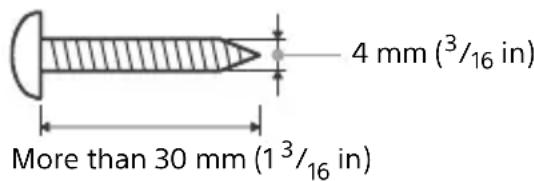
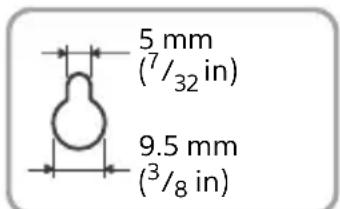
Hole at the rear of the speakers
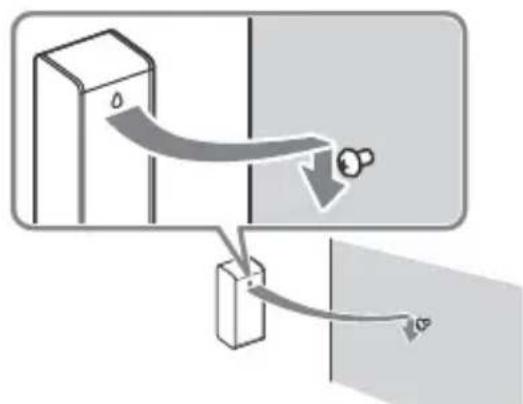
2 Fasten the screws in the wall.
The screw should protrude as illustration.
For the Bar Speaker
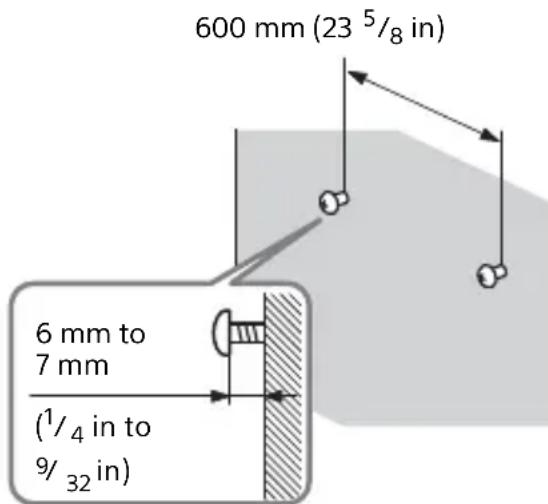
For the Surround Speakers
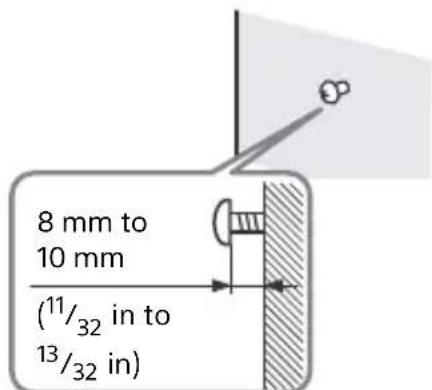
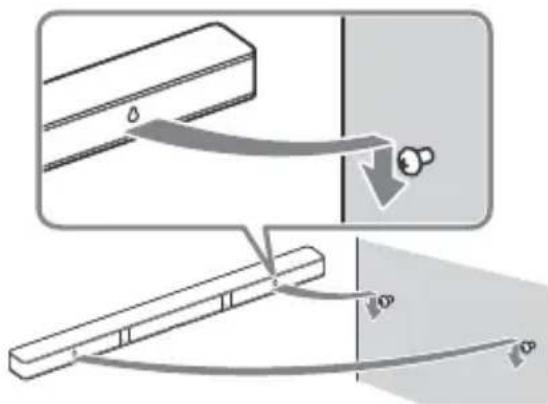
3 Hang the Bar Speaker or Surround Speakers on the screws.
Align the holes at the rear of the speakers with the screws.
For the Bar Speaker
Hang the Bar Speaker on the two screws.
For the Surround Speakers
Operating the system using the remote control
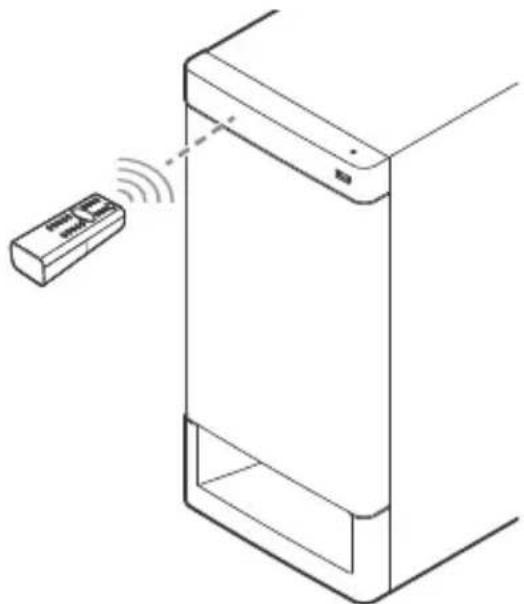
Point the remote control at the Subwoofer's remote control sensor.
Adjusting the volume of Subwoofer
The Subwoofer is designed for playback of bass or low frequency sound.
Press SW + / - to adjust the volume of Subwoofer.
Note
When the input source does not contain much of bass sound, such as in TV programs, the sound from the Subwoofer may be difficult to hear.
Additional Information
Precautions
On safety
- Should any solid object or liquid fall into the system, unplug the system and have it checked by qualified personnel before operating it any further.
- Do not touch the AC power cord (mains lead) with wet hands. Doing so may cause an electric shock.
- Do not climb on the Bar Speaker, Subwoofer and Surround Speakers as you may fall down and injure yourself, or system damage may result.
On power sources
- Before operating the system, check that the operating voltage is identical to your local power supply. The operating voltage is indicated on the nameplate at the rear of the Subwoofer.
- If you are not going to use the system for a long time, be sure to disconnect the system from the wall outlet (mains). To disconnect the AC power cord (mains lead), grasp the plug itself; never pull the cord.
- One blade of the plug is wider than the other for the purpose of safety and will fit into the wall outlet (mains) only one way. If you are unable to insert the plug fully into the outlet, contact your dealer.
- AC power cord (mains lead) must be changed only at a qualified service shop.
On heat buildup
Although the system heats up during operation, this is not a malfunction. If you continuously use this system at high volume, the system temperature rises considerably. To avoid burning yourself, do not touch the system.
On placement
- Place the system in a location with adequate ventilation to prevent heat buildup and prolong the life of the system.
- Do not place the system near heat sources or in a place subject to direct sunlight, excessive dust, or mechanical shock.
- Do not place the Bar Speaker, Subwoofer and Surround Speakers on a soft surface (rugs, blankets, etc.) or place anything at the rear of the Bar Speaker, Subwoofer and Surround Speakers that might block the ventilation holes and cause malfunctions.
- If the system is being used in combination with a TV, VCR, or tape deck, noise may result and picture quality may suffer. In such a case, place the system away from the TV, VCR, or tape deck.
- Use caution when placing the system on a surface that has been specially treated (with wax, oil, polish, etc.), as staining or discoloration of the surface may result.
Take care to avoid any possible injury from the corners of the Bar Speaker, Subwoofer and Surround Speakers. - Keep 3cm(316in) or more space under the Bar Speaker and Surround Speakers when you hang it on a wall.
On operation
Before connecting other equipment, be sure to turn off and unplug the system.
If you encounter color irregularity on a nearby TV screen
Color irregularities may be observed on certain types of TV.
If color irregularity is observed... Turn off the TV, then turn it on again after 15 to 30 minutes.
- If color irregularity is observed again... Place the system further away from the TV.
On cleaning
Clean the system with a soft, dry cloth. Do not use any type of abrasive pad, scouring powder, or solvent such as alcohol or benzine.
If you have any question or problem concerning your system, please consult your nearest Sony dealer.
Troubleshooting
If you experience any of the following difficulties while using the system, use this troubleshooting guide to help remedy the problem before requesting repairs. Should any problem persist, consult your nearest Sony dealer.
General
The power does not turn on.
- Check that the AC power cord (mains lead) is connected securely.
The system does not work normally.
Disconnect the AC power cord (mains lead) from the wall outlet (mains), then reconnect after several minutes.
The system is turned off automatically.
The auto standby function is working. Set "ASTBY" in "SYS >" to "OFF" (page 19).
The system does not turn on even when the TV is turned on.
Set "HDMI> - "CTRL" to "ON" (page 18). The TV must support the Control for HDMI function (page 20). For details, refer to the operating instructions of your TV.
- Check the speaker settings of the TV. The system power syncs with the speaker settings of the TV. For details, refer to the operating instructions of your TV.
If the sound was output from the speakers of the TV the previous time, the system does not turn on even when the TV is turned on.
The system turns off when the TV is turned off.
- Check the setting of "HDMI" - "TVSTB" (page 18). When "TVSTB" is set to "ON", the system turns off automatically when you turn off the TV regardless of the input.
The system does not turn off even when the TV is turned off.
- Check the setting of "HDMI" - "TVSTB" (page 18). To turn the system off automatically regardless of the input when you turn off the TV, set "TVSTB" to "ON". The TV must support the Control for HDMI function (page 20). For details, refer to the operating instructions of your TV.
Sound
No TV sound is output from the system.
- Check the type and connection of the HDMI cable, optical digital cable, or analog audio cable that is connected to the system and the TV (refer to the supplied Startup Guide).
When the system is connected with a TV compatible with Audio Return Channel, make sure the system is connected to an ARC-compatible HDMI input jack of the TV (refer to the supplied Startup Guide). If sound is still not output or if sound is interrupted, connect the supplied optical digital cable and set "AUD >" - "TV AU" to "OPT" (page 18).
If your TV is not compatible with Audio Return Channel, TV sound will not be output from the system even if the system is connected to the TV's HDMI input jack. To output TV sound from the system, connect the supplied optical digital cable (refer to the supplied Startup Guide).
If sound is not output from the system even if the system and TV are connected by optical digital cable or if the TV does not have an optical digital sound output jack, connect an analog audio cable (not supplied) and switch input of the system to "ANALOG" (page 11).
Switch input of the system to "TV" (page 11).
Increase the volume on the system or cancel muting.
Depending on the order in which you connect the TV and the system, the system may be muted and "MUTING" is displayed in the front panel display of the system. If this happens, turn on the TV first, then the system.
Set the speakers setting of the TV (BRAVIA) to Audio System. Refer to the operating instructions of your TV on how to set the TV.
Depending on the TV and the playback sources, sound may not be output from the system. Set the audio format setting of the TV to "PCM". For details, refer to the operating instructions of your TV.
The sound is output from both the system and the TV.
Mute the sound of the system or the TV.
No sound or only very low-level sound is heard from the Subwoofer.
Make sure the AC power cord (mains lead) of the Subwoofer is connected properly (refer to the supplied Startup Guide).
Press SW + to increase the Subwoofer volume (pages 10, 23).
The Subwoofer is for reproducing bass sound. In the case of input sources that contain very little bass sound components (i.e., a TV broadcast), the sound from the Subwoofer may be difficult to hear.
When you play content compatible with copyright protection technology (HDCP), it is not output from the Subwoofer.
No sound or only very low-level sound of the device connected to the system is heard from the system.
Press the + and check the volume level (page 10).
Press or + to cancel the muting function (page 10).
Make sure the input source is selected correctly. You should try other input sources by pressing INPUT repeatedly (page 11).
- Check that all the cables and cords of the system and the connected device are firmly inserted.
Depending on the audio format, sound may not be output. Make sure that the audio format is compatible with the system (page 29).
No sound or only very low-level sound is heard from the Surround Speakers.
Make sure cable of the Surround Speakers is connected properly to the Subwoofer (refer to the supplied Startup Guide).
Multi-channel sound which has not been recorded as surround sound is not output from the Surround Speakers.
If you want to output 2-channel sound from the Surround Speakers, press the CLEARAUDIO+ and set the sound field setting to "CLEARAUDIO+".
Depending on the sound source, the sound from the Surround Speakers may have been recorded with a soft sound effect.
The surround effect cannot be obtained.
Depending on the input signal and the sound field setting, surround sound processing may not work effectively. The surround effect may be subtle, depending on the program or disc.
To play multi channel audio, check the digital audio output setting on the device connected to the system. For details, refer to the operating instructions supplied with the connected device.
USB device
The USB device is not recognized.
Try the following:
① Turn the system off.
② Remove and reconnect the USB device.
③ Turn the system on.
Make sure that the USB device is securely connected to the (USB) port.
Check if the USB device or a cable is damaged.
Check if the USB device is on.
If the USB device is connected via a USB hub, disconnect it and connect the USB device directly to the Subwoofer.
BLUETOOTH device
BLUETOOTH connection cannot be completed.
Make sure that the blue LED indicator is lit (page 8).
Make sure the BLUETOOTH device to be connected is turned on and the BLUETOOTH function is enabled.
Move the BLUETOOTH device closer to the Subwoofer.
Pair this system and the BLUETOOTH device again. You may need to cancel the pairing with this system using your BLUETOOTH device first.
Pairing cannot be done.
Move the BLUETOOTH device closer to the Subwoofer.
Make sure this system is not receiving interference from a wireless LAN equipment, other 2.4 GHz wireless devices, or a microwave oven. If a device that generates electromagnetic radiation is nearby, move the device away from this system.
Pairing may not be possible if other BLUETOOTH devices are present around the system. In this case, turn off the other BLUETOOTH devices.
No sound is output from the connected BLUETOOTH device.
Make sure that the blue LED indicator is lit (page 8).
Move the BLUETOOTH device closer to the Subwoofer.
If a device that generates electromagnetic radiation, such as a wireless LAN equipment, other BLUETOOTH devices, or a microwave oven is nearby, move the device away from this system.
Remove any obstacle between this system and the BLUETOOTH device or move this system away from the obstacle.
Reposition the connected BLUETOOTH device.
Try changing the wireless frequency of the Wi-Fi router, computer, etc. to 5 GHz band.
Increase the volume on the connected BLUETOOTH device.
The sound is not in sync with the image.
When you are watching movies, you may hear the sound with a slight delay from the image.
Remote control
The remote control does not function.
Point the remote control to the remote control sensor on the Subwoofer (pages 8, 23).
Remove any obstacles in the path between the remote control and the Subwoofer.
Replace both batteries in the remote control with new ones, if they are weak.
Make sure you are pressing the correct button on the remote control.
The TV remote control does not work.
Install the system so that it does not obstruct the remote control sensor of the TV.
Others
The Control for HDMI function does not work properly.
- Check the connection with the system (refer to the supplied Startup Guide).
Enable the Control for HDMI function on the TV. For details, refer to the operating instructions of your TV.
Wait a while, and then try again. If you unplug the system, it will take a while before operations can be made. Wait for 15 seconds or longer, and then try again.
Make sure the devices connected to the system support the Control for HDMI function.
Enable the Control for HDMI function on the devices connected to the system. For details, refer to the operating instructions of your device.
The type and number of devices that can be controlled by the Control for HDMI function is restricted by the HDMI CEC standard as follows:
- Recording devices (Blu-ray Disc recorder, DVD recorder, etc.): up to 3 devices
- Playback devices (Blu-ray Disc Player, DVD player, etc.): up to 3 devices
- Tuner-related devices: up to 4 devices
Audio system (receiver/ headphone):up to 1 device (used by this system)
If "PRTCT" appears in the front panel display of the Subwoofer.
Press to turn off the system. After the display turns off, disconnect the AC power cord (mains lead) then check that nothing is blocking the ventilation holes of the Subwoofer.
The front panel display of the Subwoofer is not lit.
Press DIMMER to set the brightness to "BRIGHT" or "DARK", if set to "OFF" (page 10).
Sensors of the TV do not work properly.
The system may block some sensors (such as the brightness sensor) and the remote control receiver of your TV, or the "emitter for 3D glasses (infrared transmission)" of a 3D TV that supports the infrared 3D glass system or the wireless communication. Move the system away from the TV within a range that allow those parts to operate properly. For the locations of the sensors and remote control receiver, refer to the operating instructions supplied with the TV.
Reset
If the system still does not operate properly, reset the system as follows. Be sure to use the touch keys on the Subwoofer to perform this operation.
1 While holding INPUT, touch VOL - and simultaneously for 5 seconds.
"RESET" appears in the front panel display, and the settings of the menu and sound fields, etc. return to their initial status.
2 Disconnect the AC power cord (mains lead).
Playable types of files
| Codec Extension | |
| MP3 (MPEG-1 Audio Layer III) | .mp3 |
| AAC .m4a, .mp4*, .3gp* | |
| WMA9 Standard .wma | |
| LPCM .wav |
- The system does not play files with video content.
Notes
Some files may not play depending on the file format, the file encoding, or the recording condition.
Some files edited on a PC may not play.
The system does not play coded files such as DRM and Lossless.
The system can recognize the following files or folders in USB devices:
up to 200 folders
- up to 150 files/folders in a single layer
- Some USB devices may not work with this system.
- The system can recognize Mass Storage Class (MSC) devices.
Supported audio formats
Audio formats supported by this system are as follows.
- Dolby Digital
LPCM 2ch
AAC
Specifications
Subwoofer (SA-WRT3)
Amplifier section
USA models:
POWER OUTPUT AND TOTAL HARMONIC
DISTORTION:
(FTC)
Front L + Front R:
With 2.5 ohms loads, both channels driven, from 200Hz - 20,000Hz rated
30 watts per channel minimum RMS power, with no more than 1% total harmonic distortion from 250 milliwatts to rated output.
POWER OUTPUT (reference):
Front L/Front R/Surround L/
Surround R:
65 W (per channel at 2.5 ohms, 1 kHz)
Center:
170 W (at 4 ohms, 1 kHz)
Subwoofer:
170 W (at 4 ohms, 1 kHz)
Canadian models:
POWER OUTPUT (rated)
Front L + Front R:
35 W + 35 W (at 2.5 ohms, 1 kHz,
1% THD)
POWER OUTPUT (reference):
Front L/Front R/Surround L/
Surround R:
65 W (per channel at 2.5 ohms, 1 kHz)
Center:
170 W (at 4 ohms, 1 kHz)
Subwoofer:
170 W (at 4 ohms, 1 kHz)
Inputs
USB
ANALOG IN
TV IN (OPTICAL)
Output
HDMI OUT (ARC)
HDMI section
Connector
Type A (19pin)
USB section

(USB) port
Type A
BLUETOOTH section
Communication system
BLUETOOTH Specification version 4.2
Output
BLUETOOTH Specification Power Class 1
Maximum communication range
Line of sight approx. 25 m (82 ft)
Frequency band
2.4 GHz band (2.4000 GHz - 2.4835 GHz)
Modulation method
FHSS (Freq Hopping Spread Spectrum)
Compatible BLUETOOTH profiles2)
A2DP1.2 (Advanced Audio Distribution Profile)
AVRCP 1.6 (Audio Video Remote Control Profile)
(Supported Codes3))
SBC4), AAC5)
Transmission range (A2DP)
20 Hz - 20,000 Hz (Sampling
frequency 32 kHz, 44.1 kHz, 48 kHz)
1) The actual range will vary depending on factors such as obstacles between devices, magnetic fields around a microwave oven, static electricity, cordless phone, reception sensitivity, antenna's performance, operating system, software application, etc.
2)BLUETOOTH standard profiles indicate the purpose of BLUETOOTH communication between devices.
3)Codec: Audio signal compression and conversion format
4)Subband Codec
5)Advanced Audio Coding
Speaker section
Speaker system
Subwoofer system, Bass reflex
Speaker
160 mm (6^3 / 8 in) cone type
General
Power requirements
120 V AC, 60 Hz
Power consumption
On: 85 W
Standby: 0.5 W or less (Power saving mode)
(When "CTRL" in "HDMI>" and "BTSTB" in "BT>" are set to "OFF")
Standby: 2.8 W or less
(When "CTRL" in "HDMI>" or "BTSTB" in "BT>" is set to "ON")
Dimensions (w/h/d) (approx.)
190 mm × 392 mm × 315 mm (7^1/2in × 15^1/2in × 12^1/_2in) Mass (approx.)
7.8 kg (17 lb 4 oz)
6) The system will automatically enter Power saving mode when there is no HDMI connection and no BLUETOOTH pairing history, regardless of the settings you have made for "CTRL" in "HDMI>" and "BTSTB" in "BT >".
Bar Speaker (SS-RT3)
Front L/ Front R/Center speaker section
Speaker system Full range speaker system, Bass reflex
Speaker 40mm(1^5 / _8in)× 100mm(4in) cone type × 3
Dimensions (w/h/d) (approx.) 900 mm × 52 mm × 70 mm (35 1/2 in × 2 1/8 in × 2 7/8 in)
Mass (approx.) 2.1 kg (4 lb 11 oz)
Surround Speakers (SS-SRT3)
Speaker system Full range speaker system, Bass reflex
Speaker 65 mm (2^5 / 8 in) cone type Dimensions (w/h/d) (approx.) 80mm× 191mm× 70mm (3^1 / 4in× 7^5 / 8in× 2^7 / 8in) (projecting parts not included)
Mass (approx.) 0.75 kg (1 lb 11 oz)
Design and specifications are subject to change without notice.
On BLUETOOTH communication
-
BLUETOOTH devices should be used within approximately 10 meters (33 feet) (unobstructed distance) of each other. The effective communication range may become shorter under the following conditions.
-
When a person, metal object, wall or other obstruction is between the devices with a BLUETOOTH connection
-
Locations where a wireless LAN is installed
Around microwave ovens that are in use
-
Locations where other electromagnetic waves are generated
-
BLUETOOTH devices and wireless LAN (IEEE 802.11b/g) device use the same frequency band (2.4 GHz). When using your BLUETOOTH device near a device with wireless LAN capability, electromagnetic interference may occur. This could result in lower data transfer rates, noise, or inability to connect. If this happens, try the following remedies:
-
Use this system at least 10 meters (33 feet) away from the wireless LAN device.
-
Turn off the power to the wireless LAN device when using your BLUETOOTH device within 10 meters (33 feet).
Install this system and BLUETOOTH device as close to each other as possible. -
The radio waves broadcast by this system may interfere with the operation of some medical devices. Since this interference may result in malfunction, always turn off the power on this system and BLUETOOTH device in the following locations:
- In hospitals, on trains, in airplanes, at gas stations, and any place where flammable gasses may be present
- Near automatic doors or fire alarms
- This system supports security functions that comply with the BLUETOOTH specification to ensure secure connection during communication using BLUETOOTH technology. However, this security may be insufficient depending on the setting contents and other factors, so always be careful when performing communication using BLUETOOTH technology.
- Sony cannot be held liable in any way for damages or other loss resulting from information leaks during communication using BLUETOOTH technology.
- BLUETOOTH communication is not necessarily guaranteed with all BLUETOOTH devices that have the same profile as this system.
- BLUETOOTH devices connected with this system must comply with the BLUETOOTH specification prescribed by the Bluetooth SIG, Inc., and must be certified to comply. However, even when a device complies with the BLUETOOTH specification, there may be cases where the characteristics or specifications of the BLUETOOTH device make it impossible to connect, or may result in different control methods, display or operation.
- Noise may occur or the audio may cut off depending on the BLUETOOTH device connected with this system, the communications environment, or surrounding conditions.
Communication BLUETOOTH ...33
Sony | Music Center your permit :
Avant G/Avant D/Surround G/
Surround D :
170 W (sous 4 ohms, 1 kHz)
Subwoofer :
170 W (sous 4 ohms, 1 kHz)
35 W + 35 W (sous 2,5 ohms, 1 kHz,
1% DHT)
Avant G/Avant D/Surround G/
Surround D :
170 W (sous 4 ohms, 1 kHz)
Subwoofer :
170 W (sous 4 ohms, 1 kHz)
Entrees
USB
ANALOG IN
TV IN (OPTICAL)
Sortie
HDMI OUT (ARC)
Section HDMI
Connecteur
Type A (19 broches)
Section USB
Port
(USB)
Type A
Section BLUETOOTH
BLUETOOTH version 4.2
Sortie
\section*{Caracteristiques techniques}
FHSS (Freq Hopping Spread Spectrum)
Profils BLUETOOTH compatibles2
A2DP 1.2 (Advanced Audio Distribution
Profile)
AVRCP 1.6 (Audio Video Remote
Control Profile)
Communication BLUETOOTH
170 W (a 4 ohms, 1 kHz)
170 W (a 4 ohms, 1 kHz)
Modelos de Canadá:
35 W + 35 W (a 2,5 ohms, 1 kHz,
1% THD)
170 W (a 4 ohms, 1 kHz)
170 W (a 4 ohms, 1 kHz)
Entradas
USB
ANALOG IN
TV IN (OPTICAL)
Salida
HDMI OUT (ARC)
Sección HDMI
Conector