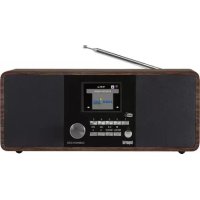
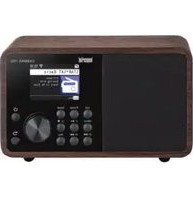
USER MANUAL Dabman I220 Imperial
- Foreword 54
2.SAFETYINSTRUCTIONS 55
2.2.Intended Use. 56
2.3. Safety instructions. 57
2.4. Operational safety 58
2.5. Connecting the device 59
2.6. Protecting the device against damages 60
2.7.Risk of injury 61
2.8. Handling the batteries 61
2.9.Cleaning the device 62
2.10. Actions in case of malfunction 63
- ITEMS SUPPLIED. 64
- IMAGES 65
- REMOTE CONTROL 68
- INSTALLATION 71
- OPERATION 73
7.1.Settings 73
7.2.Local Station 78
7.3. Internet Radio 79
7.4.Media Centre 81
7.5.FM 82
7.6.DAB 83
7.7.Information Centre 85
7.8.AUX 86
7.9.Bluetooth 87
8.AIRMUSICCONTROLAPP 88
9.TROUBLESHOOTING 92
10.DISPOSALINSTRUCTIONS. 95
11 FEATURES AND TECHNICAL SPECIFICATIONS 96
- Service and Support. 98
- CE Marking. 99
1. Foreword
Dear customer
Thank you for choosing this product.
If your Internet radio is not working properly, it is not necessarily due to a defect. Please do not immediately send the device back, call us!
Technical Hotline
for Germany: +49 / 02676 / 9520101
Alternatively, please send an e-mail to service@telestar.de or a fax to +49 / 02676 / 9520159.
Should it not be possible to solve the problem in this way, please send the device to our service centre at the following address:
For Germany: TELESTAR Service Center,
Am Weiher 14,
56766 Ulmen
For Austria: fsms GmbH,
Welser StraBe 79,
A-4060 Leonding
Please read these instructions carefully and keep them for future reference. If you sell the device, or pass it on, please also hand over this manual.
2. SAFETY INSTRUCTIONS
2.1. Explanation of symbols
| Symbol | Meaning |
| DANGER | This signal word indicates a hazard with a high degree of risk, which, if ignored, results in death or serious injury. |
| WARNING | This signal word indicates a hazard with a medium degree of risk, which, if ignored, may result in death or serious injury. |
| CAUTION | This signal word indicates a hazard with a low degree of risk, which, if ignored, may result in minor or moderate injury. |
| NOTE! | This signal word warns of possible property damage. |
2. SAFETY INSTRUCTIONS
Protection class II
E

Electrical devices with protection class II have a reinforced or double insulation equal to the rated insulation voltage between active and touchable parts
(VDE 0100 part 410, 412.1). They usually have no connection to the protective conductor. Even if they have electrically conductive surfaces, they are protected by a reinforced or double insulation from contact with other live parts
2.2. Intended Use
The device is used as a receiver for DAB/DAB+/VHF radio signals for receiving Internet radio stations and Bluetooth audio signals, or for playing back audio files on a USB data storage device or on a network drive.
Any other operation or use of the device is considered improper and may result in personal injury or property damage.
Do not use the device for any other purpose.
Operate the device indoors only.
The device is only intended for private use and not for commercial use.
We assume that the person operating this device has general knowledge of how to use electronic entertainment devices.
There is no liability in the event of improper use.
2. SAFETY INSTRUCTIONS
Only use spare parts and accessories supplied or approved by us.
Do not modify the device and do not use any accessories or spare parts not explicitly approved or supplied by us.
Do not use the device in potentially explosive areas. These include e.g. fuel storage areas, tank facilities, or areas where solvents are stored or processed.
Do not operate the device in areas with particle-contaminated air (e.g. flour or wood dust)
Do not expose the device to extreme conditions, e.g.
direct sunlight,
high humidity, moisture, extremely high or low temperatures, open fire.
2.3. Safety instructions

WARNING!
Risk of injury!
Risk of injury to children and persons with reduced physical, sensory, or mental abilities (e.g. partially disabled, elderly persons with limited physical and mental abilities), or lack of experience and knowledge.
Please keep the device only in places that are inaccessible to children.
This device may be used by children over the age of 8 and by persons with reduced physical, sensory or mental abilities or lack of experience and/or knowledge, if they are supervised or have been instructed in the safe use of the device and have understood the resulting hazards.
2. SAFETY INSTRUCTIONS
Never let children use the device unattended.
Do not store the used packaging materials (bags, polystyrene pieces, etc.) within the reach of children.
Children are not allowed to play with the packaging.
E
2.4. Operational safety

DANGER
Risk of injury!
Risk of injury due to electric shock from live parts.
There is a risk of electric shock or fire due to an unintentional short circuit.
Please check the device for damages before every use. If you notice any visible damage or if the device has visible damages, please stop operating it.
If you notice a technical or mechanical problem, please contact TELESTAR Service.
Use only the supplied power supply unit!
Never open the casing of the device.
In the event of a malfunction, disconnect the radio from the power source.
2. SAFETY INSTRUCTIONS
If you move the device from a cold to a warm environment, moisture may develop inside the device.
In such a case, wait for approximately one hour before using it.
In case of prolonged periods of absence or thunder storm,
unplug the device from the wall socket.
If foreign bodies or liquids enter the device, immediately
disconnect the power supply unit from the wall socket.
Have the device inspected by a qualified person before using it again.
Otherwise, you run the risk of an electric shock.
2.5. Connecting the device
Only connect the device to a professionally installed, earthed and electrically fused wall socket.
Make sure that the power source [wall socket] is easily accessible.
Do not bend or squeeze the cable connections.
Before operating the device, check that the voltage indicated on the device matches the local mains voltage.
2. SAFETY INSTRUCTIONS
2.6. Protecting the device against damages
E
NOTE!
Unfavorable environmental conditions such as humidity, excessive heat, or lack of ventilation can damage the device.
Use the device only in dry rooms.
Avoid the direct proximity of: heat sources, such as radiators, open flames, e.g. candles, devices with strong magnetic fields, e.g. speakers.
Ensure that there is sufficient distance to other objects and that the device is not covered to always guarantee sufficient ventilation.
Avoid direct sunlight and places with excessive dust.
Make sure that contact with moisture, water, and splashing water is avoided and that there are no liquid filled items - e.g. vases - placed near the device.
Do not place any heavy objects on the device.
Make sure that the device is not exposed to dripping or splashing water, and that there are no open sources of fire (e.g. lighted candles) near the device.
2. SAFETY INSTRUCTIONS
2.7. Risk of injury

WARNING!
Excessive sound pressure when using earphones or headphones may result in damage or loss of hearing.
Listening with earphones or headphones with increased volume over a long period of time may cause damage to the user.
Please check the volume before inserting earphones into your ears, or putting on headphones.
Set the volume to a low level and increase it only enough that it is still comfortable for you.
2.8. Handling the batteries
The device comes with 2 batteries of the type LRO3/AAA/1.5V. Only use this battery type for the remote control.

DANGER
If the batteries are swallowed, there is a risk of internal injury. The battery acid in the batteries may cause injury on contact with the skin.
Immediately seek medical attention after accidental swallowing or signs of skin burns.
Keep new and used batteries always away from children.
Immediately remove the leaked batteries from the device and clean the contacts before inserting new batteries.
2. SAFETY INSTRUCTIONS

WARNING!
E Improper use of batteries results in a risk of explosion.

Use only new batteries of the same type.
Please do not use any new and old batteries together in one device.
When inserting the batteries, ensure the correct polarization.
Never charge batteries.
Batteries should only be stored in cool and dry locations.
Never throw batteries into a fire.
If the device will not be used for a long time, remove the batteries from the device.
Never expose batteries to extreme heat or direct sunlight.
2.9. Cleaning the device
Before cleaning, unplug the device from the wall socket.
Use a dry, soft cloth to clean the device. Please do not use liquids to clean the device.
Do not use solvents and cleaning agents as they may damage the surface and/or inscriptions of the device.
2. SAFETY INSTRUCTIONS
210. Actions in case of malfunction
If the device malfunctions, disconnect it from the power supply and wait for a few seconds.
Reconnect the device to the power supply.
It may be necessary to reset to the factory settings.
If this does not work, please contact your dealer or contact TELESTAR
Digital GmbH directly.
Further information can be found on page 6.
3. ITEMS SUPPLIED

1
2
3
4
5
6

Nr. Qty. Item
1 1 DABMAN i220
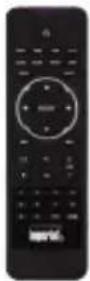
2.1 Remote control
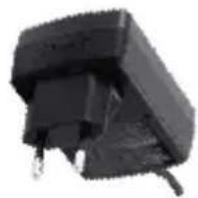
3 1 External mains adapter
41 Operating manual
51 Guarantee card
61 Telescopic antenna
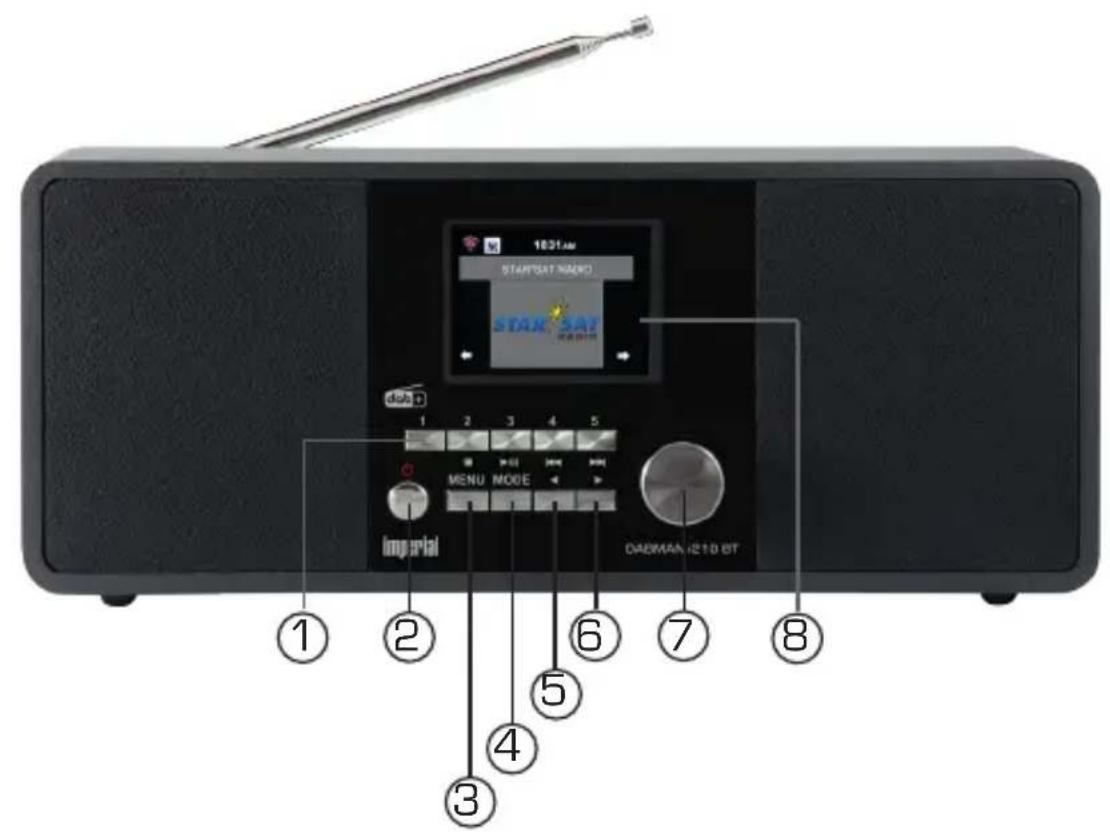
4. IMAGES
E
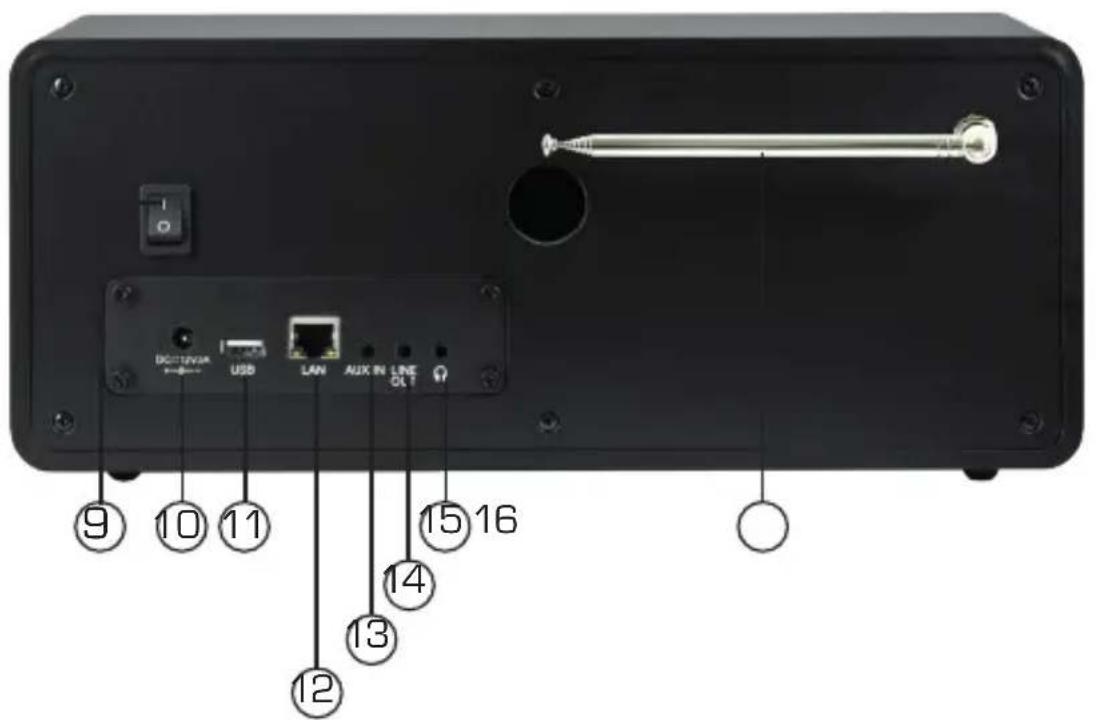
4. ILLUSTRATIONS
- Station memory keys 1-5
-
Power key on/off Use this key to switch the radio on or to standby.
-
Menu key
Calls up the menu of the radio.
- Mode
Here you can select the operating mode of the unit, between Internet radio, DAB+, FM, uPnP, AUX and USB.
5./6. Navigation/ station selection
Use these keys to navigate in the menu, or to select the next station in the station list.
- Volume control, confirmation key
Use the rotary dial to adjust the volume, or confirm menu entries by pressing the key.
- Display
- Power switch
Here you can switch the radio on or off. The radio will be disconnected from the power supply in position 0.
- Mains adapter connection
Use this socket to connect the radio with the mains adapter [supplied]
- USB connection
Here you can connect the radio with a USB storage device like USB HDD drive, USB Stick or USB CD/DVD drive in order to reproduce music files from this.
- LAN connection
Here you can connect the radio via a network cable with an existing network in order to use the Internet radio function.
Alternatively the radio can also be connected via WiFi
4. ILLUSTRATIONS
13. AUX IN
Here you can connect an external audio source such as an MP3 player, smartphone or tablet, using the 3.5 mm AUX cinch cable.
14. LINE OUT
Here you can connect the radio with a hi-fi amplifier or with active loudspeakers in order to process the music received through the radio via a sound system.
15. Headphone socket
Here you can connect a headphone, in order to listen to music played on the radio via headphones. When headphones are connected, music reproduction via the radio loudspeakers will be interrupted.
5. REMOTE CONTROL
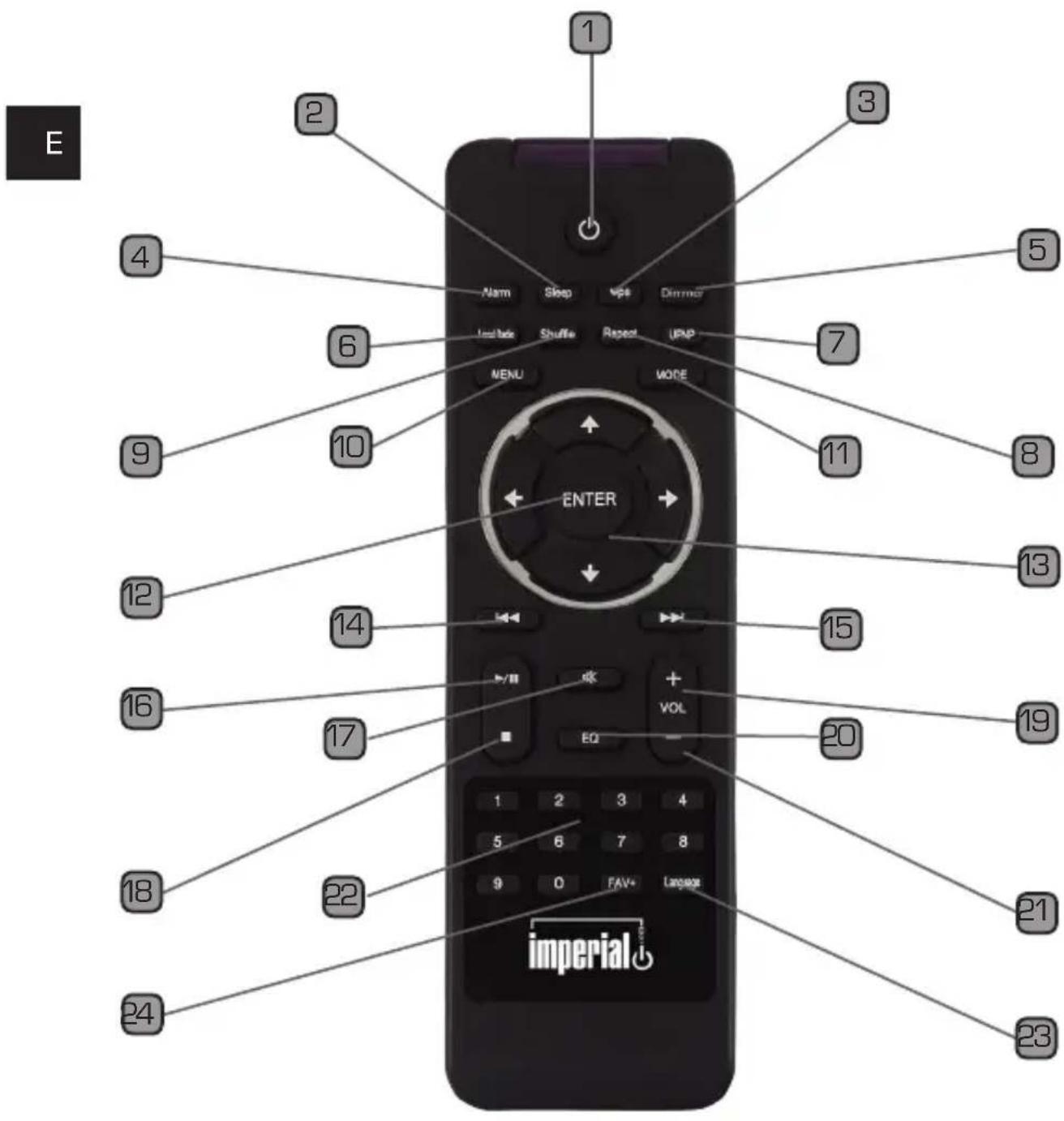
5. REMOTE CONTROL
1 Standby button
Use this button to turn the device on or off.
2 Sleep
Use this button to turn the device's sleep timer on or off.
WPS button
With this button you can set up a W-LAN connection with your home network.
Please also refer to section 8.
4 Alarm
Use this button to activate the alarm clock function.
5 Display Dimmer
Changes the display brightness.
6 Local Radio
UPNP
Enables the device's UPnP function.
Repeat
Use this button to enable repeat playback of one or more tracks.
9 Shuffle
Activate random playback here.
10Menu
This button is used to activate the device's menu.
11 Mode
Switch to the different operating modes here.
12 Enter
This button is used to confirm a selection.
5. REMOTE CONTROL
13 Navigation up/down - left/right
Use these buttons to navigate in the menu.
14 Select previous track / fast rewind
Use this button to select the previous track or to fast rewind.
15 Select next track / fast forward
Use this button to select the next track or to fast forward.
16 Play
Starts or pauses playback.
17 Mute
Mutes the device's volume to silent.
18 Stop
Stops playback.
19 V+ Volume
Increases the volume.
EQ Equalizer Function
This button is used to activate the equalizer function and to configure individual sound settings.
21 V-Volume
Decreases the volume.
Numeric keypad
23 Language
This button allows you to change the menu language.
24 Favourites button
Switches to one of the individually stored favourite stations.
6. INSTALLATION
Please take care when removing the parts from the packaging. Check that all parts have been supplied.
Note: The radio can be controlled by using either the device buttons or the remote control. It is simpler and more convenient to operate the DABMAN i30 Stereo with the remote control. For this reason, this manual mainly explains how to set up and operate the radio using the supplied remote control.
When the device is connected to a network, the radio can also be controlled via the AirMusicControl App. This application is available for Android and iOS operating systems. For details, see section 8.
6.1. Power Connection
First, connect the included power supply unit to the corresponding port on the back of the DABMAN i30 Stereo. Now, plug the power supply unit into a 220V wall socket. Then pull out the telescope antenna at the back of the radio to its full length, this ensures the best possible reception, if you want to receive terrestrial broadcast stations via the antenna.
6.2. Network Connection
In order to use the radio's Internet functions, the device must be connected to a network. You can connect the device by using the integrated W-LAN receiver.
6. INSTALLATION
6.3 Language
E
Turn on the power switch at the back of the device. The radio starts. You can select the menu language via the remote control's up/down buttons. Confirm the desired menu language with the ENTER button on the remote control.
6.4 Network Scan
If you want to connect the radio to your home network, confirm the following menu prompt with Yes. With this setting, the radio scans for available networks each time it boots up.
6.5 Network Configuration
To connect the radio to your network, confirm the following prompt with Yes. If you do not want to connect the device to a network, you can skip this menu item by selecting No.
6.5.1 Network selection
Select the connection type to be used for connecting the radio to a network.
All available W-LAN networks will then be displayed. Select the network you want to connect to.
Enter the W-LAN key. With the [UP/DOWN] buttons you can select a character, with the [RIGHT] button you can jump to the next character. Confirm the selection with ENTER.
7. OPERATION
The Menu button on the device or remote control, when pressed, will take you to the device's main menu. Within 10 seconds the menu is exited automatically and the device switches to the latest radio setting.
You can see the count down in the lower right corner of the display.
Navigation in the menu is done via the (UP/DOWN) and
[LEFT/RIGHT] buttons.
The device's main menu consists of the following menu items:

You can select the individual menu items with the arrow buttons. Confirm the selection with the ENTER button.
7.1.Settings

Press the Menu buttons on the remote control or the device, and select Settings with the [LEFT/RIGHT] buttons. With these menu item you can customize the device's settings.
7.1.1 Time Display
Select, under this item, whether the time should be shown in standby analog or digital on the display.
7. OPERATION
Here you can activate or deactivate the Manage MediaU function.
With MediaU Management you can create your own station list and play these stations.
E
To create and activate your station list, you need to
login on the following website: http://www.mediayou.net/
If the login is successful, you can register your radio.
Please enter the radio's MAC address as serial number. The radio's MAC address can be found under the Information Centre item.

After each update of the website, where you can manage and edit your personal radio stations, please navigate to My MediaU Management in the radio to synchronize the changes.
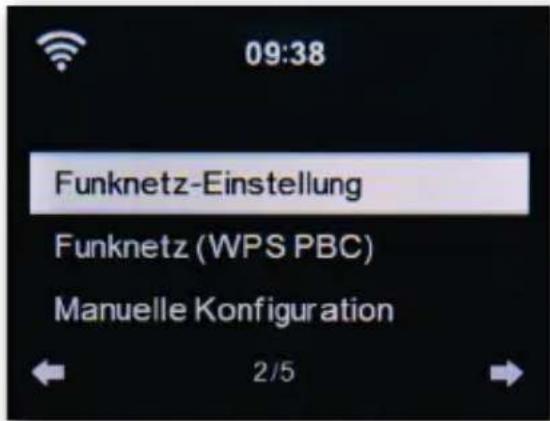
7.1.3. Network
Configure your network settings here.
7. OPERATION
Select with the (UP/DOWN) buttons the desired menu item and confirm your selection with ENTER.
The network configuration takes place as described in point 6.4.
7.1.4. Date and Time
Set the time and date here.
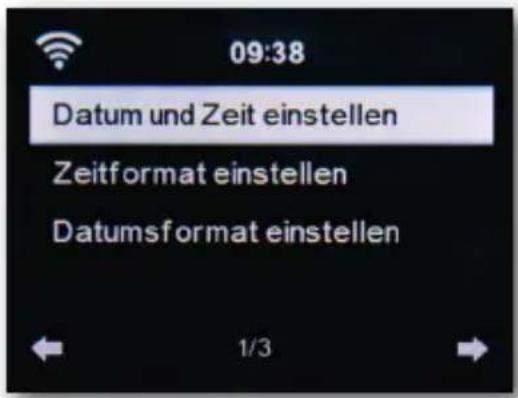
The device's factory setting is on automatic time setting. If the device is connected to the Internet via a network, the time and date are automatically synchronized. In such a case, setting the time is not required.
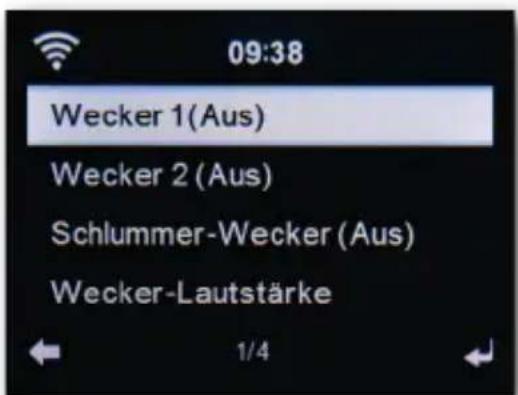
7.1.5. Alarm Clock
The device can be used as a radio alarm clock.
7. OPERATION
Under this menu item you can set up to 2 alarm times.
In addition, you can select here whether the alarm should go off as a sound, a melody, an Internet radio station,
E
a DAB+ radio station or with a VHF (FM) station.
If you have set an alarm time, you can activate the radio-alarm mode in the menu.
To stop the alarm, press the Enter button on the remote control or the OK button on the device.
To do this, select the Mode menu item in the settings and switch the operating mode to radio alarm clock. (Section 7.1.1)
7.1.6. Timer
The timer allows you to set a time after which the radio triggers an alarm.
To do this, enter, via the (LEFT/RIGHT) buttons, the time in minutes and seconds. By pressing in increments, you can increase or decrease the time 1 second at a time. Press and hold the (LEFT) or (RIGHT) button to forward or rewind the time.
Confirm the selection with OK/ENTER.
7. OPERATION
7.1.7. Language
Here you can set the menu language of the device.
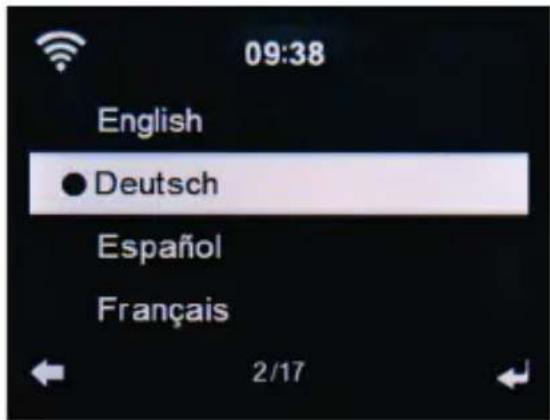

Use the [UP/DOWN] buttons to select the language and confirm with Enter.
7.1.8. Dimmer
With the dimmer function, you can adjust the brightness of the display. The device is delivered from the factory with the highest brightness level. You can adjust the brightness manually via this menu item.
7.1.9.Display
If desired, you can change the coloured display to black/white here.
7.1.10 Energy settings
For energy law reasons, the device switches off after a certain period of time if the device has not been operated via the keys on the device or the remote control during this period.
Under this item, you can either change the time period, or disable the function.
7. OPERATION
7.1.19. Equalizer
Here you can select certain sound presettings.
Alternatively, during operation you can also press the EQ button on the remote control.
E
7.1.20. Software Update
To improve the device's functions, it may be necessary to update the operating software. Your radio's operating software, which is available for download at www.telestar.de, can be updated via the USB interface. The software provided on the website must be unpacked. You then download the unpacked file on a suitable storage medium and connect it to the radio via the USB connection.
7.1.21. Factory setting
Under this menu item you can reset the device to its delivery status. The device then starts with the first start-up.
7.2. Local Station

Press the Menu button on the remote control or device, and select Local Station with the (LEFT/RIGHT) buttons.
Under this menu item common Internet radio stations as well as DAB+ radio stations are sorted according to national regions and are therefore more easily retrieved.
7. OPERATION
Under this menu item, select a desired program list via the
buttons [UP/DOWN]. Confirm selection with Enter.
Select DAB if you want to access radio stations transmitted via DAB+.
All other radio selections refer to internet radio reception.
7.3. Internet Radio

Press the Menu button on the remote control or device, and select Internet Radio with the (LEFT/RIGHT) buttons.
In the Internet radio menu you can select and manage all Internet stations.
Up to 10,000 radio stations are available. As a prerequisite, you need to integrate your radio into a network that is connected to the Internet.
7.3.1. My Favorites
This menu allows you to select one of the 5 favourite stations that you have stored via the device's station memory buttons.
Alternatively, the radio stations can also be called up via the station memory buttons on the device, or via direct number entry on the remote control.
7.3.2. Radio station / Music
Select here between different radio station lists. Use the buttons (UP/DOWN) and confirm with Enter.
7. OPERATION
7.3.2. Local Stations
Under this menu item common Internet radio stations as well as DAB+ radio stations are sorted according to national regions and are therefore more easily retrieved. Please also refer to section 7.2.
E
7.3.3. Last Listened
Under this menu item you will find a list of Internet radio stations that you have accessed last.
Note: The prerequisite for the content of the menu item "Last Listened" is that you have already used Internet radio mode. If you switch to this mode for the first time, this list will not yet contain an entry.
7.3.4. Service
Under this menu item you can specifically search for a radio station on the Internet. To do this, you must enter the name of the station.
Select Search Station in the Service menu and confirm with Enter.
Use the keypad on the remote control to enter the radio station's name in the search box. With the button you can jump to the next character. Confirm the entry with Enter.
The radio will now search for all stations that match this entry. Select a station with the (UP/DOWN) buttons and confirm with Enter.
Alternatively, you can also add new radio stations of which the Internet address is known.
For this you need to enter the internet address of the radio station.
7. OPERATION

E
Press the Menu button on the remote control or device, and select Media Centre with the (LEFT/RIGHT) buttons. As long as the i30 Stereo is connected to a wireless network, the radio can also be used as a media player to play back music files from network connected devices, such as personal computers or smartphones, via UPnP or DLNA. Prerequisite here is that, on the one hand, the device is connected to the same home network and, on the other hand, the corresponding media content is released in this network. To select the media player option, do the following:
Use the (UP/DOWN) buttons to select the area from which you want to play music.
You can choose between USB [USB data storage device connected to the device via the USB port] and UPnP [music files via the UPnP protocol if they are in the same network as the radio].
You can also connect a USB CD drive to the USB port to play audio CDs or CDs with audio data.
Select a track that you want to play and confirm with Enter.
You can jump to the next track with the button.
You can jump to the previous track with the button.
You can pause or resume playback with the button.
7. OPERATION
7.5.FM

Press the Menu button on the remote control or device, and select FM with the (LEFT/RIGHT) buttons.
In this menu you can find all relevant settings to receive radio stations via VHF.
7.5.1. VHF Station Search
If the i30 Stereo is switched to the VHF mode for the first time, you need to perform a station scan. For this you can either use the automatic, or manual search function.
Automatic VHF search.
After switching to FM, press the Enter button.
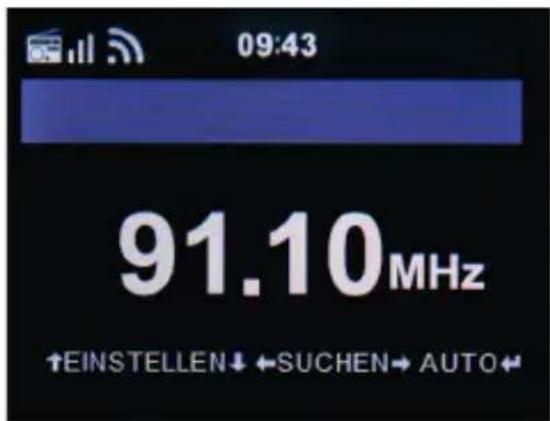
The device starts the automatic station search and saves all found stations.
The radio can store up to 20 VHF radio stations.
7. OPERATION
7.5.2. VHF Radio Operation
To access the stored radio stations, press the or button.
Alternatively, you can also access the first 3 stored stations via the station memory buttons on the device.
If you want to change the stations assigned to the station memory buttons, press the station selection button 6 (see page 10) to scan to the next receivable station. If necessary, repeat this step until you find the station you want. Press then, for approx. 2 seconds, the desired station selection button 1-3 (see page 10). The station is now stored at this button.
7.6.DAB

Press the Menu button on the remote control or device, and select DAB with the (LEFT/RIGHT) buttons.
7.6.1. DAB Station Search
In addition to VHF stations, the radio can also play DAB+ radio that can be received digitally via antenna.
When you switch to the DAB mode for the first time, the device will start an automatic station scan to find all stations that can be received at your location.
The scanning for stations starts, the progress is indicated on the display. Once the scan has been completed, the radio will start playing the last tuned station.
7. OPERATION
7.6.2. Choosing a station
In DAB mode, you can use the buttons to navigate through the receivable DAB+ stations.
E To change stations, press the Enter key.
The radio has a favorites memory, in which you can save your favorite stations. To save a station go to the desired station as described above. Now hold down the FAV button on the remote control for approx. 5 seconds. Use the [UP/DOWN] buttons to move the station to the desired place in the favorites memory and press the OK button to save the station to this place.
Alternatively, you can choose up to 5 stations using the 1-5 station memory buttons on the device. To do this, switch to a desired station and press one of the 5 station memory buttons for approx. 5 seconds. The program is then stored at the corresponding position.
7.6.3. DAB Radio Operation
You can access the favourites list using either the FAV button or by pressing the desired number button on the remote control.
You can also access the first 3 stations of the favourites list by pressing the station memory buttons on the device.
7. OPERATION

E
7.7.1. Weather and Finances
Press the Menu button on the remote control or device, and select Information Centre with the [LEFT/RIGHT] buttons.
Under this item you can access the latest weather and financial information.
Under the Weather Information section, select the country and city from which the weather forecast should be displayed.
Confirm your selection with Enter. Navigate in the menu with the (UP/DOWN) buttons.
The weather information can also be displayed in standby mode. With the button, you can add the selected weather information to the standby weather display. You can activate the weather information for standby mode as described in section 7.2.1.
Similar to the weather forecast, you can also see stock market listings from around the world under the Financial Services item.
Check the details of the connected network in this menu. The information includes, among other things, the MAC address required to register your device when you log in to mymediaU. (See also section 7.1.2)
7. OPERATION
7.8.AUX

As long as you connect an external device (e.g. MP3 player) with a cable via the AUX port to the DABMAN i220, it can optionally be used for audio data playback. To do this, please follow these steps:
Connect an external device to the DABMAN i220 with an appropriate cable (3.5mm jack, sold separately, may vary from device to device) and switch this device on.
Press during operation the Mode button on the remote control, if necessary
repeatedly, until the message "AUX" appears, under the time display, or press the Menu button, and select with the help of the button the AUX menu item.
Now you can play music from the external device. The control (track forward, back, stop, play) takes place via the externally connected device. You can control the playback volume via the V + / V -buttons of the DABMAN i220 or via the external device.
7.9. Bluetooth

You can optionally also connect the DABMAN i220
via Bluetooth to an external device [e.g. smartphone/tablet].
Media (locally stored MP3 files, streaming music, web radio) stored on the external device can then be played though the radio via the Bluetooth connection.
The Bluetooth mode is recommended for when there is no network connection available and you are in close vicinity to the radio with your device.
Select the Bluetooth item via the menu.
A Bluetooth connection must be established, to be able to send audio files to the radio via Bluetooth.
7.8.1 Establishing a Bluetooth connection
If you have selected the Bluetooth mode on the radio,
it is in the pairing mode and searches for Bluetooth devices to be connected.
Now activate the Bluetooth function on the external device to be connected (for details, refer to the user manual of the device to be connected).
Search in the overview of available devices for DABMAN i220, select it and connect.
8. AIRMUSIC CONTROL APP
The radio can be controlled with a smartphone or tablet and a corresponding app. The application AirMusic Control App can be downloaded for Android and Apple iOS. With this App you can also play the local music files on your smartphone via the radio.
E Note:
This description corresponds to the app as of 09/2015. In the course of the app's software updates, functions or the appearance may change!!
Download the application from google play store for android operating systems, or via iTunes for iOS operating systems and install the app on your smartphone.
Make sure that the radio and your mobile device are logged into the same network.
Start the application.
When starting the app, it will automatically recognize the radio
DABMAN i220, as long as it is logged in to the same network.
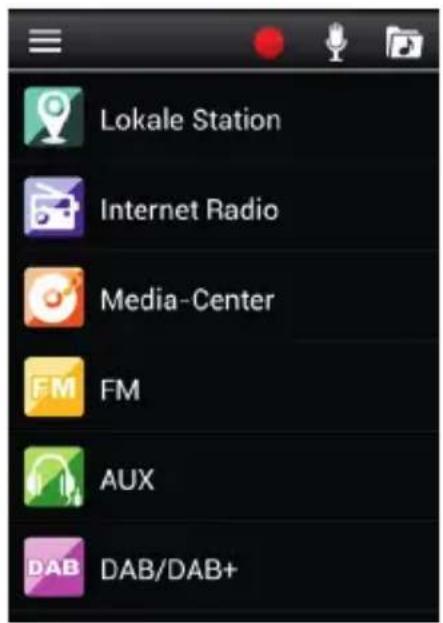
The main menu of the app is structured like the radio's own menu.
8. AIRMUSIC CONTROL APP
Main menu
Start the desired function by tapping on the respective symbol.
E
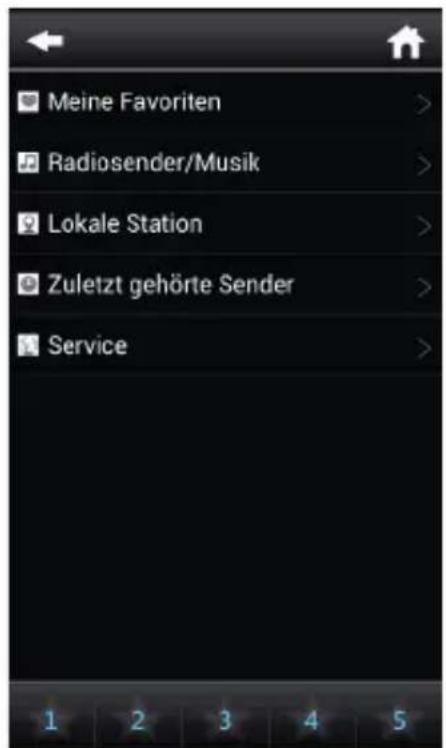
Internet Radio
In this mode, you can also select all the usual functions of the Internet radio operation.
In the lower section you can select the station memory 1-5.
8. AIRMUSIC CONTROL APP
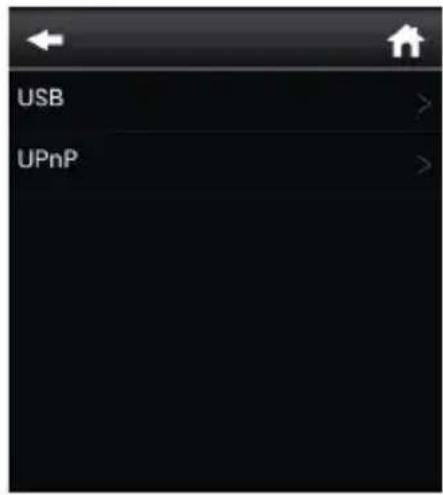
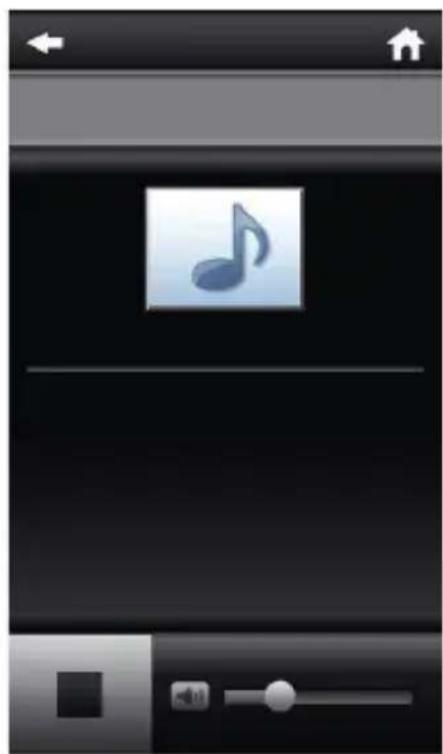
In this section you can connect, with media servers in your network.
E
It is also possible to access music files stored on a connected USB data storage device.
8. AIRMUSIC CONTROL APP
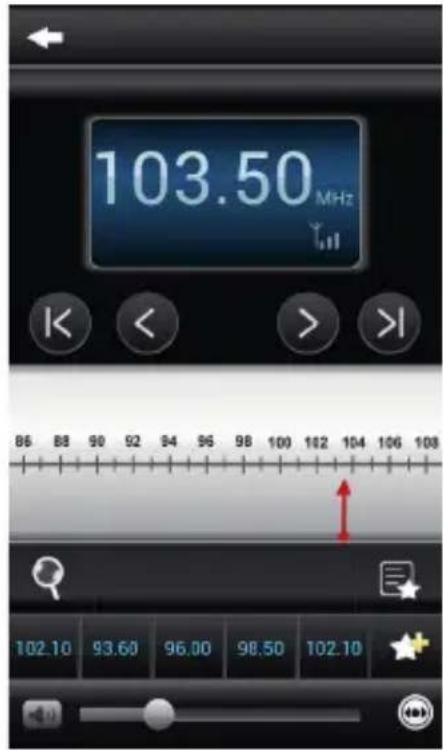
VHF radio
In this mode you can operate the VHF radio (FM).
E
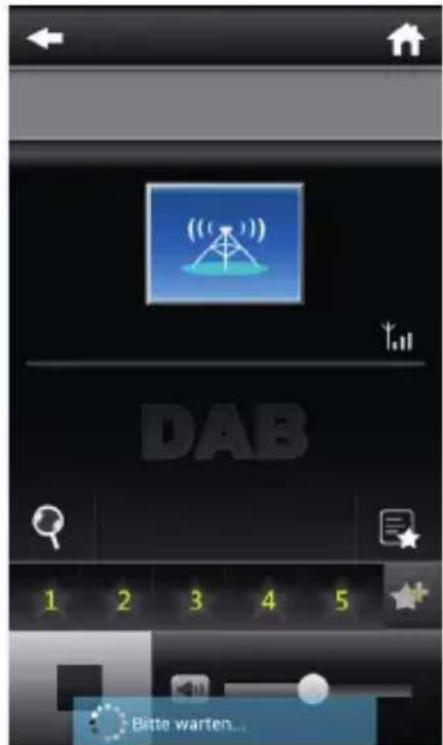
DAB
In this mode you can operate the DAB+ radio.
9. TROUBLESHOOTING
E
| fault | possible cause and solution |
| No display, radio does not respond to commands | Connect the device to the mains using the power supply unit which is supplied with the radio. |
| Operation via remote control is not possible | Batteries empty or positioned incorrectly. Please check whether the battery is inserted in the correct direction. |
| Poor DAB+ reception No | stations available. Perform a scan (see section 7.6.1.) Antenna is not fully extended Change the location of the radio (if necessary closer to the window), perform another scan. |
| Poor VHF reception Antenna | Antenna not fully extended, pull out the FMA antenna to its full length. Change the location of the radio. |
9. TROUBLESHOOTING
| fault | possible cause and solution |
| AUX playback does not work | DABMAN i220 is in the wrong mode
Change to “AUX” mode
Cable connection faulty, check the cable connection between
DABMAN i220 and the external device |
| Poor audio quality during the playback of music | Low bit rate file. Check the audio file.
Tip: For MP3 files, the bitrate should be 192 Kbits/s or higher. |
| Volume too low Check the | volume setting on the i30 Stereo.
Check the volume setting of the paired device from which you play the music. |
| Network connection can not be established | Check the W-LAN function
Activate the DHCP function of the router to which the radio should be logged on.
A firewall may be active in the network. |
9. TROUBLESHOOTING
E
| fault | possible cause and solution |
| W-LAN connection can not be established | Check the availability of W-LAN networks. Reduce the distance between the W-LAN router and the radio. Be sure to use the correct WEP/WPA password when logging on to a W-LAN router. |
| No internet radio stations available | Check the network access points. The radio station is currently not available. The station's link has been changed or it is currently not broadcasting. |
10. DISPOSAL INSTRUCTIONS
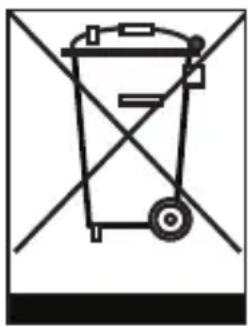
The packaging for your device consists entirely of recyclable materials. Please dispose of these appropriately in accordance with the "Dual System". At the end of its service life, this product must not be disposed of as normal household waste but must be disposed of at a recycling collection point for electric and electronic equipment.
E
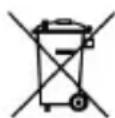
The symbol on the product, instruction manual or the packaging indicates this.
The materials are recyclable according to their labeling. The reuse and recycling of old materials and devices makes an important contribution to protecting the environment. Please ask your municipal administration for the location of a suitable disposal point. Please ensure that electronic waste and empty batteries are disposed of properly and are not disposed of as household waste.
11. FEATURES AND TECHNICAL SPECIFICATIONS
| Internet Radio |
| Chipset | Magic M6 internet radio solution approximately 10,000 internet radio stations available |
| Audio CODECs | MP3 (Bitrate up to 320 Kbits/s, sample rate up to 48 KHz)AAC/AAC+ (Bitrate up to 320 Kbits/s, sample rate up to 48 KHz)WMA (Bitrate up to 320 Kbits/s, sample rate up to 48 KHz)UPnP / DLNA compatible |
| Wi-Fi | IEEE 802.11b/gWPA/WPA2/WEP [64/128 bit key] |
| DAB/DAB+/FM |
| DAB | Sensitivity up to -100dBm |
| DAB+ | Sensitivity up to -101dBm |
| FM | Sensitivity up to -100dBm |
| Decoding | |
| Reception area | DAB Band III 174 MHz - 240 MHzFM 74 MHz - 108.1 MHz |
11. FEATURES AND TECHNICAL SPECIFICATIONS
| Display |
| TFT Colour Display 2.8 inch LCD 240 x 320 pixels |
| SOUND Index |
| STMicroelectronics
BRIDGE AMPLIFIER | (10W+10W Output Music Power)
3" Speaker
max. 4Ω10W
Supports multi sound effect EQ to set
(IC NORMAL, FLAT, POP, JAZZ, ROCK
CLASSIC) |
| Connections |
| Line Out | 3.5 mm jack stereo |
| Headphones | 3.5 mm jack stereo |
| AUX IN | 3.5 mm jack stereo |
| LAN | 10/100 Mbps (RJ45) |
| Power supply | 12 Volt DC 3 A |
| Power supply unit | 10-240 V AC 50 / 60 Hz |
| Battery remote control |
| Type CR 2025 / 3 V | |
Amendments and printing errors excluded. Version as on 03/18 Copying and reproduction only with approval of the publisher.
12. SERVICE AND SUPPORT
Dear Customer
Thank you for choosing a product from our company. Our product meets the legal requirements and was manufactured under constant quality control. The technical data correspond to the status at the time of going to press. Subject to change.
The warranty period for the DABMAN i30 Stereo meets the legal requirements at the time of purchase.
We also offer our telephone HOTLINE service with professional help.
In our service centre, professional technicians are available to answer your questions. Here you can ask any questions you have regarding IMPERIAL products and receive tips for locating a possible fault.
Our technicians are available Monday - Friday 8:00 to 16:45 at the following telephone number:
+49/02676/9520101
or by e-mail at: service@telestar.de
If the Service Hotline is unable to help you, send your DABMAN i30 Stereo, preferably in its original packaging, or at least packed securely for transport, to the following address:
12. SERVICE AND SUPPORT
TELESTAR-DIGITALGmbH
Service Center
Your device bears the CE marking and complies with all relevant EU standards.
Hereby, the TELESTAR DIGITAL GmbH declares that the device IMPERIAL DABMAN i220 is in line with the essential requirements and other relevant provisions
of the EMC Directive 2014/30/EU, the RoHS Directive
2011/65/EC, the Low Voltage Directive 2006/95/EC, the R&TTE Directive 1999/5/EC and the ErP Directive 1275/2008/EC.
The declaration of conformity for this product is available on:
Chere cliente, cher client!
Please note that all technical data or any described functions are subject to change without notice.
Copy and reproduction only with authorization of the publisher TELESTAR Digital GmbH is not responsible for printing errors.
Correct as at: June 2018