
Ergonomic EM500GPL - Mouse 3M - Free user manual and instructions
Find the device manual for free Ergonomic EM500GPL 3M in PDF.
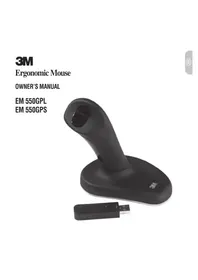

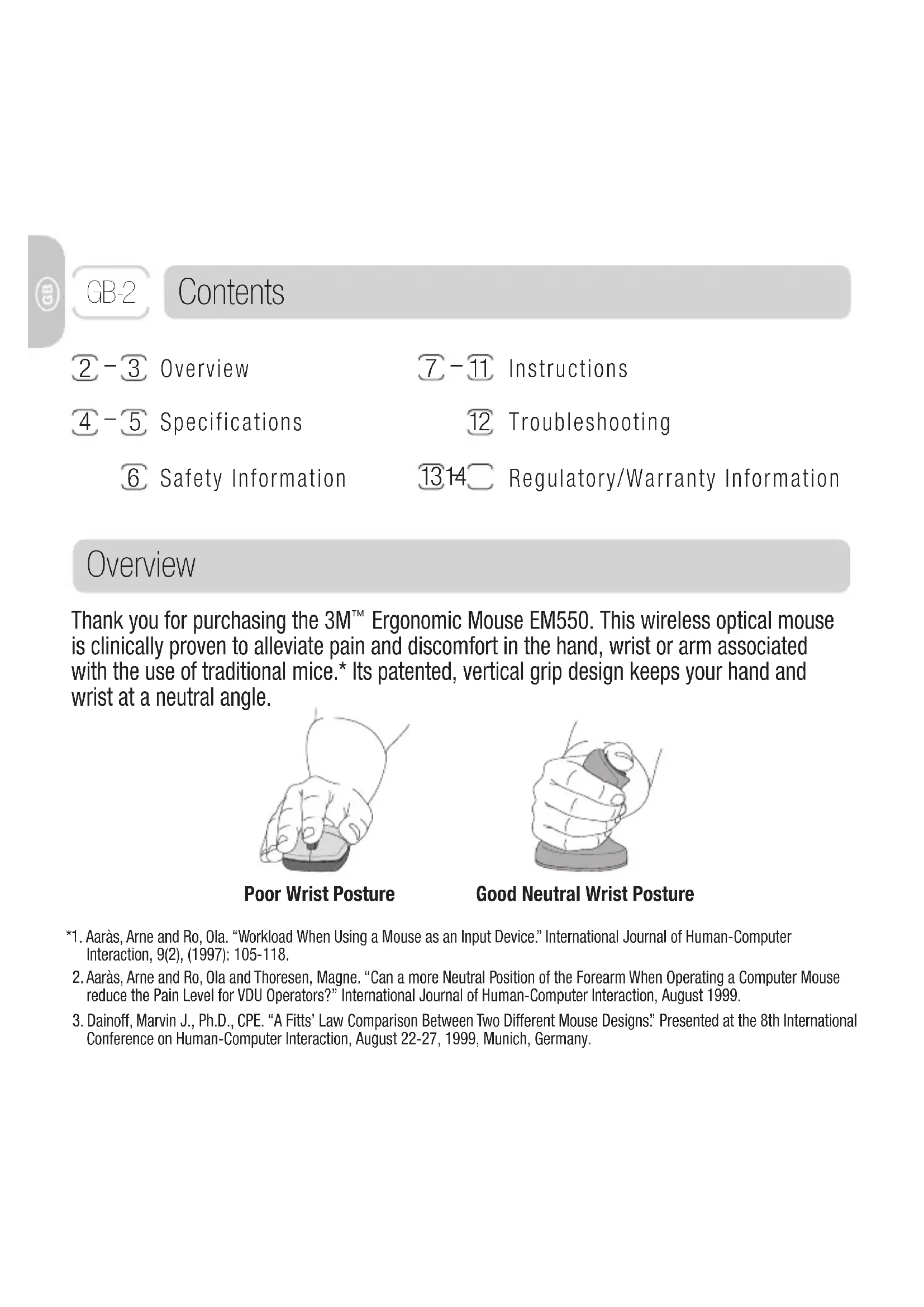


| Product Type | Wireless Ergonomic Mouse |
| Brand | 3M |
| Model | Ergonomic EM500GPL |
| Connection Technology | Wireless (2.4 GHz RF) via USB receiver |
| Sensor Type | Red LED Optical |
| Power Supply | 2 AAA alkaline batteries (included) |
| Estimated Battery Life | Approximately 6 months depending on usage |
| Dimensions (L x W x H) | 110 x 75 x 65 mm (estimated) |
| Weight (with batteries) | Approximately 130 g |
| Compatible Operating Systems | Windows XP/Vista/7/8/10, Mac OS X 10.4.x and later, Linux |
| Package Contents | Mouse, USB receiver, 2 AAA batteries, user manual |
| Button Functions | Left click (thumb), right click (thumb), third button (scrolling and navigation) |
| Ergonomic Design | Vertical grip for natural wrist position |
| Operating Temperature | 0 °C to 40 °C |
| Warranty | 2-year limited (manufacturing defects) |
| Maintenance | Wipe with a soft, dry cloth. Do not insert objects into the sensor opening. |
| Safety | Keep batteries and receiver out of reach of children. Do not expose batteries to heat. Do not look directly at the LED. |
| Compatibility | Non-reflective, non-transparent surface, preferably a mouse pad |
Frequently Asked Questions - Ergonomic EM500GPL 3M
User questions about Ergonomic EM500GPL 3M
0 question about this device. Answer the ones you know or ask your own.
Ask a new question about this device
Download the instructions for your Mouse in PDF format for free! Find your manual Ergonomic EM500GPL - 3M and take your electronic device back in hand. On this page are published all the documents necessary for the use of your device. Ergonomic EM500GPL by 3M.
USER MANUAL Ergonomic EM500GPL 3M


Contents
② - ③ Overview
⑦-11 Instructions
④ - ⑤ Specifications
12 Troubleshooting
⑥ Safety Information
1314 Regulatory/Warranty Information
Overview
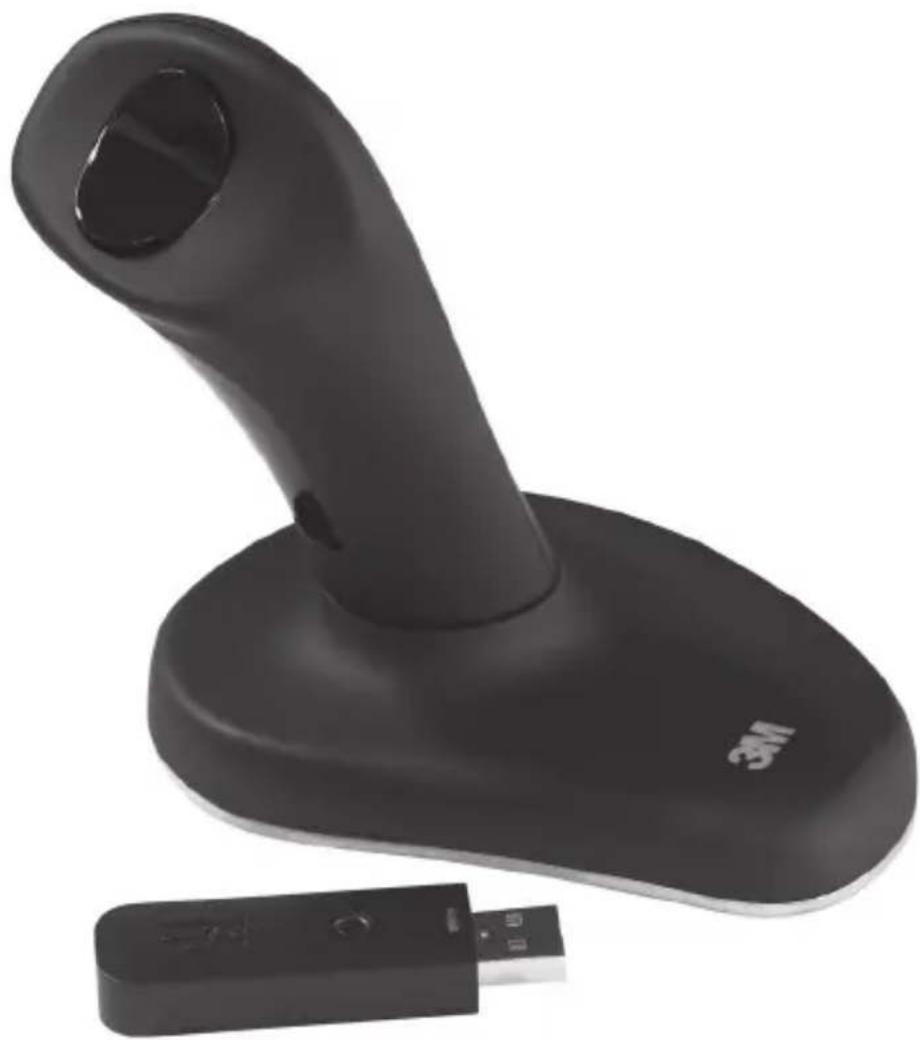
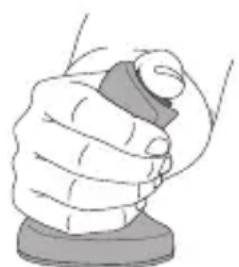
Thank you for purchasing the 3M™ Ergonomic Mouse EM550. This wireless optical mouse is clinically proven to alleviate pain and discomfort in the hand, wrist or arm associated with the use of traditional mice.* Its patented, vertical grip design keeps your hand and wrist at a neutral angle.
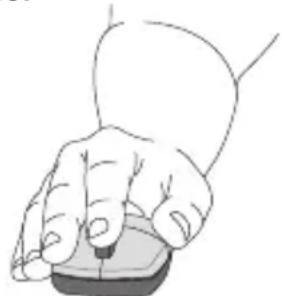
Poor Wrist Posture
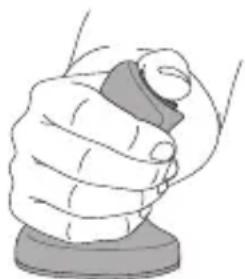
Good Neutral Wrist Posture
*1. Aaràs, Arne and Ro, Ola. "Workload When Using a Mouse as an Input Device." International Journal of Human-Computer Interaction, 9(2), (1997): 105-118. 2. Aaràs, Arne and Ro, Ola and Thoresen, Magne. "Can a more Neutral Position of the Forearm When Operating a Computer Mouse reduce the Pain Level for VDU Operators?" International Journal of Human-Computer Interaction, August 1999. 3. Dainoff, Marvin J., Ph.D., CPE. "A Fitts' Law Comparison Between Two Different Mouse Designs." Presented at the 8th International Conference on Human-Computer Interaction, August 22-27, 1999, Munich, Germany.
When you use a traditional mouse, you pronate your forearm and wrist and typically press your wrist and carpal tunnel area against the desk. This behavior can lead to repetitive stress injuries, which can result in pain or discomfort in the hand, wrist or arm.
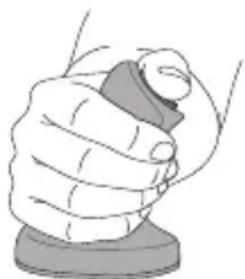
The 3M™ Ergonomic Mouse works as a regular optical mouse—except that your hand grips the handle and rests on the base, and you use your thumb to left and right click. You can scroll in many programs by clicking the 3rd button. It may take up to a week to adjust to using the 3M Ergonomic Mouse.
Your satisfaction is guaranteed. If you are not satisfied for any reason, you may return the mouse to 3M for a full refund within 30 days of the purchase date. Refer to the warranty section for instructions.

Specifications
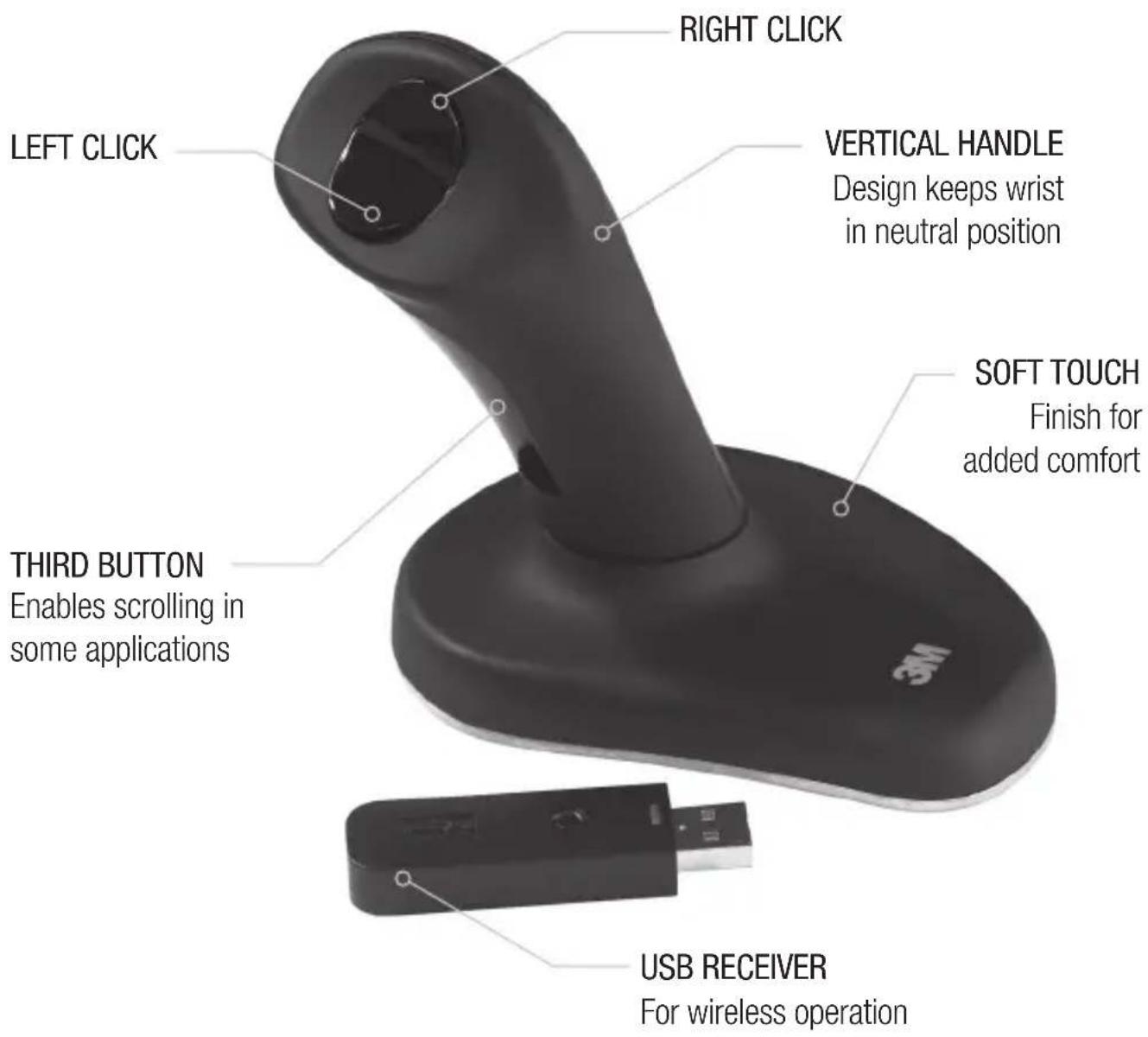
Specifications
CONNECT BUTTON
Located on mouse underside
POWER SWITCH
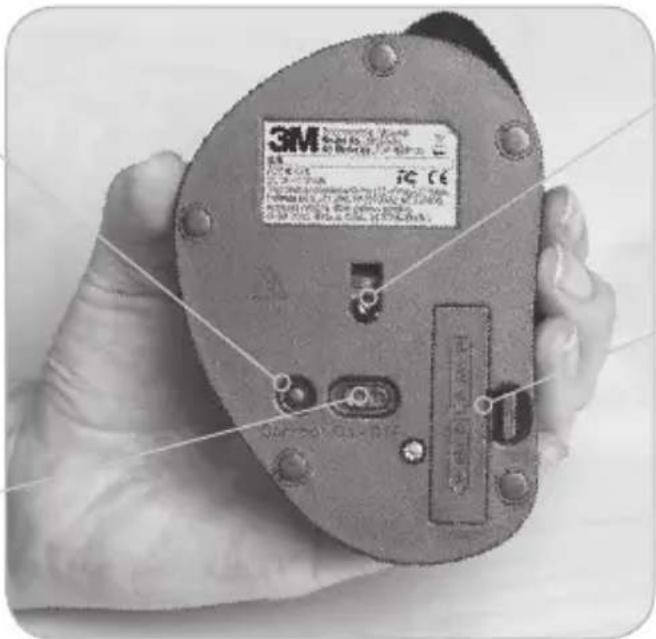
LED/OPTICAL SENSOR
Illuminates in red when power is on
BATTERY COVER
Push latch inward to open
Requires two (2) AAA batteries (included)
The 3M™ Ergonomic Mouse EM550 is compatible with the following operating systems:
Microsoft — Windows XP, Vista and later
Apple — MAC OS 10 X v10.4.X, v10.5.X and later
Linux distributions


GB-6
Safety Information
Please retain this manual for future reference.
The following WARNING statement indicates a hazardous situation, which, if not avoided, could result in death or serious injury.

WARNING
To reduce the risks associated with choking:
—keep USB receiver, batteries and battery cover out of reach of children and pets.
The following CAUTION statements indicate hazardous situations, which, if not avoided, could result in minor or moderate injury.

CAUTION
To reduce the risks associated with explosion and chemicals from a leaking battery:
—do not heat, disassemble, short, recharge, or expose the batteries to fire or high temperature.
—do not mix used and new batteries.
To reduce the risks associated with chemicals from a leaking battery:
—avoid eye and skin contact in the event that the battery leaks.
To reduce the risks associated with high intensity light beam:
—do not allow children to stare at the LED light beam located on the bottom of the mouse.
To reduce the risks associated with environmental contamination:
—dispose of alkaline batteries in accordance with applicable local government regulations.
Important Safety Considerations
- Use only batteries of the correct size and type (AAA - alkaline).
- Orient the battery's plus (+) and minus (-) terminals according to the markings found on the battery cover.
- Do not carry batteries loose in your pocket or purse.
- Do not leave batteries in the mouse for extended periods of time.
1
Installing the Batteries.
1A
Turn the mouse over and remove the battery cover.
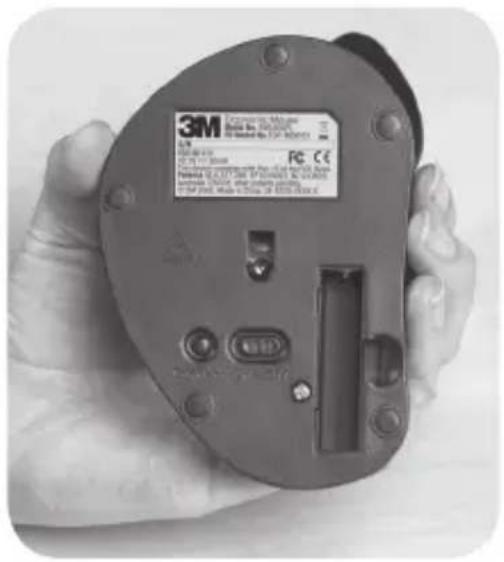

GB-8
Instructions
1B
Slide the batteries into the battery compartment as shown in the illustration on the battery cover and replace the cover.
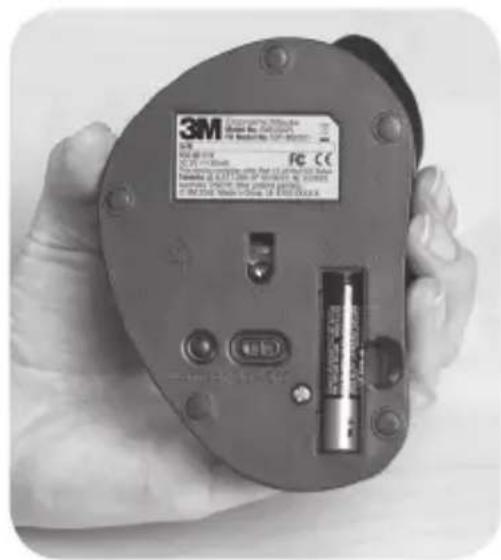
1C
To check if the batteries are installed properly, turn the power switch to ON.
The optical lens will illuminate in red. Turn the power switch to OFF.
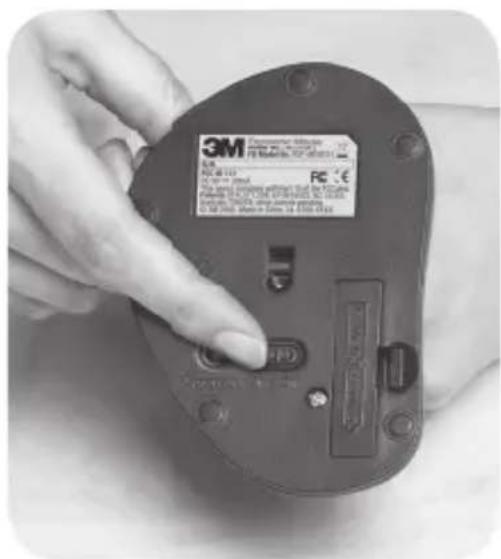
2
Connecting the Mouse to Your Computer.
2A
Turn off your computer.
Turn off your mouse.
Plug the USB receiver into an open USB port on your computer.
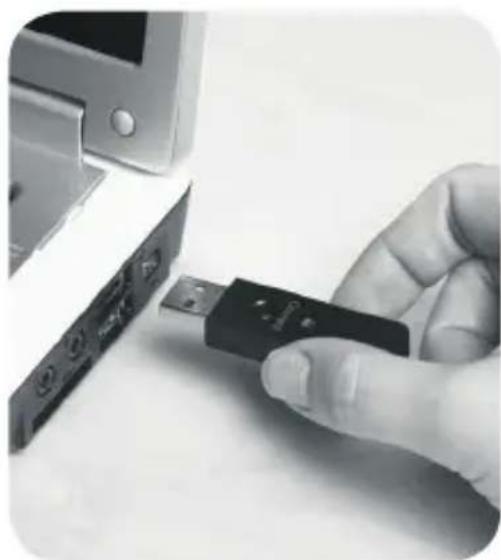

GB-10
Instructions
2B
Turn on your computer.
Turn on your mouse. The optical lens will illuminate in red.
Press CONNECT button on USB receiver. Green light will slowly blink.
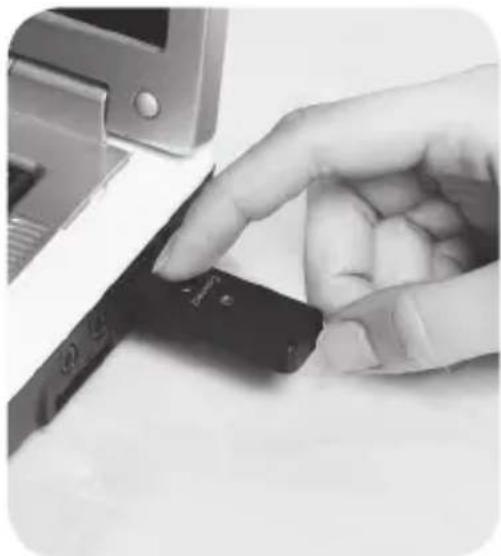
Press CONNECT button on mouse.
Green light on USB receiver will quickly blink for a short time, then stop.
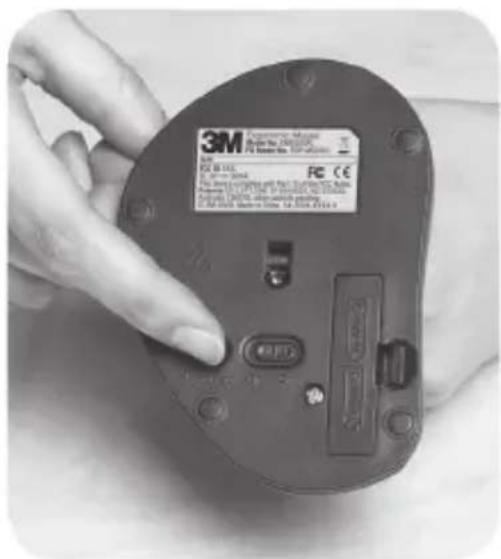
Move your mouse.
Basic mouse functionality will activate. While moving the mouse, the green light on USB receiver will quickly blink. While the mouse is idle, the green light will not blink.
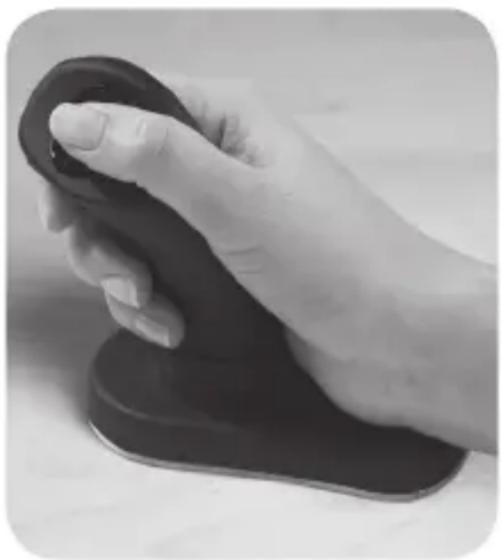
Your mouse is now ready for use. You can customize your mouse settings through your mouse settings utility included with your operating system (Windows, Mac, Linux).
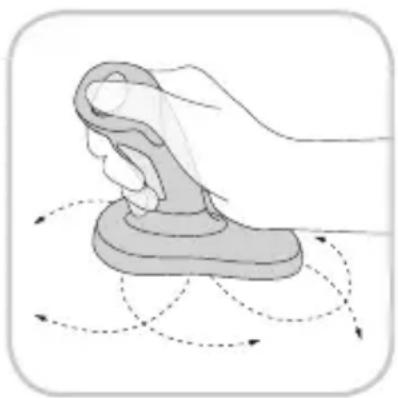
Operate by moving entire mouse around on mousing surface.
Use the thumb button for left and right clicking.

Troubleshooting
| Symptom Probable | Cause Solution | |
| Mouse Not DetectedIf lens is not illuminated red:If green light on receiver does not blink: | Computer ports are improperly set up (for example, are disabled).Confl icts among other devices connected.Installed on an incompatible operating system.No power.USB receiver not recognized. | Check with your computer system dealer or manufacturer if you need help.Resolve any confl icts among devices connected to your computer.Compatible operating systems for the 3M Ergonomic Mouse EM550 are listed on page 2.Make sure the power switch is ON.Use fresh batteries and install them properly.Make sure USB receiver is attached properly to your computer.Reconnect mouse to your computer by following steps in Part 2 above. |
| Cursor Does Not Move At All | Mouse not detected.Optical sensor may be blocked by dust, dirt or crumbs.Mouse is on an incompatible surface. | See “Mouse Not Detected” above.Blow or brush the obstruction away with a soft cloth. However, do not insert hard objects through the opening.DO NOT use your mouse on a transparent surface like glass or a refl ective surface like a mirror; on a rough or porous surface that is not smooth; or on a surface with complex graphic and color patterns. |
| Diffi cult To Control Fine Cursor Motion | You are using larger muscle groups to move the mouse. | It can take up to a week to train new muscle groups to mouse and gain fi ne cursor control.Slow down the pointer speed or acceleration in your operating system's mouse utility software. |
FCC ID: F4Z44K3FDP-MS9101
Modifications to this device shall not be made without the written consent of 3M Company. Unauthorized modifications may void the authority granted under Federal Communication Rules permitting the operation of this device.
Note: This equipment has been tested and found to comply with the limits for a Class B digital device, pursuant to part 15 of the FCC Rules. These limits are designed to provide reasonable protection against harmful interference in a residential installation. This equipment generates, uses and can radiate radio frequency energy and, if not installed and used in accordance with the instructions, may cause harmful interference to radio communications. However, there is no guarantee that interference will not occur in a particular installation. To determine if your mouse is causing interference to other radio-communication devices, disconnect the device from your computer or remove the device batteries. If the interference stops, it was probably caused by the mouse. If the interference continues after you disconnect the mouse, or remove the batteries, turn the computer off and then on again. If the interference stopped when the computer was off, check to see if one of the input/output (I/O) devices or one of the computer's internal accessory boards is causing the problem. Disconnect the I/O devices one at a time to see if the interference stops.
If this hardware device does cause interference, try to correct the interference by one or more of the following measures:
- Relocate the antenna of the other radio-communications device (for example AM/FM radios, televisions, baby monitors, cordless phones, etc.) until the interference stops.
- Move the hardware device farther away from the radio or TV, or move it to one side or the other of the radio or TV.
- Plug the computer into a different power outlet so that the hardware device and radio or TV are on different circuits controlled by different circuit breakers or fuses.
- If necessary, ask your computer dealer or an experienced radio-TV technician for more suggestions.
For Customers in Europe

The "CE" mark indicates that this product complies with the European requirements for safety, health, environment and customer protection.
This symbol [crossed-out wheeled bin WEEE Annex IV] indicates separate collection of waste electrical and electronic equipment in the EU countries.
Please do not throw the equipment into the domestic refuse.
Please use the return and collection systems available in your country for the disposal of this product.
This product is rated as a commercial product for operation at 32°F (0°C) ~ 104°F (40°C).

Warranty Information
Limited Two-Year Warranty for 3M™ Ergonomic Mouse EM550
3M warrants to the owner of this new product that it is free from defects in material and workmanship under normal use and service for two years from the original date of purchase. The warranty does not include normal wear and tear or failure due to operator misuse, carelessness or any accidental cause. 3M MAKES NO OTHER WARRANTIES OR CONDITIONS, EXPRESS OR IMPLIED, INCLUDING, BUT NOT LIMITED TO, ANY IMPLIED WARRANTY OR CONDITION OF MERCHANTABILITY OR FITNESS FOR A PARTICULAR PURPOSE. If within two years from the date of purchase, the product proves to be defective or requires service, your exclusive remedy and 3M's and seller's sole obligation shall be, at 3M's option, to repair or replace the product. If you have a problem with the product, please call our Customer Service toll-free number, 1-800-332-7483. If requested by 3M, you must send the product to 3M at your sole cost. This warranty does not cover damage resulting from accidents, misuse, abuse, and lack of reasonable care.
Limitation of Liability Except where prohibited by law, 3M and seller will not be liable for any loss or damage arising from this 3M product, whether direct, indirect, special, incidental or consequential, regardless of the legal theory asserted, including warranty, contract, negligence or strict liability. This warranty gives you specific legal rights, and may vary from state to state. The foregoing Limited Two-Year Warranty and Limitation of Liability language may be changed only by a written agreement signed by authorized officers of 3M and seller.
Return Privilege This product is sold subject to the foregoing Limited Two-Year Warranty and Limitation of Liability. If you do not wish to purchase the product subject to these conditions, then you may return the product to 3M for a full refund of your purchase price within thirty (30) days after the purchase date. Call 1-800-332-7483 for return instructions.
Satisfaction Guaranteed If you are not satisfied with this product within thirty (30) days after the purchase date, return it to 3M for a full refund of the purchase price. Do not return it to the location of purchase. Call 1-800-332-7483 for return instructions.
This clause is not applicable to UK customers!

Office Supplies Division
3M Center
St. Paul, MN 55144-1000
3M United Kingdom Plc
Office Supplies Division
3M Centre
Cain Road, Bracknell
Berkshire, RG12 8HT
Tel. 08705 360036

http://www.3M.com/ergo

We're easy to reach:

1-800-332-7483

01234 268 868
© 3M 2008
All Rights Reserved.
3M is a trademark of 3M.
Used under license in Canada.
34-8701-7099-9
3M
Ergonomic Mouse
USER MANUAL
EM 550GPL
EM 550GPS

FR-2
Table of Contents
②-③ General View
4 - 5 Description
*1. Aaràs, Arne and Ro, Ola. "Workload When Using a Mouse as an Input Device." International Journal of Human-Computer Interaction, 9(2), (1997): 105-118. 2. Aaràs, Arne and Ro, Ola and Thoresen, Magne. “Can a more Neutral Position of the Forearm When Operating a Computer Mouse reduce the Pain Level for VDU Operators?” International Journal of Human-Computer Interaction, August 1999. 3. Dainoff, Marvin J., Ph.D., CPE. "A Fitts' Law Comparison Between Two Different Mouse Designs." Presented at the 8th International Conference on Human-Computer Interaction, August 22-27, 1999, Munich, Germany.

General View
EN-3
USB PORT
OPTICAL SENSOR
EN-8
Instructions

1B
EN-10
Instructions

2B
2C

FCC ID: F4Z44K3FDP-MS9101
DE-2 Contents
② - ③ Overview
7-11 Instructions
*1. Aaràs, Arne and Ro, Ola. "Workload When Using a Mouse as an Input Device." International Journal of Human-Computer Interaction, 9(2), (1997): 105-118. 2. Aaràs, Arne and Ro, Ola and Thoresen, Magne. "Can a more Neutral Position of the Forearm When Operating a Computer Mouse reduce the Pain Level for VDU Operators?" International Journal of Human-Computer Interaction, August 1999. 3. Dainoff, Marvin J., Ph.D., CPE. "A Fitts' Law Comparison Between Two Different Mouse Designs." Presented at the 8th International Conference on Human-Computer Interaction, August 22-27, 1999, Munich, Germany.
LED/OPTICAL
SENSOR
Lights up red
during operation
BATTERY COVER
Press tab to open
Requires two (2)
AAA batteries
(included)
(enclosed)
1C
DE-10
Instructions
2B
2C

FCC ID: F4Z44K3FDP-MS9101
NL-2 Contents
② - ③ Overview
7-11 Instructions
④ - ⑤ Specifications
12 Troubleshooting
*1. Aaràs, Arne and Ro, Ola. "Workload When Using a Mouse as an Input Device." International Journal of Human-Computer Interaction, 9(2), (1997): 105-118. 2. Aaràs, Arne and Ro, Ola and Thoresen, Magne. "Can a more Neutral Position of the Forearm When Operating a Computer Mouse reduce the Pain Level for VDU Operators?" International Journal of Human-Computer Interaction, August 1999. 3. Dainoff, Marvin J., Ph.D., CPE. "A Fitts' Law Comparison Between Two Different Mouse Designs." Presented at the 8th International Conference on Human-Computer Interaction, August 22-27, 1999, Munich, Germany.
Overview
NL-3
LED/OPTICAL SENSOR

NL-10
Instructions
2B
2C
2D
Move your mouse.
FCC ID: F4Z44K3FDP-MS9101
IT-2 Index
② - ③ Table of Contents
4 - 5 Details
*1. Aaràs, Arne and Ro, Ola. "Workload When Using a Mouse as an Input Device." International Journal of Human-Computer Interaction, 9(2), (1997): 105-118. 2. Aaràs, Arne and Ro, Ola and Thoresen, Magne. “Can a more Neutral Position of the Forearm When Operating a Computer Mouse reduce the Pain Level for VDU Operators?” International Journal of Human-Computer Interaction, August 1999. 3. Dainoff, Marvin J., Ph.D., CPE. "A Fitts' Law Comparison Between Two Different Mouse Designs." Presented at the 8th International Conference on Human-Computer Interaction, August 22-27, 1999, Munich, Germany.
Table of Contents
IT-3
IT-10
Instructions
2B
Turn on the PC.
Turn on the mouse.
2C
Problems
FCC ID: F4Z44K3FDP-MS9101
ES-2
Contents
② - ③ Introduction
*1. Aaràs, Arne and Ro, Ola. "Workload When Using a Mouse as an Input Device." International Journal of Human-Computer Interaction, 9(2), (1997): 105-118. 2. Aaràs, Arne and Ro, Ola and Thoresen, Magne. "Can a more Neutral Position of the Forearm When Operating a Computer Mouse reduce the Pain Level for VDU Operators?" International Journal of Human-Computer Interaction, August 1999. 3. Dainoff, Marvin J., Ph.D., CPE. "A Fitts' Law Comparison Between Two Different Mouse Designs." Presented at the 8th International Conference on Human-Computer Interaction, August 22-27, 1999, Munich, Germany.


ES-8
Instructions
1B
1C

ES-10
Instructions
2B
2C
ES-12
FCC ID: F4Z44K3FDP-MS9101
PT-2 Index
Wrist posture
*1. Aaràs, Arne and Ro, Ola. "Workload When Using a Mouse as an Input Device." International Journal of Human-Computer Interaction, 9(2), (1997): 105-118. 2. Aaràs, Arne and Ro, Ola and Thoresen, Magne. "Can a more Neutral Position of the Forearm When Operating a Computer Mouse reduce the Pain Level for VDU Operators?" International Journal of Human-Computer Interaction, August 1999. 3. Dainoff, Marvin J., Ph.D., CPE. "A Fitts' Law Comparison Between Two Different Mouse Designs." Presented at the 8th International Conference on Human-Computer Interaction, August 22-27, 1999, Munich, Germany.

General Information
PT-3
1C

PT-10
Instructions
2B
Turn on the computer.
2C
PT-12
FCC ID: F4Z44K3FDP-MS9101



- CONTENTS
- OVERVIEW
- SPECIFICATIONS
- CONNECT BUTTON
- POWER SWITCH
- LED/OPTICAL SENSOR
- BATTERY COVER
- GB
- SAFETY INFORMATION
- PLEASE RETAIN THIS MANUAL FOR FUTURE REFERENCE
- WARNING
- CAUTION
- IMPORTANT SAFETY CONSIDERATIONS
- INSTRUCTIONS
- B
- C
- A
- TROUBLESHOOTING
- FOR CUSTOMERS IN EUROPE
- WARRANTY INFORMATION
- LIMITED TWO-YEAR WARRANTY FOR 3M™ ERGONOMIC MOUSE EM
- M
- ERGONOMIC MOUSE
- USER MANUAL
- FR
- TABLE OF CONTENTS
- GENERAL VIEW
- USB PORT
- OPTICAL SENSOR
- DE-2 CONTENTS
- LED/OPTICAL
- SENSOR
- NL-2 CONTENTS
- NL
- D
- FCC ID: F4Z44K3FDP-MS
- IT-2 INDEX
- ES
- PT-2 INDEX
- GENERAL INFORMATION
- PT
Brand : 3M
Model : Ergonomic EM500GPL
Category : Mouse