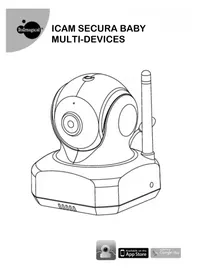
ICam Secura - Baby monitors ITSIMAGICAL - Free user manual and instructions
Find the device manual for free ICam Secura ITSIMAGICAL in PDF.



| Product Type | Baby Monitor (Wireless Network Camera) |
| Brand | ItsImagical |
| Model | ICam Secura |
| Dimensions (approx.) | 10 × 7 × 7 cm (without antenna) |
| Weight (approx.) | 150 g |
| Power Supply | Power adapter 5.9 V DC (included) |
| Connectivity | Wi-Fi 2.4 GHz (local network and remote access) |
| Viewing Angle | Motorized pan and tilt |
| Night Vision | Yes, infrared LEDs |
| Two-way Audio | Yes (built-in microphone and speaker) |
| Motion/Sound Detection | Adjustable voice activation (VOX) |
| Temperature Sensor | Yes, displayed in the app |
| Mobile App | Easy iCAM (iOS and Android) |
| Zoom Functions | Digital zoom (multi-touch pinch) |
| Capture Storage | On smartphone/tablet (photos) |
| Reset | Reset button (via pin) - restores factory settings |
| Maintenance and Cleaning | Wipe with a soft, dry cloth; do not use liquids |
| Safety | Do not use within 1 meter of the baby; use only the provided adapter |
| Spare Parts and Repairability | No user-serviceable parts; do not open the casing |
| General Information | Compliant with directive 1999/5/EC; compatible with iPhone, iPad, Android |
Frequently Asked Questions - ICam Secura ITSIMAGICAL
User questions about ICam Secura ITSIMAGICAL
0 question about this device. Answer the ones you know or ask your own.
Ask a new question about this device
Download the instructions for your Baby monitors in PDF format for free! Find your manual ICam Secura - ITSIMAGICAL and take your electronic device back in hand. On this page are published all the documents necessary for the use of your device. ICam Secura by ITSIMAGICAL.
USER MANUAL ICam Secura ITSIMAGICAL
ICAM SECURA BABY MULTI-DEVICES
Watch the things that matter to you anytime and anywhere
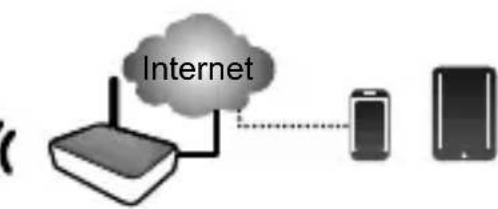
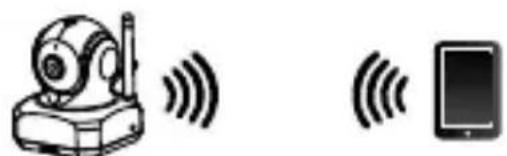
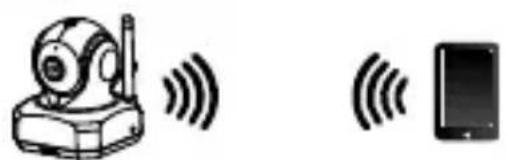
Local View

Smartphone, TabletEasy iCAM
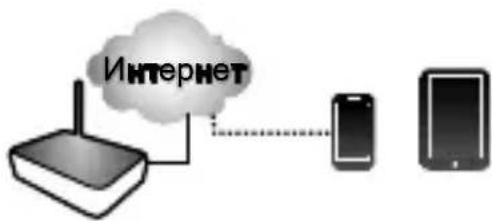
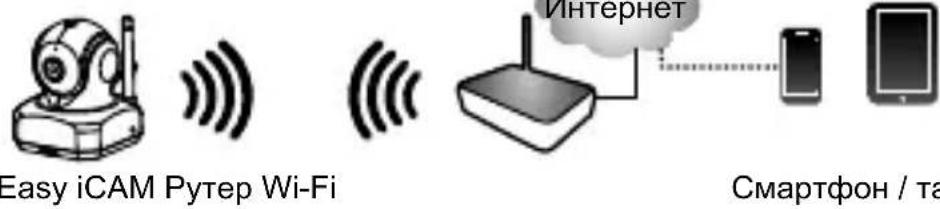
Internet View

Easy iCAM

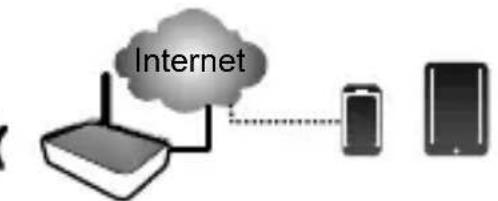
Wi-Fi Router
Smartphone, Tablet
Easy iCAM is a wireless network camera. It can connect with your smartphone or tablet wireless technology, and monitor everything that matters to you on your smartphone or tablet anywhere and anytime.
Before you start you need:
iPhone, iPad, Android smartphone or Android tablet

Easy iCAM
Wi-Fi router (for remote access)
EN
1 Package Contents
One Camera
- Two Cable Clips
One Adapter
This User's Manual
One Screw and One Wall Anchor
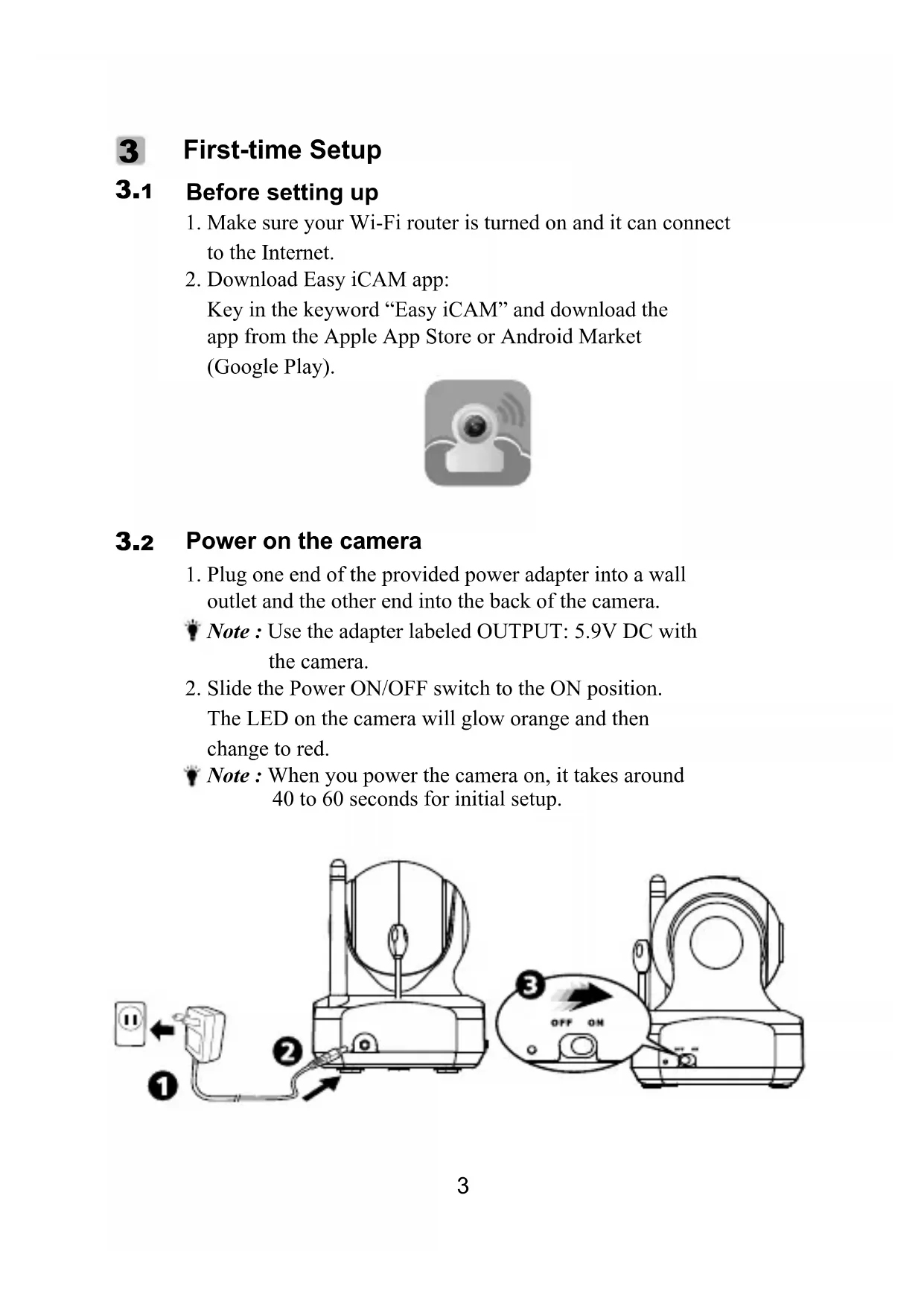
2 Product Layout
Camera
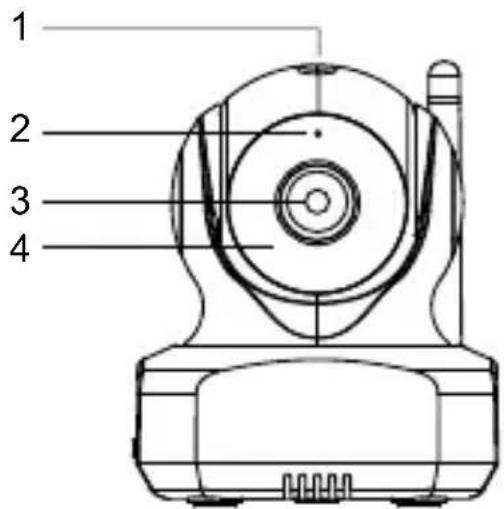
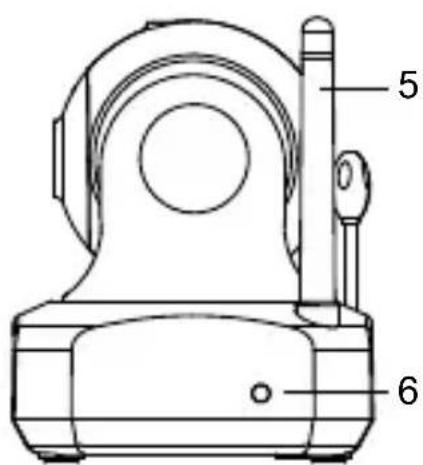
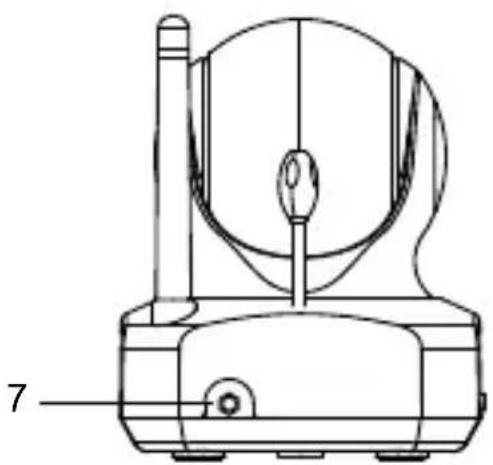
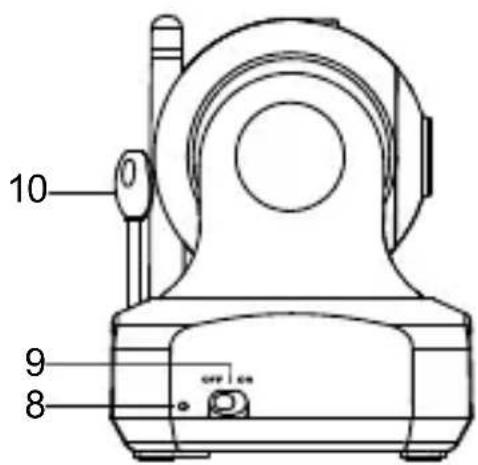
1.Light sensor
6.Power/Status LED
2.Microphone
7.Power adapter plug
-
Camera lens
-
Reset to factory default button
4.Infrared LEDs
9.Power ON/OFF switch
5.Antenna
10.Temperature sensor
3 First-time Setup
3.1 Before setting up
-
Make sure your Wi-Fi router is turned on and it can connect to the Internet.
-
Download Easy iCAM app: Key in the keyword "Easy iCAM" and download the app from the Apple App Store or Android Market (Google Play).

3.2 Power on the camera
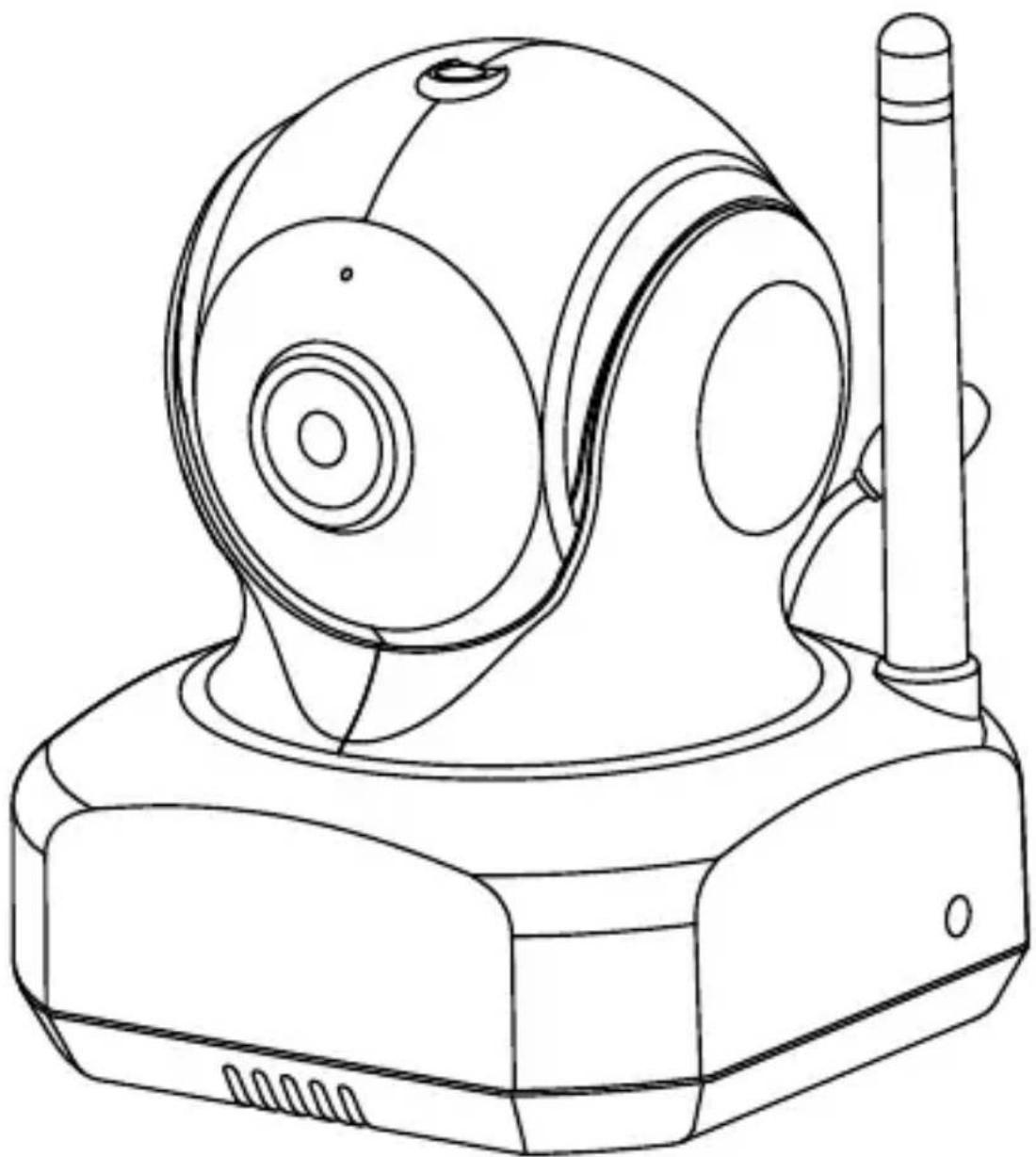
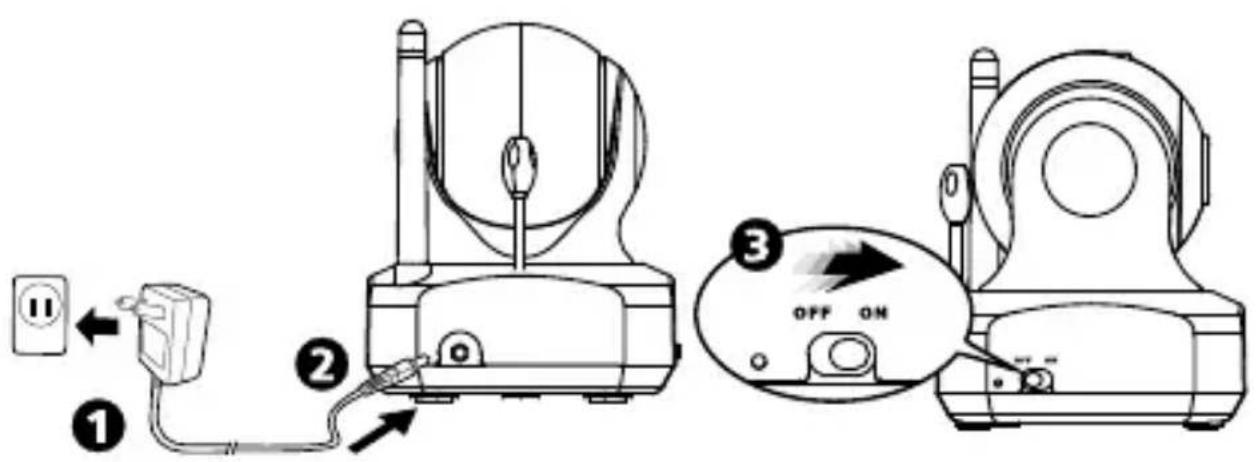
- Plug one end of the provided power adapter into a wall outlet and the other end into the back of the camera.
Note: Use the adapter labeled OUTPUT: 5.9V DC with the camera.
- Slide the Power ON/OFF switch to the ON position. The LED on the camera will glow orange and then change to red.
Note: When you power the camera on, it takes around 40 to 60 seconds for initial setup.
3.3 Connect your smartphone or tablet to the camera
- Turn on the Wi-Fi of your smartphone or tablet.
- Tap the screen to select "Easy_iCAM_XXXXXXXX" under Wi-Fi Networks.
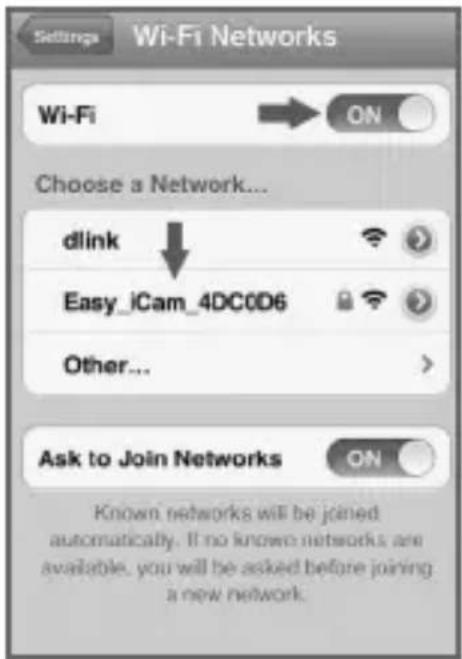
iPhone/IPad
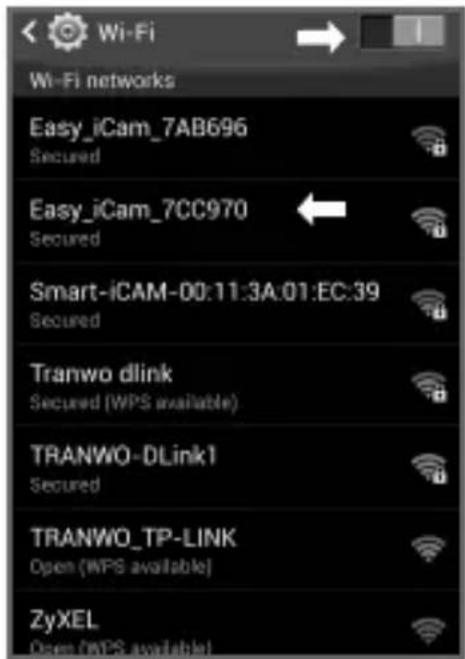
Android system
- Enter the password for "Easy_iCAM_XXXXXXXX". The default password is "12345678".
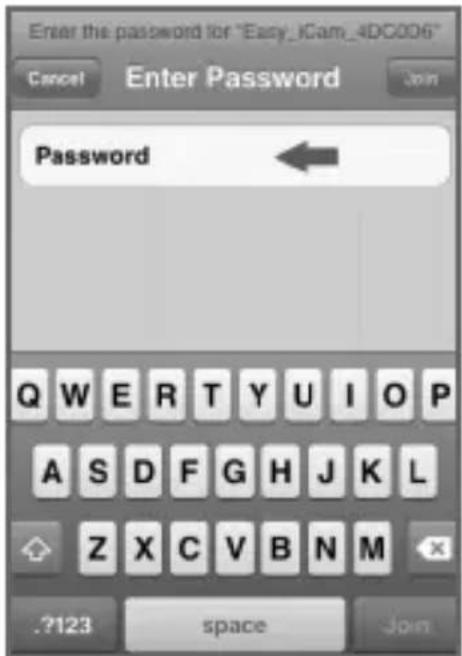
iPhone/iPad
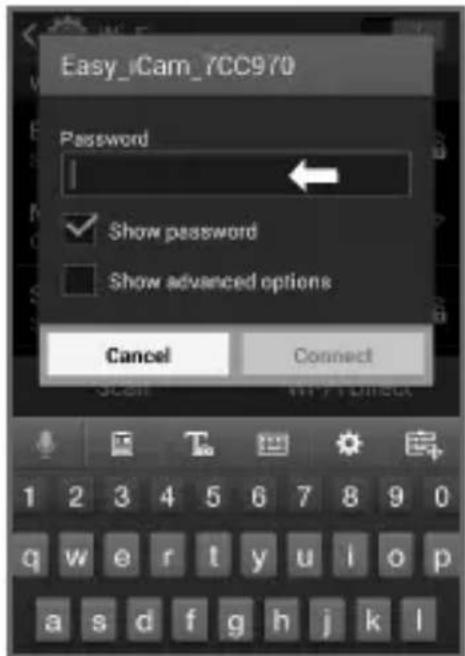
Android system
3.4 Setting up the camera and Internet connection
- Launch the Easy iCAM App on your smartphone or tablet.
- Follow the on-screen app instructions.
- Setting up the camera name (SSID) or password:
The screen will show a message that reminds you to change the Wi-Fi camera name (SSID) or password.
a. If you select "Yes", you can change the Wi-Fi camera name or password. When you complete the setup of camera name or password and tap the ok icon, the app will ask you if you want to set up an Internet connection. If you select "Yes", Internet setup will be started.
If you select "No", the camera will restart to change the camera name and password automatically.
At this stage please make sure your smartphone or tablet is connected to the camera because the camera name or password is changed.
Note: The password must contain at least eight characters.
b. If you select "No", the app will ask you if you want to set up an Internet connection.
4. Setting up an Internet connection:
The screen will show a message asking if you want to set up an Internet connection.
a. If you select "Yes", the camera will scan for available Wi-Fi networks in range. Tap the name of your Wi-Fi network, and enter the password of your Wi-Fi router if necessary. Then the first-time setup is done.
Note 1: If the camera cannot find the Wi-Fi network you want to connect to, please tap the scan icon to rescan for available Wi-Fi networks.
2: If you complete the Internet setup successfully, the power/status LED will glow green after 1 to 2 minutes.
b. If you select "No", the first-time setup is done.
Note: If you don't set up an Internet connection, you can only get live video feeds by connecting the camera with your smartphone or tablet directly.
4 Operation Mode - Local View/Internet View:
Easy-iCAM is a wireless network camera. It can connect with your smartphone or tablet by wireless technology directly, and you can watch live video feeds on your smartphone or tablet in local view mode. In Internet view mode, your smartphone or tablet needs to connect to the camera through a Wi-Fi router or 3G/4G mobile network, then you can access a live stream of video and audio on your smartphone or tablet from anywhere in the world.
Note: Local view - Your smartphone or tablet connects to the camera directly.
Internet view - Your smartphone or tablet connects to the camera through a Wi-Fi router or 3G/4G mobile network.
4.1 Local view
When your smartphone or tablet connects with the camera directly through Wi-Fi, you can launch the Easy iCAM app to operate it in local view mode.
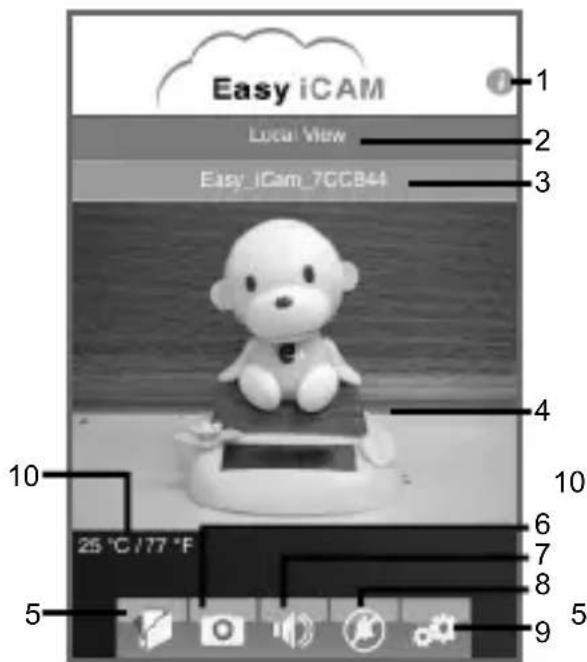
iPhone/iPad
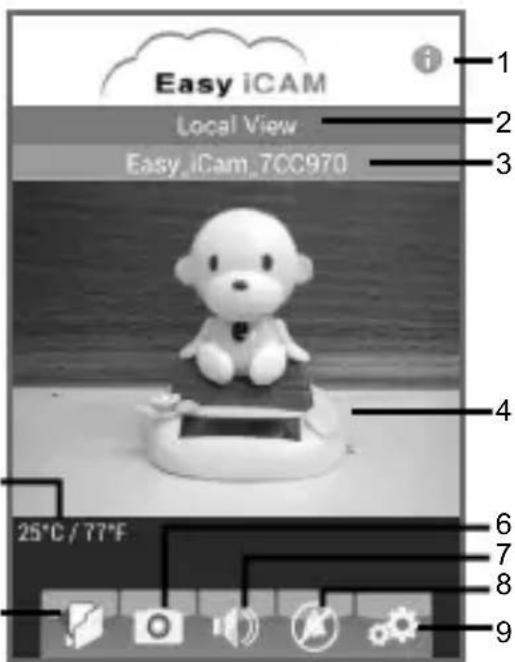
Android system
- Information
Tap the icon to get information about the camera.
- Operation mode
This row shows the current operation mode of the app.
- Camera name (SSID)
This row shows the camera name, which is the same as the Wi-Fi Network (SSID).
- Image display area
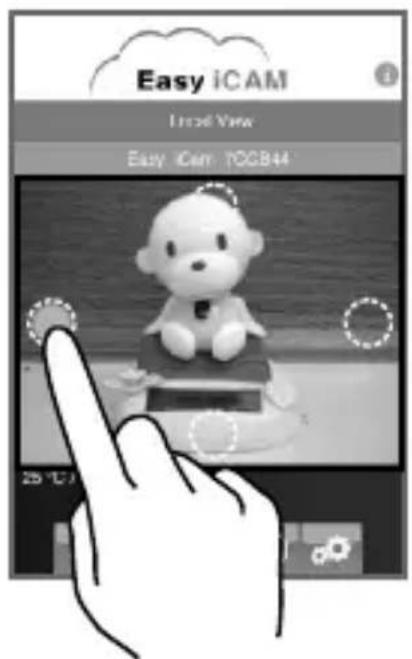
a. Motorized pan-tilt function
Touch the image display area of the screen and slide on the screen for motorized panning and tilting.
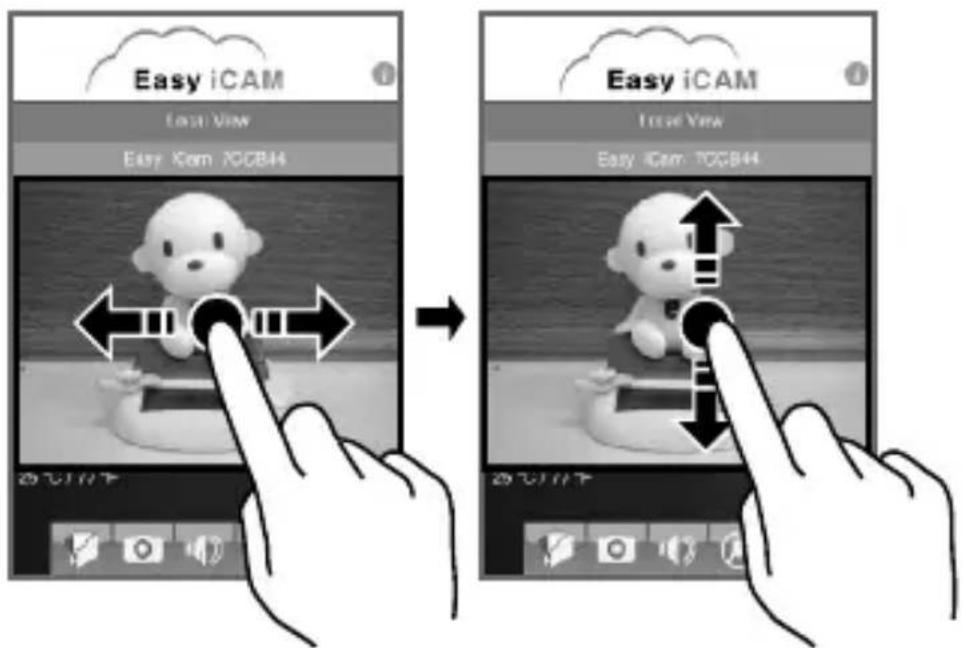
Touch the top, bottom, right or left of the image display area for as long as you wish to pan or tilt the camera.
b. Digital zoom function
Touch the image display area of the screen with two fingers and move them apart for zoom function. You also can slide on the screen for digital pan-tilt function.

Note: If the digital zoom-in function is enabled, you can only slide on the screen for digital panning or tilting; the motorized pan-tilt function will not respond.
- Photo
Tap the icon to see all of the photos you have taken.
- Snapshot
Tap the icon to save a snapshot of the camera on your smartphone or tablet.
- Audio ON/OFF
Tap the icon can turn on or off the sound.
- Voice activation function (VOX)
Tap the icon to turn on the voice activation function, tap it again to turn the function off. If you turn on the function and then press the home button on your smartphone or tablet to exit the app, the screen will show a reminder message when the volume level from camera unit is higher than the volume setting level. Tapping or sliding the reminder message icon can launch the app directly.

Note 1: If you turn on the voice activation function and press the home button on your smartphone or tablet to exit the app, the VOX function can still work and remind you of audio events from the camera.
2: If you want to exit the app completely, please double-click the home button on your iPhone/iPad when it is in home screen status, and then tap the Easy iCAM icon until the cancel symbol appears. When you exit the app completely, the voice activation function can't work.
3: If you want to exit the app completely, please press the back button on your Android system. When you exit the app completely, the voice activation function can't work.
4: The voice activation function can only work in local view mode.
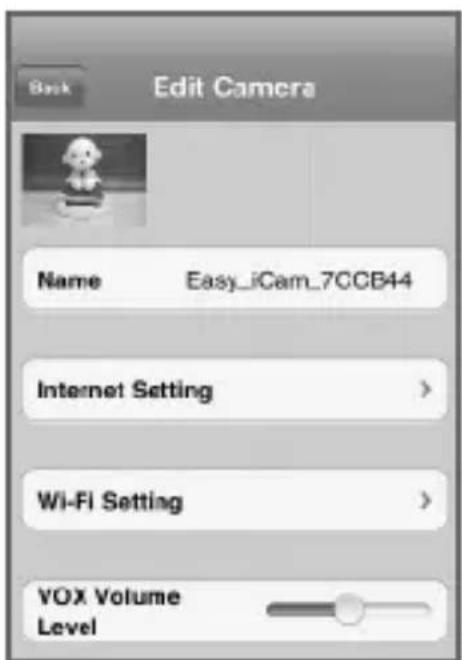
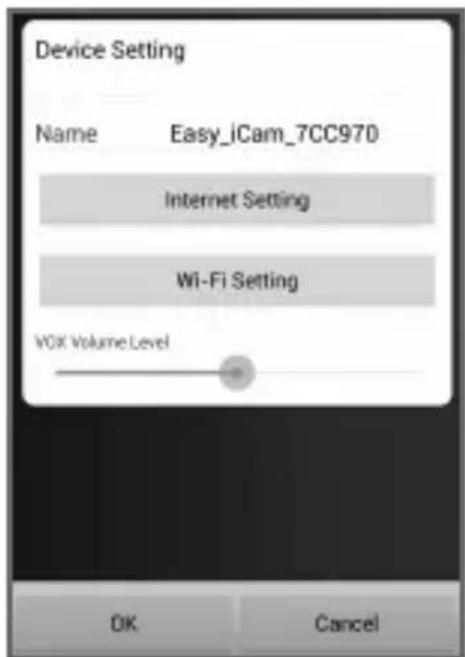
- Setting
Tap the icon to set up camera functions.
a. Internet Setting
You can setup an Internet connection, or change the camera connection to another Wi-Fi router.
b. Wi-Fi Setting
If you want to change the camera name (Wi-Fi SSID) or password, please tap this row to carry out the change.
c. VOX Level (volume trigger level)
Tap and slide the VOX Level bar to adjust the volume trigger level.
- Temperature display
iPhone/iPad
Android system
4.2 Internet view
If the Internet connection of your camera has been setup and the Power/Status LED glows green, the camera can link to the Internet and you can access a live stream of video and audio on your smartphone or tablet in Internet view from anywhere in the world. Please make sure your smart phone or tablet can link to the Internet by a Wi-Fi router or 3G/4G mobile network, and then launch the Easy iCAM app.
4.2. Internet view for iPhone/iPad
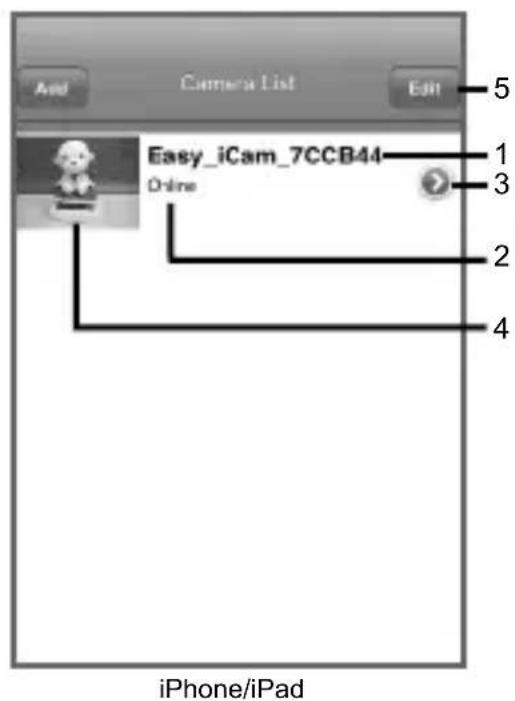
- Camera name (SSID)
When you launch the app, all the Easy-iCAM cameras you have added will be shown on the screen.
- Camera status:
a. Online
If the camera status shows "online" you can tap the camera photo to see the video of the camera.
b. Connecting
If the camera status shows "connecting" you need to wait until the status changes to online, and then tap the camera photo to see the video of the camera.
c. Offline
If the camera status shows "offline"; you need to tap the arrow icon beside the camera name, and then tap "Reconnect" to re-confirmed the Internet connection.
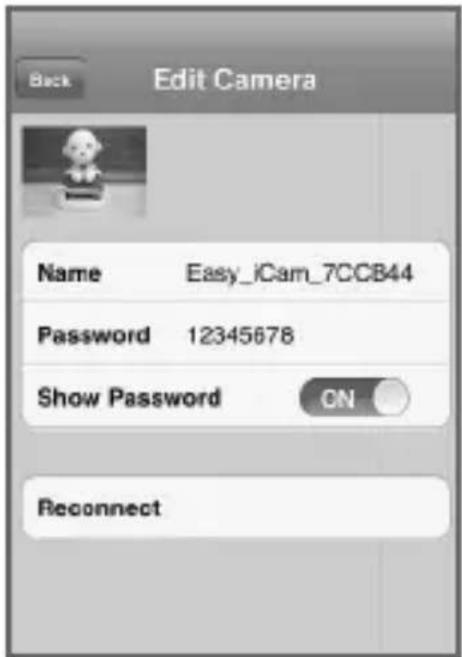
- Tap the arrow icon and you can see the screen shown below.
a. Password
If you have changed the camera password with another smartphone or tablet, you need to tap the row to correct the password for Internet connection.
b. Reconnect
You need to tap "Reconnect" to re-confirmed the Internet connection if the camera status shows offline.
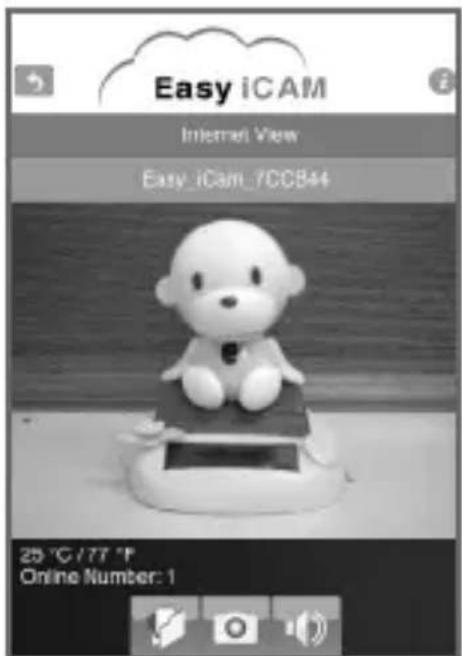
- Camera photo
Tap the camera photo to see the video of the camera.
- Edit
Tap the Edit icon to select which camera you want to delete.
4.2. 2Internet view for Android system
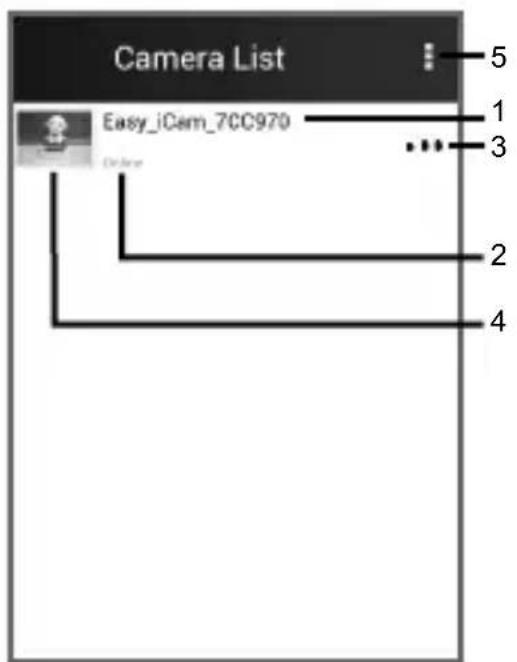
Android system
- Camera name (SSID)
When you launch the app, all the Easy-iCAM cameras you have added will be shown on the screen.
- Camera status:
a. Online
If the camera status shows "online" you can tap the camera photo to see the video of the camera.
b. Connecting
If the camera status shows "connecting" you need to wait until the status change to online, and then tap the camera photo to see the video of the camera.
c. Offline
If the camera status shows "offline" you need to tap the dots icon (...) beside the camera name, and then tap "Reconnect" to re-confirmed the Internet connection.
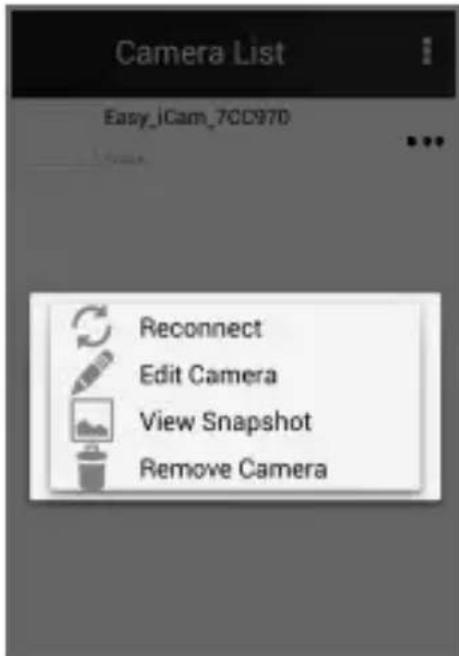
- Tap the icon to see the screen shown below.
a. Reconnect
You need to tap "Reconnect" to re-confirmed the Internet connection if the camera status shows off line.
b. Edit Camera
If you have changed the camera password with another smartphone or tablet, you need to tap the row to correct the password for Internet connection.
c. View Snapshot
Tap the row and you can see all of the photos you have taken.
d. Remove Camera
Tap the row if you want to remove the camera.
- Camera photo
Tap the camera photo and you can see the video of the camera.
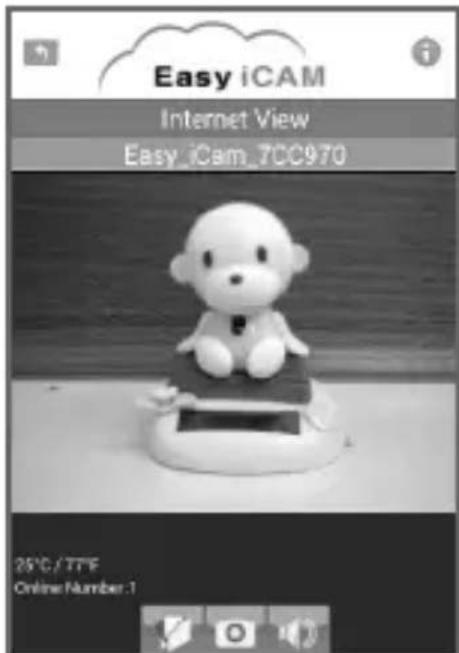
- Tap the icon and select "Exit" if you want to exit the app.
5 Add camera to second or more other smartphones or tablets
If Internet setup has been carried out for the camera and you want to add the camera to a second or even more smartphones or tablets, you just need to follow the step "3.3 Connect your smartphone or tablet to the camera", and then the smartphone or tablet can connect with the camera through a Wi-Fi router or 3G/4G mobile network.
6 Add camera through remote setup
If Internet setup has been carried out for the camera and you want to add the camera to a second or even more smartphones or tablets through remote setup, you need to follow the procedure as below.
6.1 Add camera through remote setup for iPhone/iPad
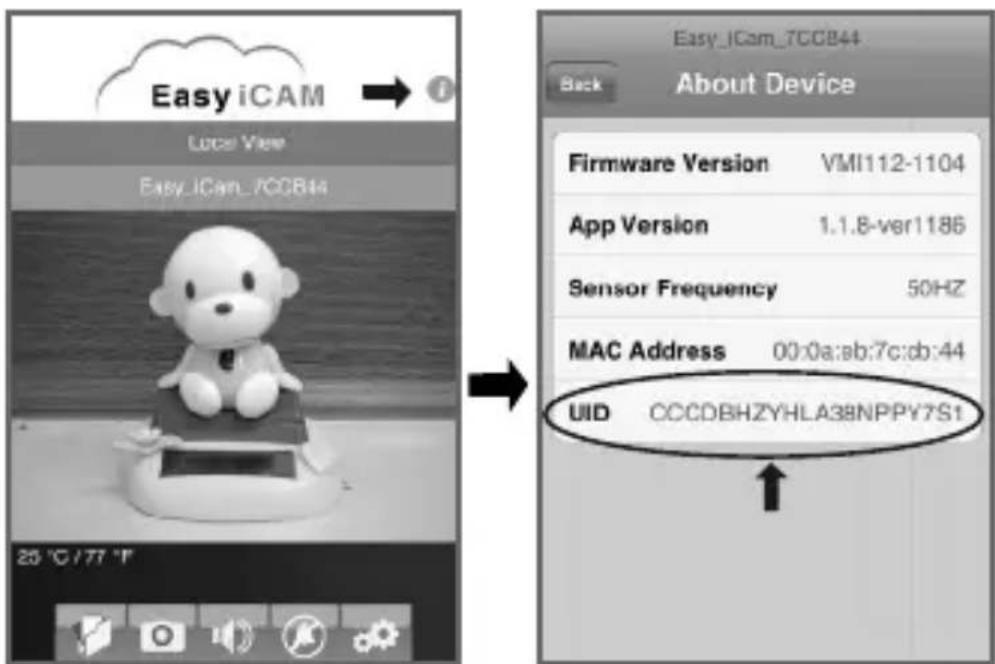
6.1.1 Get UID information
Tap the i (information) icon in local view to get UID information.
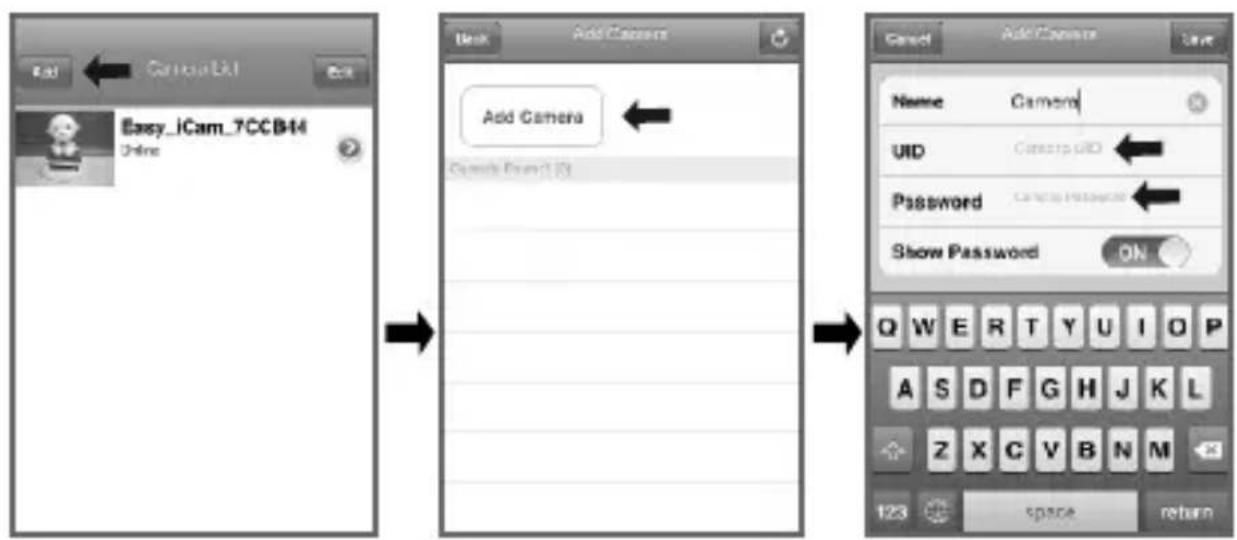
6.1. 2Add camera
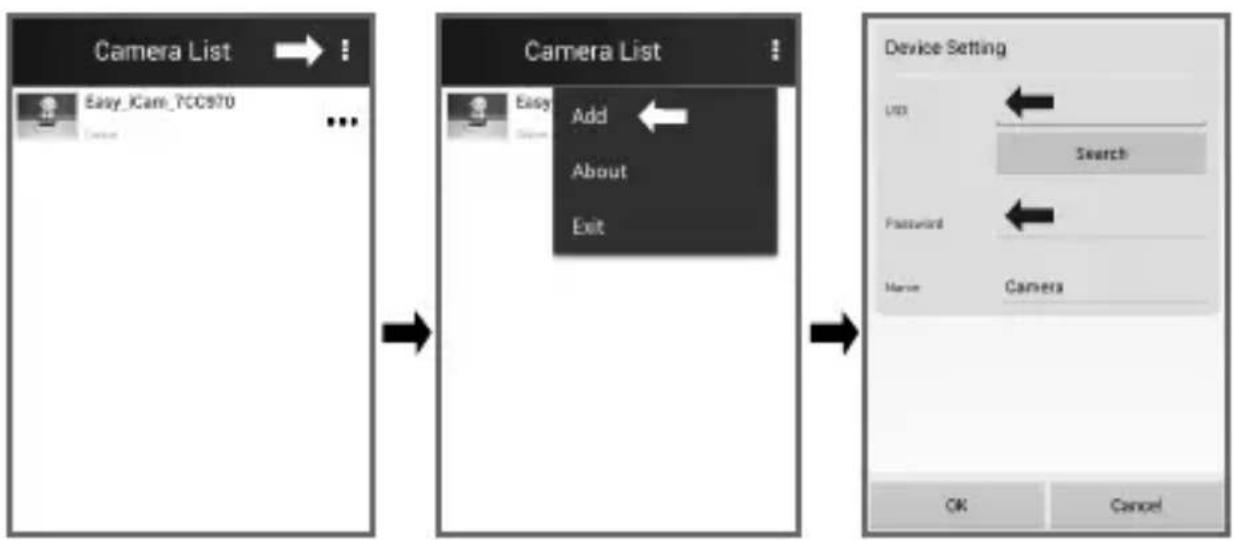
Tap the Add icon in the camera list of Internet view and then tap the Add icon in the next page. Type in UID and password information of the camera and then tape OK icon to finish the setup.
6.2 Add camera through remote setup for Android system
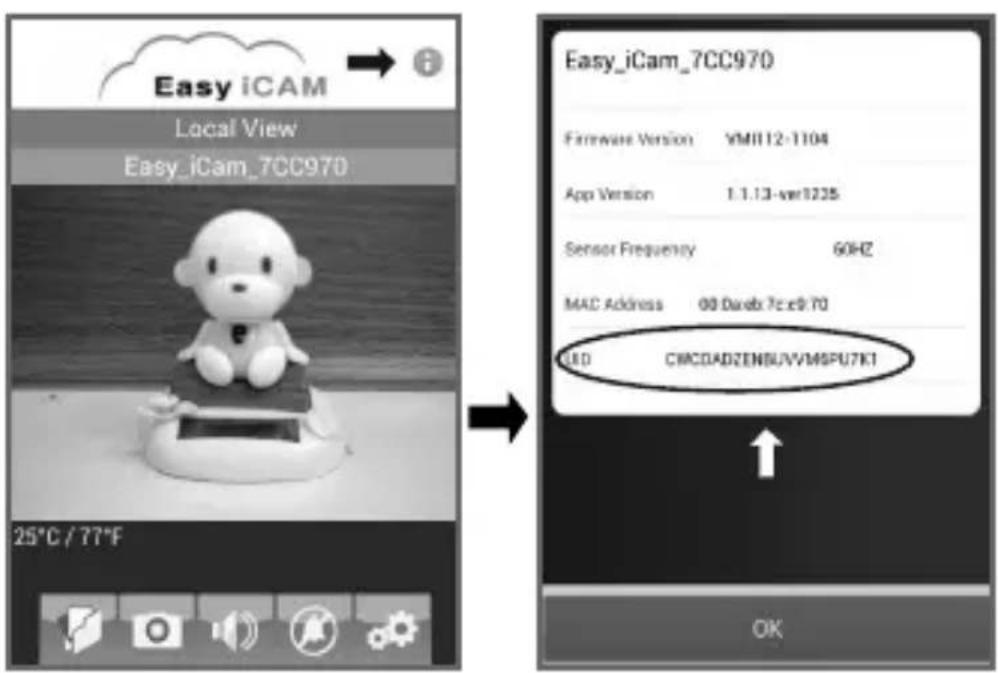
6.2. Get UID information
Tap the i (information) icon in local view to get UID information.
6.2. 2Add camera
Tap the dots icon in the camera list of Internet view and then tap the Add icon in the next page. Type in UID and password information of the camera and then tap the Save icon to finish the setup.
7 Reset the camera to factory defaults
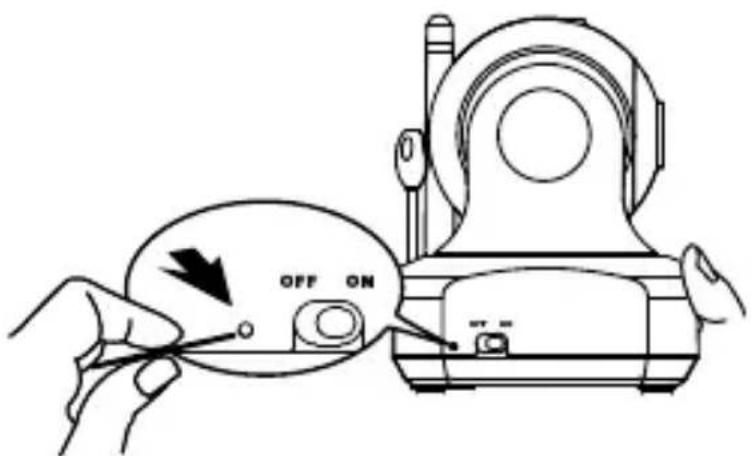
While the camera is powered on for at least 1 minute, press the reset button (using a small object or a pin) for at least 3 seconds, the power/status LED will start blinking. The camera will be reset to factory default, which is useful if you forget the password of the camera.
Troubleshooting
Cannot connect the camera to your smartphone or tablet in local view
- Make sure the power plug is pushed all the way in.
Make sure the camera is turned on and power/status LED glows red or green - Make sure the camera and your smartphone/tablet are within range of each other.
- Make sure you have entered the right password of the camera on your smartphone/tablet.
- You may need to reset the camera by pressing the reset button. Please refer to 7 - Reset the camera to factory default of this user manual.
Cannot connect the camera to your smartphone/tablet through
Wi-Fi router or 3G/4G mobile network in Internet view
- Make sure the power plug is pushed all the way in.
- Make sure the camera is turned on and power/status LED glows green.
- Make sure you type in the right password for the Wi-Fi router in Internet setting. Please refer to 3.4 - Setting up the camera and Internet connection of this user manual.
- Make sure the camera and the Wi-Fi router are within range of each other.
- Make sure your smartphone/tablet is connected to the Internet through Wi-Fi or 3G/4G mobile network. You may need to reset the camera by pressing the reset button. Please refer to 7 - Reset the camera to factory defaults of this user manual and then refer to 3.4 - Setting up the camera and Internet connection of this user manual.
Video streaming is slow or lags
- If there is a microwave oven in use near the camera or Wi-Fi router, remove the microwave oven or turn it off.
Make sure the camera and the Wi-Fi router are within range of each other.
The speed of video feed from the camera depends highly on the speed of the connection you are using. - The Internet speed either from your Wi-Fi network or 3G/4G mobile network has a high impact on the performance of the product. The faster and more stable connection speed, the faster you can see the video from the camera.
Care and Maintenance
- Keep all parts and accessories out of children's reach.
- Fingerprints or dirt on the lens surface can adversely affect camera performance. Avoid touching the lens surface with your fingers.
- Should the lens become dirty, use a blower to blow off dirt and dust, or a soft, dry cloth to wipe off the lens.
- Keep the camera dry. Precipitation, humidity, and other liquids containing minerals will corrode electronic circuits.
- Do not use or store in dusty, dirty areas.
- Do not store in hot areas. High temperatures can shorten the life of electronic devices and warp or melt certain plastics.
- Do not store in very cold areas. When the system warms up (to its normal temperature), moisture can form inside the case, which may damage electronic circuit boards.
- Do not attempt to open the case. Non-expert handling of the device may damage the system.
- Avoid dropping or strong shocks.
- Operate this product using only the power supply included or provided as an accessory.
- Do not overload electrical outlets or extension cords as this can result in fire or electric shocks.
FCC Statement
This equipment has been tested and found to comply with the limits for a Class B digital device, pursuant to Part 15 of the FCC Rules. These limits are designed to provide reasonable protection against harmful interference in a residential installation. This equipment generates, uses and can radiate radio frequency energy and, if not installed and used in accordance with the instructions, may cause harmful interference to radio communications. However, there is no guarantee that interference will not occur in a particular installation. If this equipment does cause harmful interference to radio or television reception, which can be determined by turning the equipment off and on, the user is encouraged to try to correct the interference by one or more of the following measures:
Reorient or relocate the receiving antenna
- Increase the separation between the equipment and receiver
- Connect the equipment into an outlet on a circuit different from that to which the receiver is connected
- Consult the dealer or an experienced radio/TV technician for help
This device complies with Part 15 of the FCC Rules. Operation is subject to the following two conditions: (1) this device may not cause harmful interference, and (2) this device must accept any interference received, including interference that may cause undesired operation.
Caution
- To comply with FCC RF exposure compliance requirements, a separation distance of at least 20cm must be maintained between the antenna of this device and all persons.
This Transmitter must not be co-located or operating in conjunction with any other antenna or transmitter.
Changes or modifications to this unit not expressly approved by the party responsible for compliance could void the user authority to operate the equipment.
Following the safety tips
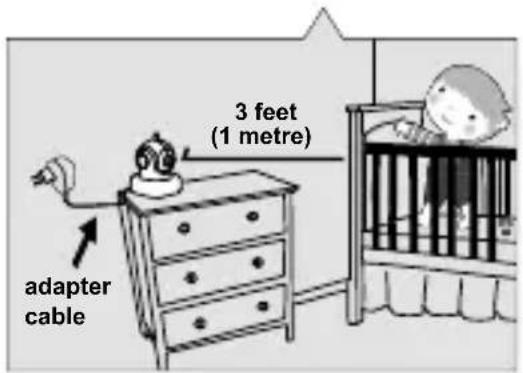
- To prevent deaths and injuries associated with camera cords, make sure the camera and AC adapter cords are always out of reach of the baby by least 3 feet (1 meter).
Note: This is important even if your baby is not yet standing or mobile.
- Never use extension cords with AC adapters. Only use the AC adapters provided.
Specifications
| Camera | |
| Frequency | 2.4 GHz |
| Antenna | Dipole antenna |
| Modulation | DBPSK, DQPSK, CCK and OFDM |
| Image Sensor | Color CMOS |
| Lens | f 3.0mm, F 2.4 |
| IR LED | 8 pcs |
| Video compression | MJPEG (Motion JPEG) |
| Audio | One-way audio |
| Dimensions | 8.5(W) x 10.6(H) x 8.5(D) cm |
| Weight | 225.5g |
| Power | DC 5.9V, 2A |
| Operating temperature | 0°C ~ 40°C (32°F ~ 104°F) |
Specifications are subject to change without prior notice.
- iPhone, iPad are trademarks of Apple Inc., registered in the U.S. and other countries.
- Google Play is a trademark of Google Inc.
This item is in compliance with the essential requirements and other relevant provisions of Directive 1999/5/EC.
Smartphone, tablette
Vue Internet

Easy iCAM

Routeur Wi-Fi
Smartphone, tablette
Easy iCAM Akilli telephone tablet
Internet aracigiyagoruntuleme

Easy iCAM Wi-Fi modem
Akilli telephone / tablet
3. Baskangic yapilandmasr
Not: Internet先进技术 and products are not intended for children. The use of this technology may be harmful to children.
4. Görtunüle me alani
Evpyoion/Aepeyonoiou.AyyiTe to Eikovio yia evpyooinn an evepyooinn tou nou.
-
Aevupya evpyounong paowpwns (VOX). AyyiTe to eikovidio yia evepytooinan n aeevyopoinn tnc aeitoupyac meawpwns. Me puthetaan evtaaon nxou. AyyiTe gava yia tnv aeevyopoinn tnc. H Aeiupuyia evpyooinang meawpwns Aetoupye i mvo stn Aeiupyia totikns aateikovianc.
-
Evöiŋ θερμokpαiaç
-
Poo0eotemu Kaepa o' eva eulepo (n Tepootepa) Eunvo nAepwvo n Taumela
Av exi oloknpw0i n diaoppwon Tou Internet yia tny kaepa kai eTIOUe iE va tny
TPOO0eTe 6' eva 6tepeo (n TEPIOOATEpa) EUGTVO TNAeWVO n TAUTA, TPEIIa v a
aKoAUO0eTe Ta Bnmuata aTO SUVDEON Tou EUGTVOU n TNC TATNTAETAC OTNV
kapep. MoIc TpaymuottoIN0ouv auta ta Bnmuata, to EUGTVO TNAeWVO n n TATNIETA
mTOpEi va ouv0e1e iE TNV KAePa MEOw Evoc poutep Wi-FI n MEoW Evoc dIKTuou KIVNTou
3G/4G.
- Enavaopopa Tuv npoemayevwv nuov ms kaepas.
Evpyoioiote Tnv kapeyia Toulaxiotov eva eTTIO. PatnoTe To KoumTI ETTavaopac yia Toulaxiotov 3 deutepoleTTa (xnpoiotoiwvtac eva miko avtkeieevo n ia kapipota).To LED apxiEi va avaosBnveI. Kaepa eTavexetai OTNV poeiiEymev n epyoataiakn diapoppwn (Tolu xnpoiO av exe Tov KWDIKo TpObaanc).
7. Emluon mpoBAnmuov
a. vivai duvam n ouvdoon ts kapeac oto eunvo malewovn my TAPNTA yia tvTqnni atpkiovian
Bεβaiωθeite oti to kαλωδio nλεκτρικού ρεμμatoς ἐχει τοῦθεηθεί σωστα.
- Beβaiωθειτε οιη καμερα ειναι ενεργοτοιημένη και το LED τροφόδοσίας ρεύματος ειναι κόκκινο ἡ πράσιν.
Bebaiowte ot n kapepa kai to eutvo tnAepwvo n taTtAeTa BpiKovTai touc Evtoc ts Ebetaiaac ouvdeon.
Bebaiwtheta otE exete eiae iov oawto kwok to paoaon ts kapeac oTo Eutvo tnAepwo n tv taan
Evexetai va pentei va yivei enavaopap tnc kapepac patwvtac to koupi e navaopac. it Etnavaopopa twv npoetiiaymuevww epyootaaikaw tiowv tnc kapepac o' auto to
eyxepio.
(RU) KPATKOE PYKOBOIDCTBO
C nOMouHIO 3TOI KaMepbI Bbl CMOKeTe NcNOJb3OBaTb CBOI CMapTOH WIN NnHaHTbI KOMNb IOTep KAK 6ecnpoBOnHyIO CNCTeMy DuctAHUHOHOro BnDeOHa6NIOdeHMA.
-Быстая и постая кондураць BCero 3a 30 cekyн.
- ABTomatuecka CMeHa NokaIbHOrO u ydaJIeHHOrO BnDa.
-Motopu3OBaHHa KaMepa C NaHopaMHbIM HaKIOHOM.
- ABTomatnueeCKoe BKNIOUeHHe HOHOro BNDeHnI.
-Функця Na6IIOeHnЯ DoCTyHa BO BpeM HaBnraCnNo IHTepHeTy, npocMOtpa NoYbI nIIN irp.
-Heckonbko nonb30BaTeJeOdHOBpeMeHHo.
-BkIIOueHHe roLOcom C He3aMeIINTeIbHbIM I3BeUeHNEm.
- INdikatop TemnepaTpybl.
JokanbHbBnBnD
Easy iCAM CmapTfoH nnaHweT
Ppocmotp uepe3 HHTepHET

Easy iCAM MapuptyntaTop Wi-Fi
CmapToOH/naHwET
3To yctpoiCTBO npedctabnaret coboi 6ecnpoBOnHy o ceTeByo kamepy. Ee moKHO noDKIouHb K cMaprfoHy nnn pnaHwety 6narOapra 6ecnpoBOnHO texHONOrn.
1.BKOMnneBxOJr
- 1 kamepa
- 1 a dan terp
KpOHTeHdpa3MeueHnaCTHe
2. 单tM:
1.CBeTOBOI DaTUnK
2.Мнкрфон
3.ObBeKTHa KaMepbI
4. IK-CBETOIO
5.AHTeHHa
6. CBeToNDIOIITaHnIcoCTOHNIA
7. Pa3bEm dIaIaIaTepa IITaHnIa
8. Khonka BOCCTaHOBNeHnHaCTpoE Kno yMOJUahnIO
9. NpeekJIIOUaTeJIb BKJIIOUeEHn/ BblKIIIOUeEHn
10.Датук TemnéраТурь
3. Nepba KOnbpypaun:
- BkIIOuHTb MapwpyTu3aTop Wi-Fi.
2.Сачать пионжени Easy iCAM c App Storeinn Google Play. -
BkIIOHTb yCTpOYCTBO. IcNoIb3OBaTb aAnTep: BblXOД: 5,9 B noCt.Toka HaayabHaj KOHФИгуразия 3aHIMaet 40-60 cekyHd. CBeToIDnOJ kAmepbI 3arOpNTcR opAHxKEBbIM CBETOM, a 3aTeM CMeHIT cBET Ha KpaCHbIi.
-
Подклочь смарфон плпаншет к камеpe.Бклочь Функцю Wi-Fi.В pa3дел "Cetn Wi-Fi" Bbl6paTB "Easy_iCAM_XXXXX"и Ввеси napoly. Napoly no ymonчи:12345678.
-
KoHpynpoBaTb Kamepy n noKJIuOHeHne K INHTepHeTy.
5.1. OtkpbItb npINOxehne Easy iCAM n cpeIOBaT hNCTpyKUHM.
5.2. KoHpynpoBaTb NOkIouHe N INTEpHety. Ha 3KpaHe NOBnTc coo6uHne c BOIpOCOM O TOM, XOTNe JIN Bbl KOHpynpoBaTb NOkJIouHe N INTEpHety.
a. Ecnn BbIbpaTb "Ja", KaMepa NaHcET NOnCK DoCTyNbIX CeTei Wi-Fi.
Приимechаиме 1:Есни камера He haxoДNT cetb Wi-Fi,ДOTpoHbTEcBdo CnMBOJANONCKA,чTOбI NOВTOPИТ bNONCK DOCTYNHbIX cTee Wi-Fi.
2: Ecn KOnΦnIpyaŋnoKJIHoueHnK INHTepHeTy ycneuHO 3aBepSeHa, CBeToNDo3arOpNTc3eJIeHbIM CBetOM Yepe3 1-2 MInHyTbl.
b. EcnB b6paTb "HeT, KOHcHpyaunna nepBOrO nCNoJb3OBaHHa 3aBepuNTcra.
PpimMeaHne. EcH He KOHpynpoBaTb NOKIOueHne K INHTepHeTy, Bbl CMOKeTe NOJyHTb BVDeON3O6paXeHne TOJIbKO pRn HENOCpeDCTBEHHOM NOKIOUeHnn KaMepbI K CMaprDOHy IIN PNaHWeTy.
4.3oHa oTo6paXeHn u3o6paXeHn
- MoToPi3OBaHHa KaMepa C nHaOpAMhIM HaKIOHOM
ΦOTpaФn.ДOTpoHBTeCb Do 3TORO cIMBOJa DnЯ npOCMOTpa CdeNaHHbIX φOTOrpaФn.
MrHHeHHcΦOTorpaФn.ДOTpoHBTeCb Do 3TORO cIMBOJa, YTObI COxpaHtB
ΦOTorpaФnIO, CdenaHHyIO Kamepoi.
BKnHHTb/BykNHOHTb aYdNO.ДOTpoHBTeCb Do 3TORO cIMBOJa, YTObI BKNIOHTb IIN
BbIKNIOHTb 3BYK.
2.ФуньвкючehнглOCOM(VOX)..ДOTpoHBTEcBdo3TOrO CnMbONaДЯakTNBaCINФуньиВКючehнraTOLOCOM.CHacTpOkoIyPOBHrgPOMKocT.N.BHOБДOTpoHBTEcBdoCnMBONAДЯOTKIOUChEHHФуньиФуньиВКючehнraTOLOCOMdoCTynHaTOJbKOВpeXIMe JOKaJIbHOro BIDA.
3.Иннкатур TemnepaTypbI
-
He xpaHnTe n3dJIne B MeCTax CO cIINJKOM BbICOKO TemNepaTpyoN.
-
He xpaHnTe n3dJIne B MecTax CO CnIuKOM Hn3Ko TEmNepaTpyoN.
-
He BCKpbBaIte KOpnyc.
He poHraTe n3deJnne, He donyckaIte cnJIbHbIX yIapOB no Hemy.
CJeNyEt NcNOJb3OBaTb 3TO N3DeJIe TOnbKO C NCTOCHNKOM NITAHN, BXODIUM B KOMIINEKT INI INpeIOCTaBHeHHbIM B KaueCTBe akceCCyapa.
He neperpykatab 3neKtpnueckne po3etkn nn yndnnHHTeJIN, NOCKOBky 3TO MOKeT npNBecTN K nokapny nn 3neKtpnueckomy pa3pady
9.Cobetbl no 6e3oachoctn
Bo n36eXaHne pNcKa cMepeTbHOro nCxOda Jn6o TpaBM, CB8aHHbIX C yHKUHOHPOBaHNem npOBOD KaMepbI, y6eINTEcb, YTO DaHHbIe npOBoDa I npOBoDa aAnTepa nepemeHHoro TOka HaxOJrTcB He 30HbI DOCTyNa MnaJeHcE, Ha paCCTOaHm KAK MNHMym 1 MeTp OT yuaCTKa, DoCTynHOro MaNbIiy.
IIMeuaHHe:3TO BaxHo,daXe ecn BaW MaBbIe eue He yMeet BCTaBaTb Ha HOKKN IIN CBO6oHNo nepemeeaTbcra.
a. 1 MeTp
b. npoBOD aanTepa
HnkOrda He nCnOJb3yIte yDJIINHITeJIc aIaITePamN nepemEHORo Toka. NcNoJb3yITeTOJIbKO aIa
3TO N3dJIeNHe COOTBETCTByeT OCHOHbIM Tpe6oBaHnA M IpyrIM npImeHmblM NOJoxEHNrM
IupeKTHBbI 1999/5/CE.
(CN) 快速指南
glllgljllpwlglclllaaagaaalac
- Transformers or battery chargers used with the product are to be regularly examined for damage to the cord, plug, enclosure and other parts, and in the event of such damage, they must not be used until the damage has been repaired.
- Warning. Not suitable for children under 36 months. Misuse of transformer can cause electric shock.
- The product must only be used with the recommended transformer.
- Products which may be cleaned with liquids must be disconnected from the transformer before cleaning.
- Batteries are only to be charged by adults or by children at least 8 years old.
(FR)
(BG) KPATKO PbKOBOdCTBO
C noMoUHa Ha Ta3n KaMepa MoXeTe Da H3noJ3BaTe CMapToPoha UIn Ta6neTa cn Kato 6e3KuH a cNCTema 3a DnCTaHNOHBO BnDeOHa6JIOHeH.
-Бьрзипеснhaнactpoika3a30cekyHn.
- ABTomatnHa CmHa Ha JokaneH N OJaJeH n3rJneI.
-Motopn3upaHa KaMepa C nHaOpamHo HknaHRe.
- ABTomatnUHO BKJIIOUBaHe Ha HOUHO BIXJaHe.
-Функцяза HabIoJeHne,ДocTbNHa NO BpeMe Ha HABnraZuB INHTepHeT,ПOnyuaBaHe Ha no Ⅲa nIINrpa.
-HaKoIKO nOTpe6nteJy eHOBpeMeHHO.
-ΓlacobOaKTHBnpaHcHe3a6aBHOyBeDOMBaHe.
- INДикатop 3a TemnepaTypa.
JokaneHn3mpe
Easy iCAM CmapTfoH n Ta6JeT
Pperne npes nHTepHeT
ToBa yCtpoiCTBO npEicCTaBnIbA 6e3KnUHa MpeXOBA kamepa. TЯ може да ce CBbpKe KbM cMa pTfOH nII TaBlet Upe3 6e3KnUHa TexHOJOrnI.
1.CbIbpxKaHHe:
- 1 kamepa
- 1 a dan terp
- NocTabka 3a cTeHa
2.CbctabHn yactn:
- CBeTnHeH ceH3Op
- Minkpofoh
3.ObekTNB Ha KaMepaTa
4.ИUcCBeToDnOd
5.AHTeHa - LED INHINKAtop Ha 3axpaHbAHeto n cBCTOHNHeTO
- KoheKTop 3a 3axpaHbau n aanTep
- ByToH 3a Bb3CTaHOBRAHe Ha HAcTPOKKe INo NOppa3bnpaHe
- ПпевкlioуbaTeн BKЛIOUBAHE/N3KJIIOUBAHE
- TemnepaTypeh cEH3Op
3. Npba NaCtpoKa:
-
BkIIOUeTe Wi-Fi pyTepa.
2.ИЗтerteпглжениTo Easy iCAM ot App Store ninn Google Play. -
BkIIOUeTe yCTpoiCTBOTO. I3non3BaIte aIaITEpa: I3XOD: 5.9 V noct. Tok. HaayanHaTa HAcTPOIka OTHeMa 40-60 cekynILED INHdkaTOpt Ha KamepaTa CBETBa B opAHKeBO, a CJIeT TOBa IpeMHnaba B UepBeHO.
-
CBpbxte cMapToHa nnn TabNeTa KbM kamepata. BKnOyTe cyHkCnra Ta Wi-Fi. B MpeKu Wi-Fi, u36epete "Easy_iCAM_XXXXX" u BbBeDeTe napolata. Napolata no noDpa36upaHe e "12345678".
-
HactpoTe kamepaTaNHTepHET Bpb3KaTa.
5.1. OTbOpTe npnloXeHneTo Easy iCAM n cIeBaiTe yka3aHnraTa.
5.2. HactpoTe nHTepHET Bpb3kata. Ha ekpaHbT ce n3BexJa cbo6uHne C Bbnpoc DaJIx JeJaTe Da HAcTpOte nHTepHET Bpb3kata.
a. Ako n36epete "Да", kamepaTa 3anoYBa ДТьрс ДocTbNHTe Wi-Fi Мржи.
3a6eJka 1: Ako kamepaTa He Hamepn Wi-Fi MPexKa, DOKOCHTe NKOHaTa 3a TbpceHe, 3a Da NOBTopuTe TbpceHTo Ha DoCTbHn Wi-Fi MPexn.
2:Ako HacpoKaTHa HHTepHET Bpb3KaTApnKIOUyCneuHO,LED INDnKaTOPbCTCBETBaB3JeHo CJe1N2MnHyTu.
b. Ako n36epeTe,He" npBpBOHaJaHHaTa HacTpoiKa npNKIOUBA.
3a6eJxKa: Ako He HacTpOnte nHTepHET Bpb3KaTAt, MoKeTe Da NOnyUHTe BVdeoN306paXeHne cAm O npi DnpeKTHO CBbp3BaHe Ha KaMepaTa KbM CMapToOH nn Ta6IeT.
4.30Ha 3a Bnayann3aHn Ha n3o6paekneHmTo
- MoTopu3nupaHa cyHKunca NaHOpamHo HaKnaHJe
Chnka. DpKocheTe NkOHata, 3a da npereJaTe BCNUH HAnpaBeHN CHIMKN.
MomeHTaHaCHIMKa. DOKOCHTe NKOHata, 3a Da 3ana3nTE MOMeHTaHa CHIMKa OT KaMepaTa.
BkIIOUBaHeM3KIOUBaHEyduo. DOKOCHTe NKOHaTa, 3a Da BkIOUHTe NIN N3KIOUHTe 3Byka.
2.ФунлглacoboakTNBupaH(VOX).ДOKOCheTe NKOHaTa,3aДа BKПIOUHTeФуHKUЯТa TlacoboakTNBupaHe.CperyInpaHeHa cINnata Ha 3Byka.DOKOCheTe OTHOBo,3aДa N3KJIIOUHTeФуHKUЯTAt.FyHKUЯTa TlacoboakTNBupaHe DeIcTbCaMo BpeKM Ha IOKaIeH n3rIeI.
3.Иннкатop3aTemnepatypa
5.ДобабeteКамеретаКБMВTOPN(ин NOBEe)cMapTOHnTTa6NET.
Ako cTe n3nblHnHn HAcTpoKa Ha nHTepHe Tbp3ka 3a KaMepaTa n JeJaete da do6bnte KaMepaTa KbM BTOPi (nIn NoBee) CMapTfoH nn Ta6IeT, Tp6Ba npocTo da n3nbHnte CTbKnTe OT pa3deJ Cbbp3BaHe Ha CmapTfoH nn Ta6IeT KbM KaMepaTa. Cnei kato n3nblHnTe Te3n CTbKn, CmapTfoHbT nn Ta6IeTbT Morat Da ce CbBykata C KaMepaTa Upez Wi-Fl pyTeP nn Mo6nHa 3G/4G mpeka.
- Bb3ctahOBraBaHe Ha NaCTpoiKnte No NpOpa36npaH e KaMePaTa,
Bknuhe Kaemepa Hn-MaIKo 3a eHa MNHyTa.HaTncHe 6yToHa 3a Bb3cTaHOBAHe Hn-MaIKo 3a 3 cekyn (n3noN3Baikn MaIbK npedMeT nnn KapOnu).LED nHdkaTopbT 3anoYBa Da Mna. Kaemepa Bb3cTaHOBA fabpnuHnte HacTroKn no noDpa3bnpaHe (TOBa e MHoro none3Ho, B cnUay qe 3abpaBte napolata).
7. OtppaBae na npo6nme
a.KamepaTa He MoKe Da Ce CBbPxke KbM CmApTcOo Hnn Ta6JeT B pexn Ha JokaneHn3ne
-
YBepete ce, Ye KOHeKTopbTe BkapaH DoKpaI.
-
YBepTe ce, Ye kamepaTa e BkIIOyeHa, a LED nHnKaTOpbT Ha 3axpaHbaHeTo n CbCToRHeTO CBETN B UepBeHO NIN 3eJIeHO.
-
YBepete ce, Ye Kamepata u CmapTfoHbT nn Ta6neTbT nomexny cN ce HAMpaT 3ohata Ha oxbata.
-
YBepeTe ce, Ye cTe BbBEnI npaBnHIO napoNaTa Ha KaMePaTa B cMapTfoHa nn Ta6NeTa.
-
Moxe da ce HaIOxN da Bb3CTaHOBnTe HAcTPOknte no NpOpa3bnpaHe Ha KaMePaTa, KaTO HAtncHeTe 6yToHa 3a Bb3CTaHOBBAhe. BuxTe pa3JeI: Bb3CTaHOBBAhe Ha HAcTPOknte No NpOpa3bnpaHe Ha KaMePaTa B TOBa pBkoBOdCTBO.
b.Kamepata He Moxe Da ce Cbpxe KbM cMapToHa nn Tabeta ype3 WIFpyepa nn MobnHnra 3G/4G mpeka B pexm npeTed ype3 HHPHT
- YBepete ce, Ye KOHeKTopbTe BkapaH DoKpaI.
- YBepeTe ce, Ye KamepaTa e BkIIOueHa, a LED INdNkaTOpbT Ha 3axpaHbaHeTo n CbCTOARHnETo CBETN B UepBeHO NIN 3eJIeHO.
- YBepeTe ce, Ye cTe BbBEni npaBnHNo napOnaHa Wi-Fi pyTepa npn HacTpoNkata Ha INHTepHET Bp3KaTa.
- YbepeTe ce, Ye KaMePaTa Ni Wi-Fi pyTepbT NOMeXdY CN CE HAmpaT 3OHaTa Ha 0xbTa.
- YbepeTe ce, Ye cMapTfoHbT nnn Ta6JeTbT ca Cbbp3aHn KbM nHTepHeT qpe3 Wi-Fi TexHOIOrna nn Mo6uHa 3G/4G mpexa. Moxe da ce HaIOxN da Bb3CTaHOBNTe HAcTPOknte no NpOpahe Ha KaMePaTa, KaTO HAtNCHeTe 6yToHa 3a Bb3CTaHOBRAHe.
BuxTe pa3dJI:Bb3cTaHOBBAHe Ha HacTpoiKITE no NoDpa3bupaHe Ha KaMepaTa B TOBa pkoBOOCTBO.
c. npedabaheTo Ha Bndeo e 6abHn nn Cbc 3akbchme
- Ako B 6bn30ct do kamepata nnWi-Fi pytepa nma pa6oTeuca MmKpoBbHOBa cyphna, Tpr6Ba da r OTCTpaHHTe nnnnN3KNIOHTe.
- YBepTe ce, Ye kamepaTa Ni Wi-Fi pyTepbT NOMeXdY cN Ce HAMpaT 3OHaTa Ha 06XBaTa.
- CkopoCtTa Ha npedAbaHe Ha BndeO OT Kamepata 3aBnCn B rOJMa CTepeH OT CKopoCTTa Ha N3PON3BaHaTb3Ka.
- CkopocTtHa HnHTepHET B Wi-Fi MpeXaTa nnn Mo6nHaTa 3G/4G MpeXa Oka3Ba rOJMo BJIyHHe Bbpxy eΦeKTHBHaTa pa6ToHa yCTpoiCtBOTo. KOnKOTO No-6bP3a n CTa6nHa e CKOpocTTHa Bp83KaTa, TOnKOba NO-CKopo Ue MOxTe Da npereJeDaTe BnDeOTo OT KaMepaTa.
8.Γpwxn noDapbxxka
CbXpaHbAaTe BCuKn Dpe6Hn YacTn N akcecoapn Ha MeCTa, HeNoctbHn 3a Deua.
- N36yRbaIte DOKOCBaHTo Ha oBeKTHBa C npbCTn.
Ako o6eKTHBbTe 3aMbpcEH, noocTeTe ro c npOdyXbaHe nnn C MeKa n cyxa Kbpna.
- Na3ete kamepata ot Bnara.
He n3noJ3BaIe n He cBxpaHЯBaIte npOdyKta Ha npaUH nnn 3aMbpcEH MeCTa.
- He cxbxpaHraBaIte npOdykTa Ha npeKaJeHO TOnn MeCTa.
- He cbyxpanhaBte npodykta Ha npekaJeHo cTydeHn MeCTa.
He otBapayte Kopnyca.
He n3nyckaIte npOdykTa I ro na3eTe O T cnHn ydapn.
- I3noJ3BaIe To3n npOyKT cAmO C n3ToUHnKa Ha 3axpaHbAHe, BKJIIOueH B KOMJIeKTA NJI npEIOCTaBeH KaTO akcecoap.
He npetobapbae eJektpnueckte KOHTaKTn IIN yIbJIxNTEJI, TbKATO TOBA MOKe da npedn3Bnka NOkap INI TOKOB ynap.
9.CbbTe 3a6e3oNachoct
* 3a da ce n36erhat paataHn HnUdeHTn nn HapaHbAHn CBbp3aHn C Ka6eInte Ha KaMepata, yBepTe ce, ye Te3n Ka6eIu N Ka6eInte Ha npOMEHnIBOTOKOBn aadantep ca BnHaHn n3BbH DoCTbNa Ha 6e6eta, Ha pa3cTOrHne Hau-MaJko 1 MeTbp.
3aBeneKka: ToBa e BaXHo, Dopn aKO BaWeTo 6e6e Bce oSe He MoKe da ce n3npabra Ha KpaKa IIN Da XoOn.
a. 1 metbpl
b. Ka6eJ Ha aJaanTepa
*B HnkaKbB cnyaH He n3no3BaIte yDbJnxTeN C npOMeHnIBOTOKOBITE aAnTepn. 3no3BaIte camo npOMeHnIBOTOKOBITE aAnTepn, BKIOUcEH N B KOMnKeTa.
To3n npOdyKT e B cBOTBETCTBHe C OCHOBHnTe n3NCKBaHHn I npJIOxHMn pa3npe6n Ha DnpeKtBu 1999/5/EO.
HOPMALJRA 3A BE3ONACHOCT HA BATEPUNTE
-Да ce MOHTIpa OT Bb3pactHO JIuce, BkJIIOHTeJIHO NOCTaBHeTo Ha 6aTePnI.
- EdhokpaTHHe 6aTeepn He Tp6Ba da ce 3apeKdaT.
- AkymyataopHnte 6aTeepn Da ce 3apeKdaT cMo NOD KOHTpOJa Ha Bb3paCTHOJIue.
- AkymyNaTopHnTe 6aTePnT Pra6Ba Da ce n3BaJdaT OT npOdyKTA, npEi Da ce 3apeXkDaT.
- Na He Ce CMECBaT pa3NnUHn BnObe 6aTePn, KaKTo n N3NoJ3BaHn HOBn 6aTePn.
- Batepnnte Tp6Ba da ce nocTabrT, Kato ce cJeDn 3a npabunHnno NOJapntet.
- I3ToUeHInTe 6aTePnn Tp8Ba Da ce n3BaXdaT ot npOdyKta.
- KIemnte Ha 6aTeepnTa He Tp8Ba Da ce CbeHnHaT Ha Kbco.
-Да He ce n3xbpIaT 6aTePnIe BOrbH, Te MoRat Da ce B3pNBaT NIn Da npOTEkaT.
- ɪərʌŋkʌŋe ɑpɒŋkɪte ɑpɒŋkʌŋe.
- 13ToUeHHe 6aTeepn Tp8Ba Da ce N3XBbPnT No nOxOJaHauH.
- 3ana3eTe Ta3n INHΦopMaζηa 3a 6bDeζη cπpaBKn.
(NL) BEKNOPTE HANDLEIDING
1 camera
1 adapter
- Wandmontagebeugel