
USBN14 - Network card ASUS - Free user manual and instructions
Find the device manual for free USBN14 ASUS in PDF.
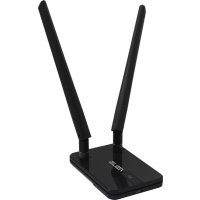



| Brand | ASUS |
| Model | USBN14 |
| Product Type | Wireless USB Network Adapter |
| Wireless Standard | IEEE 802.11b/g/n |
| Frequency Band | 2.4 GHz |
| Maximum Speed | 300 Mbps |
| Interface | USB 2.0 |
| Dimensions | 70 x 20 x 10 mm |
| Weight | 20 g |
| Power Supply | Via USB port (5V, 500 mA) |
| Power Consumption | 2.5 W maximum |
| Wireless Security | WEP 64/128-bit, WPA, WPA2 |
| Operating Temperature | 0 °C to 40 °C |
| Operating Humidity | 10% to 90% (non-condensing) |
| Compatible Operating Systems | Windows XP/Vista/7/8/10, Mac OS X, Linux |
| Maintenance and Cleaning | Clean with a soft, dry cloth. Do not use liquid or abrasive products. |
| Safety Instructions | Do not expose to water or extreme temperatures. Unplug before cleaning. |
| Spare Parts and Repairability | Not user-repairable. No spare parts available. |
| Package Contents | USBN14 USB Adapter, user manual |
| Certifications | CE, FCC, IC |
Frequently Asked Questions - USBN14 ASUS
User questions about USBN14 ASUS
0 question about this device. Answer the ones you know or ask your own.
Ask a new question about this device
Download the instructions for your Network card in PDF format for free! Find your manual USBN14 - ASUS and take your electronic device back in hand. On this page are published all the documents necessary for the use of your device. USBN14 by ASUS.
USER MANUAL USBN14 ASUS
Dual-band Wireless-AC600
User Manual
TH10123
Revision 1
January 2015
4. Troubleshooting
IEEE 802.11a (54Mbits/sec)
WECA (Wireless Ethernet Compatibility Alliance)
WPA (Wi-Fi Protected Access)
This device complies with FCC Rules Part 15. Operation is subject to the following two conditions:
- This device may not cause harmful interference, and
- This device must accept any interference received, including interference that may cause undesired operation.
This equipment has been tested and found to comply with the limits for a class B digital device pursuant to part 15 of the FCC Rules. These limits are designed to provide reasonable protection against harmful interference in a residential installation. This equipment generates, uses and can radiate radio frequency energy and, if not installed and used in accordance with the instructions, may cause harmful interference to radio communications. However, there is no guarantee that interference will not occur in a particular installation. If this equipment does cause harmful interference to radio or television reception, which can be determined by turning the equipment off and on, the user is encouraged to try to correct the interference by one or more of the following measures:
- Reorient or relocate the receiving antenna.
- Increase the separation between the equipment and receiver.
- Connect the equipment into an outlet on a circuit different from that to which the receiver is connected.
- Consult the dealer or an experienced radio/TV technician for help.

WARNING: Any changes or modifications not expressly approved by the party responsible for compliance could void the user's authority to operate the equipment.
Operate the device in the 5150–5250 MHz frequency band for indoor use only.
Prohibition of Co-location
This device and its antenna(s) must not be co-located or operating in conjunction with any other antenna or transmitter.
FCC Radiation Exposure Statement
This equipment complies with FCC radiation exposure limits set forth for an uncontrolled environment.
This equipment should be installed and operated with a minimum distance of 20 cm between the radiator and your body.
CE Mark Warning
This is a Class B product. In a domestic environment, this product may cause radio interference, in which case the user may be required to take adequate measures.
Operation Channels: Ch1~11 for N. America, Ch1~14 for Japan, Ch1~13 for Europe (ETSI)
DGT Warning Statement
Article 12
Without permission, any company, firm, or user shall not alter the frequency, increase the power, or change the characteristics and functions of the original design of the certified lower power frequency electric machinery.
Article 14
The application of low power frequency electric machineries shall not affect the navigation safety nor interfere with legal communication. If an interference is found, the service will be suspended until improvement is made and the interference no longer exists.
Low-power radio-frequency devices management regulations
Under Industry Canada regulations, this radio transmitter may only operate using an antenna of a type and maximum (or lesser) gain approved for the transmitter by Industry Canada. To reduce potential radio interference to other users, the antenna type and its gain should be so chosen that the equivalent isotropically radiated power (e.i.r.p.) is not more than that necessary for successful communication.
This radio transmitter (IC: 3568A-USBAC51) has been approved by Industry Canada to operate with the antenna types listed below with the maximum permissible gain and required antenna impedance for each antenna type indicated. Antenna types not included in this list, having a gain greater than the maximum gain indicated for that type, are strictly prohibited for use with this device.
This Class [B] digital apparatus complies with Canadian ICES-003.
For product available in the USA/Canada market, only channel 1~11 can be operated. Selection of other channels is not possible.
IC Radiation Exposure Statement:
This equipment complies with IC RSS-102 radiation exposure limits set forth for an uncontrolled environment. This equipment should be installed and operated with minimum distance 20cm between the radiator & your body.
Operation is subject to the following two conditions: (1) this device may not cause interference, and (2) this device must accept any interference, including interference that may cause undesired operation of the device.
Canada, Industry Canada (IC) notice
ASUS recycling and takeback programs come from our commitment to the highest standards for protecting our environment. We believe in providing solutions for you to be able to responsibly recycle our products, batteries, other components as well as the packaging materials. Please go to http://csr.asus.com/english/Takeback.htm for the detailed recycling information in different regions.
REACH
Complying with the REACH (Registration, Evaluation, Authorisation, and Restriction of Chemicals) regulatory framework, we published the chemical substances in our products at ASUS REACH website at http://csr.asus.com/english/REACH.htm.


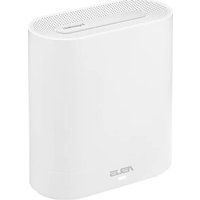
- DUAL-BAND WIRELESS-AC
- TROUBLESHOOTING
- IEEE 802.11A (54MBITS/SEC)
- WECA (WIRELESS ETHERNET COMPATIBILITY ALLIANCE)
- WPA (WI-FI PROTECTED ACCESS)
- PROHIBITION OF CO-LOCATION
- FCC RADIATION EXPOSURE STATEMENT
- CE MARK WARNING
- DGT WARNING STATEMENT
- ARTICLE
- IC RADIATION EXPOSURE STATEMENT
- CANADA, INDUSTRY CANADA (IC) NOTICE
- REACH
Brand : ASUS
Model : USBN14
Category : Network card