DPF7012MIR - Digital photo frame SALORA - Free user manual and instructions
Find the device manual for free DPF7012MIR SALORA in PDF.


| Product type | Digital photo frame |
| Brand | Salora |
| Model | DPF7012MIR |
| Screen size | 7 inches (480 x 234 pixels TFT LCD) |
| Maximum JPEG resolution | 4096 x 4096 pixels |
| Power supply | AC adapter: input 100-240 V AC, output 5 V DC, 1.5 A |
| Compatible memory cards | SD, MMC, USB flash drive |
| Internal memory | Yes (capacity not specified) |
| Supported file formats | JPEG |
| Main functions | Slideshow with transitions, rotation, zoom, save, delete, calendar |
| Settings | Brightness, contrast, color, hue, slideshow speed, split screen |
| Cleaning | Dry cloth (preferably for optical lenses) |
| Operating temperature | 0°C to 50°C |
| Storage temperature | 0°C to 60°C |
| Safety | Do not expose to water, do not disassemble, unplug during storms |
Frequently Asked Questions - DPF7012MIR SALORA
User questions about DPF7012MIR SALORA
0 question about this device. Answer the ones you know or ask your own.
Ask a new question about this device
Download the instructions for your Digital photo frame in PDF format for free! Find your manual DPF7012MIR - SALORA and take your electronic device back in hand. On this page are published all the documents necessary for the use of your device. DPF7012MIR by SALORA.
USER MANUAL DPF7012MIR SALORA
7" (18 CM) DIGITALE FOTOLIJST
SALORA
MODEL: DPF7012MIR


Multimediakort
JPEG SPELER
INTRODUCTION
Cleaning hct LCD scherm
- Secure Digital Card (SD)
-Multimedia Card (MMC)
-USB sticks
PROBLEEMOPISSING GIDS
Storage Temperature: 0~60 graden
Maximale resolutie 4096 x 4096 pixel.
ACCESSIONS:
Power adapter
Handleiding
Table des matieres
Sommaire
Precautions and Maintenance
For indoor use only.
- To avoid risk of fire or electric shock, do not expose this appliance to moisture.
- To avoid overheating, do not block the ventilation holes on the back of this digital photo frame at any time.
- Keep this Multimedia Digital Photo Frame out of sunlight. Direct sunlight may cause damage.
- Do not dismantle the Multimedia Digital Photo Frame. There is a risk of electric shock, and there are no user serviceable parts inside. Dismantling your Multimedia Digital Photo Frame will void your warranty.
- Do not use the Multimedia Digital Photo Frame if conditions could allow condensation to occur, or damage may result.
Cleaning the LCD Screen
- Treat the screen gently. The screen on the multimedia Digital Photo Frame is made of glass and can be easily scratched or broken.
- If fingerprints or dust accumulates on the LCD screen, we recommend using a soft, non-abrasive cloth such as a camera lens cloth to clean the LCD screen.
- If you use the LCD cleaning Kit sold at various retail outlets, do not apply the cleaning liquid directly to the LCD screen. Moisten the cleaning cloth with the cleaning solution and apply the cloth to the screen.
WARNING:
Please STOP the unit before inserting or removing a card or USB Drive. Failure to do so may cause damage to the card/USB and the unit. To reduce the risk of fire or electric shock, do not expose this appliance to rain or moisture.
Table of contents
Precautions and maintenance 1
Cleaning the LCD Screen 1
Important Safety Precautions 3
Resource 4
Player Overview 5
Getting Started 6
Memory Card Choice 7
Play Photo File 7
Setup 8
Calender 9
Troubleshooting Guide 10
Specifications 11
Important Safety Precautions
- Read these instructions.
- Keep these instructions.
Heed all warnings. - Follow all instructions.
- Do not use this apparatus near water.
- Clean only with a dry cloth.
- Do not block any ventilation openings. Install in accordance with the manufacturer's instructions.
- Do not install near any heat sources such as radiators, heat registers, stoves or other apparatus (including amplifiers) that produce heat.
- Do not defeat the safety purpose of the polarized or grounding-type plug. A polarized plug has two blades with one wider than the other. A grounding type plug has two blades and a third grounding prong. The wide blade or the third prong is provided for your safety. If the provided plug does not fit into your outlet, consult an electrician for replacement of the obsolete outlet.
- Protect the power cord from being walked on or pinch particularly at plugs, convenience receptacles, and the point where they exit from the apparatus.
- Only use attachments/accessories specified by the manufacturer.
- Unplug this apparatus during lightening storms or when unused for long periods of time.
- Refer all servicing to qualified service personnel. Servicing is required when the apparatus has been damaged in any way, such as power supply cord or plug is damaged. Liquid has been exposed to rain or moisture, does not operate normally or has been dropped.
- This appliance shall not be exposed to dripping or splashing water and that no object filled with liquid such as vases shall be placed on the apparatus.

This symbol on the product or in the instructions means that your electrical and electronic equipment should be disposed at the end of its life separately from your household waste. There are separate collection systems for recycling in the EU. For more information, please contact the local authority or your retailer where you purchased the product.
Resource
Inserting Memory Cards
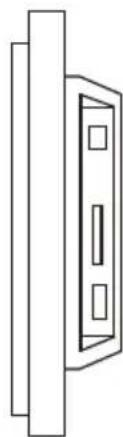
Your multimedia DPF is compatible with the following memory cards:
- Secure Digital Card (SD)
- Multimedia Card (MMC)
- USB drive
Insert the memory card with the screen and slots all facing yourself. Do not force the card in the slot. If you are not able to easily insert the memory card completely, you may have inserted it in a wrong way.
Note:DPF = Digital Photo Frame
Player Overview
Key control and Key functions:
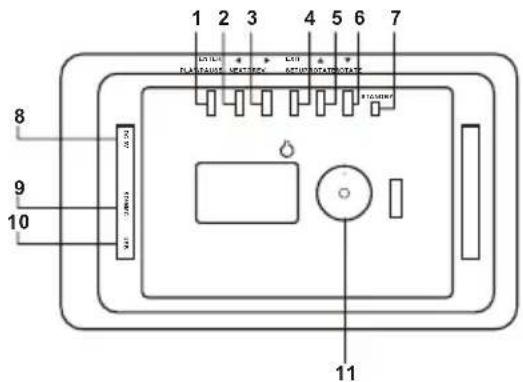
- ENTER(PLAY/PAUSE) BUTTON: Confirm that what and Pause or Play.you chosen
- RIGHT SHIFT BUTTON( 一 / NEXT): Right cursor selecting function and next photo.
- LEFT SHIFT BUTTON(▶PREV): Left cursor selecting function and previous photo.
-
EXIT/SETUP BUTTON: Press EXIT key to return into last interface. Use for setup programs, then by pressing long (above 2 seconds) enter to execute the command.
-
UP BUTTON(▲/ROTATE): Functional selection button and Rotate 90 degrees counter-clockwise.
- DOWN BUTTON( ROTATE): Functional selection button and Rotate 90 degrees clockwise.
- STANDBY BUTTON: Used to power on and off the Digital Photo Frame.
- DC 5V:Input for the DCPower Adapter intothe DPF.
- SD/MMC CARD: The slot for DPF player to connect the SD or MMC memory card.
- USB: Connect to a USB Drive.
- Bracket jack.
Getting started
Getting started
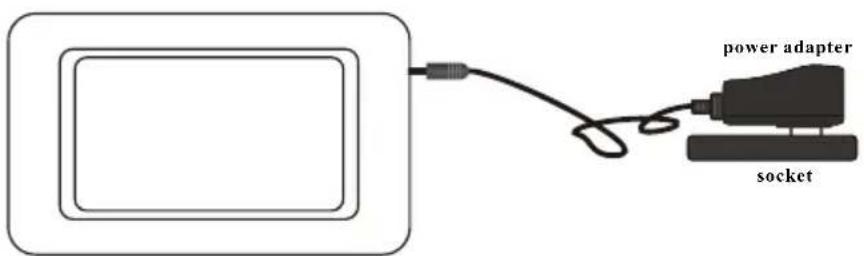
- Assemble the Multimedia Digital photo Framebracket to prop the unit upinsert adaptor DC plug into the DPF player first, then plug the power cord to a standard wall outlet.
Then the screen will display as below: ( will play the pictures auto matically stored), If insert the SD/MMC card, then will play the pictures in the card.
Memory Card Choice
When power on, the digital frame will go into automatic show mode of SlideShow if it is inserted with memory Cards or keeps pictures in the built-in flash. Press EXIT key to return to Photo menu (Fig 1).
If the digital frame is not inserted with memory cards or there is no pictures in its built-in flash, then it goes into Photo menu. After memory card inserted, it goes into Select Cards mode (Fig 2).
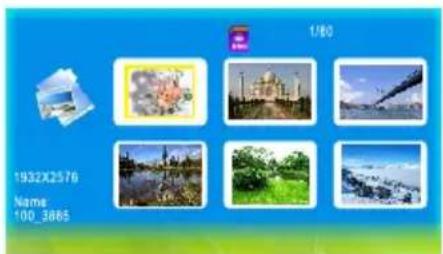
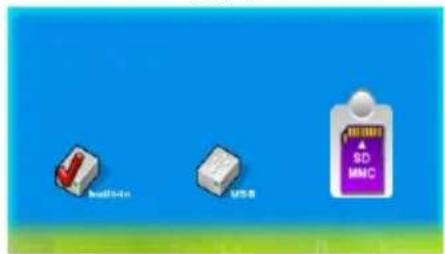
Fig 1
Fig 2
Play Photo File
After memory card inserted, the digital frame goes into Select Cards mode.
Operation:
In Select Cards mode, you can choose different memory cards by or key. Press ENTER key after choosing the memory card to go into SlideShow or Photo mode to play pictures (Fig 3). Press EXIT you can return from playing status.
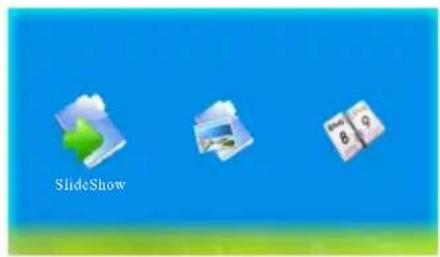
Fig 3
Setup
Operation:
In any menu, press SETUP key to go into the SETUP interface (Fig 4).
Press key to choose the set item.
Use the ENTER button to change the setting.
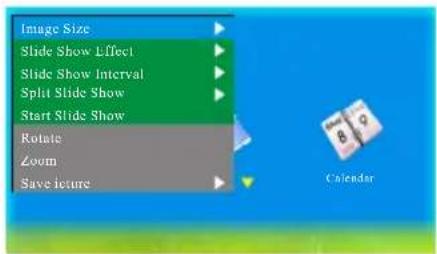
Fig 4
1. Image Size
Allows user change how the images are displayed on the photo frame. Choose between, Auto Fit, Optimal or Full.
2. Slide Show Effect
Allows user to set different effects to the slides when the images change. There are 8 options you can choose from Random, Split Horizontal in, Split Horizontal out, Jalousie, Split Vertical in, Split Vertical out, Radiation, Surround.
3. Slide Show Interval
Allows user to change the speed of the slideshow. The interval speed can be changed from 1 seconds to 1 minute. Use the button to change the setting.
4. Split Slide Show
Allows user to change the Separated Slide Show from On to Off.
5. Start Slide Show
Allows user to choose the start slide show.
6. Rotate
Rotate Photos 90 degrees Clockwise. (Be effective when preview pictures on full screen)
7. Zoom
Allows user to zoom in and out on files. (Be effective when preview pictures on full screen)
8. Save Picture
Allow user to copy pictures from memory cards into the built-in flash. (Be effective when preview pictures on full screen)
9. Delete File
Allow user to delete pictures from the built-in flash
10. Reset Setting
Allows user to the restore default settings.
11. Language
Choose between 3 different languages: English, French and Dutch.
Setup
12. Brightness
Allows you to change the brightness of the LCD screen.
13. Contrast
Allows you to change the contrast of the LCD screen.
14. Color
Allows you to change the color of the LCD screen.
15. Tint
Allows you to change the tint of the LCD screen.
16. Time
This function allows the user to set the system time.
Calendar
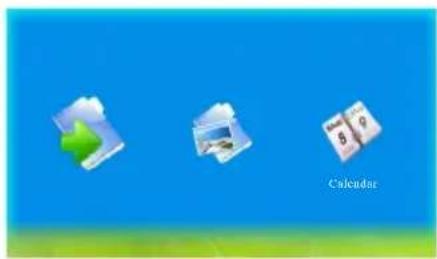
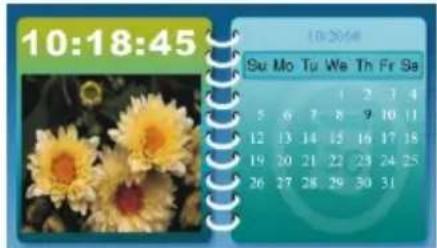
Fig 5
Allow user to setup date and time of the system (Fig 5).
Operation:
Press key to choose Calendar in Select Mode, Press ENTER key to go into the calendar interface. In addition to displaying the current data, the user can the navigation key you can preview different year, Month, and day.
Troubleshooting Guide
If you are experiencing problems with your DPF, please consult both this guide and manual. If you need further assistance, please contact Technical Support.
No power:
Please check whether there is power, and that the DC power cord is plugged in correctly.
Display too bright or too dark:
please adjust the brightness or contrast in the setup menu.
Can not read the CARD:
Please check that there is content on the card.
Can not play the file:
Please confirm whether the file format can be played the player.
The color is light or no color:
Please adjust the color setup.
Specifications
Display: 7TFTLCD 480(RGB)x234
Power: AC Adapter; Input 100-240V~; Output 5V, 1.5A
Built-in Memory: 16MB NOR-Flash (not full capacity can be used for photo storage, subject to the sharing of internal software)
Environmental operating ranges Operating Temperature: 0~50 degrees Storage Temperature: 0~60 degrees
Max. Supported JPEG Resolution: 4096X4096 pixels.
Accessories: Power Adapter User Manual
All specifications and instructions are subject to change without notice.
75-7Hi1018DHFY-03R

- 7" (18 CM) DIGITALE FOTOLIJST
- SALORA
- INTRODUCTION
- Cleaning hct LCD scherm
- PROBLEEMOPISSING GIDS
- Table des matieres
- Sommaire
- Precautions and Maintenance
- Cleaning the LCD Screen
- WARNING:
- Table of contents
- Important Safety Precautions
- Resource
- Inserting Memory Cards
- Player Overview
- Getting started
- Memory Card Choice
- Play Photo File
- Operation:
- Setup
- Image Size
- Slide Show Effect
- Slide Show Interval
- Split Slide Show
- Start Slide Show
- Rotate
- Zoom
- Save Picture
- Delete File
- Reset Setting
- Language
- Brightness
- Contrast
- Color
- Tint
- Time
- Calendar
- Troubleshooting Guide
- No power:
- Display too bright or too dark:
- Can not read the CARD:
- Can not play the file:
- The color is light or no color:
- Specifications
Brand : SALORA
Model : DPF7012MIR
Category : Digital photo frame