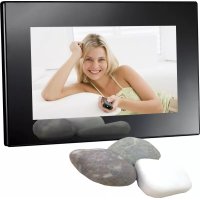
DPF 7112 - Digital photo frame SALORA - Free user manual and instructions
Find the device manual for free DPF 7112 SALORA in PDF.


| Product type | Digital photo frame |
| Brand | Salora |
| Model | DPF 7112 |
| Dimensions (W x D x H) | 208 x 138 x 31.5 mm |
| Weight | 0.43 kg |
| Power supply | DC 5 V (power adapter included) |
| Power consumption | < 10 W |
| Display resolution | 480 x 234 pixels (RGB) |
| Supported formats | JPEG |
| Storage media | SD/MMC/MS card, USB flash drive (USB 1.1) |
| Max. memory card capacity | 2 GB |
| Max. USB flash drive capacity | 2 GB |
| Max. photo resolution | 7 megapixels (7 MP) |
| Playback modes | Single photo, slideshow, multi-photo, calendar+photo, clock+photo |
| Functions | Slideshow with adjustable interval, transition effects, copy/delete photos, date/time display, alarm |
| Settings | Brightness, contrast, saturation, OSD language (EN/FR/DE/NL), time format 12h/24h |
| Operating temperature | 5°C to 40°C |
| Care and cleaning | Use a soft, slightly damp cloth; do not use liquid or aerosol products |
| Safety | Do not open the device, do not expose to water, unplug during storms, risk of electric shock |
| Spare parts and repairability | Consult a professional for any repairs; do not repair yourself |
| General information | User manual available in PDF; features and specifications subject to change without notice |
Frequently Asked Questions - DPF 7112 SALORA
User questions about DPF 7112 SALORA
0 question about this device. Answer the ones you know or ask your own.
Ask a new question about this device
Download the instructions for your Digital photo frame in PDF format for free! Find your manual DPF 7112 - SALORA and take your electronic device back in hand. On this page are published all the documents necessary for the use of your device. DPF 7112 by SALORA.
USER MANUAL DPF 7112 SALORA
natural_image
Black-and-white photo of a group of people climbing a slope under bright sunlight (no text or symbols visible)Safety Precautions

CAUTION
RISK OF ELECTRIC SHOCK DO NOT OPEN


Warning: To alert the user to dangerous voltage inside the unit
Warning: To reduce the risk of fire or electric shock, do not expose this apparatus to rain or moisture.
1) Please read the instruction manual carefully and follow all the requirements of safe operation to operate the device.
2) Do not use this unit near water. Do not place over the unit any container with liquid inside.
3) Do not install near any heat sources such as radiators, heat registers, stoves, or other apparatus (including amplifiers) that produce heat.
4) Unplug this unit during lightning, storms or when not use for long.
5) About Cleaning: Unplug the system, use only wet cloth to clean. Do not use liquid detergent or aerosol.
6) Only use accessories specified by the manufacturer.
7) Refer all servicing to qualified service personnel, servicing is required when the unit has been damaged in any way, such as power supply cord or plug is damaged, liquid has been spilled or objects have fallen into the unit, exposed to moisture, does not operate normally. Don't try to repair the machine by yourself because of the danger of high voltage and electric shock.
Main Features
Support SD/MMC/MS card and USB device.
Able to read JPEG.
Main Unit Controls
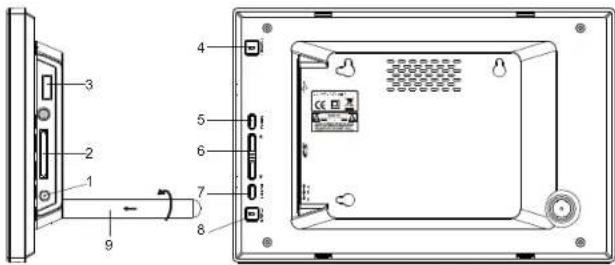
- DC in 5V
- SD card slot
- USB port
- Power :turn on and turn off the unit
- Menu: Press this button to return menu root from play mode.
- ▲▼: Use this button to move cursor up and down when at menu, setting menu.
- Enter: Press this button to enter the submenu step when at menu root and setting menu; when displaying pictures, press this button for delete or copy function.
- Mode: When automatic playing photo, press this button to switch among automatic play mode(Photo single view, Photo slide show, multi-image view, calendar + picture, timer + picture).
- Support stand
Package
| Main unit | 1 PC |
| Instruction manual | 1 PC |
| AC/DC power adapter | 1 PC |
System Connection
Power connection
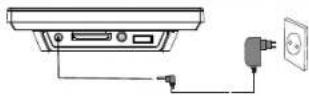
Plug one end of the supplied AC/DC power adaptor into the DC input jack of the machine, then plug the other end into the AC power receptacle. Please refer to the illustration above.
Using your SD card
Upon using an SD card, insert it to the corresponding slot flatly with the label side backward until you hear a click.
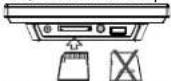
Note: Please do not disconnect USB device or plug out SD/MMC/MS card while they are working with the unit. Functional failure may occur in case of wrong operations.
Auto Playing file
-
After connecting power to the unit, turn on the unit with the POWER button.
-
Insert USB device or SD/MMC/MS card.
-
The unit will automatically play image when turn on. Then you can press MODE button to select display
Mode circularly, as photo single play/photo slide show/multi image view/clock and photo view/calendar and photo view.
Custom playing
- After connecting power to the unit, turn on the unit with the POWER button.
-
Insert USB device or SD/MMC/ MS card.
-
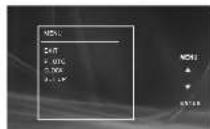
Press MENU button to enter the main menu. Use *▲▼ "button to select the option, press "ENTER" button to confirm.
Notice: When selecting an option and press "ENTER" button to play, the unit will automatically check whether USB device or other card has been connected to the unit. If both USB device and card are inserted, USB device will be read only. To select the media source, press MENU button to access the Setup-Media.
Playing JPEG file(photos)
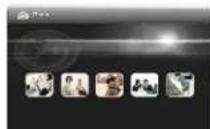
Select "Photo" option on main menu, press "ENTER" button to enter the menu. Under this mode, only JPEG file is available to play. The unit will automatically play JPEG when entering this mode. When playing pictures in USB device or SD/MMC/MS card, press "ENTER" button to copy current picture into the unit; when playing the stored pictures, press "ENTER" to delete the current picture.
Calendar and clock display
-
After connecting power to the unit, turn on the unit with the "POWER" button.
-
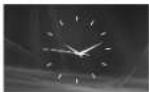
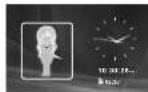
Press "MENU" button to enter the main menu. Use "▲▼" button to select the "CLOCK" option, Press "ENTER" button to confirm. Use "MODE" button to select the calendar and clock display mode.
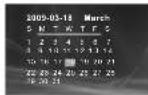
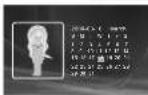
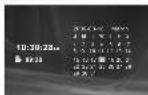
System Setup
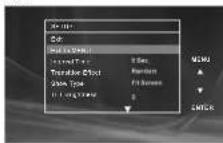
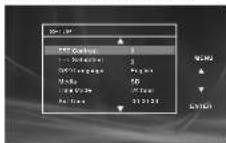
Select "SETUP" on main menu and press "ENTER" button to enter setup menu. In setup menu, user can press "▲/▼" button to select below item, and press "ENTER" button to confirm.
-
"Interval Time" of picture display (5Sec, 10Sec, 15Sec, 30Sec, 1Min, 3Min, Off). Press "▲ /▼" to choose the item you desire, and press "ENTER" button to exit.
-
"Transition Effect" of picture display (No Effect, Rombus, Rectspread, Blind Vertical, Blind Horizontal, Random). Press "▲/▼" to choose the item you desire, and press "ENTER" button to exit.
-
"Show Type" of screen (Full, Screen, Fit Screen). Press "▲/▼" to choose the item you desire, and press "ENTER" button to exit.
4."TFT Brightness" of screen -3 -2 -1 0 +1, +2, +3 . . . . Press "▲ /▼" to choose the item you desire, and press "ENTER" button to exit.
5."TFT Contrast" of screen -3 -2 -1 0 +1, +2, +3 . , , ) Press "▲ /▼" to choose the item you desire, and press"ENTER" button to exit.
6."TFT Saturation" of screen -3 -2 -1 0 +1,+2,+3 , , , ) Press " ▲ /▼ to choose the item you desire, and press "ENTER" button to exit.
7."OSD Language" (English, French, German, Dutch). Press "▲/▼" to choose the item you desire, and press "ENTER" button to exit.
-
"Media" of auto-play (SD/MMC/MS, USB, SPI). After inserting USB or SD/MMC/MS card. Press "▲ /▼" to choose the item you desire, and press "ENTER" button to exit.
-
"Time mode" Move the cursor to "Time mode", press "▲/▼" to choose 24H or 12H and press "ENTER" to exit.
-
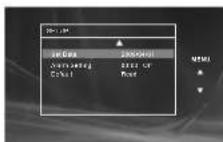
"Set Time" Move the cursor to Set Time, and press "ENTER" to start the time setting, and change the setting for Hour, Minute and Second, press ▲ /▼' to change the number and then press "ENTER" to exit. When clock
shown as 12-hour system, the user have to choose AM or PM. 11. "Set Date" Move the cursor to Set Date, and press "ENTER" to start the date setting, and change the setting for Year, Month and Day, press "▲/▼" to change the number and then press "ENTER" to exit.
-
"Alarm Setting" Move the cursor to Set Alarm, and press "ENTER" to start the alarm setting, and change the setting for Hour, Minute and On or Off, press "▲/▼" to change the number and On or Off, then press "ENTER" to exit.
-
"Default" Move the cursor to "Default", press "ENTER" to enter the item, and press "▲/▼" to return to the original factory setting.
Specification
Compatibility: JPG
Panel size: 7 inch Panel Resolution: 480 (RGB) X 234
USB: Support USB 1.1 (USB2.0 can be recognized but will read as per version 1.1)
Maximum pixel: 7 million
USB maximum handling capacity: 2 GB
Card maximum handling capacity: 2 GB
Power source: DC 5 V
Power consumption: <10W
Operating temperature: 5-40°C
Weight: 0.43 kgs
Dimension (W x D x H): 208 x 138 x 31.5 mm
Troubleshooting
| PROBLEM | SOLUTION |
| The icon Ⓧ appears on screen | The feature or action cannot be completed at this time because:1. The file's software restricts it.2. The file's software doesn't support the feature .3. The feature is not available at the moment. |
| Picture is distorted | The file might be damaged. Try another file;It is normal for some distortion to appear during forward or reverse scan. |

If at any time in the future you should need to dispose of this product please note that waste electrical products should not be disposed of with household waste. Please recycle where facilities exist. Check with your Local Authority or retailer for recycling advice.(Waste Electrical and Electronic equipment Directive)
Owing to continuous improvement, no prior notice will be given regarding changes on above feature and spec.
GEBRUIKSAANWIJZING
Digitaal fotokader
natural_image
Black-and-white photo of people on a platform under bright sunlight (no visible text or symbols)natural_image
Black-and-white photo of people on a platform under bright sunlight (no visible text or symbols)
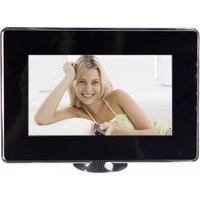
Brand : SALORA
Model : DPF 7112
Category : Digital photo frame