BluTC - Hi-fi system Imperial - Free user manual and instructions
Find the device manual for free BluTC Imperial in PDF.



| Brand | Imperial |
| Model | BluTC |
| Product Type | Bluetooth Headphones |
| Weight | 300 g |
| Power Supply | Rechargeable 3.7 V lithium-polymer battery |
| Battery Life | Up to 12 hours of continuous playback |
| Charging Time | Approximately 2 h 30 |
| Bluetooth Range | 10 meters |
| Bluetooth Version | 4.0 + EDR |
| Supported Codecs | Apt-X, A2DP (1.2), AVRCP (1.4), HFP, HSP |
| Control | Touch on right earpiece |
| Connectors | Mini-USB charging port, 3.5 mm jack for audio cable |
| Main Functions | Wireless music listening, phone calls, touch controls (play/pause, volume, tracks, calls) |
| Maintenance | Clean with a soft, damp cloth, without detergent or solvent |
| Safety | Do not use while driving or with machinery; protect hearing; keep more than 3 cm away from pacemakers |
| Repairability | Do not open the casing; battery not user-replaceable |
| Operating Temperature | -5 °C to 40 °C, max relative humidity 75% |
Frequently Asked Questions - BluTC Imperial
User questions about BluTC Imperial
0 question about this device. Answer the ones you know or ask your own.
Ask a new question about this device
Download the instructions for your Hi-fi system in PDF format for free! Find your manual BluTC - Imperial and take your electronic device back in hand. On this page are published all the documents necessary for the use of your device. BluTC by Imperial.
USER MANUAL BluTC Imperial
natural_image
Side profile of a human head and neck with a circular device showing four directional arrows (no text or symbols)natural_image
Line drawings of two open electronic earbuds with earbuds and accessories (no text or symbols)This manual contains copyrighted information. No single part from this manual may be reproduced or copied without prior written confirmation of the lawful owner of the respective content. Neither electronically, mechanically nor otherwise copying or transferring for any means is allowed.
GB
Published 1st January 2014 - All rights reserved.
This manual has been kept brief ... 11
Usage 11
EU Guidelines 11
Technical information 11
You safety is important! 11
Safe usage of your headphones 12
Functions 13
What else do you need 13
Turn it on and off 13
Connecting 14
Usage via Touch controls 14
Usage via audio cable 15
Charge battery 15
Maintenance 16
Safe keeping 16
Technical support 16
Display and sounds 17
Technical Data 17
GB
This manual has been kept brief ...
... because we know you want to start using the product in stead of reading this manual. However for the best listening experience you need some basic information on the usage of the product. How to use and what it is for, we will explain in this manual – as brief as possible and extended if necessary.
More information
More and the most accurate information on these wireless headphones and our many other products you can find on the Internet at the following addresses www.blutc.com and www.telestar.de.
Usage
The Imperial BluTC are designed for playing and recording of audio signals and wireless transfer of audio signals from Bluetooth enabled audio devices and smartphones. Audio is being played through the integrated speakers. Recording is done through the integrated microphone. Besides audio signals also control signals are being transferred wirelessly between the linked devices. Usage for other purposes is not possible. The headphones are not designed for usage other than described in this manual..
Check the national and international guidelines before using Bluetooth technology. It is possible that the usage of the Imperial bluTC headphones is limited to the European Union.
EU Guidelines
The Imperial BluTC headphones comply to all demands stated in the European guidelines 1999/5/EG and 2004/108/EG
Technical information
CE 0700
The Imperial bluTC headphones use the latest wireless Bluetooth technology available at this time to transfer audio and data (Bluetooth 4.0 + EDR). This version is backwards compatible to older versions of the wireless technology. The biggest advantage opposite to previous versions is the significant lower power consumption. Bluetooth uses radio frequencies between 2,402 and 2,480 GHz, which makes it possible to transfer data up to 10 meters without loss. The Imperial bluTC headphones cooperate with the most modern as well as older Bluetooth enabled audio devices.
You safety is important!
Even if headphones in general are not dangerous, we want to point out some possible risks of these kinds of headphones while using it. This way we can protect you and your environment against unnecessary danger. Please follow below simple rules:
» Do not use the headphones if extreme attention is expected from you, for example if you are participating in traffic, using heavy machinery or practicing manual labour. The ear shells of the headphones block sounds from outside and can cause you not hearing and noticing upcoming danger.
» Protect your hearing against high volumes. Avoid continuously increasing the volume as your hearing gets used to a certain volume. Even with a low volume the audio quality of your headphones is excellent.
» The headphones can influence pacemakers and implanted defibrillators due to the integrated magnetic fields. For safety please keep at least 3 cm between the headphones and above mentioned medical devices.
» Use the headphones only in surroundings as described on page 14 in the Technical Data section. Too high temperatures and humidity can cause damage to the integrated rechargeable battery and even cause fire or explosions.
Safe usage of your headphones
Follow below guidelines to use the headphones safely:
» Do not use the headphones near or in the presence of water. By exposing the headphones to water, fluids or extreme humidity the headphones or parts of it can be damaged severely beyond repair.
» Do not expose the headphones to extreme heat and keep it away from heat sources like central heating units. Also do not expose the headphones to bright and direct sunlight.
» At all times keep the headphones dry and clean. Keep the headphones safe in the special box delivered with the device, if you do not use it.
» Do not try to open the device. You cannot repair or exchange parts of the device yourself.
» Every change to the battery or charger can lead to severe damage to the device beyond repair. Never try to extract or exchange the integrated rechargeable battery.
Overview of the controls
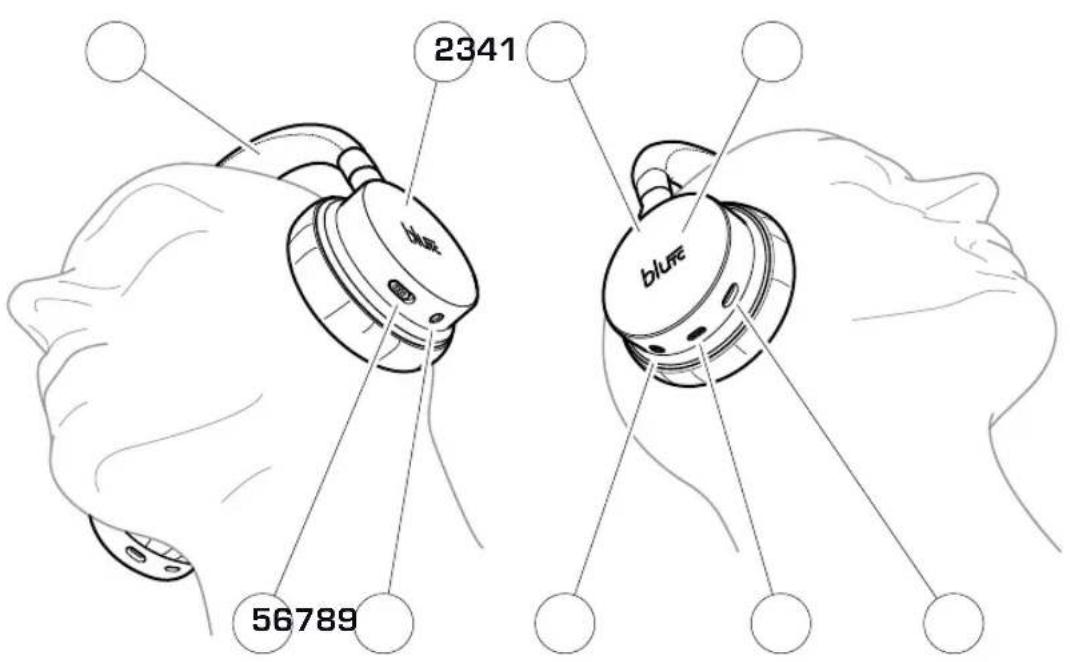
- 1 Adjustable headband
- 2 Left ear
- 3 Right ear
- 4 Touch controls
-
5 Lock Touch controls, turn the Touch control on or off
-
6 3,5 mm mini-jack audio input to connect audio devices through a 3,5 mm cable
- 7 Main switch, turn the headphones on or off
- 8 Mini USB connector to (re)charge the integrated battery via USB
- 9 Microphone
Functions
With the Imperial bluTC headphones you can:
» listen to music or radio wirelessly or have a phone call
» switch between audio play and hands free calling
» switch between available songs while listening to music
» change the volume
» listen to music via the included audio cable from audio devices without Bluetooth
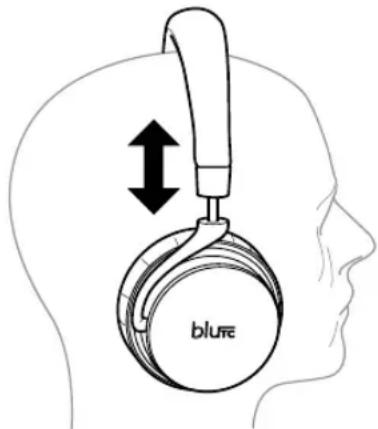
To use the device and listen to music to its optimum you can change the size of the headband to fit your personal needs. To do so, please pull down or slide up the shells of both ears to adjust to size to your personal needs.
The ears of the headphones can move horizontally and vertically to fit your needs automatic.
What else do you need
To create a Bluetooth connection your audio playing device or smartphone also needs to have Bluetooth on board and enabled. Other audio playing devices like laptops can easily be upgraded with Bluetooth using a relatively cheap Bluetooth USB dongle.
Alternatively you can also connect the headphones via the included 3.5 mm mini-jack cable with a 3.5 mm audio input of your audio playing device or smartphone. The controls via the Touch control panel on the side of the headphones is disabled when using it with the audio cable attached. The Touch control is only available in Bluetooth mode.
Turn it on and off
When the headphones are on, the light in the main switch will blink blue every 2 seconds. If the light blinks red, it means that the battery is almost empty and you need to [re]charge it (see chapter Charge battery on page 10).
- To turn the headphones on, press and hold the main switch for about 5 seconds. The light in the main switch will blink blue and red signalling that the headphones are on.
- Slide the lock of the Touch control to the front to enable the use of the Touch control on the headphones right ear.
- To turn the headphones off, press and hold the main switch for about 5 seconds. If the light in the main switch lights up blue and red for a short period and will be off afterwards, the headphones are turned off.
If you wear the headphones whilst turning it on and off, you will hear different sounds and sequences playing confirming your action, on or off.
If you cannot turn the headphones on, the integrated battery does not have enough power to turn it on or is empty. You need to [re] charge the battery before you can turn the headphones on [see chapter Charge battery on page 15].
Connecting
Before data can be exchanged between two Bluetooth devices, these devices need to be linked to each other. This link is established through a process called pairing, where unique keys are exchanged between the 2 devices and stored for future reference and usage. In general the devices will be automatically paired in the future if Bluetooth is enabled on both devices and they are within range of each other. The pairing process does not need to be carried out again.
Read the manual of your audio playing device or smartphone to find out how to enable Bluetooth on this devices, how to pair devices and use the device. The usage can be different from device to device.
- Turn the headphones on
- Press the main switch briefly. The light will blink red and blue
- Choose the headphones on the audio playing device or smartphone as soon as its name appears in the available Bluetooth devices within range.
If the pairing process has been successful, the light in the main switch will blink blue every 2 seconds. With some audio playing devices or smartphones a password needs to be provided to pair successfully. In this case the standard password is '0000' [4 × zero].
Usage via Touch controls
natural_image
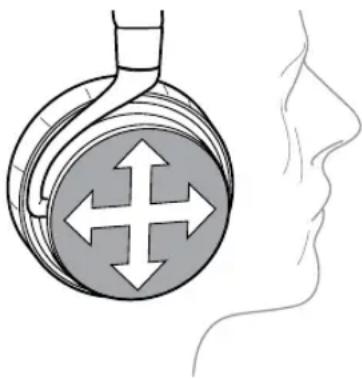
Side profile illustration of a human head and neck with a circular device showing four directional arrows (no text or symbols)The Touch controls are located over the whole outside surface of the right ear shell.
By touching the outer surface with your finger or moving your finger in a certain direction you can control and use different functions of the headphones.
A short delay might occur between touching the Touch control surface and the actual carrying out of the desired command. This is normal and technically determined by the technology used.
Temporarily turn off Touch controls
You can turn the Touch controls off to prevent carrying out commands accidentally by touching the Touch control surface.
- Slide the lock slider of the Touch control to the back towards the 3.5 mini-jack audio input to turn the Touch controls off. You can now touch the Touch control surface without the risk carrying out a command unwillingly.
Audio play and pause
- To start playing audio, starting at the last played song, touch the Touch control surface with your finger and hold it for around 1 second.
- To stop playing audio or pausing the current song, touch the Touch control surface with your finger and hold it for around 1 second.
- Move your finger from the top to the bottom on the Touch control surface to go to the next song.
- Move your finger from bottom to top on the Touch control surface to go to the previous song.
You can also use your audio playing device or smartphone to control and use above-mentioned functions.
Change volume
You can change the volume in 15 steps from 0-15. At 'O' the speakers in the headphones are turned off. When changing the volume you will hear a sound in the corresponding volume height to confirm. If you reach the maximum volume level (= step 15) you will a sound with a higher tone. If you reach the lowest volume level (= step 0 = off) you will hear a sound with a deeper tone.
- To increase the volume, move your finger from back to front on the Touch control surface.
- To decrease the volume, move your finger from front to back on the Touch control surface.
Phone calls
If the headphones are connected to a smartphone via Bluetooth, you can take or reject incoming phone calls or call the last chosen phone number via the headphones. If you are using the headphones for phones calls the audio play is paused automatically and will be continued once you end your phone call.
You will hear a series of sounds through the headphones if you are have an incoming phone call and the audio play will be paused.
- To take an incoming call, press the Touch control surface with your finger for about 1 second. Via the integrated microphone you can talk to the person calling you.
- To reject an incoming phone call, press the Touch control surface with your finger for about 3 seconds. You will now hear 2 different sounds and the incoming call is being rejected. Audio play will be continued.
- To end an existing call, press the Touch control surface with your finger for about 1 second to end it. You will now hear a sound to confirm your action, end the phone call and continue the audio play.
- To call the last called phone number press the Touch control surface with your finger for about 2 seconds. The last called phone number will be dialled
You can also control incoming and outgoing phone calls via the display of your smartphone as usual. Choose the number on your smartphone that has an active connection with the headphones and press the calling button on your smartphone. The conversation can be carried out via the headphones. This is similar to an active hands free car kit in your car.
Usage via audio cable
You can also use the headphones connected to an audio playing device via cable, like traditional headphones. Connect the included audio cable directly to the audio input connector on your smartphone or audio playing device. In this case it is not possible to use the Touch control interface of the headphones.
Attention! Connect the headphones only to audio output connectors that are suitable for headphones. These headphones are not suitable for audio output providing high power.
- Put one side of the audio cable into a 3.5 mm stereo audio or headphones output of the audio playing device or smartphone.
- Put the other end of the audio cable into the 3.5 mm mini-jack audio input of the headphones
- Push the button on the integrated switch in the enclosed audio cable to stop, pause and continue play.
Charge battery
Attention! Only use the included charging cable and power mains adapter to charge the headphones. Charging the built in rechargeable battery with other cables or power mains adapters can lead to irreparable damage and influence the correct working of the headphones.
If you want to charge the battery via USB, please use at least a USB 2.0 port or newer. Do not charge on a Power-USB port. Please check the battery is charged at normal room temperatures. The ideal temperature for charging is between 5 and 25 °C.
- Please make sure you connect the small plug of the USB cable into the mini USB port on the headphones.
- Connect the big plug of the USB cable in a free and active USB port. The charging process will be started and during this process the light at the main switch will be red.
If the light at the main switch is not red anymore, the charging process has finished. You can now disconnect the USB cable.
Maintenance
Attention! Do not use any cleaning products, alcohol, solvents, abrasives or hard objects to clean the headphones. This can damage the surface of the headphones beyond repair.
Clean the headphones regularly with a lightly moisturized cloth.
Safe keeping
natural_image
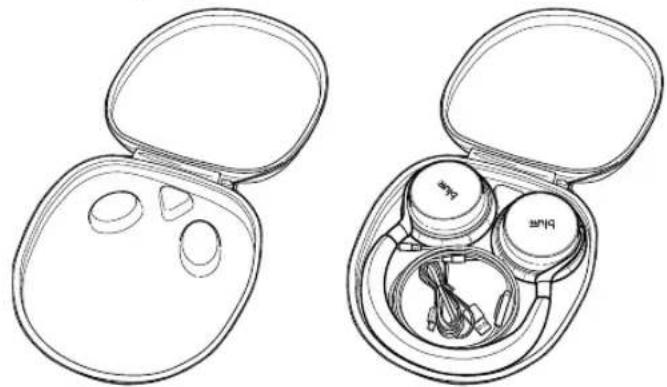
Line drawings of two open electronic earbuds with earbuds and accessories (no text or symbols)Keep the headphones and all its accessories (audio cable and USB charging cable) together in the included storage box. This way the headphones are kept safe and protected against dirt, dust and other surrounding influences. Now the headphones cannot be damaged or scratched.
- Turn the ears of the headphones and put these with the inside down in the place in the storage especially cut out for the ears. Roll up both included cables and put these also in the storage box.
- Close the storage box using the integrated zipper on the box.
Resale/Waste
Resell or offer the Imperial bluTC headphones only accompanied by this manual.
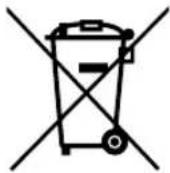
These headphones or made of high quality materials and components that can be recycled and reused in most cases.
Used electrical and electronic devices need to be disposed separated from your normal waste. In the European Union there are several waste disposal systems for electric and electronic products. Take these headphones to your local waste disposal unit for electrical devices. Consult your local government for more information.
Technical support
The following table helps you to determine possible failures and resolve them.
If you cannot solve the failure, please contact your local reseller or our technical helpdesk. You can reach us via E-Mail technik@teles-tar.de or by phone +49 [0] 26 76 - 95 20 101.
| Failure Possible cause Possible solution | ||
| The headphones cannot be turned on. | Battery is on low power or empty (re)charge the battery | |
| No reaction on Touch control. Touch controls are locked by switch Slide the Touch control switch to the front | ||
| No audio or sound display. Volume too | low. Move your finger on the Touch control surface from back to front. Repeat if necessary. | |
| No audio | Audio playing device or smartphone turned off | Turn audio playing device or smartphone on. |
| Pause enabled. Start audio play. | ||
| Interruptions while listening or calling. | Distance between headphones and audio playing device too large. | Decrease distance |
| Interferences in your surroundings. Move your location. | ||
| Audio only displayed on one ear. When | using the cable connection: loose connector, please check connector. | Put the plug of the audio cable completely into the audio playing device. |
| Battery is not charged. | No power. | Connect power mains adapter or to computer. |
Display and sounds
| Light in main switch | Sound | Meaning |
| Short blinking blue and red. | Increasing tones. | Headphones are being turned on. |
| Blinking blue and red, then lights out. | Decreasing tones. | Headphones are being turned off. |
| Slowly blinking blue | — | Headphones on, Stand-by (Pause). |
| Ringtone from Smartphone. Incoming call. | ||
| Blinks blue twice | — | Audio being played. |
| Burns blue and red. | Two short tones. | Connection (Pairing) being set up. |
| Long tone. | Failure in connection (Pairing). | |
| Blinks red slowly. | A short tone every 5 seconds. | Low battery. |
| Turns red | — | Battery being (re)charged. |
| — | Short tone. | Changing volume. |
Technical Data
| Wireless technology | Bluetooth 4.0 + EDR |
| Distance | 10 m |
| Supported codecs | Apt-X, A2DP (1.2), AVRCP (1.4), HFP, HSP |
| Controls | Touch controls |
| Control functions | Audio Start/Pause, Vol+/Vol-, Title Title forward / back,Take calls/Hold/End calls/Reject calls, Redial |
| Battery type | 3,7 V Li-Polymer |
| Playing time | 12 hours without interruption |
| Charging | 2,5 hours |
| Stand-by | 200 hours |
| Connections | Micro-USB connection for charging, 3,5 mm mini-jack audio input for cable connection |
| Surroundings | In use: -5 ... 40 °C, 75 %Relative humidity |
| Storage : | -5 ... 40 °C, 75 % rel. humidity |
| Weight | 300 gr. |
natural_image
Illustration of a hand holding a circular device with directional arrows, alongside a human profile silhouette (no text or symbols)natural_image
Line drawings of two open earbuds with earphones and accessories, one closed and one partially open (no text or symbols)natural_image
Side profile of a human head and neck showing a circular device with directional arrows, alongside a line drawing of the human face (no text or symbols)natural_image
Line drawings of two open earbuds with earbuds and earbuds, showing internal components (no text or symbols)natural_image
Side profile illustration of a human head and face with a circular device showing directional arrows (no text or symbols)natural_image
Two open-in pocket models of electronic earbuds with accessories, one closed and one partially open (no text or symbols visible)natural_image
Side profile illustration of a human head and neck with a circular device showing four directional arrows (no text or symbols)natural_image
Two wire earbuds open, one with a plastic clip and the other with a USB cable (no text or symbols visible)2014 all rights reserved
- This manual has been kept brief ...
- More information
- Usage
- EU Guidelines
- Technical information
- You safety is important!
- Safe usage of your headphones
- Overview of the controls
- Functions
- What else do you need
- Turn it on and off
- Connecting
- Usage via Touch controls
- Temporarily turn off Touch controls
- Audio play and pause
- Change volume
- Phone calls
- Usage via audio cable
- Charge battery
- Maintenance
- Safe keeping
- Resale/Waste
- Technical support
Brand : Imperial
Model : BluTC
Category : Hi-fi system