SCC641P - Soundbar SAMSUNG - Free user manual and instructions
Find the device manual for free SCC641P SAMSUNG in PDF.



| Product type | Motorized zoom lens surveillance camera (SCC-641P) |
| Brand | Samsung |
| Model | SCC-641P |
| Power supply | AC 24 V ± 10%, 50 Hz ± 0.3 Hz |
| Power consumption | 18 W |
| Broadcast system type | Standard PAL color |
| Imaging device | 1/4 inch IT CCD |
| Number of pixels | 752 (H) × 582 (V) |
| Resolution | 480 TV lines |
| Signal-to-noise ratio | 52 dB (AGC off) |
| Minimum illumination | 0.3 lux (Sense UP ×4) |
| Lens | 22× zoom, focal length 3.6 to 79.2 mm, aperture F1.6 (wide) to F3.8 (tele) |
| Pan range | Continuous 360°, preset speed up to 240°/s, manual speed 0.8° to 90°/s |
| Tilt range | 0° to 90°, preset speed up to 150°/s, manual speed 0.8° to 45°/s |
| Video output | Composite video: 1.0 Vp-p, 75 ohms, BNC connector |
| Alarm inputs | 4 inputs (5 mA) |
| Alarm outputs | 3 outputs (2 open collector 24 V DC 40 mA max, 1 relay NO/NC/COM 2 A 30 V DC / 0.5 A 125 V AC max) |
| Remote control | Yes (zoom, focus, iris, pan/tilt control) |
| Operating temperature | -10 °C to +50 °C |
| Operating humidity | 90% max |
| Dimensions | Dome: ø147 mm, outer body: 159.5 × 176 mm (adapter: 23.5 mm height) |
| Weight | 2 kg |
| Cleaning | Use a soft, dry cloth; do not use abrasive detergents or chemicals |
| Safety | Do not disassemble, use only the supplied adapter, avoid moisture and shock |
| Spare parts / Repairability | Contact a Samsung authorized service center; do not attempt unauthorized repair |
Frequently Asked Questions - SCC641P SAMSUNG
User questions about SCC641P SAMSUNG
0 question about this device. Answer the ones you know or ask your own.
Ask a new question about this device
Download the instructions for your Soundbar in PDF format for free! Find your manual SCC641P - SAMSUNG and take your electronic device back in hand. On this page are published all the documents necessary for the use of your device. SCC641P by SAMSUNG.
USER MANUAL SCC641P SAMSUNG
Owner's Instructions
Benutzerhandbuch
The purpose of this information is to ensure proper use of this product to prevent danger or damage to property. Please be sure to observe all precautions.
The precautions are divided into "Warnings" and "Cautions" as distinguished below:
Warning: Ignoring this warning may result in death or serious injury. Caution: Ignoring this caution may result in injury or damage to property.
| Warning instructions alert you to a potential risk of death or serious injury. | Caution instructions alert you to the potential risk of injury or damage to property. |

Warning
- Be sure to use only the supplied adapter. (Using an adapter other than the one supplied may cause fire, electrical shock, or damage to the product.)
- When connecting the power supply and signal wires, check the external connection terminals before connecting them. Connect the alarm signal wires to the alarm terminals, the AC adapter to the AC power input receptacle, and the DC adapter to the DC power input, making sure that the correct polarity is observed. (Connecting the power supply incorrectly may cause fire, electrical shock, or damage to the product.)
- Do not connect multiple cameras to a single adapter. (Exceeding the capacity may cause abnormal heat generation or fire.) (A falling camera may cause personal injury.)
- Securely plug the power cord into the power receptacle. (Insecure connection may cause fire.)
-
When installing the camera on a wall or ceiling, fasten it securely and firmly. (A falling camera may cause personal injury.)
-
Do not place conductive objects (e.g., screwdrivers, coins, and metal things) or containers filled with water on top of the camera. (Doing so may cause personal injury due to fire, electrical shock, or falling objects.)
- Do not install the unit in humid, dusty, or sooty locations. (Doing so may cause fire or electrical shock.)
- If any unusual smells or smoke come from the unit, stop using the product. In such case, immediately disconnect the power source and contact the service center. (Continued use in such a condition may cause fire or electrical shock.)
- If this product fails to operate normally, contact the store of purchase or your nearest service center. Never disassemble or modify this product in any way. (Samsung is not liable for problems caused by unauthorized modifications or attempted repair.)
- When cleaning, do not spray water directly onto parts of the product. (Doing so may cause fire or electrical shock.) Wipe the surface with a dry cloth. Never use detergents or chemical cleaners on the product, as this may result in discoloration of surface or cause damage to the finish.

Caution
- Do not drop objects on the product or apply strong shock to it. Keep away from a location subject to excessive vibration or magnetic interference.
- Do not install in a location subject to high temperature (over 122^ ), low temperature (below 14^ ), or high humidity. (Doing so may cause fire or electrical shock.)
- Avoid a location which is exposed to direct sunlight, or near heat sources such as heaters or radiators. (Neglecting to do so may result in a risk of fire.)
- If you want to relocate the already installed product, be sure to turn off the power and then move or reinstall it.
- Install in a well-ventilated location.
- Remove the power plug from the outlet when there is a lightning storm. (Neglecting to do so may cause fire or damage to the product.)
Before Usage
This is a basic instruction manual for the SCC-641(P) user. It contains all the instructions needed to use the SCC-641(P) from a simple introduction of the control locations and functions of the SCC-641(P) to installation methods in the set up menu.
We recommend all users of the SCC-641(P) from the advanced user who has used similar cameras before to the general user to read the instruction manual before using.
The most frequently used feature in the SCC-641(P) would be the SCC-641(P) Setup Menu. The SCC-641(P) Setup Menu is explained in detailed in "Chapter 3 Setup Menu Overview".
The instructional manual is best used when read from beginning to end, but for users wanting to read only the part they need here are the Chapter summaries.
"Chapter 1 SCC-641(P) Overview" includes a brief introduction of the SCC-641(P), part names and functions, and Switch Settings.
"Chapter 2 SCC-641(P) Installation" explains the installation procedures of the SCC-641(P) and provides preparation and installation environment requirements.
"Chapter 3 Setup Menu Overview" presents the structure of the Setup menu for the SCC-641(P) including a detailed explanation of the functions performed in each submenu.
"Appendix SCC-641(P) Product Specifications" contains product specifications of the SCC-641(P) in itemized categories.
Approval of Standards

LISTED 51Y7 E149081. I.T.E.

LR8100

Note: This equipment has been tested and found to comply with the limits for a Class B digital device, pursuant to part 15 of the FCC Rules. These limits are designed to provide reasonable protection against harmful interface in a residential installation. This equipment generates, uses and can radiate radio frequency energy and, if not installed and used in accordance with the instructions, may cause harmful interference to radio communications. However, there is no guarantee that interference will not occur in a particular installation. If this equipment does cause harmful interference to radio or television reception, which can be determined by turning the equipment off and on, the user is encouraged to try to correct the interference by one or more of the following measures:
- Reorient of relocate the receiving antenna.
- Increase the separation between the equipment and receiver.
- Connect the equipment into an outlet on a circuit different from that to which the receiver is connected.
- Consult the dealer or an experienced radio TV technician for help.
Table of contents
Before Usage 1-1
Chapter 1 SCC-641(P) Overview 1-5
SCC-641(P) Introduction 1-6
SCC-641(P) Location of Controls 1-7
Locations of Controls - Front 1-7
Locations of Controls-Back 1-8
ADAPTER CONNECTION 1-9
INITIAL SETTING 1-10
Setting RS-422A/RS-485 Termination 1-11
SWITCH SETTING 1-12
Chapter 2 SCC-641(P) Installations 2-1
Checking Package Contents 2-2
Precautions for Installation and Usage 2-3
Preparing the Cable 2-5
Cable Connection 2-6
SCC-641(P) Installation 2-7
Chapter 3 Setup Menu Overview 3-1
Structure of the Setup Menu 3-2
CAMERA BLOCK MENU Contents 3-5
CAMERA ID 3-5
-V-SYNC3-6
- ZOOM SPEED 3-6
-MOTION DET 3-7
-EXIT 3-8
VIDEO SET MENU 3-9
-IRIS 3-9
- SHUTTER 3-10
-AGC3-11 - WHITE BAL 3-12
- SPECIAL 3-14
- AUTO FOCUS 3-15
-D-ZOOM3-15
-EXIT3-15
PRESET 3-16
AUTO MODE 3-18
-AUTO PAN 3-18 - PATTERN 3-20
ALARM SET 3-21
OTHER SET 3-23
Appendix Product specifications 3-25
Chapter 1 SCC-641(P) Overview
In this chapter we will briefly introduce the SCC-641(P) and show main functions, locations of control and Switch Setting.
SCC-641(P) Introduction
The SCC-641(P) is the best performing zoom lens integrated surveillance camera. It can be used with CCTV in banks or companies to provide high level of security.
The SCC-641(P) is a high quality surveillance camera using x22 zoom lens and digital zoom IC, it can catch clear images up to 220 times.
The SCC-641(P) has Low light function that enables it to take shots in the environment where there is almost no light, White Balance function that corrects the picture natural depending on the background lights, Back light Compensation function that enables objects to be seen clearly even under bright-background lighting conditions and Auto Focus function that enables it to focus according to the movement of the object. It is a multifunction camera that has all the important functions of other surveillance cameras.
The SCC-641(P) uses an Alarm function for alert situations and moving camera in the direction you want, ZOOM-IN and ZOOM-OUT functions can be remote controlled.
FRONT
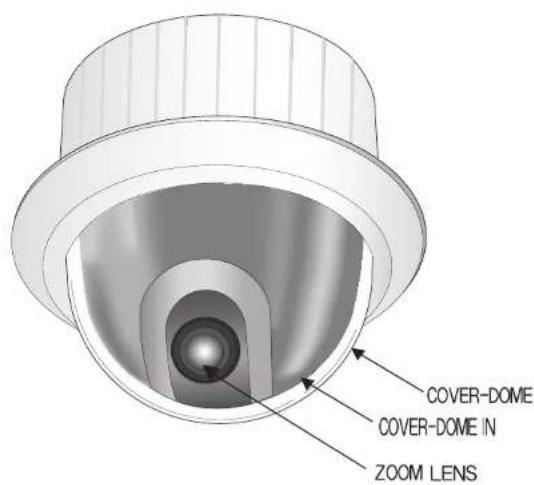
Locations of Control
BACK
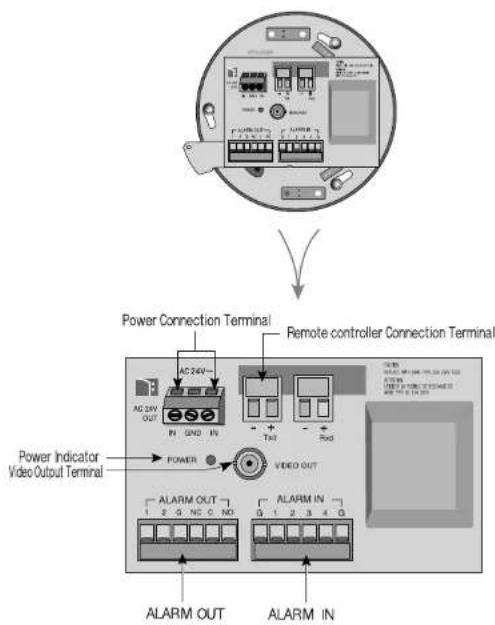
ADAPTER CONNECTION
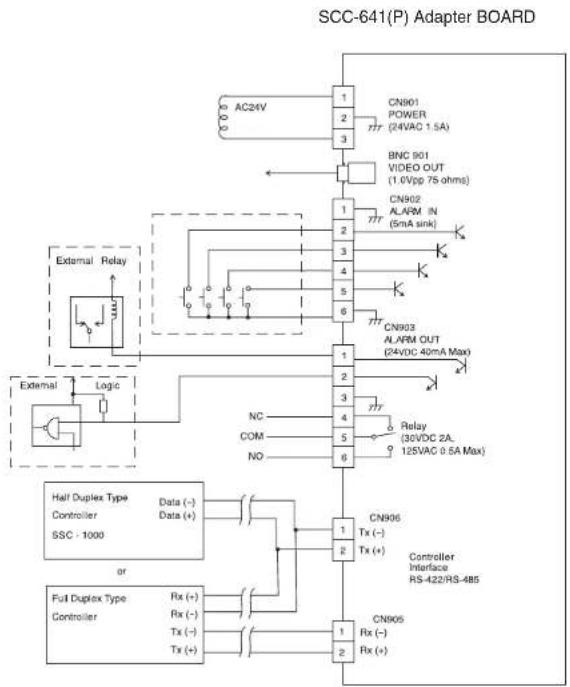
INITIAL SETTING
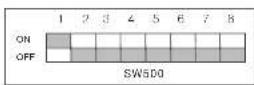
CAMERA ADDRESS SETUP
Dip Switch setting is same as the following example:
EX)CAMERA ADDR:When it's number 1, set as follows.
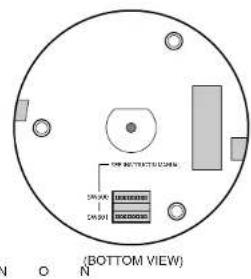
Setting communication Protocol
Use number 5~8 PIN of SW501 to set communication Protocol.
| P0.0mg | PINS | PIN5 | PIN6 | PIN7 | PINS | |
| A OFF OFF | OFF OFF | |||||
| B ON OFF | OFF OFF | |||||
| C ON ON | OFF OFF | |||||
| D ON ON | OFF OFF | |||||
| E OFF OFF | ON OFF | |||||
| F ON OFF | ON OFF | |||||
| G ON ON | ON ON | |||||
| H ON ON | ON OFF | |||||
| I OFF OFF | OFF ON | |||||
| J ON OFF | OFF ON | |||||
| K ON ON | OFF ON | |||||
| L ON ON | OFF ON | |||||
| M OFF OFF | ON ON | |||||
| N ON OFF | ON ON | |||||
| O OFF ON | ON ON | |||||
| P | O | N | O | N | O | |
A: SAMSUNG (SSC-1000)HALF
B: SAMSUNG(SSC-1000)FULL
Baud Rate Setting
Use PIN 3 and 4 of SW501.
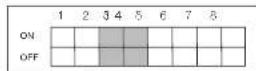
| BAUD RATE | PIN 3 | PIN 4 |
| 4800 BPS | ON | ON |
| 9600 BPS | OFF | ON |
| 19200 BPS | ON | OFF |
| 38400 BPS | OFF | OFF |
Setting RS-422A/RS-485 termination
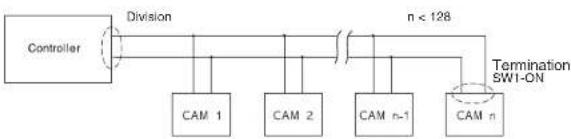
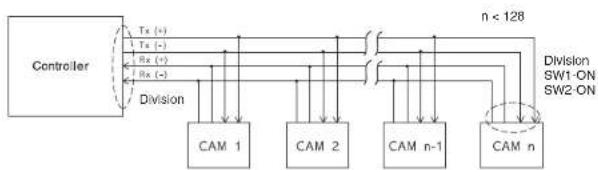
As it is shown in the structure map, when Controller and RS-422A/RS-485 is connected it should be terminated according to the Cable feature of impedance on the each end of the transmitting line to transfer the signals in long distance by controlling the reflection of the signals to the lowest.
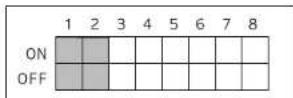
Termination: using numbers 1 and 2 PIN, turn to ON and it will be terminated.
CAUTION
If more than one camera is set of same address, Communication error can be occurred.
SWITCH SETTING
Chapter 2 SCC-641(P) Installation
In this chapter we will look over the checkpoints before installation, installation environmental requirements, and precautions during the installation of the SCC-641(P). After that we'll show the actual installation of the SCC-641(P) and cable connections.
Before Installing
Checking Package Contents
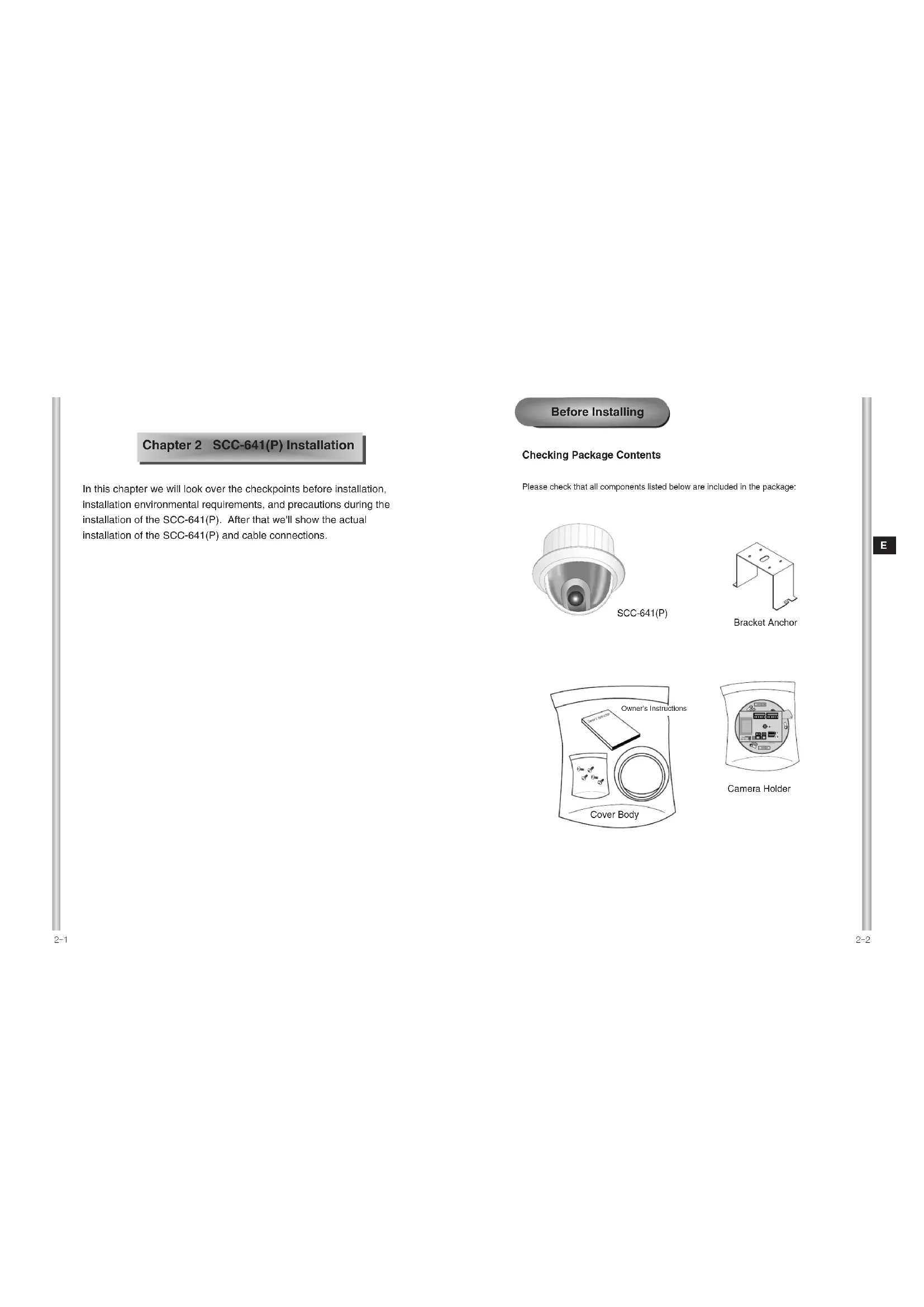
Please check that all components listed below are included in the package:
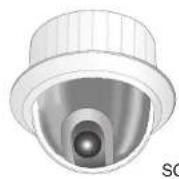
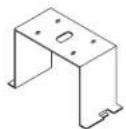
Bracket Anchor
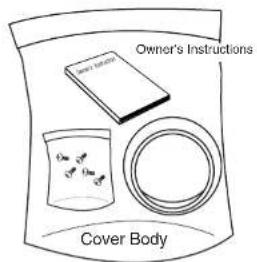
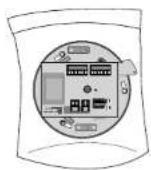
Camera Holder
Precautions for Installation and Usage.
Do not attempt to disassemble the SCC-641(P).
There is a danger of electric shock if the screws or cover are removed. We strongly recommend that users avoid handling the interior part of the SCC-641(P). If it becomes necessary to inspect the inside, please contact a distributor.
Handle the SCC-641(P) with care.
Although the SCC-641(P) is a durable product, handling the product carefully will lengthen its operating life and prevent failures. Avoid shaking or directly impacting the camera to prevent damage to the product and handle and store properly.
Do not expose the SCC-641(P) to rain or moisture or operate it in wet area.
If the SCC-641(P) comes in contact with water, turn the power switch off immediately and contact a distributor. Moisture can damage the SCC-641(P) and increases the danger of electric shock.
Do not use strong detergents or abrasive detergents to clean the SCC-641(P) body.
If the SCC-641(P) body becomes dirty, use a dry cloth to clean the unit. In case the dirt is hard to remove, use a mild detergent and wipe gently.
Never face the SCC-641(P) towards the sun.
Whether the SCC-641(P) is in use or not, never face it towards the sun. Use with caution when operating the SCC-641(P) in the vicinity of spotlights or other bright lights and light reflecting objects.
The SCC-641(P) should be operated in a stable environment.
Acceptable operating conditions are listed below:
Temperature: -10℃~+50℃ (14℉~122℉)
Humidity level: 90% or less
Proper electric power should be used according to the specifications of the SCC-641(P) power supply system.
Power Consumed:18W
Power Input: 24VAC, 1.5A
Preparing the Cables
To install and use the SCC-641(P), the following cables should be prepared.
Power Adapter Cable
The cable connected to the Power input terminal of the SCC-641(P) is shown below with a rated voltage of 24VAC and ampacity of 1.5A.
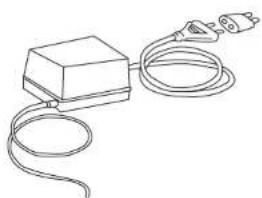
Video Cable
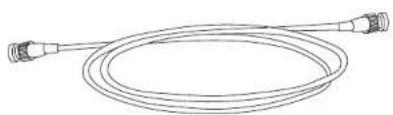
The SCC-641(P)'s cable is a BNC Cable for connecting the video-output terminal to the video-input terminal of the monitor.
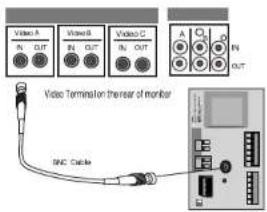
Cable Connection
- First, connect one end of the BNC video cable connector to the Video Output Terminal (VIDEO OUT)
- Then, connect the other end of the connector to the Video Input Terminal of the monitor.
- Now connect the Power Adapter Cable. Use a driver to screw one part of the two lines of Power Adapter to Power Input Terminal of the SCC-641(P).
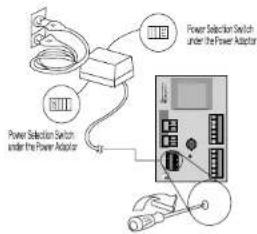
- Adjust the switch below the Power Adapter to the proper voltage. Then, connect the Power Adapter's plug to the Power Connector.
- Connect the Remote Control Terminal of the SCC-641(P) and the external Controller.
SCC-641(P) Installation
- [Figure 1] Install the structure on the ceiling. (Refer to Installation reference for the Length of the structure) * Built in by the builder of the structure
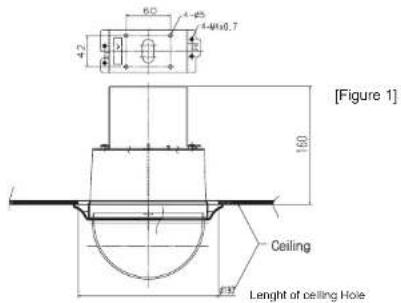
- Make a hole in the ceiling where the camera will be installed. (The hole should be about 180)
- [Figure 2] Assemble the BRKT-ANCHOR on the ceiling and screw the 4 bolts in.
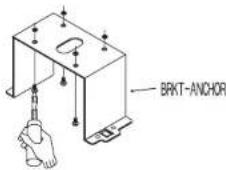
[Figure 2]
- [Figure 3,4] Connect the various cables to the CAMERA ADAPTER. (See page 2-6)
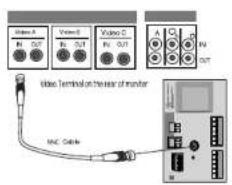
[Figure 3]
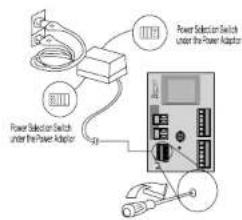
[Figure 4]
- [Figure 5] Match the BRKT-ANCHOR and CAMERA ADAPTER and use 4screws (PH M4X8) to assemble them.
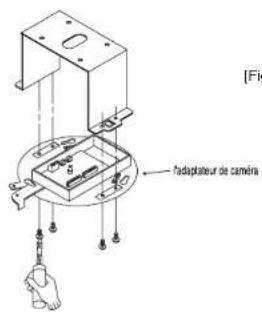
- [Figure 6] Match the 3 holes on the back of the CAMERA and the CONNECTOR and turn it left about 15 degrees.
(Check the sound of LOCKING and that the LEVER-LOCKING is in place) - Use the screws (BH M3XL8) to connect the CAMERA and the ADAPTER so they don't move.
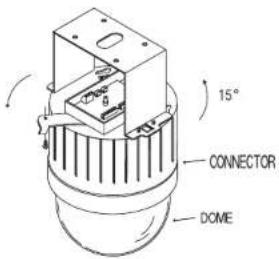
[Figure 6]
- [Figure 7] Assemble the COVER-DOME onto the DOME.
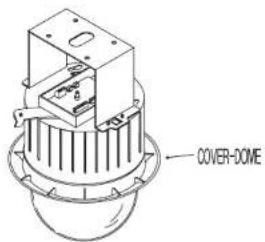
[Figure 7]
Chapter 3 Setup Menu Overview
In this chapter, we will look over the Setup Menu of the SCC-641(P), First we'll look over the overall structure of the Setup Menu, and then we'll look at the functions of each menu.
Structure of the Setup Menu
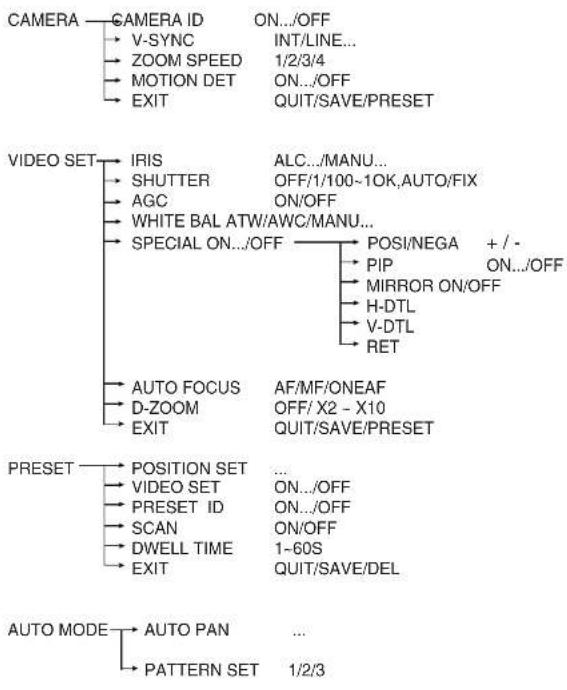
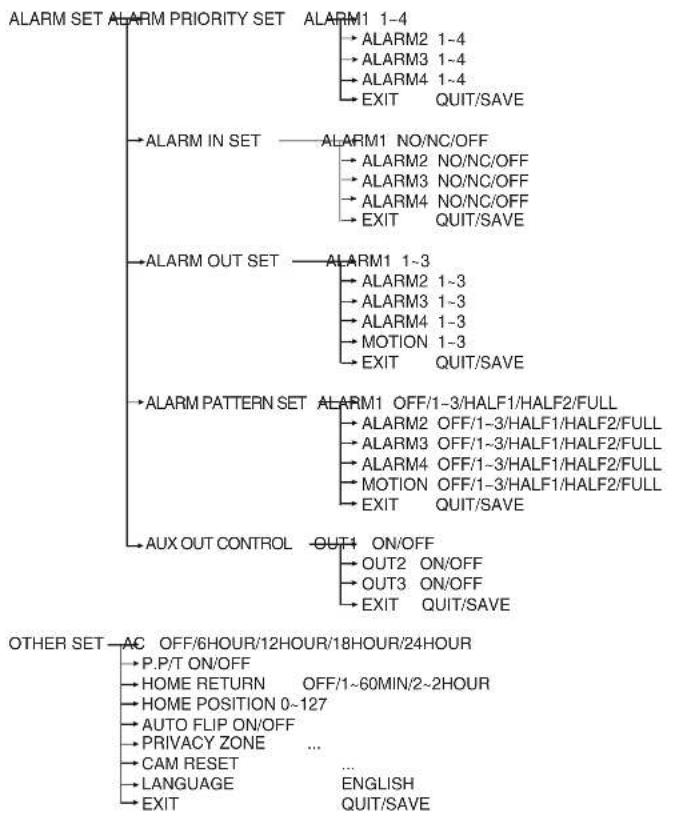
The diagram shown above illustrates the overall structure of the Setup Menu. In this section, a description of the Setup menu features will enable users of the SCC-641(P) to tailor it to their personal needs.
CAMERA BLOCK MENU Contents
Camera Menu consists of CAMERA SET Menu and VIDEO SET Menu.
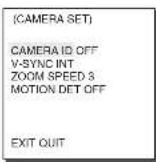
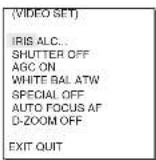
CAMERA ID
The CAMERA ID menu assigns an ID to the SCC-641(P) to be displayed on the connected monitor. On the CAMERA SET menu screen, select CAMERA ID to ON and press [Enter]. You will see the sub screen for deciding on the ID of the SCC-641(P). The Camera ID can have up to 12 alphanumeric characters, along with several special characters. The assigned camera ID may be positioned to any desired location on the screen by using the LOCATION submenu.
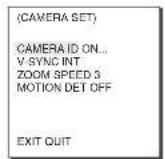

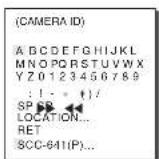
Means there are Sub Menus.
V-SYNC
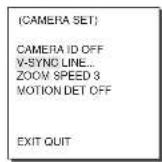
In the V-SYNC menu, vertical synchronization can be selected. The vertical synchronization signal supported by the SCC-641(P) is the INT mode made by clock inside the SCC-641(P) and LINE mode adjusting vertical synchronization to the exterior power frequency.
(CAMERA SET)
CAMERA ID OFF
V-SYNC INT
ZOOM SPEED 3
MOTION DET OFF
EXIT OUT
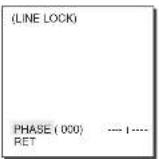
Select LINE and press [Enter]. You will see the LINE LOCK submenu where you can adjust the phase of the LINE LOCK.
You can use the PHASE menu of the LINE LOCK submenu to assign as much PHASE as you want.

Press [Enter]
ZOOM SPEED
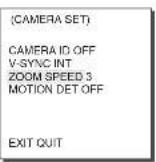
In the ZOOM SPEED menu you can select the speed of the ZOOM Key (Tele/Wide).
Use the [Left] or [Right] keys in the ZOOM SPEED menu to selct the speed.
1: Magnification x 22 takes about 17 seconds
Slowest speed
2: Magnification x 22 takes about 10 seconds Low speed
3: Magnification x 22 takes about 6 seconds High speed
4: Magnification x 22 takes about 3 seconds
Fastest speed
MOTION DET
In MOTION DET, you can set the Motion Detection function, Motion Detection Sensitivity, and the Area of Motion Detection. If the Motion Detection function is set, the movement of an intruder can be detected. When motion is detected, it sets off the Alarm signal of the Controller.
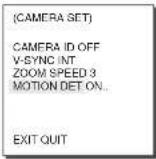

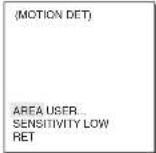
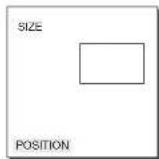
Select ON and press [Enter] you will see the "MOTION DET" submenu. The "AREA" menu, the screen area where the Motion Detection function is going to be applied, can be set as PRESET or USER. If the "AREA" menu is set to PRESET, the Motion Detection function will be applied to the basic part of the SCC-641(P)'s factory default preset. Set the AREA menu to USER and press [ENTER], the user can choose the size of the area and location where the Motion Detection function should be applied. When the area is not blinking, you can use the [Left, Right, Up, Down] keys to move and set the size. If you press [ENTER] when the area is not blinking, it will start to blink and you can use the [Left, Right, Up, Down] keys to set the position of the area. Use the [ENTER] and [Left, Right, Up, Down] keys to set the position and size of the Motion Detection Area. If you press [ENTER] once more, you will exit the "AREA" setting menu. Use the "SENSITIVITY" menu to set the sensitivity of the Motion Detection. The Higher it is set, the more sensitive the Motion Detection moves.
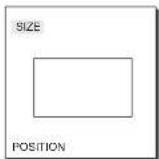

[Left,Right,Up,Down] Keys
*Motion Detection function does not operate while handling slow SHUTTER, PRESET, SCAN, PATTERN MODE, or JOYSTICK.
EXIT
The EXIT menu is used to quit the CAMERA SET menu of the SCC-641(P) and return to the MAIN MENU.
- QUIT: Ignores the changed information and restores the saved information.
- SAVE: Saves the information of the setting condition of the menu.
- PRESET: Ignores the changed information and restores the initial factory defaults of the menu.
(CAMERA SET)
CAMERA ID OFF
V-SYNCINI
ZOOM SPEED 3
MOTRAN SET BY
EXIT QUIT
VIDEO SET MENU
IRIS
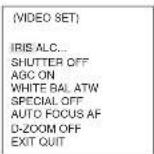
The video output level of the monitor can be controlled by the IRIS lens depending on the level of the incoming light. The video output level can be set in the ALC (Auto Light Compensation) menu. The opening and shutting of the Iris lens can be set manually in the MANU menu.
BLC (Submenu of the ALC/MANU menu)
With conventional cameras, strong background lighting interferes with the clarity of objects, making them appear dark. In the SCC-641(P), setting the BLC (Back Light Compensation), submenu of ALC/MANU menu, will solve the problem of backlight and give you a clear screen.
ALC
Choose the ALC of the IRIS item and press [ENTER] and set the submenu to the Video Output level and BLC will be shown. The Video Output Level can be set in the level item using the [Left, Right] keys. Set the BLC menu to ON and the Back Light Compensation function will be applied to the screen areas of AREA menu. The screen area where Back Light Compensation should be applied can be set with the PRESET or USER item. If the AREA menu is set to PRESET, the backlight compensation function is applied to the factory defaults of the SCC-641(P). If the AREA menu is set to USER and [ENTER] is pressed, the user can select the applied area of the backlight compensation function.

Press
[Enter]

AHEA
BLC
LEVEL
AET
m = 311
20
12/12
。
6
When the area is not blinking, you can use the [Left, Right, Up, Down] keys to move and set the size. If you press [ENTER] when the area is not blinking, it will start to blink and you can use the [Left, Right, Up, Down] key to set the position of the area. Use [ENTER] and the [Left, Right, Up, Down] keys to set the position and size of the Motion Detection Area. If you press [ENTER] once more, you will exit the 'AREA' setting menu.
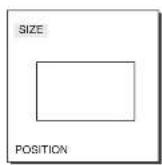
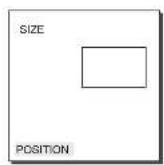
MANU
If the IRIS item is set to MANU, the sub screen to open and shut the Iris manually will be shown. Using the [Left, Right] keys in the LEVEL item you can set Iris manual setting.
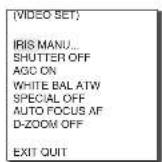

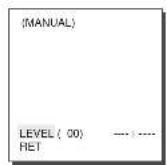
SHUTTER
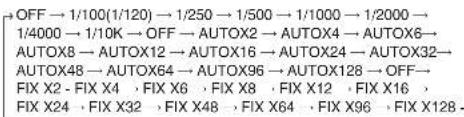
In the SHUTTER menu, the high-speed Electric shutter and AUTO low speed shutter of the SCC-641(P) and the FIX low speed shutter can be set. The High speed Electric Shutter supports 7 different speeds from 1/100 to 1/10,000 of a second. The AUTO low speed shutter and FIX low speed shutter supports 12 different speeds from 2x to 128x magnifications. The Low speed shutter is the function that sets the shutter speed to low in order to clearly see the object filmed in low light. To automatically slow down the speed of the shutter by sensing the brightness of the light, set it to AUTO low speed shutter. If the user wants to select the speed of the shutter, set it to FIX. The number after the AUTO and FIX are the number of the fields stored. The larger the number of the fields, the slower the shutter speed gets, so in a still screen the screen is much clearer.
If the object were in motion it would be blury.
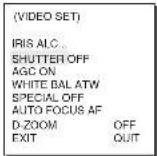
If your press the left/right keys continuously, the speed will appear in the following order.
AGC
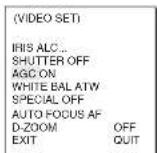
In the AGC (Automatic Gain Control) menu, you can set the gain automatically when the brightness of the screen is filmed at less than the standard in low-light conditions. To automatically control GAIN, set the AGC menu to ON or set it to OFF for manual control. If the SHUTTER menu is set to AUTO low speed shutter, the value of the AGC menu cannot be changed.
WHITE BAL
Lights are generally denoted as color temperatures and expressed in Kelvin (K) units.
The general light color temperatures are shown below.
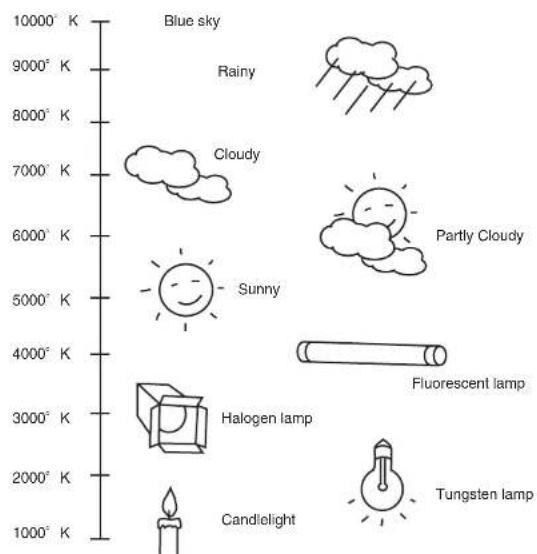
WHITE BAL
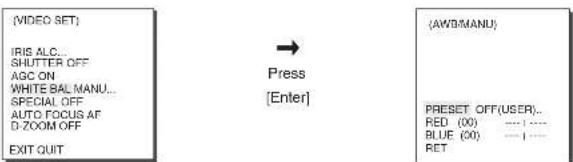
The WHITE BAL menu insures that white is calibrated normally under any color temperature condition. When the WHITE BAL menu is set to the ATW mode, the white balance is automatically specified according to the color temperature. In the case of setting the WHITE BAL menu to AWC mode, pressing [ENTER] while having a white paper in front of the Camera will automatically set the white balance in accordance with the color temperature only one time.
If WHITE BAL menu is set to MANUAL mode, the user can set the white Balance considering the current illumination.
- 3200° K : Set color temperature to 3200° K
- 5600°K : Set color temperature to 5600°K
-User:Set the appropriate value in the RED and BULE graph.
MANU: Select MANU item and press [ENTER], the sub screen where you can select manual White Balance will be shown.
Use the left/right keys to select 3200^ K, 5600^ K or USER mode in the PRESET menu.
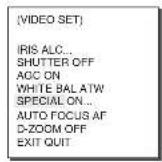
SPECIAL
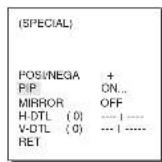
In the SPECIAL menu, POSI/NEGA, PIP, Mirror, and vertical and horizontal detail level can be adjusted.
- POSI/NEGA: Video output signal is outputted normal/reverse.
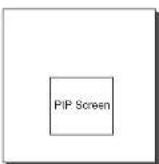
- PIP(Picture in Picture): When Digital Zoom is activated, the 1/16 minimized screen will be shown.
- Mirror: Reverse the video output signal.
-H-DTL: Adjust Horizontal Detail Level.
V-DTL: Adjust Vertical Detail Level.
Select ON and press [ENTER], the "SPECIAL" submenu to choose the special functions will be shown.

[Enter]
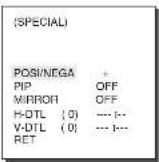
To choose functions use the left/right keys to select an item. In the PIP menu, select ON and press [ENTER]. Use the [left, right, up, down] keys to set the location of the PIP.
PIP does not function in low speed SHUTTER MODE.
When Mirror is functioning, Mirror does not function in the PIP windows.

Press [Enter]
AUTO FOCUS
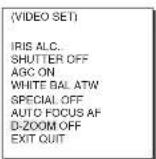
In the AUTO FOCUS MENU, the Focus method can be set to AF, MF, or ONEAF.
- AF: With AUTO FOCUS MODE, you can monitor the screen continuously and it will focus automatically. While moving the zoom keys, it will automatically focus so FOCUS key input is not necessary.
- MF: In MANUAL FOCUS MODE the user adjusts the Focus manually.
- ONEAF: In ONEAF mode the SCC-641(P) auto focuses only while moving/stopping. When the SCC-641(P) is not moving it is same as MF mode and when it's moving/stopping it's the same as AF mode. Use the left/right keys to select AF, MF or ONEAF in the AUTO FOCUS menu.
D-ZOOM
In the D-ZOOM menu you can choose the Digital Zoom magnification.
You can select a magnification from OFF to 10 times.
When Digital Zoom is selected at 10 times, it is the Optic Zoom for 22 times the size so the camera can film at up to 220 times.
Use the [left, right] keys to select the magnification in the D-ZOOM menu.
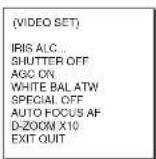
EXIT
It's the same as the EXIT function of the CAMERA SET menu.
PRESET
A total of 128 presets are available including the selection of PAN/TILT location and Zoom/Focus, and setting up screen conditions and monitoring. (0 ~ 127) Among the 128 PRESETS PRESET 0: HOME POSITION, PRESET 1: ALARM1, PRESET 2: ALARM2, PRESET 3: ALARM3, PRESET 4: ALARM4, PRESET 5: set as special preset corresponding MOTION.
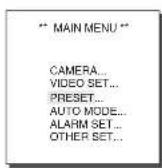
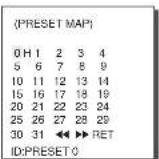
Press [Enter]

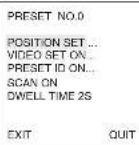
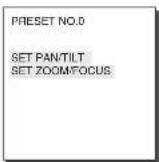
POSITION SET
From "POSITION SET..." press [ENTER] to get into the PAN/TILT, FOCUS/ZOOM SET screen to set the PAN/TILT location and FOCUS/ZOOM condition then press [ENTER] to return to a higher menu.
VIDEO SET
This is the screen setting function for each PRESET. Refer to the explanation under "VIDEO SET menu".
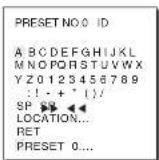
PRESETID
This is the ID set up function for each PRESET. It can be set up to 12 characters using the left, right, up, and down keys. The ID location can be set in the submenu of "LOCATION..."
SCAN
This function sets up for movement or no movement in "SCAN" motion.
When it's PRESET to "ON" it includes SCAN motion and to "OFF" no movement.
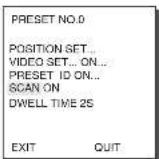
DWELL TIME
This is a function setting for the DWELL TIME of the PRESET location in 'SCAN' motion. It can set DWELL TIME From 1 ~ 60 Sec.
EXIT
"QUIT": Does not save the selected information and returns to a higher menu.
"SAVE": Do saves the selected information and returns to a higher menu.
"DEL": Deletes the selected information and restores the DEFAULT.
Then returns to a higher menu.
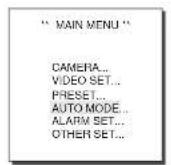
AUTO MODE
AUTO PAN and PATTERN functions are in AUTO MODE.
AUTO PAN
After selecting the locations of two points (PANTILT) of START and END, it loops continuously in the set up SPEED.

Press
[Enter]
(AUTO MODE)
AUTO PAN...
PATTERN SET 1...

Press
[Enter]
AUTO PAN
START SET
END SET...
DIRECTION RIGHT
ENDEESE ON
SPEED STEPS DIWEIL TIME 2 S
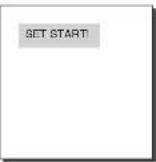
START SET
From START SET... get into the START SET setup screen by pressing [ENTER]. After selecting the locations of PAN/TILT location, press [ENTER] again to return to higher menu.
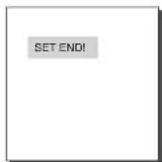
END SET
"END SET" gets into the END SET setup screen by pressing [ENTER]. Adjust PAN/TILT location and press [ENTER] to return to a higher menu.
DIRECTION
Set up the movement direction of the START to END location (PAN location standard)
"RIGHT":
"LEFT":
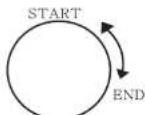
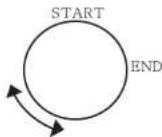
ENDLESS
This is a 360-degree rotation function that only stops for the DWELL TIME in the START and END positions. It can be set to 'ON' or 'OFF'.
SPEED
This is a setting function for movement speed setup. It can be set from STEP1 to STEP64.
DWELL TIME
This is a function for setting up the time to stay in the START to END position.
PATTERN
This is a replay function so that the MANUAL functions such as PAN, TILT, ZOOM, and FOCUS are played for 30 seconds.
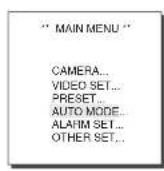

Press [Enter]
(AUTO MODE)
AUTOBIN
AOTANT... PATTERN SET 1:

Press [Enter]
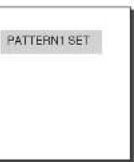
PATTERN can be set to 3. Choose 1, 2, or 3 with the left or right key in the 'PATTERN SET' and press [ENTER] to get into the PATTERN set up screen.
From the moment "PATTERN 1 SET" is gone for 30 seconds, it memorizes the
MANUAL movements and after 30 seconds it will return to a higher menu.
If you want to finish set up before the 30-second ends, press [ENTER].
ALARM SET
It consists of 4 ALARM INPUTs and 3 ALARM OUTs. It can sense an ALARM Input from exterior SENSORS and it performs with PRESET or PATTERN function and outputs the ALARM OUT signals.
It recognizes the ALARM signal input as an ALARM signal when it continues more than 150ms for a time and each ALARM movement time is decided depending on its correspondence to the DWELL TIME of the PRESET and PATTERN connected.
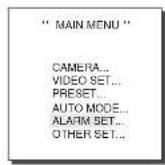

Press
[Enter]
(ALARMSET)
ALARM PRIORY SET. ALARM IN SET. ALARM OUT SET. ALARM OFF IN SET. AUX OUT CONTROL.
RET
ALARM PRIORITY SET
Sets the priority of the 4 ALARM Inputs and corresponds to priority.The priority of the DEFAULT is ALARM1:1,ALARM2:
2, ALARM 3: 3, ALARM: 4. If the ALARM is working at the same time and the priority is the same, it will operate according to the DEFAULT priority. While the ALARM is working, it cannot detect MOTION.
ALARM PRIORITY
ALAFM1-1
ALARM22 ALARM32
ALARM44
EXIT
QUT
ALARM IN SET
Set the TYPE to 'NO' (Normal Open), 'NC' (Normal Close), or "OFF" depending on the features of the SENSOR connected.
ALARMIN
ALARM1NO
ALARM2 NC
ALARMNC ALARMNC
EXIT
QUT
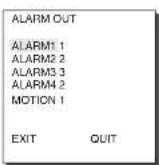
ALARM OUT
Each ALARM input corresponds to one of the 3 ALARM OUT.
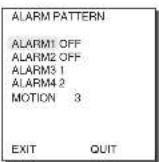
ALARM PATTERN
This sets the operation of PATTERN movements when inputting ALARM.
When the ALARM is inputted the correspondence will be as follows: ALARM1 input to PRESET 1, ALARM2 input to PRESET 2, ALARM3 input to PRESET 3, ALARM4 input to PRESET 4, and MOTION input to PRESET 5.
When the ALARM is working, it will stay in the PRESET location corresponding the ALARM for the DWELL TIME and the ALARM connected to the PATTERN will continuously operate the PATTERN movements.
The OFF in the Setup Menu does not operate the PATTERN, and it means 1 - PATTERN1, 2 - PATTERN2, 3 - PATTERN3, continuous motion of HALF1 - PATTERN1 + PATTERN2, continuous motion of HALF2 - Pattern 2 + PATTERN3 and continuous motion of FULL - PATTERN1+PATTERN2+PATTERN3.
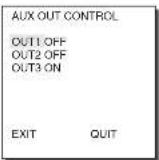
AUX OUT CONTROL
This sets the ALARM OUT motion to continue or act only when the ALARM is working. If it is set to OFF the ALARM OUT motion will operate only when the ALARM is set off (Active "Low"), and if it's set to ON, the ALARM OUT will always operate regardless of the ALARM.
OTHER SET
AC(Auto Calibration)
This function turns on or off Auto Calibration. SCC-C641(P) has the Auto Calibration function to improve the precision of LENS and PAN/TILT motor. You may set to OFF/6HOUR/12HOUR/18HOUR/24HOUR. Without user's key input for the time designated by the user, A.C. will appear on the screen while initializing LENS and PAN/TILT.
P.P/T(Proportional PAN/TILT)
This function controls the PANTILT speed to the ZOOM magnification ratio during the manual operation of PAN/TILT. If you set PROPORTIONAL P/T to ON, the PAN/TILT speed will increase in the ZOOM WIDE mode and decrease in the ZOOM TELE mode even in the same manual operation.
HOME RETURN
When there is no KEY input or other movement for a certain time, the camera moves to the HOME location automatically. The HOME location can be assigned from the HOME POSITION menu.
SET UP TIME FOR HOME RETURN:
OFF: HOME RETURN function cancellation
$$ \text {O F F} \rightarrow 1 \text {M I N} \rightarrow 2 \text {M I N} \rightarrow 3 \text {M I N} \sim 6 0 \text {M I N} \rightarrow 1 2 \text {H O U R} - $$
HOME POSITION
You can select the HOME POSITION from the preset positions numbered between 0 and 127.
AUTOFLIP
When operating the Tilt to the 90^ limit using the Joystick, the camera PAN automatically revolves 180^ showing the opposite area of the Tilt area. It gives the effect of extending the Tilt operating area 180^ .
CAM RESET
CAM RESET clears all the settings made so far and restores the factory default settings. "CAMERA RESET?" message appears when you select CAM RESET. Select "CANCEL" to return to the menu setup display or select OK to restore the factory default settings.
- Be careful when performing a CAM RESET operation, as it deletes all setup values.
Product specifications
SCC-641
| NO | Items | Contents |
| 1 | Product Type | - Zoom lens single body COMBI DOME CAMERA |
| 2 | Power Input | - AC 24± 10% (60Hz± 0.3Hz) |
| 3 | Power Consumption | - 18W |
| 4 | Broadcasting Type | - NTSC STANDARD COLOR SYSTEM |
| 5 | Image Device | - 1/4 inch IT CCD |
| 6 | Effective Pixels | - 768(H) × 494(V) |
| 7 | Scanning Mode | - 525 Lines, 2:1 Interface |
| 8 | Scanning line Frequency | - Horizontal : 15, 734 Hz(INT) / 15, 750 Hz(L/L)Vertical : 59.94 Hz(INT) / 60 Hz(L/L) |
| 9 | Synchronization Mode | - INT/LINE LOCK |
| 10 | Resolution | - 480 TV LINES |
| 11 | S/N Ratio | - 52dB (AGC OFF) |
| 12 | Min. Object Illumination | - 0.3 Lux (SENS UP X4)(0.01 Lux) |
| 13 | Color Temperature | - ATW/AWC/MANUAL MODE(3200° K, 5600° K, R/B GAIN Court) |
| 14 | Signal Output | - COMPOSITE VIDEO OUT : 1.0 Vp-p- 75 ohms/BNC |
| 15 | Lens | - one body, 22X Zoom lens-Focal length : 3.6 to 79.2 mm-Aperture : F1.6(Wide), F3.8(Tele)- Auto Focus |
| 16 | PAN Function | - PAN range : 360° Endless-Preset Pan Speed : 240° /sec, maximum-Manual Pan Speed : 0.8° - 90° /sec (64Step) |
| 17 | TILT Function | - TILT range : 0° - 90°- Preset Tilt Speed : 150° /sec, maximum |
| 18 | REMOTE CONTROL | - Manual Tilt Speed : 0.8° - 45° /sec (64Step)- Tele/Wildo(ZOOM), Near/Far(FOCUS),Iris Open/Close, Pan/Tilt |
| 19 | ALARM | - Alarm Inputs : 4 IN(5mA Slnk)- Alarm Outputs : 3 OUT (Open collector : 2DC24V 40mA Max. Relay : 1, NO, NC, COM2A 30VDC, 0.5A 125VAC Max) |
| 20 | Operation Temperature | - -10°C ~ +50°C (14°F ~ 122°F) |
| 21 | Operation Humidity | - -90% |
| 22 | SIZE | - DOME : 147 (x y ),Outline : 159.5 (y) x 176(H)(Adapter:23.5(H)mm) |
| 23 | Weight | - 2Kg |
Product specifications
SCC-641P
| NO | Items | Contents |
| 1 | Product Type | - Zoom lens single body COMBI DOME CAMERA |
| 2 | Power Input | - AC 24± 10% (50Hz= 0.3Hz) |
| 3 | Power Consumption | - 18W |
| 4 | Broadcasting Type | - PAL STANDARD COLOR SYSTEM |
| 5 | Image Device | - 1/4 inch IT CCD |
| 6 | Effective Pixels | - 752(H) × 582(V) |
| 7 | Scanning Mode | - 625 Lines, 2:1 Interface |
| 8 | Scanning line Frequency | - Horizontal : 15, 625 Hz(INT) / 15, 625 Hz(L/L)Vertical : 50 Hz(INT) / 50 Hz(L/L) |
| 9 | Synchronization Mode | - INT/LINE LOCK |
| 10 | Resolution | - 480 TV LINES |
| 11 | S/N Ratio | - 52dB (AGC OFF) |
| 12 | Min. Object Illumination | - 0.3 Lux (SENS UP X4)(0.01 Lux) |
| 13 | Color Temperature | - ATW/AWC/MANUAL MODE(3200° K, 5600° K, R/B GAIN Court) |
| 14 | Signal Output | - COMPOSITE VIDEO OUT : 1.0 Vp-p 75 ohms/BNC |
| 15 | Lens | - one body; 22X Zoom lens-Focal length : 3.6 to 79.2 mm-Aperture : F1.8(Wide), F3.8(Tele)- Auto Focus |
| 16 | PAN Function | - PAN range : 360° Endless-Preset Pan Speed : 240° /sec, maximum-Manual Pan Speed : 0.8° ~ 90° /sec (64Step) |
| 17 | TILT Function | - TILT range : 0° ~ 90°- Preset Tilt Speed : 150° /sec, maximum-Manual Tilt Speed : 0.8° ~ 45° /sec (64Step) |
| 18 | REMOTE CONTROL | - Tele/Wide(ZOOM), Near/Fan(FOCUS),Iris Open/Close, Pan/Tilt |
| 19 | ALARM | - Alarm Inputs : 4 IN(Sma Sink)- Alarm Outputs : 3 OUT (Open collector : 2DC24V 40mA Max, Relay : 1, NO, NC, COM2A 30VDC, 0.5A 125VAC Max) |
| 20 | Operation Temperature | - -10°C ~ +50°C (14°F ~ 122°F) |
| 21 | Operation Humidity | - -90% |
| 22 | SIZE | - DOME : 147 (4),Outline : 159.5(4) x 176(H)(Adapter:23.5(H)mm) |
| 23 | Weight | - 2Kg |
Cautions
The copyright of the manual belongs to Samsung Electronics Co., Ltd.
- Without the permission of Samsung Electronics it cannot be reproduced electronically, mechanically, audibly, or by any other method.
This manual will be modified according to product enhancements.


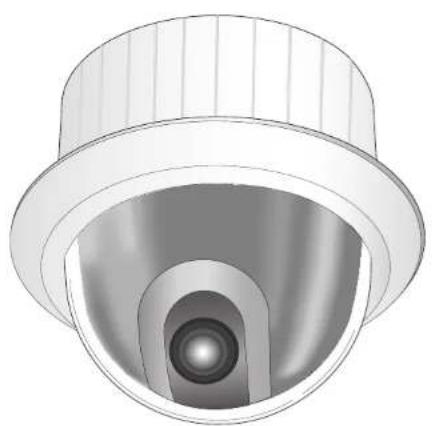
SmartDome Camera
SCC-641(P)
Benutzerhandbuch
D
| Empfängen-adtress | SW500-1 SW500-2 SW500-3 SW500-4 SW500-5 SW500-6 SW500-7 SW500-8 |
| 0OFFOFFOFFOFFOFFOFFOFFOFFOFFOFFOFFOFFOFFOFFOFFOFFOFFOFFOFFOFFOFFOFFOFFOFFOFFOFFOFFOFFOFFOFFOFFOFFOFFOFFOFFOFFOFFOFFOFFOFFOFFOFFOFFOFFOFFOFFOFFOFFOFFOFFOFFOFFOFFOFFOFFOFFOFFOFFOFFOFFOFFOFFOFFOFFOFFOFFOFFOFFOFFOFFOFFOFFOFFOFFOFFOFFOFFOFFOFFOFFOFFOFFOFFOFFOFFOFFOFFOFFOFFOFFOFFOFFOFFOFFOFFOFFOFFOFFOFFOFF OFFOFFOFFOFFOFFOFFOFFOFFOFFOFFOFFOFFOFFOFFOFFOFFOFFOFFOFFOFFOFFOFFOFFOFFOFFOFFOFFOFFOFFOFFOFFOFFOFFOFFOFFOFFOFFOFFOFFOFFOFFOFFOFFOFFOFFOFFOFFOFFOFFOFFOFFOFFOFFOFFOFFOFFOFFOFFOFFOFFOFFOFFOFFOFFOFFOFFOFFOFFOFFOFFOFFOFFOFFOFFOFFOFFOFFOFFOFFOFFOFFOFFOFFOFFOFFOFFOFFOFFOFFOFFOFFOFFOFFOFFOFFOFFOFFOFFOFFOFF | |
| 1ONOFFOFFOFFOFFOFFOFFOFFOFFOFFOFFOFFOFFOFFOFFOFFOFFOFFOFFOFFOFFOFFOFFOFFOFFOFFOFFOFFOFFOFFOFFOFFOFFOFFOFFOFFOFFOFFOFFOFFOFFOFFOFFOFFOFFOFFOFFOFFOFFOFFOFFOFFOFFOFFOFFOFFOFFOFFOFFOFFOFFOFFOFFOFFOFFOFFOFFOFFOFFOFFOFFOFFOFFOFFOFFOFFOFFOFFOFFOFFOFFOFFOFFOFFOFFOFFOFFOFFOFFOFFOFFOFFOFFOFFOFFOFFOFFOFFOFFOFF | |
| 2OFFONONOFFOFFOFFOFFOFFOFFOFFOFFOFFOFFOFFOFFOFFOFFOFFOFFOFFOFFOFFOFFOFFOFFOFFOFFOFFOFFOFFOFFOFFOFFOFFOFFOFFOFFOFFOFFOFFOFFOFFOFFOFFOFFOFFOFFOFFOFFOFFOFFOFFOFFOFFOFFOFFOFFOFFOFFOFFOFFOFFOFFOFFOFFOFFOFFOFFOFFOFFOFFOFFOFFOFFOFFOFFOFFOFFOFFOFFOFFOFFOFFOFFOFFOFFOFFOFFOFFOFFOFFOFFOFFOFFOFFOFFOFFOFFOFFOFFOFF |
SCC-641(P) location de commandes 1-7
A. B. C. D. E. F. G. H. J. K. L. M. N. O. R. S T. U. V. W. X Y 2012 34 567 89
SP
POS RET
AET PRESET 0...
BALAYAGE
Estamerican.
A. T. T. T. T. T. T. T. T. T. T. T. T. T. T. T. T. T. T. T. T. T. T. T. T. T. T. T. T. T. T. T. T. T. T. T. T. T. T. T. T. T. T. T. T. T. T. T. T. T. T.
VUELTA ORIG
Es. Indirizzo telecamera (CAMERA ADDR):