
STSB920 - AV receiver SONY - Free user manual and instructions
Find the device manual for free STSB920 SONY in PDF.



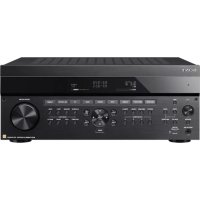
| Product Type | Audio-video receiver (FM Stereo FM-AM Tuner) |
| Brand | Sony |
| Model | STSB920 |
| Dimensions (W x H x D) | 430 x 86 x 295 mm |
| Weight | 3.95 kg |
| Power Supply | AC 220-230 V, 50/60 Hz |
| FM Frequency Range | 87.5 - 108.0 MHz |
| AM Frequency Range | MW: 522 - 1,611 kHz, LW: 144 - 288 kHz |
| FM Antenna Impedance | 75 Ω, unbalanced |
| FM Sensitivity (IHF) | 10.3 dBf (0.9 μV / 75 Ω) |
| FM Signal-to-Noise Ratio (mono/stereo) | 80 dB / 76 dB |
| FM Harmonic Distortion (wide mode) | 0.035% (mono), 0.045% (stereo) |
| FM Frequency Response | 30 Hz - 15 kHz (+0.3 / -0.7 dB) |
| Audio Output | 600 mV at 40 kHz deviation |
| Main Functions | RDS, EON, 30-station memory, auto tuning, antenna A/B selection, ASM, PTY |
| Supplied Accessories | Audio cord, AM loop antenna, FM wire antenna, EON linking cord |
| Cleaning | Soft cloth slightly dampened with a mild detergent solution |
| Safety | Do not expose to rain or moisture; disconnect before cleaning; servicing by qualified personnel |
| Maintenance and Repairability | Have maintenance performed by a qualified technician; spare parts available from Sony dealer |
Frequently Asked Questions - STSB920 SONY
User questions about STSB920 SONY
0 question about this device. Answer the ones you know or ask your own.
Ask a new question about this device
Download the instructions for your AV receiver in PDF format for free! Find your manual STSB920 - SONY and take your electronic device back in hand. On this page are published all the documents necessary for the use of your device. STSB920 by SONY.
USER MANUAL STSB920 SONY
FM Stereo FM-AM Tuner
Operating Instructions GB
Mode d'emploi FR
Manual de Instrucciones ES
Manual de Instruções PT
WARNING
To prevent fire or shock hazard, do not expose the unit to rain or moisture.
To avoid electrical shock, do not open the cabinet. Refer servicing to qualified personnel only.

A946
Precautions
On safety
Should any liquid or solid object fall into the unit, unplug the unit and have the unit checked by qualified personnel before operating it any further.
On power sources
- Before operating the unit, be sure that the operating voltage of your unit is identical with that of your local power supply.
- Unplug the unit from the wall outlet if it is not to be used for an extended period of time. To disconnect the cord, pull it out by grasping the plug. Never pull the cord itself.
- AC power cord must be changed only at the qualified service shop.
On placement
- Place the unit in a location with adequate ventilation to prevent heat buildup and prolong the life of its components.
- Do not place the unit near heat sources, or in a place subject to direct sunlight, excessive dust or mechanical shock.
- Do not place anything on top of the cabinet which might block the ventilation holes and cause malfunctions.
- Do not install the appliance in a confined space, such as a bookcase or built-in cabinet.
On cleaning the cabinet
Clean the cabinet, panels and controls with a soft cloth lightly moistened with a mild detergent solution. Do not use any type of abrasive pad, scouring powder or solvent such as alcohol or benzine.
On repacking
Do not throw away the carton and the packing material. This makes an ideal container when transporting the unit. When shipping the unit, repack it as it was packed at the factory.
If you have any question or problem concerning your unit that is not covered in this manual, please consult your nearest Sony dealer.
Welcome!
Thank you for purchasing the Sony FM Stereo FM-AM Tuner. Before operating the unit, please read this manual thoroughly and retain it for future reference.
About This Manual
The instructions in this manual describe the operation of the Sony ST-SB920 and ST-SE520. Most operating procedures apply to both. However, there are certain procedures that may apply to only one of the tuners. These are clearly indicated (e.g., ST-SB920 only). Check the model number on the front of your tuner so you'll know which instructions apply to you.
Convention
The following icon is used in this manual:

Indicates hints and tips for making the task easier.
TABLE OF CONTENTS
Getting Started
Unpacking 4
Hooking Up the System 4
Selecting the German Display 6
Storing FM Stations Automatically (Auto-betical Select) 6
Basic Operations
Receiving Preset Stations 7
Advanced Tuner Operations
About the Menu Entry System 8
Customizing the Display 8
Receiving Broadcasts 9
Tips for Better FM Reception 10
Preseting Radio Stations 11
Naming the Preset Stations 12
Organizing the Preset Stations 12
Using the Radio Data System (RDS) 14
Additional Information
Troubleshooting 17
Specifications 17
Index 18
Unpacking
Check that you received the following items with the timer:
Audio cord (1)
AM loop aerial (1)
FM wire aerial (1)
- EON connecting cord (1)
Hooking Up the System
Before you get started
- Turn off the power to all components before making any connections.
- Do not connect the mains lead until all of the connections are completed.
- Be sure to make connections firmly to avoid hum and noise.
- When connecting an audio cord, be sure to match the colour-coded pins to the appropriate jacks: White (left) to White; and Red (right) to Red.
AM aerial hookups
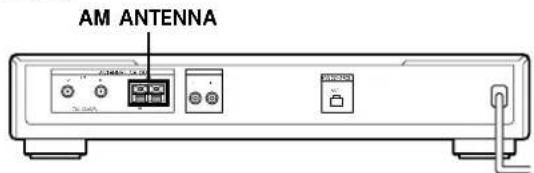
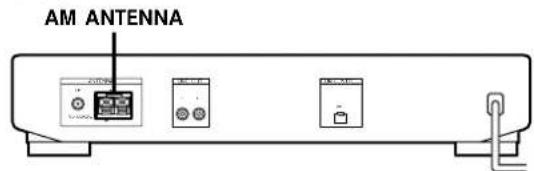
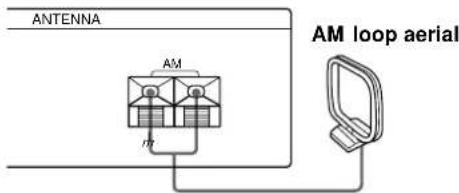
This section describes how to connect the supplied AM loop aerial. For the specific location of the AM ANTENNA terminals, see the illustration below.
ST-SB920
ST-SE520
What will I need?
AM loop aerial (supplied) (1)
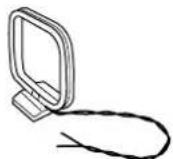
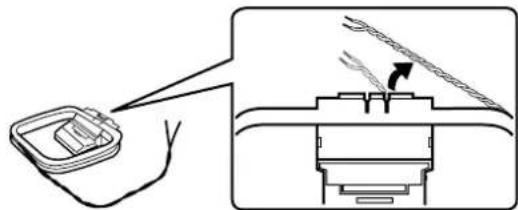
1 Before assembling the supplied aerial, pull the lead wire out from the slot in the aerial frame.
2 Unwrap 3 lengths of the braided lead wire from around the frame of the aerial. Be careful to unwrap only the braided section of the lead wire. Do not unwrap more than 3 lengths of the lead wire. Also, be careful not to unbraid the lead wire.
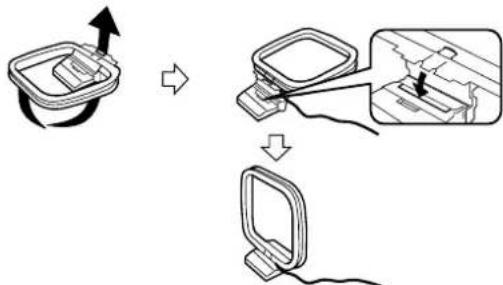
3 Assemble the supplied aerial as shown below.
4 Connect the AM loop aerial to the AM terminals on the back of this unit.
5 Adjust the aerial direction for the best reception. The AM loop aerial has a directivity which detects the signal from some angles more strongly than others. Set the aerial to the orientation which provides the best receiving condition. If a high pitched noise (beat noise) occurs when recording AM broadcasts, adjust the position of the AM loop aerial so that the noise disappears. If you live in a building constructed of reinforced concrete, or with a steel frame, you may not be able to achieve good reception since the radio waves become weaker indoors. In this case, we recommend connecting an optional aerial.

For stations that are difficult to receive
Try repositioning the loop aerial while tuning. Placing the supplied AM loop aerial near a window will help improve reception quality.
FM aerial hookups
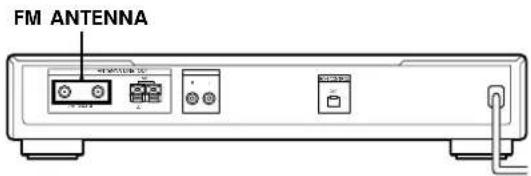
With an FM outdoor aerial, you can obtain a higher FM broadcast sound quality. We recommend that you use the supplied FM wire aerial only temporarily until you install an FM outdoor aerial. For the specific location of the FM ANTENNA terminal, see the illustration below.
What will I need?
FM wire aerial (supplied) (1)
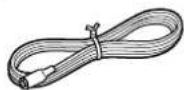
FM outdoor aerial (not supplied) (1) and 75-ohm coaxial cable with IEC female type connector (not supplied) (1)

Connect the supplied FM wire aerial or an FM outdoor aerial (not supplied) to one of the FM terminals on the back of this unit.
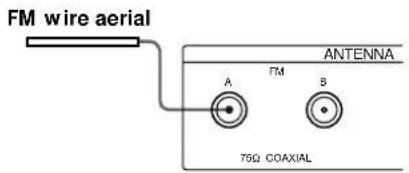
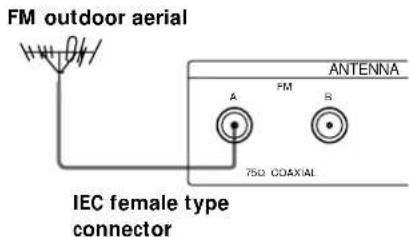

You can use two FM aerials (ST-SB920 only)
This tuner has two FM ANTENNA terminals, A and B, for use with different types of FM aerials. For example, you can connect an outdoor aerial to the A jack and connect a cable aerial to the B jack. You can also switch the aerial while using the signal meter to determine which aerial gives the best reception for a particular station.
Connecting a ground wire
If you connect an outdoor aerial, be sure to connect a earth lead (not supplied) to the AM ANTENNA terminal (in addition to the AM loop aerial) for lightning protection.
Amplifier hookups
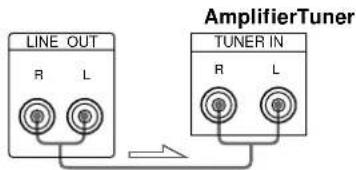
Connect the tuner to an amplifier. Be sure to turn off both components before connection. For the specific location of the terminals, see the illustration below.
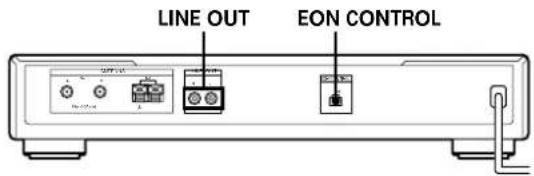
What cables will I need?
Audio cord (supplied) (1)

Connect the white plugs to the white (L) jacks and the red plugs to the red (R) jacks. Insert the plugs completely into the jacks; incomplete connections may cause noise.

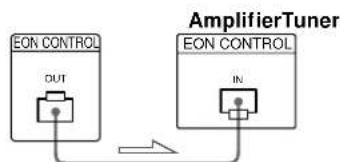
If you have a Sony amplifier equipped with an EON CONTROL IN terminal
Use the supplied EON connecting cord to connect the EON CONTROL OUT terminal on the tuner to the EON CONTROL IN terminal on your amplifier. This lets you use the EON function (see page 15) when listening to other components.
Getting Started
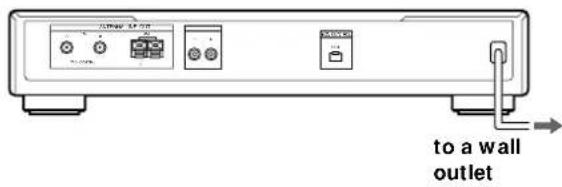
Mains lead hookup
Connect the mains lead to a wall outlet after completing all of the previous connections.
Selecting the German Display
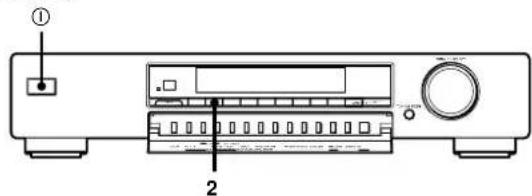
You can select either an English or a German language display. The factory preset language is English. To change the display to German, follow the steps below.
ST-SB920
ST-SE520
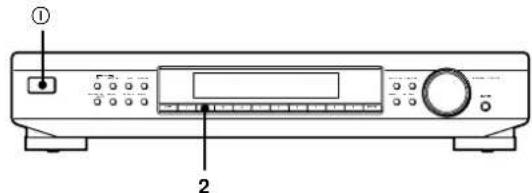
1 Press ① to turn off the tuner.
2 While pressing down the numeric button 2, press ① to turn on the tuner. "Deutsch" appears in the display.
To return to the English display
Repeat this procedure. "English" appears in the display.
Storing FM Stations Automatically (Auto-betical Select)
With Auto-betical Select you can automatically store up to 30 FM and FM RDS stations in alphabetical order without redundancy. Additionally, Auto-betical Select only stores the stations with the clearest signals. If you want to store FM or AM (MW and LW) stations one by one, see "Receiving Broadcasts" on page 9 and "Presetting Radio Stations" on page 11.
ST-SB920
ST-SE520
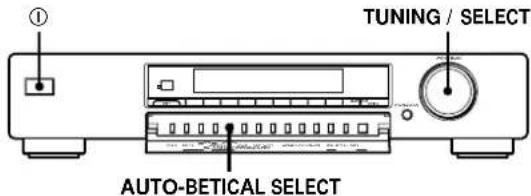
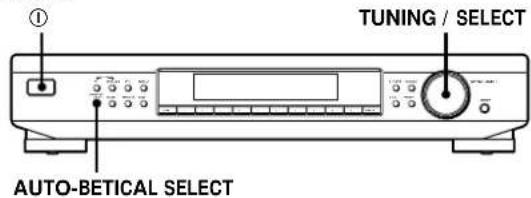
1 Press ① to turn on the tuner.
2 Turn on the amplifier and select the TUNER mode.
3 Press AUTO-BETICAL SELECT.
"Yes" and "No" appear in the display.
4 Turn TUNING/SELECT to select "Yes".
5 Press AUTO-BETICAL SELECT again.
The tuner scans and stores all the FM and FM RDS stations in the broadcast area. For RDS stations, the tuner first checks for stations broadcasting the same programme, then stores only the one with the clearest signal. The selected RDS stations are sorted alphabetically by their Programme Service name, then assigned a two-character preset code. For more details on RDS, see page 14. Regular FM stations are assigned two-character preset codes and stored after the RDS stations.

To change the location of, or erase, a preset station
See "Organizing the Preset Stations" on page 12.
Notes
- If you move to another area, repeat this procedure to store stations in your new area.
For details on tuning stored stations, see page 7. - The ANTENNA, ANT ATT, IF BAND (ST-SB920 only), and FM MODE settings are also stored along with the station.
- If you move the aerial after storing stations using Autobetical Select, the stored settings may no longer be valid. If this happens, store the stations again.
Receiving Preset Stations
This section shows you how to receive preset stations.
ST-SB920 ST-SE520
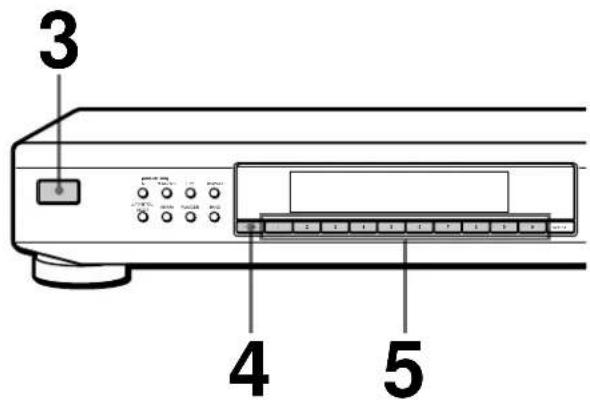
To tune in a non-preset station, see "Receiving Broadcasts" on page 9.
1 Make sure you've hooked up the tuner and preset stations. (See pages 4 - 6 for hookups and page 6 or 11 for presetting.)
2 Turn on the amplifier and select the TUNER mode.
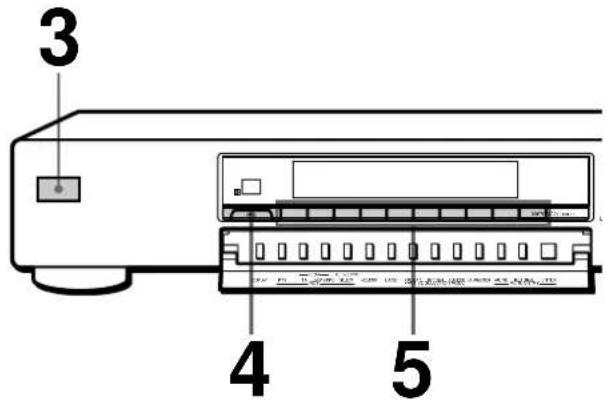
3 Press ① to turn on the tuner.
4 Press SHIFT repeatedly to select A, B, or C.
Press the preset number you want (1 - 0).
To check broadcasts by scanning the preset stations
ST-SB920 ST-SE520
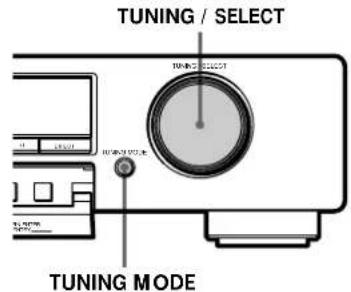
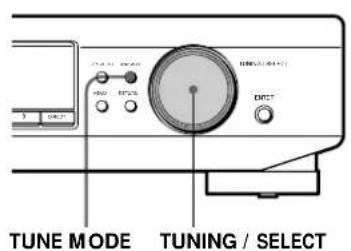
1 Press TUNING MODE (TUNE MODE for ST-SE520) repeatedly so that "PRESET" appears in the display.
2 Turn TUNING/SELECT.
Each time you turn TUNING/SELECT, a preset station is received and the settings (preset code, frequency, and station name, etc.) appear in the display. The signal meter indicates the strength of the broadcast signal.
About the Menu Entry System
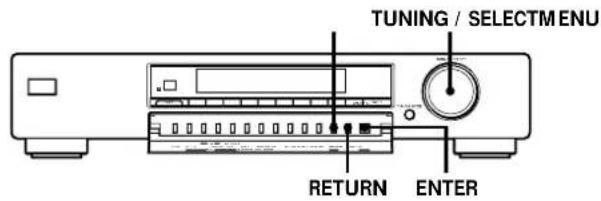
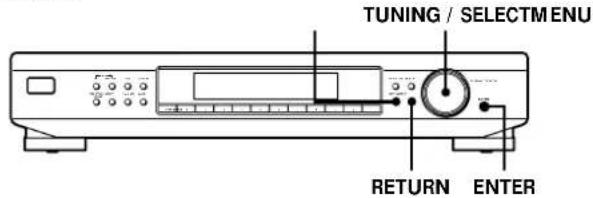
This tuner uses a menu entry system which allows you to operate various functions by following messages on the display. Use the following controls for menu operation.
ST-SB920
ST-SE520
Use the To
| MENUButton enter the menu mode. | |
| TUNING/SELECT control | display different items or settings. |
| ENTER button | select the currently displayed item or setting. |
| RETURN button | return to a previous stage in the menu mode. |
Customizing the Display
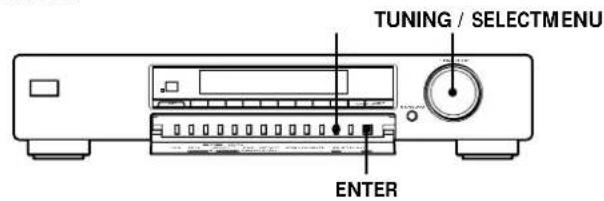
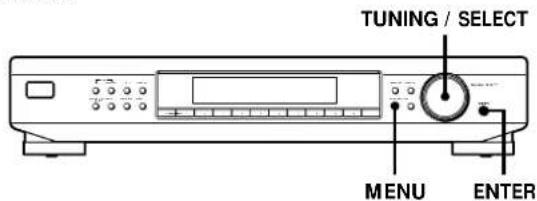
You can select the appearance of the display from one of the following four display modes.
ST-SB920
ST-SE520
1 Press MENU, then turn TUNING/SELECT until "Disp-Mode" appears in the display.
2 Press ENTER.
"Select" appears in the display.
3 Turn TUNING/SELECT to select a display mode.
Full Display/Full Brightness

Full Display/Dimmed

Minimal Display/Full Brightness

Minimal Display/Dimmed
4 Press ENTER.
The setting remains in effect until you change it again.
If you press one of the buttons on this unit, the minimal display changes to the full display with the selected brightness. After about 4 seconds, the display returns to the display mode you selected.
Receiving Broadcasts
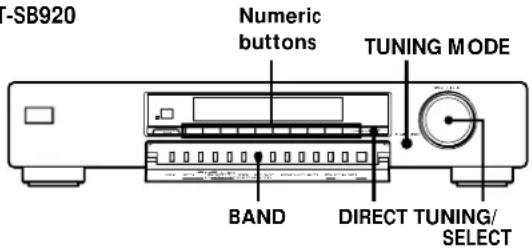
This tuner lets you enter a station's frequency directly by using the numeric buttons (Direct Tuning). If you don't know the frequency of the station you want, see "Receiving broadcasts by scanning stations (Automatic Tuning)" on this page.
Before you begin, make sure you have:
- Connected an FM/AM aerial to the tuner as indicated on pages 4 and 5.
ST-SB920
ST-SE520
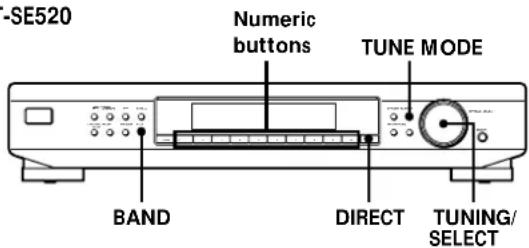
1 Press BAND repeatedly to select FM, MW, or LW.
2 Press DIRECT.
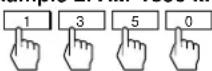
3 Press the numeric buttons to enter the frequency.
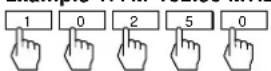
Example 1: FM 102.50 MHz
Example 2: AM 1350 kHz
To receive other stations
Repeat steps 1 to 3.

When you tune in AM (MW and LW) stations
Adjust the direction of the AM loop aerial for optimum reception.

If the STEREO indicator remains off
Press FM MODE when an FM stereo broadcast is received.

If an FM stereo programme is distorted
The STEREO indicator flashes. Press FM MODE to change to monaural (MONO). You will not have the stereo effect but the distortion will be reduced. To return to stereo mode, press this button again.

If you cannot tune in a station and the entered numbers are flashing
Make sure you've entered the right frequency. If not, press DIRECT and reenter the frequency you want. If the entered numbers are still flashing, the frequency is not used in your area.

If you enter a frequency not covered by the tuning interval
The entered value is automatically rounded up or down to the closest covered value.
Tuning intervals for direct tuning are:
FM: 50 kHz intervals
AM: 9 kHz intervals (MW), 1 kHz interval (LW)
Receiving broadcasts by scanning stations (Automatic Tuning)
With automatic tuning you can quickly tune in a station without having to know its frequency.
1 Press BAND repeatedly to select either FM, MW, or LW.
2 Press TUNING MODE (TUNE MODE for STSE520) so that "AUTO TUNING" appears in the display.
3 Turn TUNING/SELECT slightly and release it when the frequency numbers start changing. Turn the control to the right for a higher frequency; turn it to the left for a lower frequency. When the tuner locates a station, it stops automatically. "TUNED" appears in the display. The signal meter indicates the strength of the broadcast signal.
4 Repeat step 3 until you tune in the appropriate station.
To store the station, see "Presetting Radio Stations" on page 11.

If you cannot tune in the station you want (Manual Tuning)
With manual tuning you can search through all stations broadcasting on each band, and tune in stations with extremely weak signals that you might not be able to receive with automatic tuning.
1 Press BAND repeatedly to select FM, MW, or LW.
2 Press TUNING MODE (TUNE MODE for ST-SE520) so that only "TUNING" appears in the display. "AUTO" should not appear in the display.
3 Turn TUNING/SELECT until you tune in the station you want.
Turn the control to the right for a higher frequency; turn it to the left for a lower frequency.
The signal meter indicates the strength of the broadcast signal.
Note
When you reach the highest or lowest frequency of any band, tuning stops.
Tips for Better FM Reception
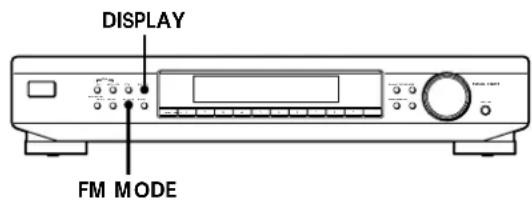
This tuner has various functions designed for better reception. First, try to receive stations with the standard settings. If the reception is not good, try altering the reception quality to obtain a clear signal. The tuner stores the following adjustments, together with the frequency when you make a station preset.
ST-SB920
ST-SE520
Selecting FM aerials (ST-SB920 only)
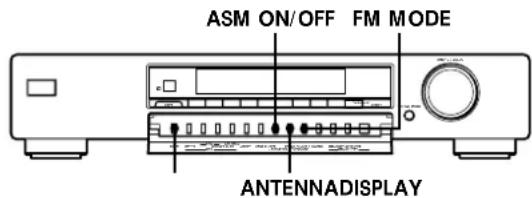
When you use two FM aerials, press ANTENNA to select FM ANTENNA terminal A or B. By selecting the aerial, you may be able to receive a station that cannot be received otherwise.
Changing the Active Selection Mode (ASM) (ST-SB920 only)
This tuner's Active Selection Mode (ASM) is factory preset to find the best aerial attenuator (ANT ATT), intermediate frequency band (IF BAND), and FM MODE settings for each frequency automatically. You can, however, select each setting manually according to your preference. If you don't want to use the ASM function, turn it off.
Press ASM ON/OFF to turn the active selection mode off or on
When ASM is turned on, the ASM indicator appears in the display when you select the FM band.
To set the ANT ATT and IF BAND manually
1 Press MENU.
2 Turn TUNING/SELECT until "Reception" appears in the display and press ENTER. "FM Only" appears in the display if you select "Reception" while tuned to an MW or LW station.
3 Turn TUNING/SELECT to select "ATT/IF BAND"and press ENTER.
4 Turn TUNING/SELECT to select the ANT ATT setting you prefer and press ENTER.
- "ANT ATT:ON" lowers the level of the input signal to receive broadcasts with extremely high signal levels.
- "ANT ATT : OFF" is for normal tuning.
5 Turn TUNING/SELECT to select the IF setting you prefer and press ENTER.
- "IF:Wide" tunes only the stations with high sound quality and low distortion.
- "IF: Narrow" improves selectivity and reduces interference to make broadcasts with weak signals easier to listen to.
Setting the FM mode
Press FM MODE a few times to select the reception mode, select either Auto stereo (no indication) or "MONO".
- Auto stereo mode receives stereo broadcasts with strong signals. Press FM MODE a few times so that "MONO" disappears.
- "MONO" receives stations with weak signals. Stations will be received in monaural but with even less noise.
Checking the signal strength
You can use the digital signal meter to check the signal strength of FM frequencies. The display range is from 16 to 70dB (1 V of radio frequency voltage = 0dB ). To obtain a signal to noise ratio sufficient for receiving a stereo broadcast, we recommend a reading greater than 50dB . (You can also change the FM MODE while using the signal meter to determine the best reception.) The ST-SB920 also lets you use the digital signal meter with the AM band. With AM, display range is from 0 to 15 (larger values indicate stronger signals).
1 Tune in an FM or AM (ST-SB920 only) station.
2 Press DISPLAY repeatedly to display the digital signal meter.
3 Rotate the FM or AM (ST-SB920 only) aerial to obtain the strongest signal.
Presetting Radio Stations
This section shows you how to store up to 30 of your favorite FM or AM (MW and LW) stations manually onto preset codes made up of characters (A, B, or C) and numbers (1 - 0), such as A7. You can store up to 10 stations on each of the 3 different letters. You can use these letters to classify stations according to music category or station band.
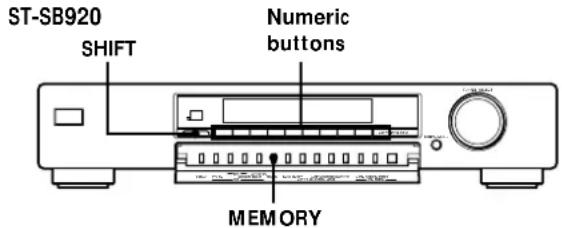
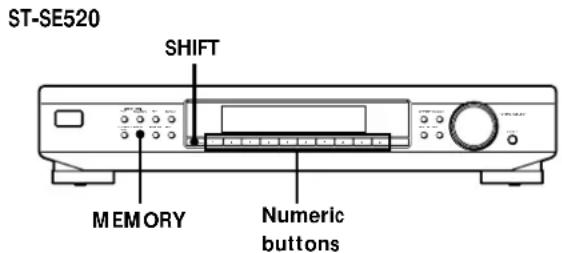
1 Tune in the FM, MW, or LW station you want to store.
2 Press MEMORY. "MEMORY" appears along with the lowest vacant code to indicate that the tuner is ready to store the station.
3 Press SHIFT repeatedly to select either A, B, or C. The letter you selected appears in the display.
4 Press a numeric button (1 - 0). The tuner stores the station at the preset code you specified.
5 Repeat steps 1 through 4 to store other stations.
RDS Station names are stored automatically
When you preset an RDS station broadcasting station name information, the station name is automatically stored at the station preset.
If you want to label the stations
Follow the procedure described in "Naming the Preset Stations" on page 12.
Naming the Preset Stations
You can assign a name up to 5 characters long to each preset station except FM RDS stations. When the station is tuned in, the station name will appear instead of the frequency.

ST-SB920
ST-SE520
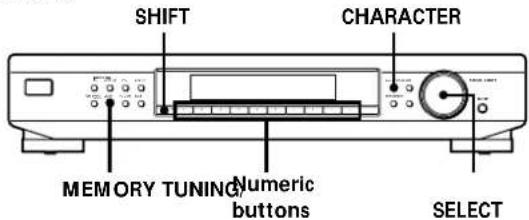
1 Press CHARACTER.
The cursor flashes in the display.
2 Turn TUNING/SELECT to select a character.
3 When the character you want appears, press CHARACTER to move the cursor into position the next character.
If you make a mistake
Press CHARACTER repeatedly until the character you want to change flashes (every time you press CHARACTER, the next character flashes). Then turn TUNING/SELECT to select a new character.
4 Repeat steps 2 and 3 until the station name you want appears in the display.
5 Press MEMORY.
"MEMORY" appears along with the lowest vacant code to indicate that the tuner is ready to store the station.
6 Press SHIFT and one of the preset buttons to specify the preset where you want to store the station name.
Note
The display returns to normal display mode if you stop assigning names for more than 8 seconds. If this happens, start again from the beginning.

To see the frequency of the displayed station name Press DISPLAY repeatedly.
Organizing the Preset Stations
This tuner makes it easy to arrange preset stations in the order you prefer. You can arrange all the preset stations automatically, according to alphabetical order, signal strength, country code, or tuner band, or you can use the Move and Erase functions to move and erase specific preset stations.
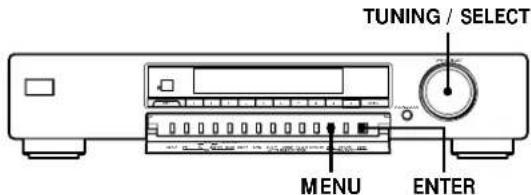
ST-SB920
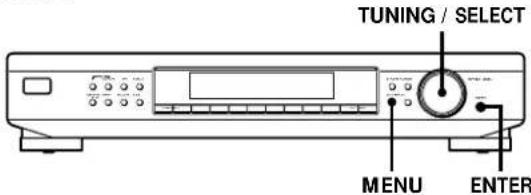
ST-SE520
1 Press MENU.
2 Turn TUNING/SELECT until "Edit" appears in the display and press ENTER. If no stations have been stored as presets, "No Preset" appears in the display.
3 Turn TUNING/SELECT to select one of the following sorting methods:
Select To
Move change the location of a specific preset (see this page).
Erase erase a specific preset (see this page).
Alphabet sort preset stations in alphabetical order according to their preset names. Stations without preset names are arranged by frequency, from low to high.
Strength sort preset stations in order of their signal strength (FM stations only). MW and LW stations are arranged by frequency.
Country sort FM RDS stations with PI* information alphabetically by country. Other stations are arranged by frequency.
Band sort preset stations in order of their frequency band (FM - MW - LW). Frequency
- Programme Identification (See page 14)
4 Press ENTER.
The tuner sorts the stations, then returns to normal tuning mode and receives preset station A1.
Frequency
Erasing preset stations
You can erase preset stations one by one.
1 Follow steps 1 through 3 in "Organizing the Preset Stations" and select "Erase" from the Edit menu, then press ENTER.
2 Turn TUNING/SELECT so that the preset code you want to erase appears in the display and press ENTER.
The preset station you selected is erased from the preset memory and the other preset stations in that group ("A" for example) shift forward to fill in the blank space.
Example: If you erase A1.
| A1 A2 A3 A4 A5 A6 A7 A8Preset |
| 89.5 94.5 96.5 98.0 100.5 103.0 104.5 106.0 |
| A1 A2 A3 A4 A5 A6 A7 A8Preset |
| 94.5 96.5 98.0 100.5 103.0 104.5 106.0 |
Note
Some countries use the same country code, and the stations from these counties may be arranged together.
Moving preset station
You can also move a specific preset station.
1 Follow steps 1 through 3 in "Organizing the Preset Stations" and select "Move" from the Edit menu, then press ENTER.
2 Turn TUNING/SELECT so that the preset code you want to move appears in the display and press ENTER.
3 Turn TUNING/SELECT to select the new location for the preset code and press ENTER.
The preset station you selected is moved to the new location and the other preset stations in that group ("A" for example) shift backwards to make room for the new preset.
Example: If you move A4 to A1.
| A1 A2 A3 A4 A5 A6 A7 A8Preset |
| 89.5 94.5 96.5 98.0 100.5 103.0 104.5 106.0Frequency |
| A1 A2 A3 A4 A5 A6 A7 A8Preset |
| 98.0 89.5 94.5 96.5 100.5 103.0 104.5 106.0Frequency |
If you want to erase all the preset stations
1 Turn off the tuner.
2 While pressing down the numeric button 5 and AUTO-BETICAL SELECT, press ① to turn on the tuner.
Using the Radio Data System (RDS)
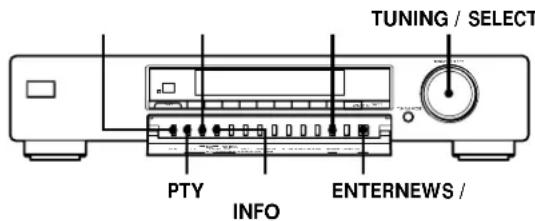
ST-SB920
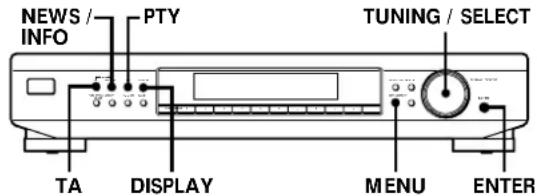
ST-SE520
What you can do with RDS
The Radio Data System (RDS) is a broadcasting service that allows radio stations to send additional information along with the regular radio programme signal. This tuner offers you three convenient RDS features: Displaying the RDS information; Monitoring traffic, news, or information programmes; and Locating a station by programme type. RDS is available only on FM stations.
Note
RDS may not work properly if the station you tuned to is not transmitting the RDS signal properly or if the signal strength is weak.
- Not all FM stations provide RDS service, nor do they provide the same types of services. If you are not familiar with the RDS system, check with your local radio stations for details on RDS services in your area.
Receiving RDS broadcasts
Simply select a station from the FM band.
When you tune in a station that provides RDS services, the RDS indicator and the station name appears in the display.
Displaying the RDS information
Press DISPLAY repeatedly until the information you want is displayed.
| Information displayed | You can |
| Station Name* | Locate each station by name (e.g., WDR) instead of frequency. |
| Frequency* | Locate each station by frequency. |
| Clock Time (24 hour system) | Display the current time. |
| Programme Type | Locate a specific type of programme being broadcast. (See page 16 for the types of programmes you can select.) |
| Radio Text | Display the text messages sent by the RDS station. |
| Programme Identification | Determine each broadcast's country of origin. |
| Digital signal meter* | Check the signal strength of FM frequencies. (See page 11 for details.) |
- This information also appears for non-RDS FM stations.
Notes
- If there is an emergency announcement by governmental authorities, "ALARM" flashes in the display.
- If a station is not providing a particular RDS service, "NO..." (such as "NO PTY") appears in the display.
- When a station broadcasts radio text data, the display shows the data at the rate it is sent from the station. The display speed changes in relation to the speed at which the data is sent.
Monitoring traffic, news, or information programmes (EON)
Enhanced Other Networks (EON) allows the tuner to automatically switch to a station broadcasting traffic, news, or information. After the programme ends, the tuner switches back to the station you were listening to. To use this function, be sure to store the stations beforehand.
To monitor traffic programmes
1 Tune to a preset FM RDS station so that the RDS TP, or RDS TP EON indicators light in the display.
2 Press TA so that "TA" appears in the display. Each time you press TA, the display changes as follows:
TA (Traffic Announcement) OFF
When the tuner automatically tunes in a traffic programme, the TA indicator flashes. If you do not want to listen to the entire programme, press TA to switch back to the original station.
To monitor news and/or information programmes
1 Tune to a preset FM RDS station so that the RDS TP or RDS TP EON indicators light in the display.
2 Press NEWS/INFO so that either "NEWS", "INFO", or "NEWS/INFO" appear in the display. Each time you press NEWS/INFO, the display changes as follows:

When the tuner automatically tunes in a news or information programme, the respective indicator flashes. If you do not want to listen to the entire programme, press NEWS/INFO to switch back to the original station.
To stop monitoring the programme
Press TA or NEWS/INFO while the tuner is in the respective EON standby mode and the indicator goes off.
Notes
- If you tune in an AM (MW/LW) station or an FM station which does not provide the RDS service, the selected indicator (TA, NEWS, INFO, or NEWS/INFO) goes off and the tuner does not standby for EON stations.
- "Weak Signal" appears when the selected station has a weak signal. "Return" appears when the tuner is trying to retune a station with a weak signal.
- Turn off the EON feature when you want to record a programme without interruptions, especially when you want to do timer recording.
- "No EON" appears in the display if you select an EON programme before tuning to an RDS station.
- If you make EON CONTROL connections to a compatible Sony amplifier, the amplifier automatically switches the function mode to TUNER whenever the tuner receives a programme you are monitoring.
Locating traffic programmes (TA Search)
You can have the tuner locate stations currently broadcasting traffic programme from among the RDS stations stored in the tuner's preset memory.
1 Press MENU.
2 Turn TUNING/SELECT until "Traffic" appears in the display and press ENTER. The unit enters search mode ("Search" and "Traffic" appear alternately in the display). When the tuner finds a traffic announcement, it stops searching. The tuner receives each station for 8 seconds.
3 Press ENTER when the tuner receives the station you want to listen to that programme.
Locating a station by programme type (PTY)
You can locate a station you want by selecting a programme type. The tuner tunes in the type of programmes currently being broadcast from the RDS stations stored in the tuner's preset memory.
1 Press PTY.
(continued)
2 Turn TUNING/SELECT to select the programme type you want. See the following table for the programme types you can select.
| Programme type What you hear | |
| (Current) Affairs Topical programmes that expand on current news | |
| Alarm Emergency broadcasts | |
| Alarm Test Used only for dynamic switching | |
| Children ('s programmes) Programmes for the young | |
| Country Music Country music programmes | |
| Culture Programmes about national or regional culture, such as language and societal concerns | |
| Documentary Investigative features | |
| Drama Radio plays and serials | |
| Education Educational programmes, such as "how-to" and advice programmes | |
| Finance Stock market reports and trading, etc. | |
| Folk Music Folk music programmes | |
| Information Programmes offering information on a wide spectrum of subjects, including consumer affairs and medical advice | |
| Jazz Music Jazz programmes | |
| Leisure Programmes on recreational activities such as gardening, fishing, cooking, etc. | |
| L (ight). Classical Classical music, such as instrumental, vocal, and choral works | |
| M.O.R.Music Easy Listening (middle of the road music) | |
| National Music | Programmes featuring the popular music of the country or region |
| News | News programmes |
| Oldies Music Programmes featuring oldies music | |
| Other Music | Music that does not fit into any of the above categories, such as Rhythm & Blues and Reggae |
| Programme type What you hear | |
| Phone In | Programmes where members of the public express their views by phone or in a public forum |
| Pop Music | Popular music programmes |
| PTY undefined Any programmes not defined above | |
| Religion | Programmes of religious content |
| Rock Music | Rock music programmes |
| Science | Programmes about the natural sciences and technology |
| Social A (ffairs) | Programmes about people and the things that affect them |
| Sport | Sports programmes |
| S (erious). Classical | Performances of major orchestras, chamber music, opera, etc. |
| Travel Programmes about travel. Not for announcements that are located by TP/TA | |
| Varied | Other types of programmes such as, celebrity interviews, panel games, and comedy |
| Weather | Weather information |
3 Press PTY.
The tuner starts searching the preset RDS stations for the programme ("Search" and the programme type are displayed alternately).
When the tuner finds the programme you are looking for, it stops searching. The preset stations currently broadcasting the selected programme type are indicated and the tuner receives each station for 8 seconds.
4 Press PTY when the tuner receives the station you want to listen to that programme.
Troubleshooting
If you experience any of the following difficulties while using the tuner, use this troubleshooting guide to help you remedy the problem. Should any problem persist, consult your nearest Sony dealer.
There's no sound.
Connect the aerials.
Set the source setting on the amplifier to TUNER.
You cannot tune in a frequency.
Adjust the position of the aerial.
Connect an external aerial for FM broadcasts.
Set IF BAND to "Narrow" (ST-SB920 only).
Preset the stations again if you've moved.
There is severe hum and/or background noise.
Adjust the position or direction of the aerial.
Tune to a correct frequency.
Connect an external aerial for FM broadcasts.
Move the tuning away from the source of the noise.
RDS isn't working.
Make sure that you tune to an FM station.
Select a stronger FM station.
"No preset" appears in the display.
If the mains lead is disconnected from the wall outlet for more than one month, the memory is erased. Preset stations again.
The station was interrupted by another station / The tunes automatically starts searching stations.
The EON function is working. Turn off EON when you don't want the current programme interrupted.
The appropriate display or information does not appear.
Turn off the tuner. Press down AUTO-BETICAL SELECT and the numeric button 5 and press ① to turn the tuner back on. This empties any frequencies stored in the preset memory and returns the display to the default language (English).
Contact the radio station and find out whether or not they actually provide the service in question. If so, the service may be temporarily out of order.
Specifications
FM tuner section
Frequency range 87.5 - 108.0 MHz
Aerial terminals 75 unbalanced
Intermediate frequency
10.7 MHz
Sensitivity at 26 dB quieting
mono) 10.3 dBf,
0.9 V / 75
at 46 dB quieting
(stereo) 38.5 dBf,
23 V/75Ω
Usable sensitivity (IHF) 10.3dBf 0.9 V / 75
S/N at 40 kHz deviation
ST-SB920:
80 dB (mono),
76 dB (stereo)
ST-SE520:
74 dB (mono),
69 dB (stereo)
Harmonic distortion ST-SB920:
WIDE
0.035% (mono),
0.045% (stereo)
NARROW
0.055% (mono),
0.075% (stereo)
ST-SE520:
0.09% (mono),
0.18% (stereo)
Frequency response ST-SB920:
30 Hz - 15 kHz
+0.3 / - 0.7 dB)
ST-SE520:
30Hz - 15kHz
+0.5 / - 1.0 dB)
Separation ST-SB920
50 dB at 1 kHz
SI-SE520
45 dB at 1 kHz
Selectivity ST-SB920
at 400kHz
WIDE 85 dB
NARROW 90 dB
at 300kHz
WIDE 45 dB
NARROW 70 dB
ST-SE520
at 400kHz
85dB
at 300kHz
70 dB
Output at 40kHz deviation
600mV
AMtuner section
Frequency range MW: 522 - 1,611 kHz
(9 kHz step)
LW:144-288kHz
(1 kHz step)
Intermediate frequency
450 kHz
Usable Sensitivity (with AM loop
acerial)
MW: 200 V / m
LW: 700 V / m
Signal-to-noise ratio MW: 54 dB
(50mV/m
999 kHz)
LW:50dB
(50 mV/m,
216 kHz)
Harmonic distortion 0.3% (50mV / m)
400 Hz)
Selectivity 50 dB
General
Power requirements 220 - 230 V,
AC 50 / 60Hz
Power consumption ST-SB920: 12 W
ST-SE520:10 W
Input impedance 75Ω
Input connector
IEC-male
Dimensions
ST-SB920:
430·86·295mm
(w/h/d)
ST-SE520:
430·82·295 mm
(w/h/d)
Weight
ST-SB920:3.95 kg
ST-SE520: 2.5kg
Supplied accessories
See page 4.
Design and specifications are
subject to change without notice.
Additional Information
Index
A,B
Adjusting
IF BAND 10
Aerial hookups
AM 4
FM 5
Amplifier hookups 5
ANT ATT 10
ASM 10
Automatic tuning 9
Auto-betical select 6
C
Checking the signal strength 11
Connecting. See Hookups
D
Display
language 6
mode 8
RDS 14
E
EON 15
Erasing preset stations 12, 13
F, G
FM mode 11
H
Hookups
AM aerial 4
amplifier 5
FM aerial 5
ground wire 5
mains lead 6
I, J, K, L
IF BAND 10
M
Manual tuning 10
Menu entry system 8
Moving preset station 12, 13
N
Naming stations 12
0
Organizing preset stations 12, 13
P, Q
Preset station
erasing 12, 13
moving 12, 13
organizing 12, 13
receiving 7
scanning 7
Preset tuning 7
Presetting
AM stations 11
FM stations 6,11
PTY 14-16
R
RDS 14
Receiving
broadcasts 9,10
preset stations 7
RDS 14
s
Scanning the preset stations 7
Selecting FM aerials 10
Setting
ANT ATT and IF BAND
manually 10
FM mode 11
Signal meter 11
Storing radio stations. See
Presetting
T
TA search 15
Troubleshooting 17
Tuning. See Receiving
broadcasts
U, V, W, X, Y, Z
Unpacking 4
AVERTISSEMENT
Refaithesmemeoperation.
Pour receivevoir d'autres stations
TA (Announces routières) OFF
Consummation electrique
T-SB920:12 W
ST-SE520:10W
Gama de frequencies 87,5-108,0 MHz
Terminais de antenna 75Ω, desbalancedao
- FM Stereo FM-AM Tuner
- WARNING
- Precautions
- On safety
- On power sources
- On placement
- On cleaning the cabinet
- On repacking
- Welcome!
- About This Manual
- Convention
- TABLE OF CONTENTS
- Getting Started
- Basic Operations
- Advanced Tuner Operations
- Additional Information
- Unpacking
- Hooking Up the System
- Before you get started
- AM aerial hookups
- ST-SB920
- ST-SE520
- What will I need?
- For stations that are difficult to receive
- FM aerial hookups
- You can use two FM aerials (ST-SB920 only)
- Connecting a ground wire
- Amplifier hookups
- What cables will I need?
- If you have a Sony amplifier equipped with an EON CONTROL IN terminal
- Mains lead hookup
- Selecting the German Display
- To return to the English display
- Storing FM Stations Automatically (Auto-betical Select)
- To change the location of, or erase, a preset station
- Notes
- Receiving Preset Stations
- About the Menu Entry System
- Customizing the Display
- Receiving Broadcasts
- To receive other stations
- When you tune in AM (MW and LW) stations
- If the STEREO indicator remains off
- If an FM stereo programme is distorted
- If you cannot tune in a station and the entered numbers are flashing
- If you enter a frequency not covered by the tuning interval
- Receiving broadcasts by scanning stations (Automatic Tuning)
- If you cannot tune in the station you want (Manual Tuning)
- Note
- Tips for Better FM Reception
- Selecting FM aerials (ST-SB920 only)
- Changing the Active Selection Mode (ASM) (ST-SB920 only)
- Press ASM ON/OFF to turn the active selection mode off or on
- To set the ANT ATT and IF BAND manually
- Setting the FM mode
- Checking the signal strength
- Presetting Radio Stations
- RDS Station names are stored automatically
- If you want to label the stations
- Naming the Preset Stations
- If you make a mistake
- Organizing the Preset Stations
- Select To
- Press ENTER.
- Erasing preset stations
- Moving preset station
- If you want to erase all the preset stations
- Using the Radio Data System (RDS)
- What you can do with RDS
- Receiving RDS broadcasts
- Displaying the RDS information
- Monitoring traffic, news, or information programmes (EON)
- To monitor traffic programmes
- TA (Traffic Announcement) ↔ OFF
- To monitor news and/or information programmes
- To stop monitoring the programme
- Locating traffic programmes (TA Search)
- Locating a station by programme type (PTY)
- Troubleshooting
- There's no sound.
- You cannot tune in a frequency.
- There is severe hum and/or background noise.
- RDS isn't working.
- "No preset" appears in the display.
- The station was interrupted by another station / The tunes automatically starts searching stations.
- The appropriate display or information does not appear.
- Specifications
- FM tuner section
- AMtuner section
- General
- Index
- A,B
- C
- D
- E
- F, G
- H
- I, J, K, L
- M
- N
- 0
- P, Q
- R
- s
- T
- U, V, W, X, Y, Z
- AVERTISSEMENT
- Pour receivevoir d'autres stations
- Consummation electrique
Brand : SONY
Model : STSB920
Category : AV receiver