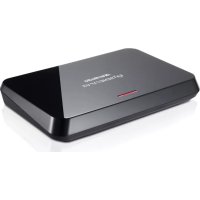
ExtremeCap U3 - Digital Video Recorder AVERMEDIA - Free user manual and instructions
Find the device manual for free ExtremeCap U3 AVERMEDIA in PDF.



| Product type | Digital video recorder (video capture) |
| Brand | AVerMedia |
| Model | ExtremeCap U3 |
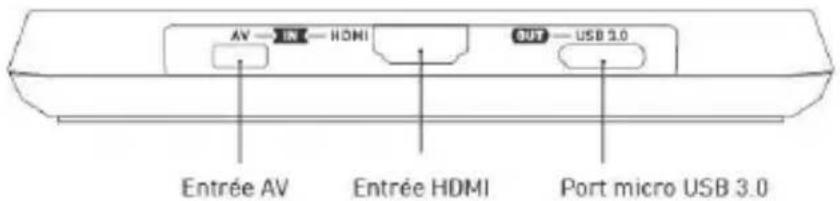
| Connectivity | USB 3.0 (micro USB) |
| Video inputs | HDMI (priority), Component (YUV) |
| Audio inputs | Stereo via audio dongle cable |
| Maximum resolution | 1080p at 60 fps (Full HD) |
| Power | Via USB (bus-powered) |
| Dimensions (approx.) | 10 cm x 6 cm x 2 cm |
| Weight (approx.) | 100 g |
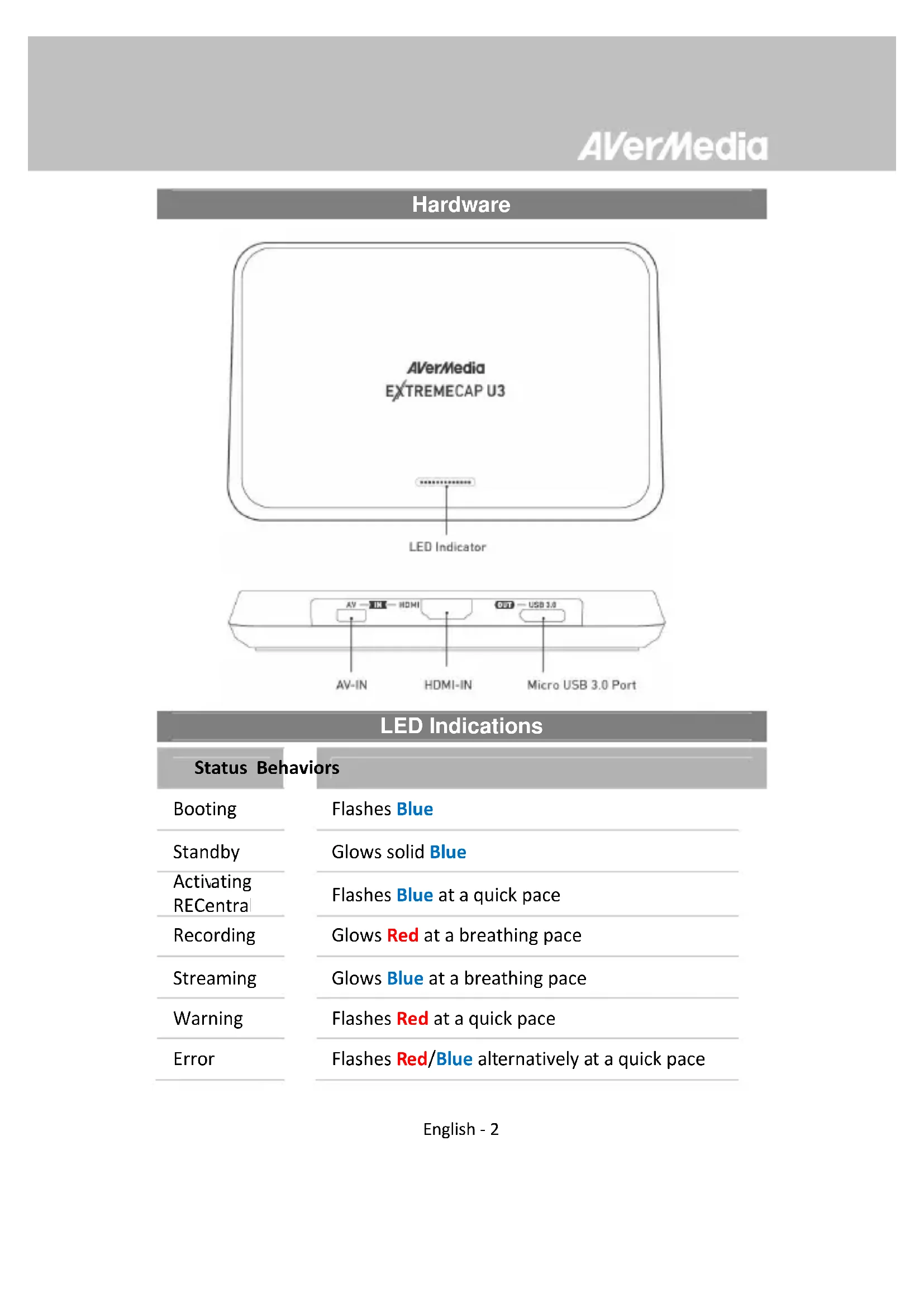
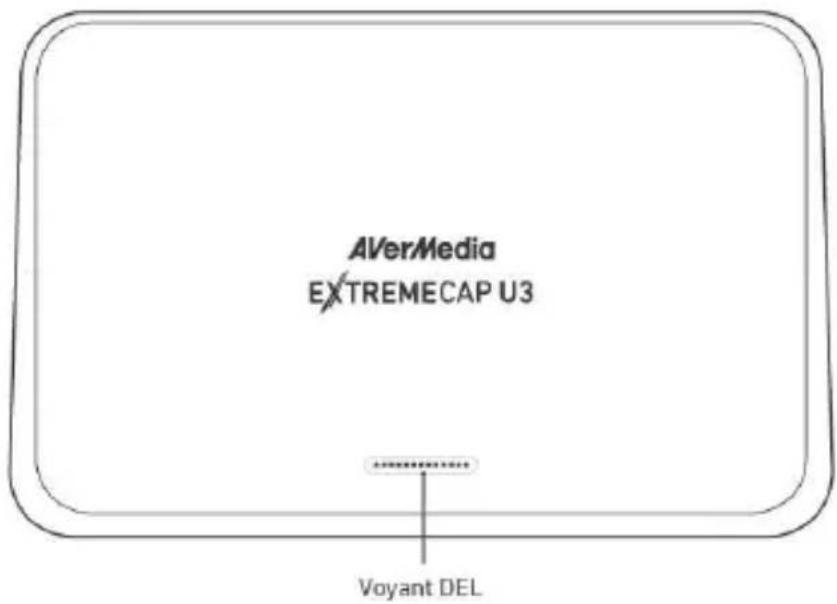
| LED indicator | Blue (standby), Red (capture), blinking for statuses |
| Included software | RECentral (free download) |
| Supported operating systems | Windows 7, 8, 8.1, 10 |
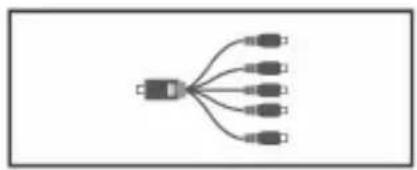
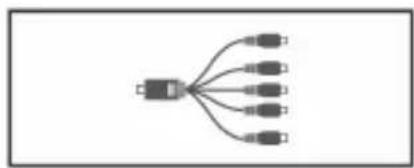
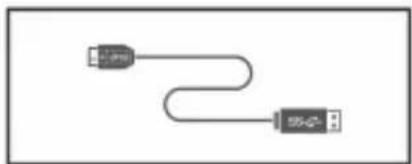
| Package contents | ExtremeCap U3 unit, micro USB 3.0 cable, component video/audio cable, quick installation guide |
| Main functions | Live video capture, recording, streaming |
| Care and cleaning | Clean with a dry soft cloth. Avoid moisture and abrasive products. |
| Safety | Use in a dry environment. Do not expose to water or liquids. |
| Spare parts and repairability | Contact AVerMedia support for assistance. |
| Warranty | Refer to seller's terms. |
Frequently Asked Questions - ExtremeCap U3 AVERMEDIA
User questions about ExtremeCap U3 AVERMEDIA
0 question about this device. Answer the ones you know or ask your own.
Ask a new question about this device
Download the instructions for your Digital Video Recorder in PDF format for free! Find your manual ExtremeCap U3 - AVERMEDIA and take your electronic device back in hand. On this page are published all the documents necessary for the use of your device. ExtremeCap U3 by AVERMEDIA.
USER MANUAL ExtremeCap U3 AVERMEDIA
European Union Directives conformance statement
Class B
This product is herewith confirmed to comply with the requirements set out in the Council Directives on the Approximation of the laws of the Member States relating to Electromagnetic Compatibility Directive 2004/108/EC.
Responsible manufacturer:
AVerMedia Technologies, Inc.
No. 135, Jian 1st Rd., Zhonghe Dist., New Taipei City 23585, Taiwan
TEL: +886-2-2226-3630
European Community contact:
AVerMedia Technologies Europe B.V.
Kwartsweg 50, 2665 NN, Bleiswijk, The Netherlands
Technical Support: http://solutions.avermedia.com/
FCC NOTICE (Class B)

This device complies with Part 15 of the FCC Rules. Operation is subject to the following two conditions: (1) this device may not cause harmful interference, and (2) this device must accept any interference received, including interference that may cause undesired operation.
Federal Communications Commission Statement
NOTE- This equipment has been tested and found to comply with the limits for a Class B digital device, pursuant to Part 15 of the FCC Rules. These limits are designed to provide reasonable protection against harmful interference in a residential installation. This equipment generates, uses and can radiate radio frequency energy and, if not installed and used in accordance with the instructions, may cause harmful interference to radio communications. However, there is no guarantee that interference will not occur in a particular installation. If this equipment does cause harmful interference to radio or television reception, which can be determined by tuning the equipment off and on, the user is encouraged to try to correct the interference by one or more of the following measures:
- Reorient or relocate the receiving antenna.
- Increase the separation between the equipment and receiver.
- Connect the equipment into an outlet on a circuit different from that to which the receiver is connected.
- Consult the dealer or an experienced radio/television technician for help.
CAUTION ON MODIFICATIONS
To comply with the limits for the Class B digital device, pursuant to Part 15 of the FCC Rules, this device must be installed in computer equipment certified to comply with the Class B limits. All cables used to connect the computer and peripherals must be shielded and grounded. Operation with non-certified computers or non-shielded cables may result in
interference to radio or television reception. Changes and modifications not expressly approved by the manufacturer could void the user's authority to operate this equipment.
Responsible manufacturer:
AVerMedia Technologies, Inc.
No. 135, Jian 1st Rd., Zhonghe Dist., New Taipei City 23585, Taiwan
TEL: +886-2-2226-3630
USA Office contact:
AVerMedia Technologies U.S.A.
47358 Fremont Blvd., Fremont, CA 94538
Technical Support: http://www.avermedia.com/avertv/support/
ICES-003
CAN ICES-3 (B)/NMB-3(B)
The mark of crossed-out wheeled bin indicates that this product must not be disposed of with your other household waste. Instead, you need to dispose of the waste equipment by handing it over to a designated collection point for the recycling of waste electrical and electronic equipment. For more information about where to drop off your waste equipment for recycling, please contact your household waste disposal service or the shop where you purchased the product.
Disclaimer
All the screenshots in this documentation are only example images. The images may vary depending on the product and software version. Information presented in this documentation has been carefully checked for reliability; however, no responsibility is assumed for inaccuracies. The information contained in this documentation is subject to change without notice.
Copyright
©2013 by AVerMedia Technologies, Inc. All rights reserved.
No part of this document may be reproduced or transmitted in any form, or by any means (Electronic, mechanical, photocopy, recording, or otherwise) without prior written permission of AVerMedia Technologies, Inc. Information in this document is subject to change without notice. AVerMedia Technologies, Inc. reserves the right to modify, change, improve or enhance its products and to make changes in the content without obligation to notify any person or organization of such changes. Please visit www.avermedia.com to get the updates of the operation and use of AVerMedia products. "AVerMedia" is a trademark and logo of AVerMedia Technologies, Inc. Other trademarks used herein for description purpose only belong to each of their companies. Made in Taiwan (Expect Accessories). Picture shown may vary from actual product
AVerMedia
natural_image
Gray rectangular device with a white logo and text 'www.ve.com' on its surface (no additional text or symbols visible)A. ExtremeCap U3
B. Guide d'Installation Rapide
flowchart
graph TD
    A["Input"] --> B["Node 1"]
    A --> C["Node 2"]
    A --> D["Node 3"]
    A --> E["Node 4"]
    A --> F["Node 5"]
natural_image
Pure electrical circuit lines without any symbolsD. Câble Micro USB 3.0
Matériel
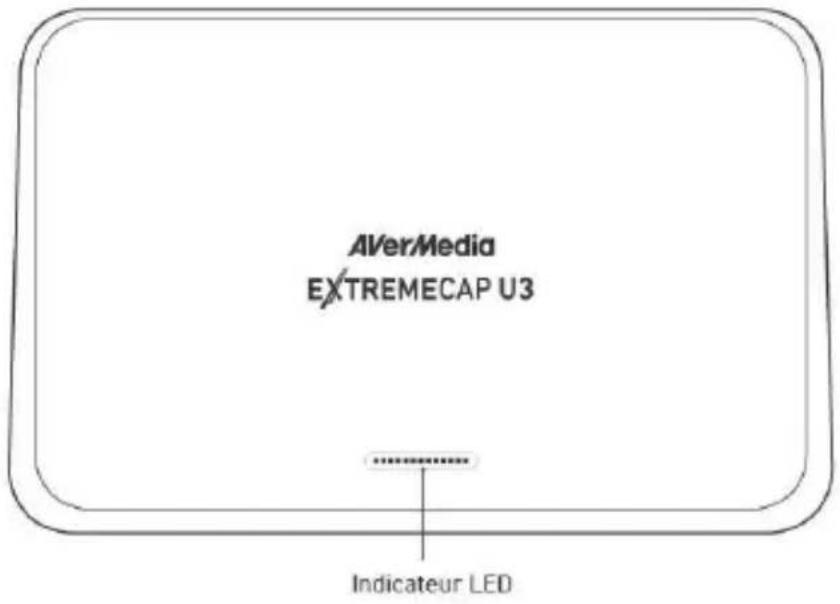
Indicateur LED
natural_image
Icon of a CD or DVD disc with a downward arrow, symbolizing download or download (no text or symbols present)Activez l'Application
Windows® 7
natural_image
Gray rectangular device with no visible text or symbols on its surfaceA. ExtremeCap U3
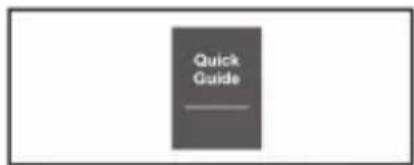
B. Quick Installation Guide
flowchart
graph TD
    A["Input"] --> B["Node 1"]
    A --> C["Node 2"]
    A --> D["Node 3"]
    A --> E["Node 4"]
    A --> F["Node 5"]
C. Component Video / Stereo Audio Dongle Cable
natural_image
Simple line drawing of two USB connectors with a curved cable (no text or symbols)D. Micro USB 3.0 Cable
Hardware
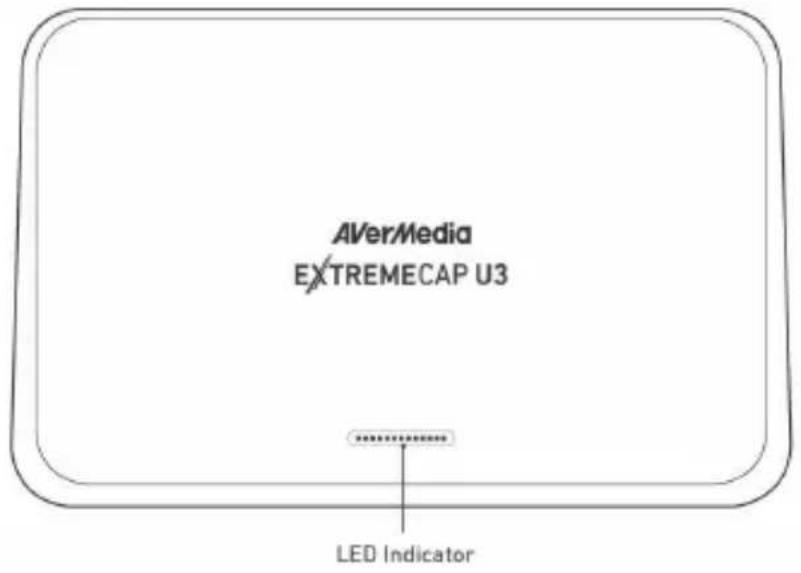
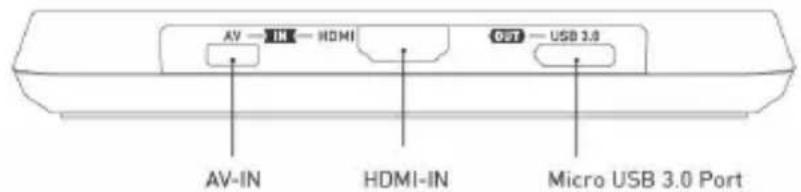
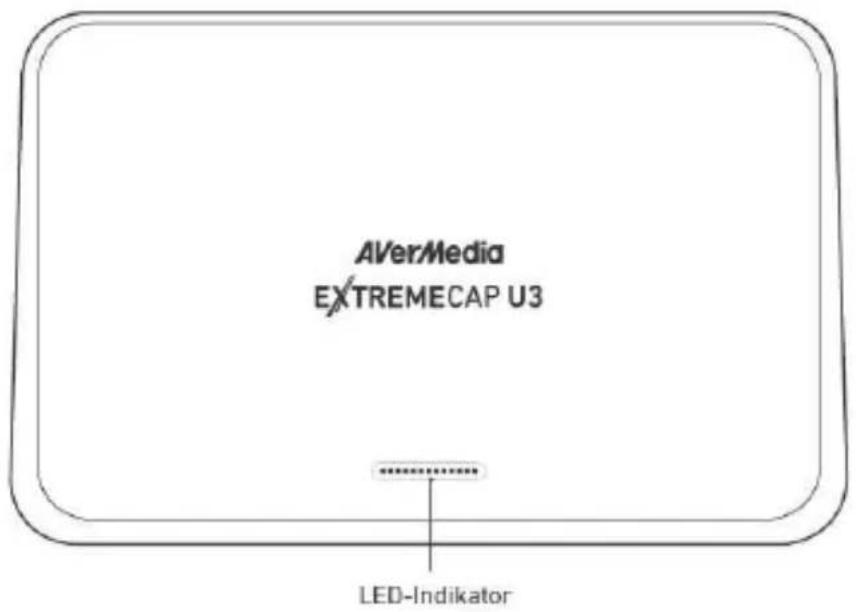
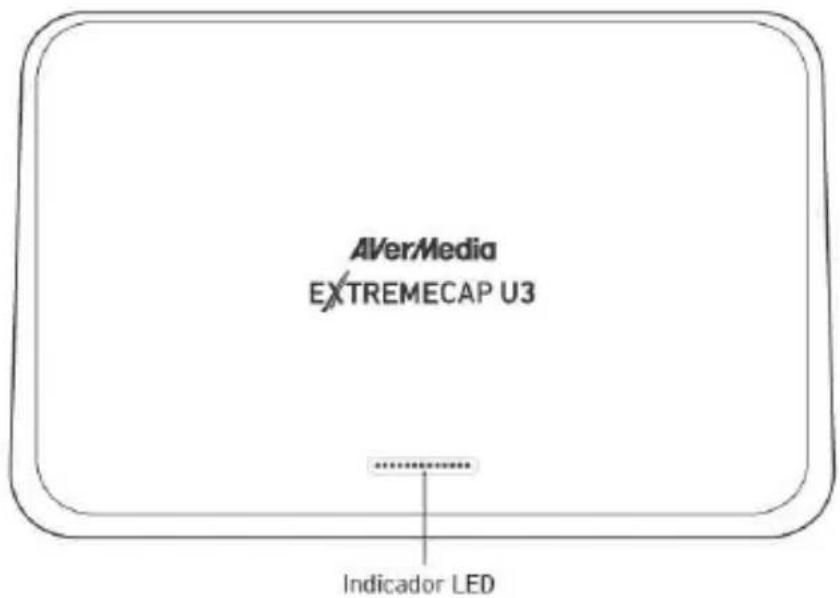
LED Indications
| Status Behaviors | |
| Booting | Flashes Blue |
| Standby | Glows solid Blue |
| Activating RECentral | Flashes Blue at a quick pace |
| Recording | Glows Red at a breathing pace |
| Streaming | Glows Blue at a breathing pace |
| Warning | Flashes Red at a quick pace |
| Error | Flashes Red/Blue alternatively at a quick pace |
Installation
Step 1: Connect ExtremeCap U3 to a PC using the included micro USB 3.0 cable. Once connected, the LED indicator flashes BLUE signifying booting; glows solid BLUE when the device is ready.
Step 2: Download then install the latest driver and RECentral from www.avermedia.com/avertv/support or gamerzone.avermedia.com.
natural_image
CD or DVD disc icon with a downward arrow, no text or symbols presentActivate the Application
Windows® 7
To run the application from the Programs menu, go to Start → All Programs → AVerMedia → AVerMedia RECentral → RECentral.
Windows® 8
Click on RECentral on the Metro Start screen or double click on AVerMedia RECentral on the Desktop.
Uninstall the Application and Driver
Windows® 7
Please go to Start and select All Programs, AVerMedia RECentral, and Uninstaller. Follow the onscreen instructions to complete the uninstallation of the RECentral.
Windows® 8
- Right click on AVerMedia RECentral on the Metro Start screen, and click on Uninstall.
- In Programs and Features, select AVerMedia RECentral → Uninstall/Change.
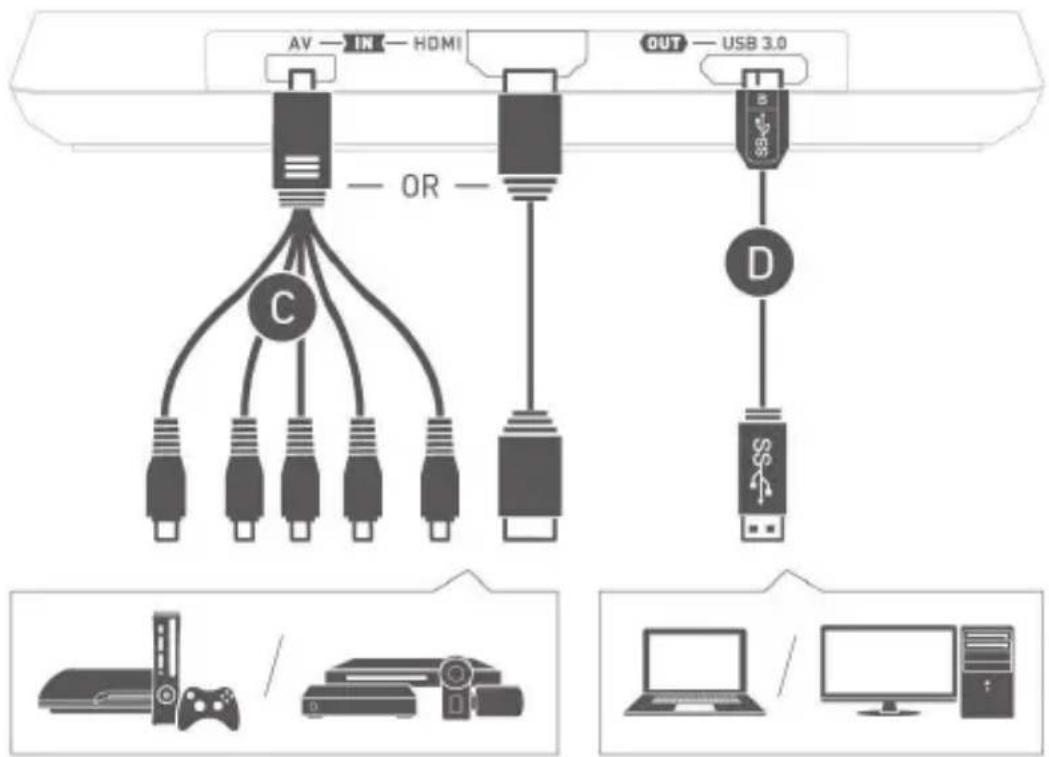
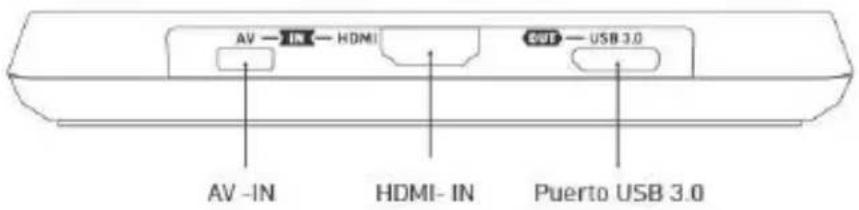
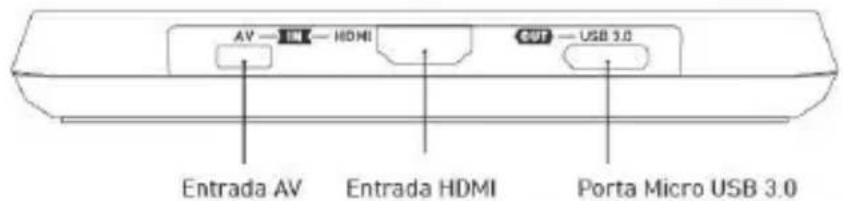
Connect to Your Devices
flowchart
graph TD
    A["AV"] --> B["OR"]
    C["IN"] --> B
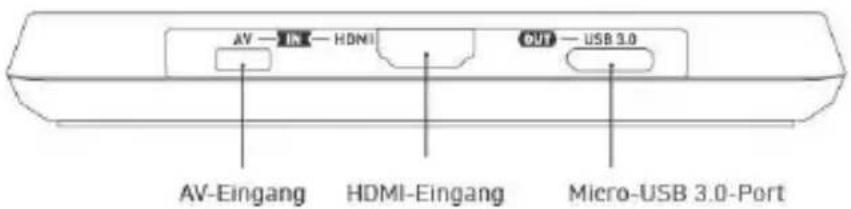
    D["HDMI"] --> B
    E["OUT"] --> F["USB 3.0"]
    G["Router"] --> H["Device C"]
    I["Device D"] --> J["Device D"]
    K["Laptop"] --> L["Device"]
    M["Computer"] --> N["Device"]

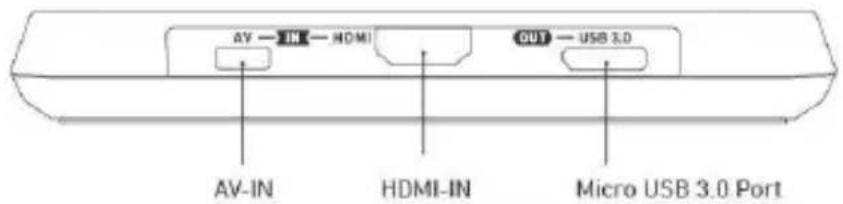
PLEASE DO NOT USE HDMI SPLITTERS TO BYPASS COPY PROTECTION.

- Only the items marked with alphabets are supplied.
- When two or more sources are connected at the same time, HDMI input will have priority over component input. To select component as the input source, please remove the HDMI cable.
Lieferumfang
natural_image
Gray rectangular electronic device with no visible text or symbols on its surfaceA. ExtremeCap U3
natural_image
Pure electrical circuit lines without any symbolsD. Micro-USB 3.0-Kabel
Hardware
LED-Anzeigen
Status Verhalten
natural_image
Gray rectangular electronic device with no visible text or symbols on its surfaceA. ExtremeCap U3
natural_image
Pure electrical circuit lines without any symbolsD. Cavo Micro USB 3.0
Hardware
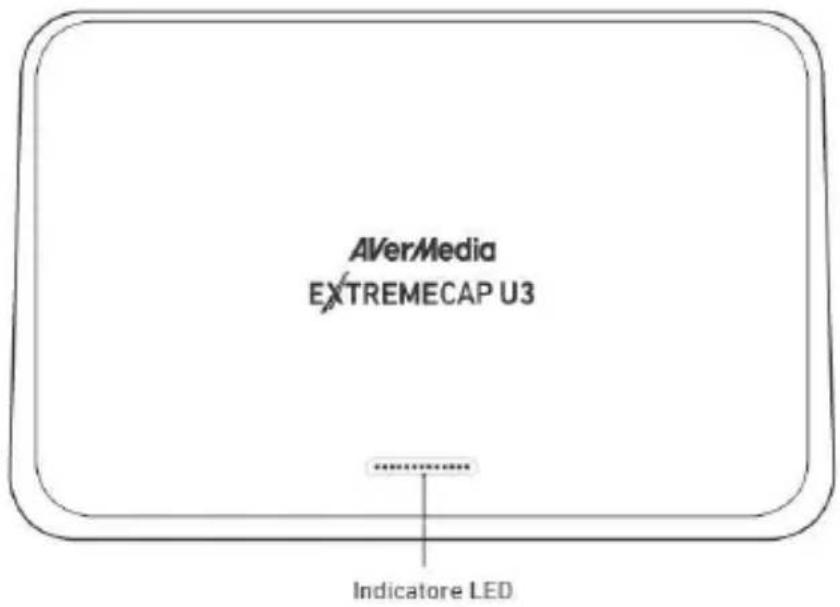
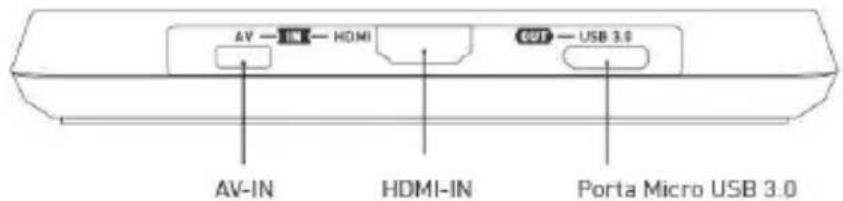
Indicazioni LED
natural_image
CD or DVD disc icon with a downward arrow, no text or symbols presentflowchart
graph TD
    A["AV"] --> B["Oppure"]
    C["IN"] --> B
    D["HDMI"] --> B
    E["USB 3.0"] --> F["D"]
    G["Computer"] --> H[" gaming console "]
    I["Video Player"] --> J[" gaming device "]
    K["Out"] --> L["USB 3.0"]

natural_image
Gray rectangular device with a white logo and text inside, no readable text or symbols on the body.A. ExtremeCap U3
natural_image
Simple line drawing of two USB connectors with a curved cable (no text or symbols)D. Cable micro USB 3.0
Hardware
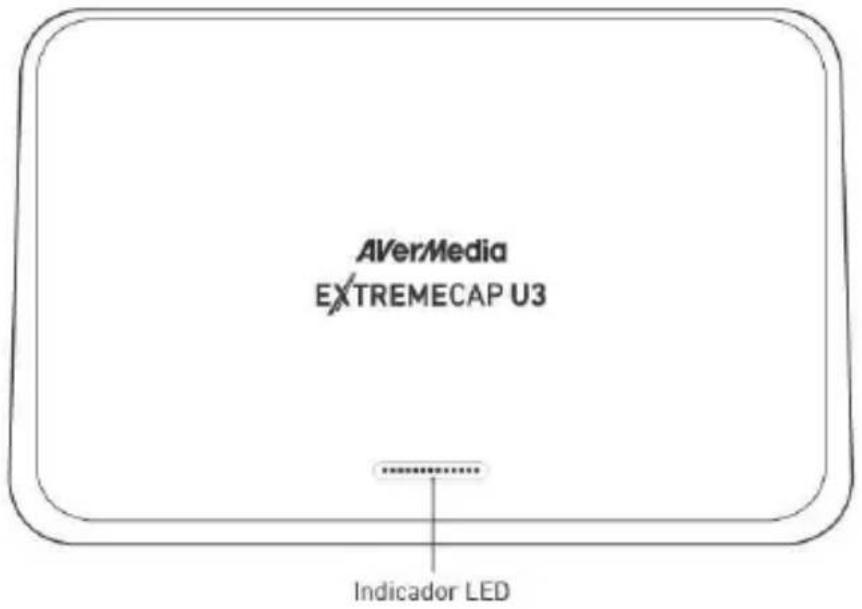
Indicadores LED
natural_image
Illustration of a CD or DVD disc with a downward arrow indicating download or download (no text or symbols)flowchart
graph TD
    A["AV"] --> B["IN"]
    B --> C["HDMI"]
    C --> D["O"]
    D --> E["C"]
    F["USB 3.0"] --> G["D"]
    G --> H["USB 3.0"]
    I["Desktop"] --> J[" gaming console "]
    K["Desktop"] --> L[" gaming device "]
    M["Desktop"] --> N[" gaming computer "]
    O["Out"] --> P["USB 3.0"]

natural_image
Gray rectangular electronic device with no visible text or symbols on its surfaceA. ExtremeCap U3
natural_image
Pure electrical circuit lines without any symbolsD. Cabo Micro USB 3.0
Hardware
Indicações dos LED
natural_image
Icon of a CD or DVD disc with a downward arrow, symbolizing download or download (no text or symbols present)Ativar a aplicação
Windows® 7
A. ExtremeCap U3
natural_image
Simple line drawing of two USB connectors with a curved cable (no text or symbols)D. Cable micro USB 3.0
Matériel
Voyants DEL
natural_image
Icon of a CD or DVD disc with a downward arrow, symbolizing download or download (no text or symbols present)Activer l'application
Windows® 7
- European Union Directives conformance statement
- Class B
- FCC NOTICE (Class B)
- Federal Communications Commission Statement
- CAUTION ON MODIFICATIONS
- Disclaimer
- Copyright
- AVerMedia
- Activez l'Application
- Windows® 7
- Installation
- Activate the Application
- Windows® 8
- Uninstall the Application and Driver
- Connect to Your Devices
- PLEASE DO NOT USE HDMI SPLITTERS TO BYPASS COPY PROTECTION.
- Lieferumfang
- Indicadores LED
- Ativar a aplicação
- Activer l'application
Brand : AVERMEDIA
Model : ExtremeCap U3
Category : Digital Video Recorder