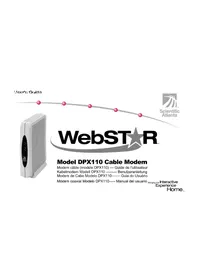
Webstar DPX110 - Modem CISCO - Free user manual and instructions
Find the device manual for free Webstar DPX110 CISCO in PDF.



| Product type | Cable modem |
| Brand | Cisco (formerly Scientific-Atlanta) |
| Model | Webstar DPX110 |
| Power supply | AC/DC adapter 12 V DC supplied |
| Interfaces | Ethernet 10BaseT (RJ-45), USB 12 Mb/s |
| Cable connector | F connector for 75 ohm RF coaxial cable |
| Data rate | High-speed bidirectional (faster than analog, ISDN, DSL) |
| Display | 4 LED indicators: Power, PC, Cable, Status |
| Placement | Vertical or horizontal |
| Compliance | DOCSIS, Class B (Canada) |
| Software upgrade | Automatic via cable service provider |
| Installation | Plug-and-play, TCP/IP setup or USB drivers |
| Minimum PC configuration | Pentium MMX 133 MHz, 32 MB RAM, floppy/CD drive |
| Minimum Mac configuration | Mac OS 7.5, 32 MB RAM |
| Cleaning | Damp cloth, unplug before, no liquid or aerosol products |
| Safety | Do not open (electric shock), use grounded outlet, do not expose to moisture |
| Service | Refer to qualified personnel, warranty void if opened |
| Included accessories | Ethernet CAT5/RJ-45 cable, USB cable, adapter, vertical stand, USB driver floppy disk |
| Customer service | Contact cable service provider for activation and support |
Frequently Asked Questions - Webstar DPX110 CISCO
User questions about Webstar DPX110 CISCO
0 question about this device. Answer the ones you know or ask your own.
Ask a new question about this device
Download the instructions for your Modem in PDF format for free! Find your manual Webstar DPX110 - CISCO and take your electronic device back in hand. On this page are published all the documents necessary for the use of your device. Webstar DPX110 by CISCO.
USER MANUAL Webstar DPX110 CISCO
Model DPX110 Cable Modem
United States FCC Compliance
This equipment has been tested and found to comply with the applicable limits of Part 15 of FCC Rules. These limits are designed to provide reasonable protection against harmful interference in a residential installation. This equipment generates, uses, and can radiate radio frequency energy and, if not installed and used in accordance with the instructions, may cause harmful interference to radio or TV reception, which can be determined by turning the equipment off and on. The user is encouraged to try to correct the interference by one or more of the following measures:
- Increase the separation between the equipment and receiver
- Connect the equipment into an outlet on a circuit different from that to which the receiver is connected
- Consult your cable company or an experienced radio/TV technician for help
Any changes or modifications not expressly approved by Scientific-Atlanta could void the user's authority to operate the equipment.
Important: The information shown in the FCC Declaration of Conformity paragraph below is a requirement of the FCC and is intended to supply you with information regarding the FCC approval of this device. The phone numbers listed are for
FCC-related questions only and not intended for questions regarding the connection or operation for this device. Please contact your cable service provider for any questions you may have regarding the operation or installation of this device.
FCC Declaration of Conformity
This device complies with Part 15 of FCC Rules. Operation is subject to the following two conditions: 1) the device may not cause harmful interference, and 2) the device must accept any interference received, including interference that may cause undesired operation.
WebSTAR Cable Modem
Model DPX 110
Scientific-Atlanta, Inc.
5030 Sugarloaf Parkway
Lawrenceville, Georgia 30042 USA
Telephone: 770-236-1077
Canada EMI Regulation
This Class B digital apparatus meets all requirements of the Canadian Interference Causing Equipment Regulations.
United States: Scientific-Atlanta, Inc., 5030 Sugarloaf Parkway.
Box 465447, Lawrenceville, GA 30042; Tel: 770-903-5000;
TWX:810-799-4912;Telex:0542898
Europe: Scientific-Atlanta Europe GmbH, Westerbachstrasse 28-32.
61476 Kronberg, Germany; Tel: 49-6173-928-000
Asia-Pacific: Scientific-Atlanta (Singapore) Pte. Ltd., 1 Claymore Drive, #08-11 Orchard Towers, Singapore 229594; Tel: 65-733-4314
Latin America: Scientific-Atlanta Argentina S.A., C. Pellegrini 1149 Piso 110
Capital Federal 1011 Buenos Aires, Argentina; Tel: 54-11-4325-2800
www.scientificlanta.com
© 2001 Scientific-Atlanta, Inc. All rights reserved.
February 2001
Part Number 745244 Rev A
REGRAS IMPORTANTES PARA OPERACÇÃO SEGURA, continua
Note to the Installer
Note to CATV System Installer (USA/Canada Only)
This reminder is provided to call the CATV system installer's attention to Article 820-40 of the NEC (Section 54, Part I of the Canadian Electrical Code), that provides guidelines for proper grounding and, in particular, specifies that the CATV cable ground shall be connected to the grounding system of the building, as close to the point of cable entry as practical.
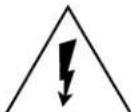
This symbol is intended to alert you that uninsulated voltage within this product may have sufficient magnitude to cause electric shock. Therefore, it is dangerous to make any kind of contact with any inside part of this product.
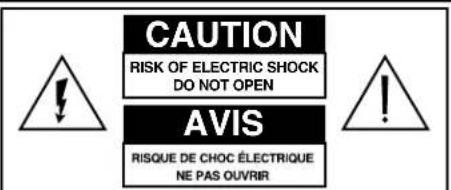
CAUTION: To reduce the risk of electric shock, do not remove cover (or back). No user-serviceable parts inside. Refer servicing to qualified service personnel.
WARNING TO PREVENT FIRE OR ELECTRIC SHOCK, DO NOT EXPOSE THIS UNIT TO RAIN OR MOISTURE.

This symbol is intended to alert you of the presence of important operating and maintenance (servicing) instructions in the literature accompanying this product.
Read and Retain These Instructions
- Read all of the instructions before you operate this equipment. Give particular attention to all safety precautions. Retain the instructions for future reference.
- Comply with all warning and caution statements in the instructions. Observe all warning and caution symbols that are affixed to this equipment.
- Comply with all instructions that accompany this equipment.
IMPORTANT RULES FOR SAFE OPERATION, continued
Cleaning the Equipment
Before cleaning this equipment, unplug it from the electrical outlet. Use a damp cloth to clean this equipment. Do not use a liquid cleaner or an aerosol cleaner. Do not use a magnetic/static cleaning device (dust remover) to clean this equipment.
Placement
Place this equipment in a location that is close enough to an electrical outlet to accommodate the length of the power cord. Place this equipment on a stable surface. The surface must support the size and weight of this equipment. Place this equipment either horizontally or vertically.

WARNING:
Avoid personal injury and damage to this equipment. An unstable surface may cause this equipment to fall.
Accessories
Do not use accessories with this equipment unless recommended by your cable service provider.
Ventilation
This equipment has openings for ventilation that protect it from overheating. To ensure the reliability of this equipment, do not obstruct the openings.
- Do not place other equipment, lamps, books, or any other object on the top of or beside this equipment.
-
Do not place this equipment in any of the locations that follow:
-
On a bed, sofa, rug, or similar surface
-Over a radiator or a heat register - In an enclosure, such as a bookcase or equipment rack, unless the installation provides proper ventilation
Overloading
Do not overload electric outlets, extension cords, or integral convenience receptacles, as this can result in a risk of fire or electric shock. For equipment that requires battery power or other sources to operate, refer to the operating instructions for that equipment.
IMPORTANT RULES FOR SAFE OPERATION, continued
Object and Liquid Entry
Never push objects of any kind into this product through openings as they may touch dangerous voltage points or short out parts that could result in a fire or electric shock. Do not expose this equipment to liquid or moisture. Do not place this equipment on a wet surface. Do not spill liquids on or near this equipment.
Lightning and Power Surges
Plug your equipment into a surge protector in order to reduce the risk of damage from lightning strikes and power surges. If you are unsure of the type of surge protector to use, contact your local cable service provider.
Servicing
Do not open the cover of this equipment. If you open the cover, your warranty will be void. Refer all servicing to qualified personnel only. Contact your cable company for instructions.
Power Cord Protection
Arrange all power cords so that people cannot walk on the cords, place objects on the cords, or place objects against the cords, which can damage the cords. Pay particular attention to cords that are at plugs, at electrical outlets, and at the places where the cords exit the equipment.
Power Sources
A label on the AC power adapter which is supplied with this equipment, indicates the correct power source for this equipment. Operate this equipment only from an electrical outlet that has the voltage and frequency that the label indicates.
If you are unsure of the type of power supply to your residence, consult Scientific-Atlanta, Inc., or your local power company.
Grounding
This equipment has a three-prong plug. Properly ground (earth) this equipment by inserting the plug into a grounded electrical, three-socket outlet.
If you are unable to insert this plug fully into the outlet, contact an electrician to replace your obsolete outlet.
IMPORTANT RULES FOR SAFE OPERATION, continued
Damage that Requires Service
For damage that requires service, unplug this equipment from the electrical outlet. Contact qualified service personnel when any of the following occurs:
- There is damage to the power cord or plug
- Liquid enters the equipment
- A heavy object falls on the equipment
- There is exposure to rain or water
Operation is not normal (the instructions describe the proper operation) - If you drop this equipment, or damage the cabinet of this equipment
- If this equipment exhibits a distinct change in performance
Upon completion of any service or repairs to this equipment (cable modem), ask the service technician to perform safety checks to determine that the equipment is in proper operating condition.
Checklist
Equipment Checklist
Before you install your cable modem, check the items in the carton. The carton should contain the following items:
One WebSTAR™ Cable Modem
One twisted pair Ethernet cable (CAT5/RJ-45)
One USB cable
- One Power Adapter with power cord
One Vertical Modem Stand (attached to the modem)
- One diskette containing the USB drivers
Note: You will need an optional cable signal splitter and additional standard RF coaxial cable if you want to connect a VCR, a Digital Home Communications Terminal (DHCT) or a set-top converter, or a TV to the same cable connection as your cable modem.
Overview
Contents
Overview 6
Getting Started 7
System Requirements 8
WebSTAR Cable Modem Front Panel 9
WebSTAR Cable Modem Back Panel. 10
Connection Diagram 11
TCP/IP Configuration 12
USB Driver Installation 15
Troubleshooting 16
Tips for Improved Performance 18
Notices 19
United States FCC Compliance....... Back cover
WebSTAR Cable Modem Features
Welcome to the world of high-speed Internet access. Your new WebSTAR Model DPX 110 Cable Modem offers the following outstanding features:
- Two-way, high-speed data rates much faster than 56K analog modems, ISDN, or DSL
- Plug and Play operation for easy setup and installation
10BaseT Ethernet or USB connection - Clear LED display
Vertical or horizontal placement - CableLabs Data Over Cable System Interface Specifications (DOCSIS) certification ensures interoperability with other certified cable modems and certified cable service providers.
- Cable modem software can be upgraded automatically by your cable service provider
Getting Started
Contacting Your Local Cable Service Provider
You need to set up an Internet access account with your local cable service provider in order to use your cable modem. When you contact your cable service provider, verify the following conditions:
- The cable service to your home supports two-way, DOCSIS-compatible cable modem access. If your cable company does not provide two-way service, this modem will not be able to communicate with your cable service provider's Internet access service.
- You have an active RF coaxial cable line near your PC, and is it capable of two-way cable modem service. If your current cable input is not conveniently located near your PC, your cable service provider can install one.
- You have an Internet access account. Your cable service provider will set up your Internet access account, and will become your Internet Service Provider (ISP) to enable you to send and receive e-mail, access the World Wide Web, and receive other Internet services.
You must also give your cable service provider the following information:
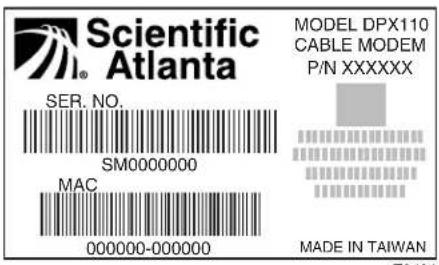
The serial number of the modem
The Media Access Control (MAC) address of the modem
These numbers appear on a white bar code label located on the side of the cable modem. The serial number consists of a series of alpha-numeric characters located directly under the SER.NO. bar code. The MAC address consists of a series of alpha-numeric characters located directly under the MAC bar code. The following example illustrates a sample bar code label.
System Requirements
Introduction
This section provides hardware and software requirements.
Minimum System Requirements for PCs
- Personal computer (PC) with a Pentium MMX 133 processor or greater
32 MB of RAM - Netscape or Internet Explorer
3.5-in. disk drive or CD-ROM drive
Minimum System Requirements for Macintosh
MAC OS 7.5
32 MB of RAM
System Requirements for an Ethernet Connection
-
A PC with Windows 95 operating system (or later) with TCP/IP protocol installed, or an Apple Macintosh computer with TCP/IP protocol installed
-
An active 10BaseT Ethernet network interface card (NIC) installed in your PC. If your PC is equipped with a 100BaseT Ethernet port, make sure that it also supports 10BaseT
System Requirements for a USB Connection
- A PC with Windows 98/98SE/ME/ or 2000 operating system
- A master USB port installed in your PC
Preparing Your Workspace
Select the location for your workspace giving careful consideration to the following:
- Position your PC and cable modem so that they are located near your cable input. There should be plenty of room to guide the cables away from the modem without straining or crimping them.
Air flow around the cable modem should not be restricted. - Please read this user's guide thoroughly before installing the cable modem.
WebSTAR Cable Modem Front Panel
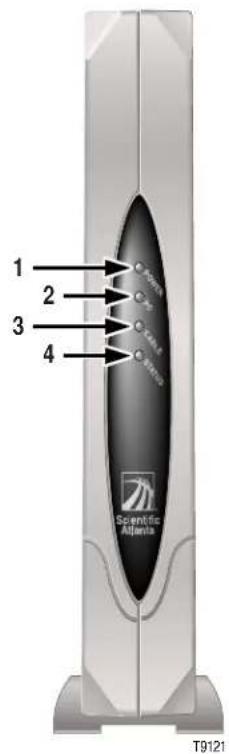
Front Panel Indicators
1 Power Illuminates solid green to indicate that power is being applied to the cable modem
2 PC Illuminates solid green to indicate that an Ethernet/USB carrier is present
Blinks to indicate that Ethernet/USB data is being transferred
3 Cable Blinks during software upgrade and to indicate cable activity
4 Status Illuminates solid green when the modem is registered on the network
Blinks to indicate one of the following conditions:
- The cable modem is booting up and not ready for data.
- The cable modem is scanning the network and attempting to register.
- The cable modem has lost registration on the network, and will continue blinking until it registers again.
WebSTAR Cable Modem Back Panel
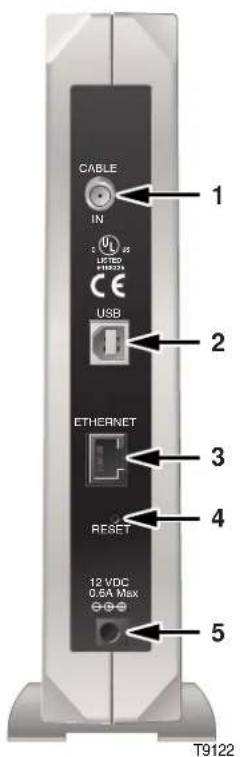
Back Panel Connections
1 Cable In F-Connector connects to an active cable signal from your cable service provider
2 USB 12 Mbps USB port connects to the USB port on your PC
3 Ethernet RJ-45 Ethernet port connects to the 10BaseT Ethernet port on your PC
4 Reset Reset-to-Default button
CAUTION: This button is for maintenance purposes only. Do not use!
5 12 V DC Connects the cable modem to the DC output of the AC Power power adapter that is provided with your cable modem Connector
Note: Only use the power cord and the AC power adapter that is provided with your cable modem.
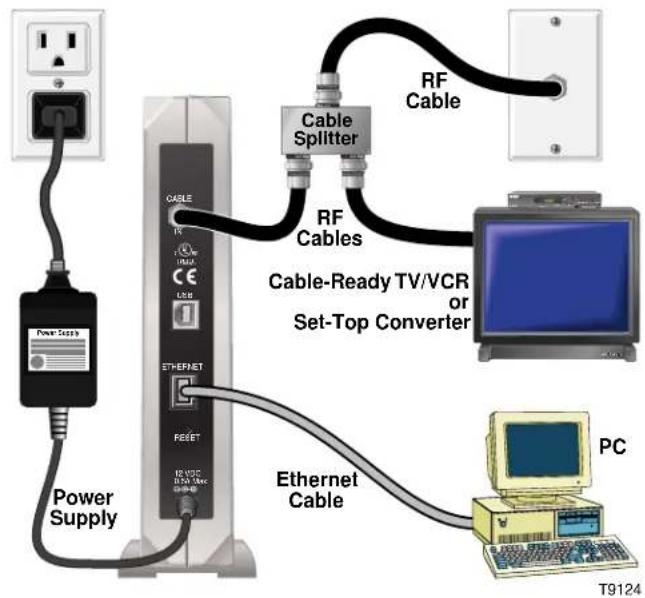
Connection Diagram
Installation
Follow these steps for proper installation.
- Power down your PC and unplug it from the power source.
- Connect the active RF coaxial cable to the connector on the back of the cable modem labeled CABLE IN. Use an optional cable signal splitter to add a TV, a DHCT or set-top converter, or a VCR.
- Connect either the Ethernet port or the USB port on the back of the cable modem to your PC using the appropriate supplied cable.
- Insert the power cord into the power supply on the back of the cable modem, and then plug the cord into an AC power source.
- Plug in and power on your PC.
- Configure the TCP/IP protocol, or install the USB drivers from the supplied diskette, whichever is necessary for your system.
Note: See Configuring TCP/IP on pages 12 through 14, or Installing the USB Drivers on page 15 of this guide for further instructions.
The following diagram illustrates one of the various connection options that are available to you.
Note: Professional installation may be available. Contact your local cable service provider for further assistance.
Configuring TCP/IP
Introduction
This section contains instructions for configuring the TCP/IP protocol for both Windows and Macintosh operating systems.
Configuring the TCP/IP Protocol for Windows 95/98
Note: You need to have either an Ethernet Network Interface Card (NIC) with the TCP/IP communications protocol installed on your system, or a USB network interface, before you install your cable modem.
Follow these steps to install and configure the TCP/IP protocol on your PC.
- Click Start, select Settings, and choose Control Panel. The Control Panel window appears.
- In the Control Panel window, double-click the Network icon. A list of installed network components appears.
-
Under the Configuration tab, read the list of installed network components to verify your PC contains the TCP/IP protocol.
-
Does your PC have the TCP/IP protocol?
-
If yes, go to step 8.
-
If no, click Add.
-
Click Protocol; then, click Add.
- In the Manufacturers list, click Microsoft.
- In the Network Protocols list, scroll to and click TCP/IP; then, click OK.
- Scroll to and click the TCP/IP Ethernet Adapter protocol; then, click Properties.
- Click the IP Address tab; then, select Obtain an IP address automatically.
- Click the Gateway tab and verify that these fields are empty. If they are not empty, highlight and delete all information from the fields.
- Click the DNS Configuration tab; then, select Disable DNS.
- Click OK. The Copying Files... window appears.
Configuring TCP/IP, continued
- When the system finishes copying the files, click OK.
- Close all networking windows.
- When the System Settings Change dialog box appears, click YES to restart your computer.
Configuring the TCP/IP Protocol on a Macintosh
Note: Many Macintosh computers have Ethernet devices installed at the factory.
Follow these steps to verify that the TCP/IP communications protocol and an Ethernet device is installed on your system.
- Click the Apple icon in the upper left corner of the Finder. Scroll down to Control Panels; then, click TCP/IP.
- Click Edit on the Finder (gray bar) at the top of the screen. Scroll down to the bottom of the menu; then, click User Mode.
-
Click Advanced in the User Mode window; then, click OK.
-
Click the Up/Down selector arrows located to the right of the Connect Via section of the TCP/IP window; then, click Using DHCP Server.
- Click Options in the TCP/IP window; then, click Active in the TCP/IP Options window.
Note: In some cases, the Load only when needed option will not appear. If it is visible, select the option. A check mark appears in the option.
- Verify that the Use 802.3 option located in the upper right-hand corner of the TCP/IP window is unchecked. If there is a check mark in the option, deselect the option; then, click Info in the lower left-hand corner.
-
Is there a Hardware Address listed in this window?
-
If yes, click OK. To close the TCP/IP Control Panel window, click File; and then, scroll down to click Close.
- If no, you must power down your Macintosh.
Configuring TCP/IP, continued
- With the power off, simultaneously press and hold down the Command (Apple), Option, P, and R keys on your keyboard. Keeping those keys pressed down, power on your Macintosh. The computer will start, and you will hear the Apple chime; do not release these keys.
- Continue pressing these keys for up to three chimes, then release the keys and allow the computer to restart.
- When fully rebooted, verify that all TCP/IP settings match those in the preceding instructions. If your computer still does not have a Hardware Address, contact your local Apple authorized dealer or Apple technical support.
Renewing the IP Address for Windows 95/98
If your PC cannot access the Internet after the cable modem is online, it is possible that your PC did not renew its IP address. Follow these steps to renew the IP address on your PC.
- Click Start, and then click Run to open the Run window.
- Type winipcfg in the Open field, and click OK to execute the winipcfg command. The IP Configuration window appears.
- Click the down arrow to the right of the top field, and select the Ethernet adapter that is installed on your PC. The IP Configuration window displays the Ethernet adapter information.
- Click Release; then, click Renew. The IP Configuration window displays a new IP address.
- Click OK to close the IP Configuration window.
Installing the USB Drivers
Installing the USB Drivers for Windows 98/98SE/ME/2000
If your PC has a USB interface, follow these steps to install the provided USB drivers. If your PC does not have a USB interface, you may skip this procedure.
- Insert the USB Cable Modem Driver Installation disk into the floppy disk A drive of your PC.
- Wait until the Power and Status indicators on the cable modem illuminate solid green; then, plug the USB cable into the USB port on your PC. The Add New Hardware Wizard window appears.
- Click Next.
-
In the Add New Hardware Wizard window, select Search for the best driver for your device (Recommended); then, click Next.
-
In the Add New Hardware Wizard window, select Floppy disk drives; then, click Next.
- In the Add New Hardware Wizard window, select The updated driver (Recommended); then, click Next.
- In the Add New Hardware Wizard window, click Next. The Copying Files...window appears. You will wait about 10 to 20 seconds, and then the Add New Hardware Wizard window reappears. Installation is complete.
- Click Finish. The System Settings Change window appears.
- Click Yes to restart your computer.
Troubleshooting
Frequently Asked Questions
Q. What if I don't subscribe to cable TV?
A. If cable TV is available in your area, data service may be made available with or without subscribing to cable TV service. Contact your local cable service provider for complete information on cable services, including high-speed Internet access.
Q. How do I arrange for installation?
A. Professional installation from your cable service provider may be provided. A professional installation ensures proper cable connection to the modem and to your PC, and ensures proper configuration of all hardware and software settings.
Q. How does the WebSTAR Cable Modem connect to my computer?
A. The cable modem connects to the USB port or the 10BaseT Ethernet port on your PC. If your PC is not equipped with an Ethernet interface, an Ethernet card is available from your local PC or office supply retailer, or from your cable service provider.
Q. Once my cable modem is connected, how do I access the Internet?
A. Your local cable service provider becomes your Internet Service Provider (ISP), offering a wide range of services including e-mail, chat, news, and information services.
Q. Can I watch TV and surf the Internet at the same time?
A. Absolutely! You can connect your TV and your cable modem to the cable network using an optional cable signal splitter.
Q. Can I run more than one device on the modem?
A. Yes-a single WebSTAR Cable Modem will support up to 16 devices using an Ethernet hub, which you can purchase at your local PC or office supply retailer.
Troubleshooting, continued
Common Troubleshooting Issues
The modem does not register an Ethernet connection.
Even new computers do not always have Ethernet capabilities. Be sure to verify that your computer has a 10BaseT Ethernet card and that the Ethernet driver software is properly installed. If you purchase and install an Ethernet card, follow the installation instructions very carefully.
Note: If you have a 100BaseT card installed on your PC, make certain that it also supports 10BaseT.
The modem does not register a cable connection.
- The modem works with a standard, 75-ohm, RF coaxial cable. If you are using a different cable, your cable modem will not function properly. Contact your cable service provider to determine whether you are using the correct cable.
- Verify that you have followed the procedure for Renewing the IP address for Windows 95/98 on page 14 earlier in this guide.
- Your NIC card or USB interface may be malfunctioning. Refer to the troubleshooting information in the NIC or USB documentation.
Tips for Improved Performance
Check and Correct
If your cable modem does not perform as expected, the following tips may help. If you need further assistance, contact your cable service provider.
- Verify that the plug to your cable modem AC adapter is properly inserted into an electrical outlet.
- Verify that your cable modem AC adapter is not plugged into an electrical outlet that is controlled by a wall switch. If the electrical outlet is controlled by a wall switch, make sure the switch is in the ON position.
- Verify that the Power and Status indicators on the front panel of your cable modem are illuminated.
- Verify that all cables are properly connected, and that you are using the correct cables.
- Verify that your cable service is active and that it supports two-way service.
-
Verify that your TCP/IP is properly installed and configured.
-
Verify that you have followed the procedure for Installing the USB Drivers for Windows 98 98SE/ME/2000 on page 15 of this guide.
- Verify that you have called your cable service provider and given them the serial number and MAC address of your cable modem.
- If you are using a cable signal splitter so that you can connect the cable modem to other devices, remove the splitter and reconnect the cables so that the cable modem is connected directly to the cable input. If the cable modem functions properly connected in this way, the cable signal splitter may be defective and may need to be replaced.
Notices
Trademarks
Scientific-Atlanta, the Scientific-Atlanta ARCs Logo, and WebSTAR are registered trademarks of Scientific-Atlanta, Inc.
Other trademarks listed herein are the property of their respective owners.
Disclaimer
Scientific-Atlanta, Inc. assumes no responsibility for errors or omissions that may appear in this guide. Scientific-Atlanta reserves the right to change this guide at any time without notice.
Documentation Copyright Notice
© 2001 Scientific-Atlanta, Inc. All rights reserved.
Printed in Taiwan.
Information in this document is subject to change without notice. No part of this document may be reproduced in any form without the express written permission of Scientific-Atlanta, Inc.
Software Use Notice
The software described in this document is copyrighted and furnished to you under a license agreement. You may only use or copy this software in accordance with the terms of your license agreement.
Firmware Use Notice
The firmware in this equipment is copyrighted. You may only use the firmware in the equipment in which it is provided. Any reproduction or distribution of this firmware, or any portion of it, without express written consent is prohibited.