SVG 2.0 A2 - USB hub SILVERCREST - Free user manual and instructions
Find the device manual for free SVG 2.0 A2 SILVERCREST in PDF.


| Product Type | USB Hub |
| Brand | SilverCrest |
| Model | SVG 2.0 A2 |
| Dimensions (L x W x H) | 73 x 30 x 12 mm |
| Weight | 14 g |
| Power Supply | Via USB port (5 V, 300 mA) |
| Interface | USB 2.0 / USB 3.0 |
| Compatible Operating Systems | Windows 7, 8, 10 |
| Package Contents | USB Hub, USB extension cable, user manual |
| Main Functions | Expansion of USB ports, support for USB 2.0/3.0 |
| Care and Cleaning | Clean with a damp cloth, do not open the casing |
| Safety Instructions | Keep out of reach of children, avoid moisture and excessive heat |
| Storage | In a dry and cool place |
| Warranty | 3 years |
| Customer Service | Phone: 01-70700853 (FR), email: service.FR@targa-online.com |
Frequently Asked Questions - SVG 2.0 A2 SILVERCREST
User questions about SVG 2.0 A2 SILVERCREST
0 question about this device. Answer the ones you know or ask your own.
Ask a new question about this device
Download the instructions for your USB hub in PDF format for free! Find your manual SVG 2.0 A2 - SILVERCREST and take your electronic device back in hand. On this page are published all the documents necessary for the use of your device. SVG 2.0 A2 by SILVERCREST.
USER MANUAL SVG 2.0 A2 SILVERCREST
User manual and service information
IAN 274142
IAN 274142
DE AT CH
Deutsch 2
Francais 14
Italiano 28
English 40
Inhalt
Warenzeichen 3
Einleitung 3
Cher client, chere clientele,
Cher client, chere clientele,
What may be reproduced? 41
System requirements 41
Features of the video grabber 42
Intended use 42
Supplied items 43
Technical data 44
Safety instructions 44
Initial use 46
46
Connection overview 47
Connecting to your PC 47
Maintenance / cleaning 49
Storage when not in use 49
Environmental and disposal information 49
Conformity information 49
Troubleshooting 49
Warranty and servicing advice 50
Trademarks
Microsoft Windows is a registered trademark of Microsoft Corporation, USA.
Intel and Pentium are registered trademarks of Intel Corporation, USA.
AMD and AMD Athlon are registered trademarks of Advanced Micro Devices, Inc.
USB is a registered trademark of USB Implementers Forum, INC.
Other names and products may be the trademarks or registered trademarks of their respective owners.
Introduction
Thank you for purchasing the SilverCrest USB 2.0 Video Grabber SVG 2.0 A3.
The SilverCrest USB 2.0 Video Grabber SVG 2.0 A3 enables analogue information, e.g. video camera recordings, to be digitized and then saved on a computer.
Read these operating instructions carefully before first using the device as they contain important information on installation, usage, storage and disposal of the SilverCrest USB 2.0 Video Grabber SVG 2.0 A3.
What may be reproduced?
Ensure that this device is configured so that copyright protected material cannot be recorded. It is not permitted to misuse this device to avoid copy protection. Unless you are the copyright owner or have permission of the copyright owner, unauthorised reproduction may be a breach of national or international law and serious penalties can result.
This product contains copy protection technology which is protected by US patents and other intellectual property rights of the Macrovision Corporation. Reverse engineering or disassembly is prohibited.
System requirements
- at least Intel® Pentium® 4 3.0 GHz or AMD Athlon 64 X2
- Microsoft® Windows® 7, Windows® 8 or Windows® 10
Sound card - 1 free USB 2.0 or USB 3.0 port
- CD drive to install the software
-
at least 5 GB of hard drive space for the installation of the software
-
at least 5 GB of hard drive space for video processing
- Windows® Media Player 9.0 or higher
Features of the video grabber
High Speed USB 2.0 for optimal recording quality
- Direct conversion into MPEG 2 format with PowerDirector, ideal for further digital processing
- Up to 25 frames per second with a resolution of up to 720 × 576 (PAL)
- Composite and S-Video analogue input
- Software supports snapshot (single picture) mode, brightness, contrast, colour, saturation and sharpness settings
- Stereo audio recording
Intended use
The SilverCrest USB 2.0 Video Grabber SVG 2.0 A3 is an information technology device. It changes analogue information, for example, from a camcorder, into digital information that can be saved on a PC and processed. The device may only be used with a USB 2.0 or USB 3.0 connection. The USB 1.1 standard is not supported. The device must not be connected to USB 1.1.
It is only designed for private use and not for industrial or commercial purposes. This product is not designed for medical, life-saving or life-sustaining applications. Furthermore, the device may not be used outdoors or in tropical climates. This device complies with all standards and directives specified in the Declaration of Conformity. In the event of any modification to the device that was not approved by the manufacturer, compliance with these standards is no longer guaranteed. Only use accessories specified by the manufacturer.
Please observe the regulations and laws in the country of use.
Supplied items
Take the device and all accessories from the packaging. Remove all packaging material and check that all parts are complete and undamaged. In the event of an incomplete or damaged delivery, please contact the service department.
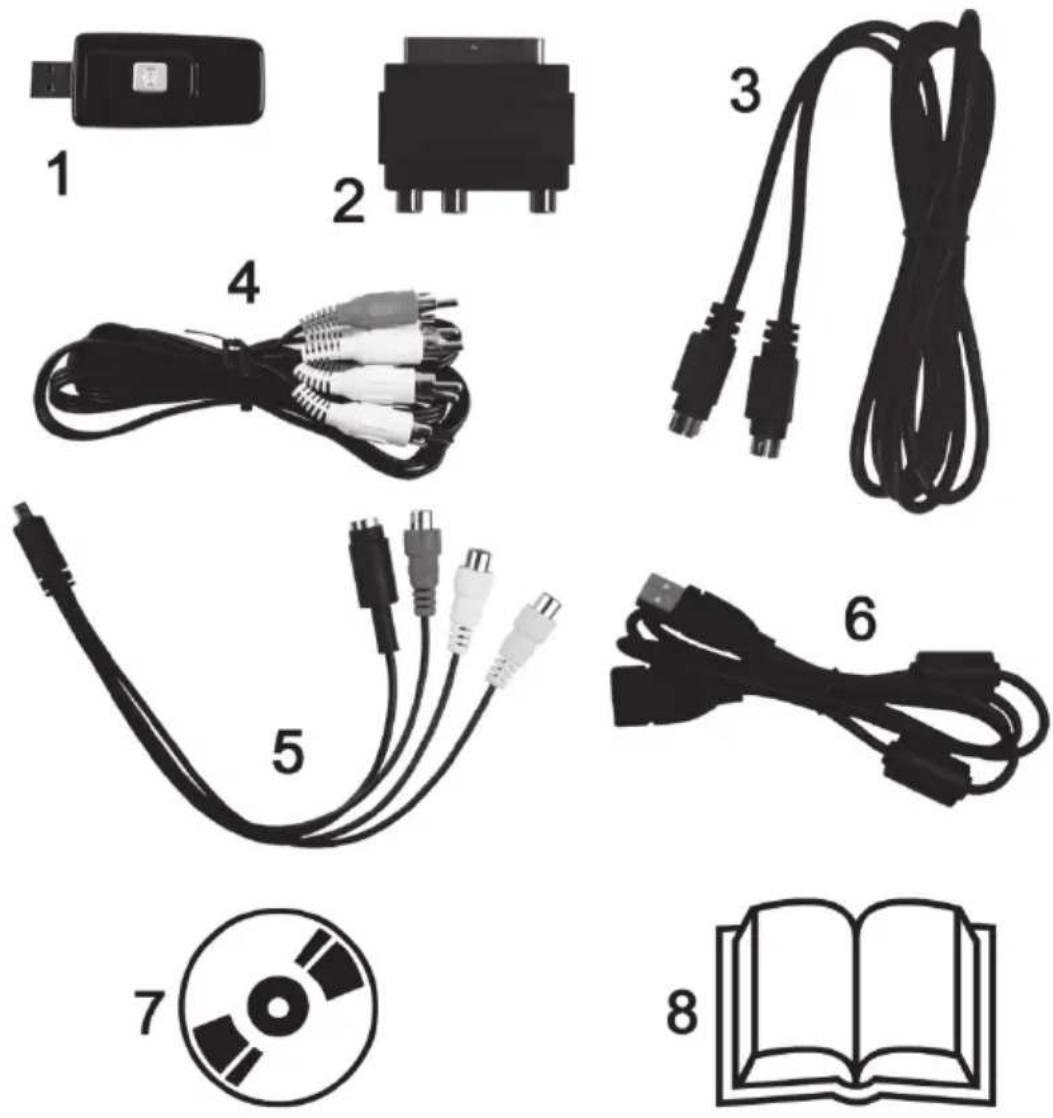
1 SilverCrest USB 2.0 Video Grabber
2 SCART adapter
3 S-Video cable
4 AV cable
5 Audio/video adapter
6 USB cable (extension cable)
7 Installation and application software (symbolic representation)
8 User manual (symbolic representation)
Technical data
| Video input RCA video jack (yellow) / S-Video jack (black) | |
| Audio input RCA audio jack (red/white) | |
| Video system PAL | |
| Video output format MPEG2 720x576 pixels | |
| Picture format JPG | |
| Port USB 2.0, USB 3.0 | |
| Supply voltage 5V | |
| Power consumption 300mA via USB | |
| Dimensions 73 x 30 x 12mm (L x W x H) | |
| Weight 14g | |
| Operating temperature 5°C to 35°C | |
| Storage temperature 0°C to 40°C | |
| Air humidity max. 85% rel. humidity | |
The technical data and design may be changed without notification.
Safety instructions
Before using this device for the first time, please read the following instructions carefully and take note of the safety warnings, even if you are familiar with the use of electronic devices. Please keep these instructions safe for future reference. If you sell the device or pass it on, always include these instructions. They are an integral part of the product.

DANGER! This symbol in conjunction with the "danger" note indicates an imminent dangerous situation which, if not prevented, could result in serious injury or even death.

WARNING! This symbol in conjunction with the "warning" note indicates important information for safe operation of the device and the safety of the user.

This symbol indicates other important information on the topic.

DANGER! Operational safety
- Please follow the usage instructions of your computer.
- Protect the device against moisture, vibrations, dust, heat and direct sunlight to avoid system failure.
- Never open the device housing. If you do so, the warranty will become void and may lead to permanent damage to the device.
- After it is transported, wait until the device has reached ambient temperature before using it for the first time. In the event of extreme temperature or humidity fluctuations, condensation can lead to a formation of moisture that can cause an electrical short circuit.
- Always handle the cables by the connector and do not pull on the cables themselves. Do not place any heavy objects on the cables and take care that the cables are not kinked, especially near the plug and connection sockets. When connecting the device, ensure that the cable is not too taut and the connector plug is not stressed. Never tie a knot in a cable and do not tie cables together. All cables should be positioned so that nobody can trip over them and they cannot cause an obstruction.
- If you notice any smoke, unusual noises or strange odours, remove the device immediately from the USB port. In such cases, the device should not be used until it has been inspected by authorised service personnel. Never inhale smoke from a potential device fire. If you have inhaled smoke, however, consult a doctor. The inhalation of smoke can be harmful.

DANGER! Children and persons with disabilities
Electrical devices do not belong in the hands of children. Persons with physical, mental or sensory disabilities should also only use electrical devices within the scope of their abilities. Never allow children or persons with disabilities to use electrical devices unsupervised, unless they have been instructed accordingly or are supervised by a person responsible for their safety. Children should always be supervised to ensure that they do not play with this device. Small parts can be fatal if swallowed. Always keep plastic packaging out of reach.

DANGER! It poses a suffocation risk!

WARNING! Electromagnetic compatibility
The guidelines for electromagnetic compatibility (EMC) must be adhered to when connecting the device. Ensure that there is a minimum distance of 1m from high frequency and magnetic sources of interference (e.g. TVs, loudspeakers, mobile phones, etc.) in order to prevent malfunctions and loss of data.

WARNING! Back up
Ensure that you back up your data to external storage media after every update. Damage claims for lost data or for consequential losses as a result of lost data are excluded.
Initial use
Installing the software

WARNING! Only connect the device when the setup wizard prompts you to do so. Important files can be overwritten and altered during installation of programs or drivers. You should back up the contents of your hard drive before installing the program so that you can still access your original files if there is a problem with the installation.
- Insert the CD ROM supplied into the drive and the installation menu will open automatically.
- Click on the desired national flag to select the relevant language.
- First, install the driver and then the software (PowerDirector) according to the instructions on the screen.

If the setup wizard does not start automatically when the CD ROM is inserted, then the autorun function of your CD drive is deactivated. Then proceed as follows:
- Open the File Explorer or Windows Explorer.
- Double-click on your CD drive with the left mouse button.
- Then start the autorun function by double-clicking with the left mouse button on the autorun application (Autorun.exe).

A description of the software can be found on the CD-ROM under the item "PowerDirector Help".
Connection overview
Connect the adapter (5) to the video grabber (1). Insert the adapter into the jack at the back of the video grabber (see diagram).
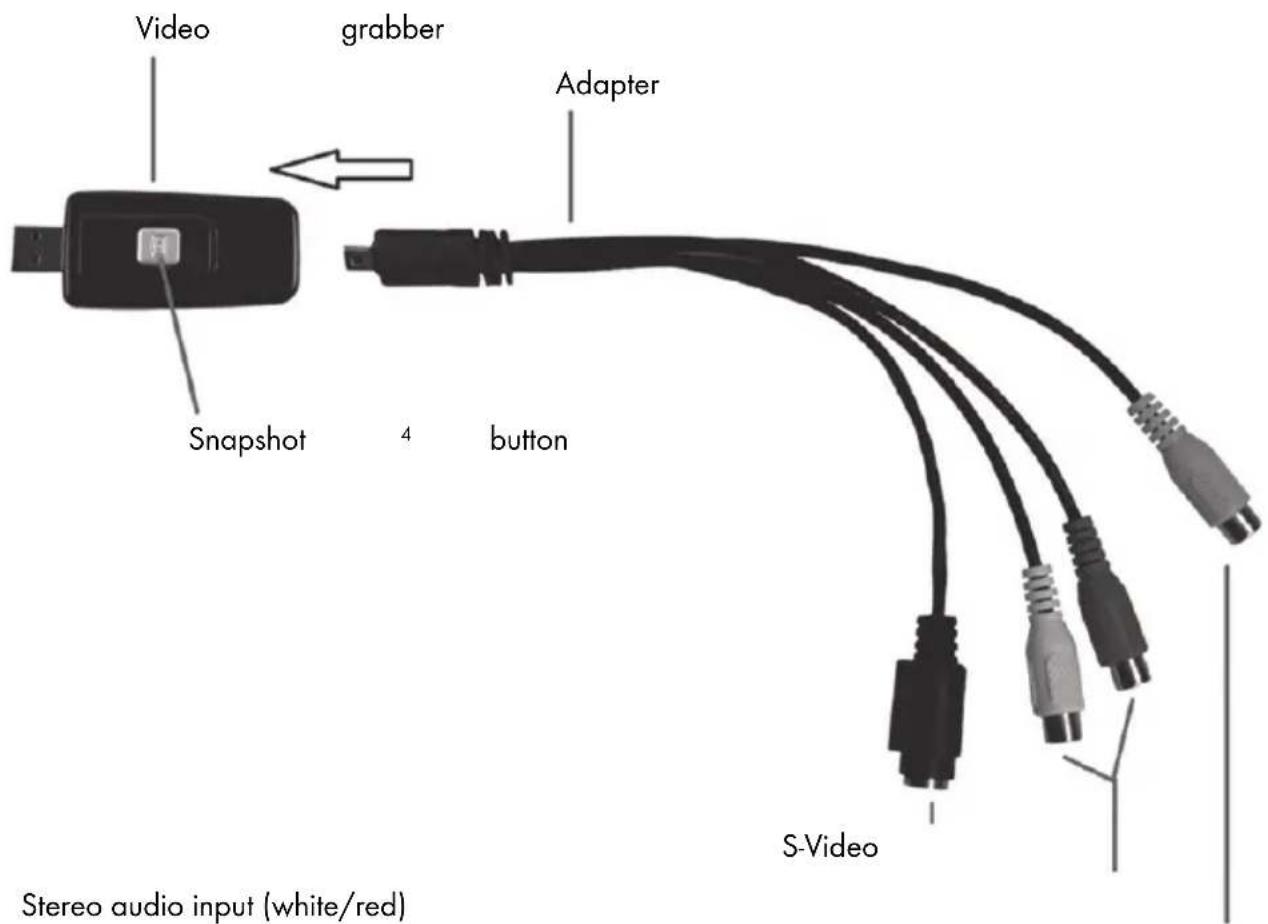
Stereo audio input (white/red)
Composite video input (yellow)
Connecting to your PC
In order to record with the video grabber, you must first install the software (POWERDIRECTOR). If you haven't already done so, go to the section entitled "Installing the software" and follow the instructions.
-
Connect the adapter (5) to the video grabber (1) as shown in the previous diagram.
-
Connect the video output of your source (e.g. camcorder) to the video grabber. The following connection types are available here:
Video / S-Video signal
- To transfer images, connect either the S-Video cable (3) (same connectors at both ends of the cable) or the yellow connector of the AV cable (4) (yellow, red and white connectors at both ends of the cable) with the respective jacks of the adapter and your desired source.
- Do not plug in both the S-Video cable and the yellow RCA cable at the same time.
Audio signal
- For audio transmission, connect the red and white connectors of the AV cable (4) (yellow, red and white connectors at both ends of the cable) with the respective jacks of the adapter and your desired source.
SCARTadapter
- If your source only has a SCART socket as a video or S-Video connection, use either the S-Video cable (3) (same connectors at both ends of the cable) or the yellow connector of the AV cable (4) (yellow, red and white connectors at both ends of the cable) with the SCART adapter and then connect this to your source in order to transfer images.
-
For audio transmission, also connect the red and white connectors of the AV cable (4) (yellow, red and white connectors at both ends of the cable) to the SCART adapter and your desired source.
-
Plug the video grabber's USB connector into a free USB 2.0 or USB 3.0 port, ensuring your PC is switched on. Use the enclosed extension cable (6) if necessary to extend the reach of the cable. If possible, ensure that the video grabber is connected directly to your PC (and not via a USB hub). Only use the device with a USB 2.0 or USB 3.0 connection.
- The operating system will automatically detect the video grabber. Follow the instructions on the screen.
- Use the enclosed software (PowerDirector) to record your source. The software provides you with detailed instructions in electronic form.

Select "Full Feature Editor" to make recordings.
Maintenance / cleaning
Warning! This device does not contain any parts that require servicing or cleaning. Never open the housing of the device to avoid hazards. Ensure that the components do not become dirty. Do not use any solvents, corrosive or gaseous cleaning agents. Clean the device with a damp cloth if it becomes dirty.
Storage when not in use
If you are not using the SilverCrest USB 2.0 Video Grabber for an extended period, store it and all accessories in a cool, dry place.
Environmental and disposal information

The crossed out wheelie bin symbol on this product indicates that the product is subject to European Directive 2012/19/EU. All old electrical and electronic devices must be separated from normal household waste and disposed of at designated state facilities.

The correct disposal of old devices in this manner will prevent environmental pollution and human health hazards. For further information about proper disposal, contact your local authorities, waste disposal office or the shop where you bought the device.
Dispose of the packaging in an environmentally compatible manner. Cardboard can be put out for municipal paper collections or brought to public collection points for recycling. Films and plastic used for packaging the device are collected by your local disposal services and disposed of in an environmentally compatible manner.
Conformity information

This device fully meets the basic requirements and other relevant regulations of the EMC Directive 2014/30/EU as well as the RoHS Directive 2011/65/EU. To obtain a complete EU Declaration of Conformity, send an e-mail to the following e-mail address: ce@targa.de
Troubleshooting
The video grabber is connected, but is not recognised by the operating system.
- Check all the connections.
- Are you using an operating system that is supported?
New USB devices have been recognised and drivers must be installed.
- If a USB device is connected to a new port, it is given a new ID. This usually requires a driver installation, even if the driver was already installed.
The video recorded via the S-Video cable is in black and white.
- The playback source must be switched to S-Video.
Error message indicating that the video is protected.
- The copy protection system has been activated. This material cannot be copied.
Please consult the PowerDirector Help section on the enclosed software CD for information on using the software.
Warranty and servicing advice
Warranty of TARGA GmbH
Dear Customer,
This device is sold with three years warranty from the date of purchase. In the event of product defects, you have legal rights towards the seller. These statutory rights are not restricted by our warranty as described below.
Warranty conditions
The warranty period commences upon the date of purchase. Please keep the original receipt in a safe place as it is required as proof of purchase. If any material or manufacturing faults occur within three years of purchase of this product, we will repair or replace the product free of charge as we deem appropriate.
Warranty period and legal warranty rights
The warranty period is not extended in the event of a warranty claim. This also applies to replaced and repaired parts. Any damage or defects discovered upon purchase must be reported immediately when the product has been unpacked. Any repairs required after the warranty period will be subject to charge.
Scope of warranty
The device was carefully manufactured in compliance with stringent quality guidelines and subjected to thorough testing before it left the works. The warranty applies to material and manufacturing faults. This warranty does not cover product components which are subject to normal wear and which can therefore be regarded as wearing parts, or damage to fragile components such as switches, rechargeable batteries or components made of glass. This warranty is void if the product is damaged, incorrectly used or serviced. To ensure correct use of the product, always comply fully with all instructions contained in the user manual. The warnings and recommendations in the user manual regarding correct and incorrect use and handling of the product must always be observed and complied with. The product is solely designed for private use and is not suitable for commercial
applications. The warranty is rendered void in the event of incorrect handling and misuse, if it is subjected to force, and also if any person other than our authorised service technicians interfere with the device. No new warranty period commences if the product is repaired or replaced.
Submitting warranty claims
To ensure speedy handling of your complaint, please note the following:
Before using your product for the first time, please read the enclosed documentation carefully. Should any problems arise which cannot be solved in this way, please call our hotline.
- Always have your receipt, the product article number as well as the serial number (if available) to hand as proof of purchase.
- If it is not possible to solve the problem on the phone, our hotline support staff will initiate further servicing procedures depending on the fault.

Service

Phone: 020-70490403
E-Mail:
service.GB@targa-online.com

Phone: 01-4370121
E-Mail:
service.IE@targa-online.com

Phone: 027781103
E-Mail:
service.MT@targa-online.com

Phone: 02-2009025
E-Mail:
service.CY@targa-online.com
IAN:274142

Manufacturer
Please note that the following address is not a service address. First contact the service point stated above.
TARGA
GmbH
Coesterweg 45
59494 SOEST
GERMANY