W3202MJ - Home Theater System DELL - Free user manual and instructions
Find the device manual for free W3202MJ DELL in PDF.


| Brand | Dell |
| Model | W3202MJ |
| Product type | Home theater system (LCD TV) |
| Screen size | 32 inches (81.3 cm) |
| Native resolution | 1366 x 768 (WXGA) |
| Aspect ratio | 16:9 |
| Brightness | 450 cd/m² (nits) |
| Contrast ratio | 1000:1 (typical) |
| Viewing angle (horizontal/vertical) | ±89° / ±89° |
| Dimensions (with stand) | 790 x 568 x 208.7 mm |
| Weight (with stand) | 21 kg |
| Power supply | Mains via included power cord |
| Built-in speakers | 2 x 15 W (30 W total) |
| Video inputs | Composite, S-Video, Component (YPbPr), HDMI, VGA, Coaxial TV (digital/analog) |
| Audio inputs | 2 pairs RCA (L/R) side and bottom |
| Audio outputs | 1 pair RCA (L/R) |
| Main features | TV (analog/digital), PIP/POP/PBP, parental control, subtitles/captions, Midnight mode, preset equalizer |
| Maintenance and cleaning | Unplug before cleaning; use a soft damp cloth (water); do not use chemicals or compressed air |
| Safety | Do not disassemble; service by authorized technician; security screw at bottom of base |
| Spare parts and repairability | Contact Dell for any parts or repairs; no user-serviceable parts provided |
| General information | Manual available for download (PDF); user manual provided |
Frequently Asked Questions - W3202MJ DELL
User questions about W3202MJ DELL
0 question about this device. Answer the ones you know or ask your own.
Ask a new question about this device
Download the instructions for your Home Theater System in PDF format for free! Find your manual W3202MJ - DELL and take your electronic device back in hand. On this page are published all the documents necessary for the use of your device. W3202MJ by DELL.
USER MANUAL W3202MJ DELL
Model W3202MH and W3706MH
Notes, Notices, and Cautions

NOTE: A NOTE indicates important information that helps you make better use of your TV.
NOTICE: A NOTICE indicates either potential damage to hardware or loss of data and tells you how to avoid the problem.

CAUTION: A CAUTION indicates a potential for property damage, personal injury, or death.
Information in this document is subject to change without notice.
2005 Dell Inc. All rights reserved.
Reproduction in any manner whatsoever without the written permission of Dell Inc. is strictly forbidden.
Trademarks used in this text: Dell, the DELL logo, Dimension, OptiPlex, Inspiron, Latitude, Dell Precision, DellNet, TrueMobile, PowerApp, PowerEdge, PowerConnect, and PowerVault are trademarks of Dell, Inc.; EMC is a registered trademark of EMC Corporation.
Other trademarks and trade names may be used in this document to refer to either the entities claiming the marks and names or their products. Dell Inc. disclaims any proprietary interest in trademarks and trade names other than its own.
Contents
1 About Your TV
Front View. 5
Left View. 6
Bottom View. 7
Package Contents 8
2 Setting Up Your TV
Proper Location for Your TV 11
Connecting Your TV 12
3 Using Your Remote Control
Installing Batteries 19
Using Your Remote Control 20
Using Your TV With a Universal or Learning Remote Control 22
4 Using the TV Menu
Using Your Remote Control With the TV Menu 23
Selecting Your TV Menu Language 24
Input Select 24
Picture Settings 25
Audio Settings 26
PIP/PBP/POP 27
Size. 28
Parental Control. 29
Setup 30
5 Troubleshooting Your TV
Troubleshooting Tips 31
General Problems 32
TV Menu Messages 35
Remote Control Problems 35
Using the Self-Test Feature when Connected to a Computer. 36
Problems When Using the TV as a Monitor 36
6 Security Features
7 Specifications for Your TV
Contacting Dell 45
Index. 63
About Your TV
Front View
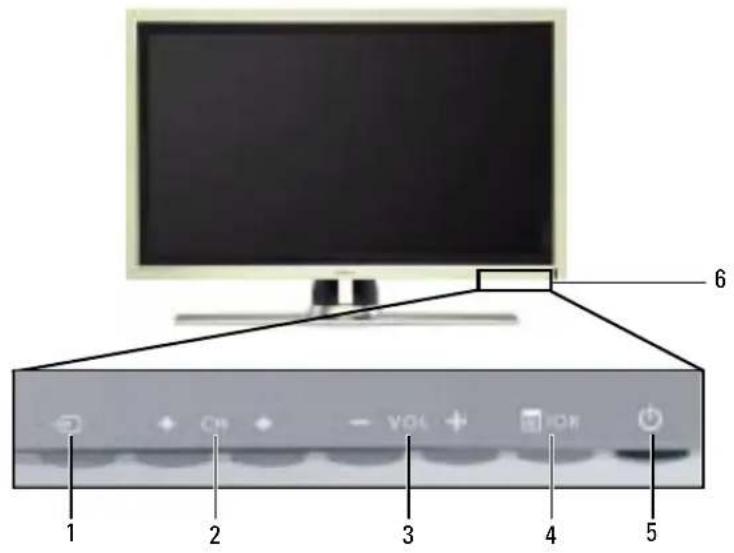
1 InputSourcec button Push to display the Input Select menu
2 CH Channel up/down button
Push to select the previous/next channel or navigate through the TV Menu
3 -vol+Volumeup/downbutton
Push to increase/decrease the volume or to select an TV Menu option
4 Menu OK button Push to display the TV Menu or to confirm your selection
5

Power button and light (LED)
Push to turn the TV on and off
The power light is blue when the TV is on and amber when it is in power saving mode
6
IR receiver Senses the signal from the remote control
Left View
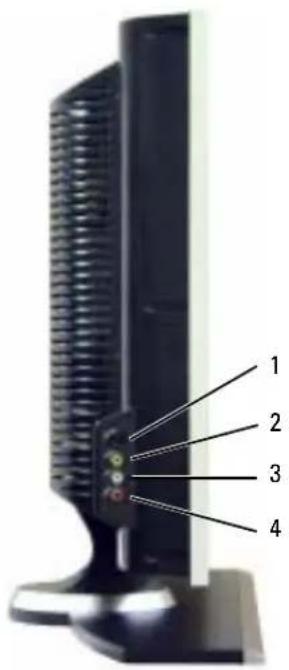
1 S-Video connector (AV Side) Connect devices such as a video game system, a digital camera, or a DVD player
2 Composite video connector Connect devices such as a VCR or DVD player (AV Side)
3 Audio connector (Left) Use this connector if you have connected a device to the composite video connector or the S-Video connector
4 Audio connector (Right) Usc this connector if you have connected a device to the composite video connector or the S-Video connector
Bottom View
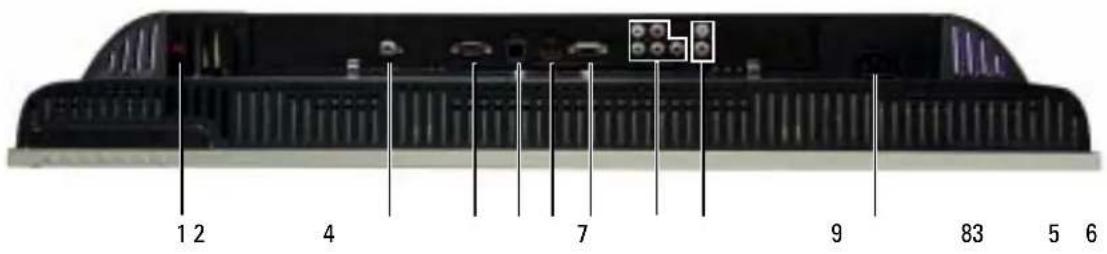

1 TV Speaker out connectors Connect speakers
2 TV IN connector (Analog/Digital)
Connect an antenna or a cable TV box using the coaxial cable (It is a Digital/Analog combo tuner)
3 RS232 connector For factory usc only
4 VOD connector Connect to the Ethernet cable for Video On Demand(VOD)
5 HDMI IN connector Connect devices such as a DVD player or set-top box
6 VGA connector Connect your computer using a VGA cable
*The component audio connectors(AV1 IN - L/R) is shared by Component and VGA
7 Component audio and video connectors (AVI IN)
Connect devices such as a DVD player, set-top box, or cable TV box *This Audio L/R pair is shared by Component and VGA
8 Audio-out connectors (L/R)
Connect a device such as a VCR if you have connected an antenna or cable TV through the TV IN connector
9 Power connector Connect your power cord
Package Contents

NOTE: If you need additional cables, contact Dell.
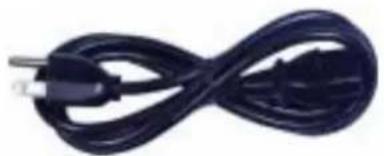
Power cord
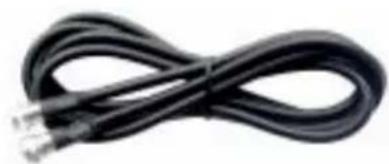
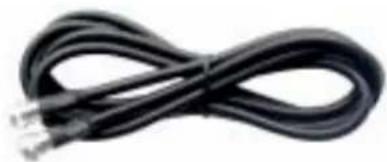
Antenna (coaxial) cable
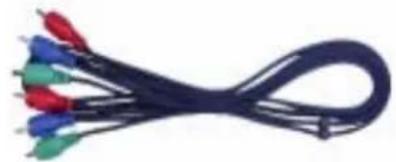
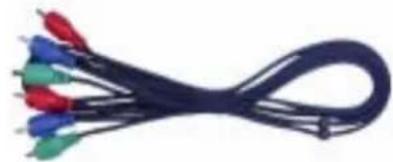
Component cable
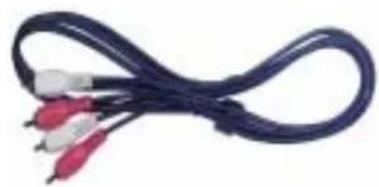
RCA Audio (L/R) cable
Documentation
Caring for Your TV

CAUTION: Only a licensed technician should service the TV. Do not disassemble the TV.
CAUTION: Before cleaning the TV, unplug it from the electrical outlet.
To clean the surface of the panel, lightly dampen a soft, clean, lint-free cloth with water.
- To clean the TV cabinet, use a cloth lightly dampened with a mild detergent.
- Do not use chemicals such as benzene, thinner, ammonia, or any type of abrasive cleaner.
- Do not use compressed air to clean the TV.
Setting Up Your TV

CAUTION: Before you begin any of the setup procedures described in this section, follow the basic safety instructions located in the Product Information Guide.
Proper Location for Your TV
Consider the following environmental factors when you are deciding where to put your TV:
- Ensurc you allow adequate ventilation.
- Do not store or use the TV in locations that are exposed to high heat, high humidity, dusty environment, direct sunlight, or extreme cold.
- Avoid moving the TV between locations with extreme temperature differences. For more information, see Specifications on page 41.
- Do not subject the TV to severe vibration or high impact conditions. Do not place the TV inside a car trunk.
- Do not place the TV in a location where water or other liquids could spill on or into the TV.
Connecting Your TV
The tables below provide a description of the connectors on your TV to help you decide which connectors to use for your various video devices.

NOTE: Before you connect your TV, ensure you have all the proper cables. Some cables may come with the device you are connecting. For a list of cables that came with your TV, see Package Contents on page 8. To order additional cables, contact Dell.
Connecting Your Cable TV Box or Antenna
Quality Cable and Connector When to Use
Good Coaxial cable / TV IN Coaxial (RF) cable carries the analog/digital
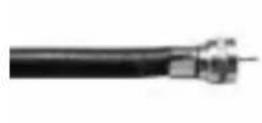
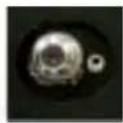
video and audio signal from the antenna or cable connector to your TV. The coaxial connector is labeled TV IN (Analog/Digital). To locate the TV IN connector, see "Bottom View" on page 7.
Connecting Your Video Devices
Quality Cable and Connector When to Use
Good Composite cable / Video, Left, Right The composite connector carries the video signal
through a single pin. If you are using a composite video connector, you also need to connect composite audio cables. To locate the composite connector, see "Left View" on page 6.
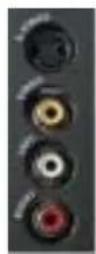
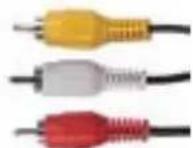
Quality Cable and Connector When to Use
Better S-Video cable / S-Video, Left, Right The S-Video connector splits the video signal into
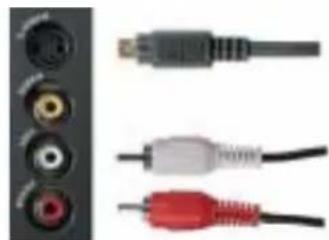
two signals, black-and-white and color. If you are using the S-Video connector, you also need to connect the audio cables. To locate the S-Video connector, see "Left View" on page 6.
Best Component (YPbPr) cable / AV1 IN The component connectors split the video signal
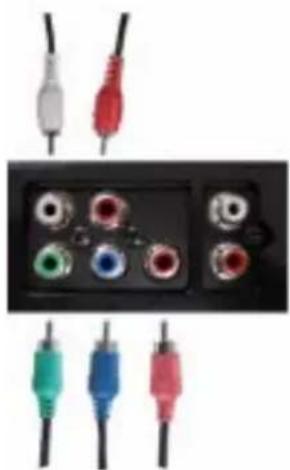
into threec signals, two color and one black-and-white. If you are using the component connectors, you also need to connect the audio cables. To locate the component connectors, see "Bottom View" on page 7.
Excellent HDMI cable / HDMI IN HDMI (High Definition Multimedia Interface)

assures that the best video signal is always sent from source (HDTV signal, DVD player) to the TV. This is achieved by allowing uncompressed video and multi-channel audio data to be sent to the display device through a single cable. To locate the connector, see "Bottom View" on page 7.
Using the TV IN Connector (Coaxial)
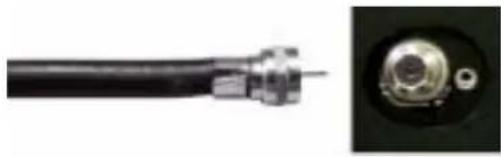
1 Turn off the TV and unplug the power cord.
2 Connect the coaxial cable to the TV IN connector on the TV.
3 Plug in the power cord for the TV and turn on the TV.
4 Enter the TV Menu and select TV or Digital TV. See "Input Select" on page 24 for more information.
Using the Composite Connector
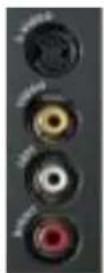
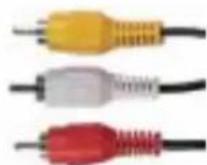
1 Turn off the TV and unplug the power cord.
2 Connect your device to the TV using the audio and video cable.
3 Plug in the power cords for the TV and devices and turn them on.
4 Enter the TV Menu select AV SIDE (Composite). See "Input Select" on page 24 for more information.
Using the S-Video Connector
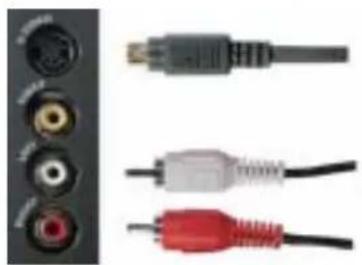
1 Turn off the TV and unplug the power cord.
2 Connect your device using the S-Video and audio cables.
3 Plug in the power cords for the TV and devices and turn them on.
4 Enter the TV Menu and select AV SIDE(S-Video). See "Input Select" on page 24 for more information.
Using the Component Connectors
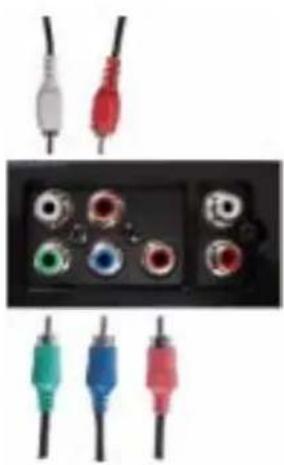
1 Turn off the TV and unplug the power cord.
2 Connect your device using the component video and audio cables.
3 Plug in the power cords for the TV and devices and turn them on.
4 Enter the TV Menu and select the AV1 (Component). See "Input Select" on page 24 for more information
Using the HDMI Connector
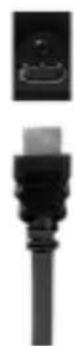
1 Turn off the TV and unplug the power cord.
2 Connect your device using the HDMI connector.
3 Plug in the power cords for the TV and devices and turn them on.
4 Enter the TV Menu and select the HDMI. See "Input Select" on page 24 for more information.
Using the VGA Connector
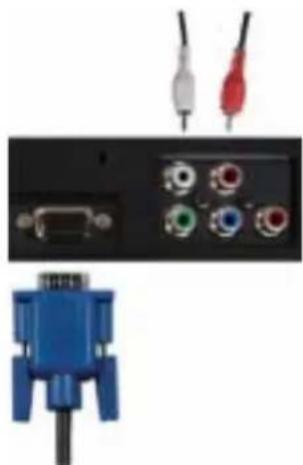
1 Turn off the TV and unplug the power cord.
2 Connect the blue VGA cable to your TV and to your computer.
3 Connect the RCA stereo audio cable (stereo jack to RCA jack cable) to the AV1 IN audio connectors(L/R) on the TV and to your computer.
4 Plug in the power cords for the TV display and devices and turn them on.
5 Enter the TV Menu and select the VGA. See "Input Select" on page 24 for more information.
Using the VOD Connector
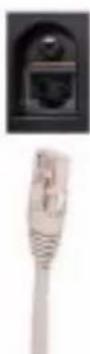
1 Turn off the TV and unplug the power cord.
2 Connect the Ethernet cable to the VOD connector on the TV.
3 Plug in the power cords for the TV and turn on the TV.
Using Your Remote Control

NOTE: The remote control for your Dell™ TV is an optional. If you would like to purchase a remote control, contact Dell.
Installing Batteries
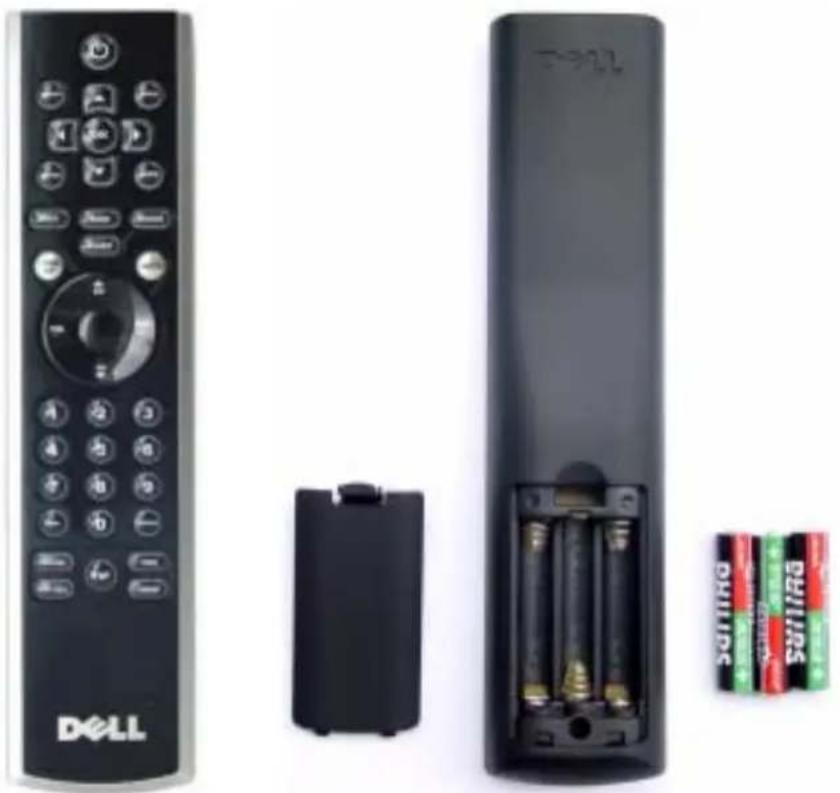
Before you can use your remote control, install three-AAA batteries.
1 Slide open the battery cover.
2 Install the batteries. Make sure that you match the + and - on the batteries with the + and - symbols in the battery compartment.
3 Replace the battery cover.
Using Your Remote Control
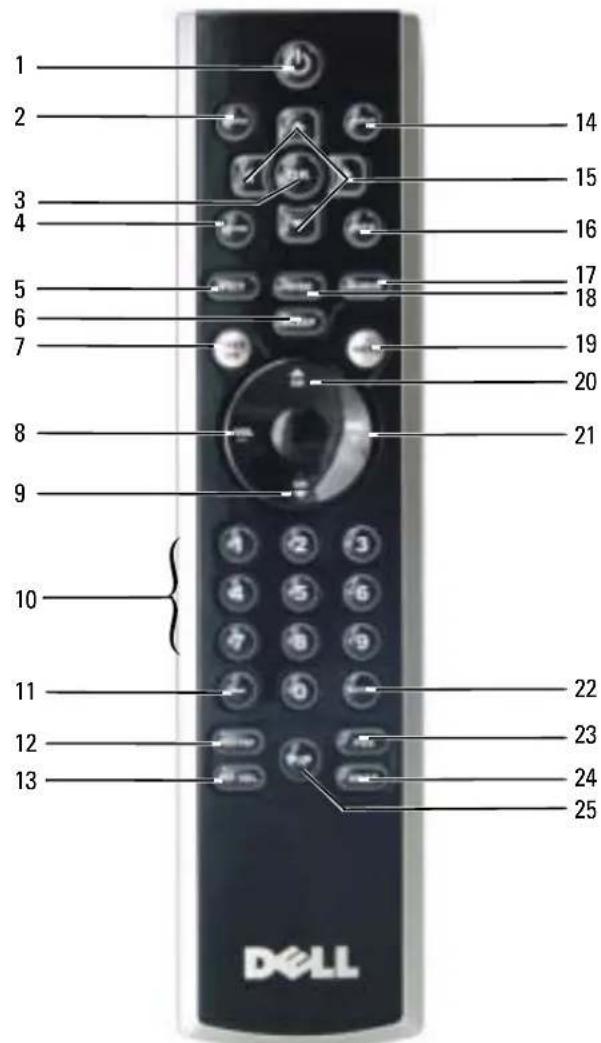
| 1 Power Turns the TV on and off | |
| 2 MENU Enters and exits the TV Main Menu | |
| 3 OK Press to confirm your selection | |
| 4 GUIDE Displays an electronic program guide when using Digital TV NOTE: Content may vary depending on the broadcaster. | |
| 5PICT Cycles through the preset options for the Picture menu | |
| 6 SLEEP Turns on the sleep timer | |
| 7 PREV CH Returns you to the previously viewed channel | |
| 8 Vol - Decrcases the volume | |
| 9 CH down Push to view the previous channel | |
| 10 Number buttons Press to select a channel | |
| 11-(dash) Press to select the sub-channel of Digital TV | |
| 12POP/PBP Enters and exits POP or PBP mode | |
| 13PIP SEL Toggles between windows when you use Picture-in-Picture (PIP), Picture-Outside-Picture (POP), or Picture-By-Picture (PBP) | |
| 14INPUT Enters the Input Select menu | |
| 15Arrow buttons In the TV Menu, use to navigate through the menus | |
| 16INFO Displays information about your TV and channel you are watching | |
| 17AUDIO Cycles through the presct Audio options | |
| 18WIDE Cycles through the size (aspect ratio) options from the Picture Settings menu | |
| 19MUTE Press to turn the sound on and off | |
| 20CII up Push to view the next channel | |
| 21Vol + Increases the volume | |
| 22ENTER Press to confirm the channel frequency entry | |
| 23POS Press to change the position of the PIP, POP, or PBP window | |
| 24SWAP Swaps images when using PIP, POP, or PBP | |
| 25PIP Enters and exits PIP mode |
Using Your TV With a Universal or Learning Remote Control
Preprogrammed universal remote controls can be programmed to control the following functions on your Dell TV:
P ow cr
- Channel Up (+)
- Channel Down (-)
Volume Up (+)
V O L u m c D o w n ( - )
Mute
- Input Select
NOTE: Future preprogrammed universal remote controls may be able to control more functions.
You can program universal remote controls to work with your Dell TV in the following ways:
- If the remote control manual lists codes by manufacturer, use the Philips codes.
- If the remote control has a search function, this function may be used to find the correct code.
- If the remote control has a learning function, you can program specific buttons on it from the Dell remote control, in addition to those buttons listed above.
NOTE: For additional information, see the documentation that came with your universal or learning remote control.
Using the TV Menu
Your TV has the TV Menu that allows you to select the proper input source, make adjustments to the image and audio settings, select to view Picture-In-Picture, Picture-Outside-Picture, and Picture-By-Picture, and set parental controls.
Using Your Remote Control With the TV Menu

NOTE: You can access and make selections to the TV Menu using the volume and channel buttons on the front panel of the TV or you can use the remote control. Except where noted, this section describes how to use the TV Menu with the buttons on the front panel of the TV.
1 To enter the TV Menu, press the Menu button.
Eight icons appear along the bottom of the screen.
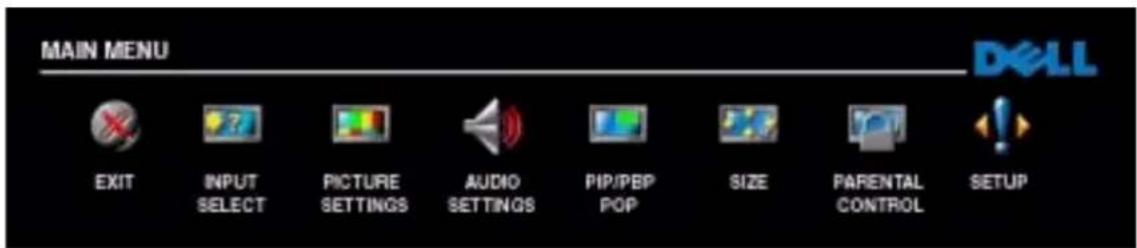
2 Use the volume up and down buttons to move between the icons. The icon appears highlighted and a new menu appears as you move through the menu.
3 To select an option, push the OK button when the icon is highlighted.
4 Use the channel up and down buttons to move through the various settings.

NOTE: A red arrow appears next to the setting as you navigate through the options. A check mark appears next to the option that you have selected.
5 Use the volume up and down buttons or the OK button to adjust or select settings.

NOTE: You can select Exit or press the Menu button at any time to return to the main menu.
6 After you have made your selections, push the Menu button to return to the main menu.
7 To exit the TV Menu, select the Exit icon and press the OK button.
Selecting Your TV Menu Language
1 Press Menu to enter the TV Menu.
2 Select Setup.
3 In the Setup menu, select Language and scroll to select the language that you want the TV Menu to appear in.
Input Select
The Input Select menu allows you to select the proper source based on how you have your TV and video equipment connected. Press Input Source button on the front panel to go directly to the Input Select menu. You can also press Menu and select Input Select from the main menu.
If you are using the Digital TV input source, you can preset the viewable channels. Go to the Main Menu, select Setup, select Channel Setup, and then select Channel Search. If you are using the TV IN connector, you need to preset the viewable channels for the Digital TV input source.
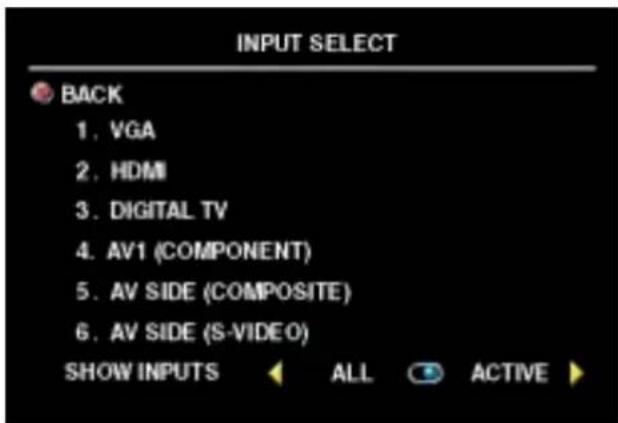
VGA - Select when you have your computer connected to the VGA connector. See "Bottom View" on page 7 for the location of the VGA connector.
HDMI - Select when you have connected a device, such as a DVD player using the HDMI connector. See "Bottom View" on page 7 for the location of the HDMI connector.
DIGITAL TV Select when you have your antenna connected to the TV IN connector. See "Bottom View" on page 7 for
the location of the TV IN connector.
AV1 (COMPONENT) — Select when you have a video device, such as a DVD player, set-top box, or cable TV box connected to the component audio and video connectors on the bottom of the TV. See "Bottom View" on page 7 for the location of the component audio and video connectors (AV1 IN).
AV SIDE (COMPOSITE) — Select when you have a video device, such as a video game system, connected to the composite video and audio connectors on the left side of the TV. See "Left View" on page 6 for the location of the composite video and audio connectors (Video, Left, Right).
AV SIDE (S-VIDEO) — Select when you have a video device, such as a VCR, connected to the S-Video and audio connectors on the left side of the TV. See 'Left View' on page 6 for the location of the S-Video and audio connectors (S-Video, Left, Right).
SHOW INPUTS — Show Inputs allows you to select Active and All. Active searches for which connectors are being used. The available input sources appear in white and input sources that are not available appear in grey. All shows all the input sources and allows you to select all the input sources even if you do not have a device connected.

NOTE: In TV Menu Settings, located in the Setup menu, you can set the Input Select to display the device that you have attached. For example, AV1 (COMPONENT) would say DVD when you view the Input Select menu.
Picture Settings
The Picture Settings allow you to adjust the appearance of the image including color and brightness.
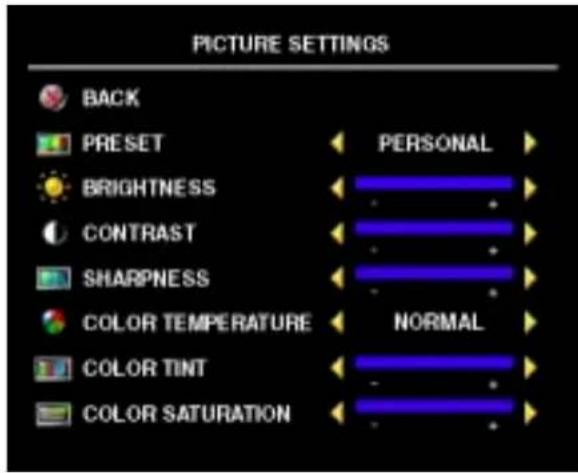
If you select one of the following preset image settings the individual settings are automatically updated.
Movies
Sports
- Weak Signal
Multimedia
If you select Personal, you can adjust the individual settings, such as Brightness and Color.
The Color Temperature presets are:
Natural: the native panel temperature
Normal:6500K
-Blue: 9300K
Red:5700K
Audio Settings
The Audio Settings allow you to set the audio to best fit the type of show you are watching.
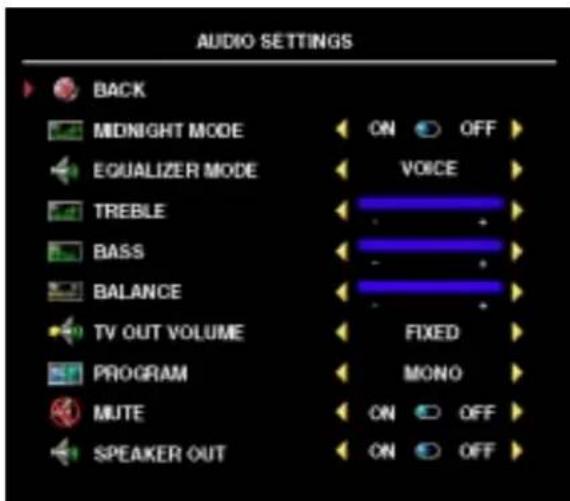
Midnight Mode - Evens out the large volume variations between voice and action scenes.
If you select one of the following prcsct Equalizer Mode settings, the individual audio levels are automatically updated:
Music
Theater
Voice
If you select Personal, you can adjust the individual audio levels, such as Bass and Treble.
TV Out Volume Select Fixed if you want to adjust the volume using the remote or volume control on an attached audio receiver. Select
Variable if you want to adjust the volume using the TV remote or front panel buttons. Using Variable adjusts the TV volume out not the volume on an attached audio receiver.
Usc Program to select Stereo, Mono, or SAP (Second Audio Program).
Use Mute to turn the TV sound on or off and use Speaker Out to turn on or off sound from the speakers.
PIP/PBP/POP
You can view two active sources simultaneously using Picture-In-Picture (PIP), Picture-Outside-Picture (POP), or Picture-By-Picture (PBP).
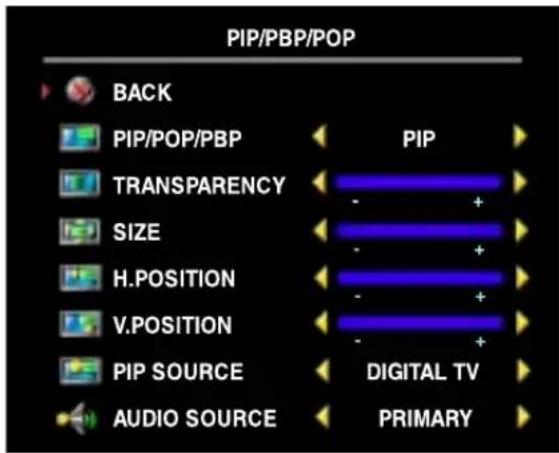
The remote control offers the following PIP/PBP/POP options:
- U s PIP button or the POP/ PBP button on the remote control to turn on and off PIP, POP, and PBP.
I y oPIRPOP,or PRP mode use the SWAP button on the remote control to switch between the two windows.
U s POS button on the remote to change which corner of the screen the PIP window appears.
In the TV Menu, you can adjust the Transparency, the Size, and H (horizontal) and V (vertical) position of the PIP windows. When you are selecting the horizontal orientation, - moves the window left and + moves the window to the right. When you are adjusting the vertical orientation, 0 is at the top of the screen and 100 is at the bottom of the screen.
PIP/PBP/POP Compatibility
When using PIP/PBP/POP you can select any of the input sources that appear in the PIP/PBP/POP windows.
| Primary Source | ||||||
| Digital TV | AV1 AV SIDE (Composite) | AV SIDE (S-Video) | HDMI VGA | |||
| Digital TV | No No | No No Yes | Yes | |||
| AV1 (Component) | No No | No No Yes | Yes | |||
| AV SIDE (Composite) | No No | No No Yes | Yes | |||
| AV SIDE (S-Video) | No | No | No | No | Yes | Yes |
| HDMI | Yes | Yes | Yes | Yes | No | Yes |
| VGA | Yes | Yes | Yes | Yes | Yes | No |
Size
Size allows you to adjust the appearance of the image.
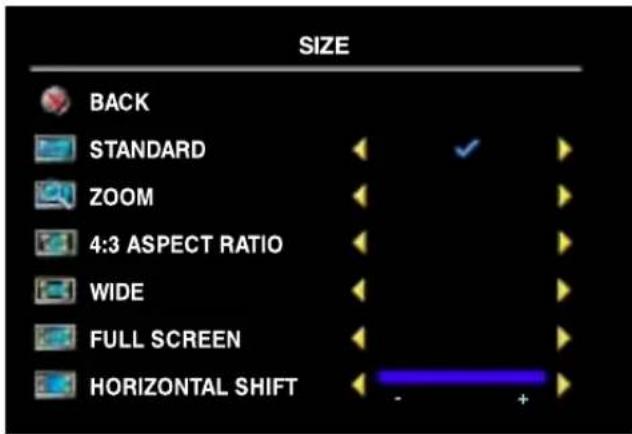
Use the following settings to adjust the aspect ratio:
Standard Best selection for viewing digital HDTV, 16:9 or 22:9 DVD movies.
Zoom - Bcast selection for viewing TV, VCR or 4:3 DVD movic.
4:3 Aspect Ratio — Best selection for viewing TV, VCR or 4:3 DVD movie.
Wide — Best selection for viewing digital HDTV, 16:9 and 22:9 DVD movies.
Full Screen — Best selection for viewing digital HDTV or 16:9 DVD movies.
Horizontal Shift—Adjust the horizontal placement of the image.

NOTE: Most DVDs have information about the supported aspect ratio on the case.
Parental Control
Parental Control allows you to block certain channels or programs so children cannot view programs that are not age appropriate.
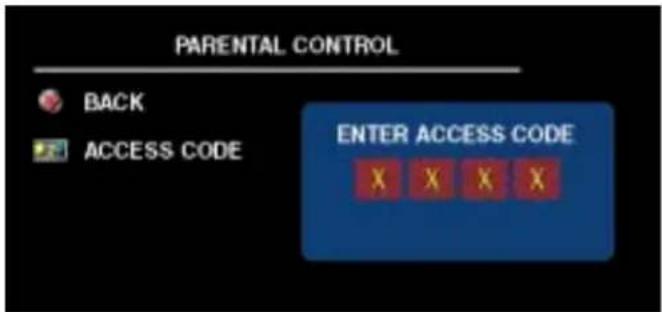
To enter the Parental Control menu, you need an access code. The first time you enter, use access code 3355. "Setting an Access Code" on page 29 for information on creating a new access code.
You can set the following options to block content:
- Block Control — Turns on or off all your parental control settings
- Channel Lock — Blocks selected channels
Movie Rating — Blocks movies based on their rating (G, PG, PG-13, R, NC-17, X, and Unrated)
TV Rating — Blocks TV shows based on their rating (TV-Y, Y7, G, PG, 14, MA, and No Rating)
NOTE: You can use Clear All to unblock the channels and programs that you have set.
Setting an Access Code
After you enter the Parental Control menu for the first time, you can set your own four-digit access code. If for any reason you lose or forget your access code, you can use the default code.
1 In the Parental Control menu, select Change Code.
2 Using the number pad on the remote control, enter a new access code.
3 Select Exit
Setup
Setup allows you to adjust the appearance of the TV Menu, preset viewable cable channels, change the language of the TV Menu (see "Selecting Your TV Menu Language" on page 24), and to restore factory settings.
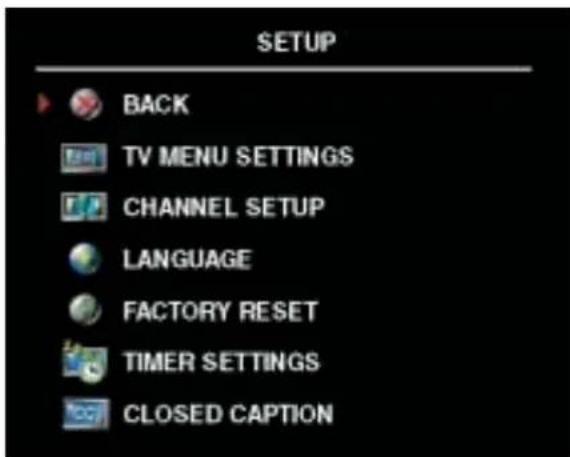
In the TV Menu Settings menu, use TV Menu Hold Time to increase or decrease the amount of time the TV Menu appears. The maximum amount of time is 60 seconds.
You can select TV Button lock to lock the buttons on the bottom panel. When this option is enabled, only the power button functions. Hold the volume up and the channel up buttons together for 10 seconds to unlock the buttons.
Channel Setup allows you adjust the settings for individual channels and preset the viewable channels. Select Antenna/Cable to select the
antenna or cable connected to your TV.
If you are using the Digital TV input source, you can preset the viewable channels. Select Channel Search to search the viewable channels. While searching the channels, press the Menu or OK button on the remote control to stop the searching. Select Channel Edit to edit the channels. If the signal is weak or distorted, select Fine Tuning to fine-tune the channel manually.
If you are using the TV IN connector, you need to preset the viewable channels for the Digital TV input source.
Timer Settings allows you to set the time which the TV turns on and off automatically.
Select Closed Caption to turn on and off closed captioning and set several other CC options.
Troubleshooting Your TV

CAUTION: If at any time you see smoke or sparks coming from your TV, contact Dell. Do not try to perform any troubleshooting steps.
Troubleshooting Tips

NOTE: Some problems may be related to your device. See the documentation for any devices connected to your TV.
Most problems with your TV may be caused by not having the correct input selection. Each connector on the TV (left and bottom) is associated with an input selection, which are labeled AV1 and AV SIDE in the Input Select menu.
AVI (Component) — Component connector on the bottom of the TV
AVSIDE (Composite) — Composite connector on the left of the TV
AVSIDE (S-Video) S-Video connector on the left of the TV
You can also select the following input:
DIGITAL TV-TV IN connector on the bottom of the TV
VGA—VGA connector on the bottom of the TV
HDMI-HIDMI connector on the bottom of the TV
General Problems
Problem Possible Solution
| Poor picture quality while watching TV and using a device such as a DVD player or a VCR | 1 Check the aspect ratio settings in the TV Menu. Press the Menu button and select Size. For more information on using the TV Menu, see "Using the TV Menu" on page 23. 2 Connect the device using a different connector. For example, if you are experiencing the problem using a composite connector, try using the component connector. NOTE: To connect to a different connector, you need the appropriate cables for that connector. See your device documentation for a list of supported connections. After you connect the device, change the input source in the TV Menu. See "Input Select" on page 24 for more information. 3 Rescct the original factory defaults. Press Menu button, select Setup, and then select Factory Reset. 4 Adjust the color temperature. Press Menu button, select Picture Settings, and then select Color Temperature. NOTE: Some set top boxes offer aspect ratio. See your device documentation for more information. |
| Poor picture quality when using a device connected to the TV IN (coaxial) connector | 1 Ensure TV is selected as the input source in the Input Select menu. See "Input Select" on page 24 for more information. 2 Press Menu button, select Setup, and then select Channel Setup. This rescets the channels on your TV. 3 Check the aspect ratio settings in the TV Menu. Press the Menu button and select Size. For more information on using the TV Menu, see "Using the TV Menu" on page 23. 4 Rescct the original factory defaults. Press Menu button, select Setup, and then select Factory Reset. 5 Adjust the color temperature. Press Menu button, select Picture Settings, and then select Color Temperature. 6 The problem may be with your device, contact your service provider. |
Problem Possible Solution
Nothing appears on my TV 1
Ensure the TV is turned on.
2 Verify that all the cables are properly connected to the TV, including the power cable.
3 Check to see if there is a blue or amber light on the lower, right-hand corner of the TV. A blue light indicates the TV is on. An amber light, means the TV is in power save mode.
4 Ensure the proper source is selected in the Input Select menu. See "Input Select" on page 24 for more information.
5 Reconnect any devices that are currently connected to the TV. If you are using multiple devices, connect and test one device at a time.
6 Connect another device that you know is working properly.
7 Reset the original factory defaults. Press Menu button, select Setup, and then select Factory Reset.
No sound 1
Ensure mute is not turned on. Pressing the Mute button on the remote control turns the mute function on and off.
2 If only certain TV channels do not have sound, then you need to correct the Input Select menu in the TV Menu (see "Input Select" on page 24).
3 Verify that the audio cables are firmly connected to both the audio input connectors on your TV and audio output connectors on your devices. Ensure that the cable colors match the connectors colors.
4 Also, ensure that the audio cables are connected to the same row as the video cables. See "About Your TV" on page 5 for the location of the connectors.
5 Connect the device using a different connector. For example, if you are experiencing the problem using a composite connector, try using the component connector.
NOTE: To connect to a different connector, you need the appropriate cables for that connector. See your device documentation for a list of supported connections.
After you connect the device, change the input source in the TV Menu. See "Input Select" on page 24 for more information.
6 Test the device on a different TV.
7 If you are using PIP/PBP/POP, ensure the proper Audio Source is selected. Press Menubutton, and select PIP/PBP/POP.
Double image or no image with DVD Turn off the progressive scan on the DVD player. Your Dell™ TV offers built-in deinterlacer that is equal to or better quality than the deinterlacer on your DVD player. For more information about progressive scan on your DVD player, see the documentation for your DVD player
| Problem Possible Solution | |
| Picture is too dim or too bright | Update the color settings in the TV Menu. Press Menu button and select Picture Settings . |
| The screen is not centered correctly 1 | Update the size settings in the TV Menu. Press Menu button and select Size.2 Reset the original factory defaults. Press Menu button, select Setup, and then select Factory Reset . |
| Screen has one or more lines 1 | Check the aspect ratio settings in the TV Menu. Press the Menu button and select Size. For more information on using the TV Menu, see "Using the TV Menu" on page 23.2 Ensure the proper source is selected in the Input Select menu. See "Input Select" on page 24 for more information.3 Try connecting a different device. Ensure that you properly connect the cables and update the input source in the TV Menu.4 Update the size settings in the TV Menu. Press Menu button and select Size.5 Reset the original factory defaults. Press Menu button, select Setup, and then select Factory Reset . |
| The front panel buttons do not work Check the TV Menu to see if the buttons have been locked. Press Menu button, select Setup.Use the front panel buttons to unlock the TV Menu and front panel buttons:1 Press the Menu button.A message appears stating that the TV Menu and buttons are locked.c2 While the message is on the screen, press the volume up and channel up buttons on the front panel simultaneously for 3 seconds.A message appears stating that the TV Menu and buttons are unlocked. | |
| The picture is too small 1 | Adjust the size settings. Press Menu button, and select Size.2 This may be a problem with your device. See the documentation for the device. |
TV Menu Messages
While using your TV, the following messages may appear.
Message Possible Solution
Auto Adjust No action required, the TV is performing an auto adjustment.
Out of Range Check the optimal resolution settings.
You may need to download a new video driver. For more information, go to support.dell.com.
No Video Input 1
Check all cables are properly connected.
2 Ensure the proper source is selected in the Input Select menu. See "Input Select" on page 24 for more information.
TV Buttons Locked
To unlock, press Menu button, select Setup.
Usc the front panel buttons to unlock the TV Mnu and front panel buttons:
1Press the Menu button.
A message appears stating that the TV Menu and buttons are locked.
2 While the message is on the screen, press the volume up and channel up buttons on the front panel simultaneously for 10 seconds.
A message appears stating that the TV Menu and buttons are unlocked.
Self Test Appears for computer source when there is nothing plugged in.
Select VGA from Input Select menu and nothing is plugged in.
Plug a computer in to the VGA.
Remote Control Problems
Problem Possible Solution
The TV does not respond when using the remote control
1 Point the remote control directly at the lower right corner of the TV. Be sure that nothing is blocking the front of the TV. For the location of the IR, see "Front View" on page 5.
2 Verify that the batteries are properly installed.
3 If the batteries are old, install new batteries.
NOTE: Bright lights or other infrared devices may interfere with your remote control and IR on the TV.
Using the Self-Test Feature when Connected to a Computer
When your computer is connected to the TV through VGA connector you can use the self-test feature to check whether your TV is functioning properly. If your TV and computer are properly connected but the TV screen remains dark, run the TV self-test by performing the following steps:
1 Turn off both your computer and the TV.
2 Unplug the video cable from the back of the computer.
3 Turn on the TV.
If the TV cannot sense a video signal and is working correctly, the floating "Dell - Self-Test Feature Check" dialog box appears on the screen (against a black background).
While in self-test mode, the power light remains blue and the self-test pattern scrolls through the screen continually. This box also appears during normal system operation if the video cable becomes disconnected or damaged.
4 Turn off your TV and reconnect the video cable; then turn on both your computer and the TV. If your TV screen remains blank, the problem may be with your computer or graphic card.
See your computer documentation for more information.
Problems When Using the TV as a Monitor

NOTE: You can only connect your computer to the TV using a VGA connector.
Problem Possible Solution
The picture is off-centered or too small 1
Use Auto Adjust to check the Image Settings. Press Menu button to enter the TV Menu, select Image Settings, and then select Auto Adjust.
2 Check the optimal resolution settings. You may need to download a new video driver. For more information, go to support.dell.com.
NOTE: Some older video cards may not support the resolution settings for the TV.
| Problem Possible Solution | |
| No audio 1 | Ensure the green audio cable is connected to audio connectors on the TV and on the computer. For the location of the connector on the TV, see "Using the VGA Connector" on page 16. See your computer documentation for the location of connectors on your computer. |
| 2 Ensurc the volume on the computer is not muted. | |
| 3 Verify that sound on your computer is working by checking the speakers. See your computer documentation for information on troubleshooting your computer. | |
| 4 Disconnect the TV from the computer and test to see if the TV volume works. | |
| PIP/PBP/POP not working 1 | Ensurc the settings in the TV Menu are properly set. Press Menu button to enter the TV Menu, and select PIP/PBP/POP. |
| 2 Swap the video and audio source. | |
| No video | NOTE: If you see a self-test, it means there is a problem with your video card or you are using the wrong input source. |
| 1 Ensure the TV is turned on. | |
| 2 Verify that all the cables are properly connected to the TV, including the power cable. | |
| 3 Check to see if there is a blue or amber light on the lower, right-hand corner of the TV. A blue light indicates the TV is on. An amber light, means the TV is in power save mode. | |
| 4 Ensure VGA is selected in the Input Select menu. See "Input Select" on page 24 for more information. | |
| 5 Reconnect the computer. | |
| 6 Connect another device that you know is working properly. | |
| 7 Reset the original factory defaults. Press Menu button, select Setup , and then select Factory Reset . | |
Security Features
Specifications for Your TV
General
Model number W3202MH LCD TV
W3706MH LCD TV
Display typc TFT COLOR Normally Black Premium LCD
Screen size 32inch panel (W3202MII)
37inch panel (W3706MH)
Viewable area 697.7
x 392.3mm (W3202MH)
819.6 x 460.8 mm (W3706MII)
Image aspect ratio Wide screen
16:9 resolution
16:9 aspect ratio
Brightness (typical) 450 nits (W3202MH)
500 mits (W3706MII)
Contrast Ratio 1000:1 (typical) (W3202MH)
800:1 (typical) (W3706MH)
Video Display Capabilities 480i
480p
576i
576p
720p
1080i
Additional Features:
SAP capable
Yes
CC capable
Yes
Parental control capable
Yes
Physical Dimension
| Display (with stand) 790 x 568 x 208.7mm (W3202MII) |
| 910.3 x 637.5 x 252.75mm (W3706MH) |
| Display (no stand) 790 x 485.4 x 114.5mm(W3202MII) |
| 910.3 x 552.5 x 114.5mm (W3706MH) |
| With Speakers 933.8 x 568 x 208.7mm (W3202MH) |
| 1074.3 x 637.5 x 252.75mm (W3706MH) |
| Weight (with stand) 21kg (W3202MH) |
| 28kg (W3706MH) |
| Native Resolution 1366 x 768 (WXGA) |
| HDTV Capable Yes |
Picture-In-Picture
| Picture-In-Picture (PIP) Yes |
| Picture-Outside-Picture (POP) Yes |
| Picture-By-Picture (PBP) Yes |
| Number of Tuncers 1 (Digital/Analog) |
Viewing Angle
| Horizontal +/- 89 dcgrccs (W3202MH) | +/- 89 degrees (W3706MH) |
| Vertical +/- 89 degrees (W3202MII) | +/- 89 dcgrccs (W3706MH) |
Inputs
| Video | |
| Composite (CVBS) | onc (sidc) |
| S-Video | onc (sidc) |
| Component | one (bottom) |
| TV IN (coaxial) | onc (bottom) |
Inputs
Audio
| Audio (L+R) | two pairs in total (side and bottom) *Audio L/R pair on the side is shared by Composite and S-Video. *Audio L/R pair on the bottom is shared by Component and VGA. |
| HDMI(for use with a video device) | one (bottom) |
| Computer | |
| VGA (for use as computer monitor) | one (bottom) |
| Audio (L+R) | one (bottom) *Audio L/R pair on the bottom is shared by Component and VGA. |
| Others | |
| RS232 | one (bottom) |
| VOD | one (bottom) |
Outputs
Audio out (L + R) one (bottom)
Effects Midnight Mode Speakers (separate) 15 watts/channel
30 watts total
Contacting Dell
To contact Dell electronically, you can access the following websites:
www.dell.com
- support.dell.com (technical support)
- premiersupport.dell.com (technical support for educational, government, healthcare, and medium/large business customers, including Premier, Platinum, and Gold customers)
For specific web addresses for your country, find the appropriate country section in the table below.

NOTE: Toll-free numbers are for use within the country for which they are listed.

NOTE: In certain countries, technical support specific to Dell Inspiron™ XPS computers is available at a separate telephone number listed for participating countries. If you do not see a telephone number listed that is specific for Inspiron XPS computers, you may contact Dell through the technical support number listed and your call will be routed appropriately.
When you need to contact Dell, use the electronic addresses, telephone numbers, and codes provided in the following table. If you need assistance in determining which codes to use, contact a local or an international operator.
| Country (City) International Access Code Country Code City Code | Department Name or Service Area, Website and E-Mail Address | Area Codes, Local Numbers, and Toll-Free Numbers |
| Anguilla General Support | toll-frec: 800-335-0031 | |
| Antigua and Barbuda General Support | 1-800-805-5924 | |
| Argentina (Buceros Aires) | Website: www.dell.com.ar | |
| International Access Code: 00 | E-mail: us_latin-services@dell.com | |
| Country Code: 54 | E-mail for desktop and portable computers: la-techsupport@dell.com | |
| City Code: 11 | E-mail for servers and EMC® storage products: la_cntcrprisc@dell.com | |
| Customer Care | toll-free: 0-800-444-0730 | |
| Tech Support | toll-free: 0-800-444-0733 | |
| Tech Support Services | toll-free: 0-800-444-0724 | |
| Salcs | 0-810-444-3355 | |
| Aruba General Support | toll-free: 800-1578 | |
| Australia (Sydney) | E-mail (Australia): au_tech_support@dell.com | |
| International Access Code: 0011 | E-mail (New Zealand): nz_tech_support@dell.com | |
| Country Code: 61 | Home and Small Business | 1-300-655-533 |
| City Code: 2 | Government and Business | toll-free: 1-800-633-559 |
| Preferred Accounts Division (PAD) | toll-free: 1-800-060-889 | |
| Customer Care | toll-free: 1-800-819-339 | |
| Technical Support (portables and dcsktops) | toll-fcc: 1-300-655-533 | |
| Technical Support (servers and workstations) | toll-free: 1-800-733-314 | |
| Corporate Sales | toll-free: 1-800-808-385 | |
| Transaction Sales | toll-free: 1-800-808-312 | |
| Fax | toll-fcc: 1-800-818-341 | |
| Austria (Vienna) | Website: support.euro.dell.com | |
| International Access Code: 900 | E-mail: tech_support_central_europe@dell.com | |
| Country Codc: 43 | Home/Small Business Sales | 0820 240 530 00 |
| Home/Small Business Fax | 0820 240 530 49 | |
| Home/Small Business Customer Care | 0820 240 530 14 | |
| Preferred Accounts/Corporate Customer Care | 0820 240 530 16 | |
| Home/Small Business Technical Support | 0820 240 530 14 | |
| Preferred Accounts/Corporate Technical Support | 0660 8779 | |
| Switchboard | 0820 240 530 00 | |
| Bahamas General Support | toll-free: 1-866-278-6818 | |
| Barbados General Support | 1-800-534-3066 | |
| Belgium (Brussels) | Website: support.euro.dell.com | |
| International Access Code: 00 | F-mail for French-speaking Customers: support.euro.dell.com/be/fr/emailldell/ | |
| Country Codc: 32 | Technical Support for Inspiron XPS computers only | 02 481 92 96 |
| City Codc: 2 | Technical Support for all other Dell computers | 02 481 92 88 |
| Technical Support Fax | 02 481 92 95 | |
| Customer Care | 02 713 15 .65 | |
| Corporate Sales | 02 481 91 00 | |
| Fax | 02 481 92 99 | |
| Switchboard | 02 481 91 00 | |
| Bermuda General Support | 1-800-342-0671 | |
| Bolivia General Support | toll-free: 800-10-0238 | |
| Brazil | Website: www.dell.com.br | |
| International Access Code: 00 | Customer Support, Technical Support | 0800 90 3355 |
| Country Codc: 55 | Technical Support Fax | 51 481 5470 |
| City Code: 51 | Customer Care Fax | 51 481 5480 |
| Sales | 0800 90 3390 | |
| British Virgin Islands General Support | toll-free: 1-866-278-6820 | |
| Brunei | Customer Technical Support (Pcnang, Malaysia) | 604 633 4966 |
| Country Code: 673 | Customer Servicc (Pcnang, Malaysia) | 604 633 4949 |
| Transaction Sales (Pcnang, Malaysia) | 604 633 4955 | |
| Canada (North York, Ontario) | Online Order Status: www.dell.ca/ostatus | |
| International Access Code: 011 | AutoTech (automated technical support) | toll-free: 1-800-247-9362 |
| Customer Care (Home Sales/Small Business) | toll-frcc: 1-800-847-4096 | |
| Customer Care (mcd./large business, government) | toll-frcc: 1-800-326-9463 | |
| Technical Support (Home Sales/Small Business) | toll-free: 1-800-847-4096 | |
| Technical Support (med./large bus., government) | toll-free: 1-800-387-5757 | |
| Technical Support (printers, projectors, televisions, handhelds, digital jukebox, and wireless) | 1-877-335-5767 | |
| Sales (Homc Sales/Small Business) | toll-frcc: 1-800-387-5752 | |
| Sales (med./large bus., government) | toll-free: 1-800-387-5755 | |
| Spare Parts Sales & Extended Service Sales | 1 866 440 3355 | |
| Cayman Islands General Support | 1-800-805-7541 | |
| Chile (Santiago) | Salcs, Customer Support, and Technical Support | toll-frcc: 1230-020-4823 |
| Country Code: 56 | ||
| City Code: 2 | ||
| China (Xiamen) | Technical Support website: support.dell.com.cn | |
| Country Code: 86 | Technical Support E-mail: cn_support@dcll.com | |
| City Code: 592 | Customer Care E-mail: customcr_cn@dcll.com | |
| Technical Support Fax | 592 818 1350 | |
| Technical Support (Dell™ Dimension™ and Inspiron) | toll-free: 800 858 2969 | |
| Technical Support (OptiPlex™, Latitude™, and Dell Precision™) | toll-free: 800 858 0950 | |
| Technical Support (servers and storage) | toll-free: 800 858 0960 | |
| Technical Support (projectors, PDAs, switches, routers, and so on) | toll-frcc: 800 858 2920 | |
| Technical Support (printers) | toll-free: 800 858 2311 | |
| Customcr Care | toll-frcc: 800 858 2060 | |
| Customcr Care Fax | 592 818 1308 | |
| Home and Small Business | toll-free: 800 858 2222 | |
| Preferred Accounts Division | toll-free: 800 858 2557 | |
| Large Corporate Accounts CCP | toll-frcc: 800 858 2055 | |
| Large Corporate Accounts Key Accounts | toll-free: 800 858 2628 | |
| Large Corporate Accounts North | toll-frcc: 800 858 2999 | |
| Large Corporate Accounts North Government and Education | toll-free: 800 858 2955 | |
| Large Corporate Accounts East | toll-frcc: 800 858 2020 | |
| Large Corporate Accounts East Government and Education | toll-free: 800 858 2669 | |
| Large Corporate Accounts Queue Team | toll-free: 800 858 2572 | |
| Large Corporate Accounts South | toll-free: 800 858 2355 | |
| Large Corporate Accounts West | toll-free: 800 858 2811 | |
| Large Corporate Accounts Sparc Parts | toll-frcc: 800 858 2621 | |
| Colombia General Support | 980-9-15-3978 | |
| Costa Rica General Support | 0800-012-0435 | |
| Czech Republic (Prague) | Website: support.euro.dell.com | |
| International Access Code: 00 | E-mail: czech_dell@dell.com | |
| Country Code: 420 | Technical Support | 22537 2727 |
| Customcr Care | 22537 2707 | |
| Fax | 22537 2714 | |
| Tech Fax | 22537 2728 | |
| Switchboard | 22537 2711 | |
| Denmark (Copenhagen) | Website: support.euro.dell.com | |
| International Access Code: 00 | E-mail: support.euro.dell.com/dk/da/emailddell/ | |
| Country Code: 45 | Technical Support for Inspiron XPS computers only | 7010 0074 |
| Technical Support for all other Dcell computers | 7023 0182 | |
| Customer Care (Relational) | 7023 0184 | |
| IHome/Small Business Customer Care | 3287 5505 | |
| Switchboard (Rclational) | 3287 1200 | |
| Switchboard Fax (Relational) | 3287 1201 | |
| Switchboard (Home/Small Business) | 3287 5000 | |
| Switchboard Fax (IHome/Small Business) | 3287 5001 | |
| Dominica General Support | toll-free: 1-866-278-6821 | |
| Dominican Republic General Support | 1-800-148-0530 | |
| Ecuador General Support | toll-free: 999-119 | |
| El Salvador General Support | 01-899-753-0777 | |
| Finland (Helsinki) | Website: support.euro.dell.com | |
| International Access Code: 990 | E-mail: support.euro.dell.com/fi/fi/emailddell/ | |
| Country Code: 358 | Technical Support | 09 253 313 60 |
| City Code: 9 | Customer Care | 09 253 313 38 |
| Fax | 09 253 313 99 | |
| Switchboard | 09 253 313 00 | |
| France (Paris) (Montpellier) | Website: support.euro.dell.com | |
| International Access Code: 00 | E-mail: support.euro.dell.com/fr/fr/emaildell/ | |
| Country Codc: 33 | Home and Small Business | |
| City Codes: (1) (4) | Technical Support for Inspiron XPS computers only | 0825 387 129 |
| Technical Support for all other Dell computers | 0825 387 270 | |
| Customer Care | 0825 823 833 | |
| Switchboard | 0825 004 700 | |
| Switchboard (calls from outside of France) | 04 99 75 40 00 | |
| Sales | 0825 004 700 | |
| Fax | 0825 004 701 | |
| Fax (calls from outside of France) | 04 99 75 40 01 | |
| Corporate | ||
| Technical Support | 0825 004 719 | |
| Customer Care | 0825 338 339 | |
| Switchboard | 01 55 94 71 00 | |
| Sales | 01 55 94 71 00 | |
| Fax | 01 55 94 71 01 | |
| Germany (Langen) | Website: support.euro.dell.com | |
| International Access Code: 00 | E-mail: tech_support_central_europe@dell.com | |
| Country Codc: 49 | Technical Support for Inspiron XPS computers only | 06103 766-7222 |
| City Code: 6103 | Technical Support for all other Dell computers | 06103 766-7200 |
| Home/Small Business Customer Care | 0180-5-224400 | |
| Global Segment Customer Care | 06103 766-9570 | |
| Preferred Accounts Customer Care | 06103 766-9420 | |
| Large Accounts Customer Care | 06103 766-9560 | |
| Public Accounts Customer Care | 06103 766-9555 | |
| Switchboard | 06103 766-7000 | |
| Greece | Website: support.euro.dell.com | |
| International Access Code: 00 | E-mail: support.euro.dell.com/gr/en/emaildell/ | |
| Country Codc: 30 | Technical Support | 00800-44 14 95 18 |
| Gold Service Technical Support | 00800-44 14 00 83 | |
| Switchboard | 2108129810 | |
| Gold Service Switchboard | 2108129811 | |
| Sales | 2108129800 | |
| Fax | 2108129812 | |
| Grenada General Support | toll-free: 1-866-540-3355 | |
| Guatemala General Support | 1-800-999-0136 | |
| Guyana General Support | toll-free: 1-877-270-4609 | |
| Iong Kong | Website: support.ap.dell.com | |
| International Access Codc: 001 | Technical Support E-mail: apsupport@dell.com | |
| Country Code: 852 | Technical Support (Dimension and Inspiron) | 2969 3188 |
| Technical Support (OptiPlex, Latitude, and Dell Precision) | 2969 3191 | |
| Technical Support (PowerAppTM, PowerEdgeTM, PowerConnectTM, and PowerVaultTM) | 2969 3196 | |
| Customer Care | 3416 0910 | |
| Large Corporate Accounts | 3416 0907 | |
| Global Customer Programs | 3416 0908 | |
| Medium Business Division | 3416 0912 | |
| Home and Small Business Division | 2969 3105 | |
| India Technical Support | 1600 33 8045 | |
| Salcs (Large Corporate Accounts) | 1600 33 8044 | |
| Sales (Home and Small Business) | 1600 33 8046 | |
| Ireland (Cherrywood) | Website: support.euro.dell.com | |
| International Access Code: 16 | E-mail: dell_direct_support@dell.com | |
| Country Code: 353 | Technical Support for Inspiron XPS computers only | 1850 200 722 |
| City Code: 1 | Technical Support for all other Dell computers | 1850 543 543 |
| U.K. Technical Support (dial within U.K. only) | 0870 908 0800 | |
| IHome User Customer Care | 01 204 4014 | |
| Small Business Customer Care | 01 204 4014 | |
| U.K. Customer Care (dial within U.K. only) | 0870 906 0010 | |
| Corporate Customer Care | 1850 200 982 | |
| Corporate Customer Care (dial within U.K. only) | 0870 907 4499 | |
| Ireland Sales | 01 204 4444 | |
| U.K. Sales (dial within U.K. only) | 0870 907 4000 | |
| Fax/Sales Fax | 01 204 0103 | |
| Switchboard | 01 204 4444 | |
| Italy (Milan) | Website: support.euro.dell.com | |
| International Access Code: 00 | E-mail: support.euro.dell.com/it/it/emaildell/ | |
| Country Code: 39 | IHome and Small Business | |
| City Code: 02 | Technical Support | 02 577 826 90 |
| Customer Care | 02 696 821 14 | |
| Fax | 02 696 821 13 | |
| Switchboard | 02 696 821 12 | |
| Corporate | ||
| Technical Support | 02 577 826 90 | |
| Customer Care | 02 577 825 55 | |
| Fax | 02 575 035 30 | |
| Switchboard | 02 577 821 | |
| Jamaica General Support (dial from within Jamaica only) | 1-800-682-3639 | |
| Japan (Kawasaki) | Website: support.jp.dell.com | |
| International Access Code: 001 | Technical Support (servers) | toll-free: 0120-198-498 |
| Country Codc: 81 | Technical Support outside of Japan (scvers) | 81-44-556-4162 |
| City Codc: 44 | Technical Support (Dimension and Inspiron) | toll-frcc: 0120-198-226 |
| Technical Support outside of Japan (Dimension and Inspiron) | 81-44-520-1435 | |
| Technical Support (Dell Precision, OptiPlex, and Latitude) | toll-free:0120-198-433 | |
| Technical Support outside of Japan (Dell Precision, OptiPlex, and Latitude) | 81-44-556-3894 | |
| Technical Support (PDAs, projectors, printers, routers) | toll-free: 0120-981-690 | |
| Technical Support outside of Japan (PDAs, projectors, printers, routers) | 81-44-556-3468 | |
| Faxbox Service | 044-556-3490 | |
| 24-Hour Automated Order Scrvice | 044-556-3801 | |
| Customer Care | 044-556-4240 | |
| Business Sales Division (up to 400 employees) | 044-556-1465 | |
| Preferred Accounts Division Sales (over 400 employees) | 044-556-3433 | |
| Large Corporate Accounts Sales (over 3500 employees) | 044-556-3430 | |
| Public Sales (government agencies, educational institutions, and medical institutions) | 044-556-1469 | |
| Global Segment Japan | 044-556-3469 | |
| Individual Uscr | 044-556-1760 | |
| Switchboard | 044-556-4300 | |
| Korea (Seoul) | Technical Support | toll-free: 080-200-3800 |
| International Access Code: 001 | Sales | toll-frcc: 080-200-3600 |
| Country Codc: 82 | Customer Scrvice (Penang, Malaysia) | 604 633 4949 |
| City Code: 2 | Fax | 2194-6202 |
| Switchboard | 2194-6000 | |
| Technical Support (Electronics and Accssorics) | toll-free: 080-200-3801 | |
| Latin America Customer Technical Support (Austin, Texas, U.S.A.) | 512 728-4093 | |
| Customer Service (Austin, Texas, U.S.A.) | 512 728-3619 | |
| Fax (Technical Support and Customer Service) (Austin, Texas, U.S.A.) | 512 728-3883 | |
| Sales (Austin, Texas, U.S.A.) | 512 728-4397 | |
| SalcsFax (Austin, Texas, U.S.A.) | 512 728-4600 or 512 728-3772 | |
| Luxembourg | Website: support.euro.dell.com | |
| International Access Codc: 00 | E-mail: tcch_bc@dell.com | |
| Country Codc: 352 | Technical Support (Brussels, Bclgium) | 3420808075 |
| Home/Small Business Sales (Brussels, Belgium) | toll-free: 080016884 | |
| Corporate Sales (Brussels, Belgium) | 02 481 91 00 | |
| Customer Care (Brussels, Bclgium) | 02 481 91 19 | |
| Fax (Brussels, Belgium) | 02 481 92 99 | |
| Switchboard (Brussels, Bclgium) | 02 481 91 00 | |
| Macao | Technical Support | toll-free: 0800 105 |
| Country Code: 853 | Customer Service (Xiamen, China) | 34 160 910 |
| Transaction Sales (Xiamen, China) | 29 693 115 | |
| Malaysia (Penang) | Website: support.ap.dell.com | |
| International Access Code: 00 | Technical Support (Dell Precision, OptiPlex, and Latitudc) | toll-free: 1 800 88 0193 |
| Country Code: 60 | ||
| City Codc: 4 | Technical Support (Dimension, Inspiron, and Electronics and Accessories) | toll-free: 1 800 88 1306 |
| Technical Support (PowerApp, PowerEdge, PowerConnct, and PowerVault) | toll-fcc: 1800 88 1386 | |
| Customer Service (Penang, Malaysia) | 04 633 4949 | |
| Transaction Sales | toll-free: 1 800 888 202 | |
| Corporate Salcs | toll-fcc: 1 800 888 213 | |
| Mexico | Customer Technical Support | 001-877-384-8979 |
| International Access Code: 00 | or 001-877-269-3383 | |
| Country Codc: 52 | Salcs | 50-81-8800 |
| or 01-800-888-3355 | ||
| Customer Service | 001-877-384-8979 | |
| or 001-877-269-3383 | ||
| Main | 50-81-8800 | |
| or 01-800-888-3355 | ||
| Montserrat General Support | toll-free: 1-866-278-6822 | |
| Netherlands Antilles General Support | 001-800-882-1519 | |
| Netherlands (Amsterdam) | Website: support.euro.dell.com | |
| International Access Code: 00 | Technical Support for Inspiron XPS computers only | 020 674 45 94 |
| Country Codc: 31 | Technical Support for all other Dell computers | 020 674 45 00 |
| City Code: 20 | Technical Support Fax | 020 674 47 66 |
| Home/Small Business Customer Care | 020 674 42 00 | |
| Relational Customer Care | 020 674 4325 | |
| Home/Small Business Sales | 020 674 55 00 | |
| Rclational Salcs | 020 674 50 00 | |
| Home/Small Business Sales Fax | 020 674 47 75 | |
| Rclational Sales Fax | 020 674 47 50 | |
| Switchboard | 020 674 50 00 | |
| Switchboard Fax | 020 674 47 50 | |
| New Zealand | E-mail (New Zealand): nz_tech_support@dell.com | |
| International Access Code: 00 | E-mail (Australia): au_tech_support@dell.com | |
| Country Codc: 64 | Technical Support (for desktop and portable computers) | toll-free: 0800 446 255 |
| Technical Support (for servers and workstations) | toll-free: 0800 443 563 | |
| IHome and Small Business | 0800 446 255 | |
| Government and Business | 0800 444 617 | |
| Salcs | 0800 441 567 | |
| Fax | 0800 441 566 | |
| Nicaragua General Support | 001-800-220-1006 | |
| Norway (Lysaker) | Website: support.euro.dell.com | |
| International Access Code: 00 | E-mail: support.euro.dell.com/no/no/emaildell/ | |
| Country Codc: 47 | Technical Support | 671 16882 |
| Relational Customer Care | 671 17575 | |
| Homc/Small Business Customer Care | 23162298 | |
| Switchboard | 671 16800 | |
| Fax Switchboard | 671 16865 | |
| Panama Gencral Support | 001-800-507-0962 | |
| Peru General Support | 0800-50-669 | |
| Poland (Warsaw) | Website: support.euro.dell.com | |
| International Access Code: 011 | E-mail: pl_support_tech@dell.com | |
| Country Codc: 48 | Customer Service Phone | 57 95 700 |
| City Code: 22 | Customer Care | 57 95 999 |
| Sales | 57 95 999 | |
| Customer Service Fax | 57 95 806 | |
| Reception Desk Fax | 57 95 998 | |
| Switchboard | 57 95 999 | |
| Portugal | Website: support.euro.dell.com | |
| International Access Code: 00 | E-mail: support.euro.dell.com/pt/en/emaildell/ | |
| Country Code: 351 | Technical Support | 707200149 |
| Customcr Care | 800 300 413 | |
| Sales | 800 300 410 or 800 300 411 or 800 300 412 or 21 422 07 10 | |
| Fax | 21 424 01 12 | |
| Puerto Rico General Support | 1-800-805-7545 | |
| St. Kitts and Nevis General Support | toll-free: 1-877-441-4731 | |
| St. Lucia General Support | 1-800-882-1521 | |
| St. Vincent and the Grenadines | General Support | toll-frcc: 1-877-270-4609 |
| Singapore (Singapore) | Website: support.ap.dell.com | |
| International Access Code: 005 | Technical Support (Dimension, Inspiron, and Electronics and Accessories) | toll-free: 1800 394 7430 |
| Country Code: 65 | Technical Support (OptiPlex, Latitude, and Dell Precision) | toll-free: 1800 394 7488 |
| Technical Support (PowerApp, PowerEdge, PowerConnect, and PowerVault) | toll-free: 1800 394 7478 | |
| Customer Service (Penang, Malaysia) | 604 633 4949 | |
| Transaction Sales | toll-free: 1 800 394 7412 | |
| Corporate Salcs | toll-frcc: 1 800 394 7419 | |
| Slovakia (Prague) | Website: support.euro.dell.com | |
| International Access Code: 00 | E-mail: czech_dell@dell.com | |
| Country Code: 421 | Technical Support | 02 5441 5727 |
| Customer Care | 420 22537 2707 | |
| Fax | 02 5441 8328 | |
| Tech Fax | 02 5441 8328 | |
| Switchboard (Salcs) | 02 5441 7585 | |
| South Africa (Johannesburg) | Website: support.euro.dell.com | |
| International Access Code: | F-mail: dell_za_support@dell.com | |
| 09/091 | Gold Qucuc | 011 709 7713 |
| Country Codc: 27 | Technical Support | 011 709 7710 |
| City Code: 11 | Customer Care | 011 709 7707 |
| Sales | 011 709 7700 | |
| Fax | 011 706 0495 | |
| Switchboard | 011 709 7700 | |
| Southeast Asian and Pacific Countries | Customer Technical Support, Customer Service, and Sales (Penang, Malaysia) | 604 633 4810 |
| Spain (Madrid) | Website: support.euro.dell.com | |
| International Access Codc: 00 | E-mail: support.euro.dell.com/es/es/emailddell/ | |
| Country Code: 34 | Home and Small Business | |
| City Code: 91 | Technical Support | 902 100 130 |
| Customer Care | 902 118 540 | |
| Sales | 902 118 541 | |
| Switchboard | 902 118 541 | |
| Fax | 902 118 539 | |
| Corporate | ||
| Technical Support | 902 100 130 | |
| Customer Care | 902 115 236 | |
| Switchboard | 91 722 92 00 | |
| Fax | 91 722 95 83 | |
| Sweden (Upplands Vasby) | Website: support.euro.dell.com | |
| International Access Codc: 00 | E-mail: support.euro.dell.com/sc/sv/emailddell/ | |
| Country Code: 46 | Technical Support | 08 590 05 199 |
| City Code: 8 | Relational Customer Care | 08 590 05 642 |
| Homc/Small Business Customer Carc | 08 587 70 527 | |
| Employee Purchase Program (EPP) Support | 20 140 14 44 | |
| Technical Support Fax | 08 590 05 594 | |
| Sales | 08 590 05 185 | |
| Switzerland (Geneva) | Website: support.euro.dell.com | |
| International Access Code: 00 | E-mail: Tech_support_central_Europe@dell.com | |
| Country Codc: 41 | E-mail for French-speaking IISB and Corporate Customers: support.euro.dell.com/ch/fr/emaildell/ | |
| City Codc: 22 | Technical Support (Home and Small Business) | 0844 811 411 |
| Technical Support (Corporate) | 0844 822 844 | |
| Customer Carc (Home and Small Business) | 0848 802 202 | |
| Customer Carc (Corporate) | 0848 821 721 | |
| Fax | 022 799 01 90 | |
| Switchboard | 022 799 01 01 | |
| Taiwan | Website: support.ap.dell.com | |
| International Access Code: 002 | E-mail: ap_support@dell.com | |
| Country Codc: 886 | Technical Support (OptiPlex, Latitude, Inspiron, Dimension, and Electronics and Accssorics) | toll-free: 00801 86 1011 |
| Technical Support (PowerApp, PowerEdge, PowerConnct, and PowerVault) | toll-free: 00801 60 1256 | |
| Transaction Sales | toll-free: 00801 65 1228 | |
| Corporate Sales | toll-free: 00801 651 227 | |
| Thailand | Website: support.ap.dell.com | |
| International Access Code: 001 | Technical Support (OptiPlex, Latitude, and Dell Precision) | toll-free: 1800 0060 07 |
| Country Code: 66 | Technical Support (PowerApp, PowerEdge, PowerConnct, and PowerVault) | toll-free: 1800 0600 09 |
| Customer Service (Penang, Malaysia) | 604 633 4949 | |
| Corporate Sales | toll-free: 1800 006 009 | |
| Transaction Sales | toll-free: 1800 006 006 | |
| Trinidad/Tobago General Support | 1-800-805-8035 | |
| Turks and Caicos Islands General Support | toll-free: 1-866-540-3355 | |
| U.K. (Bracknell) | Website: support.euro.dell.com | |
| International Access Code: 00 | Customer Care website: support.euro.dell.com/uk/en/FCare/Form/IHome.asp | |
| Country Codc: 44 | ||
| City Codc: 1344 | E-mail: dell_direct_support@dell.com | |
| Technical Support (Corporate/PREFERRED Accounts/PAD [1000+ employees]) | 0870 908 0500 | |
| Technical Support (direct and general) | 0870 908 0800 | |
| Global Accounts Customer Care | 01344 373 186 | |
| Homc and Small Business Customer Care | 0870 906 0010 | |
| Corporate Customer Care | 01344 373 185 | |
| Preferred Accounts (500-5000 employees) | 0870 906 0010 | |
| Customer Care | ||
| Central Government Customer Care | 01344 373 193 | |
| Local Government & Education Customer Care | 01344 373 199 | |
| IHealth Customer Care | 01344 373 194 | |
| Homc and Small Business Sales | 0870 907 4000 | |
| Corporate/Public Sector Sales | 01344 860 456 | |
| IHome and Small Business Fax | 0870 907 4006 | |
| Uruguay General Support | toll-fcc: 000-413-598-2521 | |
| U.S.A. (Austin, Texas) | Automated Order-Status Service | toll-free: 1-800-433-9014 |
| International Access Code: 011 | AutoTech (portable and desktop computers) | toll-free: 1-800-247-9362 |
| Country Code: 1 | Consumer (Homc and Homc Office) | |
| Technical Support | toll-frcc: 1-800-624-9896 | |
| Customer Service | toll-free: 1-800-624-9897 | |
| DellNetTM Service and Support | toll-frcc: 1-877-Dellnet (1-877-335-5638) | |
| Employee Purchase Program (EPP) Customers | toll-free: 1-800-695-8133 | |
| Financial Scrivccs website: www.dellfinancialservices.com | ||
| Financial Services (lease/loans) | toll-free: 1-877-577-3355 | |
| Financial Scrivccs (Dell Preferred Accounts [DPA]) | toll-frcc: 1-800-283-2210 | |
| Business | ||
| Customer Service and Technical Support | toll-free: 1-800-822-8965 | |
| Employee Purchase Program (EPP) Customers | toll-frcc: 1-800-695-8133 | |
| Printers and Projectors Technical Support | toll-free: 1-877-459-7298 | |
| Public (government, education, and healthcare) | ||
| Customer Service and Technical Support | toll-free: 1-800-456-3355 | |
| Employee Purchase Program (EPP) Customers | toll-frcc: 1-800-234-1490 | |
| Dell Sales | toll-free: 1-800-289-3355 or toll-free: 1-800-879-3355 | |
| Dell Outlet Store (Dell refurbished computers) | toll-free: 1-888-798-7561 | |
| Software and Peripherals Sales | toll-free: 1-800-671-3355 | |
| Sparc Parts Salcs | toll-frcc: 1-800-357-3355 | |
| Extended Service and Warranty Sales | toll-free: 1-800-247-4618 | |
| Fax | toll-frcc: 1-800-727-8320 | |
| Dell Services for the Deaf, Hard-of-Hearing, or Speech-Impaired | toll-free: 1-877-DELLTTY (1-877-335-5889) | |
| U.S. Virgin Islands General Support | 1-877-673-3355 | |
| VenezuelaGeneral Support | 8001-3605 | |
Index
A
About
side connectors, 5
side panel buttons, 5
TV, 5
Access Code
creating, 29
Adjust, 26
brightness, 25
color, 25
aspect ratio, 28
Audio, 26
B
Button
lock, 30
unlock, 30
Buttons
channel up and down, 5
channels, 19
Entcr, 19
PIP, 19
power, 5
remote control, 19
Side panel, 6
TV Menu, 5
volume, 19
C
Cables, 8
Channel, 30
blocking, 29
Closed caption, 30
coaxial
cablc,usagc,12
connecting, 14
location, 7
component AV1 connector
cable,usage,13
connecting, 15
location, 7
composite (AV Sidc)
connector
cable,usage,12
connecting, 14
location, 6
Connectors, 6
coaxial, 7
component(AV1), 7
composite (AV Side), 6
HDMI, 7
locationof, 7
powercr, 7
quality, 12
sidc panel, 6
S-Video (AV Side), 6
VGA, 7
VOD,7
D
Dc11
contacting, 45
F
Factory settings
restore, 30
H
IIDMI
cable,usage,13
connecting, 16
location, 7
1
Input Select
Input sources, 24
Input Source, 19
IR receiver, 5
M
Midnight Mode, 26
Monitor, 16
0
On-Screen Display, 23
OSD
access code, 29
appearance of, 30
Audio, 26
Input Select, 24
language, 24
Main Menu, 23
messages, 35
Parental Control, 29
PBP, 27
Picture, 25
PIP,27
POP, 27
remote control, 23
sctup, 30
using, 23
P
Package contents, 8
Parental Control access code, 29
Picture-By-Picture, 27
Picture-In-Picture, 27
Picture-Outside-Picturc,27
Power indicator amber light, 5 blue light, 5
Power light ambr, 5 blue, 5
Problems remote control, 35
R
Remote control, 19, 23
batterics, 19
buttons, 19
Learning remote, 22
problems with, 35
using, 19
s
Security Features, 39
Self Test, 36
Settings, 26
setup, 30
Size, 28
speakers, 7
Specifications, 41
SRS, 26
support
contacting Dcll, 45
S-Video (AV Side)
connector
cable,usage,13
connecting, 15
location, 6
T
Timescittings,30
Timer settings, 30
Troubleshooting
computer, 36
general problems, 32
monitor, 36
OSD, 35
remote control, 35
self test, 36
TV
about, 5
caring for, 9
connecting, 12
front view, 5
proper location, 11
setting up, 11
side view, 6
troubleshooting, 31
U
Universal rcmotc, 22
V
VGA, 16
VOD, 7
connecting, 17
location, 7
TV LCD Dell™
Colombic Support technique general
980-9-15-3978
Selection entree, 88
telecommandc,87
utilisation, 87
P
Cable de antenna (coaxial)
Cable compuesto
- Notes, Notices, and Cautions
- Contents
- About Your TV
- Setting Up Your TV
- Using Your Remote Control
- Using the TV Menu
- Troubleshooting Your TV
- Security Features
- About Your TV
- Front View
- Left View
- Bottom View
- Package Contents
- Caring for Your TV
- Setting Up Your TV
- Proper Location for Your TV
- Connecting Your TV
- Connecting Your Cable TV Box or Antenna
- Connecting Your Video Devices
- Quality Cable and Connector When to Use
- Using the TV IN Connector (Coaxial)
- Using the Composite Connector
- Using the S-Video Connector
- Using the Component Connectors
- Using the HDMI Connector
- Using the VGA Connector
- Using the VOD Connector
- Using Your Remote Control
- Installing Batteries
- Using Your TV With a Universal or Learning Remote Control
- Using the TV Menu
- Using Your Remote Control With the TV Menu
- Selecting Your TV Menu Language
- Input Select
- Picture Settings
- Audio Settings
- PIP/PBP/POP
- PIP/PBP/POP Compatibility
- Size
- Parental Control
- Setting an Access Code
- Setup
- Troubleshooting Your TV
- Troubleshooting Tips
- General Problems
- Problem Possible Solution
- TV Menu Messages
- Message Possible Solution
- Remote Control Problems
- Using the Self-Test Feature when Connected to a Computer
- Problems When Using the TV as a Monitor
- Security Features
- Specifications for Your TV
- General
- Physical Dimension
- Picture-In-Picture
- Viewing Angle
- Inputs
- Contacting Dell
- Index
- A
- B
- C
- D
- F
- H
- 1
- M
- 0
- P
- R
- s
- T
- U
- V
- TV LCD Dell™
Brand : DELL
Model : W3202MJ
Category : Home Theater System