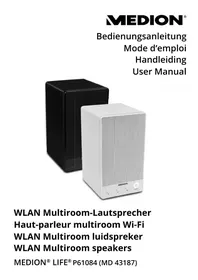
LIFE P61084 (MD 43187) - Bluetooth speaker MEDION - Free user manual and instructions
Find the device manual for free LIFE P61084 (MD 43187) MEDION in PDF.



Frequently Asked Questions - LIFE P61084 (MD 43187) MEDION
User questions about LIFE P61084 (MD 43187) MEDION
0 question about this device. Answer the ones you know or ask your own.
Ask a new question about this device
Download the instructions for your Bluetooth speaker in PDF format for free! Find your manual LIFE P61084 (MD 43187) - MEDION and take your electronic device back in hand. On this page are published all the documents necessary for the use of your device. LIFE P61084 (MD 43187) by MEDION.
USER MANUAL LIFE P61084 (MD 43187) MEDION
WLAN Multiroom speakers
MEDION® LIFE® P61084 (MD 43187)
Inhaltsverzeichnis
DE
www.spotify.com/connect/third-party-licenses.
WLAN Standard: 802.11a/ b/g/n
Verschlusselung:
WEP/WPA/WPA2
Informatie over Spotify®-softwarelicenties is te vinden op www.spotify. com/connect/third-party-licenses.
- About these Instructions 69
1.1.Explanation of symbols 69
- Proper use
- Safety information
3.1. People not permitted to use this device 71
3.2. Setting up the device safely 71
3.3. Mains connection 72
3.4. Thunderstorms 73
3.5. Never carry out repairs yourself 73
-
Package contents
4.1. Connections 74 -
Overview of the device. 75
- Network configuration
6.1. Network requirements 76
- Connecting to a power supply 76
7.1. Switching on the speaker 76
7.2. Ready mode 76
7.3. Switching off the speaker 76
- Using the device for the first time 77
8.1.WiFi connection via WPS 77
8.2. Establishing a WiFi connection using Lifestream II 77
- Control using the Lifestream II application 78
9.1. Installation via direct link 78
9.2. Installation via Google Play or the Apple App Store 78
9.3. Equalizer 79
- Music playback 79
11.Playback over the network 80
11.1. Party mode 80
11.2. Multiroom mode 80
11.3. Listening to music via Spotify 80
11.4. Installing Spotify 80
11.5. Selecting and playing music tracks 81
12.Playback from an external audio device 81
13. Charging a USB device on the USB connection 81
14. Software update 82
15. Resetting the device in case of malfunction 82
- Troubleshooting 82
- Cleaning 83
- Disposal 83
- Technical data 84
- Declaration of conformity 85
20.1.Information on WLAN 86
- Legal notice 86
1. About these Instructions

Please be sure to read these operating instructions carefully and follow all instructions given. The instructions will help you to operate the device reliably and help increase its service life. Always store these instructions near the device. Keep these operating instructions so that you can pass them on with the device if you sell it.
1.1. Explanation of symbols

DANGER!
Warning of immediate risk of fatal injury!

WARNING!
Warning: possible mortal danger and/or serious irreversible injuries!

CAUTION!
Warning: possible light or moderate injuries!

CAUTION!
Please follow the guidelines to avoid property damage.

PLEASE NOTE!
Additional information on using the device!

PLEASE NOTE!
Please follow the guidelines in the operating instructions.
- Bullet point/information on operating steps and results
Tasks to be performed

Declaration of conformity (see section 'Declaration of conformity'): Products that feature this symbol meet the requirements of the EC directives.

Fig. A
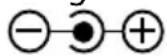
Fig.B
Polarity symbols
On devices with barrel connectors, these symbols indicate the polarity of the plug. There are two variants for the polarity: either the inner contact is positive and the outer contact is negative (Fig. A) or the inner contact is negative and the outer contact is positive (Fig. B).
2. Proper use
This device is intended for playing audio files that can be received over a WiFi network. You can also use the device to play back audio signals from external devices, and to charge USB devices.
Do not use the device for any other purpose. Only use the device indoors.
The device is intended for private use only and not for industrial/commercial use.
Please note that we shall not be liable in cases of improper use:
- Do not modify the device without our consent and do not use any auxiliary equipment that we have not approved or supplied.
Use only spare parts and accessories that we have supplied or approved.
Heed all the information in these operating instructions, especially the safety information. Any other use is deemed improper and can cause personal injury or property damage.
Do not use the device in extreme environmental conditions.
All multimedia devices that are connected to the speaker must comply with the requirements of the Low Voltage Directive.
3. Safety information
3.1. People not permitted to use this device
Keep the device and its accessories out of the reach of children.
This device may be used by children over the age of 8 and by persons with reduced physical, sensory or mental abilities or lacking experience and/or knowledge if they are supervised or have been instructed in the safe use of the device and understand the risks it poses. Do not allow children to play with the device. Cleaning and user maintenance must not be carried out by children, unless they are aged 8 or over and are supervised.
Children younger than 8 should be kept away from the device and the mains cable.

DANGER!
Risk of suffocation!
Packaging film can be swallowed or used improperly.
Therefore, there is a risk of suffocation!
- Keep packaging material such as plastic film or plastic bags away from children.
3.2. Setting up the device safely
- Set up and operate all the components on a stable, level and vibration-free surface to prevent the device from falling.
Do not expose the device to any vibrations. Knocks and vibrations may damage the sensitive electronics.
Do not place the product near heat sources (e.g. heaters) which could affect it.
-
Do not place naked flames (e.g. lit candles) on or near the device.
Make sure that the ventilation slots are not covered so that there is always adequate ventilation.
Do not place any objects on the cables as they may be damaged. -
Maintain a minimum distance of approx. 10cm between the device or mains adapter and any walls. Ensure adequate ventilation.
- Do not place containers filled with liquid, e.g. vases, on or near the product. Such containers could tip over, and the liquid could impair the electrical safety of the product. Keep the device away from moisture, drips and splashes.
- Avoid vibrations, dust, heat and direct sunlight so as to prevent malfunctions. The operating temperature is 5 to 35^ C .
- Do not use the device outdoors as it could be damaged by rain, snow, etc.
To avoid malfunctions, keep the device at a distance of at least one metre from high-frequency or magnetic interference sources (televisions, loudspeaker boxes, mobile telephones, etc.). If any malfunctions occur, set up the device at a different location.
Major changes in temperature or fluctuations in humidity can cause moisture to build up within the product due to condensation – this can cause an electrical short circuit.
3.3. Mains connection
- Connect the mains adapter only to a power socket (AC 100-240 V~ 50/60 Hz) that is easy to reach and close to the place where you have set up the device. The socket outlet must be freely accessible so that you can unplug the device from the mains quickly if necessary.
-
Only use the power cable supplied with the device. Never try to connect the mains adapter to other connectors as this may cause damage.
If the device has been moved from a cold room to a warm room, wait before connecting it to the power supply. The resulting condensation may damage the device. The device can be operated safely as soon as it has reached room temperature. -
Make sure that the mains cable does not present a trip hazard. The mains cable must not be trapped and squashed.
3.4. Thunderstorms
Disconnect the mains plug if you are away for a long period of time or if there is a thunderstorm.
3.5. Never carry out repairs yourself
If the mains adapter, cable or device is damaged, pull the plug immediately from the mains socket.
- Do not use the device if it has been dropped or if the device or the connecting cables are visibly damaged.

DANGER!
Risk of electric shock!
If there is a fault, please contact the Service Centre or another suitably qualified specialist workshop to avoid putting yourself at risk.
Never try to open or repair the device yourself.
4. Package contents
Please check your purchase to ensure that all items are included. If anything is missing, please contact us within 14 days of purchase. The following items are supplied with your product:
Speaker
- Mains adapter (model HB40-1801800SPA)
- 3.5 mm stereo cable
These operating instructions
Warranty card

DANGER! Risk of suffocation!
Packaging film can be swallowed or used improperly. Therefore, there is a risk of suffocation!
- Keep packaging material such as plastic film or plastic bags away from children.
4.1. Connections
Before connecting up the device, switch off the speaker using the power switch at the back of the device.
Operation in WiFi mode: A WiFi antenna is integrated in the device.
- Mains adapter: Connect the connector plug on the supplied mains adapter to the DC IN port and connect the mains plug to a socket (AC 100-240 V~ 50/60 Hz).
- AUX IN: Connect a 3.5 mm stereo jack cable to the AUX IN socket, in order to play back stereo sound from other audio devices with the WiFi network/speaker.
- USB: Here you can connect a smart device, in order to charge its internal battery using the USB connection.
5. Overview of the device
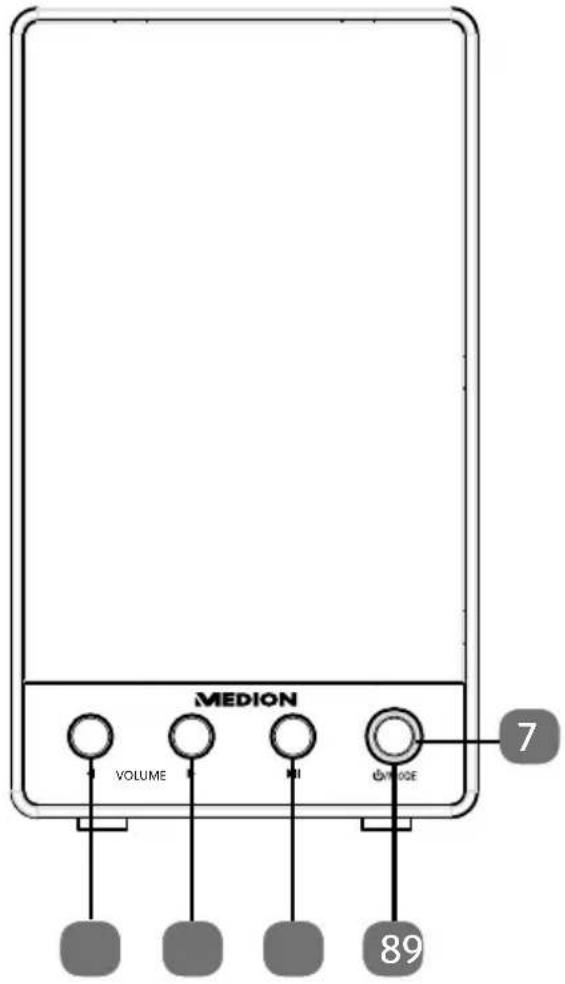
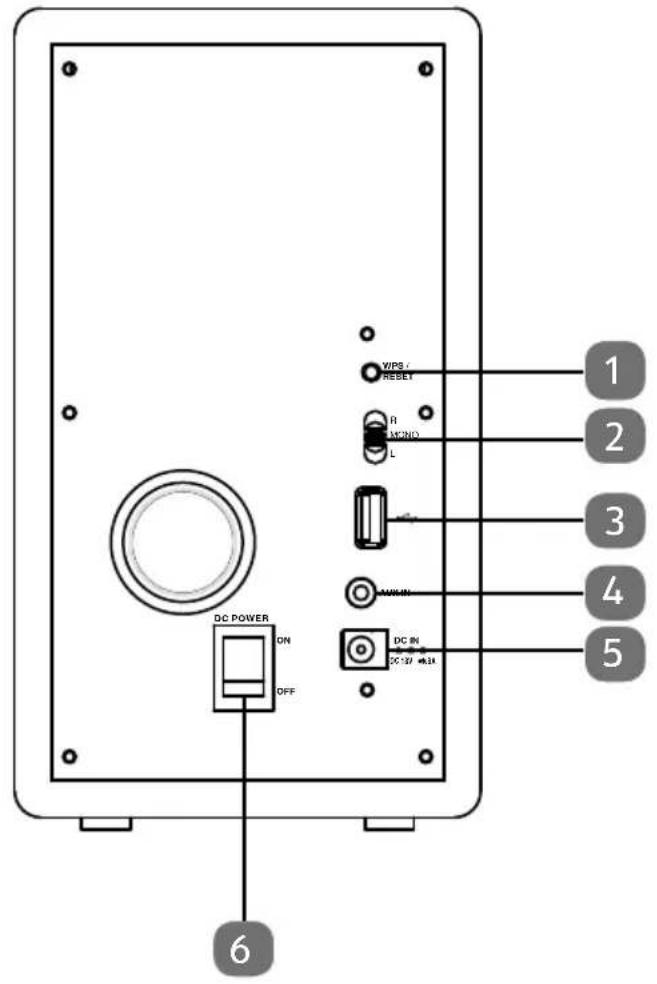
1 WPS/RESET: Establish connection via WPS / Reset device
2 R/MONO/L: Switch between mono operation / right/left operation
3 USB charging connection: USB socket for charging external devices
4 LINE IN: Audio input, 3.5 mm stereo
5 DC IN: Mains connection
6 ON/OFF: Switch device on/off
7 Operating LED
8 / MODE : Switch on device; switch to ready mode (press briefly); switch to standby mode (press and hold for five seconds)
9 Start/Pause playback
10: Increase volume, press twice to play next track
11: Decrease volume, press twice to play previous track
6. Network configuration
The speaker is connected to the network via WiFi. The speaker's WiFi antenna receives the signals from the network router.
6.1. Network requirements
For the device to be able to access music files on the network, the network must meet the following requirements:
- The router used for the network must have a DHCP server function so it can automatically assign a network IP address to the device.
Otherwise set the DHCP function to manual in the Web interface.
7. Connecting to a power supply
Connect the power plug of the supplied adapter (model HB40-1801800SPA) to the DC socket on the device.
7.1. Switching on the speaker
To turn on the power, switch on the device using the ON/OFF switch at the back.
The operating LED lights up red and the speaker is in standby mode.
- Briefly press the /MODE: button to switch on the speaker.
The operating LED lights up white insofar as the speaker is already connected to a WiFi network. If the speaker is not yet connected to a WiFi network, the operating LED flashes white.
7.2. Ready mode
Press and hold the / MODE : button for approximately three seconds to switch the speaker to ready mode.
The operating LED lights up red. In ready mode, the speaker keeps the network connection so that it is immediately available the next time you switch on.
7.3. Switching off the speaker
- Switch off the speaker using the ON/OFF switch at the back.
The operating LED goes out.
8. Using the device for the first time
- When using the device for the first time, bring the speaker near to the router if possible, to ensure a perfect WiFi signal during setup. Then set up the speaker within the range of the WiFi signal.
8.1. WiFi connection via WPS
If your router has a WPS button, you can easily connect the speaker to the network using this button:
Press and hold the WPS/RESET button at the back of the WiFi speaker for approximately three seconds.
Now press the WPS button on the WiFi router.

NOTE!
Please also refer here to the operating instructions for the router.
The device will now establish a connection with the network. During this process, the operating LED flashes quickly.
- After successful connection, the operating LED is constantly lit white.
- The device can now play back audio signals from the network.
- The device saves the connection data so that it does not need to be entered again the next time you switch on.
8.2. Establishing a WiFi connection using Lifestream II
If it is not possible to set up a network connection via WPS, use the LIFESTREAM II app on your smartphone or tablet to establish a connection to the Internet or the WiFi speaker.
Switch on the WiFi speaker.
The operating LED flashes white.
If the operating LED does not flash white, press the WPS/RESET button and hold the WPS/RESET button until the operating LED begins to flash white.
Start the selected app, tap 'Add Device' and follow the instructions.
Select the suggested audio system 'MEDION XX-XX-XX' and tap 'Weiter'.
Follow the subsequent instructions.
Once the WiFi speaker and its connection to the Internet have been successfully set up, the operating LED is constantly lit white.

NOTE!
Your playback device must be located in the same 2.4/5-GHz WiFi network as that in which the speaker is to be integrated.
9. Control using the Lifestream II application
You can control your internet radio using the LIFESTREAM II application on your smartphone or tablet PC.
Besides the established setting options such as start, stop, repeat or the creation of favourites lists and station searches, the LIFESTREAM II application makes it possible to customise the sound output.
9.1. Installation via direct link
Scan the adjacent QR code to be directed to the download page for the LIFESTREAM II app on Google Play or the App Store from Apple:
9.2. Installation via Google Play or the Apple App Store

- Open Google Play or the Apple App Store and search for the term 'MEDION LIFESTREAM II'.
Install the Medion 'LIFESTREAM II' app. Follow the installation instructions on the screen.

NOTE
To be able to install the LIFESTREAM II application, there must be an Internet connection.
Costs may be incurred.
Using the app
Start the LIFESTREAM II app.
Make sure that the smartphone/tablet PC and the Internet radio are logged in to the same WiFi network.
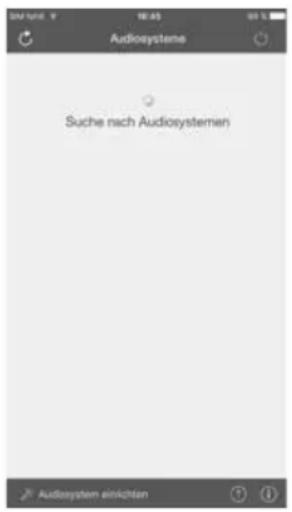
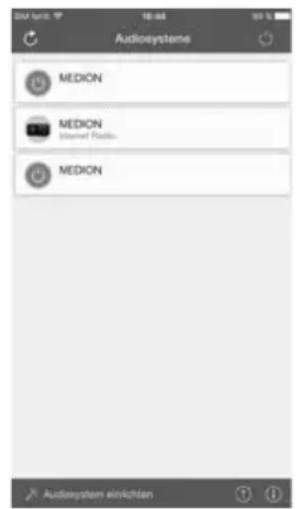
All compatible Internet radios that were found in the WLAN are now listed with their friendly name.
Select the correct Internet radio.
All of the Internet radio's functions are available for you to use in the app.
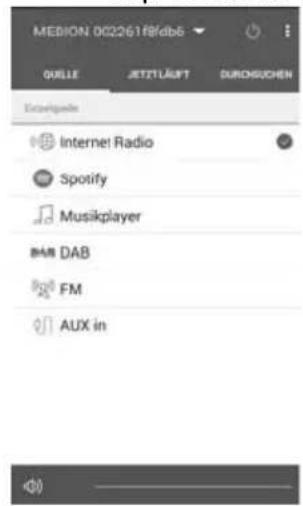
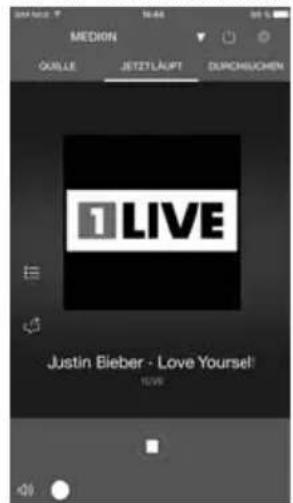
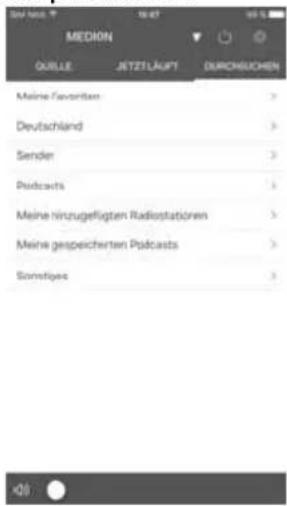
- Tap 'Source' to select the operating mode.
- Tap 'Now playing' to show information on what is currently being played.
- Tap 'Search' to search for Internet radio stations/podcasts.
9.3. Equalizer
Here you can select a default sound format or configure your own.
Select one of the following sound formats:
Normal, MITTIG, JAZZ, Rock, Soundtrack, Classic, Pop. The sound setting will take effect immediately.

NOTE!
The NORMAL sound format is preinstalled. The best sound format for playing music is ROCK.
10. Music playback
You can play music from the network or the stereo signal from an externally connected device through your WiFi speaker.
The following section describes the operating modes of the WiFi speaker with the various audio sources.

NOTE!
To control music playback from the network with a smartphone or tablet PC, a UPnP-compatible app is required.
11. Playback over the network
Connect the WiFi speaker to an available WiFi network.
Connect your smart device to the same network and start the Medion LIFESTREAM II app.
Select your WiFi speaker.
Now select the source (for example, music player).
Switch to 'Durchsuchen' and select 'Medienbibliothek'.
- Select your server in the home network and follow the folder structure.

NOTE
You can also select several WiFi speakers for playback. For more details, please refer to the app.
The following playback options are possible using the app:
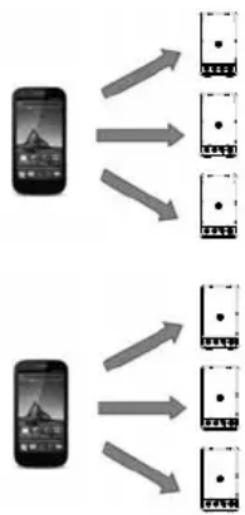
11.1. Party mode
Simultaneous music playback in every room.
11.2. Multiroom mode
A different sound in every room.
11.3. Listening to music via Spotify®
You can play back audio files from the music streaming service Spotify® through the WiFi speaker. The prerequisite is that you have the premium version of the Spotify app
installed on your smartphone or tablet PC and the WiFi speaker and the device with the Spotify app are registered on the same network.

Spotify

11.4. Installing Spotify
Open Google Play or the Apple App Store and search for the term Spotify.
Install the Spotify app on your smartphone or tablet PC. Follow the installation instructions on the screen.
Subscribe to a Spotify® Premium account.

NOTE!
To be able to install the Spotify application, there must be an Internet connection.
The premium version of the Spotify app is subject to a fee.
You can find information about Spotify® software licences at www.spotify.com/ connect/third-party-licenses.
11.5. Selecting and playing music tracks
The WiFi speaker and the device on which the Spotify app is installed need to be on the same network.
Start the Spotify app on your smartphone or tablet PC and log in.
Select the desired music track and start it.
▶ Click.
The available output devices will be displayed.
- Select your WiFi speaker (MEDION and the MAC address of the device are displayed as per the factory default setting).
The music track is played through the WiFi speaker.
12. Playback from an external audio device
Connect a 3.5 mm stereo jack cable to the AUX IN socket, in order to play back stereo sound from other audio devices with the WiFi speaker.
Press the / MODE button several times if necessary, to switch to the AUX IN mode.

NOTE
You can also select the source in the Lifestream II app.
The operating LED lights up orange as soon as the speaker is in AUX IN mode.
To switch back to the WiFi mode set previously (network or direct mode), press the MODE button again.
As soon as the speaker is in WiFi mode, the operating LED lights up white.
13. Charging a USB device on the USB connection
You can use the USB connection on the speaker to charge the battery of a device that is charged using a USB connection.
- Connect the device you want to charge to the USB connection at the back of the speaker using a USB cable.

NOTE
The USB connection on the speaker supplies a charging current of 5V with a maximum output voltage of 500mA . Devices that you connect to the speaker for charging must not have a higher current draw.
The WiFi speaker must be switched on for the device to be charged.
14. Software update
You can update the speaker software using the app (LIFESTREAM II) if new software is offered to you.
Display the device overview.
Now click Update.
15. Resetting the device in case of malfunction
Press the WPS/RESET button and keep it pressed.

NOTE!
Please note that all settings, e.g. the network key, will be irretrievably lost and will need to be input again after the device has been reset.
16. Troubleshooting
If the device malfunctions, please check first to see if you can remedy the problem yourself with the help of the following tips.
Never try to repair the device yourself. Please contact our Service Centre or a professional repair shop if a repair is necessary.
| Problem Possible cause Solution | ||
| No sound | Incorrect playback mode set | Set the LINE-IN mode, the network mode or the direct mode. |
| Volume level too low. Check the volume level. | ||
| No reception. Check the network settings. | ||
| Problems with the router connection. | No DHCP server is activated. | Check the router settings. |
| An incorrect network key was entered. | Re-enter the network key. | |
| The IP address that you allocated manually is outside the router's address range. | Enter a valid IP address for the WiFi speaker. | |
| The WiFi speaker cannot be controlled using the Lifestream app. | WiFi speaker and smartphone/tablet PC are not on the same WiFi network. | Check the network status of the WiFi speaker and smartphone/tablet PC. |
17. Cleaning
- Switch off the device before cleaning it.
- Use a soft, dry cloth to wipe the device. Never use rough cloths, abrasive detergent, thinners or solutions containing alcohol to clean the device. These could damage the device.
18. Disposal

PACKAGING
Your device is packaged to protect it from transportation damage. Packaging is raw material and can be reused or added to the recycling system.
APPLIANCE
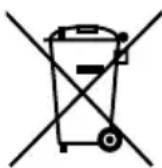
According to Directive 2012/19/EU, the product must not be disposed of in the household rubbish at the end of its service life. Take it to a local collection point for used appliances in order to comply with environmental regulations. Contact your local authority to find out where your nearest collection point is located.
BATTERIES
Batteries must be properly disposed of. Retailers who stock batteries and local authority collection points have appropriate disposal containers for this purpose. You can contact your local waste disposal company or municipal authorities for further information.
19. Technical data
| Mains adapter | |
| Model HB40-1801800SPA | |
| Manufacturer Shen Zhen | City Hongben Electronic CO., Ltd., China |
| Input voltage AC 100-240 V, 800 mA, ~ 50/60 Hz | |
| Output voltage | 18 V -- 1.8 A ⊕ ⊕ ⊕ |
| Device | |
| Speaker 18 W RMS | |
| Dimensions approx. 115 x 200 x 127 mm | |
| Weight approx. 1.44 kg | |
| WiFi | |
| Frequency range 2.4 GHz / 5 GHz | |
| WiFi standard 802.11 a/b/g/n | |
| Encryption WEP/WPA/WP | A2 possible |
| Range Indoors: approx. 20-40 m Outdoors: approx. 40-80 m | |
| Connections | |
| Mains adapter input | DC 18 V, 1.8 A ⊕ ⊕ ⊕ |
| LINE-IN 3.5 mm stereo jack | |
| USB service and charging connection | |
| USB output | DC 5V max 500 mA |
Subject to technical and optical changes as well as printing errors.
20. Declaration of conformity
This device is supplied with the following wireless features:
Wireless LAN
Use is only permitted inside buildings in all EU countries due to the 5 GHz frequency band of the inbuilt Wireless LAN solution. Medion AG hereby declares that this product conforms with the essential requirements and the remaining relevant regulations:
RE Directive 2014/53/EU
- Ecodesign Directive 2009/125/EC
RoHS Directive 2011/65/EU
Full declarations of conformity are available at www.medion.com/conformity.
C E
| AT BE | BG CZ | DK | ||
| EE FR | DE IS IE | |||
| IT EL | ES CY LV | |||
| LI | LT LU | HU | MT | |
| NL | NO | PL | PT RO | |
| SI SK | TR | FI SE | ||
| CH | UK HR | |||
AT = Austria, BE = Belgium, CZ = Czech Republic, DK = Denmark, EE = Estonia,
FR = France DE = Germany, IS = Iceland, IE = Ireland, IT = Italy, EL = Greece,
ES = Spain, CY = Cyprus, LV = Latvia, LT = Lithuania, LU = Luxembourg,
HU = Hungary, MT = Malta, NL = Netherlands, NO = Norway, PL = Poland,
PT = Portugal, RO = Romania, SI = Slovenia, SK = Slovakia, TR = Turkey, FI = Finland,
SE = Sweden, CH = Switzerland, UK = United Kingdom, HR = Croatia
20.1.Information on WLAN
Frequency range: 2.4 GHz/5 GHz
Wi-Fi standard: 802.11 a/b/g/n
Encryption:
WEP/WPA/WPA2
| Frequency range/MHz | Max. transmission power/ dBm | |
| 2412 - 2472 WLAN 17,727 | ||
| 5150 - 5725 WLAN 10,6 |
21. Legal notice
Copyright © 2017
Status: 2017-10-23
All rights reserved.
This operating manual is protected by copyright.
Mechanical, electronic and any other form of reproduction is prohibited without the written permission of the manufacturer.
Copyright is owned by the company:
Medion AG
Am Zehnhof 77
45307 Essen
Germany

The operating manual can be reordered via the service hotline and is available for download via the service portal at www.medion.com/gb/service/start/.
You can also scan the QR code above and download the operating manual onto your mobile device via the service portal.