
EXP503 - Portable CD player PHILIPS - Free user manual and instructions
Find the device manual for free EXP503 PHILIPS in PDF.


User questions about EXP503 PHILIPS
0 question about this device. Answer the ones you know or ask your own.
Ask a new question about this device
Download the instructions for your Portable CD player in PDF format for free! Find your manual EXP503 - PHILIPS and take your electronic device back in hand. On this page are published all the documents necessary for the use of your device. EXP503 by PHILIPS.
USER MANUAL EXP503 PHILIPS
Portable MP3-CD player
EXP 501
EXP 503
Audio
Toll Free Help Line
Return your Warranty Registration card today to ensure you receive all the benefits you're entitled to.
-
Once your Philips purchase is registered, you're eligible to receive all the privileges of owning a Philips product.
-
So complete and return the Warranty Registration Card enclosed with your purchase at once, and take advantage of these important benefits.
Warranty Verification
Registering your product within 10 days confirms your right to maximum protection under the terms and conditions of your Philips warranty.
Owner Confirmation
Your completed Warranty Registration Card serves as verification of ownership in the event of product theft or loss.
Model Registration
Returning your Warranty Registration Card right away guarantees you'll receive all the information and special offers which you qualify for as the owner of your model.
Know these
safety symbols

CAUTION
RISK OF ELECTRIC SHOCK DO NOT OPEN

CAUTION: TO REDUCE THE RISK OF ELECTRIC SHOCK, DO NOT REMOVE COVER (OR BACK). NO USER-SERVICEABLE PARTS INSIDE. REFER SERVICING TO QUALIFIED SERVICE PERSONNEL.

This "bolt of lightning" indicates uninsulated material
within your unit may cause an electrical shock. For the safety of everyone in your household, please do not remove product covering.

The "exclamation point" calls attention to features for
which you should read the enclosed literature closely to prevent operating and maintenance problems.
For Customer Use
Enter below the Serial No, which is located on the rear of the cabinet. Retain this information for future reference.
Model No.
Serial No.
WARNING: TO PREVENT FIRE OR SHOCK HAZARD, DO NOT EXPOSE THIS EQUIPMENT TO RAIN OR MOISTURE.
CAUTION: To prevent electric shock, match wide blade of plug to wide slot, and fully insert.
IMPORTANT SAFETY INSTRUCTIONS
- Read these instructions.
- Keep these instructions.
- Heed all warnings.
- Follow all instructions.
- Do not use this apparatus near water.
- Clean only with dry cloth.
- Do not block any ventilation openings. Install in accordance with the manufacturer's instructions.
- Do not install near any heat sources such as radiators, heat registers, stoves, or other apparatus (including amplifiers) that produce heat.
- Only use attachments/ accessories specified by the manufacturer.
10.

Use only with the
cart, stand, tripod, bracket, or table specified by the
manufacturer or sold with the apparatus.When a cart is used, use caution when moving the cart/apparatus combination to avoid injury from tip-over.
11.Refer all servicing to qualified service personnel. Servicing is required when the apparatus has been damaged in any way, such as power-supply cord or plug is damaged, liquid has been spilled or objects have fallen into the apparatus, the apparatus has been exposed to rain or moisture, does not operate normally, or has been dropped.
12.Battery usage CAUTION
-To prevent battery leakage which may result in bodily injury or damage to the unit:
Install all batteries correctly, +and - as marked on the unit.
- Do not mix batteries (old and new or carbon and alkaline, etc.).
- Remove batteries when the unit is not used for a long time.
EL 6474-E003:01/6
English 6
32
Espanol 60
Canada
English:
This digital apparatus does not exceed the Class B limits for radio noise emissions from digital apparatus as set out in the Radio Interference Regulations of the Canadian Department of Communications.
Français:
Environmental information 9
MP3 and AAC music files 10
Power supply
Batteries 13
Poweradapter 14
Headphones 14
Basic functions
Playing a disc 15
Playing Enhanced Music CDs and Mixed Mode CDs 16
Pause 16
Volume and sound 17
Selecting and searching 18
Selecting an album 19
Features
Programming track numbers 20
Clearing the program 20
Storing the last position played - RESUME 21
Locking all buttons - HOLD 21
Selecting different playback possibilities - MODE 22
Display of information 23
ESP - Electronic Skip Protection 24
Acoustic feedback 24
Accessories
In-car connections 25
Remote control 26
Belt clip 26
Troubleshooting 27
Limited warranty 30
1□
2
3
4 HOLD OFF
5 PLAY II
6 VOL
!!
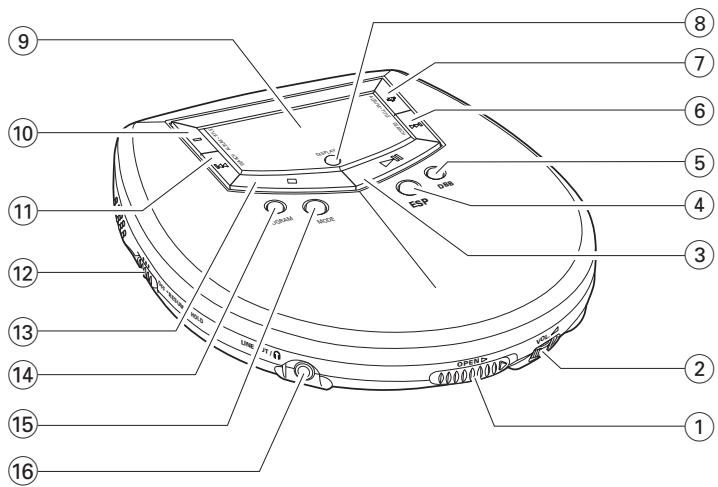
① OPEN
opens the CD compartment
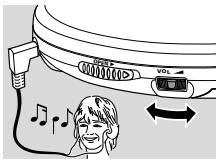
② VOL
adjusts the volume
③
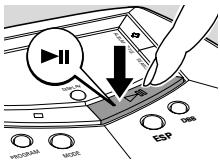
switches the unit on, starts playback and interrupts playback
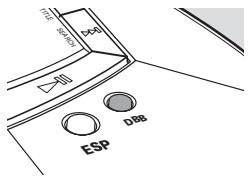
④ ESP
Electronic Skip Protection prevents music interruptions caused by shocks or vibrations
⑤ DBB
Dynamical Bass Boost, selects the bass enhancement
6
skips forward and searches forward
⑦ +
MP3-CD only: selects the next album or skips forward
⑧ DISPLAY
selects the track and album information for MP3-CDs
⑨ display
10
MP3-CD only: selects the previous album or skips backward
11
skips backward and searches backward
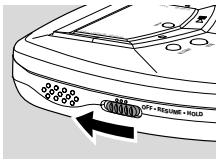
12 OFF·RESUME·HOLD
OFF switches off RESUME and HOLD
RESUME stores the last position played
HOLD locks all buttons
13
stops playback, clears a program, and switches off the unit
14 PROGRAM
programs tracks and lets youreview the program
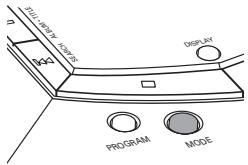
15 MODE
selects the different playing possibilities such as SHUFFLE or REPEAT
16 LINE OUT/
3.5 mm line out to connect the headphones
this unit to the audio input of your stereo equipment the remote control
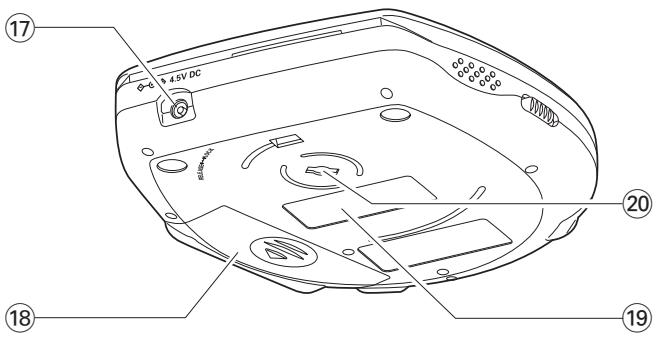
17 4.5V DC
to connect the external power supply
18 battery compartment
19 type plate
② belt clip hole
Maintenance
Do not touch the lens of the unit.
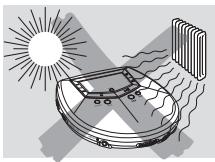
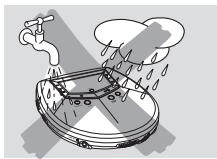
Do not expose the unit, batteries or discs to humidity, rain, sand or excessive heat (caused by heating equipment or direct sunlight).
The lens may cloud over when the unit is suddenly moved from cold to warm surroundings. Playing is not possible then.
Leave the unit in a warm environment until the moisture evaporates.
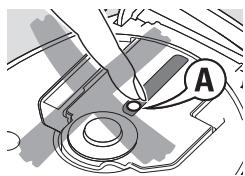
Active mobile phones in the vicinity of this unit may cause malfunctions.
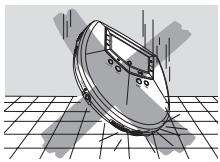
Avoid dropping the unit as this may cause damage.
Clean the unit with a soft, slightly dampened, lint-free cloth. Do not use any cleaning agents as they may have a corrosive effect.
To clean a disc, wipe it in a straight line from the center toward the edge using a soft, lint-free cloth. Cleaning agents may damage the disc.
Environmental information
All redundant packing material has been omitted. We have tried to make the packaging easy to separate into three single materials: cardboard (box), polystyrene foam (buffer) and polyethylene (bags, protective foam sheet).
Your set consists of materials which can be recycled if disassembled by a specialized company. Please observe the local regulations regarding the disposal of packing materials, dead batteries and old equipment.
MP3 and AAC music files
The music compression technologies MP3 (MPEG Audio Layer 3) and AAC (Advanced Audio Coding) reduce the digital data of an audio CD significantly while maintaining CD-like sound quality. With MP3, for example, you can record up to 10 hours of CD-like music on a single CD-ROM. This unit plays MP3 and AAC music files.
How to get music files
Either download legal music files from the internet to your computer harddisc or create them from your own audio CDs. For this, insert an audio CD into your computer's CD-ROM drive and convert the music using an appropriate encoder software. To achieve a good sound quality, a bit rate of 128 kbps or higher is recommended for MP3 music files.
Some encoder software offers an option to protect music files, i.e. the files can only be played on the computer which created them. If you burn such files on a CD-ROM, you cannot play them on this unit. Make sure to deactivate the protection option in the encoder software before creating the music files. In this case you are responsible for adherence to all local or international copyrights.
How to organize music files
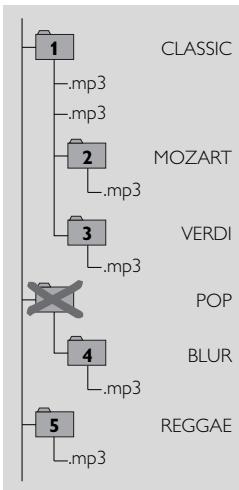
In order to easily handle the large number of music files on a CD-ROM, you can organize them in folders ("albums").
The tracks of an album will be played in alphabetical order. If you want to arrange them in a certain order, let the file names start with numbers.
For example:
001-ONEWORLD.MP3
002-FIRESTARTER.MP3
003-DEEPMP3
This unit will play all albums in alphabetical order. An album name includes all folders in which the album is located, e.g. the album VERDI in CLASSIC has the album name CLASSIC\VERDI.
The albums in the illustration will be played in the following way:
ALBUM
| CLASSIC | 1 |
| CLASSICMOZART | 2 |
| CLASSICVERDI | 3 |
| POP\BLUR | 4 |
| REGGAE | 5 |
In POP, there are no MP3 or AAC files.
POP is therefore skipped.
There may be an album VARIUS with album number 0 that will be played before all other albums. VARIUS contains all tracks which you did not put into an album.
How to make a CD-ROM with MP3 or AAC files
Record ("burn") the music files from your harddisc on a CD-ROM with your computer's CD burner.
Make sure the file names of the MP3 and AAC files end with .mp3 and .aac respectively.
When burning your MP3-CDs, use either ISO 9660 disc format or UDF. CD burning software like "Direct CD" or others support the UDF format.
Supported formats
This unit supports:
- Disc format: ISO 9660, Joliet, Multisession, UDF, Enhanced Music CD, Mixed Mode CD
Music file formats: MP3,AAC
MP3 bit rate (data rate): 32-320 kbps and variable bit rate
AAC format: ISO 13818-7 MPEG-2 (low complexity profile), stereo,
ADTS and ADIF headers, AAC bit rate ≤ 160 kbps
Total number of music files and albums: around 350
(with a typical file name length of 20 characters)
Note:The number of music files that can be played depends on the length of the file names. With short file names, more files will be supported.
Visit the EXPANIUM homepage
http://www.expanium.philips.com
All trademarks used are owned by their respective owners.
The set complies with the FCC-Rules, Part 15 and with
21 CFR 1040.10. Operation is subject to the following two conditions:
- This device may not cause harmful interference, and
- This device must accept any interference received, including interference that may cause undesired operation.
CAUTION
Use of controls or adjustments or performance of procedures other than herein may result in hazardous radiation exposure or other unsafe operation.
Batteries (not supplied)
Inserting batteries
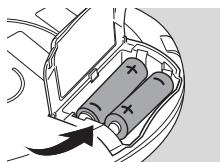
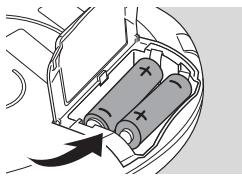
Open the battery compartment and insert 2 alkaline batteries of type AA (LR6, UM3).
Do not use old and new or different types of batteries in combination.
Remove batteries if they are empty or if the unit will not be used for a long time.
Indication of empty batteries
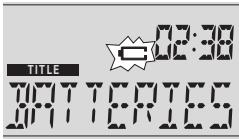
- Replace the batteries or connect the power adapter as soon as blinks and REPLACE BATTERIES is scrolled.
Batteries contain chemical substances, so they should be disposed of properly.
Average battery lifetime of 2 alkaline batteries of type AA (LR6, UM3):
| Playback of | Audio disc | MP3-CD |
| ESP off | 20 hours | 20 hours |
| ESP on | 20 hours | 13 hours |
Note: 20 seconds after pressing , the display is switched off. After 90 seconds, the unit switches off automatically.
Power supply/Headphones
Power adapter
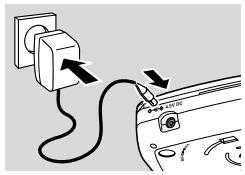
Only use the AY 3160 power adapter (4.5 V/400 mA direct current, positive pole to the center pin). Any other product may damage the unit.
1 Make sure the local voltage corresponds to the adapter's voltage.
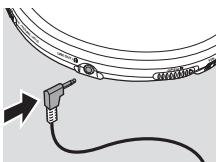
2 Connect the power adapter to 4.5V DC on the unit and to the power outlet.
Note: Always disconnect the adapter if you are not using it.
Headphones
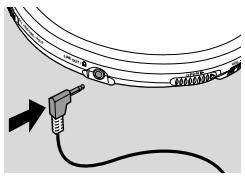
- Connect the supplied headphones to LINE OUT/Ω.
Note: LINE OUT/ can also be used for connecting this unit to your HiFi system. Set VOL on this unit to position 8 and adjust volume and sound with your HiFi system.
Use your head when using headphones
Hearing safety
Do not play your headset a high volume. Hearing experts advise against continuous extended play. If you experience a ringing in your ears, reduce the volume or discontinue use.
Traffic safety
Do not use while operating a motorized vehicle. It may create a traffic hazard and it's illegal in many areas. You should use extreme caution or temporarily discontinue use in potentially
hazardous situations. Even if your headset is an open-air type designed to let you hear outside sounds, don't turn up the volume so high that you can't hear what's around you.
Playing a disc
With this unit you can play
- all pre-recorded audio CDs
- all finalized audio CDR(W)s
MP3-CDs (CD-ROMs with MP3 or AAC files)
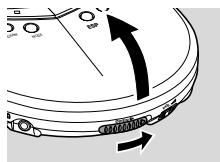
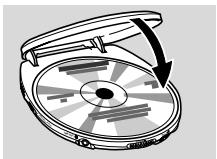
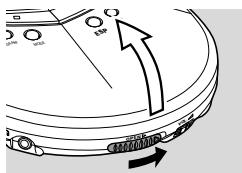
1 Push the OPEN▶ slider to open the CD compartment.
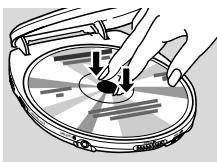
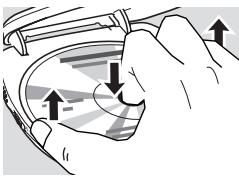
2 Insert a disc, printed side up, by pressing gently on the disc's center so that it fits onto the hub. Close the compartment by pressing it down.
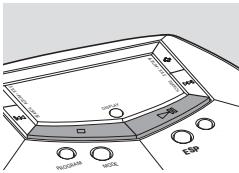
3 Press to start playback.
RERBING[] is displayed. Playback starts.
Audio disc: The current track number and the elapsed playing time are displayed.
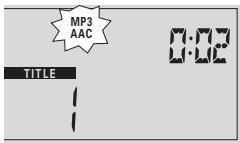
MP3-CD: MP3 or AAC is shown.
The current album number, track number and the elapsed playing time are displayed. The track title is scrolled once.
4 Press to stop playback.
Audio disc: The total number of tracks and the total playing time of the disc are displayed.
MP3-CD: The total number of albums and tracks are displayed.
5 To remove the disc, hold it by its edge and press the hub gently while lifting the disc.
Note:After pressing it may take some time until the first MP3 or AAC track is played.
Playing Enhanced Music CDs and Mixed Mode CDs
On Enhanced Music CDs and Mixed Mode CDs there are audio CD tracks as well as computer data (e.g. text files, pictures, MP3 files,...).
1 Insert the disc and press to start playback.
RERIBING [B] is displayed. Playback starts. All audio CD tracks will be played.
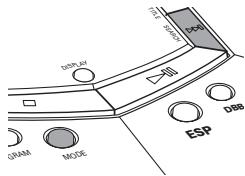
2 If there are MP3 and AAC files on the disc, MP3 or AAC is blinking. Keep MODE pressed for 2 seconds to select MP3 and AAC playback.
RERIBING [ ] is displayed. Playback starts with the first track of the first album. All MP3 and AAC tracks will be played.
3 To return to audio CD playback, keep MODE pressed for 2 seconds.
Note: To protect your headphones and your Hi-Fi system from damage, you will hear no sound when a computer (data) file is played. Press to skip to the next track.
Pause
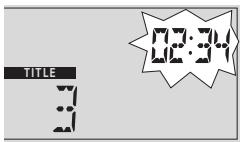
1 Press to interrupt playback.
The time where playback was interrupted will blink.
2 To resume playback press again.
Volume and sound
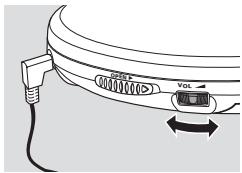
Volume adjustment
Adjust the volume by using VOL
Sound adjustment
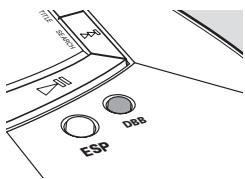
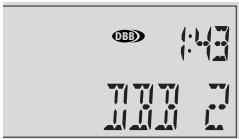
1 Press DBB for a moderate bass enhancement.
DBB is shown and BB1 is displayed.
2 Press DBB again for a strong bass
enhancement.
DBB is shown and BB is displayed.
3 Press DBB again to switch off the bass enhancement.
DBB disappears.
Selecting and searching (on all discs)
Selecting a track during playback
- Briefly press or once or several times to skip to the beginning of the current, previous or subsequent track.
Playback continues with the selected track.
Searching for a passage during playback
1 Keep or pressed to find a particular passage in backward or forward direction.
Searching is started and playback continues at a low volume. After 2 seconds, the search speeds up.
2 Release the button at the desired passage.
Normal playback continues.
Note: During REPEAT, SHUFFLE, SHUFFLE ALL, MP3, AAC or while playing a program, searching is only possible within the current track.
Selecting an album (on MP3-CDs only)
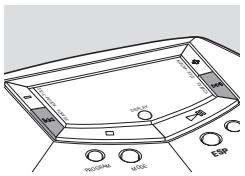
Selecting an album during playback
- Briefly press - or + once or several times to skip to the first track of the current, previous or subsequent album.
The first track of the selected album is played.
Selecting a track during playback
1 Keep - or + pressed to skip quickly to previous or subsequent MP3 or AAC tracks.
Skipping starts and speeds up after 2 seconds.
2 Release the button at the desired track.
Playback continues with the selected track.
Note:To skip from track to track at low speed, use or
Programming track numbers
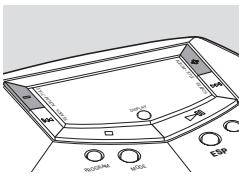
You can select up to 50 tracks and store them in the memory in a desired sequence. You can store any track more than once.
1 Select a track with or
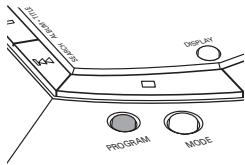
2 Press PROGRAM to store the track.
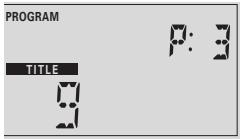
PROGRAM is shown and P with the number of stored tracks is displayed.
3 Select and store all desired tracks in this way.
4 If necessary, press to stop normal playback. Press to start playback of the program.
Playback of the program starts.
To add additional tracks to your program, press
to stop playing the program and continue with step 1.
- You can review the program by pressing PROGRAM for more than 3 seconds.
All stored tracks are displayed in sequence.
Clearing the program
1 If necessary press to stop playback.
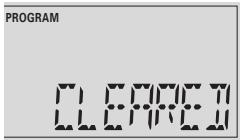
2 Press to clear the program.
[CLERRE] is displayed, PROGRAM disappears and the program is cleared.
Notes:
The program will also be cleared if you open the CD compartment or interrupt the power supply or if the unit switches off automatically.
After storing 50 tracks, PROGRAM FULL is scrolled.
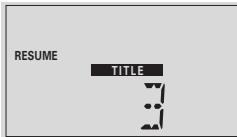
Storing the last position played - RESUME
You can store the last position played. When restarting, playback continues from where you have stopped.
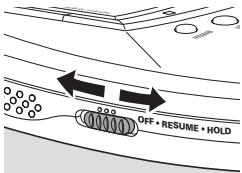
1 Switch the slider to RESUME during playback to activate RESUME.
RESUME is shown.
2 Press whenever you want to stop playback.
3 Press to resume playback.
Playback continues from where you have stopped.
To deactivate RESUME, switch the slider to OFF.
RESUME disappears.
Locking all buttons - HOLD
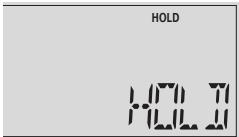
You can lock all buttons of the unit. When you press any key, no action will be executed then.
- Switch the slider to HOLD to activate HOLD.
HOLD is shown and all buttons are locked. When pressing any key, HDL is displayed.
To deactivate HOLD, switch the slider to OFF.
HOLD disappears.
Selecting different playback possibilities - MODE
It is possible to play tracks in random order or to repeat a track, an album or the entire disc.
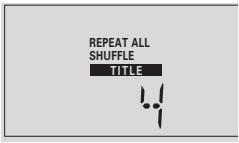
1 Press MODE repeatedly during playback to select either:
- SHUFFLE (with MP3-CDs only): All tracks of the current album are played in random order until all of them have been played once.
- SHUFFLE ALL: All tracks of the disc are played in random order until all of them have been played once.
- SHUFFLE REPEAT (with MP3-CDs only): All tracks of the current album are played repeatedly in random order.
- SHUFFLE REPEAT ALL: All tracks of the disc are played repeatedly in random order.
REPEAT: Audio disc:The current track is played repeatedly. MP3-CD:The current album is played repeatedly. - REPEAT ALL: The entire disc is played repeatedly.
When playing a program, you can select either:
- SHUFFLE PROGRAM: All tracks of the program are played in random order until all of them have been played once.
- SHUFFLE REPEAT PROGRAM: All tracks of the program are played repeatedly in random order.
- REPEAT PROGRAM: All tracks of the program are played repeatedly.
2Playback starts in the chosen mode after 2 seconds.
3 To return to normal playback, press MODE repeatedly until the display indication disappears.
Display of information (with MP3-CDs only)
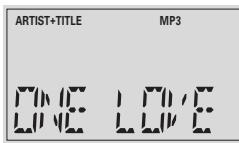
With MP3-CDs the display shows either the track's file name, the album name or ID3 tag information. The ID3 tag is part of an MP3 file and contains various track information such as the track's title, the artist's name or the album name. Complete the ID3 tag information with your MP3 encoder software before burning the MP3-CD.
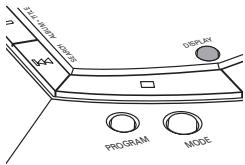
1 Press DISPLAY repeatedly during playback to select either:
- ARTIST+TITLE:The artist's name and the track title are scrolled, if this ID3 tag information is available.
- FILENAME:The track's file name is scrolled. The extensions.mp3 and .aac will be omitted.
- ALBUM:The album name is scrolled.
2 To display the album number and the track number; press DISPLAY repeatedly until ALBUM and TITLE are shown.
ESP - Electronic Skip Protection
With a conventional portable disc player, the music may stop while you are jogging, for example. The Electronic Skip Protection protects this unit against loss of sound caused by light vibrations or shocks. Continuous playback is ensured. ESP does not protect the unit against damage caused by dropping!
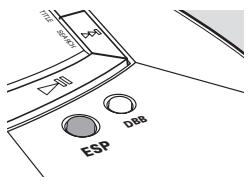
- Press ESP during playback to activate the skip protection.
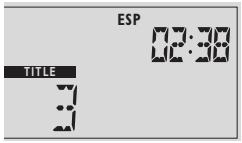
ESP is shown and the protection is activated.
To deactivate the skip protection, press ESP again.
ESP disappears and the protection is deactivated.
Acoustic feedback
An acoustic signal accompanies various key operations.
- Keep DBB pressed for more than 2 seconds. If the acoustic feedback has been deactivated:
BEEP ON is displayed and the acoustic feedback is activated.
If the acoustic feedback has been activated:
BEEP OFF is displayed and the acoustic feedback is deactivated.
In-car connections (supplied or optionally available)
Only use the AY 3545 car voltage converter (4.5 V DC, positive pole to the center pin) and the AY 3501 car adapter cassette. Any other product may damage the unit.
1 Put the unit on a horizontal, vibration-free and stable surface. Make sure it is in a safe place, where the unit is neither a danger nor an obstacle to the driver and the passengers.
2 Connect the DC plug of the voltage converter to 4.5V DC on the unit (only for a 12V car battery, negative grounding).
3 Insert the voltage converter into the cigarette lighter jack. If necessary, clean the cigarette lighter jack to obtain a good electrical contact.
4 Turn down the volume and connect the adapter cassette plug to LINE OUT/ on the unit.
5 Carefully insert the adapter cassette into the car radio's cassette compartment.
6 Make sure the cord does not hinder your driving.
7 Set VOL on the unit to position 8. Start playback on the unit and adjust the sound with the car radio controls.
Always remove the voltage converter from the cigarette lighter jack when the unit is not in use.
Note: If your car radio has a LINE IN jack, it is better to use it for the car radio connection instead of the adapter cassette. Connect the signal lead to this LINE IN jack and to LINE OUT/ON on the unit.
Remote control (supplied or optionally available)
Use the AY 3767 or AY 3768 cord remote control. The buttons on the remote control have the same functions as the corresponding buttons on the unit.
Connecting the remote control
1 Press twice to switch off the unit.
2 Firmly connect the remote control to LINEOUT/ on the unit.
3 Firmly connect the headphones to the remote control's jack.
Adjusting the volume
- Set VOL on the unit to position 8 and adjust the volume with VOL on the remote control.
Note: Select HOLD on the unit to prevent the unit from being operated accidentally.
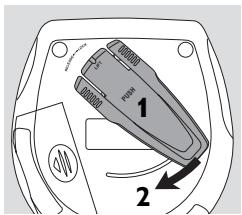
Belt clip
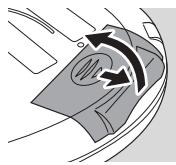
1 Align the belt clip as indicated in the illustration and press on PUSH to insert the shaped pin of the clip into the hole in the unit.
2 Turn the clip clockwise as indicated to lock the belt clip to the unit.
3 To detach, gently lift the belt clip at the indicated end and turn it counter-clockwise.
WARNING
Under no circumstances should you try to repair the unit yourself as this will invalidate the guarantee.
If a fault occurs, first check the points listed, before taking the unit for repair. If you are unable to solve a problem by following these hints, consult your dealer or service center.
| Problem | Solution |
| No power, playback does not start | - Insert the batteries correctly. - Replace the batteries. - Connect the power adapter securely. |
| HOLD indication and/or no reaction to controls | - Deactivate HOLD. - Disconnect the unit from the power supply or take out the batteries for a few seconds. |
| No sound or bad sound quality | - Press▶I to resume playback. - Adjust the volume. - The track is a data file. Press▶H to skip to the next CD audio track. - Check and clean the connections. - Keep this unit away from active mobile phones or strong magnetic fields. |
| INSERT [ ] indication | - Insert a disc, with the label facing up. - Clean or replace the disc. - Wait until the steamed up lens has cleared. |
| UNFINALIZED [ ] indication | - Make sure the inserted CDR(W) is finalized. |
Troubleshooting
| Problem | Solution |
| USE AUDIO CD indication | - Make sure you have inserted an audio disc or an MP3-CD. |
| PROTECTED indication and music file is not played | - The music file is protected. Make sure the protection option in your encoder software is deactivated when creating a music file. |
| Music file is not played | - Make sure the music file names end with .mp3 or .aac |
| Missing directories on MP3-CD | - Make sure the total number of files and albums on your MP3-CD does not exceed 350. - Only albums with MP3 or AAC files are shown. |
| The disc skips tracks | - Clean or replace the disc. - Make sure REPEAT, REPEAT ALL, SHUFFLE, SHUFFLE ALL or PROGRAM is switched off. |
| Music is skipped or popping sound when playing an MP3 or AAC file | - Play the music file on your computer. If the problem persists, encode the audio track again and make a new CD-ROM. |
| Music is interrupted and QPPS indication | - Switch on ESP. |
| In-car use: No power, playback does not start | - Clean the cigarette lighter jack. - Switch on the ignition of your car. |
| In-car use: No sound or bad sound quality | - Insert the adapter cassette correctly. - Change the autoreverse direction of your car cassette player. - Let the unit adjust to the temperature in the car. |
LIMITED WARRANTY
PORTABLE COMPACT DISC
One Year Free Exchange
This product must be carried in for an exchange.
WHO IS COVERED?
You must have proof of purchase to exchange the product. A sales receipt or other document showing that you purchased the product is considered proof of purchase. Attach it to this owner's manual and keep both nearby.
WHAT IS COVERED?
Warranty coverage begins the day you buy your product. For one year thereafter, a defective or inoperative product will be replaced with a new, renewed or comparable product at no charge to you. A replacement product is covered only for the original warranty period. When the warranty on the original product expires, the warranty on the replacement product also expires.
WHAT IS EXCUSED?
Your warranty does not cover:
- labor charges for installation or setup of the product, adjustment of customer controls on the product, and installation or repair of antenna systems outside of the product.
- product repair and/or part replacement because of misuse, accident, unauthorized repair or other cause not within the control of Philips Consumer Electronics Company.
- reception problems caused by signal conditions or cable or antenna systems outside the unit.
- a product that requires modification or adaptation to enable it to operate in any country other than the country for which it was designed, manufactured, approved and/or authorized, or repair of products damaged by these modifications.
- incidental or consequential damages resulting from the product. (Some states do not allow the exclusion of incidental or consequential damages, so the above exclusion may not apply to you. This includes, but is not limited to, prerecorded material, whether copyrighted or not copyrighted.)
- a product that is used for commercial or institutional purposes.
WHERE IS EXCHANGE AVAILABLE?
You may exchange the product in all countries where the product is officially distributed by Philips Consumer Electronics Company. In countries where Philips Consumer Electronics Company does not distribute the product, the local Philips service organization will attempt to provide a replacement product (although there may be a delay if the appropriate product is not readily available).
BEFORE REQUESTING EXCHANGE...
Please check your owner's manual before requesting an exchange. Adjustments of the controls discussed there may save you a trip.
EXCHANGING A PRODUCT IN U.S.A., PUERTO RICO OR U.S.VIRGIN ISLANDS...
Contact your dealer to arrange an exchange. Or, ship the product, insured and freight prepaid, and with proof of purchase enclosed, to the address listed below.
Small Product Service Center
Philips Service Company
907 Snapps Ferry Road, Plant 2, Building 6
Greenville,TN 37743
(In U.S.A., Puerto Rico and U.S.Virgin Islands, all implied warranties, including implied warranties of merchantability and fitness for a particular purpose, are limited in duration to the duration of this express warranty. But, because some states do not allow limitations on how long an implied warranty may last, this limitation may not apply to you.)
EXCHANGING A PRODUCT IN CANADA...
Please contact Philips at:
1-800-661-6162 (French Speaking)
1-800-363-7278 (English Speaking)
(In Canada, this warranty is given in lieu of all other warranties. No other warranties are expressed or implied, including any implied warranties of merchantability or fitness for a particular purpose. Philips is not liable under any circumstances for any direct, indirect, special, incidental or consequential damages, howsoever incurred, even if notified of the possibility of such damages.)
TO GET OUT-OF-WARRANTY EXCHANGE...
In U.S.A., Puerto Rico or U.S. Virgin Islands, contact Philips Service Company at 1-800-531-0039 to obtain the cost of out-of-warranty exchange. Then carefully pack the product and ship it to the Small Product Service Center (address listed above). In Canada, call the phone number listed above under "Exchanging a Product in Canada" to obtain the cost of out-of-warranty exchange.
REMEMBER...
Please record the model and serial numbers found on the product below. Also, please fill out and mail your warranty registration card promptly. It will be easier for us to notify you if necessary.
MODEL#
SERIAL#
(12) OFF·RESUME·HOLD
18 compartment des piles
19 plaquette d'identification
Piles (non fournies)
Small Product Service Center
Philips Service Company
907 Snapps Ferry Road, Plant 2, Building 6
Greeneville,TN 37743 E.-U.
Small Product Service Center
Philips Service Company
907 Snapps Ferry Road, Plant 2, Building 6
Greeneville,TN 37743 USA
A Division of Philips Electronics North America Corporation
Knoxville, Tennessee 37914-1810, U.S.A.
Printed in China
CLASS 1 LASER PRODUCT
3103 306 1806.1
- Portable MP3-CD player
- Return your Warranty Registration card today to ensure you receive all the benefits you're entitled to.
- Warranty Verification
- Owner Confirmation
- Model Registration
- Know these
- CAUTION
- For Customer Use
- IMPORTANT SAFETY INSTRUCTIONS
- 10.
- Use only with the
- 12.Battery usage CAUTION
- Canada
- English:
- Français:
- Power supply
- Basic functions
- Features
- Accessories
- Maintenance
- Environmental information
- MP3 and AAC music files
- How to get music files
- How to organize music files
- How to make a CD-ROM with MP3 or AAC files
- Supported formats
- Visit the EXPANIUM homepage
- Batteries (not supplied)
- Inserting batteries
- Indication of empty batteries
- Power supply/Headphones
- Power adapter
- Headphones
- Use your head when using headphones
- Playing a disc
- Playing Enhanced Music CDs and Mixed Mode CDs
- Pause
- Volume and sound
- Volume adjustment
- Sound adjustment
- Selecting and searching (on all discs)
- Selecting a track during playback
- Searching for a passage during playback
- Selecting an album (on MP3-CDs only)
- Selecting an album during playback
- Programming track numbers
- Clearing the program
- Storing the last position played - RESUME
- Locking all buttons - HOLD
- Selecting different playback possibilities - MODE
- Display of information (with MP3-CDs only)
- ESP - Electronic Skip Protection
- Acoustic feedback
- In-car connections (supplied or optionally available)
- Always remove the voltage converter from the cigarette lighter jack when the unit is not in use.
- Remote control (supplied or optionally available)
- Connecting the remote control
- Adjusting the volume
- Belt clip
- WARNING
- Troubleshooting
- LIMITED WARRANTY
- PORTABLE COMPACT DISC
- WHO IS COVERED?
- WHAT IS COVERED?
- WHAT IS EXCUSED?
- WHERE IS EXCHANGE AVAILABLE?
- BEFORE REQUESTING EXCHANGE...
- EXCHANGING A PRODUCT IN U.S.A., PUERTO RICO OR U.S.VIRGIN ISLANDS...
- EXCHANGING A PRODUCT IN CANADA...
- TO GET OUT-OF-WARRANTY EXCHANGE...
- REMEMBER...
- Piles (non fournies)
Brand : PHILIPS
Model : EXP503
Category : Portable CD player