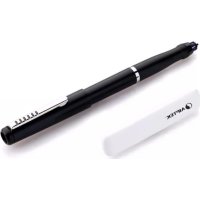
MyNote Pen - Digital pen AIPTEK - Free user manual and instructions
Find the device manual for free MyNote Pen AIPTEK in PDF.



| Product type | Digital pen for iPad |
| Brand | Aiptek |
| Model | MyNote Pen |
| Coverage area | 9.7 inches diagonal (iPad work surface) |
| Pen resolution | 400 DPI |
| Transfer rate | 60 rps |
| Transmission | Infrared and ultrasound |
| Connection | iPad 30-pin connector |
| Receiver power supply | Via iPad |
| Pen power supply | 2 SR41 batteries |
| Power consumption | Max 0.1 W |
| Battery life | Up to 90 hours |
| Receiver dimensions | 78 x 16 x 7.4 mm (L x W x H) |
| Pen dimensions | 142 x 13.6 mm (L x diameter) |
| Receiver weight | 10 g |
| Pen weight | 18.6 g |
| Color | White receiver, black pen |
| Model code | MNP-001 |
| Compatible software | Studio Basic Lite, IdealNotes, FlyNotes |
| System requirements | iPad, iPad 2, iPad 3 with iOS 4.3 or later |
| Package contents | Receiver, pen, 2 SR41 batteries, tip extractor, 2 pen tips, warranty card, quick start guide |
| Included tips | Two types: soft and hard, scratch-resistant rubber |
| Main functions | Write, draw, annotate on iPad; disable touch while using; screen calibration |
| Maintenance | Battery replacement (SR41) and tip replacement |
| Safety | Do not drop, avoid water and high temperature, use original accessories, keep out of reach of children, recycle batteries |
Frequently Asked Questions - MyNote Pen AIPTEK
User questions about MyNote Pen AIPTEK
0 question about this device. Answer the ones you know or ask your own.
Ask a new question about this device
Download the instructions for your Digital pen in PDF format for free! Find your manual MyNote Pen - AIPTEK and take your electronic device back in hand. On this page are published all the documents necessary for the use of your device. MyNote Pen by AIPTEK.
USER MANUAL MyNote Pen AIPTEK
natural_image
Black and white photo of a Pipette pen with a visible brand logo (AIPTEK) on its side, no text or symbols on the device itself.Welcome at Aiptek
Thank you very much for purchasing the MyNote Pen from Aiptek. MyNote Pen is the best piece of hardware for anyone dreaming to use the iPad for accurate drawing and painting. The small receiver is connected to the iPad easily and is ready to use after App installation. Write or draw on your iPad and save the notes for future use. Even leaning your hand on the screen is not a problem since touch function is deactivated while iPad is operating in Pen mode.
Before you start enjoying this product, it is recommended to read this manual and follow the instructions step by step to get the best result with your new input device.
Best Regards
Aiptek Team
Safety Notice
- Do not drop, puncture, roll or disassemble the hardware; otherwise the warranty will be voided.
- Avoid all contact with water, and dry hands before using.
- Do not expose to high temperature or leave in direct sunlight.
- Use the product with care. Avoid pressing hard on it.
- For your own safety, avoid using the product when there is a storm or lightning.
- Use only the accessories supplied by the manufacturer.
- Keep the product out of the reach of infants.
- Risk of explosion if battery is replaced by an incorrect type.
- Dispose of used batteries according to the instructions.
If the time arises to throw away your product, please recycle all the components possible. Batteries and rechargeable batteries are not to be disposed in your domestic waste! Please recycle them at your local recycling point. Together we can help to protect the environment.


"Made for iPod", "Made for iPhone" and "Made for iPad" mean that an electronic accessory has been designed to connect specifically to iPod, iPhone, or iPad, respectively, and has been certified by the developer to meet Apple performance standards. Apple is not responsible for the operation of this device or its compliance with safety and regulatory standards.
Please note that the use of this accessory with iPod, iPhone, or iPad may affect wireless performance. iPhone, iPod are trademarks of Apple Inc., registered in the U.S. and other countries. iPad is a trademark of Apple Inc.
Contents
Package Contents...... Page 3
System Requirements...... Page 4
Getting started.... Page 4/5
Using Studio Basic Lite...... Page 5
Pen Maintenance...... Page 7
Specifications...... Page 8
Warranty...... Page 8
Package Contents
Please check if the following items are located in your packaging:
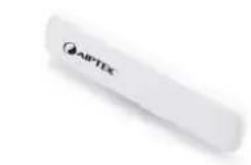
MyNote Pen Receiver
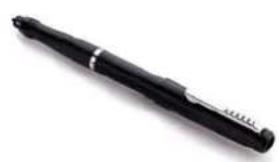
natural_image
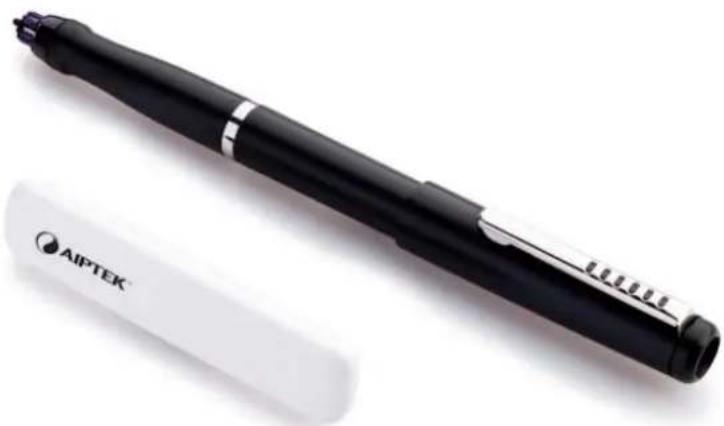
Black pen with silver handle and white stripe, isolated on white background (no text or symbols)Pen & 2x Battery (Type SR 41)
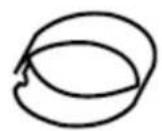
Pen tip remover
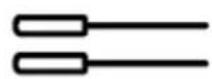
2x pen tips
Warranty card
This Quick Setup Guide
Please contact your dealer immediately if package is incomplete.
System Requirements
For successful use and installation of your MyNote Pen, you need an iPad, iPad 2 or iPad 3 running iOS 4.3 or above and an internet connection to download the App from Appstore.
Getting started
1. Prepare the pen
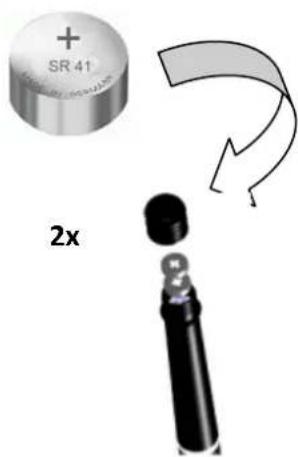
Before first time usage the pen must be prepared.
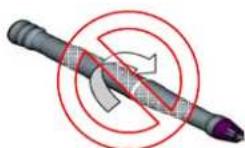
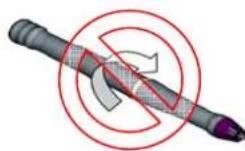
a. Remove the battery compartment cover on top of the pen. Do not attempt to open the other part of the pen itself. This may cause the pen to malfunction.
b. Install the 2x SR41 batteries, with the positive poles (+) facing up.
c. Close the battery compartment cover.
Note:
Do not attempt to open the pen. This will cause malfunction.
2. The pen tip
Every person has a unique writing or drawing behavior and also prefers different styles of pens. In order to give the most realistic feeling, MyNote Pen is coming with two different pen tips: One soft and one hard version. The hard tip is a little bit longer than the soft tip. From our experience and testing, most people prefer the harder version which is running smoother over your iPad.
Both pen tips are using special, scratch free rubber material to protect your screen. Spare pen tips can be ordered in Aiptek webshop on www.aiptekshop.de.
Place your favorite pen tip in the pen and gently push it in until the end is reached. Don't use too much pressure to avoid damaging the pen.
3. Mount the receiver
natural_image
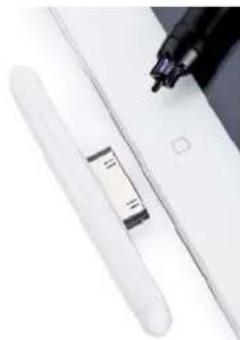
Close-up of a white electronic device with a black pen tip inserted, showing a small rectangular component (no visible text or symbols)For initial use, your receiver needs to be mounted onto the iPad. Attach the receiver to the top of the iPad through the 30pin connector.
4. Download an App

The Apps are available in the App Store for free. Turn on iPad, access the App Store, search and download. The following apps are compatible with MyNote Pen:
"Studio Basic Lite"
" IdealNotes"
" FlyNotes"
Using Studio Basic Lite
Screen calibration:
Every person has a different behaviour of writing and holding a pen. For the best accurate level it's important to do a screen calibration before you use the pen the first time. Please hold the pen for screen calibration in the same way like your personal writing style.
- Open the App
-
Tap "open" to enter the drawing notes library.
-
Tap "setting" in the right top corner.
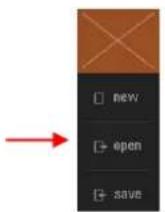
Setting •
- Tap "screen calibration".
about → screen calibration facebook twitter
- Press and hold the pen tip onto the cross until it moves. Follow the cross nine times to complete the calibration. Confirm the calibration with your finger.
Note:
In order to get accurate movement track of the pen, please hold the pen in the same way as you did during the screen calibration.
Knowing the App
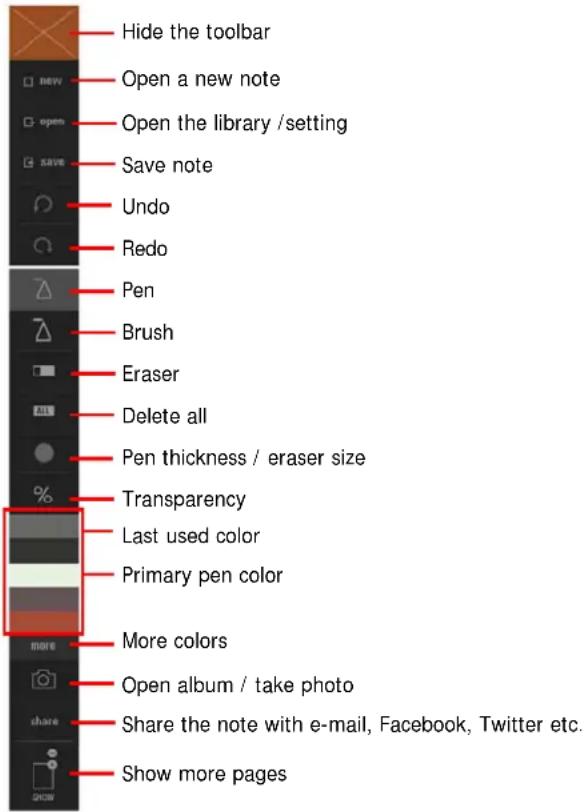
Studio Basic Lite is a full App to draw, write or anotate. Furthermore it's the central manage place of all your drawing and writing. You can edit, manage, share, print or delete files. Studio Basic Lite is an easy to use, but powerful tool for MyNote Pen.
Note:
Simply use your fingers to operate and navigate the toolbar and menu of Stuio Basic Lite. The Pen function is diabled in the menu bar.
A detailed App manual is embebeeded in the software. Tap "open" >> "setting" >> "about" to open
Start writing
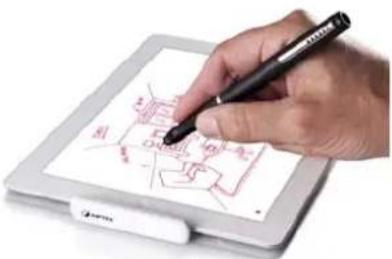
Now, pick up the pen and write or draw on the iPad screen directly. You can lay your fingers or hand on the screen without having any negative effect. As the surface of iPad is different from normal paper, you need around 20 minutes to get a feeling and to learn how to write or draw accurate. If you dont' feel comfortable with the pen tip, try the second pen tip (soft or hard) which gives you a different feeling.
Note:
Find a position that is comfortable for you. Be careful to hold the pen in a way that does not block the signals sent from the tip of the pen to the receiver.
When writing or drawing, make sure the tilt level of the pen to the iPad is between 45^ and 90^ .
Pen Maintenance
Exchange the Battery
After some time it might be necessary to exchange the batteries in the pen. When the result of writing is getting poor, or not all words are being recognized anymore, it's time to exchange the batteries. Please use only batteries Type SR41. You can order them from Aiptek webshop (www.aiptekshop.de).
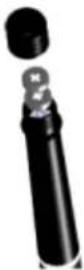
a. Remove the battery compartment cover on top of the pen. Do not attempt to open the other part of the pen itself. This may cause the pen to malfunction.
b. Install the 2x SR41 batteries, with the positive poles (+) facing up.
c. Close the battery compartment cover.
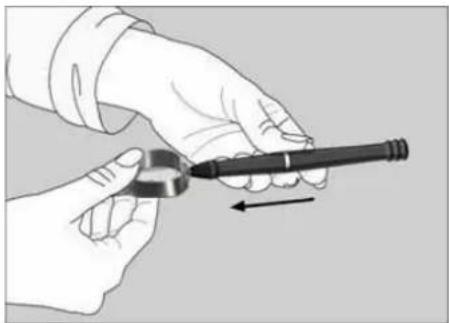
Pen Tip exchange
natural_image
Illustration of hands holding a pen or stylus with an arrow indicating motion (no text or symbols)a. Detach the cap from the digital pen or use the pen tip remover.
b. Clamp the ink refill with the refill extractor. Hold the pen firmly, and apply pressure with the extractor against it.
c. Pull the used refill out. Slide the new refill into the tip of the pen.
d. Gently press the new refill until it is lodged securely in the pen.
Specifications
| Coverage Area 9,7" diagonal (iPad working area) | |
| Pen Resolution | 400 DPI |
| Report Rate 60 rps | |
| Transmission Infrared & Ultrasound | |
| Connection 30 pin iPad connector | |
| Power Supply Receiver | via iPad |
| Power Supply Pen | 2x SR41 |
| Power consumption Max 0.1 W | |
| Battery lifetime | Up to 90 h |
| Dimensions Receiver | 78 mm x 16 mm x 7.4 mm (WxLxH) |
| Dimension Pen | 142 mm x 13.6 mm (LxD) |
| Weight Receiver | 10 g |
| Weight Pen | 18.6 g |
| Color | White (receiver), black (Pen) |
| Model Code | MNP-001 |
| Software | Studio Basic Lite, IdealNotes, FlyNotes |
| Sytem Requirements | iPad / iPad 2 / iPad 3 with iOS 4.3 or higher |
Warranty
Please refer to warranty card bundled with your MyNote Bluetooth to learn more about your local warranty statements, Aiptek Service and contact information for your country.

AIPTEK™
MyNote Pen
Bedienungsanleitung
natural_image
Black and white photo of a Pipette pen with a visible brand logo (AIPTEK) on its side, no text or symbols on the device itself.Version: 2.0
natural_image
Black pen with silver handle and white strap, isolated on white background (no text or symbols)natural_image
Close-up of a white electronic device with a black pen inserted, showing a small rectangular component (no visible text or symbols)" Studio Basic Lite"
" IdealNotes"
" FlyNotes"
Studio Basic Lite verwenden
natural_image
Hand drawing on a white tablet with a stylus, no visible text or symbolsAnmerkung:
natural_image
Illustration of hands holding a pen or tool with an arrow indicating direction (no text or symbols)natural_image
Black and white photo of a Pipette pen with a visible brand logo (AIPTEK) on its side, no text or symbols on the device itself.Version : 2.0
natural_image
Black pen with silver handle and white stripe, isolated on white background (no text or symbols)natural_image
Close-up of a pen writing on a white surface with a small rectangular object nearby (no visible text or symbols)Remarque :
natural_image
Illustration of hands holding a pen and a circular object, with an arrow indicating direction (no text or symbols)natural_image
Black and white photo of a Pipette pen with a visible brand logo (AIPTEK) on its side, no text or symbols on the device itself.Versione: 2.0
Benvenuti in Aiptek
natural_image
Black pen with silver eraser and white stripe, isolated on white background (no text or symbols visible)natural_image
Close-up of a pen writing on a white surface with a small rectangular object nearby (no visible text or symbols)" IdealNotes" " FlyNotes"
natural_image
Hand drawing on a digital tablet with a stylus, no visible text or symbolsNota:
natural_image
Illustration of hands holding a pen or stylus with an arrow indicating motion (no text or symbols)natural_image
Black and white photo of a Pipette pen with a visible brand logo (AIPTEK) on its side, no text or symbols on the device itself.Versión: 2.0
Aiptek le da la bienvenida
natural_image
Black pen with silver handle and metallic ferrule, isolated on white background (no text or symbols)natural_image
Close-up of a pen writing on a white surface with a small rectangular object, no visible text or symbolsNota:
natural_image
Illustration of hands holding a pen and a tool, with an arrow indicating direction (no text or symbols)

- Welcome at Aiptek
- Safety Notice
- Contents
- Package Contents
- System Requirements
- Getting started
- Prepare the pen
- Note:
- The pen tip
- Mount the receiver
- Download an App
- Using Studio Basic Lite
- Screen calibration:
- Knowing the App
- Start writing
- Pen Maintenance
- Exchange the Battery
- Pen Tip exchange
- Warranty
- AIPTEK™
- MyNote Pen
- Bedienungsanleitung
- Studio Basic Lite verwenden
- Anmerkung:
- Remarque :
- Benvenuti in Aiptek
- Nota:
- Aiptek le da la bienvenida
Brand : AIPTEK
Model : MyNote Pen
Category : Digital pen