
EXP431/00C - Portable CD player PHILIPS - Free user manual and instructions
Find the device manual for free EXP431/00C PHILIPS in PDF.



| Product type | Portable CD player |
| Brand | PHILIPS |
| Model | EXP431/00C |
| Supported disc formats | Audio CD, CD-R, CD-RW, CD-MP3 (8 cm) |
| MP3 file formats | MP3 (32-320 kbps, variable bitrate), ISO 9660, Joliet, UDF |
| Power supply | 2 AAA batteries (LR03/UM4) or 4.5 V DC power adapter (AY 3170) |
| Battery life (alkaline) | Approx. 5 h (audio CD, ESP+economy), 7 h (MP3) |
| Rechargeable NiMH battery life | Approx. 4 h (audio CD), 5.5 h (MP3) |
| Dimensions (approx.) | 140 x 140 x 25 mm |
| Weight (approx.) | 200 g (without batteries) |
| Main functions | CD/MP3 playback, ESP (skip protection), power saving, random/repeat playback, bookmarks, resume, HOLD lock, remote control AY 3769 |
| Earphones | 3.5 mm headphone output (LINE OUT), supplied earphones (SBC HE 545) |
| Care and cleaning | Clean with a soft slightly damp cloth; do not touch the lens; clean discs from center to edge |
| Safety | Do not use while driving; observe listening levels; do not expose to humidity or excessive heat |
| Spare parts and repairability | ECO-PLUS NiMH rechargeable batteries AY 3363, power adapter AY 3170, remote control AY 3769; do not repair yourself (warranty) |
| General information | Compliant with French standards; firmware update possible via CD-ROM |
Frequently Asked Questions - EXP431/00C PHILIPS
User questions about EXP431/00C PHILIPS
0 question about this device. Answer the ones you know or ask your own.
Ask a new question about this device
Download the instructions for your Portable CD player in PDF format for free! Find your manual EXP431/00C - PHILIPS and take your electronic device back in hand. On this page are published all the documents necessary for the use of your device. EXP431/00C by PHILIPS.
USER MANUAL EXP431/00C PHILIPS
Environmental information 9
MP3 music files 10-11
Firmware upgrade 12
Power supply
Batteries 13
ECO-Plus NiMH batteries 14
Mains adapter 15
Headphones 15
Basic functions
Playing a disc 16
Pause 17
Track and album information 17
Volume and sound 18
Selecting and searching on all discs 19
Selecting albums and tracks on MP3-CDs 19
Features
Playing a selection of tracks - favourites 20
Playing tracks repeatedly or in random order - MODE 21
Storing the last position played - RESUME 22
Locking all buttons - HOLD 22
ESP and powersaving 23
Beep 23
Accessories
Remote control AY 3769 24-25
Wrist strap 25
Troubleshooting 26-27
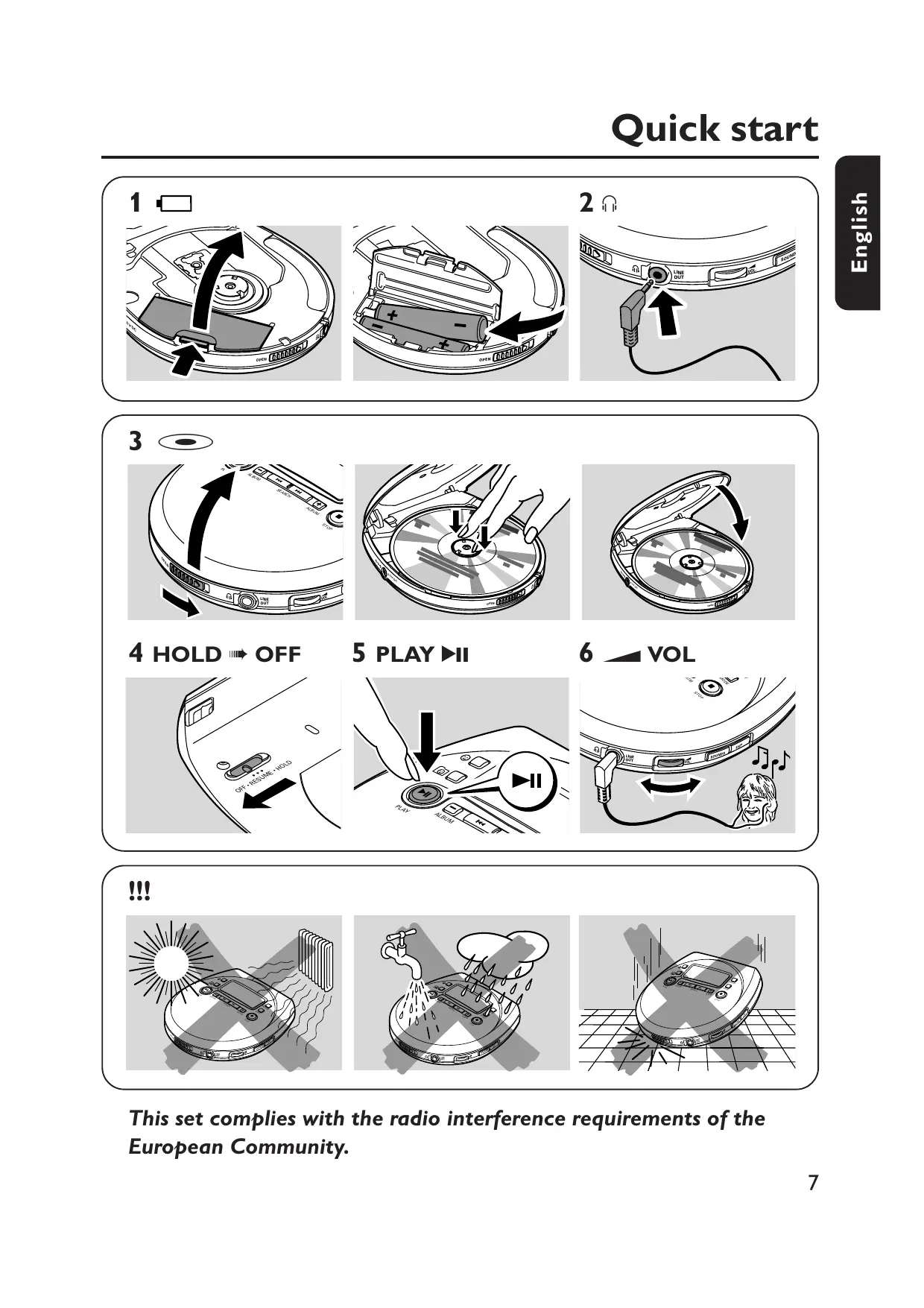
1□
2
3
4 HOLD OFF
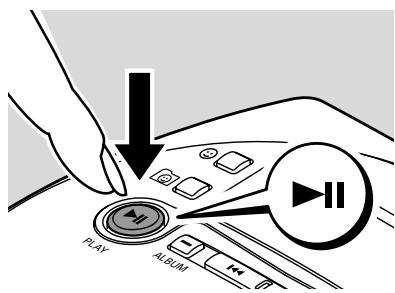
5 PLAY▶II
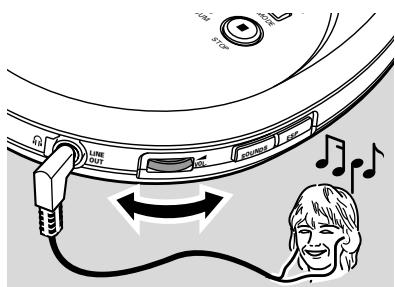
6 VOL
!!
This set complies with the radio interference requirements of the European Community.
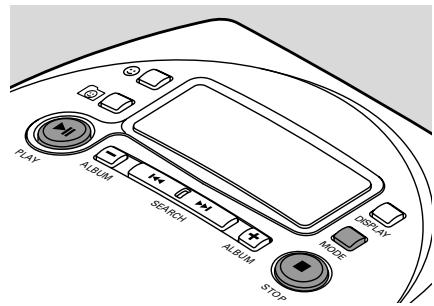
① VOL
adjusts the volume
② SOUND
selects the bass and treble adjustment
③ ESP
Electronic Skip Protection prevents music interruptions caused by shocks
(4)
stops playback and switches the set off
(5) MODE
selects playback options such as SHUFFLE and REPEAT
(6) DISPLAY
selects the track and album information
(7) display
(8)
marks and unmarks a favourite
9
selects playback of favourites
10
switches the set on, starts playback and interrupts playback
(11) -
MP3-CD only: selects the previous album or skips backward
(12)
skips backward and searches backward
(13)
skips forward and searches forward
14 +
MP3-CD only: selects the next album or skips forward
(15) OPEN
opens the CD lid
LINE OUT
3.5 mm line out socket to connect
-
the headphones
-
the remote control
-
this set to the audio input of your stereo equipment
(17) eyelet for the carrying strap
18 OFF·RESUME·HOLD
OFF switches RESUMEand HOLD offRESUME stores the lastposition playedHOLD locks all buttons
(19) type plate
(20) 4.5V DC
to connect the external power supply
CAUTION
Use of controls or adjustments or performance of procedures other than herein may result in hazardous radiation exposure or other unsafe operation.
Maintenance
Do not touch the lens (A) of the set.
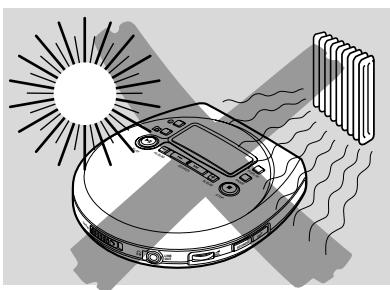
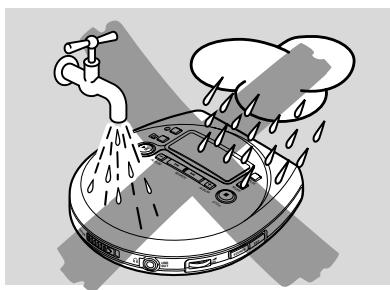
Do not expose the set, batteries or discs to humidity, rain, sand or excessive heat (caused by heating equipment or direct sunlight).
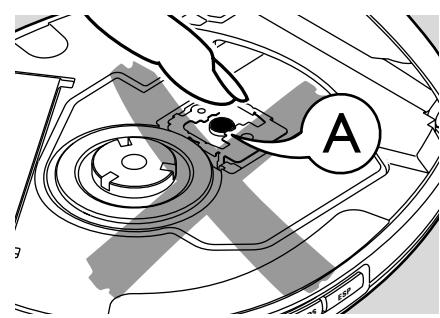
The lens may cloud over when the set is suddenly moved from cold to warm
surroundings. Playing is not possible then. Leave the set in a warm environment until the moisture evaporates.
Active mobile phones in the vicinity of this set may cause malfunctions.
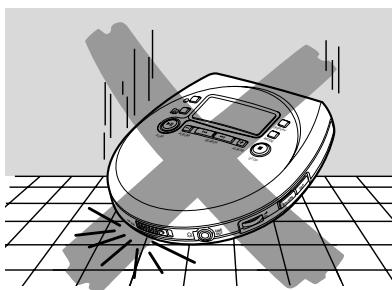
Avoid dropping the set; this may cause damage.
Clean the set with a soft, slightly dampened lint-free cloth. Do not use any cleaning agents; they may have a corrosive effect.
To clean a disc, wipe it in a straight line from the centre towards the edge using a soft, lint-free cloth. Cleaning agents may damage the disc.
Environmental information
All redundant packing material has been omitted. We have done our utmost to make the packaging easily separable into three mono materials: cardboard (box), polystyrene foam (buffer) and polyethylene (bags, protective foam sheet).
Your set consists of materials which can be recycled if disassembled by a specialized company. Please observe the local regulations regarding the disposal of packing materials, exhausted batteries and old equipment.
MP3 music files
The music compression technology MP3 (MPEG 1 Audio Layer 3) reduces the digital data of an audio CD significantly while maintaining CD-like sound quality. With MP3 you can record up to 3 hours of CD-like music on one 8 cm CD-ROM.
How to get music files
Either download legal music files from the internet to your computer hard disc or create them from your own audio CDs. For this, insert an audio CD into your computer's CD-ROM drive and convert the music using an appropriate encoder software. To achieve a good sound quality, a bit rate of 128 kbps or higher is recommended for MP3 music files.
How to organize music files
In order to easily handle the large number of music files on a CD-ROM, you can organize them in folders ("albums").
The tracks of an album will be played in alphabetical order. If you want to arrange them in a certain order, let the file names start with numbers. For example:
001-ONEWORLD.MP3
002-FIRESTARTER.MP3
003-DEEP.MP3
Albums will be arranged in alphabetical order, but sub folders (albums within another album) will be played immediately after the album in which they are located. Albums without MP3 files will be skipped.
If there are MP3 files which you did not put into an album, you will find them in the album Various with album number 0. Various is the first album that will be played.
When playing a disc with CD Audio tracks and MP3 files, the CD Audio tracks will be played first.
How to make a CD-ROM with MP3 files
Use your computer's CD burner to record (“burn”) the music files from your hard disc on an 8 cm CDR or CDRW. Use either ISO 9660 disc format or UDF. Some CD burner software like e.g. “DirectCD” support the UDF format.
Make sure that the file names of the MP3 files end with .mp3.
Supported formats
This set supports:
- Disc format: ISO 9660, Joliet, Multisession, UDF, Enhanced Music CD, Mixed Mode CD
- MP3 bit rate: 32-320 kbps and variable bit rate
- Total number of music files and albums: around 350 (with a typical file name length of 20 characters)
Note: The number of music files that can be played depends on the length of the file names. With short file names more files will be supported.
All trademarks used are owned by their respective owners.
Firmware upgrade
Occasionally, Philips releases new software ("firmware") for your set.
1 Connect the mains adapter to 4.5V DC on the set and to the wall socket (see “Mains adapter”).
2 Keep MODE pressed for 3 seconds.
The type of your set and the current version of the firmware are displayed. Upgrade? is displayed.
3 Press ■.
4 Visit the Philips Audio homepage www.audio.philips.com. Check if there is a firmware file for your set and if the firmware version is higher than the current version of your set. Download the file and burn it on an 8 cm CD-ROM.
5 Insert the CD-ROM into the set and keep MODE pressed for 3 seconds.
Upgrade? is displayed.
6 Press▶II:
Upgrading is displayed and upgrading starts. This may take some minutes. After upgrading is finished, Upgrade complete is scrolled.
Wrong upgrade file is scrolled: Your set already has the latest firmware or the downloaded file does not correspond to your set.
Upgrade file defect is scrolled: The upgrade file has been damaged during the download or when burning the CD-ROM. Download the file again, burn a new CD-ROM and try again.
→No upgrade file is scrolled: No upgrade file was found on the inserted CD-ROM.
Note: If upgrading is interrupted accidentally, repeat steps 5 and 6 until upgrading is completed successfully.
Batteries (supplied or optionally available)
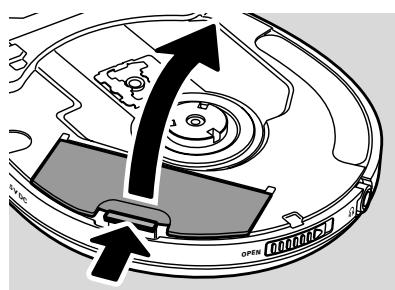
Inserting batteries
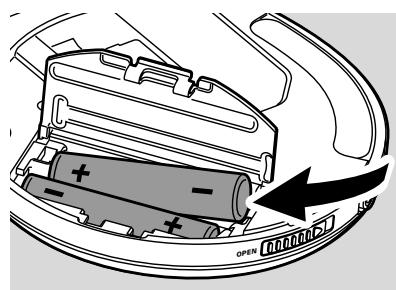
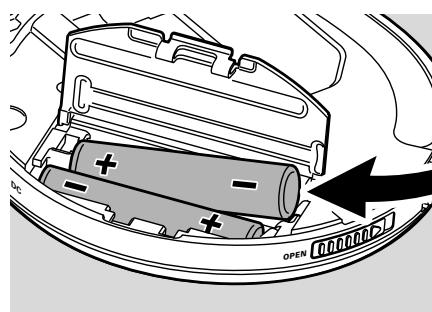
- Open the battery compartment and insert 2 alkaline batteries of type AAA (R03, UM4).
Do not use old and new or different types of batteries in combination.
Indication of empty batteries
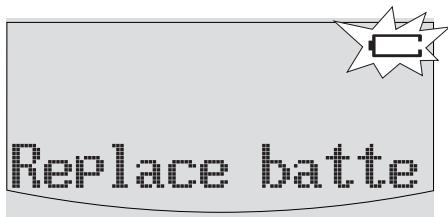
- Replace the batteries or connect the mains adapter as soon as blinks and Replace batteries is scrolled.
Remove batteries if they are empty or if the set will not be used for a long time.
Batteries contain chemical substances, so they should be disposed of properly.
Average playing time of batteries under normal conditions:
| Alkaline batteries | ECO-PLUS NiMH batteries | |
| ESP on: | 3.5 hours | 2.5 hours |
| ESP and powersaving on: | ||
| Audio disc | 5 hours | 4 hours |
| MP3-CD | 7 hours | 5.5 hours |
ECO-PLUS NiMH batteries (for versions supplied with ECO-PLUS NiMH batteries AY 3363 only)
Recharging works only on a set with supplied rechargeable ECO-PLUS NiMH batteries AY 3363.
Recharging the ECO-PLUS NiMH batteries
1 Insert the 2 rechargeable ECO-PLUS NiMH batteries AY 3363.
2 Connect the mains adapter to 4.5V DC on the set and to the wall socket (see “Mains adapter”).
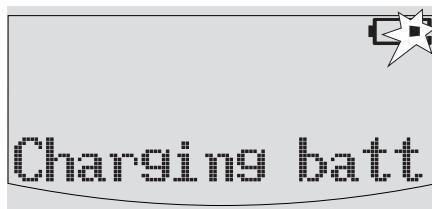
Charging batteries is scrolled once.
While the battery symbol is changing,
the set is recharging the NiMH batteries. When the batteries are fully charged, l appears and Charge full is displayed.
ECO-PLUS NiMH battery information
Recharge only the supplied NiMH batteries AY 3363. Do not recharge any other type of batteries.
Recharging takes approximately 6 hours. Recharging stops during playback.
Recharging full or half-full batteries will shorten the battery lifetime.
Therefore, after using the rechargeable ECO-PLUS NiMH batteries a few times, discharge them completely before recharging.
To avoid a short circuit, the batteries should not touch any metal objects.
If the batteries quickly become empty after recharging, the contacts are dirty or the end of the battery lifetime has been reached.
Mains adapter
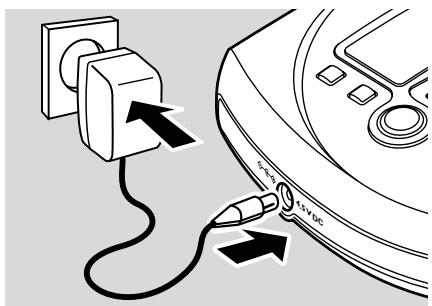
Use only the AY 3170 mains adapter (4.5 V/300 mA direct current, positive pole to the centre pin). Any other product may damage the set.
1 Make sure the local voltage corresponds to the adapter's voltage.
2 Connect the mains adapter to 4.5V DC on the set and to the wall socket.
Note: Always disconnect the adapter if you are not using it.
Headphones (SBC HE 545)
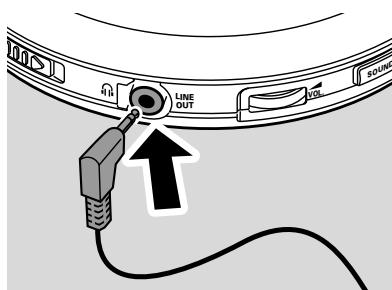
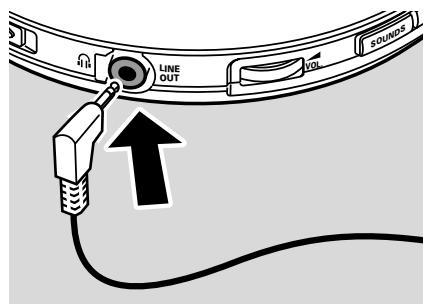
- Connect the supplied headphones to LINE OUT.
Note: LINE OUT can also be used for connecting this set to your HiFi system. Set
VOL on this set to position 8 and adjust volume and sound with your HiFi system.
Use your head when using headphones
Hearing safety
Do not play your headphones at a high volume. Hearing experts advise that continuous use at high volume can permanently damage your hearing.
Traffic safety
Do not use headphones while driving a vehicle. It may create a hazard and it is illegal in many countries. Even if your headphones are an open-air type designed to let you hear outside sounds, do not turn up the volume so high that you cannot hear what is going on around you.
Playing a disc
With this set you can play
- 8 cm audio discs (pre-recorded audio CDs, finalized audio CDRs and CDRWs)
- 8 cm MP3-CDs (CD-ROMs with MP3 files)
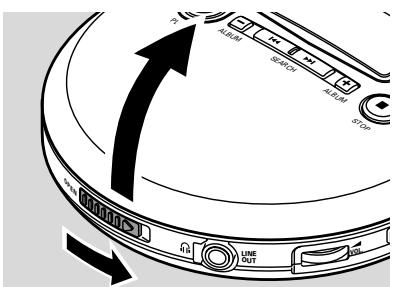
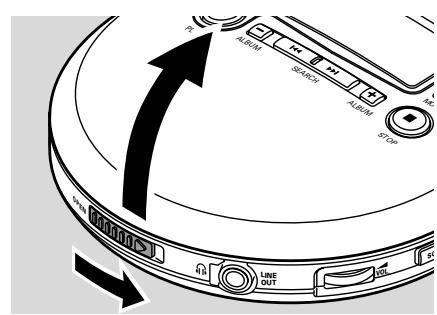
1 Push the OPEN slider to open the CD lid.
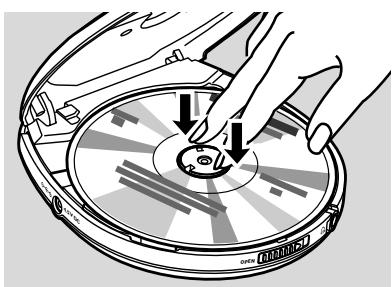
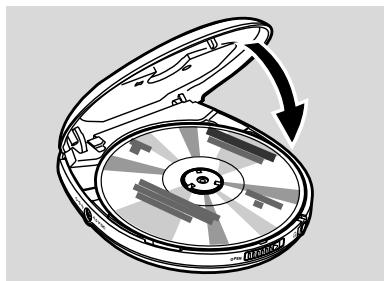
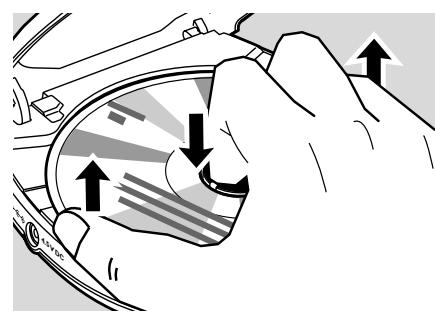
2 Insert a disc, printed side up, by pressing gently on the disc's centre so that it fits onto the hub. Close the lid by pressing it down.
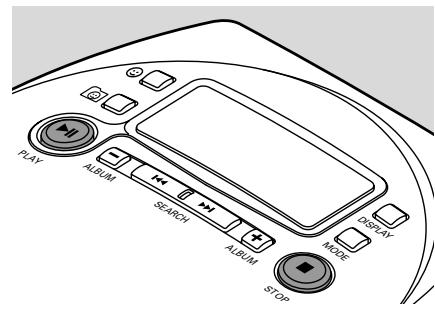
3 Press▶II to start playback.
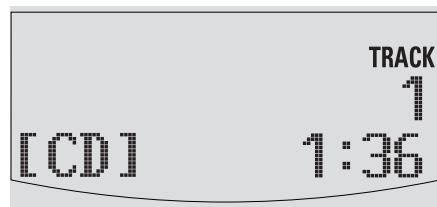
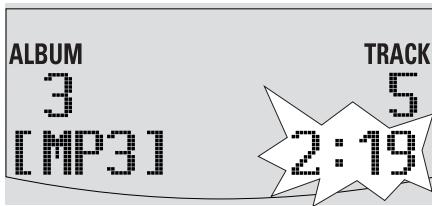
Reading CD is displayed. Playback starts. The track type (CD or MP3), the current track number and the elapsed playing time are displayed. For an MP3 track, the album number is also displayed and the filename is scrolled twice.
4 Press to stop playback.
The total number of tracks, the track types (CD, MP3), the number of albums on an MP3-CD and the total playing time (of an audio disc only) are displayed.
5 To remove the disc, hold it by its edge and press the hub gently while lifting the disc.
Notes:
After pressing it may take some time until the first MP3 track is played. 15 seconds after pressing the set switches off automatically.
Pause
1 Press▶■ to interrupt playback.
→ The elapsed playing time blinks.
2 To resume playback press again.
Track and album information (for MP3 tracks only)
-
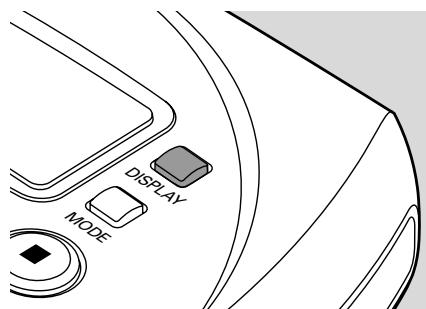
Press DISPLAY repeatedly during playback to select the information to be displayed:
-
Album: the album's folder name,
- Artist: the artist's name (if this ID3 tag information is available),
- Title: the track's title (if this ID3 tag information is available),
- the track type and the elapsed playing time,
- Filename: the track's file name.
The selected information is scrolled twice. The album number and track number are displayed.
[Filename] Is this Love
Note: The ID3 tag is part of an MP3 file and contains various track information such as the track's title or the artist's name. Complete the ID3 tag information with your MP3 encoder software before burning the MP3-CD.
Volume and sound
Volume adjustment
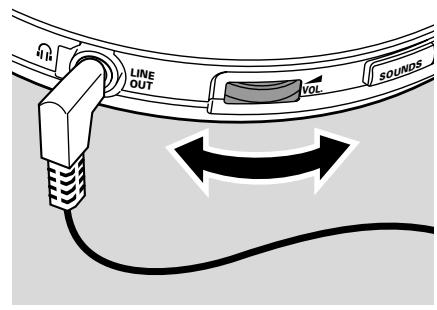
- Adjust the volume by using VOL.
Bass adjustment
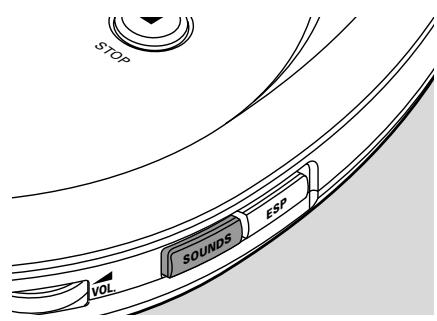
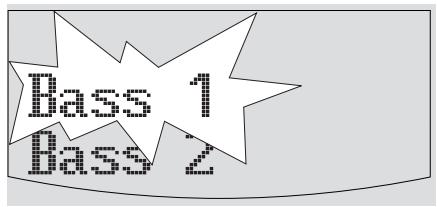
1 Press SOUNDS once during playback to select the bass adjustment.
The current bass setting is blinking.
2 Press + repeatedly to select either:
- No Bass: no bass enhancement
- Bass 1: moderate bass enhancement
- Bass 2: strong bass enhancement
The selected bass setting is blinking.
3 Press SOUNDS to confirm your selection.
Treble adjustment
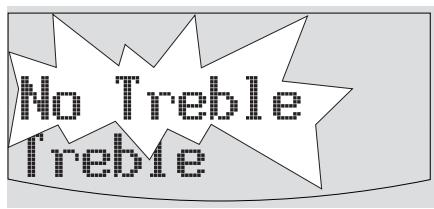
1 Press SOUNDs twice during playback to select the treble adjustment.
The current treble setting is blinking.
2 Press + repeatedly to select either:
- No Treble: no treble enhancement
Treble:treble enhancement
The selected treble setting is blinking.
3 Press SOUNDS to confirm your selection.
Selecting and searching on all discs
Selecting a track during playback
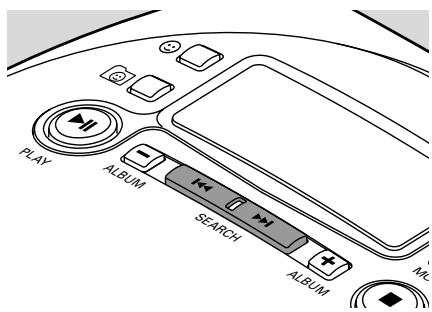
- Briefly press or once or several times to skip to the beginning of the current, previous or subsequent track.
Playback continues with the selected track.
Searching for a passage during playback
1 Keep or pressed to find a particular passage in backward or forward direction.
Searching starts and playback continues at a low volume.
2 Release the button at the desired passage.
Normal playback continues.
Note: If REPEAT, SHUFFLE or (playback of favourites) is selected, searching is only possible within the current track.
Selecting albums and tracks on MP3-CDs
Selecting an album during playback
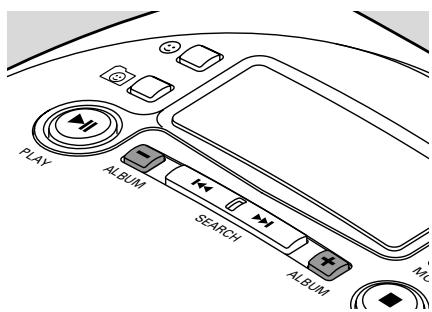
- Briefly press - or + once or several times to skip to the first track of the current, previous or subsequent album.
The first track of the selected album is played.
Selecting a track during playback
1 Keep - or + pressed to skip quickly to previous or subsequent MP3 tracks.
Skipping starts and speeds up after 5 seconds.
2 Release the button at the desired track.
Playback continues with the selected track.
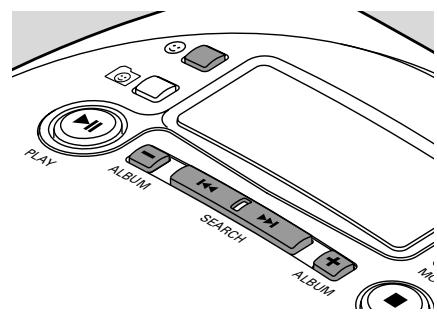
Playing a selection of tracks – favourites
You can mark around 2000 tracks as your favourites. For each disc the set memorizes the favourites and in which order to play them.
Turning a track into a favourite
1 Select a track with , , - or +
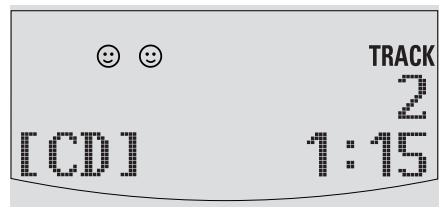
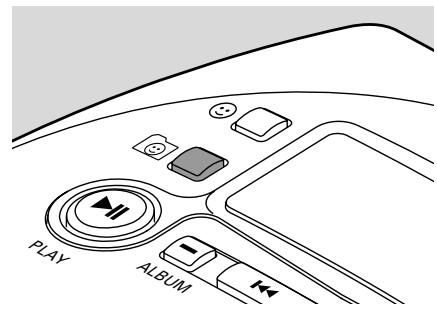
2 Press to turn the track into a favourite.
() indicates that the track is a favourite.
To turn a favourite into a normal track, press while playing the favourite.
disappears and the track is no longer a favourite.
To review the favourites of the inserted disc, press for 2 seconds during playback.
All favourites are displayed in sequence.
Playing favourites
- Press during playback to play the favourites of the inserted disc.
appears and playback continues with the first favourite. All favourites will be played in the order that they were turned into favourites.
To return to normal playback, press l .
disappears. The current track and all subsequent tracks of the disc will be played.
Note: The favourites of the disc which you have not played for the longest time will be cleared if you mark more than 2000 tracks as favourites.
Playing tracks repeatedly or in random order - MODE
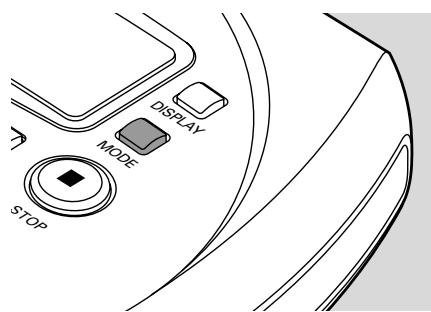
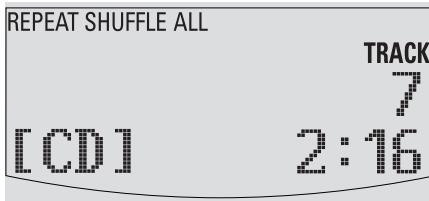
1 Press MODE repeatedly during playback to select either:
- SHUFFLE ALBUM (with MP3-CDs only): All tracks of the current album are played in random order once.
- SHUFFLE ALL: All tracks of the disc are played in random order once.
- REPEAT SHUFFLE ALBUM (with MP3-CDs only): All tracks of the current album are played repeatedly in random order.
- REPEAT SHUFFLE ALL: All tracks of the disc are played repeatedly in random order.
- REPEAT:The current track is played repeatedly.
- REPEAT ALBUM (with MP3-CDs only): All tracks of the current album are played repeatedly.
- REPEAT ALL: The entire disc is played repeatedly.
Playback starts in the selected mode after 2 seconds.
2 To return to normal playback, press MODE repeatedly until REPEAT and SHUFFLE disappear.
Note: If (playback of favourites) is selected, SHUFFLE and REPEAT will affect the favourites only.
Storing the last position played – RESUME
You can store the last position played. When restarting, playback will continue from where you have stopped.
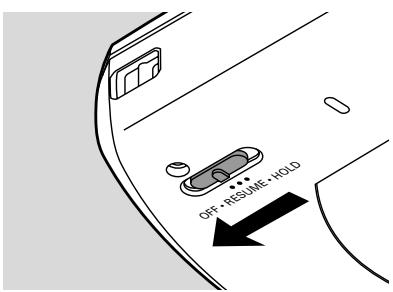
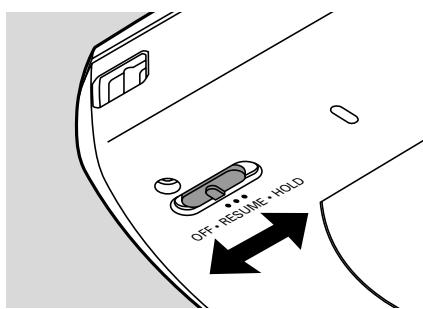
1 Switch the slider to RESUME during playback to activate RESUME.
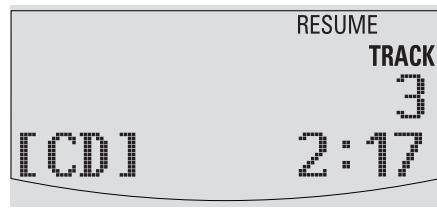
RESUME appears.
2 Press whenever you want to stop playback.
3 Press▶II to resume playback.
Playback continues from where you have stopped.
To deactivate RESUME, switch the slider to OFF.
RESUME disappears.
Locking all buttons - HOLD
You can lock all buttons of the set. When you press any key, no action will be executed then.
- Switch the slider to HOLD to activate HOLD.
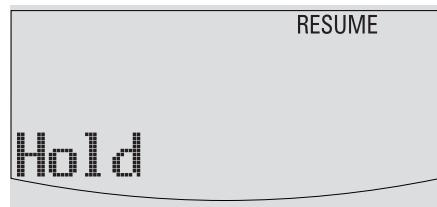
RESUME appears and Hold is displayed. All buttons are locked. When pressing any key, Hold is displayed.
To deactivate HOLD, switch the slider to OFF.
RESUME disappears.
ESP and powersaving
With a conventional portable disc player the music may skip or stop if the player is shaken or jarred. The Electronic Skip Protection protects this set against loss of sound caused by light vibrations or shocks. Continuous playback is ensured. ESP does not protect the set against damage caused by dropping! Powersaving increases the battery playing time.
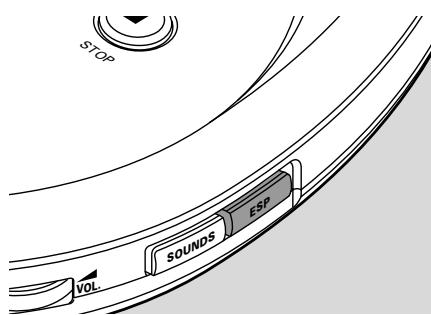
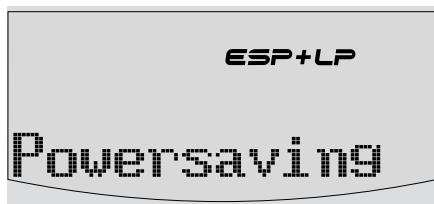
- Press ESP repeatedly during playback to switch ESP and powersaving on or off:
ESP on: ESP appears and ESP is switched on.
ESP off: ESP disappears. ESP is switched off to achieve the best sound quality for CD Audio tracks.
Powersaving mode: ESP+LP appears. ESP and powersaving are switched on. The battery playing time is increased and the skip protection time slightly decreased.
Beep
A beep confirms that you have pressed a button or that the batteries are empty.
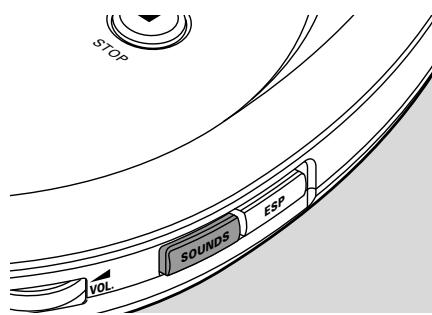
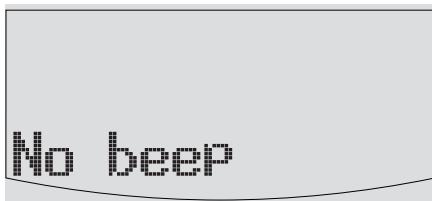
- Keep SOUNDS pressed for 2 seconds to switch beep either on or off:
Beep is displayed: Beep is switched on.
No beep is displayed: Beep is switched off.
Remote control AY 3769 (supplied or optionally available)
Controls
1 MODE
selects playback options such as SHUFFLE and REPEAT and playback of favourites
(2)
switches the set on, starts playback and interrupts playback
(3)
stops playback and switches the set off
(4) 3.5 ~mm plug to connect the headphones
(5) + ALBUM -
MP3-CD only: selects the next/previous album or skips forward/backward
(6) VOLUME
adjusts the volume
(7) TRACK
skips and searches forward/backward
OFF/HOLD
locks all buttons on the remote control
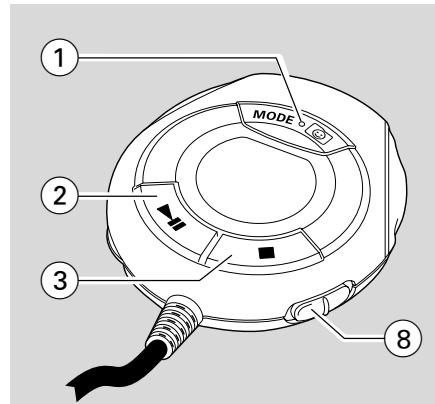
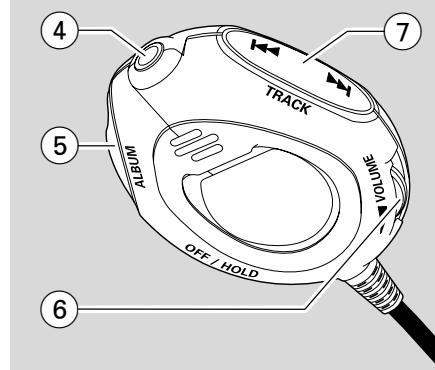
All buttons on the remote control have the same functions as the corresponding buttons on the set except MODE·
- Press MODE repeatedly during playback to select one of the playback options described in "Playing tracks repeatedly or in random order - MODE". The display of the remote control shows either:
SHUFFLE HLL - SHUFFLE HLL - REPEAT SHUFFLE HLL - REPEAT SHUFFLE HLL - REPEAT - REPEAT HLL - REPEAT HLL
- Keep MODE·pressed for 2 seconds during playback to play the favourites of the inserted disc (see “Playing a selection of tracks – favourites”).
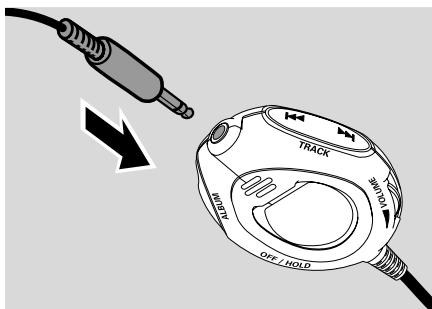
Connecting the remote control
Use only the AY 3769 remote control.
1 Press on the set twice to switch off the set.
2 Firmly connect the remote control to LINE OUT on the set.
3 Firmly connect the headphones to the plug on the remote control.
4 On the remote control keep pressed for 1 second to switch on the set and to start playback.
Playback starts. The album number (MP3-CDs only) and the track number are displayed on the remote control's display.
5 Set VOL on the set to position 8 and adjust the volume with
VOLUME on the remote control.
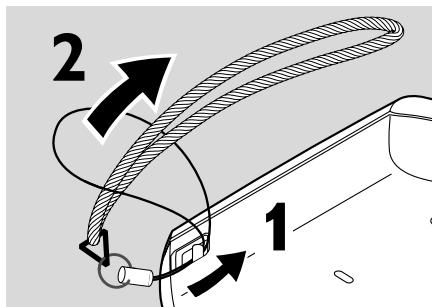
Note: Replace the batteries as soon as no battery is displayed on the remote control's display.
Wrist strap
1 Thread the thin end of the wrist strap through the eyelet in the set.
2 Thread the thick end of the strap through the small loop and pull at the thick end to tighten the strap.
WARNING
Under no circumstances should you try to repair the set yourself as this will invalidate the guarantee.
If a fault occurs, first check the points listed, before taking the set for repair. If you are unable to solve a problem by following these hints, consult your dealer or service centre.
| Problem | Solution |
| No power, playback does not start | - Insert the batteries correctly. - Replace the batteries. - Connect the mains adapter securely. |
| Hold indication and/or no reaction to controls | - Deactivate HOLD. - Disconnect the set from the power supply or take out the batteries for a few seconds. |
| No sound or bad sound quality | - Press▶II to resume playback. - Adjust the volume. - Check and clean the connections. - Keep this set away from active mobile phones or strong magnetic fields. |
| Pls insert CD or No audio file indication | - Insert a disc, label upwards. - Clean or replace the disc. - Wait until the steamed up lens has cleared. - Make sure you have inserted an audio disc or an MP3-CD. |
| Unfinalized CD indication | - Make sure the inserted CDR or CDRW is finalized. |
| Music file is not played | - Make sure that the file names of the MP3 files end with .mp3 |
| Missing directories on MP3-CD | - Make sure the total number of files and albums on your MP3-CD does not exceed 350. - Only albums with MP3 files are shown. |
| The disc skips tracks | - Clean or replace the disc. - Make sure REPEAT, SHUFFLE and ◎ are not selected. |
| Music skips or popping sound when playing an MP3 file | - Play the music file on your computer. If the problem persists, encode the audio track again and make a new CD-ROM. |
| Select songs indication and blinking ◎ ◎ | - There are no favourites on the inserted disc. Turn a track into a favourite. |
| Music is interrupted and ◎ ops indication | - Switch ESP on. |
Mise en service rapide 29
Commands 30
[Filename] Is this Love
[Filename] Is this Love
[Filename] Is this Love
CLASS 1 LASER PRODUCT
3103 306 1889.1

VieChr0218
- Power supply
- Basic functions
- Features
- Accessories
- CAUTION
- Maintenance
- Environmental information
- MP3 music files
- How to get music files
- How to organize music files
- How to make a CD-ROM with MP3 files
- Supported formats
- Firmware upgrade
- Batteries (supplied or optionally available)
- Inserting batteries
- Indication of empty batteries
- Batteries contain chemical substances, so they should be disposed of properly.
- ECO-PLUS NiMH batteries (for versions supplied with ECO-PLUS NiMH batteries AY 3363 only)
- Recharging the ECO-PLUS NiMH batteries
- ECO-PLUS NiMH battery information
- Mains adapter
- Headphones (SBC HE 545)
- Use your head when using headphones
- Playing a disc
- Pause
- Track and album information (for MP3 tracks only)
- Volume and sound
- Volume adjustment
- Bass adjustment
- Treble adjustment
- Selecting and searching on all discs
- Selecting a track during playback
- Searching for a passage during playback
- Selecting albums and tracks on MP3-CDs
- Selecting an album during playback
- Playing a selection of tracks – favourites
- Turning a track into a favourite
- Playing favourites
- Playing tracks repeatedly or in random order - MODE
- Storing the last position played – RESUME
- Locking all buttons - HOLD
- ESP and powersaving
- Beep
- Remote control AY 3769 (supplied or optionally available)
- Controls
- Connecting the remote control
- Wrist strap
- WARNING
- [Filename] Is this Love
- CLASS 1 LASER PRODUCT
Brand : PHILIPS
Model : EXP431/00C
Category : Portable CD player