DCS2670L - Surveillance Camera D-LINK - Free user manual and instructions
Find the device manual for free DCS2670L D-LINK in PDF.


Frequently Asked Questions - DCS2670L D-LINK
User questions about DCS2670L D-LINK
0 question about this device. Answer the ones you know or ask your own.
Ask a new question about this device
Download the instructions for your Surveillance Camera in PDF format for free! Find your manual DCS2670L - D-LINK and take your electronic device back in hand. On this page are published all the documents necessary for the use of your device. DCS2670L by D-LINK.
USER MANUAL DCS2670L D-LINK
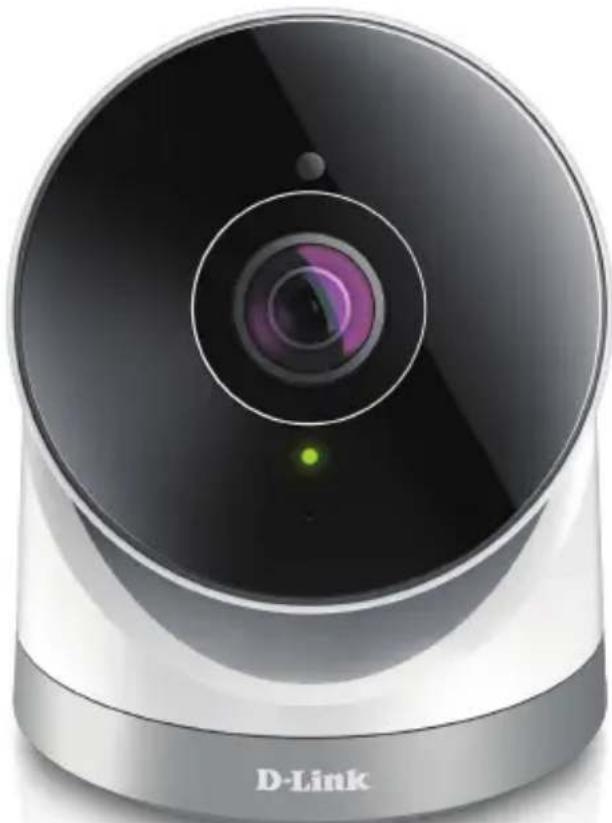
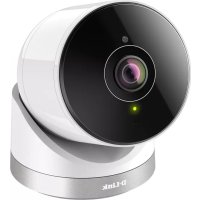
Full HD 180-Degree Outdoor Wi-Fi Cam
Quick Install Guide
D-Link
Package Contents

DCS-2670L Full HD
180-Degree Outdoor
Wi-Fi Cam
Waterproof Cable Connector
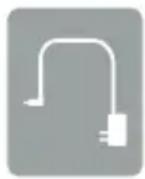
Power Adapter
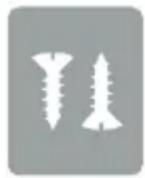
Mounting Hardware
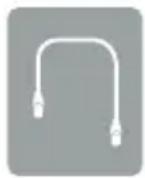
Ethernet Cable

Quick Install Guide
If any of the above items are missing, please contact your reseller.
Minimum Requirements
Mobile Device (to use mydlink Lite app)
- iPhone, iPad, or Android smartphone or tablet
(Refer to the mobile app's store page to see if your device is compatible)
Network Device and Service
- A wireless router (802.11n/ac) with Internet service
- An e-mail account (required to create a mydlink® account)
For warranty and regulatory information, please visit:
http://support.dlink.com/warranty.aspx (U.S.)
or http://support.dlink.ca/DCS-2670L (Canada)
Product Overview
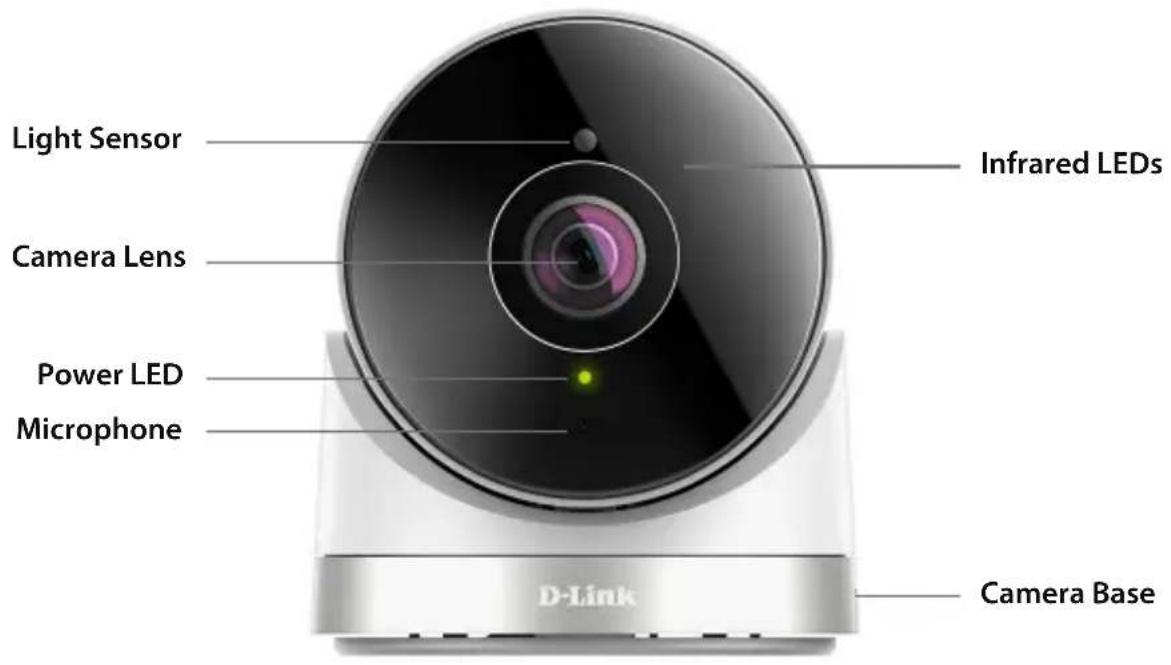
Front
Bottom
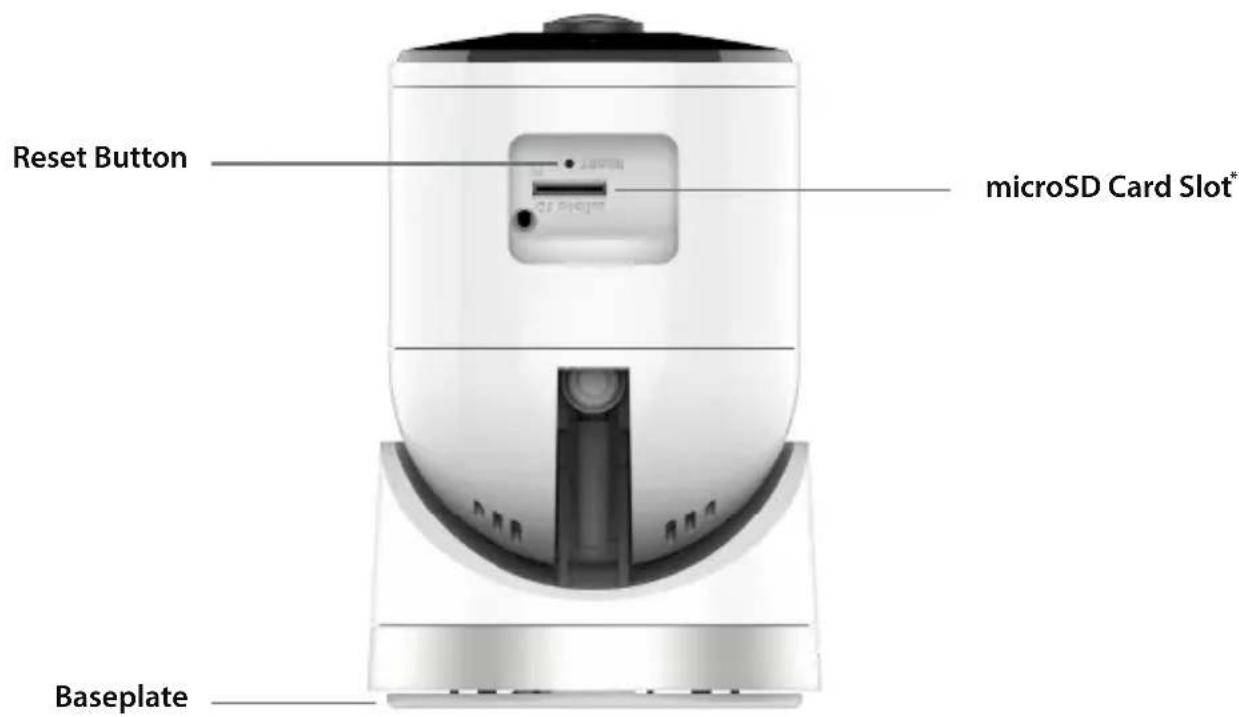
* Supports microSD/SDXC up to 128GB
Setting Up Your Camera
1
Download the free mydlink Lite app on your smartphone or tablet by scanning the QR code below, or by searching for mydlink Lite in the app store for your device.

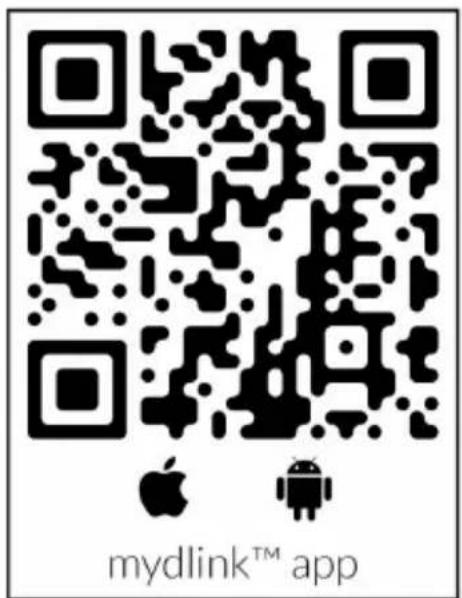
System Requirements: Refer to the mydlink Lite app page on the Apple App Store or Google Play.
2
Launch the mydlink Lite app, then create a new account or log in to your existing account.
3
The app will guide you through the rest of the set up process.
Wireless Setup
To connect your camera to your network wirelessly, follow the instructions below.
1
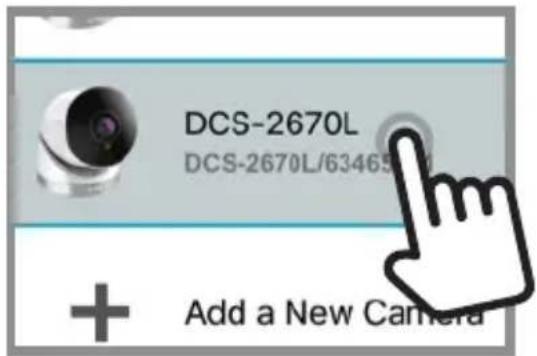
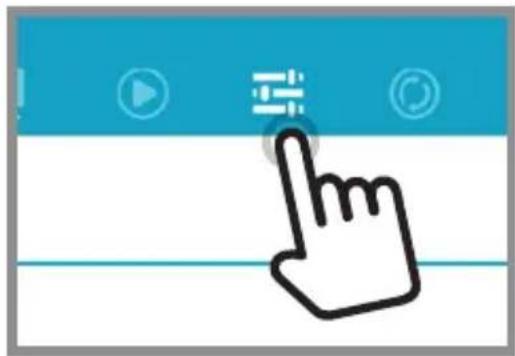
Once your camera is set up, select your camera and tap the Settings button.
2
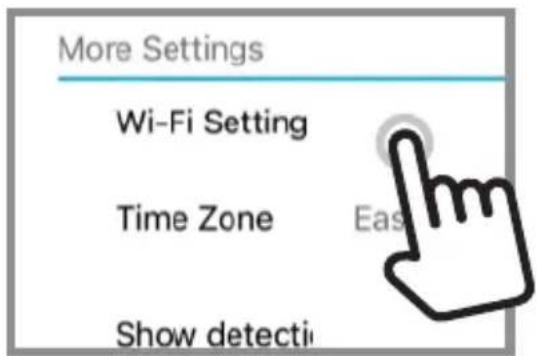
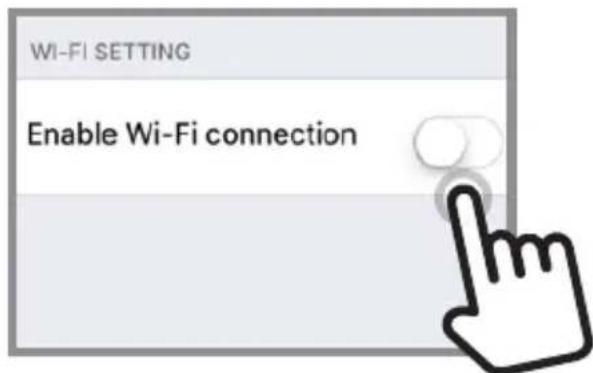
Select "Wi-Fi Setting" and "Enable Wi-Fi connection".
3
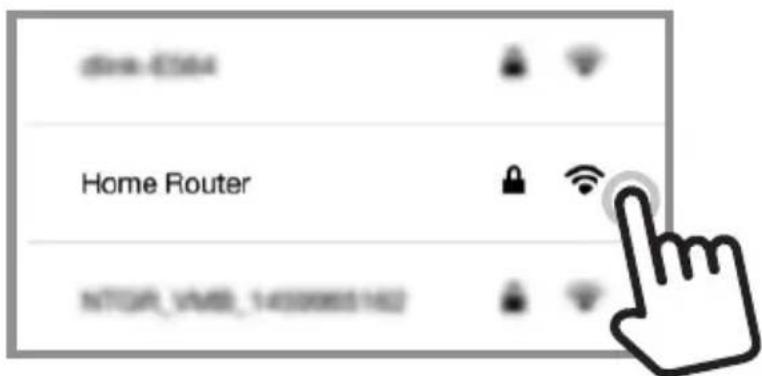
Select your wireless network and enter your password, then tap Apply.
4
You can now disconnect the Ethernet cable and move the camera to your preferred location.
Mount the Camera
Please refer to the steps below to assist you with mounting the camera.

We suggest that you configure the camera before mounting.
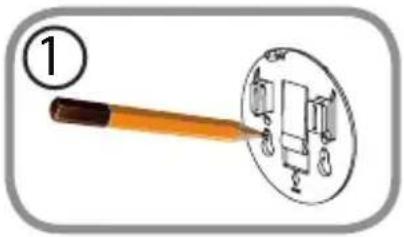
- Place the baseplate where you want to position the camera and use a pencil to mark the holes. You can use the large holes for a removable installation, or the small holes for a fixed one. Make sure the lock arrow on the plate is pointing down.
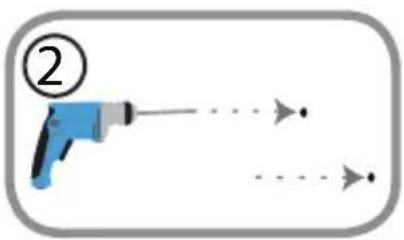
- Depending on the material of the wall or ceiling, use proper tools to drill holes 25mm deep with a 6 mm drill bit where you marked. If the wall is made out of concrete, drill the holes first, then insert the plastic anchors to support the screws.
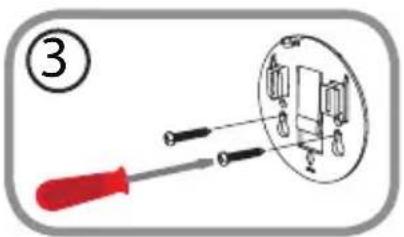
- Place the baseplate over the holes that are in the wall. Make sure to align the baseplate holes with the holes in the wall. Use the supplied screws to attach the baseplate to the surface of the wall.
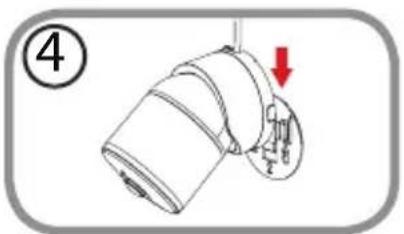
- Place the camera over the baseplate and align the nub with the hole on the camera. Attach the camera by sliding it in the direction of the arrow.
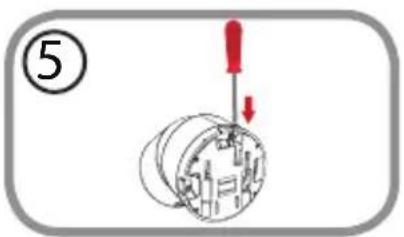
- Once the camera is secured to the baseplate, use a screwdriver to fasten the screw next to the hole at the back of the camera body.
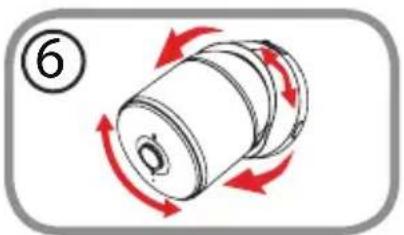
- Adjust the angles via the camera body and rotate the silver base until you achieve your desired viewing angle.
Waterproofing the Camera
Waterproofing Your Connectors When Using Wi-Fi
After configuring your camera, follow the instructions below to prevent water from entering the camera's Ethernet and Power Cable connections.
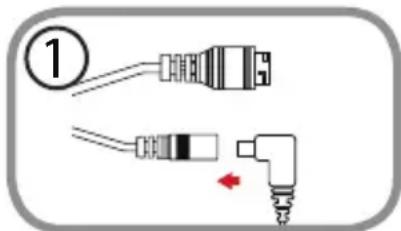
- Plug the power adapter into the dongle.
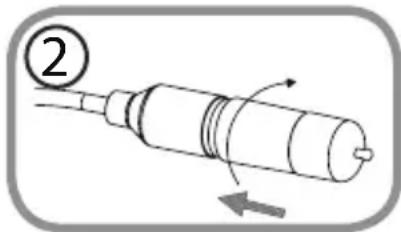
- To waterproof the Ethernet socket, align the cap according to the thread and twist it clockwise to seal it.
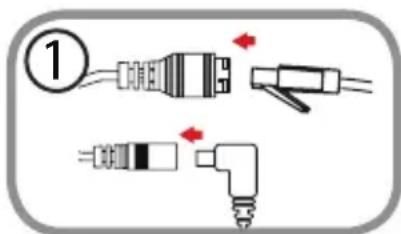
Waterproofing Your Ethernet Connector
If you are using an Ethernet connection, follow the instructions below to prevent water from entering the camera's Ethernet cable connector.
- Connect the power and Ethernet cables.
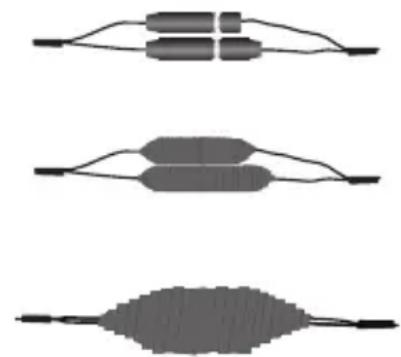
Using Waterproof Tape
Wind waterproof tape, such as butyl rubber or vinyl tape, around the individual cables and connectors in a half-overlapping manner then wrap all the connectors together. Be sure to cover all of the connectors and any unsheathed cables.
Note: Butyl rubber tape should be wrapped by stretching the tape to about twice its length, and wrapping it around the cable. Failure to stretch the tape sufficiently will result in insufficient waterproofing performance.
Caution: Due to its IP65 rating we recommend that you install your device under a roof or a shelter to protect the Power and Ethernet connections from water seepage. The cables and connections need to be located away from all potential water hazards.
FAQs
1. What can I do if my DCS-2670L is not working correctly?
- Reset the camera (see next step) and run the setup steps starting on page 4 again.
-
To make sure your hardware is installed correctly, make sure that:
-
the power LED is green
- your Internet connection is working
- your router's LAN & WAN connections are working
- your router supports UPnP
- your camera is on the same network as your mobile device
- both your mobile device and camera have a working Internet connection
- If your camera is still not working, check your router and make sure it has the latest firmware.
2. What can I do if I forget my password?
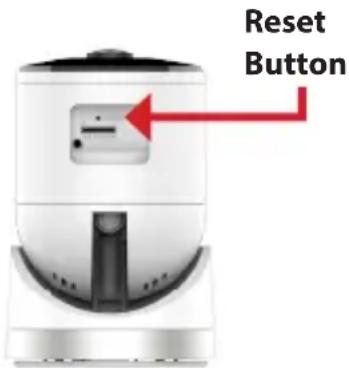
If you forget your password, you must reset the camera. Unfortunately, this process will change your settings back to factory default. To reset the camera, locate the reset button underneath the camera. With the camera powered on, use an unfolded paper clip to hold the button down for 10 seconds. Run the setup procedure located on page 4 once the camera restarts.
3. Why is there a white haze when viewing in night vision mode?
When viewing in night vision mode, the IR lights on the camera may be reflecting off a nearby surface. Try repositioning the camera in order to avoid glare from IR LEDs.
Notes
Notes
Notes
Technical Support
This guide is only for initial set up. Please refer to the user manual and FAQs at http://support.dlink.com/DCS-2670L (U.S.) or http:// support.dlink.ca/DCS-2670L (Canada) for more information. Also feel free to contact us. U.S. and Canadian customers can contact D-Link Technical Support through our website.
USA

http://support.dlink.com
Canada

http://support.dlink.ca
D-Link®
Version 1.10(NA)_90x130
May 11, 2017
RMN0102213A
Copyright ©2017 All rights reserved. D-Link and the D-Link logo are registered trademarks of D-Link Corporation or its subsidiaries. Other trademarks are the property of their respective owners. Maximum wireless signal rate derived from IEEE Standard 802.11n and 802.11g specifications. Actual data throughput will vary. Network conditions and environmental factors, including volume of network traffic, building materials and construction, and network overhead, lower actual data throughput rate. Environmental factors will adversely affect wireless signal range. Product specifications, size and shape are subject to change without notice, and actual product appearance may differ from that depicted on the packaging. Visit dlink.com (US) or dlink.ca (Canada) for more details.
DCS-2670L