SA126 - Mp3 player PHILIPS - Free user manual and instructions
Find the device manual for free SA126 PHILIPS in PDF.


| Product Type | Portable MP3 Player |
| Brand | Philips |
| Model | SA126 |
| Dimensions (W x H x D) | 70,5 x 70,5 x 17,7 mm |
| Weight (without batteries) | 65 g |
| Power supply | 2 AAA batteries (R03/UM4) or AC adapter 4.5 V DC (not included) |
| Supported audio formats | MP3, RealAudio (.rmj, .rmx), Wave |
| Storage capacity | 32 or 64 MB SmartMedia cards |
| Display | Displays status, memory, sampling frequency, bitrate |
| Playback functions | Play, pause, skip, search, repeat (1/All), shuffle, bookmark (max 10) |
| Equalizer | Normal, Jazz, Rock, Classic |
| Connectivity | USB, parallel port |
| Included accessories | USB cable, parallel cable, SmartMedia card, earphones, carrying pouch, RealJukebox CD-ROM |
| Safety | Key lock (HOLD), hearing protection |
| Care | Clean with a slightly damp cloth; avoid alcohol, ammonia, detergent |
| Repairability | Do not open the device; contact customer service |
Frequently Asked Questions - SA126 PHILIPS
User questions about SA126 PHILIPS
0 question about this device. Answer the ones you know or ask your own.
Ask a new question about this device
Download the instructions for your Mp3 player in PDF format for free! Find your manual SA126 - PHILIPS and take your electronic device back in hand. On this page are published all the documents necessary for the use of your device. SA126 by PHILIPS.
USER MANUAL SA126 PHILIPS
Digital Audio Player
SA 125
SA 126
Let's make things better.

PHILIPS
INDEX
English
Windows is a registered trademark of Microsoft Corporation. Pentium is a registered trademark of Intel Corporation. RealJukebox is a registered trademark of RealNetworks Corporation. Audible and AudibleReady are registered trademarks of Audible, Inc. All rights reserved. All trade names referenced are the service mark, trademark or registered trademarks of their respective manufacturers.
French
In the U.K. and certain other countries, the copying of material protected by copyright may require the permission of copyright holders.
Spanish
German
Italian
Philips Consumer Electronics
Philips, Glaslaan 2,
5616 JB Eindhoven, The Netherlands
English 4
Francais 21
Espanol 38
Deutsch 55
Nederlands 72
Italiano 89
Fig. 1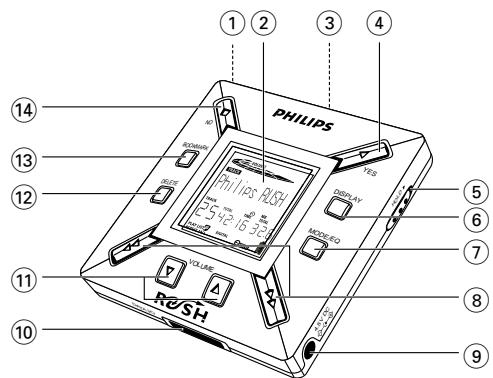
1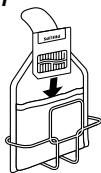
2 3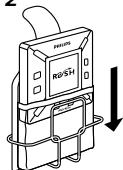
4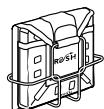
CONTROLS AND CONNECTIONS
English
(Please refer to Fig.1 on page 3)
① 3.5mm stereo headphone socket. ② Display screen - shows status of the set and basic file details. E.g.
Mb - memory space;
kHz - sampling frequency of original recording;
kbps - compression rate of file.
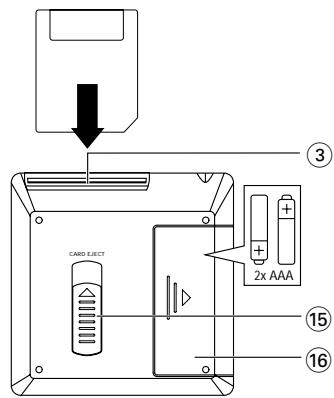
③ CARD INSERT - insert the SmartMedia card here. (4) YES ▶ switches the set on, starts and pauses playback. ⑤ HOLD▶ - locks function keys to prevent keys from being pressed accidentally. ⑥ DISPLAY - selects file details e.g. name of song, artist, album, track numbers, and elapsed playing time.
⑦ MODE/EQ
- selects shuffle and repeat options, including repeat or random order playback.
- EQ(ualizer): select from four sound modes: Normal/Jazz/ Rock/ Classic.
- skips to beginning of a current/previous/next track or file;
- searches backward/ forward within a track or file.
(9) 4.5V DC - connection for AC/DC adapter as an option to using battery power. 10 DATA I/O - connect the supplied USB or parallel cable here and to the USB or parallel port of your computer.
⑪ VOLUME▼,▲- adjusts the volume. (12) DELETE - deletes current tracks/ erases SmartMedia card/ clears all bookmarks. 13 BOOKMARK - sets up to a maximum of ten bookmarks within the SmartMedia card. 14 NO - switches the set off, or stops playback. 15 CARD EJECT - push up switch to eject the SmartMedia card. ⑥ Battery compartment - for two AAA, R03 or UM4 batteries.
GENERAL INFORMATION
SUPPLIED ACCESSORIES
Make sure all items listed are in the package purchased. If any item is missing, please contact your dealer.
- one USB cable
- one parallel cable
- one AC/DC adapter (not included for SA 126 models)
- one SmartMedia card with ID logo
- one protective rubber seal for the DATA I/O socket
- one SmartMedia card holder with label and chrome stickers
- one RUSH installation CD-ROM
- one set of in-ear headphones
- one carrying pouch
- two AAA, R03 or UM4 alkaline batteries
IMPORTANT SPECIFICATIONS
RUSH is a solid-state, portable, digital audio player. It can:
- play MP3 format files that you can download from the Internet;
- playback digitized and compressed CD tracks, tape tracks, audio books, newspapers, sound effects, etc., that are encoded into MP3 format using RealJukebox.
Because the set is fully electronic with no moving parts and lasers, you can play music while you are moving without missing the quality.
COMPUTER SYSTEM REQUIREMENTS
- USB port with Windows 98 and for parallel port with Windows 95 and ECP/EPP mode
- Internet Explorer 3.01 or above, Netscape 4.0 or above and Internet access Intel Pentium 200 MHz
- 64MB internal memory (recommended) Free on the personal computer: 15 MB for the software, plus 1 MB for every minute of music you store on the pc
- CD-ROM drive 16 bit sound card 256 colour video card
TAKE CARE WHEN USING HEADPHONES
Hearing Safety: Listen at a moderate volume. Using headphones at high volume can impair your hearing.
Traffic Safety: Do not use headphones while driving or cycling as you may cause an accident.
COPYRIGHT INFORMATION
Unauthorized duplication and distribution of Internet/ CD recordings violate copyright law and international treaties. You should use the MP3 software only for personal purposes.
GENERAL MAINTENANCE
- To avoid damage or malfunction:
- Do not expose the set, batteries, or SmartMedia cards to strong magnetic fields, humidity, rain, sand, or excessive heat caused by heating equipment or direct sunlight.
- Do not drop the set or allow objects to fall on the set.
- Do not allow the set to contact water. Wipe the surface of the set dry if wet. Water entering the set may cause major damage.
- To clean the set, use a soft, slightly dampened chamois leather. Do not use any cleaning agents containing alcohol, ammonia, benzene, or abrasives as these may harm the set.
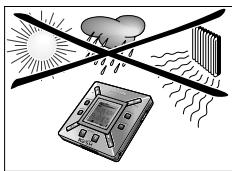
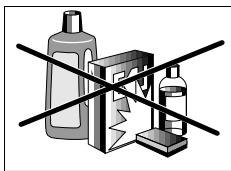
POWER SUPPLY
BATTERIES
1 Open the battery compartment and insert two batteries (preferably alkaline) type AAA, R03 or UM4 as indicated by the + and - symbols inside the battery compartment. 2 Close the battery compartment door.
The battery symbol appears on the display.
INDICATION OF EMPTY BATTERIES
The number of blocks inside the battery symbol indicates the power level.
- When the power level is almost empty, the symbol starts to flash. Replace the batteries or change to AC power.
- Battery Low appears on the display if you ignore the flashing. The set will switch off automatically.
Important!
- Remove the batteries if they are exhausted or if the set is not to be used for more than two weeks.
- Batteries contain chemical substances, so they should be disposed of properly.
- This set does not have an on board function for rechargeable batteries.
USING YOUR SMARTMEDIA CARD
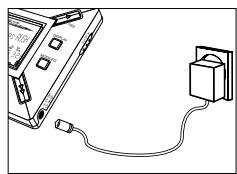
AC/DC ADAPTER (not included for SA 126 models)
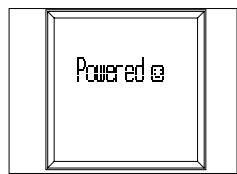
1. Make sure the local voltage corresponds to the 4.5 V adapter's voltage. The 1.3 mm centre pin (in the 4.5V DC socket on the set) must connect to the positive pole (+) of the supplied adapter with 3.5 mm socket. 2. Connect the adapter to the set's 4.5V DC socket and a wall socket. A "Powered" message may appear briefly on the display. 3. Always disconnect the adapter from the AC wall socket if you are not using it.
(See Fig. 1 on page 3)
You can store up to 120 minutes of music on the card, erasing and overwriting as you want.
Make sure the set is off before inserting or removing the card.
- Insert a SmartMedia card into CARD INSERT with the clipped corner of the card aligned as shown on the set.
Display shows:
→ Blank 64Mb - if your card is blank → card details if card already contains files. → Urrone Card - if format is incompatible with the set. → No Audio Tr - the track is not an audio track or your card is blank.
- Ejecting: Slide the CARD EJECT switch up and remove the card.
PREVENTING CARD ERASURE AND OVERWRITING
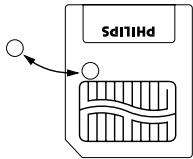
- To prevent accidental erasure or overwriting of your card, place a chrome sticker over the circle on the front of the card.
- Remove the chrome sticker to erase or overwrite your card.
- White Protect appears on the display if you have forgotten to remove the chrome sticker and try to delete tracks or erase your card.
Notes:
- Use only 32MB or 64MB SmartMedia cards with the ID32MB or ID64MB logo, or Philips 32MB Blue SmartMedia cards.
- For further information, please visit our website: www.rush.philips.com.
- Do not use SmartMedia cards from a digital camera or computer for your set. After a SmartMedia card has been formatted for MP3 files, the card will not be recognized by your PC or digital camera.
SWITCHING ON/OFF, PLAYING AND PAUSING AUDIO FILES
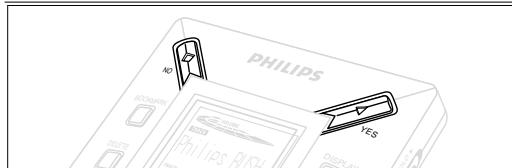
1. Press YES ▸ to switch on the set.
→ Philips RUSH appears on the display before playback starts.
→ If no card is inserted: "Insert Card (No Card)" appears.
2. Press YES ▸ briefly to pause playback. To resume playback, press YES again. 3. Press NO twice to switch off the set.
Power-saving standby mode
The set automatically switches off if no keys are pressed within 15 seconds of when playback is stopped, the end of a file is reached, or pause is activated.
Adjusting volume and sound
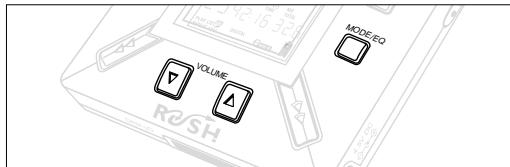
1. Press and hold VOLUME ▽τ to decrease or increase the volume. The volume bar changes on the display to show the volume. 2. Press and hold MODE/EQ for two seconds to see the equalizer options: Normal/ Jazz/ Rock/ or Classic. 3. When the display shows one of the equalizer options, press MODE/EQ briefly and repeatedly to select your option.
Locking functions with HOLD
HOLD prevents the front panel keys from being pressed accidentally.
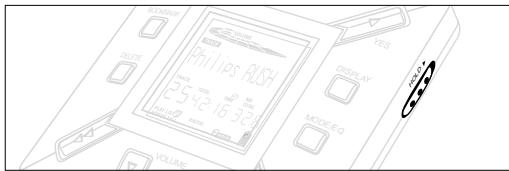
1. Push the HOLD ▸ switch to the right as indicated to lock the keys. → Display shows when activated, and the front panel keys will not function. 2. To deactivate, push the HOLD ▸ switch to the left. - If you forget to unlock HOLD and attempt to switch the set on/off, the display shows the message: "Hold Switch". You must deactivate HOLD first.
Display
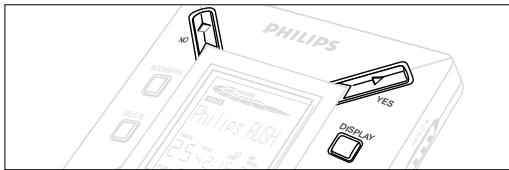
1 Press DISPLAY repeatedly to see various types of information about the items stored on the SmartMedia card:
TRACK song title
ARTIST name, if entered, or 'No Artist Info'
ALBUM title, if entered, or 'No Album Info'
CARD title, if entered, or 'No Card Info'
FILE name
Track Time
Remained Time - remaining playing time of current track
Total Time - total playing time of file
Option? - the card's technical details -
Free Memory, Total Memory, Sampling Frq.
(Frequency) and Compression rate.
2 Press YES to confirm the type of detail.
3 If you want to see the details under Option?
- Press YES again, while the display shows Option?
- Press DISPLAY briefly and repeatedly until you see your option.
Selecting a different track
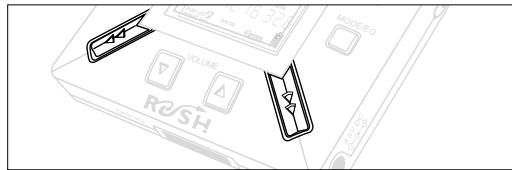
- Press ← or → once or repeatedly until the desired track number appears in the display.
Fast searching within a track
- Press and hold ◀ or ▶. Watch the track time to find the desired point in the track and release ◀ or ▶.
Different play modes: REPEAT and SHUFFLE
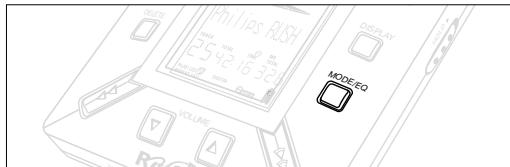
1 To select your play mode before or during playback, press MODE/EQ briefly and repeatedly to scroll through the options.
REPEAT 1 - repeats current track continuously.
REPEAT ALL - repeats all tracks stored in the selected mode continuously.
SHUFFLE - plays tracks in random order.
2 To return to normal playback, press MODE/EQ repeatedly until the various SHUFFLE/REPEAT modes are no longer displayed.
USING BOOKMARK TO FIND YOUR FAVOURITE PASSAGES
BOOKMARK allows you to start playback instantly from selected points within a file/track. You can set up to 10 bookmarks.
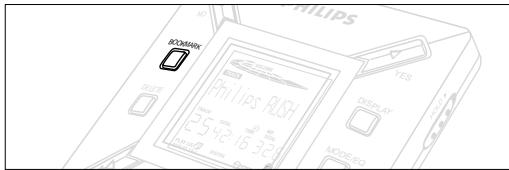
1 To set the bookmark at the desired passage, press and hold BOOKMARK for more than two seconds. → Display shows Mark Set. 2 Repeat step 1 to set other bookmarks. 3 To select a bookmark, press BOOKMARK repeatedly. → Display shows the bookmark number, 1-10, and playback starts immediately from this point.
Deleting tracks, bookmarks, and card
DELETE allows you to clear:
- all bookmarks.
- a selected track.
- an entire SmartMedia card.
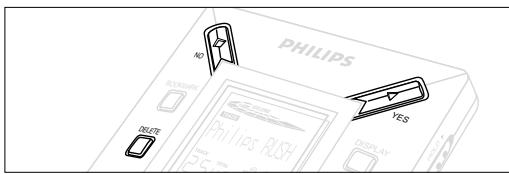
When clearing tracks or the entire card, use DELETE sparingly unless you are absolutely sure you no longer want the existing contents!
1 During playback, press YES to pause playback. 2 Press DELETE repeatedly to see the options.
The display shows in sequence: Delete Track?, Erase Card? and Clear Marks?
- If you have selected Erase Card, the display shows an extra message: Are You Sure?. To continue to delete the entire card, press YES. 3 To cancel DELETE, press NO. 4 To delete an item, press YES.
The display shows Clearing Marks, Clearing Tracks, or Erasing Card, and then: Track Deleted, Marks Cleared, or Card Erased.
Note: If you set more than ten bookmarks, this will overwrite your original set of bookmarks.
Disconnect headphones before using the pouch.
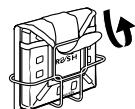
1 Store your extra SmartMedia card(s) in the pocket. 2 Insert the set into the pouch with the display screen facing the plastic square. 3 Insert the strap through the plastic square and pull strap to adjust securely. 4 Adjust elastic cords to ensure all keys are accessible.
Detachable key ring
Push back the hinge of the key ring, then hook onto a belt, ring, etc.
Belt strap
If your belt is a suitable width, thread the belt through the strap at the back of the pouch.
CONNECTING RUSH TO YOUR COMPUTER
Depending on your PC, you can choose one of 2 ways to connect RUSH to your computer.
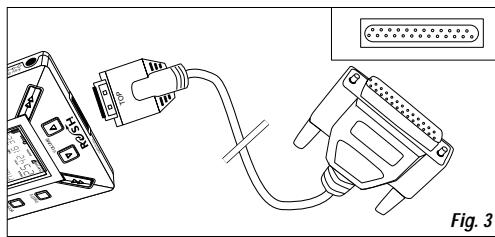
- Port option (see Fig. 3) Follow steps 1-4 below.
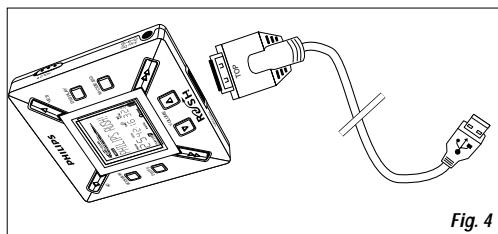
- USB port option (see Fig. 4)
Follow step 3, but connect the supplied USB cable to the computer's USB port and the set.
1 Make sure your computer and the set are switched off. 2 If a printer cable is connected to the parallel port on your computer, disconnect the printer cable. 3 Connect the supplied parallel cable/USB cable to the computer's respective port. Remove the protective rubber seal from the DATA I/O socket on the set, then insert the other end of the cable to DATA I/O.
- IMPORTANT:
- To avoid damage to the set, check the other end of the cable is the right way up, with the side marked TOP facing up, before you insert this cable end to DATA I/O. Always replace the protective rubber seal when not connecting RUSH to your computer. Keep the seal in the carrying pouch or a safe place when removed from the DATA I/O socket.
4 Turn on the set first, then turn on your computer.
REALJUKEBOX
English
INSTALLING REALJUKEBOX ONTO YOUR COMPUTER
IMPORTANT
Read all the RealJukebox instructions before installing.
- Use the Help menu for more information.
RealJukebox
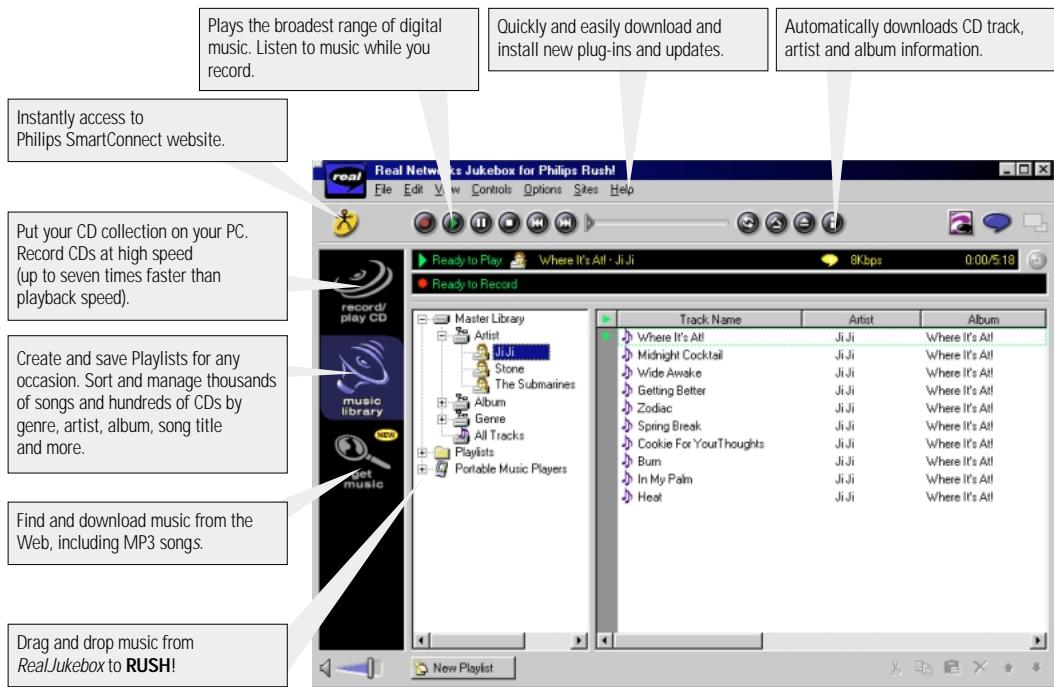
Install the RealJukebox software to manage your playlist selection on your personal computer. RealJukebox allows you to:
- Record from/play CDs: Records CDs at high speed onto your computer's hard drive and downloads the songs to Rush for super compact portable playback.
- Set up a music library: Automatically indexes songs by artist, album, genre, etc.
- Get music: Download free songs from the Internet.
IMPORTANT
If you are using the parallel port, RealJukebox is designed to work in ECP (Printer Port) mode. Make sure your computer supports ECP mode before starting the installation by following step 1. Then to install RealJukebox, continue to steps 2-3.
- USB users: go directly to steps 2-3 to install RealJukebox.
1 Select My Computer, then click through the following items: My Computer -> Control panel -> System -> Device Manager -> Ports.
- Make sure ECP is available at Ports. 2 Insert the RealJukebox CD into your CD-ROM drive. -> The programme setup screen will appear on your monitor.
3 Follow Install RealJukebox screen directions to install the RealJukebox software.
- Click Yes on the screen to restart your computer when prompted. The software is now installed.
IF YOU ARE NOT IN ECP MODE:
- Restart your computer. Refer to your computer instruction manual, or contact the dealer to enter BIOS set-up.
- Select ECP as the parallel port mode.
IF YOUR COMPUTER DOES NOT SUPPORT ECP MODE:
Refer to your computer instruction manual, or contact the dealer to select EPP or Bi-directional mode.
Tips on using RealJukebox:
- Log onto the Internet while using RealJukebox to use all the features.
- Complete the Online Tutorial before using and recording files.
INFORMATION ON RECORDING AND ENCODING
From the main menu, select Options, then click through: Preferences -> Recording Options. - For best recording results, select Use Error Correction, then click OK. - RUSH plays files encoded with the popular MP3, RealAudio, Wave Audio and Secure Files Setting formats. Select Encoding Options to select your recording format and quality level: - MP3 Audio is MPEG layer 3 Audio. Compression levels available are: 96, 64, and 56 Kbps stereo, using the supplied RealJukebox software. If you upgrade your software, Philips RUSH can play music up to 224 Kbps. This has the best sound quality, but uses the most disk space. RealAudio is RealNetworks' audio format. This format saves your music as RealAudio (.rmx) secure or RealAudio unsecured (.rmj) files. Compression levels available are: 96, 64, and 44 stereo, and 32 Kbps mono. Among these, 96 Kbps has the best sound quality, but uses the most disk space. Wave Audio is unencoded music that is not compressed. This format has the best quality sound but uses the largest file size, as much as 650MB per CD.
- Secure Files Setting: has two further options. Secure Files On, where files recorded with security on can only be played on the personal computer on which they were recorded. Secure Files Off allows the recorded files to be played on more than one computer.
Making MP3 files from a CD
1 Double-click to select RealJukebox from your computer. 2 Insert an audio CD into the CD-ROM drive.
-> Monitor display shows CD track details.
3 Select the track you want to record in MP3. 4 From Controls in the toolbar, click Record.
The monitor display shows recording status. When recording is complete, the track will be stored in the Music Library.
Sending files to RUSH from your computer
1 Before connecting RUSH to your computer, insert batteries or connect the set to AC power. (See Connecting Rush to your computer.) Press YES to switch on Rush. 2 Double-click to select RealJukebox from your computer.
3 Click through the following items under
Portable Players/ Storage: Philips RUSH to External Flash Card.
4 To transfer your MP3 files to RUSH, drag your selected file from your Music Library and drop into External Flash Card. 5 Click the Begin Transfer button, at the bottom of the screen, to copy your selected tracks to your RUSH SmartMedia card.
The monitor display shows transfer status.
Organizing the library
You can organize the Master Library into three groupings:
Artist, Album or Genre.
Enter the Master Library from the Options menu: (Options)
to Preferences to Music Library to Master Library.
Creating a Playlist
Create a playlist for playback on your computer or to download to RUSH.
1 Click New Playlist at the bottom of the screen. 2 Type in a name for your playlist. 3 Click to select the music you want to record. 4 Drag and drop the desired songs to your playlist.
Downloading from the Internet
1 With access to Internet on your computer, click get music. RealJukebox connects you to the Internet. 2 Select your music and download it to your library and playlist.
MP3 web sites
You can find MP3 news, and download MP3 files from Internet sites. Below are examples:
Web site . address
Philips Consumer Electronics http://www.smartconnect.philips.com/audio
Emusic... http://www.emusic.com
Audible Inc. http://www.audible.com
AudioExplosion, Inc... http://www.audioexplosion.com
AudioHighway.com... http://www.audiohighway.com
Big Heavy World . . . . http://www.bigheavyworld.com
MP3.com .http://www.mp3.com
SINC Recordings . . . . http://www.sincrecordings.com
Songs.com. http://www.songs.com
TROUBLESHOOTING
English
If a fault occurs, first check the points listed below before taking the set for repair.
If you are unable to remedy a problem by following these hints, consult your dealer or service centre.
WARNING: Do not open the set as there is a risk of electric shock! Under no circumstances should you try to repair the set yourself, as this will invalidate the guarantee.
PROBLEM
-POSSIBLE CAUSE - REMEDY
No display/ sound
- Batteries weak/ incorrectly inserted.
- Correctly insert fresh batteries.
- Loose AC adapter connection/ mains supply switched off
- Check adapter and wall socket connection. Switch on mains supply at wall socket.
- YES ▸ not pressed long enough.
- Press YES ▸ until display turns on.
- Headphones not properly connected.
- Insert headphone plug into socket completely.
No power to external drive.
- Connections loose/mains supply not switched on/computer not turned on.
- Make sure all connections are secure. Switch on the power at the wall socket. Turn on the computer.
No reaction to controls and/or display shows Hold Switch.
- HOLD activated.
- Switch off HOLD.
- Electrostatic discharge.
- Remove batteries and replace after several seconds.
Sound skips during playback on RUSH
- MP3 file made at compression level exceeding 224Kbps
- Use a lower compression level to record CD tracks into MP3 format
TROUBLESHOOTING
SmartMedia card does not insert/ play
- Card inserted incorrectly.
- Insert according to illustration (See Fig. 1 on page 3.). -Incompatible format.
- Use MP3 format. Card damaged.
- Replace card.
- Incompatible card from a digital camera /another MP3 player.
- Use 32MB or 64MB SmartMedia cards with the ID32MB or ID64MB logo only, or use Philips 32MB Blue SmartMedia cards only.
USB does not connect/ function
- An unsuitable USB cable has been used.
- Use the supplied USB cable only.
- Cable connections incorrect or not secure.
- Check all connections are correct and well inserted between RUSH and your computer.
- USB driver not installed.
- Check you have installed the USB driver provided from the RUSH installation CD-ROM.
- Wrong Windows version.
- Your computer must be equipped with Windows 98.
- USB not enabled.
- Check the BIOS set-up: USB has to be enabled.
Unable to download MP3 file
- Batteries low and/or connection between the set and computer loose.
- Check battery status and USB or parallel cable connection.
- (For parallel port users only) Parallel port not in ECP mode. See chapter: INSTALLING REALJUKEBOX ONTO YOUR COMPUTER.
Set skips/repeats files
- SHUFFLE or REPEAT mode is active.
- Press MODE/EQ to switch off SHUFFLE / REPEAT.
Long delay between songs
- Alternating between MP3, RealAudio or Wave formats.
- Group songs by format, then transfer files to RUSH.
TECHNICAL DATA
4s16b3
Amplifier system
Audio out 2x5mW
S/N ratio. >60dB
Frequency response 30Hz - 16KHz
Connections
I/O Interface 26-pin mini connector, USB
DC socket 3.5 mm, 4.5V centre +'
Mains Supply
Batteries 2x AAA, R03 or UM4
External supply 4.5V DC
General
Weight 65 g (without batteries)
This product complies with the radio interference requirements of the European Union.
Environmental information
We have reduced the packaging to its minimum and made it easy to separate into two materials: cardboard (box) and polyethylene (bags).
Your set consists of materials which can be recycled if disassembled by a specialized company. Please observe the local regulations to dispose of packing materials, exhausted batteries and old equipment.
Keys and Connections
(Frequency) and Compression rate.
AudioExplosion, Inc... http://www.audioexplosion.com
AudioHighway.com... http://www.audiohighway.com
Big Heavy World . . . . http://www.bigheavyworld.com
MP3.com .http://www.mp3.com
SINC Recordings . . . . http://www.sincrecordings.com
Songs.com....http://www.songs.com
TROUBLESHOOTING
- POSSIBLE CAUSE SOLUTION
AudioExplosion, Inc... http://www.audioexplosion.com
AudioHighway.com... http://www.audiohighway.com
Big Heavy World . . . . http://www.bigheavyworld.com
MP3.com .http://www.mp3.com
SINC Recordings . . . http://www.sincrecordings.com
Songs.com. http://www.songs.com
TROUBLESHOOTING
- POSSIBLE CAUSE SOLUTION
No image/sound
You can find MP3 news, and download MP3 files from Internet sites. Below are examples:
Web address
Philips Consumer Electronics http://www.smartconnect.philips.com/audio
Emusic. http://www.emusic.com
Audible Inc. http://www.audible.com
AudioExplosion, Inc... http://www.audioexplosion.com
AudioHighway.com... http://www.audiohighway.com
Big Heavy World . . . . http://www.bigheavyworld.com
MP3.com .http://www.mp3.com
SINC Recordings . . . http://www.sincrecordings.com
Songs.com....http://www.songs.com
TROUBLESHOOTING
Emusic. http://www.emusic.com
Audible Inc. http://www.audible.com
AudioExplosion, Inc... http://www.audioexplosion.com
AudioHighway.com... http://www.audiohighway.com
Big Heavy World . . . http://www.bigheavyworld.com
MP3.com .http://www.mp3.com
SINC Recordings . . . . http://www.sincrecordings.com
Songs.com. http://www.songs.com
TROUBLESHOOTING
Portable Players/Storage:
Philips RUSH → External Flash Card.
Philips Consumer Electronics
http://www.smartconnect.philips.com/audio
Emusic....http://www.emusic.com
Audible Inc. http://www.audible.com
AudioExplosion, Inc... http://www.audioexplosion.com
AudioHighway.com... http://www.audiohighway.com
Big Heavy World . . . . http://www.bigheavyworld.com
MP3.com .http://www.mp3.com
SINC Recordings . . . . http://www.sincrecordings.com
Songs.com....http://www.songs.com
TROUBLESHOOTING
- POSSIBLE CAUSE REMEDY
Digital Audio Player
English
French
Spanish
German
Dutch
Italian
SA 125
SA 126
For any questions call:
Austria 0810 001203
Belgium 070222303
Denmark 32883200
Eire 017640292
Finland 0961580250
France 0825 889 789
Germany 01805356767
Greece 080031221280
Italy 800 820026
Netherlands 09008406
Norway 22748250
Portugal 014163063
Spain 902 113384
Sweden 0859852250
Switzerland 0844 800544
UK 01816656350
or visit us at: http://www.philips.com and http://www.rush.philips.com
Printed in China Cmm/RM/0030


- INDEX
- ENGLISH
- FRENCH
- SPANISH
- GERMAN
- CONTROLS AND CONNECTIONS
- (PLEASE REFER TO FIG.1 ON PAGE 3)
- ⑦ MODE/EQ
- GENERAL INFORMATION
- SUPPLIED ACCESSORIES
- IMPORTANT SPECIFICATIONS
- COMPUTER SYSTEM REQUIREMENTS
- TAKE CARE WHEN USING HEADPHONES
- COPYRIGHT INFORMATION
- GENERAL MAINTENANCE
- POWER SUPPLY
- BATTERIES
- INDICATION OF EMPTY BATTERIES
- IMPORTANT
- USING YOUR SMARTMEDIA CARD
- AC/DC ADAPTER (NOT INCLUDED FOR SA 126 MODELS)
- PREVENTING CARD ERASURE AND OVERWRITING
- SWITCHING ON/OFF, PLAYING AND PAUSING AUDIO FILES
- POWER-SAVING STANDBY MODE
- ADJUSTING VOLUME AND SOUND
- LOCKING FUNCTIONS WITH HOLD
- DISPLAY
- SELECTING A DIFFERENT TRACK
- FAST SEARCHING WITHIN A TRACK
- DIFFERENT PLAY MODES: REPEAT AND SHUFFLE
- USING BOOKMARK TO FIND YOUR FAVOURITE PASSAGES
- DELETING TRACKS, BOOKMARKS, AND CARD
- DETACHABLE KEY RING
- BELT STRAP
- CONNECTING RUSH TO YOUR COMPUTER
- REALJUKEBOX
- INSTALLING REALJUKEBOX ONTO YOUR COMPUTER
- READ ALL THE REALJUKEBOX INSTRUCTIONS BEFORE INSTALLING
- IF YOU ARE NOT IN ECP MODE
- IF YOUR COMPUTER DOES NOT SUPPORT ECP MODE
- TIPS ON USING REALJUKEBOX
- INFORMATION ON RECORDING AND ENCODING
- MAKING MP3 FILES FROM A CD
- SENDING FILES TO RUSH FROM YOUR COMPUTER
- ORGANIZING THE LIBRARY
- CREATING A PLAYLIST
- DOWNLOADING FROM THE INTERNET
- MP3 WEB SITES
- WEB SITE . ADDRESS
- TROUBLESHOOTING
- PROBLEM
- NO DISPLAY/ SOUND
- NO POWER TO EXTERNAL DRIVE
- NO REACTION TO CONTROLS AND/OR DISPLAY SHOWS HOLD SWITCH
- SOUND SKIPS DURING PLAYBACK ON RUSH
- SMARTMEDIA CARD DOES NOT INSERT/ PLAY
- USB DOES NOT CONNECT/ FUNCTION
- UNABLE TO DOWNLOAD MP3 FILE
- SET SKIPS/REPEATS FILES
- LONG DELAY BETWEEN SONGS
- TECHNICAL DATA
- 4S16B3
- AMPLIFIER SYSTEM
- CONNECTIONS
- MAINS SUPPLY
- GENERAL
- ENVIRONMENTAL INFORMATION
- KEYS AND CONNECTIONS
- NO IMAGE/SOUND
- DIGITAL AUDIO PLAYER
Brand : PHILIPS
Model : SA126
Category : Mp3 player