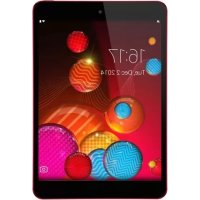
Sero 8 Pro - Tablet HISENSE - Free user manual and instructions
Find the device manual for free Sero 8 Pro HISENSE in PDF.



| Product type | Tablet |
| Brand | Hisense |
| Model | Sero 8 Pro (F5281) |
| Dimensions | 200.3 x 135.6 x 6.3 mm |
| Weight | 335 g |
| Screen | 7.85-inch diagonal |
| Screen resolution | 2048 x 1536 pixels |
| Processor | RK3288 quad-core 1.8 GHz |
| Operating system | Android |
| Internal storage | 16 GB (user space < 16 GB) |
| Expandable storage | microSD up to 32 GB |
| Battery | Rechargeable lithium polymer 4400 mAh / 3.7 V |
| Power supply | AC adapter 5V/2A |
| Wi-Fi connectivity | 802.11 b/g/n (2.4 GHz) |
| Bluetooth | 4.0 |
| Front camera | 2.0 Megapixels |
| Rear camera | 8.0 Megapixels (autofocus) |
| Ports | micro-USB, 3.5 mm headphone jack, micro-SD card slot |
| Speakers | Built-in |
| Security | Screen lock: pattern, PIN, password, face unlock |
| Maintenance | Clean with a soft, damp cloth; avoid alcohol and solvents |
| Operating temperature | 0°C to 35°C |
| Storage temperature | -20°C to 45°C |
| Repairability | Battery replaceable only by Hisense service |
Frequently Asked Questions - Sero 8 Pro HISENSE
User questions about Sero 8 Pro HISENSE
0 question about this device. Answer the ones you know or ask your own.
Ask a new question about this device
Download the instructions for your Tablet in PDF format for free! Find your manual Sero 8 Pro - HISENSE and take your electronic device back in hand. On this page are published all the documents necessary for the use of your device. Sero 8 Pro by HISENSE.
USER MANUAL Sero 8 Pro HISENSE
natural_image
Front view of a blank tablet device with rounded corners and a small circular element on top (no text or symbols)Content
Need to Know 3
Model and Serial Numbers....3
Getting Started......4
Package Contents 4
Understanding Your Sero 8 pro Tablet....5
Home Screen 7
Buttons....8
Making Connections....11
Battery....11
Micro-USB 12
Micro SD Card....12
Headphone....12
Wi-Fi 13
VPN....14
Bluetooth....15
Basic....17
Setup Guide....17
Basic Operation 17
Sharing....19
Security....19
Settings....20
Location....23
Google Account....23
Syncing 24
Appendix A 25
Specifications....25
Troubleshooting 26
Appendix B....27
Important Safety Instructions....27
Certification and Compliance....29
Appendix C 32
Legal Terms 32
Copyright and Trademark Notices....33
1 Need to Know
Read this chapter to learn where to view the model and serial numbers.
Model and Serial Numbers
Model Number
You can go to Settings > SYSTEM > About tablet to view the Model number.
Serial Number
You can go to Settings > SYSTEM > About tablet > Status to view the Serial number.
2 Getting Started
Read this chapter to learn about Sero 8 pro features, how to use the controls, and more.
Package Contents
The following items are included with the Sero 8 pro:
Power Adapter
Use the power adapter to connect the outlet to charge the battery.

NOTE
The power adapter may vary in different countries.
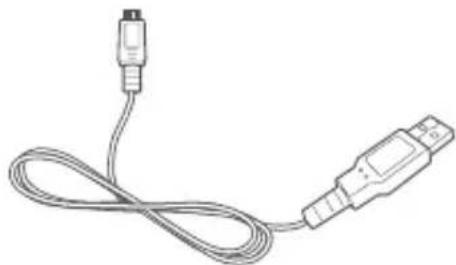
Micro-USB Cable
natural_image
Line drawing of a USB cable with two connectors (no text or symbols)Use the USB cable to connect the Sero 8 pro's Micro-USB port to the power adapter to charge the battery, or to your computer.
Quick Start Guide & Warranty
Understanding Your Sero 8 pro Tablet
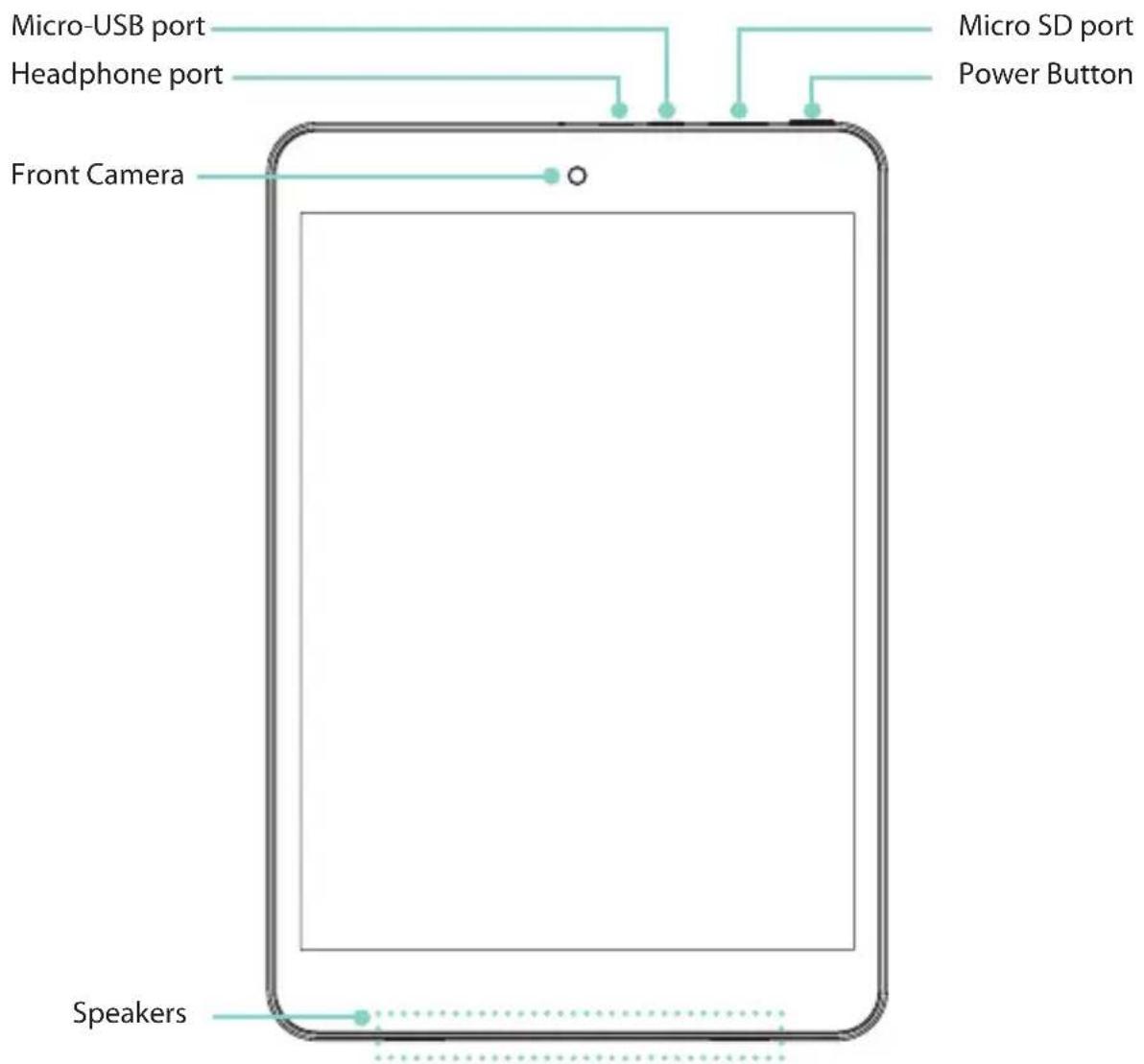
Item Function
Headphone port Headphone connections for personal listening.
Micro-USB port Connect to wall outlet with Micro-USB cable and power adapter for charging. Connect to a computer, keyboard, more other devices with USB port.
Micro SD port Plug microSD card (up to 32G).
Power Button Press & hold to turn on/off; Press it to put/wake the unit in/from sleep mode.
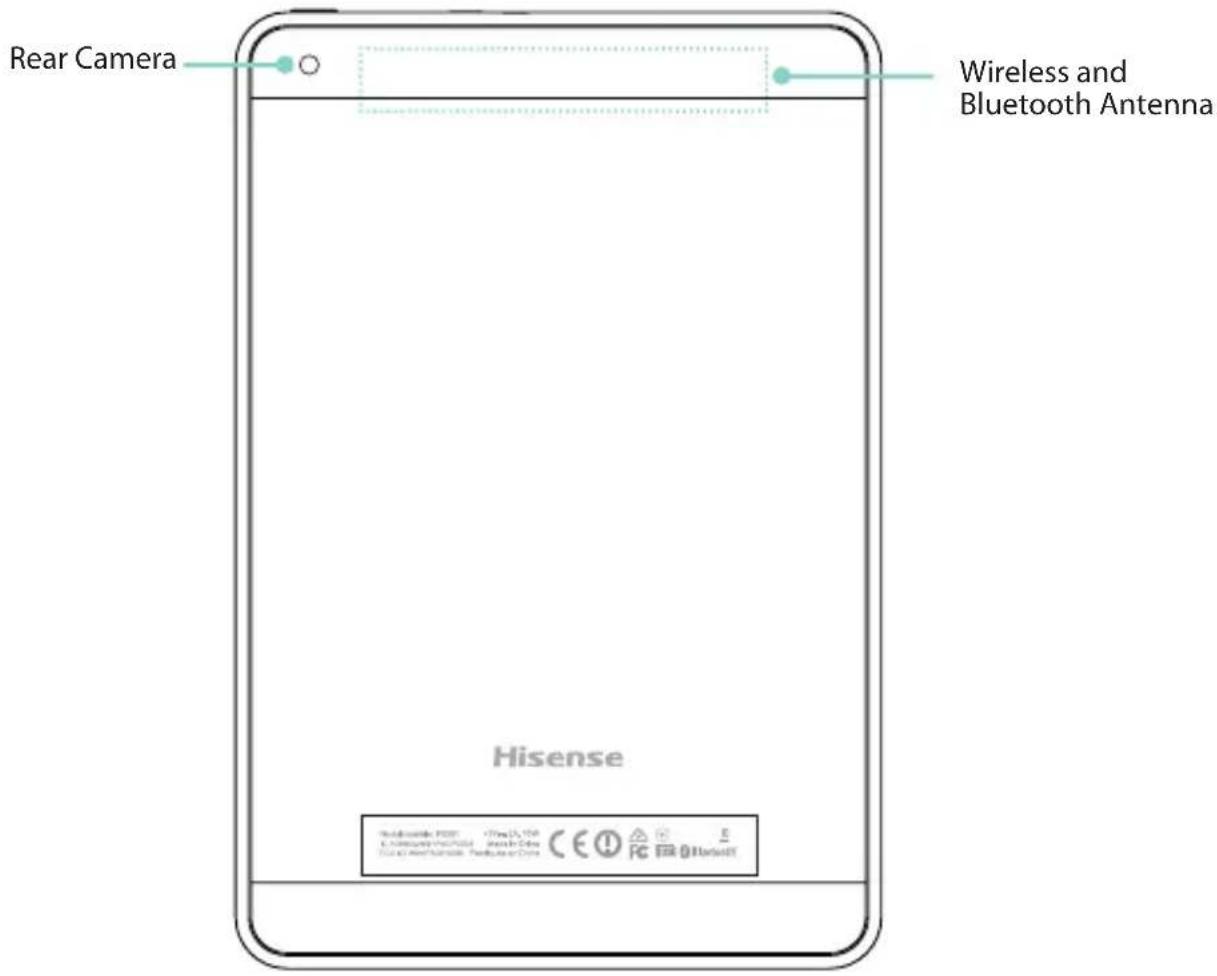
Item Function
Wireless and
Bluetooth Antenna
Support wireless network and Bluetooth function.
NOTE Avoid holding this region when using wireless or Bluetooth.
Home Screen
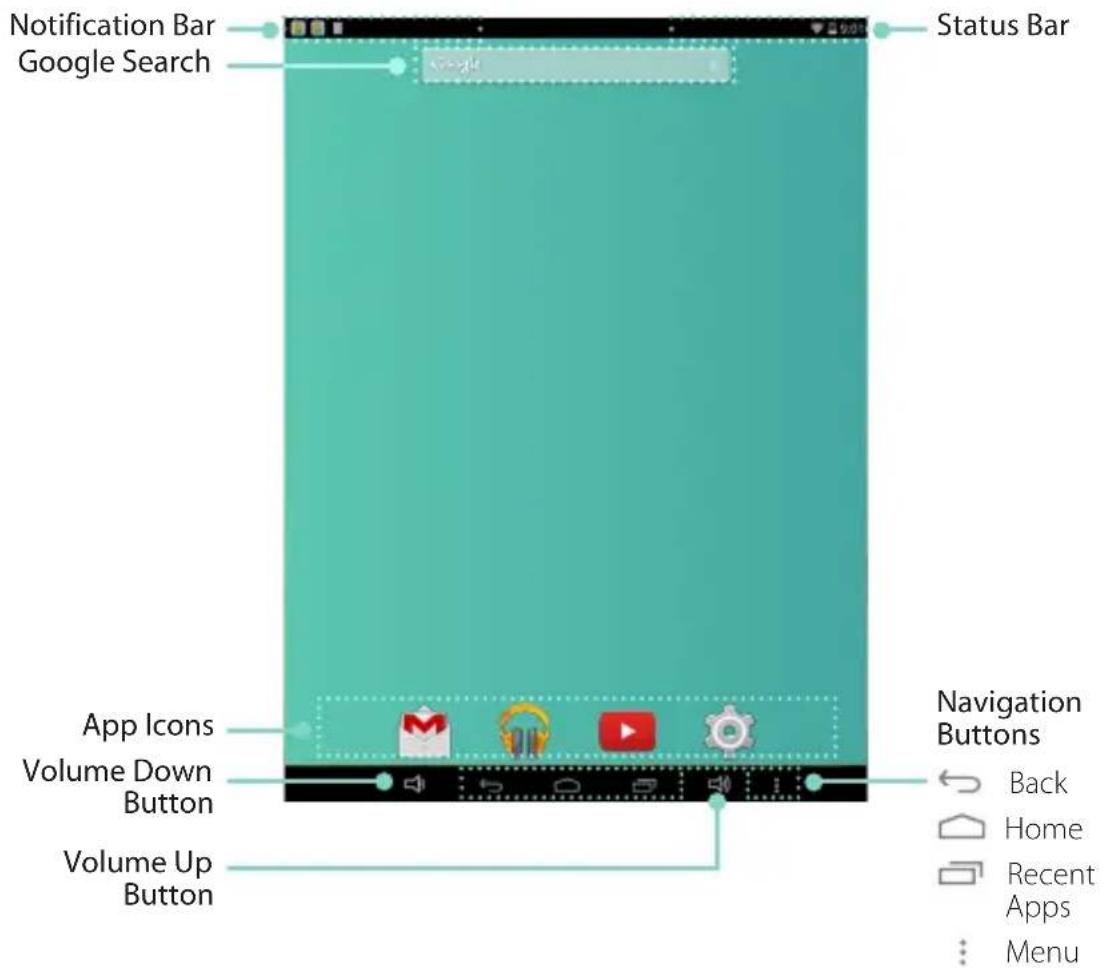
To move between Home screens, slide left or right.
Notification and Status Bar
At the top of the screen, you'll see indicators that inform you about the status of your Sero 8 pro. You can open the Notification Tray or the Quick settings by pressing the Notification or Status bar and dragging it down.
The table below lists icons that appear the most frequently in the Notification and Status Bar.
Icon What it means

Airplane mode Shows that airplane mode is on. You can not access the Internet. Non-wireless features are available.

Alarm An alarm is set.

Alert Install/update/enable Google Play service.

Bluetooth Sero 8 pro is using Bluetooth function.
Icon What it means

Downloaded Received files

Uploaded Sent files

Calendar Task reminders.

Message Received new message.

Music Play Music application is running.

Screenshots Screenshot captured.

Silent mode Silent mode is on.

USB tethering Sero 8 pro has connected to a computer and the USB tethering is turned on.

Wi-Fi Sero 8 pro has a Wi-Fi Internet connection. The more bars, the stronger the connection.
Buttons
Power Button
Turn Sero 8 pro On
Press & hold the Power button until the Hisense logo displays.
Turn Sero 8 pro Off
In awake mode, press & hold the Power button until a message displays. Next, tap Power Off > OK. Your Sero 8 pro will shut down.
Set Airplane / Silent Mode
In awake mode, press & hold the Power button until a message displays. You can set Airplane mode and Silent mode.
Put Sero 8 pro in Sleep Mode
Press the Power button to put the Sero 8 pro in sleep mode.
If you do not touch the screen for several minutes, then the Sero 8 pro will automatically go into sleep mode.
Tip: You can go to Settings > DEVICE > Display > Sleep to set the screen timeout.
Wake Sero 8 pro From Sleep Mode
Press the Power button to wake the Sero 8 pro from sleep mode.
Forced Shutdown
If your Sero 8 pro becomes unresponsive during use, you can press & hold the Power button for 8 seconds to shut it down. Then press the Power button to restart it.
Volume Up/Down Buttons
Silent Mode Off
Press the Volume Up/Down button 📄 to increase or decrease the volume. You can also slide the focus on the volume bar to adjust it.

natural_image
Simple diagram showing a speaker icon and a horizontal line with a circle, no text or symbols presentPress Settings button ✉ to stretch the volume bar, then you can adjust the notifications' volume.
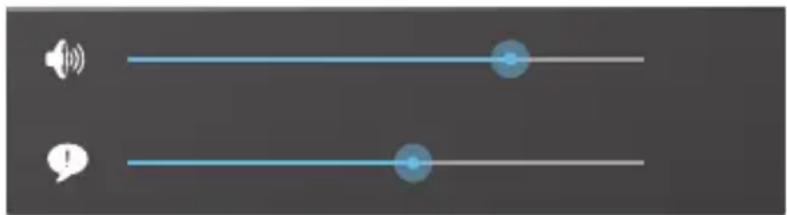
natural_image
Two horizontal lines with speaker and speech icons, no text or symbols presentTip: You can go to Settings > DEVICE > Sound > Volumes to adjust the volume of the alarms.
Silent Mode On
Press the Volume Up button 📋 to turn off Silent mode, then you can press the Volume Up/Down button to increase or decrease the volume.
Navigation Buttons
Back Button
Tap this button to open the previous screen you were working in, even if it was in a different app. Once you go back to the Home screen, no further history will be available.
Home Button
Tap this button from anywhere on your Sero 8 pro to return to the Home screen. If you're viewing a left or right Home screen, this will open the central Home screen.
Recent Apps Button
Tap this button to view recently used apps. Tap an app to use it again.
You can slide down to see more apps. You can also slide it away to the left or right.
Menu Button:
Tap this button to choose your wallpaper, add a widget to any screen, add or delete a screen. You can set the launcher preferences. You can also open your system settings or apps' management interface.
3 Making Connections
Read this chapter to learn how to connect to an external device and establish data transmission.
Battery
The Sero 8 pro has an internal Lithium-ion Polymer rechargeable battery. For important safety instructions about the battery and charging the Sero 8 pro, see Important Safety Instructions on page 27.
The Battery Icon
The battery icon in the upper-right corner of the status bar shows the battery level or charging status.


High battery Low battery Needs to be charged Charging
Charging the Battery
The best way to charge the battery is to plug your Sero 8 pro into a wall outlet using the power adapter and Micro-USB cable included with your accessories.
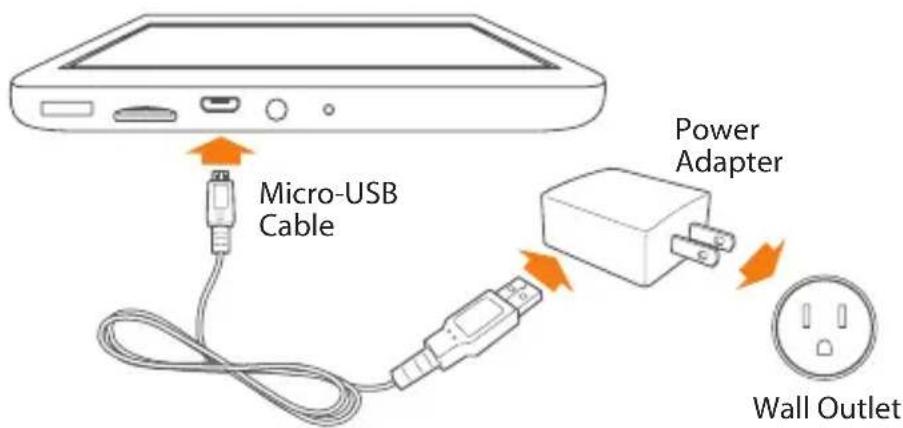
NOTES
- Use the power adapter and Micro-USB cable included with your accessories. Other power adapters and Micro-USB cables may charge more slowly or not at all.
- The power adapter and wall outlet are only for reference, they may vary in different countries.
The Sero 8 pro also charges slowly when you connect it to the USB port on your computer. The battery may drain instead of charge when the battery usage is large.
Micro-USB
You can use the included Micro-USB cable to connect the Sero 8 pro's Micro-USB port to your computer's USB port.
To change your Sero 8 pro's USB connection options, go to Settings > DEVICE > Storage > Menu icon > USB computer connection. You can select the Sero 8 pro is connected as MTP or PTP.
Micro SD Card
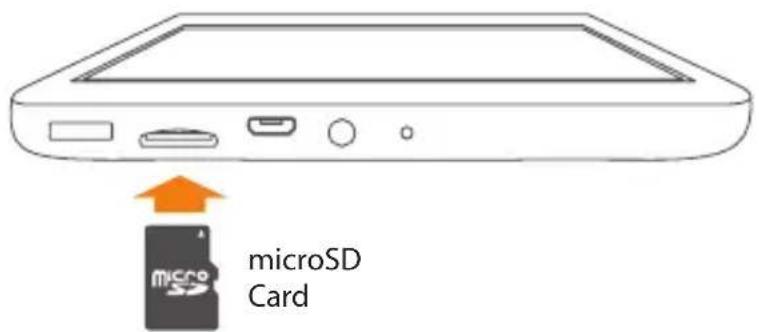
Insert the microSD card contacts facing down into the Sero 8 pro's Micro SD port. To check the storage of microSD card, go to Settings > DEVICE > Storage.
Headphone
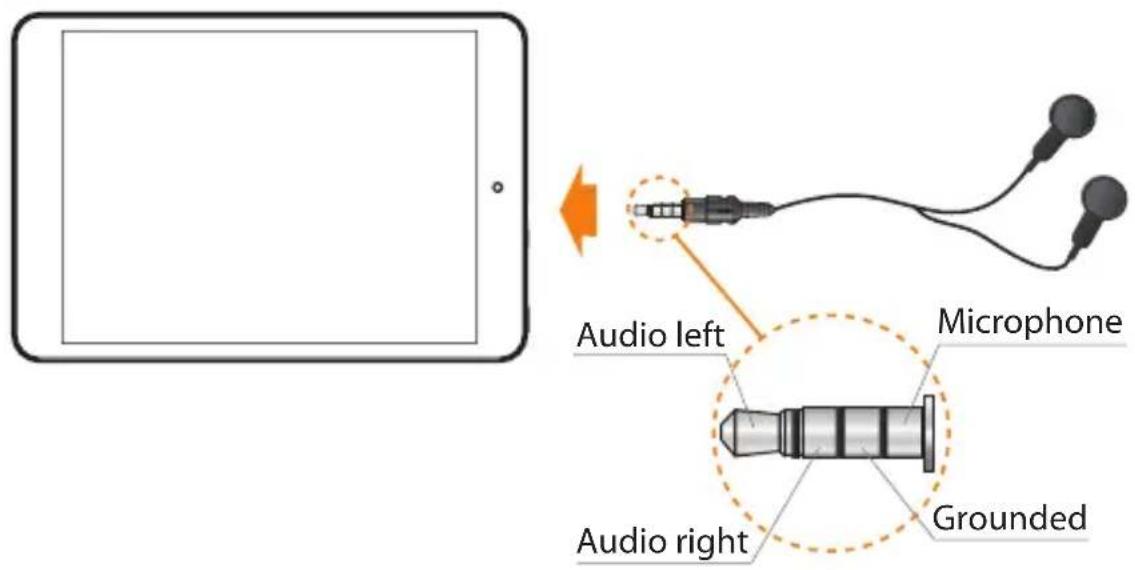
Headphones can be connected to the Sero 8 pro's headphone port. For more information about headphones, see Important Safety Instructions on page 27.
NOTE
If you use the microphone function that comes with headphones, choose the 3.5mm 4-Conductor Headset.
Wi-Fi
You can connect to a wireless access point, or hotspot to use Wi-Fi. Some hotspots are open and you can simply connect to them. Others implement security features that require other steps to set up.
Add a Wi-Fi Network
You can add a Wi-Fi network so your device will remember it, along with any security credentials, and connect to it automatically when it's in range. You must also add a Wi-Fi network if the network does not broadcast its name (SSID), or to add a Wi-Fi network when you are out of range.
- Turn on Wi-Fi, if it's not already on.
- Tap the Plus icon at the top of the screen.
- Enter the SSID (name) of the network. If necessary, enter security or other network configuration details.
- Tap Save.
Forget a Wi-Fi Network
To forget a Wi-Fi network, go to Settings > WIRELESS & NETWORKS > Wi-Fi > [the network name] > Forget.
Advanced Wi-Fi Settings
To set the Advanced Wi-Fi, go to Settings > WIRELESS & NETWORKS > Wi-Fi > Menu icon >> Advanced.
- Network notification - By default, when Wi-Fi is on, you receive notification in the Status bar when your device detects an open Wi-Fi network. Uncheck this option to turn off notification.
- Keep Wi-Fi on during sleep - To select whether to put the Sero 8 pro in sleep mode when it's connected to Wi-Fi.
- Scanning always available - Check to scan for networks even when Wi-Fi is turned off.
-
Avoid poor connections - Check the box to automatically avoid using networks with a low-quality or unreliable Internet connection.
-
Install certificates - To use a certificate to identify your Sero 8 pro, you must obtain it with help from your system administrator, and install it in your tablet's trusted credential storage.
Wi-Fi optimization - By default, when Wi-Fi is on the battery usage is optimized. - MAC address - The Media Access Control (MAC) address of your device when connected to a Wi-Fi network.
IP address - The Internet Protocol (IP) address assigned to the device by the Wi-Fi network you are connected to (unless you used the IP settings to assign it a static IP address).
Configure Proxy Settings for a Wi-Fi Network
Some network administrators require you to connect to internal or external network resources via a proxy server. By default, the Wi-Fi networks you add are not configured to connect via a proxy, but you can change that for each Wi-Fi network you've added.
- Press & hold a network in the list of Wi-Fi networks you've added.
- Tap Modify network in the dialog that opens.
- Select Show advanced options.
- Enter the proxy settings supplied by your network administrator.
-
Tap Save.
-
If the network has no proxy settings, tap None under Proxy Settings, then tap Manual in the menu that opens.
NOTE
Proxy settings are used by the browser but may not be used by other apps.
VPN
To configure VPN access, you must first obtain the details from your network administrator. Depending on your organization's solution, you may need to obtain a VPN app, either from your administrator or on Google Play.
Go to Settings > WIRELESS & NETWORKS > More > VPN.
Add a VPN
- From the VPN screen, tap the Plus icon to add VPN profile.
- In the form that appears, fill in the information provided by your network administrator.
- Tap Save.
Connect to a VPN
- From the VPN screen, tap the name of the VPN.
-
In the dialog that opens, enter any requested credentials.
-
Tap Connect.
Edit a VPN
- From the VPN screen, press & hold the name of the VPN profile.
- In the dialog that opens, tap Edit profile.
- Edit the VPN settings you want.
- Tap Save.
Delete a VPN
- From the VPN screen, press & hold the name of the VPN profile.
- Press & hold the VPN you want to delete.
- In the dialog that opens, touch Delete profile.
Bluetooth
You can use Bluetooth to communicate between the Sero 8 pro and other Bluetooth devices, such as a Bluetooth headset over a distance of about 8 meters.

- To extend the life of your battery between charges, turn off Bluetooth when you're not using it.
- The Wi-Fi function and the Bluetooth function can simultaneous operation, but can not simultaneous transmit.
To connect to a Bluetooth device, first turn on your Sero 8 pro's Bluetooth. Then, the first time you use a new Bluetooth device, you need to "pair" it with your Sero 8 pro so that both devices know how to connect securely to each other. After that, they connect automatically.
To turn Bluetooth on or off, open Quick Settings, tap Bluetooth icon. You can also go to Settings > WIRELESS & NETWORKS and then tap the Bluetooth switch.
Pairing Bluetooth Devices
Before you can use a Bluetooth device with the Sero 8 pro, you must first pair it.
- Make the device you want to pair discoverable. See the documentation that came with your device to learn how to make it discoverable.
- Make sure Bluetooth is turned on by going to Settings > WIRELESS & NETWORKS.
- Tap Bluetooth. Your Sero 8 scans for and displays the ID of all available Bluetooth devices in range.

If your mobile device stops scanning before your Bluetooth device is ready, tap Search for devices.
-
Tap the ID of the Bluetooth device in the list to pair with it.
-
Follow the instructions to complete the pairing. If prompted, enter a passkey, or refer to the documentation that came with the device.
If the pairing is successful, your Sero 8 pro connects to the device.
Connecting Bluetooth Devices
Once you've paired with a Bluetooth device, then you can connect to it manually if you want to switch devices or reconnect after it is back in range.
-
Go to Settings > WIRELESS & NETWORKS, make sure Bluetooth is turned on.
-
In the list of Paired Devices, tap a paired but unconnected device. When the Sero 8 pro and the device are connected, the device is displayed as connected in the list.
Send Files
- Make sure Bluetooth is turned on.
- Press & hold the file you want send, tap share icon < > Bluetooth icon 📋.
- Tap the device you want to send it to. The Sero 8 pro begins to send the file.
Tip: You can see the sending status in Notification Tray.
Receive Files
- Make sure Bluetooth is turned on and visible. To set Visibility timeout, go to Settings > WIRELESS & NETWORKS > Bluetooth > Menu icon >> Visibility timeout.
- When the Bluetooth share icon ✦ is shows up in Notification bar, open the Notification Tray and tap the notification, follow the instructions to complete the receiving.
- To check the information of Bluetooth received, go to Settings > WIRELESS & NETWORKS > Bluetooth > Menu icon >> Show received files.
Tip: You can see the receiving status in Notification Tray.
Rename or Unpair a Bluetooth Device
You can change the name of the Bluetooth device as it appears on your Sero 8 pro. You can also unpair a Bluetooth device.
- Go to Settings > WIRELESS & NETWORKS, make sure Bluetooth is turned on.
- In the Bluetooth settings, tap the Settings icon 14 beside the connected Bluetooth device you want to configure.
- A screen opens that allows you to change the device's name or unpair it.
4 Basic
Read this chapter to learn about the Sero 8 pro basic features.
Setup Guide
Turning Your Sero 8 pro On for the First Time
To start, turn on your Sero 8 pro by pressing and holding Power button until the Hisense logo appears. After the animation appears, follow the on-screen instructions to set up your Sero 8 pro.
- Slide up and down to select the language, then tap icon.
- Connect to a Wi-Fi network. Tap a network name to see more details or connect to it, and enter a password if necessary.
NOTES
- You can skip connecting progress, and set a Wi-Fi network in Settings later.
-
If your skip connecting progress, the following steps will vary.
-
When prompted, sign in the using email address and password for your Google Account. If you don't have one yet, go ahead and create one. For more information about Google Account, see Google Account on page 23.
NOTE
If you do not log in to Google Account, the following steps will vary.
- Select your Google services.
- Select your time zone, set current date and time of your Sero 8 pro.
- Enter your name.
Basic Operation
Using Apps
You interact with the Sero 8 pro using your fingers to tap, double tap, press & hold, slide, pinch, and rotate objects on the touchscreen.
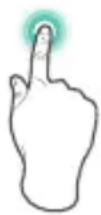
Tap or Double Tap
To select a feature or item, quickly touch the screen.
Double tap your finger quickly on an item to bring up more details.
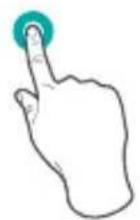
Press & Hold
Touch the screen and hold it there for 2 seconds.
In many situations, pressing and holding will open a menu.
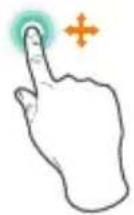
Slide or Drag
Touch the screen and slide your finger to another location.
Press and hold on an object and slide it to another location on the screen.
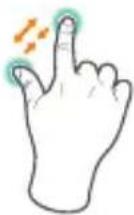
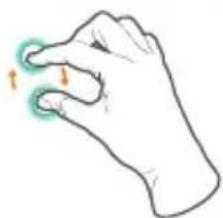
Zoom
Place two fingers about an inch apart on the screen. Slide them together to 'zoom out'.
Slide your fingers apart to 'zoom in'.
natural_image
Illustration of a human hand with two fingers and a highlighted finger area (no text or symbols)Rotate
Place two fingers about an inch apart on the screen. Rotate them in clockwise or counter-clockwise.
Rearrange Home Screen
- Move apps or widgets: Press & hold an icon or widget, slowly to drag it to the screen edge, the screen will switch.
- View info about an app: Press & hold it, drag it to the top of the screen, and drop the app over the App Info icon ⓘ
- Uninstall an app: Press & hold it, drag it to the top of the screen, and drop the app over the Uninstall icon
- Remove widgets: Press & hold a widget, when the Remove icon ✗ appears at the top of the screen, drag the widget into it.
Organize Your Apps With Folders
Make a new folder on your Home screen: Press & hold an icon, slowly to drag it on top of another app.
- Rename folder: Tap the folder, then tap the name of folder, enter a new name.
- Press & hold an icon, slowly to drag it into / out of a folder.
Manage Downloads
To manage most downloads, tap the Downloads icon

From the Download app:
Tap an item to open it.
- Press & hold an item you want to share, then tap the Share icon < and choose a sharing method from the list.
- Press & hold an item you want to delete, then tap the Trash icon 📋.
Screen Orientation
In Quick Settings, you can tap rotation icon to switch the screen rotation mode: Auto Rotate or Rotation Locked. Or go to Settings > SYSTEM > Accessibility > Auto-rotate screen.
natural_image
Simple gray square icon with a white curved arrow inside, no text or symbols present.
Sharing
The Sero 8 pro gives you lots of ways to share with other people.
In many apps, tap Share or Share icon and choose a sharing method from the list for sharing. The options vary depending on the app you're using.
Security
Set Screen Lock
You can set an automatic screen lock to prevent unauthorized access.
To adjust your lock settings:
- Go to Settings > PERSONAL > Security > Screen security > Screen lock.
-
Tap the type of lock you want and follow the on-screen instructions. If you have previously set a lock, you must enter the pattern, PIN, or password to unlock the lock settings.
-
Slide - The slide provides no protection, but lets you get to the Home screen quickly.
- Hisense - The Hisense lets you slide on the screen, then get to the Home screen.
Face Unlock - Lets you unlock your device by looking at it. This is the least secure lock option.
Tip: After you set up Face Unlock, look under Settings > PERSONAL > Security > Screen security for two additional settings: Improve face matching and Liveness check. Use these to make Face Unlock more reliable and secure.
Pattern - Lets you draw a simple pattern with your finger to unlock your Sero 8 pro. This is slightly more secure than Face Unlock.
PIN - Requires four or more numbers. Longer PINs tend to be more secure.
- Password - Requires four or more letters or numbers. This is the most secure option, as long as you create a strong password.
Tips: For best security, specify a password that
• Is least 8 characters long.
- Contains a mixture of numbers, letters, and special symbols.
- Doesn't contain any recognizable words or phrases.
Settings
Settings lets you configure the Sero 8 pro, set app options, add accounts, and change other preferences.
WIRELESS & NETWORKS
Data Usage
Data usage refers to the amount of data uploaded or downloaded by your Sero 8 pro during a given period. And you can view data usage by app and access app settings.
Airplane Mode
Airplane mode disables the wireless features in order to reduce potential interference with aircraft operation and other electrical equipment.
To turn Airplane mode on, tap Settings > WIRELESS & NETWORKS > More > Airplane mode.
DEVICE
Sound
You can set your Sero 8 pro to play a sound whenever you get a new message, email, alert, or reminder. You can also set sounds for pressing icons and locking your Sero 8 pro.
Display
You can adjust the brightness of the display or the screen timeout. You can set the wallpaper, or the font size. And you can also set what appears on screen when sleep mode is on.
- Anyview cast - You can cast the screen to wirelessly stream video and audio to a variety of displays and other devices that support Miracast - even when a standard Wi-Fi network Basic 31 isn't available. For example, you can cast the screen to show your device's screen on a TV equipped with a certified Miracast adapter.
Storage
You affect the way apps use internal storage directly and indirectly in many ways - for example, by:
- Installing or uninstalling apps.
- Downloading files in Chrome, Gmail, and other apps.
- Creating files (for example, by taking pictures).
- Deleting downloaded files or files you created.
- Copying files between Sero 8 pro and a computer via USB.
Apps
You'll see three tabs at the top of the screen, each displaying a list of apps or their components:
Downloaded - Displays apps you've downloaded on Google Play or other sources.
- Running - Displays all apps, processes, and services that are currently running or that have cached processes, and how much RAM they are using.
All - Displays all apps that came with the Sero 8 pro and all apps you downloaded from Google Play or other sources.
To switch the order of the lists displayed in the Downloaded or All tabs, tap Menu icon : > Sort by name or Sort by size.
PERSONAL
Backup & Reset
You can back up app data, Wi-Fi passwords, and other settings to Google servers. You can also restore the Sero 8 pro's configuration to factory settings.
SYSTEM
Date & Time
You can set time zone, date, time and date format. If Sero 8 pro connected with a Wi-Fi, you can also select use network-provided time.
Accessibility
To modify your device's Accessibility settings:
- TalkBack - Controls spoken feedback for visually impaired users.
Captions - Choose to turn on captions for your device.
Magnification gestures - Turn on to toggle zoom in and out, as well as temporarily magnify what's under your finger.
Large text - Check to increase the text size on all your device's screens. - Auto-rotate screen - Check to have the screen auto-rotate in portrait and landscape modes.
Speak passwords - Check to get spoken feedback while typing passwords. If this option is not checked, you will need a headset to hear the letters you type for passwords. - Accessibility shortcut - Lets you quickly enable accessibility features.
Text-to-speech output - Lets you specify text-to-speech engine details and speech rate. - Touch & hold delay - Lets you adjust the delay required for the device to notice that you're touching and holding an item.
Printing
You can print directly from Sero 8 pro.
Tap Cloud Print to view a list of available printers. To add a printer or manage settings, tap the Menu icon:
About Tablet
You can view the version information, the status of battery, network, and other information.
You can also update the software version via the network. There are two ways to access the update screen:
- If the latest version is checked by system, a notification will appear in the Notification Bar. Open the Notification Tray and tap the notification.
- If you dismiss the update notification, go to Settings > SYSTEM > About tablet > System updates.
Location
Sero 8 pro can use different modes to access location information.
Each mode uses different sources to estimate Sero 8 pro's location. Apps that have your permission can use this information to deliver location-based services, such as the ability to check in, view commute traffic, or find nearby restaurants.
Location for Sero 8 pro
To control what location information Sero 8 pro can use, go to Settings > PERSONAL > Location.
Apps Using Your Location
To know which apps are currently accessing or have recently accessed your location, go to Settings > PERSONAL > Location > Recent Location Requests.
Location Services
These settings control location services across multiple apps:
On - One or more accounts is on for this service.
- Off - All accounts are off for this service.
Manage Location Reporting & Location History
To open or closer Location Reporting, tap Location > Location services > Google Location Reporting > Location Reporting, slide the switch ON or OFF.
To open or closer Location History, tap Location > Location services > Google Location Reporting > Location History, slide the switch ON or OFF. You can also delete Location History.
Google Account
Add an Account
- Go to Settings > ACCOUNTS > Add account.
- Tap the kind of account to add.
- Follow the on-screen instructions.
- Most accounts require a username and password, but the details depend on the kind of account and the configuration of the service you're connecting to.
When you're finished, the account is added in one of two places:
Google Accounts show up under Settings > ACCOUNTS > Google.
- Other accounts show up under Settings > ACCOUNTS on the main Settings screen.
Remove an Account
You can remove any account and all information associated with it from your Sero 8 pro, including email, contacts, settings, and so on.
To remove a Google account, go to Settings > ACCOUNTS > Google > [account-name] > Menu icon > Remove account.
For any other type of account, go to Settings > ACCOUNTS > [account - type] > [account - name] and look for the Remove option.
Syncing
Configure Auto-sync for All Apps
To control Auto-sync for all apps that use it, go to Settings > WIRELESS & NETWORKS > Data usage > Menu icon □, and check or uncheck Auto-sync data.
Configure Google Account Sync Settings
To adjust a single Google Account's sync settings:
- Go to Settings > PERSONAL > Accounts > Google.

indicates that none of an account's information is configured to sync automatically.

indicates that some or all of an account's information is configured to sync automatically.
- Tap the account whose sync settings you want to change.
- The Sync Settings screen opens, displaying a list of the kinds of information the account can sync.
- Tap items as needed.
Unchecking an option does not remove the information from your Sero 8 pro; it simply stops it from being kept in sync with the version on the web.
Sync a Google Account Manually
- Go to Settings > ACCOUNTS > Google.
- Tap the account whose data you want to sync.
- Tap Menu icon: > Sync now.
Tip: None of an account's information is configured to sync automatically.
Appendix A
Specifications
| Product Name Sero 8 pro | ||
| Model F5281 | ||
| Dimension (L × W × T) 7.89 inches × 5.34 inches × 0.25 inches(200.3 mm × 135.6 mm × 6.3 mm) | ||
| Weight 0.74 lbs (335 g) | ||
| Display Diagonal 7.85 inches | ||
| Hardware Platform RK3288 Quad core, Cortex-A17, 1.8GHz | ||
| Antenna Wi-Fi 802.11 b/g/n (2.4G) | ||
| Cameras Front Camera | 2.0 M | |
| Power | AC Power Adapter (5V/ 2A) | |
| Battery Rechargeable | ^2 lithium polymer battery | |
| Battery Capacity / Voltage | 4400 mAh / 3.7 V | |
| Audio | Built-in speakers | |
| External Port | 3.5 mm stereo headphone port; Micro-USB port; Micro SD port | |
| Operating Temperature | 32°F to 95°F (0°C to 35°C) | |
| Storage Temperature | -4°F to 113°F (-20°C to 45°C) | |
1 : Because the system will occupy part of the memory space, the available user space will be less than 16GB.
2: The rechargeable battery in Sero 8 pro should be replaced only by Hisense Service.
Troubleshooting
When there appears to be an issue with your Sero 8 pro, refer to the tips listed below for a resolution. If the problem still cannot be solved, then contact the local Hisense Electronics Consumer Care Center or a professional technician.
Sero 8 pro displays network or service error message
- When you are located in places with poor signals, then your Sero 8 pro may not be able to connect. Try to move to other places to get a stronger signal strength.
- If you do not make a reservation, some of the options can not be used. Please contact your service provider for more details.
Touch screen response is slow or incorrect
If the Sero 8 pro's touch screen response is incorrect, please try the following:
- Remove any protective film of the touch screen. The protective film may prevent the device recognition input.
Make sure that you are fingers are dry and clean before you tap the touch screen. - Restart the Sero 8 pro to clear any temporary software bugs.
Make sure that the Sero 8 pro's software has been upgraded to the latest version.
Sero 8 pro is frozen or a serious error appears
- If the Sero 8 pro is frozen or suspended, you may need to close the app program or reset the tablet.
- If the Sero 8 pro is frozen or slow to respond, press & hold the Power button for 8 seconds to the reset the tablet.
- If the problem persists, restore the factory data.
Sero 8 pro gets warm
When you use your device for a long time, the Sero 8 pro may be warm to the touch. This is normal and will not affect the life or performance of the unit.
Appendix B
Important Safety Instructions
WARNING
RISK OF ELECTRIC SHOCK DO NOT OPEN
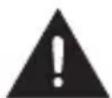
WARNING: TO REDUCE THE RISK OF ELECTRIC SHOCK, DO NOT REMOVE COVER OR BACK. NO USER-SERVICEABLE PARTS INSIDE. REFER SERVICING TO QUALIFIED SERVICE PERSONNEL.
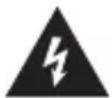
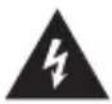
The lightning flash with arrow head symbol, within an equilateral triangle is intended to alert the user that parts inside the product constitute a risk of electric shock to persons.
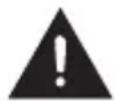
The exclamation point within an equilateral triangle is intended to alert the user that important operating and servicing instructions are in the papers with the appliance.
- Read these instructions.
- Keep these instructions.
- Heed all warnings.
- Follow all instructions.
- Do not defeat the safety purpose of the polarized or grounding-type plug. A polarized plug has two blades with one wider than the other. A grounding type plug has two blades and a third grounding prong. The wide blade or the third prong are provided for your safety. If the provided plug does not fit into your outlet, consult an electrician for replacement of the obsolete outlet.
- Protect the power cord from being walked on or pinched particularly at plugs, convenience receptacles, and the point where they exit from the unit.
- Only use attachments/accessories specified by the manufacturer.
-
Refer all servicing to qualified service personnel. Servicing is required when the unit has been damaged in any way, such as power-supply cord or plug is damaged, liquid has been spilled or objects have fallen into the unit, the unit has been exposed to rain or moisture, does not operate normally, or has been dropped.
-
Do not install near any heat sources such as radiators, heat registers, stoves, or other units (including amplifiers) that produce heat.
-
Unplug this unit during lightning storms or when unused for long periods of time.
Warning
- All packing materials such as internal bags, plastic collars, plastic films, and carton inserts are not part of this product and should be discarded.
Do not try to disassemble the unit.
- Only use a wall outlet to charge your Sero 8 pro and the power adapter that came with the device.
- Do not expose the unit to moisture or water.
- Keep the unit clean by wiping it with a slightly damp cloth.
To prevent hearing damage, never use headphones at excessive volume levels. Listening to loud sounds for an extended period may cause temporary or permanent hearing loss.
Never use Sero 8 pro while operating a motor vehicle or bicycle.
- If you feel discomfort in your hands or any pain using Sero 8 pro, please stop immediately.
- In case of long periods of use, take frequent breaks.
- If a small part is coming out of the Sero 8 pro, do not try to remove it. Keep it away from small children.
- Never force a connector into a port of Sero 8 pro. If a connector and a port do not join with reasonable force, make sure that the connector matches the port and that you have positioned the connector correctly in relation to the port.
To clean the screen, simply use a soft damp cloth. Do not use alcohol, solvent, aerosol spray or abrasive cleaners to clean your Sero 8 pro.
The product and the adapter should be periodically examined for conditions that may result in the risk of fire, electric shock, or injury to persons and that, in an event such conditions, the adapter should not be used until properly repaired.
- Operate Sero 8 pro in a place where the temperature is between 0^ and 35^ (32° to 95°F). Low or high temperature conditions might temporarily shorten battery life or cause Sero 8 pro to temporarily stop working properly. Avoid dramatic changes in temperature or humidity when using Sero 8 pro, as condensation may form on or within Sero 8 pro.
- Store Sero 8 pro in a place where the temperature is between -20^ and 45^ (-4° to 113°F). Don't leave Sero 8 pro in your car because temperatures in parked cars can exceed this range.
- When you're using Sero 8 pro or charging the battery, it is normal for Sero 8 pro to get warm. The exterior of Sero 8 pro functions as a cooling surface that transfers heat from inside the unit to the cooler air outside.
The rechargeable battery in Sero 8 pro should be replaced only by Hisense Service.
- Do not expose a battery pack or installed batteries to excessive heat such as sunshine, fire or the like.
Risk of explosion if battery is replaced by an incorrect type. - Dispose of used batteries according to the instructions.
- If you will not use Sero 8 pro frequently, then we recommend that you fully charge and discharge the battery every three months in order to maximize the battery lifespan.
- If you will not use Sero 8 pro frequently, then we recommend that you keep the battery level at around 50 percent in order to maximize the battery life span.
- If Sero 8 pro has not been used for a long period of time, then the battery might be in an over-discharge protection mode and take longer to charge.
- The Wi-Fi function and the Bluetooth function can simultaneously operate, but can not simultaneously transmit.
- Never remove or insert microSD card while the Sero 8 pro is powered on.
The manufacturer is not responsible for any radio or TV interference caused by unauthorized modifications to this equipment. Such modifications could void the user's authority to operate the equipment. - Sero 8 pro North America edition is limited using channel 1-11. This limited operation can be only set by software and was done before the product down from the product line. All the products for North America marketing were embedded this limited before shipping. Customers have no way to choose the channel 12 & 13.
Certification and Compliance
Exposure to Radio Frequency Energy
Sero 8 pro contains radio transmitters and receivers. When on, Sero 8 pro sends and receives radio frequency (RF) energy through its antenna. The Wireless and Bluetooth® antenna is located on the back of the device, see Understanding Your Sero 8 pro Tablet on page 5 for more details. Sero 8 pro has been tested and meets the SAR (Specific Absorption Rate) exposure requirements for WLAN and Bluetooth operation.
Sero 8 pro is designed and manufactured to comply with the limits for exposure to RF energy set by the Federal Communications Commission (FCC) of the United State. The exposure standard employs a unit of measurement known as the specific absorption rate, or SAR. The SAR limit applicable to Sero 8 pro set by the FCC is 1.6 watts per kilogram (W/kg). Tests for SAR are conducted using standard operating positions specified by these agencies, with Sero 8 pro transmitting at its highest certified power level in all tested frequency bands. Although SAR is determined at the highest certified power level in each frequency band, the actual SAR level of Sero 8 pro while in operation can be well below the maximum value because Sero 8 pro adjusts its WLAN transmitting power based in part on orientation and
proximity to the wireless network. In general, the closer you are to a WLAN Router, the lower the WLAN transmitting power level.
Sero 8 pro has been tested, and meets the FCC and European Union RF exposure guidelines for WLAN and Bluetooth operation. When tested at direct body contact, Sero 8 pro's maximum SAR value for each frequency band is outlined below:
FCC SAR
| Frequency Band (MHz) | FCC 1g SAR Limit (W/kg) | Highest Value (W/kg) |
| Model: F5281 | ||
| 2412-2462 1.6 1.16 | ||
EN SAR
| Band EN 10g SAR Limit (W/kg) Highest Value (W/kg) |
| Model: F5281 |
| Wi-Fi 2.4 GHz 2.0 0.693 |
Additional Information
For more information from the FCC about exposure to RF energy, see: www.fcc.gov/oet/rfsafety.
The FCC and the U.S. Food and Drug Administration (FDA) also maintain a consumer website at www.fda.gov/Radiation-EmittingProducts/default.htm to address inquiries about the safety of mobile phones. Check the website periodically for updates.
For information about the scientific research related to RF energy exposure, see the EMF Research Database maintained by the World Health Organization at: www.who.int/emf.
FCC Compliance Statement
This device complies with part 15 of the FCC rules. Operation is subject to the following two conditions: (1) this device may not cause harmful interference, and (2) this device must accept any interference received, including interference that may cause undesired operation.
NOTE This equipment has been tested and found to comply with the limits for a Class B digital device, pursuant to part 15 of the FCC Rules. These limits are designed to provide reasonable protection against harmful interference in a residential installation. This equipment generates, uses and can radiate radio frequency energy and, if not installed and used in accordance with the instructions, may cause harmful interference to radio communications. However, there is no guarantee that interference will not occur in a particular installation. If this equipment does cause harmful interference to radio or television reception, which can be determined by turning the equipment off and on, the user is encouraged to try to correct the interference by one or more of the following measures:
- Reorient or relocate the receiving antenna.
- Increase the separation between the equipment and receiver.
- Connect the equipment to an outlet on a circuit different from that to which the receiver is connected.
Consult the dealer or an experienced radio/TV technician for help.

Model: F5281
FCC ID: W9HPADP0006
IC Warning
This device complies with Industry Canada licence-exempt RSS standard(s). Operation is subject to the following two conditions: (1) this device may not cause interference, and (2) this device must accept any interference, including interference that may cause undesired operation of the device. The IC ID for this device is 10680A-W9HPADP0006.
CE Certification
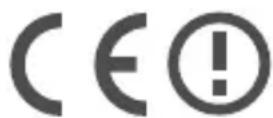
Sero 8 pro has passed the European CE certification. The mark demonstrates the compliance with CE directives as shown on the left.
NOM warning
This equipment complies with Mexican Standard Regulations.
Disposal and Recycling Information
The symbol means that according to local laws and regulations your product should be disposed of separately from household waste. When this product reaches its end of life, take it to a collection point designated by local authorities. Some collection points accept products for free. The separate collection and recycling of your product at the time of disposal will help conserve natural resources and ensure that it is recycled in a manner that protects human health and the environment.
Appendix C
Legal Terms
The product/device you have purchased from Hisense Co., Ltd. or it's Parent Company, affiliates and/or Subsidiary Company, its successors and/or assigns (hereinafter referred to as "Hisense") provides direct access to the internet through one or more internet provider services (hereinafter referred "Web Service"). All content and services accessible through this device belong to Hisense Co., Ltd. "Hisense" is sometimes also referred to herein as "we" or "us") or third parties and are protected by copyright, patent, trademark and/or other intellectual property laws. Such content and services are provided solely for your personal non-commercial use. You may not use any content or services in a manner that has not been authorized by the content owner or service provider or prohibited by law. You may not modify, copy, republish, upload, post, transmit, translate, sell, create derivative works, exploit, or distribute in any manner or medium any content or services displayed through this device except as permitted by applicable law or as authorized in writing by Hisense.
YOU EXPRESSLY ACKNOWLEDGE AND AGREE THAT USE OF THE DEVICE IS AT YOUR SOLE RISK. TO THE EXTENT PERMITTED BY LAW, THE DEVICE AND ALL CONTENT AND SERVICES ARE PROVIDED "AS IS" WITHOUT WARRANTY, CONDITION, TERM, REPRESENTATION OR UNDERTAKING OF ANY KIND, EITHER EXPRESS OR IMPLIED. TO THE EXTENT PERMITTED BY LAW, HISENSE EXPRESSLY DISCLAIMS ALL WARRANTIES, CONDITIONS, TERMS, REPRESENTATIONS AND UNDERTAKINGS WITH RESPECT TO THE DEVICE AND ANY CONTENT AND SERVICES, EITHER EXPRESSED OR IMPLIED, INCLUDING, BUT NOT LIMITED TO, WARRANTIES OF MERCHANTABILITY, OF SATISFACTORY QUALITY, FITNESS FOR A PARTICULAR PURPOSE, OF ACCURACY, OF QUIET ENJOYMENT, AND NON-INFRINGEMENT OF THIRD PARTY RIGHTS. TO THE EXTENT PERMITTED BY LAW, HISENSE DOES NOT GUARANTEE THE ACCURACY, VALIDITY, TIMELINESS, LEGALITY, OR COMPLETENESS OF ANY CONTENT OR SERVICE MADE AVAILABLE THROUGH THE DEVICE AND DOES NOT WARRANT THAT THE DEVICE, CONTENT OR SERVICES WILL MEET YOUR REQUIREMENTS, OR THAT OPERATION OF THE DEVICE OR SERVICES WILL BE UNINTERRUPTED OR ERROR-FREE. TO THE EXTENT PERMITTED BY LAW, UNDER NO CIRCUMSTANCES, INCLUDING NEGLIGENCE, SHALL HISENSE BE LIABLE, WHETHER IN CONTRACT OR TORT OR OTHERWISE, FOR ANY DIRECT, INDIRECT, INCIDENTAL, SPECIAL OR CONSEQUENTIAL LOSS OR DAMAGES, LOSS OF PROFIT, REVENUE, INTEREST, BUSINESS OR CORRUPTION OF DATA, ATTORNEY FEES, EXPENSES, OR ANY OTHER LOSS OR DAMAGES ARISING OUT OF, OR IN CONNECTION WITH, ANY INFORMATION CONTAINED IN, OR AS A RESULT OF THE USE OF THE DEVICE, OR ANY CONTENT OR SERVICE ACCESSED BY YOU OR ANY THIRD PARTY, EVEN IF ADVISED OF THE POSSIBILITY OF SUCH LOSS OR DAMAGES. IF THE LAW OF A PARTICULAR JURISDICTION DOES NOT PERMIT HISENSE TO EXCLUDE WARRANTIES AS CONTAINED HEREIN, THEN HISENSE SHALL BE READ TO PERMIT HISENSE TO LIMIT AND EXCLUDE ANY SUCH WARRANTIES TO THE MAXIMUM EXTENT AS PERMITTED BY THE LAW.
The country location you have identified during the set-up process may grant you access to certain content, advertising and services of third parties or Hisense. The third party content and linked sites are not under our control, and we have neither reviewed the contents of these third-party web sites, nor do we claim any responsibility for the access to, maintenance, content or suitability of, these third-party web sites or applications. You expressly acknowledge and agree that the identification of your country location and you're linking to any third party site or application is entirely at your own risk, and it is your responsibility to view and abide by the terms of use and privacy policies applicable to any third party site. You understand and agree that, to the extent permitted by law, Hisense shall in no event be liable for any direct, indirect, incidental, special or consequential loss or damages, attorney fees, expenses, or any other loss or damages arising out of, or in connection with, your unauthorized access to third party content based on your selection of a country location or otherwise.
All content and services accessible through this device may be changed, suspended, removed, terminated or interrupted, or access may be denied or disabled at any time, without notice, and Hisense makes no representation or warranty that any content or service will remain available for any period of time. Content and services are transmitted by means of networks and transmission facilities over which Hisense has no control. Without limiting the generality of this Disclaimer, and to the extent permitted by law, Hisense expressly disclaims any responsibility or liability for any change, interruption, disabling, removal or suspension of any content or service made available through this device. Hisense may impose limits on the use, disabling, removal or suspension of any content or service made available through this device. Hisense may impose limits on the use of, or access to, certain services or content in any case and without notice or liability. Hisense is neither responsible nor liable for customer service related to the third party content and services. You need to accept the terms of service and privacy policy in order to use “Hisense Smart” platform on your Tablet. All the applications in the Tablet are provided by are subject to modification or termination with or without any notice. Any question or request for service relating to such content or services should be made directly to the respective third party applications and service providers.
Copyright and Trademark Notices
Hisense and associated logos where applicable are registered trademarks of Hisense Group in Canada, the United States, Mexico and/or other countries. All other trademarks are property of their respective owners. 2014 Hisense Co., Ltd. All Rights Reserved.
The Bluetooth ^® word mark and logos are registered trademarks owned by Bluetooth SIG, Inc..
Wi-Fi ^® is a registered mark of the Wi-Fi Alliance.
Android, Google Play and other marks are trademarks of Google Inc..
Manufactured under license from Dolby Laboratories. Dolby and the double-D symbol are trademarks of Dolby Laboratories.
Screenshots and product images are simulated and for instructional purposes only. They may differ from the actual product and are subject to change without notice. Content shown may vary from actual available content, which may change without notice.
Hisense
natural_image
Front view line drawing of a tablet device with blank screen (no text or symbols)Contenido
Lo que debe saber.... 3
Pantalla principal 7
Botones....8
natural_image
Line drawing of a USB cable with connector port (no text or symbols)natural_image
Simple horizontal line with speaker icon and plus/minus symbols, no text or labels presentnatural_image
Two horizontal blue lines with speaker and speech icons, no text or symbols presentnatural_image
Illustration of a human hand with two fingers and a finger pointing to the palm (no text or symbols)Girar
natural_image
Front view line drawing of a tablet device with blank screen (no text or symbols)Contenu
Conseil utile 3
natural_image
Line drawing of a USB cable with two connectors (no text or symbols)natural_image
Simple diagram showing a speaker with sound waves and a blue line with a circle, next to a vertical line with three dots (no text or symbols)natural_image
Two horizontal lines with speaker and speech icons, no text or symbols presentnatural_image
Illustration of a human hand with two fingers and a highlighted finger area (no text or symbols)Faire pivoter
RISQUE D'ÉLECTROCUTION NE PAS OUVRIR
AVERTISSEMENT: POUR RÉDUIRE LE RISQUE DE DÉCHARGE ÉLECTRIQUE, NE PAS ENLEVER LE COUVERCLE OU LE DOS. AUCUNE PIÈCE À ÊTRE ENTRETENUE PAR L'UTILISATEUR NE SE TROUVE À L'INTÉRIEUR. POUR L'ENTRETIEN, CONSULTER LE PERSONNEL DE SERVICE QUALIFIÉ.
natural_image
Front view of a blank tablet device with rounded corners and a small circular element on top (no text or symbols)Sero 8 Pro | Hisense
دليل المستخدم
المحتوى
ما ت Herbert ل معرفته 3
natural_image
Line drawing of a USB cable with two connectors (no text or symbols)natural_image
Simple diagram with speaker icon and horizontal line, no text or symbols presentnatural_image
Two horizontal blue lines with speaker and speech icons on the left, no text or symbols presentnatural_image
Simple line drawing of a tablet device with rounded corners and a blank screen (no text or symbols)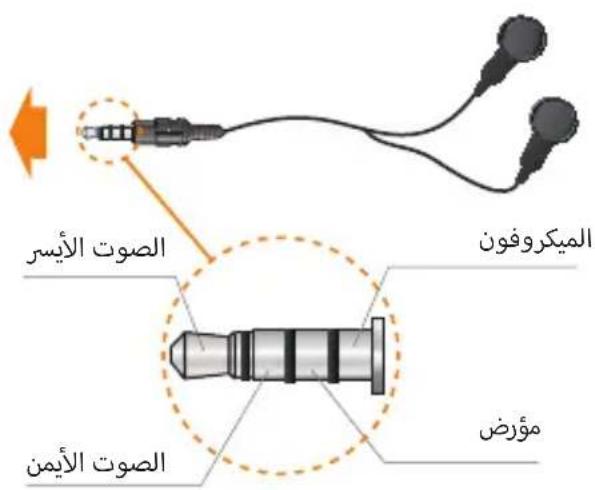
www.fdca.gov/Badlation_EmittingProducts/default.htm
natural_image
Front view of a blank tablet device with rounded corners and a small circular element on top (no text or symbols)Índice
natural_image
Line drawing of a USB cable with two connectors (no text or symbols)natural_image
Simple diagram with speaker icon, horizontal line, and vertical line (no text or symbols)natural_image
Two horizontal lines with icons for speaker and speech, connected by a circle (no text or symbols)natural_image
Illustration of a hand making a finger gesture with two fingers (no text or symbols)Rodar
Organizar as suas Apps com pastas
natural_image
Front view line drawing of a tablet device with blank screen (no text or symbols)Inhalt
Wissenswertes 3
natural_image
Line drawing of a USB cable with connector port (no text or symbols)natural_image
Simple diagram with speaker icon, horizontal line, and electrical symbols (no text or labels)natural_image
Two horizontal lines with speaker and speech icons, no text or symbols presentnatural_image
Illustration of a human hand with two fingers and a finger pointing to the palm (no text or symbols)Drehen
natural_image
Front view of a blank tablet device with rounded corners and a small circular element on top (no text or symbols)Contenuto
Da sapere....3
natural_image
Line drawing of a USB cable with two connectors (no text or symbols)OggettoFunzione
natural_image
Two horizontal lines with speaker and speech icons, no text or symbols presentnatural_image
Illustration of a hand making a finger gesture with motion arrows (no text or symbols)Ruotare

- Content
- Need to Know 3
- Getting Started......4
- Making Connections....11
- Basic....17
- Appendix A 25
- Appendix B....27
- Appendix C 32
- Need to Know
- Model and Serial Numbers
- Model Number
- Serial Number
- Getting Started
- Package Contents
- Power Adapter
- Micro-USB Cable
- Quick Start Guide & Warranty
- Understanding Your Sero 8 pro Tablet
- Item Function
- Home Screen
- Notification and Status Bar
- Icon What it means
- Buttons
- Power Button
- Turn Sero 8 pro On
- Turn Sero 8 pro Off
- Set Airplane / Silent Mode
- Put Sero 8 pro in Sleep Mode
- Wake Sero 8 pro From Sleep Mode
- Forced Shutdown
- Volume Up/Down Buttons
- Silent Mode Off
- Silent Mode On
- Navigation Buttons
- Back Button
- Home Button
- Recent Apps Button
- Menu Button:
- Making Connections
- Battery
- The Battery Icon
- Charging the Battery
- NOTES
- Micro-USB
- Micro SD Card
- Headphone
- NOTE
- Wi-Fi
- Add a Wi-Fi Network
- Forget a Wi-Fi Network
- Advanced Wi-Fi Settings
- Configure Proxy Settings for a Wi-Fi Network
- VPN
- Add a VPN
- Connect to a VPN
- Edit a VPN
- Delete a VPN
- Bluetooth
- Pairing Bluetooth Devices
- Connecting Bluetooth Devices
- Send Files
- Receive Files
- Rename or Unpair a Bluetooth Device
- Basic
- Setup Guide
- Turning Your Sero 8 pro On for the First Time
- Basic Operation
- Using Apps
- Tap or Double Tap
- Press & Hold
- Slide or Drag
- Zoom
- Rotate
- Rearrange Home Screen
- Organize Your Apps With Folders
- Manage Downloads
- Screen Orientation
- Sharing
- Security
- Set Screen Lock
- Settings
- WIRELESS & NETWORKS
- Data Usage
- Airplane Mode
- DEVICE
- Sound
- Display
- Storage
- Apps
- PERSONAL
- Backup & Reset
- SYSTEM
- Date & Time
- Accessibility
- Printing
- About Tablet
- Location
- Location for Sero 8 pro
- Apps Using Your Location
- Location Services
- Manage Location Reporting & Location History
- Google Account
- Add an Account
- Remove an Account
- Syncing
- Configure Auto-sync for All Apps
- Configure Google Account Sync Settings
- Sync a Google Account Manually
- Appendix A
- Troubleshooting
- Sero 8 pro displays network or service error message
- Touch screen response is slow or incorrect
- Sero 8 pro is frozen or a serious error appears
- Sero 8 pro gets warm
- Appendix B
- Important Safety Instructions
- WARNING
- Certification and Compliance
- Exposure to Radio Frequency Energy
- Additional Information
- FCC Compliance Statement
- IC Warning
- CE Certification
- NOM warning
- Disposal and Recycling Information
- Appendix C
- Legal Terms
- Copyright and Trademark Notices
- Hisense
- Contenido
- Lo que debe saber.... 3
- Girar
- Contenu
- Conseil utile 3
- Faire pivoter
- المحتوى
- ما ت Herbert ل معرفته 3
- Índice
- Rodar
- Organizar as suas Apps com pastas
- Inhalt
- Wissenswertes 3
- Drehen
- Contenuto
- Da sapere....3
- OggettoFunzione
- Ruotare
Brand : HISENSE
Model : Sero 8 Pro
Category : Tablet