HSM191 - Mp3 player Hipstreet - Free user manual and instructions
Find the device manual for free HSM191 Hipstreet in PDF.


Frequently Asked Questions - HSM191 Hipstreet
User questions about HSM191 Hipstreet
0 question about this device. Answer the ones you know or ask your own.
Ask a new question about this device
Download the instructions for your Mp3 player in PDF format for free! Find your manual HSM191 - Hipstreet and take your electronic device back in hand. On this page are published all the documents necessary for the use of your device. HSM191 by Hipstreet.
USER MANUAL HSM191 Hipstreet
Thank you for your purchase of this Hip Street MP4 player and we hope you enjoy using it.
Please visit our website at www.hipstreetonline.com.
Please ensure that you fully read and understand the information with this instruction manual prior to using your product. It is advised that you keep this instruction manual in a safe place for future reference. We sincerely hope that this high quality product offers you endless hours of entertainment.
Important safety precautions
- Always follow these basic safety precautions when using your player. This will reduce the risk of product damage and personal injury.
- Do not disassemble, repair or modify the player by yourself. Refer servicing to qualified personnel.
- Do not dispose of the player in fire to avoid explosion.
- Keep the player away from direct sunlight or heat source.
- Do not expose the unit to rain or moisture to avoid any malfunction.
- Do not use the player in a rather dry environment to avoid static.
- Never apply heavy impact on the player like dropping it or placing it on a magnet.
- Clean only with a dry cloth. Make sure the player is turned off before cleaning. Do not use liquid cleanser.
- Be sure to back up your files. We will not be liable for the loss of data due to improper operation, repair or other causes.
Precautions in using the earphones
- Do not use the player with earphones while driving an automobile or riding a bicycle.
- To avoid an accident, do not turn up the volume of the earphones too high while walking.
- It's not recommended that you use the earphones at a high volume for an extended time as this may cause hearing damage.
Features
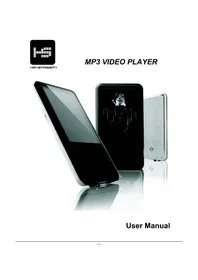
- 2GB memory capacity
- Sleek MP4 / MP3 / WMA / WAV Player
• Video / Music / Photos
• Built-in Re-Chargeable battery - 1.5" LCD Display
- Works as a memory storage device (USB flash drive)
Diagram
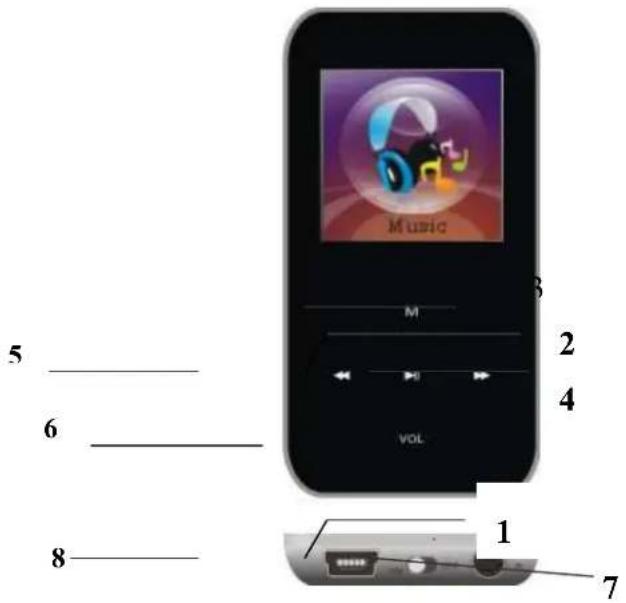
text_image
Music M 3 2 4 VOL 5 6 8 1 7- ON/O▶▶ button
- Play/Pause/ press and hold for power on/power off
- Menu / Enter / access setup menu and confirmation
- Next track/next song/fast forward/volume up
- Previous track/previous song/fast backward/volume down
- Volume
- Earphones jack
- USB port
Connecting with the Computer
System requirements
Your computer system must meet the following specifications:
- Pentium III or above
• Microsoft Windows 2000/ME/XP/Vista
• 120MB of available hard disk space - USB port supported
Connecting the player to computer
Before connecting the player, make sure your computer is powered on.
- Insert the USB cable provided into the player and computer.
- For Windows, the computer system detects "New hardware" and starts to install the driver automatically. Wait for the system to finish the installation. When it has finished, a new "Removable Disk" will be created in "My Computer".
Loading files to the player
To download the MP3, Video or Photo files from your computer, perform the following steps.
NOTE: Video files must be converted using supplied convertor software before they can be downloaded onto the player.
- Open Windows Explorer or My computer. "Removable Disk" will be displayed.
- Select the files on your computer and simply move it into the "Removable Disk" in the usual way (drag-and-drop or copy-and-paste). After copying is completed, the data will be available on the MP4 player.
Note:
- Do not disconnect the player during loading. It may cause malfunction of the player and the files may not copy correctly.
Disconnecting the player
After completing the file transfer, safely disconnect the MP3 player.
- Double click the green arrow "Safety Remove Hardware" in the taskbar on the bottom right of the window.
- Select "USB Device" and click "Stop".
- When the "Stop a Hardware device" appears, click "OK" to disconnect the USB mass storage device. Then you can unplug the player safely.
Mass Storage
The MP4 player can be used to store any type of file as a USB flash drive. It can, for example, be used to simply transfer files from one computer to another or as a back-up device.
Charging the battery
The battery of the player is charged automatically when the player is connected to the computer. Ensure the computer is turned on. The battery of the player is 80% charged in about one hour and fully charged in about two hours. If you charge the player while loading files to the player, it may take longer time to charge. While charging, the indicator flashes slowly. When the player is fully charged, the icon on the screen will be green in colour.
Button Definitions:
On-power on, Off-power off
▶ II - Press and hold to turn power ON / OFF, Press once to pause.
M – Press once to select, Press and hold to get back to the main menu (Does not work when music is playing)
- Press once for previous track/previous song/volume down. Press and hold to Reverse.
▶▶▶- Press once for next track/next song/volume up. Press and hold to fast forward.
VOL - Volume select.
- How to use keys
There are two ways:
Press Once: Press and release at once
Press and Hold: Press and hold for about 2 seconds, then release.
Screen:
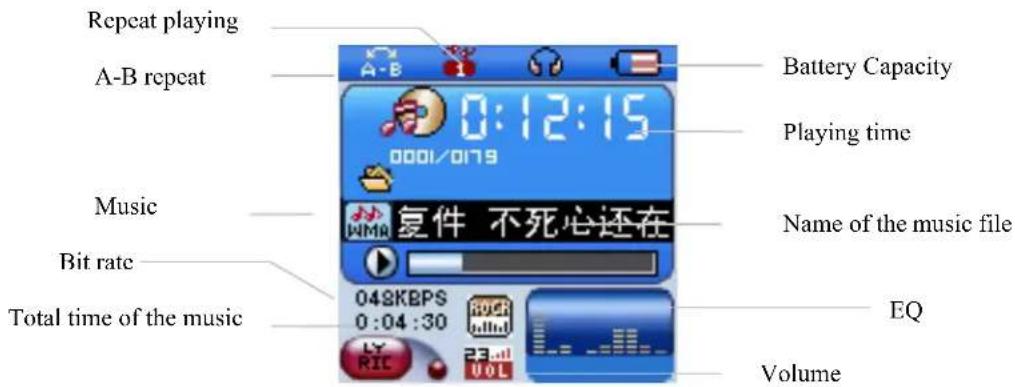
text_image
Repeat playing A-B repeat Battery Capacity Playing time Music Name of the music file Bit rate 048KBPS 0:04:30 EQ Total time of the music VolumeMain Functions:
Using the Menu
Press and hold/Press once "M" to enter into/exit all the main menus and submenus;
Press once "VOL" to exiting submenus directly.
Display Preview
Main menu will display the following screens as shown below:

natural_image
Illustration of headphones with musical notes inside a glowing sphere, labeled 'Music' at bottom (no other text or symbols)Music

natural_image
Blue film reel icon with a cable, labeled 'Video' below (no other text or symbols)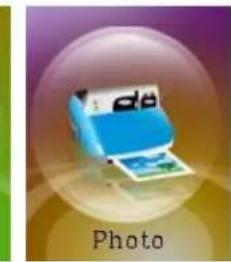
natural_image
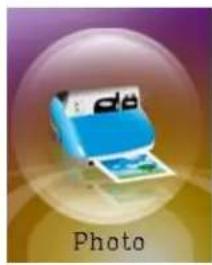
Illustration of a blue printer with 'Photo' text below (no other symbols or readable text)Video
natural_image
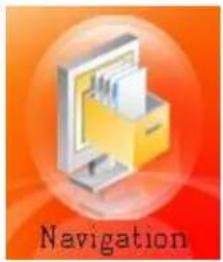
Illustration of a laptop with a folder icon, labeled 'Navigation' below (no other text or symbols)Photo

natural_image
Illustration of an open book with a stack of books, set against a gradient pink-blue background (no text or symbols on the book or background)E-book
natural_image
Illustration of a vintage microphone on a reflective surface with the word 'Record' below (no other text or symbols)Record
natural_image
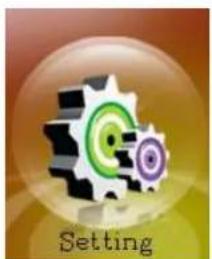
Icon of a gear with two purple circles inside, labeled 'Setting' below (no other text or symbols)Setting
Navigation
• Power On/Off
Slide ON/OFF button to ON; press and hold "▶ II" to turn on the player.
- Play/Pause
In music mode, press "▶ II" once to play/pause your music.
- Adjusting Volume
When in play mode, press "VOL"; The 'VOL' indicator starts flashing; press "▶" to increase or press "◀" to decrease the volume.
- Music Mode:
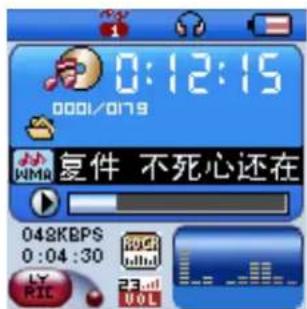
Music play interface:
text_image
0:12:15 0001/0179 KIMR 复件 不死心还在 048KBPS 0:04:30 LY RIL VOL- Please follow the steps below to play your music:
Turn the player ON. Press and Hold “▶ II” to turn the player ON. Press “M” to enter into music play interface, then press “▶ II” to start playing your music.
Selecting a song: Press “▶” once to go to the next song, Press “◀” once to go to the previous song.
Adjusting the Volume: Press "VOL" once; Press "▶" to increase; Press "◀" to decrease.
• Displaying the name of the song and lyrics
This machine can support “*.LRC” format files that display lyrics.
In order to display the lyrics of a song, the filename of the lyric file should be the same as the name of the song.
For example:
If the name of the song is: Let it be.mp3
Then the lyrics filename should be: Let it be.lrc
Basically the file name needs to be the same and the file extensions would be different. If the player detects that there is an .lrc file in the same folder as the .mp3 file that is playing, it will automatically display the lyrics.
- A-B repeat
- When playing your music, press "VOL". The 'VOL' on the screen starts flashing. Press "M"
once and you'll see 'A—' flash briefly at the top left corner of the screen.
- Press "M" once more to select end point 'B', and the screen at the top left corner will flash
'A—B' and start to play the selected part.
- Press "M" once to exit the A-B mode.
- Video Mode

natural_image
Blue film reel with black spines and a cable, labeled 'Video' below (no other text or symbols)This player supports AVI format video. You may follow the same steps to playing a video file as that of a music file.
- Delete Files:
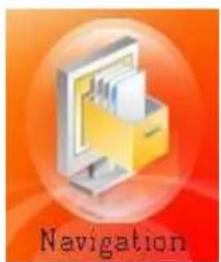
natural_image
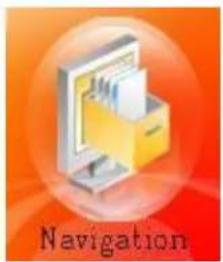
Illustration of a computer monitor with a yellow case, labeled 'Navigation' below (no other text or symbols)In this Navigation menu, you may delete files as explained below Press 'M' once to get to the sub-menu.
Press "###/###" once to select the file to be deleted, Press "M" once and you will be asked to confirm deletion. Press "###/###" to select "Yes" or 'No' and then Press "M" to confirm your action

If your player is connected to your PC, you should delete the files on your PC
1^st and then move them to your player.
- Recording Mode

natural_image
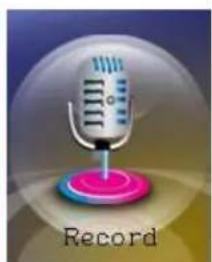
Illustration of a vintage microphone on a record platform with gradient background (no text or symbols)- Start at the main menu of record mode
- Press "M" once to enter the recording sub-menu.
- Press "▶ II" once to start or pause recording.
- Press "M" once to save the recorded file and exit recording menu.

The recorded files will be saved in the 'Voice' submenu automatically.

If there is not enough space for saving the recorded files, the screen will display "No Space". You must delete some files to create space.

the number of saved files reaches the maximum capacity, the screen will display "Directory full". You would need to delete some files to create space.

When recording, the buttons "✗/✗" "VOL" have no function.
•Recording Settings

natural_image
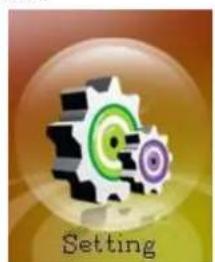
Icon of a gear with two purple circles inside, labeled 'Setting' below (no other text or symbols)- Enter into the 'Setting' menu.
-
Press "M" once to enter the setting sub-menu.
-
Press" "or" once to select "Record".
-
Press "M" once to enter into 'Record' submenu, then press "M" once to enter into "REC Quality", Press "M" once again for the third time to display 2 options "High Quality" & "General Quality".
"High Quality": Selecting this option will result in your files being recorded in 64KBPS in '.WAV'.
"General Quality": Selecting this option will result in your files being recorded in 32KBPS .WAV.
- Playing your recordings
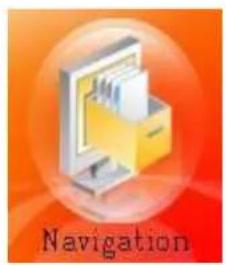
natural_image
Illustration of a computer monitor with a yellow case, labeled 'Navigation' below (no other text or symbols)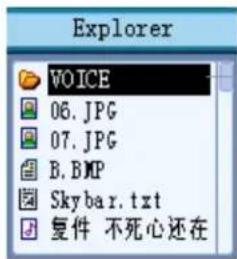
text_image
Explorer VOICE 06.JPG 07.JPG B.BMP Skybar.txt 复件 不死心还在Record file
- Start from the "Navigation" menu.
- Press "M" once to enter into submenu.
-
Make sure the 'Voice' folder is highlighted and press "▶ II" once to open the 'Voice' folder. Then press 🔊 or 🔒 to select desired file and then press "▶ II" to start playing your record files.
-
Press and hold "M" to exit to the main menu.
Browsing Photos
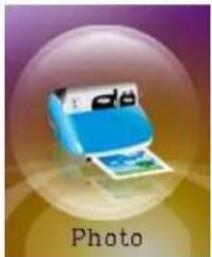
natural_image
Illustration of a blue printer with a photo, enclosed in a translucent sphere (no text or symbols on the printer itself)- Navigate to the "Photo" screen.
-
Press "M" once to enter into the sub-menu and view the photo file list. [If no photos are on the player, the list will be empty.]
-
Press "◀/◀" to select previous or next photo; Press "▶ II" to play, Press "M" once to return to photo file list; Press and hold "M" to return to the main menu.
-
Deleting photos
Press 'M' or 'K' to highlight a photo in the file list. Press "M" to delete the highlighted file. You will now be asked to confirm if you would like to delete the highlighted file. Use the 'H' or 'N' button to move between 'Yes' and 'No'. Press 'M' to confirm your choice.
•E-book (Text)

text_image
E-book- Navigate to the 'Text' menu.
- Press "M" once to view the list of files.
- Press “◀/▶” to select a file & press “▶II” to display the text on the screen.
- Press "###/###" to view the previous or next file.

Press and hold "M" to return to the main menu.
- Settings Menu
1. Select the "Music" submenu
| Repeat Mode | To set the repeat mode when playing music and videos |
| Play Mode To set the playing order of files | |
| EQ Select To set the EQ setting that you want | |
| User EQ Set To set the EQ level that you like | |
2. 'Record' sub-menu
Rec Quality: (See recording settings explained earlier in this manual)
Rec Volume: Select +1 +2 +3 +4 +5 to adjust the recording volume, press "M" once to confirm.
3. Auto Play Setting
Short press "M" to enter into submenu of Auto Play Set. This allows you to set the time delay in viewing continuous text pages or your photos. This function works like a slideshow function.
→ Text or Photos
Select a time interval from "1ses" to "5sec". As selected the screen will proceed to the next page according to your time setting chosen without the need for you to press another button.
4. Display Settings
| 1.BLight time(0—30) | To set a time delay on turning the screen off when no key is pressed. This saves battery power. |
| 2.Lum To adjust the brightness of the screen | |
| 3.BLight Mode | “Normal” or “Power Save” mode gives you more battery saving options. |
5. System Settings.
→ About
The memory shown displays the total capacity and the total used space.
→ Upgrade
This interface is used to initiate upgrading your firmware.

Warning. This MUST NOT be done if your player is working fine.
→ Default Set
Use this function to restore all factory settings
6. Power Off Time settings.
This has various settings for Auto Power off. Please select as desired.
7. Language
This player is operable in 11 languages. Please select as desired.
- Converting video to be played on this player
Please follow the steps below in order to successfully convert video files to be played on your player. (Conversion is done on your computer only. Once the file is converted, you then have to copy it onto your player to watch it on your player)
- Install the 'Conversion' software that is provided on the disc that accompanies this player.
- Once the software has been installed, please double click the conversion software icon on your computer to get started.
- Select the "Source File" to be converted.
- You may make relevant selections on options as available before you start conversion
- You will have to specify where the file is to be saved and a file name for the converted file. At this point if there are more options to be selected, please select as desired and proceed to the next step.
-
Click "Convert Now" or "OK" to start the conversion process. Once the conversion is completed, the indicator will show '100% complete'. This file is now ready to be played on your MP4 player. Please connect your player to the computer, and then copy this file to your player to watch the video.
-
Trouble shooting
| No power | 1. If the player has not been used for a long period of time the battery may be empty. Please charge the player before use.2. Slide the Power On/Off button to 'ON'. |
| No sound | 1. Check whether the volume is set to 0.2. Check whether the earphones is good or if it is connected properly with the player.3. Check whether the player has music files stored and if the format is MP3 or WMA. |
| The language of the screen is garbled | Reset the language as needed |
| Unable to download files | 1. Check whether the USB cable is damaged and PC and player are connected properly.2. If you have Win'98, you will need an additional driver to make this player work.3. Check whether the player's memory is full. |
•Basic parameter
| Dimension | 73.8(L)×37(W)×8mm(H) | |
| Screen 1.5 inch Color | ||
| USB interface High speed USB2.0 | ||
| Memory Size 2GB | ||
| Play time 7 Hours | ||
| Record | Record ratio 32KHz | |
| Record format WAV | ||
| Record time Up to 68 hours(1GB) | ||
| MP3,WMA,WAV | Earphone out power | (L)5mW,®5mW(32Ohm) |
| MP3 bit rate 8K bps - 320K bps | ||
| WAV bit rate 8K bps - 320K bps | ||
| Frequency response range | 20Hz - 20KHz | |
| Noise ratio 83dB | ||
| Music format MP3/WMA/WAV. | ||
| Video format AVI format | ||
| Using temperature -5~40C | ||
| Supported language Multi-national language(up to 11 languages) | ||
| Operating systems Windows98/SE/ME/2000/XP/Vista | ||
Need assistance? Please call us!
If you encounter any difficulties with this product, please visit our website at www.hipstreetonline.com and review our support section or call us. Our representatives are ready to help you with any questions about your product. We can guide you through connections, first-time use, or any of the features. Just give us a call or send us an email.
Customer & Technical Support: 1-888-4KOBIAN or 1-888-456-2426
Monday through ▶riday: 8:30am – 5:00pm EST
Email: support@hipstreetonline.com
We want you to start enjoying your product right away!

Guide d'utilisation
HS-M191
Lecteur MP4
natural_image
Illustration of headphones and musical notes inside a transparent bubble labeled 'Music' (no text beyond label)Musique

natural_image
Blue film reel with black holes, labeled 'Video' below (no other text or symbols)Vidéo
natural_image
Illustration of a blue printer with 'de' label, no text or symbols on the device itselfPhoto
natural_image
Illustration of a yellow filing cabinet with a document inside, set against an orange background (no text or symbols on the diagram itself)Navigation

natural_image
Illustration of an open book with a stack of books, enclosed in a glossy purple circle (no text or symbols on the book itself)Livre électronique

natural_image
Illustration of a vintage microphone on a pink stand with the word 'Record' below (no other text or symbols)Enregistrement
natural_image
Icon of a gear with two purple circles inside, labeled 'Setting' below (no other text or symbols)Réglages
natural_image
Blue film reel icon with a cable, labeled 'Video' below (no other text or symbols)natural_image
Illustration of a computer monitor with a file inside, labeled 'Navigation' below (no other text or symbols)natural_image
Illustration of a vintage microphone on a record platform with a pink base (no text or symbols)natural_image
Icon of a gear with two purple circles inside, labeled 'Setting' below (no other text or symbols)natural_image
Illustration of a computer monitor with a yellow case, labeled 'Navigation' below (no other text or symbols)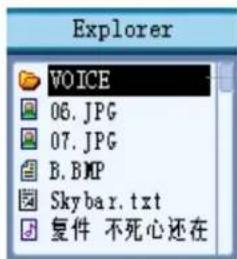
text_image
Explorer VOICE 06.JPG 07.JPG B.BMP Skybar.txt 复件 不死心还在Fichier enregistré