HS2805 - Mp3 player Hipstreet - Free user manual and instructions
Find the device manual for free HS2805 Hipstreet in PDF.


Frequently Asked Questions - HS2805 Hipstreet
User questions about HS2805 Hipstreet
0 question about this device. Answer the ones you know or ask your own.
Ask a new question about this device
Download the instructions for your Mp3 player in PDF format for free! Find your manual HS2805 - Hipstreet and take your electronic device back in hand. On this page are published all the documents necessary for the use of your device. HS2805 by Hipstreet.
USER MANUAL HS2805 Hipstreet
Minimum system requirement 6
Connect to computer 6
Main Interface. 7
Standby. 8
Main Menu 8
Music 8
Music Menu 9
Music Play Interface. 11
Music Play Submenu 12
Pictures 14
Picture Menu 14
Submenu 16
Video 18
Video Menu. 18
Video Play Interface 19
Video Play Submenu 19
Record. 20
Record Interface. 20
Submenu 21
HS-2805 User Manual
E-bookbook 22
EBook Menu 22
Text Browser 23
Submenu 23
ToolsTools 24
Stop Watch 24
25
Calendar 26
Browser 27
Browser Menu 27
Settings 28
Display 29
Calibrate 29
Off Time 29
Date and Time 29
Languages Supported. 30
Set as Desktop 30
Advanced 30
Player Info. 30
Select Font 30
Set User Name 30
Check System 31
Reset. 31
Format Internal Memory 31
Format Card. 31
FAQ. 32
Factory Setting 33
Specification 33
Thank you for your purchase of this Hip Street MP3 player and we hope you enjoy using it.
Please visit our website at www. hipstreetonline.com.
Please ensure that you fully read and understand the information within this instruction manual prior to using your product. It is advised that you keep this instruction manual in a safe place for future reference. We sincerely hope that this high quality product offers you endless hours of entertainment.
Declaration
- The information in this manual may not, except under written license by The Company, be copied, transmitted, distributed, or stored.
- Although efforts have been made for correctness and completeness during the preparation of the manual, there is no guarantee that this manual is free from any error or omission. The Company assumes no liability regarding the errors or omissions that might exist in the manual.
- For sustainable development, The Company reserves the right to modify and improve any product described in this manual without prior notice.
- Under no circumstance shall the Company assume any liability, direct or indirect, related to data or income loss, or any special, accidental, incidental or indirect losses.
Precautions
For the correct use and good performance of the player, the user must fully understand the manual as well as strictly follow the instructions provided.
- Never knock the main machine violently.
- Never contact with chemicals such as benzene, thinner etc.
- Do not place close to strong magnetic field, electric field etc.
- Keep away from direct sunlight or heating appliances.
- Never privately disassemble, repair or modify the player.
- Do not use the player and the earpiece during bicycling, car and motorcycle driving is likely to cause danger.
- Never use higher volume, which may damage your hearing ability.
- Divide scraped packing, batteries, old electronic products and dispose of them properly.
Key features
2.8" TFT touch screen
Music playback: supports MP3, WMA, and WAV audio format
Video playback: supports MPG/MPEG, AVI, MOV, RM/ RMVB, and 3GP video format
- Photo viewer: supports JPG, BMP, GIF, PNG, and TIFF image format
EBook reader: supports TXT document format
- Voice recorder: save recording to MP3, WAV, or WMA format
- File Browser: supports copy and delete function
- Utilities: Stopwatch, Calculator, Calendar
- Multi language menu display: English, French, Spanish and many more
- Micro SD memory expansion slot
Built-in internal speaker
Built-in rechargeable battery
- USB2.0 high-speed data transfer
- Multi-task operation
Basic operations
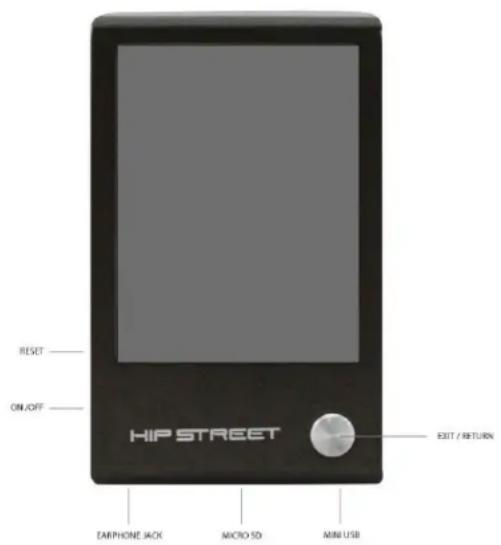
Buttons
ON/OFF = HOLD: Master power switch, Lock switch
Return (big silver round button): Exit or return to previous screen
Reset: Hard reset (restore Player to factory default)
Ports
:Earphone socket
: Mini USB socket
Micro SD : Micro SD memory slot
Power On/Off
Slide the master power switch to the "ON/OFF" position and hold it until Player turns on or off.
The Player will power off automatically when idle time reaches the power-off time set by the user.
Note: this function is ineffective when the Player is connected to a computer.
Navigation
In main menu or sub menu, swipe the screen up/down or left/right to scroll and touch the item to enter or select. At any time press Return (big silver round button) to exit or return to previous screen.
Charging the device
Plug the smaller end of the USB cable to the device and the other end to a USB port on the computer. Select the battery charge option on the device and leave it plugged in to the computer for 3 hours to charge.
File transfer
Minimum system requirement
OS: Microsoft Windows 2000/XP/Vista/7 and Mac OS 10
CPU: Pentium 3 1GHZ or faster
Memory: 512MB of Ram at least
Hard Disk: 1GB of storage space at least
Others: available USB port and CD/DVD drive
Connect to computer
Plug the smaller end of the USB cable to the device and the other end to a USB port on the computer. Select the file transfer option on the device or wait for it to accept the default value. The computer will detect the device and install the driver automatically, as it is "plug n play" on above mentioned operating systems.
Transfer file
The device by default will be displayed as "Removable Disk" on Windows and "NO NAME" on Mac. To add files on the device, drag supported files over to the drive.
"Removable Disk" is accessible in My Computer or Computer on Window system.
"NO NAME" is accessible on the Mac desktop.
Supported file type
Music: MP3, WMA, WAV
Video: MPG/MPEG, AVI, MOV, RM/ RMVB, 3GP
Photo: JPG, BMP, GIF, PNG, TIFF
EBook: TXT
Different file types should be saved in the corresponding folder. For example: music should be saved in MUSIC folder.
Main Interface
Standby
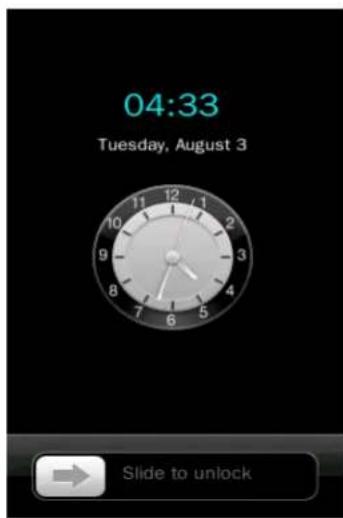
When the system is in standby status, slide with to enter Main Menu interface.
Main Menu
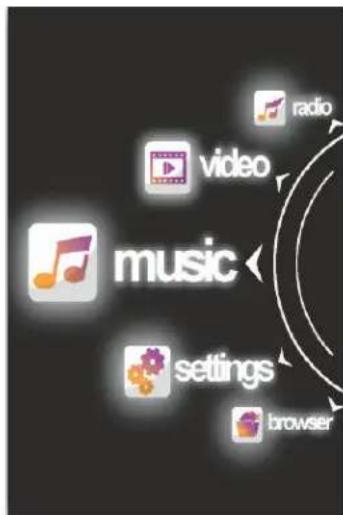
Music

Select in Main Menu Interface to enter Music Menu.
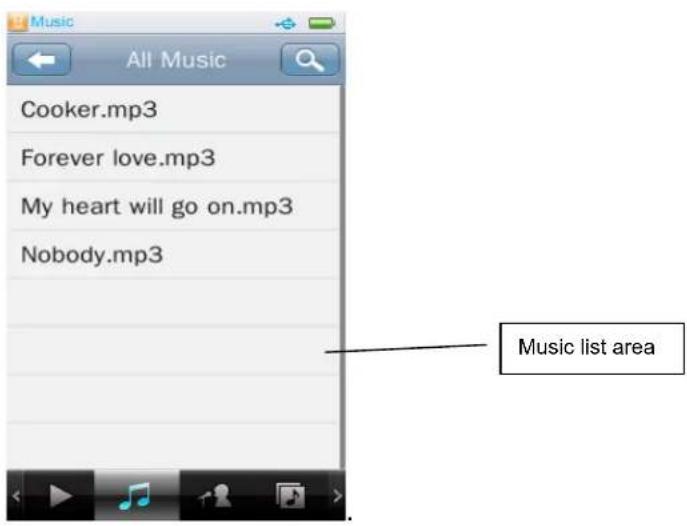
Music Menu

: Play icon is marked after now-playing or previously played music in the now-playing music list, touch the file name to select one and begin to play. It shows "No files" if no music file exists.

: All Music; will list all the music files stored under Music Directory in the player's internal memory.

: Artist; will list all the music by artists; the 'unknown' title is composed of unidentified artist (artists downloaded with no name); the name 'unknown' will not appear if no music of this nature exists.

: Album: identifies music by album, the next level is the list of music in the album; the 'unknown Album' title is same as 'unknown artist'.

: Genre: lists all the music files by genre.

My Music List: total of five lists available; the user can classify the music as desired.

Directory Browse: Internal Memory, External Memory; Internal Memory contains all music files in the player; External Memory lists all the music files in cards and this list will not be displayed if no card inserted.

Record File: list all FM and voice record files

My rating: five ratings (1~5 stars); music of the same rating are listed correspondingly. The user can rate music according to the favorites.

Tag List: list all the music tag set by user, support up to 32 tag lists.

Search: search music files by entering music file name.

: Return to the upper directory from subdirectory; or turn to Main Menu from root directory.
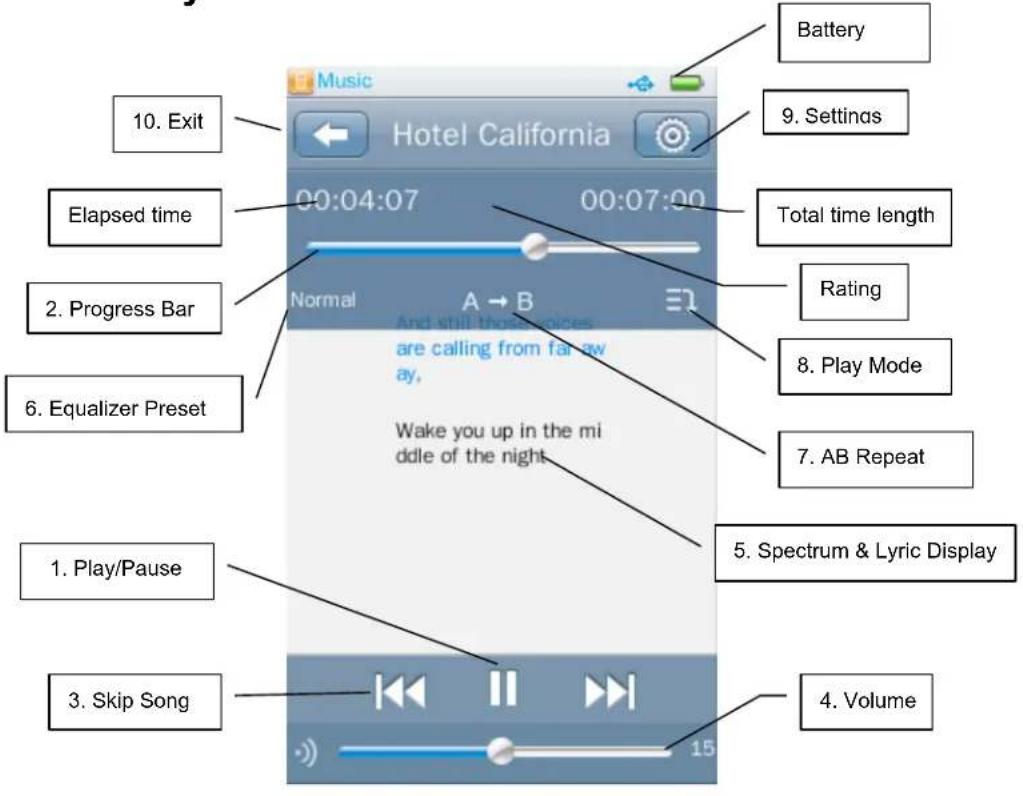
Music Play Interface
- Play/Pause: touch / to switch between Play and Pause.
- Forward/Rewind: drag the progress bar. Progress Bar: will conceal after 10 seconds and re-appear once you tap the area where it was displayed.
- Skip Song: press / to switch to the previous or next music.
- Volume Adjustment: slide to adjust the volume.
- Spectrum & Lyric Display Area: touch area to switch between spectrum, lyric, or album art if available.
-
Equalizer Preset: touch icon to switch equalizer preset.
-
AB Repeat: touch A is shown, indicating point A (the starting point of current playing song) is confirmed; touch B and is shown, indicating point B is confirmed. Then A-B repeat starts. If A→B is pressed, the repeat icon will change back to , which means AB repeat is cancelled.
- Play Mode: touch icon to switch between normal, repeat one, repeat All, shuffle, or other modes.
- Music Play Submenu: touch to open music play submenu.
- Exit: touch to exit or return to the upper directory from subdirectory.
Music Play Submenu
In Music Play Interface, touch

to open Music Play Submenu.
Variable Speed Playback: adjust music playback speed from -4 to 4.
Add Tag: touch Add Tag, the current music and its current time point can be added to tag list, it will then return to playing interface. You may find the music in the corresponding list in
Delete Tag: enter and touch the screen to slide from right to left, upon

which appears; select one tag and touch; it pops out a window for confirmation; now touch to confirm or cancel tag deletion.
Delete: delete current playing song.
Information: display corresponding information of current playing song.
Set Rating: set the rating for the current song being played (rating 1-5 stars).
Add to My Play List: enter < Add to My Play List > to select one song desired, and then return to the previous menu; now the song has been added to the list and you may find the music in the corresponding list in
Delete from My Play List: the same as delete tag. The music deleted from play list will not be deleted from the player.
User EQ: 5 bands: 80Hz, 200Hz, 1KHz, 4KHz, 8KHz; range: -6db ~ +6db. Drag the value bar to change the value.
SRS User Mode: parameters: SRS 3D (0 ~ 10), TruBass (0 ~ 10), Focus (0 ~ 10), Center (1 ~ 10), Definition (0 ~ 10), Speaker (60Hz, 100Hz, 150Hz), Limiter (ON/OFF).
Advanced: replay times (1 ~ 10), replay interval (1 ~ 10), Fade In/Out
Pictures

Select Photo in Main Menu Interface to enter Picture Menu.
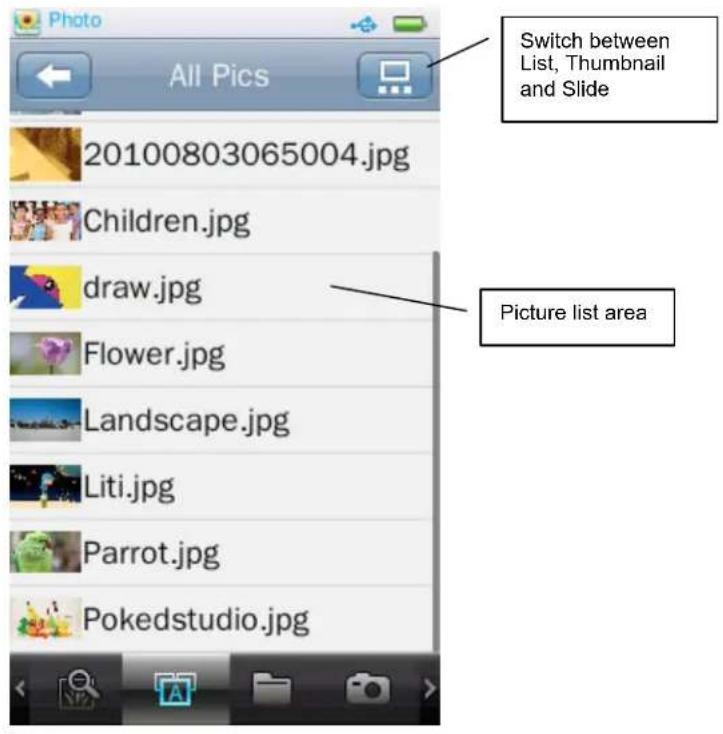
Picture Menu
: Now viewing, the function and operation are the same as that of
All Pictures, the same as that of
: Directory Browse, the same way as that of
Photos
: the same as that of

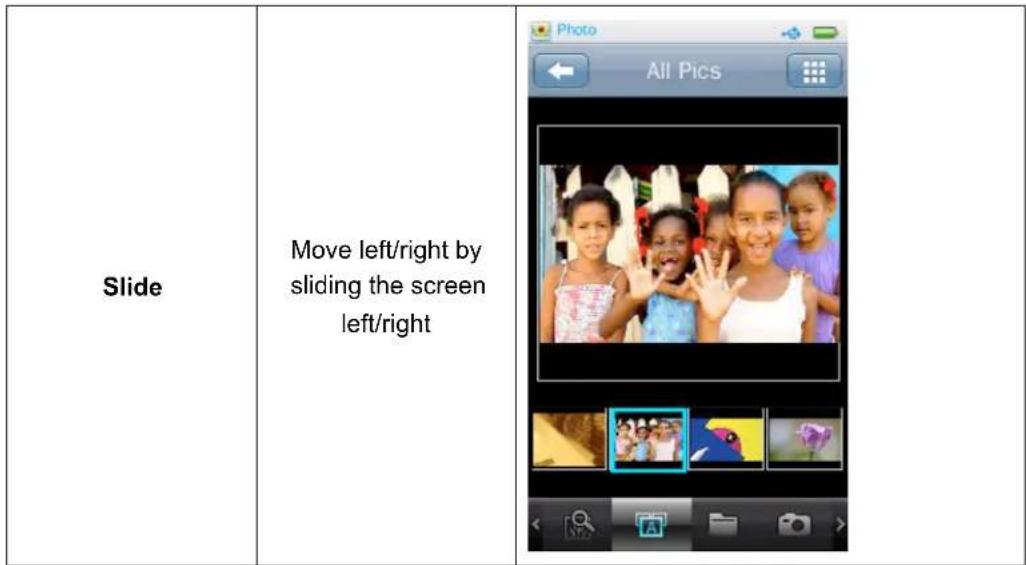
: play mode, set the display mode of picture, options include List, Thumbnail, and Slide, which are shown as follows.
| List Mode | Slide up and down by dragging directory bar | |
| Thumbnail | Move up/down by sliding the screen up/down. |
Submenu
When browsing a picture manually, touch it, the submenu and operation bar are shown as below:
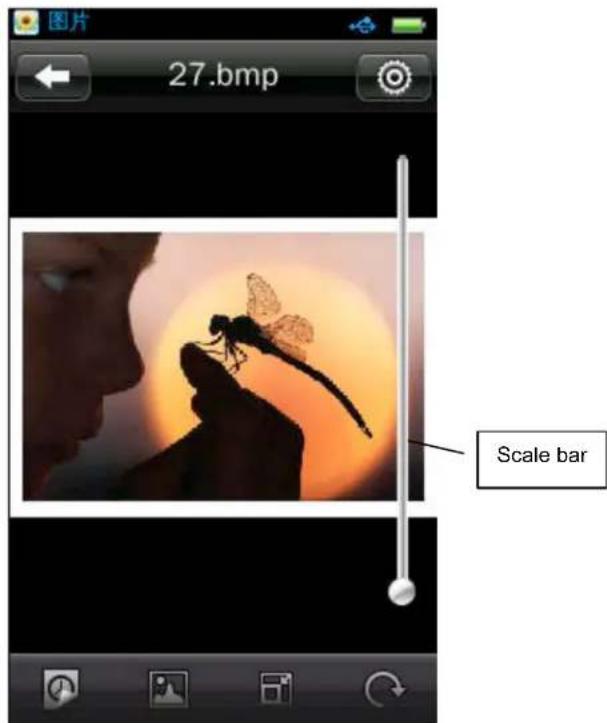

Setting, options include
- Effect: options for picture playback effects: Move page, Louver, Fade Display
- Delete: the same as that of
. - Information: display picture name, resolution, Created Date.
-
Screen Size: options include Full Screen, Original Size, and Scale
-
switch between manual and auto playing. Slide the current picture left/right to display the previous/next picture in manual mode.
- : set the current picture as the desktop picture for Main Interface and Standby interface.
- Scale: touch the Scale Bar on the right of the picture to zoom in/out the picture; when the picture is zoomed in, you may drag it up/down/left/right
correspondingly; to exit Scale mode, touch Note: the previous or next file cannot be selected in Zoom-In state).
- Rotate: options for rotation: 90^ , 180^ , 270^ clockwise.
- Slide Interval: options include 1, 5, 10, 15, 20 seconds.
Video

Select
in Main Menu Interface to enter Video Menu.
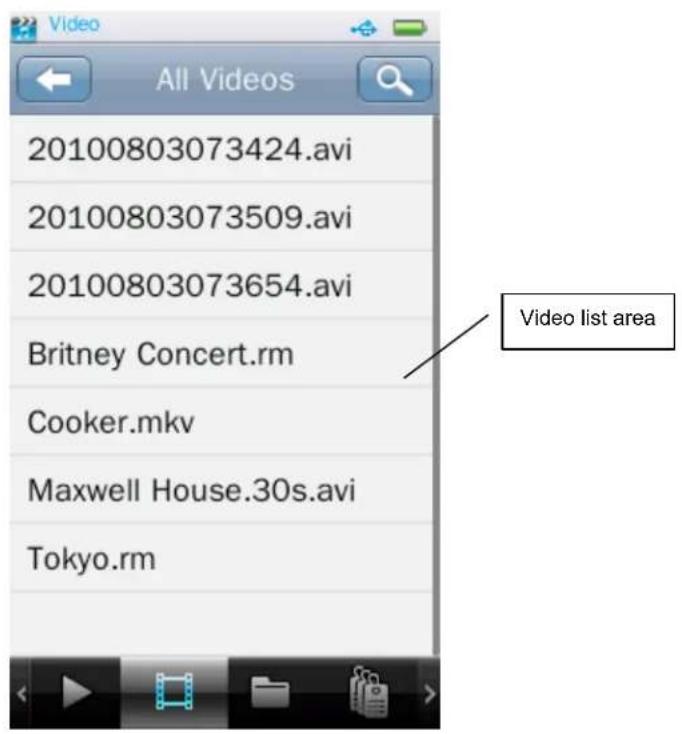
Video Menu

: Now Playing, the function is the same as that of

: All Video, the function is the same as that of

Directory Browse, the same as that of

Tag List, the same as that of

: Search: search video by inputting file name.

: the same as that of
Video Play Interface
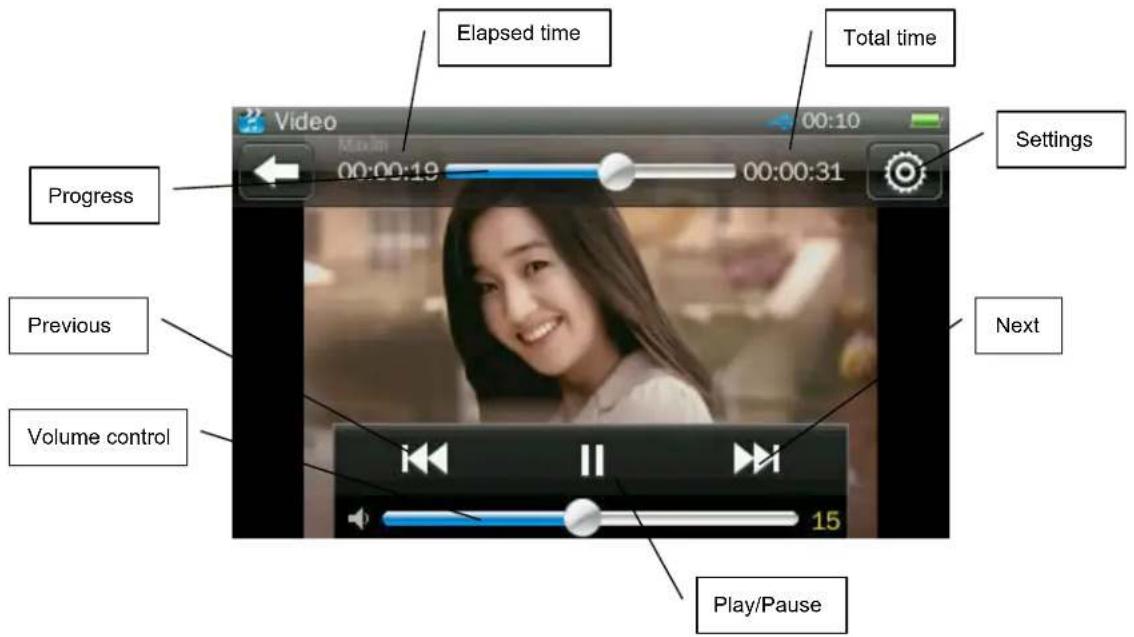
Touch video playback interface, upper and lower bars in black appear to display information regarding the now-playing video with corresponding buttons for operation. They disappear automatically if no operation is done within three seconds.
- Play & Pause: touch switch between Play and pause.
- Forward/Rewind: slide the progress bar to fast forward/fast rewind.
- Change File: touch to switch to the previous or next file, during video playback or pause.
Video Play Submenu
In Video Play Interface, touch to open submenu: includes
- Playback Mode: Sequence, Repeat One, Repeat All, Shuffle, Shuffle + Repeat
- Add Tag: the same as that of
. - Screen Size: Full Screen, Original Size, Scale
- Resume: start playing from the time point at which it exited.
- Delete: the same as that of
. - Information: Check the information of the current video file.
Record

Select Record in Main Menu Interface to enter Record Interface.
Record Interface
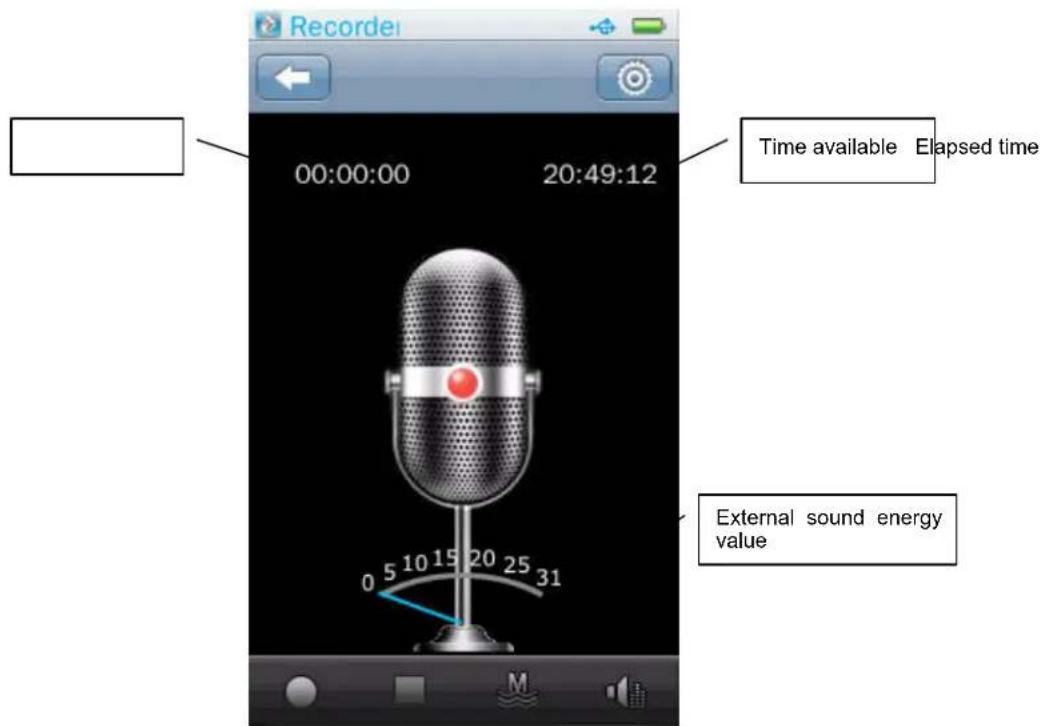
- Switch between Start/Pause/Continue by touching or
- Touch during recording, it pops out "Stop Record" window, choosing <Yes>/
to continue/stop recording. If <Yes> is chosen, the system will save the current record to automatically.
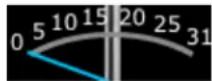
- Real-time indication of external sound energy value.
- L M H Record Quality: Low, Mid, High
- : in Stop mode, touch it to exit. In recording or pause mode, touch it to pop out "Stop Record" window, now select Yes / No to continue/stop recording.
- Record Gain: adjust the volume; options:1~5.
Record Submenu
Touch in Stop mode, items in submenu include
- Record Format: set the format of record files, wav/mp3/wma.
- Record Mode: options include Mic Recording
- Save Path: options include Internal Memory, Card Device. It just shows Internal Memory in case no card is plugged in.
E-book

Select EBook in Main Menu Interface to enter EBook Menu.
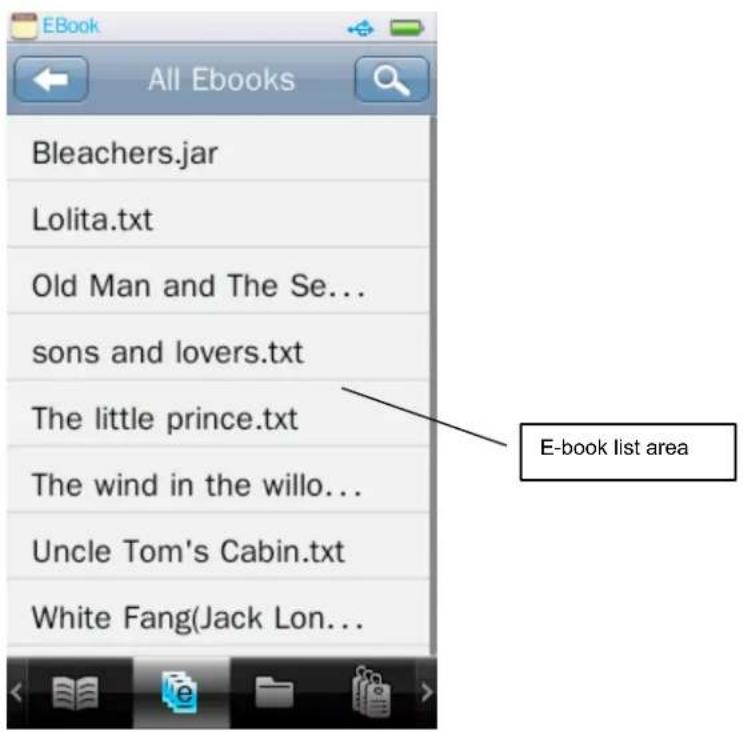
EBook Menu

: Now Reading, the same as that of

Directory List: the same as that of

Tag List: list all txt files with page number.

: returning to previous directory or Main Menu, the same as that of

: Search, the same as that of
Text Browser
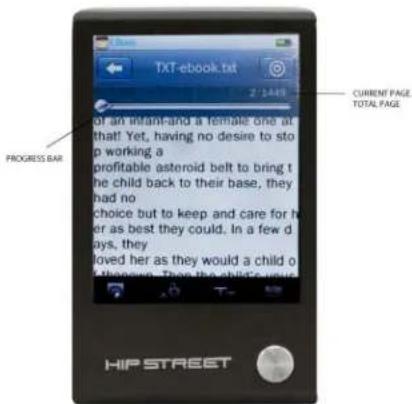

manual/Auto Page Turning. The text will stop in manual mode; slide it to turn to the previous or next page. Auto mode means timed AutoDown, and the timing range is 3s, 6s, 9s, 12s, and 15s.

To create tag with this button and add the tag to Tag List automatically. Up to 10 tags supported.

font size: Small (12) / Mid (16) / Big (24)

font color, options include Pure White, Blue, Dark Grey, Pure Black.

Page Progress Bar; turn to certain page
quickly by sliding the Progress Bar.

return to EBook Menu Interface
Submenu
Touch in Text Browser interface to enter submenu, in which options include
-
: page turning effects; options include Pan, Roll, Wave : the same as that for .
Tools

Select Tool in Main Menu Interface to enter Tool Menu featuring Stop
Watch, Calculator, and Calendar.
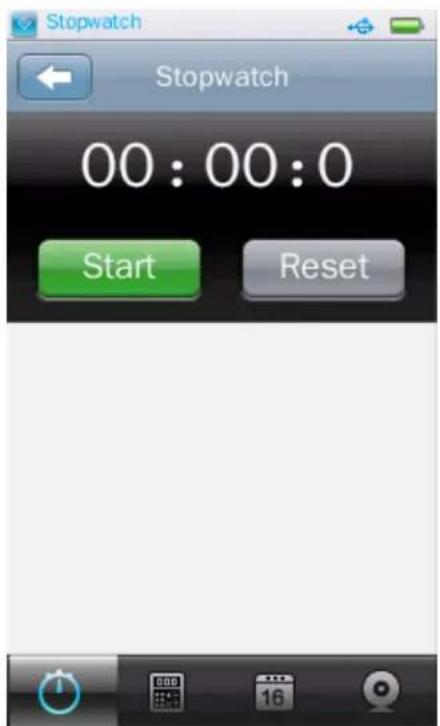
Stop Watch
- Touch Stopwatch in Tools Menu.
- Touch Start to start timing; touch "lap" to save counts and continue to time.
- When timing is stopped, touch Reset to clear the records
Calculator
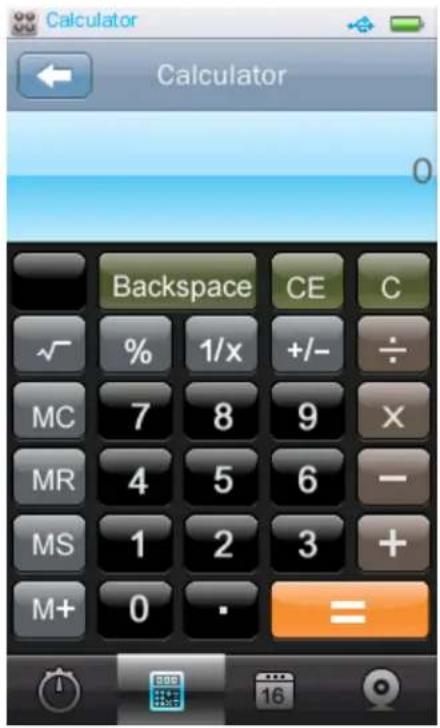
- Touch Calculator in Tools Menu.
- Simply tap the screen like using an actual calculator.
Calendar
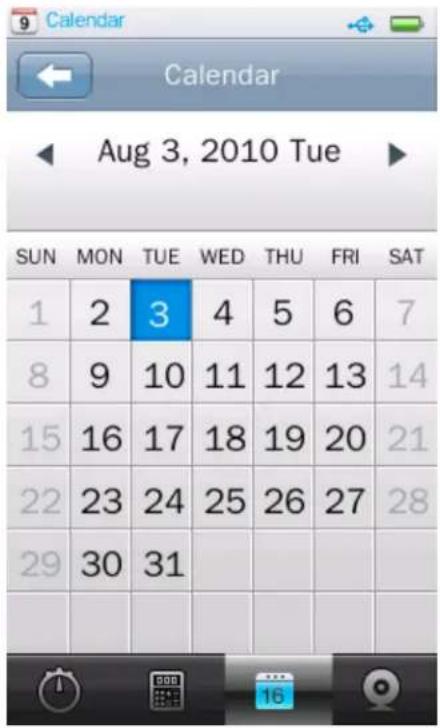
- Touch Calendar in Tools Menu.
- Touch / to switch to the previous or next Year, Month.
Browser
Select Browser in Main Menu Interface to enter Browser Menu.
Browser Menu
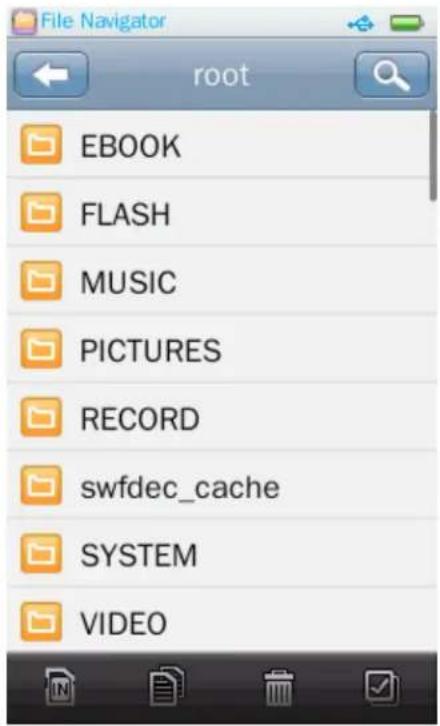
- If no external card is plugged in, it shows Internal Memory only, which includes EBOOK, FLASH, MUSIC, PICTURES, RECORD, SYSTEM, VIDEO and other files.
- Select the folder to be browsed and enter by touching it. All the files under
the folder will be listed, touch

to exit.
- Operations of external card are the same as Internal Memory.
tch between Internal Memory and External card.
- : to select the file/ folder to be copied, and then touch to copy the selected file or folder to external card.

- Touch to select the file/folder to be deleted; it pops out the confirmation box.
- Select all files/folders under the current folder/dir. Once selected, a red will show on the small icon before the file/folder. Touch it again to cancel the Select All.
Settings
Touch
in Main Menu Interface to enter the Settings Menu.
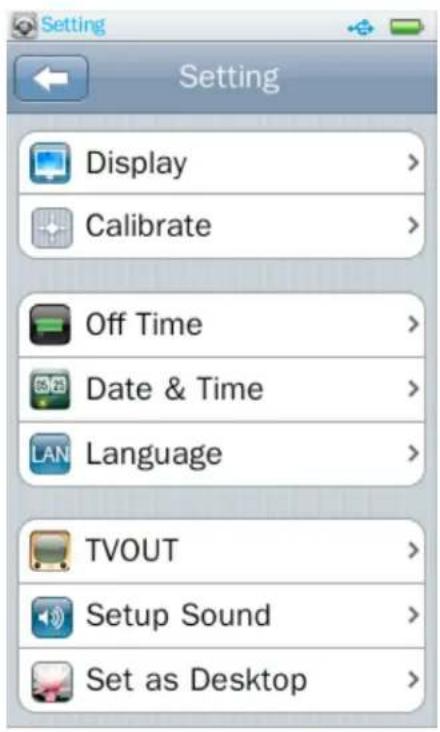
Display
1. Backlight
0S means Off; 0~60s; step: 5s. If backlight time is set as Off, the screen will not shut down automatically; if it is not set as Off, the player will shut down in case no operation during the set backlight time.
- Backlight brightness: Options: level 1~5.
Calibrate
- Calibrate the touch screen.
Off Time
1. Idle Time
0Min means Off, 0~60Min; Step: 2Min. The player will not be shut down automatically if it is set as Off; otherwise, the player is shut down automatically if no operation is done during the set power saving time.
2. Sleep Time
0Min means Off, setting range: 0 120Min ; Step: 5Min; the player will shutdown automatically after the set time period.
Date and Time
1. Set Date
Set system date, including Year, Month, and Date; slide the three value bars
up or down, and touch to confirm and exit.
2. Adjust Date & Time
Set system time, including Hour, Min, AM/PM, slide the three value bars up or
to confirm and exit.
Languages Supported
Languages supported: English, French, Spanish and many more
Select Key Tone
The user can turn off touch tone or choose his favorite one; four touch tones are available.
Set as Desktop
- Default, turn on/off user define function.
- User define, set the user's favorite desktop.
Advanced
Player Info
For displaying information the player's: Owner, Firmware Version, Total Space, Free Space, Total Card Space, Free Card Space, All Music, All Pictures, All Video, All E-books.
Select Font
System default font library can be replaced with the font library file in folder SYSTEM-FONTS in Udisk.
System default settings can be resumed by deleting the font library file in the folder.
Set User Name
Enter user name with touch keypad. Delete by touching and
confirm by touching OK
Check System
Touch and enter, dialog box "May require a few minutes" pops out; now select Yes, the system starts checking and prompts "Self-checking..."
Reset
The system prompts whether to recover factory setting; settings of each application will be recovered to factory setting if Yes is selected.
Format Internal Memory
The player's memory can be formatted; make sure to copy the data necessary before formatting.
Format Card
Card can be formatted; make sure to copy the data necessary before formatting. Confirm or Cancel.
FAQ
1. Cannot turn on the player.
Check battery's remaining capacity. Connect USB cable or charger and try to turn on the player again.
2. Cannot hear the voice via earphone.
Check whether volume is set to 0.
Check whether earphone has been plugged in the earphone slot.
3. Serious noise
Check whether earphone plug is clean. Dirty plug may lead to noise.
Check whether the file is damage. Try other file. Damaged file may lead to serious noise and voice jump.
4. Clobber problem
Check whether the language is set correctly.
5. Key does not work.
Check whether the player is in standby status.
6. Cannot download file.
Check whether the connection between PC and the player is correct.
Check whether the memory space is full.
Check whether USB cable is damaged.
7. Ineffective touch operation: calibrate the screen.
- Normal shutdown cannot be done after the player is down: press Reset
Factory Setting
| Music rating | Not classified |
| Play mode | Sequence |
| EQ | Normal |
| Picture | Thumbnail mode |
| Picture Playback | Manual |
| Slide Interval | 3S |
| Record Format | WAV |
| Channel Frequency | 87.5MHZ |
| Channel Band | USA Band |
| Auto Read Interval | 6S |
| Backlight | 10 S |
| Backlight Brightness | 3 |
| Owner | unknown |
| Idle time | 5 min |
| Sleep time | Off |
Specification
| Memory capacity | 512M or above |
| Battery | 4.2V lithium battery |
| Operation voltage | >3.45V |
| S/N ratio | 90db |
| FM sensitivity | 30dB |
| Display | 400×240 WQVGA 260,000 colors, TFT screen |
| Size |