WAP6017 - Access Point LEVELONE - Free user manual and instructions
Find the device manual for free WAP6017 LEVELONE in PDF.


| Product type | Wireless access point |
| Brand | LevelOne |
| Model | WAP6017 |
| Wireless standard | IEEE 802.11b/g/n |
| Maximum wireless speed | 300 Mbit/s |
| Network interface | 1 Ethernet port 10/100 Mbit/s (RJ-45) |
| Power supply | Power adapter 5 V DC (not included) | Default IP address | 192.168.188.253 |
| Default username | admin |
| Default password | admin |
| Configuration method | Web interface (browser) |
| Security protocols | WEP, WPA, WPA2 |
| Operating temperature | 0 °C to 40 °C |
| Operating humidity | 10 % to 90 % (non-condensing) |
| Dimensions (approx.) | 150 x 100 x 30 mm |
| Weight (approx.) | 200 g |
| Maintenance | Clean with a soft, dry cloth. Do not use chemical products. |
Frequently Asked Questions - WAP6017 LEVELONE
User questions about WAP6017 LEVELONE
0 question about this device. Answer the ones you know or ask your own.
Ask a new question about this device
Download the instructions for your Access Point in PDF format for free! Find your manual WAP6017 - LEVELONE and take your electronic device back in hand. On this page are published all the documents necessary for the use of your device. WAP6017 by LEVELONE.
USER MANUAL WAP6017 LEVELONE
Quick Installation Guide
Digital Data Communications GmbH, Germany.
http://www.level1.com
Content
LED Light State description- 2
Interface Description- 4
English- 5
Deutsch- 6
Francais- 7
Espanol- 8
Portugués 9
Italiano 10
Figure 1- 11
Figure 2- 11
Figure 3- 12
Figure 4- 12
Package Contents
- RJ45 Network Cable
- Rubber Feet
- Quick Installation Guide
- EU Declaration of Conformity
- Resource CD (User Manual, QIG)
- Power Adapter (For WAP-6017)
NOTE: WAP-6117 Power Adapter unit is to be ordered separately
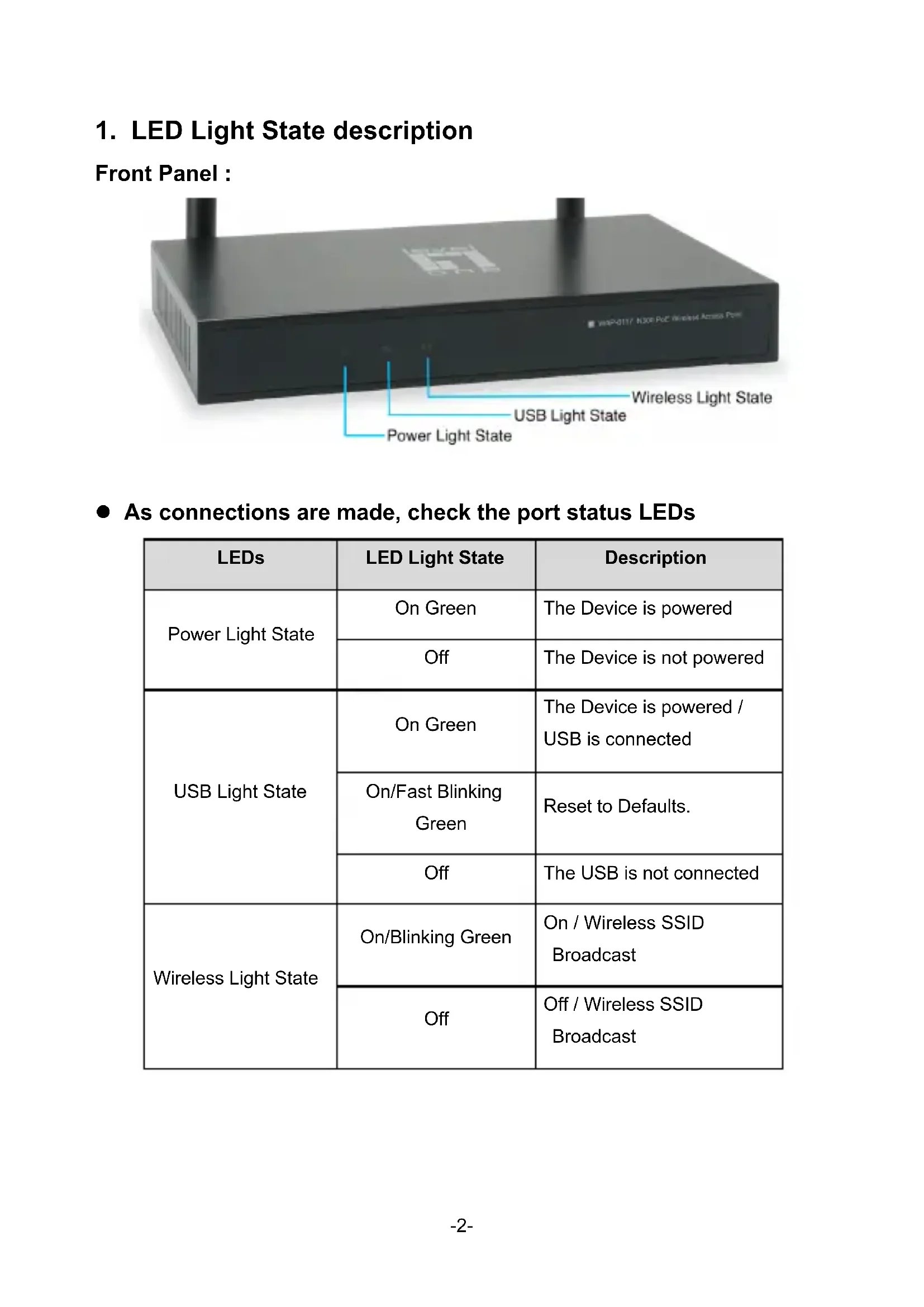
1. LED Light State description
Front Panel :
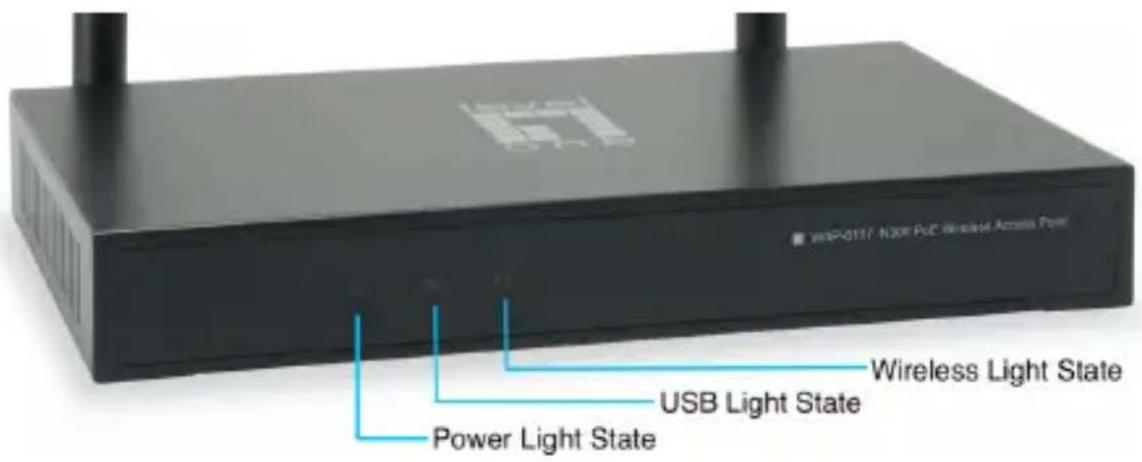
- As connections are made, check the port status LEDs
| LEDs | LED Light State | Description |
| Power Light State | On Green | The Device is powered |
| Off | The Device is not powered | |
| USB Light State | On Green | The Device is powered / USB is connected |
| On/Fast Blinking Green | Reset to Defaults. | |
| Off | The USB is not connected | |
| Wireless Light State | On/Blinking Green | On / WirelessSSID Broadcast |
| Off | Off / WirelessSSID Broadcast |
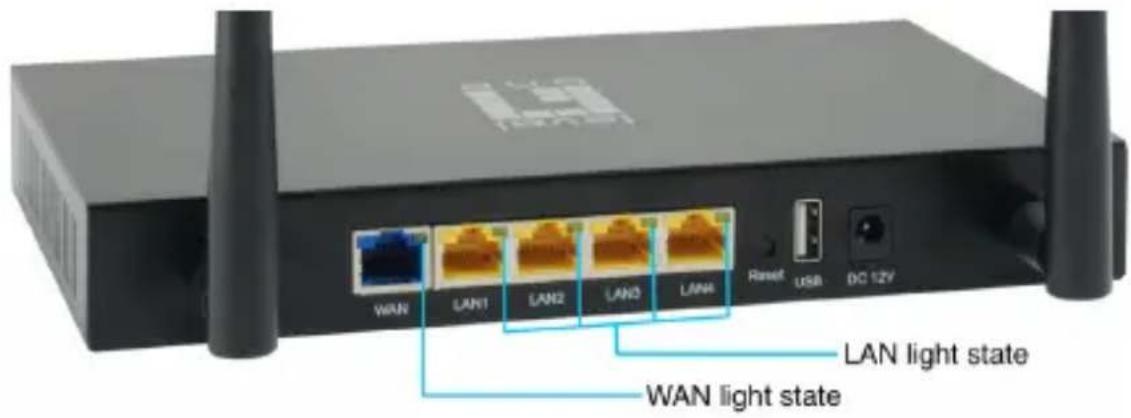
Rear View :
- As connections are made, check the port status LEDs
| LED | Status | Description |
| LAN(10/100Mbps RJ45 Ports) | On/Blinking Green | The port is transmitting/receiving packets |
| On Green | On LAN is connected | |
| Off | The port has not active network cable connected, or it is not established a link to connected device. | |
| WAN(10/100Mbps RJ45 Ports) | On/Blinking Green | The port is transmitting/receiving packets |
| On Green | On WAN is connected | |
| Off | The port has not active network cable connected, or it is not established a link to connected device. |
2. Interface Description
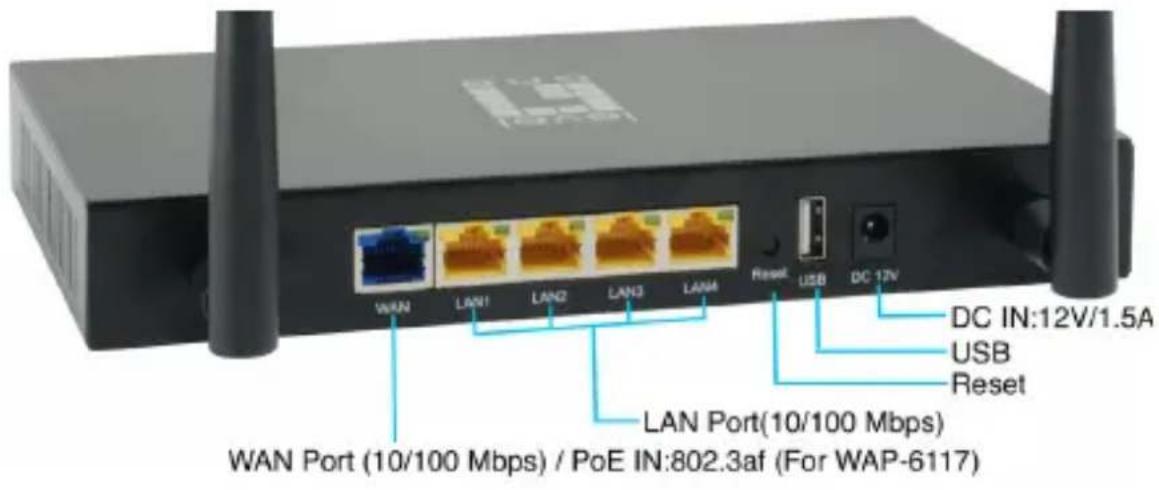
| Port | Description |
| WAN | The WAN/POE port is used to connect to network devices, such as a POE switch OR POE adapter. |
| LAN | The LAN port is used to connect to network devices, such as a switch or PC |
| Reset | With the AP powered on, press the Reset button for 10 seconds until the USB LED blink with green light and System LED on without blink. The AP will restart itself and reset the device to factory default settings. |
| USB | Toconnect with USB storage device |
| Power | 12V/1.5A DC input Power Adapter .(WAP-6117 Power Adapter unit is to be ordered separately) |
Default Settings
| IP Address | 192.168.188.253 |
| Password | admin |
Hardware Installation
Power on the Device.
To power on the AP, you can use one of the following methods:
- Plug one end of your Ethernet cable into the WAN port of the AP, and the other end into a port on a PoE switch or a 802.3af PoE injector. (For WAP-6117)
- Connect the power adapter. (For WAP-6017)
Configuring the Device
To set up and manage the AP, you can use one of the following methods:
- Connect the access point and your computer to the same switch or router.Manage the access point from the computer. (Figure 1)
Software Installation
To login to the LevelOne AP, please perform the following steps:
- Check Your Network Settings to login web UI.
Please make sure your PC can get IP address automatically, so the router can communicate with your PC during configuration. - Select "Control Panel" > "Network Connections".
- Right click the "Local Area Connection" and choose "Properties".
- Select the TCP/IP protocol for your network card.
-
Change the IP Address of PC: To configure the IP Address, click the network icon to open the Ethernet dialog to configure the IP Address. Select "Properties", choose "Internet Protocol (TCP/IP)" and select "Properties". Input the IP Address "192.168.188.2 ~ 192.168.188.250" and continue. (Figure 2)
-
Launch a Web browser (Microsoft Internet Explorer 8 for example), enter the AP's default LAN IP address 192.168.188.253 in the address bar, and then press Enter, as shown in the following picture. (Figure 3)
Then enter the default user name of admin and password of admin in the User Name and Password fields, click "OK" to access the AP's Web GUI. (Figure 4)
Standardestillungen
| Standard-IP-Adresse | 192.168.188.253 |
| Kennwort | admin |