WAP-3000 - Access Point LEVELONE - Free user manual and instructions
Find the device manual for free WAP-3000 LEVELONE in PDF.


User questions about WAP-3000 LEVELONE
0 question about this device. Answer the ones you know or ask your own.
Ask a new question about this device
Download the instructions for your Access Point in PDF format for free! Find your manual WAP-3000 - LEVELONE and take your electronic device back in hand. On this page are published all the documents necessary for the use of your device. WAP-3000 by LEVELONE.
USER MANUAL WAP-3000 LEVELONE
text_image
level® oneLevelOne
User Manual
WAP-3000 / WAP-3100
11g Wireless AP
Safety
FCC WARNING
This equipment may generate or use radio frequency energy. Changes or modifications to this equipment may cause harmful interference unless the modifications are expressly approved in the instruction manual. The user could lose the authority to operate this equipment if an unauthorized change or modification is made.
This equipment has been tested and found to comply with the limits for a Class B digital device, pursuant to Part 15 of the FCC Rules. These limits are designed to provide reasonable protection against harmful interference in a residential installation. This equipment generates, uses, and can radiate radio frequency energy and, if not installed and used in accordance with the instructions, may cause harmful interference to radio communications. However, there is no guarantee that interference will not occur in a particular installation. If this equipment does cause harmful interference to radio or television reception, which can be determined by turning the equipment off and on, the user is encouraged to try to correct the interference by one or more of the following measures:
1) Reorient or relocate the receiving antenna.
2) Increase the separation between the equipment and receiver.
3) Connect the equipment into an outlet on a circuit different from that to which the receiver is connected.
4) Consult the dealer or an experienced radio/TV technician for help.
CE Declaration of conformity
This equipment complies with the requirements relating to electromagnetic compatibility, EN 55022 class B for ITE, the essential protection requirement of Council Directive 89/336/EEC on the approximation of the laws of the Member States relating to electromagnetic compatibility.
CE Marking Warning
Hereby, Digital Data Communications, declares that this (Model-no. WAP-3000/3100) is in compliance with the essential requirements and other relevant provisions of Directive 1999/5/EC.
The CE-Declaration of Conformity can be downloaded at:
http://www.levelone.eu/support.php

text_image
FCC PG ME83Table of Content
TABLE OF CONTENT......II
1. ABOUT THIS USER MANUAL....1
USER MANUAL OVERVIEW....1
2. UNPACKING AND SETUP....2
UNPACKING....2
SETUP 2
3. HARDWARE INSTALLATION....3
FRONT PANEL....3
REAR PANEL 4
HARDWARE CONNECTIONS 5
Connecting with power adapter....5
Connecting with PoE switch (WAP-3100 only) 5
Check the installation 5
4. CONFIGURING THE WIRELESS LAN ACCESS POINT....6
LOGIN TO THE WIRELESS AP THROUGH WLAN 6
LOGIN....6
MAIN SCREEN OF THE ACCESS POINT 7
WIZARD 8
STATUS 10
BASIC SETTING....12
Access Point Mode.... 12
AP Client mode 15
Bridge mode....18
WDS mode....20
Repeater mode....23
5. IP SETTING 26
ADVANCED SETTING 27
SECURITY 28
TOOLS 29
TECHNICAL SPECIFICATIONS....30
1. About This User Manual
Congratulations on your purchase of LevelOne 11g Wireless AP, WAP-3000 or WAP-3100. This manual helps to features the innovating wireless technology that can help you build a wireless network easily. This manual contains detailed instructions in operation of this product. Please keep this manual for future reference.
With Wireless LAN Access Point, computers can share data and Internet access in a wireless way. Setup Wizard utilities are built-in with LevelOne 11g Wireless AP for configuration and quick setup purposes.
Wireless LAN networking can wirelessly transmit and receive data, minimizing the need for wired connections, at a speed of up to 54Mbps. With Wireless LAN networking, you can locate your PC anywhere you want in a reachable wireless signal range without wires and cables.
Wireless LAN networking provides users with an access to real-time information anywhere in their organization. The mobility provides productivity and service, which are not available under wired networks.
LevelOne WAP-3100 11g Wireless PoE AP has an integrated 802.3af Power over Ethernet (PoE) PD (Power Device) support, allowing installation of this device in areas where power outlets are not readily available
User Manual Overview
Introduction Describes 11g Wireless AP.
Unpacking and Setup Helps user to get started with the basic installation of the 11g Wireless AP.
Hardware Installation Describes the LED indicators of the 11g Wireless AP
Configuration Describes the functionalities and its settings.
Technical Specifications Lists the technical (general, physical and environmental) specifications of the 11g Wireless AP.
2. Unpacking and Setup
This chapter provides unpacking and setup information for the Access Point.
Unpacking
Open the box of the 11g Wireless AP and carefully unpack it. The box should contain the following items:
● WAP-3000 or WAP-3100
- Antenna
- Power Adapter
- Quick Installation Guide
- CD Manual
If any item is found missing or damaged, please contact your local reseller for replacement.
Setup
The setup of the Wireless Access Point can be performed using the following steps:
- Locate an optimum location for the Wireless Access Point (AP). The best place for your AP is usually the center of your wireless network, with line of sight to all of your mobile stations.
- Visually inspect the Ethernet RJ45 port connector and make sure that it is fully plugged in to the system's Ethernet switch port.
- Fix the direction of the antenna. Try to place the AP in a position that can best cover your wireless network. Normally, the higher you place the antenna, the better the performance will be. The antenna's position enhances the receiving sensitivity.
● Visually inspect if the Power Adapter was fully plugged to the device power jack.
3. Hardware Installation
Front panel
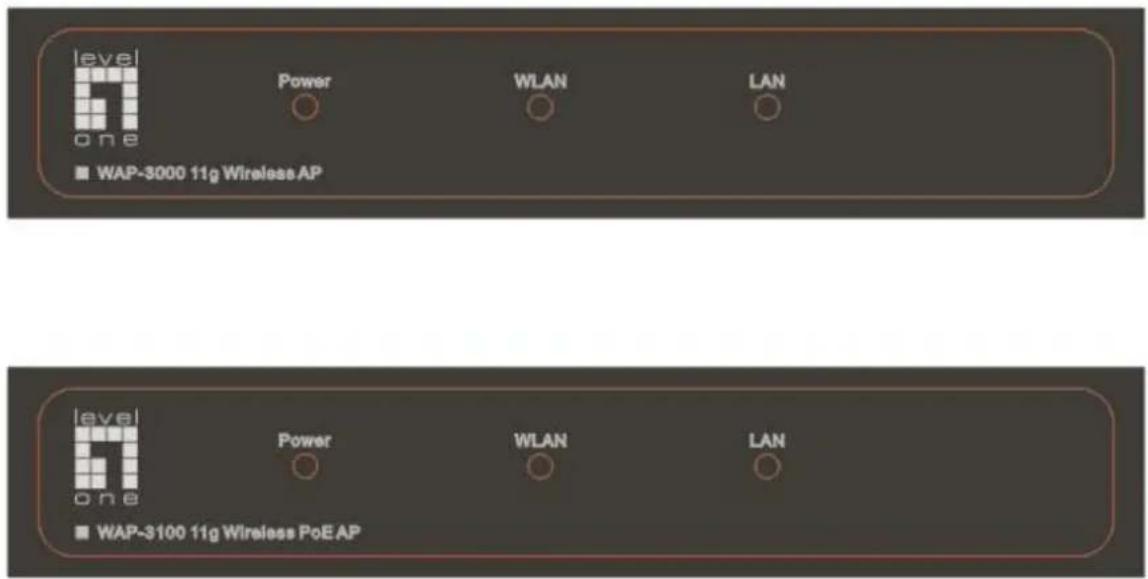
The figure below shows the LED Indicator of the LevelOne Wireless AP.
text_image
level one Power WLAN LAN WAP-3000 11g Wireless AP level one Power WLAN LAN WAP-3100 11g Wireless PoE APPower:
This indicator lights green when the Access Point receives power. Otherwise, it turns off.
WLAN:
The indicator blinking green whiles the wireless LAN activity.
LAN (Link/ACT):
The indicator lights green when the LAN port is connected to an Ethernet network successful.
Otherwise, the indicator blinking green while transmitting or receiving data on the Ethernet network.
Rear Panel
The figure below shows the rear panel of the Access Point

text_image
Antenna Reset Ethernet port RESET LAN POWER DC PowerLAN
Ethernet port with 10/100Mbps Fast Ethernet connections, connect this port to switch/hub.
RESET
The Reset function is to reset the setting back to factory default setting, once you press the "RESET" button more than 5 seconds.
Power
Connect the Power Adapter DC plug to the AP's power jack.
Antenna Connector
One Antenna connector connects with detachable dipole antenna.
Hardware connections

flowchart
graph TD
    subgraph "Using PoE"
        A["笔记本"] --> B["Pod with Switch"]
        B --> C["Pod with PoE AP"]
        C --> D["Newbook"]
        D --> E["Computer"]
    end
    subgraph "Using Power Adapter"
        F["笔记本"] --> G["Pod with Switch"]
        G --> H["Pod with PoE AP"]
        H --> I["Pod with PoE AP"]
        I --> J["Newbook"]
        J --> K["Computer"]
        K --> L["Power Adapter"]
    end
Connecting with power adapter
- Plug in network cable to the Ethernet port of the Switch/Hub, and plug in the other end to the Ethernet port of the Wireless Access Point.
- Plug in DC plug of the power adapter to the DC jack of the Wireless Access Point, and plug in the power adapter to the power outlet.
Connecting with PoE switch (WAP-3100 only)
- Plug in network cable to the Ethernet port of the PoE Switch, and plug in the other end to the Ethernet port of the Wireless Access Point.
Check the installation
The LEDs of the Access Point are clearly visible and the status of the network link can be seen instantly:
- With the power source on, once the device is connected, the Power, LAN and WLAN port LEDs will light up indicating a normal status.
- If the LAN Port's Link indicator does not light up then check the RJ-45 cable if it is firmly feed to the RJ-45 port, while the LAN is link up to the Switch/Hub, the LAN port's LED will light up.
4. Configuring the Wireless LAN Access Point
The Wireless Access Point has a Web GUI interface for the configuration. The AP can be configured through the Web Browser. A network manager can manage, control and monitor the AP from the local LAN. This section indicates how to configure the AP to enable its functions.
Login to the Wireless AP through WLAN
Before configuring the Wireless AP through WLAN, make sure that the SSID, Channel and the WEP was set properly.
The default setting of the Wireless AP that you will use:
- SSID: default
- Channel: 6
● Wireless Encryption: disable
● IP address: 192.168.0.254
Login
Before you configure this device, note that when the AP is configured through an Ethernet connection, make sure the manager PC must be set on same the IP network. For example, when the default network address of the default IP address of the AP is 192.168.0.254, then the manager PC should be set at 192.168.0.x (where x is a number between 2 and 253), and the default subnet mask is 255.255.255.0.
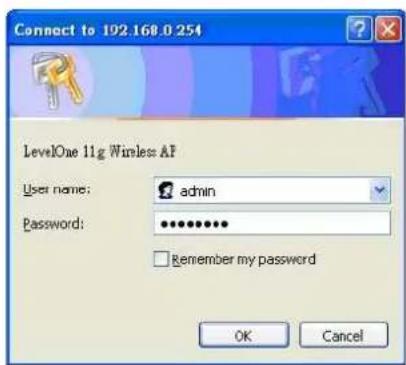
Open Internet Explorer 5.0 or above Web browser.
Enter IP address http://192.168.0.254 (the factory-default IP address setting) to the address location.

When there is a screen needs to enter the User name and Password, default Username is "admin" and Password is "password"
text_image
Connect to 192.168.0.254 LevelOne 11g Wireless AF User name: admin Password: ************ Remember my password OK CancelMain Screen of the Access Point
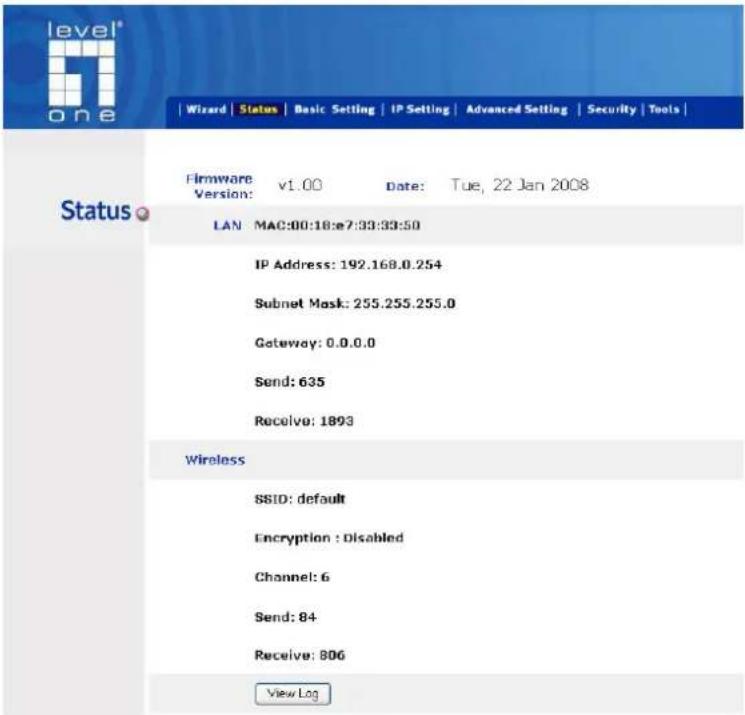
The screen will show the status of the AP when you login to the AP.
There are seven main functions included in the top side of the main screen: Wizard, Status, Basic Setting, IP Setting, Advanced Setting, Security and Tools. Point the selections in the top side of the menu screen.
text_image
level® one Wizard | Status | Basic Setting | IP Setting | Advanced Setting | Security | Tools | Status Firmware v1.00 Date: Tue, 22 Jan 2008 Version: LAN MAC:00:18:e7:33:33:50 IP Address: 192.168.0.254 Subnet Mask: 255.255.255.0 Gateway: 0.0.0.0 Send: 635 Receive: 1893 Wireless SSID: default Encryption : Disabled Channel: 6 Send: 84 Receive: 806 View LogWizard
Setup wizard is provided as the part of the web configuration utility. User can simply follow the step-by-step process to get Access Point configuration ready to run in 4 easy steps by clicking on the "Wizard" button on the function menu. The following screen will appear. Please click "Next" to continue.

text_image
level one Welcome to the Setup Wizard. The Wizard will guide you through these four quick steps. Begin by clicking on Next. Step 1. Set your new password Step 2. Set the SSID and Channel Step 3. Set Encryption Step 4. RestartStep 1: Set Password
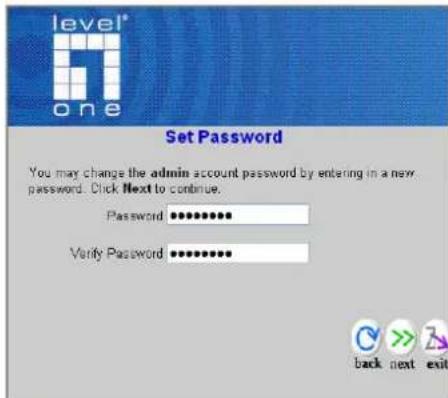
User can change the password and then click "Next" to continue.
text_image
level* one Set Password You may change the admin account password by entering in a new password. Click Next to continue. Password ••••••••• Verify Password ••••••••• back next exitStep2: Set WLAN Connection
Please type the name of SSID and select the Channel. Then, click "Next" to continue.
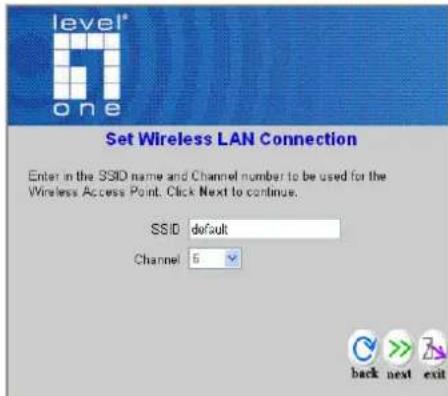
text_image
level one Set Wireless LAN Connection Enter in the SSID name and Channel number to be used for the Wireless Access Point. Click Next to continue. SSID default Channel 5 back next exitStep 3: Set WEP Encryption
If user wants to enable WEP, please click "Enabled". Then, select the key size of WEP encryption and enter the key value in the key text box. Please click "Next" to continue.
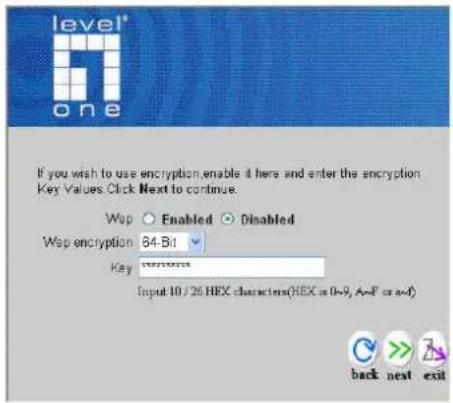
text_image
level one If you wish to use encryption enable it here and enter the encryption Key Values Click Next to continue. Wap Enabled Disabled Wap encryption 64-B1 Key Input 10 / 26 HEX characters(HEX is 0-9, A=F or a-f) back next exitStep 4: Restart
The Setup wizard is now completed. The new settings will be effective after the Access Point restarted. Please click “Restart” to reboot the Access Point. If user does not want to make any changes, please click “exit” to quit without any changes. User also can go back to modify the setting by clicking “back”.
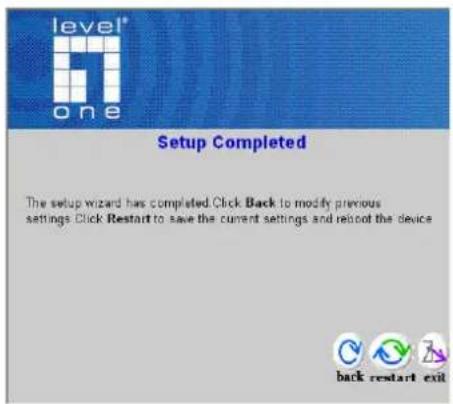
text_image
level one Setup Completed The setup wizard has completed Click Back to modify previous settings Click Restart to save the current settings and reboot the device back restart exitStatus
This page as below shows the following information.

text_image
level one Wizard | Status | Basic Setting | IP Setting | Advanced Setting | Security | Tools | Status Firmware Version: v1.00 Date: Tue, 22 Jan 2008 LAN MAC:00:18:e7:39:33:50 IP Address: 192.168.0.254 Subnet Mask: 255.255.255.0 Gateway: 0.0.0.0 Send: 635 Receive: 1893 Wireless SSID: default Encryption : Disabled Channel: 6 Send: 84 Receive: 806 View LogFirmware Version
Shows the current firmware version and released date code.
LAN
Shows the Mac address, IP address (default: 192.168.0.254), Subnet Mask, Gateway Address. The current LAN traffic calculated in terms of number of packets sent and received by AP through wired connection is also displayed.
Wireless
Shows the Mac address, current SSID, the status of Encryption Function (Enable or Disable), the current using channel. The current wireless traffic calculated in terms of number of packets sent and received by AP through wireless communication is also displayed.
View Log
Once clicked, the page will change to login page. The login page records every event and the time that it happens.

text_image
page 1 of 5 Time Message Okay 00:00:15 kload started: BusyBox v1.00-pre8 (3008.09.16-02:17-0000) Okay 00:00:15 Linux version 2.4.18-XIPS-01.00 (dsvidba@LNT103) (geo version 3.3.3) #8 Mon Mar 2D 14:14:57 C3T 2006 Okay 00:00:15 early prink enabled Okay 00:00:15 determined physical PAX map: Okay 00:00:15 memory: 00800000 @ 00000000 [enable] Okay 00:00:15 Initial randomisk at: 0x60169009 (2158800 bytes) Okay 00:00:15 On node 0 totalpages: 2048 Okay 00:00:15 zone(O): 2048 pages. Okay 00:00:15 zone(1): 0 pages. Okay 00:00:15 zone(2): 0 pages. Okay 00:00:15 Kernel command line: root=/dev/ram console=9 randomisk start=0 single Okay 00:00:15 Calibrating delay loop... 178.99 RogoMIP8 Okay 00:00:15 Memory: 4292k/8192k available (1275k kernel code, 396k reserved, 2288k data, 48x init, Ok highsem) Okay 00:00:15 Deentry-cache hash table entries: 1064 (order: 1, 8192 bytes) Okay 00:00:15 Inode-cache hash table entries: 512 (order: O, 4096 bytes) Okay 00:00:15 Mount-cache hash table entries: 512 (order: O, 4096 bytes)User may clear the entries recorded in the log by clicking the "Clear Log" button, and refresh the screen to show the latest log entries by clicking the "Refresh" button.
Basic Setting
This is the page allow user to change the access point settings.

text_image
level® one Wizard | Status | Basic Setting | IP Setting | Advanced Setting | Security | Tools | Basic Setting AP Name: LevelOne 11g Wireless AP Mode: Access Point Channel: 6 (Domain:FCC) SSID: default Site Survey Open System Shared Key Authentication: WPA PSK WPA2 PSK WPA2-Auto PSK WPA WPA2 WPA2-Auto WEP Key: Enabled Disabled Apply Cancel HelpAP Name: The name of the AP, which can be used to identify the Access Point among the all the Access Points in the wireless network.
Mode: The WLAN AP supports five operation mode for Access Point, AP Client, WDS (Wireless Distribution System), AP+WDS and Repeater mode.
Access Point Mode
Configure the AP to Access Point mode; with this mode, WLAN clients can access LAN or other WLAN clients through this AP.
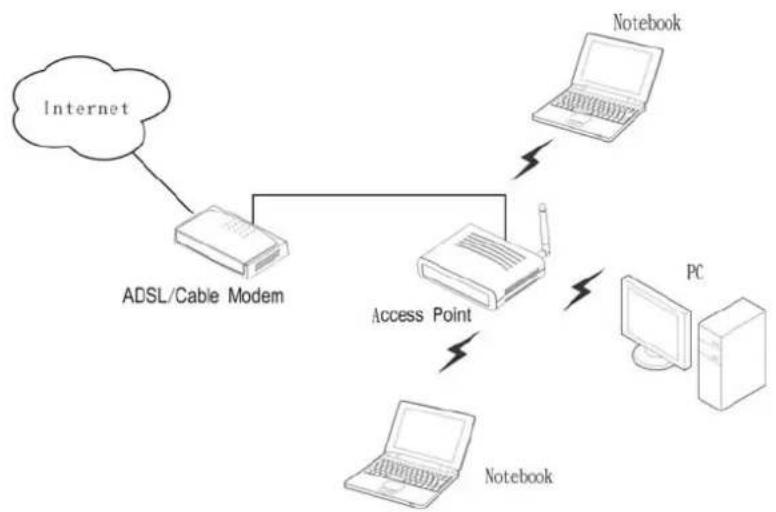
flowchart
graph TD
    A["Internet"] --> B["ADSL/Cable Modem"]
    B --> C["Access Point"]
    C --> D["PC"]
    C --> E["Notebook"]
    C --> F["Notebook"]
AP mode application
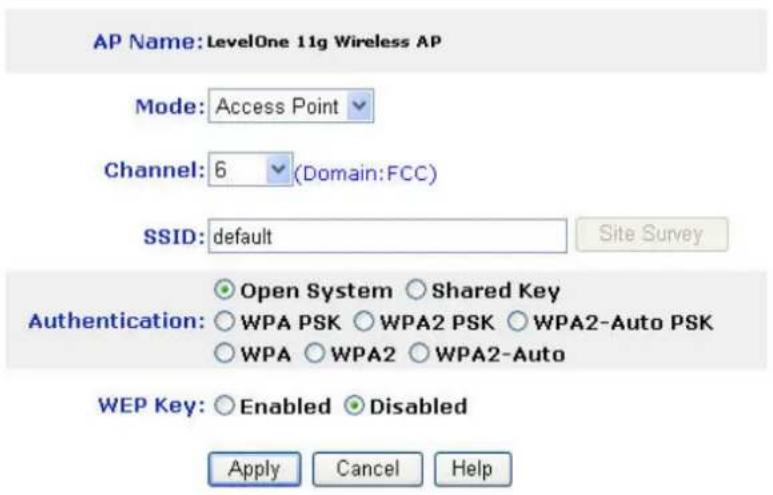
text_image
AP Name: LevelOne 11g Wireless AP Mode: Access Point Channel: 6 (Domain:FCC) SSID: default Site Survey Open System Shared Key Authentication: WPA PSK WPA2 PSK WPA2-Auto PSK WPA WPA2 WPA2-Auto WEP Key: Enabled Disabled Apply Cancel HelpAP mode configuration
Channel: The channel that AP will operate in. User can select the channel range from 1 to 11 for North America (FCC) domain, 1 to 13 for European (ETSI) domain and 1 to 14 for Japanese domain.
SSID: Service Set Identifier, which is a unique name shared among all clients and nodes in a wireless network. The SSID must be identical for each clients and nodes in the wireless network.
Authentication Type: The authentication type default is set to Open system. There are six options: Open system; Shared Key; WPA-PSK, WPA2-PSK, WPA and WPA2. User may want to set to Shared Key when the clients and AP in the same wireless network enable the encryption. All the nodes and hosts on the network must use the same authentication type.
WEP Key: To disable WEP security, click on the "Disable" option. To enable WEP security, there are 2 types to select – 64bits and 128 bits. When it is selected, the key value must be entered in ASCII or HEX format.
Note: When the WEP security is enabled, all the wireless clients that wish to connect to the Access Point must also have WEP enabled with the identical WEP Key value entered.

text_image
level* one Wizard | Status | Basic Setting | IP Setting | Advanced Setting | Security | Tools | Basic Setting AP Name: LevelOne 1.1g Wireless AP Mode: Access Point Channel: 6 (Domain: FCC) SSID: default Site Survey Open System Shared Key Authentication: WPA PSK WPA2 PSK WPA2-Auto PSK WPA WPA2 WPA2-Auto WEP Key: Enabled Disabled WEP Type: 64bits 126bits Key Mode: HEX Key: 1. 2. 3. 4. Apply Cancel HelpWPA-PSK / WPA2-PSK:
If WPA-PSK or WPA2-PSK is selected, user needs to set the key in the passphrase field as the below screen. The key length should be 8 characters at least.

text_image
level* One Wizard | Status | Basic Setting | IP Setting | Advanced Setting | Security | Tools | Basic Setting AP Name: Levelline 11g Wireless AP Mode: Access Point Channel: B (Domain: FCC) MSID: Default Open Systems Shared Key Authentication: WPA PSK WPA2 PSK WPA2-Auto PSK WPA WPA2 WPA2-Auto Passphrase: Confirmed Passphrase: Apply Cancel HelpWPA / WPA2:
If WPA or WPA2 is selected, the below screen is shown. Please set the length of the encryption key and the parameters for the RADIUS server.
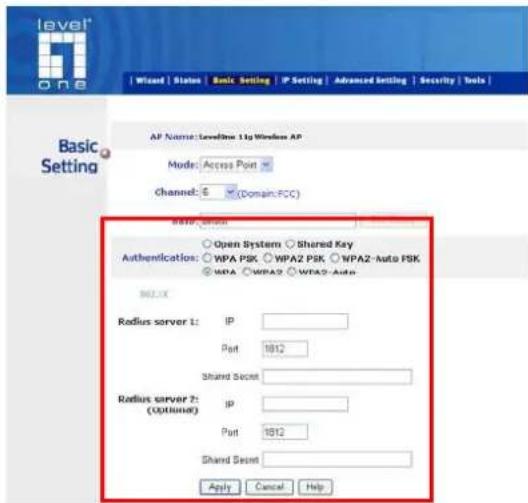
text_image
level One Wizard | Status | Basic Setting | IP Setting | Advanced Setting | Security | Tools | Basic Setting AP Name: Leveltime 1.0 Windows AP Mode: Access Point Channel: E (Domain: FCC) Network Settings Open System Shared Key Authentication: WPA PSK WPA2 PSK WPA2-Auto PSK WPA WPA9 WPA2-Auto RUI.XX Radius server 1: IP Port 1812 Shared Secret Radius server 2: ip Port 1812 Shared Secret Apply Cancel HelpRADIUS Server 1:
Enter the IP address of and the Port used by the Primary Radius Server, enter the Shared Secret, which is used by the Radius Server.
RADIUS Server 2: (optional)
Enter the IP address of and the Port used by the Secondary Radius Server, enter the Shared Secret, which is used by the Radius Server.
Apply: For the changes made to any of the items above to be effective, click "Apply". The new settings are now been saved to Access Point and will be effective once the Access Point restarts.
AP Client mode
Configure the AP to AP Client mode; the AP will be a wireless Ethernet adapter transforms any Ethernet-enabled devices to have the wireless function.

flowchart
graph TD
    A["Internet"] --> B["ADSL/Cable Modem"]
    B --> C["Access Point"]
    C --> D["Notebook"]
    C --> E["AP(AP Client mode)"]
    E --> F["PC"]
    F --> G["AP(AP Client node)"]
    G --> H["Notebook"]
    style A fill:#f9f,stroke:#333
    style B fill:#ccf,stroke:#333
    style C fill:#cfc,stroke:#333
    style D fill:#fcc,stroke:#333
    style E fill:#cff,stroke:#333
    style F fill:#ffc,stroke:#333
    style G fill:#fcc,stroke:#333
    style H fill:#fff,stroke:#333
AP Client mode application

text_image
AP Name:LevelOne 11g Wireless AP Mode:AP Client Channel:6(Domain:FCC) SSID:default Site Survey Open System Shared Key Authentication:WPA PSK WPA2 PSK WPA2-Auto PSK WPA WPA2 WPA2-Auto WEP Key:Enabled Disabled Apply Cancel HelpAP Client mode configuration
SSID: Service Set Identifier, which is a unique name shared among all clients and nodes in a wireless network. The SSID must be identical for each clients and nodes in the wireless network.
Site Survey: This button allows user to enable the Site Survey function to scan for the available wireless network (wireless clients and Access Points) and establish wireless communications with one. Selected one of them in list to establish communications and click “Connect” button.
| SSID | BSSID | Channel | Type | Encrypt | Signal | Select |
| MeetingRoom | 00116bb0879c | 7 (B+G) | AP | yes | 55 | ○ |
| abobaloa | 0213ce000119 | 11 (B+G) | Ad hoc | no | 41 | ○ |
| WAF-0003 | 00116b606ac5 | 6 (B+G) | AP | yes | 35 | ○ |
| TFN | 00501821c48f | 11 (B+G) | AP | yes | 10 | ○ |
| WDR-6000v2_TSD | 00116b17480 | 1 (B+G) | AP | no | 9 | ○ |
Authentication Type: The authentication type default is set to Open system. There are four options: Open system; Shared Key; WPA-PSK and WPA2-PSK. User may want to set to Shared Key when the clients and AP in the same wireless network enable the WEP encryption. All the nodes and hosts on the network must use the same authentication type.
WEP Key: To disable WEP security, click on the “Disable” option. To enable WEP security, there are 2 types to select – 64bits and 128 bits. When it is selected, the key value must be entered in ASCII or HEX format.
Note: When WEP security is enabled, all the wireless clients that wish to connect to the Access Point must also have WEP enabled with the identical WEP Key value entered.
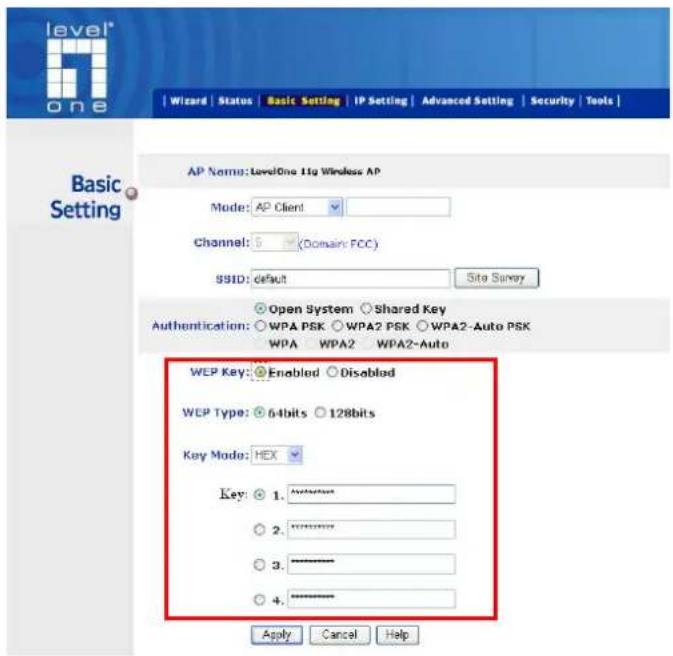
text_image
level one Wizard | Status | Basic Setting | IP Setting | Advanced Setting | Security | Tools | Basic Setting AP Name: LevelOne 11g Wireless AP Mode: AP Client Channel: (Domain FCC) SSID: default Site Survey Open System Shared Key Authentication: ○WPA PSK ○WPA2 PSK ○WPA2-Auto PSK WPA WPA2 WPA2-Auto WEP Key: Enabled Disabled WEP Type: 64bits 128bits Key Mode: HEX Key: 1. ********** 2. ********** 3. ********** 4. ********** Apply Cancel HelpWPA-PSK / WPA2-PSK:
If WPA-PSK or WPA2-PSK is selected, user needs to set the key in the passphrase field as the below screen. The key length should be 8 characters at least.
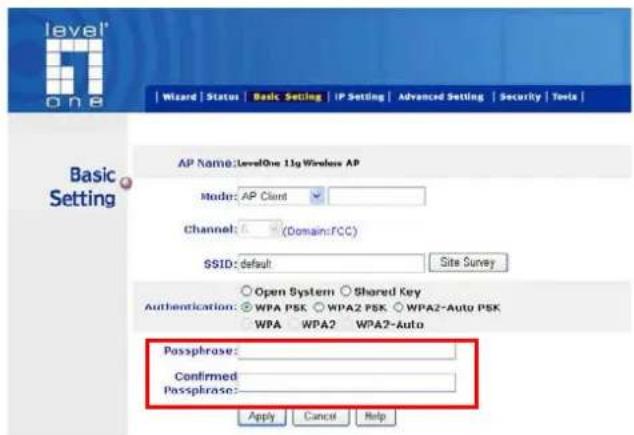
text_image
level One Wizard | Status | Basic Setting | IP Setting | Advanced Setting | Security | Tests | Basic Setting AP Name:LevelOne 11g Wireless AP Mode: AP Client Channel: (Domain:FCC) SSID: default Site Survey Open System Shared Key Authentication: WPA PSK WPA2 PSK WPA2-Auto PSK WPA WPA2 WPA2-Auto Passphrase: Confirmed Passphrase: Apply Cancel HelpApply: For the changes made to any of the items above to be effective, click "Apply". The new settings are now been saved to Access Point and will be effective once the Access Point restarts.

For entering to the Web Setting page after changing to AP Client mode, change your PC/Notebook IP address to 192.168.0.x. After changing your IP address, type 192.168.0.254 on the Web browser to enter the setting of this Wireless AP.
Bridge mode
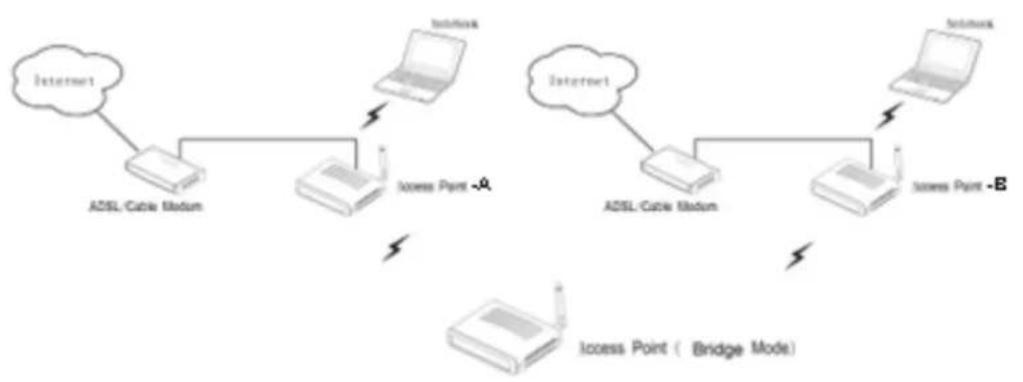
Configure the AP to Bridge mode; a point-to-point configuration in which the AP relays frames from one other 802.11 bridge onto an adjacent Ethernet LAN.
flowchart
graph TD
    subgraph_A["Internet"]
        A1["ADSL Cable Modem"] --> A2["Access Point -A"]
    end
    subgraph_B["Internet"]
        B1["ADSL Cable Modem"] --> B2["Access Point -B"]
    end
    A1 -->|Wireless Link| B2
    B1 -->|Wireless Link| B2
    style A fill:#f9f,stroke:#333
    style B fill:#bbf,stroke:#333
Bridge mode application
The Bridge need to fill all the AP's MAC address in the "Remote AP Mac" list, the maximum of one Bridge can join eight AP to be one group.

text_image
level one Wizard | Status | Basic Setting | IP Setting | Advanced Setting | Security | Tools | Basic Setting AP Name: LevelOne 11g Wireless AP Mode: Bridge Channel: 9 (Domain:ETSI) Remote AP Mac: The MAC address of AP-A2. The MAC address of AP-B 3. 4. 5. 6. 7. 8. WDS Security: WEP 64bits WEP Key: ASCII Passphrase (8-63 char.) Apply Cancel HelpBridge mode configuration
Security Type: The security type default is set to none. There are four options: WEP 64bits; WEP 128bits; WPA-PSK and WPA2-PSK.
WEP Key: To enable WEP security, there are 2 types to select – 64bits and 128 bits. When it is selected, the key value must be entered in ASCII or HEX format.
Note: When WEP security is enabled, all the wireless clients that wish to connect to the Access Point must also have WEP enabled with the identical WEP Key value entered.

text_image
AP Name: LevelOne 11g Wireless AP Mode: Bridge Channel: 9 (Domain:ETSI) Remote AP Mac: 1. 2. 3. 4. 5. 6. 7. 8. WDS Security: WEP 64bits WEP Key: Hex Passphrase: (8~63 char.) Apply Cancel Help AP Name: LevelOne 11g Wireless AP Mode: Bridge Channel: 9 (Domain:ETSI) Remote AP Mac: 1. 2. 3. 4. 5. 6. 7. 8. WDS Security: WEP 128bits WEP Key: Hex Passphrase: (8~63 char.) Apply Cancel HelpWPA-PSK / WPA2-PSK:
If WPA-PSK or WPA2-PSK is selected, user needs to set the key in the passphrase field as the below screen. The key length should be 8 characters at least.

text_image
AP Name: LevelOne 11g Wireless AP Mode: Bridge Channel: 9 (Domain: ETSI) Remote AP Mac: 1. 2. 3. 4. 5. 6. 7. 8. WDS Security: WPA-PSK WEP Key: Passphrase: (0 - 50 char.) Apply Cancel Help AP Name: LevelOne 11g Wireless AP Mode: Bridge Channel: 9 (Domain: ETSI) Remote AP Mac: 1. 2. 3. 4. 5. 6. 7. 8. WDS Security: WPA2-PSK WEP Key: Passphrase: (0 - 63 char.) Apply Cancel HelpApply: For the changes made to any of the items above to be effective, click "Apply". The new settings are now been saved to Access Point and will be effective once the Access Point restarts
WDS mode
With WDS (Wireless Distribution System) mode, user can use wireless media to communicate two or more LANs through the AP with WDS mode, all of the LAN will be combined in the WDS group, for example:
Single WDS group application:
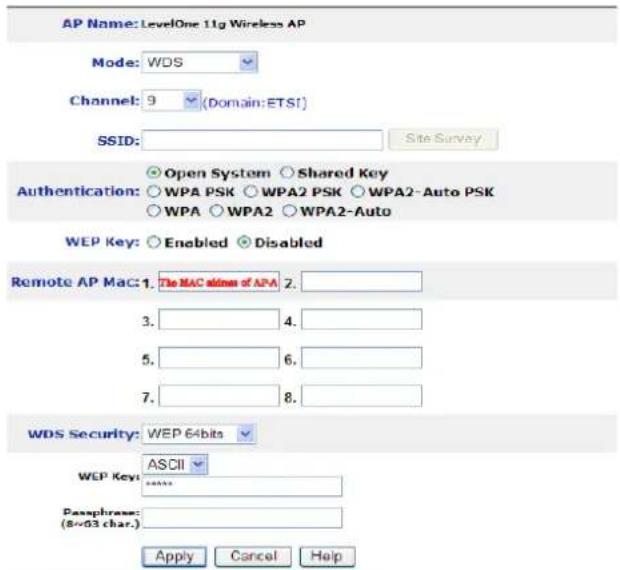
When there are three APs joined to the WDS group, one of the AP in WDS mode will be the Master, the other two APs will be the Slave, all of the APs in the WDS group must use the same wireless channel and the same security setting, the Master need to fill all the Slave's MAC address in the "Remote AP Mac" list, and the Slave need to fill the Master's MAC address in the "Remote AP Mac" list, the maximum of one Master can join eight Slave to be one WDS group.
In this example, LAN-A can communicate with LAN-B and LAN-C, and LAN-B can communicate with LAN-C through the AP-A. All of LANs will be at the same LAN environment coming through LAN-A.

flowchart
graph TD
    A["LAN-A"] -->|A(Master)| B["LAN-B"]
    B -->|B(Slave)| C["LAN-C"]
    C -->|C(Slave)| A
    style A fill:#f9f,stroke:#333
    style B fill:#f9f,stroke:#333
    style C fill:#f9f,stroke:#333
    style A fill:#ccf,stroke:#333
    style B fill:#ccf,stroke:#333
    style C fill:#ccf,stroke:#333
WDS mode application (Single WDS group)

text_image
AP Name: LevelOne 11g Wireless AP Mode: WDS Channel: 9 (Domain: ETSI) SSID: Site Survey Authentication: Open System Shared Key WPA PSK WPA2 PSK WPA2-Auto PSK WPA WPA2 WPA2-Auto WEP Key: Enabled Disabled Remote AP Mac: 1. The MAC sides of APC 2. The MAC sides of APC 3. 4. 5. 6. 7. 8. WDS Security: WEP 64bits WEP Key: ASCII Passphrase: (8~63 char.) Apply Cancel HelpMaster setting (AP-A)
text_image
AP Name: LevelOne 11g Wireless AP Mode: WDS Channel: 9 (Domain: ETSI) SSID: Site Survey Authentication: Open System Shared Key WPA PSK WPA2 PSK WPA2-Auto PSK WPA WPA2 WPA2-Auto WEP Key: Enabled Disabled Remote AP Mac: The MAC alias of APA 2. 3. 4. 5. 6. 7. 8. WDS Security: WEP 64bits WEP Key: ASCII ****** Passphrase: (8~03 char.) Apply Cancel HelpSlave setting (AP-B and AP-C)
WDS mode configuration for Example-1
Multiple WDS group application:
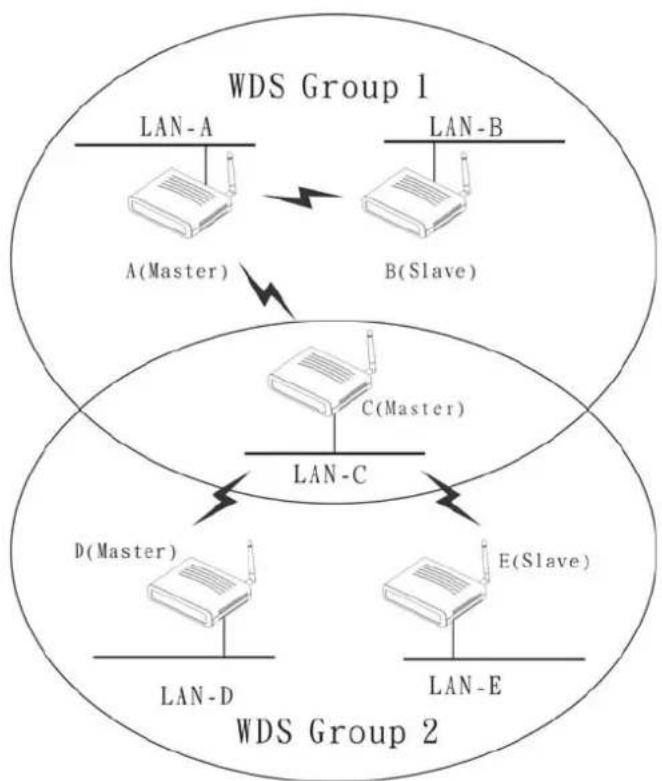
When there are five APs to be join into two separated WDS group, the member of WDS group 1 is AP-A, AP-B and AP-C, and member of the WDS group 2 is AP-C, AP-D and AP-E, the AP-C will join both of WDS group 1 and WDS group 2, each WDS Group 1 will be one master and the other will be slave.
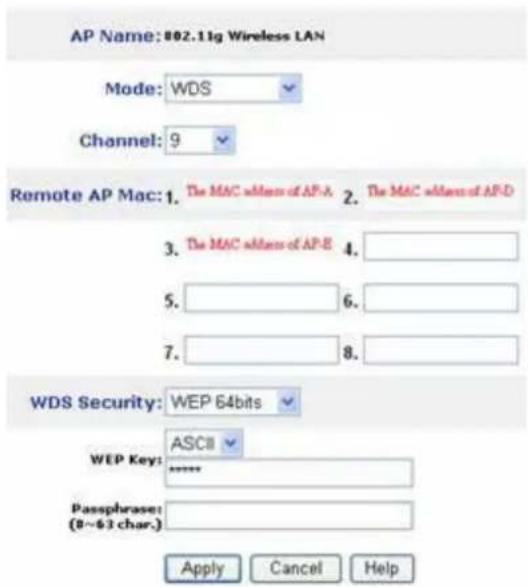
The AP-A and AP-C will be both as a Master AP for both WDS Groups, the AP-A represent for the master of WDS Group 1, the AP-C represent for the master of the WDS Group 2 and at the same time AP-C will be the slave of WDS Group 1, so all of the APs in the two WDS groups must use the same wireless channel and same security, the Master need to fill all of Slave's MAC address in the "Remote AP Mac" list, and the Slave need to fill the Master's MAC address in the "Remote AP Mac" list, maximum allow one Master can be join eight Slaves to be one WDS group.
In this example, LAN-A can communicate with LAN-B and LAN-C, and LAN-B can communicate with LAN-C through the AP-A. LAN-B will have the same LAN environment coming through LAN-A.
LAN-E can communicate with LAN-B and LAN-D, LAN-E can communicate with LAN-D through AP-C, LAN-E can communicate with LAN-B through AP-C and AP-A, LAN-E will have the same LAN environment coming through LAN-A.
flowchart
graph TD
    subgraph WDS Group 1
        A["LAN-A"] -->|A(Master)| C["LAN-C"]
        B["LAN-B"] -->|B(Slave)| C["LAN-C"]
    end
    subgraph WDS Group 2
        D["LAN-D"] --> E["LAN-E"]
        F["D(Master)"] --> E["LAN-E"]
        G["E(Slave)"] --> E["LAN-E"]
    end
    A -->| lightning| C
    B -->| lightning| C
    D -->| lightning| E
    F -->| lightning| E
WDS mode application (Multiple WDS group)

text_image
AP Name: 802.11g Wireless LAN Mode: WDS Channel: 9 Remote AP Mac: 1. The MAC address of AP-B 2. The MAC address of AP-C 3. 4. 5. 6. 7. 8. WDS Security: WEP 64bits WEP Key: ASCII *****. Passphrase: (8~63 char.) Apply Cancel HelpMaster setting (AP-A, WDS Group 1)

text_image
AP Name: 802.11g Wireless LAN Mode: WDS Channel: 9 Remote AP Mac: The MAC address of AFA 3. 4. 5. 6. 7. 8. WDS Security: WEP 64bits WEP Key: ASCII ****** Passphrase: (8~63 char.) Apply Cancel HelpSlave setting (AP-B, WDS Group 1)
text_image
AP Name: 802.11g Wireless LAN Mode: WDS Channel: 9 Remote AP Mac: 1. The MAC address of AP-A 2. The MAC address of AP-D 3. The MAC address of AP-E 4. 5. 6. 7. 8. WDS Security: WEP 64bits WEP Key: ASCII ***** Passphrase: (8~63 char.) Apply Cancel HelpMaster setting (AP-C, WDS Group 2)

text_image
AP Name: 802.11g Wireless LAN Mode: WDS Channel: 9 Remote AP Mac: The MAC address of AFC 3. 4. 5. 6. 7. 8. WDS Security: WEP 64bits WEP Key: ASCII ***** Passphrase: (8~63 char.) Apply Cancel HelpSlave setting (AP-D and AP-E, WDS Group 2)
WDS mode configuration for Example-2
Repeater mode
Configure the AP to Repeater mode; the AP will be a wireless LAN repeater that will be extended the WLAN coverage range.
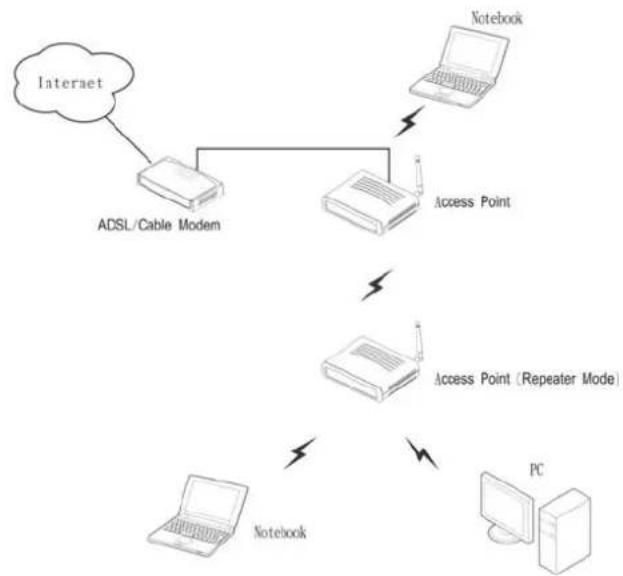
flowchart
graph TD
    A["Internet"] --> B["ADSL/Cable Modem"]
    B --> C["Access Point"]
    C --> D["Access Point (Repeater Mode)"]
    D --> E["PC"]
    B --> F["Notebook"]
    C --> G["Notebook"]
Repeater mode application
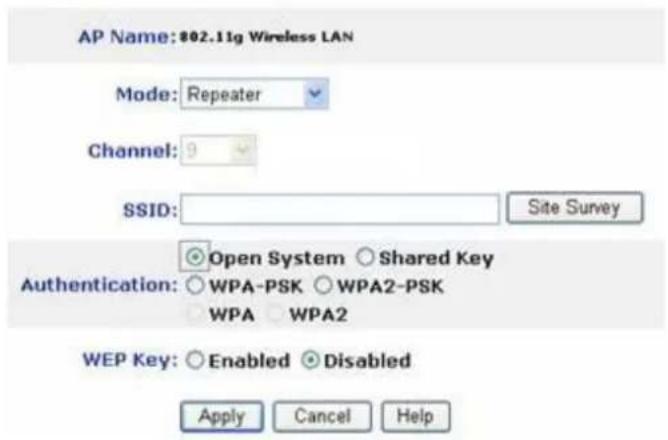
text_image
AP Name: $02.11g Wireless LAN Mode: Repeater Channel: 9 SSID: Site Survey Authentication: Open System Shared Key WPA-PSK WPA2-PSK WPA WPA2 WEP Key: Enabled Disabled Apply Cancel HelpRepeater mode configuration
SSID: Service Set Identifier, which is a unique name shared among all clients and nodes in a wireless network. The SSID must be identical for each clients and nodes in the wireless network.
Site Survey: This button allows user to enable the Site Survey function to scan for the available wireless network (wireless clients and Access Points) and establish wireless communications with one. Selected one of them in list to establish communications and click “Connect” button.
| SSID | BSSID | Channel | Type | Encrypt | Signal | Select |
| MeetingRoom | 00116bb0879c | 7 (B+G) | AP | yes | 55 | ○ |
| abs@abs | 0213ce000119 | 11 (B+G) | Ad hoc | no | 41 | ○ |
| WAF-0003 | 00116b606ac5 | 6 (B+G) | AP | yes | 35 | ○ |
| TFN | 00501821c48f | 11 (B+G) | AP | yes | 10 | ○ |
| WBR-6000v2_TSD | 00116b17480 | 1 (B+G) | AP | no | 9 | ○ |
Authentication Type: The authentication type default is set to Open system. There are four options: Open system; Shared Key; WPA-PSK and WPA2-PSK. User may want to set to Shared Key when the clients and AP in the same wireless network enable the WEP encryption. All the nodes and hosts on the network must use the same authentication type.
WEP Key: To disable WEP security, click on the "Disable" option. To enable WEP security, there are 2 types to select – 64bits and 128 bits. When it is selected, the key value must be entered in ASCII or HEX format.
Note: When WEP security is enabled, all the wireless clients that wish to connect to the Access Point must also have WEP enabled with the identical WEP Key value entered.
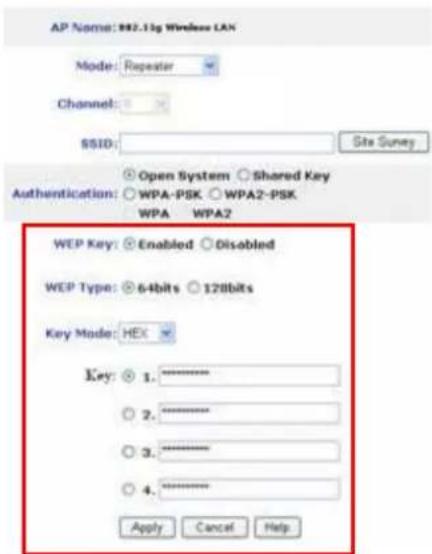
text_image
AP Name: 882.13g Wireless LAN Mode: Repeater Channel: SSID: Site Survey Open System Shared Key Authentication: WPA-PSK WPA2-PSK WPA WPA2 WEP Key: Enabled Disabled WEP Type: 64bits 128bits Key Mode: HEX Key: 1.****** 2.****** 3.****** 4.****** Apply Cancel HelpWPA-PSK / WPA2-PSK:
If WPA-PSK or WPA2-PSK is selected, user needs to set the key in the passphrase field as the below screen. The key length should be 8 characters at least.
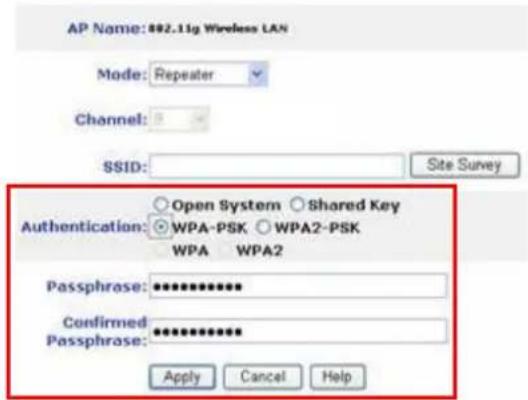
text_image
AP Name: 82.11g Wireless LAN Mode: Repeater Channel: SSID: Site Survey Authentication: Open System Shared Key WPA-PSK WPA2-PSK WPA WPA2 Passphrase: ************ Confirmed Passphrase: ************ Apply Cancel HelpApply: For the changes made to any of the items above to be effective, click "Apply". The new settings are now been saved to Access Point and will be effective once the Access Point restarts.
5. IP Setting
This page allows user to configure the IP and DHCP settings of the Access Point.

text_image
level One Wizard | Status | Basic Setting | IP Setting | Advanced Setting | Security | Tools | IP Setting LAN IP ○ Obtain IP Automatically ○ Fixed IP Address 192.168.0.254 Subnet Mask 255.255.255.0 Gateway 0.0.0.0 DHCP Server ○ On ○ off IP Range From 192.168.0.100 to 192.168.0.200 DNS Server Apply Cancel HelpThe default IP address of this access point is 192.168.0.254 with the subnet mask of 255.255.255.0. User can type in other values for IP Address, Subnet Mask and Gateway and click “Apply” button for the changes to be effective.
User can also set the Access Point to obtain the IP from a DHCP server, but it is not recommended. Select the option "Obtain IP Automatically" and click "Apply" button for the changes to be effective.
DHCP Server: It is not recommended to enable the DHCP Server if user has a DHCP server running in LAN network because it probably will cause possible the conflict of IP assignment. Enable the DHCP server function by selecting the option “On”, and enter the IP range.
DNS Server: Type up to DNS IP address in the text boxes. Your ISP will provide you with this information.
Click "Apply" for the changes to be effective
Advanced Setting
This page contains configurations for advanced users, which the change reflects the wireless performance and operating modes.

text_image
level® one Wizard | Status | Basic Setting | IP Setting | Advanced Setting | Security | Tools | Advanced Setting Beacon Interval 100 (msec, range: 1~1000, default: 100) RTS Threshold 2432 (range: 256~2432, default: 2432) Fragmentation Threshold 2346 (range: 256~2346, default: 2346, even number only) DTIM Interval 3 (range: 1~255, default: 3) SSID broadcast Enable Disable Mode Setting G Mode Mix Mode TX Rates Auto (Mbps) Tx power 100% Apply Cancel HelpBeacon Interval: To set the period of time in milliseconds that AP sends out a beacon. Default is 100 milliseconds.
RTS Threshold: To set the size of RTS/CTS packet size. Default is 2432 bytes.
Fragmentation Threshold: To set the number of bytes used for the fragmentation boundary for directed messages. Default is 2346 bytes.
DTIM Interval: This value indicates the interval of the Delivery Traffic Indication Message (DTIM). A DTIM field is a countdown field informing clients of the next window for listening to broadcast and multicast messages. When the access point has buffered broadcast or multicast messages for associated clients, it sends the next DTIM with a DTIM interval value. Access point clients hear the beacons and awaken to receive the broadcast and multicast messages.
SSID Broadcast: While SSID Broadcast is enabled, all wireless clients will be able to communicate with the access point. For secure purpose, user may want to disable SSID broadcast to allow only those wireless clients with the AP SSID to communicate with the access point.
Mode Setting: To set AP's operation as G Mode for 802.11g only or Mix Mode for 802.11b/802.11g.
TX Rates: Select one of the wireless communications transfer rates, measured in megabytes per second, based upon the speed of wireless adapters connected to the WLAN.
Security
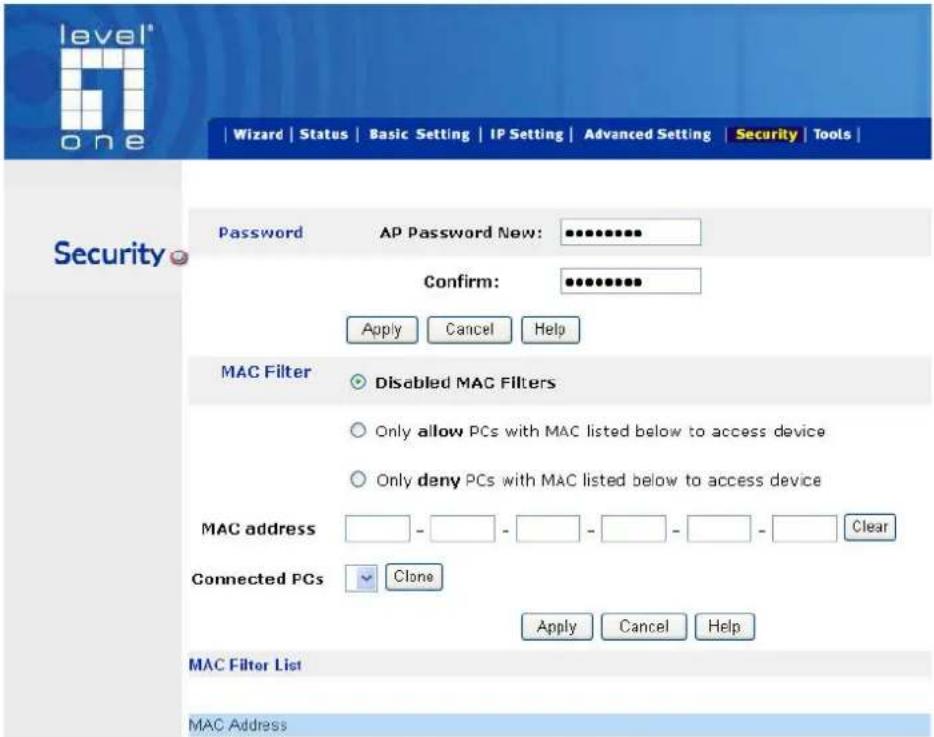
This page is where user configures the security features supported by this Access Point.
text_image
level one Wizard | Status | Basic Setting | IP Setting | Advanced Setting | Security | Tools | Security Password AP Password New: ********** Confirm: ********** Apply Cancel Help MAC Filter Disabled MAC Filters Only allow PCs with MAC listed below to access device Only deny PCs with MAC listed below to access device MAC address - - - - - - - Clear Connected PCs Clone Apply Cancel Help MAC Filter List MAC AddressPassword: Allow user to change the new login password. Here are the necessary steps:
- Enter the new password in the "AP Password New:" field.
- Enter the new password again in the "Confirm" field.
- Click "Apply"
MAC Filter: MAC Filter function controls the MAC of the network devices that are listed in this table for access authorization or denial. There have three choices:
◆ Disable MAC Filters
◆ Only allow PCs with MAC listed below to access device
◆ Only deny PCs with MAC listed below to access device
The maximum number of MAC addresses that can be stored is 50. User can browse through the MAC address saved by selecting the MAC Filter List.
For any changes made in the security page, click "Apply" for the changes to be effective.
Tools
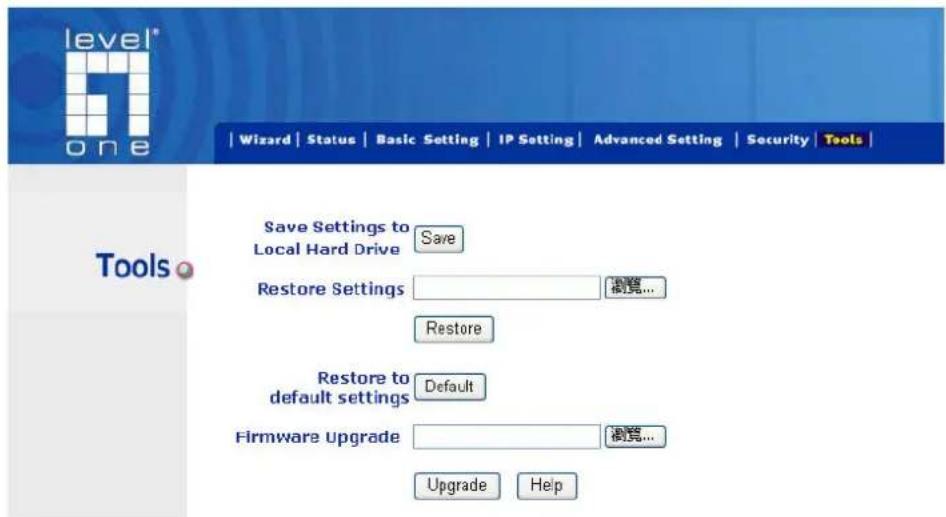
Four functions are provided in this page, Backup, Restore Settings, Restore default settings and Firmware Upgrade.
text_image
level one | Wizard | Status | Basic Setting | IP Setting | Advanced Setting | Security | Tools | Tools Save Settings to Local Hard Drive Save Restore Settings Restore... Restore to default settings Default Firmware Upgrade 浏览... Upgrade HelpSave Settings to Local Hard Drive: Click on "Save Settings to Local Hard Drive" button, which will open a FileSave Dialog box, where user gets to save all the current settings and configurations to a file.
Restore Settings: Click on the “Browse” button to open a FileOpen Dialog box, where user gets to select the file, which saves previous settings and configurations. Upon selecting the saved file, click “Restore” and complete the restore process when the access point re-operates after it restarts.
Restore to default settings: Click on "Default" button to restore the access point back to its manufacture default settings.
Firmware Upgrade: Click on the “Browse” button to open a FileOpen Dialog box, where gets to select the firmware file, which download from the web for the latest version. Upon selecting the firmware file, click “Upgrade” and complete the firmware upgrade process when the Access Point re-operates after it restarts.
Technical Specifications
| General | |
| Standards | IEEE 802.11b/gIEEE 802.3u 10/100BASE-TX Fast EthernetIEEE 802.3af Power over Ethernet (WAP-3100 only) |
| Signal Type: DSSS (802.11b) | OFDM (802.11g) |
| Modulation: QPSK / BPSK / | CCK / OFDM |
| LED Indicators: Power, LAN | (Link/Activity), WLAN (Link) |
| Frequency 2412 MHz ~ 2462 | MHz (FCC)2412 MHz ~ 2472 MHz (ETSI)2400 MHz ~ 2484 MHz (Japan) |
| Channel 1 ~ 11 Channels (FCC) | 1 ~ 13 Channels (ETSI) |
| Data Encryption: 64 bit / 128 | bit WEP Encryption, WPA, WPA2, WPA-PSK, WPA2-PSK |
| Data Transfer Rate Fast Ethernet: 10/100MbpsWireless: Up to 54Mbps (with Automatic Scale Back) | |
| Receiver Sensitivity 54Mbps: | Typical -68 dBm @10% PER11Mbps: Typical -81 dBm @8% PER |
| Transmit Power 802.11g: Minimum 13dBm typically802.11b: Minimum 15dBm typically | |
| Transmission Range: Outdoor: | 100~300M (depends on environment)Indoor: 50~100M (depends on environment) |
| Network Cables 2-pair UTP/STP Cat. 3,4,5 (100 m) | |
| Interface 1 x 10/100Mbps RJ | 45 port |
| Antenna: 1 x 2 dBi Dipole Antenna | |
| Physical and Environmental | |
| DC inputs DC 7.5V /1A | |
| Power Consumption 4.2W (Max) | |
| Temperature | Operating: 0 ~ 40 °C, Storage: -10 ~ 70 °C |
| Humidity | Operating: 10% ~ 90%, Stor |
| Dimensions 140 x 98 x 30 mm (W x H x D) without Antenna | |
| EMI: FCC Class B, CE Mark | B, |
age:
This product incorporates open source code into the software and therefore falls under the guidelines governed by the General Public License (GPL) agreement.
Adhering to the GPL requirements, the open source code and open source license for the source code are available for free download at http://global.level1.com.
If you would like a copy of the GPL or other open source code in this software on a physical CD medium, LevelOne (Digital Data Communications) offers to mail this CD to you upon request, for a price of US\$9.99 plus the cost of shipping.