EAP-200 - Access Point LEVELONE - Free user manual and instructions
Find the device manual for free EAP-200 LEVELONE in PDF.


| Product Type | Wireless Access Point |
| Brand | LevelOne |
| Model | EAP-200 |
| Wireless Standard | IEEE 802.11b/g/n |
| Frequency Band | 2.4 GHz |
| Maximum Data Rate | Up to 200 Mbps |
| Ethernet Ports | 1x 10/100 Mbps RJ-45 |
| Power Over Ethernet (PoE) | Supported (802.3af) |
| Power Supply | 12V DC 1A via included adapter or PoE |
| Power Consumption | Approx. 5W |
| Dimensions (W x D x H) | 190 x 140 x 45 mm |
| Weight | 0.25 kg |
| Security | WEP, WPA/WPA2-PSK, WPA2 Enterprise, MAC Filtering |
| Antenna Type | Internal dual-band antenna |
| Operating Temperature | 0°C to 45°C |
| Mounting | Wall mountable |
| LED Indicators | Power, LAN, WLAN |
| Management | Web interface, SNMP |
| Certifications | CE, FCC |
| Included Accessories | Power adapter, mounting kit, Ethernet cable, quick guide |
| Language of Manual | English (PDF) |
Frequently Asked Questions - EAP-200 LEVELONE
User questions about EAP-200 LEVELONE
0 question about this device. Answer the ones you know or ask your own.
Ask a new question about this device
Download the instructions for your Access Point in PDF format for free! Find your manual EAP-200 - LEVELONE and take your electronic device back in hand. On this page are published all the documents necessary for the use of your device. EAP-200 by LEVELONE.
USER MANUAL EAP-200 LEVELONE
text_image
level® oneLevelOne
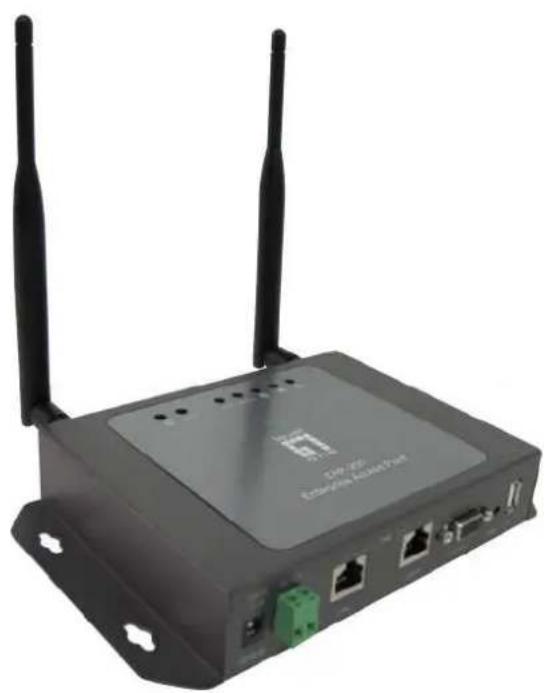
natural_image
Exterior view of a wireless router with two antennas and ports (no visible text or symbols)EAP-200
Enterprise Access Point
User Manual
Table of Contents
1. Before You Start....3
1.1 Preface....3
1.2 Document Conventions....3
1.3 Package Content....4
2. System Overview and Getting Started....5
2.1 Introduction of LevelOne EAP-200....5
2.2 Deployment Topology....6
2.3 Hardware Description....7
2.4 Hardware Installation....9
2.5 Console Interface....10
2.6 Access Web Management Interface 12
3. Connect your AP to your Network ....16
4. Adding Virtual Access Points....22
5. Secure Your AP 24
6. Create a WDS Bridge between two APs ....33
7. Web Management Interface Configuration 35
7.1 System....37
7.1.1 General 37
7.1.2 Network Interface....39
7.1.3 Management....40
7.1.4 GRE Tunnel 42
7.1.5 CAPWAP 43
7.2 Wireless....45
7.2.1 VAP Overview 45
7.2.2 General 48
7.2.3 VAP Configuration....50
7.2.4 Security....51
7.2.5 Repeater ....55
7.2.6 Advanced....57
7.2.7 Access Control ....59
7.2.8 Site Survey 63
7.3 Firewall....65
7.3.1 Firewall List....65
7.3.2 Service 69
7.3.3 Advanced....70
7.4 Utilities....71
7.4.1 Change Password....71
7.4.2 Backup & Restore....72
7.4.3 System Upgrade 73
7.4.4 Reboot 74
7.4.4 Upload Certificate 75
7.5 Status 76
7.5.1 Overview 76
7.5.2 Associated Clients 78
7.5.3 Repeater 79
7.5.4 Event Log 80
7.6 Online Help....81
About 4ipnet
The LevelOne Secure WLAN Controller series is powered by 4ipnet. LevelOne is partnered with 4ipnet to deliver most feature-rich product yet simple deployment in wireless networking infrastructure solution.
4ipnet is a leading provider of wireless networking solution for manageable, reliable, and secure wireless access. In an effort to meet changing market demands at the least possible cost, 4ipnet delivers a diverse array of turnkey, high-performance products and mission-critical applications to bring reliability and manageability to increasingly complex wireless networks.
Article I. Before You Start
Section 1.01 1.1 Preface
This manual is intended for system integrators, field engineers, and network administrators to set up LevelOne's EAP-200 802.11n/b/g 2.4GHz MIMO Access Point in their network environments. It contains step-by-step procedures and visual examples to guide MIS staff or individuals with basic network system knowledge to complete the installation.
Section 1.02 1.2 Document Conventions
 | Represents essential steps, actions, or messages that should not be ignored. |
| ▶ Note: | Contains related information that corresponds to a topic. |
 | Indicates that clicking this button will save the changes you made, but you must reboot the system upon the completion of all configuration settings for the changes to take effect. |
 | Indicates that clicking this button will clear what you have set before the settings are applied. |
Section 1.03 1.3 Package Content
The standard package of EAP-200 includes:
• LevelOne EAP-200 x1
- Quick Installation Guide (QIG) x1
- CD-ROM (with User's Manual and QIG) x1
- Console Cable x1
- Ethernet Cable x1
• Power Adapter (DC 12V) x1
- Antenna x2
- Screw Pack x1
- Ground Cable x1

It is recommended to keep the original packing materials for possible future shipment when repair or maintenance is required. Any returned product should be packed in its original packaging to prevent damage during delivery.
Article II. System Overview and Getting Started
Section 2.01 2.1 Introduction of LevelOne EAP-200
The LevelOne EAP-200 Enterprise Access Point embedded with 802.11 n/b/g 2.4GHz MIMO radio in dust-proof metal housing is designed for wireless connectivity in enterprise or industrial environments of all dimensions. EAP-200 makes the wireless communication fast, secure and easy. It supports business grade security such as 802.1X, and Wi-Fi Protected Access (WPA and WPA2). By pushing a purposely built button, the WES (Press-n-Connect) feature makes it easy to bridge wireless links of multiple EAP-200s for forming wider wireless network coverage.
EAP-200 also features multiple ESSIDs with VLAN tags and multiple Virtual APs, great for enterprise applications, such as separating the traffics of different departments using different ESSIDs. The PoE LAN port can receive power from Power over Ethernet (PoE) sourcing device. Its metal case is IP50 anti-dust compliant, which means that EAP-200 is well suited to WLAN deployment in industrial environments.

flowchart
graph TD
    A["EAP200"] -->|WDS Link| B["WHG Controller"]
    C["ESSID-1"] -->|WDS Link| D["Switch"]
    E["EAP200"] -->|WDS Link| F["Switch"]
    G["POE Switch"] --> H["Internet"]
    I["Internal Wireless Network"] --> J["Switch"]
    style A fill:#f9f,stroke:#333
    style C fill:#f9f,stroke:#333
    style E fill:#f9f,stroke:#333
    style G fill:#f9f,stroke:#333
    style I fill:#f9f,stroke:#333
    style B fill:#ccf,stroke:#333
    style F fill:#ccf,stroke:#333
    style J fill:#ccf,stroke:#333
    style_K["Public Wireless Network"] --> L["ESSID-1"]
    K --> M["ESSID-2"]
Wired and Wireless Network Layout with EAP-200s
Section 2.02 2.2 Deployment Topology

flowchart
graph TD
    A["Wide Area Network"] --> B["Authentication Server"]
    B --> C["File Server"]
    C --> D["DHCP Server (192.168.1.1)"]
    D --> E["AP-2"]
    E --> F["Wireless Laptop (192.168.1.14)"]
    F --> G["AP-2"]
    G --> H["Wired Desktops (192.168.1.15)"]
    H --> I["AP-3"]
    I --> J["Wireless Laptop (192.168.1.19)"]
    J --> K["AP-3"]
    K --> L["Wireless Laptop (192.168.1.17)"]
    L --> M["AP-3"]
    M --> N["Wireless Laptop (192.168.1.18)"]
    N --> O["AP-3"]
    O --> P["Wireless Laptop (192.168.1.19)"]
    P --> Q["AP-3"]
    Q --> R["Wireless Laptop (192.168.1.13)"]
    R --> S["AP-1"]
    S --> T["Wireless Laptop (192.168.1.12)"]
    T --> U["AP-1"]
    U --> V["Wireless Laptop (192.168.1.11)"]
    V --> W["Wireless Laptop (192.168.1.13)"]
    W --> X["AP-1"]
Common Network Layout with EAP-200s
This above deployment scenario illustrates a deployment example using three access points, AP-1, AP-2, and AP-3.
- Three EAP-200 systems construct a network comprising of wired and wireless segments
• AP-2 plays the role of a wireless bridge. - All devices share the same DHCP server 192.168.1.1.
Section 2.03 2.3 Hardware Description
This section depicts the hardware information including all panel description.
Connector Panel

text_image
12V DC12V 1A PoE Reset LAN2 LAN1 Console IWE USB 7 6 5 4 4 3 2 1EAP-200 Connector Panel
| 1 | USB Disabled for future usage only. | |
| 2 | WES Press to start running WES process. | |
| 3 | Console Attach the serial cable here. | |
| 4 | LAN1 / LAN2 | Attach the Ethernet cable here for connection with wired local networks. |
| 5 | Reset Hardware reset button, press once to reset to the system. | |
| 6 | DC 12V Attach the power socket here. | |
| 7 | 12V-- | Attach the power adapter here. |
Antenna Panel

natural_image
Exterior view of a black rectangular electronic device with two gold connectors (no text or symbols visible)EAP-200 Antenna Panel
| Antenna Connector: | Attach the antennas here. The system supports one RF interface with two SMA connectors. |
LED Panel
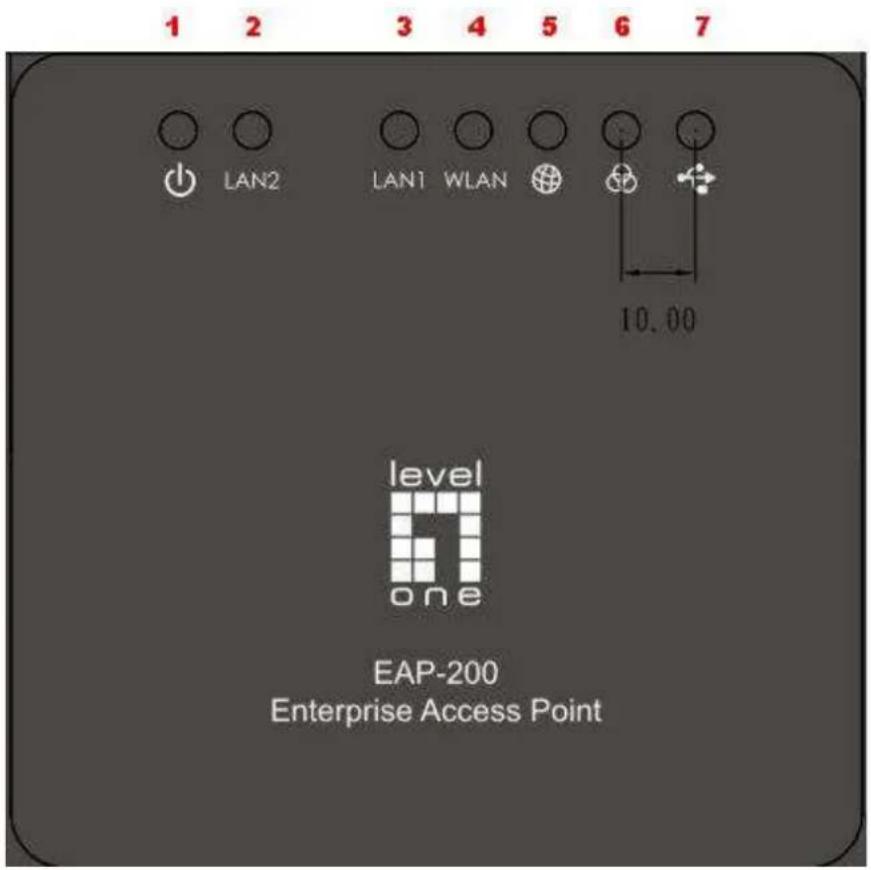
text_image
1 2 3 4 5 6 7 ○ ○ ○ ○ ○ ○ ← LAN2 LAN1 WLAN 10.00 level one EAP-200 Enterprise Access PointEAP-200 LED Panel
| 1 | Power LED LED ON indicates power on; OFF indicates power off. | ||
| 2 | LAN LED LED ON indicates LAN cable connected; OFF indicates no connection; BLINKING indicates transmitting data. | ||
| 3 | WLAN LED LED ON indicates wireless ready. | ||
| 4 | WDS LED LED ON indicates WDS ready. | ||
| 5 | WES LED To indicate WES status. | ||
| Master Slave | |||
| WES Start | LED (Green) OFF and then BLINKING SLOWLY | LED (Red) OFF and then BLINKING SLOWLY | |
| WES Negotiate | BLINKING NORMALLY (Green) | BLINKING NORMALLY (Red) | |
| WES Negotiate Timeout | LED (Green) ON LED (Red) ON | ||
| WES Success LED (Red) ON LED (Green) ON | |||
| WES Fail LED (Green) ON LED (Red) ON | |||
| 6 | USB LED Disabled for future usage only. | ||
2.4 Hardware Installation
Please follow the steps mentioned below to install the hardware of EAP-200:
- Place the EAP-200 at the best location.
The best location for EAP-200 is usually at the center of your intended wireless network.
- Connect the EAP-200 to your network device.
Connect one end of the Ethernet cable to LAN port of EAP-200 and the other end of the cable to a switch, a router, or a hub. EAP-200 is then connected to your existing wired LAN network.
- There are two ways to supply power over to EAP-200.
a) Connect the DC power adapter to the EAP-200 power socket.
b) EAP-200 LAN port is capable of transmitting DC currents. Connect an IEEE 802.3af-compliant PSE device (e.g. a PoE-switch) to the LAN port of EAP-200 with the Ethernet cable.
Now, the Hardware Installation is complete.

- Please only use the power adapter supplied with the EAP-200 package. Using a different power adapter may damage this system.
- To double verify the wired connection between EAP-200 and you switch / router / hub, please also check the LED status indicator of the respective network devices.
Section 2.04 2.5 Console Interface
Via this port to enter the console interface for the administrator to check the IP address of EAP-200 and reset the device to default if the admin password is forgotten.
- In order to connect to the console port of EAP-200, a console, modem cable and a terminal simulation program, such as the Hyper Terminal are needed.
- If a Hyper Terminal is used, please set the parameters as 115200, 8, None, 1, None.

text_image
COM1 Properties Port Settings Bits per second: Data bits: 8 Parity: None Stop bits: 1 Flow control: None Restore Defaults OK Cancel ApplyThe console interface looks like the screenshot below, displaying the current LAN IP address and the instructions to reset device to default.

text_image
SYSTEM IP: 192.168.10.1/255.255.0.0 Enter reset2def twice to reset to the factory default login:When resetting the device to default from the console interface, key in "reset2def" for login and password. Confirm "yes" and EAP-200 will begin the reset process.
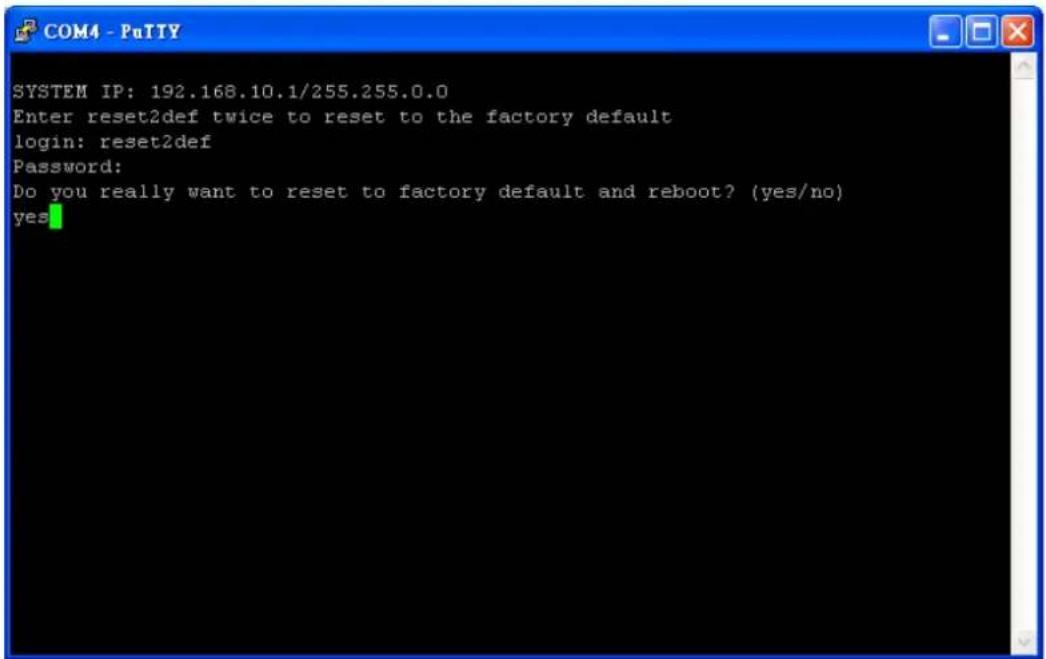
text_image
SYSTEM IP: 192.168.10.1/255.255.0.0 Enter reset2def twice to reset to the factory default login: reset2def Password: Do you really want to reset to factory default and reboot? (yes/no) yesWhen the login prompt reappears, the device has completed the reset to default process and the LAN IP is reset to 192.168.1.1.
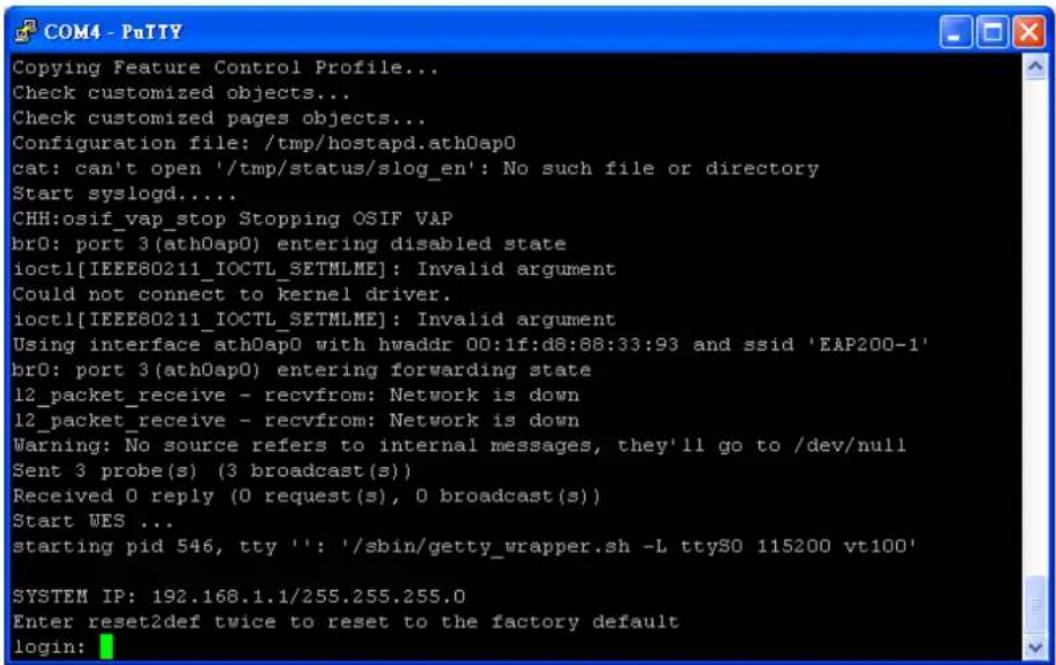
text_image
Copying Feature Control Profile... Check customized objects... Check customized pages objects... Configuration file: /tmp/hostapd.athOap0 cat: can't open '/tmp/status/slog_en': No such file or directory Start syslogd.... CHH:osif_vap_stop Stopping OSIF VAP br0: port 3(athOap0) entering disabled state ioctl[IEEE80211_IOCTL_SETMLME]: Invalid argument Could not connect to kernel driver. ioctl[IEEE80211_IOCTL_SETMLME]: Invalid argument Using interface athOap0 with hwaddr 00:1f:d8:88:33:93 and ssid 'EAP200-1' br0: port 3(athOap0) entering forwarding state 12_packet_receive - recvfrom: Network is down 12_packet_receive - recvfrom: Network is down Warning: No source refers to internal messages, they'll go to /dev/null Sent 3 probe(s) (3 broadcast(s)) Received 0 reply (0 request(s), 0 broadcast(s)) Start WES ... starting pid 546, tty '': '/sbin/getty_wrapper.sh -L tty30 115200 vt100' SYSTEM IP: 192.168.1.1/255.255.255.0 Enter reset2def twice to reset to the factory default login:Section 2.05 2.6 Access Web Management Interface
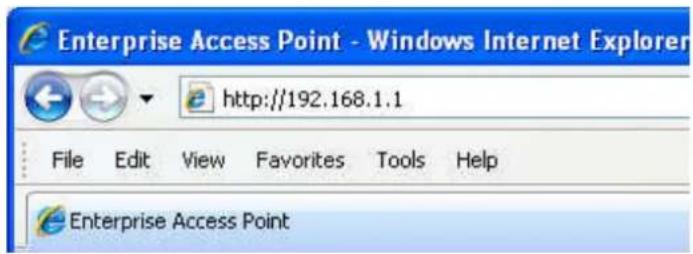
LevelOne EAP-200 supports web-based configuration. Upon the completion of hardware installation, EAP-200 can be configured through a PC by using its web browser such as Mozilla Firefox 2.0 (and higher) or Internet Explorer version 6.0 (and higher).
The default values of the EAP-200's LAN IP Address and Subnet Mask are:
IP Address: 192.168.1.1
Subnet Mask: 255.255.255.0
text_image
Enterprise Access Point - Windows Internet Explorer http://192.168.1.1 File Edit View Favorites Tools Help Enterprise Access PointExample of entering EAP-200's default IP Address into a web browser
- To access the web management interface (WMI), connect the administrator PC to the LAN port of EAP-200 via an Ethernet cable. Then, set a static IP Address on the same subnet mask as the EAP-200 in TCP/IP settings of your PC, such as the following example:
IP Address: 192.168.1.100
Subnet Mask: 255.255.255.0
Note:
Please note that the IP Address used should not overlap with the IP Addresses of any other device within the same network.
- Launch the web browser on your PC and enter the IP Address of the EAP-200 (192.168.1.1) at the address field, and then press Enter. The following Administrator Login Page will then appear. Enter "admin" for both the Username and Password fields, and then click Login.

text_image
4ipnet® Username: admin Password: •••••• LoginAdministrator Login Page
• After a successful login into EAP-200, a System Overview page of the Web Management Interface (WMI) will appear.

text_image
System Wireless Firewall Utilities Status Overview Associated Clients Repeater Event LogHome > Status > System Overview
System Overview

System
| System Name | Enterprise Access Point |
| Firmware Version | |
| Build Number | |
| Location | |
| Site | EN-A |
| Device Time | 1970/01/01 08:00:30 |
| System Up Time | 0 days, 0:00:30 |

Radio Status
| MAC Address | 00:1F:D4:83:96:02 |
| Band | 802.11g+n |
| Channel | 1 |
| TX Power | 19 dBm |

LAN Interface
| MAC Address | 00:1F:D4:83:96:01 |
| IP Address | |
| Subnet Mask | 255.255.0.0 |
| Gateway |

AP Status
| Profile Name | BSSID | ESSID | Security Type | Online Clients | GRE |
| VAP-1 | 00:1F:D4:83:96:02 | EAP-1 | None | 0 | |
| VAP-2 | 06:1F:D4:83:96:02 | EAP-2 | None | 0 | |
| VAP-3 | 0A:1F:D4:83:96:02 | EAP-3 | None | 0 |

GRE Tunnel
| Status | Connected |
| Remote IP | 192.168.3.3 |
| Key | 12345 |
The Web Management Interface - System Overview Page
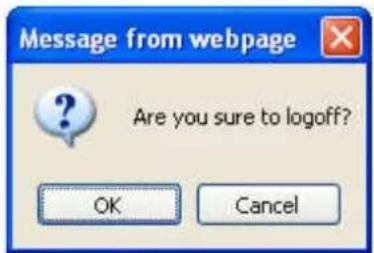
- To logout, simply click on the Logout button at the upper right hand corner of the interface to return to the Administrator Login Page. Click OK to logout.

text_image
Home Logout ? HelpLogout
text_image
Message from webpage Are you sure to logoff? OK CancelLogout Prompt

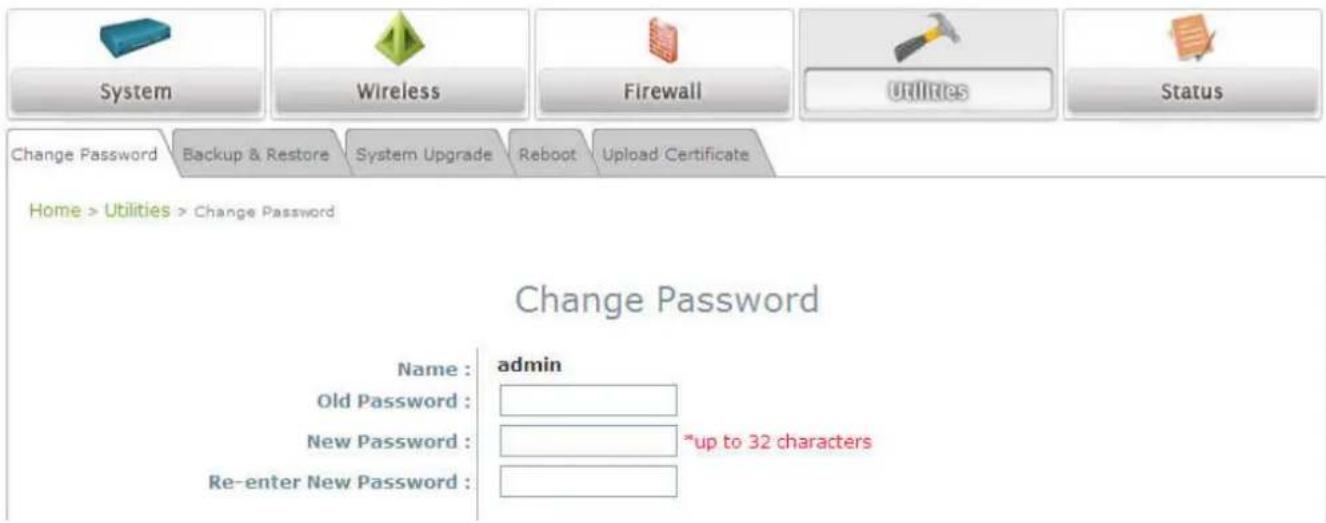
For security reasons, it is strongly recommended to change the administrator's password upon the completion of all configuration settings
Please follow the following steps to change the administrator's password:
text_image
System Wireless Firewall Utilities Status Change Password Backup & Restore System Upgrade Reboot Upload Certificate Home > Utilities > Change Password Change Password Name : admin Old Password : New Password : *up to 32 characters Re-enter New Password :Change Password Page
Click on the Utilities main menu button, and then select the Change Password tab.
Enter the old password and then a new password with a length of up to 32 characters, and retype it in the Re-enter New Password field.
Congratulation!
Now, LevelOne's EAP-200 is installed and configured successfully.

- It is strongly recommended to make a backup copy of configuration settings.
- After the EAP-200's network configuration is completed, please remember to change the IP Address of your PC Connection Properties back to its original settings in order to ensure that your PC functions properly in its real network environments.
Article III. Connect your AP to your Network
The following instructions depict how to establish the wireless coverage of your network. The AP will connect to the network through its LAN port and provide wireless access to your network.
After having prepared the EAP-200's hardware for configuration, set the TCP/IP settings of administrator's computer to have a static IP Address of 192.168.1.10 and Subnet Mask of 255.255.255.0.
Step 1: Configuring the AP's System Information
Enter the AP's default IP Address (192.168.1.1) into the URL of a web browser.
Login via using Username: admin and Password: admin.
The WMI appears as shown below.

text_image
System Wireless Firewall Utilities Status Overview Associated Clients Repeater Event LogHome > Status > System Overview
System Overview

System
System Name Enterprise Access Point
Firmware Version
Build Number
Location
Site EN-A
Device Time 1970/01/01 08:00:30
System Up Time 0 days, 0:00:30

Radio Status
MAC Address 00:1F:D4:83:96:02
Band 802.11g+n
Channel 1
TX Power 19 dBm

LAN Interface
MAC Address 00:1F:D4:83:96:01
IP Address
Subnet Mask 255.255.0.0
Gateway

AP Status
| Profile Name | BSSID | ESSID | Security Type | Online Clients | GRE |
| VAP-1 | 00:1F:D4:83:96:02 | EAP-1 | None | 0 | |
| VAP-2 | 06:1F:D4:83:96:02 | EAP-2 | None | 0 | |
| VAP-3 | 0A:1F:D4:83:96:02 | EAP-3 | None | 0 |

GRE Tunnel
Status Connected
Remote IP 192.168.3.3
Key 12345
Web Management Interface Main Page (System Overview)
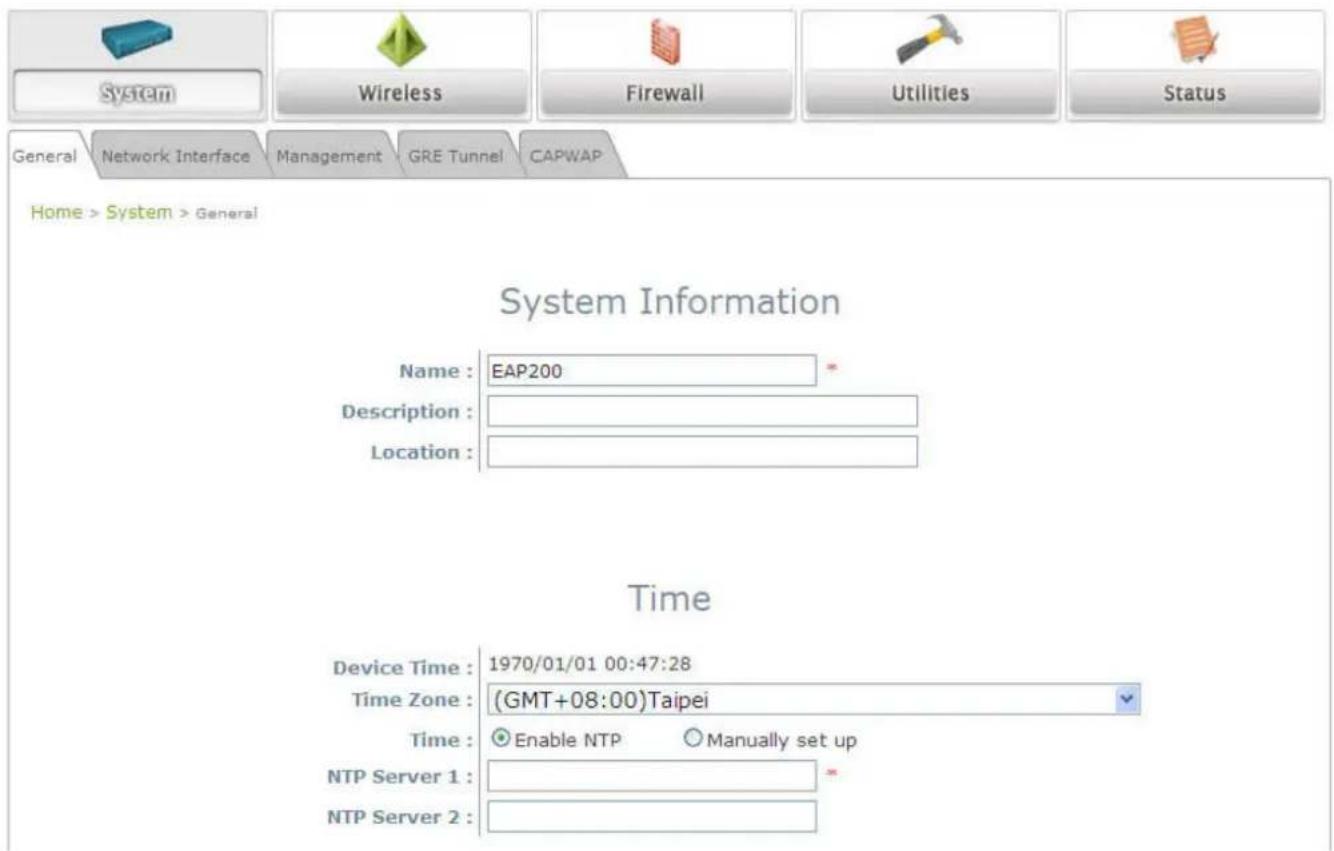
From here, click on the System icon to arrive at the following page. On this Page you can make entries to the Name, Description, and Location fields as well as set the device's time.
text_image
System Wireless Firewall Utilities Status General Network Interface Management GRE Tunnel CAPWAP Home > System > General System Information Name : EAP200 * Description : Location : Time Device Time : 1970/01/01 00:47:28 Time Zone : (GMT+08:00)Taipei Time : Enable NTP Manually set up NTP Server 1 : NTP Server 2 :System Information Page
There are two methods of setting up the time: Manual (indicated by the option Set Date & Time) and NTP.
The default is Manual and requires individual setup every time the system starts up. Simply choose a time zone and set the time accordingly. When finished, click SAVE.
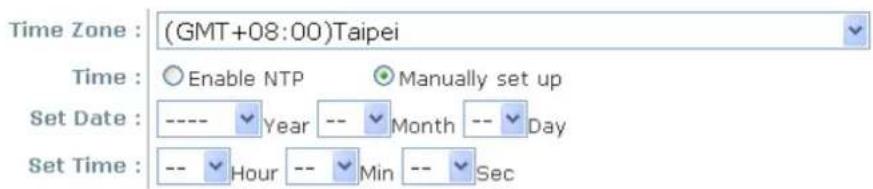
text_image
Time Zone : (GMT+08:00)Taipei Time : Enable NTP Manually set up Set Date : ---- Year -- Month -- Day Set Time : -- Hour -- Min -- SecManually Time Setup
The alternative is NTP. Upon selecting NTP under the Time field, the configuration changes to allow up to two NTP servers. Simply enter a local NTP server's IP Address (if available) or search online for an NTP server nearest you. Set the time zone and click SAVE.
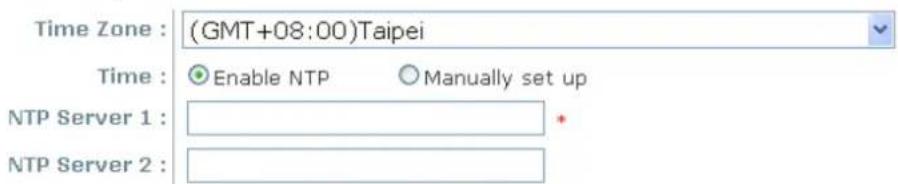
text_image
Time Zone : (GMT+08:00)Taipei Time : Enable NTP Manually set up NTP Server 1 : NTP Server 2 :NTP Setup
Step 2: Configuring the AP's Network Settings
While still on this Page, click on the Network Interface tab to begin configuration of the network settings.

Home > System > Network Interface
Network Settings

text_image
Mode : Static DHCP Renew IP Address : 192.168.1.1 Netmask : 255.255.0.0 Default Gateway : 192.168.1.2 Primary DNS Server : 192.168.1.2 Alternate DNS Server : Layer2 STP : Disable EnableNetwork Settings Page
If the deployment decides the AP will be getting dynamic IP Addresses from the connected network, set Mode to DHCP; otherwise, set Mode to Static and fill in the required fields marked with a red asterisk (IP Address, Netmask, Gateway, and Primary DNS Server) with the appropriate values for the network. Click SAVE when you are finished to save changes that have been made.
Step 3: Configure the AP's Wireless General Settings
Click on the Wireless icon followed by the General tab. On this page we only need to choose the Band and Channel that we wish to use.
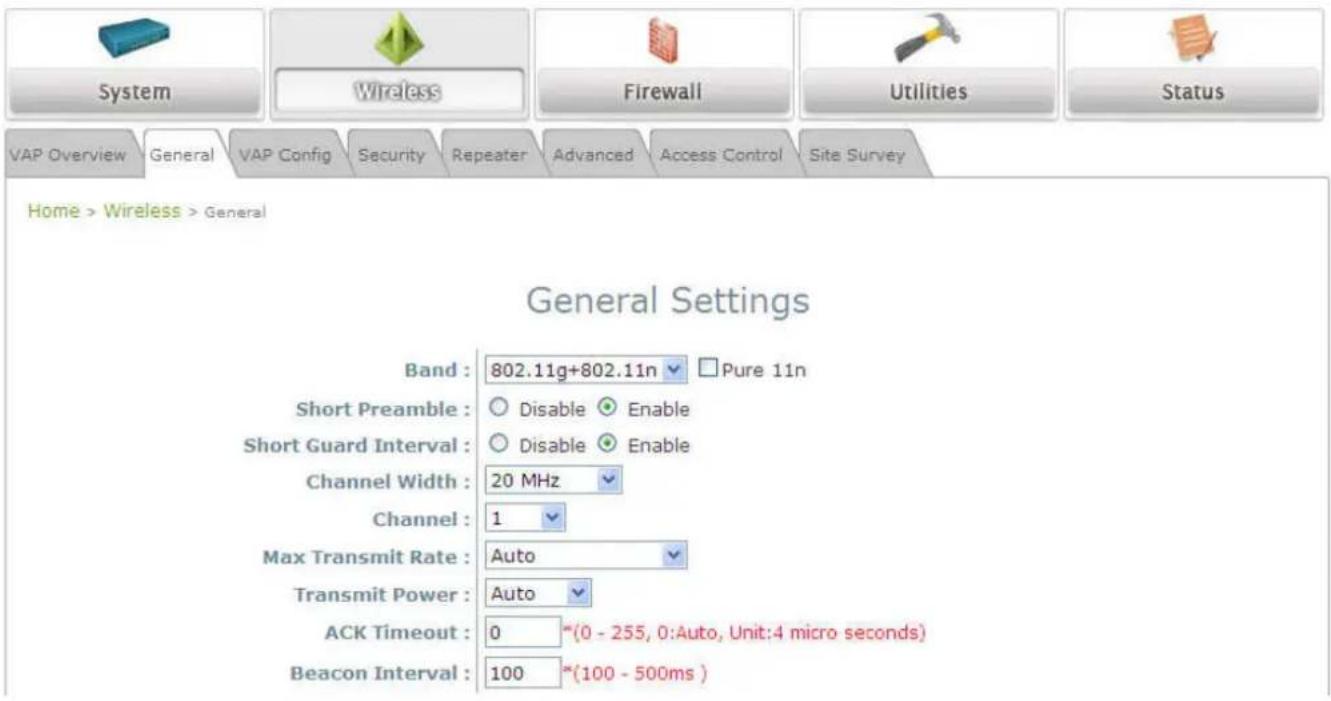
text_image
System Wireless Firewall Utilities Status VAP Overview General VAP Config Security Repeater Advanced Access Control Site Survey Home > Wireless > General General Settings Band : 802.11g+802.11n ▼ Pure 11n Short Preamble : ○ Disable ● Enable Short Guard Interval : ○ Disable ● Enable Channel Width : 20 MHz Channel : 1 Max Transmit Rate : Auto Transmit Power : Auto ACK Timeout : 0 *(0 - 255, 0:Auto, Unit:4 micro seconds) Beacon Interval : 100 *(100 - 500ms )Wireless General Settings Page
On this page, select the Band with which the AP is to broadcast its signal. The rest of the fields are optional and can be configured at another time. Click SAVE if any changes have been made.
Step 4: Configuring Wireless Coverage (VAP-1)
To setup the AP's wireless access, refer to the following VAP-1 configuration (other VAP configuration can refer to the same setup steps as done for VAP-1). Click on the Overview tab to proceed.
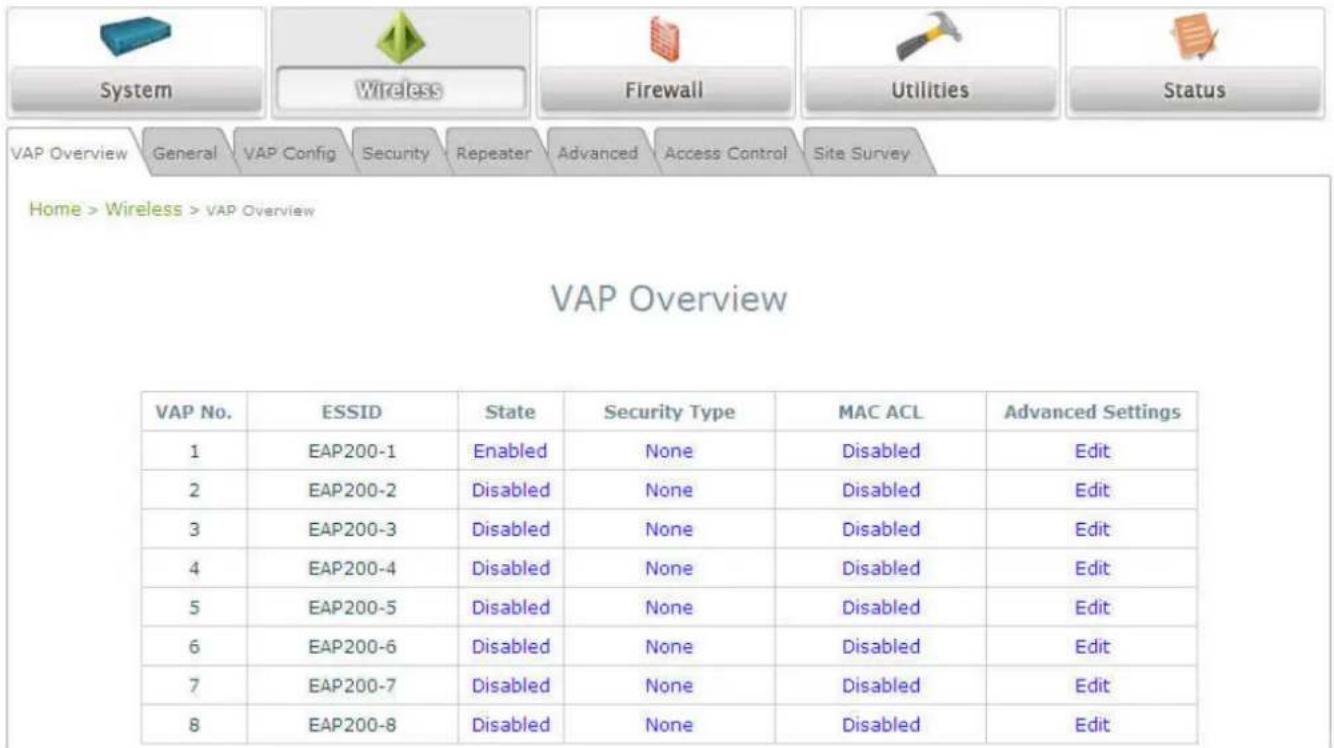
text_image
System Wireless Firewall Utilities Status VAP Overview General VAP Config Security Repeater Advanced Access Control Site Survey Home > Wireless > VAP Overview VAP Overview VAP No. ESSID State Security Type MAC ACL Advanced Settings 1 EAP200-1 Enabled None Disabled Edit 2 EAP200-2 Disabled None Disabled Edit 3 EAP200-3 Disabled None Disabled Edit 4 EAP200-4 Disabled None Disabled Edit 5 EAP200-5 Disabled None Disabled Edit 6 EAP200-6 Disabled None Disabled Edit 7 EAP200-7 Disabled None Disabled Edit 8 EAP200-8 Disabled None Disabled EditVirtual AP Overview Page
On this page click the hyperlink in the row and column that corresponds with VAP-1's State. This will bring up the following page.

text_image
System Wireless Firewall Utilities Status VAP Overview General VAP Config Security Repeater Advanced Access Control Site Survey Home > Wireless > VAP Config VAP Configuration Profile Name : VAP-1 VAP : Disable Enable Profile Name : VAP-1 ESSID : EAP200-1 VLAN ID : Disable Enable VLAN ID : ""( 1 - 4094 )VAP Configuration Page (VAP-1 shown)
The desired VAP profile can be selected from the drop-down menu of Profile Name and VAP-1 configuration will serve as an example for all other VAPs. Before proceeding further, please make sure that the VAP field is Enable; afterwards, enter an ESSID to represent the WLAN associated with AP's VAP-1. It is suggested that Profile Name is used to describe what this particular VAP will be used for; otherwise, leave it as default. VLAN ID can be chosen at another time. Click SAVE to save all changes up to this point and Reboot the system to apply these revised settings.
Congratulations!
After reboot, the AP can start to work with these revised settings.
Article IV. Adding Virtual Access Points
EAP-200 possesses the feature of multi-ESSID; namely, it can behave as multiple virtual access points, providing different levels of services from the same physical AP device.
Please click on the Wireless icon to review the VAP Overview page.

text_image
System Wireless Firewall Utilities Status VAP Overview General VAP Config Security Repeater Advanced Access Control Site Survey Home > Wireless > VAP Overview VAP Overview VAP No. ESSID State Security Type MAC ACL Advanced Settings 1 EAP200-1 Enabled None Disabled Edit 2 EAP200-2 Disabled None Disabled Edit 3 EAP200-3 Disabled None Disabled Edit 4 EAP200-4 Disabled None Disabled Edit 5 EAP200-5 Disabled None Disabled Edit 6 EAP200-6 Disabled None Disabled Edit 7 EAP200-7 Disabled None Disabled Edit 8 EAP200-8 Disabled None Disabled EditVAP Overview Page
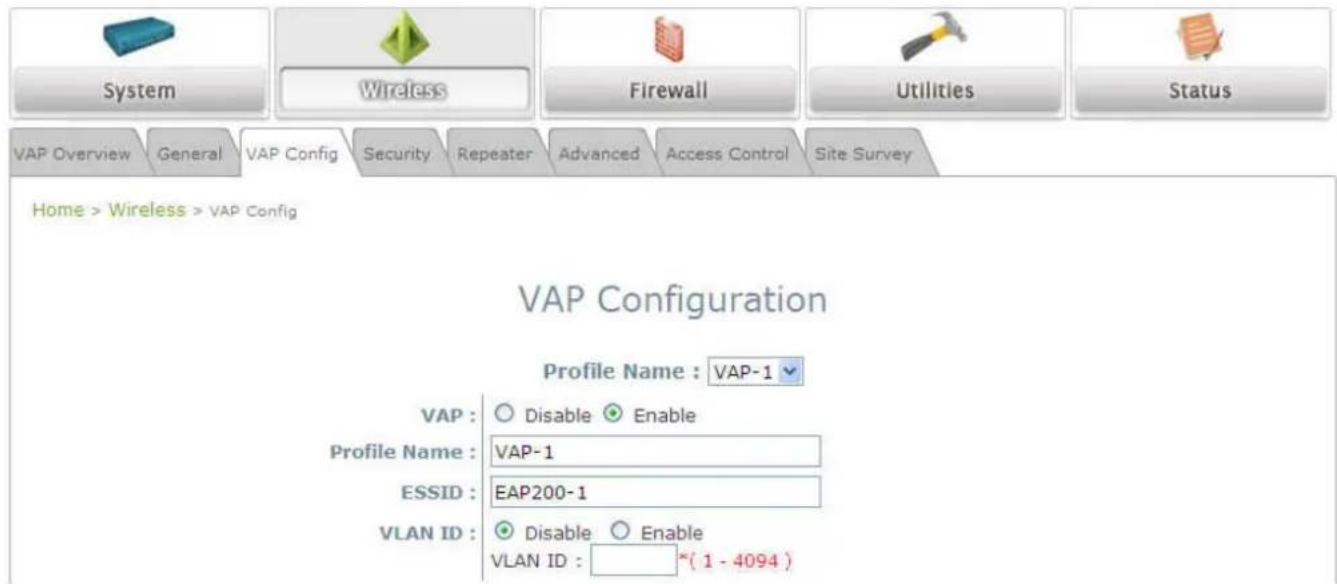
To proceed with specific VAP configuration, click on the corresponding cell in the State column and the row of the VAP; the particular VAP's Configuration page will then appear for further configuration.
text_image
System Wireless Firewall Utilities Status VAP Overview General VAP Config Security Repeater Advanced Access Control Site Survey Home > Wireless > VAP Config VAP Configuration Profile Name : VAP-1 VAP : Disable Enable Profile Name : VAP-1 ESSID : EAP200-1 VLAN ID : Disable Enable VLAN ID : *(1 - 4094)VAP Configuration Page (VAP-1 shown)
Please select the desired VAP profile from the drop-down menu of Profile Name. Choose Enable for the VAP field. Pick a descriptive Profile Name and an appropriate ESSID for clients to associate to. A VLAN ID can be provided to indicate the traffics through this particular VAP. It may allow further management/control (e.g. access rights and Internet usage, etc) of each VAP with a management gateway. Click SAVE and then Reboot for the changes to take effect.
Article V. Secure Your AP
Different VAP may require different level of security. These instructions will guide the user through setting up different types of security for a particular VAP. Simply repeat the following steps for other VAP with security requirement.
Step 1: Ensure the intended VAP is Enabled
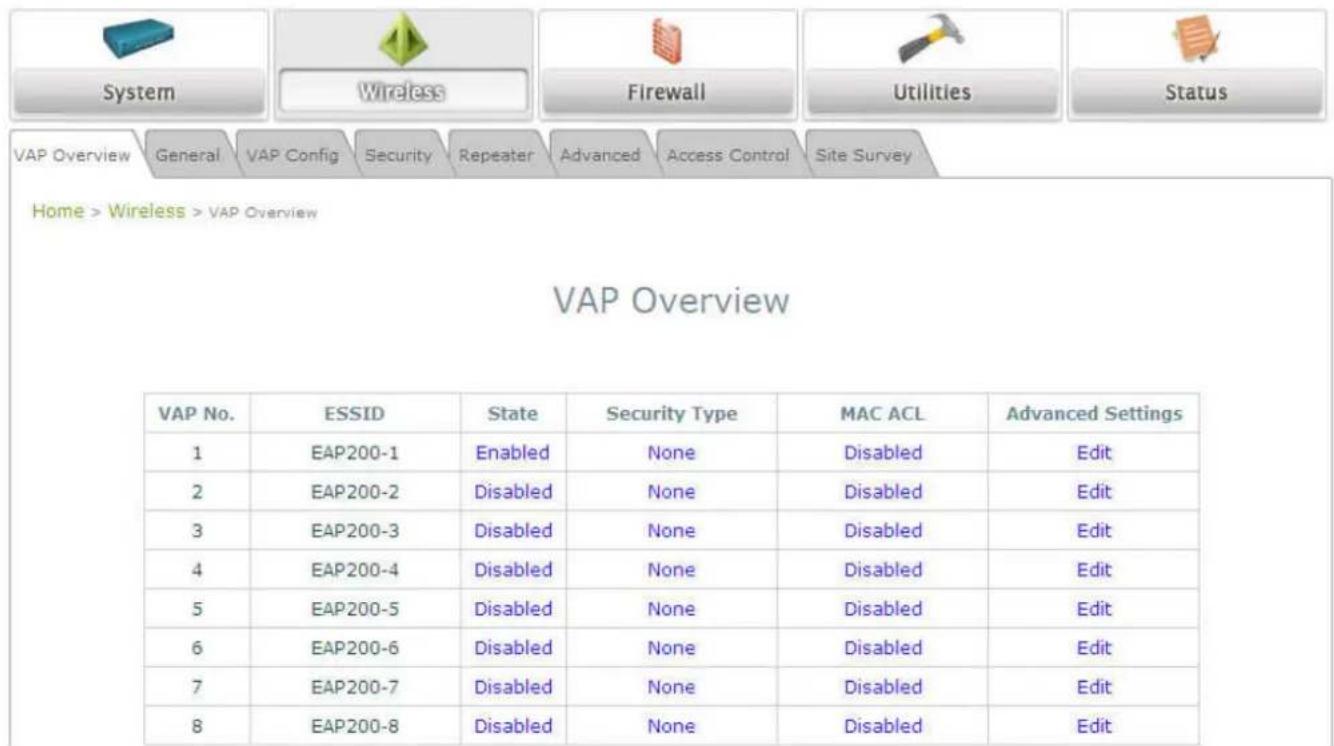
text_image
System Wireless Firewall Utilities Status VAP Overview General VAP Config Security Repeater Advanced Access Control Site Survey Home > Wireless > VAP Overview VAP Overview VAP No. ESSID State Security Type MAC ACL Advanced Settings 1 EAP200-1 Enabled None Disabled Edit 2 EAP200-2 Disabled None Disabled Edit 3 EAP200-3 Disabled None Disabled Edit 4 EAP200-4 Disabled None Disabled Edit 5 EAP200-5 Disabled None Disabled Edit 6 EAP200-6 Disabled None Disabled Edit 7 EAP200-7 Disabled None Disabled Edit 8 EAP200-8 Disabled None Disabled EditVAP Overview Page
On the VAP Overview page, check the table to confirm the VAP State. If it is Enabled, skip to Step 2. If not, click on to proceed with VAP Configuration for that particular VAP.
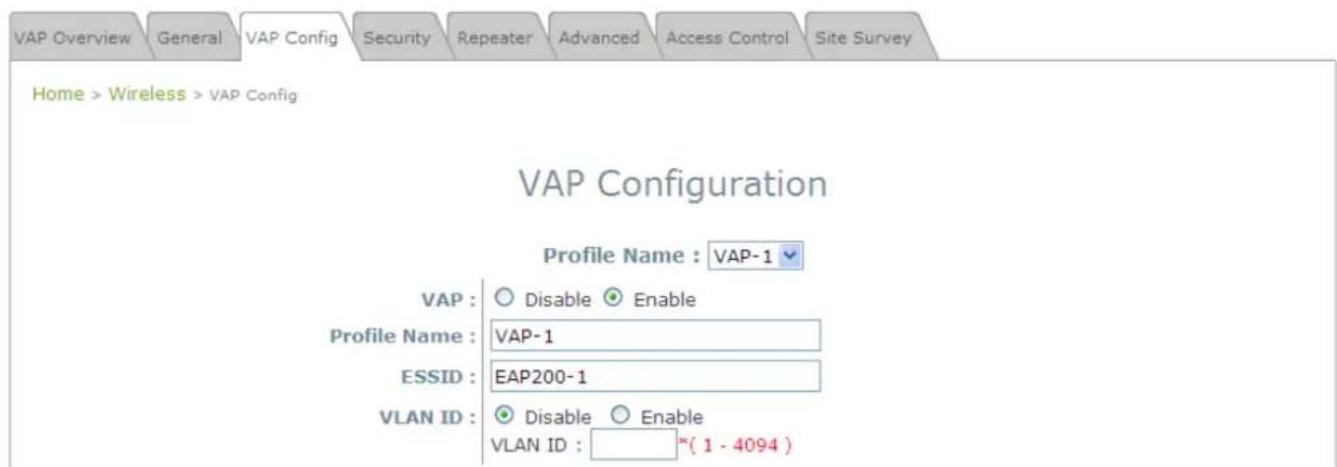
text_image
VAP Overview General VAP Config Security Repeater Advanced Access Control Site Survey Home > Wireless > VAP Config VAP Configuration Profile Name : VAP-1 VAP : Disable Enable Profile Name : VAP-1 ESSID : EAP200-1 VLAN ID : Disable Enable VLAN ID : *(1 - 4094)VAP Configuration Page (VAP-1 as shown for example)
Select Enable for the VAP field and click SAVE. Click the Overview tab to return to the previous table
to begin the next step.
Step 2: Configure Security Settings for your VAP
The following instructions will guide the user to set up wireless security with a specific VAP. If only restricted access of certain MAC addresses is desired, skip to the Step3. MAC restriction can be coupled with wireless security to provide extra protection.
First, click on the corresponding cell in the column labeled Security Type. This hyperlink will direct the user to the following Security Settings page.
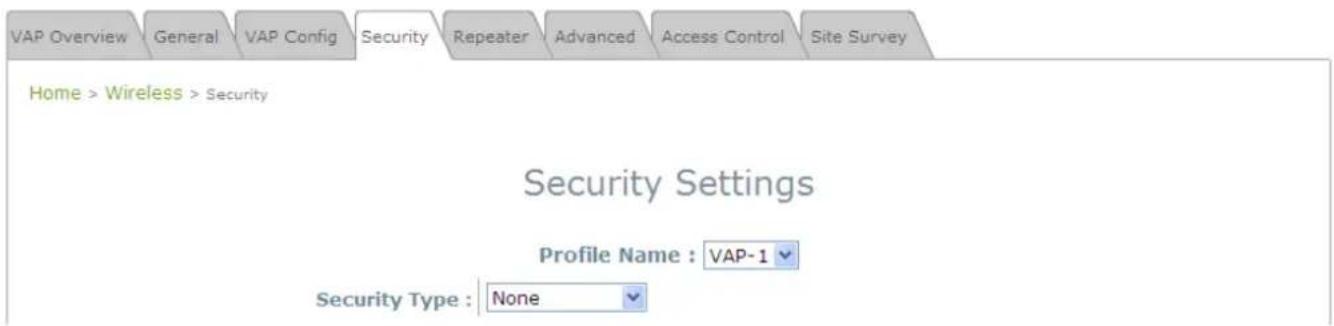
text_image
VAP Overview General VAP Config Security Repeater Advanced Access Control Site Survey Home > Wireless > Security Security Settings Profile Name : VAP-1 Security Type : NoneSecurity Settings Page (VAP-1 as shown for example)
Select the desired Security Type from the drop-down menu, which includes None, WEP, 802.1X, WPA-PSK, and WPA-RADIUS.
- None: Authentication is not required and data is not encrypted during transmission when this option is selected. This is the default setting as shown in the following figure.

text_image
VAP Overview General VAP Config Security Repeater Advanced Access Control Site Survey Home > Wireless > Security Security Settings Profile Name : VAP-1 Security Type : NoneSecurity Settings: None
- WEP: WEP (Wired Equivalent Privacy) is a data encryption mechanism with key length selected from 64-bit, 128-bit, or 152-bit.
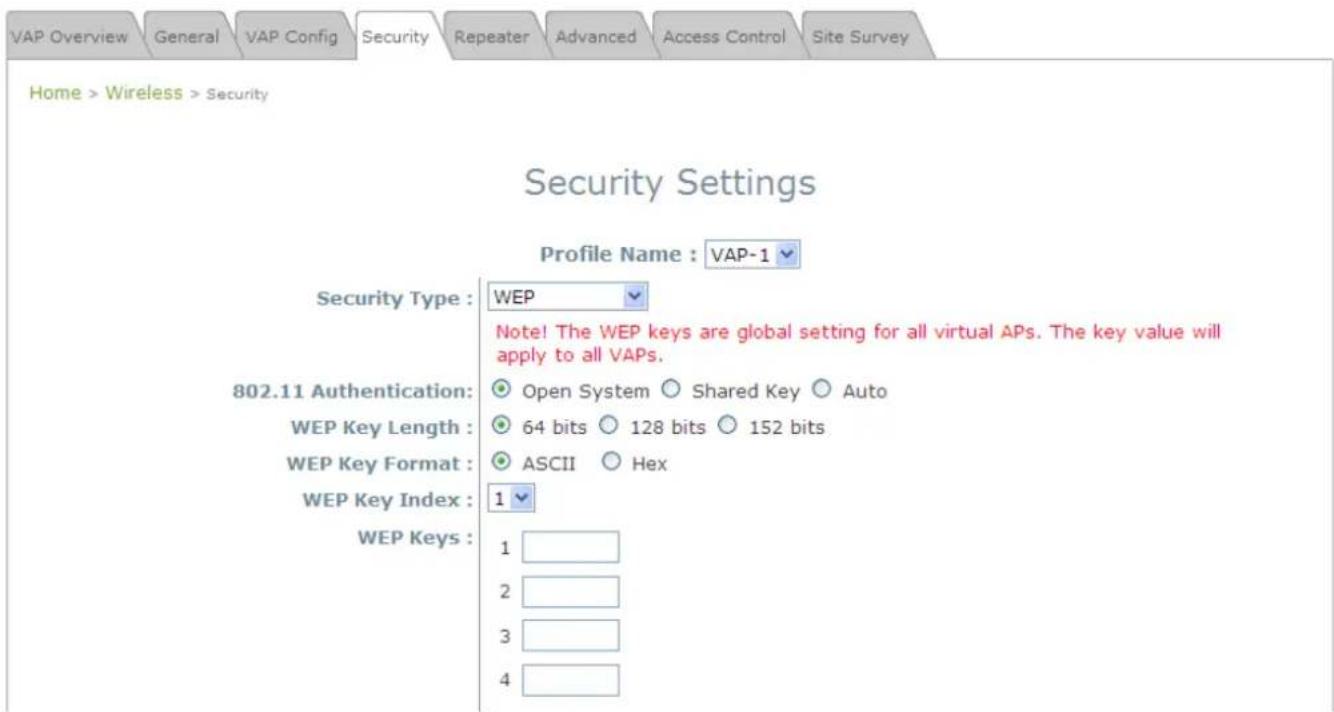
text_image
VAP Overview General VAP Config Security Repeater Advanced Access Control Site Survey Home > Wireless > Security Security Settings Profile Name : VAP-1 Security Type : WEP Note! The WEP keys are global setting for all virtual APs. The key value will apply to all VAPs. 802.11 Authentication: Open System Shared Key Auto WEP Key Length : 64 bits 128 bits 152 bits WEP Key Format : ASCII Hex WEP Key Index : 1 WEP Keys : 1 2 3 4Security Settings: WEP
802.11 Authentication: Select from Open System, Shared Key, or Auto.
WEP Key Length: Select from 64-bit, 128-bit, 152-bit key length.
WEP Key Format: Select from ASCII or Hex format for the WEP key.
➢ WEP Key Index: Select a key index from 1 through 4. The WEP key index is a number that specifies which WEP key is used for the encryption of wireless frames during data transmission.
➢ WEP Keys: Provide the pre-defined WEP key value; the system supports up to 4 sets of WEP keys.
- 802.1X: When 802.1X Authentication is selected, RADIUS authentication and enhanced dynamic WEP are provided.

text_image
VAP Overview General VAP Config Security Repeater Advanced Access Control Site Survey Home > Wireless > Security Security Settings Profile Name : VAP-1 Security Type : 802.1X Dynamic WEP : Disable Enable WEP Key Length : 64 bits 128 bits Rekeying Period : 300 second(s) Primary RADIUS Server : Host : ( Domain Name / IP Address ) Authentication Port : 1812 * Secret Key : Accounting Service : Disable Enable Accounting Port : 1813 * Accounting Interim Update Interval : 60 second(s)*Security Settings: 802.1X Authentication
Dynamic WEP Settings:
Dynamic WEP: For 802.1X security type, Dynamic WEP is always enabled to automatically generate WEP keys for encryption.
- WEP Key Length: Select from 64-bits or 128-bits key length.
- Rekeying Period: The time interval for the dynamic WEP key to be updated; the time unit is in second.
➢ RADIUS Server Settings:
○ Host: Enter the IP address or domain name of the RADIUS server.
- Authentication Port: The port number used by the RADIUS server. Specify a port number or use the default, 1812.
Secret Key: The secret key for the system to communicate with the RADIUS server.
- Accounting Service: Enabling this option allows accounting of login and logouts through the RADIUS server.
Accounting Port: The port number used by the RADIUS server for accounting purposes. Specify a port number or use the default, 1813.
- Accounting Interim Update Interval: The system will update accounting information to the RADIUS server every interval period.
- WPA-PSK: Provide shared key authenticaiton in WPA data encryption.
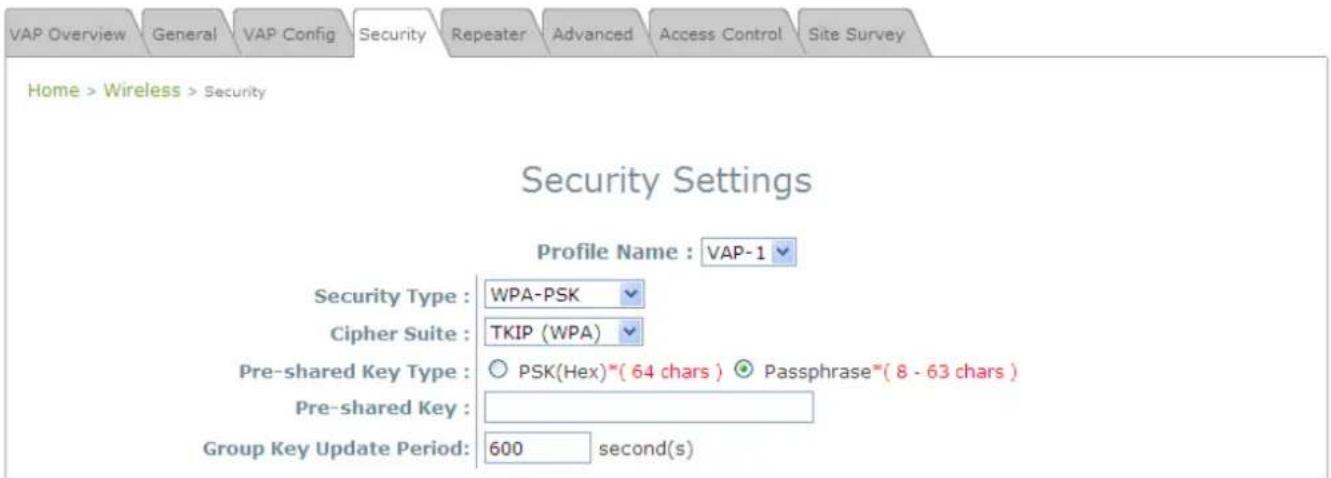
text_image
VAP Overview General VAP Config Security Repeater Advanced Access Control Site Survey Home > Wireless > Security Security Settings Profile Name : VAP-1 Security Type : WPA-PSK Cipher Suite : TKIP (WPA) Pre-shared Key Type : ○ PSK(Hex)^(64 chars ) ● Passphrase^(8 - 63 chars ) Pre-shared Key : Group Key Update Period: 600 second(s)Security Settings: WPA-PSK
➢ Cipher Suite: Select an encryption method from TKIP (WPA), AES (WPA), TKIP (WAP2), AES (WAP2), or Mixed.
➢ Pre-shared Key Type: Select a pre-shared key type: PSK (Hex) or Passphrase.
➢ Pre-shared Key: Enter the key value for the pre-shared key; the format of the key value depends on the key type selected.
➢ Group Key Update Period: The time interval for the Group Key to be renewed; the time unit is in seconds.
- WPA-RADIUS: Authenticate users by RADIUS and provide WPA data encryption.
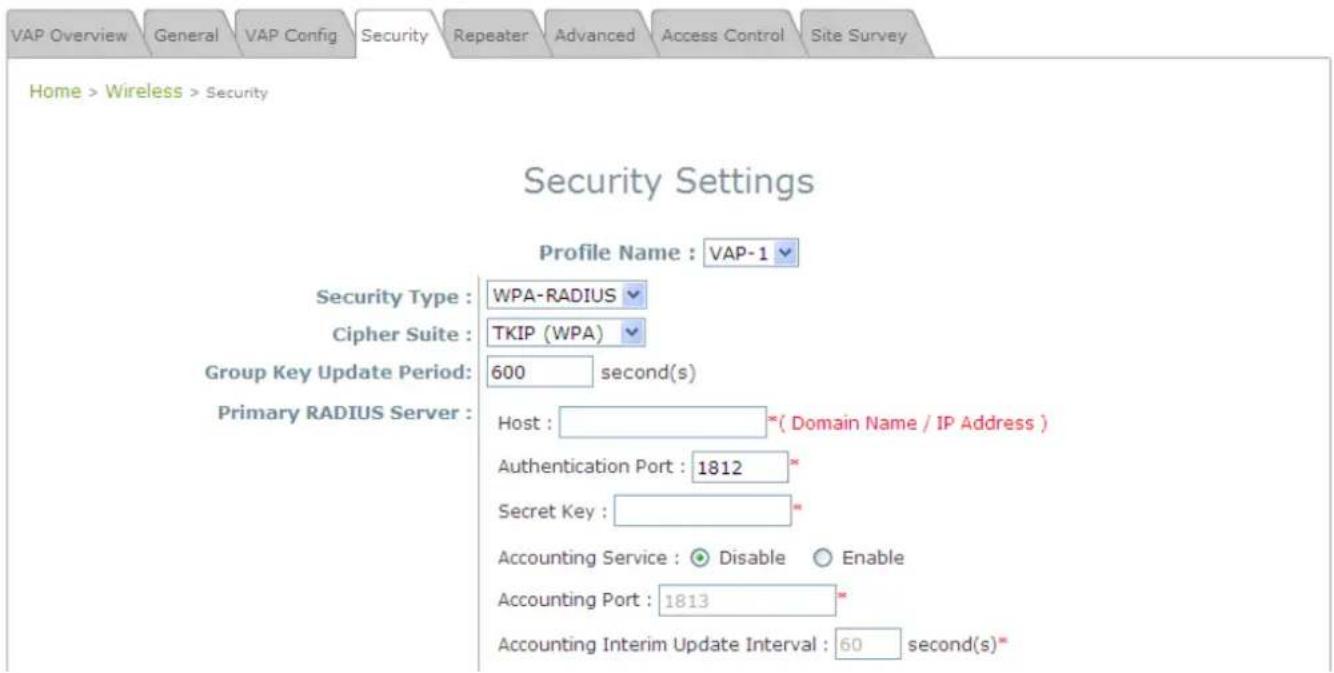
text_image
VAP Overview General VAP Config Security Repeater Advanced Access Control Site Survey Home > Wireless > Security Security Settings Profile Name : VAP-1 Security Type : WPA-RADIUS Cipher Suite : TKIP (WPA) Group Key Update Period: 600 second(s) Primary RADIUS Server : Host : *(Domain Name / IP Address ) Authentication Port : 1812 * Secret Key : Accounting Service : Disable Enable Accounting Port : 1813 * Accounting Interim Update Interval : 60 second(s)*Security Settings: WPA-RADIUS
WPA Settings:
○ Cipher Suite: Select an encryption method from TKIP (WPA), AES (WPA), TKIP (WAP2), AES (WAP2), or Mixed.
- Group Key Update Period: The time interval for the Group Key to be renewed; the time unit is in seconds.
➢ RADIUS Server Settings:
○ Host: Enter the IP address or domain name of the RADIUS server.
- Authentication Port: The port number used by the RADIUS server. Specify a port number or use the default, 1812.
Secret Key: The secret key for the system to communicate with the RADIUS server.
- Accounting Service: Enabling this option allows accounting of login and logouts through the RADIUS server.
- Accounting Port: The port number used by the RADIUS server for accounting purposes. Specify a port number or use the default, 1813.
- Accounting Interim Update Interval: The system will update accounting information to the RADIUS server every interval period.
When these configurations are finished and MAC restriction is not needed, click SAVE and then Reboot the system. Otherwise, click on the Overview tab and proceed with the next step.
Step 3: Configuring MAC ACL (Access Control List)
Clicking on the hyperlink corresponding with intended VAP in the MAC ACL column, the user will be brought to the Access Control Settings page.
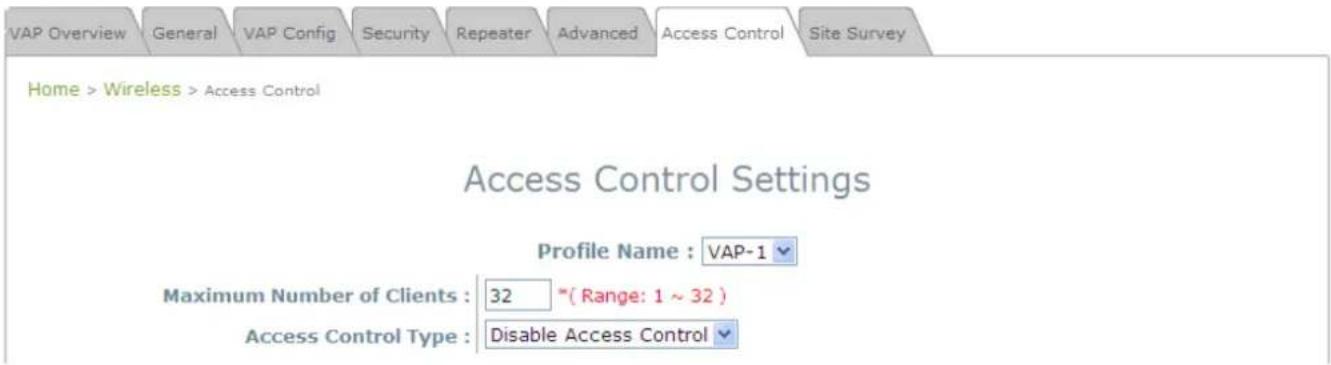
text_image
VAP Overview General VAP Config Security Repeater Advanced Access Control Site Survey Home > Wireless > Access Control Access Control Settings Profile Name : VAP-1 Maximum Number of Clients : 32 *(Range: 1 ~ 32) Access Control Type : Disable Access ControlAccess Control Settings Page
Please choose among Disable, Allow, Deny, and RADIUS ACL from the drop-down menu of Access Control Type.
1) Disable Access Control: This means that there is no restriction for client devices to access the system.
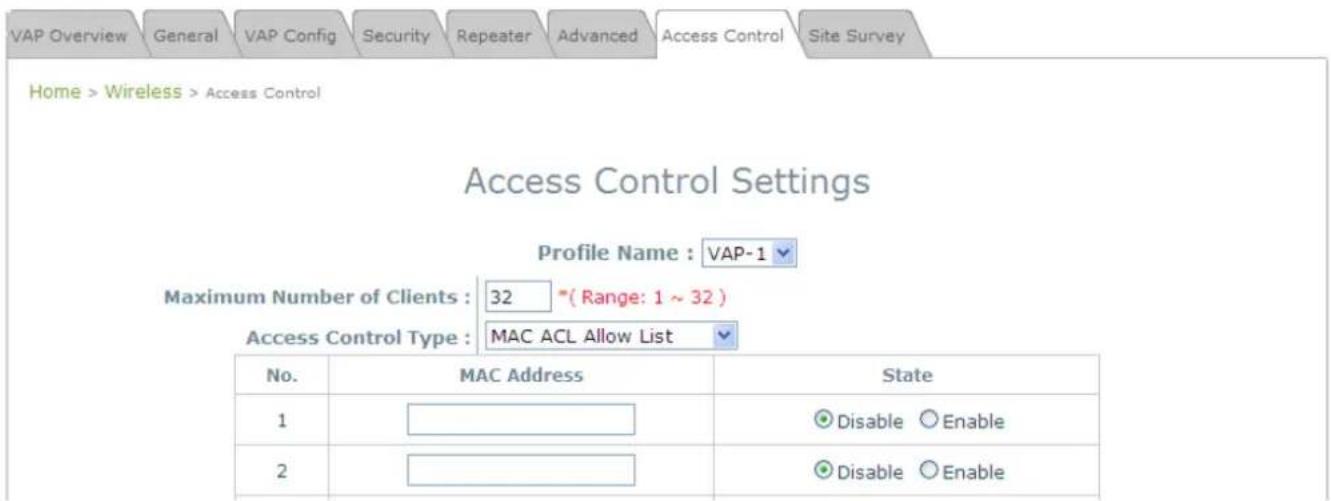
2) MAC ACL Allow List: This means that only the client devices (identified by their MAC addresses) listed in the Allow List (“allowed MAC addresses”) is granted with access to the system. The administrator can temporarily block any allowed MAC address by checking Disable, until the administrator renews the listed MAC.
text_image
VAP Overview General VAP Config Security Repeater Advanced Access Control Site Survey Home > Wireless > Access Control Access Control Settings Profile Name : VAP-1 Maximum Number of Clients : 32 *(Range: 1 ~ 32) Access Control Type : MAC ACL Allow List No. MAC Address State 1 2 Disable Enable 2 Disable EnableMAC ACL Allow List

An empty Allow List means that there are no allowed MAC addresses. Make sure at least the MAC of the modifying system is included (e.g. network administrator's computer)
3) MAC ACL Deny List: This means that all client devices are granted with access to the system except those listed in the Deny List ("denied MAC addresses"). The administrator can allow any denied MAC address to connect to the system temporarily by checking Enable.

text_image
VAP Overview General VAP Config Security Repeater Advanced Access Control Site SurveyHome > Wireless > Access Control
Access Control Settings

text_image
Profile Name : VAP-1 Maximum Number of Clients : 32 *(Range: 1 ~ 32 ) Access Control Type : MAC ACL Deny List| No. | MAC Address | State |
| 1 | Disable Enable | |
| 2 | Disable Enable |
MAC ACL Deny List
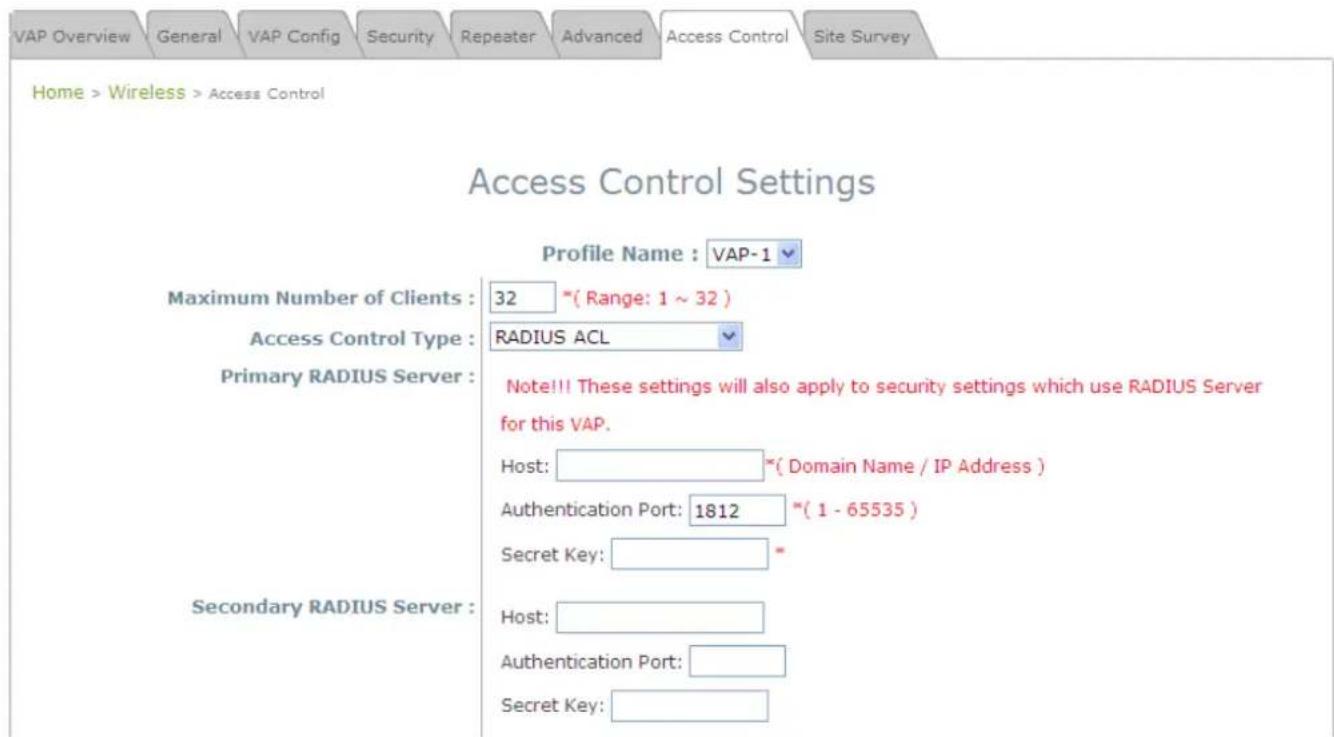
4) RADIUS ACL: Authenticate incoming MAC addresses by an external RADIUS server. When RADIUS ACL is selected, all incoming MAC addresses will be authenticated by an external RADIUS server. Please note that each VAP MAC ACL and its security type (shown on the Security Settings page) share the same RADIUS configuration.
text_image
VAP Overview General VAP Config Security Repeater Advanced Access Control Site Survey Home > Wireless > Access Control Access Control Settings Profile Name : VAP-1 Maximum Number of Clients : 32 *(Range: 1 ~ 32 ) Access Control Type : RADIUS ACL Primary RADIUS Server : Note!!! These settings will also apply to security settings which use RADIUS Server for this VAP. Host: *(Domain Name / IP Address ) Authentication Port: 1812 *(1 - 65535 ) Secret Key: * Secondary RADIUS Server : Host: Authentication Port: Secret Key:RADIUS ACL
Click SAVE and Reboot upon completing the related configurations to take effect.
Article VI. Create a WDS Bridge between two APs
WDS link creation will assist to extend network coverage where running wires is not an option, effectively transferring the traffics to the other end of WLAN/LAN through the EAP-200. Since this is a peer to peer connection, both EAP-200s will be configured by the same way.
Step 1: Make sure the Band and Channel are matched between the WDS peers
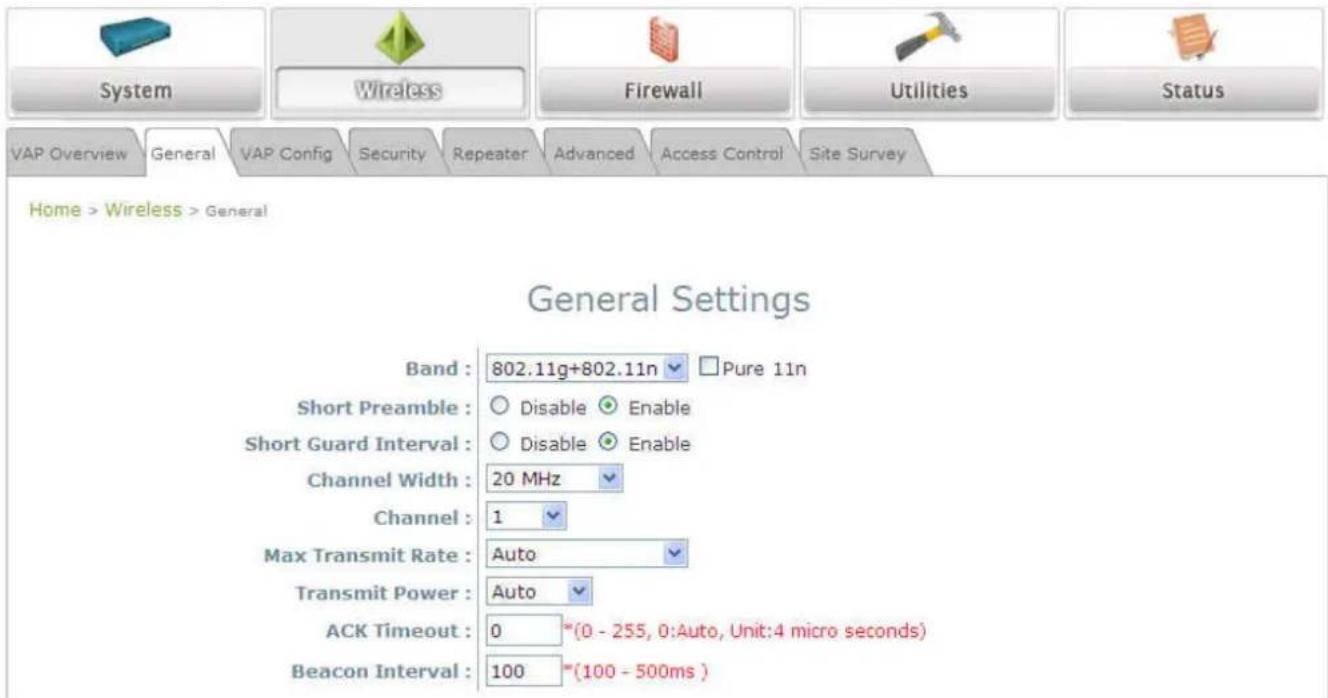
In order to create a valid WDS link, the two EAP-200s must be configured to use the same channel and band for their wireless settings. Click the Wireless icon and then General tab to go to the following page.
text_image
System Wireless Firewall Utilities Status VAP Overview General VAP Config Security Repeater Advanced Access Control Site Survey Home > Wireless > General General Settings Band : 802.11g+802.11n Pure 11n Short Preamble : Disable Enable Short Guard Interval : Disable Enable Channel Width : 20 MHz Channel : 1 Max Transmit Rate : Auto Transmit Power : Auto ACK Timeout : 0 *(0 - 255, 0:Auto, Unit:4 micro seconds) Beacon Interval : 100 *(100 - 500ms )Wireless General Settings Page
Please make sure both APs are using the same Band and Channel in order to establish a successful WDS link. Click SAVE if any changes have been made.
Step 2: Prevent Loops if Connecting Many APs
When many APs are linked in this manner, undesired loops may form to lower overall WLAN performance. To prevent such occurrence, please make sure Layer 2 STP is enabled.
To turn on this feature, please click on the System and then Network Interface tab.

text_image
General Network Interface Management GRE Tunnel CAPWAP Home > System > Network Interface Network Settings Mode : Static DHCP Renew IP Address : 192.168.1.1 * Netmask : 255.255.0.0 * Default Gateway : 192.168.1.2 * Primary DNS Server : 192.168.1.2 * Alternate DNS Server : Layer2 STP : Disable EnableNetwork Settings Page
Please select Enable in the field labeled Layer2 STP. This will prevent data from looping or a broadcast storm. Click SAVE when completed, and then Reboot to allow updated settings to take effect.
Article VII. Web Management Interface Configuration
This chapter will guide the user through the EAP-200's detailed settings. The following table shows all the User Interface (UI) functions of LevelOne's EAP-200 Enterprise Access Point. The Web Management Interface (WMI) is the page where the status is displayed, control is issued and parameters are configured. In the Web Management Interface; there are two main interface areas: Main Menu and Working Area. The Working Area occupies the major area of the WMI, displayed in the center of the interface. It is also referred to as the configuration page. The Main Menu, on the top of the WMI, allows the administrator to traverse to various management functions of the system. The management functions are grouped into branches: System, Wireless, Firewall, Utilities, and Status.
Table 1 EAP-200's Function Organization
| OPTION FUNCTION | |
| System | General |
| Network Interface | |
| Management | |
| GRE Tunnel | |
| CAPWAP | |
| Wireless | VAP Overview |
| General | |
| VAP Configuration | |
| Security | |
| Repeater | |
| Advanced | |
| Access Control | |
| Site Survey | |
| Firewall | Firewall List |
| Service | |
| Advanced | |
| Utilities | Change Password |
| Backup & Restore | |
| System Upgrade | |
| Reboot | |
| Upload Certificate | |
| Status | Overview |
| Associated Clients | |
| Repeater |
Note:
On each configuration page, the user may
Click SAVE to save the changes, but the user must reboot the system upon the completion of all configurations for the changes to take effect. Upon clicking SAVE, the following message will appear: "Some modification has been saved and will take effect after Reboot."
All online users will be disconnected during reboot or restart.
Section 7.01 7.1 System
Upon clicking on the System button, users can work on this section for general configurations of the devices (e.g. Time Setup, Network Configurations, and System Logs). This section includes the following functions: General, Network Interface, Management, GRE Tunnel and CAPWAP.
(a) 7.1.1 General

text_image
General Network Interface Management GRE Tunnel CAPWAP Home > System > General System Information Name : EAP200 * Description : Location : Time Device Time : 1970/01/01 01:39:09 Time Zone : (GMT+08:00)Taipei Time : Enable NTP Manually set up Set Date : ---- Year -- Month -- Day Set Time : -- Hour -- Min -- SecSystem Information Page
• System Information
For maintenance purpose, it is highly recommended to have the following information stated as clearly as possible:
Name: The system name used to identify this system.
➢ Description: Further information about the system (e.g. device model, firmware version, and active date).
➢ Location: The information on geographical location of the system for the administrator to locate the system easily.
- Time
➢ Device Time: Display the current time of the system.
Time Zone: Select an appropriate time zone from the drop-down list box.
Time: Synchronize the system time by NTP server or manual setup.
1) Enable NTP:
By selecting Enabled NTP, EAP-200 can synchronize its system time with the NTP server automatically. While this method is chosen, at least one NTP server's IP address or domain name must be provided.
Time

text_image
Device Time : 2000/01/03 04:32:49 Time Zone : (GMT+08:00)Taipei Time : Enable NTP Manually set up NTP Server 1 : * NTP Server 2 :NTP Time Configuration Fields
Generally networks would have a common NTP server (internal or external). If there is, use that one, otherwise locate a nearby NTP server on the web.
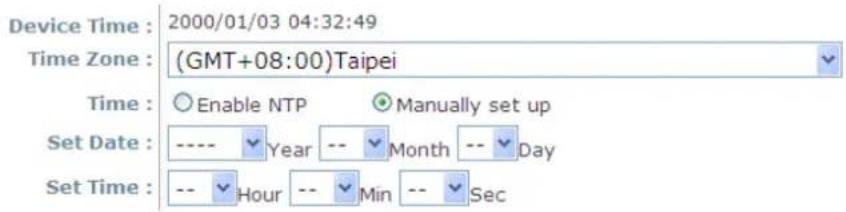
2) Manually set up:
By selecting Manually set up, the administrator can manually set the system date and time.
Time
text_image
Device Time : 2000/01/03 04:32:49 Time Zone : (GMT+08:00)Taipei Time : Enable NTP Manually set up Set Date : ---- Year -- Month -- Day Set Time : -- Hour -- Min -- SecManual Time Configuration Fields
- Set Date: Select the appropriate Year, Month, and Day from the drop-down menu.
- Set Time: Select the appropriate Hour, Min, and Sec from the drop-down menu.

Unless either Internet connection or NTP server may become unavailable, it is recommended to use NTP server for time synchronization because system time needs to be reconfigured upon reboot.
(b)7.1.2 Network Interface
On this page, the network settings of the device can be configured; fields with a red asterisk (i.e. IP Address, Netmask, Default Gateway, and Primary DNS Server) are mandatory.

Home > System > Network Interface
Network Settings

text_image
Mode : Static DHCP Renew IP Address : 192.168.1.1 * Netmask : 255.255.0.0 * Default Gateway : 192.168.1.2 * Primary DNS Server : 192.168.1.2 * Alternate DNS Server : Layer2 STP : Disable EnableNetwork Settings Page
• Mode: Determine the way to obtain the IP address, by DHCP or Static.
Static: The administrator can manually set up the static LAN IP address. All required fields are marked with a red asterisk.
- IP Address: The IP address of the LAN port.
- Netmask: The Subnet mask of the LAN port.
- Default Gateway: The Gateway IP address of the LAN port.
o Primary DNS Server: The IP address of the primary DNS (Domain Name System) server.
○ Alternate DNS Server: The IP address of the substitute DNS server.
DHCP: This configuration type is applicable when the system is connected to a network with the presence of a DHCP server; all related IP information required will be provided by the DHCP server automatically.
- Layer 2 STP: If the EAP-200 is set up to bridge other network components, this option can be enabled to prevent undesired loops because broadcasting storm may occur in a multi-switch environment where broadcast packets are forwarded in an endless loop between switches. Moreover, a broadcast storm may consume most of available system resources in addition to available bandwidth. Thus, enabling the Layer 2 STP can lower such undesired occurrence and derive the best available data path for network communication.
(c) 7.1.3 Management
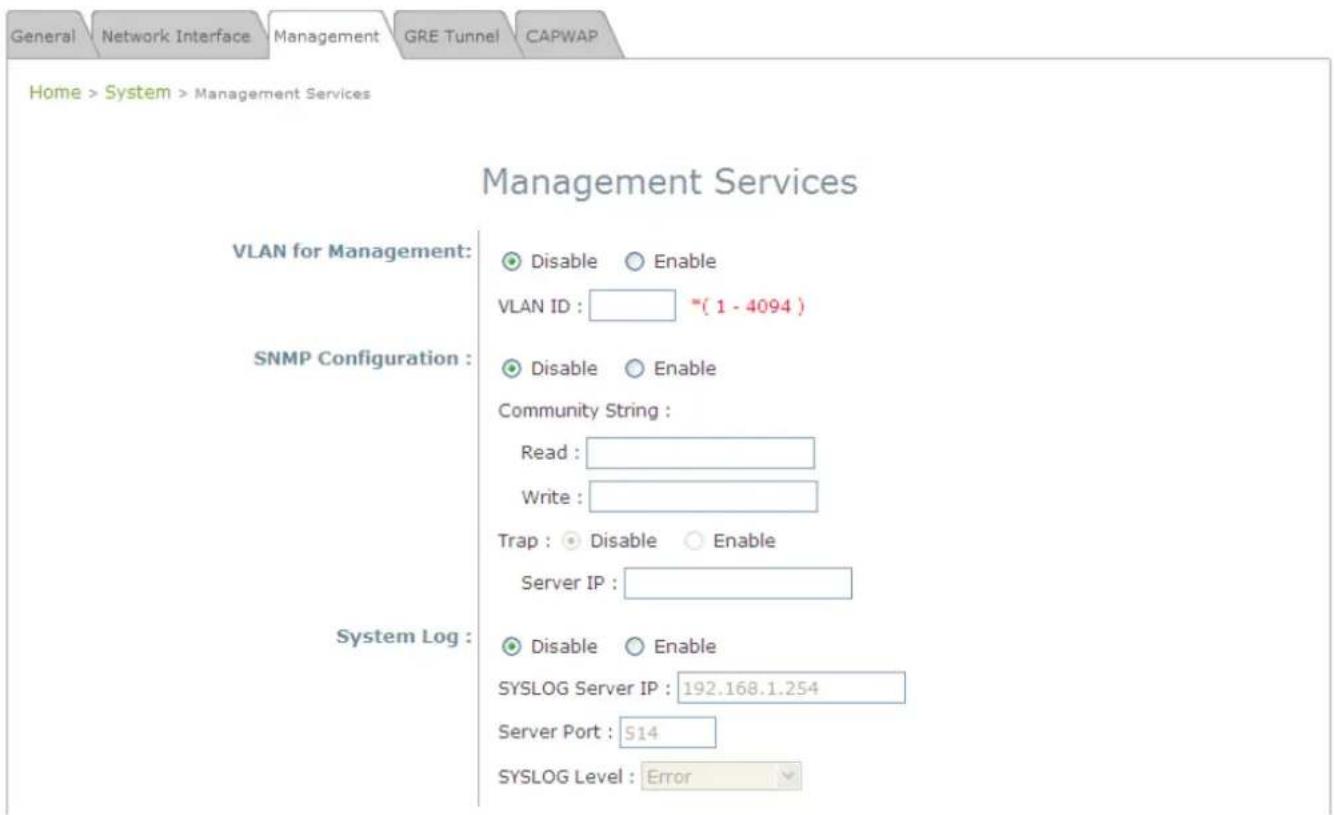
The management services (e.g. VLAN for Management, SNMP, and System log) can be configured here.
text_image
General Network Interface Management GRE Tunnel CAPWAP Home > System > Management Services Management Services VLAN for Management: ● Disable ○ Enable VLAN ID : ____(1 - 4094) SNMP Configuration : ● Disable ○ Enable Community String : Read : ____ Write : ____ Trap : ● Disable ○ Enable Server IP : ____ System Log : ● Disable ○ Enable SYSLOG Server IP : 192.168.1.254 Server Port : 514 SYSLOG Level : ErrorManagement Services Page
- VLAN for Management: When it is enabled, management traffics from the system will be tagged with a VLAN ID. In other words, administrator who wants to access the WMI must send management traffics with the same VLAN ID such as connecting to a specific VAP with the same VLAN ID. Enter a value between 1 and 4094 for the VLAN ID if the option is enabled.
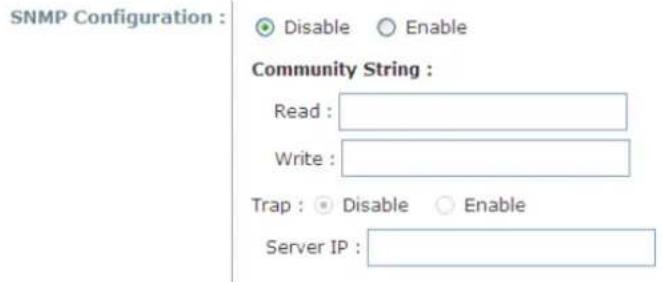
- SNMP Configuration: By enabling SNMP function, the administrator can obtain the system information remotely.
text_image
SNMP Configuration : Disable Enable Community String : Read : Write : Trap : Disable Enable Server IP :SNMP Configuration Fields
➢ Enable/ Disable: Enable or Disable this function.
Community String: The community string is required when accessing the Management Information Base (MIB) of the system.
- Read: Enter the community string to access the MIB with Read privilege.
Write: Enter the community string to access the MIB with Write privilege.
Trap: When enabled, events on Cold Start, Interface UP & Down, and Association & Disassociation can be reported to an assigned server.
○ Enable/ Disable: Enable or Disable this function.
- Server IP Address: Enter the IP address of the assigned server for receiving the trap report.
- System Log: By enabling this function, specify an external SYSLOG server to accept SYSLOG messages from the system remotely.

text_image
System Log : Disable Enable SYSLOG Server IP : 192.168.1.254 Server Port : 514 SYSLOG Level : ErrorSystem Log Fields
➢ Enable/ Disable: Enable or Disable this function.
Server IP: The IP address of the Syslog server that will receive the reported events.
Server Port: The port number of the Syslog server.
➢ Syslog Level: Select the desired level of received events from the drop-down menu.
When GRE tunnel is created between EAP-200 and the controller, EAP-200 can be logically deployed into the Controller's managed network regardless of its physical location. If the tunnel is created from WHG series controllers, all of the configuration should be performed on the Controller side. It is meaningless to configure GRE tunnel settings from the EAP-200 side. Once the settings are applied from the Controller side, the applied settings such as Key string will be passed to the corresponding EAP-200 and its WMI page will automatically open to confirm the changes. Click Restart link and EAP-200 will restart to activate the tunnel. A new window will automatically open and display the tunnel settings from the AP side which is passed from the Controller. Click the Reboot link to apply and activate the settings to AP. Please refer to your WHG manual for more information regarding AP management with tunnels.

text_image
General Network Interface Management GRE Tunnel CAPWAP Home > System > Management Services GRE Tunnel Configuration GRE Tunnel : Disable Enable Remote IP : Key : Interface : VAP1 VAP2 VAP3 VAP4 VAP5 VAP6 VAP7 VAP8 WDS1 WDS2 WDS3 WDS4• GRE Tunnel: To enable, click Enable of GRE Tunnel.
Remote IP: Enter the IP address of the Controller.
Key: Set up a password for the connection.
- Interface: Select a VAP or WDS that its traffic will pass through the GRE Tunnel between APs and controller. For how to enable VAP items, please refer the section 7.2.3 VAP Configuration for reference.
(e) 7.1.5 CAPWAP
CAPWAP is a standard interoperable protocol that enables a controller to manage a collection of wireless access points. There are 5 ways of discovery, DNS SRV, DHCP option, Broadcast, Multicast, and Static.

text_image
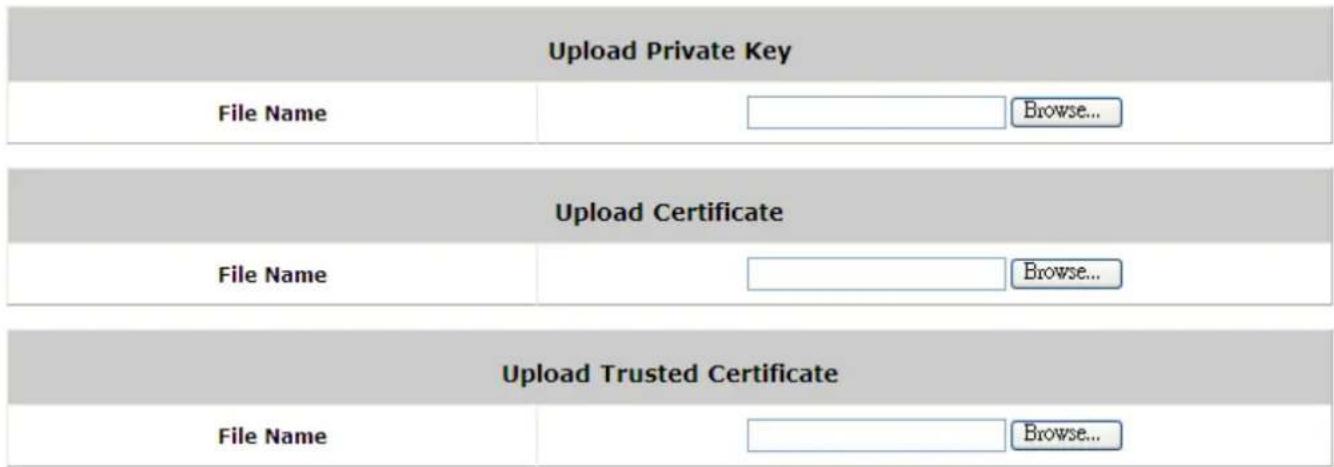
General Network Interface Management GRE Tunnel CAPWAP Home > System > CAPWAP CAPWAP Configuration CAPWAP : ○ Disable ○ Enable Certificate Date Check: ○ Disable ○ Enable Manage Certificates DNS SRV Discovery : ○ Disable ○ Enable Domain Name Suffix : DHCP Option Discovery : ○ Disable ○ Enable Broadcast Discovery : ○ Disable ○ Enable Multicast Discovery : ○ Disable ○ Enable Pri. AC Address Remark 1 _________ 2 _________ 3 _________ 4 _________ 5 _________- Certificate Date Check: To enable this item, select Enable and click Manage Certificates to enter the page of Upload Certificate. Please refer to the section 7.4.4. Upload Certificate.
• DNS SRV Discovery: The way of using DNS SRV to discover acess controller.
Domain Name Suffix: Enter the suffix of the access controller, such as example.com.
• DHCP Option Discovery: The way of using DHCP option to discover access controller.
- Broadcast Discovery: The way of using Broadcast to discover access controller.
• Multicast Discovery: The way of using muticast to discover access controller.
• Static Discovery: The way of using Static approach to discover access controller.
AC Address: The IP address of access controller. If it can not discover the first AC, it will try to discover the second AC.
Upload Certificate
text_image
Upload Private Key File Name Browse... Upload Certificate File Name Browse... Upload Trusted Certificate File Name Browse...Use Default Certificate
Manage Certificates
Section 7.02 7.2 Wireless
This section includes the following functions: VAP Overview, General, VAP Configuration, Security, Repeater, Advanced, Access Control, and Site Survey. EAP-200 supports up to eight Virtual Access Points (VAPs). Each VAP can have its own settings (e.g. ESSID, VLAN ID, security settings, etc.). With such VAP capabilities, different levels of service can be configured to meet network requirements.
(a) 7.2.1 VAP Overview
An overall status is collected on this page, including ESSID, State, Security Type, MAC ACL, and Advanced Settings, where EAP-200 features 8 VAPs with respective settings. In this table, please click on the hyperlink to further configure each individual VAP.

text_image
VAP Overview General VAP Config Security Repeater Advanced Access Control Site SurveyHome > Wireless > VAP Overview
VAP Overview
| VAP No. | ESSID | State | Security Type | MAC ACL | Advanced Settings |
| 1 | EAP200-1 | Enabled | None | Disabled | Edit |
| 2 | EAP200-2 | Disabled | None | Disabled | Edit |
| 3 | EAP200-3 | Disabled | None | Disabled | Edit |
| 4 | EAP200-4 | Disabled | None | Disabled | Edit |
| 5 | EAP200-5 | Disabled | None | Disabled | Edit |
| 6 | EAP200-6 | Disabled | None | Disabled | Edit |
| 7 | EAP200-7 | Disabled | None | Disabled | Edit |
| 8 | EAP200-8 | Disabled | None | Disabled | Edit |
VAP Overview Page
- State: The hyperlink showing Enable or Disable connects to the VAP Configuration page.

text_image
VAP Overview General VAP Config Security Repeater Advanced Access Control Site Survey Home > Wireless > VAP Config VAP Configuration Profile Name : VAP-1 VAP : Disable Enable Profile Name : VAP-1 ESSID : EAP200-1 VLAN ID : Disable Enable VLAN ID : " ( 1 - 4094 )VAP – State Page
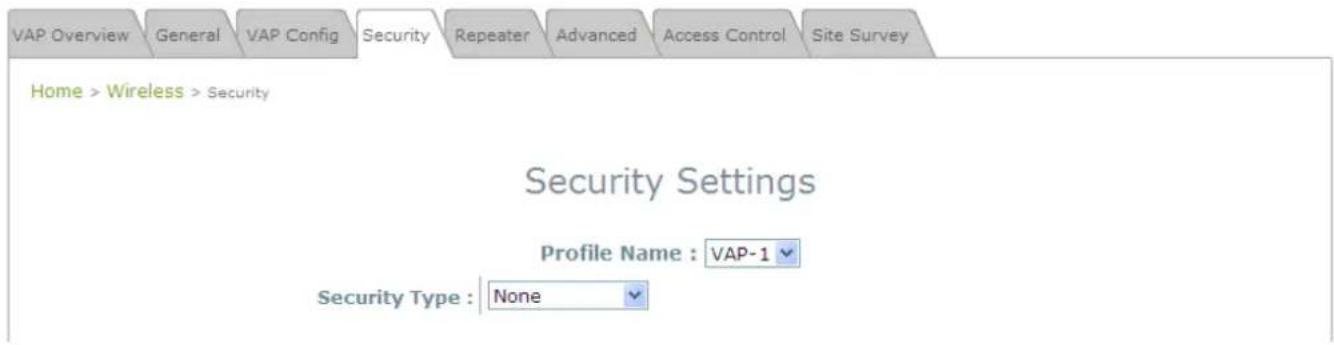
- Security Type: The hyperlink showing the security type connects to the Security Settings Page.
text_image
VAP Overview General VAP Config Security Repeater Advanced Access Control Site Survey Home > Wireless > Security Security Settings Profile Name : VAP-1 Security Type : NoneVAP – Security Type Page
- MAC ACL: The hyperlink showing Allow or Disable connects to the Access Control Settings Page.
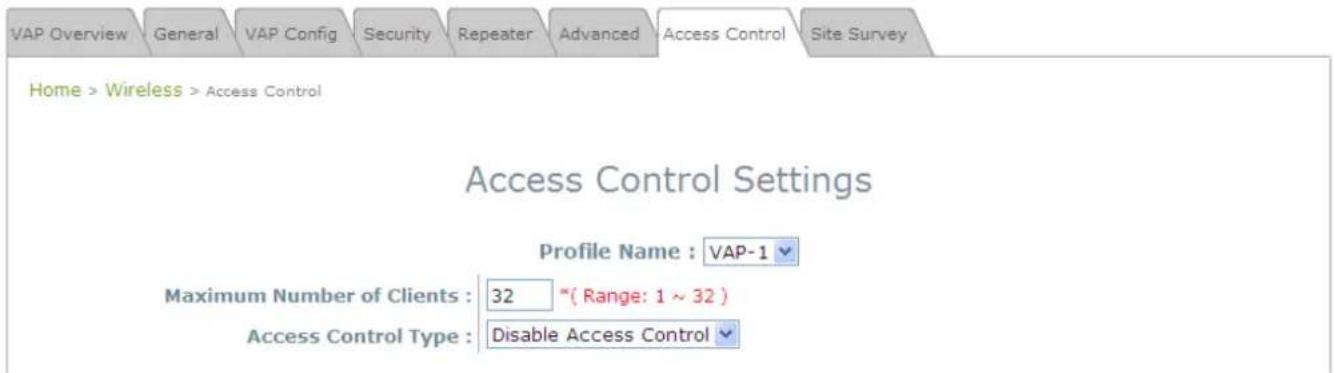
text_image
VAP Overview General VAP Config Security Repeater Advanced Access Control Site Survey Home > Wireless > Access Control Access Control Settings Profile Name : VAP-1 Maximum Number of Clients : 32 *(Range: 1 ~ 32) Access Control Type : Disable Access ControlVAP - MAC ACL Page
- Advanced Settings: The advanced settings hyperlink connects to the Advanced Wireless Settings Page.
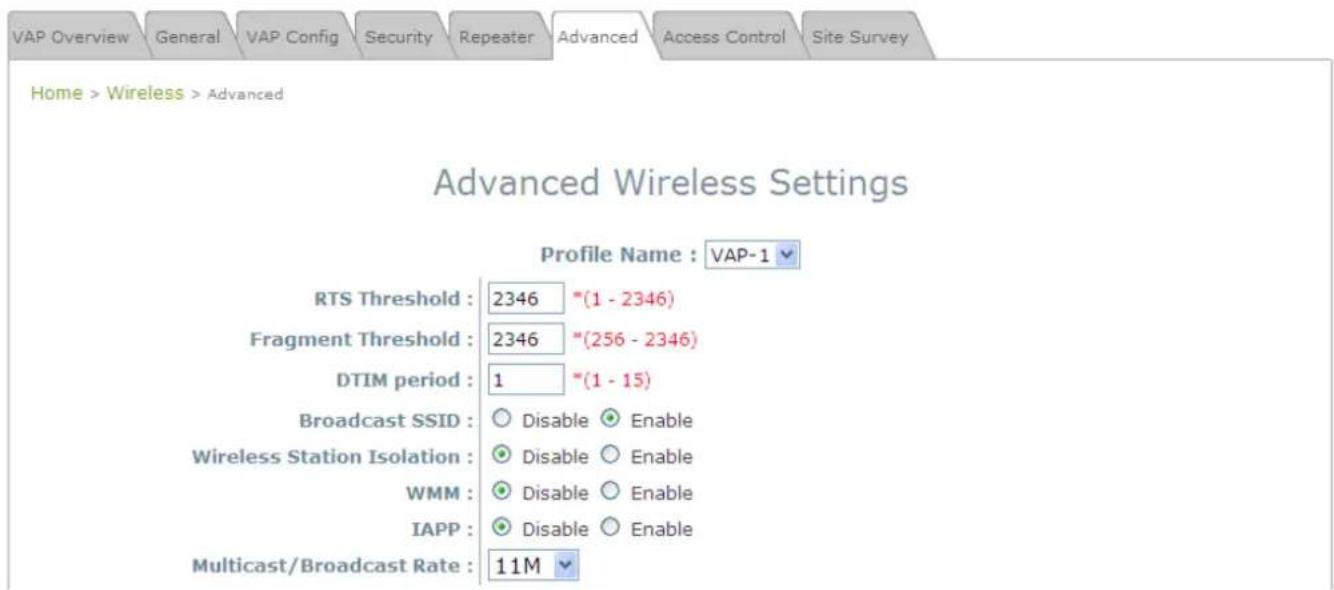
text_image
VAP Overview General VAP Config Security Repeater Advanced Access Control Site Survey Home > Wireless > Advanced Advanced Wireless Settings Profile Name : VAP-1 RTS Threshold : 2346 "(1 - 2346) Fragment Threshold : 2346 "(256 - 2346) DTIM period : 1 "(1 - 15) Broadcast SSID : ○ Disable ○ Enable Wireless Station Isolation : ○ Disable ○ Enable WMM : ○ Disable ○ Enable IAPP : ○ Disable ○ Enable Multicast/Broadcast Rate : 11MVAP – Advanced Settings Page
(b)7.2.2 General
AP's general wireless settings can be configured here:

text_image
VAP Overview General VAP Config Security Repeater Advanced Access Control Site SurveyHome > Wireless > General
General Settings
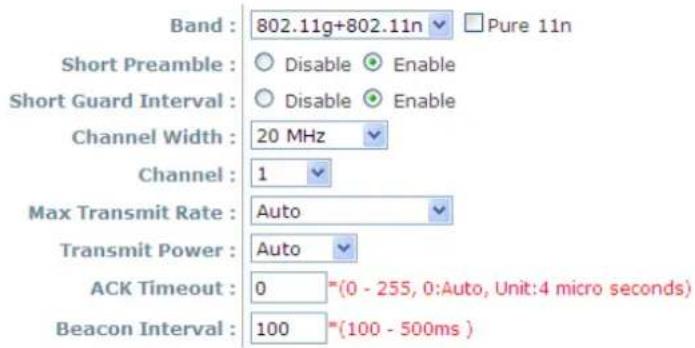
text_image
Band : 802.11g+802.11n □Pure 11n Short Preamble : ○ Disable ● Enable Short Guard Interval : ○ Disable ● Enable Channel Width : 20 MHz Channel : 1 Max Transmit Rate : Auto Transmit Power : Auto ACK Timeout : 0 *(0 - 255, 0:Auto, Unit:4 micro seconds) Beacon Interval : 100 *(100 - 500ms )AP General Settings Page
- Band: Select an appropriate wireless band: 802.11b, 802.11g, 802.11b+802.11g, 802.11g+802.11n or select Disable if the wireless function is not required.
Pure 11n: Enable 802.11n network only. - Short Preamble: The short preamble with a 56-bit synchronization field can improve WLAN transmission efficiency. Select Enable to use Short Preamble or Disable to use Long Preamble with a 128-bit synchronization field.
- Short Guard Interval (available when Band is 802.11g+802.11n): The guard interval is the space between symbols (characters) being transmitted to eliminate inter-symbol interference. In order to further boost throughput with 802.11n, short guard interval is half of what it used to be; please select Enable to use Short Guard Interval or Disable to use normal Guard Interval.
- Channel Width (available when Band is 802.11g+802.11n): Double channel bandwidth to 40 MHz is supported to enhance throughput.
- Channel: Select the appropriate channel from the drop-down menu to correspond with your network settings, for example, Channel 1-11 is available in North American and Channel 1-13 in Europe, or choose the default Auto.
- Max Transmit Rate: The maximum wireless transmit rate can be selected from the drop-down menu. The system will use the highest possible rate when Auto is selected.
- Transmit Power: The signal strength transmitted from the system can be selected among Auto, Highest, High, Medium, Low, and Lowest from the drop-down menu.
- ACK Timeout: It indicates a period of time that the system waits for an Acknowledgement frame sent back from a station without retransmission. In other words, upon timeout, if the Acknowledgement frame is still not received, the frames will be retransmitted. This option can be used to tune network performance for extended coverage. For regular indoor deployments, please keep the default setting.
- Beacon Interval (ms): The entered amount of time indicates how often the beacon signal will be sent
from the access point.
**Due to RF regulation in different nations, available values in the above table will differ.
Table 2 RF Configurations (under normal circumstances in certain countries)
| Band Channel Rate Power | |||
| Disable N/A N/A N/A | |||
| 802.11a | 36, 40, 44, 48, 52, 56, 60, 64, 100, 104, 108, 112, 116, 120, 124, 128, 132, 136, 140 | 6M, 9M, 12M, 18M, 24M, 36M, 48M, 54M | Auto, Lowest, Low, Medium, High, Highest |
| 802.11b | 1, 2, 3, 4, 5, 6, 7, 8, 9, 10, 11, 12, 13 | 1M, 2M, 5.5M, 11M | |
| 802.11g | 1, 2, 3, 4, 5, 6, 7, 8, 9, 10, 11, 12, 13 | 6M, 9M, 12M, 18M, 24M, 36M, 48M, 54M | |
| 802.11b+802.11g | 1, 2, 3, 4, 5, 6, 7, 8, 9, 10, 11, 12, 13 | 1M, 2M, 5.5M, 6M, 9M, 11M, 12M, 18M, 24M, 36M, 48M, 54M | |
| 802.11a+802.11n | 36, 40, 44, 48, 52, 56, 60, 64, 100, 104, 108, 112, 116, 120, 124, 128, 132, 136, 140 | 6M, 9M, 12M,18M, 24M, 36M, 48M, 54M, MCS0~15 | |
| 802.11n+802.11g | 1, 2, 3, 4, 5, 6, 7, 8, 9, 10, 11, 12, 13 | 1M, 2M, 5.5M, 11M, 12M, 18M, 24M, 36M, 48M, 54M, MCS0~15 | |
(c) 7.2.3 VAP Configuration
This section provides configuration of each Virtual Access Point with settings such as Profile Name, ESSID, and VLAN ID.
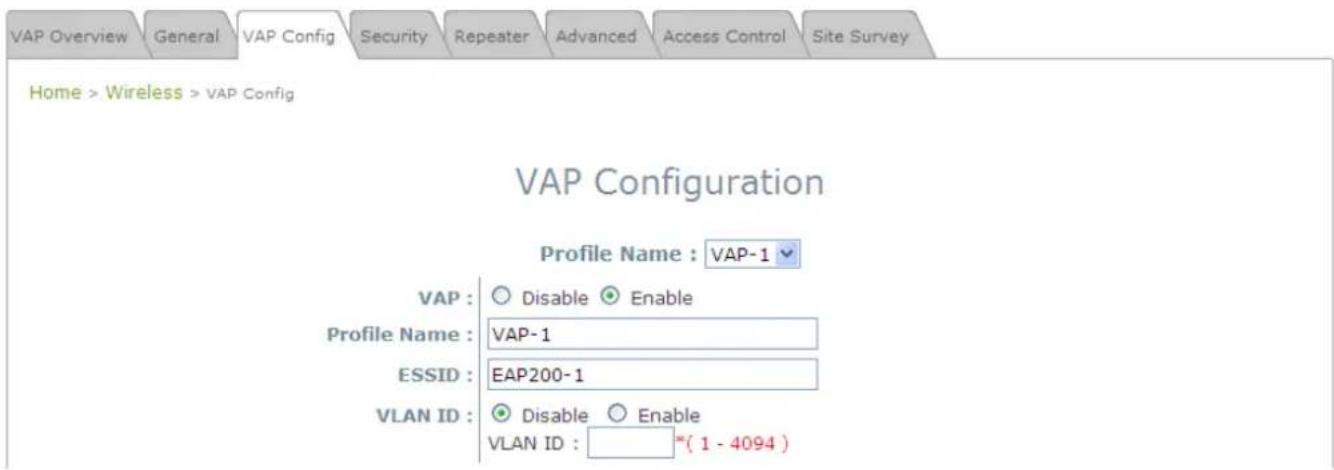
text_image
VAP Overview General VAP Config Security Repeater Advanced Access Control Site Survey Home > Wireless > VAP Config VAP Configuration Profile Name : VAP-1 VAP : Disable Enable Profile Name : VAP-1 ESSID : EAP200-1 VLAN ID : Disable Enable VLAN ID : ( 1 - 4094 )VAP Configuration Page
To enable specific VAP, select the VAP from the drop-down list of Profile Name. The basic settings of each VAP are collected in the profile as follows:
• VAP: Enable or Disable this VAP.
- Profile Name: The profile name of specific VAP for identity / management purposes.
- ESSID: ESSID (Extended Service Set ID) serves as an identifier for clients to associate with the specific VAP. It can be coupled with different service level like a variety of wireless security types.
- VLAN ID: EAP-200 supports tagged VLANs (virtual LANs). To enable VLAN function, each VAP shall be given a unique VLAN ID with valid values ranging from 1 to 4094.
(d) 7.2.4 Security
EAP-200 supports various wireless authentication and data encryption methods in each VAP profile. With this, the administrator can provide different service levels to clients. The security type includes None, WEP, 802.1X, WPA-PSK, and WPA-RADIUS.
- None: Authentication is not required and data is not encrypted during transmission when this option is selected. This is the default setting as shown in the following figure.

text_image
VAP Overview General VAP Config Security Repeater Advanced Access Control Site Survey Home > Wireless > Security Security Settings Profile Name : VAP-1 Security Type : NoneSecurity Settings: None
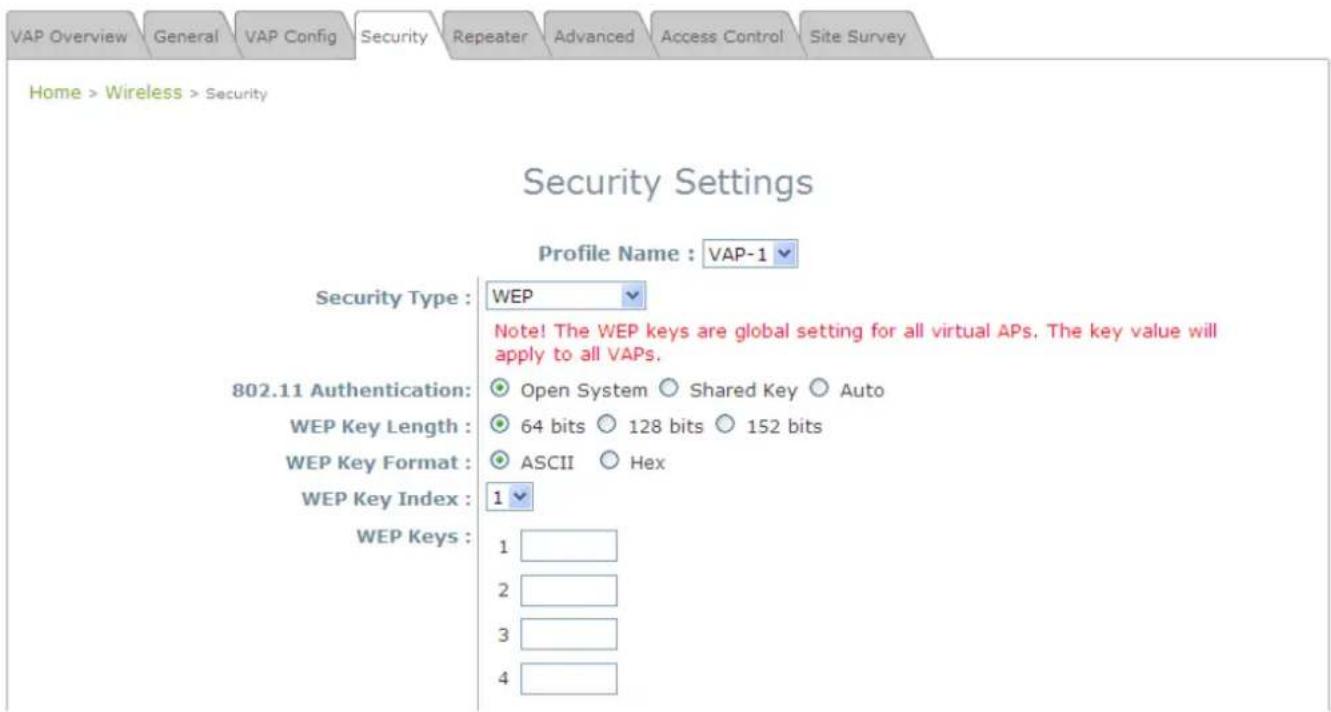
- WEP: WEP (Wired Equivalent Privacy) is a data encryption mechanism based on a 64-bit, 128-bit, or 152-bit shared key algorithm.
text_image
VAP Overview General VAP Config Security Repeater Advanced Access Control Site Survey Home > Wireless > Security Security Settings Profile Name : VAP-1 Security Type : WEP Note! The WEP keys are global setting for all virtual APs. The key value will apply to all VAPs. 802.11 Authentication: Open System Shared Key Auto WEP Key Length : 64 bits 128 bits 152 bits WEP Key Format : ASCII Hex WEP Key Index : 1 WEP Keys : 1 2 3 4Security Settings: WEP
802.11 Authentication: Select from Open System, Shared Key, or Auto.
➢ WEP Key Length: Select from 64-bit, 128-bit, 152-bit key length.
➢ WEP Key Format: Select from ASCII or Hex format for the WEP key.
➢ WEP Key Index: Select a key index from 1\~4. The WEP key index is a number that specifies which WEP key will be used for the encryption of wireless frames during data transmission.
➢ WEP Keys: Provide the pre-defined WEP key value; the system supports up to 4 sets of WEP keys.
- 802.1X: When 802.1X Authentication is selected, RADIUS authentication and Dynamic WEP are provided.

text_image
VAP Overview General VAP Config Security Repeater Advanced Access Control Site Survey Home > AP > Security Security Settings Profile Name : VAP-1 Security Type : 802.1X Dynamic WEP : Disable Enable WEP Key Length : 64 bits 128 bits Rekeying Period : 300 second(s) Primary RADIUS Server : Host : ( Domain Name / IP Address ) Authentication Port : 1812 * Secret Key : Accounting Service : Disable Enable Accounting Port : 1813 * Accounting Interim Update Interval : 60 second(s)* Secondary RADIUS Server : Host: ( Domain Name / IP Address )Security Settings: 802.1X Authentication
Dynamic WEP Settings:
- Dynamic WEP: For 802.1X security type, Dynamic WEP is always enabled to automatically generate WEP keys for encryption.
- WEP Key Length: Select from 64-bit or 128-bit key length.
- Re-keying Period: The time interval for the dynamic WEP key to be updated; the time unit is in second.
➢ RADIUS Server Settings (Primary/Secondary):
○ Host: Enter the IP address or domain name of the RADIUS server.
- Authentication Port: The port number used by the RADIUS server. Specify a port number or use the default, 1812.
Secret Key: The secret key for the system to communicate with the RADIUS server.
- Accounting Service: Enabling this option allows accounting of login and logouts through the RADIUS server.
- Accounting Port: The port number used by the RADIUS server for accounting purposes. Specify a port number or use the default, 1813.
- Accounting Interim Update Interval: The system will update accounting information to the RADIUS server every interval period.
- WPA-PSK: WPA-PSK (Wi-Fi Protected Access Pre-shared Key) is a pre-shared key authentication method, a special mode of WPA.

text_image
VAP Overview General VAP Config Security Repeater Advanced Access Control Site Survey Home > AP > Security Security Settings Profile Name : VAP-1 Security Type : WPA-PSK Cipher Suite : TKIP (WPA) Pre-shared Key Type : ○ PSK(Hex)*( 64 chars ) ● Passphrase*( 8 - 63 chars ) Pre-shared Key : Group Key Update Period: 600 second(s)Security Settings: WPA-PSK
➢ Cipher Suite: Select an encryption method from TKIP (WPA), AES (WPA), TKIP (WAP2), AES (WAP2), or Mixed.
➢ Pre-shared Key Type: Select a pre-shared key type: PSK (Hex) or Passphrase.
➢ Pre-shared Key: Enter the key value for the pre-shared key; the format of the key value depends on the key type selected.
➢ Group Key Update Period: The time interval for the Group Key to be renewed; the time unit is in seconds.
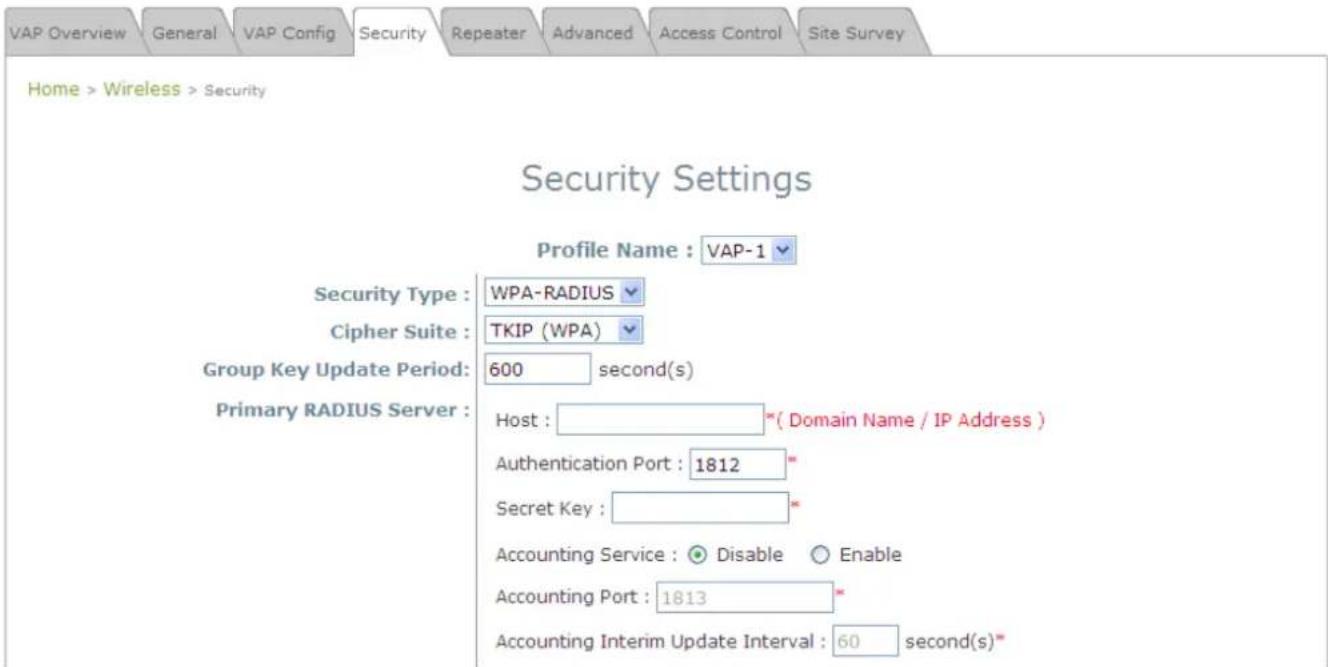
WPA-RADIUS: If this option is selected, the RADIUS authentication and data encryption will be both enabled.
text_image
VAP Overview General VAP Config Security Repeater Advanced Access Control Site Survey Home > Wireless > Security Security Settings Profile Name : VAP-1 Security Type : WPA-RADIUS Cipher Suite : TKIP (WPA) Group Key Update Period: 600 second(s) Primary RADIUS Server : Host : ____(Domain Name / IP Address ) Authentication Port : 1812 * Secret Key : Accounting Service : ☑ Disable ○ Enable Accounting Port : 1813 * Accounting Interim Update Interval : 60 second(s)*Security Settings: WPA-RADIUS
WPA Settings:
- Cipher Suite: Select an encryption method from TKIP (WPA), AES (WPA), TKIP(WAP2), AES (WAP2), or Mixed.
- Group Key Update Period: The time interval for the Group Key to be renewed; the time unit is in seconds.
➢ RADIUS Server Settings (Primary/Secondary):
○ Host: Enter the IP address or domain name of the RADIUS server.
- Authentication Port: The port number used by the RADIUS server. Specify a port number or use the default, 1812.
Secret Key: The secret key for the system to communicate with the RADIUS server.
- Accounting Service: Enabling this option allows accounting of login and logouts through the RADIUS server.
- Accounting Port: The port number used by the RADIUS server for accounting purposes. Specify a port number or use the default, 1813.
- Accounting Interim Update Interval: The system will update accounting information to the RADIUS server every interval period.
(e) 7.2.5 Repeater
To extend wireless network coverage, EAP-200 supports 3 options of Repeater type, None, WDS or Universal Repeater; selecting None will turn off this function.
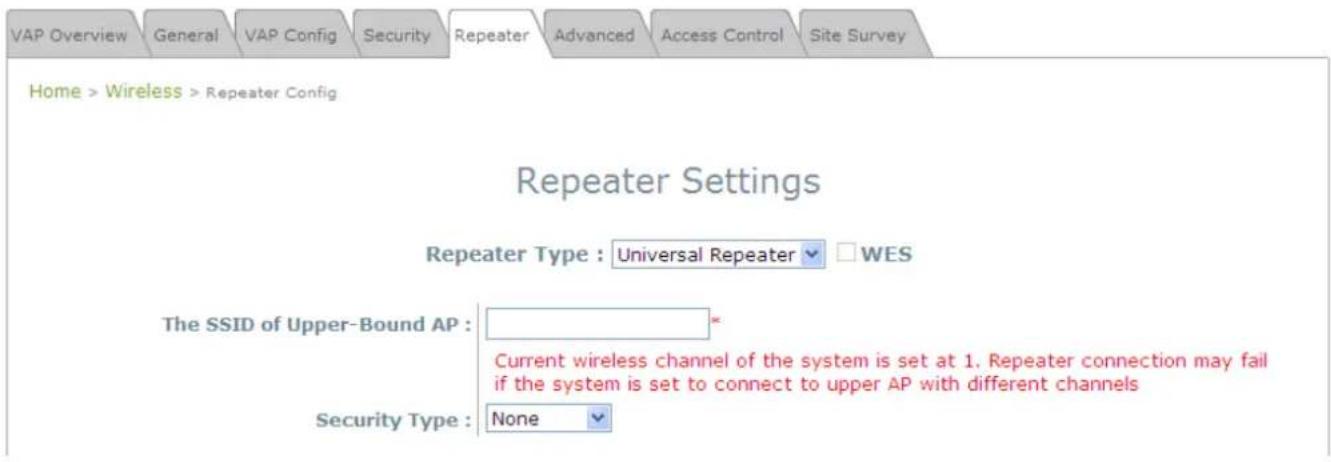
> Universal Repeater
If Universal Repeater is selected, please provide the SSID of upper-bound AP for uplink connection; Security Type (None, WEP, or WPA-PSK) can be configured for this Repeater connection. Please note the security type configured here shall follow upper-bound AP's for intended connection.
text_image
VAP Overview General VAP Config Security Repeater Advanced Access Control Site Survey Home > Wireless > Repeater Config Repeater Settings Repeater Type : Universal Repeater ▼ WES The SSID of Upper-Bound AP : * Current wireless channel of the system is set at 1. Repeater connection may fail if the system is set to connect to upper AP with different channels Security Type : NoneRepeater Settings: Universal Repeater
The SSID of Upper-Bound AP: Specify the SSID of the upper-bound AP that the system is used to extend that AP's wireless service coverage.
o Security Type: None, WEP or WPA-PSK.
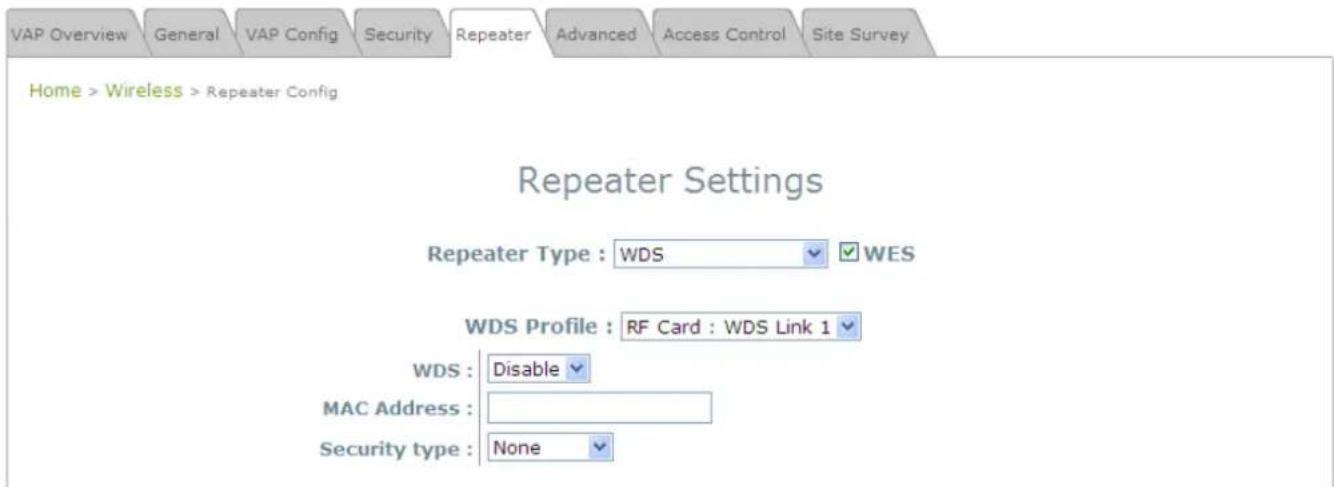
WDS
If WDS is selected, EAP-200 can support up to 4 WDS links to its peer APs. Security Type (None, WEP, or WPA/PSK) can be configured to decide which encryption to be used for WDS connections respectively. Please fill in remote peer's MAC address and click SAVE to proceed; if setting revision is necessary, CLEAR button is used to clear the contents in the above WDS connection list.
text_image
VAP Overview General VAP Config Security Repeater Advanced Access Control Site Survey Home > Wireless > Repeater Config Repeater Settings Repeater Type : WDS WES WDS Profile : RF Card : WDS Link 1 WDS : Disable MAC Address : Security type : NoneRepeater Settings: WDS
○ WES: Enable WES.
- MAC Address: To remote peer's MAC address.
○ WDS: Click on Enable to enable the respective WDS links; click on Delete to remove them.
o Security Type: None, WEP, or WPA-PSK.
(f) 7.2.6 Advanced
The advanced wireless settings for the EAP-200's VAP (Virtual Access Point) profiles allow customization of data transmission settings. The administrator can tune the following parameters to improve network communication performance if a poor connection occurs.

text_image
VAP Overview General VAP Config Security Repeater Advanced Access Control Site Survey Home > Wireless > Advanced Advanced Wireless Settings Profile Name : VAP-1 ▼ RTS Threshold : 2346 *(1 - 2346) Fragment Threshold : 2346 *(256 - 2346) DTIM period : 1 *(1 - 15) Broadcast SSID : ○ Disable ○ Enable Wireless Station Isolation : ○ Disable ○ Enable WMM : ○ Disable ○ Enable IAPP : ○ Disable ○ Enable Multicast/Broadcast Rate : 11M ▼Advanced Wireless Settings Page
- RTS Threshold: Enter a value between 1 and 2346. RTS (Request to Send) Threshold determines the packet size at which the system issues a request to send (RTS) before sending the fragment to prevent the hidden node problem. The RTS mechanism will be activated if the data size exceeds the value provided. A lower RTS Threshold setting can be useful in areas where many client devices are associating with EAP-200 or in areas where the clients are far apart and can detect only EAP-200 but not each other.
- Fragmentation Threshold: Enter a value between 256 and 2346. The default is 2346. A packet size larger than this threshold will be fragmented (sent with several pieces instead of one chunk) before transmission. A smaller value results in smaller frames but allows a larger number of frames in transmission. A lower Fragment Threshold setting can be useful in areas where communication is poor or disturbed by a serious amount of radio interference.
- DTIM Period: Input the DTIM Interval that is generated within the periodic beacon at a specified frequency. Higher DTIM will let the wireless client save energy more, but the throughput will be lowered.
- Broadcast SSID: Disabling this function will prevent the system from broadcasting its SSID. If broadcast of the SSID is disabled, only devices that have the correct SSID can connect to the system.
- Wireless Station Isolation: By enabling this function, all stations associated with the system are isolated and can only communicate with the system.
- WMM: The default is Disable. Wi-Fi Multimedia (WMM) is a Quality of Service (QoS) feature that prioritizes wireless data packets based on four access categories: voice, video, best effort, and background. Applications without WMM and applications that do not require QoS are assigned to the best-effort category, which receives a lower priority than that of voice and video. Therefore, WMM decides which data streams are more important and assigns them a higher traffic priority. This option works with WMM-capable clients only.
– The application must support WMM.
- WMM shall be enabled on EAP-200.
- WMM shall be enabled in the wireless adapter on client's computer.
- IAPP: IAPP (Inter Access Point Protocol) is a protocol by which access points share information about the stations that are connected to them. By enabling this function, the system will automatically broadcast information of associated wireless stations to its peer access points. This will help wireless stations roam smoothly among IAPP-enabled access points in the same wireless LAN.
- Multicast/Broadcast Rate: Bandwidth configuration for multicast/broadcast packets. If your wireless clients require larger or smaller bandwidth for sending multicast/ broadcast packets, the administrator can customize the EAP700's multicast/ broadcast bandwidth here.
(g) 7.2.7 Access Control
On this page, the network administrator can restrict the total number of clients connected to the EAP-200, as well as specify particular MAC addresses that can or cannot access the device.

text_image
VAP Overview General VAP Config Security Repeater Advanced Access Control Site Survey Home > AP > Access Control Access Control Settings Profile Name : VAP-1 Maximum Number of Clients : 32 *(Range: 1 ~ 32) Access Control Type : Disable Access ControlAccess Control Settings Page
• Maximum Number of Clients
EAP-200 supports various methods of authenticating clients for wireless LAN access. The default policy is unlimited access without any authentication required. To restrict the station number of wireless connections, simply change the Maximum Number of Stations to a desired number. For example, while the number of stations is set to 20, only 20 stations are allowed to connect to the specified VAP.
- Access Control Type
The administrator can restrict the wireless access of client devices based on their MAC addresses.
➢ Disable Access Control: When Disable is selected, there is no restriction for client devices to access the system.
MAC ACL Allow List: When selecting MAC ACL Allow List, only the client devices (identified by their MAC addresses) listed in the Allow List ("allowed MAC addresses") are granted with access to the system. The administrator can temporarily block any allowed MAC address by checking Disable, until the administrator re-Enables the listed MAC.
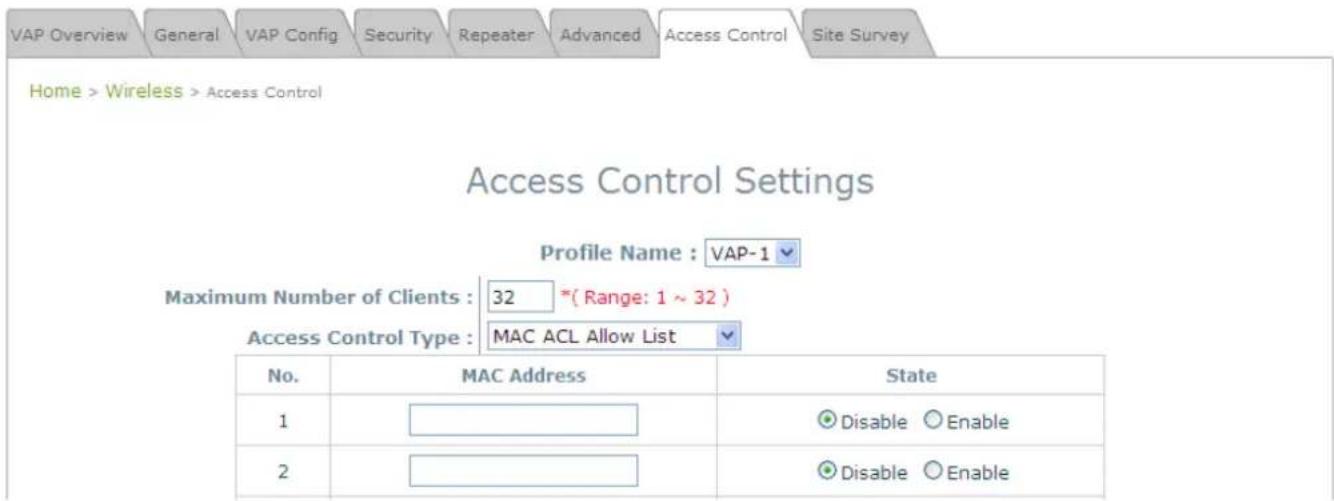
text_image
VAP Overview General VAP Config Security Repeater Advanced Access Control Site Survey Home > Wireless > Access Control Access Control Settings Profile Name : VAP-1 Maximum Number of Clients : 32 *(Range: 1 ~ 32 ) Access Control Type : MAC ACL Allow List No. MAC Address State 1 2 Disable Enable 2 Disable EnableMAC Allow List
Note:
An empty Allow List means that there is no allowed MAC address. Make sure at least the MAC of the management system is included (e.g. network administrator's computer)
MAC ACL Deny List: When selecting MAC ACL Deny List, all client devices are granted with access to the system except those listed in the Deny List ("denied MAC addresses"). The administrator can allow any denied MAC address to connect to the system temporarily by checking Disable.

text_image
VAP Overview General VAP Config Security Repeater Advanced Access Control Site Survey Home > Wireless > Access Control Access Control Settings Profile Name : VAP-1 Maximum Number of Clients : 32 *(Range: 1 ~ 32) Access Control Type : MAC ACL Deny List No. MAC Address State 1 2 Disable Enable 2 Disable EnableDeny List
RADIUS ACL: Authenticate incoming MAC addresses by an external RADIUS. When RADIUS ACL is selected, all incoming MAC addresses will be authenticated by an external RADIUS. Please note that each VAP's MAC ACL and its security type (shown on the Security Settings page) share the same RADIUS configuration.
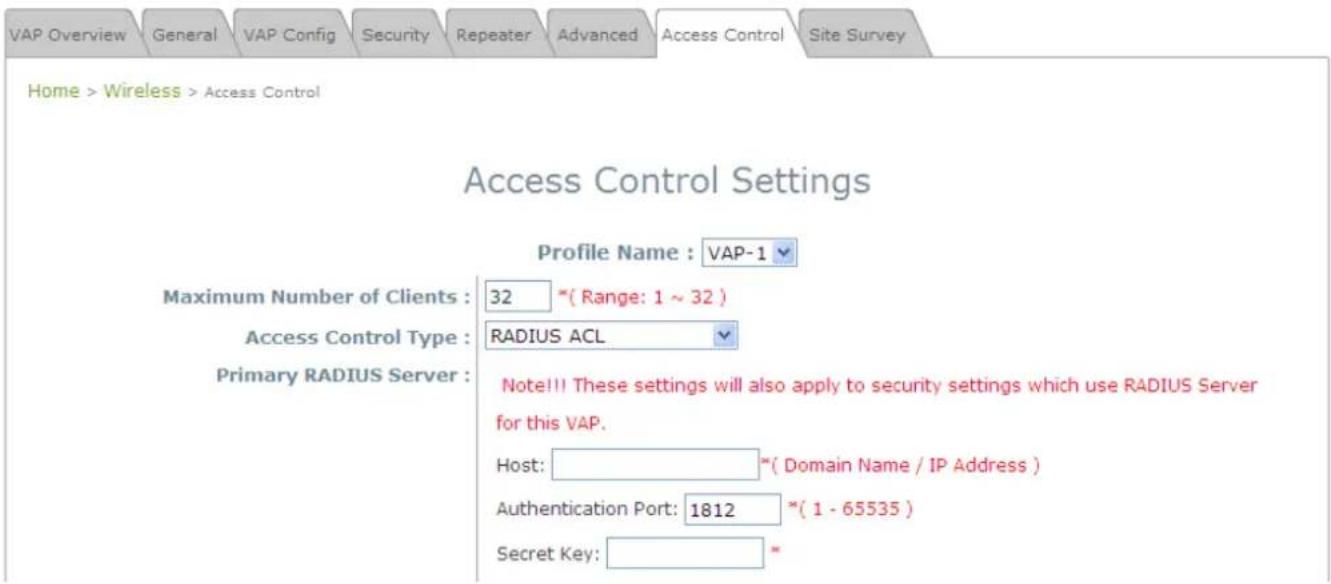
text_image
VAP Overview General VAP Config Security Repeater Advanced Access Control Site Survey Home > Wireless > Access Control Access Control Settings Profile Name : VAP-1 Maximum Number of Clients : 32 *(Range: 1 ~ 32) Access Control Type : RADIUS ACL Primary RADIUS Server : Note!!! These settings will also apply to security settings which use RADIUS Server for this VAP. Host: *(Domain Name / IP Address ) Authentication Port: 1812 *(1 - 65535 ) Secret Key: *RADIUS ACL
(h) 7.2.8 Site Survey
Sit Survey is a useful tool to provide information about the surrounding wireless environment; available APs are shown with their respective SSID, MAC Address, Channel, Rate setting, Signal reading, and Security type. The administrator can click Setup or Connect to configure the wireless connection according to the mentioned readings when Repeater Type is Universal Repeater.
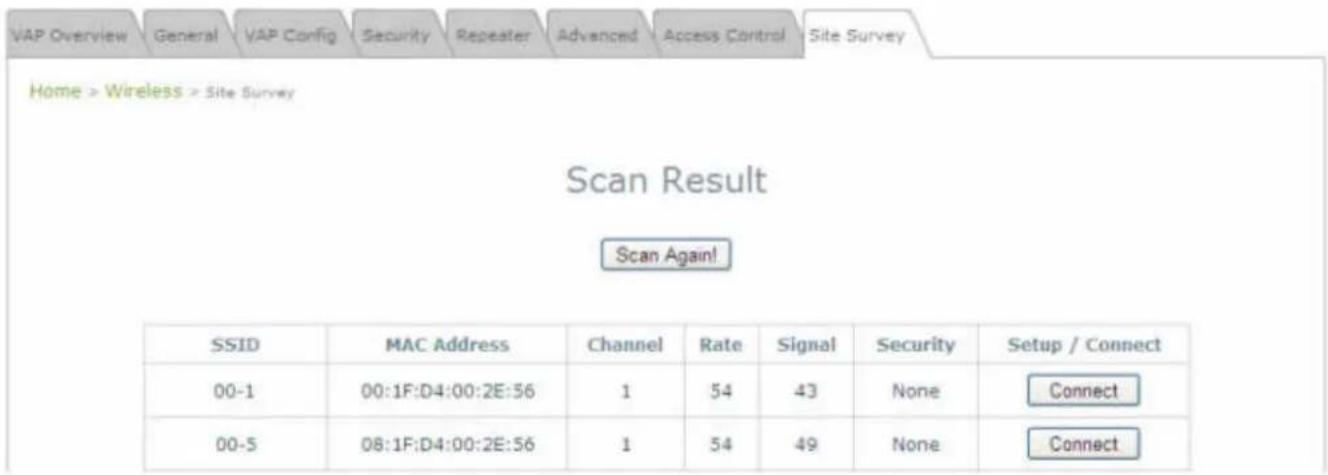
text_image
VAP Overview General VAP Config Security Repeater Advanced Access Control Site Survey Home > Wireless > Site Survey Scan Result Scan Again! SSID MAC Address Channel Rate Signal Security Setup / Connect 00-1 00:1F:D4:00:2E:56 1 54 43 None Connect 00-5 08:1F:D4:00:2E:56 1 54 49 None ConnectSite Survey Page
If Universal Repeater function is enabled, the system can scan and display all surrounding available access points (APs). The administrator can then select an AP to for connection to extend its wireless service coverage on this page.
SSID: The SSID (Service Set ID) of the AP found in this system's coverage area.
MAC Address: The MAC address of the respective AP.
Channel: The channel number currently used by the respective AP or repeater.
Rate: The transmitting rate of the respective AP.
▶ Signal: The encryption type used by the respective AP.
Setup / Connect:
- Connect: Click Connect to associate with the respective AP directly; no further configuration is required.
| Cip-893 | 00:0E:2E:7C:AA:6E | 1 | 54 | 4 | None | Connect |
-
Setup: Click Setup to configure security settings for associating with the respective AP.
-
WEP: Click Setup to configure the WEP setting for associating with the target AP.
| Cip-wep | 00:11:A3:08:09:56 | 6 | 54 | 40 | WEP | Setup |
The following configuration box will then appear at the bottom of the screen. Security settings configured here must be the same as the target AP.
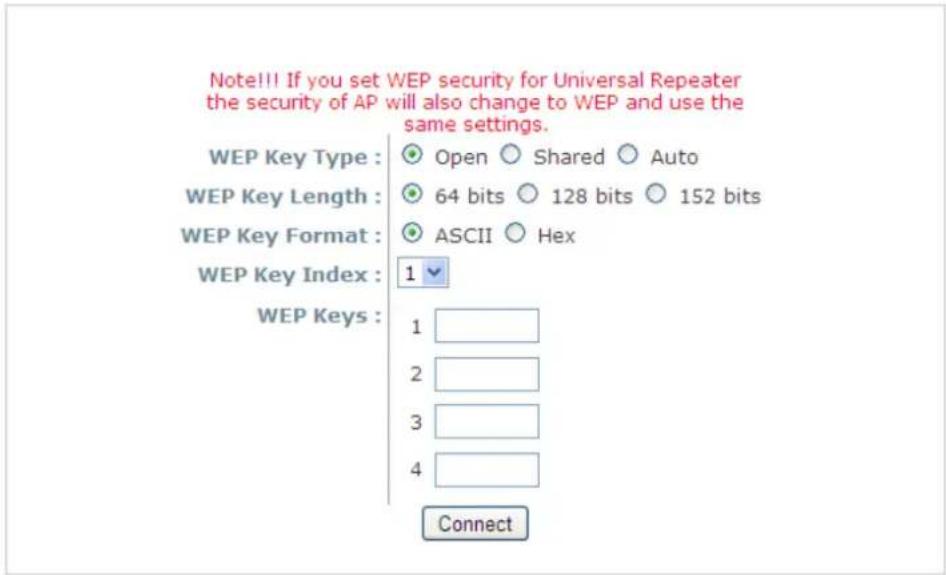
text_image
Note!!! If you set WEP security for Universal Repeater the security of AP will also change to WEP and use the same settings. WEP Key Type : Open Shared Auto WEP Key Length : 64 bits 128 bits 152 bits WEP Key Format : ASCII Hex WEP Key Index : 1 WEP Keys : 1 2 3 4 Connect- WPA-PSK: Click Setup to configure the WPA-PSK setting for associating with the target AP.
| Cip-psk | 0A:1F:D4:39:10:74 | 11 | 54 | 52 | WPA-PSK | Setup |
The following configuration box will then appear at the bottom of the screen. Information provided here must be consistent with the security settings of the target AP.

text_image
Pre-shared Cipher : TKIP Pre-shared Key Type : PSK(Hex) *(64 chars) Passphrase *(8 - 63 chars) Pre-shared Key : ConnectSection 7.03 7.3 Firewall
The system provides an added security feature, Layer2 Firewall, in addition to typical AP security. Layer2 Firewall offers a firewall function that is tailored specifically for Layer2 traffics, providing another choice of shield against possible security threats coming from/going to WLAN (AP interfaces); hence, besides firewall policies configured on gateways, this extra security feature will assist to mitigate possible security breach. This section provides information in the following functions: Firewall Settings, Service and Advanced Firewall Settings.
(a) 7.3.1 Firewall List
It provides an overview of firewall rules in the system; 6 default rules with up to total 20 firewall rules are available for configuration.

Home > Firewall > Firewall List
Layer 2 Firewall Settings
| Enable Layer 2 Firewall | Disable Enable | |||||
| No. | State | Action | Name | EtherType | Remark | Setting |
| 1 | DROP | CDP | IEEE_8023 | Del Ed In Mv | ||
| 2 | DROP | STP | IEEE_8023 | Del Ed In Mv | ||
| 3 | DROP | GARP | IEEE_8023 | Del Ed In Mv | ||
Firewall List Page
From the overview table, each rule is designated with the following field;
- No.: The numbering will decide the priority to let system carry out the available firewall rules in the tables.
• State: The check marks will enable the respective rules.
• Action: DROP denotes a block rule; ACCEPT denotes a pass rule.
• Name: It shows the name of rule. - EtherType: It denotes the type of traffics subject to this rule.
• Remark: It shows the note of this rule. - Setting: 4 actions are available; Del denotes to delete the rule, Ed denotes to edit the rule, In denotes to insert a rule, and Mv denotes to move the rule.
To delete a specific rule,
Del in Setting column of firewall list will lead to the following page for removal confirmation. After SAVE button is clicked and system reboot, the rule will be removed.

text_image
Firewall List Service Advanced Home > Firewall > Firewall ListLayer 2 Firewall Settings
Remove rule 1
To edit a specific rule,
Ed in Setting column of firewall list will lead to the following page for detail configuration. From this page, the rule can be edited from scratch or an existing rule for revision.

Layer 2 Firewall Configuration

text_image
Rule ID : 1 Rule name : CDP * EtherType : IEEE802.3 Interface : From To VAP1 DSAP/SSAP : aa Type : 2000 (ie IPv4: 0800) Source : MAC Address: Mask: Destination : MAC Address: 01:00:0C:CC:CC:CC Mask: Action : Block Pass Remark :Rule ID: The numbering of this specific rule will decide its priority among available firewall rules in the table.
▶ Rule name: The rule name can be specified here.
EtherType: The drop-down list will provide the available types of traffics subject to this rule.
Interface: It can indicate inbound/outbound direction with desired interfaces.
Service (when EtherType is IPv4): Select the available upper layer protocols/services from the drop-down list.
DSAP/SSAP (when EtherType is IEEE 802.3): The value can be further specified for the fields in 802.2 LLC frame header.
Type (when EtherType is IEEE802.3): The field can be used to indicate the type of encapsulated traffics.
VLAN ID (when EtherType is 802.1 Q): The VLAN ID is provided to associate with certain VLAN-tagging traffics.
Priority (when EtherType is 802.1 Q): It denotes the priority level with associated VLAN traffics.
Encapsulated Type (when EtherType is 802.1 Q): It can be used to indicate the type of encapsulated traffics.
Opcode (when EtherType is ARP/RARP): This list can be used to specify the ARP Opcode in ARP header.
Source: MAC Address/Mask indicates the source MAC; IP Address/Mask indicates the source IP address (when EtherType is IPv4); ARP IP/MAC & MASK indicate the ARP payload fields.
Destination: MAC Address/Mask indicates the destination MAC; IP Address/Mask indicates the destination IP address (when EtherType is IPv4); ARP IP/MAC & MASK indicate the ARP payload fields.
Action: The rule can be chosen to be Block or Pass.
Remark: The note of this rule can be specified here.
When the configuration for firewall rule is provided; please click SAVE and Reboot system to let the firewall rule take effort.
>>To insert a specific rule,
In in Setting column of firewall list will lead to the following page for detail configuration with rule ID for the current inserted rule.
From this page, the rule can be edited form scratch or from an existing rule for revision.

text_image
Firewall List Service Advanced Home > Firewall List > Rule Config Layer 2 Firewall Configuration Rule ID : 1 Rule name : * EtherType : IPv4 Interface : From To VAP1 Service : ALL Source : MAC Address: Mask: IP Address : Mask: 0.0.0.0 /0 Destination : MAC Address: Mask: IP Address : Mask: 0.0.0.0 /0 Action : Block Pass Remark :>>To move a specific rule,
Mv in Setting column of firewall list will lead to the following page for reordering confirmation. After SAVE button is clicked and system reboot, the order of rules will be updated.

Home > Firewall > Move rule
Move Rule

text_image
ID : 1 Move to : ◦ Before ○ After ID : □ *(1 - 20)Please make sure all desired rules (state of rule) are checked and saved in overview page; the rule will be enforced upon system reboot.

Home > Firewall > Firewall List
Layer 2 Firewall Settings
| No. | State | Action | Name | EtherType | Remark | Setting |
| 1 | DROP | CDP and VTP | IEEE_8023 | Del Ed In Mv | ||
| 2 | DROP | STP/BPDU | IEEE_8023 | Del Ed In Mv | ||
| 3 | DROP | GARP | IEEE_8023 | Del Ed In Mv | ||
| 4 | DROP | RIP | IPv4 | Del Ed In Mv | ||
| 5 | DROP | HSRP | IPv4 | Del Ed In Mv | ||
| 6 | DROP | OSPF | IPv4 | Del Ed In Mv | ||
| 7 | Del Ed In Mv | |||||
| 8 | Del Ed In Mv | |||||
| 9 | Del Ed In Mv | |||||
| 10 | Del Ed In Mv |
First Prev Next Last (total: 20)

(b)7.3.2 Service
The administrator can add or delete firewall service here; the services in this list will become options to choose in firewall rule (when EtherType is IPv4).
EAP-200 provides a list of rules to block or pass traffics of layer-3 or above protocols. These services are available to choose from drop-down list of layer2 firewall rule edit page with Ether Type to be IPv4. The first 28 entries are default services and the administrator can add/delete any extra desired services.
There are 28 firewall services available in default settings; these default services cannot be deleted but can be disabled. If changes are made, please click SAVE to save the settings before leaving this page.

Home > Firewall > Service Config
Firewall Service
| No. | Name | Description | Delete |
| 1 | ALL | ALL | |
| 2 | ALL TCP | TCP, Source Port: 0~65535, Destination Port: 0~65535 | |
| 3 | ALL UDP | UDP, Source Port: 0~65535, Destination Port: 0~65535 | |
| 4 | ALL ICMP | ICMP | |
| 5 | FTP | TCP/UDP, Destination Port: 20~21 | |
| 6 | HTTP | TCP/UDP, Destination Port: 80 | |
| 7 | HTTPS | TCP/UDP, Destination Port: 443 | |
| 8 | POP3 | TCP, Destination Port: 110 | |
| 9 | SMTP | TCP, Destination Port: 25 | |
| 10 | DHCP | UDP, Destination Port: 67~68 |
First Prev Next Last (total: 28)
Add
Firewall Service Page
(c) 7.3.3 Advanced
Advanced firewall settings are used to supplement the firewall rules, providing extra security enhancement against DHCP and ARP traffics traversing the available interfaces of system.
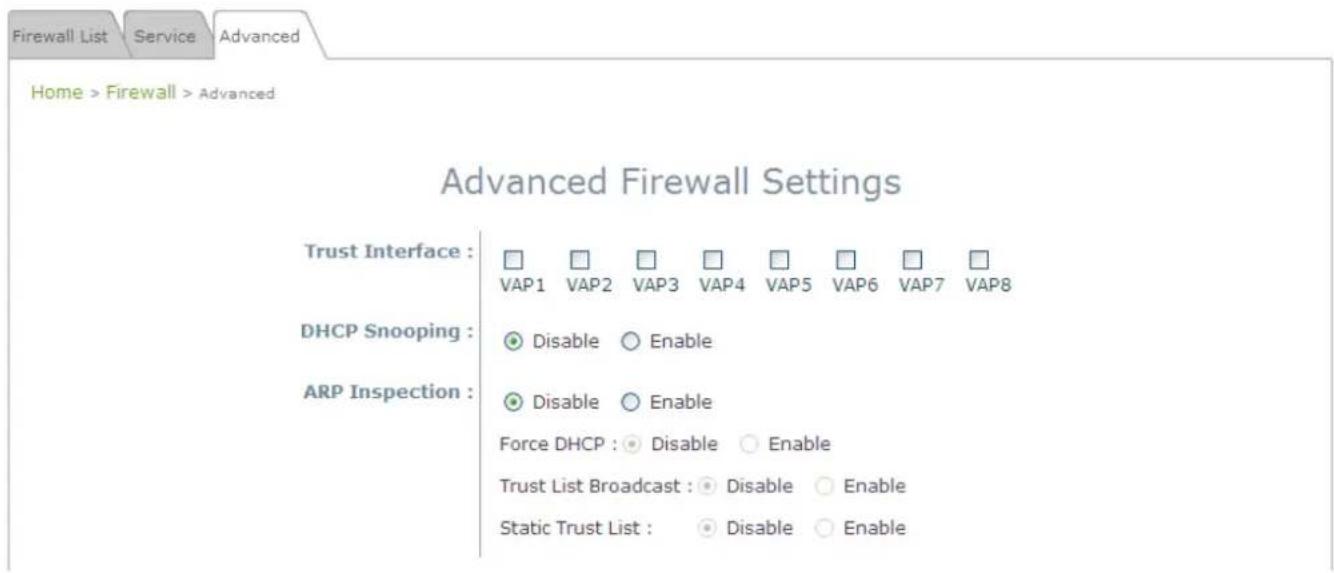
text_image
Firewall List Service Advanced Home > Firewall > Advanced Advanced Firewall Settings Trust Interface : □ □ □ □ □ □ □ □ □ □ VAP1 VAP2 VAP3 VAP4 VAP5 VAP6 VAP7 VAP8 DHCP Snooping : ● Disable ○ Enable ARP Inspection : ● Disable ○ Enable Force DHCP : ● Disable ○ Enable Trust List Broadcast : ● Disable ○ Enable Static Trust List : ● Disable ○ Enable- Trust Interface: Each VAP interface can be checked individually to mark as trusted interfaces; security enforcements on DHCP/ARP like DHCP snooping and ARP inspection will be carried out on non-trusted interfaces.
-
DHCP Snooping: When enabled, DHCP packets will be validated against possible threats like DHCP starvation attack; in addition, the trusted DHCP server (IP/MAC) can be specified to prevent rouge DHCP server.
• ARP Inspection: When enabled, ARP packets will be validated against ARP spoofing. -
Force DHCP option when enabled, the AP only learns MAC/IP pair information through DHCP packets. Since devices configured with static IP address does not send DHCP traffic, therefore any clients with static IP address will be blocked from internet access unless its MAC/IP pair is listed and enabled on the Static Trust List.
- Trust List Broadcast can be enabled to let other AP (with L2 firewall feature) learn the trusted MAC/IP pairs to issue ARP requests.
Static Trust List can be used to add MAC or MAC/IP pairs of devices that are trusted to issue ARP request. Other network nodes can still send their ARP requests; however, if their IP appears in the static list (with different MAC), their ARP requests will be dropped to prevent eavesdropping.
If any settings are made, please click SAVE to save the configuration before leaving this page.
Section 7.04 7.4 Utilities
The administrator can maintain the system on this page: Change Password, Backup & Restore, System Upgrade, Reboot and Upload Certificate.
(a) 7.4.1 Change Password
To protect the Web Management Interface from unauthorized access, it is highly recommended to change the administrator's password to a secure password. Only alpha-numeric characters are allowed, and it is also recommended to make use of a combination of both numeric and alphabetic characters.

text_image
Change Password Backup & Restore System Upgrade Reboot Home > Utilities > Change Password Change Password Name : admin Old Password : •••••• New Password : •••••••••••• • up to 32 characters Re-enter New Password : •••••••••••••Change Password Page
The administrator can change password on this page. Enter the original password (“admin”) and new password, and then re-enter the new password in the Re-enter New Password field. Click SAVE to save the new password.
(b)7.4.2 Backup & Restore
This function is used to backup and restore the EAP-200 settings. The EAP-200 can also be restored to factory defaults using this function. It can be used to duplicate settings to other access points (backup settings of this system and then restore on another AP).
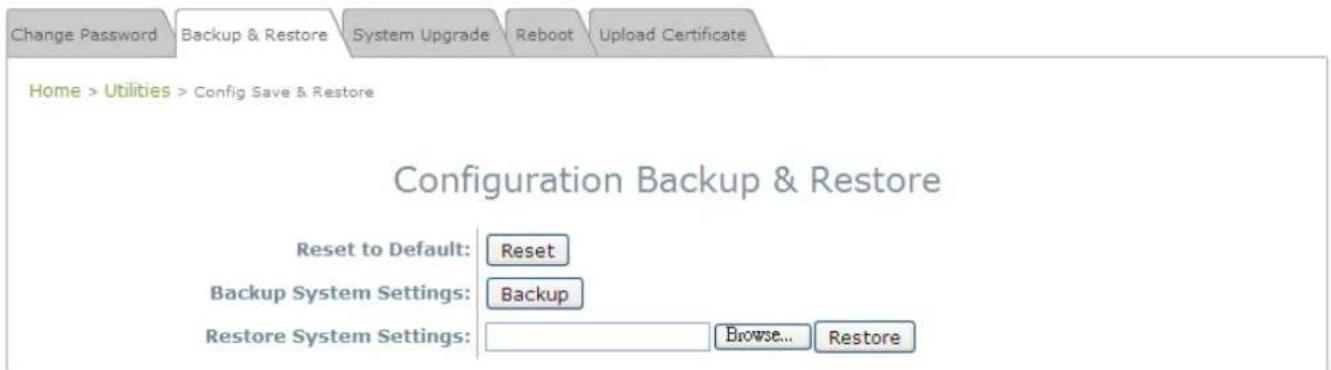
text_image
Change Password Backup & Restore System Upgrade Reboot Upload Certificate Home > Utilities > Config Save & Restore Configuration Backup & Restore Reset to Default: Reset Backup System Settings: Backup Restore System Settings: Browse... RestoreClick Reset to load the factory default settings of EAP-200. A pop-up Page will appear to reconfirm the request to reboot the system. Click OK to proceed, or click Cancel to cancel the reboot request.

text_image
Message from webpage This action will reboot the system. Do you want to continue? OK CancelReboot Confirmation Prompt
A warning message as displayed below will appear during the reboot period. The system power must be kept turn on before the completion of the reboot process. The System Overview page will appear upon the completion of reboot.
- Backup System Settings: Click Backup to save the current system settings to a local disk such as the hard disk drive (HDD) of a local computer or a compact disc (CD). - Restore System Settings: Click Browse to search for a previously saved backup file, and then click Upload to restore the settings. The backup file will replace the active configuration file currently running on the system.

After network parameters have been reset / restored, the network settings of the administrator PC may need to be changed to ensure that the IP address of the administrator PC is on the same subnet mask as the EAP-200.
(c) 7.4.3 System Upgrade
The EAP-200 provides a web firmware upload / upgrade feature. The administrator can download the latest firmware from the website and save it on the administrator's PC. To upgrade the system firmware, click Browse to choose the new firmware file you downloaded onto your PC and then click Upload to execute the process. There will be a prompt confirmation message appearing to notify the administrator to restart the system after a successful firmware upgrade. Please restart the system after upgrading the firmware.

text_image
Change Password Backup & Restore System Upgrade Reboot Home > Utilities > System Upgrade System Upgrade Current Version: Current Build Number: File Name: Browse... UpdateSystem Upgrade Page
Note:
- It is recommended to check the firmware version number before proceeding further. Please make sure you have the correct firmware file.
- Firmware upgrade may sometimes result in the loss of some data. Please ensure that all necessary settings are written down before upgrading the firmware.
- During firmware upgrade, please do not turn off the power. This may permanently damage the system.
(d) 7.4.4 Reboot
This function allows the administrator to restart the EAP-200 safely. The process shall take about three minutes. Click Reboot to restart the system. Please wait for the blinking timer to complete its countdown before accessing the system's Web Management Interface again. The System Overview page will appear after reboot successfully.
Occasionally, it is necessary to reboot the EAP-200 to ensure that parameter changes are submitted.
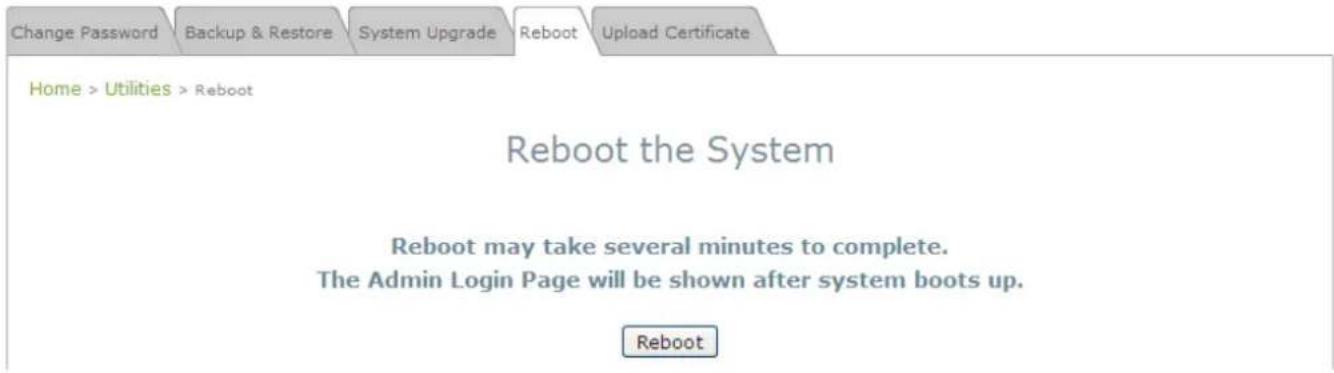
text_image
Change Password Backup & Restore System Upgrade Reboot Upload Certificate Home > Utilities > Reboot Reboot the System Reboot may take several minutes to complete. The Admin Login Page will be shown after system boots up. RebootReboot Page
(e) 7.4.4 Upload Certificate
This function is used to setup the advanced configuration for the CAPWAP to manage Certificates.
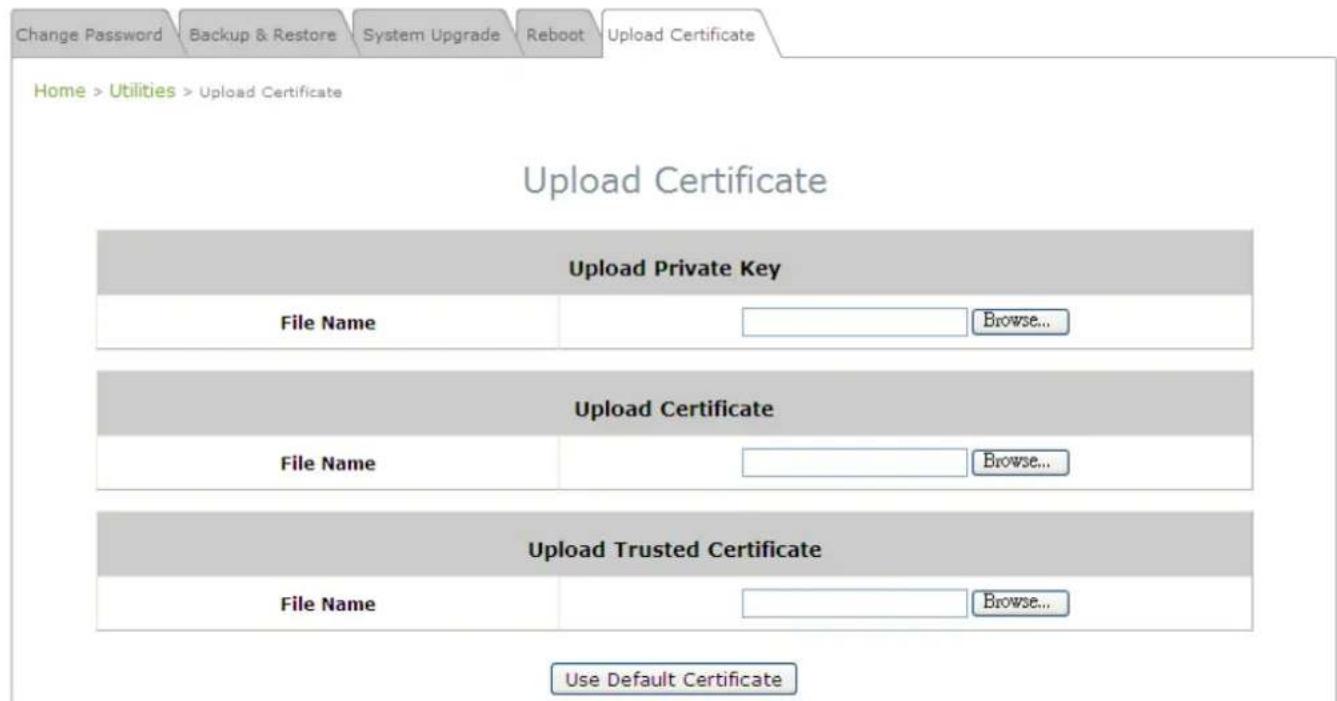
text_image
Change Password Backup & Restore System Upgrade Reboot Upload Certificate Home > Utilities > Upload Certificate Upload Certificate Upload Private Key File Name Browse... Upload Certificate File Name Browse... Upload Trusted Certificate File Name Browse... Use Default Certificate➢ Certificate: It provides Certificate security for CAPWAP to ensure the safety between Access Controller and WAP.
Use Default Certificate: Click Use Default Certificate to use the default certificate and key.
Section 7.05 7.5 Status
This page is used to view the current condition and state of the system and includes the following functions: Overview, Associated Clients, Repeater and Event Log.
(a) 7.5.1 Overview
The System Overview page provides an overview of the system status for the administrator.

Home > Status > System Overview
System Overview

System
| System Name | Enterprise Access Point |
| Firmware Version | |
| Build Number | |
| Location | |
| Site | EN-A |
| Device Time | 1970/01/01 08:00:30 |
| System Up Time | 0 days, 0:00:30 |

Radio Status
| MAC Address | 00:1F:D4:83:96:02 |
| Band | 802.11g+n |
| Channel | 1 |
| TX Power | 19 dBm |

LAN Interface
MAC Address 00:1F:D4:83:96:01
IP Address
Subnet Mask 255.255.0.0
Gateway

AP Status
| Profile Name | BSSID | ESSID | Security Type | Online Clients | GRE |
| VAP-1 | 00:1F:D4:83:96:02 | EAP-1 | None | 0 | |
| VAP-2 | 06:1F:D4:83:96:02 | EAP-2 | None | 0 | |
| VAP-3 | 0A:1F:D4:83:96:02 | EAP-3 | None | 0 |

GRE Tunnel
Status Connected
Remote IP 192.168.3.3
Key 12345
System Overview Page
Table 3 Status Page's Organizational Layout
| Item | Description | |
| System | System Name | The system name of the EAP-200. |
| Firmware Version | The present firmware version of the EAP-200 | |
| Build Number | The present firmware build number of the EAP-200 | |
| Location | The location of the EAP-200. | |
| Site | The site of the EAP-200 | |
| Device Time | The system time of the EAP-200. | |
| System Up Time | The time that the system has been rebooted in operation. | |
| LAN Interface | MAC Address | The MAC address of the LAN Interface. |
| IP Address | The IP address of the LAN Interface. | |
| Subnet Mask | The Subnet Mask of the LAN Interface. | |
| Gateway | The Gateway of the LAN Interface. | |
| Radio Status | MAC Address | The MAC address of the RF Card. |
| Band | The RF band in use. | |
| Channel | The channel specified. | |
| Tx Power | Transmit Power level of RF card. | |
| AP Status | Profile Name | The profile name of AP. |
| BSSID | Basic Service Set ID. | |
| ESSID | Extended Service Set ID. | |
| Security Type | Security type of the Virtual AP. | |
| Online Clients | The number of online clients. | |
| GRE | The status of GRE Tunnel. | |
| GRE Tunnel | Status | The status of connection or Disabled. |
| Remote IP | The IP Address of AC. | |
| Key | The password for the connection. | |
(b)7.5.2 Associated Clients
The administrator can remotely oversee the status of all associated clients on this page. When a low SNR is found here, the administrator can tune the corresponding parameters or investigate the settings of associated clients to improve network communication performance.
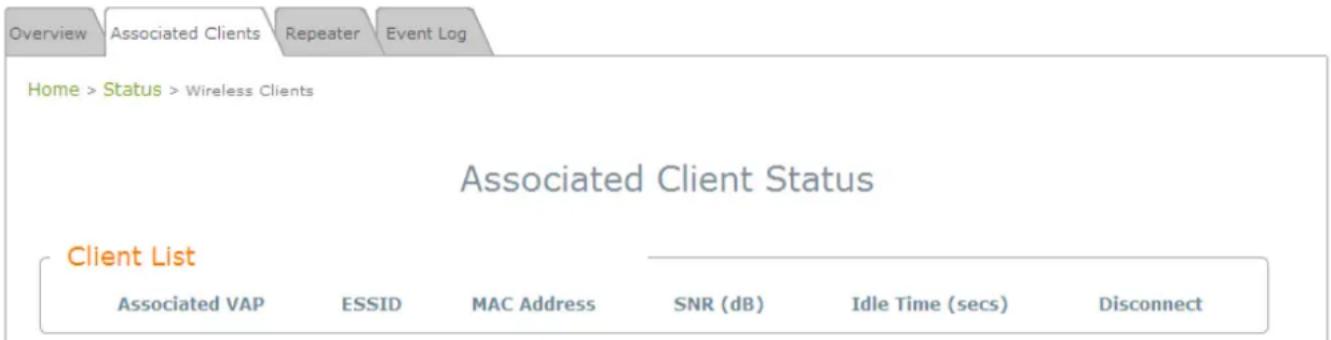
text_image
Overview Associated Clients Repeater Event Log Home > Status > Wireless Clients Associated Client Status Client List Associated VAP ESSID MAC Address SNR (dB) Idle Time (secs) DisconnectAssociated Client Status Page
• Associated VAP: The name of a VAP (Virtual Access Point) that the client is associated with.
• ESSID: The Extended Service Set ID which the client is associated with.
• MAC Address: The MAC address of associated clients.
- SNR: The Signal to Noise Ratio of respective client's association.
- Idle Time: Time period that the associated client is inactive; the time unit is in second.
- Disconnect: Upon clicking Kick, the client will be disconnected with the system.
(c) 7.5.3 Repeater
The administrator can review detailed information of the repeater function on this page. Information of repeater's status, mode and encryption is provided.

Home > Status > Repeater Information
Repeater Information

Universal Repeater
SSID Cip-AP
Status Enabled
TX Rate 48 Mbits
SNR 16
TX Count 69 Bytes
TX Error 0 Packets
Encryption None
Repeater Status Page
(d) 7.5.4 Event Log
The Event Log provides the records of system activities. The administrator can monitor the system status by checking this log.

text_image
Overview Associated Clients Repeater Event Log Home > Status > Event Log Event Log Jan 1 00:00:14 syslogd started: BusyBox v1.12.4 Jan 1 00:00:14 syslog: ath0ap0: IEEE 802.11 Fetching hardware channel/rate support not supported.Event Log Page
In the log each line represents an event record; in each line, there are 4 fields:
- Date / Time: The time & date when the event happened
- Hostname: Indicates which host recorded this event. Note that all events on this page are local events, so the hostname in this field is always the same. However, in remote SYSLOG service, this field will help the administrator identify which event is from this EAP-200.
- Process name: Indicate the event generated by the running instance.
• Description: Description of the event.
To save the file locally, click SAVE LOG; to clear all of the records, click CLEAR.
Section 7.06 7.6 Online Help
The Help button is at the upper right corner of the display screen.
Click Help for the Online Help window, and then click the hyperlink of the relevant information needed.

text_image
Home Logout ? HelpOnline Help Corner