EasyManual
 Big Print 1310 - Calculator VICTOR - Free user manual and instructions
Find the device manual for free Big Print 1310 VICTOR in PDF.


Frequently Asked Questions - Big Print 1310 VICTOR
User questions about Big Print 1310 VICTOR
0 question about this device. Answer the ones you know or ask your own.
Ask a new question about this device
Download the instructions for your Calculator in PDF format for free! Find your manual Big Print 1310 - VICTOR and take your electronic device back in hand. On this page are published all the documents necessary for the use of your device. Big Print 1310 by VICTOR.
USER MANUAL Big Print 1310 VICTOR
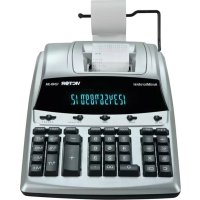
The Victor 1310 Big Print Calculator has two modes of operation. Use the 10/12 slide switch to choose the mode of operation. If the slide switch is over the 10, the calculator will operate as a 10 digit calculator with large print. When the switch is over the 12, the calculator will operate as a 12 digit calculator with normal print size.
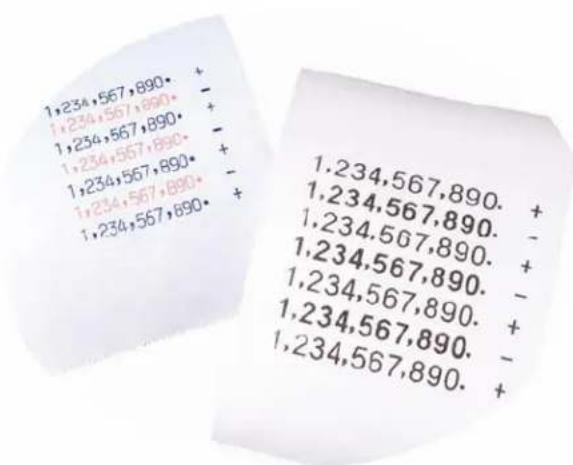
TABLE OF CONTENTS
- OPERATIONS AND MAINTENANCE 3
2.THERMAL PRINTER. 3 - LOADING PAPER 3
- KEYBOARD LAYOUT 4
5.SLIDER SWITCH FEATURES. 5 - KEY FEATURES 6
7.CALCULATION EXAMPLES 8 - TECHNICAL SPECIFICATION 18
1. OPERATIONS AND MAINTENANCE
Printer Switch - This switch is located on upper left portion of the keyboard. Move the slide switch over the corresponding function for your application.
OFF - Power OFF the Calculator.
NP - NON PRINT mode, use if only the display is needed.
P - PRINT mode, use if you wish to have the printer operational.
CAUTIONS
- The calculator must not be covered when turned on. This will cause the unit to overheat.
- Do not use organic solutions such as alcohol to clean the housing.
- Do not use or leave the calculator in direct sun light. Areas subject to quick temperature changes, high humidity and dirt should be avoided.
2. THERMAL PRINTER
The Victor 1310 Big Print Calculator features a thermal printer. There is no need to ever change an ink roller or ribbon. The thermal printer can print at a speed of 6 lines per second, while making a minimal amount of noise to keep the office environment quiet.
PLEASE BE SURE TO USE ONLY THERMAL PAPER
3. LOADING PAPER
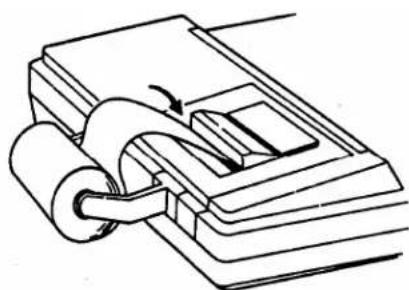
- Plug in calculator and turn it on.
- Cut or tear evenly the end of the paper roll to get a straight, even edge for proper feeding through the printer head.
- While holding the paper roll in one hand, feed the paper from the bottom of the roll and insert into the paper slot at the back of the calculator.
- Depress paper feed key until the paper catches and advances through the printer.
- Place the paper roll on the paper holder.
4. KEYBOARD LAYOUT
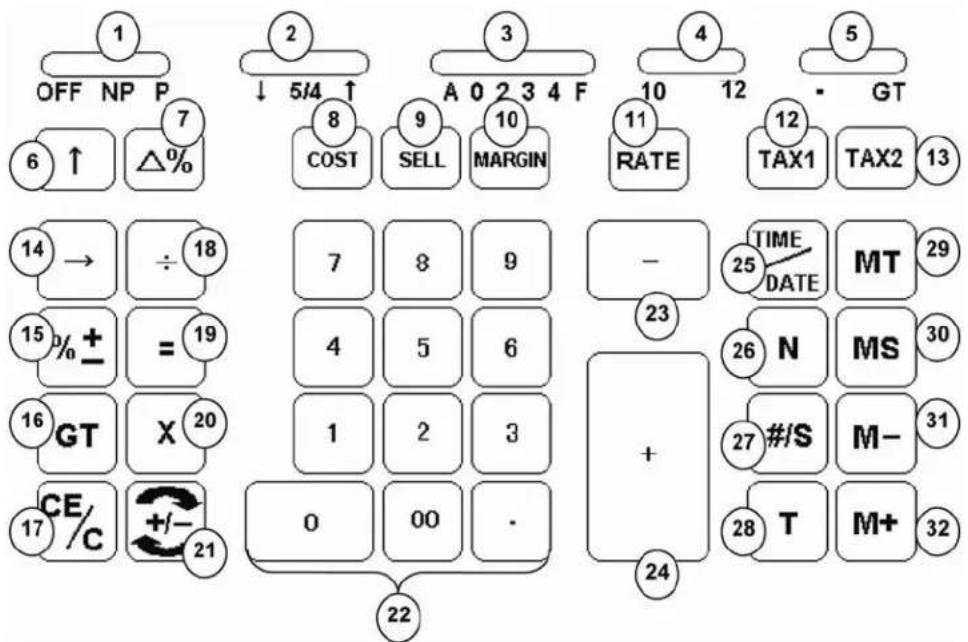
- Off / NP / P Switch
- Rounding Selector
- Decimal Selector
- 10 / 12 Digit Selector
- Grand Total Switch
- Paper Feed
- Delta Percentage
- Cost
- Sell
- Margin
-
Tax Rate Preset
-
Tax 1
- Tax 2
- Back Space
- Percentage
- Grand Total
- Clear Entry / Clear
- Division
- Equal
- Multiplication
- Sign Change
-
Numeric Key Pad
-
Subtraction
- Addition
- Time / Date Display
- Item Count
27.Subtotal / Date - Total
- Memory Total
- Memory Subtotal
- Memory Subtraction
- Memory Addition
5.SLIDER SWITCH FEATURES
1. OFF NP P Printer Selects Switch
OFF The calculator is turned OFF.
NP (Non-print) Printer is activated only when feed key or non-add/date key is pressed.
PRINT Printer is activated.
2. 5/4 ↑ Rounding Switch
All calculations will be rounded down.
5/4 Final result is rounded up if the 1^st digit not to be printed is 5 or more and rounded down if the 1 digit not to be printed is 4 or less.
All calculations will be rounded up.
3. A 0 2 3 4 F Decimal Point Selector
A Monetary Add Mode: At this setting, amounts entered are assumed to be monetary. The calculator automatically supplies a decimal point to the left of the last two digits entered. Use this setting to add, subtract, multiply, and divide decimals.
0,2,3,4 Fixed Decimal Point Mode: These settings specify the number of digits to the right of the decimal point that are shown in the result.
F Floating Decimal Point Mode: This setting specifies that all digits of the result are shown, up to a maximum of 10 in the 10 Digit Big Print mode, and 12 in the 12 Digit Regular Print mode. If the result exceeds these capacities, excess digits to the right of the decimal point are dropped. No rounding takes place.
4. 10/12 Digit Selector
10 Sets the calculator to 10 Digit Mode with larger print.
12 Sets the calculator to 12 Digit Mode with normal size print.
5. Grand Total Switch
Calculation without Grand Total
GT Any total taken with T key is automatically accumulated to Grand Total. The accumulated grand total can be recalled by pressing GT key.
6. KEY FEATURES
6. [↑] Paper feed key
Advance the paper roll.
7. [Δ%] Delta Percentage
Automatically compares any two amounts and then calculates and prints the difference between the two numbers and the percentage difference.
8. [COST] Cost key
Enter the desired Cost amount and depress the Cost key.
9. [SELL] Sell key
Enter the desired Sell amount and depress the Sell key.
10. [MARGIN] Profit margin
Use to enter the desired profit margin.
11. [RATE] TAX rate preset key
Use to enter the desired TAX rate. To set the TAX rate, press and hold the RATE key for three seconds until RATE flashes on the display. Enter the desired TAX rate and press either TAX 1 or TAX 2. You may have two separate TAX rates stored.
12. [TAX 1] Tax 1 key
Calculate the amount of Tax with tax rate preset by RATE key. Use + key for calculating an amount including the Tax, and - key for calculating an amount excluding the Tax.
13. [TAX 2] Tax 2 key
Calculate the amount Tax with tax rate preset by RATE key. Use + key for calculating an amount including Tax, and - key for calculating an amount excluding Tax.
14. [] Right shift key
Deletes right most character of a live entry
15. [% ± ] Percent key
Use to complete a percentage calculation using the multiplication or division functions
16. [GT] Grand Total key
Print and clear the Grand Total Accumulator.
17. [CE/C] Clear Entry / Clear key
Press this key once to clear a live entry. Press twice to clear the accumulator or
The pending calculation. This function does not clear the Memory or Grand total.
18. [÷] Division key
To divide, enter the number to be divided (dividend) then depress the Divide key. Then enter the second number (divisor) and depress Equals or other keys as necessary to obtain a result. If the key is depressed repeatedly, it will make sequential division calculations.
19. [=] Equal key
Press to get the answer of a multiplication or division calculation.
20. [X] Multiplication key
To multiply, enter the first number (multiplicand) and depress the Times key. Then enter the second number (multiplier) and depress Equals or other keys as necessary to obtain a result. If the key is depressed repeatedly, it will make sequential multiple calculations.
21. [+/-] Sign change key
Reverse the sign on the display.
22. [0]-[9], [00] & [] Numeric keys.
Any numeral over 12 digits (10 Digits in Big Print mode) will be ineffective. If the decimal point key is used more than once in one numeral, the first decimal point will be considered as effective.
23.[-] Minus key
Subtracts the amount entered from the accumulator. To subtract the same amount more than one time (repeat subtraction), enter that amount once and depress the Minus key as many times as necessary. If this key is depressed immediately after [%] key, it works as percent minus key.
24. \([+\] Plus key
Adds the amount entered to the accumulator. To add the same amount more than one time (repeat addition), enter that amount once and depress the Plus key as many times as necessary. If this key is depressed immediately after [%] key, it works as percent plus key.
25. [TIME/DATE] Time and Date display key
Used to display or program the date and time. Depressing this key once will cause the date to display and print on the tape. A second depression will display and print the time. Holding the key down for three seconds will cause the date or time to flash, this is the program mode.
26. [N] Item Count key
Depressing the N key will display the current Item Count. If pressed once after the pressing the T key, the calculator will display the Item Count, immediately pressing the N key a second time will provide the average of the numbers added or subtracted.
27. [\# / S] Date / Subtotal key
: The calculator will print live entry as an identifier such as an invoice number
with "#" mark.
S: The calculator prints but does not clear the accumulator.
28. [T] Total key
Prints and clears the accumulator. When this key is pressed with the switch in the "GT" position, the result is accumulated automatically in the grand total memory.
29. [MT] Memory Total key
Prints the memory total and clears the memory. (Separate from the GT Memory)
30. [MS] Memory Subtotal key
Prints but does not clear the memory.
31. [M-] Memory Minus key
Subtracts the amount entered from memory. If there is a live calculation pending, the Memory minus key will complete the calculation and subtract the amount from Memory.
32. [M + ] Memory Plus key
Adds the amount entered into memory. If there is a live calculation pending, the Memory plus key will complete the calculation and accumulate the result to Memory.
7.CALCULATION EXAMPLES
1. ADDITION / SUBTRACTION
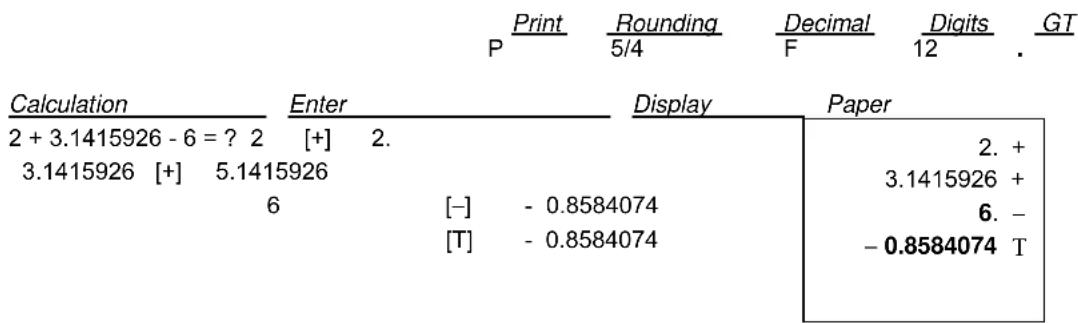
2. ADDITION / SUBTRACTION IN ADD MODE
| P | Rounding | Decimal | Digits | GT | |
| 5/4 | A | 12 |
| Calculation | Enter | Display | Paper | ||
| 1.23 - 4.56 + 7.89 = ? | 123 [+] | 1.23 | 1.23 + | ||
| 456 | [-] | -3.33 | 4.56 - | ||
| [#/S] | -3.33 | -3.33 S | |||
| 789 [+] | 4.56 | 7.89 + | |||
| [T] | 4.56 | 4.56 T | |||
3. ITEM COUNT PRESETTING
Print Rounding Decimal GCT 5/4 A 12
| Calculation | Enter | Display | Paper |
| [CE/C] | 0. | ||
| Setting Item | (Press & Hold 3 sec) [N] | (Blinking)000. | 0. C |
| Count Plus | [+] | 000. | 000 |
[CE/C] 0. Setting Item (Press & Hold 3 sec) [N] (Blinking) 000. Count Plus Minus [-] 000.
4. ADDITION / SUBTRACTION WITH ITEM COUNT
| Calculation | Enter | Display | Paper | 11.32 | 11.32 + 7.98 + 0.02 19.30 S 33.33 - 0.01 -14.03 T |
| 11.32 + 7.98 - 33.33 = ? | 1132 | [+] | |||
| 798 | [+] | 19.30 | |||
| [N] | 002. | ||||
| 9 | |||||
| [#/S] | 19.30 | |
| 3333 | ||
| [-] - 14.03 | ||
| [N] | 001. | |
| [T] | - 14.03 | |
| [CE/C] | 0. |
- GRAND TOTAL MEMORY
| Calculation | Enter | Display | Paper | |||
| 13.20 | 9.55 | [CE/C] | 0. | 0. C | ||
| 8.30 | 7.36 | 13.2 | [+] | 13.20 | 13.20 + | |
| + 2.95 | 18.33 | 8.3 | [+] | 21.50 | 8.30 + | |
| 24.45 | +35.24 =T? | 2.95 | [+] | 24.45 | 2.95 + | |
| [T] | . | 24.45 | 24.45 T+ | |||
| 9.55 | [+] | . | 9.55 | 9.55 + | ||
| 7.36 | [+] | . | 16.91 | 7.36 + | ||
| 18.33 | [+] | . | 35.24 | 18.33 + | ||
| [T] | 35.24 | 35.24 T+ | ||||
| [GT] | 59.69 | 59.69 GT | ||||
- REPETATIVE CALCULATION WITH REFERENCE TO DATE
| Calculation | Enter | Display | Paper | |
| 6.54 + 6.54 + 6.54 - | 21.09.2001 | [#/S] | 21.092001 | # 21 09 2001 |
| 7.89 - 7.89 = ? | 654 | [+] | 6.54 | 6.54 + |
| [+] | 13.08 | 6.54 + | ||
| [+] | 19.62 | 6.54 + | ||
| 789 | [-] | 11.73 | 7.89 - | |
| 7.89 - | ||||
| 10 | 3.84 T | |||
[T]
3.84
[-]
3.84
7. ROUNDING FOR ADDITION / SUBTRACTION
| P | Rounding | Decimal | Digits | GT | |||
| Calculation | Enter | Display | Paper | ||||
| 3.4 + 2.1 = ? | 3.4 | [+] | 3.4 | ||||
| 2.1 | [+] | 5.5 | |||||
| [T] | 5. | ||||||
| Rounding | Decimal | Digits | GT | ||
| P | 5/4 | 0 | 12 | . |
| Calculation | Enter | Display | Paper | |||
| 3.4 + 2.1 = ? | 3.4 | [+] | 3.4 | 3.4 + | ||
| 2.1 | [+] | 5.5 | 2.1 + | |||
| [T] | 6. | 6. T | ||||
8. RIGHT SHIFT
| P | Rounding | Decimal | Digits | GT | |
| 5/4 | 4 | 12 | . |
| Calculation | Enter | Display | Paper | ||
| 5.4321 + 2.34567 = ? | 5.4321 | [+] | 5.4321 | 5.4321 + | |
| 2.3457 | [→] | 2.345 | |||
| 67 | [+] | 7.77777 | 2.34567 + | ||
| [T] | 7.7778 | 7.7788 T |
9. CONSTANT MULTIPLICATION
| P | Rounding | Decimal | Digits | GT | |||
| Calculation | Enter | Display | Paper | ||||
| 2 × 4 = 8 | 2 | [×] | 2.00 | 2.00 × | |||
| 2 × 5 = 10 4 [=] 8.00 | 4.00 = | ||||||
| 2 × 6 = 12 | 8.00 * | ||||||
| 5 [=] | 10.00 | 5.00 = | |||||
| 10.00 * | |||||||
| 6 [=] | 12.00 | 6.00 = | |||||
| 12.00 * |
10. CONSTANT DIVISION
| Calculation | Enter | Display | Paper | ||
| 755 ÷ 4 = 188.75 | 755 | [÷] | 755.00 | ||
| 409 ÷ 4 = 102.25 | 4 | [=] | 188.75 | 755.00 ÷ | |
| 32 ÷ 4 = 8.00 | 4.00 = | ||||
| 188.75 * | |||||
| 409 | [=] | 102.25 | |||
| 409.00 = | |||||
| 102.25 * | |||||
| 32 | [=] | 8.00 | |||
| 32.00 = | |||||
| 8.00 * | |||||
11. DISCOUNT CALCULATION
| P | Rounding | Decimal | Digits | GT | |||
| Calculation | Enter | Display | Paper | ||||
| Price = 169.50 | 169.5 | [×] | 169.50 | ||||
| Discount = 14% | 14 | [%+ | ] | 23.73 | 169.50 × | ||
| Total Discount =23.70 | 14.00 % | ||||||
| Net = $145.77 | [-] | 145.77 | 23.73 * | ||||
| 145.77 -% | |||||||
12. DELTA PERCENTAGE CALCULATION
| P Print | Rounding | Decimal | Digits | GT | ||
| 5/4 | 2 | 12 | . | |||
| Calculation | Enter | Display | Paper | |||
| 175,000-125,000 | 125000 [Δ%] | 125,000.00 | 125,000.00 | Δ | ||
| = 50,000 | 175000 [=] | 40. | 175,000.00 | = | ||
| 50,000 ÷ 125,000 | 50,000.00 | Δ* | ||||
| × 100 = 40% | 40.00 Δ% |
13.PROFIT MARGIN
| P | Rounding | Decimal | Digits | GT | |||
| 5/4 | 2 | 12 | |||||
| Calculation | Enter | Display | Paper | ||||
| Cost = 100 | 100 | [COST] | 100.00 | 100.00 C | |||
| Margin = 5% | 5 | [MARGIN] | 105.26 | 5.00 M* | |||
| Sell = ? | 5.26 Δ* | ||||||
| 105.26 S* | |||||||
| Sell = 150.00 | 150 | [SELL] | 150.00 | 150.00 S | |||
| Margin = 10% | 10 | [MARGIN] | 135.00 | 10.00 M% | |||
| Cost = ? | 15.00 Δ* | ||||||
| 135.00 C* | |||||||
| 13 | |||||||
14. MEMORY CALCULATION
| Calculation | Enter | Display | Paper | ||||||
| [CE/C] | 0. | 0. C | |||||||
| 100 + 200 = ? | 100 | [+] | 100. | 100. + | |||||
| 900 - 500 = ? | 200 | [+] | 300. | 200. + | |||||
| 20 X 7 = ? | [T] | 300. | 300. T | ||||||
| 12 X 5 = ? | |||||||||
| Total | ? | [M+] | M | 300. | 300. M+ | ||||
| 900 | [+] | M | 900. | 900. + | |||||
| 500 | [-] | M | 400. | 500. - | |||||
| [T] | M | 400. | 400. T | ||||||
| [M+] | M | 400. | 400. M+ | ||||||
| 20 | [X] | M | 20. | 20. x | |||||
| 7 | [=] | M | 140. | 7. = | |||||
| 140. * | |||||||||
| [M+] | M | 140. | 140. M+ | ||||||
| 12 | [X] | M | 12. | 12. x | |||||
| 5 | [M+] | M | 60. | 5. = | |||||
| 60. M+ | |||||||||
| [MS] | M | 900. | 900. MS | ||||||
| [MT] | 900. | 900. MT | |||||||
15. TAX RATE PRESETTING
| Calculation | Enter | P | Rounding | Decimal | Digits | GT | |
| 5/4 | 2 | 12 | . | ||||
| Preset TAX 1 = 7.5% (Press & Hold 3 sec) [RATE] | 0. | 0. C | |||||
| 7.5 | [TAX 1] | (Blinking) 0. | |||||
| [CE/C] | 7.5 | ||||||
| Preset TAX 2 = 18.6%(Press & Hold 3 sec) [RATE] | 0. | 7.50 T1% | |||||
| 18.6 | [TAX 2] | (Blinking) 0. | 0. C | ||||
| 18.6 | 18.60 T2% | ||||||
16. TAX CALCULATION
| Calculation | Enter | P | P | Rounding | 1 | Decimal | 2 | Digits | GT | ||
| Price without Tax 1 =261.56 | [CE/C] | 0. | 0. C | ||||||||
| 261.56 | [TAX | 1] | |||||||||
| Price with Tax 1=? | [+] | 281.18 | 261.56 | ||||||||
| 7.50 T1% | |||||||||||
| 19.62 Δ | |||||||||||
| 281.18 T1+ | |||||||||||
| Price without Tax 1 | [TAX 1] | 281.18 | 281.18 | ||||||||
| [-] | 7.50 T1% | ||||||||||
| 19.62 Δ | |||||||||||
| 261.56 T1- | |||||||||||
| 15 | 0. C | ||||||||||
| 300.00 | |||||||||||
| 18.60 T2% | |||||||||||
| 55.80 A | |||||||||||
Price without Tax 2 [CE/C] 0.
= 300
Price with Tax 2 = ? [+]
300
355.80
[TAX 2]
Price without Tax 2 [TAX 2] 355.80
[-]
300.00
Amount including TAX 1 and TAX 2:
200 [TAX 1]
[TAX 2]
[+]
NOTE: TAX calculations are fixed at 2 decimal positions and result will be rounded up if there is a carry over in the third decimal position.
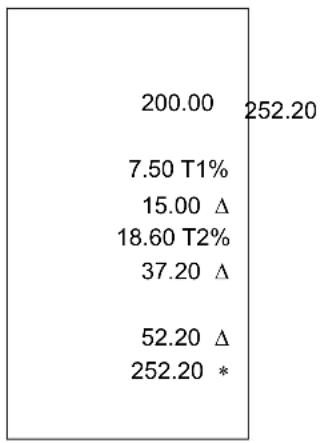
200.0
200.00
17. DATE AND TIME DISPLAY PRESETTING
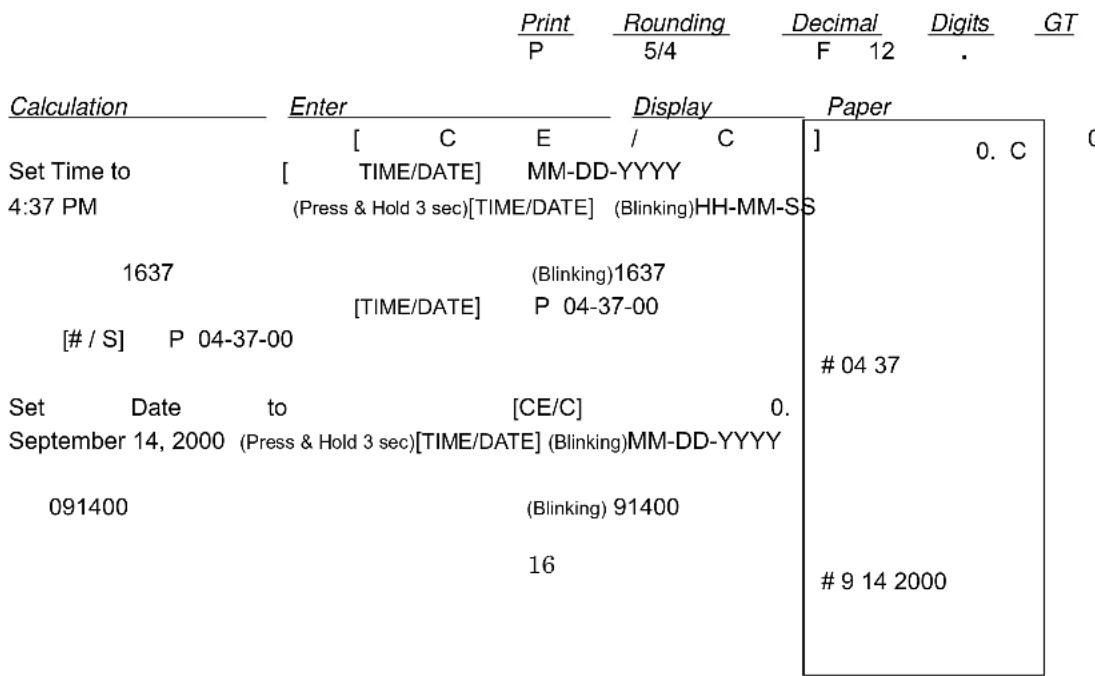
[ TIME/DATE] 09-14-2000
[# / S] 09-14-2000
9. TECHNICAL SPECIFICATIONS
Type: Desktop Adding Machine/Calculator, Electronic Print/VFD
Basic Operations: Addition/subtraction and multiplication/division
Capacity: Input and result 12 digits (10 digits in 10 Digit mode)
Decimal System: Add mode(A), Floating(F), Fixed(0,2,3,4)
Functions: 4 rules, successive calculation, memory calculation, grand total memory, constant calculation, tax calculation, cost, sell and margin calculation.
Printer:
Thermal
Printer
Paper width: Width 57.5 ± 0.5mm X Diameter 30mm
THERMAL PAPER ONLY
Display: 12 digit LCD display (10 Digit in Big Print mode)
Operating Temp: 0^ 40^
Dimensions: 198mm (W) × 250mm (D) × 57mm (H)
Weight: 3.1 lbs.
WARRANTY
Your new VICTOR electronic calculator is guaranteed to the original purchaser for three years for all parts and labor, providing repair work is performed at an authorized VICTOR Service Center and the units are sent by prepaid mail. For Service Centers outside the USA please consult your local office supply Dealer or Victor's Web Site. Warranty repair requires a copy of the original purchase invoice or receipt to be packed with the machine.
Any warranty, statutory or otherwise, dose not include service and or replacement or repair of parts when damage or defect is a result of accident, abuse, or the elements.
Victor Technology
175 E. Crossroads Pkwy.
Bolingbrook, IL 60440 USA
(630)754 - 4400 (Phone)
(630)972 - 3902 (Fax)
http://www.victortech.com
VICTOR
BIG PRINT
CALCULATRICE IMPRIMANTE À USAGE INTENSIF À 10 / 12 CHIFFRES
- [÷] Touche Division
- [X] Touche Multiplication
Any numeral over 12 digits (10 Digits in Big Print mode) will be ineffective. If the decimal point key is used more than once in one numeral, the first decimal point will be considered as effective.
- ([+] Touche addition
| Amount including TAX 1 and TAX 2: | |
| [200 [TAX 1] | 200.00 |
| [TAX 2] | |
| [+] | |
| 300.00 | |
| 200.00 | 200.0 |
| 7.50 T1% | 252.20 |
| 15.00 Δ | |
| 18.60 T2% | |
| 37.20 Δ | |
| 52.20 Δ | |
| 252.20 * |
NOTE: TAX calculations are fixed at 2 decimal positions and result will be rounded up if there is a carry over in the third decimal position.
- PRÉRÉGLAGE POUR L'AFFICHAGE DE LA DATE ET DE L'HEURE
| Impr. | Arrond. | Décimales | Chiffres | GT | |
| P | 5/4 | F | 12 | ||
| Calcul | Appuyer Sur | Afficher | Bande | ||
| Set Time to 4:37 PM | [TIME/DATE] | MM-DD-YYYY | |||
| (Press & Hold 3 sec)[TIME/DATE] | (Blinking)HH-MM-SS | ||||
| 1637 | (Blinking)1637 | ||||
| [PRESS/DATE] | P 04-37-00 | #04 37 | |||
| [# / S] | P | 04-37-00 | |||
| Set Date to September 14, 2000 | [CE/C] | 0. | |||
| (Press & Hold 3 sec)[TIME/DATE] | (Blinking)MM-DD-YYYY | ||||
| 091400 | (Blinking)91400 | #9 14 2000 | |||
| [PRESS/DATE] | 09-14-2000 | ||||
| [# / S] | 09-14-2000 | ||||