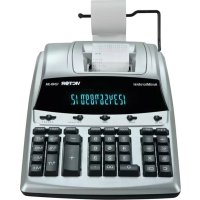
12403A - Calculator VICTOR - Free user manual and instructions
Find the device manual for free 12403A VICTOR in PDF.


| Product Type | Electronic printing calculator |
| Display | 12-digit fluorescent |
| Printing speed | 4.5 lines per second |
| Printing paper | Width 57 mm, max diameter 80 mm |
| Power supply | 120 V / 60 Hz (US, Canada) or 220 V / 50 Hz (Export) |
| Power consumption | 19.2 W (120 V) / 18.4 W (220 V) |
| Ambient temperature | 0 °C to 40 °C (32 °F to 104 °F) |
| Main functions | Basic four operations, grand total, automatic sum, percentage, percent difference, item count, programmable tax rate, cost/sell/margin calculation, memory (4 keys) |
| Mode switches | Power on/off, printing (P/NP/IP), rounding (▲/5/4/▼), grand total/average/rate, decimal selector (A/0/2/3/4/F) |
| Care and cleaning | Clean with a silicone-treated cloth, do not use water or detergents. Avoid hot, dusty, or humid places. |
| Safety | Do not place objects on the housing, especially on the print head. Turn off before unplugging. Unplug if not used for extended periods. |
| Spare parts | VICTOR #7010 ink ribbon, 58 mm wide paper roll, max diameter 50 mm, plain paper 45 kg/1000 sheets |
| Warranty | 2 years parts and labor, repairs at authorized VICTOR service center, requires proof of purchase |
Frequently Asked Questions - 12403A VICTOR
User questions about 12403A VICTOR
0 question about this device. Answer the ones you know or ask your own.
Ask a new question about this device
Download the instructions for your Calculator in PDF format for free! Find your manual 12403A - VICTOR and take your electronic device back in hand. On this page are published all the documents necessary for the use of your device. 12403A by VICTOR.
USER MANUAL 12403A VICTOR
Congratulations on your choice of a Victor electronic calculator. Careful design, quality materials, painstaking workmanship, and advanced research and production facilities have given you a calculator that, with proper care, will provide many years of trouble-free service. To assure protection beyond the limited warranty, Victor offers a Comprehensive Coverage Plan which may be purchased through the website www.victortech.com.
This operating manual describes the features and operation of the Victor 1240-3A electronic calculator. This calculator features the four basic arithmetic operations, Tax + and - keys, percentage, change sign, sigma, item count, non-add/date functions, backspace, and cost, sell, margin keys.
Table of Contents
Preparation 1
General Maintenance 2
Replacing the Ribbon 2
Paper Feed 2
Keyboard Diagrams 3
Key Features 4
Application Examples 22
Warranty
Preparation
BEFORE USING THE PRINTER FOR THE FIRST TIME:
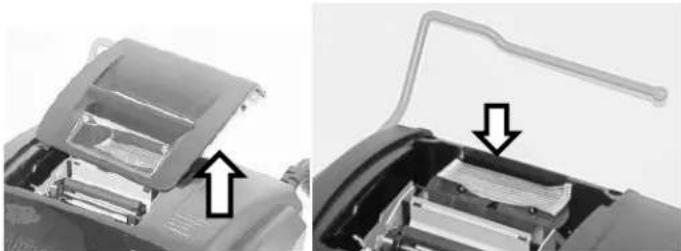
- Remove the tape holding the ink ribbon in place.
- Plug in AC power
- Be sure the paper roll and ribbon have been installed properly.
- Turn the power switch on, and make sure the display lights up. A "C" will automatically be printed on the paper tape.
- Set decimal point selector switch to the desired position.
General Maintenance
- Do not place the calculator in hot, dusty, or damp locations.
- To clean the housing, use a damp cloth.
- Do not place anything on the housing, particularly on the head of the printer mechanism.
- Turn off the power switch before removing the plug from AC wall outlet.
- Turn the power switch off while not in use.
How to Feed the Paper Tape
- Plug in the calculator and turn it on.
- Cut or tear evenly the end of the paper roll to get a straight edge.
- Place the paper holder into position. (Fig. 3)
- Install the paper roll on the paper holder.
- Insert the paper end into the printer slot. (Fig. 4)
- Press the Paper Feed () key to feed the paper to an adequate length.
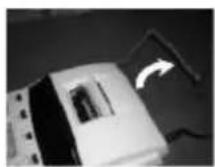
Fig.3
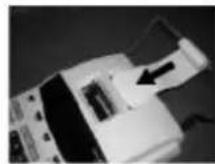
Fig.4
Replacing the Ribbon
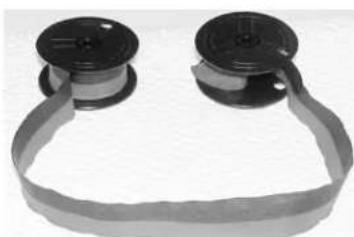
Your calculator is shipped with a 2-color ribbon already in place. You do not need to install or change it before using the calculator. When you have been using your calculator for some time, however, the print will gradually become faint, indicating that you should change the ribbon. To change the ribbon, follow these steps.
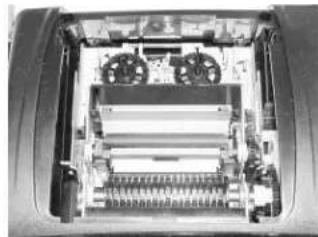
- Remove the paper roll, tearing the paper at the rear of the calculator. Use the Paper Advance () key to feed the remaining paper tape through the printer. Then remove the printer cover.
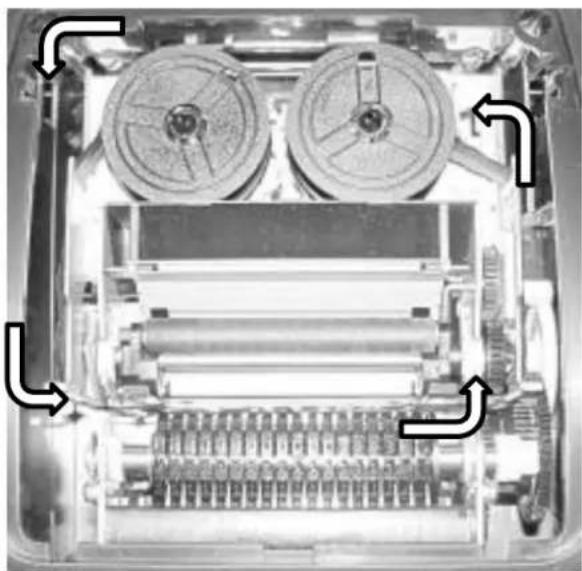
- Remove the old ribbon by pulling it upward.
- Install the ribbon spool with the black edge up. Unwind the ribbon from the full spool and place the full spool on the left spindle. Thread the new ribbon along the outside of the guides and in front of the print wheels. Place the second spool into position on the right side spindle.
- Rotate the spools to take up any slack. Replace the printer cover and install the paper roll.
(Replace with the Victor #7010 Ink Ribbon)
Keyboard Layout




















KEY AND SLIDE SWITCH FEATURES
This section illustrates and describes the mode switches you can use to control your calculator's operation.
OFF ON
(OFF) The power is OFF.
(ON) The power is ON.
PNP IP
(P) The printer is activated as long as the calculator is turned on.
(NP) The printer is activated only when the paper feed key or the non-add / date key is pressed. This is also called display only mode.
(IP) Activates the Item Count so that when the Total key is pressed, the Item Count will automatically print on the right hand side of the printed tape.
5/4
() This setting causes an answer to a calculation to automatically round up.
(5/4) This setting causes automatic round off. If the last digit of the result that will be printed or printed displayed upon rounding is followed by a value of 0 to 4, the digit is unchanged. If the last digit of the result that will be printed or printed / displayed is followed by a value of 5 to 9, the digit is rounded up.
(▼) This causes an answer to be automatically rounded down. (Truncation)
GT TAX SET
(∑) When the slide switch is in the Sigma mode “∑” position, the results of the multiplication or division calculations completed by the = or % keys are automatically added to the accumulator. The accumulated answer can be recalled by pressing the * / T key.
Any total taken with the /T key is automatically accumulated to memory. The accumulated Grand Total can be recalled by pressing the MT key.
(TAX SET) Selects set mode for programming the Tax rate.
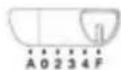
A0234F DECIMAL SET
(A) Monetary Add Mode: In this setting, amounts entered are assumed to be monetary. The calculator automatically supplies a decimal point to the left of the last two digits entered.
(0,2,3,4) Fixed digit mode: These settings specify the number of digits to the right of the decimal point that are shown in the result.
(F) Floating decimal point mode: This setting specifies that all digits of the result are shown, up to a maximum of 12. If the result exceeds these capacities, excess digits to the right of the decimal point are dropped. No rounding takes place.
(0) - (9) (00)(.) NUMERIC KEYS
The calculator uses the conventional 10 - key indexing keyboard, and includes the double zero key and the decimal point key. Whole numbers are entered exactly as they are written.
(↑) PAPER FEED KEY
Used to advance the paper
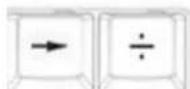
() RIGHTSHIFTKEY
Used to delete the right most character of a live entry
(+) CHANGE SIGN KEY
Used to reverse the sign on the display
( % ± ) PERCENT KEY
Completes percent calculation when the Multiplication or Division keys are used
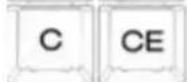
(C) CLEAR KEY
Cleared the accumulator or pending calculation, but does not clear the memory. Use the Clear key to end a multiplication or division calculation.
(÷) DIVISION KEY
The Division key performs division and automatic constant division.
(=) EQUAL KEY
To get the result for a multiplication or division equation
(X) MULTIPLICATION KEY
The multiplication key performs multiplication and automatic constant multiplication.
(CE) CLEAR ENTRY KEY
Clears the current entry.
(-)MINUSKEY
Subtracts an amount from the accumulator. To subtract the same amount more than one time (repeat subtraction), enter that amount once and depress the Minus key as many times as necessary. If this key is depressed immediately after the (%) key, it works as a percent minus key.
(+)PLUSKEY
Adds an amount to the accumulator. To add the same amount more than onetime (repeat addition), enter that amount once and depress the Plus key as many times as necessary. If this key is depressed immediately after the (%) key, it works as a percent add key.
(MU/MD) MARKUP / MARK DOWN KEY
Used in conjunction with the = or % key, this key automatically calculates both the markup and selling price. If you depress the Change-Sign key immediately before depressing the = or % key, both markdown and selling price are calculated.
(TAX + )TAX + KEY
Used to add an amount of tax using the preset tax rate.
(TAX-) TAX-KEY
Used to subtract an amount of tax using the preset tax.
(D/#) DATE/NON-ADD KEY
Prints a live entry as an identifier or as an invoice number without adding the number to the total. The number will appear on the left hand side of the tape with the "#" sign.
(0/S) SUBTOTAL KEY
Prints, but does not clear the total amount.
(^* / T) TOTAL KEY/SIGMA TOTAL KEY
Prints and clears the total. This key will also print the total of multiplication and division when the slide switch is in Sigma mode () .
(MT) MEMORY TOTAL KEY
Prints and clears the total in Memory.
(MS) MEMORY SUB-TOTAL KEY
Prints, but does not clear the contents of Memory.
(M-) MEMORY MINUS. EQUAL Subtracts an amount from memory. If there is a live calculation pending, the Memory Minus key will complete the calculation and subtract the amount from memory.
(M+) MEMORY PLUS, EQUAL
Adds an amount to Memory. If there is a live calculation pending, the Memory Plus key will complete the calculation and accumulate the result to Memory.
COST SELL MARGIN KEYS
Cost, Sell, Margin keys are used for calculating cost, selling price, and profit margin. Enter the value of any two variables to calculate the third. (Example: Enter the cost of an item and press the Cost key. Next enter the selling price of an item and press the Sell key. The Margin % will appear on the display and the paper tape.)
(COST) COST KEY Used to enter the Cost factor in a Gross Profit Margin calculation.
(SELL) SELL KEY Used to enter the Selling Price in a Gross Profit Margin calculation.
(MARGIN) MARGIN KEY Used to enter the desired Margin in a Gross Profit Margin calculation.
GRAND TOTAL KEY
(GT) When the calculator is in Grand Total mode, any total taken with the 12 key is automatically accumulated to Memory. The accumulated Grand Total can be recalled by pressing the GT button.
E. DISPLAY SYMBOLS
M : A number has been stored in Memory.
E : Error or overflow of capacity..
- : The displayed number is negative.
Electromagnetic interference or electrostatic discharge may cause the display to malfunction or the contents of the memory to be lost or altered. Should this occur, use the tip of a ball point pen (or smaller sharp object) to press the [RESET] button at the back of the calculator.

SPECIFICATIONS
*Display :12 Digit, Fluorescent
*Printing Speed :4.5 Lines / Second
*Printing Paper :Width 57mm, Diameter 80mm Max
*Power Sources :1) 120V / 60 Hz (USA, CANADA) :2) 220 V / 50 Hz (ECD)
*Ambient Temperature :0°C ~ 40°C (32°F ~ 104°F)
*Power Consumption :120V / 0.16A / 19.2W (220V / 0.08A / 18.4W)
*Dimension :323 mm (L) X 220 mm (W) X 80 mm (H)
*Ink Ribbon :VICTOR 7010
*Printing Color :2 - Color (minus and negative in red)
*Weight :1655 g
Préface
REEMPLACEMENT DU RUBAN
(TAX +) Imprime taxa
*DIMESIONS :323 mm (L) X 220 mm (W) X 80 mm (H)
*RUBANENCREUR :VICTOR 7010
*IMPRESSION :EN2 - COULEURS (LEMOINS ET LE NEGATIF EN ROUGE)
*POIDS :1655 g
Prologue
Application Examples
English - Spanish - French
1. Addition & Subtraction - Adicion Y Sustracion - Addiston et Soustraction
Slide Switch Positions - Deslice el interruptor de posicón - Interrupteur de position de slide
ON P 5/4 Σ F
Problem
Problema
Problème
2 + 3.1415926 - 6 = ?
Enter
Apriete
Appuyer Sur
| 2 | [+] |
| 3.1415926 | [+] |
| 6 | [-] |
| [T] |
Display
Desplegado
Acher
| 2. |
| 5.1415926 |
| -0.8584074 |
| -0.8584074 |
Paper
Papel
Bande
| 2. + |
| 3.1415926 + |
| 6. - |
| 0.8584074 -T |
2. Addition / Subtraction in Add Mode - Adicion / Sustraction en modo para Anadir - Addition / Soustraction en mode Moneteire
Slide Switch Positions - Deslice el interruptor de posicón - Interrupteur de position de slide
ON P 5/4 Σ A
Problem
Problema
Problème
Enter
Apriete
Appuyer Sur
Display
Desplegado
Acher
Paper
Papel
Bande
1.23-4.56+7.89=?
Subtotal
| 123 | [+] |
| 456 | [-] |
| [#/s] | |
| 789 | [+] |
| [T] |
| 1.23 |
| -3.33 |
| -3.33 |
| 4.56 |
| 4.56 |
| 1.23 + |
| 4.56 - |
| 3.33 S |
| 7.89 + |
| 4.56 T |
- Grand Total - Del Gran Total - De Total Général
Slide Switch Positions - Deslice el interruptor de posicion - Interrupteur de position de slide
ON P 5/4 GT 2
Problem
Problema
Problème
Add the Totals of mulple
calculaons to receive one Grand
Total
Enter
Apriete
Appuyer Sur
Display
Desplegado
Acher
Paper
Papel
Bande
100 + 300 = 400
300 + 400 + 500 = 1200
Grand Total
| 100 | [+] |
| 300 | [+] |
| [+] | |
| 300 | [+] |
| 400 | [+] |
| 500 | [+] |
| [T] |
| [MS] |
| [MT] |
| 100.00 |
| 400.00 |
| M |
| 400.00 |
| 300.00 |
| 700.00 |
| 1'200.00 |
| M 1'200.00 |
| M 1'600.00 |
| 1,600.00 |
| 100.00 + |
| 300.00 + |
| 400.00G+ |
| 300.00 + |
| 400.00 + |
| 500.00 + |
| 1,200.00G+ |
| 1,600.00G◇ |
| 1,600.00G* |
- Multiplication - Multiplicacion - Multiplication
Slide Switch Positions - Deslice el interruptor de posicion - Interrupteur de position de slide
ON P 5/4 GT 2
Problem
Problema
Problème
1.238×456=?
Enter
Apriete
Appuyer Sur
| 1.238 | [X] |
| 456 | [=] |
Display
Desplegado
Acher
| 1.238 |
| 564.52 |
Paper
Papel
Bande
1.238X
456=
564.52*
- Sequential (Chain) Multiplication - Multiplicacion Secuencial (en canada) - Multiplication Sequentielle (Chaine)
Slide Switch Positions - Deslice el interruptor de posicón - Interrupteur de position de slide
ON P ▲ GT 3
Problem
Problema
Problème
3.21×4.5×6.324=?
Enter
Apriete
Appuyer Sur
| 3.21 | [X] |
| 4.5 | [X] |
| 6.324 | [=] |
Display
Desplegado
Acher
| 3.210 |
| 14.445 |
| 91.351 |
Paper
Papel
Bande
| 3.210 X |
| 4.500 X |
| 6.324 = |
| 91.351 |
- Constant Multiplication - Multiplicacion Constante - Multiplication Par Une Constante
Slide Switch Positions - Deslice el interruptor de posicón - Interrupteur de position de slide
ON P 5/4 GT 2
Problem
Problema
Problème
2X4=?,2X5=?,2X6 =?
Enter
Apriete
Appuyer Sur
| 2 | [X] |
| 4 | [=] |
Display
Desplegado
Acher
| 2 |
| 8 |
Paper
Papel
Bande
2.00 X
4.00 =
8.00*
5.00 =
10.00*
6.00 =
12.00*
| 1.79 X 167 =298.93 |
| 1.79 X - 230 = -411.70 |
| 1.79 X 104 =186.16 |
| = ? |
Enter
Apriete
Appuyer Sur
| 1.79 | [X] |
| 167 | [=] |
Display
Desplegado
Acher
| 1.79 |
| 298.93 |
Paper
Papel
Bande
| 1.79 X |
| 167.00 = |
| 298.93 + |
| 230.00 -= |
| 411.70 + |
| 104.00 = |
| 186.16 + |
| 73.39 T |
| [T] |
8.Division - División - Division
Slide Switch Positions - Deslice el interruptor de posicion - Interrupteur de position de slide
ON P▼ Σ 3
Problem
Problema
Problème
| 178÷6=? |
Enter
Apriete
Appuyer Sur
| 178 | [÷] |
| 6 | [=] |
Display
Desplegado
Acher
| 178.000 |
| 29.666 |
Paper
Papel
Bande
Sell = 125, Margin = 20%, Cost = ?
Enter
Apriete
Appuyer Sur
| 100 [COST] |
| 20 [MARGIN] |
Display
Desplegado
Acher
| 100. |
| 125. |
Paper
Papel
Bande
100C*
20.M%
125.S*
[C/CE]
100 [COST]
125 [SELL]
[C/CE]
125 [SELL]
20 [MARGIN]
100.
20.
| 125. |
| 100. |
100.C*
125.S*
20.M%
| 125.S* |
| 20.M% |
125.S*
20.M%
100.C*
| [C/CE] |
| 125 [SELL] |
| 20 [MARGIN] |
- Memory Calculation - Caleculo De La Memoria - Calcul De Mempoire
Slide Switch Positions - Deslice el interruptor de posicion - Interrupteur de position de slide
ON P 5/4 Σ A
Problem
Problema
Problème
1.23M+4.56M-7.89M+=?
Enter
Apriete
Appuyer Sur
| 123 | [M+] |
| 456 | [M-] |
| 7.89 | [M+] |
| [MS] | |
| [MT] |
Display
Desplegado
Acher
| M 1.23 |
| M 4.56 |
| M 7.89 |
| M 4.56 |
| 4.56 |
Paper
Papel
Bande
| 1.23M+ |
| 4.56M- |
| 7.89M+ |
| 4.56M◇ |
| 4.56M* |
- Tax Rate Presetting - Preestablecimento Del Vator Del Valor Impuesto - Programmation Du Taux De Taxe
Slide Switch Positions - Deslice el interruptor de posicón - Interrupteur de position de slide
ON P 5/4 TAX SET A
Problem
Problema
Problème
| Set Tax to 3% |
| Slide Switch to TAX SET |
| Slide Switch to GT or Σ |
Enter
Apriete
Appuyer Sur
| 3 |
Display
Desplegado
Acher
| 3. |
| 3. |
Paper
Papel
Bande
| 3.% |
ON P 5/4 TAX SET A (TAX SET while setting Tax then slide to GT)
Problem
Problema
Problème
| Add Tax to 1560 |
| Press TAX + |
Enter
Apriete
Appuyer Sur
1560
Display
Desplegado
Acher
| 1560 |
| 1606.80 |
Paper
Papel
Bande
| 1560 |
| 3.% |
| 46.80 Δ+ |
| 1606.80* |
Problem
Problema
Problème
| Exclude Tax From 1606.80 |
| Press TAX - |
Enter
Apriete
Appuyer Sur
1606.80
Display
Desplegado
Acher
| 1606.80 |
| 1560.00 |
Paper
Papel
Bande
| 1606.80 |
| 3.% |
| 46.80 Δ- |
| 1560.00 |
- Mark Up / Mark Down (MU) – Augmentation / Reduction (MU) – Marka Arriba / Abajo (MU)
Slide Switch Positions - Deslice el interruptor de posicón - Interrupteur de position de slide
ON P▼GT A
Problem
Problema
Problème
| Mark Up 100 by 5% |
| Press Mark Up |
| Enter 5 |
| Press the = key |
Enter
Apriete
Appuyer Sur
| 100 |
| MU/MD |
| 5 |
| = |
Display
Desplegado
Acher
| 100 |
| 5 |
| 105.26 |
Paper
Papel
Bande
| 100.M |
| 5% |
| 5.26 Δ * |
| 105.26 * |
Problem
Problema
Problème
| Mark Down 125 by 5% |
| Press Mark Down |
| Enter 5 |
| Press the +/- Key |
| Press the = key |
Enter
Apriete
Appuyer Sur
| 125 |
| MU/MD |
| 5 |
| +/- |
| = |
Display
Desplegado
Acher
| 125 |
| 5 |
| -5 |
| 119.04 |
Paper
Papel
Bande
| 125.M |
| 5.-% |
| 5.95-Δ* |
| 119.04 * |
WARRANTY
Your new VICTOR electronic calculator is guaranteed to the original purchaser for three (3) years for all parts and labor, providing repair work is performed at an authorized VICTOR Regional Service Center and the unit is sent freight prepaid. Warranty repair requires a copy of the original purchase invoice or receipt to be packed with the machine. The address and phone number of our National Service Center is below.
Any warranty, statutory or otherwise, does not include service and/or replacement or repair of parts when damage or defect is a result of accident, abuse, or the elements.