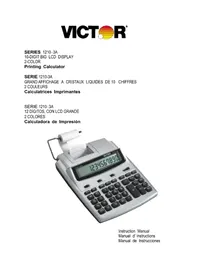
12103A - Calculator VICTOR - Free user manual and instructions
Find the device manual for free 12103A VICTOR in PDF.


| Product type | Printing calculator |
| Brand | Victor |
| Model | 12103A |
| Display | Large 12-digit LCD screen |
| Print speed | 2.1 lines/second |
| Paper width | 58 mm (2.25 inches) |
| 2 colors (black and red); negative in red | |
| Ink roller | IR-40T |
| Power supply | 6V DC adapter, 300 or 400 mA (110-240V, 50/60 Hz); 4 AA batteries (UM-3) |
| Backup battery | 1 CR2032 lithium battery (for memory) |
| Power consumption | 1.6 W |
| Weight | 660 g |
| Operating temperature | 0 to 40 °C |
| Main functions | 4 operations, grand total, automatic sum, percentage, difference, item count, non-add, tax rate (TAX), cost/sell/margin, 4 memory keys, date and time |
| Antimicrobial protection | Yes (silver-based agent) |
| Warranty | 2 years parts and labor |
| Care and cleaning | Clean with a soft dry cloth; do not use solvents |
| Spare parts | IR-40T ink roller, AA batteries, CR2032 battery |
| Repairability | Victor authorized service centers; Reset button on the back |
Frequently Asked Questions - 12103A VICTOR
User questions about 12103A VICTOR
0 question about this device. Answer the ones you know or ask your own.
Ask a new question about this device
Download the instructions for your Calculator in PDF format for free! Find your manual 12103A - VICTOR and take your electronic device back in hand. On this page are published all the documents necessary for the use of your device. 12103A by VICTOR.
USER MANUAL 12103A VICTOR
10-DIGIT BIG LCD DISPLAY
2-COLOR
Printing Calculator
SERIE 1210-3A
GRAND AFFICHAGE A CRISTAUX LIQUIDES DE 10 CHIFFRES
2 COULEURS
Calculatrices Imprimantes
SERIE 1210-3A
12 DIGITOS, CON LCD GRANDE
2 COLORES
Congratulations on your choice of a Victor electronic calculator. Careful design, quality materials, painstaking workmanship, and advanced research and productions facilities have given you a calculator that, with proper care, will provide years of trouble-free service. To assure future optimum performance, ask your Victor representative about low cost protection offered by Victor's Extended Guarantee Protection Program.
This operating manual describes the features and operation of the Victor 1210-3A and 1212-3A. Where applicable, differences in these two models are noted. This calculator also features the four basic arithmetic operations, grand total, sigma, percentage, percent of change, change sign, item count, non-date add functions, programmable tax rate, back space, cost, sell, margin, and four key memory functions. The Victor 1210-3A and 1212-3A also have calendar and clock features.
NEW ANITMICROBIAL PROTECTION
Your Victor calculator has been engineered with an Antimicrobial agent that protects the calculator against the growth of microbes and bacteria.
Did you know that viruses can live for up to 72 hours on common surfaces, such as desks, phones, and calculators?
How do you protect your calculator? Surprisingly, with silver. This precious metal is a natural germ-fighter, using its ions to attack microbes. This silver is so safe and effective that it has been EPA-approved for use in a wide range of applications. One of those applications is within your own Victor Antimicrobial calculators. Now you can reduce microbes on your desktop environment while maximizing your calculating power
TABLE OF CONTENTS
Operations and General Maintenance
Replacing the ink roller
Loading Paper
Display Symbols
Keyboard Diagrams
Keyboard Layout
Slide Switch Features
Key Features
Date and Time Functions
Application Examples
Setting the Date and Time
Warranty
SPECIFICATION
- Display
: 10 digits, large LCD display
- Printing Speed
: 2.1 lines/second.
- Printing Paper
Width 58mm (2 1 / 4 inch), MAX
Power Sources
: AC 110-120,220-230 or 240V,50/60Hz, with an AC adaptor 6V DC, 300mA or 400mA.
:Or DC-Four AA size manganese dry batteries (UM-3)
- Ambient Temperature: 0^ 40^ C ( 32^ 104^ F )
- Power Consumption : 1.6W
Dimension : 260mm(L) × 198mm(W) × 65mm(H) - Ink Roller : IR-40T
- Printing Color : 2-color (minus and negative in red)
Weight : 660g
PREPARATION
A. Power source
This unit receives its operating power with an AC adaptor 6V DC, 300mA or 4 AA size manganese dry batteries (UM-3).
When Power is in ON position, pressing [D/#] key will only print the digits displayed in the front display panel.
B. Loading Paper
Place paper holder into position (Fig.1).
Install the paper roll on the holders.
Insert the paper end into printer slot (Fig.II).
Press [ ] key to feed the paper to an adequate length
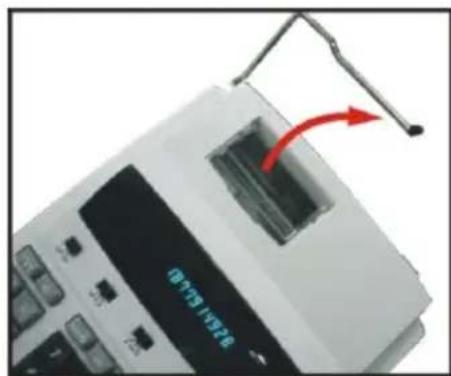
Fig.1
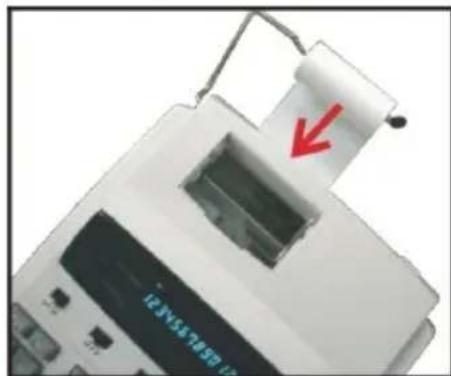
Fig. II
C. Replacing the Ink Riller
If the printing becomes faint, the ink roller may need to be replaced.
1) Turn the power off.
2) Open the printer cover(Fig.III)
3) Remove the old ink roller by pulling it up (Fig.IV).
4) Insert the new ink roller IR40T in the compartment and gently press it down until it snaps into place.
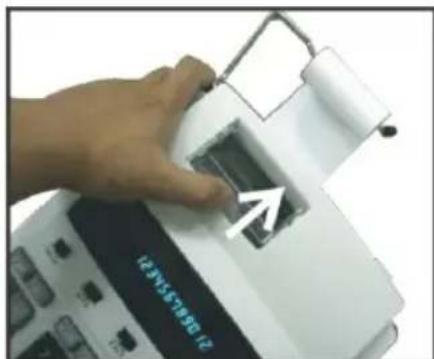
Fig. III
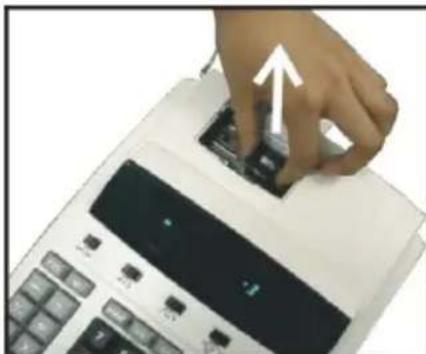
Fig. IV
CAUTION: Turn the power off before replacing ink roller.
KEY IDENTIFICATION
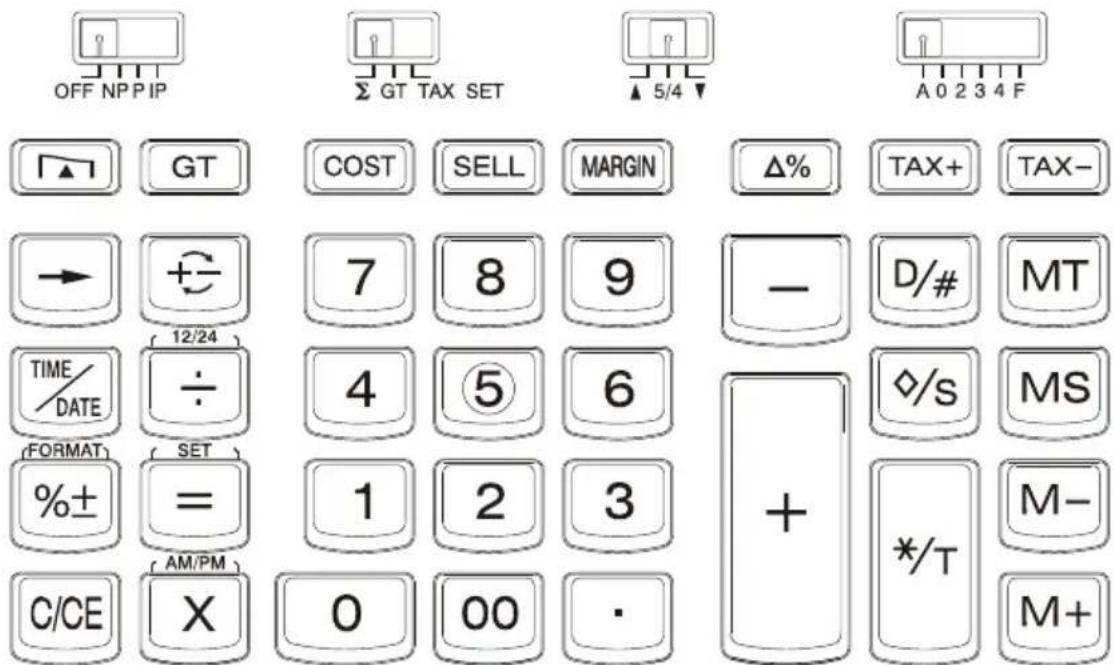
OFF NP P IP
(OFF) Display OFF, whiles time/date memory will remain.
- (NP P IP) Switch to choose Printer OFF, Printer ON or Printer item count mode.
ΣGT TAX SET
(Σ) The calculator automatically adds the result of multiplication/division to the total register-no need to press + key each time. Obtain the multiplication/division result by pressing = key.
- (GT) Grand Total Memory selectable switch.
(TAX SET) Selects set mode for tax rate.
5/4
An answer is rounded up.
(5/4) An answer is rounded off.
(An answer is rounded down.
A0234F
Decimal set (A) accountant, Fixed (0,2,3,4),(F)floating
[0]~ [9] [00]:Numeral keys
[.] :Decimal point key
[+] :Addkey
[-] :Subtract key
[x] :Multiplication key
[÷] :Division key
[=] :Equal key
[%±]:Percent key
[MS]:Memory subtotal recall key
[MT]:Memory total clear key
[M^+] :Memory plus key
[M-] :Memory minus key
[D/#] :Date/Number key print key
[ ] :Paper feed key
[◇/S]: Subtotal key
[C/CE]:All clear/Clear entry
[→]:Back space key
[+] : Inverts sign of the displayed number at
[TAX+] or [TAX-] key entry :TAX+Calculates the tax amount, using The stored rate, and adds it to the Original price before tax :TAX-Calculates the amount of tax to be deducted (using the stored tax Rate) and subtracts it from the displayed value to find the pre-tax sales amount
:Prints TAX / Included TAX (TAX=3)
A + = A(3 / 100)
$$ = A + (A (3 / 1 0 0)) $$
:Prints TAX / Included TAX (TAX=3)
A TAX- = A - A(1 + 3 / 100)
$$ = A / (1 + 3 / 1 0 0) $$
[ %] :Prints difference (Computes the % Of change between two values)
A % B = B - A
$$ = (B - A) / A $$
A % B + / - = -(B + A)
$$ = - (B + A) / A $$
[^* / T] :Totalkey
[COST] [MARGIN] [SELL]: Used for calculating the cost, selling price and profit margin amount. Enter the value of any 2 items to obtain the balance value item. (e.g. enter the value of the cost and the selling price to obtain the profit margin.)
[GT] :In Grand total mode, adds the total register to the GT register by the (^* / T) key
[TIME] :Displays date or time
[SET] :Used to set the date and time in calendar & clock mode
[AM/PM] :Used to switch between AM or PM at clock mode time setting
[12/24] :Used to switch between 12 or 24 hour at clock mode time setting
[FORMAT] :Used to select date format between “YYYY/MM/DD”, “DD/MM/YYYY” or
"MM/DD/YYYY" at calendar mode
DISPLAY SYMBOL
MEMORY : A number has been stored in memory
ERROR : Error or overflow of capacity
: The display value is negative
GT :A number has been stored in Grand Total
TAX+, TAX-, TAX_0 : Performance of tax calculation
SELL, COST, MARGIN% : Performance of cost, sell, and Profit Margin calculation

The TIME/DATE key is used to display the Time or Date.
Depressing the TIME/DATE key once displays the dateMM-DD-YYYY.
Depressing the TIME/DATE key a second time displays the time, HH-MM-SS.
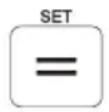
When displaying the Date or Time the = key becomes a key to enter or exit the date or time set mode.
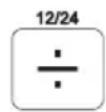
When displaying the Time the ÷ key becomes a key to toggle between the 12(AM/PM) or 24 hour clock mode.
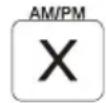
When displaying the Time in the set mode the × key becomes a key to toggle between AM and PM when in the 12 hour time mode.
Set Date and Time
1) Press TIME/DATE and then SET. (The first digit of the month will flash.)
2) Enter the month MM using the number keys. (The first digit of the date will flash.)
3) Enter the date DD using the number keys. (The first digit of the year will flash.)
4) Enter the year YYYY using the number keys. (The first digit of the month will flash.)
5) Press SET to confirm the date.
6) Press TIME/DATE and then SET. Enter the time using the number keys and press 12/24 to switch between 12-hour or 24-hour clock.
7) Press AM/PM to toggle morning or afternoon and press SET To confirm the time.
| Problem | Operation | Read-out |
| How to set date: Oct.29,2001 | SET (Hold for 3 seconds) | MM-DD-YYYY “M”M-DD-YYYY 10-“D”D-YYYY 10-29-“2”YYYY “1”0-29-2001 10-29-2001 |
| 10 | ||
| 29 | ||
| 2001 | ||
| SET | ||
| How to set time: a) 3:45AM b) 3:45PM c) 15:45 | C/CE (Hold for 3 seconds) | AM HH-MM-SS AM “H”H-MM AM “0”3-45 AM 03-45-00 AM “0”3-45 PM 03-45-00 15-45-00 |
| SET | ||
| 3 (Hold for 3 seconds) | ||
| 0 3 4 5 | ||
| SET | ||
| SET | ||
| 3 (Hold for 3 seconds) | ||
| × × | ||
| 12/24 |
DATE FORMAT: While displaying the date, depressing the % ± key allows changingthe date format mode from MM-DD-YYYY to DD-MM-YYYY or YYYY-MM-DD. The default date format is MM-DD-YYYY.
REPLACING THE BACK-UP BATTERY:
1) Using a screwdriver remove the three screws on the back cover of the calculator.
2) To separate the front and back cover halves, carefully insert and twist a flat-blade screwdriver between them.
3) Use a flat-blade screwdriver to gently pry out the battery.
4) Position the new battery so the positive (+) side is up. Slide one edge of the battery under the tab on the battery holder, then press the battery into place.
5) Snap the cover halves back together. Then reinsert and tighten the screws.
NOTE: Memory backup battery retains the tax rate, calendar and clock setting, when the power is off or even when the AC cord is disconnected.
Battery: 1 Lithium battery (Type: CR 2032)
Battery life: Backup time 1000 hours
RESET:
Electromagnetic interference or electrostatic discharge may cause the display to malfunction or the contents of the memory to be lost or altered. Should this occur, use the tip of a ball point pen (or similar sharp object) to press the [RESET] button on the bottom of the calculator. After resetting, be sure to set the tax rate, time and date again.

PRÉFACE
:Touches Multiplication
[÷]
:Touches Division
[=]
:Touches Egalité
[%±]
:Touches Pour cent
[MS]
$$ = A + (A (3 / 1 0 0)) $$
:Imprime TAX / TAX Incluse (TAX = 3)
A TAX = A - A(1 + 3 / 100)
$$ = A / (1 + 3 / 1 0 0) $$
[COCT][SELL][MARGIN]
$$ = - (B + A) / A $$
SYMBOLS D, AFFICHAGE
$$ = A + (A (3 / 1 0 0)) $$
:Imprime TAX /Incluido TX_(TAX = 3)
A TAX+ = A - A(1 + 3 / 100)
$$ = A / (1 + 3 / 1 0 0) $$
[COCT][SELL][MARGIN]
$$ = - (B + A) / A $$
SIMBOLO PANTALLA
[OFF/NP/P/IP] = P, [ /GT/TAXSET] = [ 5/4] = DONT CARE [A/0/2/3/4/F] = F
D. Memory calculation
E. Correcting mistaken entry
H. Application calculation
Kettenrechnung
I. Business sales calculation
Your new VICTOR electronic calculator is guaranteed to the Original purchaser for two years for all parts and labor, providing repair work is performed at an authorized VICTOR Regional Service Center and the unit are sent by prepaid mail. For Service Centers outside the USA please consult your local office supply Dealer or Victor's Web Site. Warranty repair requires a copy of the original purchase invoice or receipt to be packed with the machine.
Any warranty, statutory or otherwise, does not include service and or replacement or repair of parts when damage or defect is a result of accident,abuse,or the elements.
Victor Technology
780 West Belden Avenue
Addison, IL 60101 USA
(630)268-8400 (Phone)
(630)268-8450 (Fax)
http://www.victortech.com
GARANTIE
780 West Belden Avenue
Addison, IL 60101 USA
(630)268-8400 (Telephone)
(630)268-8450 (Fax)
http://www.victortech.com
LA GARANTÍA
780 West Belden Avenue
Addison, IL 60101 USA
National Service Center
Victor Technology
780 W. Belden Avenue
Addison, IL 60101
Phone(630 268 8400)
Fax (630 268 8450)
Http://www.victortech.com