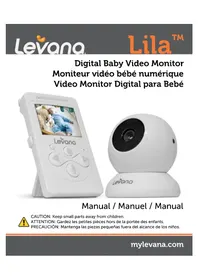
Lila - Baby monitors Levana - Free user manual and instructions
Find the device manual for free Lila Levana in PDF.



Frequently Asked Questions - Lila Levana
User questions about Lila Levana
0 question about this device. Answer the ones you know or ask your own.
Ask a new question about this device
Download the instructions for your Baby monitors in PDF format for free! Find your manual Lila - Levana and take your electronic device back in hand. On this page are published all the documents necessary for the use of your device. Lila by Levana.
USER MANUAL Lila Levana
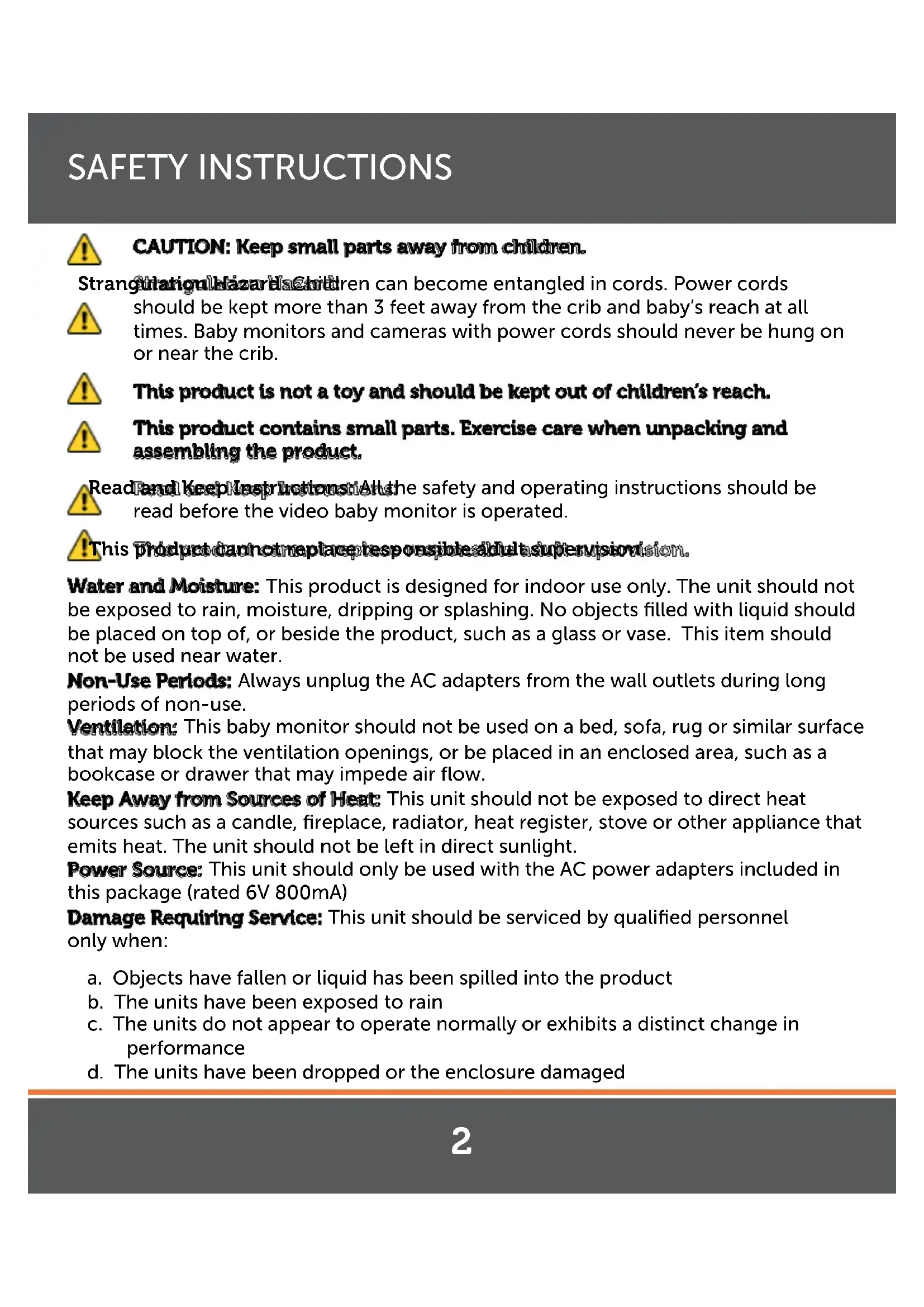
CAUTION: Keep small parts away from children.
CAUTION: Keep small parts away from children.
StrangulargnblazarlaCitren can become entangled in cords. Power cords
should be kept more than 3 feet away from the crib and baby's reach at all times. Baby monitors and cameras with power cords should never be hung on or near the crib.
This product is not a toy and should be kept out of children's reach.
This product contains small parts. Exercise care when unpacking and assembling the product.
ReadPandKeepHastrnstiaThe safety and operating instructions should be read before the video baby monitor is operated.
This product can not replace the response to be able to support version.
Water and Moisture: This product is designed for indoor use only. The unit should not be exposed to rain, moisture, dripping or splashing. No objects filled with liquid should be placed on top of, or beside the product, such as a glass or vase. This item should not be used near water.
Non-Use Periods: Always unplug the AC adapters from the wall outlets during long periods of non-use.
Ventilation: This baby monitor should not be used on a bed, sofa, rug or similar surface that may block the ventilation openings, or be placed in an enclosed area, such as a bookcase or drawer that may impede air flow.
Keep Away from Sources of Heat: This unit should not be exposed to direct heat sources such as a candle, fireplace, radiator, heat register, stove or other appliance that emits heat. The unit should not be left in direct sunlight.
Power Source: This unit should only be used with the AC power adapters included in this package (rated 6V 800mA)
Damage Requiring Service: This unit should be serviced by qualified personnel only when:
a. Objects have fallen or liquid has been spilled into the product
b. The units have been exposed to rain
c. The units do not appear to operate normally or exhibits a distinct change in performance
d. The units have been dropped or the enclosure damaged

This device complies with part 15 of the FCC Rules. Operation is subject to the following two conditions:
(1) This device may not cause harmful interference.
(2) This device must accept any interference received, including interference that may cause undesired operation.
FCC WARNING
This equipment has been tested and found to comply with the limits for a Class B digital device, pursuant to Part 15 of the FCC Rules. These limits are designed to provide reasonable protection against harmful interference in a residential installation.
This equipment generates, uses and can radiate radio frequency energy and, if not installed and used in accordance with the instructions, may cause harmful interference to radio communications.
However, there is no guarantee that interference will not occur in a particular installation. If this equipment does cause harmful interference to radio or television reception, which can be determined by turning the equipment off and on, the user is encouraged to try to correct the interference by one or more of the following measures:
- Reorient or relocate the receiving antenna.
- Increase the separation between the equipment and the receiver.
- Connect the equipment into an outlet different from that to which the receiver is connected.
- Consult the dealer or an experienced radio/TV technician for help.
IC STATEMENT:
This Class A digital apparatus complies with ICES-003.
The manufacturer is not responsible for any radio or TV interference caused by unauthorized modifications to this equipment. Such modifications could void the user's authority to operate the equipment.
We take quality very seriously. That is why all of our products come with a one-year warranty from the original purchase date against defects in workmanship and materials. If you have warranty or support issues, please contact us using any of the following methods:
Web: www.mylevana.com Support: www.mylevana.com/support/
LEVANA CaidedaNA Canada EVANA USA
LEVANA USA
4080 Montrose Road
60 Industrial Parkway #Z64
Niagara Falls, ON Cheektowaga NY
Canada L2H 1J9 USA 14227
Warranty Terms
- LEVANA® products are guaranteed for a period of one year from the date of purchase against defects in workmanship and materials. This warranty is limited to the repair, replacement or refund of the purchase price at LEVANA's option.
- This warranty becomes void if the product shows evidence of having been misused, mishandled or tampered with contrary to the applicable instruction manual.
- Routine cleaning, normal cosmetic and mechanical wear and tear are not covered under the terms of this warranty.
- The warranty expressly provided for herein is the sole warranty provided in connection with the product itself and no other warranty, expressed or implied is provided. LEVANA assumes no responsibilities for any other claims not specifically mentioned in this warranty.
- This warranty does not cover the shipping cost, insurance or any other incidental charges.
- You MUST contact LEVANA at www.mylevana.com/support before sending any product back for repair. You will be sent a Return Authorization form with return instructions. When returning the product for warranty service, please pack it carefully in the original box with all supplied accessories, and enclose your original receipt or copy, and a brief explanation of the problem (include RA!).
- This warranty is valid only in Canada and the continental U.S.
- This warranty cannot be re-issued.
TABLE OF CONTENTS
SAFETYINSTRUCTIONS 2
FCC STATEMENT 3
WARRANTY 4
WHAT'S INCLUDED 6
BUTTONS AND CONNECTIONS - MONITOR 7
BUTTONS AND CONNECTIONS - CAMERA 8
SETUP 9
Battery installation. 9
Get the Most Out of Your Rechargeable Battery 9
Connecting Power to the Monitor / Charging Battery 10
Connecting Power to the Camera 10
Screen Icons 11
OPERATION 12
Turn on the Monitor 12
Pairing the Cameras & Monitor 12
Placement of the Monitor 13
Placement of the Camera 13
Mounting the Camera on a Tabletop Safely 13
Mounting the Camera on a Wall Safely 14
Night Vision 15
Adjusting the Camera Angle 15
MOTOR 16
Volume 16
Using the Talk to BabyTM Two-Way Intercom 16
Using PEEP Mode. 17
Selecting a different camera view 17
Setting the Brightness 18
Contacting Customer Support 18
TROUBLESHOOTING 19
MAINTENANCE 19
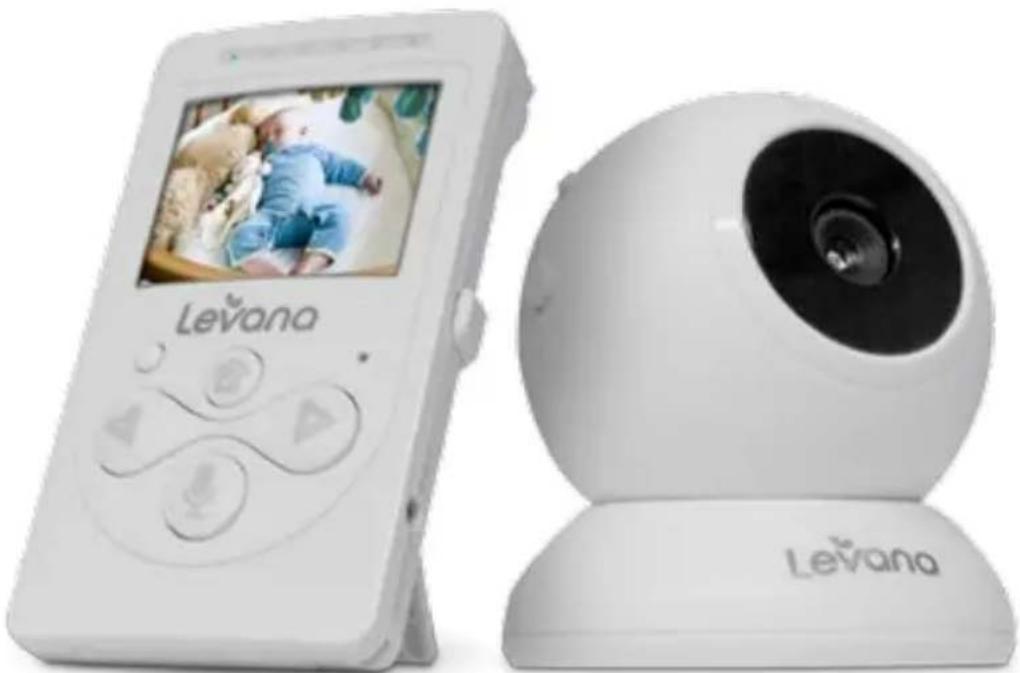
WHAT'S INCLUDED
Night Vision Camera
Baby Video Monitor
- Rechargeable Battery
2 Power Adapters
- Camera Angle Wedge
- Instruction Manual
1 Year Warranty
Lifetime Live Customer Support
This product is not a toy.
This product contains small parts. Exercise care when unpacking and assembling the product.
This product does not replace responsible adult supervision. Check on your child at regular intervals and make sure your monitor is always adequately charged.
LEVANA® does not endorse any LEVANA® products for illegal activities. Levana is not responsible or liable in any way for any damage, vandalism, theft or any other action that may occur while a LEVANA® product is in use by the purchaser.
We reserve the right to change models, configuration, or specifications without notice or liability. Product may not be exactly as shown.
©2012 LEVANA®. All rights reserved. LEVANA®, the LEVANA® logo, Lila™ and other LEVANA® marks may be registered. All other Trademarks are the property of their respective owners.
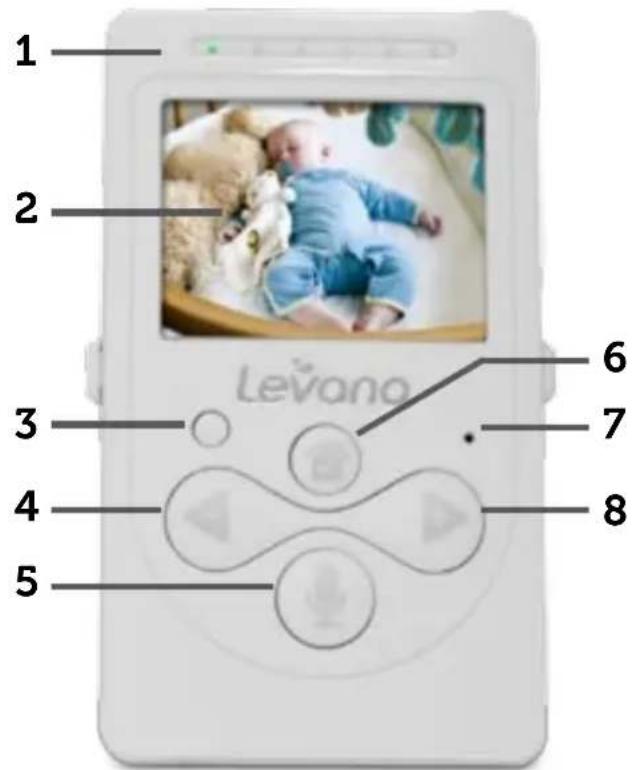
- LED SOUNDBARR LED lights show different levels of sound
- LCDSCREEN
- POWERY/IOEOCONHOFFBBUTTIN
- VOLUMEDOWN MOVELELEFT BUTTON
- TALKTOCBABY*BTTCON Press and hold to talk, release to listen
-
MENU/SEEECTBUTTON
-
MIOROPHONIE
- VOLUMEUP/MOYERIGHTT BUTTON
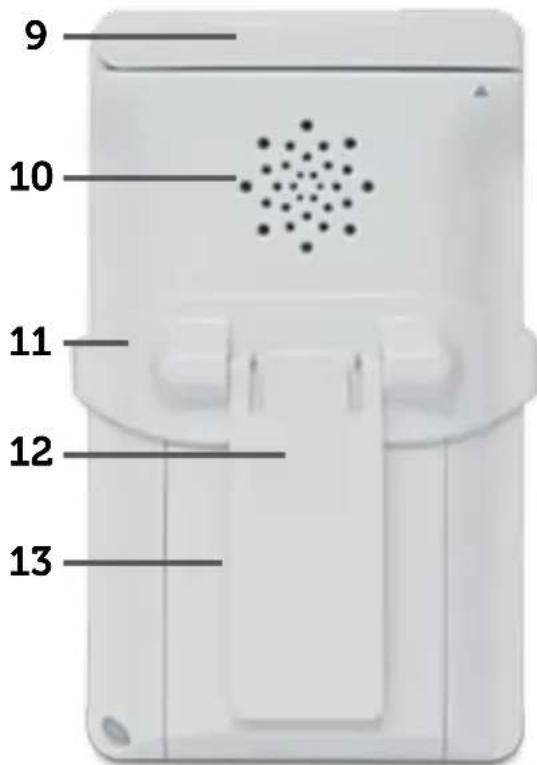
- ANTENNA Extend to improve signal
- SPEAKER
- REMOVE STAND CLIP
- TABLE STAND
- BATTERYCOMPARTMENT
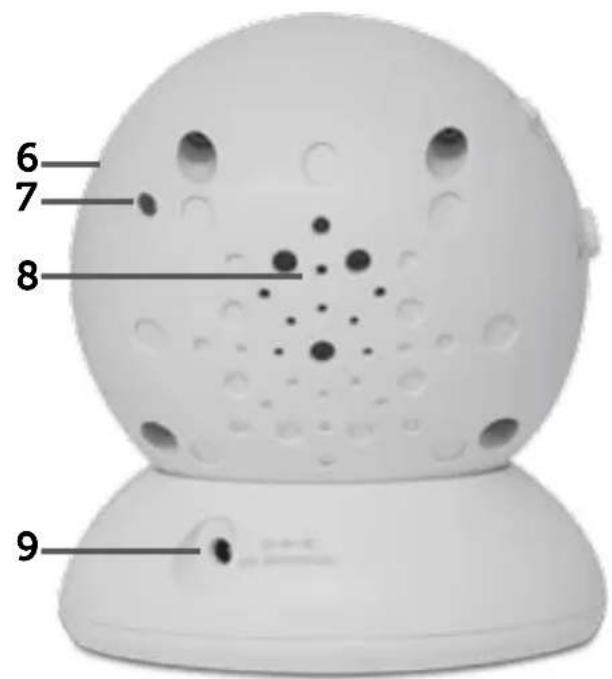
CAMERA
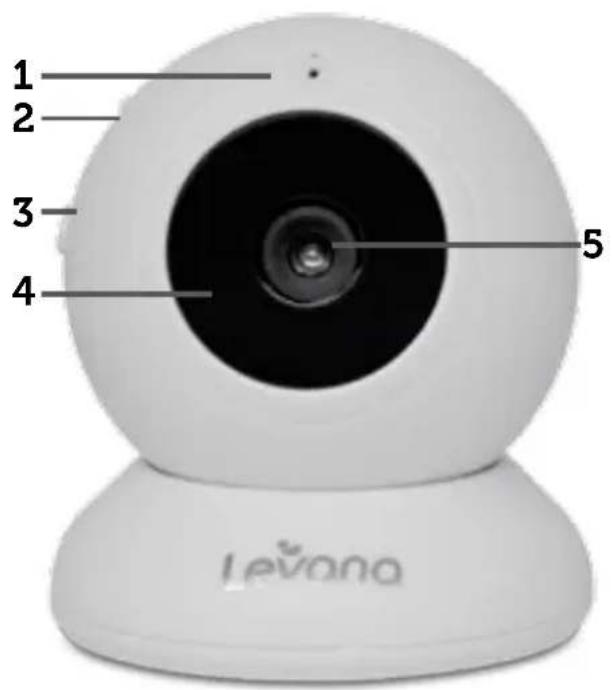
1 MlRHOHNE
2. POWERTONKOBFBUTOIN
3. PAARINGBOITONN
4. INVISBEENKGEHTVISIONLEDs
5. CAMERA
- LIGHTSENSOR
- POWERED
- SPEAKER
- POWERINFRUIT
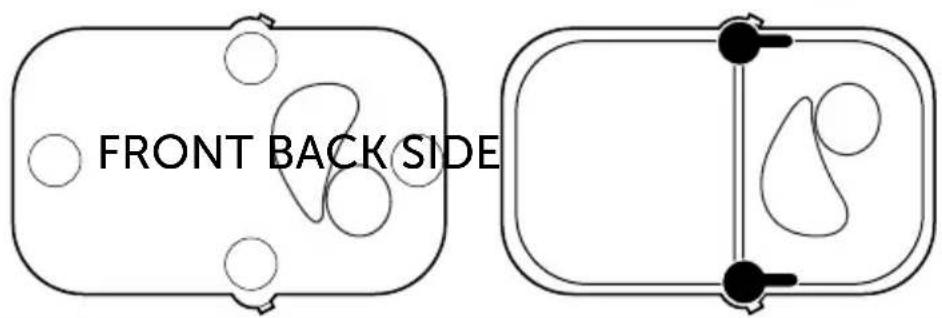
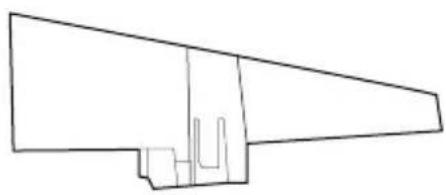
CAMERA ANGLE WEDGE
LET'S GET STARTED!
Battery Installation
-
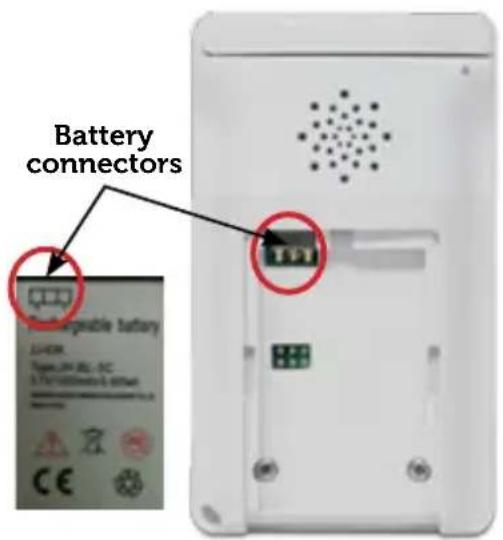
Gently remove the STAND CLIP on the back of the monitor to allow access to the BATTERY COMPARTMENT COVER.
-
Slide the BATTERY COMPARTMENT COVER down to remove.
-
Insert the battery with the words "Rechargeable Battery" facing towards you. The battery connectors should line up with the connectors inside the battery compartment.
-
Slide the BATTERY COMPARTMENT COVER back into place and reinstall the STAND CLIP.
Get the Most Out of Your Rechargeable Battery
- Fully charge battery (4 hours) before first use.
- To maximize battery life, charge battery before battery is fully drained.
- Avoid extreme heat or cold as this will affect the life of the battery.
- Turn LCD screen OFF; press POWER button on the front of the monitor ONCE.
- Lila ^TM menu settings that increase battery life:

PEEP Mode: After 1 minute of inactivity, monitor enters standby/sleep mode.

Adjustable Brightness: Decreasing screen brightness will extend battery life.
- For extended periods of non-use, please remove battery from baby monitor.
SETUP
Connecting Power to the Monitor / Charging Battery
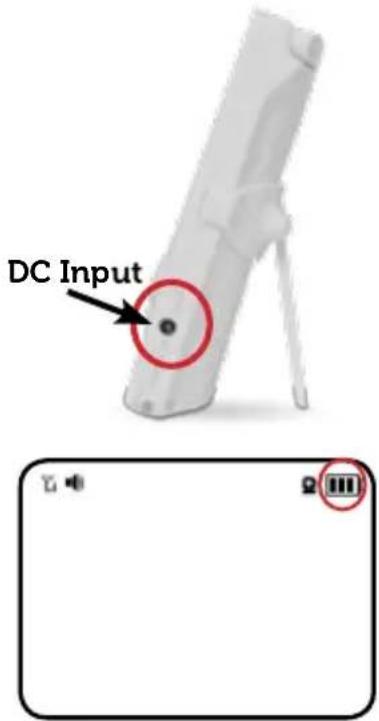
- Connect the small end of power adapter marked MONITOR into the DC input on the side of the monitor as shown in the diagram.
- Connect the other end of the adapter into an available wall outlet. For safety reasons, ONLY use the adapters included in the package.
- Press the POWER /VIDEO ON-OFF BUTTON
- The icon in the top right corner of the main screen will show you the battery power status.
EMPTY
CHARGING PUKTHARGING
FULL


Connecting Power to the Camera
- Connect the small end of the power adapter marked CAMERA into the DC input on the back of the camera base as shown in the diagram. For safety reasons, ONLY use the adapters included in the package.
- On the side of the camera, slide the POWER switch UP to the ON position. The POWER LED will light up.
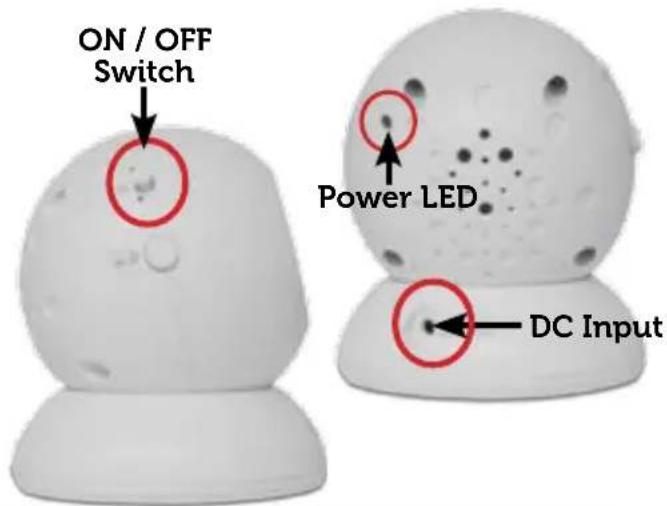
Note: Baby monitors and cameras with power cords should never be hung on or near the crib as it is a strangulation hazard. Power cords should be kept no less than 3 feet away from the crib and the baby's reach at all times.
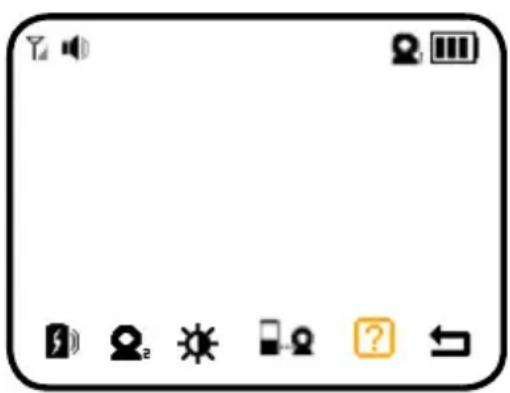
SCREEN ICONS
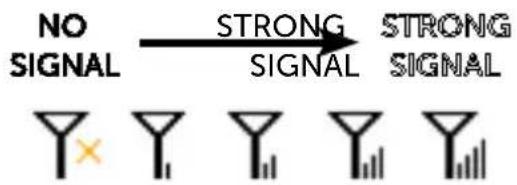
SIGNAL STRENGTH
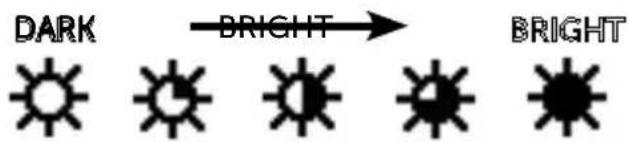
BRIGHTNESS

BATTERY STRENGTH
PEEP MODE
CAMERA

TALKTOBABYY
PAIRING

SUPPORT

VOLUME

EXIT
OPERATION
Turn on the MONITOR
Press and hold the POWER button on the front of the monitor.
Pairing the Camera(s) and Monitor
The camera and monitor come paired (connected) to each other automatically. However, if upon opening this package the devices do not automatically connect and transmit, you may do so manually.
Note: Before you begin pairing, be sure to have the monitor and the camera(s) side by side.
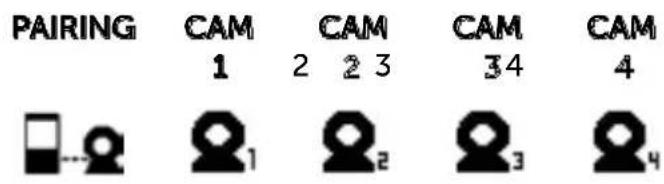
- To pair your camera and monitor, press the MENU button. Using the navigational arrows + on the front of the monitor, highlight the PAIRING icon and press the MENU button once to select.
- Use the navigational arrows + to select the icon.
- Press MENU . When you see flashing next to camera icon, quickly press and hold the PAIRING button on the side of the camera. A checkmark will appear next to camera confirming pairing is successful. Video/audio will be transmitted automatically.
- To pair additional cameras, repeat steps 1 to 3 and be sure to select camera number or in the Pairing menu when pairing each additional camera.
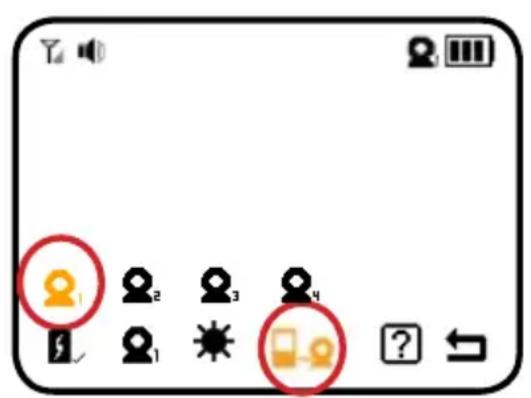

ICONS ARE ORANGE WHEN SELECTED
Placement of the Monitor
This monitor can be placed on a tabletop.
- You can place the monitor on a tabletop by using the retractable table stand on the back of the monitor. When not in use, simply tuck the table stand away into the back of the monitor until you hear a "click".
Placement of the Camera
This camera can be placed on a tabletop or hung on the wall above the area being monitored.
- Place the camera within 15 feet of the area being monitored for best picture results.
- Do not place objects within 2 feet of the field of vision of the camera as the night vision will not activate correctly if objects are too close.
Mounting the Camera on a Tabletop Safely:
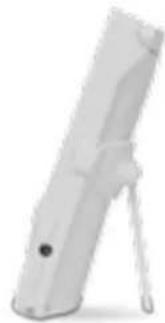
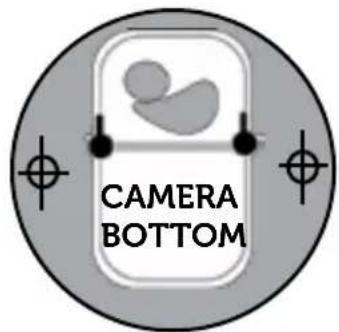
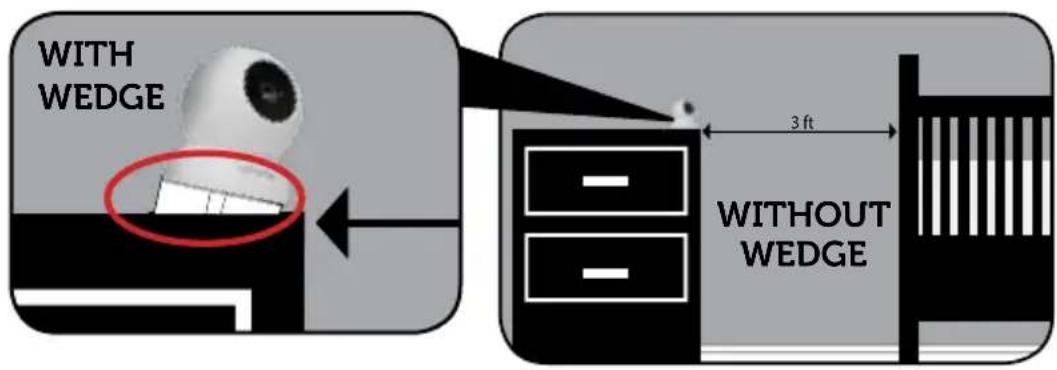
To increase the downward viewing angle of the camera, please insert the included camera wedge to the bottom of the camera (see below).
- Place the camera on a tabletop no less than 3 feet away from your baby's crib.
- Feed the power cord down the back of the table or use wall clips (not included) to secure the cord away so the baby cannot reach it.
- Plug in the power cord, check the monitor to ensure that you are getting a good view of your child and there are no obstructions.
Note: Baby monitors and cameras with power cords should never be hung on or near the crib as it is a strangulation hazard. Power cords should be kept no less than 3 feet away from the crib and the baby's reach at all times.
OPERATION
Mounting the Camera on a Wall Safely:
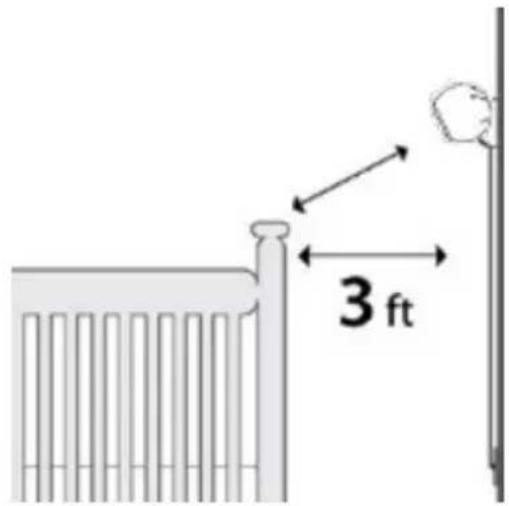
Before drilling the holes, it is important to check the reception and camera positioning in the intended location on the wall. Ensure you are hanging the camera no less than 3 feet away from baby's crib.
Note: Baby monitors and cameras with power cords should never be hung on or near the crib as it is a strangulation hazard. Power cords should be kept no less than 3 feet away from the crib and the baby's reach at all times.
-
Pre-drill two holes in the wall using a 3/16" , 4.8mm drill bit.
-
Insert wall anchors (not included) into each hole and tap gently with a hammer until the anchor is flush with the wall.
-
Insert a screw (not included) into each wall anchor and tighten until the screws only stick out about a 1/2 inch.
-
Plug the power cord into the power input of the camera.
-
Locate the wall mounting holes on the bottom of the camera base.
-
Slide the holes over the screws sticking out of the wall.
-
Confirm that the camera is secure, if it is loose you may have to tighten the screws more.
-
Use wall clips (not included) to secure the power cord away from the crib or the baby's reach.
-
Connect the other end of the adapter into an available wall outlet.
Night Vision
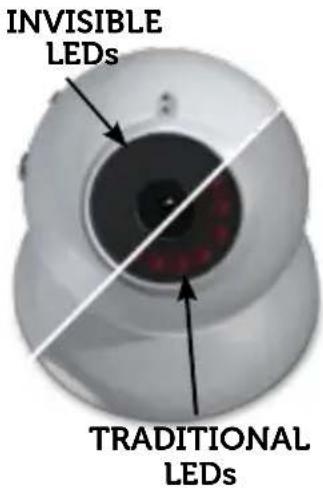
The camera is equipped with NEW Invisible IR (infrared) LEDs which keep the nursery dark. The LEDs are located on the front of the camera and allow you to see up to 12 feet in complete darkness so you can check on your baby at any time of night. The night vision LEDs will activate automatically when the Light Sensor on the camera detects that the light levels are too low.
Adjusting the Camera Angle
The camera has a track built into the base. The track allows the camera to pivot UP and DOWN and turn side to side. Always return the camera to the CENTER POSITION before changing the camera angle.
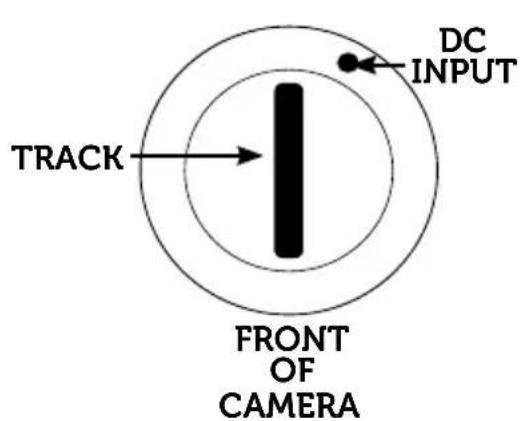

Note: Camera does not rotate freely 360^ . Rotating it past the point where resistance is felt will result in permanent damage to the device.
MONITOR
Volume
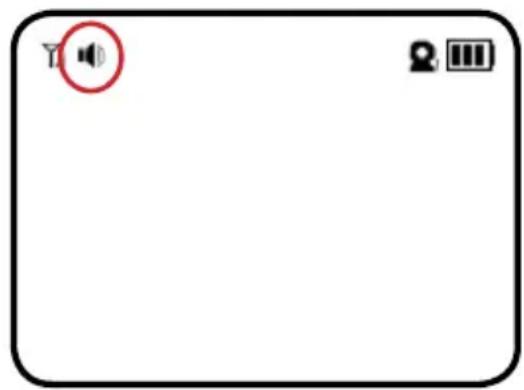
Use the navigational arrows + to increase /decrease /mute the VOLUME.
- Press the + button to INCREASE the volume in LIVE VIEW; the VOLUME icon will display the volume level in the top left corner of the screen.
- Press the button to DECREASE the volume; to MUTE, decrease the volume until the × icon appears in the top left corner of the screen.
Using the Talk to Baby™ Two-Way Intercom
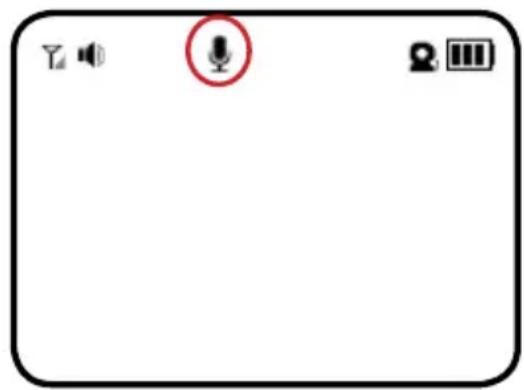
With the simple press of a button you can talk to your child at any time without entering the nursery.
- To talk, press and hold the button on the front of the monitor and release to listen.
- To talk when using multiple cameras, select the camera in the MENU and press the button, release to listen.
Using PEEP Mode
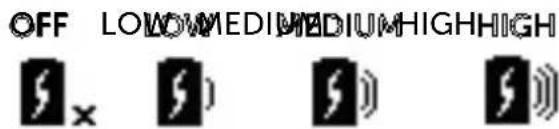
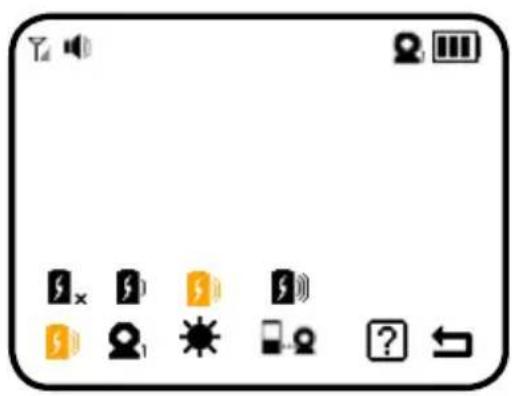
When in PEEP Mode, the monitor enters standby/sleep mode after 1 minute of inactivity. When sound is detected, the screen changes to live view. There are 4 levels of sensitivity: Off Low Medium and Sensitive
- To access live view manually when the screen is off, press the POWER button ONCE.
-
PEEP Mode extends the battery life over 72 hours.
-
To set PEEP Mode, press the MENU button. Using the navigational arrows - + on the front of the monitor, highlight one of the PEEP Mode icons.
- Use the + to toggle to the sensitivity icon of your choice and press the MENU button once to select.
- To return to continuous live view, press the MENU button.
- To turn off PEEP Mode, follow step 1 and select
Selecting a Different Camera View
-
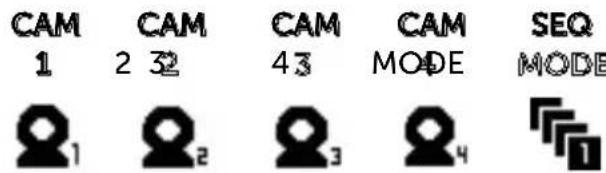
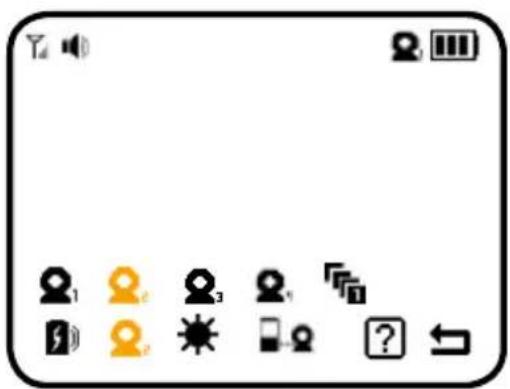
To change the camera view, press the MENU button. Using the navigational arrows + on the front of the monitor, highlight the CAMERA icon and press the MENU button once to select.
-
Use the navigational arrows + to select the CAMERA icon of your choice and press the MENU button once to select.
-
Select to cycle through cameras 1 through 4 and press the MENU button once. Each camera view will appear for 6 seconds per camera.
-
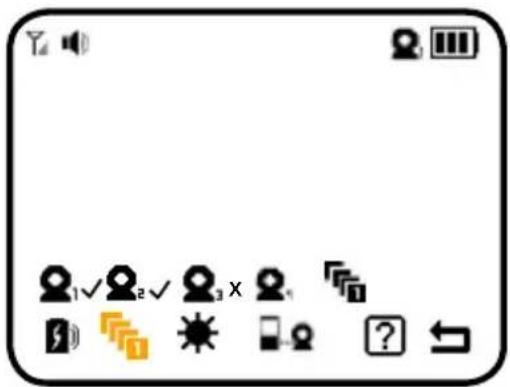
To easily disable camera channels from sequence mode, select a camera then press and hold the - or + button to select/deselect.
The following diagram represents:
Camera 1 - Paired
Camera 2 - Paired
Camera 3 - Paired but disabled
Camera 4 - Not paired
MONITOR
Setting the Brightness
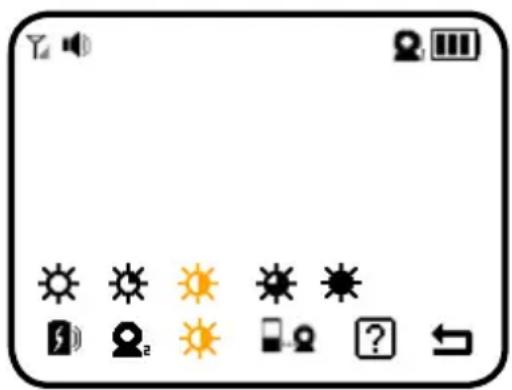
Brightness Mode sets the brightness of the screen. Reducing the brightness also extends the battery life.
- To set the Brightness Mode, press the MENU button. Using the navigational arrows - + on the front of the monitor, highlight the BRIGHTNESS icon and press the MENU button once to select.
- Use the navigational arrows + to select the desired brightness and press the MENU button once to select.
Contacting Customer Support
Customer Support is just a click away whenever you need it! Our customer support team can be reached by email, live web chat or on our website at www.mylevana.com/support. Our experts will be happy to assist you in English, French and Spanish.
- To access Customer Support, press the MENU button. Using the navigational arrows ^+ on the front of the monitor, highlight the SUPPORT icon and press the MENU button once to select.
- This will take you to the screen which displays Customer Support contact information. Press the MENU button once to EXIT the Customer Support screen.

Support: www.mylevana.com/support
Web: www.mylevana.com
Online Live Web Chat: www.mylevana.com
TROUBLESHOOTING
ISSUE POSSIBLE SOLUTION
| Equipment does not function • | Confirm that the camera and monitor are ON • The battery may be depleted; charge battery • The power adapters may not be properly connected |
| No reception • Camera and monitor may not be properly paired; follow PAIRING instructions • Camera may be too far away from the monitor • Extend the antenna on the monitor | |
| Reception Interference (static) | • The camera and monitor may be too far apart • The battery power may be too low • Other electronic devices may be interfering with the signal • The camera or monitor may be placed too close to many metal objects |
| Feedback (screeching, static) • | The camera and monitor may be too close together • The volume on the monitor may be set too high |
| Noise (static, beeping) • Battery power may be too low | |
| Picture works but there is no sound | • Volume setting may be too low |
| Picture is black and white • Night vision LEDs may be ON; increase the amount of light in the room being monitored | |
| The rechargeable battery will not charge | • The power adapters may not be connected • Battery pack may not be properly connected inside the battery compartment |
Maintenance
- Clean the surfaces of the camera and monitor with a soft, lint-free cloth
- If the units become dirty, use a lightly damp cloth to wipe surfaces, taking care to not allow water into any openings
- Never use cleaning agents or solvents
CONSIGNES DE SECURITÉ

4080 Montrose Road 60 Industrial Parkway #Z64
Niagara Falls, ON Cheektowaga NY
Canada L2H 1J9 USA 14227
Conditions de la garantie
QUESTION SOLUTION POSSIBLE
4080 Montrose Road 60 Industrial Parkway #Z64
Niagara Falls, ON Cheektowaga NY
Canada L2H 1J9 USA 14227
Do More Knowing Your Child Is Safe
mylevana.com