Tybox 5101 - Thermostat DELTA DORE - Free user manual and instructions
Find the device manual for free Tybox 5101 DELTA DORE in PDF.


User questions about Tybox 5101 DELTA DORE
0 question about this device. Answer the ones you know or ask your own.
Ask a new question about this device
Download the instructions for your Thermostat in PDF format for free! Find your manual Tybox 5101 - DELTA DORE and take your electronic device back in hand. On this page are published all the documents necessary for the use of your device. Tybox 5101 by DELTA DORE.
USER MANUAL Tybox 5101 DELTA DORE
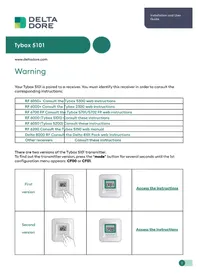
Your Tybox 5101 is paired to a receiver. You must identify this receiver in order to consult the corresponding instructions:
| RF 6050+ Consult the | Tybox 5300 web instructions |
| RF 6000+ Consult the | Tybox 2300 web instructions |
| RF 6700 FP Consult the | Tybox 5701/5702 FP web instructions |
| RF 6000 (Tybox 5100) Consult these instructions | |
| RF 6050 (Tybox 5200) Consult these instructions | |
| RF 6200 Consult the Tybox 5150 web manual | |
| Delta 8000 RF Consult the Delta 8101 Pack web instructions | |
| Other receivers | Consult these instructions |
There are two versions of the Tybox 5101 transmitter.
To find out the transmitter version, press the "mode" button for several seconds until the 1st configuration menu appears: CF00 or CF01.
| First version | I85C | CFO1 | Access the instructions |
| Second version | I85C | CFO0 | Access the instructions |
Tybox 5OI

Guide de démarrage rapide
Nslsnelstartgids
DE Schnellstartanleitung
IT Guida rapida
EN Quick start guide
ES Guia de inicio=rápido
PL Instrukcja szybkiego
uruchamiania


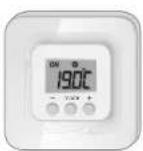

Tybox 5101
2x1,5V LR03-AAA Alkaline

868,7 MHz -> 869.2 MHz (EN 300 220) - 300 m max
Maximum wireless power < 10mW Category 2 receiver
-10°C / +40°C
80×84×21mm
IP 20
C
www.deltadore.com

FR Notice web detallée: scannez le QR Code.
- Configuration,
- Association,
- Fonctions avances,
-Aide...
EN For detailed Instructions: scan the QR code.
-
Setup.
-
Pairing.
- Advanced features,
-Help.
EN Set the receiver to association mode: (refer to the user guide).
On the Tybox, briefly press a button to wake up the display, then press and hold both the mode and + buttons for 5 seconds. The screen will display rF00. Release.
Press briefly on ^+ .The screen flashes until rf is displayed depending on the number of associated receivers (eg.rf01 for a single receiver,rf02 for 2 receivers etc.).
Check that the LED of the receiver(s) is no longer flashing. To exit the mode, briefly press the mode and buttons simultaneously.
EN Press any button to activate the display. The current mode is displayed: On = Thermostat running,OFF = Stop. To switch from one mode to another, press mode.
From On mode, wait a few seconds to display the set-point temperature and change it using + or - . Validation after 2 seconds if no buttons are pressed.
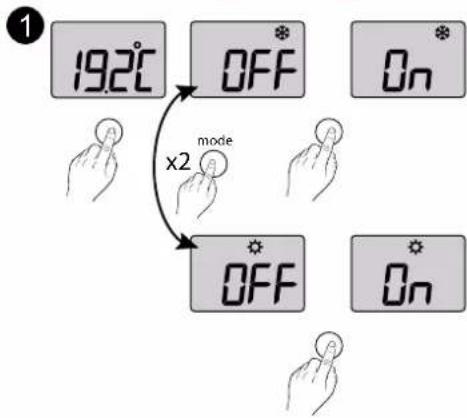
EN Press any button to activate the display. To switch from Heating (to Cooling) press mode twice.
The current mode is displayed:
On = Thermostat running, OFF = Stop.
To switch from one mode to another, press
From On mode, wait a few seconds to display the set-point temperature and change it using + or -.
Validation after 2 seconds if no buttons are pressed.
- Installing the transmitter 3
1.1 Location 3
1.2 Wall mounting 3
1.3 Mounting on a base 3
- Wireless Association 4
- Configuring your device 4
Menu CF00 Backlit display 5
Menu CF01 - Correcting the temperature measured. 5
Menu CF02 Locking the buttons 5
Menu CF03 RT2012 Solar optimisation 5
- Link the thermostat to the solar optimisation of an RT2012 manager 6
- Technical specifications 6
Use
1.Description 7
2. Set point settings 7
2.1 Heating/Cooling 7
2.2 Heating 7
2.3 Air conditioning.. 7
- Open window detection 8
- Troubleshooting 8
4.1 Changing batteries 8
4.2 Frequently Asked Questions (FAQ) 8
INSTALLATION
1. Installing the transmitter
1.1 Location
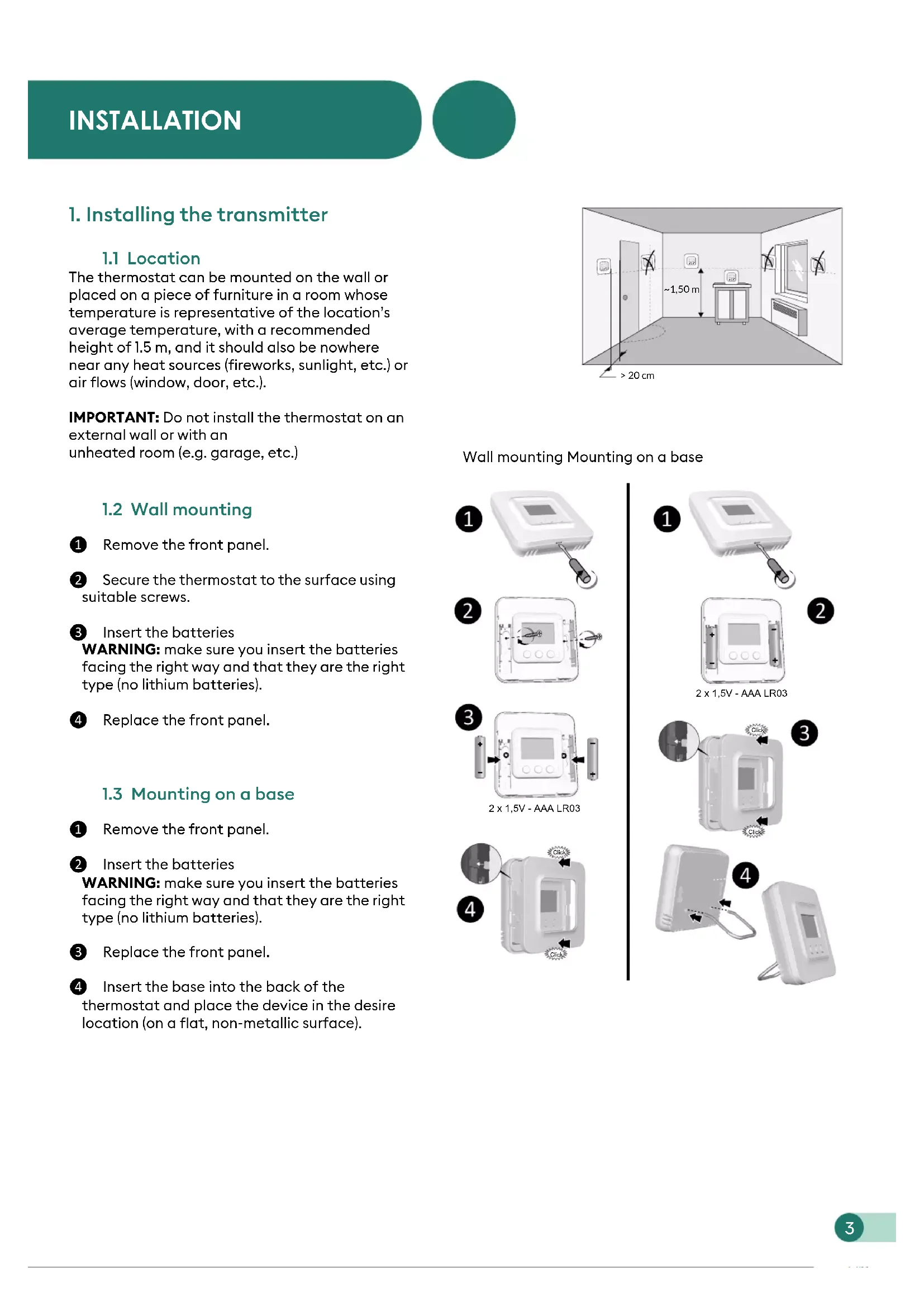
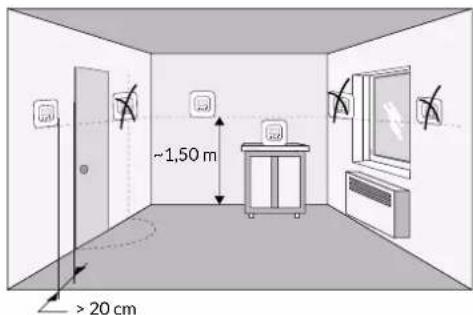
The thermostat can be mounted on the wall or placed on a piece of furniture in a room whose temperature is representative of the location's average temperature, with a recommended height of 1.5m and it should also be nowhere near any heat sources (fireworks, sunlight, etc.) or air flows (window, door, etc.).
IMPORTANT: Do not install the thermostat on an external wall or with an unbeated room (e.g. garage, etc.)
1.2 Wall mounting
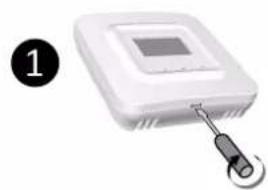
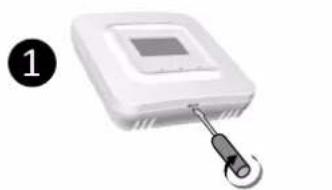
1 Remove the front panel.
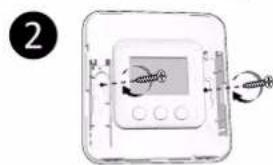
2 Secure the thermostat to the surface using suitable screws.
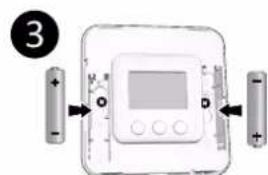
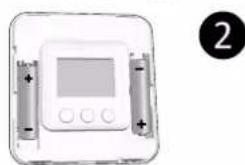
3 Insert the batteries
WARNING: make sure you insert the batteries facing the right way and that they are the right type (no lithium batteries).
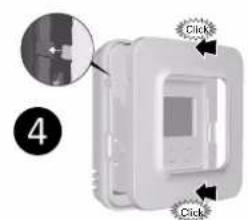
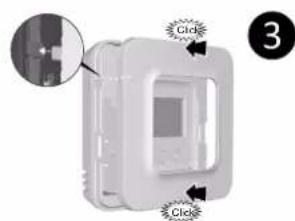
4 Replace the front panel.
1.3 Mounting on a base
1 Remove the front panel.
2 Insert the batteries
WARNING: make sure you insert the batteries facing the right way and that they are the right type (no lithium batteries).
Replace the front panel.
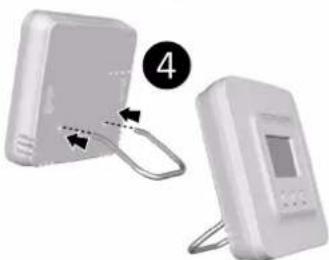
4 Insert the base into the back of the thermostat and place the device in the desire location (on a flat, non-metallic surface).
Wall mounting Mounting on a base
2×1.5V-AAA LR03
2x1,5V-AAA LR03
2. Wireless Association

Set the receiver to association mode: (refer to the user guide).
On the Tybox, briefly press a button to wake up the display, then press and hold both the mode and + buttons for 3 seconds. The screen will display rFO0. Release.
Press briefly on ^+ . The screen flashes until rF is displayed depending on the number of associated receivers (eg. rFO1 for a single receiver, rFO2 for 2 receivers etc.).
Check that the LED of the receiver(s) is no longer flashing. To exit the mode, briefly press the mode and + buttons simultaneously.
3. Configuring your device
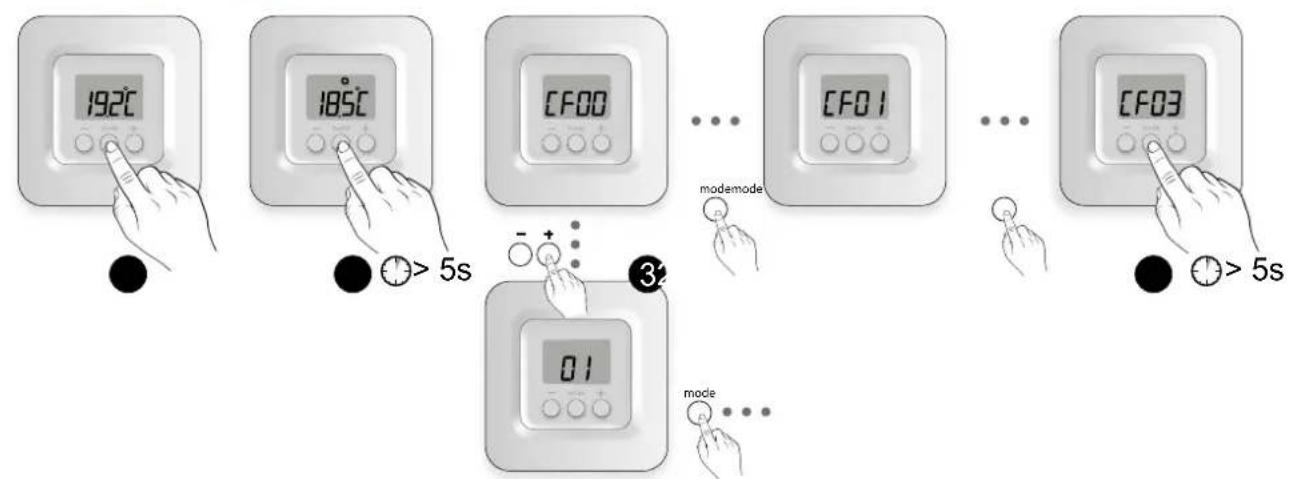
Press any button to activate the screen.
Press mode for 10 seconds until CF00 is displayed.
Press + or - to adjust the setting, and on mode to move to the next menu.
4 Press mode for 5 seconds to exit the configuration menu or, after a period of 2 seconds without activity, the Tybox validates the change of parameter and returns to standby.
3. Configuring your device
Menu CF00 Backlit display
Default value: activated
| ☐ | Deactivated |
| I | Activated (automatic switch-off) |
Menu CF01 - Correcting the temperature measured

This menu is used to correct any difference you have noticed between the displayed temperature and the measured temperature.
Example: If the temperature displayed by the device is 19^ and the measured temperature is 20^ , input +1^ then confirm using OK.
Adjusts from -5^ to 5^ , in increments of 0.1^ .
In order to change this setting, the unit must have been running for at least 2 hours beforehand. Default setting: 0^
Menu CF02 Locking the buttons
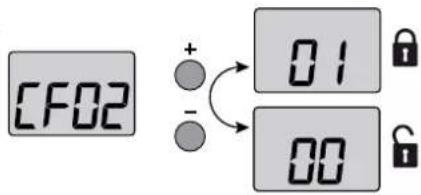
This menu allows you to prohibit any changes (settings, set point, mode).
| No locking |
| Locking active |
If locked, the screen will display "----". To temporarily unlock, simultaneously press and hold the + and - buttons for 5 seconds.
Please leave the setting at 00 unless the Tybox is being used on its own (without a receiver) in solar optimisation mode with an RT2012 manager (see §4).
Depending on the receiver to which the Tybox is connected, other CF menus may appear: refer to the pack instructions.
4. Link the thermostat to the solar optimisation of an RT2012 manager

Set the power manager to «Association a room sensor» mode (refer to its user guide).
On the Tybox, briefly press a button to wake up the display, then simultaneously press and hold the Mode and + buttons for 3 seconds. The screen displays rFO0 or rFO1 depending on whether or not a receiver is associated. Release the button.
Simultaneously press the + and - buttons for 3 seconds. The screen will display rF-- For 1 to 2 seconds then automatically returns automatically to rFO0 or rFO1. The manager then confirms the association.
To exit and return to the temperature display, Simultaneously press (short press) +and-.
5. Technical specifications
TYBOX 5101 transmitter
- Power supply using 2 batteries: 2x1.5V Alkaline - Type LR03-AAA
Class III insulation
X3D transmission frequency: 868.7 MHz to 869.2 MHz
Maximum wireless power < 10mW
Category II receiver - Wireless range of 300 metres outside, varies depending on the associated equipment (the range can vary depending on the installation conditions and the electromagnetic environment).
- Wall-mounted or on base
- Dimensions: 80 × 84 × 21 mm
Protection Class: IP 20 - Installation in an environment with normal pollution levels
- Storage temperature: -10^ / +70^
- Operating temperature from -10^ / +40^
1.Description
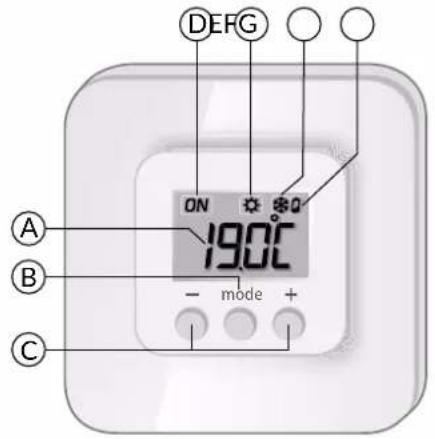
A Temperature display
B Select the mode
Adjustment buttons
Request in progress
*Depending on the installation
Heat mode*
Air conditioning mode*
G Battery level indicator
2. Set point settings
2.1 Heating/Cooling
2
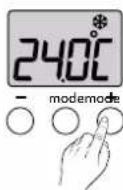
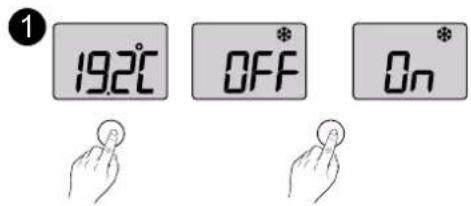
1 Press any button to activate the display screen. To switch from Heating (to Cooling ), press mode twice.
The current mode is displayed:
On = Thermostat, OFF = Stop.
To switch from one mode to another, press mode.
From On mode, wait a few seconds to display the setpoint temperature and change it using + or -.
Validation after 2 seconds if no buttons are pressed.
2.2 Heating
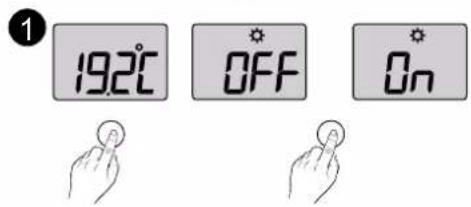
2
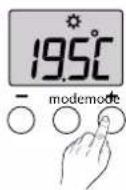
2.3 Air conditioning
2
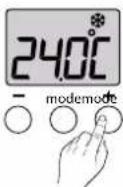
Press any button to activate the display screen. The current mode is displayed:
On = Thermostat on, OFF = Stop.
To switch from one mode to another, press mode.
From On mode, wait a few seconds to display the setpoint temperature and change it using + or -.
Validation after 2 seconds if no buttons are pressed.
3. Open window detection
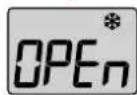
You have paired a window/door magnetic contact with your installation. If an open window/door is detected, the display shows OPEN. The heating is in frost protection mode. The air conditioning is off.
4. Troubleshooting
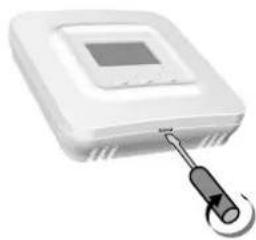
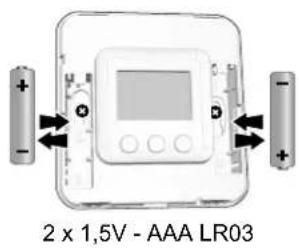
4.1 Changing batteries
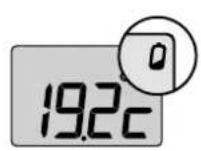
The symbol appears.
You have approximately 1 month to replace them (two 1.5 V alkaline batteries, either LR03 or AAA).
WARNING: make sure you insert the batteries facing the right way and that they are the right type (no lithium batteries).
4.2 Frequently Asked Questions (FAQ)
The screen displays:
Your Tybox transmitter is temporarily awaiting feedback.
The screen displays:
Your Tybox transmitter has just "woken up" (exit standby).
The screen displays:
See Chapter 3 "Configuration", paragraph "CF02".
The screen displays "dF 0".
Your Tybox transmitter is not associated to a heating receiver.
- The screen displays "dF 9".
Wireless fault during wireless communication (turning on, sending a command).
- The screen displays "dF22".
You are controlling several receivers that are not in the same operating mode (heating or air conditioning). Press mode to synchronise them, the dF22 display disappears.
- You do not have access to the settings:
- The buttons are locked. The screen displays "----".
To temporarily unlock (until the next standby time), simultaneously press and hold the + and - buttons for 5 seconds.
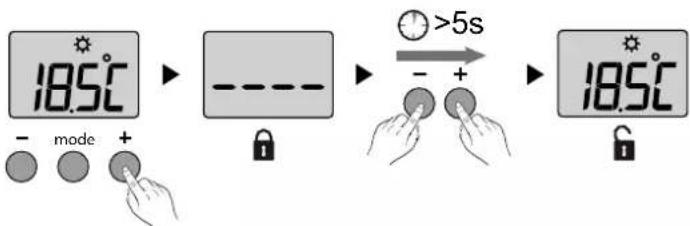
To unlock them permanently, go to the CF02 configuration menu.
- Your Tybox is associated to a receiver and CF03 = 1 Set CF03 to 0.
END OF TYBOX 5101 WEB INSTRUCTIONS 2nd VERSION.
Tybox 5OI

Guide de démarrage rapide
Nslsnelstartgids
DE Schnellstartanleitung
IT Guida rapida
EN Quick start guide
ES Guia de inicio=rápido
PL Instrukcja szybkiego
uruchamiania



Tybox 5101
2x1,5V LR03-AAA Alkaline

868,7 MHz -> 869.2 MHz (EN 300 220) - 300 m max
Maximum wireless power < 10mW Category 2 receiver
-10°C / +40°C
80×84×21mm
IP 20
C
www.deltadore.com

FR Notice web detallée: scannez le QR Code.
- Conflguration,
- Association,
- Fonctions avances,
-Aide...
EN For detailed Instructions: scan the QR code.
-
Setup.
-
Pairing.
- Advanced features,
-Help.
Battery level symbol
EN Set the receiver to association mode (refer to the user guide).
On the Tybox, briefly press a button to wake up the display, then press and hold both the mode and + buttons for 5 seconds. The screen will display rF00. Release.
Press briefly on ^+ .The screen flashes until rF is displayed depending on the number of associated receivers (eg.rFO1 for a single receiver, rFO2 for 2 receivers etc.).
Check that the LED of the receiver(s) is no longer flashing. To exit the mode, briefly press the mode and + buttons simultaneously.
EN Press any button to activate the display. The current mode is displayed: On = Thermostat running, OFF = Stop. To switch from one mode to another, press mode.
From On mode, wait a few seconds to display the set-point temperature and change it using + or-. Validation after 2 seconds if no buttons are pressed.
EN Press any button to activate the display. To switch from Heating ( ) to Cooling ( ) press mode twice.
The current mode is displayed:
On = Thermostat running, OFF = Stop
To switch from one mode to another, press
mode
From On mode, wait a few seconds to display the set-point temperature and change it using + or -.
Validation after 2 seconds if no buttons are pressed.
m = 311 ;

Thermostat d'ambiance Radio

Radio room thermostat

Funk-Raumthermostat

- Boiler Plus compliant

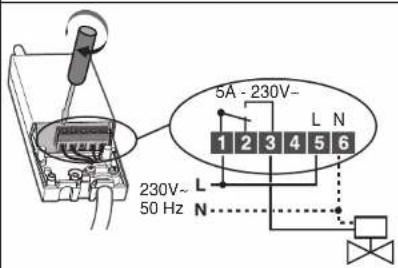
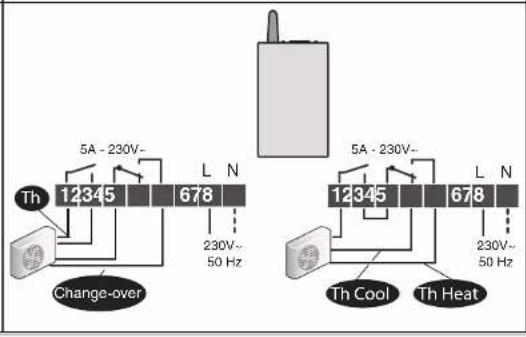
Raccordement / Connection / Anschluss / Collegamento


OFF 230V\~ 50 Hz

TYBOX5101TYBOX5100TYBOX5200TYBOX5150


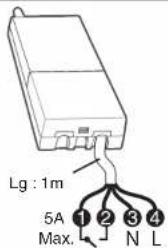
Noir/Black/Schwarz/Nero
Gris/Grey/Grau/Grigio
Bleu/Blue/Blau/Blu
Marron / Brown / Braun / Marrone

When the device is switched on, the right indicator light flashes: Mode selection (press and release) /
Press and hold the receiver button for 3 seconds until the LED flashes. Release.
Press and hold the mode and + buttons on the TYBOX 5101 simultaneously for 3 seconds.
The screen will display rF00. Release.
Press + briefly. The screen will flash, then display rF01.
Make sure that the receiver LED has stopped flashing. To exit the mode, press the mode and + button
simultaneously.
Switch on the installation.
Press and hold the receiver button for 3 seconds until the LED flashes. Release.
- Send the association command to the transmitter (see user guide).
Make sure that the receiver LED has stopped flashing. The products are now associated.
Set the energy manager to "Associate a room sensor" mode (see user guide).
Press and hold the mode and + buttons on the TYBOX 5101 simultaneously for 3 seconds until it displays rF01 (rF00 if TYBOX 5101 is used alone)
密 Press and hold the + and - buttons simultaneously for 3 seconds.
The screen will display rF--
The mode is automatically exited.
CF01: Correction of the temperature measured / Correcting the measured temperature /
Korrektur der gemessenen Temperatur / Correzione della temperatura misurala.
CF02: Verrouaille des touches / Locking the buttons / Tastenspörnung / Blocco dei tazzi
C
CF03:
00: Foncto thermostat / Thermostat function / Thermostat-Function / Funzione termostatio
01: Fonction sono de temperatureDLL (optimisation solaire, capteur) / Temperature sensor function only (solar optimisation, sensor)/ Funktion ,Nur Temperaturfuhier (Solar-Optimierungfungunk, Sensor)/ Funzione solo sonda dl temperaturea (ottimmazionale solare, sensore)
8
Utilisation / Use / Verwendung / Utilizzo
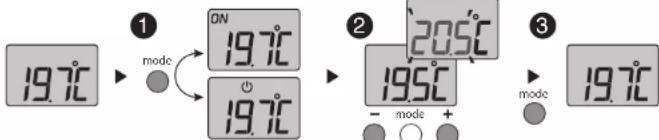
Press any button to activate the display screen. The current mode will be displayed: ON = start authorisation, = shutdown. To change the mode, press mode.
From the ON mode, press the ^+ or - buttons to display the temperature setting and change it.
Press on mode or wait 5 seconds to exit.
When switching over from the mode to the ON mode, the setting's default value is restored: 20^ .

Indicates that the system is in Frost
Protection mode (10^ non modifiable).
Example: open window
Temporarily indicates that there has been a wireless transmission conflict and that the command was not sent. Repeat the operation.
Indicates that no product is associated. Refer to Association.