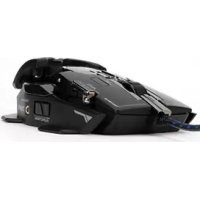
ZMGM4 - Mouse ZALMAN - Free user manual and instructions
Find the device manual for free ZMGM4 ZALMAN in PDF.



| Product type | Wired gaming mouse |
| Brand | Zalman |
| Model | ZMGM4 |
| Dimensions (L x W x H) | 118 x 85 x 35 mm |
| Weight | 135 g (without adjustable weights); 6 weights of 3.5 g included |
| Cable length | 1.8 m |
| Resolution (DPI) | 800 / 1,600 / 2,400 / 3,600 dpi (presets), up to 8,200 dpi |
| Image processing | 12,000 ips (images per second) |
| Maximum acceleration | 30 g |
| Maximum speed | 150 ips (inches per second) |
| Number of buttons | 8 programmable buttons |
| Main functions | DPI adjustment, scroll wheel, double-click, window search button, multiple profiles, macro |
| Power supply | Via USB port (cable included) |
| Compatible operating systems | Windows XP / 7 / 8 (incompatible with Mac and Linux) |
| Driver software | CD included or download from www.zalman.com |
| Maintenance and cleaning | Unplug before cleaning; use a soft dry cloth; avoid liquids |
| Safety | Do not disassemble or modify; use with correct seated posture to avoid fatigue |
| Spare parts and repairability | Removable adjustable weights; contact customer service if anomalies occur |
| General information | Adjustable grip (unscrew the hexagonal screw to adjust size according to hand) |
Frequently Asked Questions - ZMGM4 ZALMAN
User questions about ZMGM4 ZALMAN
0 question about this device. Answer the ones you know or ask your own.
Ask a new question about this device
Download the instructions for your Mouse in PDF format for free! Find your manual ZMGM4 - ZALMAN and take your electronic device back in hand. On this page are published all the documents necessary for the use of your device. ZMGM4 by ZALMAN.
USER MANUAL ZMGM4 ZALMAN
To ensure safe and easy installation, please read the following precautions
1. Caution
① A long incorrect posture may cause tiredness and damage to your body.
② Do not disassemble or alter the mouse. This will cause a breakdown of the product.
③ Check the mouse and the components before installation. Please contact the seller if any defect is found.
④ Please restart the PC if the device is still not detected.
2. Contents
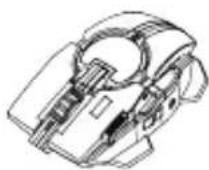
Mouse 1ea Software vDuaaleea
Weight case 1ea
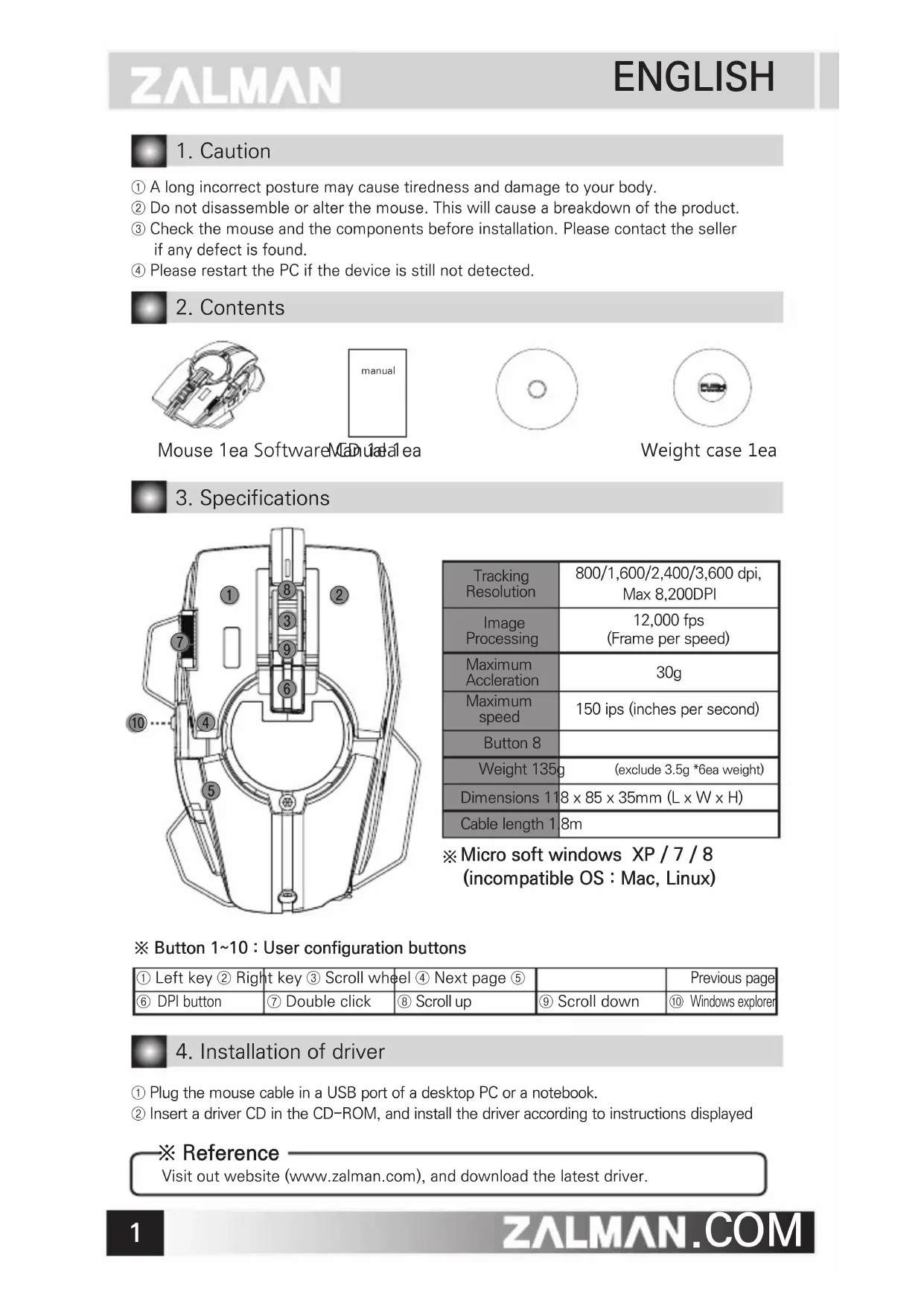
3. Specifications
| Tracking Resolution | 800/1,600/2,400/3,600 dpi, Max 8,200DPI |
| Image Processing | 12,000 fps (Frame per speed) |
| Maximum Acceleration | 30g |
| Maximum speed | 150 ips (inches per second) |
| Button 8 | |
| Weight 135g | (exclude 3.5g *6ea weight) |
| Dimensions 118 x 85 x 35mm (L x W x H) | |
| Cable length 18m | |
※ Micro soft windows XP / 7 / 8 (incompatible OS : Mac, Linux)
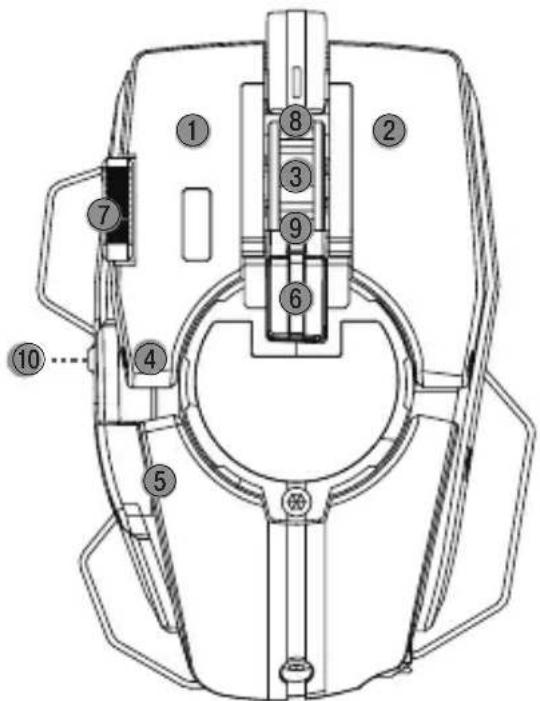
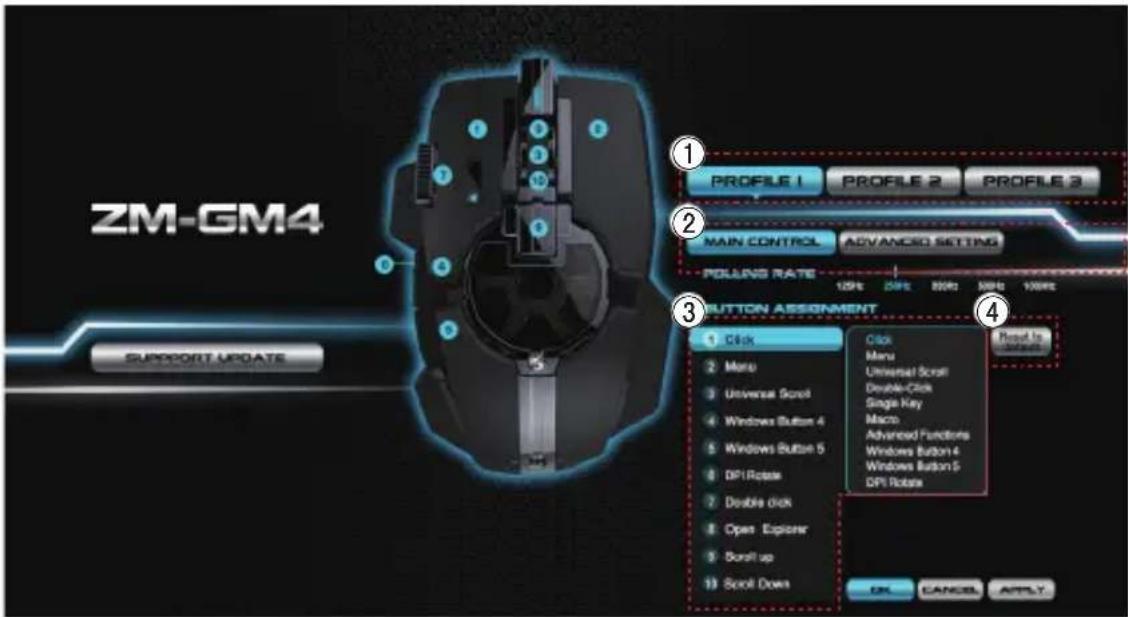
※Button1~10:Userconfigurationbuttons
| ① Left key ② Right key ③ Scroll wheel | ④ Next page ⑤ | Previous page | ||
| ⑥ DPI button | ⑦ Double click | ⑧ Scroll up | ⑨ Scroll down | ⑩ Windows explorer |
4. Installation of driver
① Plug the mouse cable in a USB port of a desktop PC or a notebook.
② Insert a driver CD in the CD-ROM, and install the driver according to instructions displayed
Reference
Visit out website (www.zalman.com), and download the latest driver.
5. Configuration
1) Main control
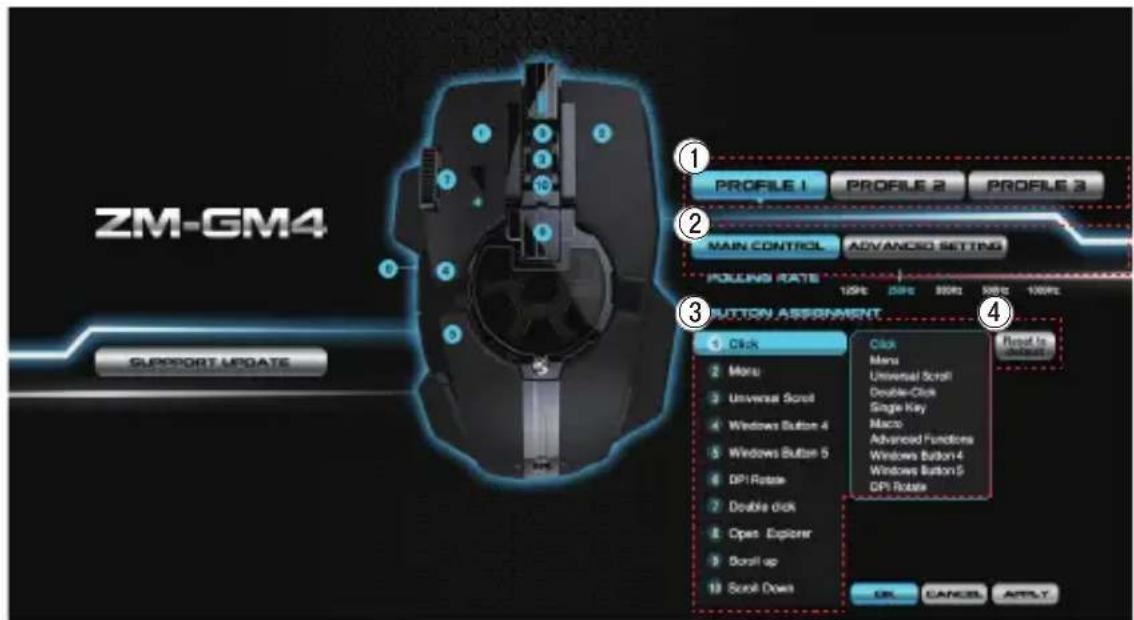
① Profile : You can select up to 3 values for DPI and polling rate according to the service environment
② Polling Rate : You can select reaction time between OS and the mouse.
③ Button assignment: You may freely assign functions to 9 buttons.
④ Reset to default: You can reset all the functions back to the factory default settings
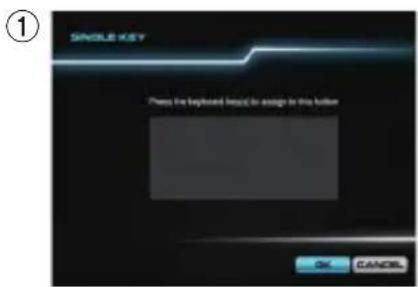
① Single Key Setting
: Single Key click Enter keyboard key OK click
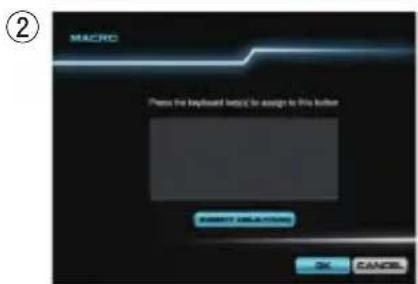
② Macro Setting
: Macro click Enter the combination of keys OK click
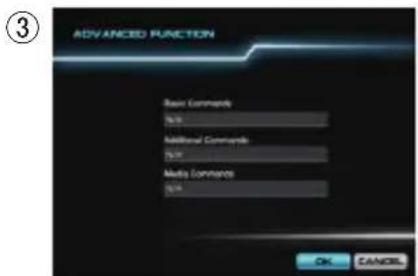
③ Advanced Function
: Advanced Function click Select confituration key
OK click
2) Advanced function
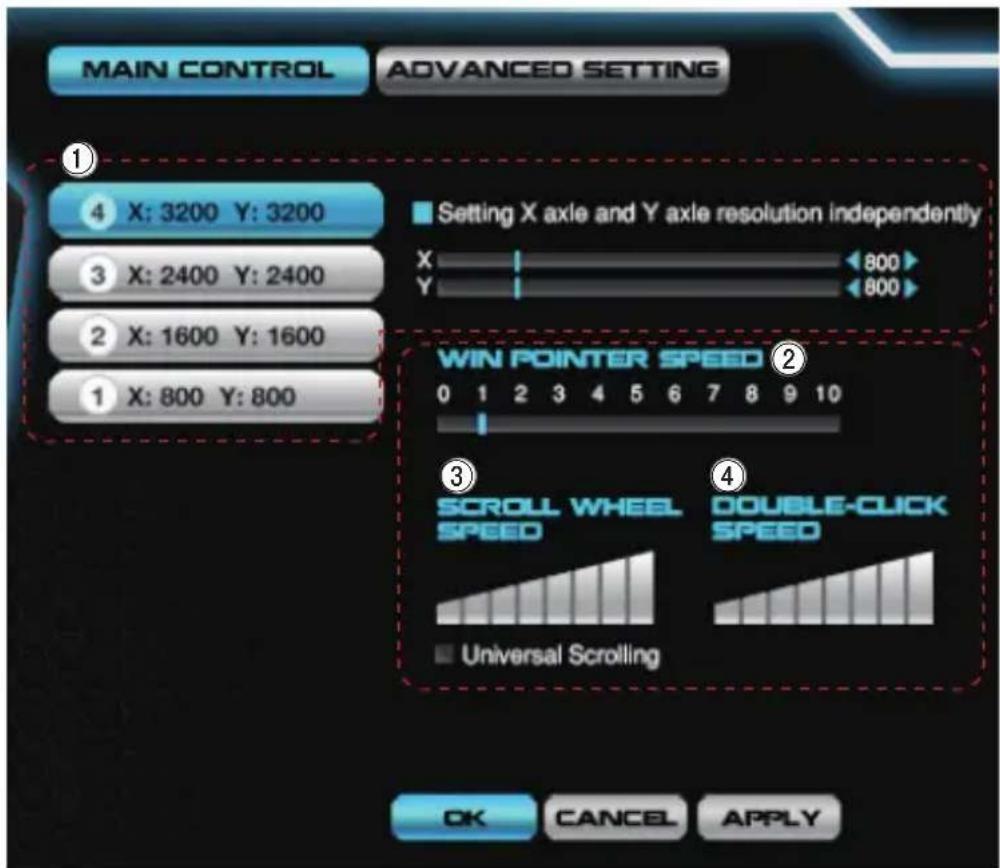
① DPI setting: Click the desired DPI (Steps 1/2/3/4) ▷ Select the X or Y axis Apply Click
② Win Pointer Speed : Win Pointer Speed control
③ Scroll wheel speed : Scroll wheel speed control
④ Double-Click Speed : Double-Click Speed control
6. Grip adjustment instruction
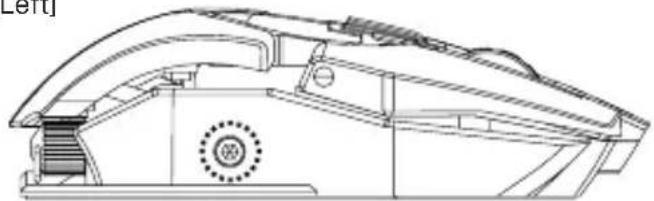
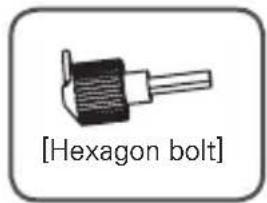
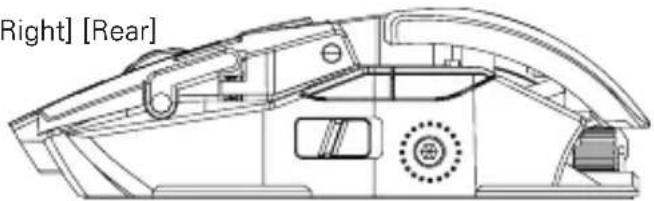
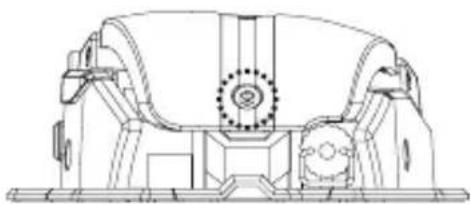
① Turn the rear driver to the left to separate it.
② Adjust to your hand size turning the hexagon bolt on the left, right and back side of the mouse.
[Left]
[Right] [Rear]
1. Précaution
1) Controle Principal

Brand : ZALMAN
Model : ZMGM4
Category : Mouse