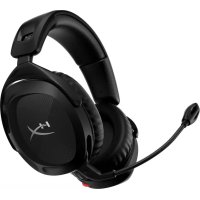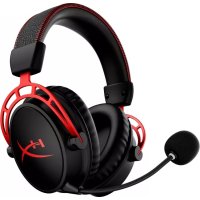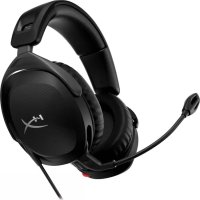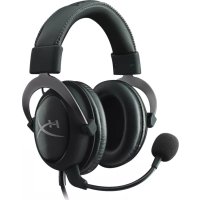
Cloud II - Helmet HYPERX - Free user manual and instructions
Find the device manual for free Cloud II HYPERX in PDF.


Frequently Asked Questions - Cloud II HYPERX
User questions about Cloud II HYPERX
0 question about this device. Answer the ones you know or ask your own.
Ask a new question about this device
Download the instructions for your Helmet in PDF format for free! Find your manual Cloud II - HYPERX and take your electronic device back in hand. On this page are published all the documents necessary for the use of your device. Cloud II by HYPERX.
USER MANUAL Cloud II HYPERX
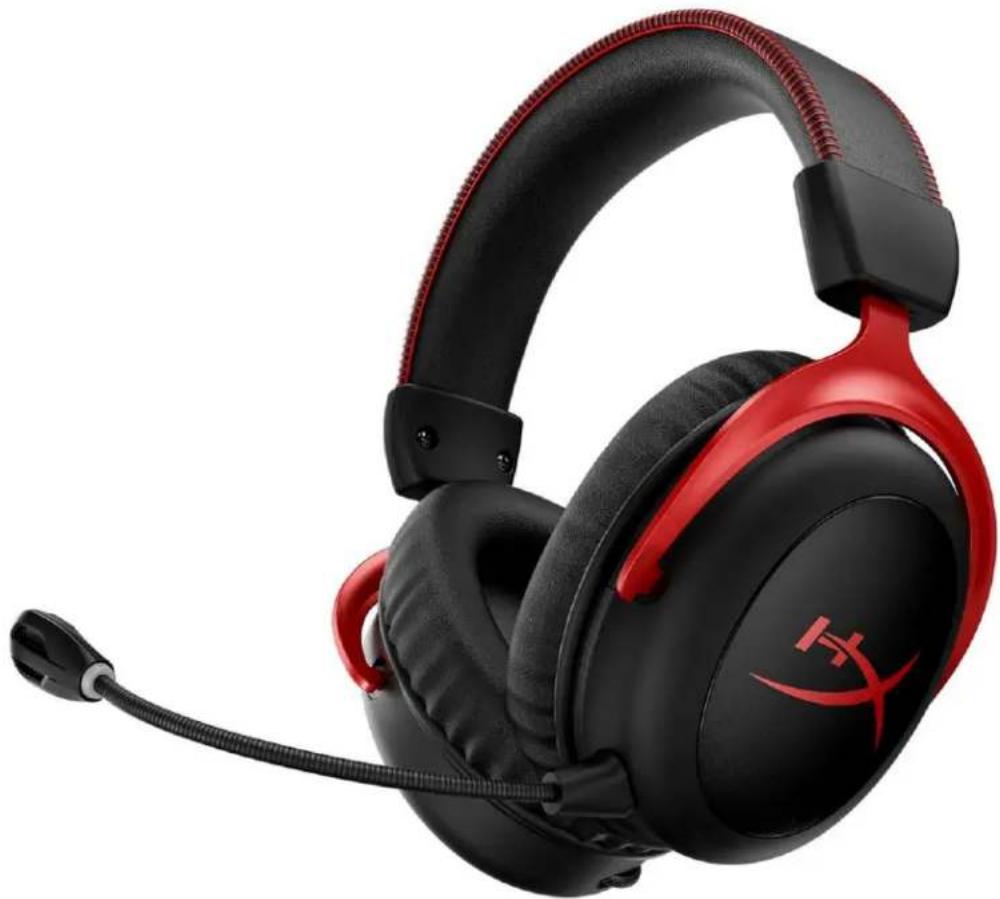
HyperX Cloud II Wireless
Find the language and latest documentation for your HyperX Cloud II Wireless here.
HyperX Cloud II Wireless Installation Guide
For instructions in English
Para instrucciones en Español
Für Anleitungen in Deutsch
Pour des instructions en Français
...... Per le istruzioni in Italiano
Por as instruções em Português
Instrukcje w języku Polskim
Для инструкции на Русском
C. Turkce talimatlar icin
日本語マニュアル用
한국어 안내
......คำแนะนำภาษาไทย
Đế xem hướng dẫn bằng tiếng Việt
Simplified Chinese ..... 简体中文说明书
Traditional Chinese ....繁體中文說明
natural_image
Black and red H3 headboard with headset, microphone, and earplifier (no visible text or symbols)Part Numbers
HHSC2X-BA-RD/G
TABLE OF CONTENTS
Overview....3
Specifications....4
Setting up with PC 5
Setting up with PlayStation 4....9
Controls 10
Mic mute / mic monitoring button....10
Power button / 7.1 Surround Sound button....10
Volume wheel 11
Status LED 10
Charging the Headset....12
Wired charging 12
HyperX NGENUITY Software....12
Manually Pairing the Headset and USB Adapter 13
Overview
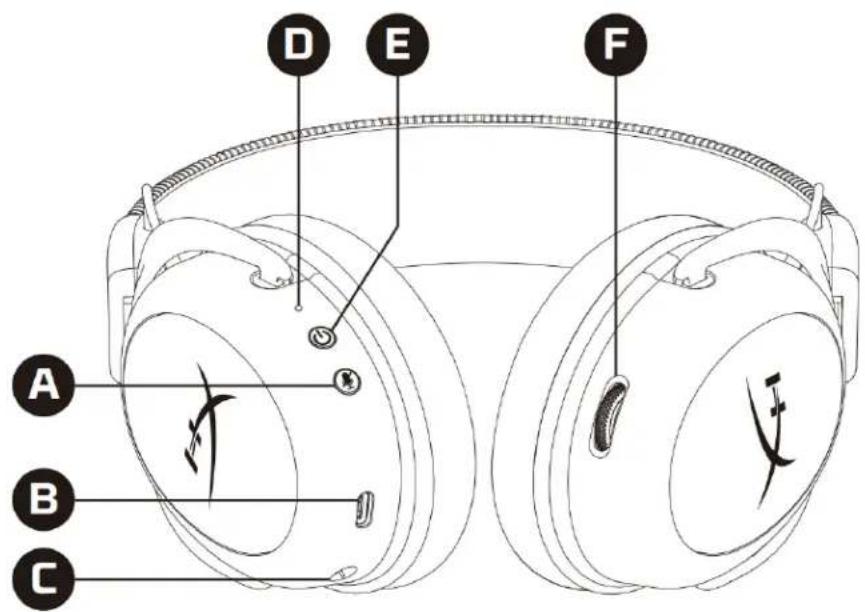
text_image
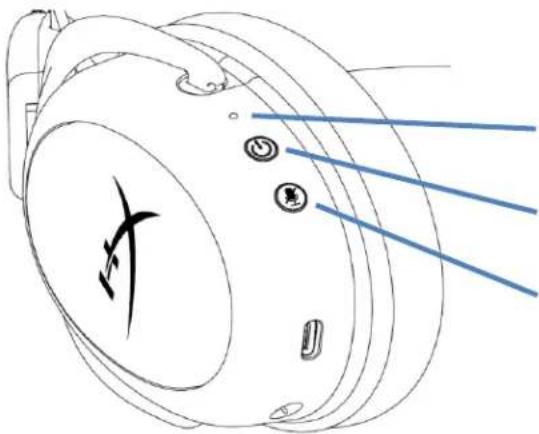
D E F A B C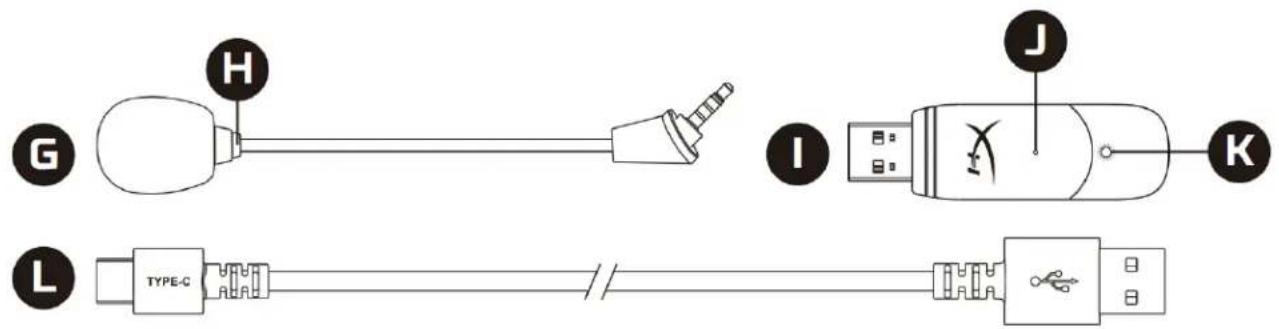
text_image
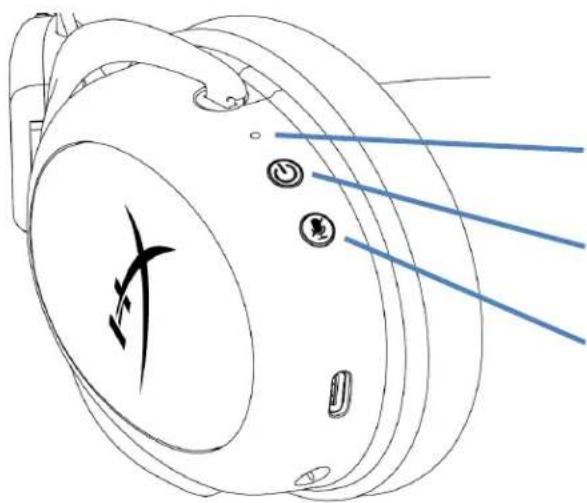
G H I J K L TYPE-CA. Mic mute / mic monitoring button
B. USB charge port
C. Microphone port
D. Status LED
E. Power / 7.1 Surround Sound button
F. Volume wheel
G. Detachable microphone
H. Microphone mute LED
I. USB adapter
J. Wireless pairing pin hole
K. Wireless status LED
L. USB charge cable
Specifications
Headphone
Driver: Dynamic, 53mm with neodymium magnets
Type: Circumaural, Closed back
Frequency response: 15Hz–20kHz
Impedance: 60 Ω
Sound pressure level: 104dBSPL/mW at 1kHz
T.H.D.: ≤ 1%
Weight: 300g
Weight with mic: 309g
Cable length and type: USB charge cable (0.5m)
Microphone
Element: Electret condenser microphone
Polar pattern: Bi-directional, Noise-cancelling
Frequency response: 50Hz-6.8kHz
Sensitivity: -20dBV (1V/Pa at 1kHz)
Battery life\*
30 hours
Wireless Range\*\*
2.4 GHz
Up to 20 meters
*Tested at 50% headphone volume. Battery life varies depending upon the usage.
**Wireless range may vary due to environmental conditions.
Setting up with PC

text_image
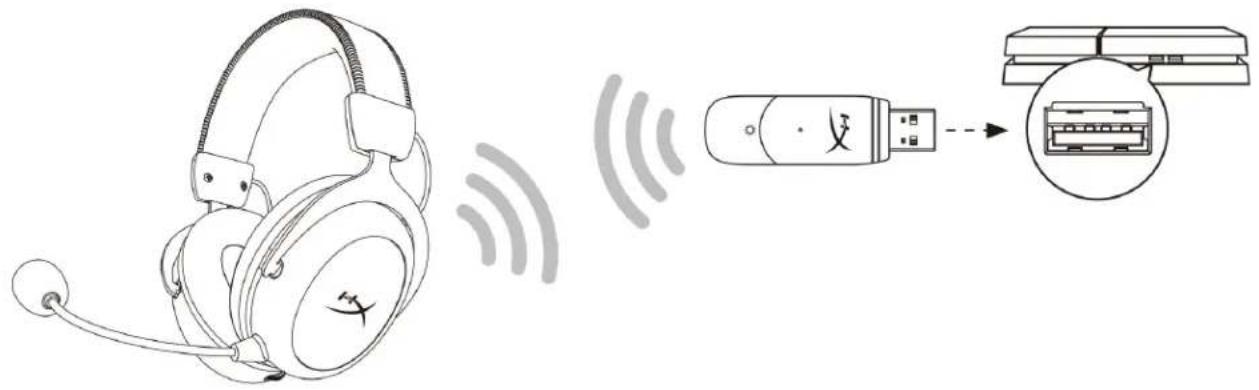
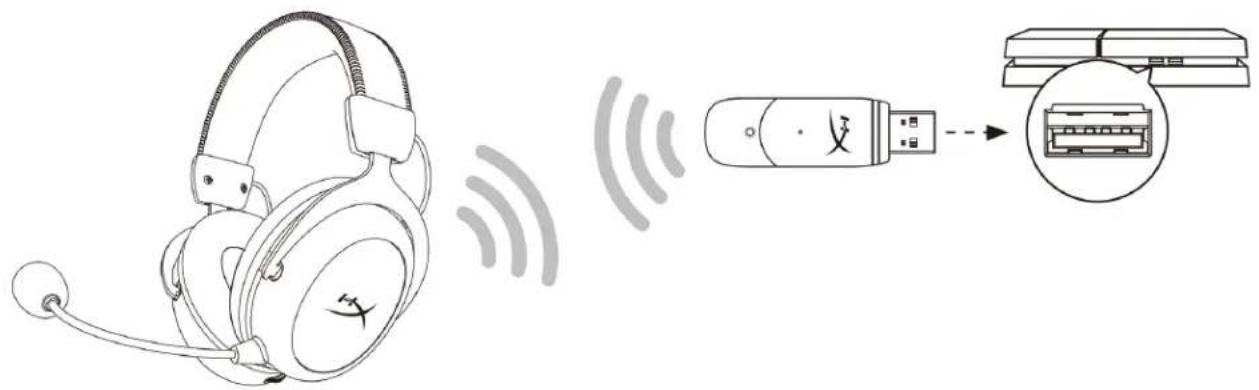
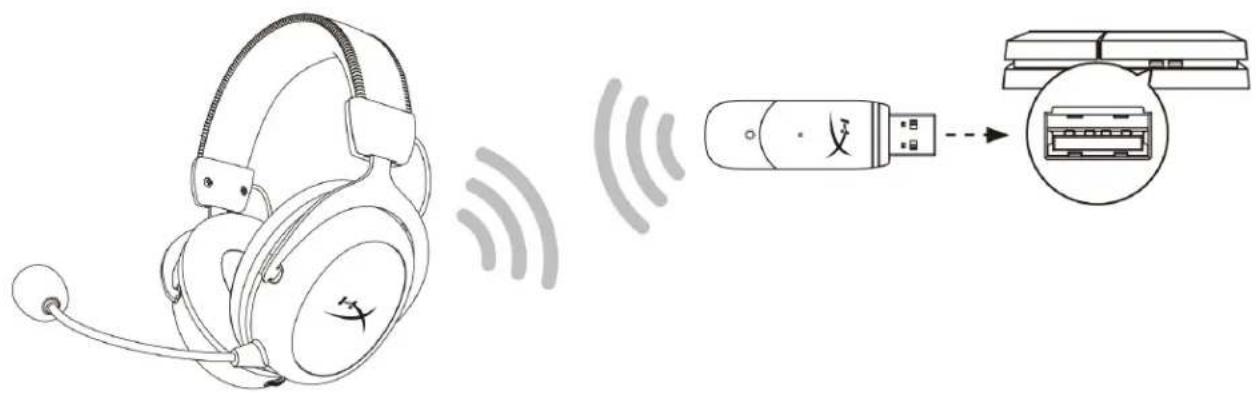
Diagram showing a headset connected to a USB device via wireless signal transmission, with an inset image of the device displaying internal components.- Connect the wireless USB adapter to the PC.
- Power on the headset.
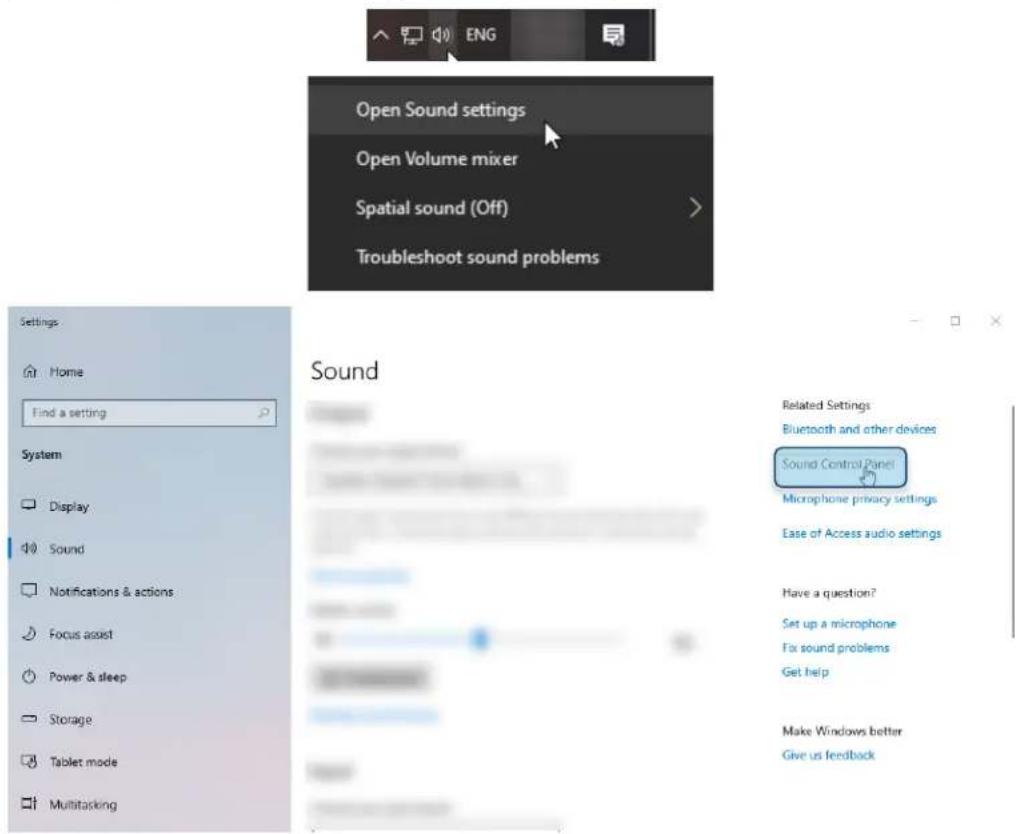
- Right click speaker icon > Select Open Sound settings > Select Sound Control Panel
text_image
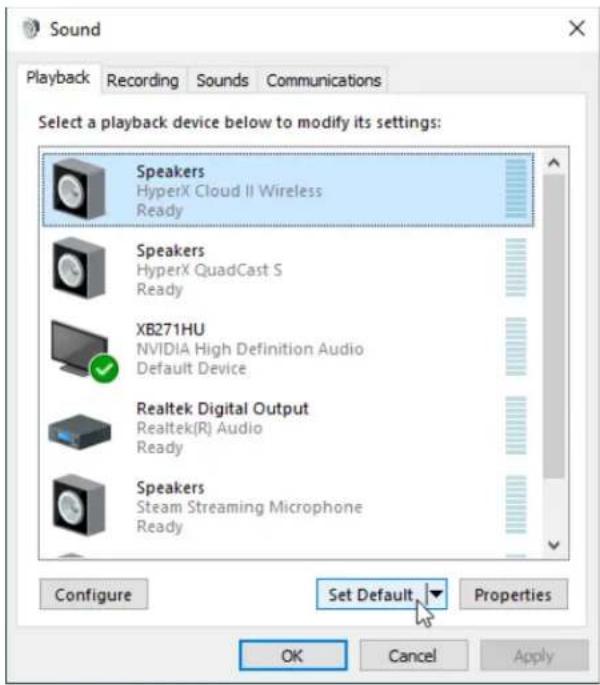
Open Sound settings Open Volume mixer Spatial sound (Off) Troubleshoot sound problems Settings Home Find a setting System Display Sound Notifications & actions Focus assist Power & sleep Storage Tablet mode Multitasking Sound Related Settings Bluetooth and other devices Sound Central Panel Microphone privacy settings Ease of Access audio settings Have a question? Set up a microphone Fax sound problems Get help Make Windows better Give us feedback- Under the Playback tab, click on "HyperX Cloud II Wireless" and click on the Set Default button.
text_image
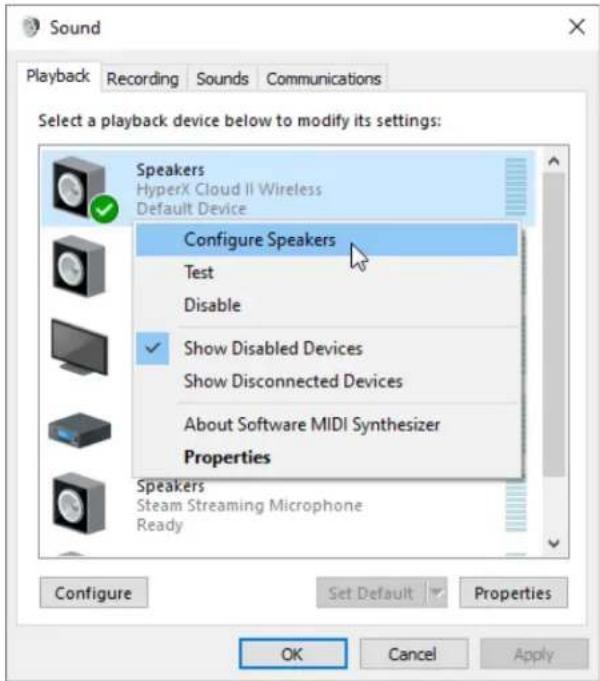
Sound Playback Recording Sounds Communications Select a playback device below to modify its settings: Speakers HyperX Cloud II Wireless Ready Speakers HyperX QuadCast S Ready XB271HU NVIDIA High Definition Audio Default Device Realtek Digital Output Realtek(R) Audio Ready Speakers Steam Streaming Microphone Ready Set Default Properties Configure Set Default OK Cancel Apply- Right click on "HyperX Cloud II Wireless" and click on Configure Speakers.
text_image
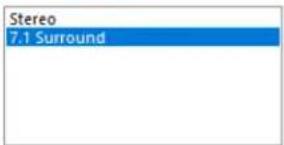
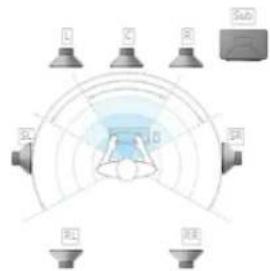
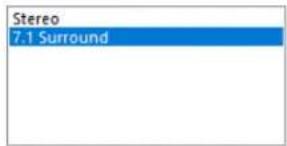
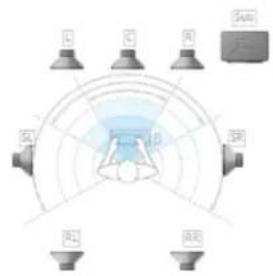
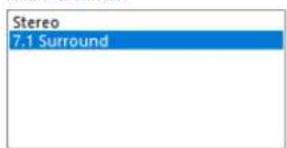
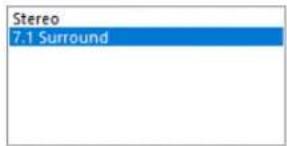
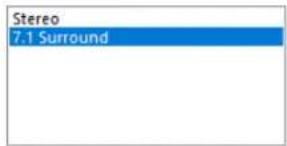
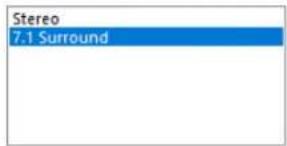
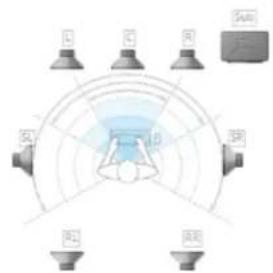
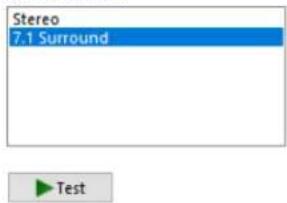
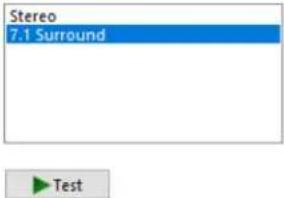
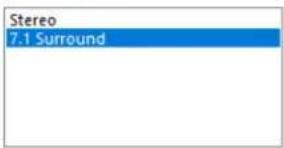
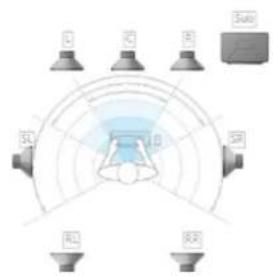
Sound Playback Recording Sounds Communications Select a playback device below to modify its settings: Speakers HyperX Cloud II Wireless Default Device Configure Speakers Test Disable Show Disabled Devices Show Disconnected Devices About Software MIDI Synthesizer Properties Speakers Steam Streaming Microphone Ready Configure Set Default Properties OK Cancel Apply- Select 7.1 Surround as the speaker configuration and click next.
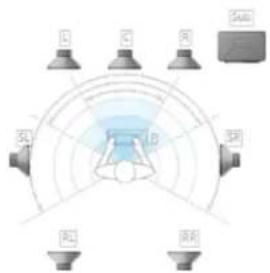
← Speaker Setup
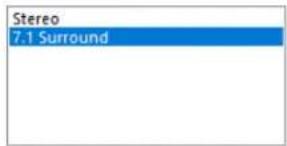
Choose your configuration
Select the speaker setup below that is most like the configuration on your computer.
Audio channels:
text_image
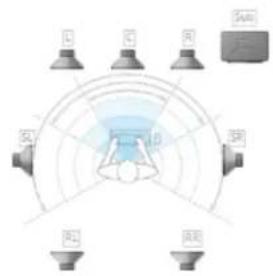
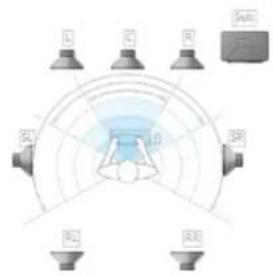
Stereo 7.1 Surround
text_image
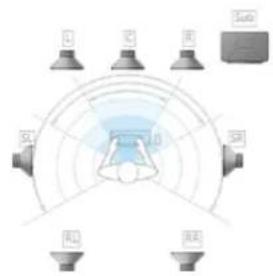
L C R SB SB SB IRE SubClick any speaker above to test it.
Next
Cancel
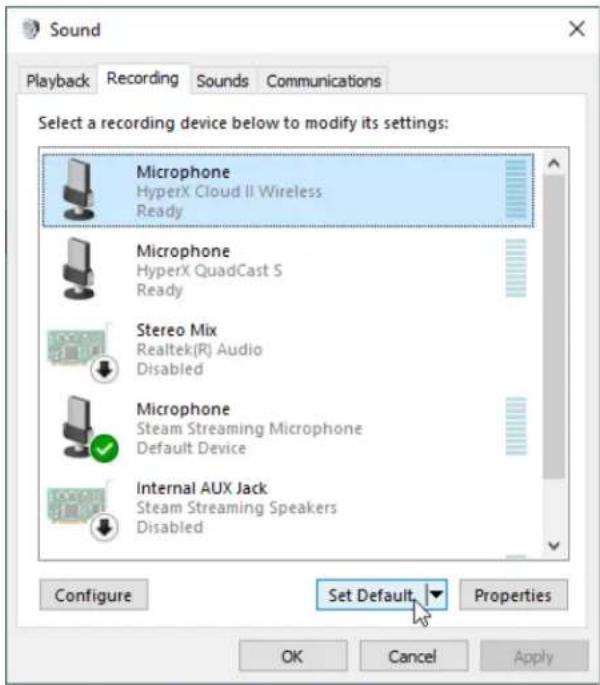
- Under the Recording tab, click on "HyperX Cloud II Wireless" and click on the Set Default button.
text_image
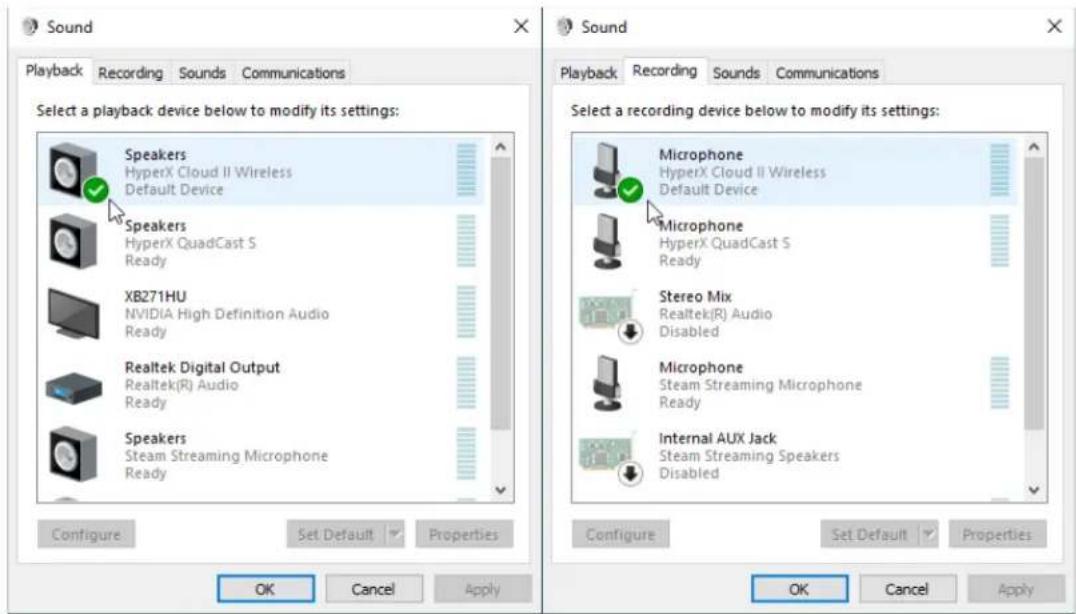
Sound Playback Recording Sounds Communications Select a recording device below to modify its settings: Microphone HyperX Cloud II Wireless Ready Microphone HyperX QuadCast S Ready Stereo Mix Realtek(R) Audio Disabled Microphone Steam Streaming Microphone Default Device Internal AUX Jack Steam Streaming Speakers Disabled Configure Set Default Properties OK Cancel Apply- Under the Playback tab, verify that "HyperX Cloud II Wireless" is set as Default Device and Default Communication Device. Under the Recording tab, verify that "HyperX Cloud II Wireless" is set as Default Device.
text_image
Sound Playback Recording Sounds Communications Select a playback device below to modify its settings: Speakers HyperX Cloud II Wireless Default Device Speakers HyperX QuadCast S Ready XB271HU NVIDIA High Definition Audio Ready Realtek Digital Output Realtek(R) Audio Ready Speakers Steam Streaming Microphone Ready Configure Set Default Properties OK Cancel Apply Sound Playback Recording Sounds Communications Select a recording device below to modify its settings: Microphone HyperX Cloud II Wireless Default Device Microphone HyperX QuadCast S Ready Stereo Mix Realtek(R) Audio Disabled Microphone Steam Streaming Microphone Ready Internal AUX Jack Steam Streaming Speakers Disabled Configure Set Default Properties OK Cancel ApplySetting up with PlayStation 4
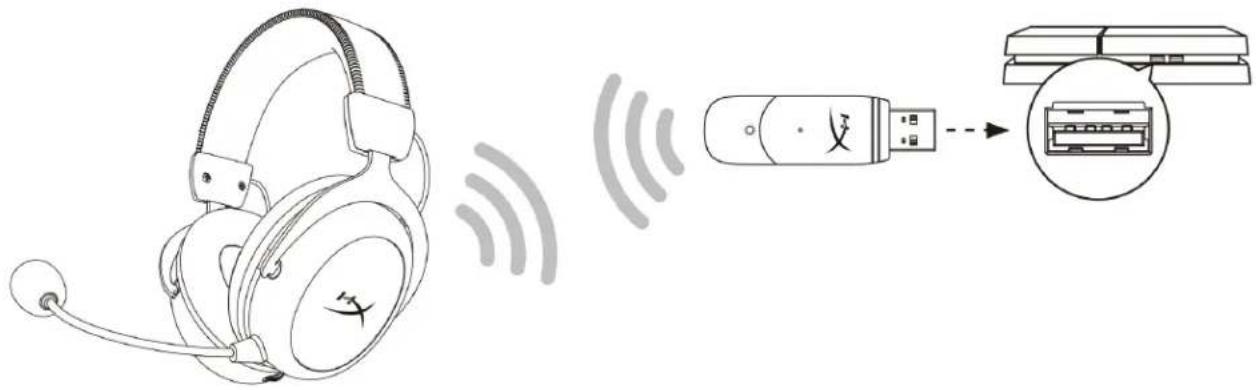
text_image
Diagram showing a headset connected to a USB port via wireless signal transmission, with an inset image of the port's internal structure.- Set Input Device to USB Headset (HyperX Cloud II Wireless)
- Set Output Device to USB Headset (HyperX Cloud II Wireless)
- Set Output to Headphones to All Audio
- Set Volume Control (Headphones) to maximum.
Audio Devices

Input Device
USB Headset (HyperX Cloud II Wireless)

Output Device
USB Headset (HyperX Cloud II Wireless)

Adjust Microphone Level

Volume Control (Headphones)



Output to Headphones
All Audio

Switch Output Device Automatically

Controls
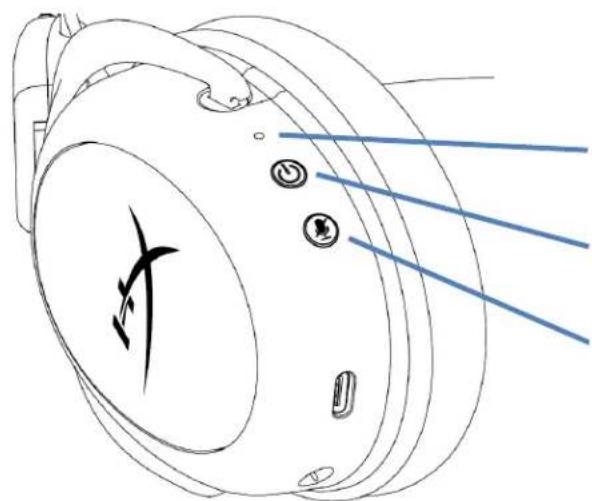
natural_image
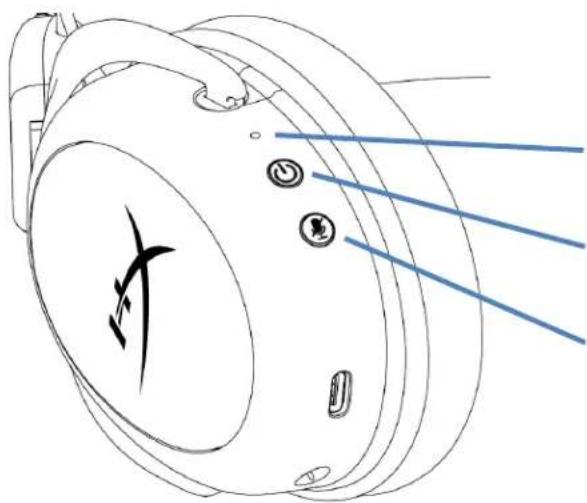
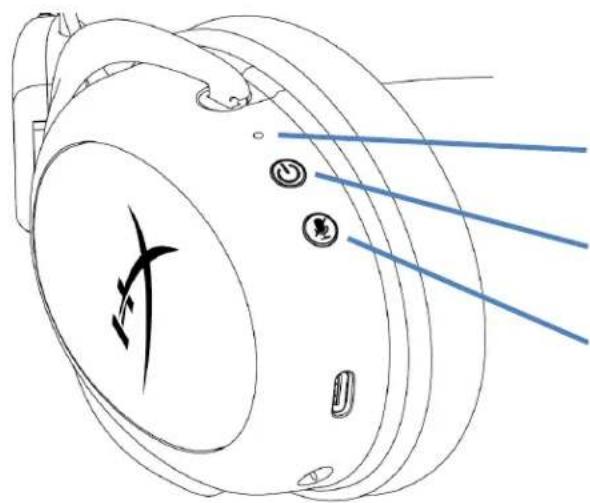
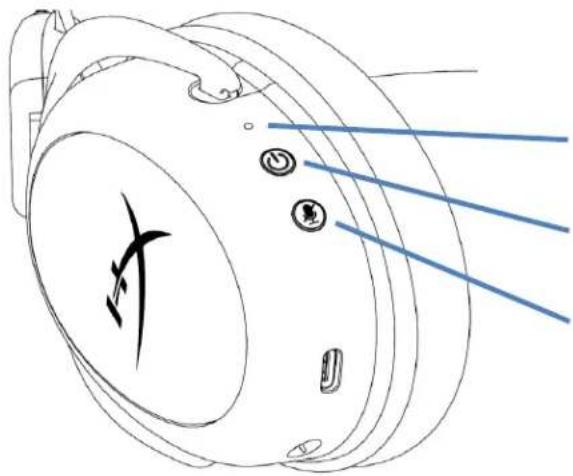
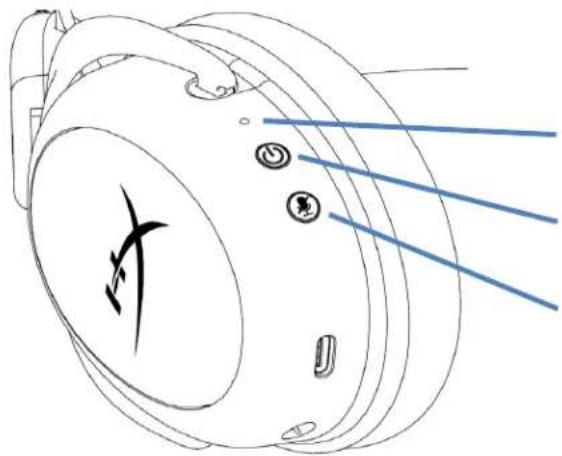
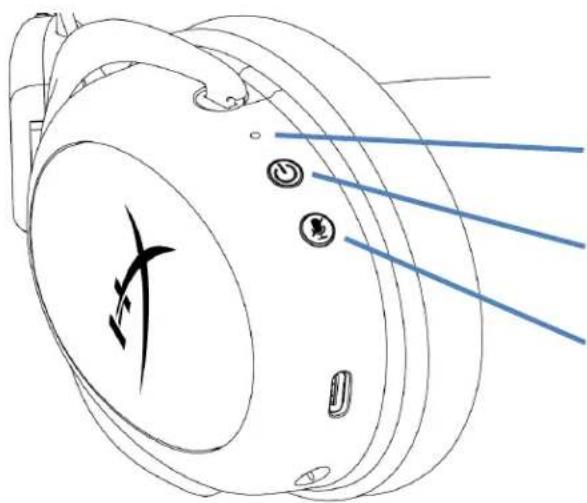
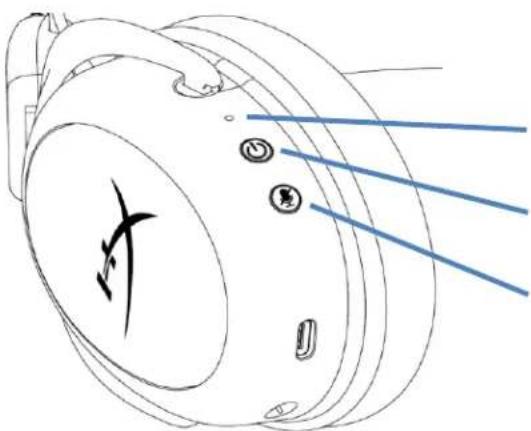
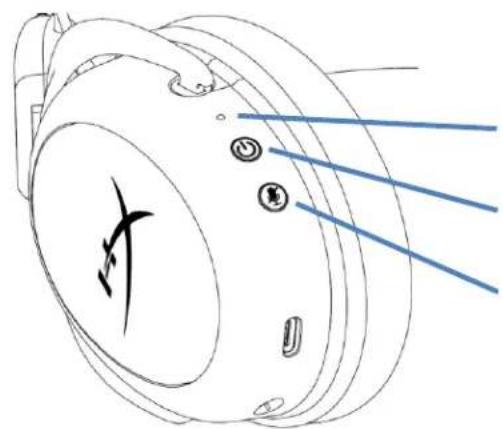
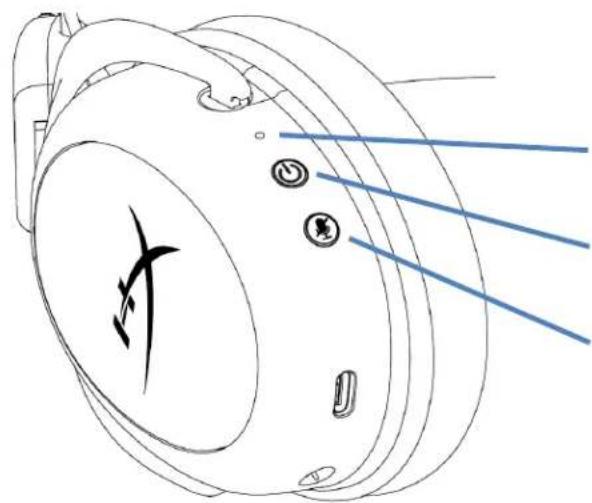
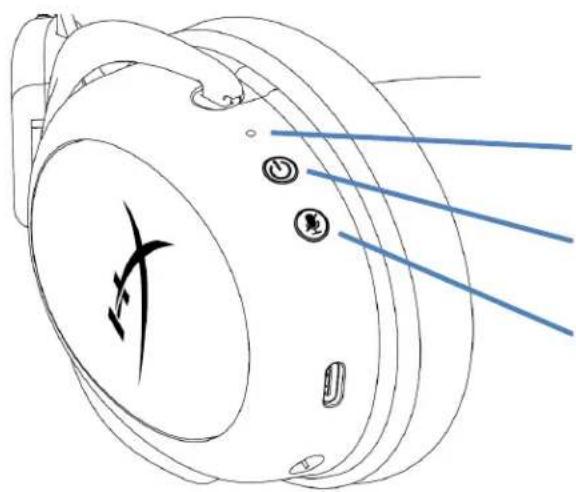
Line drawing of a mechanical component with blue lines and circular features (no text or symbols)Status LED
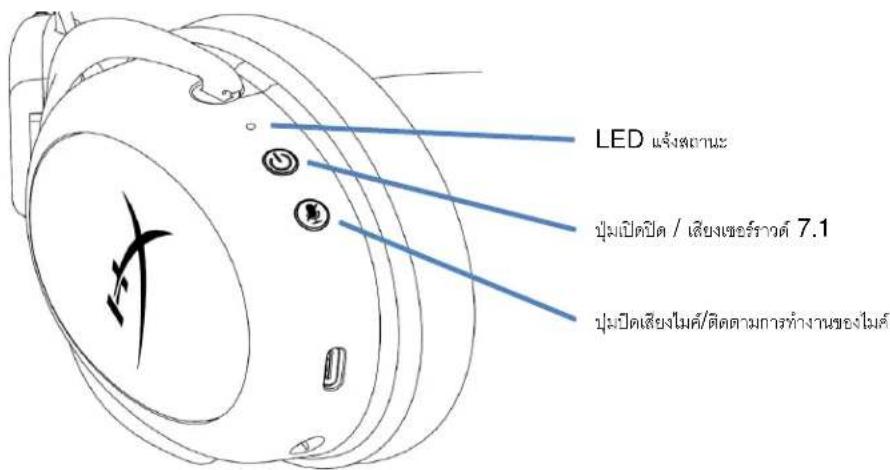
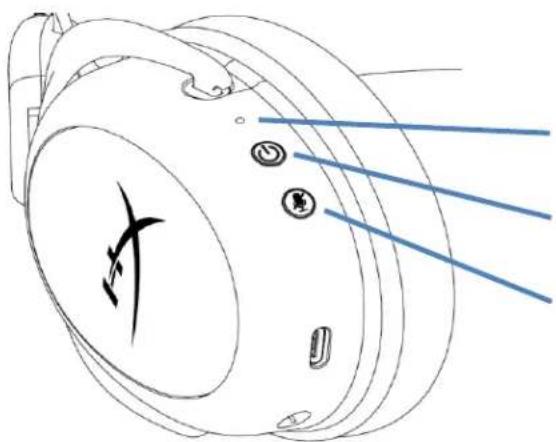
Power / 7.1 Surround Sound button
Mic mute / mic monitoring button
Status LED
| Status | Battery Level | LED |
| Pairing | - | Flash green and red every 0.2s |
| Searching | - | Slow breathing green |
| Connected | 90% - 100% | Solid green |
| 15% - 90% | Blinking green | |
| < 15% | Blinking red |
Power / 7.1 Surround Sound button
- Hold for 3 seconds to power headset on/off
- Press to toggle 7.1 Surround Sound * on/off
*Virtual 7.1 surround sound outputs as a 2 channel stereo signal to be used with stereo headphones.
Mic mute / mic monitoring button
- Press to toggle mic mute on/off
- LED On – Mic muted
- LED Off – Mic active
- Hold for 3 seconds to toggle mic monitoring on/off
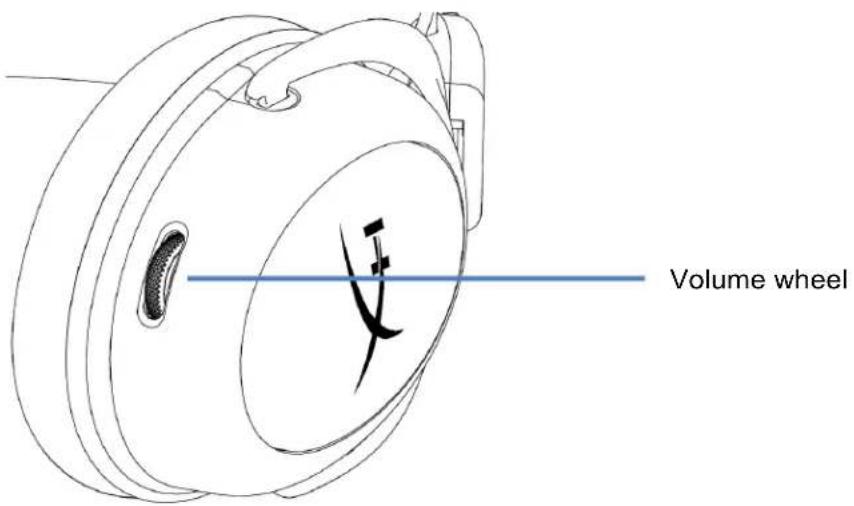
text_image
Volume wheelVolume wheel
- Scroll up and down to adjust volume level
WARNING: Permanent hearing damage can occur if a headset is used at high volumes for extended periods of time
Charging the Headset
It is recommended to fully charge your headset before first use.
When charging the headset, the headset status LED will indicate the current charge status.
| Status LED | Charge Status |
| Solid green | Fully charged |
| Breathing green | 15% - 99% battery level |
| Breathing red | < 15% battery level |
Wired charging
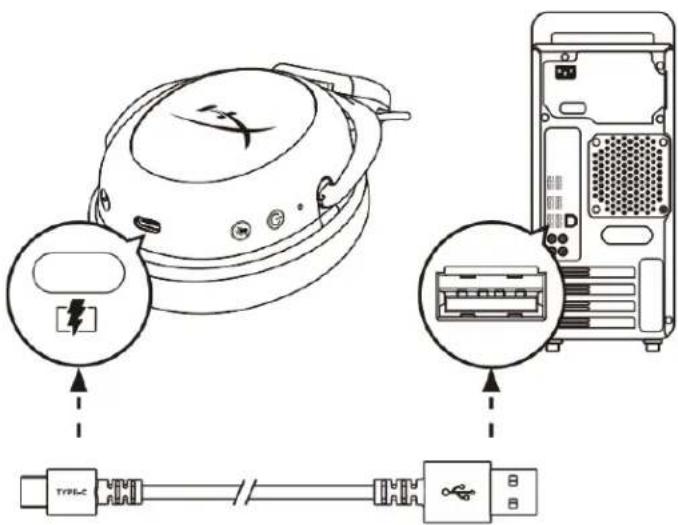
text_image
Diagram showing connections between a computer device and a server, with labeled components and connectors.To charge the headset via wired, plug the headset to a USB port with the USB charge cable.
HyperX NGENUITY Software
Download NGENUITY software at: hyperxgaming.com/ngenuity

Manually Pairing the Headset and USB Adapter
The headset and USB adapter are automatically paired together out of the box. But if manual pairing is needed, follow the steps below to pair the headset and USB adapter.
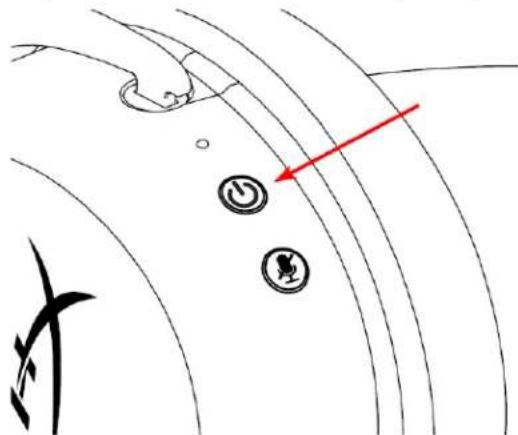
- While the headset is powered off, hold down the power button until the headset status LED starts blinking red/green rapidly. The headset is now in pairing mode.
text_image
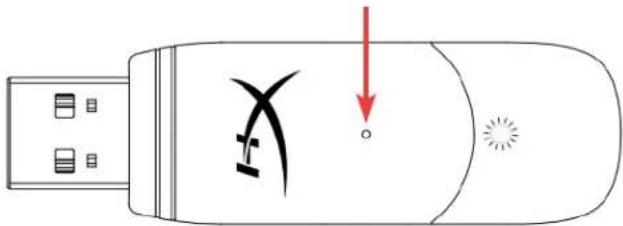
Diagram showing a hand holding a device with three circular buttons and a red arrow pointing to it, alongside a stylized Chinese character.- While the USB adapter is plugged in, use a small tool (e.g. paper clip, SIM tray ejector, etc.) to hold down the button inside the pin hole until the USB adapter LED starts blinking rapidly. The USB adapter is now in pairing mode.
text_image
Diagram of a USB device showing internal components with a red arrow pointing to a labeled point 'o' and a starburst symbol.- Wait until both the headset LED and the USB adapter LED are solid. The headset and USB adapter are now paired together.
Questions or Setup Issues?
Contact the HyperX support team at: hyperxgaming.com/support/
HyperX Cloud II Wireless
natural_image
Black and red H3G Max 18 headset with headlamp, shown from side profile (no text or symbols visible)text_image
Diagram showing a headset connected to a USB device via wireless signal transmission, with an inset image of a printer and computer monitor.text_image
ENG Open Sound settings Open Volume mixer Spatial sound (Off) Troubleshoot sound problems Settings Home Find a setting System Display Sound Notifications & actions Focus assist Power & sleep Storage Toilet mode Multitasking Sound Related Settings Bluetooth and other devices Sound Control Panel Microphone privacy settings Ease of Access audio settings Have a question? Set up a microphone Fix sound problems Get help Make Windows better Give us feedbacktext_image
Sound Playback Recording Sounds Communications Select a playback device below to modify its settings: Speakers HyperX Cloud II Wireless Ready Speakers HyperX QuadCast S Ready XB271HU NVIDIA High Definition Audio Default Device Realtek Digital Output Realtek(R) Audio Ready Speakers Steam Streaming Microphone Ready Set Default Properties Configure Set Default OK Cancel Applytext_image
Sound Playback Recording Sounds Communications Select a playback device below to modify its settings: Speakers HyperX Cloud II Wireless Default Device Configure Speakers Test Disable Show Disabled Devices Show Disconnected Devices About Software MIDI Synthesizer Properties Speakers Steam Streaming Microphone Ready Configure Set Default Properties OK Cancel ApplyChoose your configuration
Select the speaker setup below that is most like the configuration on your computer.
Audio channels:
text_image
Stereo 7.1 Surround
text_image
L C R S P R1 R2Click any speaker above to test it.
Next Cancel
text_image
Sound Playback Recording Sounds Communications Select a recording device below to modify its settings: Microphone HyperX Cloud II Wireless Ready Microphone HyperX QuadCast S Ready Stereo Mix Realtek(R) Audio Disabled Microphone Steam Streaming Microphone Default Device Internal AUX Jack Steam Streaming Speakers Disabled Set Default Configure Set Default Properties OK Cancel Applytext_image
Sound Playback Recording Sounds Communications Select a playback device below to modify its settings: Speakers HyperX Cloud II Wireless Default Device Speakers HyperX QuadCast S Ready XB271HU NVIDIA High Definition Audio Ready Realtek Digital Output Realtek(R) Audio Ready Speakers Steam Streaming Microphone Ready Configure Set Default Properties OK Cancel Apply Sound Playback Recording Sounds Communications Select a recording device below to modify its settings: Microphone HyperX Cloud II Wireless Default Device Microphone HyperX QuadCast S Ready Stereo Mix Realtek(R) Audio Disabled Microphone Steam Streaming Microphone Ready Internal AUX Jack Steam Streaming Speakers Disabled Configure Set Default Properties OK Cancel Applytext_image
Diagram showing wireless signal transmission from a headset to a USB device and outputting a printer, with Chinese labels.USB Headset (HyperX Cloud II Wireless)

Output Device
USB Headset (HyperX Cloud II Wireless)

Adjust Microphone Level

Volume Control (Headphones)

←

Output to Headphones
All Audio

Switch Output Device Automatically

Controles
natural_image
Line drawing of a mechanical component with arrows indicating direction (no text or symbols)LED de estado
text_image
Diagram showing connections between a device, a computer tower, and an Ethernet cable with labeled ports and connectors.text_image
Diagram showing a hand pressing down on a power button with a red arrow pointing to it, alongside a stylized Chinese character.text_image
Diagram of a USB device showing internal components with a red arrow pointing to a circular mark and starburst symbol.natural_image
Black and red HX3 headboard with headset, microphone, and earplifier (no visible text or symbols)Artikelnummern
HHSC2X-BA-RD/G
INHALTSVERZEICHNIS
Überblick 3
Technische Daten 4
text_image
Diagram showing a headset connected to a USB device via wireless signal transmission, with an inset image of the device emitting a printer.text_image
Open Sound settings Open Volume mixer Spatial sound (Off) Troubleshoot sound problems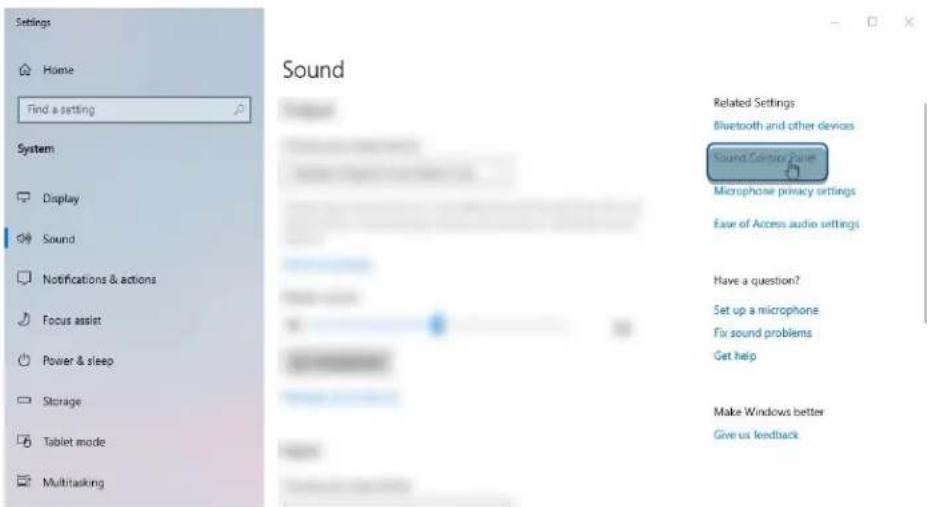
text_image
Settings Home Find a setting System Display Sound Notifications & actions Focus assist Power & sleep Storage Tablet mode Multitasking Sound Related Settings Bluetooth and other devices Sound Controls Error Microphone privacy settings Ease of Access audio settings Have a question? Set up a microphone Fix sound problems Get help Make Windows better Give us feedbacktext_image
Sound Playback Recording Sounds Communications Select a playback device below to modify its settings: Speakers HyperX Cloud II Wireless Ready Speakers HyperX QuadCast S Ready XB271HU NVIDIA High Definition Audio Default Device Realtek Digital Output Realtek(R) Audio Ready Speakers Steam Streaming Microphone Ready Set Default Properties Configure OK Cancel Applytext_image
Sound Playback Recording Sounds Communications Select a playback device below to modify its settings: Speakers HyperX Cloud II Wireless Default Device Configure Speakers Test Disable Show Disabled Devices Show Disconnected Devices About Software MIDI Synthesizer Properties Speakers Steam Streaming Microphone Ready Configure Set Default Properties OK Cancel ApplyChoose your configuration
Select the speaker setup below that is most like the configuration on your computer.
Audio channels:
text_image
Stereo 7.1 Surround
text_image
L C R S S1 S2 R1 R2 R3 SubClick any speaker above to test it.
Next
Cancel
text_image
Sound Playback Recording Sounds Communications Select a recording device below to modify its settings: Microphone HyperX Cloud II Wireless Ready Microphone HyperX QuadCast S Ready Stereo Mix Realtek(R) Audio Disabled Microphone Steam Streaming Microphone Default Device Internal AUX Jack Steam Streaming Speakers Disabled Set Default... Configure Set Default Properties OK Cancel Applytext_image
Sound Playback Recording Sounds Communications Select a playback device below to modify its settings: Speakers HyperX Cloud II Wireless Default Device Speakers HyperX QuadCast S Ready XB271HU NVIDIA High Definition Audio Ready Realtek Digital Output Realtek(R) Audio Ready Speakers Steam Streaming Microphone Ready Configure Set Default Properties OK Cancel Apply Sound Playback Recording Sounds Communications Select a recording device below to modify its settings: Microphone HyperX Cloud II Wireless Default Device Microphone HyperX QuadCast S Ready Stereo Mix Realtek(R) Audio Disabled Microphone Steam Streaming Microphone Ready Internal AUX Jack Steam Streaming Speakers Disabled Configure Set Default Properties OK Cancel Applytext_image
Diagram showing wireless signal transmission from a headset to an USB device, with an inset image of the device's internal structure.USB Headset (HyperX Cloud II Wireless)

Output Device
USB Headset (HyperX Cloud II Wireless)

Adjust Microphone Level

Volume Control (Headphones)

←

Output to Headphones
All Audio

Switch Output Device Automatically

Bedienelemente
natural_image
Line drawing of a mechanical component with no visible text or symbolsStatus-LED
Einschalt- / 7.1 Surround Sound-Taste
text_image
Diagram showing connections between a device and a server, with labeled components and connectors.text_image
Diagram showing a hand pressing down on a curved surface with two circular buttons and a red arrow pointing to the button.text_image
Diagram of a USB device showing internal components with a red arrow pointing to a location marked with an 'X' symbol.natural_image
Black and red H3G Max 18 headset with headband and external microphone (no text or symbols visible)text_image
A B C D E F H G I J K L TYPE-Ctext_image
Diagram showing wireless signal transmission from a headset to a USB device and computer, with an icon of the USB port.text_image
Open Sound settings Open Volume mixer Spatial sound (Off) Troubleshoot sound problems Settings Home Find a setting System Display Sound Notifications & actions Focus assist Power & sleep Storage Tablet mode Multitasking Sound Related Settings Bluetooth and other devices Sound Control Panel Microphone privacy settings Ease of Access audio settings Have a question? Set up a microphone Fix sound problems Get help Make Windows better Give us feedbacktext_image
Sound Playback Recording Sounds Communications Select a playback device below to modify its settings: Speakers HyperX Cloud II Wireless Ready Speakers HyperX QuadCast S Ready XB271HU NVIDIA High Definition Audio Default Device Realtek Digital Output Realtek(R) Audio Ready Speakers Steam Streaming Microphone Ready Set Default Properties Configure Set Default Properties OK Cancel Applytext_image
Sound Playback Recording Sounds Communications Select a playback device below to modify its settings: Speakers HyperX Cloud II Wireless Default Device Configure Speakers Test Disable Show Disabled Devices Show Disconnected Devices About Software MIDI Synthesizer Properties Speakers Steam Streaming Microphone Ready Configure Set Default Properties OK Cancel ApplyChoose your configuration
Select the speaker setup below that is most like the configuration on your computer.
Audio channels:
text_image
Stereo 7.1 Surround
text_image
L C R S P R1 R2Click any speaker above to test it.
Next
Cancel
text_image
Sound Playback Recording Sounds Communications Select a recording device below to modify its settings: Microphone HyperX Cloud II Wireless Ready Microphone HyperX QuadCast S Ready Stereo Mix Realtek(R) Audio Disabled Microphone Steam Streaming Microphone Default Device Internal AUX Jack Steam Streaming Speakers Disabled Set Default Configure Set Default Properties OK Cancel Applytext_image
Sound Playback Recording Sounds Communications Select a playback device below to modify its settings: Speakers HyperX Cloud II Wireless Default Device Speakers HyperX QuadCast S Ready XB271HU NVIDIA High Definition Audio Ready Realtek Digital Output Realtek(R) Audio Ready Speakers Steam Streaming Microphone Ready Configure Set Default Properties OK Cancel Apply Sound Playback Recording Sounds Communications Select a recording device below to modify its settings: Microphone HyperX Cloud II Wireless Default Device Microphone HyperX QuadCast S Ready Stereo Mix Realtek(R) Audio Disabled Microphone Steam Streaming Microphone Ready Internal AUX Jack Steam Streaming Speakers Disabled Configure Set Default Properties OK Cancel Applytext_image
Diagram showing wireless signal transmission from a headset to a USB device and outputting a printer, with Chinese labels.USB Headset (HyperX Cloud II Wireless)

Output Device
USB Headset (HyperX Cloud II Wireless)

Adjust Microphone Level

Volume Control (Headphones)

←

Output to Headphones
All Audio

Switch Output Device Automatically

Commandes
natural_image
Line drawing of a mechanical component with arrows indicating direction (no text or symbols)Voyant LED d'état
Bouton alimentation/Son Surround 7.1
Bouton Alimentation/Son Surround 7.1
text_image
Diagram showing connections between a device, a computer tower, and a USB cable with a USB port, plus an icon indicating the device's connector.text_image
Diagram showing a hand pressing down on a curved surface with two circular buttons and a red arrow pointing to the button.text_image
Diagram of a USB device showing internal components with a red arrow pointing to a location marked with an 'X' symbol.natural_image
Black and red H3G Max 18 headset with headband and external microphone (no visible text or symbols)Numeri di parte
HHSC2X-BA-RD/G
INDICE
text_image
Diagram showing a headset connected to a USB device via wireless signal transmission, with an inset image of the device emitting a printer.text_image
Open Sound settings Open Volume mixer Spatial sound (Off) Troubleshoot sound problems Settings Home Find a setting System Display Sound Notifications & actions Focus assist Power & sleep Storage Tablet mode Multitasking Sound Related Settings Bluetooth and other devices Sound Control Box Microphone privacy settings Ease of Access audio settings Have a question? Set up a microphone Fix sound problems: Get help Make Windows better Give us feedbacktext_image
Sound Playback Recording Sounds Communications Select a playback device below to modify its settings: Speakers HyperX Cloud II Wireless Ready Speakers HyperX QuadCast S Ready XB271HU NVIDIA High Definition Audio Default Device Realtek Digital Output Realtek(R) Audio Ready Speakers Steam Streaming Microphone Ready Set Default Properties Configure OK Cancel Applytext_image
Sound Playback Recording Sounds Communications Select a playback device below to modify its settings: Speakers HyperX Cloud II Wireless Default Device Configure Speakers Test Disable Show Disabled Devices Show Disconnected Devices About Software MIDI Synthesizer Properties Speakers Steam Streaming Microphone Ready Configure Set Default Properties OK Cancel ApplyChoose your configuration
Select the speaker setup below that is most like the configuration on your computer.
Audio channels:
text_image
Stereo 7.1 Surround
text_image
L C R S P R1 R2Click any speaker above to test it.
Next
Cancel
text_image
Sound Playback Recording Sounds Communications Select a recording device below to modify its settings: Microphone HyperX Cloud II Wireless Ready Microphone HyperX QuadCast S Ready Stereo Mix Realtek(R) Audio Disabled Microphone Steam Streaming Microphone Default Device Internal AUX Jack Steam Streaming Speakers Disabled Configure Set Default Properties OK Cancel Applytext_image
Sound Playback Recording Sounds Communications Select a playback device below to modify its settings: Speakers HyperX Cloud II Wireless Default Device Speakers HyperX QuadCast S Ready XB271HU NVIDIA High Definition Audio Ready Realtek Digital Output Realtek(R) Audio Ready Speakers Steam Streaming Microphone Ready Configure Set Default Properties OK Cancel Apply Sound Playback Recording Sounds Communications Select a recording device below to modify its settings: Microphone HyperX Cloud II Wireless Default Device Microphone HyperX QuadCast S Ready Stereo Mix Realtek(R) Audio Disabled Microphone Steam Streaming Microphone Ready Internal AUX Jack Steam Streaming Speakers Disabled Configure Set Default Properties OK Cancel Applytext_image
Diagram showing wireless signal transmission from a headset to an USB device and finally to a printer, with Chinese labels.USB Headset (HyperX Cloud II Wireless)

Output Device
USB Headset (HyperX Cloud II Wireless)

Adjust Microphone Level

Volume Control (Headphones)

←

Output to Headphones
All Audio

Switch Output Device Automatically

Controlli
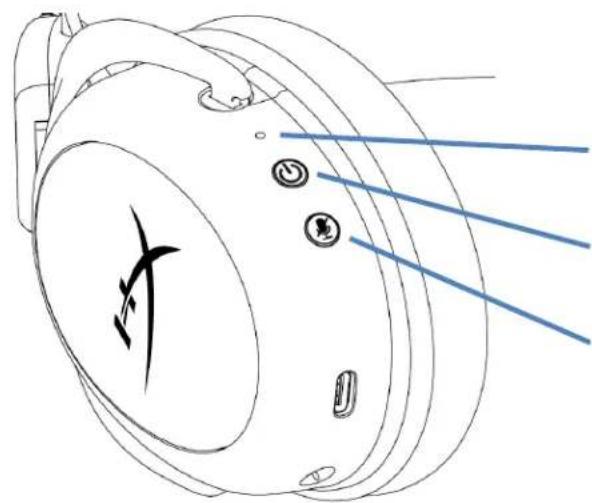
natural_image
Line drawing of a mechanical component with arrows indicating direction (no text or symbols)LED di stato
Pulsante Accensione/Audio Surround 7.1
natural_image
Technical line drawing of a mechanical component with no visible text or symbolstext_image
Diagram showing connections between a device and a server, with labeled components and connectors.text_image
Diagram showing a hand holding circular buttons with a red arrow pointing to one button, alongside a stylized Chinese character.text_image
Diagram of a USB device showing internal components with a red arrow pointing to a circular mark and a starburst symbol.natural_image
Black and red H3G Max 18 headset with headband and external microphone (no visible text or symbols)Código do Produto
HHSC2X-BA-RD/G
ÍNDICE
Visão geral 3
Especificações....4
text_image
Diagram showing a headset connected to a USB device via wireless signal transmission, with an inset image of a computer displaying a CD.text_image
Open Sound settings Open Volume mixer Spatial sound (Off) Troubleshoot sound problems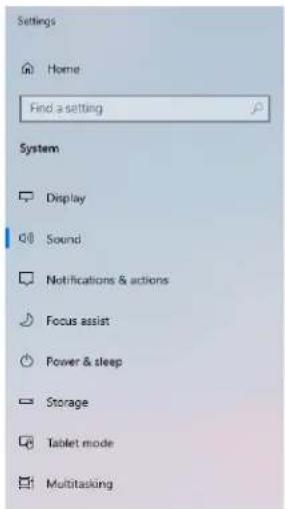
text_image
Settings Home Find a setting System Display Sound Notifications & actions Focus assist Power & sleep Storage Tablet mode MultitaskingSound
text_image
User interface screenshot showing a progress bar with Chinese text and a blue progress bar.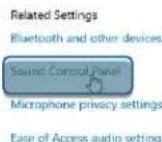
text_image
Sound Playback Recording Sounds Communications Select a playback device below to modify its settings: Speakers HyperX Cloud II Wireless Ready Speakers HyperX QuadCast S Ready XB271HU NVIDIA High Definition Audio Default Device Realtek Digital Output Realtek(R) Audio Ready Speakers Steam Streaming Microphone Ready Set Default Properties Configure OK Cancel Applytext_image
Sound Playback Recording Sounds Communications Select a playback device below to modify its settings: Speakers HyperX Cloud II Wireless Default Device Configure Speakers Test Disable Show Disabled Devices Show Disconnected Devices About Software MIDI Synthesizer Properties Speakers Steam Streaming Microphone Ready Configure Set Default Properties OK Cancel ApplyChoose your configuration
Select the speaker setup below that is most like the configuration on your computer.
Audio channels:
text_image
Stereo 7.1 Surround
text_image
Sau L C R S P R1 R2 R3Click any speaker above to test it.
Next
Cancel
text_image
Sound Playback Recording Sounds Communications Select a recording device below to modify its settings: Microphone HyperX Cloud II Wireless Ready Microphone HyperX QuadCast S Ready Stereo Mix Realtek(R) Audio Disabled Microphone Steam Streaming Microphone Default Device Internal AUX Jack Steam Streaming Speakers Disabled Configure Set Default Properties OK Cancel Applytext_image
Sound Playback Recording Sounds Communications Select a playback device below to modify its settings: Speakers HyperX Cloud II Wireless Default Device Speakers HyperX QuadCast S Ready XB271HU NVIDIA High Definition Audio Ready Realtek Digital Output Realtek(R) Audio Ready Speakers Steam Streaming Microphone Ready Configure Set Default Properties OK Cancel Apply Sound Playback Recording Sounds Communications Select a recording device below to modify its settings: Microphone HyperX Cloud II Wireless Default Device Microphone HyperX QuadCast S Ready Stereo Mix Realtek(R) Audio Disabled Microphone Steam Streaming Microphone Ready Internal AUX Jack Steam Streaming Speakers Disabled Configure Set Default Properties OK Cancel ApplyConfigurando com o PlayStation 4
text_image
Diagram showing a headset connected to a USB device via wireless signal transmission, with an inset image of the device's internal structure.- Defina Dispositivo de Entrada como USB Headset (HyperX Cloud II Wireless)
- Defina Dispositivo de Saída como USB Headset (HyperX Cloud II Wireless)
- Defina Saída para fones de ouvido como Todo o Áudio
- Para Controle de Volume (Fones de ouvido) defina máximo.
Audio Devices

Input Device
USB Headset (HyperX Cloud II Wireless)

Output Device
USB Headset (HyperX Cloud II Wireless)

Adjust Microphone Level

Volume Control (Headphones)

←

Output to Headphones
All Audio

Switch Output Device Automatically

Controles
natural_image
Line drawing of a mechanical component with three circular features and blue lines indicating motion or alignment (no text or symbols)LED de status
Botão Ligar / Som surround 7.1
text_image
Diagram showing connections between a laptop device, a desktop computer tower, and a USB cable with a USB port, plus an icon indicating the device's connector.text_image
Diagram showing a hand holding a power button with a red arrow pointing to it, alongside a stylized 'X' symbol.text_image
Diagram of a USB device showing internal components with a red arrow pointing to a location marked with an 'X' symbol.natural_image
Black and red H3G Max 18 headset with headband and external microphone (no visible text or symbols)Numery katalogowe
HHSC2X-BA-RD/G
SPIS TREŚCI
text_image
Diagram showing a headset connected to a USB device via wireless signal transmission, with an inset image of the device displaying a CD.text_image
Open Sound settings Open Volume mixer Spatial sound (Off) Troubleshoot sound problems Settings Home Find a setting System Display Sound Notifications & actions Focus assist Power & sleep Storage Tablet mode Multitasking Sound Related Settings Bluetooth and other devices Sound Control Panel Microphone privacy settings Ease of Access audio settings Have a question? Set up a microphone Fix sound problems Get help Make Windows better Give us feedbacktext_image
Sound Playback Recording Sounds Communications Select a playback device below to modify its settings: Speakers HyperX Cloud II Wireless Ready Speakers HyperX QuadCast S Ready XB271HU NVIDIA High Definition Audio Default Device Realtek Digital Output Realtek(R) Audio Ready Speakers Steam Streaming Microphone Ready Set Default Properties Configure OK Cancel Applytext_image
Sound Playback Recording Sounds Communications Select a playback device below to modify its settings: Speakers HyperX Cloud II Wireless Default Device Configure Speakers Test Disable Show Disabled Devices Show Disconnected Devices About Software MIDI Synthesizer Properties Speakers Steam Streaming Microphone Ready Configure Set Default Properties OK Cancel Applytext_image
Speaker Setup Choose your configuration Select the speaker setup below that is most like the configuration on your computer. Audio channels: Stereo 7.1 Surround Test Click any speaker above to test it. Next Canceltext_image
Sound Playback Recording Sounds Communications Select a recording device below to modify its settings: Microphone HyperX Cloud II Wireless Ready Microphone HyperX QuadCast S Ready Stereo Mix Realtek(R) Audio Disabled Microphone Steam Streaming Microphone Default Device Internal AUX Jack Steam Streaming Speakers Disabled Configure Set Default Properties OK Cancel Applytext_image
Sound Playback Recording Sounds Communications Select a playback device below to modify its settings: Speakers HyperX Cloud II Wireless Default Device Speakers HyperX QuadCast S Ready XB271HU NVIDIA High Definition Audio Ready Realtek Digital Output Realtek(R) Audio Ready Speakers Steam Streaming Microphone Ready Configure Set Default Properties OK Cancel Apply Sound Playback Recording Sounds Communications Select a recording device below to modify its settings: Microphone HyperX Cloud II Wireless Default Device Microphone HyperX QuadCast S Ready Stereo Mix Realtek(R) Audio Disabled Microphone Steam Streaming Microphone Ready Internal AUX Jack Steam Streaming Speakers Disabled Configure Set Default Properties OK Cancel Applytext_image
Diagram showing wireless signal transmission from a headset to an USB device and outputting a printer, with Chinese labels.USB Headset (HyperX Cloud II Wireless)

Output Device
USB Headset (HyperX Cloud II Wireless)

Adjust Microphone Level

Volume Control (Headphones)
→

Output to Headphones
All Audio

Switch Output Device Automatically

Elementy sterujące
natural_image
Line drawing of a mechanical component with blue lines and circular features (no text or symbols)Wskaźnik LED stanu
text_image
Diagram showing connections between a device, a computer tower, and a USB cable with labeled ports and connectors.text_image
Diagram showing a hand holding a device with a power button and a red arrow pointing to it, alongside a stylized Chinese character.text_image
Diagram of a USB device with a logo and a red arrow pointing to a circular mark, indicating a location or operation.natural_image
Black and red H3G Max 18 headset with headband and external microphone (no visible text or symbols)Номера по каталогу
HHSC2X-BA-RD/G
СОДЕРЖАНИЕ
Обзор 3
text_image
Diagram showing a headset connected to a USB device via wireless signal transmission, with an inset image of a computer displaying a CD.text_image
Open Sound settings Open Volume mixer Spatial sound (Off) Troubleshoot sound problems Settings Home Find a setting System Display Sound Notifications & actions Focus assist Power & sleep Storage Tablet mode Multitasking Sound Related Settings Bluetooth and other devices Sound Control Panel Microphone privacy settings Ease of Access audio settings Have a question? Set up a microphone Fix sound problems Get help Make Windows better Give us feedbacktext_image
Sound Playback Recording Sounds Communications Select a playback device below to modify its settings: Speakers HyperX Cloud II Wireless Ready Speakers HyperX QuadCast S Ready XB271HU NVIDIA High Definition Audio Default Device Realtek Digital Output Realtek(R) Audio Ready Speakers Steam Streaming Microphone Ready Set Default Properties Configure Set Default OK Cancel Applytext_image
Sound Playback Recording Sounds Communications Select a playback device below to modify its settings: Speakers HyperX Cloud II Wireless Default Device Configure Speakers Test Disable Show Disabled Devices Show Disconnected Devices About Software MIDI Synthesizer Properties Speakers Steam Streaming Microphone Ready Configure Set Default Properties OK Cancel Applytext_image
Speaker Setup Choose your configuration Select the speaker setup below that is most like the configuration on your computer. Audio channels: Stereo 7.1 Surround Test Click any speaker above to test it. Next Canceltext_image
Sound Playback Recording Sounds Communications Select a recording device below to modify its settings: Microphone HyperX Cloud II Wireless Ready Microphone HyperX QuadCast S Ready Stereo Mix Realtek(R) Audio Disabled Microphone Steam Streaming Microphone Default Device Internal AUX Jack Steam Streaming Speakers Disabled Configure Set Default Properties OK Cancel Applytext_image
Sound Playback Recording Sounds Communications Select a playback device below to modify its settings: Speakers HyperX Cloud II Wireless Default Device Speakers HyperX QuadCast S Ready XB271HU NVIDIA High Definition Audio Ready Realtek Digital Output Realtek(R) Audio Ready Speakers Steam Streaming Microphone Ready Configure Set Default Properties OK Cancel Apply Sound Playback Recording Sounds Communications Select a recording device below to modify its settings: Microphone HyperX Cloud II Wireless Default Device Microphone HyperX QuadCast S Ready Stereo Mix Realtek(R) Audio Disabled Microphone Steam Streaming Microphone Ready Internal AUX Jack Steam Streaming Speakers Disabled Configure Set Default Properties OK Cancel Applytext_image
Diagram showing a headset connected to a USB device via wireless signal transmission, with an inset image of the device's internal structure.text_image
Audio Devices Input Device Output Device Adjust Microphone Level Volume Control (Headphones) Output to Headphones Switch Output Device Automatically USB Headset (HyperX Cloud II Wireless) USB Headset (HyperX Cloud II Wireless) All AudioЭлементы управления
natural_image
Line drawing of a mechanical component with three circular features and blue lines indicating direction (no text or symbols)natural_image
Technical line drawing of a mechanical component with no visible text or symbolstext_image
Diagram showing connection between a device and a computer tower, with labeled ports and cable connections.text_image
Diagram showing a hand pressing down on a curved surface with circular buttons and a red arrow pointing to the right, alongside a stylized '水' (water) symbol.text_image
Diagram of a USB device with a logo and red arrow indicating a drop or change, showing internal components.natural_image
Black and red H3G Max 18 headset with headlamp, shown from side profile (no text or symbols visible)Parça Numaraları
HHSC2X-BA-RD/G
İÇINDEKILER
Genel Görünüm 3
Teknik Özellikler 4
PC ayarları 5
text_image
A B C D E F H G I J K L TYPE-Ctext_image
Diagram showing a headset connected to a USB device via wireless signal transmission to a computer, with an icon of the device being inserted.text_image
Open Sound settings Open Volume mixer Spatial sound (Off) Troubleshoot sound problems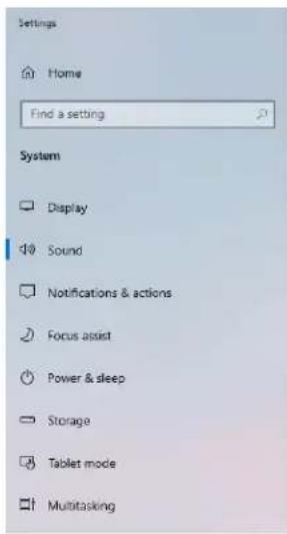
text_image
Settings Home Find a setting System Display Sound Notifications & actions Focus assist Power & sleep Storage Tablet mode Multitasking
text_image
Sound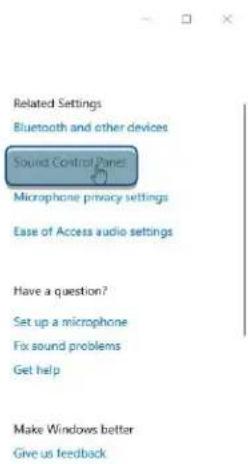
text_image
Related Settings Bluetooth and other devices Sound Control Panel Microphone privacy settings Ease of Access audio settings Have a question? Set up a microphone Fix sound problems Get help Make Windows better Give us feedbacktext_image
Sound Playback Recording Sounds Communications Select a playback device below to modify its settings: Speakers HyperX Cloud II Wireless Ready Speakers HyperX QuadCast S Ready XB271HU NVIDIA High Definition Audio Default Device Realtek Digital Output Realtek(R) Audio Ready Speakers Steam Streaming Microphone Ready Set Default Properties Configure Set Default OK Cancel Applytext_image
Sound Playback Recording Sounds Communications Select a playback device below to modify its settings: Speakers HyperX Cloud II Wireless Default Device Configure Speakers Test Disable Show Disabled Devices Show Disconnected Devices About Software MIDI Synthesizer Properties Speakers Steam Streaming Microphone Ready Configure Set Default Properties OK Cancel ApplyChoose your configuration
Select the speaker setup below that is most like the configuration on your computer.
Audio channels:
text_image
Stereo 7.1 Surround
text_image
L C R S S S S S SClick any speaker above to test it.
Next
Cancel
text_image
Sound Playback Recording Sounds Communications Select a recording device below to modify its settings: Microphone HyperX Cloud II Wireless Ready Microphone HyperX QuadCast S Ready Stereo Mix Realtek(R) Audio Disabled Microphone Steam Streaming Microphone Default Device Internal AUX Jack Steam Streaming Speakers Disabled Configure Set Default Properties OK Cancel Applytext_image
Sound Playback Recording Sounds Communications Select a playback device below to modify its settings: Speakers HyperX Cloud II Wireless Default Device Speakers HyperX QuadCast S Ready XB271HU NVIDIA High Definition Audio Ready Realtek Digital Output Realtek(R) Audio Ready Speakers Steam Streaming Microphone Ready Configure Set Default Properties OK Cancel Apply Sound Playback Recording Sounds Communications Select a recording device below to modify its settings: Microphone HyperX Cloud II Wireless Default Device Microphone HyperX QuadCast S Ready Stereo Mix Realtek(R) Audio Disabled Microphone Steam Streaming Microphone Ready Internal AUX Jack Steam Streaming Speakers Disabled Configure Set Default Properties OK Cancel Applytext_image
Diagram showing wireless signal transmission from a headset to an USB device and finally to a printer, with Chinese labels.USB Headset (HyperX Cloud II Wireless)

Output Device
USB Headset (HyperX Cloud II Wireless)

Adjust Microphone Level

Volume Control (Headphones)

←

Output to Headphones
All Audio

Switch Output Device Automatically

Kontroller
natural_image
Line drawing of a mechanical component with blue lines and circular features (no text or symbols)Durum LED'i
text_image
Diagram showing connections between a device, a computer tower, and an Ethernet cable with labeled ports and connectors.text_image
Diagram showing a hand pressing a button on curved lines with a red arrow pointing to it, alongside a stylized Chinese character.text_image
Diagram of a USB device showing a stylized 'X' logo with a red arrow pointing to a circular mark and a sunburst symbol.natural_image
Black and red H23 Max 18 headset with headband and microphone (no visible text or symbols)製品番号
HHSC2X-BA-RD/G
目次
概要 3
仕様 4
PC とともに使用する場合....5
text_image
A B C D E F H G I J K L TYPE-Ctext_image
Diagram showing wireless signal transmission from a headset to a USB device and computer, with an icon of the USB port.text_image
Open Sound settings Open Volume mixer Spatial sound (Off) Troubleshoot sound problems Settings Home First a setting System Display Sound Notifications & actions Focus asset Power & sleep Storage Tablet mode Multitasking Sound Related Settings: Bluetooth and other devices Sound Camera Player Microphone privacy settings Ease of Access audio settings Have a question? Set up a microphone Fix sound problems Get help Make Windows better Give us feedbacktext_image
Sound Playback Recording Sounds Communications Select a playback device below to modify its settings: Speakers HyperX Cloud II Wireless Ready Speakers HyperX QuadCast S Ready XB271HU NVIDIA High Definition Audio Default Device Realtek Digital Output Realtek(R) Audio Ready Speakers Steam Streaming Microphone Ready Set Default Properties Configure OK Cancel Applytext_image
Sound Playback Recording Sounds Communications Select a playback device below to modify its settings: Speakers HyperX Cloud II Wireless Default Device Configure Speakers Test Disable Show Disabled Devices Show Disconnected Devices About Software MIDI Synthesizer Properties Speakers Steam Streaming Microphone Ready Configure Set Default Properties OK Cancel ApplyChoose your configuration
Select the speaker setup below that is most like the configuration on your computer.
Audio channels:
text_image
Stereo 7.1 Surround Test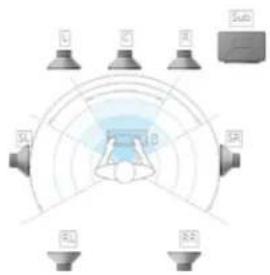
text_image
Sub L C R S D SP PL NRClick any speaker above to test it.
Next
Cancel
text_image
Sound Playback Recording Sounds Communications Select a recording device below to modify its settings: Microphone HyperX Cloud II Wireless Ready Microphone HyperX QuadCast S Ready Stereo Mix Realtek(R) Audio Disabled Microphone Steam Streaming Microphone Default Device Internal AUX Jack Steam Streaming Speakers Disabled Configure Set Default Properties OK Cancel Applytext_image
Sound Playback Recording Sounds Communications Select a playback device below to modify its settings: Speakers HyperX Cloud II Wireless Default Device Speakers HyperX QuadCast S Ready XB271HU NVIDIA High Definition Audio Ready Realtek Digital Output Realtek(R) Audio Ready Speakers Steam Streaming Microphone Ready Configure Set Default Properties OK Cancel Apply Sound Playback Recording Sounds Communications Select a recording device below to modify its settings: Microphone HyperX Cloud II Wireless Default Device Microphone HyperX QuadCast S Ready Stereo Mix Realtek(R) Audio Disabled Microphone Steam Streaming Microphone Ready Internal AUX Jack Steam Streaming Speakers Disabled Configure Set Default Properties OK Cancel Applytext_image
Diagram showing a headset connected to a USB device via wireless signal transmission, with an inset image of the device emitting a printer.USB Headset (HyperX Cloud II Wireless)

Output Device
USB Headset (HyperX Cloud II Wireless)

Adjust Microphone Level

Volume Control (Headphones)

1

Output to Headphones
All Audio

Switch Output Device Automatically

コントロール
natural_image
Line drawing of a mechanical component with arrows indicating direction (no text or symbols)ステータス LED
電源/7.1 サラウンドサウンドボタン
マイクミュート/マイクモニターボタン
ステータス LED
text_image
Diagram showing connections between a device and a server, with labeled ports and connectors.text_image
Diagram showing a hand holding a device with two circular buttons and a red arrow pointing to the button, alongside a stylized Chinese character.text_image
Diagram of a USB device showing internal components with a red arrow pointing to a location marker and a starburst symbol.natural_image
Black and red H23 Max 18 headset with headband and microphone (no visible text or symbols)부품 번호
HHSC2X-BA-RD/G
목차
개요 3
사양 4
PC에서 설정....5
text_image
A B C D E F H G I J K L TYPE-Ctext_image
Diagram showing a headset connected to a USB device via wireless signal transmission, with an inset image of the device displaying a CD.text_image
Open Sound settings Open Volume mixer Spatial sound (Off) Troubleshoot sound problems Settings Home Find a setting System Display Sound Notifications & actions Focus assist Power & sleep Storage Tablet mode Multitasking Sound Related Settings Bluetooth and other devices Sound Control Panel Microphone privacy settings Ease of Access audio settings Have a question? Set up a microphone Fix sound problems Get help Make Windows better Give us feedbacktext_image
Sound Playback Recording Sounds Communications Select a playback device below to modify its settings: Speakers HyperX Cloud II Wireless Ready Speakers HyperX QuadCast S Ready XB271HU NVIDIA High Definition Audio Default Device Realtek Digital Output Realtek(R) Audio Ready Speakers Steam Streaming Microphone Ready Set Default Properties Configure OK Cancel Applytext_image
Sound Playback Recording Sounds Communications Select a playback device below to modify its settings: Speakers HyperX Cloud II Wireless Default Device Configure Speakers Test Disable Show Disabled Devices Show Disconnected Devices About Software MIDI Synthesizer Properties Speakers Steam Streaming Microphone Ready Configure Set Default Properties OK Cancel Applytext_image
Speaker Setup Choose your configuration Select the speaker setup below that is most like the configuration on your computer. Audio channels: Stereo 7.1 Surround Test Click any speaker above to test it. Next Canceltext_image
Sound Playback Recording Sounds Communications Select a recording device below to modify its settings: Microphone HyperX Cloud II Wireless Ready Microphone HyperX QuadCast S Ready Stereo Mix Realtek(R) Audio Disabled Microphone Steam Streaming Microphone Default Device Internal AUX Jack Steam Streaming Speakers Disabled Configure Set Default Properties OK Cancel Applytext_image
Sound Playback Recording Sounds Communications Select a playback device below to modify its settings: Speakers HyperX Cloud II Wireless Default Device Speakers HyperX QuadCast S Ready XB271HU NVIDIA High Definition Audio Ready Realtek Digital Output Realtek(R) Audio Ready Speakers Steam Streaming Microphone Ready Configure Set Default Properties OK Cancel Apply Sound Playback Recording Sounds Communications Select a recording device below to modify its settings: Microphone HyperX Cloud II Wireless Default Device Microphone HyperX QuadCast S Ready Stereo Mix Realtek(R) Audio Disabled Microphone Steam Streaming Microphone Ready Internal AUX Jack Steam Streaming Speakers Disabled Configure Set Default Properties OK Cancel ApplyPlayStation 4 에서 설정

text_image
Diagram showing a headset connected to a USB device via wireless signal transmission, with an inset image of the device emitting a packet.USB Headset (HyperX Cloud II Wireless)

Output Device
USB Headset (HyperX Cloud II Wireless)

Adjust Microphone Level

Volume Control (Headphones)

1

Output to Headphones
All Audio

Switch Output Device Automatically

제어
natural_image
Line drawing of a mechanical component with labeled parts and blue lines indicating motion (no text or symbols)상태 표시 LED
전원/7.1 서라운드 음향 버튼
마이크 음소거/마이크 모니터링
상태 표시 LED
text_image
Diagram showing connection between a device and a server tower, with labeled components and connectors.text_image
Diagram showing a hand pressing a button on curved lines, with a red arrow pointing to the button and a partial Chinese character below.text_image
Diagram of a USB device showing internal components with a red arrow pointing to a circular mark and a starburst symbol.natural_image
Black and red HX3 headboard with headset, microphone, and earplifier (no visible text or symbols)หมายเลขชิ้นส่วน
HHSC2X-BA-RD/G
สารบัญ
ภาพรวม 3
text_image
A B C D E F H G I J K L TYPE-Ctext_image
Diagram showing wireless signal transmission from a headset to a USB device and computer, with an icon of the device emitting data.text_image
Open Sound settings Open Volume mixer Spatial sound (Off) Troubleshoot sound problems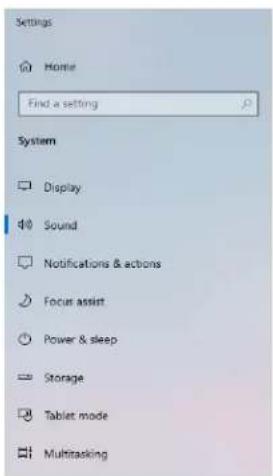
text_image
Settings Home Find a setting System Display Sound Notifications & actions Focus assist Power & sleep Storage Tablet mode MultitaskingSound
text_image
Scanned document snippet showing a form with fields for 'NAME', 'ORDER', and 'SUPPORT' followed by a progress bar and a final output box.Related Settings
Bluetooth and other devices
Microphone privacy settings
Ease of Access audio settings
Have a question?
Set up a microphone
Fix sound problems
Get help
Make Windows better
Give us feedback
text_image
Sound Playback Recording Sounds Communications Select a playback device below to modify its settings: Speakers HyperX Cloud II Wireless Ready Speakers HyperX QuadCast S Ready XB271HU NVIDIA High Definition Audio Default Device Realtek Digital Output Realtek(R) Audio Ready Speakers Steam Streaming Microphone Ready Set Default Properties Configure OK Cancel Applytext_image
Sound Playback Recording Sounds Communications Select a playback device below to modify its settings: Speakers HyperX Cloud II Wireless Default Device Configure Speakers Test Disable Show Disabled Devices Show Disconnected Devices About Software MIDI Synthesizer Properties Speakers Steam Streaming Microphone Ready Configure Set Default Properties OK Cancel ApplyChoose your configuration
Select the speaker setup below that is most like the configuration on your computer.
Audio channels:
text_image
Stereo 7.1 Surround ▶ Test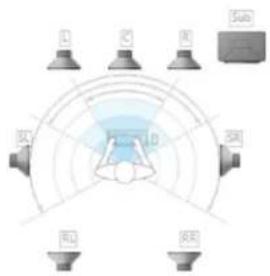
text_image
Sub L C N SD SR RL SRClick any speaker above to test it.
Next
Cancel
text_image
Sound Playback Recording Sounds Communications Select a recording device below to modify its settings: Microphone HyperX Cloud II Wireless Ready Microphone HyperX QuadCast S Ready Stereo Mix Realtek(R) Audio Disabled Microphone Steam Streaming Microphone Default Device Internal AUX Jack Steam Streaming Speakers Disabled Configure Set Default Properties OK Cancel Applytext_image
Sound Playback Recording Sounds Communications Select a playback device below to modify its settings: Speakers HyperX Cloud II Wireless Default Device Speakers HyperX QuadCast S Ready XB271HU NVIDIA High Definition Audio Ready Realtek Digital Output Realtek(R) Audio Ready Speakers Steam Streaming Microphone Ready Configure Set Default Properties OK Cancel Apply Sound Playback Recording Sounds Communications Select a recording device below to modify its settings: Microphone HyperX Cloud II Wireless Default Device Microphone HyperX QuadCast S Ready Stereo Mix Realtek(R) Audio Disabled Microphone Steam Streaming Microphone Ready Internal AUX Jack Steam Streaming Speakers Disabled Configure Set Default Properties OK Cancel Applytext_image
Diagram showing a headset connected to a USB device via wireless signal transmission, with an inset image of the device emitting a packet.USB Headset (HyperX Cloud II Wireless)

Output Device
USB Headset (HyperX Cloud II Wireless)

Adjust Microphone Level

Volume Control (Headphones)



Output to Headphones
All Audio

Switch Output Device Automatically

ส่วนควบคุม
text_image
Nepal Press Nepal Pressแป้นปรับระดับเสียง
text_image
Diagram showing connection between a device and a server, with labeled components and connectors.text_image
Diagram showing a hand pressing down on a curved surface with two circular buttons and a red arrow pointing to the right button.text_image
Diagram of a USB device showing internal components with a red arrow pointing to a circular mark and a starburst symbol.natural_image
Black and red H3G Max 18 headset with headlamp, shown from side profile (no text or symbols visible)Mã sản phẩm
HHSC2X-BA-RD/G
Mục LỤC
Tổng quát 3
text_image
Diagram showing a headset connected to a USB device via wireless signal transmission, with an inset image of a computer displaying a CD.text_image
Open Sound settings Open Volume mixer Spatial sound (Off) Troubleshoot sound problems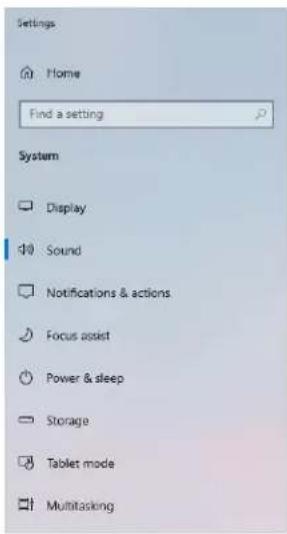
text_image
Settings Home Find a setting System Display Sound Notifications & actions Focus assist Power & sleep Storage Tablet mode Multitasking
text_image
Sound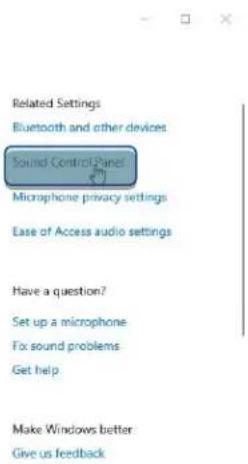
text_image
Related Settings Bluetooth and other devices Sound Control Panel Microphone privacy settings Ease of Access audio settings Have a question? Set up a microphone Fix sound problems Get help Make Windows better Give us feedbacktext_image
Sound Playback Recording Sounds Communications Select a playback device below to modify its settings: Speakers HyperX Cloud II Wireless Ready Speakers HyperX QuadCast S Ready XB271HU NVIDIA High Definition Audio Default Device Realtek Digital Output Realtek(R) Audio Ready Speakers Steam Streaming Microphone Ready Set Default Properties Configure OK Cancel Applytext_image
Sound Playback Recording Sounds Communications Select a playback device below to modify its settings: Speakers HyperX Cloud II Wireless Default Device Configure Speakers Test Disable Show Disabled Devices Show Disconnected Devices About Software MIDI Synthesizer Properties Speakers Steam Streaming Microphone Ready Configure Set Default Properties OK Cancel Applytext_image
Speaker Setup Choose your configuration Select the speaker setup below that is most like the configuration on your computer. Audio channels: Stereo 7.1 Surround Test Click any speaker above to test it. Next Canceltext_image
Sound Playback Recording Sounds Communications Select a recording device below to modify its settings: Microphone HyperX Cloud II Wireless Ready Microphone HyperX QuadCast S Ready Stereo Mix Realtek(R) Audio Disabled Microphone Steam Streaming Microphone Default Device Internal AUX Jack Steam Streaming Speakers Disabled Configure Set Default Properties OK Cancel Applytext_image
Sound Playback Recording Sounds Communications Select a playback device below to modify its settings: Speakers HyperX Cloud II Wireless Default Device Speakers HyperX QuadCast S Ready XB271HU NVIDIA High Definition Audio Ready Realtek Digital Output Realtek(R) Audio Ready Speakers Steam Streaming Microphone Ready Configure Set Default Properties OK Cancel Apply Sound Playback Recording Sounds Communications Select a recording device below to modify its settings: Microphone HyperX Cloud II Wireless Default Device Microphone HyperX QuadCast S Ready Stereo Mix Realtek(R) Audio Disabled Microphone Steam Streaming Microphone Ready Internal AUX Jack Steam Streaming Speakers Disabled Configure Set Default Properties OK Cancel Applytext_image
Diagram showing a headset connected to an USB device via wireless signal transmission, with a close-up of the device's internal structure.USB Headset (HyperX Cloud II Wireless)

Output Device
USB Headset (HyperX Cloud II Wireless)

Adjust Microphone Level

Volume Control (Headphones)

←

Output to Headphones
All Audio

Switch Output Device Automatically

Nút điều khiển
natural_image
Technical line drawing of a mechanical component with no visible text or symbolsLED trạng thái
text_image
Diagram showing connections between a device, a computer tower, and an Ethernet cable with labeled ports and connectors.text_image
Diagram showing a hand holding a power button with a red arrow pointing to it, alongside a stylized Chinese character '材' (tài) below.text_image
Diagram of a USB device showing a stylized 'X' logo with a red arrow pointing to a circular mark and a sunburst symbol.natural_image
Black and red H3 Max 18 headset with headband and external microphone (no visible text or symbols)部件号
HHSC2X-BA-RD/G
目录
概述 3
规格 4
设置 PC 5
设置 PlayStation 4....9
控件 10
状态 LED 10
电源/7.1 环绕立体声按钮.... 10
麦克风静音/麦克风监控按钮....10
音量滚轮....11
耳机充电 12
有线充电....12
HyperX NGENUITY 软件 12
text_image
A B C D E F H G I J K L TYPE-CA. 麦克风静音/麦克风监控按钮
B. USB 充电端口
C. 麦克风端口
D. 状态 LED
E. 电源/7.1 环绕立体声按钮
F. 音量滚轮
G. 可拆卸麦克风
H. 麦克风静音 LED 灯
I. USB 适配器
J. 无线配对针孔
K. 无线状态 LED
L. USB 充电线
规格
耳机
驱动器:动态,53毫米,含钕磁铁
类型:罩耳式,封闭式
频率响应:15Hz-20kHz
阻抗:60Ω
声压等级:1kHz 时 104dBSPL/mW
总谐波失真 (T.H.D.): ≤ 1%
重量:300g
重量(含麦克风):309g
线缆长度和类型:USB 充电线 (0.5m)
麦克风
元件:驻极体话筒
极性模式:双向,降噪
频率响应:50Hz-6.8kHz
text_image
Diagram showing a headset connected to a USB device via wireless signal transmission, with an inset image of the device emitting a CD.text_image
Open Sound settings Open Volume mixer Spatial sound (Off) Troubleshoot sound problems Settings Home Find a setting System Display Sound Notifications & actions Focus assist Power & sleep Storage Tablet mode Multitasking Sound Related Settings Bluetooth and other devices Sused Control Power Microphone privacy settings Ease of Access audio settings Have a question? Set up a microphone Fix sound problems Get help Make Windows better Give us feedbacktext_image
Sound Playback Recording Sounds Communications Select a playback device below to modify its settings: Speakers HyperX Cloud II Wireless Ready Speakers HyperX QuadCast S Ready XB271HU NVIDIA High Definition Audio Default Device Realtek Digital Output Realtek(R) Audio Ready Speakers Steam Streaming Microphone Ready Set Default Properties Configure OK Cancel Applytext_image
Sound Playback Recording Sounds Communications Select a playback device below to modify its settings: Speakers HyperX Cloud II Wireless Default Device Configure Speakers Test Disable Show Disabled Devices Show Disconnected Devices About Software MIDI Synthesizer Properties Speakers Steam Streaming Microphone Ready Configure Set Default Properties OK Cancel Applytext_image
Speaker Setup Choose your configuration Select the speaker setup below that is most like the configuration on your computer. Audio channels: Stereo 7.1 Surround Test Click any speaker above to test it. Next Canceltext_image
Sound Playback Recording Sounds Communications Select a recording device below to modify its settings: Microphone HyperX Cloud II Wireless Ready Microphone HyperX QuadCast S Ready Stereo Mix Realtek(R) Audio Disabled Microphone Steam Streaming Microphone Default Device Internal AUX Jack Steam Streaming Speakers Disabled Configure Set Default Properties OK Cancel Applytext_image
Sound Playback Recording Sounds Communications Select a playback device below to modify its settings: Speakers HyperX Cloud II Wireless Default Device Speakers HyperX QuadCast S Ready XB271HU NVIDIA High Definition Audio Ready Realtek Digital Output Realtek(R) Audio Ready Speakers Steam Streaming Microphone Ready Configure Set Default Properties OK Cancel Apply Sound Playback Recording Sounds Communications Select a recording device below to modify its settings: Microphone HyperX Cloud II Wireless Default Device Microphone HyperX QuadCast S Ready Stereo Mix Realtek(R) Audio Disabled Microphone Steam Streaming Microphone Ready Internal AUX Jack Steam Streaming Speakers Disabled Configure Set Default Properties OK Cancel Apply设置 PlayStation 4
text_image
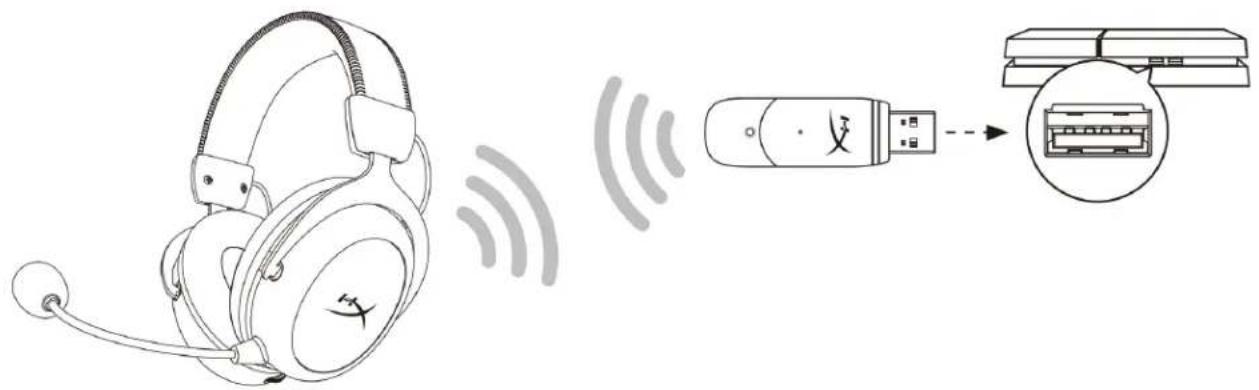
Diagram showing a headset connected to a USB device via wireless signal transmission, with an inset image of the device emitting a packet.USB Headset (HyperX Cloud II Wireless)

Output Device
USB Headset (HyperX Cloud II Wireless)

Adjust Microphone Level

Volume Control (Headphones)

1

Output to Headphones
All Audio

Switch Output Device Automatically

控件
natural_image
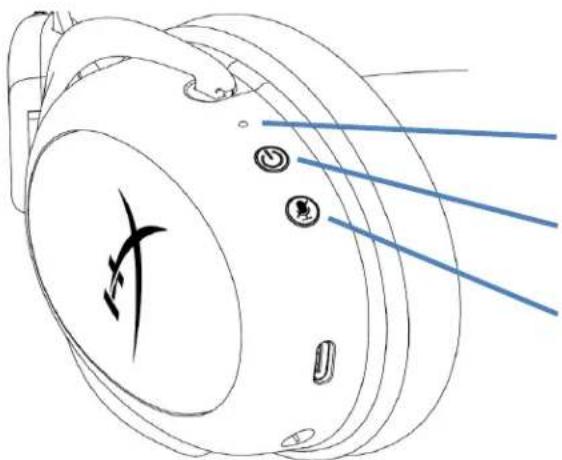
Technical line drawing of a mechanical component with no visible text or symbols状态 LED
电源/7.1 环绕立体声按钮
麦克风静音/麦克风监控按钮
状态 LED
text_image
Diagram showing connection between a device and a server, with labeled components and connectors.text_image
Diagram showing a hand pressing a button on curved lines, with a red arrow pointing to the button and a partial Chinese character below.text_image
Diagram of a USB device showing internal components with a red arrow pointing to a circular mark and a starburst symbol.natural_image
Black and red H3 Max 18 headset with headband and external microphone (no visible text or symbols)產品型號
HHSC2X-BA-RD/G
目錄
概觀 3
規格 4
於電腦上進行設定 5
PlayStation 4 設定....9
控制功能 10
LED 狀態指示燈....10
text_image
A B C D E F H G I J K L TYPE-Ctext_image
Diagram showing a headset connected to a USB device via wireless signal transmission, with an inset image of the device displaying a CD.text_image
Open Sound settings Open Volume mixer Spatial sound (Off) Troubleshoot sound problems Settings Home Find a setting System Display Sound Notifications & actions Focus assist Power & sleep Storage Tablet mode Multitasking Sound Related Settings Bluetooth and other devices Sound Control Panel Microphone privacy settings Ease of Access audio settings Have a question? Set up a microphone Fox sound problems Get help Make Windows better Give us feedbacktext_image
Sound Playback Recording Sounds Communications Select a playback device below to modify its settings: Speakers HyperX Cloud II Wireless Ready Speakers HyperX QuadCast S Ready XB271HU NVIDIA High Definition Audio Default Device Realtek Digital Output Realtek(R) Audio Ready Speakers Steam Streaming Microphone Ready Set Default Properties Configure OK Cancel Applytext_image
Sound Playback Recording Sounds Communications Select a playback device below to modify its settings: Speakers HyperX Cloud II Wireless Default Device Configure Speakers Test Disable Show Disabled Devices Show Disconnected Devices About Software MIDI Synthesizer Properties Speakers Steam Streaming Microphone Ready Configure Set Default Properties OK Cancel Applytext_image
Speaker Setup Choose your configuration Select the speaker setup below that is most like the configuration on your computer. Audio channels: Stereo 7.1 Surround Test Click any speaker above to test it. Next Canceltext_image
Sound Playback Recording Sounds Communications Select a recording device below to modify its settings: Microphone HyperX Cloud II Wireless Ready Microphone HyperX QuadCast S Ready Stereo Mix Realtek(R) Audio Disabled Microphone Steam Streaming Microphone Default Device Internal AUX Jack Steam Streaming Speakers Disabled Configure Set Default Properties OK Cancel Applytext_image
Sound Playback Recording Sounds Communications Select a playback device below to modify its settings: Speakers HyperX Cloud II Wireless Default Device Speakers HyperX QuadCast S Ready XB271HU NVIDIA High Definition Audio Ready Realtek Digital Output Realtek(R) Audio Ready Speakers Steam Streaming Microphone Ready Configure Set Default Properties OK Cancel Apply Sound Playback Recording Sounds Communications Select a recording device below to modify its settings: Microphone HyperX Cloud II Wireless Default Device Microphone HyperX QuadCast S Ready Stereo Mix Realtek(R) Audio Disabled Microphone Steam Streaming Microphone Ready Internal AUX Jack Steam Streaming Speakers Disabled Configure Set Default Properties OK Cancel ApplyPlayStation 4 設定
text_image
Diagram showing a headset connected to a USB device via wireless signal transmission, with an inset image of the device emitting a printer.USB Headset (HyperX Cloud II Wireless)

Output Device
USB Headset (HyperX Cloud II Wireless)

Adjust Microphone Level

Volume Control (Headphones)

1

Output to Headphones
All Audio

Switch Output Device Automatically

控制功能
natural_image
Line drawing of a mechanical component with no visible text or symbolsLED 狀態指示燈
電源 / 7.1 環繞音效鍵
text_image
Diagram showing connection between a device and a server tower, with labeled components and connectors.text_image
Diagram showing a hand holding a power button with a red arrow pointing to it, alongside a stylized 'X' symbol.text_image
Diagram of a USB device showing a stylized 'X' logo with a red arrow pointing to a circular mark and a sunburst symbol.natural_image
Black and red H23 Max 18 headset with headband and external microphone (no visible text or symbols)ارقام الأجنبية
HHSC2X-BA-RD/G
لمحتويات جدول
text_image
G H I J K L TYPE-Cnatural_image
Line drawing of a headset with earphones and signal waves (no text or symbols)text_image
Diagram showing a USB device connected to a computer via a printer, with Chinese character '文' on the device.text_image
Open Sound settings Open Volume mixer Spatial sound (Off) Troubleshoot sound problems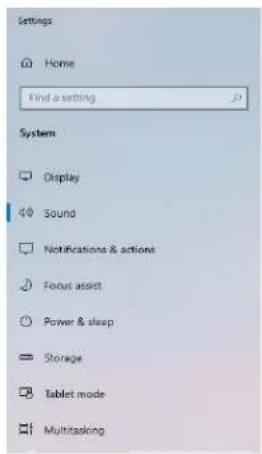
text_image
Settings Home Find a setting System Display Sound Notifications & actions Focus asset Power & sleep Storage Tablet mode Multitasking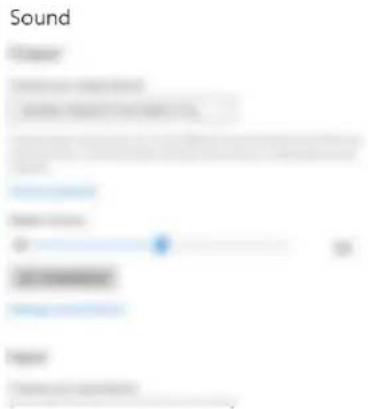
text_image
Sound Sound Sound SoundRelated Settings Bluetooth and other devices
Ease of Access audio settings
Have a question?
Set up a microphone
For sound problems
Get help
Make Windows better Give us feedback
text_image
Sound Playback Recording Sounds Communications Select a playback device below to modify its settings: Speakers HyperX Cloud II Wireless Ready Speakers HyperX QuadCast S Ready XB271HU NVIDIA High Definition Audio Default Device Realtek Digital Output Realtek(R) Audio Ready Speakers Steam Streaming Microphone Ready Set Default Properties Configure OK Cancel Applytext_image
Sound Playback Recording Sounds Communications Select a playback device below to modify its settings: Speakers HyperX Cloud II Wireless Default Device Configure Speakers Test Disable Show Disabled Devices Show Disconnected Devices About Software MIDI Synthesizer Properties Speakers Steam Streaming Microphone Ready Configure Set Default Properties OK Cancel ApplyChoose your configuration
Select the speaker setup below that is most like the configuration on your computer.
Audio channels:
text_image
Stereo 7.1 Surround
text_image
Sub L C B 5V SP RL RXClick any speaker above to test it.
Next
Cancel
text_image
Sound Playback Recording Sounds Communications Select a recording device below to modify its settings: Microphone HyperX Cloud II Wireless Ready Microphone HyperX QuadCast S Ready Stereo Mix Realtek(R) Audio Disabled Microphone Steam Streaming Microphone Default Device Internal AUX Jack Steam Streaming Speakers Disabled Configure Set Default Properties OK Cancel Applytext_image
Sound Playback Recording Sounds Communications Select a recording device below to modify its settings: Microphone HyperX Cloud II Wireless Default Device Microphone HyperX QuadCast S Ready Stereo Mix Realtek(R) Audio Disabled Microphone Steam Streaming Microphone Ready Internal AUX Jack Steam Streaming Speakers Disabled Configure Set Default Properties OK Cancel Apply Sound Playback Recording Sounds Communications Select a playback device below to modify its settings: Speakers HyperX Cloud II Wireless Default Device Speakers HyperX QuadCast S Ready XB271HU NVIDIA High Definition Audio Ready Realtek Digital Output Realtek(R) Audio Ready Speakers Steam Streaming Microphone Ready Configure Set Default Properties OK Cancel Applyالإعداد مع PlaySta
text_image
Diagram showing a headset connected to a USB device via wireless signal transmission, with an inset image of the device's internal structure.(USB (HyperX Cloud II Wireless) 1. ن
USB Headset (HyperX Cloud | Wireless)

Output Device
USB Headset (HyperX Cloud || Wireless)

Adjust Microphone Level

Volume Control (Headphones)


Output to Headphones
All Audio

Switch Output Device Automatically

عناصر التحكم
natural_image
Line drawing of a mechanical component with no visible text or symbolsم MSNBCAlexandra LED
natural_image
Technical line drawing of a mechanical component with no visible text or symbolsعجلة مستوى الصوت
عجلة مستوى الصوت
• بط مستوى الصوت