Car V2 - Action camera CamOne - Free user manual and instructions
Find the device manual for free Car V2 CamOne in PDF.


| Product type | Sportscam (dashboard camera) |
| Brand | CamOne |
| Model | Car V2 |
| Power supply | 12V/24V via cigarette lighter; 220 mAh LiPo battery rechargeable via USB |
| Battery life | Approximately 30 minutes (internal); up to 3.5 hours with optional eXtreme BatteryPack |
| Charging time | Approximately 3 hours |
| SD card capacity | Up to 8 GB (min. write speed 4 MB/s) |
| Video resolution | 640x480 pixels, 28 frames per second |
| Recording formats | Video (U), Photo (P), Audio only, Spy (motion) |
| Key features | Automatic recording upon vehicle start, 15-minute loop, time stamp, 180° rotation, webcam mode, PC mode |
| Operating temperature | -10°C to +80°C (battery) |
| Maintenance | Clean the connectors of the mounting plate; avoid direct sunlight and extreme temperatures |
| Safety | Privacy: the user is responsible for recording third parties; do not open or modify the device |
| Spare parts | LiPo FC2006 battery (220 mAh), eXtreme BatteryPack, Sportster HeadSet front mount, DiveBox waterproof case |
| Waste disposal | Do not dispose of with household waste, take to a recycling center |
Frequently Asked Questions - Car V2 CamOne
User questions about Car V2 CamOne
0 question about this device. Answer the ones you know or ask your own.
Ask a new question about this device
Download the instructions for your Action camera in PDF format for free! Find your manual Car V2 - CamOne and take your electronic device back in hand. On this page are published all the documents necessary for the use of your device. Car V2 by CamOne.
USER MANUAL Car V2 CamOne
Video Recording [ψP]
Through a collision at a high speed, the record can be deleted.
ATTENTION!
The privacy of others is protected by law and should be taboo. The recording of third party can be a illegal act. You are responsible for your acting.

Please Note:
Take the CarCamOne out of the car if the outside temperatures are extremely low or high. Avoid direct sunlight when leaving the car. The internal batteries can stand temperatures from -10^ to +80^ (14°F - 176°F)
Prepare for first run
Connect the camera to your PC with the USB-cable to charge the camera before using the first time. Keep the "ON/CAR-switch" at "CAR". The display activates after some seconds. The charging will take 3 hours minimum.
The camera's battery will only be charged when the cars generator runs. This is not recommended for first time preparation. Charging the Camera with 12V AC/DC Adaptor is not possible!
Insert a SD-card (max. 8GB) with 4MB/sec writing speed. Use a pen to get the card in deeply to click!
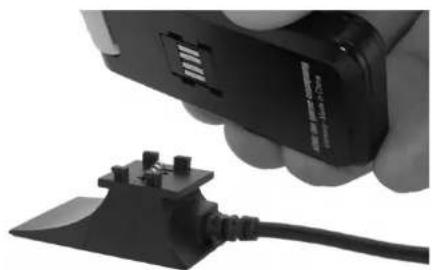
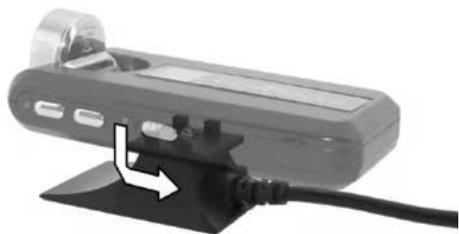
Mount the CarCamOne to the Baseplate
Fix the base plate - at the car's dash board for example - and slide in the camera. Keep the switch at "CAR"-Position! Make sure of the cam's direction. Wrong polarity may damage the camera.
Cigarette
CarcamOne
Default Settings: Auto-Start in CC Mode, 180^ turned recording to mount onto the dash board of the car, Timestamp activated
180° turn: Press the center button until the letters in the LCD-display turn 180^ . This turns the recording as well.
Timestamp: Press the ^ -button. The display will show - - - for deactivated timestamp and | for activated timestamp.
Synchronize Write a text file named clock.txt to your SD card using windows editor (Programs -> Accessories) where you put the date and time into the first line According this format: _YYYY-MM-DD HH-MM-SS" ex.:2010-10-22 17-30-00 Put the card into the camera and switch it on. The camera will take the settings from the card and delete file clock.txt.
How it works:
Installed inside a car the Camera detects in standard mode "CC" the status of the engine trough the cigarette plug. The camera starts and stops automatically, recording Videos with a length of 15 minutes. Oldest files will be deleted if necessary. For best results use a SD-Card with 2, 4 or 8GB and a writing speed of 4MB/sec minimum. The card "clicks" when inserted - use a pen for support.
Installation inside a car:
Remove the film protecting the lens. Insert the adaptor-plug into the cigarette socket. Fix the camera somewhere inside the car and let the lens point to the selected direction. Adjust with the pivot head. Make sure the cable will never affect your action at any time.
When starting the engine of your car the camera indicates the recording by turning bars in the display, the car adaptor's green LED starts blinking. When the engine stops, the recorded file will be closed shown by "CC" and the camera shuts down. The camera records videos with a length of 15 minutes. Oldest files will be deleted if free memory is getting low. A 3 second gap will be in between the video files; equal to 0,3% of each file. Depending onto the position inside the car the final video has to be turned 180^ - use MicroSoft Movie Maker to realize.
Applications outside the car
The camera's battery will last for about 30 minutes. The optional eXtreme BatteryPack will give additional 3,5h. With the Sportster HeadSet you can record hands free and the DoveBox protects against dust and snow and supports diving up to 2m depth.
Connect to your PC
Select PC to download the files from the camera or WC to use it as a Webcam. Do this before connecting to your computer! Once the camera is connected the menu is locked and will be unlocked not before separated again. Switch off after disconnecting!
Download the data
Choose PC and connect the CarCamOne with the supplied USB-cable and your PC. The CarCamOne will be displayed as a single drive. Attend that network drives can interfere the CarCamOne drive. Cut the network drives. Of course you can connect the SD-card directly to your pc card reader.
CarcamOne
Charge the CarCamOne
The charging starts on its own by connecting the CarCamOne with the PC or when installed inside the car. It will take approximately 3 hours to charge the CarCamOne. When connected to the PC the display will indicate the modes "PC" or "while charging. The battery status can be found in the menu indicated in percent as follows: 99,66 33 Recharge the camera when ^ is displayed or does not turn on.
The modes
Video recording [1]
The recording takes place with 28 pictures per second (28 FPS) with 640x480 px and a consumption of storage of approx. 50 MB/min. Recording is indicated by running dots". FPS rate can be reduced by a dark or indoor environment.
Video endless
Recording as above - however the free storage (min. 200 MB) of the SD-card is shared and the old part will be overwritten consecutively. The recording will be stopped not until the shutter button [2] gets pressed.
Photo
The recording takes place with 640x480 px, one photo needs approx. 100 KB storage on the SD-card. The CarCamOne indicates the recording with a frame.[3].
Photo endless
With an interval of 4 seconds the CarCamOne takes pictures. The recording will be stopped by pressing the shutter button [2], or when the SD-card is full.
Spy video [5P]
Recording as above - however the free storage (min. 200MB) of the SD-card is shared and the old part will be overwritten consecutively. The recording will be stopped not until the shutter button [2] gets pressed.
Audio recording [R]
Records audio only.
Download and coevally charging [PC]
Connection to the PC in drive mode. CarCamOne will be charged coevally when connected - charging will take approximately 3 hours.
Web Camera [C]
CarcamOne
Connection to the PC in web camera mode. Download the driver at first at www.CarCamOne.com.
Status of the battery
Battery power is displayed in percent as following: 99, 6 and 3 for charge.
180^ turned recording
Pressing the shutter button for 3 seconds after "C" is displayed, the following modes are displayed turned by 180^ . Recording is now upside down.
Time stamp [] /--]
The CarCamOne V2 has an integrated calendar now. This will allow to add the time and date into the recorded video. Press the menu button (3) for 10 seconds. Indicated by " | | " it will enable the date and time. Press again, indicated by" · - · , it will be disabled.
Memory Full
Records can't be made until data from the SD-card will be deleted.
Error [ER]
The Camera is trying to get space for recording, but failed. Many small files (photos) will abort the attempt.
Delete[]
Deletethelastrecord,no matterwhetheritwasavideo,photooraudio recording.
Software update
Update your CarCamOne with new software from the homepage.
Find drivers, firmware and manuals at service/support at www.CarCamOne.com.
Limited Warranty of Battery
The included Lipo battery's capacity is reduced due every discharge /charging circle and belongs to the wearing parts. Improper use, storage and handling as well as wearing and consumption is not covered by the warranty. Charge the camera before storage and also after use. The LiPo saver protects the battery to get deep discharged temporarily, but the battery will get damaged when missed to turn off.
Battery can be easily replaced by lifting the front plate of the cam. Art.No.: FC2006 220mAh LiPo Battery

Information for disposal of crossed Bin marked products
This symbol is marked on a product or packaging, it means that the product must not be disposed of with your general household waste. Only discard electrical/electronic items in separate collection schemes, which caler for the recovery and recycling of materials contained within. Your co-operation is vital to ensure the success of these schemes and for the protection of the environment.

Trouble Shooting
please note, the camera will record when the engine runs only. Key position "Ignition" will not start the camera.
| Error Cause Solution | ||
| Display does not show anything, Green adaptor LED is blinking. | Bad contact between base plate and camera | Clean the contacts with blue rubber, check the position of the contacts |
| Display does not show anything, Green LED is not blinking | No power at the socket. Replace car s fuse | |
| Fuse in the Adaptor melted Replace adaptor s fuse | ||
| Display is showing turning bars, but no file at the card | The battery inside the adaptor has not been charged. | Connect the adaptor without camera only and charge the adaptor while driving |
| The Video jerks when playing at the PC. The card, the USB connection or the PC is too slow | Download the file to the PC first. Stop other applications. | |
| The video is turned 180° Wrong Settings Read, 180° turn" | ||
| Date and time will not be displayed in a correct way | Wrong Settings Read „ Timestemp" and „ Synchronize Timestamp" | |
| Display shows „ER“ The camera cannot get space – too many small files. | Download the file to the PC first. Format the SD-Card. | |
| Display shows „MF“ No more free memory left. | \( MF \)= Memory Full | Download the file to the PC first. Format the SD-Card. |

Contenu du coffret
Camera Adhesif Velcro
Cordelette Cordon USB
Herewith we declare that this item is in accordance with the essential requirements and other relevant regulations of the directive 2004/108/EC. A copy of the original declaration of conformity can be obtained at the following address.
ACME the game company GmbH
Industriestr. 10A
33397 Rietberg
Germany
Hotline: +49 700 70 77 77 00
service@ACME-online.de
Find your nearest Service Point also at
"CarCamOne" and the "CarCamOne" Logo are registered trademarks of ACME the game company, Germany © copyright 2010 by ACME the game company GmbH