Cubo TS522D+ - Radio Brionvega - Free user manual and instructions
Find the device manual for free Cubo TS522D+ Brionvega in PDF.


| Brand | Brionvega |
| Model | Cubo TS522D+ |
| Product type | FM/DAB/DAB+ Bluetooth radio |
| Power supply | External AC adapter 12V DC 2A or 6 C-type batteries (not included) |
| Dimensions (W x H x D) | 30 x 18 x 15 cm (estimated) |
| Weight | 1.8 kg (estimated) |
| Power consumption | 12 V DC, 2 A |
| Connectivity | Bluetooth v2.1, AUX input 3.5 mm, headphone output 3.5 mm |
| Radio bands | DAB / DAB+ (Band III), FM (87.5-108 MHz) |
| Number of presets | 10 DAB stations + 10 FM stations |
| Speakers | 2 speakers (separate, stereo) |
| Display | Backlit LCD |
| Main functions | DAB/DAB+/FM radio, Bluetooth, AUX, dual alarm, equalizer (presets + MY EQ), snooze |
| Remote control | Included with CR2025 battery |
| Maintenance and cleaning | Clean with a dry cloth, do not use liquid or abrasive products |
| Safety | Do not expose to water, do not open the device, unplug during storms or prolonged absence |
| Replacement battery (remote control) | CR2025 |
| Repairability | Repair by qualified technician only; AC adapter available |
| Operating temperature | +5 °C to +35 °C, humidity ≤ 85% |
| Package contents | TS522D+ radio, AC adapter, remote control with battery, instruction manual, carry bag |
Frequently Asked Questions - Cubo TS522D+ Brionvega
User questions about Cubo TS522D+ Brionvega
0 question about this device. Answer the ones you know or ask your own.
Ask a new question about this device
Download the instructions for your Radio in PDF format for free! Find your manual Cubo TS522D+ - Brionvega and take your electronic device back in hand. On this page are published all the documents necessary for the use of your device. Cubo TS522D+ by Brionvega.
USER MANUAL Cubo TS522D+ Brionvega
1 Bluetooth status indicator: f ashing during the device pairing, solid when connected.
2 Display:
LCD display
3 Infrared receiver (IR): receives the signal from the remote control
4 MENU/SELECT:
4.1 Long press to access the various entries of the radio global menu (MENU)
4.2 Quick press to confirm the selection (ENTER)
4.3 Turn clockwise or counter-clockwise to access the items in the global Menu
4.4 Turn clockwise or counter-clockwise to adjust the next or previous station in DAB mode
4.5 Turn clockwise or counter-clockwise to adjust the frequency in FM mode
5 MODE: press to toggle between the DAB/FMBlueothout (BT) and ALX modes
6 BT PAIR/ /SCAN
6.1 in BT mode, press and hold for pairing the
Bluetooth device until the blue LED starts flashing in quick succession
6.2 when the Bluetooth device is connected, a quick press of the button
allows you to pause or resume the BT device.
6.3 in DAB and FM mode it allows you to scan for available radio stations
7 BACK:
from the menu, press to return to the previous menu level.
8 Headphones audio input
9 Volume
bar:
displays the volume level of the unit (off when MUTE)
10 VOL/STANDBY:
10.1 turn this knob clockwise to increase the volume or counter-clockwise to decrease it
10.2 press to turn the radio off or on
10.3 in the alarm mode, press once to repeat the alarm (Snoopze). press again to stop the repetition.
NOTE: If the unit is powered solely by batteries, pressing this button will turn off the power so as to reduce consumption and increase battery life. In this mode, the clock function and the alarm are disabled.
FRONT PANEL
1 DC Input: use the supplied AC adapter to connect it to the electrical outlet (12VDC 2A)
2 R-SPR OUT: use it to connect the right speaker to obtain a stereo system (solid separately)
TOP PANEL
1 Handle: pull out the handle for carrying the radio
2 Radio antenna: stretch and bend the antenna to find the best position for the reception
REMOTE CONTROL
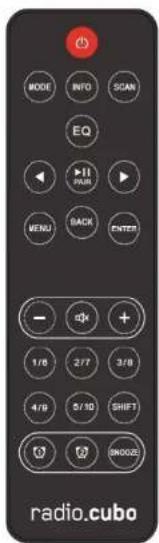
| STANDBY | Press this button to turn the radio on or off | |
| MODE | press to toggle between the DAB/FM/Bluetooth (BT) and AUX modes. | |
| INFO | In INFO mode, while receiving a broadcast signal, press this button to display information about the selected station. | |
| EQ | Press to access the oroscst equalization or to create a customized one. | |
| SCAN | Allows you to run a full scan of the radio in DAB mode. Press to search for the next available station in FM mode. | |
| Buttons to browse the menu in the various modes. Increase or decrease the frequency in the FM mode, or selects the next or previous DAB station available. | ||
| PLAY/ PAUSE/ PAIR | During playback via Bluetooth, press to start or pause listening to the associated device. Hold for pairing a Bluetooth device. | |
| MENU | Press this button to access the menu settings | |
| VOLUME + | Press to increase the listening volume. | |
| VOLUME - | Press to decrease the listening volume. | |
| MUTE | Press this button to select or deselect the mute function. | |
| 18 27 38 48 S10 | Buttons to store or retrieve the set radio stations (only in DAB and FM modes). | |
| ALARM 1 & 2 | Press this button to set the alarm (Alarm 1/Alarm 2) | |
| SNOOZE | This button has three different functions: 1. it stops the alarm when it is active. 2. it sets the dormancy of the LCD when the unit is off (4 levels of brightness). 3. it sets the time interval for repeating the alarm when the unit is on | |
IMPORTANT
To avoid the risk of electric shock, do not remove the screws located on the back of the product. There are no parts whose maintenance can be performed by the user. If necessary, contact qualifi ed service personnel.

The exclamation point within an equilateral triangle is intended to alert the user of the presence of important operating and maintenance instructions in the literature accompanying the product.
The lightning bolt arrow located within an equilateral triangle is intended to alert the user of the presence of non-insulated "dangerous voltage" within the product that may be of sufficient magnitude to cause electric shock to the user.
WARNING ABOUT THE USE AND THE OPERATION OF THE UNIT
WARNING:
The main switch does not completely shut off all power from the AC outlet. Since the power cord serves as the main disconnecting device for the unit from the power source, the cord should be unplugged from the AC outlet to shut down all current flow. Then, verify that the unit has been installed so as to easily unplug the power cord from the wall outlet, if necessary. In addition, to avoid fire hazard, the power cord should be unplugged from the AC outlet if the unit is not going to be used for relatively long periods of time (for example, when on vacation).
VENTILATION WARNING
Install the unit ensuring to leave room around it for proper air circulation and for improving heat radiation (at least 10cm from top, 10cm from rear, and 10cm from each slide).
CAUTION
The product case is equipped with small openings which also serve for ventilation, in order to ensure reliable operation and to protect it from overheating. To prevent fire hazard, the openings should never be blocked or covered during operation (by objects such as newspapers, tabloccloths, curtains, or drapes, etc.) and the device should not be placed on thick carpet or on the bed.
- If the plug of the power cord of this unit does not match the AC outlet into which you want to insert the plug itself, it must be replaced with one fit for the purpose. The replacement of the plug of the power cord must be performed only by qualified service personnel. After replacement, the old plug cut off from the power cord must be properly disposed of, to avoid possible severe electrical shock due to accidental insertion of the plug itself into a live power outlet. If you do not plan to use the unit for a relatively long period (e.g. during a holiday), unplug the power cord from the AC outlet.
- To avoid fire hazard, do not place any naked flame sources (e.g. lighted candles or similar) on the unit
Before plugging in the device to a power source for the first time, carefully read the section below. - The voltage of the available power supply differs from country to country and from region to region. Check that the mains power supply in the area where this unit will be used provides the required voltage (e.g. 240 V or 110 V); the value is on the label of the AC adapter.
This product is intended for household use only. Any failure due to different uses (such as long-term use for business purposes, in a restaurant, or use in a car, or ship), which requires particular repair shall be charged to the user, even if occurred during the warranty period. - Before using the product, always read the safety information on the back of this unit and the AC adapter label.
- Keep the product and its accessories out of the reach of children and infants. If accidentally swallowed, contact a doctor immediately.
- Keep the AC adapter away from the reach of children and infants.
The AC adapter cord may accidentally wrap around the neck and cause choking.
WARNING REGARDING THE POWER CORD
Always hold the power cord by the plug. Do not pull the cord by the cable and never touch the power cord when your hands are wet, as this could cause short circuit or electric shock. Do not place the unit, or other objects, on the power cord and check that it is not pinched. Never tie a knot in the cord or tie it with other cords. The power cords should be routed so that they cannot be stepped on. A damaged power cord can cause fire or electric shock. Check the power cord regularly. If it is damaged, ask your nearest BV Srl authorized service center or your dealer for a replacement power cord.
ENVIRONMENTAL OPERATING CONDITIONS
Ideal range of operating temperature and humidity:
from +5^ to +35^ relative humidity less than 85% (uncovered product).
Do not install the unit in a poorly ventilated area, or in locations exposed to high humidity or direct sunlight (or strong artificial light sources).
AIRWAYE WARNINGS
This unit uses 2.4 GHz radio frequencies, also used by other wireless systems (such as microwave ovens and cordless telephone).
If there is noise on the TV screen, it is possible that this unit (or units supported by it) is causing interference with the signals from the input connector of your TV, VCR, satellite Tuner, etc. In this case, increase the distance between the antenna input connector and this unit (including the products it supports).
BV Srl is not responsible for any malfunction of the product due to errors/malfunctions associated with its connection and/or equipment it is connected to. Contact the manufacturer of the product you want to pair.
ATTENTION TO THE AC ADAPTER
Ensure to firmly grasp the case of the AC adapter if you need to unplug it from the outlet. If you pull the power cord, it may got damaged, causing a fire and/or electric shock. Do not try to unplug the AC adapter with your bare hands. This may cause electric shock.
Do not leave the power cord of the AC adapter into the socket if the connection is unreliable, also when the plug is completely inserted into the socket. This may gonorate onough heat to cause a fire. Consult a dealer or an electrician to replace the outlet.
CAUTION
This unit is not waterproof. To prevent fire or shock hazards, do not place this unit near water- filled containers (such as flower pots, or similar), and do not expose it to dripping, splashing, rain, or moisture.
ENVIRONMENT AND DISPOSAL
It may contain materials which constitute a health and environmental hazard. To prevent harmful materials from being released into the environment, BV Srl provides the following information regarding the disposal and recycling, following the decommissioning of the product.
Waste electrical and electronic materials (WEEE) should never be disposed of in normal urban waste disposal facilities (residential garbage collection).
This symbol on the products, packaging, and/or accompanying documents, means that used electrical and electronic equipment should be disposed of in an appropriate manner at the end of useful life.
For proper treatment, recovery, and recycling of used products, please refer to the applicable collection points, in accordance with your national legislation.
You can give your contribution to the environment by following these simple steps:
When you no longer wish to use your electrical and electronic equipment, take it to your local waste disposal facility for recycling.
You may return your old equipment to your dealer free of charge when you buy a new product which is equivalent to or has the same functions as the old one.
Contact BV Srl to find your local dealer.
If you need more information regarding recycling, reuse, and product exchanges, please contact our customer service at the number provided in the manual.
Lastly, we suggest further measures to safeguard the environment, such as recycling of internal and external packaging (including the one used for shipping) the product was delivered in.
With your help, we can reduce the amount of environmental resources required to manufacture electric and electronic equipment, reduce the use of waste landfill for used equipment and, in general, improve our quality of life by ensuring that hazardous materials are correctly disposed of.
Incorrect treatment of the product at the end of life and failure to follow the above disposal instructions are punishable under local legislation.
SAFETY REGULATIONS
DANGER
Follow the instructions provided.
Do not throw the unit into fire or expose it to heat.
Do not throw the device, hit it with a hammer or other object, and do not pierce it.
Do not use or store this device near places at very high temperature, such as a heater, or a closed car in direct sunlight.
Do not allow the product to be splashed with liquids.
WARNING
Do not use the device if it emits unusual odors, heats up, changes color or shape, or if you notice any other abnormal circumstances during use, recharging or storage.
CAUTION - USAGE IN HUMID ENVIRONMENTS
TS522D+ is not a waterproof device.
When using it, protect it from water and do not use in humid environments.
If it should come into contact with any type of liquid, immediately remove the moisture with a dry cloth. Install the unit only on stable and level surfaces. Do not operate the unit upside down or in tilted position.
Install the unit in a place where water cannot penetrate.
Do not tilt the unit or keep it tilted after it has been exposed to water or drops of water.
Since water may enter the unit, do not tilt it when it is wet.
Water may enter the device. Do not transport the unit if it is wet.
Do not use the AC adaptor near water.
Keep the remote control battery away from children
It may cause a fire or chemical burn if mishandled.
Do not recharge, disassemble, or heat above 100^ .
Replace only with a battery of the same type and model (CR2025).
INSTALLATION OF THE UNIT
When installing the unit, be sure to place it on a flat, stable surface.
Avoid installing the unit in the following places:
- on a color TV (the screen may be distorted because of the Bluetooth connection).
- near a cassette deck (or a device that emits a magnetic field). This could interfere with the sound:
under the direct sunlight
in an extremely hot or cold environment; - in places subject to vibration or other movement;
- in extremely dusty places:
In places where there are fumes or hot oils (e.g. a stove)
CAUTION
If it is in use, do not place the unit on its side, do not lean it against anything, and do not hang it.
Do not sit or stand on the product
- Do not fix the unit to a wall or ceiling. It may fall and cause harm.
Some elements of the speakers are magnetic. The metallic materials may be attracted by the speakers. Do not place credit cards or other magnetic storage media near the speakers, because the stored information may be erased.
THANK YOU FOR PURCHASING THIS PRODUCT CUBO.
With FM/DAB/DAB+ Bluetooth TS522D+ you can listen to music played at FM/DAB/DAB+ frequencies: the music stored on your audio device or compatible mobile phone using Bluetooth connectivity, and the one connected to the AUX input.
Before using the product, please read these instructions for use, in order to learn how to properly use the device. After reading, keep the instructions in a safe place for later use.
BLUETOOTH WIRELESS TECHNOLOGY
The Bluetooth wireless technology allows you to connect compatible devices with no cable. To establish a connection via Bluetooth wireless technology the unit and the other device do not need to be in line of sight, but it is sufficient that the two devices are at a maximum distance of 10 meters from each other. The connection can be subject to interference from obstructions such as walls or other electronic devices.
The unit is compliant with Bluetooth Specification v2.1. Contact the manufacturers of the other devices to be paired, in order to determine their compatibility with this device. There may be restrictions on using Bluetooth technology in some countries. Contact your local authorities or service provider.
PACKAGE CONTENTS
The package contains:
Bardle TS522D+
External AC Power Supply
Remote control with battery
- Instruction Manual
Soft case
If something is missing from your package, please contact your dealer.
INSTALLING AND REPLACING THE REMOTE CONTROL BATTERY
The remote control is supplied with a battery of the "CR2025" type that must be installed. When the remote controllable distance is lower, or if it ceases to function properly, it is time to replace the battery.
To perform this simple operation, proceed as follows:
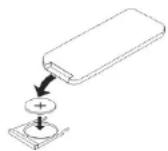
- Remove the battery compartment as indicated in the instructions printed on the back of the remote control
- In case of replacement, remove the battery, insert the new CR2025 battery as shown in the fl gure below (making sure that the "fl" side is facing upwards)
- Replace the battery in the slot.
CAUTION:
Lithium batteries can explode or cause burns if disassembled, shorted, recharged, exposed to water, fire, or high temperatures. Do not leave batteries in your pocket, purse, or other container with metal objects, do not mix them with other types of batteries, and do not store them with hazardous materials or fuels. Store in a cool, dry and ventilated place. Follow the laws and regulations for transport and disposal.
GETTING STARTED
- Remove the protective plastic from the battery compartment of the remote control as shown in the figure.
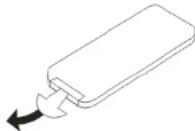
- Connect the supplied power adapter to the DC Input on the rear panel of the radio. Connect the other end of the power supply to an AC outlet. If you want to power the radio with the battery, insert 6 "C" batteries inside the battery compartment on the bottom of the radio.
-
When you first turn it on, the display will show "00:00"
-
Tum on the device by pressing the standby button on the main unit or on the remote control. The radio will enter DAB mode and start scanning for stations. At the end of the scan, the unit will automatically use the date and clock information gathered from the DAB stations
CAUTION:
If the unit is powered by batteries (the power adapter is not connected), use the standby button placed on the main unit.
When the radio is powered by batteries, the remote control has no function.
LISTEN TO THE DAB RADIO
- The scan operation must be performed at first start-up. The DAB icon on the display will light up and the scanning process will start (this might take a few minutes)
- On the remote control, use the MODE button to select the DAB mode. From the main unit, press the MODE knob to enter the various modes and select DAB.
- Press INFO to visually display information about the selected radio station (depending on availability offered by the station - broadcaster)
- Using the remote control, press the buttons to navigate through the list of scanned DAB stations. From the main unit, use the MENU/SELECT knob to listen to the next or previous scanned DAB station.
- Press SCAN to perform a full scan of the radio stations in DAB mode.
LISTEN TO THE FM RADIO
- On the remote control, use the MODE button to select the FM mode. The display will show an FM frequency, e.g. "102.5". The FM icon will light on the display. From the main unit, press the MODE knob to enter the various modes and select FM.
- Using the remote control, press the buttons to browse the FM frequencies: one press increases or decreases the frequency by 50 kHz. From the main unit, use the MENU/SELECT knob to increase or decrease the FM frequency.
- Press and hold either button 1 find the next or previous available radio frequency, or press SCAN from the remote control to directly search for the next available station. When a station is found, the search stops automatically. From the main unit, use the BT PAIR/SCAN knob to find the next available FM frequency.
- Press INFO to visually display information about the selected radio station (depending on availability offered by the station)
- Press INFO 4 times to access the MONO/STEREO function of the FM station. Press ENTER to toggle between MONO and STEREO. In STEREO mode, this icon will light up on the display
STORING AND RECALLING A RADIO STATION (PRESETS)
- To store your favorite stations to memory locations (presets) from 1 to 5, proceed as follows:
Press and hold the button 18 27 38 45 50 corresponding to the number where you want to store that station until the display shows "STORED" (indicates the number where will be stored, e.g. "STORED 3" - stored in the preset no.3) - To store your favorite stations in memory locations (presets) from 6 to 10, proceed as follows:
- Press SHIFT once
Press and hold the button 18 27 38 49 50 corresponding to the number where you want to store that station until the display shows "STORED" (* indicates the number where it will be stored, e.g., "STORED 6" - stored in the preset no. 6)
- You can store up to 10 DAB radio stations and 10 FM radio stations (the radio frequency of the FM station saved by default on all projects is 8/50 MHz).
- To retrieve one of the 10 stored presets, proceed as follows:
For stored presets 1 to 5 press one of the buttons 16 27 38 48 510
6. For stored presets 6 to 10 press SHIFT once (the display of the main unit will show "SHIFT") and then the button corresponding to the desired preset.
PAIRING, CONNECTION AND OPERATION MODE OF THE UNIT THROUGH THE BLUETOOTH WIRELESS TECHNOLOGY
The TS8220+ radio can be paired with most Bluetooth devices 2.0 and 2.1. The pairing may differ from device to device. Refer to the instruction manual of your Bluetooth device for the correct pairing with the unit.
- On the first access to this mode, the unit will go into the "waiting for connection" status, the LED will flash slowly, and in this condition it will be possible to associate a device that has already been paired. If the device you want to connect has Bluetooth turned on, it will automatically connect to the radio.
- To connect a new device, press the PAIR button for about 4 seconds until the LCD flashes quickly ("waiting for pairing" status). Turn on your device.
- Turn on your Bluetooth device (for example a SmartPhone), enter the Bluetooth setup menu and scan for available devices. In the list of found devices the label TS522D will be shown.
- Connect the device to the TS522D+ unit, the device will show the 'Connected' status and the radio LED will change from fashing to solid if the pairing was successful.
- At this point, with the TS22D+ radio it will be possible to wirelessly play the music stored inside the associated device.
- While a device is connected via Bluetooth, if you want to pair it with another Bluetooth device, you must first disconnect it by pressing and holding the PAIR button for about 3 seconds until you hear a "loop" sound, or by disabling the connection established directly from the Bluetooth menu of the associated device. The unit will switch directly to pairing mode and, at this point, you can connect another device.
CAUTION:
For mobile phones with Bluetooth 2.0, you will be prompted to enter a password during the pairing process. Press the following string: 0000 (zerozerozerozero)
MUSIC PLAYBACK
The device you wish to associate with TS522D+ must support AVRCP (Audio Video Remote Control Prof.) in order to control playback through it. Refer to the user manual of your device. When the music is playing:
-
Button PLAY/PAUS
a. Press once to pause playback
b. Press again to resume playback -
VOL - button (from the main unit, rotate the VOL/STB knob counter clockwise) a. Press once to decrease the volume by one step.
b. Press and hold to decrease the volume in a consistent manner -
VOL + button (from the main unit, rotate the VOL/STB knob counter clockwise) a. Press once to increase the volume by one stop
b. Press and hold to increase the volume in a consistent manner after reaching the maximum level. The display will show the label VOL MAX.
CAUTION:
listen to music at a moderate volume. Continuous exposure to high volume may damage your hearing.
CONNECT THE LAST PAIRED BLUETOOTH ENABLED DEVICE
- The following is a quick way to connect TS522D+ to the last paired device.
When the product is in standby mode, press the STANDBY button and enter the BT mode using the MODE button (if the unit is on, but in a different mode, press the MODE button until you see BT). Turn on the Bluetooth device to be associated. It will be connected automatically. The Bluetooth Modes LED will light when the connection is successful, if the product fails to fit no last paired device, it will go into standby mode waiting for connection. In this status, the previously paired devices may be connected to the unit.
RESETTING THE UNIT'S MEMORY
The unit can store up to 8 different Bluetooth devices. To clear the memory manually you must be in the BT mode, in the pairing status (LED fl ashes quickly), press the PAIR button twice (with an interval of about one second between presses) until it plays a "beep" sound. At this point, the LED indicating the status of the Bluetooth switches off, and then it starts to flash again.
CAUTION:
After erasing all memory, the unit will go immediately into pairing mode and you will need to follow the pairing and connection procedure of a new Bluetooth device.
Remember to delete the name of the radio also from the device you want to connect it to again, in order to completely reset the pairing between the two devices.
PLAYING A DEVICE CONNECTED TO THE AUX INPUT
- Connect the jack cable (not supplied) from the external device (such as an MP3 player) to the AUX IN.
- Use the MODE button on the remote control to access the AUX IN mode, or press the MODE knob on the main unit until the AUX IN source is displayed. The display will show the AUX IN label.
- Use your device to control the playback, the volume level can be controlled either from the connected device, or from the main unit. Use the MUTE button on the remote control to mute the sound, and then restart it by pressing the same button again.
SETTING THE UNIT
Press the MENU button on the remote or press and hold the MENU/SELECT knob on main unit to enter the menu of the various modes.
Press on the remote, or rotate the MENU/SELECT knob on the main unit to select the desired menu item and press ENTER on the remote control or press the MENU/SELECT knob to enter the submenu or to save the settings. Press BACK to return to the previous level, or press MENU again to exit.
MENU AVAILABLE IN DAB MODE
Press MENU to access the multiple functions of the DAB mode.
Use the buttons to browse the various menu items. Press ENTER to enter the selected menu item.
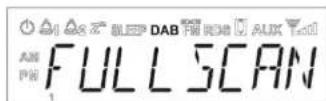
FULL SCAN: allows to perform a full scan of the DAB channels
MANUAL TUNE: allows to set the DAB frequency to be tuned
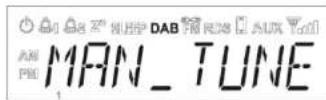
Press buttons to adjust the frequency and press ENTER to confirm (e.g. 174.928 MHz)
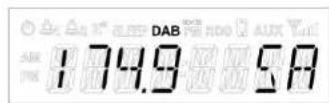
The display will show the signal strength of the frequency set manually for the tuning.
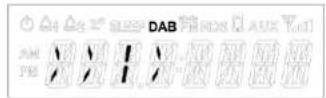
The × symbol indicates the power of the signal; it means that the signal of that station is strong enough to allow the tuning of such DAB station. The - symbol indicates the absence of signal.
Press MENU twice to return to the DAB mode, or press BACK three times to play the tuned DAB station.
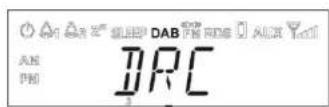
DRC (DYNAMIC RANGE COMPRESSION)
Allows you to set the DRC level to High, Low, or Off.
To select one of the three options mentioned above press the buttons

MENU AVAILABLE IN FM MODE
Press MENU to access the multiple functions of the FM mode.
Use the buttons to browse the various menu items.
Press ENTER to enter the selected menu item.
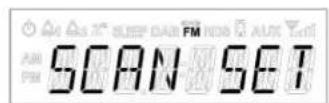
SCAN
Allows you to set the quality of the reception of FM stations for the scanning.
STRONG: only the stations with a strong signal will be scanned.
ALL: the stations with both strong and weak signal will be scanned.
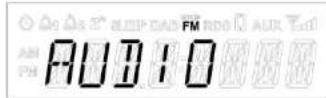
AUDIO
Allows you to set the listening to MONO or STEREO in FM mode.
MENUVAILABLEINALLMODES
Press MENU to access features common to all modes of TS522D.
Use the buttons to browse the various menu items.
Press ENTER to enter the selected menu item.
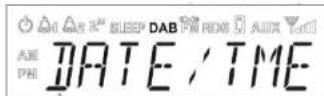
DATE/TIME
Allows you to set the date and time manually or through the signal received from the DAB stations.
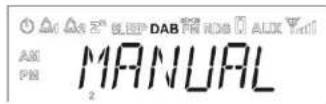
MANUAL
Press on the remote control, turn the MENU/SELECT knob on the main unit, to set the time and date, press the ENTER button on the remote control or the MENU/SELECT knob on the main unit to confirm and save the entered information.
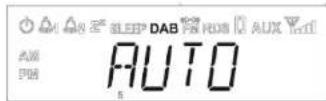
AUTO
By selecting this option, the radio will automatically use the date and clock information gathered from the station.
CAUTION:
If the unit is battery-powered, when the radio is turned off all information regarding the date and clock will be lost. When the radio is turned back on, going in DAB mode, it will perform an automatic scan and receive the clock and date information from the DAB station.
TIME MODE
Allows you to set the clock format to 12 or 24 hours.

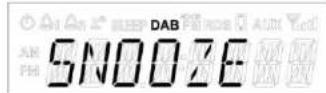
SNOOZE
Allows to set the time interval to repeat the alarm (snocoze).
Press the buttons on the remote or turn the MENU/SELECT knob on the main unit to adjust the time interval from 5 to 15 minutes with 1-minute routers.
Press the ENTER button on the remote or the MENU/SELECT knob on the main unit to save the chosen value.
To disable the Snooze function, press the STANDBY button on the remote control or on the main unit.
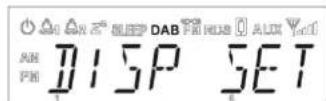
DISPLAY SET
Allows to set the brightness of the display.
Press on the remote control or turn the MENU/SELECT knob on the main unit to adjust the brightness for normal and/or standby-mode.
Slandby mode Normal operating mode
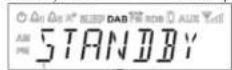
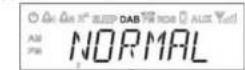
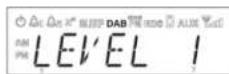
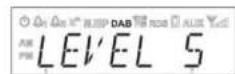
Press ENTER on the remote or the MENU/SELECT knob on the main unit to access the two operating modes and increase or decrease the brightness of the display with the button.
SETEQ
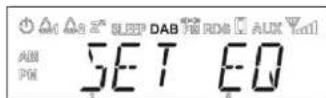
Allows to set the equalization of the radio.
Press on the remote control or turn the MENU/SELECT knob on the main unit to select one of the stored equalization presets: NORMAL, ROCK, POP, JAZZ. Press the ENTER button on the remote or the MENU/SELECT knob on the main unit to confirm the chosen preset.
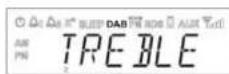
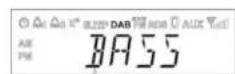
By the MY EQ option, you can set the value of the high (trouble) and low (base) frequencies in a
porcanslized way. Press on the remote control or turn the MENU/SELECT knob on
the main unit to increase or decrease the value. Press the ENTER button on the remote or the
MENU/SELECT knob on the main unit to confrm the set values.
LOUDNESS
Allow to set the loudness level to ON and OFF.
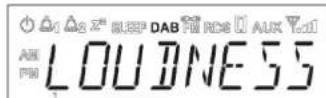
Press on the remote control or turn the MENU/SELECT knob on the main unit to select one of two possible statuses. The loudness can be toggled between ON and OFF only when the equalization mode is NORMAL (the other equalization modes have the loudness set to ON by default).
RESET
Allows you to clear all settings and restore the factory configuration. Select the option YES and press the ENTER button on the remote control or the MENU/SELECT knob on the main unit to start the reset to factory settings or NO to cancel the operation.
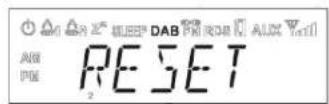
CAUTION: all the date, clock, alarm, equalizer presets, and radio stations settings will be lost.
FIRMWARE VERSION
Allows to view the firmware version installed in the unit.
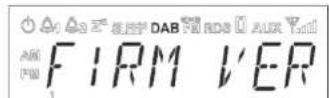
USING THE ALARM
Setting the alarm
- Turn the radio on, press or on the remote control to select alarm 1 or alarm 2. The icon or the icon will flash on the display.
Press ENTER to enter the Alarm menu. press on the remote or turn the MENU/ SELECT knob on the main unit to adjust the desired time for the alarm. Press ENTER or the MENU/SELECT knob to confirm your choice and move to the next function or press BACK to return to the previous menu item.
After setting of the alarm time, you can select the alarm source (DAB/FM/Buzzer). By setting DAB or FM you can get a radio station stored in the preset, to be associated to the alarm or the last radio station listened to.
The next option is the repetition frequency of the alarm that may have the following options:
Once - Daily - Weekdays - Weekends. When selecting the option Once you need to confirm the date of the alarm before moving on to the next step. Set the playback volume of the alarm. When the alarm is set to ON and saved, the icon for alarm 1 and/or 2 will be shown on the display to indicate the active status.
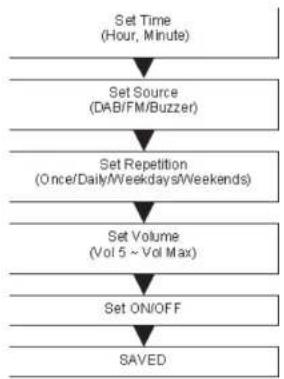
ENABLING OR DISABLING THE ALARM
In standby mode, press or on the remote control to enable or disable the alarm, or turn on the radio, press or to select alarm 1 or 2, on the remote control press the buttons to select ON/OFF and confirm with ENTER.
The icons are shown on the display to confirm that the alarm has been activated.
SNOOZE OPTION AND ALARM SLEEP MODE
While the alarm is enabled, press SNOOZE on the remote control to repeat the alarm after a certain interval (according to the settings entered in the relevant menu - the default value is 5 minutes) or by pressing the VOL/STANDBY knob on the main unit.
When the SNOOZE mode is active, the display shows the icon that Identifies its active status of cooperation.
To stop the steam, press any button on the remote control except for SNOOZE, or any knob on the main unit except for VOL/STANDBY.
VORDERSEITE
SNOOZE-OPTION UNDSLEEP-MODUS
PRECAUTIONS RELATIVES A LA VENTILATION
NOUS VOUS REMERCIÇONS D'AVOIR ACHETÉ UN PRODUIT CUBE.
SET EQ (CONFIGURATION
- MENU/SELECT:
- BT PAIR/ /SCAN
- Headphones audio input
- VOL/STANDBY:
- FRONT PANEL
- TOP PANEL
- REMOTE CONTROL
- IMPORTANT
- WARNING ABOUT THE USE AND THE OPERATION OF THE UNIT
- WARNING:
- VENTILATION WARNING
- CAUTION
- WARNING REGARDING THE POWER CORD
- ENVIRONMENTAL OPERATING CONDITIONS
- AIRWAYE WARNINGS
- ATTENTION TO THE AC ADAPTER
- ENVIRONMENT AND DISPOSAL
- SAFETY REGULATIONS
- DANGER
- WARNING
- CAUTION - USAGE IN HUMID ENVIRONMENTS
- INSTALLATION OF THE UNIT
- THANK YOU FOR PURCHASING THIS PRODUCT CUBO.
- BLUETOOTH WIRELESS TECHNOLOGY
- PACKAGE CONTENTS
- INSTALLING AND REPLACING THE REMOTE CONTROL BATTERY
- CAUTION:
- GETTING STARTED
- LISTEN TO THE DAB RADIO
- LISTEN TO THE FM RADIO
- STORING AND RECALLING A RADIO STATION (PRESETS)
- PAIRING, CONNECTION AND OPERATION MODE OF THE UNIT THROUGH THE BLUETOOTH WIRELESS TECHNOLOGY
- MUSIC PLAYBACK
- CONNECT THE LAST PAIRED BLUETOOTH ENABLED DEVICE
- RESETTING THE UNIT'S MEMORY
- PLAYING A DEVICE CONNECTED TO THE AUX INPUT
- SETTING THE UNIT
- MENU AVAILABLE IN DAB MODE
- DRC (DYNAMIC RANGE COMPRESSION)
- MENU AVAILABLE IN FM MODE
- SCAN
- AUDIO
- MENUVAILABLEINALLMODES
- DATE/TIME
- MANUAL
- AUTO
- TIME MODE
- SNOOZE
- DISPLAY SET
- SETEQ
- LOUDNESS
- RESET
- FIRMWARE VERSION
- USING THE ALARM
- ENABLING OR DISABLING THE ALARM
- SNOOZE OPTION AND ALARM SLEEP MODE
- VORDERSEITE
- SNOOZE-OPTION UNDSLEEP-MODUS
- PRECAUTIONS RELATIVES A LA VENTILATION
- NOUS VOUS REMERCIÇONS D'AVOIR ACHETÉ UN PRODUIT CUBE.
- SET EQ (CONFIGURATION
Brand : Brionvega
Model : Cubo TS522D+
Category : Radio