B32AHP - Television OKI - Free user manual and instructions
Find the device manual for free B32AHP OKI in PDF.



| Product type | 32-inch LCD television |
| Screen size | 32 inches (81 cm) in 16:9 |
| Screen resolution | HD (1366 x 768 pixels) estimated |
| Power supply | 230 V, 50 Hz, consumption 145 W, standby 2.5 W |
| Sound output | 2 x 10 W |
| Connectivity | 2 SCART sockets, 2 HDMI inputs, 1 VGA input, 1 YUV input, 1 S-Video input, 1 PC audio input, 1 headphone jack |
| Tuner | Digital DVB-T and analogue PAL/SECAM, cable compatible |
| Program memory | 100 analogue programs, 1000 digital programs |
| Teletext | 10 pages / 250 pages with Toptext and Fastext |
| Picture functions | Format 4:3, 16:9, 14:9, Letterbox, Zoom, Freeze frame, DNR, CTI/LTI, Digital comb filter |
| Electronic program guide (EPG) | 8 days in digital mode |
| Parental control | Yes, with PIN code (0000 by default) |
| Panel lock | Yes |
| Timer | Programmable shutdown, scheduled startup |
| CI slot | Yes, for conditional access modules |
| Approximate dimensions (with stand) | 79 x 54 x 20 cm |
| Approximate weight | 9 kg |
| Supplied accessories | Power cable, remote control, 2 AAA batteries |
| Cleaning and maintenance | Clean the screen and casing with a soft, dry cloth. Do not use abrasive products. |
| Safety instructions | Do not block ventilation openings, avoid moisture, disconnect before cleaning, do not repair yourself. |
| Repairability | Hand over to qualified personnel. Spare parts not specified. |
Frequently Asked Questions - B32AHP OKI
User questions about B32AHP OKI
0 question about this device. Answer the ones you know or ask your own.
Ask a new question about this device
Download the instructions for your Television in PDF format for free! Find your manual B32AHP - OKI and take your electronic device back in hand. On this page are published all the documents necessary for the use of your device. B32AHP by OKI.
USER MANUAL B32AHP OKI
Operating Instructions
Vie Sab Dom LunMar Mie Jue
6.3.5.3-Control paterno
9.2.2-Paso a modo PC
Canal 2 Nenhuma info
macao disponivel
Canal 3
9.2.8-AUTOCONFIGURATION
1.1-Cleaning the screen and cabinet.. 1
1.2-Disposing of your TV at the end of service life... 1
1.3-Superior features of your integrated digital television 1
1.4-Receiving digital broadcasting channels 1
Features of your new television 2
2.1-Special Features 2
Important Safety Instructions 3
Start 6
4.1-Antenna connection 6
4.2-Powering on your device and the initial use 6
4.3-Batteries 6
Your new television 7
5.1-TV Control Panel 7
5.2-Rear and Side External Connections 7
5.3-Remote Control 8
Performing the initial power-on settings 9
6.1-TV controls 9
6.2-Turning on the TV and Setting the Channels 10
6.3-Performing Digital Tunings 10
6.4-Performing Analog Tunings 14
Settings of Your New Television 17
7.1-Sound Menu Settings 17
7.2-Picture Menu Settings 18
7.3-Features Menu Settings 19
7.4-Other Picture Features 20
Teletext 21
External equipment connection 23
9.1-Connection types for external devices 24
9.2-PC Mode 24
9.3-Connecting a video recorder device and a digital satellite receiver ....25
Help and tips 26
Technical specifications chart 27
LCD panels are produced with state-of-the-art technology. However, there may be missing or lit spots on the screen under certain circumstances. That does not mean that the product is faulty.
1.1-Cleaning the screen and cabinet...
After powering off, wipe the screen and the cabinet clean with a soft and dry cloth. We recommend that you do not use patented polishes or solvents on the screen or cabinet since they may cause damage.
1.2- Disposing of your TV at the end of service life...
The cold cathode fluorescent lamp found in your LCD screen contains a very small amount of mercury. Once your TV set has completed its physical life, please dispose of it in accordance with local government regulations or leave it at a recycling centre.
1.3-Superior features of your integrated digital television
This television can receive and process all analog and digital broadcasts. This television set has an integrated digital and analog receiver. The digital receiver unit processes the signals coming from digital transmitters and can convert them into superior sound and image qualities. TV Guide (valid for digital broadcasts only) informs you about changes in the program list briefly and provides program lists of all digital broadcasts for a number of forthcoming days. You can display detailed information about each program by pressing a single button if this feature is supported by the broadcasting enterprise. This television has a comprehensive and user friendly menu configuration.
1.4-Receiving digital broadcasting channels
You will need outdoor or indoor (passive or active indoor antennas used together with its own power cord) antennas to receive digital broadcasts. Contrary to the analog broadcasts, all digital broadcasts may not have their own transmission frequency. Instead, various digital broadcasting channels are gathered in regional or national groups called bouquets. You can find current transmission data from teletexts of various broadcasting enterprises or from TV guide or from the internet.
We would like this product, which has been manufactured in modern facilities in accordance with total quality principles, to offer you the best performance. Therefore, we would like you to read this entire manual carefully before you use your product and keep it for future reference.
2.1-Special Features
- Compatible with cable broadcasts
- Wide angle of vision
- Scart socket, AV Socket and external sound system connection
S-VHS and Cinch inputs for S-Video connection
PC connection - Low energy consumption
AVL - Programmable power on
- Programmable power off
- 10 page / 250 (*) page Teletext
- Toptext (*)
- Graphic equalizer
- Sharpness feature in Color Transitions (CTI)
- Sharpness feature and picture resolution (LTI) in black-white transitions
- A clearer Picture made possible with a Digital Comb Filter
- On-screen viewing of all settings, program numbers and all the processes
- Manual Fine Tuning
100 Analog Program memory
1000 Digital channel memory - Infrared remote control equipped with all functions
- Child Lock
- Panel Lock
- Feature of viewing the NTSC broadcast via Scart input
- Easy performance of the processes with the advanced menu system
- 4:3, 16:9, 14:9 Letterbox (^) , Subtitle (^) and Panorama (^*) picture formats
8-day EPG (Electronic Program Guide) - List of 4 favorite channels in digital mode
- CI slot input
- HDMI connection (*)
- HDCP feature (*)
- HD-Ready (*)
- Ability to operate both with 230V mains power and 12V adaptor (*)
HDMI™ HDMI, the HDMI logo and High-Definition Multimedia Interface are trademarks or registered trademarks of HDMI Licensing LLC.
(^*) : These features are optional and they are not available on all models.
3 Important Safety Instructions

This symbol is used to warn the user about the "dangerous voltage" contained inside the housing of the product that may create a risk of electrical shock.
This symbol is used to remind the user important usage and service instructions supplied with the device.
1) Please READ the operating instructions before using the device for the first time.
2) Please observe the instructions contained in the Operating Instructions.
3) Please consider all warnings.
4) MAKE SURE that all power connections (extension cables and the connections between the device components) have been made properly and
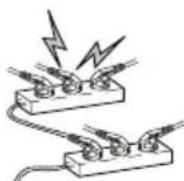
in accordance with the manufacturer's instructions. Before making or changing the connections, power off the device and unplug the mains connection plug.
5) If you have any doubts regarding the installation, operation or safety of the device, please REFER to the vendor.
6) BE CAREFUL with glass panels and covers on the device. The screen glass may break and cause serious injuries if something hits it.
7) To ensure adequate ventilation, please leave a clearance area of at least 10cm around the television. This clearance prevents the TV from overheating and consequently causing damage.
-
Using the device in dusty environments should also be avoided.
-
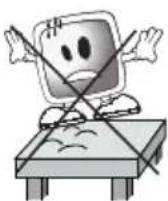
Never block the slots and openings by placing the TV on a bed, sofa, pillow or other similar surfaces.
- Never install the TV into closed places such as bookcases or cabinets unless adequate ventilation is provided.
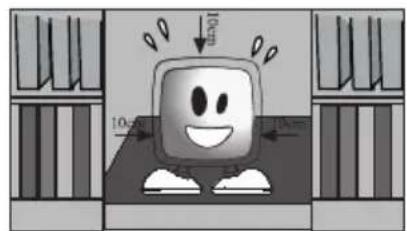
8) DO NOT COVER the
ventilation openings of the device with items such as newspapers, table-clothes, curtains,

etc. Overheating causes damage and shortens the service life of the device.
9) Your TV may be
damaged if you place it under direct sunshine or close to a heater. Please abstain from using the

product in very hot or humid locations or in places where the temperature is likely to decrease below 5^ (41^)
DO NOT PLACE on or near the
device any hot objects or items with open flame such as candles or any night lamps. The high temperature can melt plastic parts and cause a fire.
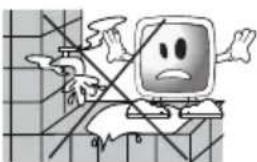
10) Never operate electrical devices close to water. Operating such devices, for example, near a bathtub, washbasin, kitchen washbasin, washing basin, wet basement and swimming pool can cause fire or electric shock.
-
Do not allow your TV to get wet. Never pour any liquids onto the TV. Do not operate your TV if any solid or liquid substance enters into it. This can cause electric shock and your TV may be damaged. Have it checked immediately by qualified personnel.
-
Keep open flame sources (such as candles) away from TV in order to avoid risk of fire.
11) DO NOT USE headphones at extremely high volume levels since this may cause permanent loss of hearing.
12) Operate your TV only in the 230 V 50Hz voltage range. Use the AC power cable supplied with the product. If your TV is a grounded (Class I) product, then it must certainly be connected to a grounded socket.
-
The socket into which you plug in the AC power cable or the adaptor must be within easy reach.
-
Unplug the device in order to disconnect it from mains power.
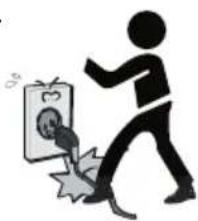
Note: If your device has an adaptor, then use the adaptor and AC power cable supplied with your product. Do not use defective sockets. Make sure that the plug is firmly inserted into the socket. If the plug remains loose, then it can cause fire due to arching. Refer to an electrician to have your socket replaced.
13) Make sure that the power cable is not stepped on and that there is no bending at the plug sections, plug heads and device output point.
14) Use only the add-ons/accessories specified by the manufacturer.
15) Use only together with the carts, bases, tripods, brackets or stands specified by the manufacturer or sold along with the product. When using a cart, pay attention that it won't overturn while carrying the cart/device combination and cause injuries. The device must be fixed to the floor or wall in the installation instruction to avoid any possible dam your device on a level surfa

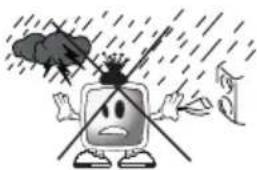
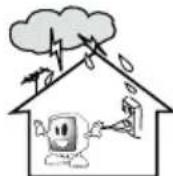
16) Unplug the power cable during thunderstorms or when you will not use your device for a long period of time.
17 Consult authorised service personnel for service requirements. Never attempt to repair the device yourself. Opening the cabinet can expose you to dangerous voltages or other hazardous situations.
Service is required in situations such as damage to the power cable of the device or its plug, water spills or substances falling into the device, the device is subjected to rain or moisture, it does not operate normally or it is dropped.
18) Wipe the TV cabinet clean with a soft and dry cloth. Wipe dust from the screen gently with a soft cloth. Stubborn stains can be cleaned with a cloth slightly moist soap and lukewarm water solvents such as thinner cleaning. Unplug the AC from the socket when clear. Otherwise, there is the risk of fire.

19) Do not dispose of the batteries in fire.
- Do not short circuit, dismantle or overheat the batteries. There is the risk of explosion if the batteries are not replaced correctly. Replace only with the same or equivalent type batteries.
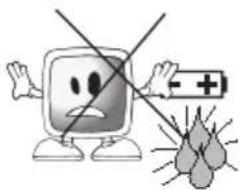
20) Disposing of the exhausted batteries:
- Dispose of the exhausted batteries in accordance with the local laws and regulations in order to protect our environment.

21) Do not dispose of your TV with regular household waste. Observe local laws and regulations for disposal.

Note 1: This is a Class A product. During operation, the device can cause radio interference. In this case the user may have to remedy this. Please contact your specialist dealer.
Note 2: Electromagnetic fields can cause temporary performance degradation. This can be distinguished as noise in the image.
4 Start
Remove your television carefully from its box. You can keep the packaging of your television to use in future.
Contents of the box
Power cable
Remote control
2 batteries
Note:Scart,HDMI,VGA and RCA cables are not supplied with the device.
4.1-Antenna connection
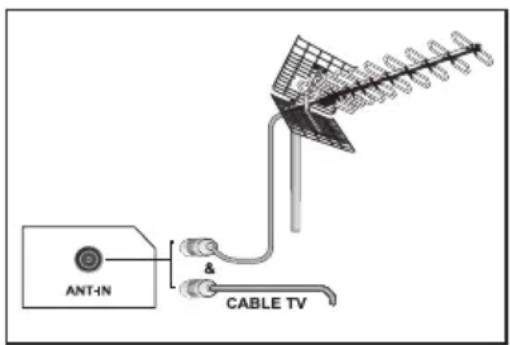
If you use a 75 Ohm coaxial cable (round cable) as an antenna cable, connect the antenna plug directly to the antenna input located on the TV.
Motorized vehicles, energy lines and telecommunication lines affect your antenna. Therefore, be careful to install your antenna away from these and metal surfaces in such a way that it shall not swing. Do not make your antenna cable longer than required and do not coil it. Make sure that it is not crimped passing through a window or door. Your antenna and cable might be affected by natural phenomena such as rain, wind, smoke and humidity over time. Periodically check your antenna and equipment.
4.2-Powering on your device and the initial use
- Insert the power cable into the power supply input located on the back panel of the LCD TV.
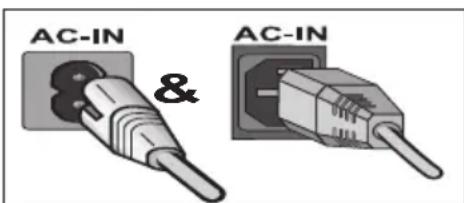
- Insert the power cable plug supplied with the device into the mains socket.
Note: Your TV is equipped to operate with TV buttons in case your R/C is broken or the batteries are exhausted.
3. Press the power on/off button located on the LCD TV.
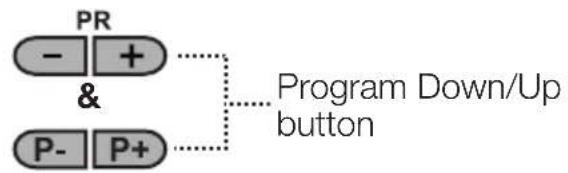
STANDBY 4. To power on your television, press any numerical key or PR+ or PR- keys on the remote control. For this process, you can also use the buttons on your TV. The picture will appear on the screen after a short while.
PR Note: If you are not going to use your television for a long time, unplug its power cable from the socket.
Initial power on and performing settings
To set up your television, read the sections on the TV controls and making the channel settings.
4.3-Batteries
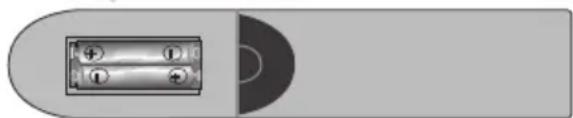
Open the lid of the battery compartment and make sure that you have placed the batteries in the correct direction. For this remote control, UM-4, IEC R03 or AAA 1.5 V batteries are suitable.
Do not throw your old batteries into the fire, discard them in a dedicated waste area for this purpose.
Do not mix used batteries with new ones or different types of batteries together.
The performance of the remote control will be reduced at a distance of 8 meters from or at an angle of 30 degrees beyond the centre of the TV.

5.1-TV Control Panel

Menu button / Source selection button

On-Off / Standby button

indicator Bright light: TV is in Stand-by
Dimmed light: TV is On
No light: Power Cable is not connected.
5.2-Rear and Side External Connections
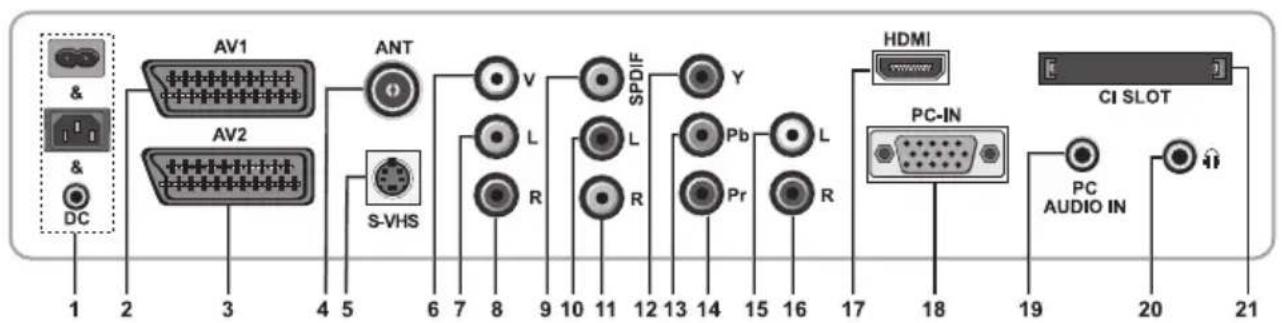
1-Power input
2-AV1 scart
3-AV2 scart (*)
4-Antenna input
5-S-VHS input (^*)
6-Video input CINCH connector (^*)
7-Sound input CINCH connector (Left/L) (*)
8-Sound input CINCH connector (Right/R) (*)
9-SPDIF Digital audio output (*)
10-Audio output (Left/L) (*)
11-Audio output (Right/R) (*)
12-Component video input (Y)^*
13-Component video input (Pb)(^)
14-Component video input (Pr)(^)
15-Component audio input (L)^(*)
16-Component audio input (R)*
17-HDMI input*
18-VGA (PC connection input)
19-PC audio input
20-Stereo Headphone socket (^*)
21-CI slot input
(^*) : These features are optional and they are not available on all models.
Note: Above drawing for external connections is representational. Their order and places on your TV may be different.
Please see Technical Specifications Table on page 27 for the available external connections on your television.
Important Note: DC power input is for models with an adaptor only.
- Please do not use the video Phono and S-Video connection simultaneously, otherwise these two devices might influence the picture quality of one another.
- RGB input via Scart offers the best picture quality.
5.3-Remote Control
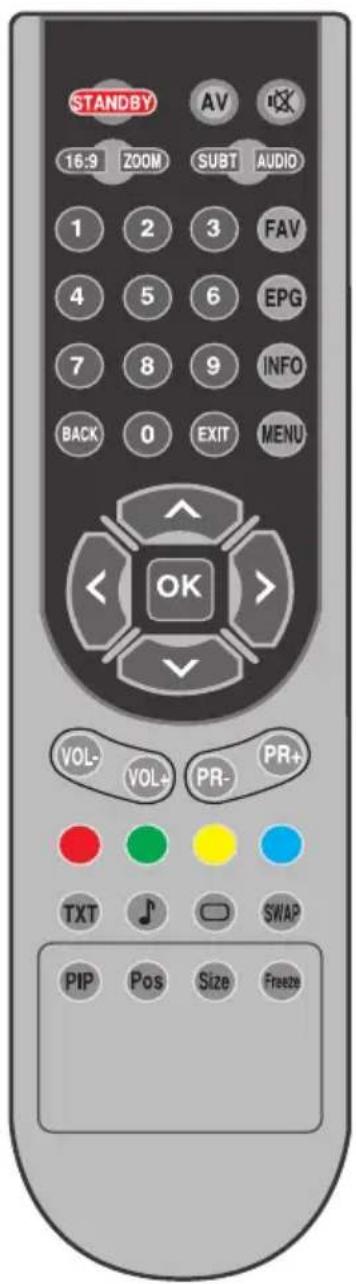
Note: In the analog mode when no menu is open on the screen, Up/Down movement buttons function as program forward/backward button and Left/Right movement buttons function as Volume up/down button.
(D) : Digital Mode Only
STANDBY Stand-by mode On/Off button Temporary sound mute (Mute) button AV modes selection menu button Picture Format selection button PAT (Picture and Teletext) Mode ZOOM zoom mode selection button Subtitle selection button (D) Sound selection button (D) 10 Numeric buttons Favorite channel selection button (D) Page Stop button in Txt mode (Hold) EPG selection button (D) Question/Answer button in Txt mode (Reveal) INFO Information button Index page button in Txt mode MENU button Exit menu button Back Return to previous menu button Up movement button (Menu) Next page selection button in Txt mode Down movement button (Menu) Previous page selection button in Txt mode Left movement button (Menu) Right movement button (Menu) Menu selection confirm Program table selection button Volume down button Vol- Volume up button PR+ Program forward selection button PR- Program backward selection button Red teletext button Green teletext button Yellow teletext button Blue teletext button Teletext/Mix selection button Equalizer selection button Teletext page enlarge button (Double) Picture Mode selection button Page update button in Txt mode (Update) SWAP Last viewed program selection button Sub page button in Txt mode (Sub Page) Freeze Picture button Size Time Display button
6
Performing the initial power-on settings
6.1-TV controls
6.1.1-Temporary on/off (STAND-BY)
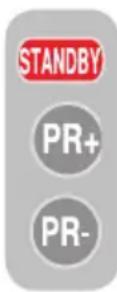
When you press the red STANDBY button located on the upper left hand side of your remote control while your television is switched on, the sound and the picture will go off. In the stand-by mode, the power indicator of your television will glow brighter. To switch your television back on,
either press any numeric button or PR+/PR- buttons.
Caution! If you are not going to use your television for a long time, unplug its power cable from the socket.
6.1.2-Channel Selection

You may enter whichever program number you would like by pressing the PR+/PR- buttons located on your television and your remote control. To select the programs that are above 9, you can use the Numerical buttons. You may enter the number of the program you would like to select using the numerical buttons. For example, to switch to the program number 12, press respectively the numeric buttons 1 and 2 on your remote control. You can perform
the program selection also from the Program Table. (See page 11)
6.1.3-Digital TV, Analog TV and AV Mode Selection
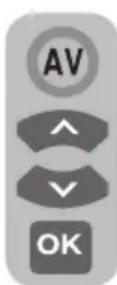
Press the AV button on your remote control. SOURCE menu will be displayed. Select DIGITAL TV (DTV), ANALOG TV (ATV) or desired AV mode from the Setup menu with Up/Down movement buttons and confirm with OK button so that your television will switch to the source you have
selected.
6.1.4-Performing the Volume setting
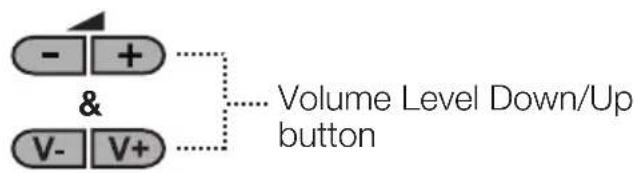
You can adjust the volume of your television by using the VOL+/VOL- buttons on your remote control.
6.1.5-Temporary sound mute (MUTE)
To temporarily mute the sound of your television, press the MUTE button on your remote control. In that case, MUTE symbol will appear on the screen. When you press the
same button a second time, the sound will be restored. If you press the VOL+ button while in the Mute mode, the sound level is increased and the Mute function is aborted.
6.1.6-Returning to Selected Program (SWAP)

Allows you to switch between the current program you watch and the last selected program. For example, if you change the channel
to Program 11 while you were watching Program 1, press SWAP button to switch back to Program 1. Press SWAP button to switch back to Program 11 again.

6.1.7-Main Menu
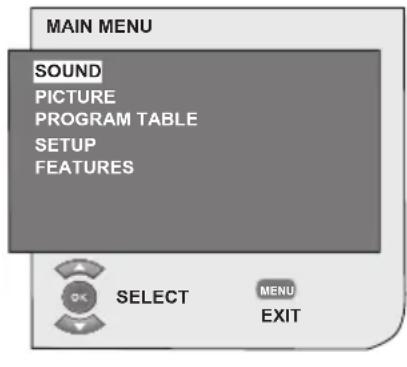
Press the MENU button. The Menu including all the setting menus will appear on the screen. Navigate through the Menu titles with the Up/Down movement buttons and press the OK button to select the desired menu. If you want to exit in any step, just press the EXIT Press BACK or MENU buttons to do the previous Menu while you are in menu.
6.2-Turning on the TV and Setting the Channels
LANGUAGE menu displays when you turn on your television for the first time. Using the Right/Left movement buttons, select the desired language. Then, the COUNTRY SELECTION menu will be displayed. Select the country by using Up/Down, Left/Right movement buttons and press OK button to start the auto programming. AUTOMATIC
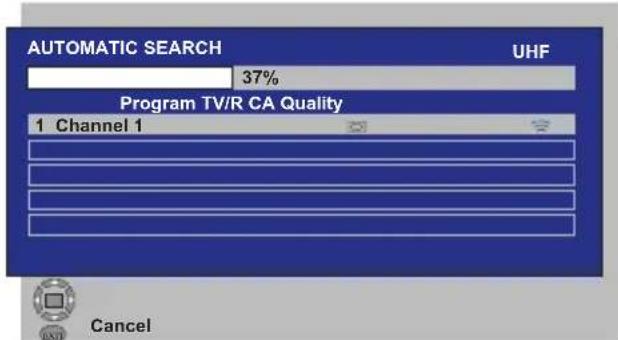
SEARCHmenu will be displayed and digital channels are scanned and stored in the memory.
Number of TV and Radio channels already detected and stored in the memory at the end of the search process will be displayed in the menu. As soon as the digital channel search is complete,
Analog ATS will be displayed. You can perform Analog channel search automatically by pressing the Yellow button or end the search process by pressing the EXIT button.
6.3-Performing Digital Tunings
You can either tune the Digital programs automatically or manually and store them in your television.
6.3.1-Automatic Tuning of Channels and Storing in the Memory
Press AV button on your remote control, select DIGITAL TV tab from the SOURCE menu by using Up/Down movement buttons and confirm by pressing the OK button. Your TV will switch to Digital mode. Press MENU
button, MAIN MENU will be displayed. Select SETUP tab with Down movement button and confirm with the OK button.
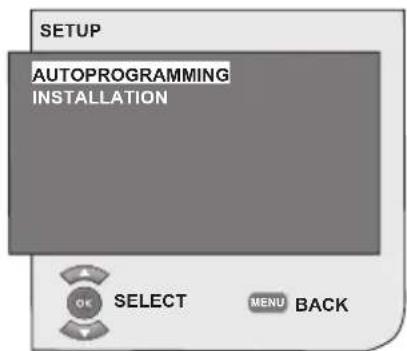

The SETUP menu is displayed. Select AUTOPROGRAMMING tab and confirm by pressing the OK button. COUNTRY SELECTION menu will be
displayed.
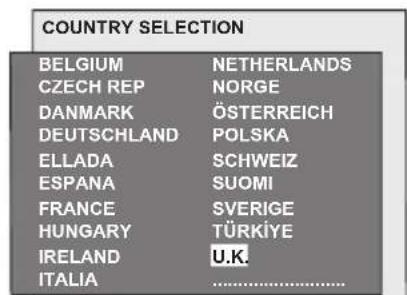
Select the country by using Up/ Down, Left/Right movement buttons and press OK button to start the auto programming. AUTOMATIC SEARCHmenu will be displayed and digital channels are scanned and stored in the memory.
6.3.2-Manual tuning of channels and storing in the memory
In digital mode: Press MENU button, MAIN MENU will be displayed. Select SETUP tab with Down movement button and confirm with the OK button. The SETUP menu is displayed. Select INSTALLATION tab and confirm
by pressing the OK button. MANUAL SEARCH menu will be displayed.
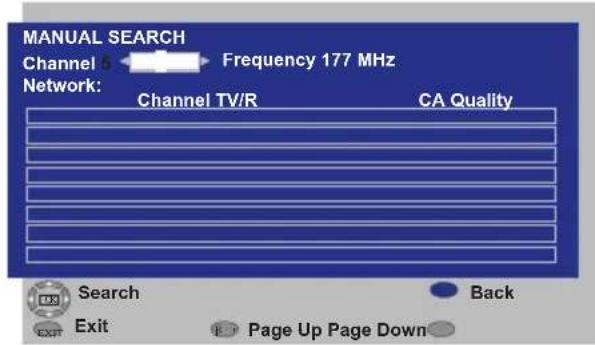
You can perform the search by entering the channel number you would like to search with the numeric buttons on the remote control. You can also perform the Manual Search by using the Right/Left movement buttons. Channel will appear in the list when it is found. You can press the Yellow button to store it. You can return to the upper menu
by pressing the BLUE button or exit the menu by pressing the EXIT button.
6.3.3-Program Table
With the program table, you can see the stored channels in a list, switch between TV channels and Radio channels or create your favorite channels list for 4 TV and Radio channels according to your preference.
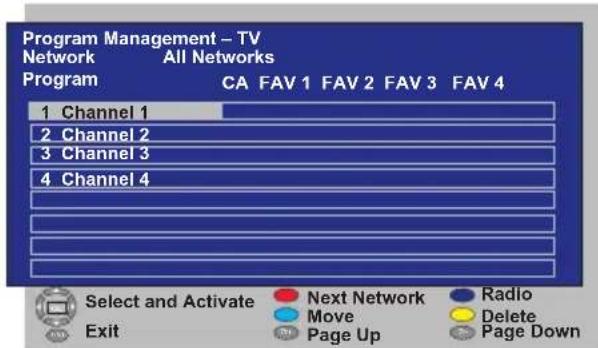
Select the PROGRAM TABLE item from the main menu by means of Up/Down movement buttons to access program table and press OK button to confirm. PROGRAM MANAGEMENT
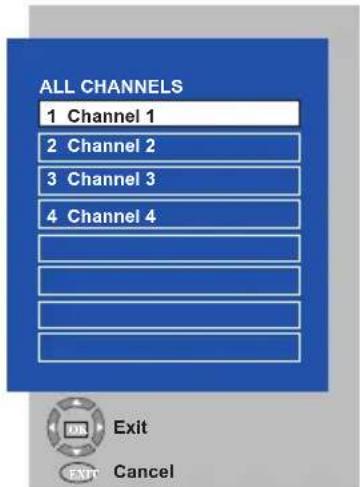
menu will be displayed. You can also access all Programs directly by pressing the OK button on your remote
control when there is not any open menu on the screen.
6.3.3.1-Displaying Television and Radio channel lists and selecting the channels
When the Program Management menu is opened, all TV channels stored in the list are displayed. You can navigate between the channels with Up/Down, Left/Right movement buttons or you can select any channel you wish by pressing the OK button. Press the BLUE button on the remote control when you are in the program menu to switch to the Radio channels. You can navigate between the channels with Up/Down, Left/Right movement
buttons and you can select any channel you wish by pressing the OK button.
6.3.3.2-Creating favorite channels list

You can create 4 favorite channels lists based on your personal preferences. To do this, navigate to the Program Management table. All TV channels can be seen on the left hand side and favorite channels on the right hand side. Select FAV list into which you will add the desired favorite channel while you are on the relevant service by pressing the Right/
Left movement button and press OK button. Name of the selected channel will be marked in the favorite channels list. Repeat the same steps fore every channel you want to add. To select directly the favorite channels lists you have created, you can use the FAV button on your remote control while you are in Program List menu.
6.3.3.3-Moving a stored channel
If you want to move a stored channel to a different channel number, select the desired channel by pressing the up/down movement buttons while you are in the Program Management-TV menu and then press the GREEN button on your remote control. The field into which you can enter the position of the new channel will be displayed in the upper right corner of the menu. Enter the new position to which the channel will be moved and press the OK button. The confirmation menu will be displayed. When you press the OK button, the channel will be moved to its new position and the channel in the first program number you have selected will be moved to your second selected program number and the channels between both program numbers will be shifted towards the initially selected program number.
6.3.3.4-Deleting a stored channel or channel list
If you want to select a stored channel from your list, select the channel to be deleted by pressing the up/down movement
buttons while you are in the Program Management-TV menu and press the RED button on your remote control. The deletion menu will be displayed. Press the GREEN button to delete the selected channel only or press the RED button to delete all channels.
6.3.4-Electronic TV Guide (EPG)
If it is supported by the broadcasting enterprise, the electronic TV guide gives entire general information about the programs of the next 8 days (for digital channels only).
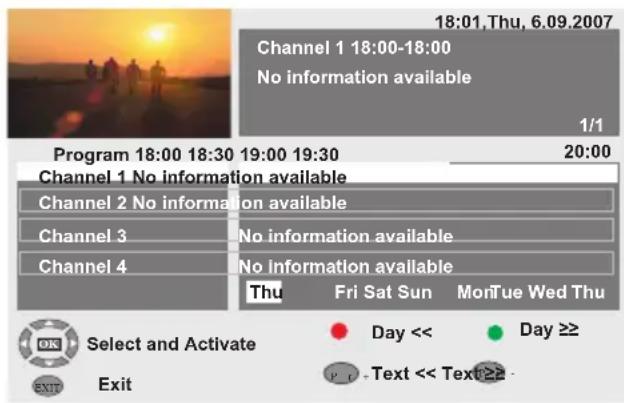
To display the Electronic TV Guide, press EPG button on the remote control. Electronic TV Guide will be displayed. You can select the channel by using the Up/Down movement buttons and navigate through the program data with Right movement button. Detailed information about the program will be displayed in the right upper window. Press PR+/PR- buttons to navigate through the information pages, press the I button to display next day's information or press the RED to display previous day's program option.
Important Note: Not all broadcasting enterprises supply a detailed TV guide. Most of the broadcasting enterprises provide daily program information, but they do not give detailed explanations.
Some broadcasting enterprises, on the other hand, do not give any program information at all.
6.3.5-Digital Features
To enter digital features menu, select FEATURES tab from the main menu by using Up/Down movement buttons. Select DIGITAL FEATURES tab from
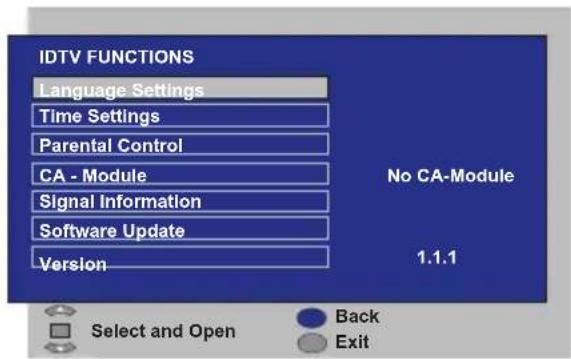
FEATURES menu by using Up/Down movement buttons and press OK button to confirm. DIGITAL FEATURES menu will be displayed.
You can select the menu headings with Up/Down movement buttons to make settings.
6.3.5.1-Language Settings
You can select subtitle and sound language provided that the broadcast is supported for all digital broadcasting channels. Unless you make any selection, the language supported by the broadcaster will be selected automatically.
To perform language selection, select Subtitle and Teletext Language, Subtitle Language
2 Audio Language or Audio Language 2 from the Language Settings menu by using Up/Down movement buttons and make your language selection with Left/ Right movement buttons. You can also select subtitles directly by SUBT button on your remote control or make sound selection by AUDIO button.
6.3.5.2-Time Settings
To perform the time settings, select Time Adjustment tab from the Time Settings menu by usingUp/Down movement
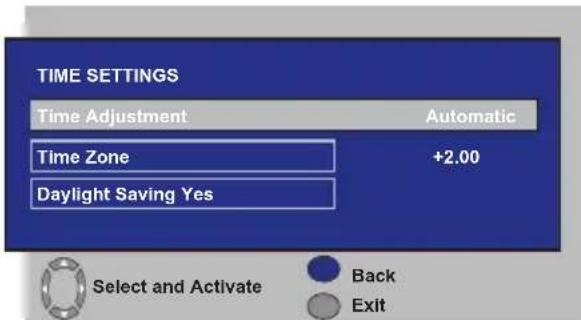
buttons and make your selection by using Right/Left movement buttons. If you set the Time Adjustment tab to Manuel, Time Zone, Daylight Saving tabs will be activated. If you set it to Automatic, these options will be deactivated.
6.3.5.3-Parental Control
You can restrict viewing some programs with this feature. If the program to be broadcasted is over the age restriction you entered, the channel will not be displayed and a password screen will appear. To view the program, correct password must be entered.
You can set the restriction by selecting one of the Youth, Adult, Child, None options from the Parental Rating tab while the Parental Control tab is set to On. In the Change PIN tab, the first PIN is entered, then the new OSD is displayed where the new PIN is entered and confirmed by entering once again.
Note 1: The password for this feature has been set as 0000 at the factory. You can change the password as you wish under Change PIN item in the Parental Control menu.
6.3.5.4-CA-Module
In this menu, you can get information about and make the relevant settings for the CI Module that you can attach to your television.
6.3.5.5-Signal Information
This menu gives information about Channel, Frequency and Signal level and quality.
6.3.5.6-Software Update
Auto update feature can be set to on or off. When the new software title is selected, the new transmitted broadcast is searched by means of the OAD method.
6.3.5.7-Version
Version information is displayed at the end of the line.
6.4-Performing Analog Tunings
You can either tune the Analog channels automatically or manually and store them in your television.
6.4.1-Automatic tuning of channels and storing in the memory
Note: If your television does not receive any antenna broadcast for a period of 5 minutes, it automatically switches to the stand-by position. The countdown OSD is displayed on the screen during the last 1 minute (applicable for Analog mode only)
You can tune the programs automatically with the Autoprogram function of your television and then sort the channels as you desire by means of the Program Table. Press AV button on your remote control, select TV tab from the SOURCE menu by using Up/Down movement buttons and confirm by pressing the OK button. Your TV will switch to Analog mode. Press the MENU button on your remote control. Select SETUP by pressing the down movement button and confirm your selection with OK button. Setup menu is displayed.
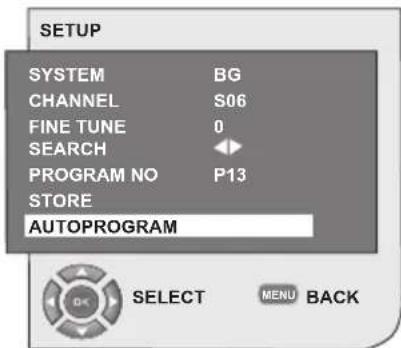
Select PROGRAM NO tab by pressing the Up/Down movement buttons in Setup menu, enter the channel number to be searched and stored automatically, then select AUTOPROGRAM tab by using the Up/Down movement buttons and press OK button; Country Selection menu will be displayed. In the Country Selection menu, select
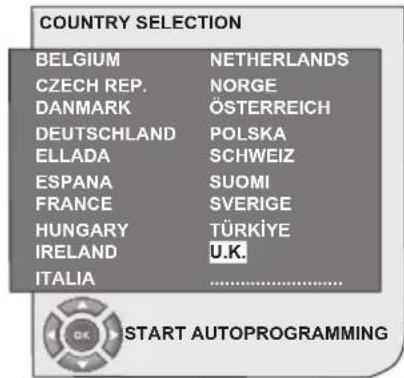
the country, whose broadcast you would like to watch in priority, by pressing the right/left movement buttons and start autoprogramming by pressing the OK button. The channels will be automatically searched and those found will be stored in memory starting from the program selected in the SETUP menu. At the same moment, the Autoprogram menu will be displayed and a marker indicating the progress of the autoprogramming will appear as shown below.
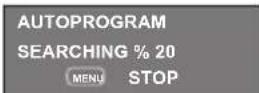
To stop the process at any given time, please press the MENU button. The Program Table, which will allow you to sort the channels as you wish, will be displayed after the automatic search is complete.
6.4.2-Manual tuning of channels and storing in the memory
6.4.2.1-If you already know the channel number
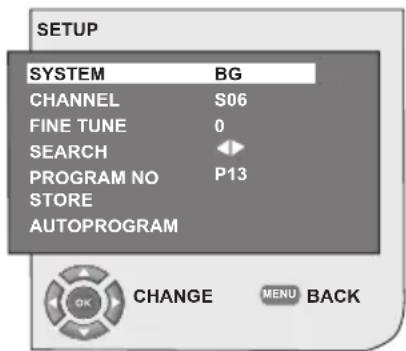
Press the MENU button. Move to the SETUP menu by pressing the down movement button in Main Menu and confirm your selection with OK button. Setup menu will be displayed. Select the system in which you would like to make the search from the System tab. Move into CHANNEL tab by pressing the Down movement button. Press OK on your remote
control to select "S" for cable channels and "C" for channels received via the antenna. Move onto the PROGRAM NO tab and using the number buttons enter the channel number in which you would like to have the channel stored. If the broadcast viewed on the screen is of your desired quality, first move onto the STORE tab with the down movement button to store in the memory the selection you have made and store the channel by pressing the Left or Right movement buttons. The prompt STORED will be displayed briefly. The channel will be stored according to the program number of your choice. You can tune and store in memory other channels the same way. In the event that you wish to exit the channel settings menu for any reason, simply press the EXIT button.
6.4.2.2-If you do not know the channel number

Press the MENU button. Move to the SETUP menu by pressing the down movement button in Main Menu and confirm your selection with OK button. Setup menu will be displayed. Select the system in which you would like to make the search from the System tab. Move into CHANNEL tab by pressing the Down movement button. Press OK on your remote control to select "S" for cable channels and "C" for channels received via the antenna. Select SEARCH tab
using the up/down movement buttons, and scan the channels in ascending order with Right movement button and in descending order with Left movement button. If the channel that is found is of your liking, select the STORE tab. Then store it in the memory by pressing the Right or Left movement buttons. Repeat the same procedure for other channels by selecting the program number of your choice from the PROGRAM NO tab. If the channel you found is not of the desired quality and requires Fine Tuning or if you would like to rename the channel, refer to the relevant sections.
6.4.3-Fine Tuning
If the channel you found is not of the desired quality and requires Fine Tuning, then select the FINE TUNE tab by pressing the Down movement button in the Setup menu. Using the Left/Right movement buttons on your remote control, adjust the broadcast displayed on the screen to your desired quality. Under normal circumstances, you will not require to use the Fine Tune function. The AFC values of your television will automatically adjust and lock themselves to the channel. However, you might need it in case the television transmitters do not operate according to the standards. To store in the memory, the settings you have made, select the Store tab and press the Right or Left movement button.
6.4.4-Program Table
Press the MENU button. Move to the PROGRAM TABLE tab by pressing the Down movement button in Main Menu and confirm your selection with the OK button. Program Table menu will be displayed.
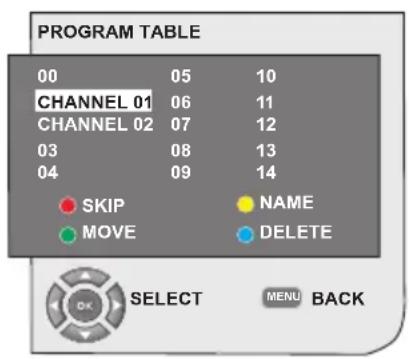
6.4.4.1-Switching the locations of the stored channels

Select the program you would like to relocate by pressing the Up/Down or Left/Right movement buttons. "Press the "GREEN" button. Green will blink. Move to the other program you would like to relocate by pressing the up/down or right/left movement buttons. "Finish the relocation process by pressing the "GREEN" button. The channel in the first program number you selected has been moved to
your second selected program number and the channels between both program numbers have been shifted to the initially selected program number. After setting is complete, press the EXIT button to exit the menu.
6.4.4.2-Deleting a stored channel
Select the program you would like to delete by pressing the up/down or right/left movement buttons. "Press the BLUE" button. The blue button on the menu will blink for approval. "You may perform the deletion process by pressing
the "BLUE" button or you may abort the deletion process by pressing the MENU button. "Once you pres the "BLUE" button, the selected program is deleted
and the following channels are transferred to after this program number. After setting is complete, press the EXIT button to exit the menu.
6.4.4.3-Skipping a stored channel
In the event that you do not wish to see

certain programs while navigating through the channels using the PR+/PR- buttons, then you can use this function. Select the
program that will be hidden by pressing the up/down or right/left movement buttons. "Press the "RED" button. The name of the program to be skipped shall appear in red. You may perform this procedure for more than one program. To view the skipped program, directly enter the program number using the numeric buttons. To cancel the program skipping process, press again the "RED" button. After setting is complete, press the EXIT button to exit the menu.
6.4.4.4-To name the channels
You can assign your program or programs

of choice the names that have a maximum of five characters. Select the program you would like to name from the Program Table by pressing the up/down or right/left movement buttons.
"Press the "YELLOW" button. An empty space appears beside the channel for which you would like to specify name information. Here, choose the desired letter, number or sign using the up/down movement buttons. For the second character, press the right movement button and then select the desired letter, number or sign again with the up/down movement buttons. After entering all the characters, store the name you have written in the memory by pressing the "YELLOW" button. To write names for any of the other programs, simply repeat the above procedure. If you want to exit the menu, simply press the EXIT button. If the program is not named, then the channel number of that program will be displayed automatically.
7.1- Sound Menu Settings
You may perform volume settings by using the VOL+ or VOL- buttons on your television or the VOL+/VOL- buttons on your remote control. You can perform other Sound settings by entering the Sound menu. For this, press the MENU button on your remote control. Select SOUND
by pressing the Up/Down movement buttons from the main menu and press the OK button. The Sound menu is displayed.
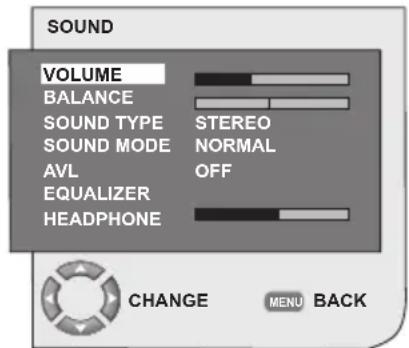

You can select the tab which you want to process with the Down movement button and set its level with Left/Right movement buttons.
7.1.1-Balance
To adjust the sound balance between the right and left loudspeakers to the desired level, select the BALANCE tab in the sound menu by using the Down movement button. Using the Left/Right movement buttons adjust this option to the desired level.
7.1.2-Sound type
The program you watch may be broadcast in stereo or in two different languages.
Using the Right/Left movement buttons in this menu, you can select Mono/Stereo or Dual-I/Dual-II languages.
7.1.3-Sound Mode
If you want to give depth to the sound of the program you are watching, select SPATIAL item by using Left/Right movement buttons.
7.1.4-AVL (Automatic Volume Limiting)
Television transmitters have different sound levels. This can be noticed as high and low volume levels in different channels while switching from one program to another. Using the Left/Right movement buttons, select ON. The AVL (Automatic Volume Limiting) function maintains the same sound level as you switch from program to program. Select OFF to cancel it.
7.1.5-Headphones
By connecting headphones to your television you can listen to the program sounds independently from your television. To turn up and down the headphone volume level, select HEADPHONE tab from the Sound menu and adjust the volume level by using the Left/Right movement buttons. When you want to hear the sound from the headphone only, just press the MUTE button on your remote control.
7.1.6-Equalizer
Select the EQUALIZER tab in the Sound menu and confirm with the OK button.
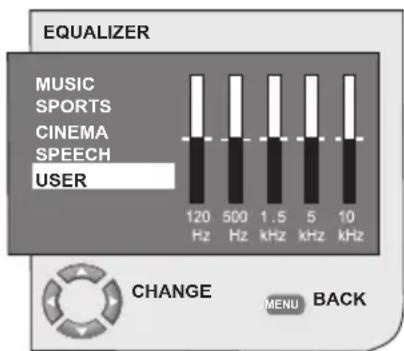
The Equalizer menu is displayed. Using the Left/Right, Up/Down movement buttons, you may select either
one of the preset MUSIC, SPORTS, CINEMA and SPEECH options which enhance the sound effect depending on the feature of the program you are watching or the USER option which you can adjust as you desire. To adjust the User option, select USER and press the Right movement button. You can adjust the frequency levels with the Up/Down movement buttons. You can select one of the 120Hz, 500Hz, 1.5KHz, 5KHz and 10KHz frequency bands with Right and Left movement buttons. Press the MENU button to store the settings and exit the user option. You may exit the equalizer menu by pressing the MENU button again.
Note: You can select the equalizer options directly by pressing the ( ) button on your remote control.
7.2-Picture Menu Settings
7.2.1-Picture Menu
You can perform other picture settings by entering the Picture menu. For this, press the MENU button on your remote control. Select PICTURE by pressing the Up/Down movement buttons from the main menu and press the OK button. The Picture menu will be displayed.
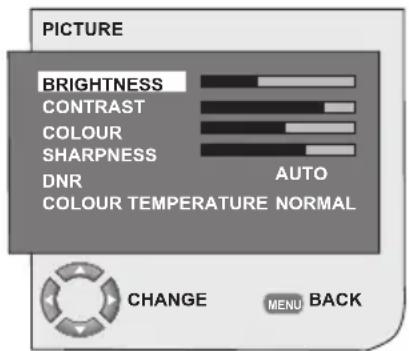

You can select the desired setting by pressing the Up/ Down movement buttons and adjust their levels with Right/ Left movement buttons. You can adjust BRIGHTNESS, CONTRAST, COLOR and SHARPNESS levels as you The changes you have made
in the picture settings will be stored in the memory without requiring any other operations.
7.2.2-DNR (Noise reduction) (Optional)
You may reduce interference and noise formed in the picture by using this feature. Select DNR tab in the Picture menu with the Up/Down movement buttons to activate this feature and select one of the OFF, LOW, MID or HIGH options with Left/Right movement buttons.
7.2.3-Picture Smart

You can select either one of the three non-adjustable settings in the memory or one of the user options by pressing the (口)
button on your remote control. SOFT, NATURAL, RICH are default values; USER represents the values you stored in memory.
7.2.4-Picture Format

With this option, you can view the broadcast you watch in a format of your choice. You may view broadcasts in either AUTO,
16:9, 14:9, 4:3, LETTERBOX, SUBTITLE or PANORAMA formats. 16:9, 14:9 or 4:3 formats can be selected in PC modes. In that case, the name of the selected picture format will be displayed in the centre of the screen.
Note: In PC Mode, 4:3, 16:9 and 14:9 picture formats are supported in 16:9 panels. Only 4:3 picture format is supported in 4:3 panels.
7.2.4.1-Tint
When NTSC video is input via Scart, you may make Hue settings. The tint option is not seen in the menu when you have not input this type of a video. When a NTSC video is connected via the Scart, this option becomes active and it is available in the menu.
7.2.4.2-Auto
Some movie channels may broadcast in the 16:9 format. If you would like to see this format automatically, then select AUTO. In that case, AUTO 16:9 appears on your screen.

7.2.4.3-16:9
Please use this setting for watching wide screen DVDs, wide screen video cassette or 16:9 formatted broadcasts. Since various screen formats such as 16:9, 14:9 and etc. are used, black stripes might be formed on the lower and upper parts of the screen.

7.2.4.4-14:9
This is a movie format.

7.2.4.5-4:3
Use this setting to watch the broadcasts in the 4:3 format.

7.2.4.6-Letterbox (Optional)
While watching a "16:9 or Cinemascope formatted" film or video cassette, this setting will eliminate or minimize the black stripes on the background by zooming in the picture without diffusing it.

7.2.4.7-Subtitle (Optional)
If the subtitles are transmitted in the "16:9 formatted" broadcast, then this setting will push the picture upwards in order to ensure the entire written text to be seen.

7.2.4.8-Panorama (Optional)
This setting will enlarge the image to fit the screen by stretching the image horizontally while holding the correct proportions at the centre of the image. Some distortion may occur.

Note: Since the use of certain functions in order to change the picture sizes for collective projection or commercial purposes (modifying the height and width etc.) will be deemed an infringement of the picture's copyright, legal proceedings can be carried out as required under relevant laws.
7.3-Features Menu Settings
Press the MENU button on your remote control. Select FEATURES by pressing the Up/Down movement buttons from the main menu and press the OK button. The Features menu will be displayed.
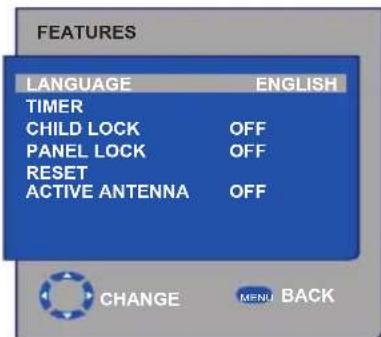
You can select the titles for which you would like to perform an operation in Features menu by using the Up/Down movement buttons.
7.3.1-Timer
Your television is equipped with the feature of being able to be turned off and on at periods that you specify. Select TIMER by pressing the Up/Down movement buttons and press the OK button in order to have your TV turned off at the end of a desired period. The Timer menu will be displayed.
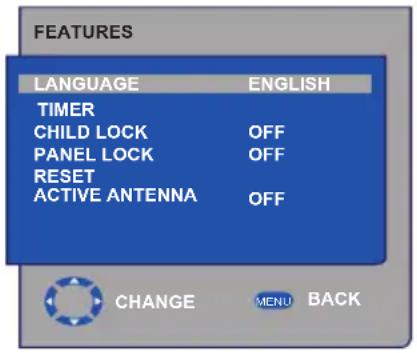
Time data is obtained from Teletext; if no time data is available then select TIME with the up/down movement buttons and enter the current time with numeric buttons. Select the ON TIME and OFF TIME for television in the same manner and specify the time. Enter the program number you desire with the numeric buttons or the external source with the AV button into PROGRAM NO tab to specify the channel or source from which you would like the TV to be turned-on to. At the end of the time you specified, your television will automatically switch to stand-by. If the on time for TV is specified in the Menu, the TV will switch to the selected program or to the external source at that time; if the TV is in standby mode, then it will be turned on with the selected channel or external source.
7.3.2-Child Lock
If this feature is turned On, the program currently being watched becomes locked, the image and sound goes off and the locked symbol appears on the upper left corner of the screen. The locked channel is skipped when you channel search with PR+, PR- buttons.
Note: Child lock feature is for Analog mode only. Child lock tab does not appear in the menu in Digital mode.
7.3.3-Panel Lock
If this feature is turned On, the control buttons on your LCD television will be locked and will not function. They will be active again when the feature is turned Off.
7.3.4-Active Antenna
When this feature is set to On, you can feed an external antenna you will connect to your television by the tuner of your television without needing any external source.
7.4-Other Picture Features
7.4.1-Zoom
Press the ZOOM button on your remote control while watching a channel to activate this feature. During the zooming process, the image is zoomed in in three stages oriented to the centre. To move the picture in this mode, you can use Up/Down or Right/Left movement buttons on your remote control.
Note: Zoom mode does not function with KOMP/HDMI/PC inputs. Zoom mode is aborted when the channel is changed or Teletext is activated.
7.4.2-Freeze (Freeze picture)

You may freeze the program picture you are watching with this feature. For this, press the FREEZE button
on your remote control. The program picture will freeze until the same button is pressed a second time.
7.4.3-PAT Mode (optional)
With this feature, you can follow the teletext broadcasts simultaneously with the current program, provided that the current program contains teletext broadcast. For this purpose,
when you press TXT and then 16:9 buttons in a channel with teletext broadcasting, the screen will be split into two with the left pane showing the currently watched program and the right pane will show the Teletext at the same time. In the event that you wish to exit the PAT mode for any reason, simply press the 16:9 button.
Note: PAT feature is for Analog mode only. There is not PAT feature in Digital mode.
8 Teletext
Being one of the most prominent services of broadcasting today, Teletext renders the TV more fruitful. Teletext means in short the transmission of various updated information along with the TV broadcast signal in the form of text and graphics. To be able to receive a quality teletext broadcast, a good antenna system and a broadcast signal that is not weak, with no reflections and interference from other channels are required. Even in a very clear reception, it is normal for some characters or tabs to be lost. Such conditions will automatically be improved in a short time under normal circumstances.
8.1-Entering the Teletext Mode

In a channel that does not have the Teletext feature, "NO TEXT" will be displayed when you press the TXT button. In order to switch your television to the teletext
broadcast, please press the TXT button in a program that has a teletext broadcast. To switch back to the television broadcast, press the same button twice. Once you have switched to the teletext broadcast, the initial page that appears will be the index page. P100 In this page, the titles of the topics in the teletext broadcast and the initial page numbers will appear.
8.2-Page Selection

To be able to view the page you would like on the screen, type in the number of that page using the numerical keys. You can see the number you have entered on the left side of the upper title tab. When you would like to turn the pages one by one, you can go to the next page pressing the up button and to the previous page pressing the down button. Press the INFO button to return to the Index page.
8.3-Teletext image in the TV picture (MIX)

With this feature, you can watch the teletext information and the TV broadcast together. Thus, you can follow the teletext broadcast of the channel while you watch the TV broadcast. To do this, press TXT button in a channel with Teletext broadcast.
8.4-Page enlarge button (DOUBLE)

Using this button, you can watch the top half of the teletext page in an enlarged format. To be able to view the bottom half of the enlarged page, press the same
button for the second time. Once you press the same button the third time, the page will be restored to its normal size.
8.5-Page Stop (HOLD)

Some information is laid out by the broadcasting agency in multiple pages and it is broadcast in an automatic cycle mode. For example, on a text of four pages,
the pages are indicated with the figures 01, 02, 03 and 04 on the bottom of the page. To view one of these pages for a longer time, press the FAV button. When you press the same button again, the cycle continues.
8.6-Subpage selection (SUB)

If the page of text you are viewing contains sub pages the page numbers starting from 01 appear on the screen. You can switch to the sub pages with the SWAP button. In that case, the sub pagetab is displayed on the bottom line within "Red -" and "Green + frames. "You can select the sub pages by pressing the "RED" and "GREEN" buttons. You can exit the subpage by pressing the SWAP button again.
8.7-Temporary TV Picture (UPDATE)

This button allows you to switch to the television picture while the page you want is being searched in the teletext broadcast eliminating the need to wait during the search. You may switch to the television picture by pressing the (F) button while Teletext is
searching for your desired page. Once the page you want is found, the number of that page appears on the screen.
8.8-Question - Answer Button (REVEAL)
Sometimes, a teletext page contains a hidden answer such as a game or a riddle. Press the EPG button to disclose the hidden answer.
8.9-Clock

The Clock function of the SIZE button; press the SIZE button when you want to learn the time while watching any television channel. In that case, a clock will appear on the lower right corner of the screen. You can remove
the time information from the screen by pressing the same button.
8.10-Fastext
The colored buttons on the remote control are for the fastext feature. When you select any page, the titles on various subjects may appear on the screen in four different colors or inside colored frames (red, green, yellow and blue). By pressing the button pertaining to the relevant color on the remote control, you can access the subject of your choice without waiting.
Note: The fastext feature is not available for all teletext broadcasts. It is determined by the broadcasting agency whether it is to be broadcast or not.
8.11-Toptext (optional)
There is a topics line in yellow and blue at the bottom of the teletext screen. You can select the relevant topic by pressing the yellow or blue buttons on the remote control. You can select the next page by pressing the red button and the previous page by pressing the green button.
Note: Fastext and Toptext features are not available from every program.
9 External equipment connection
You can connect various compatible audio and video devices to your television.
AV inputs: Press the AV button on your remote control. The Source menu, where you can select the access mode will be displayed. Here, you can select whichever input you would like.
TV: While in the AV modes, move onto this option and press OK button for switching to the TV mode.
SCART 1: To watch the picture of the broadcast device connected to Scart1, move onto this option and press the OK button. (You can watch via this Scart if the connected device has a RGB output).
SCART2 (Optional): To watch the picture of the broadcast device connected to Scart2, move onto this option and press the OK button.
SVIDEO (Optional): To watch the picture of the broadcast device connected using the S-Video input, move onto this option and press the OK button.
AV (Optional): To watch the picture of the broadcast device connected using the RCA (Cinch) input, move onto this option and press the OK button.
PC: To be able to watch the images in PC mode, move onto this option and press the OK button.
HDMI (Optional): To be able to watch the image when a connection is made via the HDMI socket, this option must be selected.
YPBPBR (Component Input)
(Optional): To be able to watch the image when a connection is made via this socket, this option must be selected.
Headphone Connection
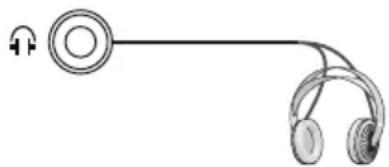
The headphones must have impedance between 8 and 32 ohms and have a 3.5 mm stereo jack plug. Plug the headphone jack into the headphone socket of the TV.
High Definition - HD ready

Your television can receive high-definition signals (HDTV). You can connect the input sources (HDTV set-top box or
HDTV DVD player) to the (HDMI) socket (digital HDTV signal). This ensures that you can view digital HDTV programs, even if they are copy-protected (HDCP High-Definition Copy Protection).
9.1-Connection types for external devices
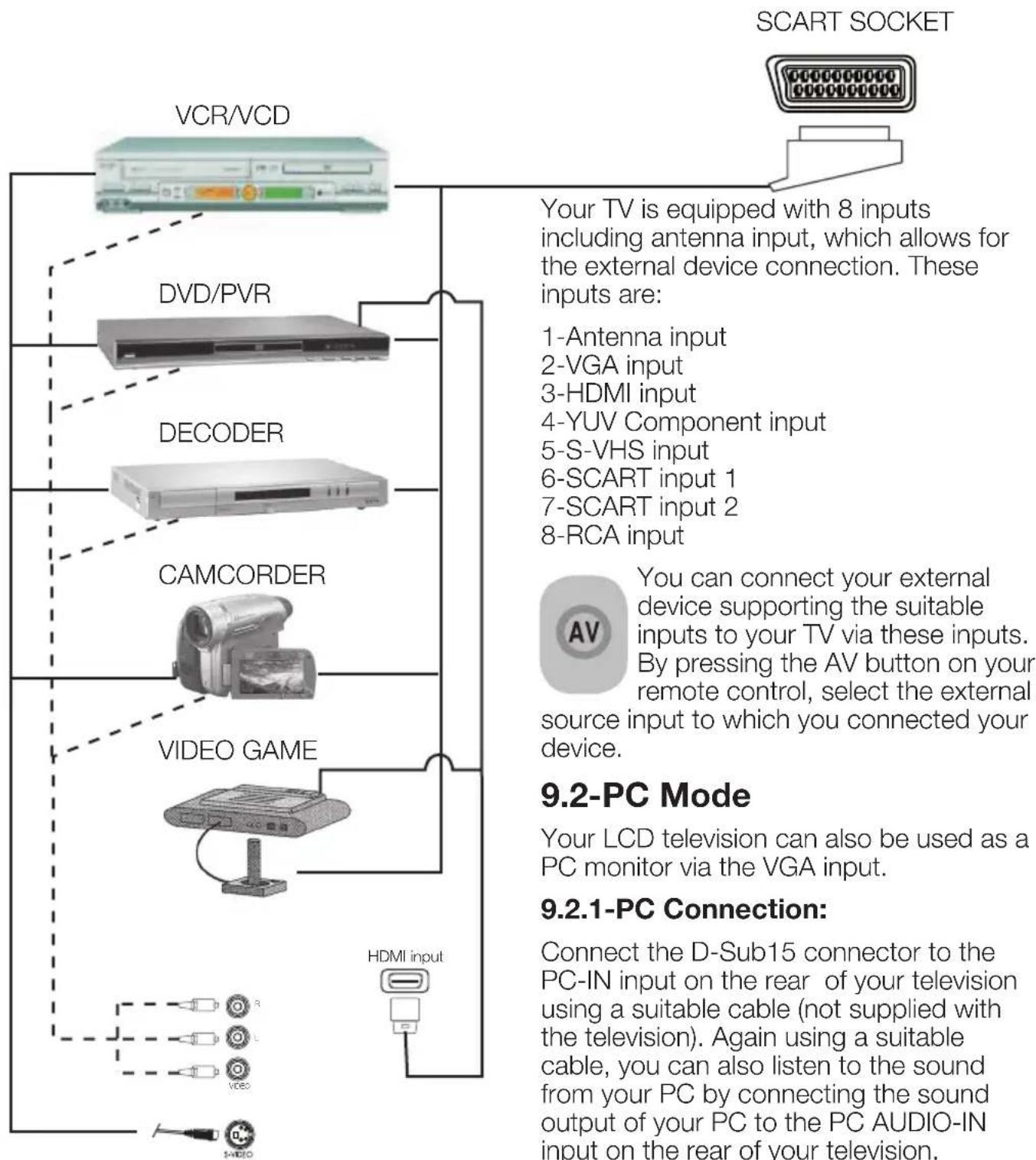
NOTE: In HDMI mode; some resolutions are supported when a DVI to HDMI converter cable from a PC is used.
9.2.2-Transition to the PC mode
For your LCD-TV to switch to the monitor (PC) mode, press the AV button on your remote control. The AV menu appears on the screen. Select PC by pressing the up/down movement buttons and press the OK button.
9.2.3-PC Setting
Enter into the SETUP menu from the Main Menu by pressing the MENU button in the PC mode. In order to make the necessary settings in this menu, you can use the right-left, up-down movement buttons on your remote control. You can make the following settings for your monitor in this menu.
9.2.4-HORIZONTAL POSITION:
Horizontal position setting
9.2.5-VERTICAL POSITION: Vertical position setting
9.2.6-CLOCK
This is the pixel clock frequency. User can narrow down or enlarge the display by selecting a desired value.
9.2.7-PHASE
Using the right/left movement buttons, you can ensure that the colors and shapes are exactly consolidated on the PC image.
9.2.8-AUTOCONFIGURATION
The most suitable geometric settings in accordance with the entry mode are configured by this function. For this operation, select the
AUTOCONFIGURATION tab and press OK button. You can adjust the volume level of the source you have connected to the Audio-In input at the back of your TV by using the VOL+/VOL- buttons.
9.2.9-PICTURE FORMAT
You can select the PC image to be displayed in 16:9, 14:9 or 4:3 formats.
Note 1: 4:3, 16:9 and 14:9 picture formats are supported in 16:9 panels. Only 4:3 picture format is supported in 4:3 panels.
Note 2: In the Monitor mode, you can make the Brightness, Contrast, Sharpness, Red, Green and Blue Settings from the PICTURE menu.
Switching to the HDMI mode
Connect to the HDMI input at the back of your TV by using the connector located on your PC or your digital video-transmission device with a suitable cable (not supplied with the TV).
Note 1: To be able to watch an image in the HDMI mode, your computer must be equipped with a HDMI graphic card.
You may display the resolution information by pressing the INFO button.
Note 2: Scart1 To connect a RGB-supported external device to your television, you must use a Scart cable supporting RGB. In this case, if your external device supports, you can set the output as RGB.
HDCP (Optional)
Your TV supports HDCP feature. To use this feature, you must set up a connection to your TV set's HDMI video port and select HDMI by pressing the AV key on your remote control.
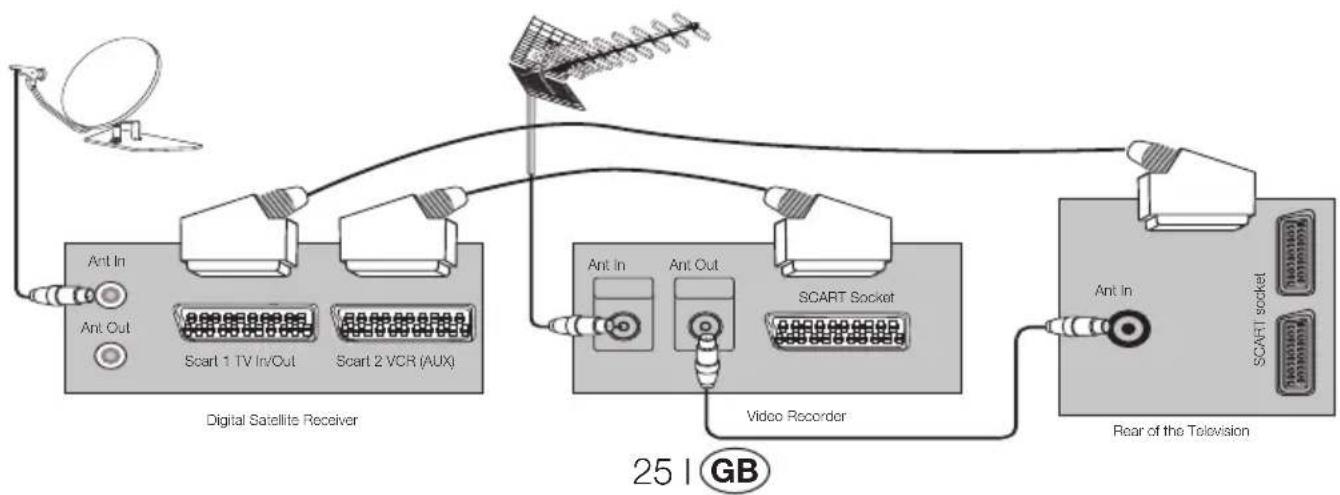
9.3-Connecting a video recorder device and a digital satellite receiver
10 Help and tips
| Failure Possible cause | Solution | |
| The television does not function | Is the power cord connected to the mains supply? | Check the power cord. |
| Is the main power On/Off button on? | Check if the On/Off button is on. | |
| Poor picture quality | Is the antenna cable attached? Check the antenna cable. | antenna cable. |
| If you are using a satellite antenna, is it well adjusted? | Have the antenna adjusted. | |
| Antenna may be affected by two connected external devices. | Try disconnecting one of the devices. | |
| It may need fine tuning. Perform fine tuning. | Adjust Brightness, Contrast and Color. | |
| Shadow and reflection in the picture. | Channel setting | Perform automatic, manual channel setting or fine tuning. |
| Antenna | Check antenna cable and system | |
| No picture | Is there any damage on the antenna cable? | Check the antenna cable. |
| Are you sure you pressed the correct button on your remote control? | Press PR+ or PR- button to turn on the TV. | |
| No color. | Color intensity level is at the lowest setting. | Lighten the color. |
| Broadcast system setting (if setting choice is available) | Select the broadcast system. | |
| Problem in channel broadcasting. Test with another channel. | Another channel. | |
| No or defective teletext | Television channel (no teletext) or antenna system. | Test another channel for fine tuning and shadowy pictures |
| Very weak signal Check the antenna system. | ||
| No sound | Temporary sound mute may be on Try pressing the mute button | |
| Is the sound turned down? | Turn on the volume with Vol + button. | |
| Remote control does not work | Are the batteries correctly placed? Place the batteries correctly. | Replace the batteries with new ones. |
| Are batteries exhausted? | If yes, remove it. | |
| Is there any obstacle between the remote control and television? | ||
| Picture is not readable after turning on the TV | Child lock is active. Disable the child lock. |
If your television does not work properly even though you tried the above mentioned solutions, try turning it on and off again. If you cannot start your television even though you have applied all noted methods, refer to the dealer or authorised service from where you purchased the product. Never attempt to repair a faulty device yourself.
11 Technical specifications chart
| SCREEN SIZE 19" 20" 26" 32 | 37" | ||||
| Panel type | 19", 16:9 Active matrix TFT | 20", 4:3 Active matrix TFT | 26", 16:9 Active matrix TFT | 32", 16:9 Active matrix TFT | 37", 16:9 Active matrix TFT |
| Sound output 2 x 5 W 2 x 5 W | 2 x 7 W 2 x 10 W 2 x 10 W | ||||
| Power consumption 50 W 55 W 120 W 145 W 180W | |||||
| Stand by power value 2.5 W 2.5 W 2.5 W 2.5 W | |||||
| Teletext page | 10/250 OPS | 10/250 OPS | 10/250 OPS | 10/250 OPS | 10/250 OPS |
| Scart 1 | STD | STD | STD | STD | STD |
| Scart 2 | OPT | OPT | STD | STD | STD |
| Audio/Video RCA(Input) | OPT | STD | OPT | OPT | OPT |
| Sound R/L(Output) | OPT | STD OPT | OPT OPT | ||
| S-Video socket OPT | OPT OPT | OPT OPT | |||
| YUV (Video/Sound) Component Input | STD | OPT STD | STD | STD | |
| HDMI | STD | OPT | STD | STD | STD |
| VGA Input | STD | STD | STD | STD | STD |
| PC Audio Input | STD | STD | STD | STD | STD |
| SPDIF Digital sound output | STD | OPT | STD | STD | STD |
| Headphone socket | OPT | OPT | OPT OPT |
STD: Standard
OPT: Optional
General technical specifications
Power supply AC:
Power supply DC:
Program memory:
RF Aerial input:
Loudspeaker impedance:
Sound systems:
Batteries:
Channels received:
230V 50 Hz
12V (^*)
100
75 Ohm (Co-axial)
8 Ohm
Mono/Stereo/Nicam
2xUM - 4, IEC R03 or AAA 1.5V
VHF (Band I Channel 2-4)
VHF (Band III Channel 5-12)
UHF (Channel 21-69)
Broadcasting systems received:
Note: Your television has been manufactured in accordance with the system available in your country and this system cannot be changed by the user except as described below: In countries where BG/DK and BG/LL' broadcasts are made (BG or DK / BG and LL'). For further information, see the settings section for your television.
(*) These specifications are optional. They are not available on all models.
INHALT

- 6.3.5.3-Control paterno
- 9.2.2-Paso a modo PC
- 9.2.8-AUTOCONFIGURATION
- Features of your new television 2
- Important Safety Instructions 3
- Start 6
- Your new television 7
- Performing the initial power-on settings 9
- Settings of Your New Television 17
- Teletext 21
- External equipment connection 23
- Help and tips 26
- Technical specifications chart 27
- 1.1-Cleaning the screen and cabinet...
- 1.2- Disposing of your TV at the end of service life...
- 1.3-Superior features of your integrated digital television
- 1.4-Receiving digital broadcasting channels
- 2.1-Special Features
- Important Safety Instructions
- Start
- 4.1-Antenna connection
- 4.2-Powering on your device and the initial use
- Initial power on and performing settings
- 4.3-Batteries
- 5.1-TV Control Panel
- 5.2-Rear and Side External Connections
- 5.3-Remote Control
- 6
- Performing the initial power-on settings
- 6.1-TV controls
- 6.1.1-Temporary on/off (STAND-BY)
- 6.1.2-Channel Selection
- 6.1.3-Digital TV, Analog TV and AV Mode Selection
- 6.1.4-Performing the Volume setting
- 6.1.5-Temporary sound mute (MUTE)
- 6.1.6-Returning to Selected Program (SWAP)
- 6.1.7-Main Menu
- 6.2-Turning on the TV and Setting the Channels
- 6.3-Performing Digital Tunings
- 6.3.1-Automatic Tuning of Channels and Storing in the Memory
- 6.3.2-Manual tuning of channels and storing in the memory
- 6.3.3-Program Table
- 6.3.3.1-Displaying Television and Radio channel lists and selecting the channels
- 6.3.3.2-Creating favorite channels list
- 6.3.3.3-Moving a stored channel
- 6.3.3.4-Deleting a stored channel or channel list
- 6.3.4-Electronic TV Guide (EPG)
- 6.3.5-Digital Features
- 6.3.5.1-Language Settings
- 6.3.5.2-Time Settings
- 6.3.5.3-Parental Control
- 6.3.5.4-CA-Module
- 6.3.5.5-Signal Information
- 6.3.5.6-Software Update
- 6.3.5.7-Version
- 6.4-Performing Analog Tunings
- 6.4.1-Automatic tuning of channels and storing in the memory
- 6.4.2-Manual tuning of channels and storing in the memory
- 6.4.2.1-If you already know the channel number
- 6.4.2.2-If you do not know the channel number
- 6.4.3-Fine Tuning
- 6.4.4-Program Table
- 6.4.4.1-Switching the locations of the stored channels
- 6.4.4.2-Deleting a stored channel
- 6.4.4.3-Skipping a stored channel
- 6.4.4.4-To name the channels
- 7.1- Sound Menu Settings
- 7.1.1-Balance
- 7.1.2-Sound type
- 7.1.3-Sound Mode
- 7.1.4-AVL (Automatic Volume Limiting)
- 7.1.5-Headphones
- 7.1.6-Equalizer
- 7.2-Picture Menu Settings
- 7.2.1-Picture Menu
- 7.2.2-DNR (Noise reduction) (Optional)
- 7.2.3-Picture Smart
- 7.2.4-Picture Format
- 7.2.4.1-Tint
- 7.2.4.2-Auto
- 7.2.4.3-16:9
- 7.2.4.4-14:9
- 7.2.4.5-4:3
- 7.2.4.6-Letterbox (Optional)
- 7.2.4.7-Subtitle (Optional)
- 7.2.4.8-Panorama (Optional)
- 7.3-Features Menu Settings
- 7.3.1-Timer
- 7.3.2-Child Lock
- 7.3.3-Panel Lock
- 7.3.4-Active Antenna
- 7.4-Other Picture Features
- 7.4.1-Zoom
- 7.4.2-Freeze (Freeze picture)
- 7.4.3-PAT Mode (optional)
- Teletext
- 8.1-Entering the Teletext Mode
- 8.2-Page Selection
- 8.3-Teletext image in the TV picture (MIX)
- 8.4-Page enlarge button (DOUBLE)
- 8.5-Page Stop (HOLD)
- 8.6-Subpage selection (SUB)
- 8.7-Temporary TV Picture (UPDATE)
- 8.8-Question - Answer Button (REVEAL)
- 8.9-Clock
- 8.10-Fastext
- 8.11-Toptext (optional)
- External equipment connection
- YPBPBR (Component Input)
- Headphone Connection
- High Definition - HD ready
- 9.1-Connection types for external devices
- 9.2.2-Transition to the PC mode
- 9.2.3-PC Setting
- 9.2.4-HORIZONTAL POSITION:
- 9.2.5-VERTICAL POSITION: Vertical position setting
- 9.2.6-CLOCK
- 9.2.7-PHASE
- 9.2.9-PICTURE FORMAT
- Switching to the HDMI mode
- HDCP (Optional)
- 9.3-Connecting a video recorder device and a digital satellite receiver
- Technical specifications chart
- General technical specifications
- Broadcasting systems received:
- INHALT
Brand : OKI
Model : B32AHP
Category : Television