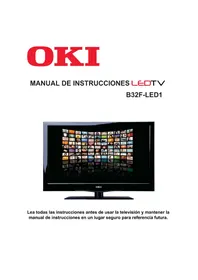
B32FLED 1 - Television OKI - Free user manual and instructions
Find the device manual for free B32FLED 1 OKI in PDF.



| Product type | LED TV |
| Screen size | 31.5 inches (80 cm diagonal) |
| Resolution | 1366 x 768 pixels |
| TV system | PAL BG/DK/I, SECAM BG/DK |
| Audio power | 2 x 8 W |
| Power supply | 100-240 V~, 50/60 Hz |
| Power consumption | 120 W |
| HDMI connectors | 2 HDMI inputs |
| USB connector | 1 USB port (for multimedia and PVR) |
| SCART connector | 1 SCART input |
| VGA connector | 1 PC input (D-Sub 15-pin) |
| YPbPr input | 1 mini YPbPr (shared with L/R audio) |
| Composite video input | 1 video input (yellow RCA) |
| RF input | 1 antenna 75 Ω |
| Digital audio output | 1 coaxial output |
| Headphone jack | 1 headphone output |
| Remote control | Infrared, range 5-8 m |
| Multimedia functions | Playback photo, music, video via USB |
| PVR recording | Yes, on USB device (in DVB) |
| Electronic program guide EPG | Yes |
| Teletext | Yes |
| Parental lock | Yes (PIN code) |
| Included accessories | Remote control, YPbPr converter cable, user manual |
| Maintenance and cleaning | Soft dry cloth; do not use solvents |
| Safety instructions | Do not block ventilation; leave 5 cm space around |
Frequently Asked Questions - B32FLED 1 OKI
User questions about B32FLED 1 OKI
0 question about this device. Answer the ones you know or ask your own.
Ask a new question about this device
Download the instructions for your Television in PDF format for free! Find your manual B32FLED 1 - OKI and take your electronic device back in hand. On this page are published all the documents necessary for the use of your device. B32FLED 1 by OKI.
USER MANUAL B32FLED 1 OKI
INDICE(INDEX) :Ir al Indice.
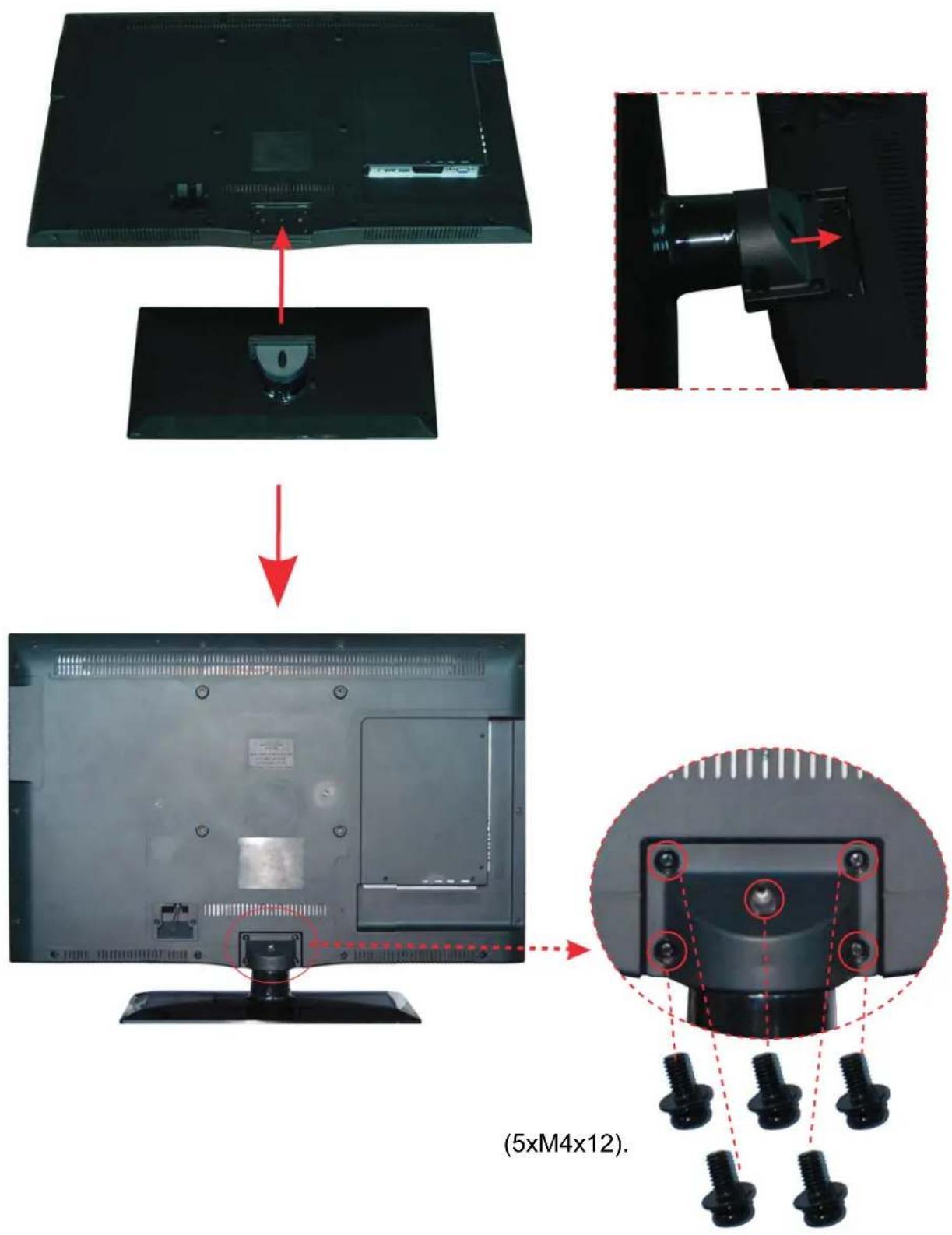
Instructions for fixing stand
Note: the pictures below are only for reference
Fixing the stand to the back of the TV by five screws in the stand board.(5xM4x12).

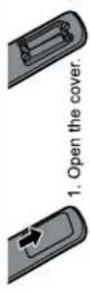
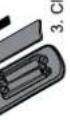
Insert batteries into the Remote Control

Connect your antenna to the RF port. Connect the power.
Note: When the turning process has finished, the TV will automatically display the first channel that was found.
3.16.2023年1月1日

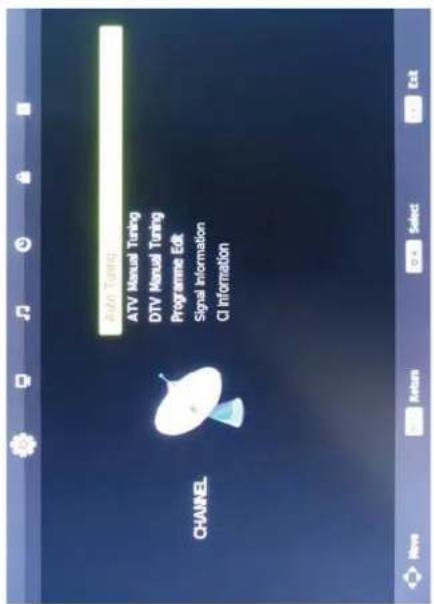
A press MENU key to display the main menu on the screen
Bpress key to select TV option,then press key to enter press, key to select "AutoTurning",press OK key to enter.
Auto Turning menu
AutoTurning menu. Then the TV will make channel scan automatically.
RED key, then select the other progr deleted and press OK key to delete.
Press key to select the channel what you w
key again to select FAV
Channel sort function
Delete:Select the program you want to delete, and press RED key, then select the other program you want it to be.
NDB key, then select the other program you want it to be deleted and press OK key to delete.
Press key to select the channel what you want, and press
key again to select FAV
Channel sort function
Delete:Select the program you want to delete, and press RED key, then select the other program you want it to be.
Important functions
FAV function
A Set the favorite channel
Press MENU key to select TV option, then select and enter Program Edit menu.
Programme Edit
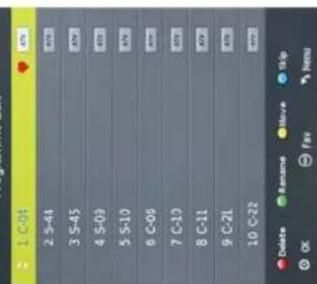
(For more details see "TV MENU", page 9 of User Manual.)
Rename:Select the program you want to rename, and press GREEN key, then select the other program you want it to be renamed and press
OK key to rename.
Move: Select the program you want to move, and press YELLOW key,
then select the position you want the program to be moved to and press OK.
OR key to move.
Skip: Select the program you want to skip, and press BLUE key.
then select the position you want the program to be skip to and prCK how to skip
OR key to skip.
Favorite list
Press the FAV key to enter the Favorite List.
Favorite List
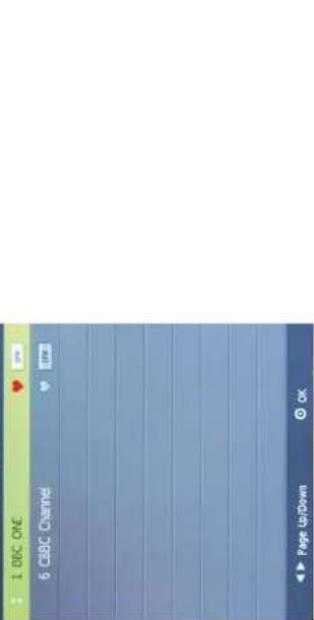
Add or erase favorite channel: Press RED key to add the current channel into Favorite list, press RED key again to erase the channel from the favorite list.
Contents
Caution 1
Safety Information 2
Accessories 3
Technical Specification 3
Product Introduction 4
Front View 4
Connections 5
Remote Control 6-7
Basic Operation 8
OSD Menu 9-15
- Channel menu 9-10
2.Picture menu 11 - Sound menu 12
4.Time menu 13
5.Lock menu 14 - Setup menu 15
Multimedia Operation 16-18
Recording Operation 19-20
EPG Menu 21
Simple Troubleshooting 22
Caution

The lightning flash with arrowhead symbol, within an equilateral triangle is intended to alert the user to the presence of un-insulated "dangerous voltage" within the products enclosure that may be of sufficient magnitude to constitute a risk of electric shock to the persons.

The exclamation point within an equilateral triangle is intended to alert the user to the presence of important operating and maintenance (servicing) instructions in the literature accompanying the appliance.
Correct disposal of this Product
(Waste Electrical & Electronic Equipment (WEEE)
Your product is designed and manufactured with high quality materials and components which can be recycled and reused.
This symbol means that electrical and electronic equipment, at their end-of-life should be disposed of separately from your household waste.
Please dispose of this equipment at your local community waste collection/recycling center.
In the USA there are separate collection systems for used electrical and electronic products. Please help us to conserve the environment we live in!

This unit complies with European safety and electrical interference directives.
Safety Information
To ensure reliable and safe operation of this equipment, please read carefully all the instructions in this user guide, especially the safety information below.
Electrical safety
- The TV set should only be connected to a mains supply which matches that stated on the label on the mains adaptor.
-
To prevent overload, don't share the same mains supply socket with too many other items of equipment.
-
Do not place any connecting wires where they may be stepped on or tripped over.
- Do not place heavy items on the leads, which may damage them.
- Hold the Mains plug, not the wires, when removing from a socket.
- During a thunderstorm or while leaving the TV for long periods, disconnect the aerial (if outdoor) and mains adaptor from the supply.
-
Do not allow water or moisture to enter the TV or mains adaptor. Do NOT use in wet or moist areas such as Bathrooms, steamy kitchens or near swimming pools.
-
Pull the plug out immediately, and seek professional help if:
-
the mains plug or cable is damaged.
- liquid is spilt onto the set, or if it is accidentally exposed to water or moisture.
- anything accidentally penetrates the ventilation slots.
- the set does not work normally.
- Do NOT remove the safety covers. There are no user serviceable parts inside.
You may invalidate the warranty. Qualified personnel only are permitted to service this apparatus.
- To avoid battery leakage, remove exhausted batteries from the remote control handset, or when not using for along period.
- Do NOT break open or throw exhausted batteries on a fire.
Physical safety
- Do NOT block ventilation slots in the back cover. You may place the TV in a cabinet, but ensure at least 5cm (2") clearance all around the unit.
- Do NOT tap or shake the TV screen, you may damage the internal circuitry. Take good care of the remote control, do not drop it or allow it to come into contact with liquids.
- To clean the TV use a soft dry cloth. Do NOT use solvents or petrol based fluids. For stubborn stains, you may use a damp soft cloth with diluted detergent.
Accessories

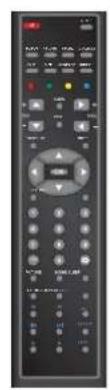
User's Manual Remote control
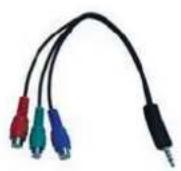
Converter cable for YPBPR video
- Note: The configuration of the components may look different from the following illustration
Technical Specification
- TV System PAL BG/DK/I SECAM BG/DK
- Screen Size 31.5inch(diagonal)
- Resolution 1366x768
-Aerial input 75Ω (unbalanced) - Audio output power 2x8W
- Power Consumption 100-240V ~ 50/60Hz 120W
Remote Control
Type infrared
Control distance 5m
Control angle 30°(horizontal)
Product Introduction
Front View
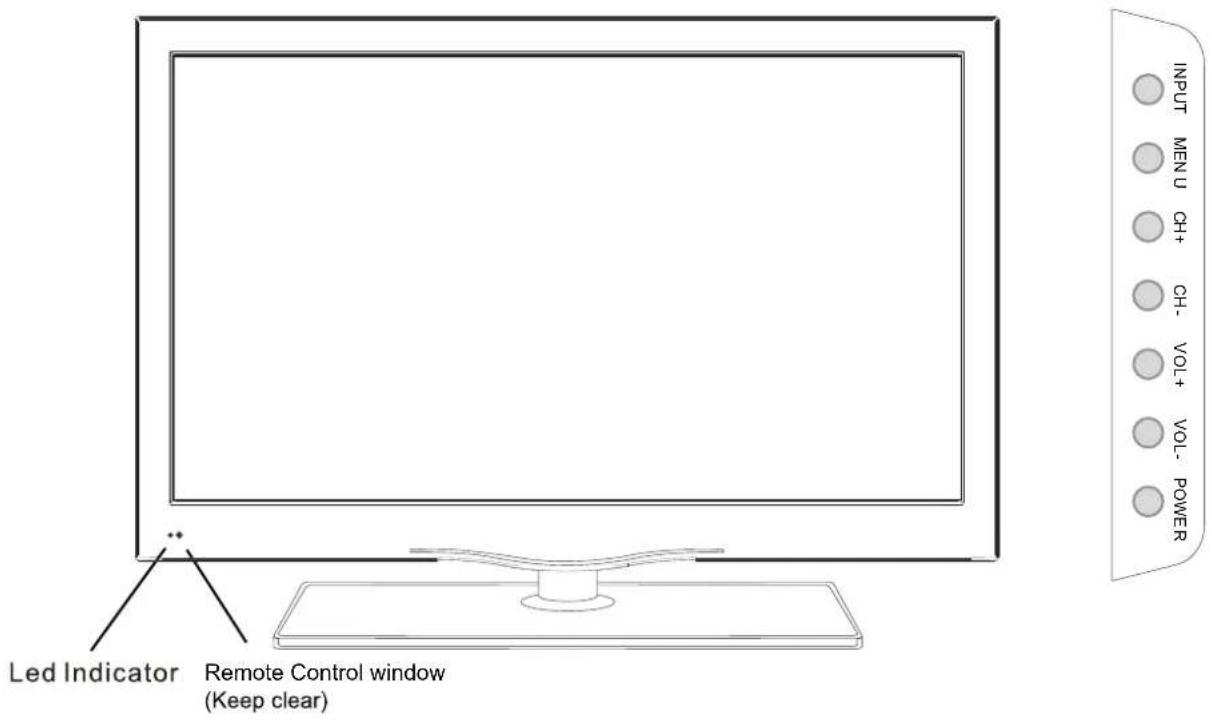
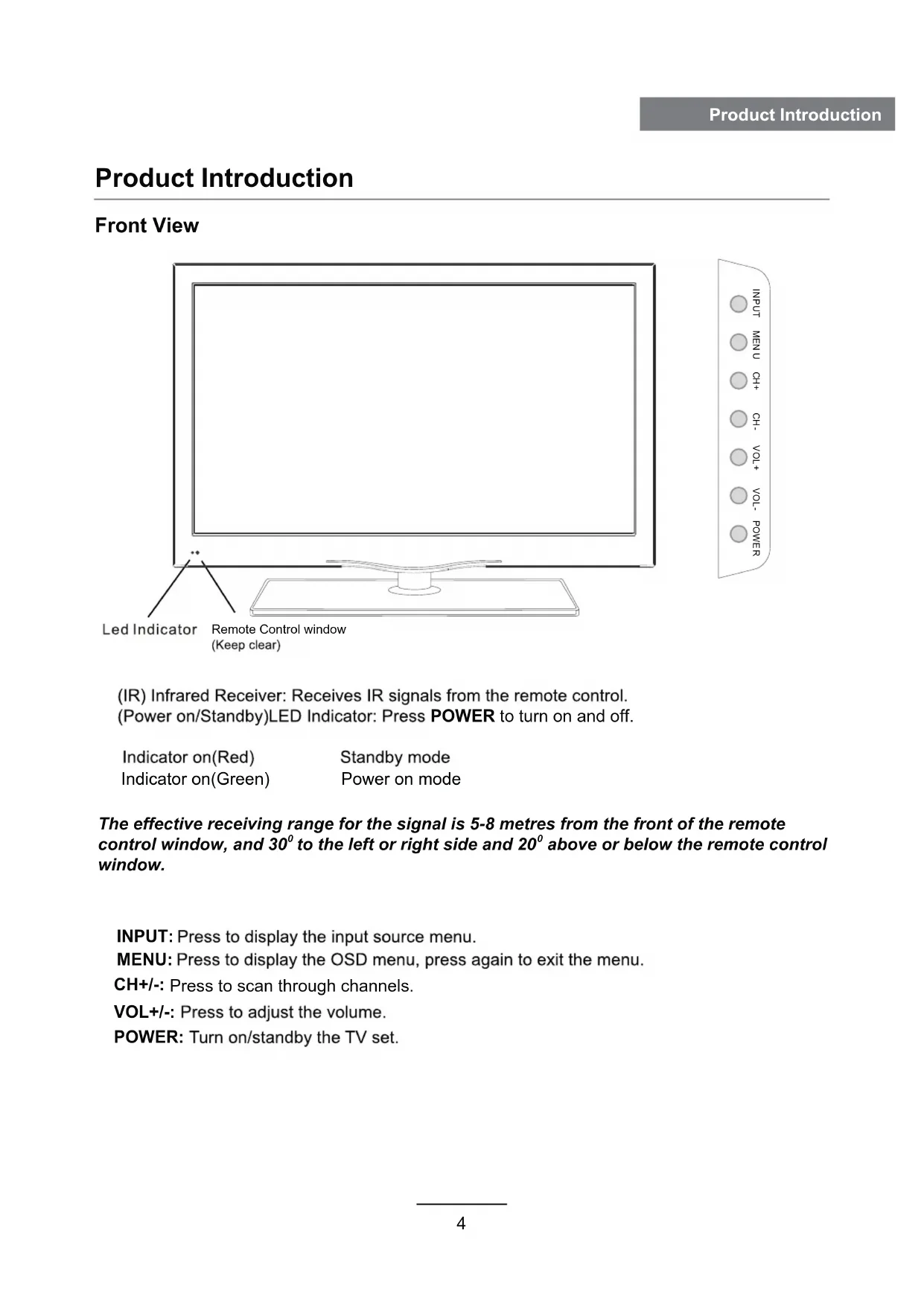
(IR) Infrared Receiver: Receives IR signals from the remote control. (Power on/Standby)LED Indicator: Press POWER to turn on and off.
Indicator on(Red) Indicator on(Gree
Standby mode Power on mode
The effective receiving range for the signal is 5-8 metres from the front of the remote control window, and 30^ to the left or right side and 20^ above or below the remote control window.
INPUT: Press to display the input source menu.
MENU:Press to display the OSD menu, press again to exit the menu.
CH + / - Press to scan through channels.
VOL+/-: Press to adjust the volume.
POWER: Turn on/standby the TV set.
Connections
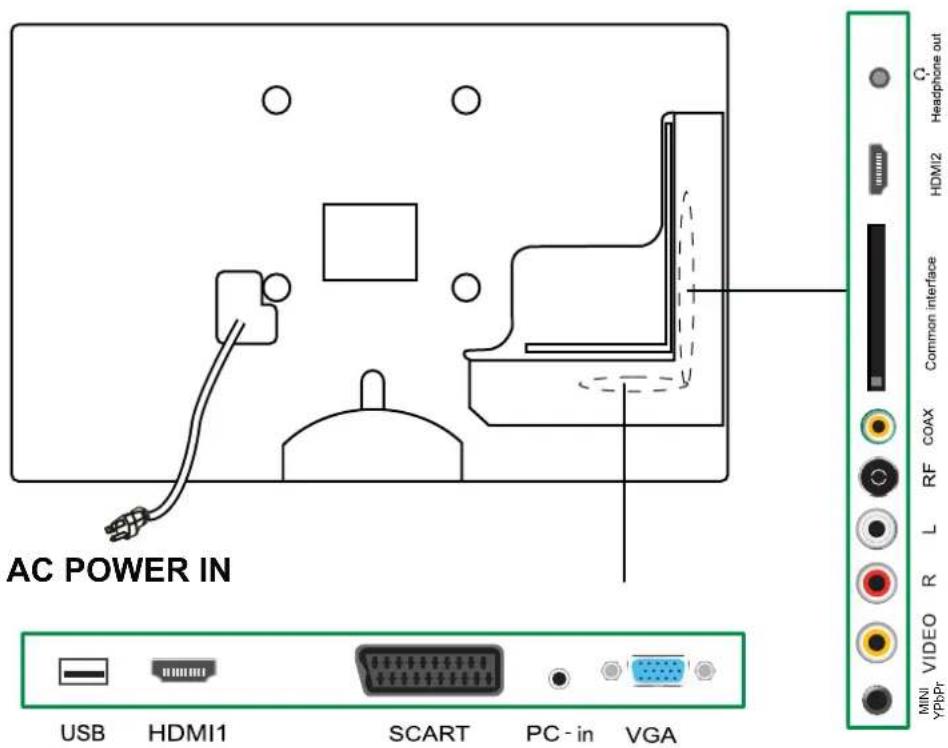
AC POWER IN: Connected to the power supply.
USB: USB for upgrade,media and PVR.
HDMI1/2: Connect it to the HDMI of DVD or other equipment.
SCART: Connect them to the SCART video output terminal of DVD.
PC-IN: Connect it to the audio output terminal of PC.
VGA: For PC display. Connect it to the D-Sub 15 pins analog output connector of the PC.
MiNi YPbPr: Connect them to the YPbPr audio/video output terminal of DVD.
VIDEO: Connect it to video output terminal of DVD.
L/R in: Connect them to the audio output terminal of DVD(Shared with YPbPr).
RF: Connect antenna or cable 75 Ohm coaxial to receive TV signal.
Coax: Digital coaxial output.
Common interface:CI slot.
Headphone-out: Connect it to your headphone or other audio equipment.
Remote Control
The remote control is using Infra-Red(IR). Point it towards the front of the LCD TV. The remote control may not work correctly if it is operated out of range or out of angle.
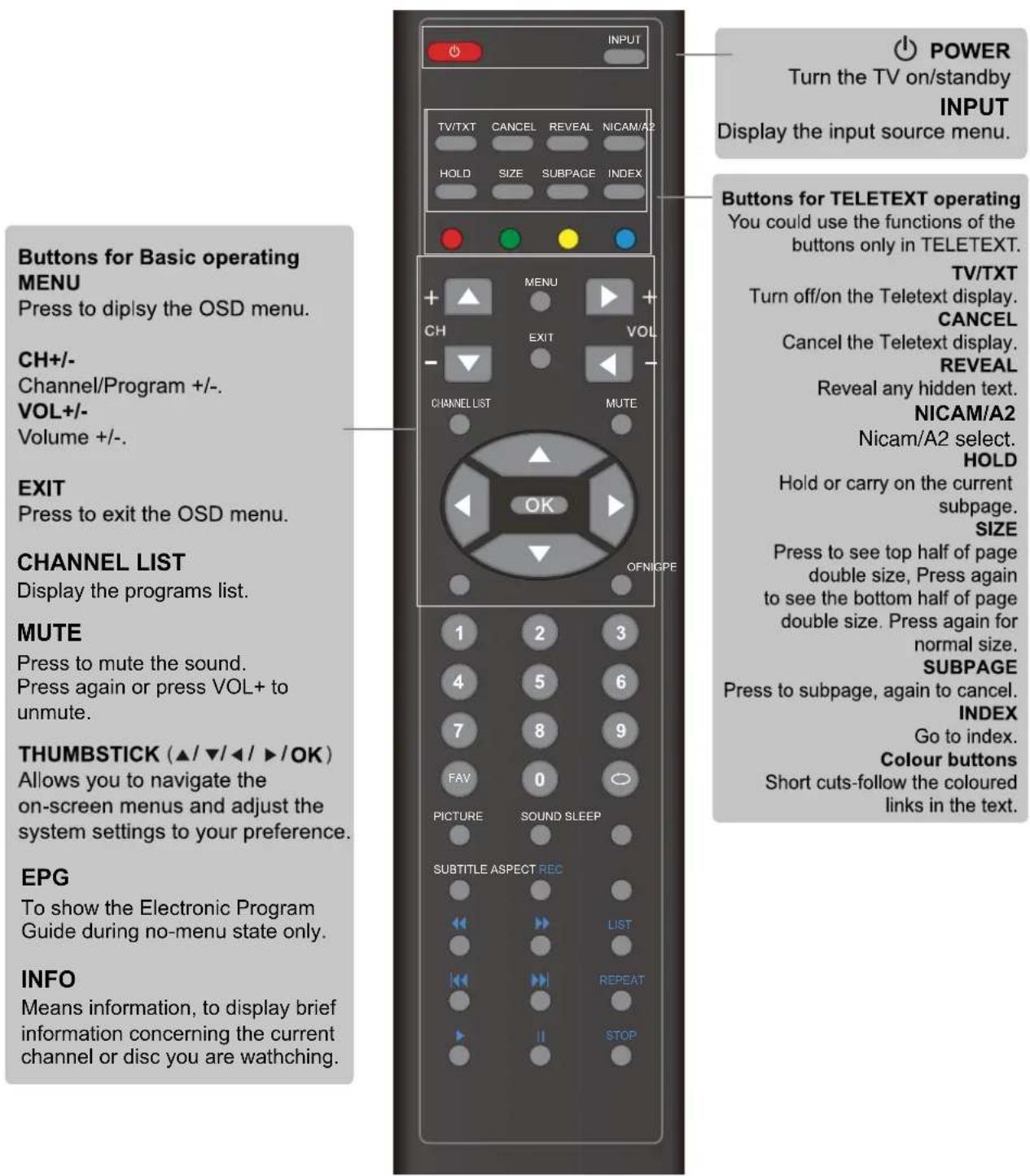
Remote Control
PICTURE
Press repeatedly to cycle through the available video picture modes.
SOUND
Press to cycle through the different sound settings.
SLEEP
Shutdown timer.
SUBTITLE
To switch the dialog at the bottom of the screen.
ASPECT
Cycles among screen display modes.
REC
Press to start record the program in DVB mode.
Buttons for USB operation The next functions are only available in USB mode:
Fast reverse
Fast fordward
Previous track
Next track
Play
Pause
LIST
Open the "Recordd List" menu.
REPEAT
Play the title or chapter once again (in USB mode)
STOP
Press to stop record the program in DVB mode
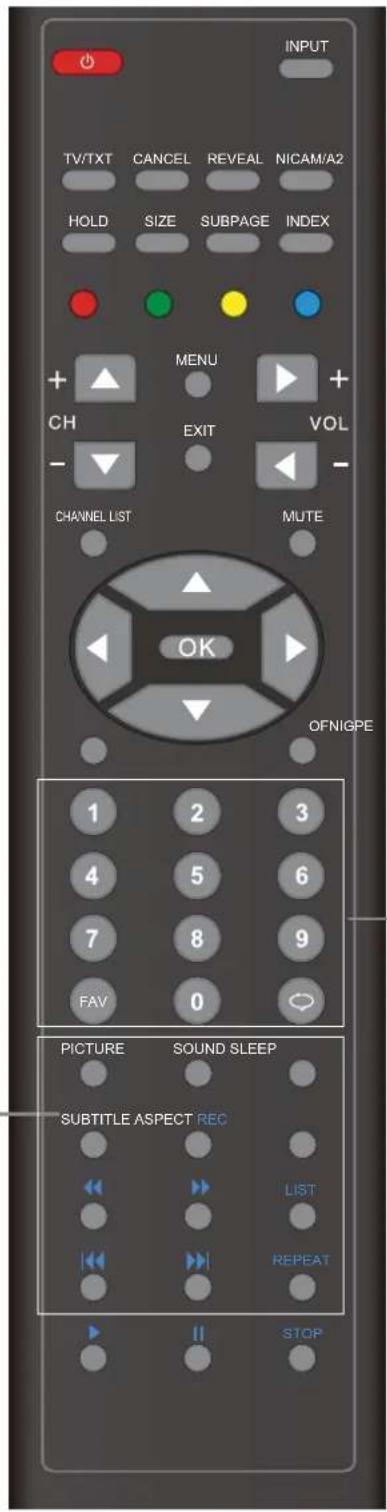
NUMBER BUTTONS
Choose channel directly. Press number buttons and press OK button to play the channel.

Return to the previous channel viewed.
FAV
Display the favorite program list.
Basic Operation
Power on/off
- Connect to the power supply with the power code.
2.-To turn on the TV
Press POWER button on the TV or remote control.
-To turn off theTV
Press POWER button on the TV or remote control.
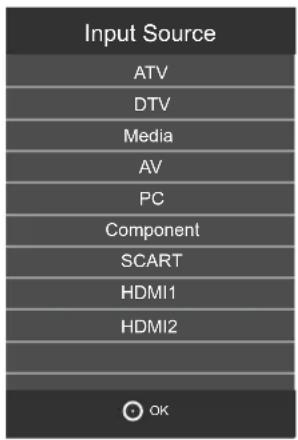
Input Source select
Press INPUT button on the TV set or remote control to display input source menu, and use CH + / - button on the TV set or / button on remote control to select the input source, press OK button on the remote control to enter.
Note: Before you select the input source, make sure the connections are prepared.
Basic OSD Menu operation
Press MENU button to display the OSD menu as below:
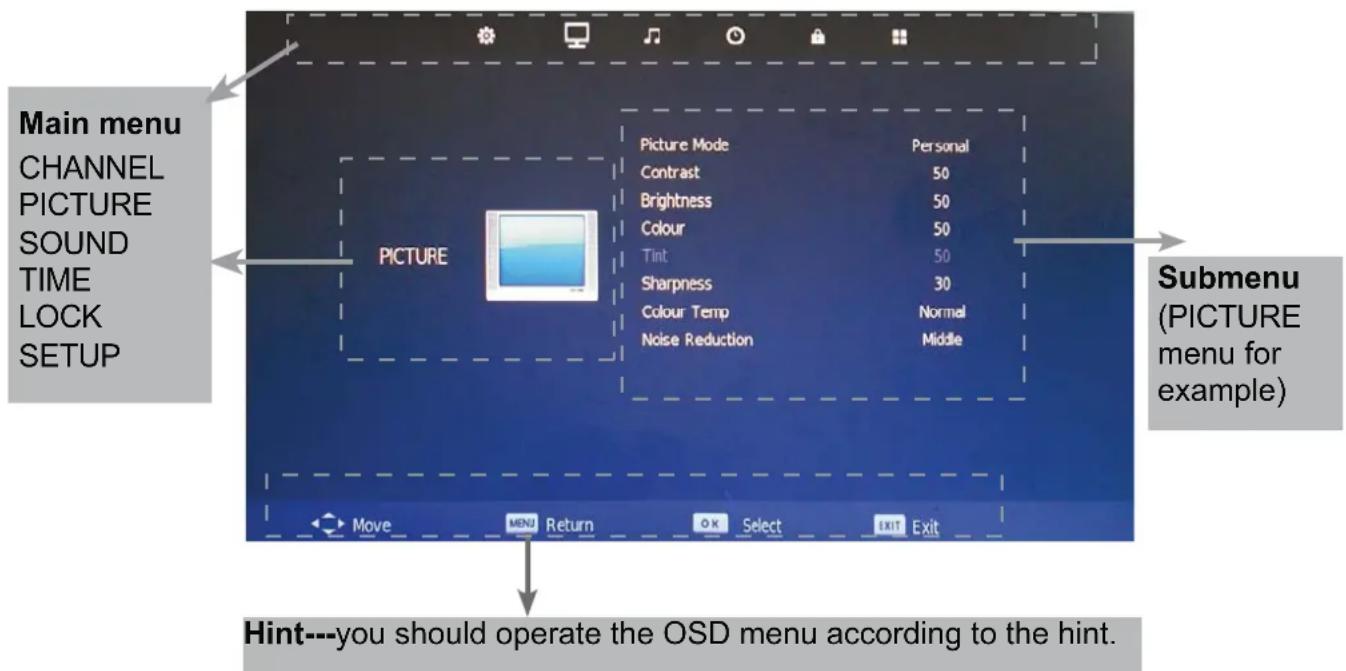
Use K > button to select the main menu, and press button to enter the submenu.
In the submenu, use button to select the function item, press < / > button to adjust/setup, or press OK button to enter the submenu.
- (Press MENU button to return to the upper menu.)
- (Press EXIT button to exit the menu display.)
Note1: Only when you input the suitable signal, the relevant items can be activated Note2: Please operating the OSD menu according to hint on the bottom of the banner.
OSD Menu
1.CHANNEL menu
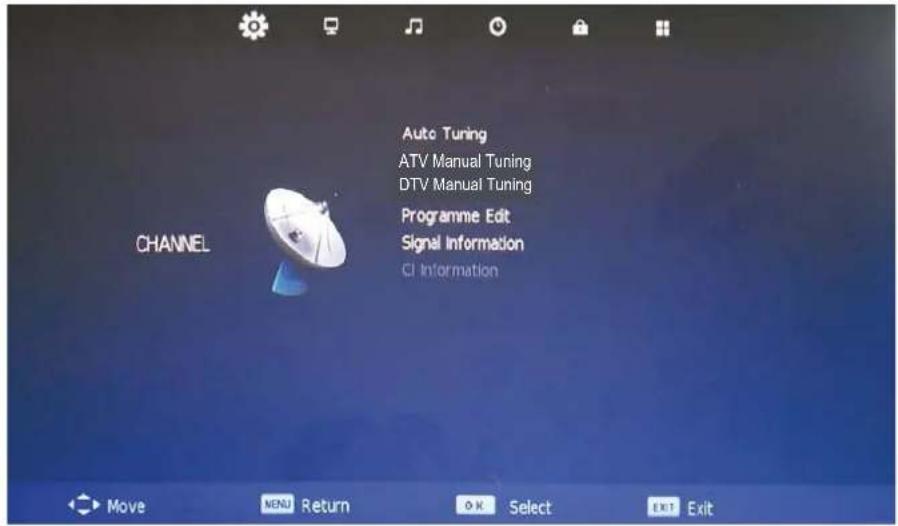
Description
Auto Tuning
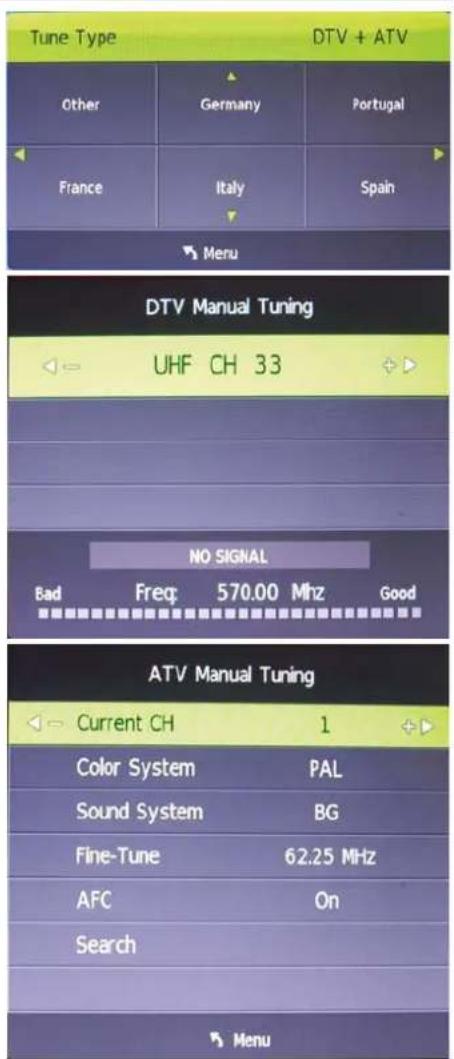
Press OK button to enter the hint menu, and Press < / > button to select the Tune Type, then press button, and use < / > / button to select the Country for the TV, then press OK button to start auto tuning.
DTV Manual Tuning
Press OK button to enter the DTV Manual Tuning menu, select a DTV channel, and press OK button to start searching.
ATV Manual Tuning
Press OK button to enter the ATV Manual Tuning menu.
Current CH: Select a Channel for storing the programme.
Color System: Select from PAL, AUTO and SECAM.
Sound System: Select from L, BG, DK
Search: Press < / > button to manual search.
Fine Tune: Press < / > button to fine-tune.
AFC: Automatic Frequency control ON/OFF.
OSD Menu
Programme Edit
Press OK button to enter the Programme Edit menu as the following picture.
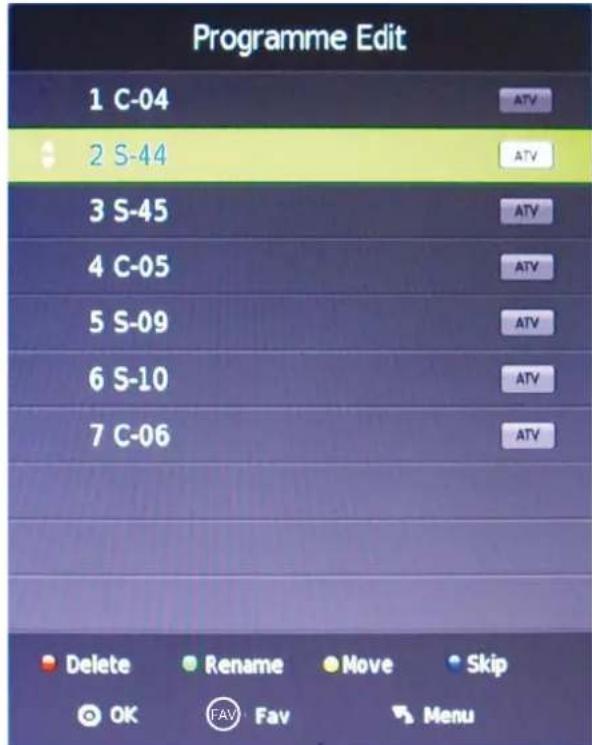
Delete: Select a channel and press RED button, the Program will be delete.
Rename: Select an ATV channel and press the GREEN button to change the name of the channel by / / < / > buttons.
Move: Select an ATV channel or DTV channel, and press YELLOW button, then you can use and buttons to change the position of the program, press YELLOW again to confirm the change. Press menu to exit and it will automatically save the current set.
Skip: Select a channel and press the BLUE button to label the channel, as long as the channel has a skip label it will be skipped when searching through the channels with the CH+/- buttons.
Signal Information
Display the digital TV-signal information (DTV mode only).
CI Information
Please contact your "pay perview" provider who can supply a viewing card and cam unit with instructions for their use.
OSD Menu
2. PICTURE menu
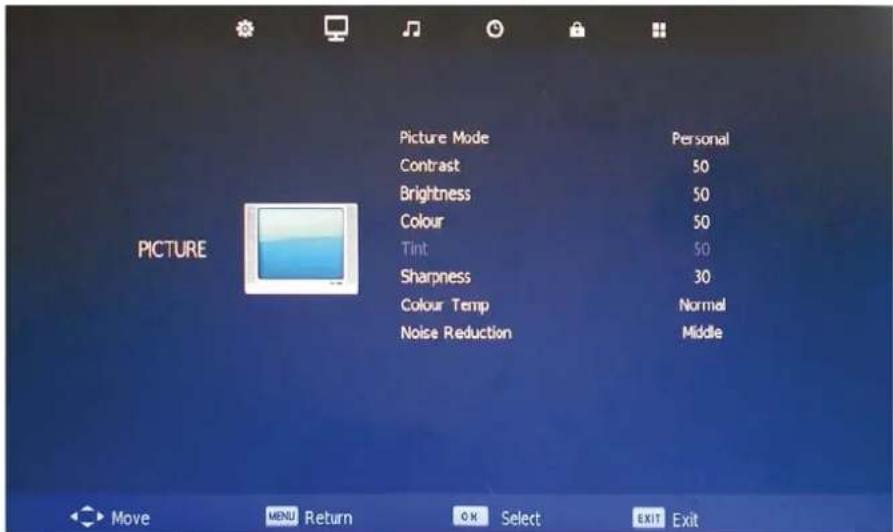
Description
Picture Mode: Choose from Dynamic, Standard, Mild and Personal.
Note: Contrast, Brightness, Color, Tint and sharpness are only available and can be adjuste in the Personal mode option in the Picture Mode Settings.
Contrast: Controls the difference between the brightest and darkest regions of the picture.
Brightness: Controls the overall brightness of the picture.
Color: Control the color.
Sharpness: Increase this setting to see crisp edges in the picture; decrease it for soft edges.
Tint: Controls the tint ( NTSC mode only).
Color Temperature: Choose from Medium, Cool, User and Warm.
Noise Reduction: Choose interference noise modes form Off, Low, Middle, High and Default.
OSD Menu
3. SOUND menu
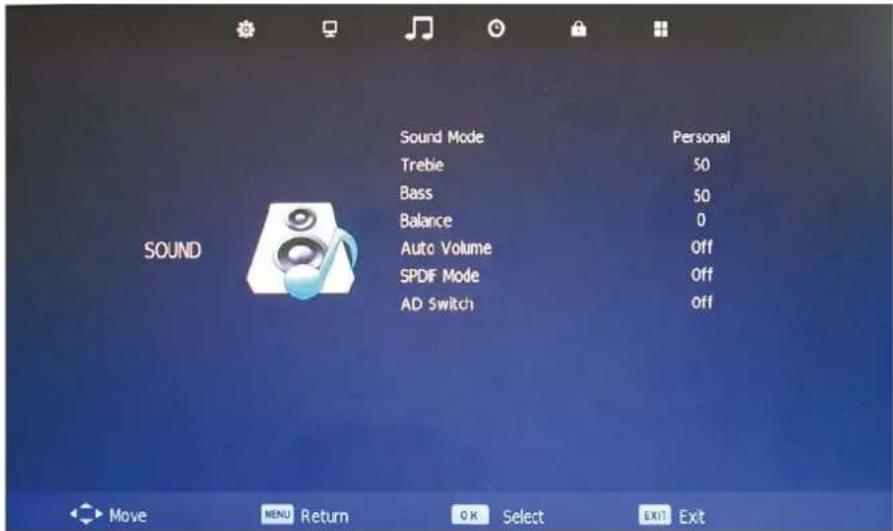
Description
Sound Mode: Allows you to select among: Standard, Music, Movie, Sports and Personal.
Treble(Can be adjusted when the sound mode is Personal): Controls the relative intensity of higher pitched sounds.
Bass (Can be adjusted when the sound mode is set to Personal): Controls the relative intensity of lower pitched sounds.
Balance: To adjust the balance of the left and right sound track, or turn off the volume of the left and right sound track.
Auto Volume: Control the volume of the programme automatically when you turn on the function by selecting "On".
SPDIF MODE: Select the spdf mode.
AD Switch: Turn on/off the AD switch.
OSD Menu
4. TIME menu
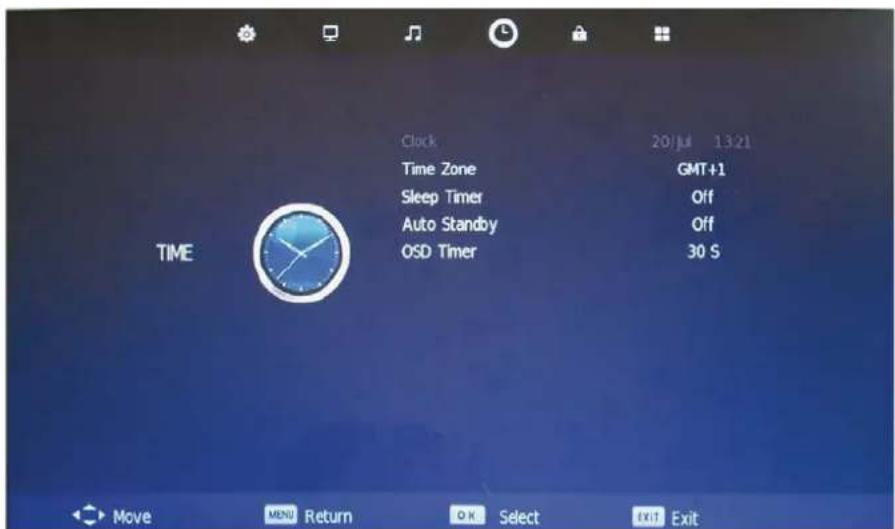
Description
Clock: Display the time.
Time Zone: Allows you to select the time zone.
Sleep Timer: Allows you to setup the sleep timer among: 10min, 20min, 30min, 60min, 90min, 120min, 180min, 240min and off.
Auto Standby: Turn on/off the auto standby function when where's no signal.
OSD Timer: Allows you to select the time for OSD menu displays on the screen.
OSD Menu
5. LOCK menu
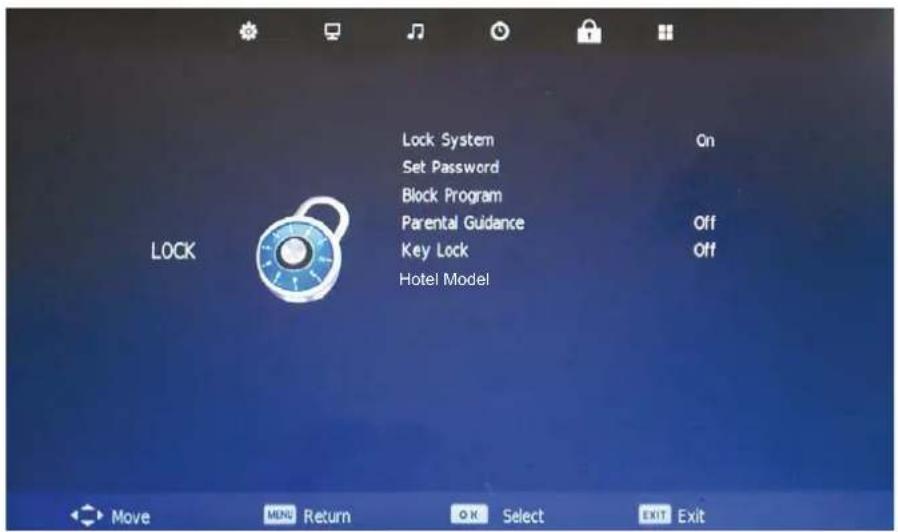
Description
Lock System: Turn on/off the Lock System function.
Note: You should enter the code to operate the menu.(original code is 0000)
Set Password: Set pin code. If the Pin code has been changed you must enter the present code.
New:Enter the new password.
Confirm: Enter the new password.
Block Program: You must enter the password to view channels that have been locked. Use and buttons to select the channel and press the GREEN button on the remote control to
lock the channel.
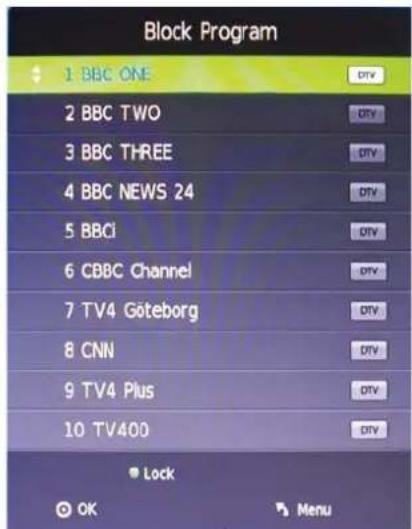
Parental Guidance: Allows you to select the Parental Guidance mode. Key Lock: Lock the buttons on the TV set when you turn on the function.
OSD Menu
6. SETUP menu
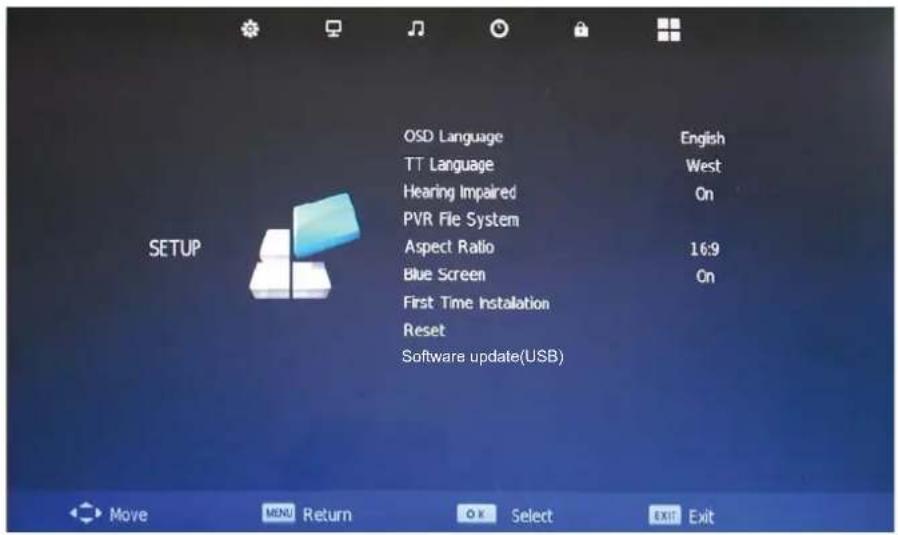
Description
OSD Language: Allows you to select menu language.
TT Language: Allows you to select teletext language.
Hearing Impaired: Turn on/off the Hearing Impaired function.
PVR File System: Setup the PVR file system.
Note: The options PVR File System are described on pages 29 -31.
Aspect Ratio: Choose from 4:3, 16:9, Zoom1, Zoom2, Just Scan and Panorama.
Blue Screen: Turn on/off the blue screen function when there's no signal.
First Time Installation: Display the First Time Installation menu.
Restore Factory Default: Press OK button to restore factory default.
Multimedia Operation
Basic Operation
1). Press the INPUT button on the remote control to display the input source menu, select Media source by the / buttons, and press OK button to enter the Multimedia menu seen below.
Hints and informations of USB device
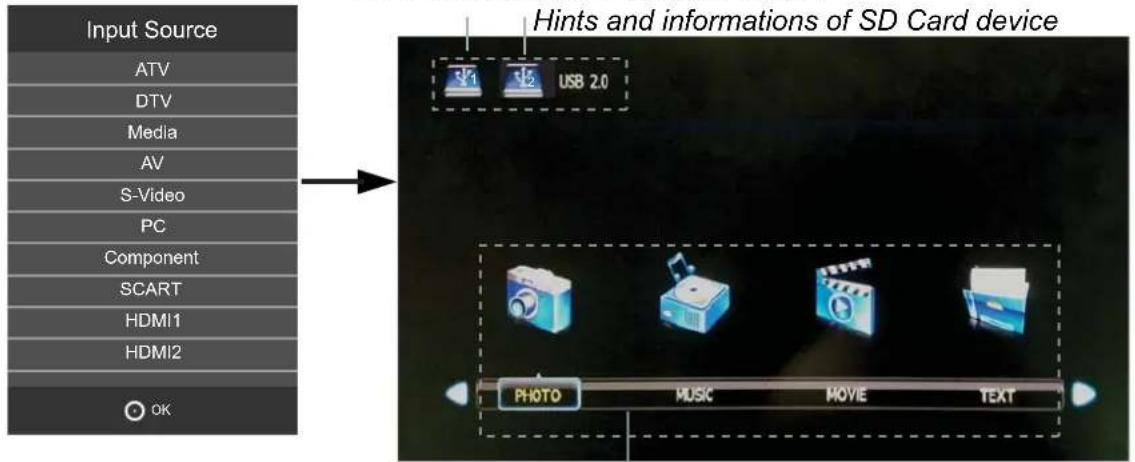
MAINS MENU: PHOTO MUSIC MOVIE TEXT
2). Select the file type (mains menu) you want to view, and insert USB device, you will find the name of the device display on the screen.
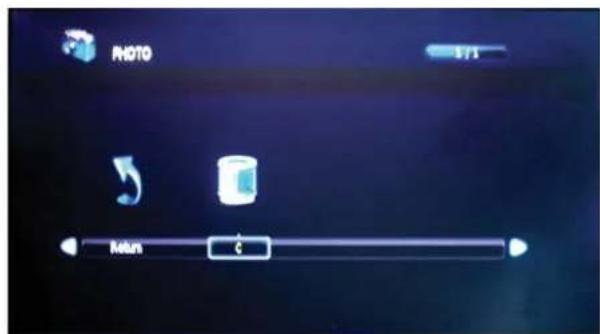
3). Press < / > button to select the USB device, and press OK button to enter.
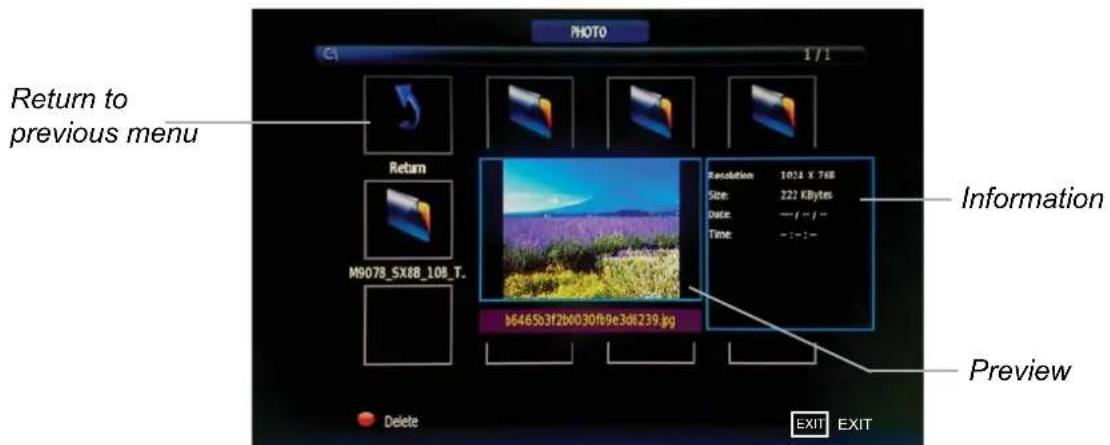
Press < / > / / buttons to select and the OK button to activate the file or open folder. Press OK button to play the files in full screen mode. When in full screen mode press the OK button to show the option menu on the bottom of the screen or press stop button to return to files. Note: You can press RED button on the file to delete the file.
Multimedia Operation
1. Photo
Photo viewing
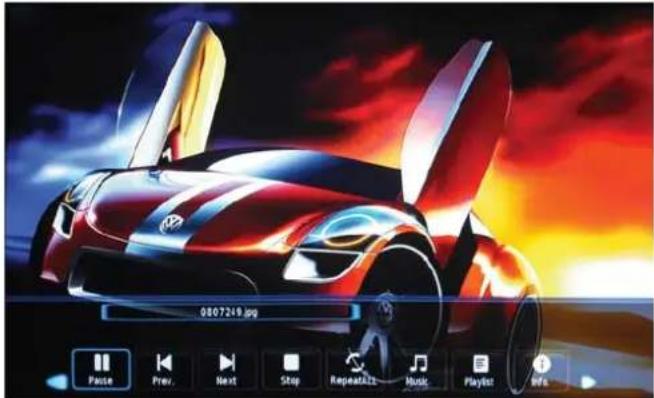
Press < / > button to select the option on the menu, and press OK button to change.
Pause: Play/pause the photo view.
Prev./Next: View the previous/next photo.
Stop: Stop the photo view.
Repeat: Select the repeat mode from Repeat All, Repeat 1, Repeat None.
Music: Play/Pause the music.
[ \text{Playlist: Display the playlist on the screen and play the file by } \wedge / \vee \text{ button and OK button, you can press } \triangleright \text{ button to select "CANCEL", and press OK button to cancel the list displaying.} ]
Info: Display the information of the file.
Rotate: Rotate the photo clockwise/counterclockwise.
Zoom Out/In: Zoom out/in the photo.
Move View: Move the photo in Zoom in mode.
2. Music
Play the music
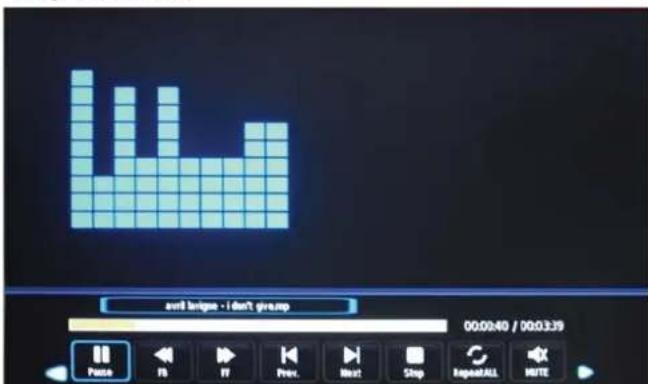
Press < / > button to select the option on the menu, and press OK button to change.
Pause: Play/pause the music.
FB/FF: Fast backward/fast forward.
Prev./Next: Play the previous/next file.
Stop: Stop the music.
Repeat: Select the repeat mode from Repeat All, Repeat 1, Repeat None.
Mute: Mute the sound.
[ \text{Playlist: Display the playlist on the screen and play the file by} \wedge / \vee \text{ button and OK button, you can press } \triangleright \text{ button to select "CANCEL", and press OK button to cancel the list displaying.} ]
Info: Display the information of the file.
Goto Time: Play the music from the time you set.
Multimedia Operation
3. Movie
Play the movie
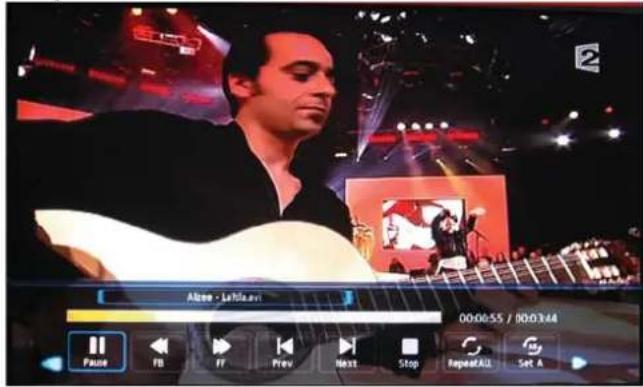
Press < /> button to select the option on the menu, and press OK button to change.
Pause: Play/pause the music.
FB/FF: Fast backward/fast forward.
Prev./Next: Play the previous/next file.
Stop: Stop the music.
Repeat: Select the repeat mode from Repeat All, Repeat 1, Repeat None.
Set A-B: Select and play the preferable part of the file by setting A and B at the beginning and end.
Press OK button to cancel.
[ \text{Display the playlist on the screen.} ]
Info: Display the information of the movie.
Slow Forward: Play the movies at slow speed, press button to cancel.
Step Forward: Step quickly through the movie by using this option
Goto Time: Program the movie form the time you set.
Zoom out/in: Zoom out/in the movie screen.
Aspect Ratio: Select the aspect ratio of the screen display.
Move View: Move the photo in Zoom in mode.
4.Text
View the text
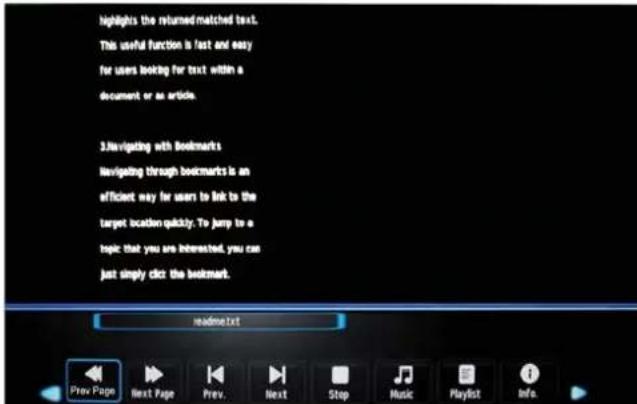
Press < /> button to select the option on the menu, and press OK button to change.
Previous/Next page: Turn to previous/next page of the text.
Prev./Next: Turn to previous/next file.
Stop: Stop auto turning pages.
Music: Play/pause the music programme.
[ \text{Playlist: Display the playlist on the screen.} ]
Info: Display the information of the text.
Recording Operation
PVR settings
1). PVR File System
Press the MENU button, select SETUP menu, and select "PVR File System", then press OK button to enter the setting menu.
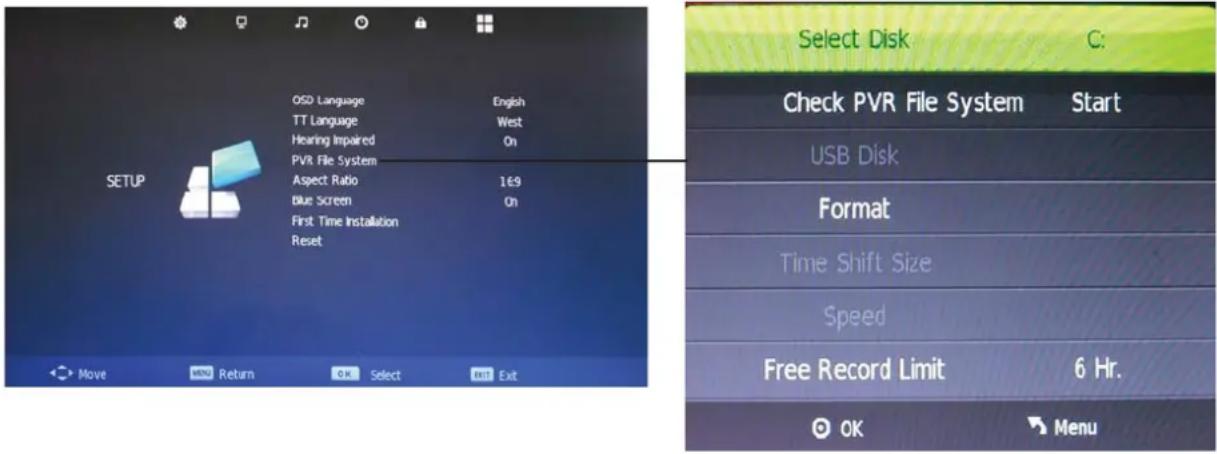
Select Disk: Select the device for the Record files.
Check PVR File System: Check the system.
USB Disc: Display the USB state.
Format: Format the USB device for PVR operating.
Time Shift Size: Display the size of the USB device (The device has been formatted).
Speed: Display the speed of the USB device (The device has been formatted).
Free Record Limit: Display the Free Record Limit state.
3). Recorder
Press LIST button on the remote control to display the recorder menu in DTV mode as below.
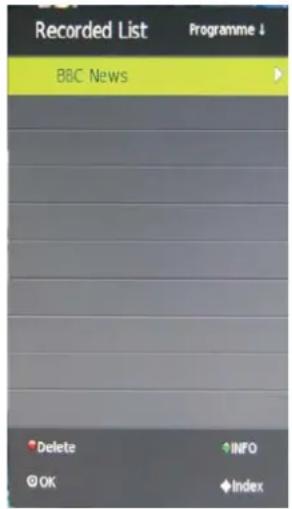
Note: You select a recorded programme, and press OK button to program.
Note: You can delete a recorded programme by pressing the RED button on the list.
Note: You can display the information of the recorded programme by pressing the GREEN button on the list.
Recording Operation
Recording
Record and Time shift function buttons
REC: Press to start recording.
II PAUSE: Press to enter the timeshift mode, press again to play the recording.
■ Stop: Press to stop recording or timeshift.
LIST:To display the recorder menu.
1) Recording menu
When you press "REC" button in DTV mode, the screen will display the recording menu as below:

Note: a. display and exit the navigation menu by pressing the "REC" buttons.
b. Press STOP button to exit the recording mode.
c. Press PLAY button to play the programme you are recording from the beginning.
2) Timeshift menu
Press I PAUSE button to enter the Timeshift mode in DTV mode, and the picture will be paused, the recording will begin.

Note: a. Press STOP button to exit the Timeshift mode.
b. Press PLAY button to play the programme you are recording from the beginning.
EPG menu
Display the programme guide by pressing the EPG button.
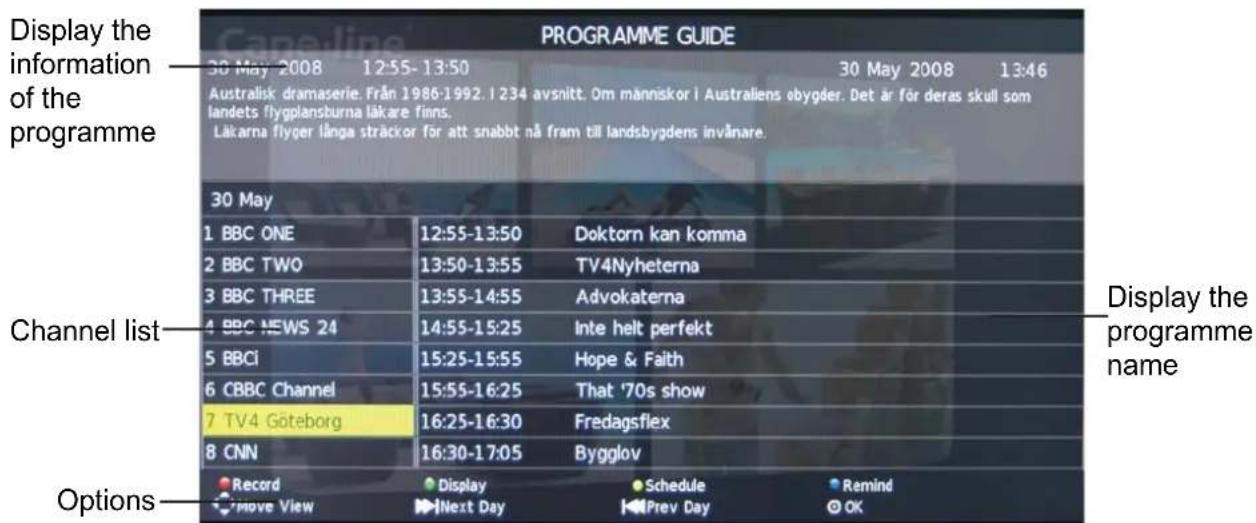
You can select a programme for recording using the / / / buttons.
Record: Press RED button to display the Recorded Mode menu, and set the timer record. When the programme starts it will be recorded to the USB device.
Display: Press GREEN button to display the information of the program.
Schedule: Press YELLOW button to display the schedule list.
Remind: Press BLUE button to display the remind menu, and set the time. When the programme starts the TV will automatically switch to this programme.
Timer Recorder: Press "REC" button on the programme to display the Timer Recorder menu:
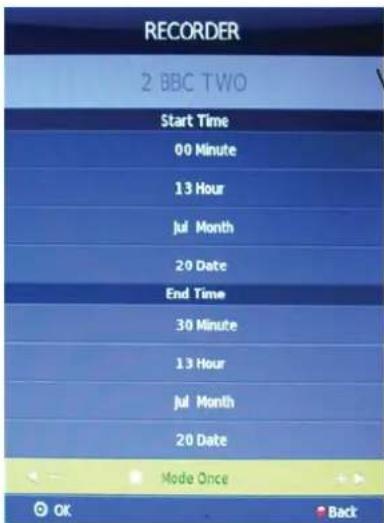
Recorder(Set the timer record)
The TV will record the programme automatically according to your settings.
Channel: Select the DTV channel you want to record.
Start Time: Select the start recording time.
End Time: Select the end recording time.
MODE: Select the record mode.
Press OK button to save the setting and exit the menu, and there will be a hint on the screen.
Simple Troubleshooting
If the display fails or performance dramatically deteriorates check the Display in accordance with the following instructions. Remember to check the peripherals topinpiont the source of the failure.
If the display still fails to perform as expected, connect your helpline for assistance.
No power
- Check all connections to the TV.
- Press either the power button or the Standby button on the Remote control.
No picture or sound
- Ensure that the TV is plugged in and the power is on.
- Ensure that the aerial is connected.
- Try a different program.
Poor picture quality
- Check the aerial connections.
- Check that the channel is tuned in properly.
- Adjust the picture settings:brightness,color,sharpness,contrast,hue.
- Make sure that the TV is not located close to electrical appliances that may emit radio frequency interference.
No colour
- Adjust the color setting.
- Check that the programme is broadcast in color.
- Check that the channel is tuned properly.
TV does not respond to remote control
- Check that there are no obstructions between the remote control and the unit.
- Check that the remote control is within range of the unit.
- Check that the batteries in the remote control and not weak or exhausted.
This LCD TV is for household use and registered as harmless on electromagnetic waves.
Therefor, you can use it in every location as well as residential areas.
OKI
Information signal (Signal Information):
Information CI (CI Information):
31.5 Zoll (diagonal)
1366x768
Insira as pilhas no remote controlo
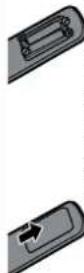
1.Retire a tampa. 2.Insere as baterias.
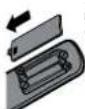
Use 2 bacterias de
tamanno AA
3.Fechecomataampa
Busca Automatica na TV
Common Interface: Slot CI.

- Instructions for fixing stand
- Note: the pictures below are only for reference
- Insert batteries into the Remote Control
- Important functions
- Contents
- Caution
- Correct disposal of this Product
- Safety Information
- Electrical safety
- Physical safety
- Accessories
- Technical Specification
- Remote Control
- Product Introduction
- Connections
- PICTURE
- SOUND
- SLEEP
- SUBTITLE
- ASPECT
- REC
- LIST
- REPEAT
- STOP
- NUMBER BUTTONS
- FAV
- Basic Operation
- Power on/off
- Input Source select
- Basic OSD Menu operation
- OSD Menu
- 1.CHANNEL menu
- Description
- Auto Tuning
- DTV Manual Tuning
- ATV Manual Tuning
- Programme Edit
- Signal Information
- CI Information
- PICTURE menu
- SOUND menu
- TIME menu
- LOCK menu
- SETUP menu
- Multimedia Operation
- Photo
- Music
- Movie
- 4.Text
- Recording Operation
- PVR settings
- 1). PVR File System
- 3). Recorder
- Recording
- Record and Time shift function buttons
- 1) Recording menu
- 2) Timeshift menu
- EPG menu
- Recorder(Set the timer record)
- Simple Troubleshooting
- No power
- No picture or sound
- Poor picture quality
- No colour
- TV does not respond to remote control
- OKI
- Information signal (Signal Information):
- Information CI (CI Information):
- Insira as pilhas no remote controlo
- Use 2 bacterias de
- Busca Automatica na TV
Brand : OKI
Model : B32FLED 1
Category : Television