Teasi One 2 - Browser A-Rival - Free user manual and instructions
Find the device manual for free Teasi One 2 A-Rival in PDF.




| Product type | GPS bike navigator |
| Brand | A-Rival |
| Model | Teasi One 2 |
| Screen | Touch screen |
| Mapping | OpenStreetMap (OSM) |
| Navigation functions | Route planning, points of interest, voice guidance |
| Fitness mode | Distance, speed, time, calorie tracking |
| Trip recording | Yes, with internal memory and micro SD card (not included) |
| User profiles | Multiple configuration possible |
| Power supply | Rechargeable battery via mini USB |
| Connectivity | Mini USB, micro SD card reader |
| Available languages | French, Dutch, German, English, Spanish, Italian, Portuguese, etc. |
| Warranty | 36 months |
| After-sales service | First Service Center, Kleine Düwelstr. 21, DE-30171 Hannover, Germany |
| Telephone support | +49 (0)511 123 835 06 |
| E-mail support | support@first-servicecenter.de |
| Website | www.teasi.eu (updates, accessories) |
| Safety | Do not use while driving; enter destination before starting |
| Mounting | Bike mount included |
Frequently Asked Questions - Teasi One 2 A-Rival
User questions about Teasi One 2 A-Rival
0 question about this device. Answer the ones you know or ask your own.
Ask a new question about this device
Download the instructions for your Browser in PDF format for free! Find your manual Teasi One 2 - A-Rival and take your electronic device back in hand. On this page are published all the documents necessary for the use of your device. Teasi One 2 by A-Rival.
USER MANUAL Teasi One 2 A-Rival
Please refer to http://www.openstreetmap.org/copyright

Thank you for choosing a product from TEASI. A very good choice! We hope you'll enjoy using your new Recreational Navigation System. Just in case that you are facing any problems with your device, please call our support/service hotline +49 (0)511 / 123 835 06 or send us an e-mail to support@first-servicecenter.de
On our website - www.teasi.eu - you'll find detailed manuals, updates and technical information.
Do you need additional accessory like charger, mount or a bag? Ask your TEASI-dealer or simply visit our online shop at www.teasi.eu, for your order and more information.
The use and operation of navigation systems
Attention! Don't operate with the device while driving. Even the smallest and shortest distractions from road or traffic for you and other road users - even at slow speeds - may have devastating consequences.
Type in the destination before starting your journey and start the navigation system before you start driving.
If you have to change the route or the settings while driving, you should better stop for it.
After switching on the device it could take a few moments to find the required minimum number of navigation satellites. Depending on the environment, it may go faster or longer. Under the open sky, it is the fastest. In inner cities with narrow streets and tall buildings, this process may take longer, because the "view to the sky" is very narrow and that cause reflections of the satellite signals. In the forest it may also take longer because of the crowns of leaves. In tunnels, buildings, etc. the system does not work! As soon as you are positioned under the open sky the connections to the satellites will be established as quickly as possible. The map data is up to date in time of production of your navigation system. Nevertheless, it may happen that you may have long-known streets, paths, house numbers, roundabouts, etc. are not included. This is not a fault, but due to the fact that streets are changing. Your device is using Open Street Map (OSM). This is in our opinion the most useful map for cyclists. OSM is a non-profit web-based collaborative project to create a free map of the world. We like this idea and we support it.
Updates and Enhancements
You can download the detailed manual from our website:
www.teasi.eu
For software and map updates, please download our TEASI Tool for free, also from www.teasi.eu.
Appearance
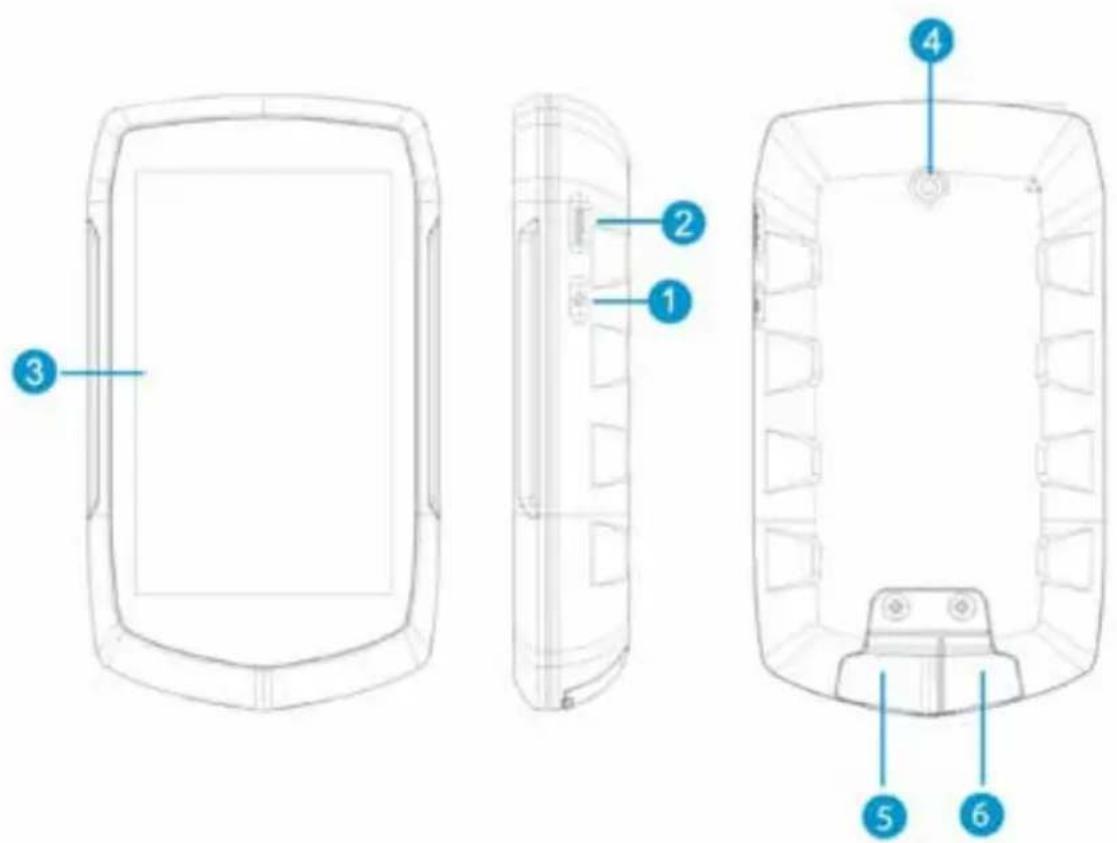
| 1. Power button | 2. Back-/Settings button |
| 3. Touch-Display | 4. Bracket fixing |
| 5. Micro-SD card slot (under cover). For memory-expansion. No Micro SD-card supplied. | 6. Mini USB port (under cover) |
1 Discovering the program
1.1 Main menu

After initialization the main menu appears. You can select: Map, Computer, Memory, Fitness, Search, Plan, and Settings
Note: depending on your model, the display may vary.
1.2 Map
In map mode you can see where you are, follow navigation instructions, save your current position as a favorite, record your trip, or search for addresses and venues nearby.
1.3 Computer
Computer menu is responsible for showing the data and information about your trip.
The content of the information box can be changed by tapping on it.
Note: Some Fields might require a navigation or a record of a trip in progress to display real values.
1.4 Memory
Memory is responsible to show you your recorded and imported trips, and favorites.
You can call up all your saved data and statistics via this submenu.
Memory can be conveniently managed on a PC or MAC via the TEASI-Tool.
1.5 Fitness
You can create your own trainings based on Distance, Speed, Time, or Calories.
1.6 Destination
In the Destination menu you can select where to navigate, based on the type of your target location.
1.7 TEASI Plan (feat. Altitude graph)
TEASI Tour is our groundbreaking feature to untie your hand by letting trips to be created on-the-go!
Tap to add new points to your track, remove points if needed, save your track for further use when finished, and navigate to it with the go button.
1.8 Settings
The Settings menu is for adjusting and fine-tuning your device.
You can
- select the display mode of maps,
- enable and configure POI display
- manage your accounts,
- change language,
- adjust sound settings,
- get information about the product,
- set backlight strength and timer,
- set date ,time, and time zone
- select between Easy mode and Full mode(chapter 3)
- clean up unnecessary maps to gain free space
- calibrate your Display
2 The First Startup sequence
When the device is first switched on, or after a factory reset it is necessary to set up some required information.
2.1 Language & EULA
Select the desired language, then read and agree the End-User License Agreement (EULA).
2.2 Profile
Set up a profile or multiple profiles in order to customize the device to your needs. Tap on every detail to set it.
2.3 Date & Time
It is possible to set the date and time by GPS, or manually. If "GPS" mode is selected, only the format and time zone can be set.
If manual settings are chosen, you can also change the date and the time.
3 Easy mode - Full mode
The easy mode appears in a compact layout with the essential features of the Teasi software, which makes the device simpler and more effective to operate.
The full mode, in which all the functions are activated, can be re-enabled through settings - system menu.
4 Mounting the holder on your bicycle
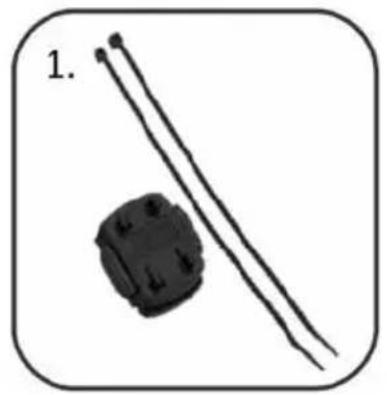

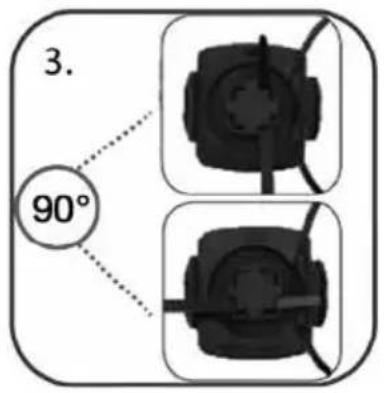
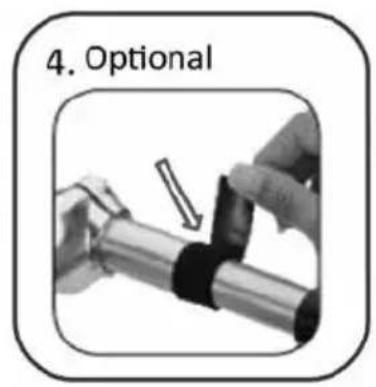

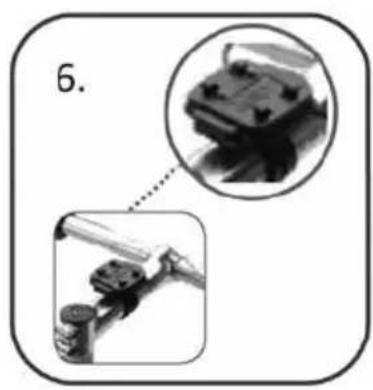

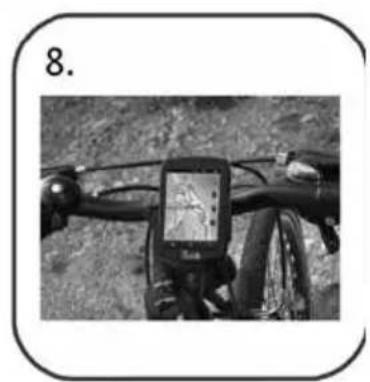
Check with local laws about area of installation restrictions Do not mount close to any shifters or other objects which could inhibit operation and safety of your bicycle.
UserInfo/Contact
If your device has a defect or you have problems with it, please contact our Service & Support Centre.
If you need to send your device to us, please attend to the following points:
- Whenever possible, use the original packaging.
- Add a detailed error description
- Add your full name and address and a copy of your purchase receipt.
- Stamp and send the package to us (sufficient postage).
Address of our Service Center:
First Service Center, Kleine Düwelstr. 21, DE-30171 Hannover
You can call also our hotline: +49 (0)511 - 123 835 06 or send
a Fax: +49 (0) 511-161 25 36 or an eMail: support@first-servicecenter.de
Guarantee
Please keep the proof of purchase for this device for the entire duration of the guarantee period, as it must be produced in the event of any claim.
You (as the end user) receive a 36 month guarantee from the date of sale.
The article has been manufactured using the most modern production methods and subjected to strict quality controls.
Please contact only the manufacturer (not the dealer where you purchased it) in the event of any defects during the guarantee period.
Hotline: +49 (0)5 11-123 835 06
eMail: support@first-servicecenter.de
The guarantee does not cover damage caused by improper use or external influence (water, falling, sunlight, breakage or impact).
TEASI
Alternatively, you can use the following two methods:
- Alternatively, you could use the following two methods:
- Alternatively, you could use the following two methods:
- Alternatively, you could use the following two methods:
- Alternatively, you could use the following two methods:
- Alternatively, you could use the following two methods:
- Alternatively, you could use the following two methods:
- Alternatively, you could use the following two methods:
- Alternatively, you could use the following two methods:
- Alternatively, you could use the following