ICD04FX - DJ Equipment ION - Free user manual and instructions
Find the device manual for free ICD04FX ION in PDF.


| Product Type | DJ mixing console with CD player and FM tuner |
| Brand | ION |
| Model | ICD04FX |
| Power Supply | AC power (cable provided) or 6 D-size batteries |
| Inputs | Microphone (1/4" jack), two channels (CD/FM), line input |
| Outputs | Line output (RCA), headphone (1/8" and 1/4" jacks) |
| CD Player Functions | Play, pause, search, track selection, pitch +/-10%, pitch bend, repeat, cue |
| Radio Functions | FM tuner, auto search, mono/stereo mode |
| Built-in Effects | Scratch, filter, flanger, pan, vocoder; wheel selection, return/hold modes |
| Microphone | Adjustable volume |
| Crossfader | Transition between channels 1 and 2 |
| Equalization | Treble and bass adjustment (stereo) |
| Headphone | Pre-listening with channel selection and volume |
| Display | Play time, remaining time on track/disc |
| Dimensions (approx.) | 30 x 25 x 10 cm |
| Weight (approx.) | 2 kg |
| Safety | Read safety booklet before use; set headphone volume to zero before connecting |
| Maintenance and Cleaning | Wipe with a soft dry cloth; do not use solvents |
| Included Accessories | Power cable, FM antenna |
Frequently Asked Questions - ICD04FX ION
User questions about ICD04FX ION
0 question about this device. Answer the ones you know or ask your own.
Ask a new question about this device
Download the instructions for your DJ Equipment in PDF format for free! Find your manual ICD04FX - ION and take your electronic device back in hand. On this page are published all the documents necessary for the use of your device. ICD04FX by ION.
USER MANUAL ICD04FX ION
PORTABLE DJ STATION WITH EFFECTS
Quick Start Owner's Manual
BOX CONTENTS
- iCD04FX
POWER CORD
- Make sure all items listed on the front of this guide are included in the box.
- READ SAFETY INSTRUCTION BOOKLET BEFORE USING THE PRODUCT.
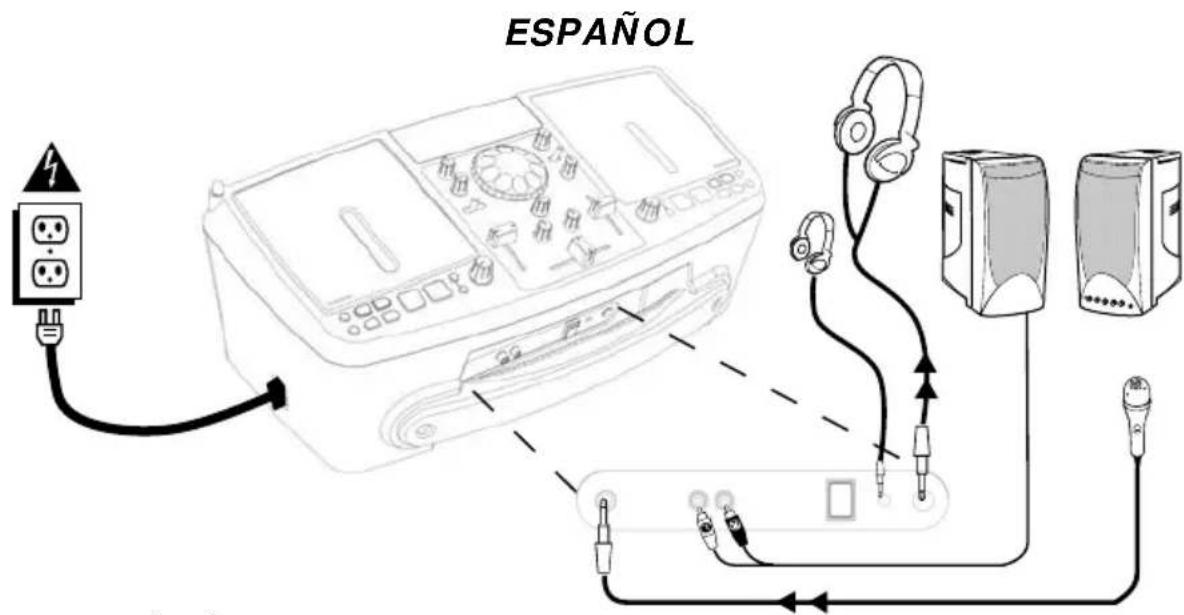
- Study this setup diagram.
- Make sure all devices are turned off and all faders and volume knobs are set to "zero"
- Connect microphone (optional) as indicated in the diagram.
- Connect an external amplifier or home stereo as indicated in the diagram (optional)
- Plug all devices into power.
-
Switch everything on in the following order.
-
iCD04FX
- any amplifiers or output devices
-
plug in headphones
-
When turning off, always reverse this operation by
-
unplug headphones
- turn off any amplifiers or output devices
-
turn off iCD04FX
-
Go to http://www/ion-audio.com for product registration.
More information about this product may be found at http://www.ion-audio.com
BATTERY INSTALLATION
This product can be powered by 6 "D" Cell batteries. They should be loaded as shown above and on the compartment door.
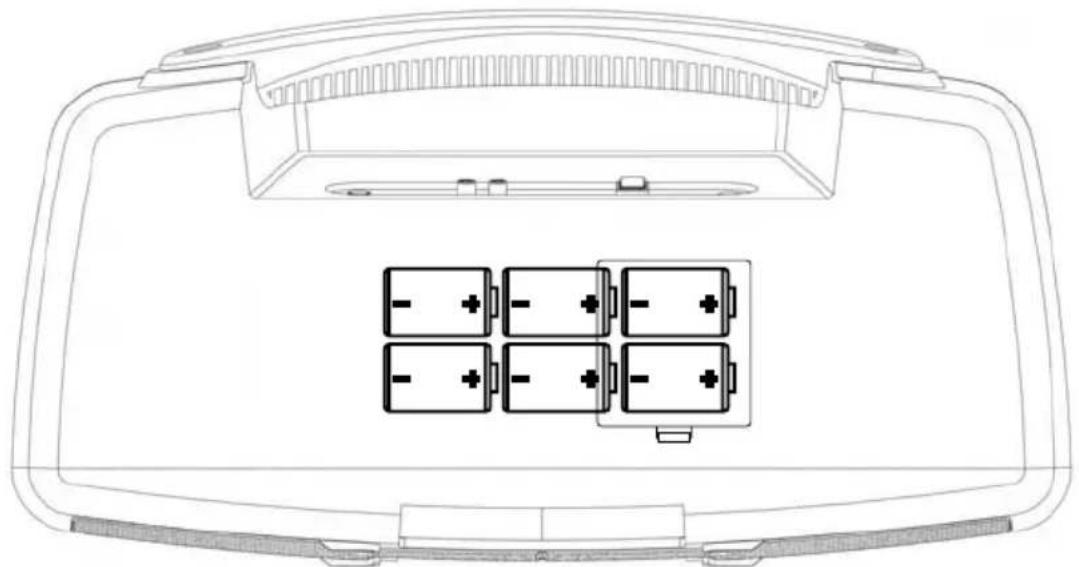
BATTERY COMPARTMENT: load 6 "D" "UM1" batteries for use without AC power input.

FRONT PANEL
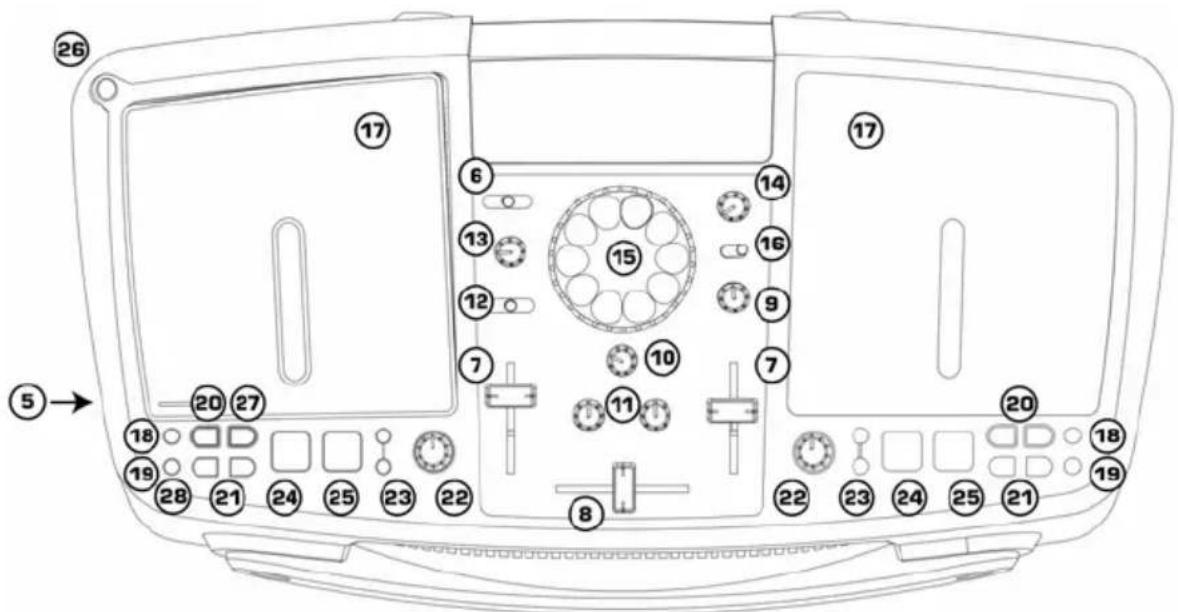
- LINE OUTPUT: This output is for connecting an external audio system such as a PA speaker system, powered monitors, or a home stereo. When a device is attached, the internal speakers will shut off automatically. The level of the master stereo output signal is controlled by the master fader.
- MIC INPUT: Plug a 1/4'' connector style Microphone in here.
- POWER: Use this switch to turn on the unit. Turn the unit on before you turn on external audio devices, and turn off external audio devices before you turn off the unit.
- Headphone Jacks: Used to connect either 1/8'' or 1/4'' plugs for listening with headphones.
SIDE PANEL
- AC POWER INPUT: This unit is designed to work with the power supply cord that comes with the unit. While the power is switched off, plug the power supply into the unit first, then plug it into the outlet. Leave this unplugged for battery operation.
VOLUME/MIXER CONTROLS
- INPUT SELECTOR: Selects which source will go to Channel 1 (CD or FM tuner).
- CHANNEL FADER: Controls the channel volume level.
-
CROSSFADER: Cleanly fades between the two input channels. "Hard left" selects Channel 1. "Hard right" selects Channel 2. With the crossfader centered, both assigned channels are live. Use the crossfader for fast and seamless fades from one selected channel to the other
-
MIC VOLUME: Adjusts the microphone level.
-
MASTER VOLUME: Controls the overall output level.
- STEREO EQ: Adjusts the treble and bass of the master output.
- CHANNEL CUE SELECTOR: Used to route channel audio to your headphones.
- CUE (HEADPHONE) VOLUME: Adjusts volume for headphones. (NOTE: Be sure the volume control is set to the OFF position before plugging in any headphones to avoid permanent hearing damage.)
EFFECT FEATURES
- EFFECT SELECT: Use this knob to select the desired effect. These include DJ effects like scratching, filters, flangers (to create that "jet wash" sound), pan, and vocoder.
- EFFECT WHEEL: Use this wheel to control the effect.
- EFFECT WHEEL MODE: Use this switch set wheel mode (RETURN allows the effect to automatically stop when the wheel stops - HOLD keeps the effect on until the switch is moved to RETURN).
CD PLAYER FEATURES
- CD DOOR: Press down on the door to load or remove the CD. Each press will open or close the door.
-
TIME: Switches the time display between elapsed track time, remaining track time, and remaining time on the entire CD.
-
MODE: Allows all tracks to play in order (default), just a single track to play (SINGLE) or repeat tracks (REPEAT).
- SEARCH: Used to quickly move through the music. When music is paused, you can step through the music slowly in order to set a cue point.
- TRACK SELECT: Used to select the track to be played.
- PITCH: The pitch can be continuously changed up to + / - 10% by moving the knob. By changing pitch you can change the feeling of the music. You also change the tempo with pitch and can make the tempo of 2 songs match.
- PITCH BEND: Temporarily shifts the tempo of the music.
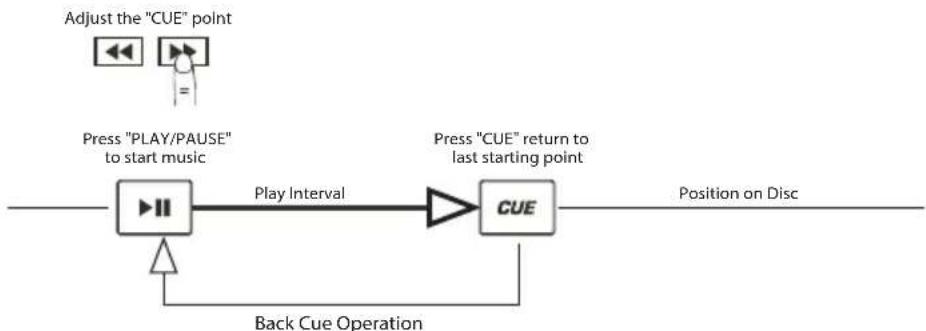
- CUE: Pressing the Cue button returns to the last set cue point.
- START/PAUSE (Play/Pause Button) - Each press of the PLAY/PAUSE button starts or pauses the music. While the music is playing, if you press this button to pause, then press it again to resume playing, a cue point will be set at that spot in the music.
RADIO FEATURES
- ANTENNA: Should be raised and positioned for good FM reception.
- SEARCH: Used to select the radio station.
- MODE: Used to toggle mono or stereo reception. For low signals, mono mode can offer better overall reception.
PLAY/ PAUSE & CUE OPERATIONS
PLAY & CUE
Pressing the "PLAY/PAUSE" button starts the disc. Pressing the "CUE" button will reset the disc to the last place where the disc was started. This is called the cue point. By alternately pressing the "PLAY/PAUSE" button and the "CUE" button, the disc may be returned and played from the cue point any number of times. This function is called back cue.
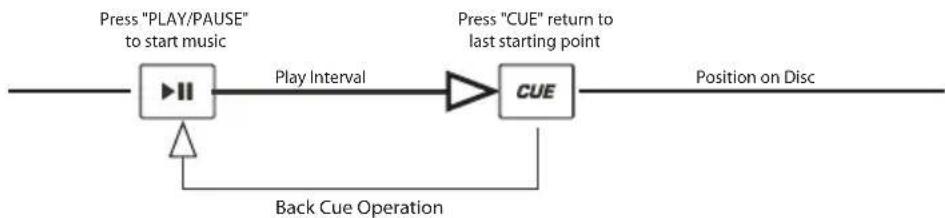
PLAY, PAUSE & CUE
When play has been paused and then started again, the return position for the back cue will be updated to this new position.

EDITING CUE POINTS
When the search button is pressed while at a cue point, the cue point will be moved. The CD player will repeatedly play small parts of the CD as you move it to the desired position. By pressing "PLAY/PAUSE" then "CUE" you can confirm that the new cue point is desirable.
INSTALACION RAPIDA

Brand : ION
Model : ICD04FX
Category : DJ Equipment