192 channel dmx controller - DJ Equipment Skytec - Free user manual and instructions
Find the device manual for free 192 channel dmx controller Skytec in PDF.



| Product type | Compact DMX controller with joystick |
| Brand | Skytec |
| Model | 154.092 (192 DMX channels) |
| Dimensions (L x W x H) | 483 x 132 x 80 mm (19 inches, 3U) |
| Weight | 2.5 kg |
| Power supply | 230 V AC, 50 Hz via power supply 9-12 V DC, 300 mA included |
| Power consumption | 4 W |
| Number of control channels | 192 DMX channels (16 channels per fixture, up to 12 fixtures) |
| Pan/Tilt resolution | 16-bit (smooth movement) |
| Number of programs (Banks) | 16 programs with up to 8 scenes each |
| Number of chasers | 6 chasers with up to 240 programmable scenes |
| Scene presets | 8 preset scenes |
| Special functions | Blackout, sound control (built-in mic or audio input), MIDI function, copy programs/scenes, DMX 512 output |
| Connectors | DMX input/output (XLR 3-pin), audio input (RCA), MIDI input (DIN), fog machine input |
| Maintenance and cleaning | Disconnect before cleaning; use a damp, lint-free cloth; no alcohol or detergents |
| Safety | Disconnect before opening; do not expose to moisture; repairs by competent technician; modifications void warranty |
| Spare parts and repairability | Use only original parts; repairs by qualified technician |
| General information | Manual available in multiple languages; warranty valid if used according to instructions |
Frequently Asked Questions - 192 channel dmx controller Skytec
User questions about 192 channel dmx controller Skytec
0 question about this device. Answer the ones you know or ask your own.
Ask a new question about this device
Download the instructions for your DJ Equipment in PDF format for free! Find your manual 192 channel dmx controller - Skytec and take your electronic device back in hand. On this page are published all the documents necessary for the use of your device. 192 channel dmx controller by Skytec.
USER MANUAL 192 channel dmx controller Skytec
Keep this device away from rain and moisture!
Unplug mains lead before opening the housing!
For your own safety, please read this user manual carefully before you initially start-up.
Every person involved with the installation, operation and maintenance of this device has to
-
be qualified
-
follow the instructions of this manual
- consider this manual to be part of the total product
- keep this manual for the entire service life of the product
- pass this manual on to every further owner or user of the product
- include every supplementay update with the original manual
1. INTRODUCTION
Thank you for having chosen a SKYTEC154.092. You will see you acquired a powerful and versatile device.
Unpack your 154.092.
Before you initial start-up, please make sure that there is no damage caused by transportation. Should there be any, consult your dealer and do not use the device.
2. SAFETY INSTRUCTIONS
This device has left our premises in absolutely perfect condition. In order to maintain this condition and to ensure a safe operation, it is absolutely necessary for the user to follow the safety instructions and warning notes written in this user manual.
Important:
Damages caused by the disregard of this user manual are not subject to warranty. The dealer will not accept liability for any resulting defects or problems.
Always plug in the power unit least.
Keep away from heaters and other heating sources!
If the device has been exposed to drastic temperature fluctuation (e.g. after transportation), do not switch it on immediately. The arising condensation water might damage your device. Leave the device switched off until it has reached room temperature.
This device falls under protection-class III. The device always has to be operated with an appropriate transformer.
Always disconnect from the mains, when the device is not in use or before cleaning it.
Please note that damages caused by manual modifications on the device or unauthorized operation by unqualified persons are not subject to warranty.
Keep away children and amateurs from the device!
There are no serviceable parts inside the device. Maintenance and service operations are only to be carried out by authorized dealers.
3. OPERATING DETERMINATIONS
This device is a DMX-controller for controlling DMX-effects or spots in discotheques, on stages etc. This product is allowed to be operated with a direct voltage of DC 9-12 V, 300mA and was designed for indoor use only.
Do not shake the device. Avoid brute force when installing or operating the device.
When choosing the installation-spot, please make sure that the device is not exposed to extreme heat, moisture or dust. There should not be any cables lying around. You endanger your own and the safety of others!
Operate the device only after having familiarized with its functions. Do not permit operation by persons not qualified for operating the device. Most damages are the result of unprofessional operation!
Please use the original packaging if the device is to be transported.
Please consider that unauthorized modifications on the device are forbidden due to safety reasons!
Never remove the serial barcode from the device as this would make the guarantee void.
If this device will be operated in any way different to the one described in this manual, the product may suffer damages and the guarantee becomes void. Furthermore, any other operation may lead to dangers like shortcircuit, burns, electric shock, etc.
4.DESCRIPTION
4.1 Features
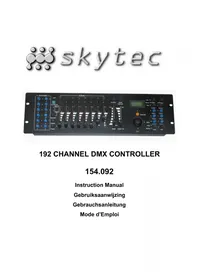
Compact DMX-controller with Joystick
192 control channel for 12 projectors with up to 16 channels · 16 bit resolution for fine Pan/Tilt movements · 6 chaser with up to 240 scenes can be programmed · 8 Preset Scenes · Copy-function for the scenes, programs and records · Blackout-function · Sound control via built-in microphone or Audio input socket · 19" mounting dimensions with 3 units
4.2 Overview
Overview on the control elements
1) PROJECTOR SELECT BUTTONS
With the Projector select buttons you can choose the desired projector.
2) Fogger
To activate the fog machine.
3)PAGE-BUTION
In the manual mode, you can switch the channel faders from CH 1-8 to CH 9-16 by pressing the Pagebutton.
4)MIDI/REC-BUTION
5) PROGRAM-BU TTON
6)SCENE-BUTFONS
7) CHANNEL FADERS
For adjusting the different DMX-values. The channels 1-8 can be adjusted directly after pressing the respective projector select button. The channels 9-16 can be adjusted after pressing the Page-button.
8) AUTO/DEL-BUTION
9) MUSIC/BANKCOPY-BUTION
If this LED is on, the controller is in Audio-mode (operation with sound-control).
10) SPEED-FADER
11) FADE TIME-FADER
12) DISPLAY
13) JOYSTICK
14) OVERRIDE-BUTION
15) BANK UP-BUTION
The Blackout-function closes the light output of all connected projectors via the shutter.
19) CHASE-BUTFONS
20) MODE-BUTTON
21) FINE-BU TTON
Rear panel:
Install the device on a plane surface or install it in rack.
Rack-installation: This device is built for 19" racks (483 mm). The rack you use should be a Double-Door-Rack where you can open the frontpanel and the rear panel. The rack should be provided with a cooling fan. When mounting the controller into the rack, please make sure that there is enough space around the device so that the heated air can be passed on. Steady overheating will damage your device.
You can fix the controller with four screws M6 in the rack.
Connect the connection cable of the power-unit with the DC IN-socket. Plug the power unit into your outlet.
5.2 Sound-control
The sound-control works via the built-in microphone or the Line In socket. Connect the sound-signal from the mixer (e.g. Master 2) with the RCA-socket on the rear panel (input sensitivity 0.1V - 1V ).
5.3 DMX-512 connection with the projector
The wires must not come into contact with each other, otherwise
the fixtures will not work at all, or will not work properly.
Only use a stereo shielded cable and 3-pin XLR-plugs and connectors in order to connect the controller with the fixture or one fixture with another.
Occupation of the XLR-connection:
You can adjust the XLR polarity via the DMX POLARITY selector.
Building a serial DMX-chain:
Connect the DMX-output of the 154.092 with the DMX-input of the nearest projector. Always
connect one output with the input of the next fixture until all fixtures are connected.
Caution: At the last fixture, the DMX-cable has to be terminated with a terminator. Solder a 120 . resistor between Signal (-) and Signal (+) into a 3-pin XLR- plug and plug it in the DMX-output of the last fixture. Projector addressing
Please note that the 154.092 assigns the DMX-starting addresses every 16 steps. You have to address every projector to the respective starting address. Otherwise, the channel assignment will not be correct. All projectors with the same starting address work synchronically.
| Projector | Starting address | Projector | Starting address | 5 | Projector | Starting address |
| 1 | 1 | 65 | ||||
| 2 | 17 | 6 | 81 | 10 | ||
| 3 | 33 | 7 | 97 | 11 | ||
| 4 | 49 | 8 | 13 | 12 |
5.4 Assign the joystick
Hold the Program-button, until the LED is lit.
Hold the Mode- and Fine-button at the same time until the Assign-LED is lit. If the Reverse-LED is lit hold the Mode- and Fine-button once more.
Select the Pan- or Tilt-direction via the Bank Up and Bank Down-button.
Press the Tap/Display-button in order to adjust 16-channel or 8-channel mode.
Select the desired projector via the Projector Select Buttons.
Hold the Mode-button and press the Scene-button on whose channel the Pan- or Tilt-channel is located. E.g.
if the Pan-movement is on Fader 1, hold the Mode-button and press Scene-button 1.
Hold the Mode- and Fine-button at the same time in order to leave the Assign-mode.
6. OPERATION
After you connected the device to the mains, the 154.092 is ready for use.
6.1 Manual-mode
6.1.1 Call up projectors manually
In the Manual-mode (Program-LED off), you can call up the connected projectors manually and control them via the channel faders. Please note that the adjusted settings cannot be memorized.
Select the desired projector via the respective projector select button.
Adjust the desired function via the channel faders.
Page Select-button:
Via the Page Select-button, you can adjust the channel faders from CH 1-8 to CH 9-16.
Display-button:
Via the Display-button, you can switch the display of the faderway from DMX-value (0-255) to procent (0-100).
6.2 Programming
A program is a sequence of different scenes that will be called up one after another. With the DMX Scan Control, you can program up to 30 different programs (banks) with up to 8 scenes each.
6.2.1 Programming a program
Press and hold the Program-button until the Program-LED flashes in the display. Select the desired program (bank) via the Bank Buttons.
Select the desired projector via the projector select buttons. Adjust the desired settings via the respective channel faders. Select the next projector via the projector select buttons and adjust the settings. Press the Rec-button and the respective Scene-button in order to save the first step. Program the next steps until the program is finished or the maximum number of steps - 8 - has been reached. Press the Program-button in order to save the program. The controller is now in the blackout-mode (Blackout-LED illuminated).
6.2.2 Running a program
Press the Bank Buttons and select the desired program. Press the Auto-button and the Auto Trigger LED is illuminated in the display. Adjust the program speed via the Speed-Fader and the repetition rate via the Fade Time-Fader.
As an alternative, you can adjust the program speed by tapping the Tapsynch-button twice. The time interval between the two taps corresponds to the program speed (up to 10 minutes).
6.2.3 Checking a program
Press and hold the Program-button and select the desired program via the Bank Buttons. Check every scene individually by pressing the respective Scene-button.
6.2.4 Editing a program
Should you notice that a scene does not correspond to your imagination or when programs have to be edited for a new stage, it is necessary to modify a scene manually.
Press and hold the Program-button and select the desired program via the Bank Buttons.
Select the desired scene via the scene button. Select the desired projector via the projector select buttons.
Adjust the desired settings via the respective channel faders. Select the next projector via the projector select buttons and adjust the settings. Press the Rec-button and the respective Scene-button in order to save the edited step. Edit the next steps until the program is finished.
6.3 Chaser
A chaser is a sequence of different programs that will be called up one after another. With the DMX Scan Control, you can program up to 6 different chasers with up to 240 steps.
6.3.1 Programming a chaser
Press and hold the Program-button. Select the desired chaser via the Chase Buttons.
Select the desired program via the Bank Buttons. Select the desired scene via the Scene Buttons. Press the Rec-button. Program the next steps until the chaser is finished or the maximum number of steps - 240 - has been reached. Press and hold the Program-button in order to save the chaser.
Copying a bank into a chaser
As an alternative, you can copy a whole bank (with up to 8 scenes) into a chaser. Select the desired program via the Bank Buttons. Press the Bank Copy-button and the Rec-button.
6.3.2 Running a chaser
Press the respective Chaser-button and press the Auto-button. You can adjust the chaser speed by tapping the Tapsynch-button twice. The time interval between the two taps corresponds to the chaser speed (up to 10 minutes).
Press the Record-button and select the desired record via the projector select buttons.
6.3.3 Checking a chaser
Press and hold the Program-button and select the desired chaser via the Chase Buttons. Press the Displaybutton in order to switch the display to step. Check every scene individually by pressing the respective Bankbutton.
6.3.4 Editing a chaser
Insert step
Press and hold the Program-button. Select the desired chaser via the Chase Buttons. Press the Displaybutton in order to switch the display to step. Press the respective Bank-button in order to select the scene where the steps is to be inserted.
Press the Rec-button. Select the desired scene via the Bank Buttons and the respective Scene-button. Press the Rec-button once more.
Delete step
Press and hold the Program-button. Select the desired chaser via the Chase Buttons. Press the Displaybutton in order to switch the display to step. Press the respective Bank buttons in order to select the scene which is to be deleted. Press the Del-button.
Press and hold the Program-button in order to save the edited chaser.
6.3.5 Delete a chaser
Press and hold the Program-button. Select the desired chaser via the Chase Buttons. Press and hold the Del-button and press the Chase-button.
6.3.6 Delete all chasers
Caution: When you select this function, all programmed chaser will irrevocably be lost. The individual scenes and programs are still maintained.
Press and hold the Bank Down-button and the Del-button while disconnecting the device from the mains. Connect the device to the mains again.
6.4 Copying scenes, programs and records
With the Copy-function, you can make programming of programs and chasers easier by copying already existent scenes into a program.
Copy a scene
Press and hold the Program-button and select the desired program via the Bank Buttons. Press the respective Scene-button. Press the Rec-button and select the desired bank where you want to copy the scene to. Press the desired Scene-button.
Delete a scene
Press and hold the Program-button and select the desired program via the Bank Buttons. Press the respective Scene-button. Press and hold the Del-button and press the desired Scene-button. The DMXvalue of this scene is set to 0.
Copy a program
Press and hold the Program-button and select the desired program via the Bank Buttons. Press the Recbutton and select the desired bank where you wish to copy the program to. Press the Bank Copy-button.
Delete all scenes
Caution: When you select this function, all programmed scenes will be irrevocably lost!
Press and hold the Program-button and the Bank Down-button while disconnecting the device from the mains. Connect the device to the mains again.
6.5 Sound-control
You can activate the sound-control by pressing the Music-button (LED flashes). Please note that programs and records are only active in this mode when the controller receives a music-signal. If there is no music present, the program or chaser stops.
6.6 MIDI-operation
Press the MIDI-button and the third and fourth digit in the display start flashing. Select the respective MIDIchannel via the Bank Buttons. Press the MIDI-button again in order to terminate the adjustment of the MIDIchannels.
Overview on the MIDI-functions:
| Bank | Number | Function |
| 1 | 00 | Scene |
| 01 | Scene | |
| 02 | Scene | |
| 03 | Scene | |
| 04 | Scene | |
| 05 | Scene | |
| 06 | Scene | |
| 07 | Scene | |
| 2 | 08 | Scene 1 Chase |
| 09 | Scene 2 Chase | |
| 10 | Scene 3 Chase | |
| 11 | Scene 4 Chase | |
| 12 | Scene 5 Chase | |
| 13 | Scene 6 Chase | |
| 14 | Scene | |
| 15 | Scene | |
| Enz. | Enz. | Enz. |
7.PROBLEM CHART
PROBLEM CAUSE REMEDY
No power. The power unit is not connected. Check the connection cable of the power unit and any extension-cables.
8. CLEANING AND MAINTENANCE
Disconnect from mains before starting maintenance operation! DANGER TO LIFE!
We recommend a frequent cleaning of the device. Please use a soft lint-free and moistened cloth. Never use alcohol or solvents!
There are no servicable parts inside the device. Maintenance and service operations are only to be carried out by authorized dealers.
Should you need any spare parts, please use genuine parts.
Should you have further questions, please contact your dealer.
9. TECHNICAL SPECIFICATIONS
Power supply: 230 V AC, 50 Hz via 9-12 V DC, 300 mA power unit included in the delivery
Power consumption: 4 W
Number of control-channels: 192
Sound-control: via built-in microphone
DMX 512-output: 3-pin XLR-connector with polarity selector
Free chasers: 6 x 240 scenes
Dimensions (LxWxH): 483 x 132 x 80 mm 19" mounting dimensions with 3 u
Minimum mounting depth: 170 mm Weight: 2.5 kg