45c Platinum - Smartphone ARCHOS - Free user manual and instructions
Find the device manual for free 45c Platinum ARCHOS in PDF.


User questions about 45c Platinum ARCHOS
0 question about this device. Answer the ones you know or ask your own.
Ask a new question about this device
Download the instructions for your Smartphone in PDF format for free! Find your manual 45c Platinum - ARCHOS and take your electronic device back in hand. On this page are published all the documents necessary for the use of your device. 45c Platinum by ARCHOS.
USER MANUAL 45c Platinum ARCHOS
ARCHOS_45c_Platinum_book.indd 103/09/2014 18:18:35

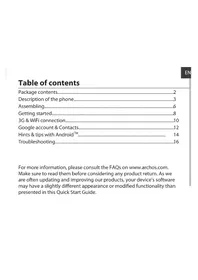
Package Contents
Check your product box for the following items:
-ARCHOS 45c Platinum
-Battery
-Headset
-Micro SIM adaptor
-USB cable
-Charger
-Quick start guide
-Warranty Legal & Safety notices
The items supplied with your device and available accessories may vary depending on your region or service provider.
The supplied items are designed only for your device and may not be compatible with other devices.
Unapproved accessories may cause your device to malfunction.
2
ARCHOS_45c_Platinum_book.indd 3 03/09/2014 18:18:35

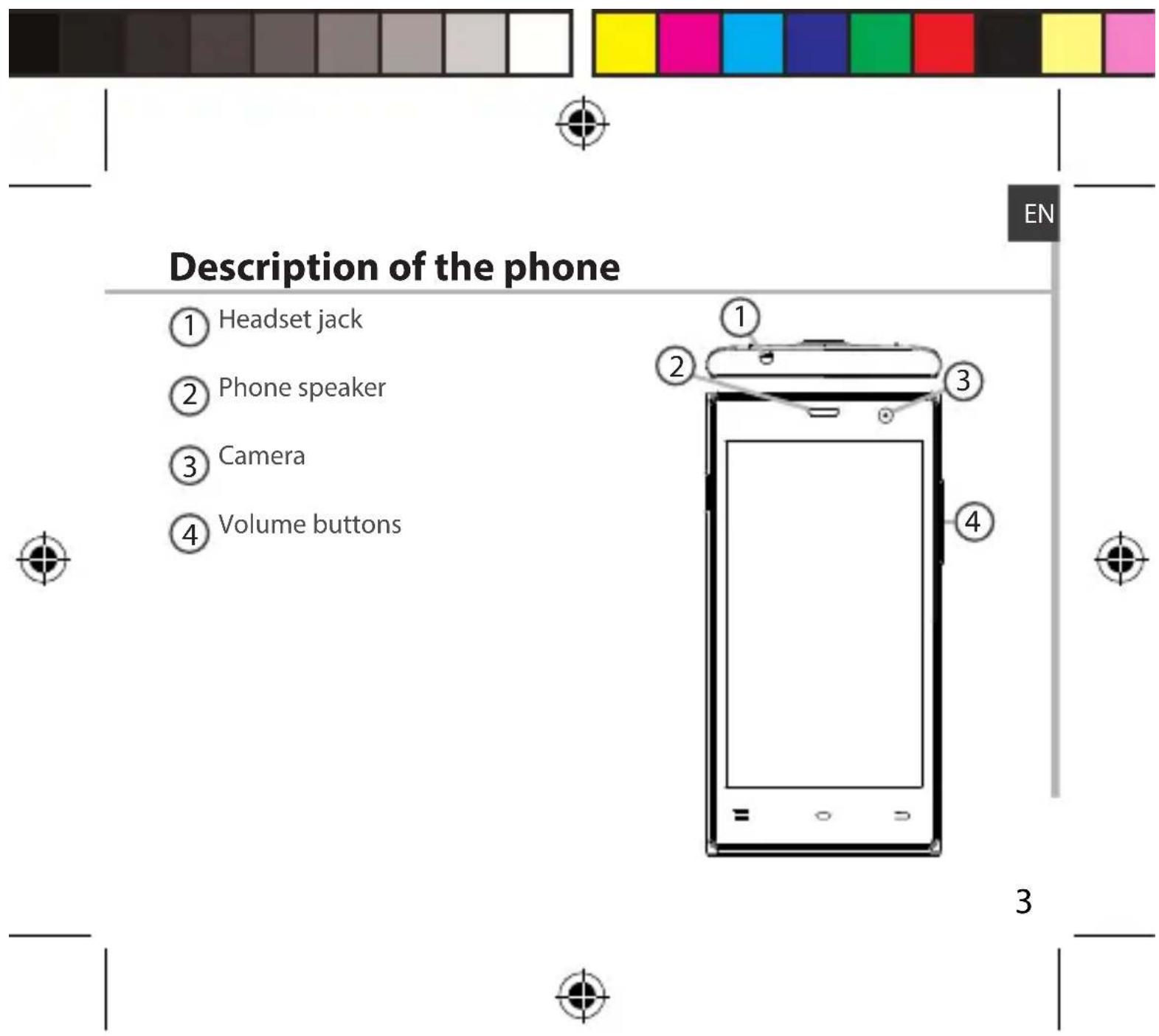
Description of the phone
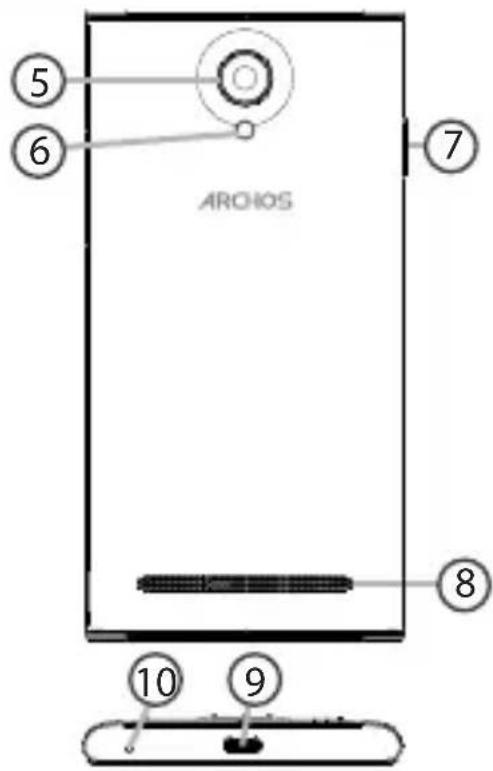
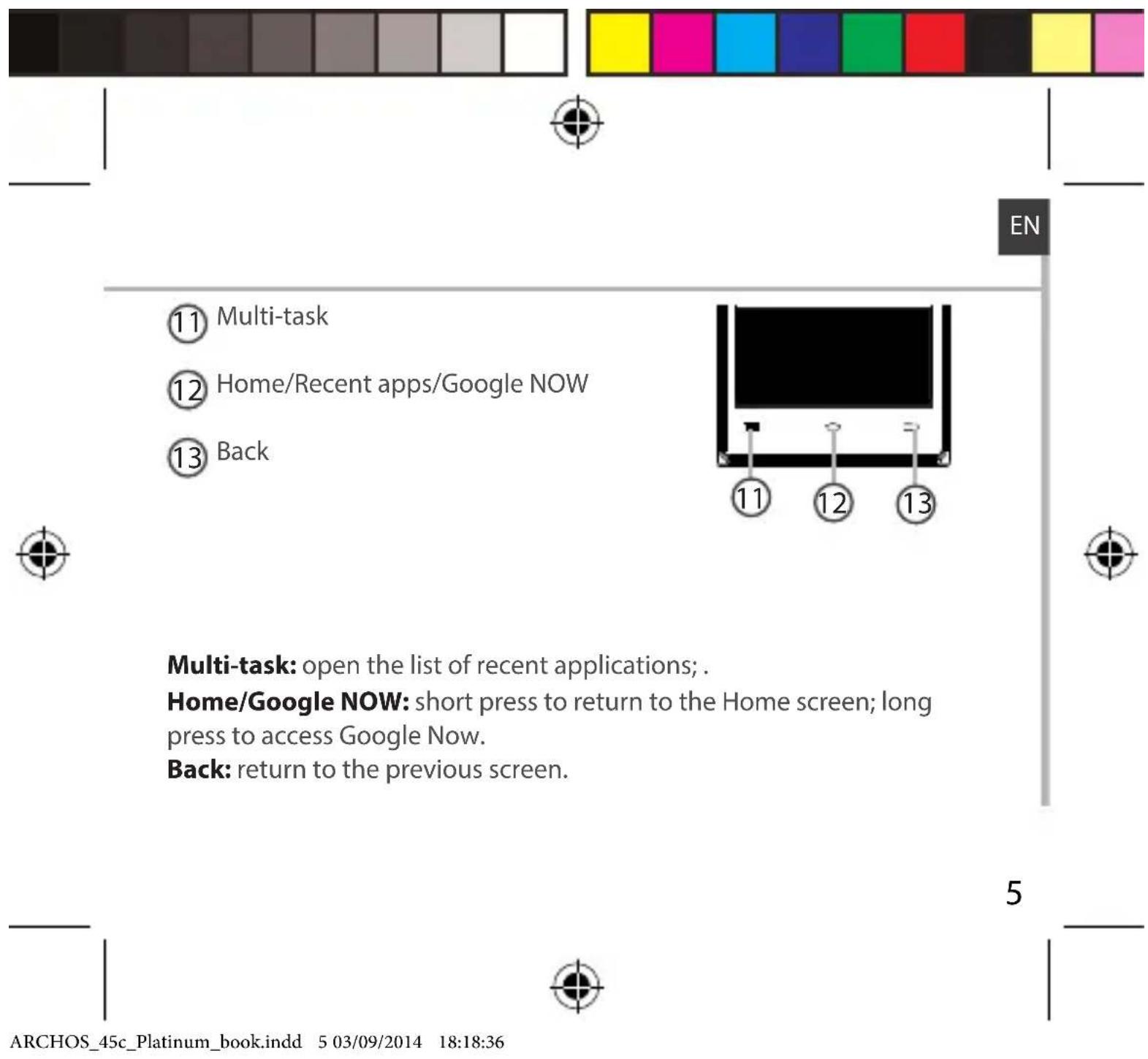
5 Camera
6 Flash
ON/OFF button
8 Loudspeaker
9 Micro-USB port
10 Microphone
4

Assembling
Opening
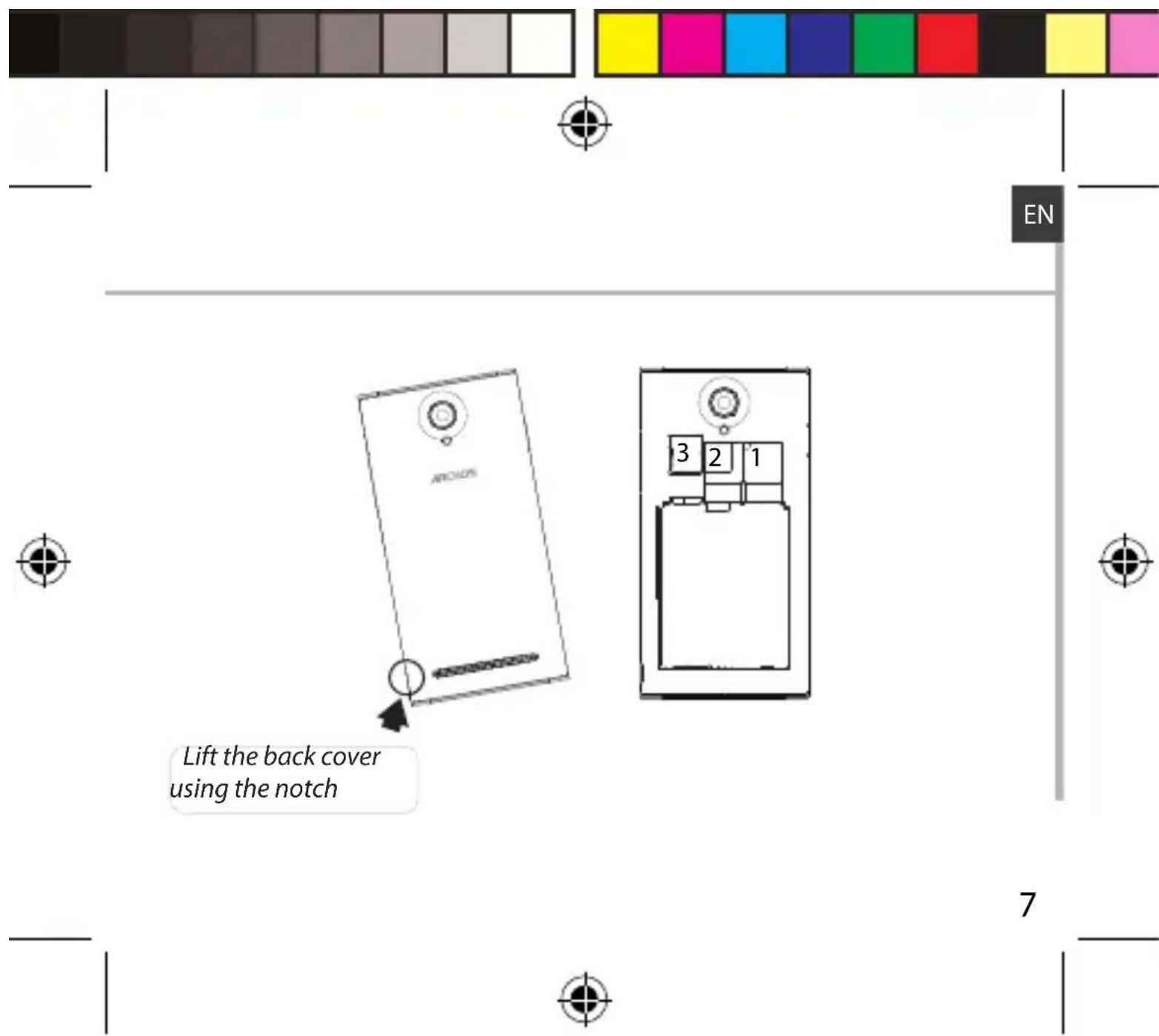
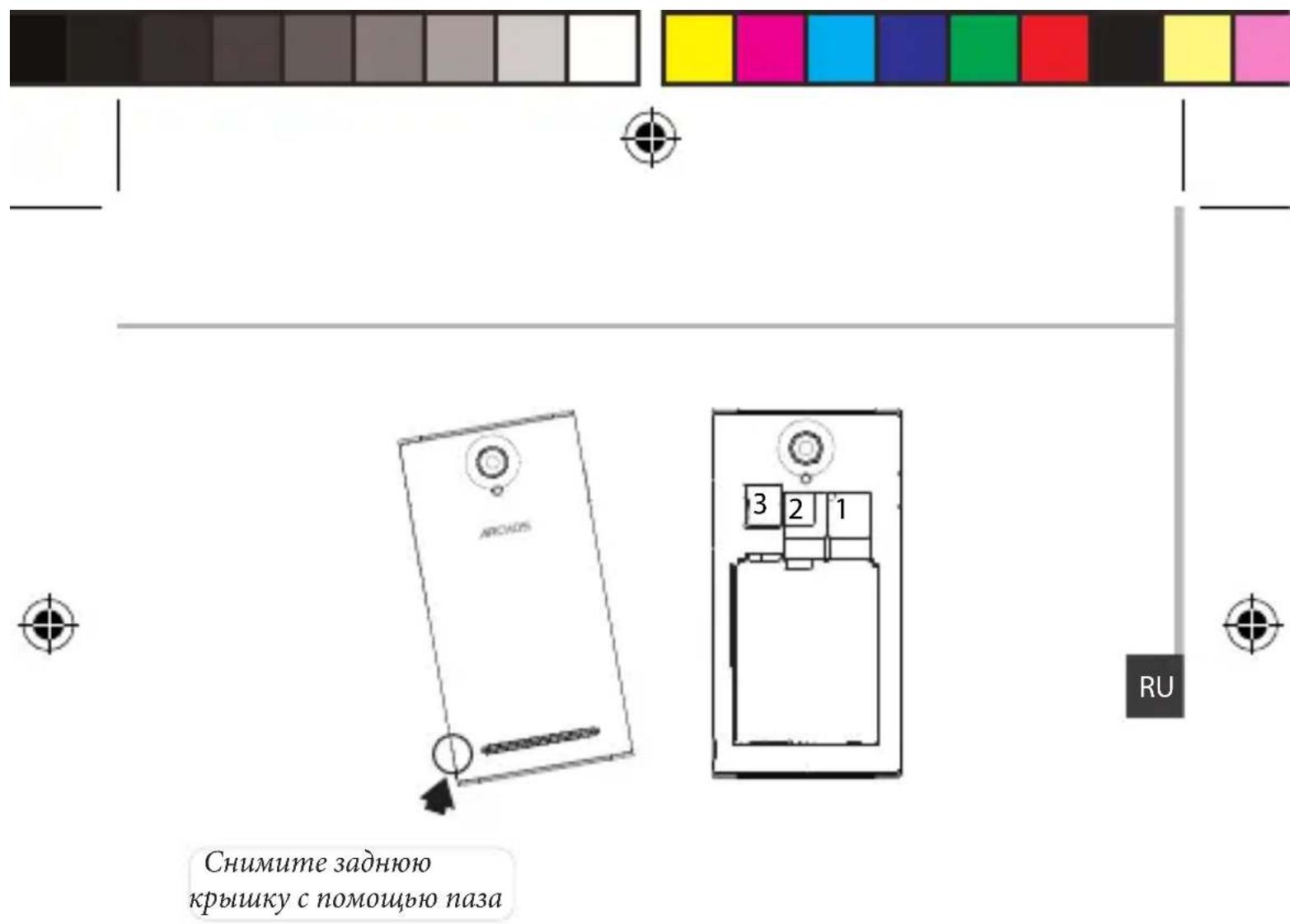
- Use the notch to remove the back cover.
Do not bend or twist the back cover excessively. Doing so may damage the cover.
- Remove the battery.
Inserting a SIM card
For your SIM card, slide it facing downwards in the slot 1 or 2.
Inserting a Memory card
For your Memory card, slide it facing downwards in the slot 3.
Closing
- Align the battery's 4 contact points with those of the phone and gently press the battery down into place.
- Replace the back cover clicking it back into position.
Tip: Before using your device for the first time, charge completely its battery.
6

ARCHOS_45c_Platinum_book.indd 7 03/09/2014 18:18:37

Getting started
Turn ON
- Press and hold the ON/OFF button to turn on the device.
When you turn on your device, a PIN code may be requested. - Type the PIN code supplied with your SIM card.
Beware of typing a wrong PIN code. - Select 'OK'.

Through the wizard
The first time you start up your ARCHOS, the installation wizard will help you set up your device:

-Language
-Date & time
-WiFi connection
-Location service options
Turn OFF
To turn off your device, press and hold the ON/OFF button, and then select Power off > OK.
8

ARCHOS_45c_Platinum_book.indd 903/09/2014 18:18:37

3G & WiFi connection
3G connection
With your SIM card, you should be connected to the Internet without any further setup. The ARCHOS will only have signal if you are in an area covered by your provider's 3G network. When connected to the 3G network, the 3G icon is displayed in the status bar.
Activating the mobile data
To be able to access Internet, the mobile data icon must be activated.
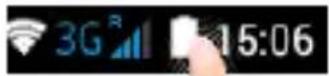
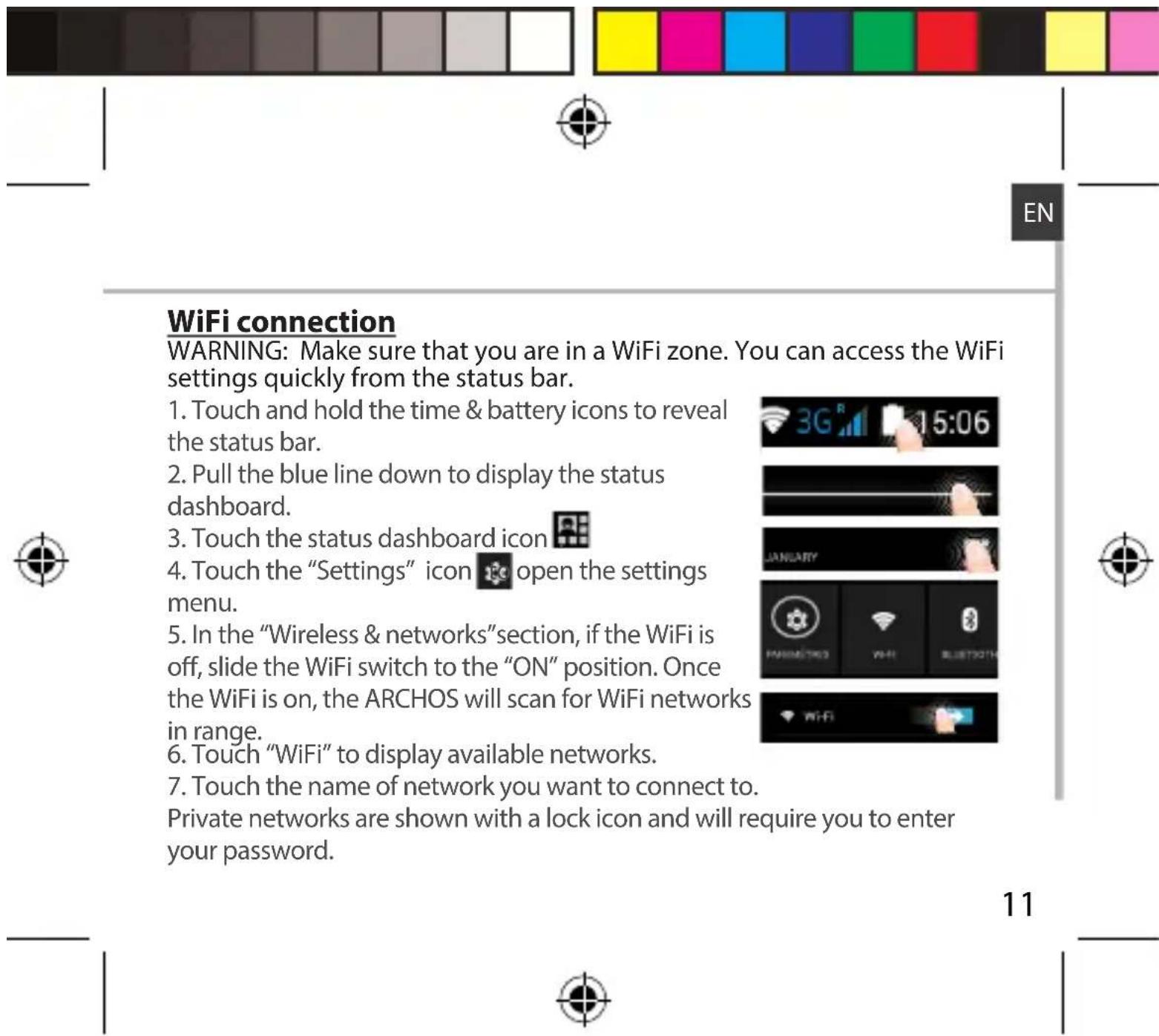
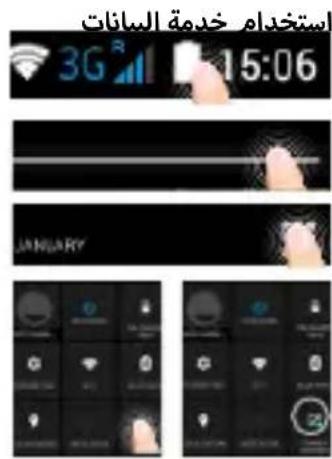
- Touch and hold the time & battery icons to reveal the status bar.
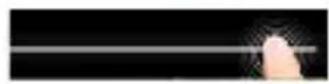
- Pull the white line down to display the status dashboard.
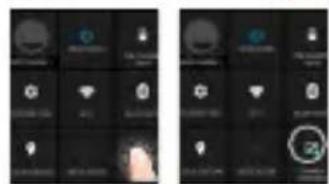
- Touch the status dashboard icon
- Touch the mobile data icon to activate it.

Tip: If you encounter connection problem's, see the FAQs on www.archos. com or contact your 3G network connection provider.
ARCHOS_45c_Platinum_book.indd 11 03/09/2014 18:18:38

Google & Contacts
Adding a Google account
A Google account lets you take full advantage of any Google apps and services that you may want to use.
- Go to "Settings" > "Accounts" > "Add account".
- Select the account type "Google" to add.
- Follow the onscreen instructions to enter information about the account. Once the account is created, you can access Play Store, Gmail, Hangouts, Maps and many other apps.
Synchronizing info
Information must be sync to be saved. Your data is backed up on Google servers.
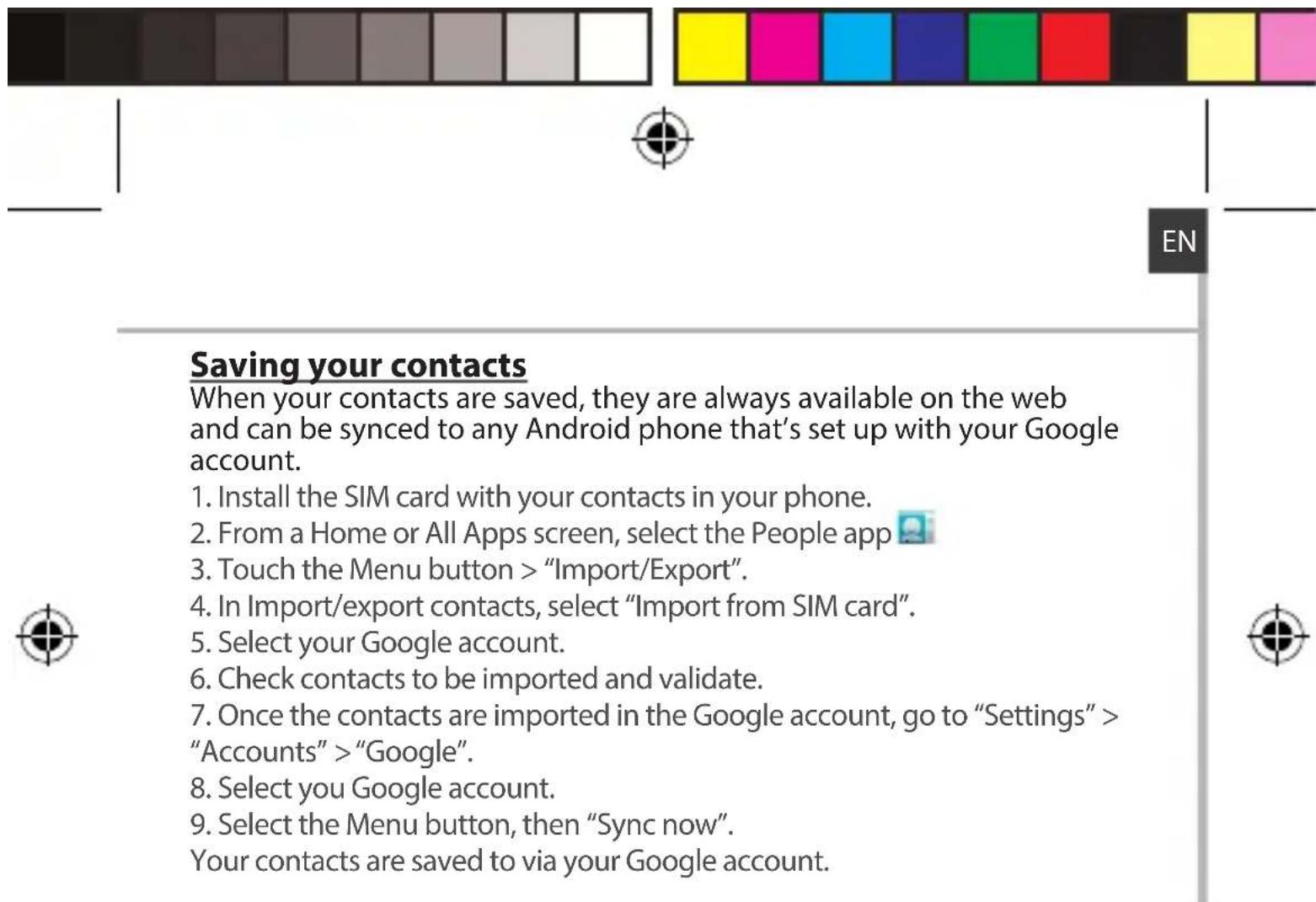
- Go to "Settings" > "Accounts" > "Google".
- Select your account.
The list of information that can be sync are displayed.
Automatic sync should be activated. To launch the sync, press the Menu button, then Sync now. You can get them back in case of loss of your device or SIM card. When your Google account is added to a new device, all your saved information is transferred.
12


Hints & tips for Android™
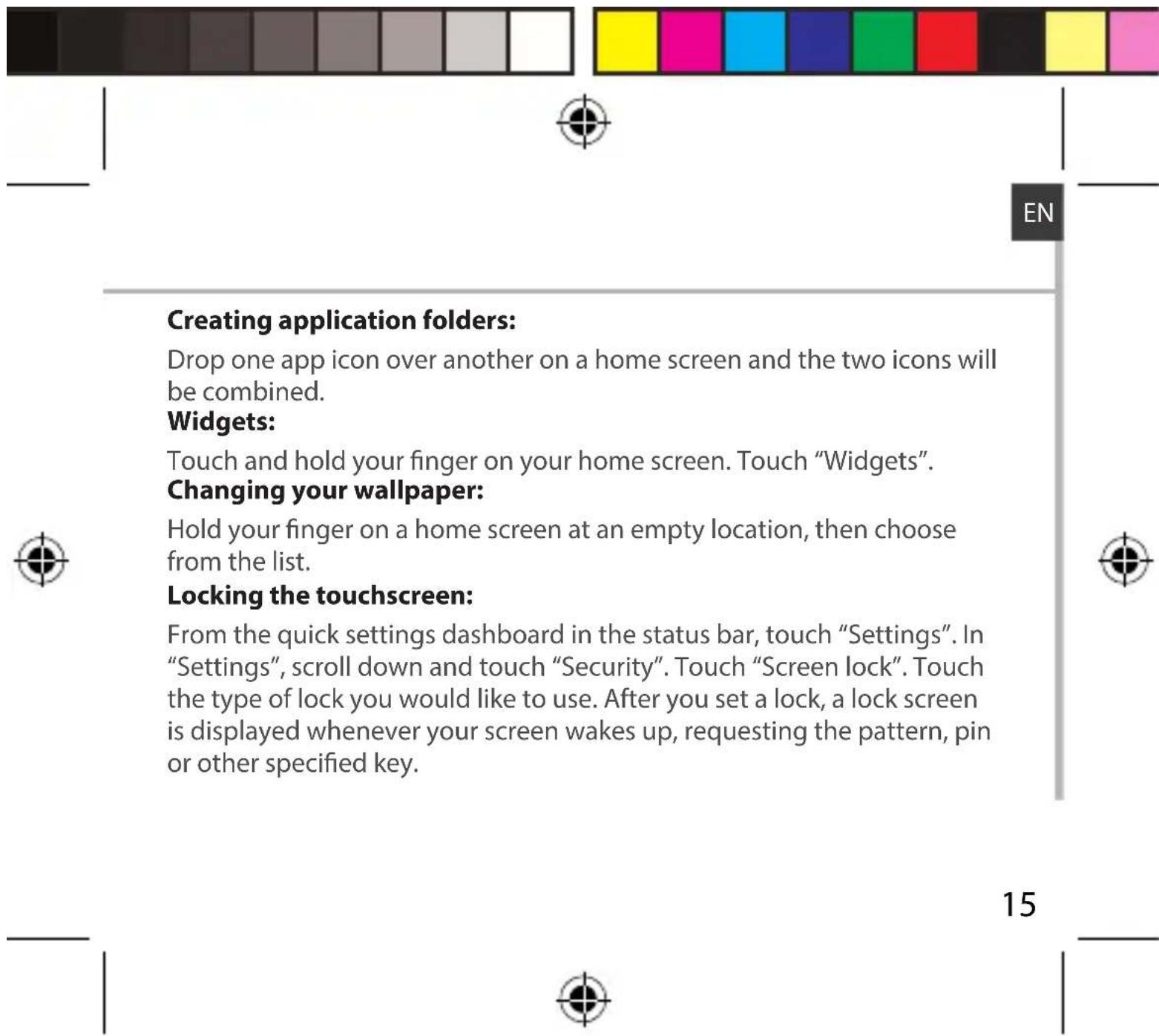
The extended home screen:
You have by default one home screen. You can create as many home screens you want. Select an app icon and slide it right. A new home screen will be created. Select another app icon and slide it right to create a third home screen.
Moving a home screen item:

Touch and hold your finger onto it until the positioning gridlines appear, then slide it to the desired location, and release your finger.
Removing a home screen item:
Touch and hold it, slide your finger towards the top of the screen and drop it over the "Remove" icon.
Uninstalling an item:
From the "All apps" screens, touch and hold it, slide your finger towards the top of the screen and drop it over "Uninstall" bin.
14

ARCHOS_45c_Platinum_book.indd 15 03/09/2014 18:18:38

Troubleshooting
My phone is frozen or cannot switch on
Check the battery contacts, remove and reinstall your battery, then turn your phone on. Check the battery power level, charge for at least 20 minutes.
My phone cannot connect to a network or "No service" is displayed
Try connecting in another location. Verify the network coverage with your operator.
Unable to make outgoing calls
Make sure your phone is connected to a network, and the network is not overloaded or unavailable.
Unable to receive incoming calls
Make sure your phone is switched on and connected to a network (check for overloaded or unavailable network).
SIM card PIN locked
Contact your network operator to obtain the PUK code (Personal Unblocking Key).
To configure a new 3G network:
On your device, tap Settings.
Select Wireless & networks > More... > Mobile networks.
Select Network settings. In Network operators, select your operator.
In Access Point Names, select the correct access point name and enter the exact connection parameters provided by your 3G provider.
Table des matieres
-KpaTKoe pyKOBOdCTBO
-「rapaHTn n nHCTpyKcnn no 6e30naCHOCTn
KOMnoHeHtbl, BXOJaIe N B KOMnJIeKT NOCTaBKn yCTPOJCTBa, IN DOCTyHbIe akCeCCyapbl MOryt pa3JIuHaTbCra B 3aBNCIMOCr OT PerNoHa IIN NoCTaBzNka ycnyr. KomnoHeHTbl, BXoJaIe N B KOMnJIeKT, IpeHa3HaueHbI DJIЯ NCnOJIb3OBaHnA TOJbKO C DaHHbIM yCTPOJCTBOM IM MOryt 6bITb HecOBMeCTMbIMn C dpyrImM yCTPOJCTBaMn. IcnoJIb3OBaHne akCeCCyapOB, KOToPbIe He 6bln pa3peWeHbI K npImeHeHIO C DaHHbIM yCTPOJCTBOM, MoKTe npUBeCTN K erO HeNCnpaBHOCTn.
114
ARCHOS_45c_Platinum_book.indd 115 03/09/2014 18:18:54

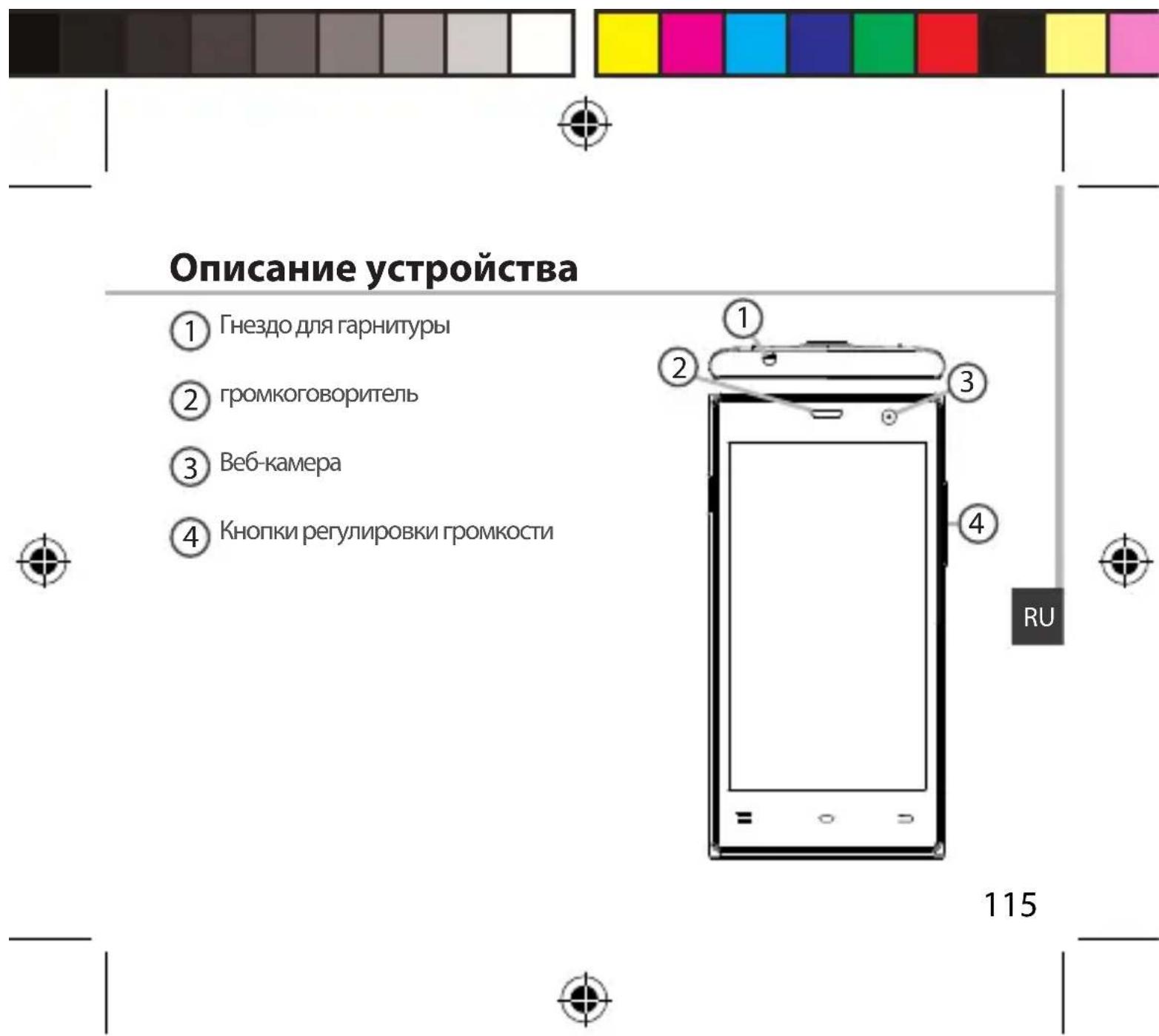
Опсане устpoиства
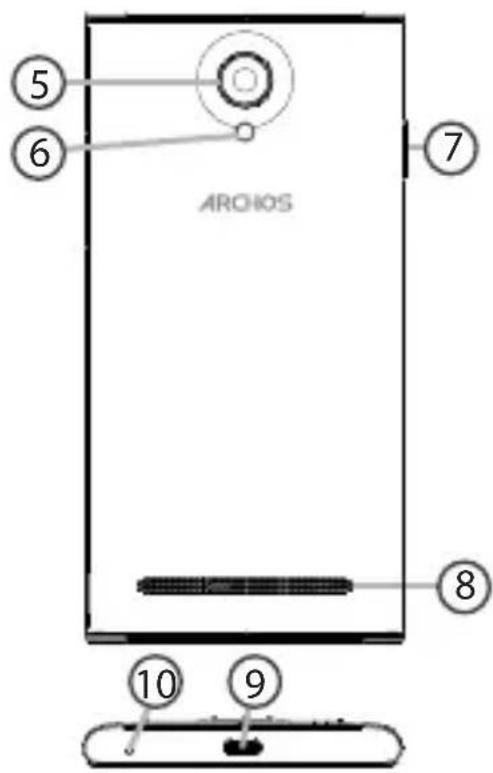
5 Kamepa
6
7 KhoNka BkIIOueHn/ BbIKIOueHn
8 rPOMKOROBOPnTeIb
9 Nopt micro-USB
10 MInKpoΦoH
116
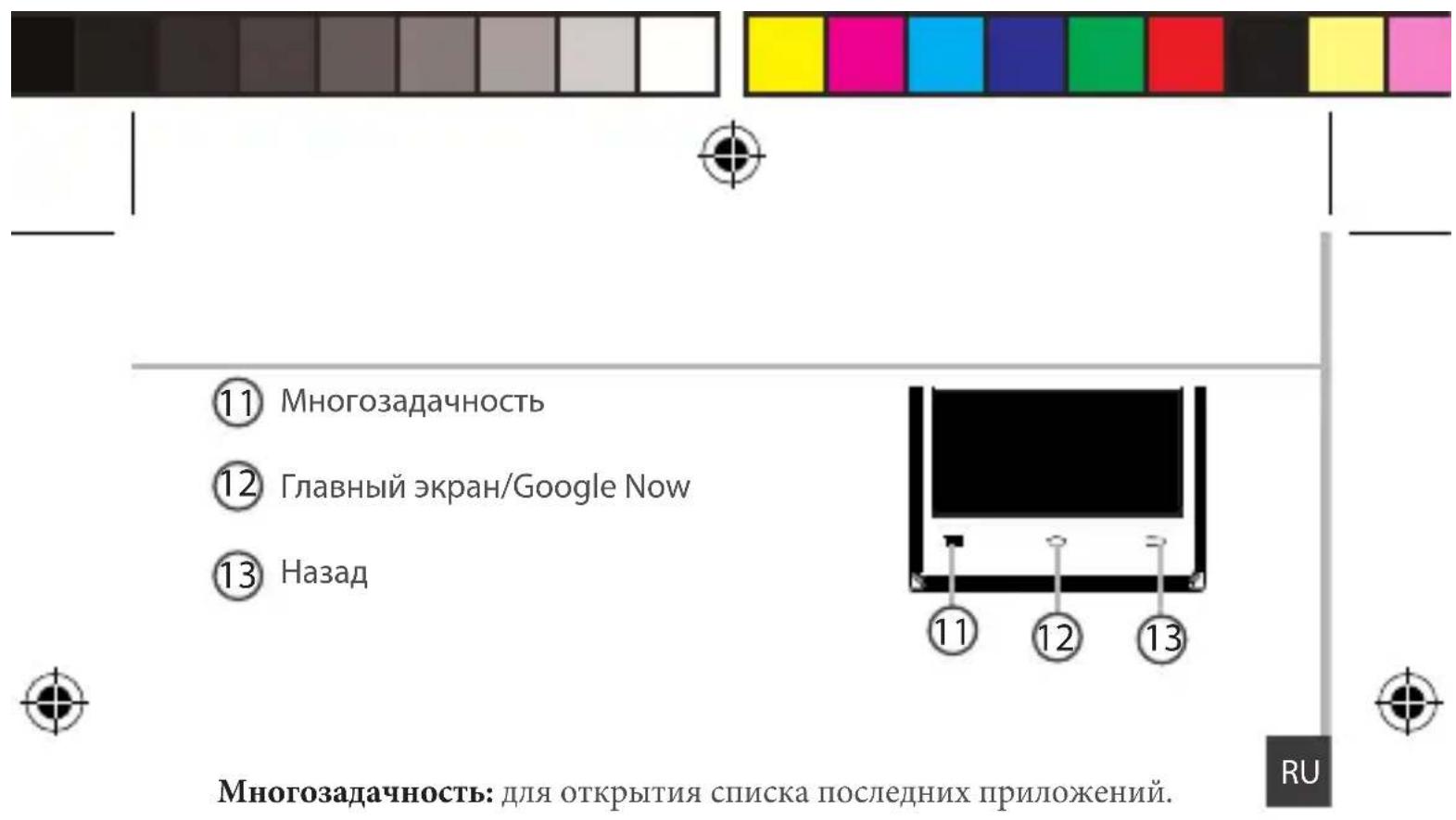
Mhoro3aauHocb: IJIy OTKpbTnCINCKa IOCNEIHNX IIpNIIOJKeHN.
Главный кран/"Google Now": HabKMITE OINH pa3 ДЯ BOЗВpaTa Ha Главный кран. сделаь ДЛNTeMbHO HabKMITE, YTO6bI OTKpbITb прилloxене "Google Now"
Ha3aI: BO3BpaT K IIpeIbIyIeMy əKpaHy.

C6opka
OTKpbITne
- Chmnte 3aHIOKpbIiKy.
He n3rnbaiTe n He cKpyuNbaiTe KpbIshky CnIshkom CnIbHo. 3To MoXeT npNBecTn Ke ee NOBpeJdeHnIO.
2.ИЗВЛЕКИТебатapeю.
BcTabKa SIM-KapT
BcTaBbTe KapTy SIM KOHTaKTHoN 06JaCTbIO BHN3 B rHe3Do 1 & 2.
BCTaBka KapTbI naMaTn
BCTaBbTe KapTu NaMaTn KOHTaKTHoI O6JaCtBuO BHN3 BrHe3Do 3.
3aKpbTMe
- COBmecnte 4 TOUKN KOHTaKTOB aKKymyIaTOPa C COOTBeTCTByIOuIMN ToUKAMn Ha TeJefoHe N OCTOpOxHo Ha aKaMyIaTOP BHN3, YTO6bl 3aDbHHTb erO Ha MeCTO.
- YctaHOBInTe KpbIshky aKKymyIaTOPa, TaK yTO6bI OHa CO IeJukOM CTana Ha MeCTO.
POncka3Kn.
IpeenepBbIM nCNoJIb3OBAHnEm yCTpoiCTBa NOLHOCTbIO 3apJNTe aKKymyIaTOp.
119

Hauano pa60tbi
BkIouHne
- Haxmnte n ydepxnBaTe KHONky BkIIOueHnN N BbIKIOueHnN, YTO6bl BKIOuHTb yCTPOINCTBO.
PnBkIoueHIn yCTpoiCTBa MoKeT NOBntbCz anpoc Ha BBOD PIN-KoJa. - BBeInTe PIN-KoI, npeIoocTaBnaEmbIc SIM-KapToI.
- HaxmTe OK.
Mactep HacTroponKn
PpOfHn3ByKOB N yBeDOMneHn
- Korla yctpoiCTBO BKIOUeHO, HaKMnTe n yIepKuBaIte KHOIIKy
120


BKIOUOeHn/BBIKIOUeHn.
- BbI6epNTe OIMN I3 BapNaHTOB.
Демоствая На ceHCOPHOMЭКраHe
Kacanhe: KocnTecb oINH pa3 nIy Bbl6opa nn 3ayncka MeHIO, yHKcnn nn npINOxehna.
Be3 3Byka Bn6paIIa Co 3BykOM

Kacahne u yepxahanhe: KocHTecb 3JeMeHt a u yepxuBaIte ero He Mehee 2 cekyHd.
NepetacknBaHne:Kochntecb 3JIeMeHTa IN nepemecTITe erO B HOBOE MECTO.
Двоиhoe kacahne: bblcTo pДBaJkbI KOCHnTeCb 3JIeMeHTa.
Побedingнe:БьICTpo npOBeNTe NOэКрану пальсeМВВерх,BHn3, BJIeBO nIN BnpaBO,чTO6bl npOKpyTntb CnncOK nIN COpeKImOe эКраHA.
Ckatae:Pa3BeiTe IBa nalba,a 3aTeM CBeiTe IX uINKOBbl M DnIXKeHnEM.
Iopcka3Kn. Ecn yctpoCTBO He nCnoJb3yeTcB TeueHne onpeJeHHO BpeMeHN, ceHCOPbI 3KpaH BblIOuaeTcR. YTo6bl BKIOHTb 3KpaH, HaxMNTe KHOKNy BKIOUeHn I BblIOUeHn. YTo6bl 3aTaB dInTeNbHOCTb, nepeINTE K MeHIO Settings > Display > Sleep (HaCTpoKn > DIncPNei > PeXIM cHa).
RU


Teneoh He pearpyet Ha deiCTBnI Hn He BkIOUaETcA
PpOBepbTe KOHTaKtbl aKKyMyJrTopo, n3BnEKeTne I NOBTOPOH yCTaHOBtpe aKKyMyJrTOp, 3aTEM CHOBA BkIOUHTe TeJefoH. PpOBepbTe ypoBeHb 3apra aKKyMyJrTOpa, BbIOnHNTe 3apRky B TeueHne He MeHee 20 MmHyT.
He ydaetcnoiknouhtb teneoh He moKet K cetn, nIIN oTo6paXaETc coo6ueHne No service (Her cetn)
PonbTaItecb yctaHOBnTbc coeHHeHne B pyrom MeTe. PpOBepbTe y onepaTopa hainuHne NOKpbITna ceTn. PpOBepbTe y onepaTopa, deCTBaTcBtBHa nn BaHa SIM-kapTa. POnbTaItecb Bbl6paTb DoCTyInHyo ceTb (ceTn) BpyHyIO. POnbTaItecb yCTaHOBnTbc coeHHeHne No3Ke, eCNI cTb nepeRpyKeHa.
He ydaetcBbInonHrTb NcXoJaune Bbl3OBbl
Y6eHITecb, YTO TeNEoH NIOKJIIOUeH K CETN, N YTO CTe B IOCTyINHa N He NepepyKeHa.
He ydaetc npHIMaTb BXOJaIe Bbl3OBbl
Y6eIITecb, YTO TeJIefoH BKIOUeH IN IOKIOUeH K CeTn (npOBepbTe, YTO Cetb DOCTyINHa I He neperpyxeha).
3a6JokpoBaH PIN-KoI SIM-KapTbI
O6paTntecb K onepatopy MobnIbHoi CBa3n dny noIyueHna PUK-KoJa (Personal Unblocking Key — nepcoHaNbHb pa36NoKpyUoJn KoJ).
ДлгНастюй HOBOI CETN 3G
Ha ekpahe yctpoiCTBa KocHnTeCb nyHKta Settings (HacTPOiKn).
Bb6epnte Wireless & networks (BecnpoBnHa cB3b n cTe) > More... (BoIbSe...) > Mobile networks (MoNlbHbceT).
Bb6epnte npHKT Network settings (CteBbIe HacTpoiKn). B pa3dene Network operators (OnepaTopbI cTeN) Bb6epnte cBoero noctabuikka ycIyr. B pa3dene Access Point Names (ImeHa toeK doCTyna) npaBnblHO BBeNTe IMr TOckn DOCTyna N ToCHbIe NapaMeTpbl coeINHeHn, npedocTabLeHHbIe NOCTaBUnkOM ycIyr cTeN 3G.
ARCHOS_45c_Platinum_book.indd 129 03/09/2014 18:18:56

4b > 3a
cfo 0d ool bduol, olduwll ouo o aoo ooo ygoydo aydoaayydy gog ygdy
.0gKwJ<00yJ<01dAeYI 000gJ
168168



ailll 3G aow oovy g, 3G aow oovy oovy g
. ygl clll ldo jyj, cyjyl kswol sly
. alIb bry jy jyblg g ogjlg oalb201.1
. 2
. aJy jyblg b201.2
. yjy jyblg b201.3
. aJy jy jyblg b201.4
ab > 30
Gmail, joll aluwrj kou, aaglgl Goggle u> caiy daii iiaa
. 5

J

. 14 jolji Jus aow gll clogkaal no stly
jGc Google 1u w aill 3, clll oia oiaaaii jay iag ll g aiil
. 1iill Js oJzaiu I auiu
172



slwyl &Google
slwyl b
3aalbll C 1 .

2..aasjll aolll
3...(JLwJ&JlWJ)

jol 4 .. aIbUJ jao.
j5 .Google
6...gosolglwlwjl
. Google < 1y1y1y1 < 1y1y1y1 y1 y1 y1 y1 y1 y1 y1 y1 y1 y1 y1 y1 y1 .7
- | x - 1| = | x + 2| = 1 .
- “jol” b2ol
Google 4ds c120 jcleawly bao ay

173



:aaJll AawLwJy
. jll gl jauu d auiy jaiw u jau wos
:aaaJll aaLJI Loo
.aaaiolaljodgnofo
. goludwio jyjryi caiuill aiaa Jgdo gdo
.4dxy Jlwlgl jll gabll yj
:aaJll aaJll no Jaic Jai
a a a a a a a a a a a a a a a a a a a a a a
.

:aaajll aaai jraiae
a"ddalllkallgdoagaa calloogdo aai gaoaal jaisl lcbally
( x,y) = ( ab + c, - a + b)
:jaic c
3 10000000000000000000000000000000000000000000
. 15201 g 3 3 3 " c 111" 1201 j k
174



lglolg|blylsl
aill jiee jie jie
Open Source Software Offer
The software bundled with this product includes software files subject to certain open source license requirements. Such open source software files are subject solely to the terms of the relevant open source software license. Such open source software is provided on an "AS IS" basis to the maximum extent permitted by applicable law.
For the open source files contained herein, please access "Open source license" section located at: Settings\About phone\Legal information on the device for the relevant copyright and licensing terms. You may obtain a copy of Apache License, Version 2.0 at http://www.apache.org/licenses/License-2.0. You may also obtain a copy of GNU General Public License, Version 2 at the Free Software Foundation, INC, 51 Franklin Street, Fifth Floor, Boston, MA 02110-1301, USA.
Until the date that is three years after our last shipment of this product, you may obtain a copy of the source code corresponding to the binaries for any GPL-Licensed file by contacting ARCHOS customer service at http://www.archos.com and ARCHOS will send you a link to such source code or will provide instructions to get the source on a physical medium.
This offer is valid to anyone in receipt of this information.


National restrictions
This device is intended for home and office use in all EU countries (and other countries following the EU directive 1999/5/EC) without any limitation except for the countries mentioned below:
Country Restriction ReasonRemark
Bulgaria None General authorization required for outdoor use and public service

France Outdoor use
limited to 10
Military Radiolocation use. Refarming of the
mWe.i.r.p.
2.4 GHz band has been ongoing in recent
within the
years to allow current relaxed regulation. Full
band 2454-
implementation planned 2012
2483.5 MHz
Italy None If used outside of own premises, general
authorization is required.
Luxembourg None General authorization required for network and service supply (not for spectrum)
182


Norway Implemented This subsection does not apply for the geographical aera within a radius of 20km from the centre of Ny-Alesund
Russian None Only for indoor applications Federation
Note: Frequency 2454-2483.5MHZ are restricted to indoor use in France.
Consult the declaration of conformity on http://www.archos.com/products/ declaration_conformity.html


SAR
After the laboratory measurement, this mobile phone SAR value is: Body SAR max. value is 0.850W/Kg, and Head max.value is 0.873W/Kg. Archos company declares that this device is in compliance with the essential requirements and other relevant provisions of Directive 1999/5/EC
C∈0700
183