EasyManual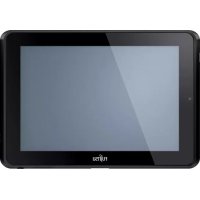
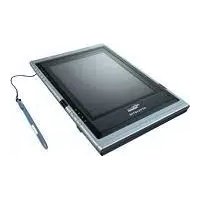
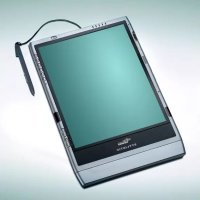
Stylistic Q550 - Tablet FUJITSU - Free user manual and instructions
Find the device manual for free Stylistic Q550 FUJITSU in PDF.



User questions about Stylistic Q550 FUJITSU
0 question about this device. Answer the ones you know or ask your own.
Ask a new question about this device
Download the instructions for your Tablet in PDF format for free! Find your manual Stylistic Q550 - FUJITSU and take your electronic device back in hand. On this page are published all the documents necessary for the use of your device. Stylistic Q550 by FUJITSU.
USER MANUAL Stylistic Q550 FUJITSU
Q550 Tablet PCCopyright and Trademark Information Fujitsu America, Inc.has made every effort to ensure the accuracy and completeness of this document. Because ongoing development efforts are made to continually improve the capabilities of our products, however, the data contained herein represents Fujitsu design objectives and is provided for comparative purposes; actual results may vary based on a variety of factors. This product data does not constitute a warranty. Specifications are subject to change without knowledge. Fujitsu and the Fujitsu logo are registered trademarks of Fujitsu Limited; STYLISTIC is a registered trademark of Fujitsu America, Incorporated. Microsoft and Windows are registered trademarks or trademarks of Microsoft Corporation in the United States and/or other countries. The SD Logo is is registered with the U.S. Patent and Trademark Office and with other trademark offices around the world by SD-3C, LLC. Intel, Intel Core, and Intel Atom are trademarks or registered trademarks of Intel Corporation or its subsidiaries in the United States and other countries. OmniPass is a trademark of Softex, Inc. Broadcom is a registered trademark of Broadcom Corporation.smartcard Norton Internet Security is a trademark of Symantec Corporation in the United States and other countries. AirPrime is a trademark of Sierra Wireless Inc. Gobi3000 is a trademark of Qualcomm Inc. Nuance and XT9 are either registered trademarks or trademarks of Nuance Communications, Incorporated. Adobe and Adobe Reader are registered trademarks or trademarks of Adobe Systems Incorporated in the United States and/or other countries. Ralink is a registered trademark of Ralink Technology Corporation. Bluetooth and the Bluetooth logo are registered trademarks of Bluetooth SIG, Inc. Realtek is a trademark of Realtek Semiconductor Corp. Wi-Fi is a trademark of the Wireless Ethernet Compatibility Alliance (WECA).All other products are trademarks or registered trademarks of their respective companies. All other trademarks mentioned herein are the property of their respective owners
Copyright 2011 Fujitsu America, Incorporated. All rights reserved. No part of this publication may be copied, reproduced, or translated, without the prior written consent of Fujitsu America, Incorporated. No part of this publication may be stored or transmitted in any electronic form without the prior consent of Fujitsu America, Incorporated. B6FJ-5861-01ENZ0-00
LEASE CLICK “3G MINI-CARD GOBI3000 REGULATORY AND SAFETY INFORMATION” TO OPEN THE FULL USER GUIDE CONTAINING WARNINGS AND PRECAUTIONS ASSOCIATED WITH RF SAFETY WHEN USING THE WWAN DEVICE.
DECLARATION OF CONFORMITY
according to FCC Part 15 Responsible Party Name: Fujitsu America, Incorporated Address: 1250 E. Arques Avenue, Sunnyvale, CA 94085 Telephone: (408) 746-6000 Declares that product: Base Model Configuration: STYLISTIC Q550 Tablet PC Complies with Part 15 of the FCC Rules. This device complies with Part 15 of the FCC rules. Operations are subject to the following two conditions: (1) This device may not cause harmful interference, (2) This device must accept any interference received, including interference that may cause undesired operation.IMPORTANT SAFETY INSTRUCTIONS This unit requires an AC adapter to operate. Use only UL Listed I.T.E. Class II Adapters with an output rating of 19 VDC, with a current of 2.1A (40 W). When using your tablet PC, basic safety precautions should always be followed to reduce the risk of fire, electric shock and injury to persons, including the following:
- Do not use this product near water for example, near a bathtub, washbowl, kitchen sink or laundry tub, in a wet basement or near a swimming pool.
- Use only the power cord and batteries indicated in this manual. Do not dispose of batteries in a fire. They may explode. Check with local codes for possible special disposal instructions.
SAVE THESE INSTRUCTIONS
AC adapter output polarity:Recycling your battery Over time, the batteries that run your mobile computer will begin to hold a charge for a shorter amount of time; this is a natural occurrence for all batteries. When this occurs, you may want to replace the battery with a fresh one*. If you replace it, it is important that you dispose of the old battery properly because batteries contain materials that could cause environmental damage if disposed of improperly. Fujitsu is very concerned with environmental protection, and has enlisted the services of the Rechargeable Battery Recycling Corporation (RBRC)**, a non-profit public service organization dedicated to protecting our environment by recycling old batteries at no cost to you. RBRC has drop-off points at tens of thousands of locations throughout the United States and Canada. To find the location nearest you, go to www.RBRC.org or call 1-800-822-8837. If there are no convenient RBRC locations near you, you can also go to the EIA Consumer Education Initiative website (http://EIAE.org/) and search for a convenient disposal location. Remember – protecting the environment is a cooperative effort, and you should make every effort to protect it for current and future generations.
- To order a new battery for your Fujitsu mobile computer, go to the Fujitsu shopping site at www.shopfujitsu.com in the US or www.fujitsu.ca/products/notebooks in Canada. ** RBRC is an independent third party to which Fujitsu provides funding for battery recycling; RBRC is in no way affiliated with Fujitsu.Contents Preface About This Guide . . . . . . . . . . . . . . . . . . . . . . . . . . . . . . . . . . . . . . . . . . . . . 11 Conventions Used in the Guide . . . . . . . . . . . . . . . . . . . . . . . . . . . . . . . . . 11 Fujitsu Contact Information . . . . . . . . . . . . . . . . . . . . . . . . . . . . . . . . . . . . 12
Chapter 1 Getting to Know Your Tablet PC
- Overview p. 13
- Locating the Connectors and Controls p. 14
- Front Features p. 14
- Back Features p. 16
- Status Indicator Panel p. 18
- Display Panel p. 20
- Adjusting Display Panel Brightness p. 20
- Active Digitizer/Touchscreen p. 22
- Active Digitizer Display p. 22
- Using the Capacitive Touchscreen p. 26
- Accessing the OnScreen TouchPad p. 27
- Using the Nuance SoftKeyboard p. 28
- Caring for the Pen p. 28
- Tablet PC Buttons p. 317
Chapter 2 Getting Started with Your Tablet PC
Chapter 3 User-Installable Features
Chapter 5 Care and Maintenance
- Caring for your Tablet PC p. 65
- Cleaning your Tablet PC p. 66
- Storing your Tablet PC p. 67
- Traveling with your Tablet PC p. 68
- Batteries p. 68
- Media Care p. 69
- Secure Digital Cards p. 70
Chapter 6 System Specifications
Q550 Tablet PC is a high-performance pen-based computer that has been designed to support Microsoft
7 Professional edition. This manual explains how to operate your Tablet PC hardware and built-in system software. The STYLISTIC Q550 Tablet PC is a completely self-contained unit with a 10.1” WXGA LED backlit IPS display with 160 degree vertical and horizontal viewing angles. It has a powerful interface that enables it to support a variety of optional features. Conventions Used in the Guide Pages with additional information about a specific topic are cross-referenced within the text. On screen buttons or menu items appear in bold. Example: Click OK to restart your Tablet PC. THE INFORMATION ICON HIGHLIGHTS INFORMATION THAT WILL ENHANCE YOUR UNDERSTANDING OF THE SUBJECT MATERIAL.
HE CAUTION ICON HIGHLIGHTS INFORMATION THAT IS IMPORTANT TO THE SAFE OPERATION OF YOUR COMPUTER, OR TO THE INTEGRITY OF YOUR FILES. PLEASE READ ALL CAUTION INFORMATION CAREFULLY.12 - About This Guide Fujitsu Contact Information Service and Support You can contact Fujitsu Service and Support in the following ways:
- Toll free: 1-800-8Fujitsu (1-800-838-5487)
- Website: http://www.computers.us.fujitsu.com/support Before you place the call, you should have the following information ready so that the customer support representative can provide you with the fastest possible solution:
- Product configuration and serial numbers
- Conditions under which the problem occurred
- Any error messages that have occurred
- Type of device connected, if any Fujitsu Shopping Online You can go directly to the online by going to the website at: www.shopfujitsu.com. Limited Warranty Your STYLISTIC Q550 Tablet PC is backed by a Fujitsu International Limited Warranty. Check the service kit that came with your tablet PC for the Limited Warranty period and terms and conditions. THE WARNING ICON HIGHLIGHTS INFORMATION THAT CAN BE HAZARDOUS TO EITHER YOU, YOUR
Q550 Tablet PC is a high-performance pen-based computer that has been designed to support Microsoft
Professional edition. This chapter provides an overview of the STYLISTIC Q550 Tablet PC and its many features. Figure 1. STYLISTIC Q550 Tablet PC14 - Locating the Connectors and Controls Locating the Connectors and Controls Features and controls that you use to operate your Tablet PC are outlined below and illustrated in Figures 2 and 3. Details on using these features and controls are provided later in this manual. Figure 2. STYLISTIC Q550 Tablet PC Features (Bottom, Right View) Front Features Front Web Camera The front-facing VGA web camera allows you to take pictures of yourself to send over the internet. For information on using the microphone and web cam, see the documentation associated with the FujitsuHL application. Front Web Camera Display Pen Tether Attachment Point Wireless Device Switch Application Buttons Status Indicators Power/Suspend/ Resume Switch DC Input Connector Speaker Docking Cradle Connector15 - Locating the Connectors and Controls Display The 10.1” Wide XGA display offers 160 degree vertical and horizontal viewing angles. Pen Tether Attachment Point The pen tether attachment point is used to connect your pen -- or stylus -- to the system to prevent its loss. Wireless Device On/Off switch The wireless device on/off switch is used to turn the optional WLAN, WWAN, and Bluetooth devices on and off. Switching the device off when not in use will help to extend battery life. Application Buttons Allow you to quickly launch pre-defined applications and utilities, rotate your screen, and perform Ctl- Alt-Del by pressing a button. See “Tablet PC Buttons” on page 31. System Status Indicators Indicate the operational status of the Tablet PC power and battery charge level. See “Status Indicator Panel” on page 18. Power/Suspend/Resume Switch Allows you to turn on, off, sleep, resume, hibernate or wake the Tablet PC in order to optimize battery life. See “Starting Your STYLISTIC Tablet PC” on page 35. DC input connector: Allows you to connect the AC adapter or auto adapter. Speaker The speaker allows you to hear sound from the system. Docking Cradle Connector Allows you to connect the optional STYLISTIC Docking Cradle.16 - Locating the Connectors and Controls Figure 3. STYLISTIC Q550 Tablet PC Features (Back View) Back Features Battery Release Latches Used to release the removable battery. Rear Web Camera The 1.3 megapixel rear web camera allows you to take pictures of objects in front of you for sharing over the internet. For information on using the camera, see the documentation associated with the FujitsuHL application. Battery Release Latches Rear Web Camera SD Card Slot Fingerprint Sensor Built-in Microphone USB 2.0 Port SmartCard Slot Line Out/ Headphone Jack HDMI Port Built-in Microphone Removable Battery17 - Locating the Connectors and Controls SD Card Slot The Secure Digital (SD) card slot allows you to insert a flash memory card for data storage. Flash memory cards allow you to transfer data to and from a variety of different digital devices. See “Secure Digital Cards” on page 51. Fingerprint Sensor The fingerprint sensor allows you to start your system by swiping your finger over the sensor. See “Introducing the Fingerprint Sensor Device” on page 94. Built-in Microphones The built-in microphones allow you to input analog audio. USB 2.0 port Allows you to connect Universal Serial Bus-compliant devices (compliant with USB Standard Revision 2.0) to the Tablet PC. Four additional USB ports are located on the optional STYLISTIC Docking Cradle. Smart Card Slot The dedicated Smart Card slot allows you to insert a Smart Card on which you can store such data as medical information or electronic “cash”. Line Out/Headphone Jack Allows you to connect a set of stereo headphones. HDMI Port The HDMI port is used to connect compatible digital devices with your computer (such as a high- definition television or AV receiver). Removable Lithium Polymer Battery Can be removed and replaced with a charged battery. See “Lithium Polymer Battery” on page 45.18 - Status Indicator Panel Status Indicator Panel Icons appear under each of the system status LEDs in the status display indicating the status of system power and battery charge status. The location of icons in the Status display is shown in Figure 4. Table 1 explains how the LEDs associated with the individual icons are displayed, and describes what the variations of that display indicate. (If an icon is not displayed, it indicates that the related system function is off or inactive. Figure 4. Status Display Icons Power Charge/ DC in19 - Status Indicator Panel Table 1. Status Display Conditions In the following table, a “blinking” LED flashes at the rate of once per second; an LED that is “blinking, slow” flashes at the rate of one second on, five seconds off. Icon Mode/State LED State Remarks Power
- Idle Mode Blue, continuous The system is powered on and ready for use.
- Sleep Blue, blinking The system has suspended and saved active settings to RAM.
- Hibernate Off The system has suspended and saved settings and data to the hard disk drive. Charge/DC In
- Off State Green AC adapter and battery are available and charged battery level is 50-100%. Orange AC adapter and battery are available and charged battery level is less than 50%. Green, blinking Tablet PC is in Suspend mode, AC adapter and battery are available and charged battery level is 50-100%. Orange, blinking Tablet PC is in Suspend mode, AC adapter and battery are available and charged battery level is less than 50%. Off The AC Adapter is not available.20 - Display Panel Figure 5. Tablet PC Display Panel Display Panel Your STYLISTIC Q550 Tablet PC contains an LCD display panel that is backlit for easier viewing in bright environments. The slate design of your Tablet PC allows you to easily hold the unit and rotate it
in either direction. This display is used as a tablet, much as you would a pad of paper. Adjusting Display Panel Brightness To adjust brightness with the power management utility: Click Start -> Control Panel. In View by:, select one of the icon views. Select Display, then click Adjust brightness in the left pane. Under Select a power plan, select the plan settings you want to use. Drag Screen brightness: bar (at the bottom of the window) to the left or right, depending on your preference.21 - Display Panel Holding the Tablet PC The STYLISTIC Q550 can be held in any of four orientations, depending upon how you would like to use it. There are primary and secondary landscape orientations and primary and secondary portrait orientations. (The orientation nomenclatures reflect those used in the button utility). When you rotate the system using the Rotation button, the order in which it rotates is illustrated below. Primary Landscape Orientation Secondary Portrait Orientation Secondary Landscape Orientation Primary Portrait Orientation22 - Active Digitizer/Touchscreen Active Digitizer/Touchscreen Active Digitizer Display The integrated active digitizer allows you to use the included stylus (also called a “pen”) as a pointing device. (For detailed information about caring for your stylus, go to “Caring for the Pen” on page 28.) You can use the stylus to click, double-click, drag items and icons, write text, or to draw like a pen or pencil in applications that support this behavior, such as drawing or painting programs. See the documentation that came with your application for details. Figure 6. Using the Active Digitizer Display
- DO NOT USE EXCESSIVE FORCE WHEN TAPPING OR WRITING ON THE SCREEN WITH THE STYLUS.
- Active Digitizer/Touchscreen Clicking on Active Digitizer Display To left-click, touch the object you wish to select and then lift the stylus tip immediately. Figure 7. Clicking on the Active Digitizer Display Figure 8. Right-clicking Active Digitizer Right-Clicking on Active Digitizer Right-click can be accomplished by holding the front of the toggle button down while tapping on the screen. To change the settings for the right- click feature, go to Start -> Control Panel -> Pen and Touch. In the Pen Options tab, select “Press and Hold” then click the [Settings] button.24 - Active Digitizer/Touchscreen Double-Clicking To double-click, touch the item twice, and then immediately remove the stylus tip. Figure 9. Double-clicking the Display Dragging Dragging means moving an item with the stylus by touching the screen, moving and then lifting the stylus. To drag, touch the Active Digitizer Display with your stylus on the item you wish to move. While continuing to touch the screen with the stylus, drag the item to its new location by moving the stylus across the screen, and then lifting the stylus to release it. Figure 10. Dragging on the Display25 - Active Digitizer/Touchscreen Calibrating the Display In order to ensure accurate tracking between the stylus and cursor, you must run the Calibration Utility before you use the system for the first time, or after you change the display resolution. To run the calibration utility: 1 Go to Start -> Control Panel. 2 Double-click the Tablet PC Settings icon and select the Display tab 3 Click the [Calibrate] button, then select whether you want to calibrate pen input or touch input. 4 Adjust the display of your Tablet PC to a comfortable angle and find the (+) symbol in the upper-left corner of the display. 5 Using the stylus or your finger (depending upon which type of input you are calibrating), firmly touch the screen directly on the (+) symbol. Lift the stylus from the screen and the target will move to a different location on the screen. 6 Repeat step 5 until you have selected all of the (+) symbols. 7 Once you have selected all the symbols, press the [OK] button. 8 Touch the stylus to various points on the screen to verify that the screen is correctly calibrated. If you are not satisfied with the screen’s calibration, press the [Calibrate]) button to begin again. DO NOT USE EXCESSIVE FORCE WHEN TAPPING ON THE SCREEN DURING CALIBRATION. USE OF EXCESSIVE FORCE COULD RESULT IN DAMAGE TO THE LED AND/OR TOUCH PANEL.26 - Active Digitizer/Touchscreen Using the Capacitive Touchscreen Certain configurations of this Tablet PC have an optional dual digitizer that allows you to use either the stylus or your finger(s) as a pointing device. This type of display also allows you to use “gestures” to perform such actions as scroll, zoom, and rotate. Right-clicking the touchscreen To perform a right-click action using two fingers, press the first finger at the location you want to perform a right-click, then quickly tap and release the second finger on the screen. Gesture Mode To initiate gesture mode, two fingers must touch the screen within 200 ms of each other. If the second finger touches the screen after 200 ms has elapsed, the second finger is ignored. If more than two fingers touch the screen in that time, Advanced Gesture Mode is activated instead. When Gesture Mode is activated, no cursor movement is sent to the system. When both fingers are removed, Gesture mode ends. When a third finger is added, gesture mode ends and Advanced gesture mode is activated. Note that if a gesture can’t be recognized, no action is taken. In that case, remove both fingers from the screen and try again. Scrolling Gesture To scroll through long documents or on a web page, place both fingers on the screen (one finger quickly followed by the second). If at least one finger has moved at least 3 mm, a scroll is considered. If both fingers are moving in the same direction and parallel (given a tolerance of 5 mm), Scroll Mode is activated. If one finger is stationary, it is not considered a scroll. If either finger is lifted, Scroll Mode is canceled. Zoom Gesture The zoom gesture is especially helpful when viewing pictures. To zoom in, place two fingers on the item you want to enlarge (one finger quickly followed by the second), then spread them away from each other.
- WHEN ONE FINGER IS USED ON THE TOUCHSCREEN, IT BEHAVES IN THE SAME MANNER AS A STYLUS.27 - Active Digitizer/Touchscreen If at least one finger has moved at least 10 mm, a zoom event is considered. If the distance between the fingers has changed by at least 10 mm, and both fingers have stayed on approximately the same line, Zoom Mode is entered. If either finger strays more than 10 mm from the "zoom line" created when the fingers first made contact, the zoom is canceled. To zoom out, place two fingers on the item you want to reduce (one finger quickly followed by the second), then move them towards each other. Rotate Gesture To change the orientation of an object on the screen, place two fingers on the image you want to rotate (one finger quickly followed by the second), then move them in opposite directions (as if you were turning a knob). The direction the item turns is dependant upon the direction you move your fingers. If at least one finger moves at least 12 mm, a rotate is considered. If one finger is stationary (moving less than 5 mm in any direction), and the other is moving, a rotate is considered. If the fingers begin moving in the same direction, the rotation is canceled. If the distance between the fingers changes by more than 10 mm, the rotation is canceled. Accessing the OnScreen TouchPad Your tablet has a handy on-screen touchpad that offers a variety of helpful functions. Features of the OnScreen TouchPad include:
- Virtual Mouse Emulator: The Virtual Mouse Emulator works in much the same manner as a hardware mouse. With the virtual mouse, you can scroll, drag, and click, as well as perform [Ctl]+[Click] and [Shift]+[Click] actions.
- Application Launch/Key Macro: This window provides access to five pages, each of which can contain up to twenty buttons. Each button can be programmed to open an application, a folder, document, or key (such as [Esc], [ Alt+X] and [Page Up]).
- Digital Keyboard: This window provides a soft keyboard for use in mathematical procedures. It works in much the same way as the Windows standard calculator. To access the OnScreen TouchPad, go to the Start Menu > All Programs > Fujitsu OnScreen TouchPad. To learn more about the utility, click on Usage and Help.28 - Active Digitizer/Touchscreen Using the Nuance SoftKeyboard For general information about using the Nuance SoftKeyboard, please refer to your Getting Started Guide that came with the system. If you have questions about the Nuance SoftKeyboard, or you would like to learn more, click the Help icon (it looks like a question mark) in the Nuance taskbar. Caring for the Pen Changing the Pen Settings There are a few changes you can make to your pen settings in order to make it more suitable to your needs (such as changing the pressure sensitivity). To do so, go to Start > Control Panel and select one of the icon views from the “View by:” dropdown. Click on the Pen and Touch icon to open the window from which you can change a variety of pen settings.
- THERE IS A RISK OF EXPLOSION IF THE BATTERY IS REPLACED BY AN INCORRECT TYPE. DISPOSE OF USED BATTERIES IN ACCORDANCE WITH LOCAL INSTRUCTIONS. The pen contains a AAAA-battery. Before proceeding, be sure to have a new battery available. 1 Remove the rear Pen Cap (Figure 11). 2 Remove the battery from the pen barrel. 3 Insert the new battery into the pen barrel in the same orientation as the one that was removed. 4 Close the rear Pen Cap. Replacing the Pen Tip With use, the pen tip may become worn or may pick up foreign particles that can scratch the screen. A damaged or worn tip may not move freely, causing unpredictable results when using the pen. If a problem like this should occur, you should replace the pen tip. 1 Pull the tip from the barrel. 2 Using one of the new tips that were supplied with your pen, insert the pointed end of the tip into the barrel and push it in firmly until it is in place Figure 12. Replacing the Pen Tip Pen Cap AAAA-battery Pen Barrel Pen Tip30 - Active Digitizer/Touchscreen Installing a Pen Tether To prevent dropping or losing your pen, you should attach it to your system using the pen tether that is included with the system. To attach the pen tether to your Tablet PC, perform the following steps: 1 Attach the end of the pen tether with the smaller loop to your pen. To do so, push the end of the tether under the slot on the top of the pen, then thread the opposite end of the tether through the loop. 2 Attach the end of the pen tether with the larger loop to the attachment point on the right side of your tablet. To do so, insert the end of the pen tether through the attachment point, then feed the pen through the large loop in the tether. Figure 13. Installing a Pen Tether31 - Tablet PC Buttons Tablet PC Buttons The three Tablet PC buttons are located on the right-hand side of a horizontally- oriented system. Two of the buttons have secondary functions. The secondary functions are activated by pressing and holding the button. Figure 14. Application buttons
- “Press at Splash Screen”refers to the action that occurs when you press the button when the Fujitsu logo appears when you first start up the system. Button Icon and Name Primary Function (Press) Secondary Function (Press and Hold) Press at Splash Screen* In BIOS Setup Utility Description Keyboard Button Launch Tablet PC Input Panel Launch FujitsuHL Boot Menu Enter Pressing the Keyboard button launches the Tablet PC Input Panel. Pressing and holding the button launches the FujitsuHL utility that provides shortcuts to a variety of commonly accessed tools and tasks, including the web camera application. If you press the Keyboard button while the Fujitsu logo appears during system boot, the Boot Menu will open. While you are in the BIOS Setup utility, this button can be used as an [Enter] key. Rotation Button Screen Rotate Enable/ Disable Auto Rotate BIOS Setup Utility Down When you press the Rotate button, the system screen orientation changes from landscape (horizontal) to portrait (vertical) or from portrait to landscape. When you would like to use the Tablet PC as an eBook, for example, you would use the portrait orientation, when accessing spreadsheets, you would more typically use a landscape orientation. Pressing and holding the button enables and disables the Auto Rotate function. If you press the Rotation button while the Fujitsu logo appears during system boot, the BIOS Setup Utility will open. While you are in the BIOS Setup utility, this button can be used as a Down key Ctl-Alt-Del Button Ctrl + Alt + Del None Application Menu
Pressing the Ctl-Alt-Del button for approximately one second causes it to act as if Ctl-Alt-Del had actually been entered from a keyboard. If you press the Ctrl+Alt+Del button while the Fujitsu logo appears during system boot, the Application Menu will appear. While you are in the BIOS Setup utility, this button can be used as an Up key.33
Getting Started with Your Tablet PC Power Sources Your Fujitsu STYLISTIC Tablet PC has three possible power sources: a primary Lithium Polymer battery, an AC adapter or an optional Auto/Airline adapter. Connecting the Power Adapters The AC adapter or optional Auto/Airline adapter provides power for operating your Tablet PC and charging the batteries. Connecting the AC Adapter 1 Plug the DC output cable into the DC power jack of your STYLISTIC Tablet PC. 2 Plug the AC adapter into an AC electrical outlet. Connecting the Optional Auto/Airline Adapter 1 Plug the DC output cable into the DC power jack on your Tablet PC. 2 Plug the Auto/Airline adapter into the cigarette lighter of an automobile, or, 3 Plug the Auto/Airline adapter into the DC power jack on an airplane seat.34 - Power Sources Figure 15. Connecting the AC Adapter Switching from AC Adapter Power or the Auto/Airline Adapter to Battery Power 1 Be sure that you have at least one charged battery installed. 2 Remove the AC adapter or the Auto/Airline adapter. DC Power Jack AC Adapter THE LITHIUM POLYMER BATTERY IS NOT CHARGED UPON PURCHASE. INITIALLY, YOU WILL NEED TO CONNECT EITHER THE AC ADAPTER OR THE AUTO/AIRLINE ADAPTER TO USE YOUR TABLET PC.35 - Starting Your STYLISTIC Tablet PC Starting Your STYLISTIC Tablet PC Power On Power/Suspend/Resume Switch The Power/Suspend/Resume switch is used to turn on your STYLISTIC Tablet PC from its off state. Once you have connected your AC adapter or charged the internal Lithium Polymer battery, you can power on your Tablet PC. To turn on your STYLISTIC Tablet PC from its off state, slide the Power/Suspend/Resume switch, located on the bottom edge of the right side (when the system is held horizontally). When you are done working you can either leave your Tablet PC in Suspend mode or you can turn it off. See “Sleep Mode” on page 41 and “Powering Off” on page 44.
- Starting Your STYLISTIC Tablet PC When you power on your STYLISTIC, it will perform a Power On Self Test (POST) to check the internal parts and configuration for correct functionality. If a fault is found, your STYLISTIC Tablet PC will emit an audio warning and/or an error message will be displayed. See “Power On Self Test Messages” on page 62. Depending on the nature of the problem, you may be able to continue by starting the operating system or by entering the BIOS setup utility and revising the settings. After satisfactory completion of the POST, your Tablet PC will load your operating system. Boot Sequence The procedure for starting-up your Tablet PC is termed the Bootup sequence and involves your Tablet PC’s BIOS. When your STYLISTIC Tablet PC is first turned on, the main system memory is empty, and it needs to find instructions to start up your Tablet PC. This information is in the BIOS program. Each time you power up or restart your Tablet PC, it goes through a boot sequence which displays a Fujitsu logo until your operating system is loaded. During booting, your Tablet PC is performing a standard boot sequence including a Power On Self Test (POST). When the boot sequence is completed without a failure and without a request for the BIOS Setup Utility, the system displays the operating system’s opening screen. The boot sequence is executed when:
- You turn on the power to your STYLISTIC Tablet PC.
- You restart your Tablet PC from the Windows Shut Down dialog box.
- The software initiates a system restart. Example: When you install a new application. NEVER TURN OFF YOUR STYLISTIC TABLET PC DURING THE POWER ON SELF TEST (POST) OR IT WILL CAUSE AN ERROR MESSAGE TO BE DISPLAYED WHEN YOU TURN YOUR STYLISTIC TABLET PC ON THE NEXT TIME. See “Power On Self Test Messages” on page 62.37 - Starting Your STYLISTIC Tablet PC Hard Disk Drive Passwords To provide additional security for your data, you can assign passwords to your hard disk drive(s). This feature is managed in the system BIOS Setup Utility. See BIOS Setup Utility below for information about accessing the utility. BIOS Setup Utility The BIOS Setup Utility is a program that sets up the operating environment for your STYLISTIC Tablet PC. Your BIOS is set at the factory for normal operating conditions, therefore there is no need to set or change the BIOS’ environment to operate your Tablet PC. The BIOS Setup Utility configures:
- Device control feature parameters, such as changing I/O addresses and boot devices.
- System Data Security feature parameters, such as passwords. Entering the BIOS Setup Utility To enter the setup utility, do the following: 1 Turn on or restart your STYLISTIC Tablet PC. 2 To enter the BIOS Setup Utility, either press the Rotation button (or press the [F2] key if you have an external keyboard) when the Fujitsu logo appears on the screen. This will open the main menu of the BIOS Setup Utility with the current settings displayed. 3 Press the [RIGHT ARROW] or [LEFT ARROW] key to scroll through the other setup menus to review or alter the current settings. REMEMBER YOUR PASSWORDS. IF YOU SET AND FORGET YOUR USER AND MASTER HARD DISK PASSWORDS, FUJITSU WILL NOT BE ABLE TO RESET IT. YOU MAY LOSE DATA AND HAVE TO REPLACE YOUR SYSTEM BOARD OR HARD DISK DRIVE.38 - Starting Your STYLISTIC Tablet PC BIOS Guide A guide to your Tablet PC’s BIOS is available online. Please visit our service and support website at http://www.computers.us.fujitsu.com/support, then select User’s Guides under Online Support. Select your Product, Series, and Model, then click [Go]. Under the Manuals tab, select the BIOS Guide. Booting the System We strongly recommend that you not attach any external devices until you have gone through the initial power on sequence. When you turn on your Tablet PC for the first time, it will display a Fujitsu logo on the screen. If you do nothing the system will load the operating system, and then the Windows Welcome will begin. Starting Windows the first time In order to ensure that you receive the most benefits from the Windows operating system, it should be registered the first time you use it. 1 First of all, you will need to read and accept the End User License Agreements (EULAs).
ROCESS, EVEN IF YOU SHUT YOUR TABLET PC DOWN AND START IT UP AGAIN.39 - Starting Your STYLISTIC Tablet PC 2 You will be prompted to enter your User Name and Password and you will be given a chance to select an icon for your account. 3 The next screen asks for a Computer Name. 4 You will next see a "Help protect Windows automatically” screen in which the default choice is "Use recommended settings”. The other two choices are "Install important updates only" and "Ask me later". Select from the three choices. 5 On the next screen set your time and date settings. 6 You will next see the "Select your computer's current location" screen. Make your selection from Home, Work (Default), and Public location. 7 The "Thank you" screen follows along with several other screens while Windows checks the system performance. 8 Windows will then boot up for the first time. As noted above, the first time you initialize your system, the screen will be blank for approximately two minutes. This is normal. During this period, do not disconnect the power supply, press any buttons, or use any peripheral devices such as mouse or keyboard. Registering Windows with Microsoft To register your copy of Windows, be sure to go to the Microsoft's website at: http://windows.microsoft.com/en-US/windows7/help/register. Registering Your STYLISTIC Tablet PC with Fujitsu You can register your STYLISTIC by going to our website at: http://solutions.us.fujitsu.com/. You will need to be set up with an Internet Service Provider (ISP) to register online.40 - Starting Your STYLISTIC Tablet PC
Installing ClickMe! The first time you boot up your system, you will see a “Primary Settings for the PC” window. This window explains the installations which will be performed by the Click Me! utility. If you click [Execute], ClickMe! will begin installing. If after clicking the button you receive a “User Account Control” window, you will be asked for your permission to continue. Click [Continue] to continue. If you cancel the operation, the ClickMe! icon will appear on your desktop for later installation. BEFORE INSTALLING THE CLICKME! UTILITY, BE SURE THE WIRELESS LAN SWITCH IS TURNED ON.
HERE MAY BE SOME THIRD-PARTY APPLICATIONS THAT DO NOT GET INSTALLED USING THE CLICKME! UTILITY. FOR MORE INFORMATION, REFER TO YOUR GETTING STARTED GUIDE. ClickMe!41 - Power Management Power Management Your Fujitsu STYLISTIC Tablet PC has many options and features for conserving battery power. Some of these features are automatic and need no user intervention. However, others depend on the parameters you set to best suit your operating conditions, such as those for the display brightness. Internal power management for your Tablet PC may be controlled from settings made in your operating system, pre- bundled power management application, or from settings made in BIOS setup utility. Besides the options available for conserving battery power, there are also some things that you can do to prevent your battery from running down as quickly. For example, you can create an appropriate power saving profile, put your Tablet PC into Sleep mode when it is not performing an operation, and you can limit the use of high power devices. As with all mobile, battery powered computers, there is a trade-off between performance and power savings. Power/Suspend/Resume Switch When your Tablet PC is active, the Power/Suspend/Resume switch can be used to manually put the Tablet PC into Sleep mode. Push the Power/Suspend/Resume switch when the Tablet PC is active, but not actively accessing anything, and immediately release the button. If your Tablet PC is suspended, pushing the Power/Suspend/Resume switch returns it to active operation. You can tell whether the system is Suspended by looking at the Power indicator. If the indicator is visible and not flashing, your Tablet PC is fully operational. If the indicator is visible and flashing, the Tablet PC is in Sleep mode. If the indicator is not visible, the power is off or your Tablet PC is in Hibernation mode. Sleep Mode Sleep mode in Windows saves the contents of your system memory during periods of inactivity by maintaining power to critical parts. This mode turns off the CPU, display, hard drive, and all other internal components except those necessary to maintain system memory and for restarting. Your Tablet PC can be put in sleep mode by:
- Pressing the Power/Suspend/Resume switch when your system is turned on.42 - Power Management
- Selecting “Sleep” after clicking [Start] then clicking the small arrow at the bottom right of the window.
- Timing out from lack of activity.
- Allowing the battery to reach the Dead Battery Warning condition. Your Tablet PC’s system memory typically stores the file on which you are working, open application information, and any other data required to support operations in progress. When you resume operation from Sleep mode, your Tablet PC will return to the point where it left off. You must use the Power/Suspend/Resume switch to resume operation, and there must be an adequate power source available, or your Tablet PC will not resume.
- THE MAIN ADVANTAGE OF USING HIBERNATION IS THAT POWER IS NOT REQUIRED TO MAINTAIN YOUR DATA. THIS IS PARTICULARLY IMPORTANT IF YOU WILL BE LEAVING YOUR TABLET PC IN A SUSPENDED STATE FOR A PROLONGED PERIOD OF TIME. THE DRAWBACK OF USING HIBERNATION MODE IS THAT IT LENGTHENS THE POWER DOWN AND POWER UP SEQUENCES AND RESETS PERIPHERAL DEVICES.43 - Power Management Hibernation Feature The Hibernation feature saves the contents of your Tablet PC’s system memory to the hard drive as a part of the Suspend/Resume mode. Hibernation is enabled by default. Defining Power Button Action To determine what occurs when the power button is pressed, follow these steps: 1 From the Start menu, select Control Panel, then select the Power Options icon. 2 Select “Choose what the power button does” or “Choose what closing the lid does”, then make your selections (Do Nothing, Sleep, Hibernate, or Shut Down). Windows Power Management The Power Options icon located in the Windows Control Panel allows you to configure some of the power management settings. For example, you can use the Power Options to set the timeout values for turning off the display and hard disks whether you are running the Tablet PC on battery power or one of the adapters. Restarting the System If your system is on and you need to restart it, be sure that you use the following procedure. 1 Click the [Start] button, and then move the mouse over the small arrow at the bottom right of the right-hand pane. 2 Select Restart from the list. TURNING OFF YOUR STYLISTIC TABLET PC WITHOUT EXITING WINDOWS OR TURNING ON YOUR
- Power Management Powering Off If you turn off the power while accessing a disk there is a risk of data loss. To ensure that your Tablet PC shuts down without error, use the Windows shut down procedure. Using the correct procedure to shut down from Windows allows your Tablet PC to complete its operations and turn off power in the proper sequence to avoid errors. The proper sequence is: 1 Click the [Start] button, and then move the mouse over the small arrow at the bottom right of the right-hand pane. 2 Select Shut Down from the list. If you are going to store your Tablet PC for a month or more, see Care and Maintenance Section. BE SURE TO CLOSE ALL FILES, EXIT ALL APPLICATIONS, AND SHUT DOWN YOUR OPERATING SYSTEM PRIOR TO TURNING OFF THE POWER. IF FILES ARE OPEN WHEN YOU TURN THE POWER OFF, YOU WILL LOSE ANY CHANGES THAT HAVE NOT BEEN SAVED, AND MAY CAUSE DISK ERRORS.45
User-Installable Features Lithium Polymer Battery Your STYLISTIC Tablet PC has a Lithium Polymer battery that provides power for operating your Tablet PC when no external power source is available. The battery is durable and long lasting, but should not be exposed to extreme temperatures, high voltages, chemicals or other hazards. The Lithium Polymer battery operating time may become shorter if it is used under the following conditions:
- When used at temperatures that exceed a low of 5°C or a high of 35°C (41° to 95° F). Extreme temperatures not only reduce charging efficiency, but can also cause battery deterioration. The Charging icon on the Status Indicator panel will flash when you try to charge a battery that is outside its operating temperature range.
- When using a high current device such as an external optical drive or the hard drive, using the AC adapter will conserve your battery life. DO NOT LEAVE A FAULTY BATTERY IN YOUR TABLET PC. IT MAY DAMAGE YOUR AC ADAPTER, OPTIONAL
ABLET PC BY DRAINING ALL AVAILABLE CURRENT INTO THE BAD BATTERY.46 - Lithium Polymer Battery Recharging the Batteries If you want to know the condition of the primary Lithium Polymer battery, check the Battery Level indicator located on the Status Indicator panel. The indicator changes as the battery level changes. The Lithium Polymer battery is recharged internally using the AC adapter or Auto/Airline adapter. To recharge the battery make sure the battery that needs to be charged is installed in your STYLISTIC Tablet PC and connect the AC or Auto/Airline adapter. There is no memory effect on the Lithium Polymer battery therefore you do not need to discharge the battery completely before recharging. The charge times will be significantly longer if your Tablet PC is in use while the battery is charging. If you want to charge the battery more quickly, put your Tablet PC into Sleep mode, or turn it off while the adapter is charging the battery. (See Power Management on page 41 for more information on Sleep mode and shutdown procedure)
- Lithium Polymer Battery Low Battery State When the battery is running low, a low battery notification message will appear. If you do not respond to the low battery message, the batteries will continue to discharge until they are too low to operate. When this happens, your Tablet PC will go into Sleep mode. There is no guarantee that your data will be saved once the Tablet PC reaches this point. Dead Battery Suspend mode shows on the Status indicator just like the normal Sleep mode. Once your Tablet PC goes into Dead Battery Suspend mode you will be unable to resume operation until you provide a source of power either from an adapter, or a charged battery. Once you have provided power, you will need to press the Power/Suspend/Resume switch to resume operation. In the Dead Battery Suspend mode, your data can be maintained for some time, but if a power source is not provided promptly, the Power indicator will stop flashing and go out, meaning that you have lost the data that was not stored. Once you provide power, you can continue to use your Tablet PC while an adapter is charging the battery. Shorted Batteries The Status Indicator panel indicator associated with the Battery Level indicator displays the operating level available in that battery. If this display shows a flashing red LED, it means the battery is damaged and must be replaced so it does not damage other parts of your STYLISTIC Tablet PC. USING HEAVY CURRENT DEVICES OR FREQUENT EXTERNAL OPTICAL DRIVE ACCESSES MAY PREVENT CHARGING COMPLETELY.
- ONCE THE LOW BATTERY NOTIFICATION MESSAGE APPEARS, YOU NEED TO SAVE ALL YOUR ACTIVE DATA AND PUT YOUR TABLET PC INTO SLEEP MODE UNTIL YOU CAN PROVIDE A NEW POWER SOURCE. YOU SHOULD PROVIDE A CHARGED BATTERY, AN AC POWER ADAPTER, OR AUTO/AIRLINE ADAPTER AS SOON AS POSSIBLE.
- WHEN YOU ARE IN SLEEP MODE THERE MUST ALWAYS BE AT LEAST ONE POWER SOURCE ACTIVE. IF YOU REMOVE ALL POWER SOURCES WHILE YOUR STYLISTIC TABLET PC IS IN SLEEP MODE, ANY DATA THAT HAS NOT BEEN SAVED TO THE HARD DRIVE WILL BE LOST.48 - Lithium Polymer Battery Replacing the Battery With the purchase of an additional battery, you can have a fully charged spare to swap with one that is not charged. There are two ways to swap batteries, cold-swapping and hot-swapping: Cold-swapping Batteries To cold-swap batteries in your battery bay, follow these easy steps: 1 Have a charged battery ready to install. 2 Perform one of the following two steps:
- Click the Fujitsu Battery Swap Utility icon on the desktop. Follow the instructions that appear to put the system into Hibernate mode. Using this procedure saves your data and the system powers down. It is then safe to swap the batteries.
- Save your data, then power down the system. It is then safe to swap the batteries. 3 Note that the battery latch on the left is spring loaded, while the latch on the right is not. Unlock the battery by first pushing the right latch backwards, then pushing and holding the left latch (Figure 17). While holding the left latch, lift the battery out at the lift point (Figure 18). 4 To install a battery, first verify that the right latch is pushed back. While pushing the left latch back and holding it, insert a new battery into the bay (Figures 19 and 20). Lock the battery in place by sliding the right latch forward.49 - Lithium Polymer Battery 5 Plug in the AC adapter and turn the power on. Hot-swapping Batteries Figure 17. Unlocking the Battery Figure 18. Removing the Battery Figure 19. Replacing the Battery Figure 20. Locking the Battery Lift Point50 - Lithium Polymer Battery To hot-swap batteries in your battery bay follow these easy steps: 1 Plug an AC Adapter into the system and connect it to a power outlet. 2 Follow steps 3 through 5 in “Cold Swapping Batteries”. BE SURE TO PLUG IN AN AC ADAPTER PRIOR TO REMOVING THE BATTERY. THERE IS NO BRIDGE BATTERY PRESENT TO SUPPORT THE SYSTEM WHILE THE BATTERY IS BEING REPLACED. IF YOU DO NOT USE AN AC ADAPTER YOU WILL LOSE ANY UNSAVED FILES.
F THE LITHIUM POLYMER BATTERY CONNECTOR IS NOT FULLY SEATED, YOU MAY NOT BE ABLE TO USE YOUR TABLET PC OR CHARGE YOUR BATTERY.51 - Secure Digital Cards Secure Digital Cards Your STYLISTIC Tablet PC supports Secure Digital (SD) cards, on which you can store and transfer data to and from a variety of digital devices. These cards use flash memory architecture, which means they don’t need a power source to retain data. Note that SD and SDHC Cards are supported, but SDXC Cards are not. SD Cards allow portable storage among a variety of devices, such as cell phones, GPS systems, digital cameras, and PDAs. SD Cards transfer data quickly, with low battery consumption. Installing SD Cards When holding the Tablet PC in horizontal position with the front facing you and the web camera on the left, the SD Card slot is located at the top left edge of the system, in the rear (Figures 21 and 22). To install an SD Card, follow these steps: Figure 21. SD Card Slot - Front Access Figure 22. SD Card Slot - Rear Access SD Card SD Card Slot (relative location on rear) SD Card SD Card Slot52 - Secure Digital Cards 1 See your specific card manual for instructions on the installation of your card. Some cards may require that your Tablet PC is off while installing them. 2 Make sure there is no card currently in the slot. If there is, see Removing an SD Card. 3 With the product label facing in the same direction as the display screen, insert your card into the slot. 4 Push the card firmly into the slot until it is seated in the connector. Removing an SD Card To remove an SD Card, follow these easy steps: 1 Select Safely Remove Hardware from the System Tray. Highlight the card in the list, then click [Stop]. 2 Push the SD Card in until it unlatches. It will then eject from the slot for removal. INSTALLING OR REMOVING AN SD CARD DURING YOUR STYLISTIC TABLET PC’S SHUTDOWN OR BOOTUP PROCESS MAY DAMAGE THE CARD AND/OR YOUR STYLISTIC TABLET PC.
Troubleshooting Your Tablet PC Troubleshooting There may be occasions when you encounter simple setup or operating problems that you can solve on the spot, or problems with peripheral devices that can be solved by replacing the device. The information in this section helps you isolate and resolve some of these straightforward issues and identify failures that require service. Identifying the Problem If you encounter a problem, go through the following procedure before pursuing complex troubleshooting: 1 Turn off your STYLISTIC Tablet PC. 2 Make sure the AC adapter is plugged into your Tablet PC and to an active AC power source. 3 Make sure that any cards installed are seated properly. If it appears that there is a problem with a card, remove the card from the slot, thus eliminating it as a possible cause of failure. 4 Make sure that any devices connected to the external connectors are plugged in properly. You can also disconnect such devices, thus eliminating them as possible causes of failure. 5 Turn on your Tablet PC. Make sure it has been off at least 10 seconds before you turn it back on. 6 Go through the boot sequence. 7 If the problem has not been resolved, refer to the Troubleshooting Table that follows for more detailed troubleshooting information.54 - Troubleshooting 8 If you have tried the solutions suggested in the Troubleshooting Table without success, contact your support representative: Toll free: 1-800-8Fujitsu (1-800-838-5487) Web site: http://www.computers.us.fujitsu.com/support. Before you place the call, you should have the following information ready so that the customer support representative can provide you with the fastest possible solution:
- Conditions under which the problem occurred
- Any error messages that have occurred
- Type of device connected, if any See the Configuration Label on the bottom of your Tablet PC for configuration and serial numbers. IF YOU KEEP NOTES ABOUT WHAT YOU HAVE TRIED, YOUR SUPPORT REPRESENTATIVE MAY BE ABLE TO HELP YOU MORE QUICKLY BY GIVING ADDITIONAL SUGGESTIONS OVER THE PHONE.55 - Troubleshooting Specific Problems Using the Troubleshooting Table When you have problems with your Tablet PC, try to find the symptoms under the Problem column of the troubleshooting table for the feature giving you difficulty. You will find a description of common causes for that symptom under the column Possible Cause and what, if anything, you can do to correct the condition under Possible Solutions. All possible causes or solutions may not apply to your Tablet PC. Troubleshooting Table Audio Problems. . . . . . . . . . . . . . .page 56 Hard Drive Problems. . . . . . . . . . .page 56 Keyboard or Mouse Problems. . . .page 56 Pen Input Problems. . . . . . . . . . . .page 57 USB Device Problems. . . . . . . . . .page 57 Power Failures . . . . . . . . . . . . . . . .page 58 Shutdown and Startup Problems . .page 60 Video Problems . . . . . . . . . . . . . . .page 60 Miscellaneous Problems . . . . . . . .page 6156 - Troubleshooting Problem Possible Cause Possible Solutions Audio Problems There is no sound coming from the built-in speaker. The volume is turned too low. Adjust the volume control on your Tablet PC and operating system. Click the Volume icon in the system tray on the bot- tom right of the screen. (It looks like a speaker). If the Mute box has a red circle on it, click on it to deselect it. Headphones are plugged into your Tablet PC. Plugging in headphones disables the built-in speaker. Remove the headphones. Hard Drive Problems You cannot access your hard drive. The wrong drive designator was used by an application when a bootable disc was used to start the Tablet PC. Verify drive designator used by application is in use by the operating system. When the operating system is booted from a CD, drive designations are automatically adjusted. Security is set so your operat- ing system cannot be started without a password. Verify your password and security settings. Keyboard or Mouse Problems You have installed an optional external key- board or mouse, and it does not seem to work. Your external device is not properly installed. Re-install your device. See “Device Ports” on page 82. Your operating system is not set up with correct software driver for that device. Check your device and operating system documentation and activate the proper driver. You have connected an external keyboard or a mouse and it seems to be locking up the system. Your operating system is not setup with correct driver. Check your device and operating system documentation and activate the proper driver. Your system has crashed. Try to restart your Tablet PC.57 - Troubleshooting Pen Input Problems Cursor is not tracking the pen. Display needs to be cali- brated See “Calibrating the Display” on page 25. for more informa- tion. Tablet is not responding to the pen System may have crashed. If the Tablet PC does not respond to the pen, connect an external keyboard to the system to see if it responds to key- board commands. If the system doesn’t respond to a key- board, the application or system may have crashed, and it may be necessary to reboot the system. If the system responds to a keyboard but not to a pen, contact your local help desk or reseller, or call Fujitsu Service and Support at 1- 800-8Fujitsu (1-800-838-5487) for further assistance. Memory Problems Your System screen in the Control Panel does not show the correct amount of installed memory. You have a memory failure. Check for Power On Self Test (POST) messages. See “Power On Self Test Messages” on page 62. USB Device Problems Your system doesn’t rec- ognize a USB device you installed, or the device doesn’t work properly. The device is not properly installed. Remove and re-install the device. The device may have been installed while an application was running, so your system is not aware of its installation. Close the application and restart your Tablet PC. Your device may not have the correct software driver active. See your software documentation and activate the correct driver. Problem Possible Cause Possible Solutions58 - Troubleshooting Power Failures You turn on your Tablet PC and nothing seems to happen. The installed battery is com- pletely discharged or there is no power adapter installed. Check the Status Indicator Panel to determine the presence and condition of the battery. See “Status Indicator Panel” on page 18. Install a charged battery or a Power adapter. The battery is installed but is faulty or very low. When the battery reaches a critically low level, the system is forced into Sleep mode to avoid a total system power failure. To correct this problem, either connect an external power supply (such as the AC adapter), or install a charged battery in the Tablet PC. System is at a critical thermal limit. To avoid damage to heat-sensitive components, the system enters sleep mode when it gets too hot. System operation cannot be resumed until the Tablet PC cools off to a tolerable temperature. Move the Tablet PC to a cooler location. AC power adapter is not plugged in properly. Verify that your adapter is connected correctly. See “Power Sources” on page 33. The power adapter has no power from the AC or airline outlet. Move the AC cord to a different outlet, or check for a line switch or tripped circuit breaker. If you are using an auto/air- line adapter in a car be sure the ignition switch is in the On or Accessories position. The power adapter is faulty. Try a different power adapter. Your STYLISTIC Tablet PC turns off all by itself. The power management parameters are set for auto timeouts which are too short for your operating needs. Move the mouse to restore operation. If that fails, push Power/Suspend/Resume switch. Check your power manage- ment settings, or close your applications and go to Power Options located in the Control Panel to adjust timeouts to better suit your needs. Your power adapter has failed or lost its power source. Make sure the adapter is plugged in and the outlet has power. Problem Possible Cause Possible Solutions59 - Troubleshooting Your STYLISTIC Tablet PC turns off all by itself. (continued) You ignored a low battery alarm until the battery entered Dead Battery Suspend mode. Install a power adapter, then push the Power/Sus- pend/Resume switch. See “Power Sources” on page 33. You have a battery failure. Verify the condition of the battery using the Status Indicator panel. If the battery is shorted, replace or remove it. See “Status Indicator Panel” on page 18. Your Tablet PC will not work on battery alone. The installed battery is dead. Replace the battery with a charged one or use an adapter. No battery is installed. Install a charged battery. Battery is improperly installed. Verify that the battery is properly connected by re-installing it. Your installed battery is faulty. Verify the condition of the battery using the Status Indicator panel and replace or remove any batteries that are shorted. See “Status Indicator Panel” on page 18. The battery seems to discharge too quickly. The power savings features may be disabled. Check the Power Options menu settings and adjust accord- ing to your operating needs. The brightness is turned all the way up. Turn down the brightness adjustment. The higher the bright- ness the more power your display uses. You’re running an application that uses a lot of power due to frequent drive access, or use of wireless devices. Use a power adapter for this application when at all possible. The battery is very old. Replace the battery. The battery was exposed to high temperatures. Replace the battery. The battery is too hot or too cold. Restore the Tablet PC to normal operating temperature. Charging icon on the Status Indicator panel will flash when battery is outside of operating range. Problem Possible Cause Possible Solutions60 - Troubleshooting Shutdown and Startup Problems The Suspend/Resume switch does not work. Suspend/Resume switch is disabled. To enable the button, go to Control Panel -> Power Options and click on the Advanced tab. In the Power buttons area, select the “Change what the power button does” option. There may be application software. conflict Close all applications and try the button again. The system powers up and displays power on information, but fails to load the operating system. You have a secured system requiring a password to load your operating system. Make sure you have the right password. Enter the setup util- ity and verify the Security settings and modify them as accordingly. See “BIOS Setup Utility” on page 37. The boot sequence settings of the setup utility are not compatible with your configu- ration. Set the operating source by pressing the [F12] key while the Fujitsu logo is on screen or use the [F2] key and enter the setup utility and adjust the source settings from the Boot menu. See “BIOS Setup Utility” on page 37. Hard drive was not detected. Use BIOS setup utility to auto detect the internal hard drive. An error message is dis- played on the screen dur- ing the boot sequence. Power On Self Test (POST) has detected a problem. See the Power On Self Test (POST) messages to determine the meaning and severity of the problem. Not all messages are errors; some are simply status indicators. See “Power On Self Test Messages” on page 62. Your Tablet PC appears to change setup parameters when you start it. BIOS setup changes were not saved when made and you exited the setup utility. Make sure you select Save Changes And Exit when exiting the BIOS setup utility. Video Problems The display is blank when you turn on your Tablet PC. Power management timeouts are set for short intervals and you didn’t see the display go on and off again. Move the mouse to restore operation. If that fails, push the Power/Suspend/Resume switch. (The display may be shut off by Sleep mode, Auto Suspend or Video Timeout) Problem Possible Cause Possible Solutions61 - Troubleshooting The Tablet PC turned on with a series of beeps and the display is blank. Power On Self Test detected a failure which does not allow the display to operate. Contact your support representative. The display goes blank by itself after you have been using it. Power management timeouts are set for short intervals and you failed to notice the display come on and go off again. Push the Power/Suspend/Resume switch. (The display may be shut off by Sleep Mode, Auto Suspend or Video Timeout) The Tablet PC has gone into Sleep or Hibernate mode because you have not used it for a period of time. Push Power/Suspend/Resume switch. Check power man- agement settings, or close applications and go to the Power Savings menu of the setup utility to adjust timeout values to suit your needs. See “BIOS Setup Utility” on page 37. The display has bright or dark spots. If the spots are very tiny and few in number, this is normal for a large LCD display. This is normal; do nothing. If the spots are numerous or large enough to interfere with your operation needs. Display is faulty; contact your support representative. Miscellaneous Problems Error message displayed on the screen during oper- ation of an application. Application software often has its own set of error message displays. See your application manual and help displays screens for more information. Not all messages are errors some may simply be status. Problem Possible Cause Possible Solutions62 - Troubleshooting Power On Self Test Messages The following is a list of error-and-status messages that the Phoenix BIOS and/or your operating system can generate and an explanation of each message. Error messages are marked with an *. If an error message is displayed that is not in this list, write it down and check the operating system documentation on screen and in the manual. If you can find no reference to the message, contact a support representative. *Invalid NVRAM Data Problem with NVRAM access. In the unlikely case that you see this message you may have a display problem. You can continue operating but should contact your support representative for more information. *Operating system not found Operating system cannot be located on either drive A: or drive C: Enter the setup utility and see if both the fixed disk, and drive A: are properly identified and that the boot sequence is set correctly. Unless you have changed your installation greatly, the operating system should be on drive C:. If the setup utility is correctly set, your hard drive may be corrupted. *Real time clock error - Check date and time settings Real-time clock fails BIOS test. May require board repair. Contact your support representative.63 - Restoring Your Pre-installed Software Restoring Your Pre-installed Software Packed with your system you will find two discs for recovering your pre-installed software:
- Drivers and Applications Restore Disc
- Recovery and Utility Disc Drivers and Applications Restore Disc The Drivers and Applications Restore (DAR) disc included with your system contains sets of device drivers and Fujitsu utilities (in specific directories) that are unique to your computer configuration. Re-installing Individual Drivers and Applications The Drivers and Applications disc can be used to selectively re-install drivers and/or applications that may have been un-installed or corrupted. To re-install drivers and/or applications: 1 Boot up the system and insert the DAR disc after Windows has started. A Fujitsu Installer screen is displayed after the disc is inserted. 2 After reading the License Agreement, click [I agree]. 3 A window will appear containing a list of applications, drivers, and utilities that you can install from the DAR disc.
- Restoring Your Pre-installed Software 4 In the list, check off all the components you want to install. If you want to install all components, click [Select All]. Clicking [Select All] will select all of the blue-coded components; you must select grey and green components separately. 5 Once you have selected the components you wish to install, click [Install Selected Subsystems]; the components will be installed. 6 After the components are installed, click [OK], then click [Yes] when asked if you want to reboot the system. Recovery and Utility disc The Recovery and Utility disc contains six utilities: Recovery and Utility tabs
- Diagnostics tab: The Diagnostics tool is designed for use by IT professionals. It is not likely you will need to use this tool. When you select devices from the Diagnosis window then click [Execute], several tests are performed on the selected components.
- Recovery tab: The Recovery tab contains two tools: Restoring the Factory Image (only C: drive) and Restoring the Factory Image (full hard drive recovery). You can use these tools to perform a full hard drive recovery.
- Utility tab: The Utility tab contains three tools: Hard Disk Data Delete, Restore Recovery and Utility, and Windows Complete PC Restore.
- The Hard Disk Data Delete utility is used to delete all data on the hard disk and prevent the data from being reused. NOTE: Do not use the Hard Disk Data Delete utility unless you are absolutely certain that you want to erase your entire hard disk, including all partitions.
- Restore Recovery and Utility allows you to restore the first hidden partition.
- Windows Complete PC Restore utility allows you to restore an image created with Windows Backup and Restore Center. Windows Complete PC Restore will overwrite the data on your hard disk drive. To use the disc, follow the instructions in the “Using the Recovery and Utility Disc” booklet that is pack- aged with the disc.65
Care and Maintenance Caring for your Tablet PC If you use your STYLISTIC Tablet PC carefully, you will increase its life and reliability. This section provides some tips for looking after the Tablet PC and its devices.
- Your STYLISTIC is a durable but sensitive electronic device. Treat it with respect and care.
- Do not attempt to service the computer yourself. Always follow installation instructions closely.
- Keep it away from food and beverages.
- If you accidentally spill liquid on your STYLISTIC Tablet PC: 1 Turn it off. 2 Position it so that the liquid can run out and let it dry out for 24 hours, or longer if needed. 3 If your Tablet PC will not boot after it has dried out, call your support representative.
- Do not use your Tablet PC in a wet environment (near a bathtub, swimming pool).
- Always use the AC adapter and batteries that are approved for your Tablet PC.
- Avoid exposure to sand, dust and other environmental hazards.
- Do not expose your Tablet PC to direct sunlight for long periods of time as temperatures above 140° F (60° C) may damage your Tablet PC.
- Do not put heavy or sharp objects on the computer. Cleaning your Tablet PC
- Always disconnect the power plug. (Pull the plug, not the cord.)
- Clean your STYLISTIC Tablet PC with a damp, lint-free cloth. Do not use abrasives or solvents.
- Use a soft cloth to remove dust from the screen. Never use glass cleaners.
- Always shut down the computer, unplug the power adapter, and remove the battery when cleaning or disinfecting the computer exterior or LCD display. Cleaning guidelines using recommended off-the-shelf cleaners Computer exterior. To clean the exterior, use one of the following off-the-shelf products:
- Office Depot® #154-616 Notebook Cleaning Kit
- Meridrew Enterprises Klear Screen® Wipes
- 3M CL563 Cleaner Wipes Note: After cleaning with one of these products, gently polish with a dry, soft, lint-free cloth until the solution is no longer visible.67 - Care and Maintenance Disinfecting STYLISTIC computers Wipe the surface with a soft cloth wipe and a 50% ethanol solution or use another ethanol-based germicide which has been registered as a hospital disinfectant by the EPA. Storing your Tablet PC
- If storing your Tablet PC for a month or longer, turn it off, fully charge the battery, then remove and store all Lithium Polymer batteries.
- Store your Fujitsu STYLISTIC in a cool, dry location. Temperatures should remain between 13ºF (-25ºC) and 140ºF (60ºC).
- Store your tablet and batteries separately. If you store your system with a battery installed, the battery will discharge, and battery life will be reduced. In addition, a faulty battery might damage your system.
- Do not transport your Tablet PC while it is turned on.
- You should carry your Tablet PC with you while traveling, rather than checking it in as baggage.
- Never put your Tablet PC through a metal detecto; have it hand-inspected by security personnel. You can however, put your Tablet PC through a properly tuned X-ray machine. To avoid problems, place it close to the entrance of the machine and remove it as soon as possible or have it hand- inspected by security personnel. Security officials may require you to turn your system on, so make sure you have a charged battery on hand.
- Take the necessary plug adapters if you're traveling overseas. Check the following diagram to determine which plug adapter you'll need or ask your travel agent. Batteries Caring for your Battery
- Always handle batteries carefully.
- Do not short-circuit the battery terminals (that is, do not touch both terminals with a metal object). Do not carry lose batteries in a pocket or purse where they may mix with coins, keys, or other metal objects. Doing so may cause an explosion or fire. Outlet Type Location Outlet Type Location United States, Canada, parts of Latin America, Mexico, Japan, Korea, the Philippines, Taiwan United Kingdom, Ireland, Malaysia, Singapore, parts of Africa Russia and the Commonwealth of Independent States (CIS), most of Europe, parts of Latin America, the Middle East, parts of Africa, Hong Kong, India, most of South Asia China, Australia, New Zealand69 - Care and Maintenance
- Do not drop, puncture, disassemble, mutilate or incinerate the battery.
- Recharge batteries only as described in this manual and only in ventilated areas.
- Do not leave batteries in hot locations for more than a day or two. Intense heat can shorten the life of your battery.
- Do not leave a battery in storage for longer than 6 months without recharging it. Increasing Battery Life
- Power your Tablet PC through the AC or optional auto/airline adapter whenever possible.
- If your tablet runs on battery power all day, connect it to an AC adapter overnight to recharge it.
- Keep brightness to the lowest level comfortable.
- Set the power management for maximum battery life.
- Put your Tablet PC in Sleep mode when it is turned on and you are not actually using it.
- Limit your media drive access.
- Disable the Media Player auto insert notification function. Media Care Caring for your Media (when optional external optical drive is installed) Media discs are precision devices and will function reliably if given reasonable care.
- Always store your media disc in its case when it is not in use.
- Always handle discs by the edges and avoid touching the surface.
- Avoid storing any media discs in extreme temperatures.
- Do not bend or scratch media discs or set heavy objects on them.
- Do not spill liquids or get dust on media discs.
- Never write on the label surface with a ballpoint pen or pencil. Always use a felt pen.
- If a disc is dirty, use only a DVD/CD cleaner or wipe it with a clean, soft, lint free cloth starting from the inner edge and wiping to the outer edge.70 - Care and Maintenance
- If a disc is subjected to a sudden change in temperature, condensation may form on the surface. Wipe moisture off with a soft, lint free cloth and let it dry at room temperature. DO NOT use a hair dryer or heater to dry media discs. Caring for an Optional Optical Drive An optional optical drive is durable but you must treat it with care. Please pay attention to the following points:
- The drive rotates the compact disc at a very high speed. Do not carry it around or subject it to shock or vibration with the power on.
- Avoid using or storing the drive where it will be exposed to extreme temperatures.
- Avoid using or storing the drive where it is damp or dusty.
- Avoid using or storing the drive near magnets or devices that generate strong magnetic fields.
- Avoid using or storing the drive where it will be subjected to shock or vibration.
- Do not disassemble or dismantle the optical drive.
- Use of a commercially available lens cleaner is recommended for maintenance of your drive. Secure Digital Cards Caring for your Cards Secure Digital Cards are durable, but you must treat them with care. The documentation supplied with your card will provide specific information, but you should pay attention to the following points:
- To keep out dust and dirt, store cards in their protective sleeves when they are not installed.
- Avoid prolonged exposure to direct sunlight or excessive heat.
- Do not flex or bend the cards, and do not place heavy objects on top of them.
- Do not force cards into the slot.
- Avoid dropping cards, or subjecting them to excessive vibration.71
System Specifications Specifications This section provides the hardware and environmental specifications for your Fujitsu STYLISTIC Tablet PC. Specifications of particular configurations will vary.Configuration Label The configuration label located on the bottom of your Tablet PC contains specific information regarding the options you’ve chosen for your Tablet PC. Following is an example configuration label. AOUXXXXXXXXXXXXX STQ550, AtomZ670, W7Pro, 2GB, 62G, WLAN, 10.1WXGA
- External: 1280x720 pixel resolution, 16M colors
- Simultaneous: 1280 x 800, 16M colors
- 160° vertical and horizontal viewing angles Digitizer N-trig® DuoSense® technology. Dual Digitizer, consisting of active digitizer and capacitive touch panel (uses active stylus input and up to four finger touch input). Video RAM Intel® GMA600 video graphics controller with 3D Accelerator. Maximum 759 MB UMA VRAM73 - Specifications Audio
- Realtek codec ALC269
- Headphones: Stereo headphone jack, 3.5 mm, 1 V rms or less, minimum impedance 32 Ohms
- One built-in speaker, 18 mm diameter
- Two built-in dual analog microphones Mass Storage Device Options Hard Drive Options
- FDE Solid State Drive, S-ATA/300 (3.0Gbps), 62 GB, with TRIM command support
- FDE Solid State Drive, S-ATA/300 (3.0Gbps), 30 GB, with TRIM command support Communications
- WLAN: Ralink RT3572 802.11a/b/g/n Wireless LAN USB Device
- Bluetooth: Broadcom BCM20702 Bluetooth USB device for wireless personal area network communication
- WWAN: Optional integrated 3G Wireless Wide Area Network, Gobi3000 (Sierra Wireless AirPrime™ MC8355) Security Features Trusted Platform Module The STYLISTIC Q550 Tablet PC may have an optional Trusted Platform Module (TPM) installed for added system security. Fingerprint Recognition Sensor Swipe sensor for biometric security. SmartCard Slot Integrated SmartCard slot (requires third-party application)74 - Specifications Device Ports On the STYLISTIC Tablet PC:
- One stereo headphone jack
- One docking connector (100-pin, to dock with Tablet PC Power Battery Otions
- Lithium Polymer Battery, 2 cells, 7.2V, 19Wh, 2620 mAh
- Lithium Polymer Battery, 4 cells, 7.2V 38Wh 5240 mAh AC Adapter Autosensing 100-240V AC, supplying 19V DC, 2.1A, 40W to the Tablet PC; includes an AC cable Power Management Conforms to ACPI (Advanced Configuration and Power Interface).75 - Specifications Dimensions and Weight Overall Dimensions Approximately 10.8" (w) x 7.56" (d) x 0.64" (h) (275 x 192 x 16.2 mm) Environmental Requirements Temperature Operating: 41° to 95° F (5° to 35° C). Non-operating: 5° to 140° F (–15° to 60° C) Humidity Operating: 20% to 85%, relative, non-condensing. Non-operating: 8% to 85%, relative, non-condensing Altitude Operating: 10,000 feet (3,048 m) maximum Popular Accessories For ordering or additional information on Fujitsu accessories please visit our Web site at www.shopfujitsu.com or call 1-800-FUJITSU. Included Software Depending on your pre-installed operating system, your Tablet PC comes with software for playing audio and video files of various formats. In addition there is virus protection software and Power Management software. The following list indicates the software included with your system.
Fingerprint application
Keyboard/Handwriting Input
- Microsoft Office Starter 201076 - Specifications Learning About Your Software Tutorials All operating systems and most application software have tutorials built into them upon installation. We highly recommend that you step through the tutorial before you use an application. Manuals Included with your Tablet PC you will find manuals for your installed operating system and other pre- installed software. Any manuals that are not included, are available online through the help system of the software. We recommend that you review these manuals for general information on the use of these applications. Adobe Reader The Adobe Reader allows you to view, navigate, and print PDF files from across all of the major computing platforms. FujitsuHL FujitsuHL provides a variety of tools and shortcuts to commonly-used applications and utilities. Among the features offered by FujitsuHL are the camera application for use with the built-in web camera, a calculator, and links to applications such as Explorer. OmniPass
Fingerprint application The fingerprint sensor uses Softex OmniPass which provides password management capabilities to Microsoft Windows operating systems. OmniPass lets you use a "master password" for all Windows, applications, and on-line passwords, and presents a convenient user interface through which you can securely manage passwords, users, and multiple identities for each user. Nuance® XT9® Keyboard A predictive text application that allows you to quickly complete your tasks with a number of tools, including next-word prediction, enhanced word completion, automatic spell correction, auto-accenting, and smart punctuation.77 - Specifications Microsoft Office Starter 2010 (32-bit) Microsoft Office Starter 2010 includes reduced-functionality versions of Microsoft Word and Microsoft Excel that include advertising.Microsoft PowerPoint, Microsoft Outlook, and Microsoft Publisher are not included. Customers must purchase an Office 2010 Disc, PKC (Product Key Card), or select one of the full Microsoft Office 2010 suites to activate full-featured Office software on the PC. Fujitsu offers a PKC (Product Key Card) for Microsoft Office Home and Student 2010 and Microsoft Office Home and Business 2010 (32-bit). Simply enter your product key and you’re ready to go! Another option is to purchase a full Microsoft Office 2010 suite from either your computer reseller or online from Microsoft. Operating System The following operating system configuration is installed on your system: Microsoft Windows 7 Professional Edition78 - Regulatory Information Regulatory Information Notice Changes or modifications not expressly approved by Fujitsu could void this user’s authority to operate the equipment. FCC NOTICES Notice to Users of Radios and Television This equipment has been tested and found to comply with the limit for class B digital devices, pursuant to parts 15 of the FCC Rules. These limits are designed to provide reasonable protection against harmful interference in a residential installation. This equipment generates, uses, and can radiate radio frequency energy and, if not installed and used in accordance with the instructions, may cause harmful interference to radio communications. However, there is no guarantee that interference will not occur in a particular installation. If this equipment does cause harmful interference to radio or television reception, which can be determined by turning the equipment off and on, the user is encouraged to try to correct the interference by one or more of the following measures:
- Reorient or relocate the receiving antenna.
- Increase the separation between the equipment and receiver.
- Connect the equipment into an outlet that is on a different circuit than the receiver.
- Consult the dealer or an experienced radio/TV technician for help. Shielded interconnect cables must be employed with this equipment to ensure compliance with the pertinent RF emission limits governing this device.
DOC (INDUSTRY CANADA) NOTICES
Notice to Users of Radios and Television This Class B digital apparatus meets all requirements of Canadian Interference-Causing Equipment Regulations. CET appareil numérique de la class B respecte toutes les exigence du Réglement sur le matérial brouilleur du Canada.79 Appendix A: WLAN User’s Guide FCC Regulatory Information Please note the following regulatory information related to the optional wireless LAN device. Regulatory Notes and Statements Wireless LAN, Health and Authorization for use Radio frequency electromagnetic energy is emitted from Wireless LAN devices. The energy levels of these emissions, however, are far much less than the electromagnetic energy emissions from wireless devices such as mobile phones. Wireless LAN devices are safe for use by consumers because they operate within the guidelines found in radio frequency safety standards and recommendations. The use of Wireless LAN devices may be restricted in some situations or environments, such as:
- On board an airplane, or
- In an explosive environment, or
- In situations where the interference risk to other devices or services is perceived or identified as harmful. In cases in which the policy regarding use of Wireless LAN devices in specific environments is not clear (e.g., airports, hospitals, chemical/oil/gas industrial plants, private buildings), obtain authorization to use these devices prior to operating the equipment.80 Regulatory Information/Disclaimers Installation and use of this Wireless LAN device must be in strict accordance with the instructions included in the user documentation provided with the product. Any changes or modifications made to this device that are not expressly approved by the manufacturer may void the user’s authority to operate the equipment. The manufacturer is not responsible for any radio or television interference caused by unauthorized modification of this device, or the substitution or attachment of connecting cables and equipment other than those specified by the manufacturer. It is the responsibility of the user to correct any interference caused by such unauthorized modification, substitution or attachment. The manufacturer and its authorized resellers or distributors will assume no liability for any damage or violation of government regulations arising from failure to comply with these guidelines. This device must not be co-located or operated in conjunction with any other antenna or transmitter. For IEEE 802.11a Wireless LAN: For operation within 5.15~5.25 GHz frequency range, it is restricted to indoor environments, and the antenna of this device must be integral. Federal Communications Commission statement This device complies with Part 15 of FCC Rules. Operation is subject to the following two conditions: (1) This device may not cause interference, and, (2) This device must accept any interference, including interference that may cause undesired operation of this device. FCC Interference Statement This equipment has been tested and found to comply with the limits for a Class B digital device, pursuant to Part 15 of the FCC Rules. These limits are designed to provide reasonable protection against harmful interference in a residential installation. This equipment generates, uses, and can radiate radio frequency energy. If not installed and used in accordance with the instructions, it may cause harmful interference to radio communications. However, there is no guarantee that interference will not occur in a particular installation. If this equipment does cause harmful interference to radio or television reception, which can be determined by turning the equipment off and on, the user is encouraged to try and correct the interference by one or more of the following measures: 1 Reorient or relocate the receiving antenna. 2 Increase the distance between the equipment and the receiver. 3 Connect the equipment to an outlet on a circuit different from the one the receiver is connected to. 4 Consult the dealer or an experienced radio/TV technician for help. Figure A-1. Ad Hoc Mode Network81 FCC Radio Frequency Exposure statement The available scientific evidence does not show that any health problems are associated with using low power wireless devices. There is no proof, however, that these low power wireless devices are absolutely safe. Low power wireless devices emit low levels of radio frequency energy (RF) in the microwave range while being used. Whereas high levels of RF can produce health effects (by heating tissue), exposure to low-level RF that does not produce heating effects causes no known adverse health effects. Many studies of low-level RF exposure have not found any biological effects. Some studies have suggested that some biological effects might occur, but such findings have not been confirmed by additional research. The wireless LAN radio device has been tested and found to comply with FCC radiation exposure limits set forth for an uncontrolled equipment and meets the FCC radio frequency (RF) Exposure Guidelines in Supplement C to OET65. Export restrictions This product or software contains encryption code which may not be exported or transferred from the US or Canada without an approved US Department of Commerce export license. This device complies with Part 15 of FCC Rules., as well as ICES 003 B / NMB 003 B. Operation is subject to the following two conditions: (1) this device may not cause harmful interference, and (2) this device must accept any interference received, including interference that may cause undesirable operation. Modifications not expressly authorized by Fujitsu America, Inc. may invalidate the user's right to operate this equipment. Canadian Notice The device for the 5150 - 5250 MHz band is only for indoor usage to reduce the potential for harmful interference to co-channel mobile satellite systems. The maximum antenna gain of 6 dBi permitted (for devices in the 5250 - 5350 MHz, 5470 - 5725 MHz and 5725 - 5825 MHz bands) to comply with the e.i.r.p. limit as stated in A9.2 of RSS210. In addition, users are cautioned to take note that high power radars are allocated as primary users (meaning they have priority) of 5250 - 5350 MHz and 5650 - 5850 MHz and these radars could cause interference and/or damage to LE-LAN devices.82 Before Using the Optional Wireless LAN Before Using the Optional Wireless LAN This manual describes the procedures required to properly set up and configure the optional integrated Wireless LAN USB device (referred to as "WLAN device" in the rest of the manual). Before using the WLAN device, read this manual carefully to ensure its correct operation. Keep this manual in a safe place for future reference. Wireless LAN Device Covered by this Document This document is applicable to systems containing the following device:
- Integrated Ralink RT3572 802.11a/b/g/n Wireless LAN USB Device Characteristics of the WLAN Device
- The WLAN device is a USB module attached to the main board of the mobile computer.
- The WLAN device operates in license-free RF bands, eliminating the need to procure an FCC operating license. The WLAN operates in the 2.4GHz Industrial, Scientific, and Medical (ISM) RF band and the lower, middle, and upper bands of the 5GHz Unlicensed National Information Infrastructure (UNII) bands.
- The WLAN devices are capable of four operating modes, IEEE802.11a, IEEE802.11b, IEEE802.11g, and IEEE802.11n
- The WLAN devices are Wi-Fi certified and operate (as applicable) at a the maximum data rate of 150 Mbps (theoretical) in IEEE802.11n mode; 54 Mbps in IEEE802.11a or IEEE802.11g mode; and 11 Mbps in IEEE802.11b mode.
- The WLAN devices support the following encryption methods - WEP, TKIP, CKIP, and AES encryption.
- The Wireless LAN devices are compliant with the following standards: WPA, WPA2, CCX1.0, CCX2.0, CCX3.0, CCX4.0, and CCX5.0.83 Before Using the Optional Wireless LAN Wireless LAN Modes Using this Device Ad Hoc Mode "Ad Hoc Mode" refers to a wireless network architecture where wireless network connectivity between multiple computers is established without a central wireless network device, typically known as Access Point(s). Connectivity is accomplished using only client devices in a peer-to-peer fashion. That is why Ad Hoc networks are also known as peer-to-peer networks. Ad Hoc networks are an easy and inexpensive method for establishing network connectivity between multiple computers. Ad Hoc mode requires that the SSID, network authentication, and encryption key settings are identically configured on all computers in the Ad Hoc network. Figure 23. Ad Hoc Mode Network84 Before Using the Optional Wireless LAN Access Point (Infrastructure) Mode Infrastructure mode refers to a wireless network architecture in which devices communicate with wireless or wired network devices by communicating through an Access Point. In infrastructure mode, wireless devices can communicate with each other or with a wired network. Corporate wireless networks operate in infrastructure mode because they require access to the WLAN in order to access services, devices, and computers (e.g., file servers, printers, databases). Figure 24. Access Point (Infrastructure) Mode Network ADSL modem, cable modem, or similar Internet Wired LAN Access Point* Wireless LAN *An optional hub for a wired LAN may be required depending upon the type of access point used.85 Before Using the Optional Wireless LAN How to Handle This Device The WLAN device is an optional device that may come pre-installed in your mobile computer. Under normal circumstances, it should not be necessary for you to remove or re-install it. The operating system that your mobile computer comes with has been pre-configured to support the WLAN device.
- The Wireless LAN devices support IEEE802.11a, IEEE802.11b, IEEE802.11g, and IEEE802.11n.
- The WLAN devices operate in the 2.4 GHz ISM band and the 5 GHz lower, middle, and upper UNII bands.
- Microwave ovens may interfere with the operation of WLAN devices since they operate in the same 2.4 GHz frequency range as IEEE802.11b/g/n devices. Interference by microwaves does not occur with IEEE802.11a radio which operates in the 5 GHz RF band.
- Wireless devices that transmit in the 2.4 GHz range may interfere with operation of WLAN devices in IEEE802.11b/g/n modes. Symptoms of interference include reduced throughput, intermittent disconnects, and many frame errors. It is HIGHLY recommended that these interfering devices be powered off to ensure proper operation of the WLAN device. Deactivating/Disconnecting the WLAN Device Disconnecting the WLAN device may be desired in certain circumstances (to extend battery life) or where certain environments require it (i.e. hospitals, clinics, airplanes, etc.). The WLAN device can be deactivated by using the Wireless On/Off Switch, and it can be disconnected in Windows using the WLAN icon in the system tray (Note that disconnecting via the icon in the system tray does not turn off the radio; it continues to transmit and receive even though it’s not connected.). BEFORE USING THE WIRELESS LAN DEVICE, YOU MUST FIRST INSTALL CLICKME! TO ENSURE THAT THE CORRECT SOFTWARE FOR YOUR DEVICE IS INSTALLED. SEE “INSTALLING CLICKME!” ON PAGE 40.86 Before Using the Optional Wireless LAN Deactivation Using the Wireless On/Off Switch The WLAN device can be deactivated quickly and efficiently by toggling the Wireless Device On/Off Switch to the Off position. The switch has no effect on non-Wireless LAN models. Figure 25. Wireless LAN/Bluetooth On/Off Switch Location Disconnection Using the Icon in the Taskbar Note that disconnecting via the icon in the system tray does not turn off the radio; it continues to transmit and receive even though it’s not connected. 1 Right-click the WLAN icon in the taskbar at the bottom right of your screen. 2 Choose Disconnect from a network. Activating the WLAN Device Activation of the WLAN device can be accomplished using the same methods as the deactivation process
- Using the Wireless On/Off Switch
- In Windows, by right-clicking the WLAN icon then clicking “Connect to a network” Wireless Device Switch87 Configuring the Wireless LAN Configuring the Wireless LAN The WLAN device can be configured to establish wireless network connectivity using the software that is built into Windows. Support for most industry standard security solutions is contained in this software. Pre-defined parameters will be required for this procedure. Please consult with your network administrator for these parameters: Configuring the WLAN 1 Click the Start button, then select Control Panel. 2 If the Control Panel is not in Classic View, select Classic View from the left panel. Double-click the Network Connections icon. 3 Double-click on the Wireless Network Connection icon. 4 Click on [View Wireless Networks] 5 Choose a wireless network. 6 Click [Connect]. 7 Enter the Network Key, if required. 8 Enter any required information. It may be necessary to consult with your network administrator for some of the information. 9 If you require assistance, go to [Start] -> Help and Support -> Networking and the Web. Select the main topic in which you are interested, then type in relevant keywords in the Search box. Connection to the network After you have configured your computer, you can connect to an active network by performing the following steps: 1 Click on the WLAN icon in the system tray. 2 Select “Connect to a network”. 3 Select a network from the list that appears, and click the [Connect] button. After you have configured your computer, you can connect to an active network by clicking on the Wireless Network icon in the system tray:88 Troubleshooting the WLAN Troubleshooting the WLAN Troubleshooting Causes and countermeasures for troubles you may encounter while using your wireless LAN are described in the following table. If you are unfamiliar with the steps required, consult your System Administrator or go to [Start] -> Help and Support -> Networking and the Web Problem Possible Cause Possible Solution Unavailable network connection Incorrect network name (SSID) or network key Ad hoc connection: verify that the network names (SSID’s) and network keys (WEP) of all computers to be connected have been configured correctly. SSID’s and WEP key values must be identical on each machine. Access Point (Infrastructure) connection: set network name (SSID) and network key to the same values as those of the access point. Set the Network Authentication value identically to that of the Access Point. Please consult your network administrator for this value, if necessary. Weak received signal strength and/or link quality Ad hoc connection: Retry connection after shortening the distance to the destination computer or removing any obstacles for better sight. Access Point (Infrastructure) connection: Retry connection after shortening the distance to the access point or removing any obstacles for better transmission. The WLAN device has been deactivated or disabled Check if the wireless switch is turned On. Go to Start -> Control Panel, and double-click on Windows Mobility Center. If the wireless network is off, click the [Turn wireless on] button. The computer to be connected is turned off Check if the computer to be connected is turned ON.89 Troubleshooting the WLAN Unavailable network
connection (continued) RF interference from Access Points or other wireless networks The use of identical or overlapping RF channels can cause interference with the operation of the WLAN device. Change the channel of your Access Point to a channel that does not overlap with the interfering device. Wireless network authentication has failed Re-check your Network Authentication, Encryption, and Security settings. Incorrectly configured security settings such as an incorrectly typed WEP key, a misconfigured LEAP username, or an incorrectly chosen authentication method will cause the LAN device to associate but not authenticate to the wireless network. Incorrectly configured network settings Recheck the configuration of your network settings. Incorrect IP address configuration This only applies to networks using static IP addresses. Please contact your network administrator for the correct settings. Problem Possible Cause Possible Solution90 WLAN Specifications WLAN Specifications Specifications Item Specification Type of network The integrated Ralink RT3572 802.11a/b/g/n Wireless LAN USB Device conforms to IEEE 802.11a, 802.11b/g, and 802.11n, Wi-Fi based*. Transfer rate (Automatic switching) 150 Mbps maximum data rate Active frequency • 802.11n: 2.4 GHz or 5 GHz
- 802.11n: Estimated double the operating distance of 802.11g and 802.11a in their respective frequencies. Number of channels • 802.11a: 8 independent channels
- 802.11b/g: 11 channels, 3 non-overlapping channels
- 802.11n: 2.4 GHz - 3 non-overlapping channels when Channel Bonding is not used; 2 non-overlapping channels when Channel Bonding is used. 5 GHz - 12 non-overlapping UNII channels with or without Channel Bonding Security Encryption Types - WEP, TKIP, AES***, WPA 1.0 compliant Maximum recommended number of computers to be connected over wireless LAN (during ad hoc connection) 10 units or less ****91 WLAN Specifications
- “Wi-Fi based” indicates that the interconnectivity test of the organization which guarantees the interconnectivity of wireless LAN (Wi-Fi Alliance) has been passed. ** The communication ranges shown above will increase or decrease depending on factors such as number of walls, reflective material, or interference from external RF sources. *** Encryption with network key (WEP) is performed using the above number of bits, however, users can set 40 bits/ 104 bits after subtracting the fixed length of 24 bits. **** Depending on practical environments, the allowable number of computers to be connected may be decreased.92 Using the Bluetooth Device Using the Bluetooth Device The optional Integrated Bluetooth (V. 3.0) module is a wireless device installed in selected Fujitsu mobile computers. What is Bluetooth Bluetooth technology is designed as a short-range wireless link between mobile devices, such as laptop computers, phones, printers, and cameras. Bluetooth technology is used to create Personal Area Networks (PANs) between devices in short-range of each other. Where to Find Information About Bluetooth For additional information about Bluetooth Technology, visit the Bluetooth Web site at: www.bluetooth.com. THE WIRELESS LAN/BLUETOOTH ON/OFF SWITCH WILL POWER OFF BOTH THE OPTIONAL WIRELESS LAN AND BLUETOOTH DEVICES AT THE SAME TIME. TO ENABLE OR DISABLE EITHER ONE OF THE DEVICES INDIVIDUALLY, PERFORM THE FOLLOWING STEPS: 1 Slide the Wireless LAN/Bluetooth on/off switch to On position. 2 Right-click on the Bluetooth icon in the Windows notification area on the right side of the taskbar. 3 Select Turn Adapter On (or Off). 4 Click [OK].93 Using the Bluetooth Device FCC Radiation Exposure Statement This equipment complies with FCC radiation exposure limits set forth for an uncontrolled environment. The Bluetooth antenna is located on the front edge of the right palm rest and is exempt from minimum distance criteria due to its low power. The transmitters in this device must not be co-located or operated in conjunction with any other antenna or transmitter. Canadian Notice To prevent radio interference to the licensed service, this device is intended to be operated indoors and away from windows to provide maximum shielding. Equipment (or its transmit antenna) that is installed outdoors is subject to licensing. Warranty Users are not authorized to modify this product. Any modifications invalidate the warranty. This equipment may not be modified, altered, or changed in any way without signed written permission from Fujitsu. Unauthorized modification will void the equipment authorization from the FCC and Industry Canada and the warranty.94 Appendix B: Fingerprint Sensor Device Introducing the Fingerprint Sensor Device Your system has a fingerprint sensor device at the bottom left below the display screen. Figure 26. Fingerprint sensor With a fingerprint sensor, you can avoid having to enter a username and password every time you want to:
- Resume from sleep mode
- Cancel a password-protected screen saver
- Log into home pages that require a username and password Fingerprint Sensor Device95 - Introducing the Fingerprint Sensor Device After you have “enrolled” - or registered - your fingerprint, you can simply swipe your fingertip over the sensor for the system recognize you. The fingerprint sensor uses Softex OmniPass which provides password management capabilities to Microsoft Windows operating systems. OmniPass enables you to use a "master password" for all Windows, applications, and on-line passwords. OmniPass requires users to authenticate themselves using the fingerprint sensor before granting access to the Windows desktop. This device results in a secure authentication system for restricting access to your computer, applications, web sites, and other password-protected resources. OmniPass presents a convenient graphical user interface, through which you can securely manage passwords, users, and multiple identities for each user. Getting Started This section guides you through the preparation of your system for the OmniPass fingerprint recognition application. You will be led through the OmniPass installation process. You will also be led through the procedure of enrolling your first user into OmniPass. Installing OmniPass If OmniPass has already been installed on your system, skip this section and go directly to “User Enrollment” on page 97. You can determine whether OmniPass has already been installed by checking to see if the following are present:
- The gold key-shaped OmniPass icon in the system tray at the bottom right of the screen.
- The Softex program group in the Programs group of the Start menu System Requirements The OmniPass application requires space on your hard drive; it also requires specific Operating Systems (OS’s). The minimum requirements are as follows:
- Windows XP Professional operating system or later96 - Introducing the Fingerprint Sensor Device
- At least 35 MB available hard disk space Installing the OmniPass Application If OmniPass is already installed on your system, go to “User Enrollment” on page 97. Otherwise continue with this section on software installation. To install OmniPass on your system you must: 1 Insert the installation media for the OmniPass application into the appropriate drive. If you are installing from CD-ROM or DVD-ROM, you must find and launch the OmniPass installation program (setup.exe) from the media. 2 Follow the directions provided in the OmniPass installation program. Specify a location to which you would like OmniPass installed . It is recommended that you NOT install OmniPass in the root directory (e.g. C:\). 3 Once OmniPass has completed installation you will be prompted to restart you system. Once your system has rebooted you will be able to use OmniPass. If you choose not to restart immediately after installation, OmniPass will not be available for use until the next reboot. 4 The installation program automatically places an icon (Softex OmniPass) in the Windows Control Panel as well as a golden key shaped icon in the taskbar. Verifying Information about OmniPass After you have completed installing OmniPass and restarted your system, you may wish to check the version of OmniPass on your system. To check the version information of OmniPass: 1 From the Windows Desktop, double-click the key-shaped OmniPass icon in the taskbar (usually located in the lower right corner of the screen), or,
- INSTALLATION OF THE APPLICATION REQUIRES THAT YOU HAVE AN EXTERNAL OPTICAL DRIVE ATTACHED TO YOUR SYSTEM.
- FOR INSTALLATION, OMNIPASS REQUIRES THAT THE USER INSTALLING OMNIPASS HAVE ADMINISTRATIVE PRIVILEGES TO THE SYSTEM. IF YOUR CURRENT USER DOES NOT HAVE ADMINISTRATIVE PRIVILEGES, LOG OUT AND THEN LOG IN WITH AN ADMINISTRATOR USER BEFORE PROCEEDING WITH OMNIPASS INSTALLATION.97 - Introducing the Fingerprint Sensor Device Click the Start button, select Settings, and click Control Panel. Double-click Softex OmniPass in the Control Panel, and the OmniPass Control Center will appear. If it does not appear, then the program is not properly installed, or, Click the Start button, select Programs, and from the submenu select the Softex program group, from that submenu click OmniPass Control Center. 2 Select the About tab at the top of the OmniPass Control Center. The About tab window appears with version information about OmniPass. Uninstalling OmniPass To remove the OmniPass application from your system: 1 Click Start on the Windows taskbar. Select Settings, and then Control Panel. 2 Double-click Add/Remove Programs. 3 Select OmniPass, and then click Change/Remove. 4 Follow the directions to uninstall the OmniPass application. 5 Once OmniPass has finished uninstalling, reboot your system when prompted. User Enrollment Before you can use any OmniPass features you must first enroll a user into OmniPass. Master Password Concept FOR UNINSTALLATION, OMNIPASS REQUIRES THAT THE USER UNINSTALLING OMNIPASS HAVE ADMINISTRATIVE PRIVILEGES TO THE SYSTEM. IF YOUR CURRENT USER DOES NOT HAVE ADMINISTRATIVE PRIVILEGES, LOG OUT AND THEN LOG IN WITH AN ADMINISTRATOR USER BEFORE
PROCEEDING WITH OMNIPASS UNINSTALLATION.98
- Introducing the Fingerprint Sensor Device Computer resources are often protected with passwords. Whether you are logging into your computer, accessing your email, e-banking, paying bills online, or accessing network resources, you often have to supply credentials to gain access. This can result in dozens of sets of credentials that you have to remember. During user enrollment a "master password” is created for the enrolled user. This master password “replaces” all other passwords for sites you register with OmniPass. Example: A user, John, installs OmniPass on his system (his home computer) and enrolls an OmniPass user with username “John_01” and password “freq14”. He then goes to his webmail site to log onto his account. He inputs his webmail credentials as usual (username “John_02” and password “STYLISTIC”), but instead of clicking [Submit], he directs OmniPass to Remember Password. Now whenever he returns to that site, OmniPass will prompt him to supply access credentials. John enters his OmniPass user credentials (“John_01” and “freq14”) in the OmniPass authentication prompt, and he is allowed into his webmail account. He can do this with as many web sites or password protected resources he likes, and he will gain access to all those sites with his OmniPass user credentials (“John_01” and “freq14”). This is assuming he is accessing those sites with the system onto which he enrolled his OmniPass user. OmniPass does not actually change the credentials of the password protected resource. If John goes to another computer without he OmniPass account to access his webmail, he would need to enter his original webmail credentials (“John_02” and “STYLISTIC”) to gain access. If he attempts his OmniPass user credentials on a system other than a system he’s enrolled on, he will not gain access. Basic Enrollment THE ENROLLMENT PROCEDURE ASSUMES YOU HAVE NO HARDWARE AUTHENTICATION DEVICES OR ALTERNATE STORAGE LOCATIONS THAT YOU WISH TO INTEGRATE WITH OMNIPASS. IF YOU DESIRE SUCH FUNCTIONALITY, CONSULT THE APPROPRIATE SECTIONS OF THIS DOCUMENT.99 - Introducing the Fingerprint Sensor Device The Enrollment Wizard will guide you through the process of enrolling a user. Unless you specified otherwise, after OmniPass installation the Enrollment Wizard will launch on Windows login. If you do not see the Enrollment Wizard, you can bring it up by clicking Start on the Windows taskbar; select Programs; select Softex; click OmniPass Enrollment Wizard. 1 Click Enroll to proceed to username and password verification. By default, the OmniPass Enrollment Wizard enters the credentials of the currently logged in Windows user. 2 Enter the password you use to log in to Windows. This will become the “master password” for this OmniPass user. In most cases, the Domain: value will be your Windows computer name. In a corporate environment, or when accessing corporate resources, the Domain: may not be your Windows computer name. Click [Next] to continue. 3 In this step OmniPass captures your fingerprint. Refer to “Enrolling a Fingerprint” on page 99 for additional information. 4 Next, choose how OmniPass notifies you of various events. We recommend you keep Taskbar Tips on Beginner mode taskbar tips and Audio Tips on at least Prompt with system beeps only until you get accustomed to how OmniPass operates. Click [Next] to proceed with user enrollment. You will then see a Congratulations screen indicating your completion of user enrollment. 5 Click [Done] to exit the OmniPass Enrollment Wizard. You will be asked if you’d like to log in to OmniPass with your newly enrolled user; click [Yes]. Enrolling a Fingerprint Enrolling a fingerprint will increase the security of your system and streamline the authentication procedure. You enroll fingerprints in the OmniPass Control Center. With an OmniPass user logged in, double-click the system tray OmniPass icon. Select the User Settings tab and click Enrollment under the User Settings area. Click Enroll Authentication Device and authenticate at the authentication prompt to start device enrollment.100 - Introducing the Fingerprint Sensor Device 1 During initial user enrollment, you will be prompted to select the finger you wish to enroll. Fingers that have already been enrolled will be marked by a green check. The finger you select to enroll at this time will be marked by a red arrow. OmniPass will allow you re-enroll a finger. If you choose a finger that has already been enrolled and continue enrollment, OmniPass will enroll the fingerprint, overwriting the old fingerprint. Select a finger to enroll and click [Next]. 2 It is now time for OmniPass to capture your selected fingerprint. It may take a several capture attempts before OmniPass acquires your fingerprint. Should OmniPass fail to acquire your fingerprint, or if the capture screen times out, click [Back] to restart the fingerprint enrollment process.
Your system has a “swipe” fingerprint sensor. A swipe sensor is small and resembles a skinny elongated rectangle. To capture a fingerprint, gently swipe or pull your fingertip over the sensor (starting at the second knuckle) towards yourself. Swiping too fast or too slow will result in a failed capture. The Choose Finger screen has a [Practice] button; click it to practice capturing your fingerprint. When you are comfortable with how your fingerprint is captured, proceed to enroll a finger. 3 Once OmniPass has successfully acquired the fingerprint, the Verify Fingerprint screen will automatically appear. To verify your enrolled fingerprint, place your fingertip on the sensor and hold it there as if you were having a fingerprint captured. Successful fingerprint verification will show a green fingerprint in the capture window and the text Verification Successful under the capture window.101 - Introducing the Fingerprint Sensor Device Using OmniPass You are now ready to begin using OmniPass. Used regularly, OmniPass will streamline your authentications. Password Replacement You will often use the password replacement function. When you go to a restricted access website (e.g., your bank, your web-based email, online auction or payment sites), you are always prompted to enter your login credentials. OmniPass can detect these prompts and you can teach OmniPass your login credentials. The next time you go to that website, you can authenticate with your fingerprint to gain access. OmniPass Authentication Toolbar After installing OmniPass and restarting, you will notice a dialog you have not seen before at Windows Logon. This is the OmniPass Authentication Toolbar, and it is displayed whenever the OmniPass authentication system is invoked. The OmniPass authentication system may be invoked frequently: during Windows Logon, during OmniPass Logon, when unlocking your workstation, when resuming from sleep or hibernate, when unlocking a password-enabled screensaver, during password replacement for remembered site or application logins, and more. When you see this toolbar, OmniPass is prompting you to authenticate. The Logon Authentication window indicates what OmniPass-restricted function you are attempting. The icons in the lower left (fingerprint and key) show what authentication methods are available to you. Selected authentication methods are highlighted while unselected methods are not. When you click the icon for an unselected authentication method, the authentication prompt associated with that method is displayed. When prompted to authenticate, you must supply the appropriate credentials: an enrolled finger for the fingerprint capture window or your master password for the master password prompt (the key icon). Remembering a Password OmniPass can remember any application, GUI, or password protected resource with a password prompt. Using the following procedure, you can store a set of credentials into OmniPass. These credentials will then be linked to your “master password” or fingerprint.102 - Introducing the Fingerprint Sensor Device Go to a site that requires a login (username and password), but do not log in yet. At the site login prompt, enter your username and password in the prompted fields, but do not enter the site (do not hit [Enter], [Submit], [OK], or Login). Right-click the OmniPass system tray icon and select Remember Password from the submenu. The Windows arrow cursor will change to a golden key OmniPass cursor. Click the OmniPass cursor in the login prompt area, but don’t click [Login] or [Submit]. Associating a Friendly Name After clicking the OmniPass key cursor near the login prompt, OmniPass will prompt you to enter a “friendly name” for this site. You should enter something that reminds you of the website, the company, or the service you are logging into. In its secure database, OmniPass associates this friendly name with this website. Additional Settings for Remembering a Site When OmniPass prompts you to enter a “friendly name” you also have the opportunity to set how OmniPass authenticates you to this site. There are three effective settings for how OmniPass handles a remembered site. The default setting is Automatically click the “OK” or “Submit” button for this password protected site once the user is authenticated. With this setting, each time you navigate to this site OmniPass will prompt you for your master password or fingerprint authentication device. Once you have authenticated with OmniPass, you will automatically be logged into the site. Less secure is the option to Automatically enter this password protected site when it is activated. Do not prompt for authentication. Check the upper box to get this setting, and each time you navigate to this site OmniPass will log you into the site without prompting you to authenticate. THIS SETTING IS MORE CONVENIENT IN THAT WHENEVER YOU GO TO A SITE REMEMBERED WITH THIS SETTING, YOU WILL BYPASS ANY AUTHENTICATION PROCEDURE AND GAIN INSTANT ACCESS TO THE SITE. BUT SHOULD YOU LEAVE YOUR SYSTEM UNATTENDED WITH YOUR OMNIPASS USER LOGGED IN, ANYONE USING YOUR SYSTEM CAN BROWSE TO YOUR PASSWORD PROTECTED SITES AND GAIN AUTOMATIC ACCESS.103 - Introducing the Fingerprint Sensor Device If you uncheck both boxes in Settings for this Password Site, OmniPass will prompt you for your master password or fingerprint authentication device. Once you have authenticated with OmniPass your credentials will be filled in to the site login prompt, but you will have to click the website [OK], [Submit], or [Login] button to gain access to the site. Click Finish to complete the remember password procedure. The site location, the credentials to access the site, and the OmniPass authentication settings for the site are now stored in the OmniPass secure database. The OmniPass authentication settings (Settings for this Password Site) can always be changed in Vault Management. Logging in to a Remembered Site Whether or not OmniPass prompts you to authenticate when you return to a remembered site is determined by Settings for this Password Site and can be changed in Vault Management. The following cases are applicable to using OmniPass to login to: Windows, remembered web sites, and all other password protected resources. With Master Password Once you return to a site you have remembered with OmniPass, you may be presented with a master password prompt. Enter your master password and you will be allowed into the site. Logging into Windows with a Fingerprint Device When logging into Windows with a fingerprint device, the fingerprint capture window will now appear next to the Windows Login screen. Place your enrolled fingertip on the sensor to authenticate. You will be simultaneously logged into Windows and OmniPass. The capture window will also appear if you have used Ctrl-Alt-Del to lock a system, and the fingerprint device can be used to log back in as stated above. IF A MACHINE IS LOCKED AND OMNIPASS DETECTS A DIFFERENT USER LOGGING BACK IN WITH A FINGERPRINT, THE FIRST USER WILL BE LOGGED OUT AND THE SECOND USER LOGGED IN.104 - Introducing the Fingerprint Sensor Device Password Management OmniPass provides an interface that lets you manage your passwords. To access this GUI, double-click the OmniPass key in the system tray. Click Vault Management; you will be prompted to authenticate. Once you gain access to Vault Management, click Manage Passwords under Vault Settings. You will see the Manage Passwords interface, with a list of friendly names. You can view the credentials stored for any remembered website by highlighting the desired resource under Password Protected Dialog and clicking Unmask Values. Should a password be reset, or an account expire, you can remove stored credentials from OmniPass. Highlight the desired resource under Password Protected Dialog and click Delete Page. You will be prompted to confirm the password deletion. The two check boxes in Manage Passwords govern whether OmniPass prompts you to authenticate or directly logs you into the remembered site. OmniPass will overwrite an old set of credentials for a website if you attempt to use Remember Password on an already remembered site. The exception to the above rule is when resetting the Windows password. If your password is reset in Windows, the next time you login to Windows, OmniPass will detect the password change and prompt you to “Update” or “Reconfirm” the password with OmniPass. Enter your new Windows password in the prompt and click OK. Your OmniPass "master password" will still be your Windows password. OmniPass User Identities Identities allow OmniPass users to have multiple accounts to the same site (e.g., bob@biblomail.com and boballen@biblomail.com). If OmniPass did not provide you identities, you would be limited to remembering one account per site. To create and manage identities, double-click the OmniPass key in the system tray. Click Vault Management; OmniPass will prompt you to authenticate. Once you gain access to Vault Management, click Manage Identities under Vault Settings. You can only manage the identities of the currently logged in OmniPass user105 - Introducing the Fingerprint Sensor Device To add a new identity, click New Identity or double-click Click here to add a new identity. Name the new identity and click [OK], then click [Apply]. You can now switch to the new identity and start remembering passwords. To delete an identity, highlight the identity you want to delete and click [Delete Identity], then [Apply]. To set the default identity, highlight the identity you want as default and click [Set as Default]; click [Apply] to ensure the settings are saved. If you log in to OmniPass with a fingerprint device, you will automatically be logged in to the default identity for that OmniPass user. You can choose the identity with which you are logging in if you login using "master password". Choosing User Identity during Login To choose your identity during login, type your username in the User Name: field. Press [Tab] and see that the Domain: field self-populates. Click the Password: field to bring the cursor to it, and you will see the pull-down menu in the Identity: field. Select the identity to login as, then click OK. Switch User Identity To switch identities at any time, right-click the OmniPass system tray icon and click Switch User Identity from the submenu. The Switch Identity dialog will appear. Select the desired identity and then click OK. Identities and Password Management On the Manage Passwords interface of the Vault Management tab of the OmniPass Control Center, there is a pull-down selection box labeled, Identity. This field lets you choose which identity you are managing passwords for. When you select an identity here, only those password protected dialogs that are associated with that identity are shown. You can perform all the functions explained in “Password Management” on page 104. WHEN YOU DELETE AN IDENTITY, ALL OF ITS ASSOCIATED REMEMBERED SITES AND PASSWORD
PROTECTED DIALOGS ARE LOST.106
- Introducing the Fingerprint Sensor Device Configuring OmniPass This section gives an overview of both the Export/Import function and the OmniPass Control Center. Exporting and Importing Users Using OmniPass Control Center, you can export and import users in and out of OmniPass. The export process backs up all remembered sites, credentials, and enrolled fingerprints for an OmniPass user. All OmniPass data for a user is backed up to a single encrypted database file. During the import process, the Windows login of the exported user is required. If the proper credentials cannot be supplied, the user profile will not be imported. Exporting an OmniPass User Profile To export a user, open the OmniPass Control Center, and click Import/Export User under Manage Users. Click Exports an OmniPass user profile. OmniPass will prompt you to authenticate. Upon successfully authentication, you must name the OmniPass user profile and decide where to save it. An .opi file is generated, and you should store a copy of it in a safe place. YOU CANNOT IMPORT A USER INTO OMNIPASS IF THERE ALREADY IS A USER WITH THE SAME NAME ENROLLED IN OMNIPASS.
- YOU SHOULD PERIODICALLY EXPORT YOUR USER PROFILE AND STORE IT IN A SAFE PLACE. IF ANYTHING HAPPENS TO YOUR SYSTEM, YOU CAN IMPORT YOUR OMNIPASS PROFILE TO A NEW SYSTEM AND HAVE ALL YOUR REMEMBERED SETTINGS AND FINGERPRINTS INSTANTLY.
- YOU DON'T FORGET THE WINDOWS LOGIN CREDENTIALS WHEN EXPORTING. WHEN YOU EXAMINE THE IMPORTATION, YOU ARE PROMPTED FOR AUTHENTICATION. THE CREDENTIALS THAT WILL ALLOW A USER PROFILE TO BE IMPORTED ARE THE WINDOWS LOGIN CREDENTIALS OF THE EXPORTED USER. THEY ARE THE CREDENTIALS THAT HAD TO BE SUBMITTED WHEN THE USER PROFILE WAS EXPORTED. YOU WILL NEED USER NAME, PASSWORD, AND DOMAIN.107 - Introducing the Fingerprint Sensor Device This .opi file contains all your user specific OmniPass data, and it is both encrypted and password protected. This user profile does NOT contain any of your encrypted data files. Importing an OmniPass User Profile To import an OmniPass user open the OmniPass Control Center, and click Import/Export User under Manage Users. Click Imports a new user into OmniPass and then select OmniPass Import/Export File (*.opi) and click Next. OmniPass will then prompt you to browse for the file you had previously exported (.opi file). When you select the .opi file for importation, OmniPass will prompt you for authentication. The credentials that will allow a user profile to be imported are the Windows login credentials of the exported user. They are the credentials that had to be submitted when the user profile was exported. You will need User Name, Password, and Domain. If you don’t remember the value for Domain, in a PC or SOHO environment Domain should be your computer name. OmniPass will notify you if the user was successfully imported. Things to Know Regarding Import/Export
- Assume you export a local Windows User profile from OmniPass. You want to import that profile to another machine that has OmniPass. Before you can import the profile, a Windows user with the same login credentials must be created on the machine importing the profile.
Example: I have a Windows user with the username “Tom” and the password “Sunshine” on my system. I have enrolled Tom into OmniPass and remembered passwords. I want to take all my passwords to new system. I export Tom’s OmniPass user profile. I go to my new system and using the Control Panel I create a user with the username "Tom" and the password "Sunshine". I can now successfully import the OmniPass user data to the new system.
- If you export an OmniPass-only user, you can import that user to any computer running OmniPass, provided that a user with that name is not already enrolled in OmniPass.
- If you attempt to import a user profile who has the same name as a user already enrolled in OmniPass, the OmniPass import function will fail.108 - Introducing the Fingerprint Sensor Device OmniPass Control Center This section serves to explain functions within OmniPass Control Center that weren’t explained earlier. You can access the OmniPass Control Center any of three ways:
- Double-click the golden OmniPass key shaped icon in the Windows taskbar (typically in the lower- right corner of the desktop)
- Click the Start button; select the Programs group; select the Softex program group; and click the OmniPass Control Center selection.
- Open the Windows Control Panel (accessible via Start button --> Settings --> Control Panel) and double-click the Softex OmniPass icon. User Management The User Management tab has two major interfaces: Add/Remove User and Import/Export User. Import/Export User functionality is documented in “Exporting and Importing Users” on page 106. Add/Remove User functionality is straightforward. If you click Adds a new user to OmniPass you will start the OmniPass Enrollment Wizard. The Enrollment Wizard is documented in “User Enrollment” on page 97. If you click Removes a user from OmniPass, OmniPass will prompt you to authenticate. Authenticate with the credentials (or enrolled fingerprint) of the user you wish to remove. OmniPass will prompt you to confirm user removal. Click OK to complete user removal. REMOVING A USER WILL AUTOMATICALLY DESTROY ALL OMNIPASS DATA ASSOCIATED WITH THAT USER. ALL IDENTITIES AND CREDENTIALS ASSOCIATED WITH THE USER WILL BE LOST.
F YOU’RE SURE YOU WANT TO REMOVE THE USER, WE RECOMMEND YOU EXPORT THE USER PROFILE.109 - Introducing the Fingerprint Sensor Device User Settings User Settings tab has three interfaces: Audio Settings, Taskbar Tips, and Enrollment. User settings allow you to customize OmniPass to suit your preferences. Under User Settings (Audio Settings and Taskbar Tips) you can set how OmniPass notifies you of OmniPass events (e.g., successful login, access denied, etc.). Details of each setting under the Audio Settings and Taskbar Tips interfaces are self- explanatory. The Enrollment interface allows you to enroll fingerprints. For the procedure to enroll and authentication device refer to Chapter 2.3. To enroll additional fingerprints, click Enroll Authentication Device, and authenticate with OmniPass. Select the fingerprint recognition device in the Select Authentication Device screen (it should already be marked by a green check if you have a finger enrolled) and click Next. System Settings The OmniPass Startup Options interface can be found in the System Settings tab. With these options you can specify how your OmniPass Logon is tied to your Windows Logon. The first option, Automatically log on to OmniPass as the current user, will do just as it says; during Windows login, you will be logged on to OmniPass using your Windows login credentials. If the user logging into Windows was never enrolled into OmniPass, upon login no one will be logged on to OmniPass. This setting is appropriate for an office setting or any setting where users must enter a username and password to log into a computer. This is the default setting. With the second option, Manually log on to OmniPass at startup, OmniPass will prompt you to login once you have logged on to Windows. With the third option, Do not log on to OmniPass at startup, OmniPass will not prompt for a user to be logged on. You can manually log on to OmniPass by right-clicking the OmniPass taskbar icon and clicking Log in User from the right-click menu.110 - Introducing the Fingerprint Sensor Device Troubleshooting You cannot use OmniPass to create Windows users. You must first create the Windows user, and you will need administrative privileges to do that. Once the Windows user is created, you can add that user to OmniPass using the same username and password Cannot add Windows users to OmniPass If you experience difficulties adding a Windows user to OmniPass, you may need to adjust your local security settings. You can do this by going to Start, Control Panel, Administrative Tools, and Local Security Settings. Expand Local Policies, expand Security Options, and double-click Network Access: Sharing and Security Model for Local Accounts. The correct setting should be Classic - Local Users Authenticate as Themselves. Cannot add a User with a Blank Password to OmniPass If you experience difficulties adding a user with a blank password to OmniPass, you may need to adjust your local security settings. First attempt the procedure explained in the Cannot add Windows user to OmniPass section. If the difficulties persist, then try the following procedure. Click Start, Control Panel, Administrative Tools, and Local Security Settings. Expand Local Policies, expand Security Options, and double-click Accounts: Limit local account use of blank passwords to console login only. This setting should be set to Disabled. Dialog appears after OmniPass authentication during Windows Logon After installing OmniPass on your system, you can choose to logon to Windows using OmniPass. You authenticate with OmniPass (via master password, or an enrolled security device) and OmniPass logs you into Windows. You may, during this OmniPass authentication, see a Login Error dialog box. This dialog box occurs when OmniPass was unable to log you into Windows with the credentials supplied (username and password). This could happen for any of the following reasons:
- Your Windows password has changed
- Your Windows account has been disabled111 - Introducing the Fingerprint Sensor Device If you are having difficulties due to the first reason, you will need to update OmniPass with your changed Windows account password. Click Update Password and you will be prompted with a dialog to reconfirm your password. Enter the new password to your Windows user account and click OK. If the error persists, then it is unlikely the problem is due to your Windows user account password changing.112 Appendix C: FujitsuHL User Guide FujitsuHL Instructions FujitsuHL provides an icon-based display of the Home, Photo, and Documents Launchers that help you easily choose them by tapping the icon on the screen. FujitsuHL assists you in performing the following functions:
- Execute FujitsuHL gadgets
- Link to software that you often use
- Open files in the Pictures and Documents folders
- Take pictures using the Web Camera Starting FujitsuHL You can execute FujitsuHL by two methods:
- Pressing the [Keyboard] button on the PC for two seconds and more, or,
- Tapping Start > All Programs > FujitsuHL, then selecting FujitsuHL. TO USE FUJITSUHL, YOU SHOULD SET THE DISPLAY RESOLUTION TO 1280 X 800 DOTS.113 FujitsuHL Instructions Closing FujitsuHL To close FujitsuHL, tap the at the right top of the screen. About FujitsuHL FujitsuHL has three different Launcher screens, each of which will be described in detail later in this chapter: Home Launcher The Home Launcher allows you to select and execute Gadgets and software. Photo LauncherPhoto Launcher allows you to view your photos contained in the Pictures folder. Documents Launcher The Documents Launcher allows you to view the files in the Documents folder. Additional features Using FujitsuHL, you can also use the Camera feature to take pictures using your web camera, and the Photo Viewer feature to view your photos.114 FujitsuHL Instructions Home Launcher Tab Area By tapping one of the tabs, you can switch the Launcher screen to Home, Photo or Documents. Handle Bar By tapping the Handle Bar, you can switch between the Launcher Screen and the Gadget screen Tab Area Status Area Quick Launcher Handle Bar115 FujitsuHL Instructions Status Area Use the icons in the Status Area to (in order from left to right): Quick Launcher By tapping an icon in this area, you can: Change the display brightness Show the WLAN antenna level (when you tap it, WLAN Management is opened) Change the sound volume and set mute Show the battery level Open the Task Manager Close FujitsuHL Launch the web camera116 FujitsuHL Instructions Gadget Screen With the Gadget screen, you can use the FujitsuHL Gadgets to initiate commonly-used tasks. Add software to links in the Quick Launcher for commonly used applications Handle Bar Gadget Area Gadget Icons117 FujitsuHL Instructions Handle Bar By tapping the Handle Bar, you can switch between “Gadget Screen” and “Launcher Screen”. Gadget Area This area shows which gadget is currently being executed. Gadget Icons The following Gadgets are available in the Gadget Icon area. By tapping the icon, you automatically execute the program or utility.
- To launch these features, Microsoft Outlook must be set up. Launch the Outlook Mail Gadget* Launch the Outlook Schedule Gadget* Launch the Outlook ToDo Gadget* Launch the Worldwide Clock Gadget118 FujitsuHL Instructions Launcher Screen With the Launcher Screen, you can execute selected applications. Shortcut Area The shortcut area displays icons for each of the linked applications. To execute an application, simply tap on the icon. To add a new icon to the shortcut area, add it to the Quick Launcher (See “Quick Launcher” on page 115), then drag the icon to the shortcut area. To delete a shortcut, press it until prompted to remove, then tap [OK]. Note that the Mailer and Browser icons cannot be deleted. Shortcut Area119 FujitsuHL Instructions Photo Launcher When “Photo” is selected in the tab area at the top of the screen, the Photo Launcher screen appears. Photo Area This area shows thumbnail images of the photos that are in the Pictures folder. By tapping an image, you can open it through the Photo Viewer. See “Photo Viewer Button” on page 122 The following formats are supported by this utility: JPG, BMP, PNG and GIF. Photo Area120 FujitsuHL Instructions Documents Launcher When “Documents” is selected in the tab area at the top of the screen, the Documents Launcher screen appears. Documents Area This area shows icon representations of the files in the Document folder. By tapping an icon, you can open the file. Documents Area121 FujitsuHL Instructions Camera Tool The Camera tool allows you to take and view pictures and modify the settings of the camera(s). Preview Area This area shows the preview of the scene being viewed by the Web Camera. Preview Area Home Button Photo Viewer Button Shutter Button Camera Switch Button Setting Button122 FujitsuHL Instructions Home Button By tapping this button, you can return to the most recently used Launcher screen. Photo Viewer Button By tapping this button, you execute the Photo Viewer to look at your pictures. If some photos have already been saved, this button icon will be changed to the latest photo image. Shutter Button By tapping this button, you can take a picture. The pictures will be saved in the Camera folder under Pictures. The filename contains the date on which the picture was taken. Camera Switch Button By tapping this button, you can switch between the rear-facing Web Camera and the front-facing Web Camera. Setting Button By tapping this button, you can change the brightness, contrast, and color tone of the Web Camera.123 FujitsuHL Instructions Photo Viewer You can open the Photo Viewer by either tapping a thumbnail image of a photo in the Photo Launcher or by tapping the Photo Viewer button in Camera. Display Area Home Button Camera Button Set Wallpaper Button Previous Button Next Button Rotate Clockwise Rotate Counter-clockwise Trash Can Button124 FujitsuHL Instructions Display Area This area shows the photo or graphics data that you selected.. Home Button By tapping this button, you return to the most recently used Launcher screen. Camera Button By tapping this button, you open the Camera utility. See “Camera Tool” on page 121 Set Wallpaper Button By tapping this button, you can change the photo that is currently displayed as the FujitsuHL wallpaper. If you want to change to the previous wallpaper, choose it from the Photo launcher and then tap this button. Previous Button By tapping this button, you can see previous photo. You can also do this by flicking backwards on the display. Next Button By tapping this button, you can see the next photo. You can also do this by flicking forwards on the display. Rotate Buttons By tapping this button, you can rotate the photo data currently displayed in the Display Area to 90 degrees clockwise or counter-clockwise. Trash Can By tapping this button, you can delete the photo that is currently displayed in the Display Area.125 Index
Fingerprint Sensor 17 Fingerprint Sensor Device 94 enrolling a fingerprint 99 getting started 95 installing OmniPass 95 logging into a remembered site 103 OmniPass authentication toolbar 101 password replacement 101 remembering a password 101 uninstalling OmniPass 97 user enrollment 97 using OmniPass 101 Front Web Camera 14 Fujitsu Contact Information 12 Fujitsu Shopping Online 12
Pen Caring for the Pen 28 Changing the Pen Battery 29 Changing the Pen Settings 28 Installing a Pen Tether 30 Not responding 57 Replacing the Pen Tip 29 Pen Tether Attachment Point 15 Power AC adapter 33 Auto/Airline adapter 33 failure 58 management 41 off 44 on 35 problems 60 sources 33 power icon 19 Power Management 41 Power On Self Test 36, 62 Power/Suspend/Resume Switch 17, 41 Pre-Installed Software 75 Adobe Reader 76 manuals 76
Rear Web Camera 16 Registration 39 Regulatory Information 78 removable battery pack 17 Restarting 43 Restoring Your Pre-installed Software 63127