EasyManual
Stylistic M532 - Tablet FUJITSU - Free user manual and instructions
Find the device manual for free Stylistic M532 FUJITSU in PDF.


User questions about Stylistic M532 FUJITSU
0 question about this device. Answer the ones you know or ask your own.
Ask a new question about this device
Download the instructions for your Tablet in PDF format for free! Find your manual Stylistic M532 - FUJITSU and take your electronic device back in hand. On this page are published all the documents necessary for the use of your device. Stylistic M532 by FUJITSU.
USER MANUAL Stylistic M532 FUJITSU
Learn how to use your Fujitsu STYLISTIC® M532 Android Tablet

Guide d'utilisation
Learn how to use your Fujitsu STYLISTIC® M532 Android Tablet
STYLISTIC
FUJITSU
Copyright and Trademark Information
Fujitsu America, Inc. has made every effort to ensure the accuracy and completeness of this document. Because ongoing development efforts are made to continually improve the capabilities of our products, however, the data contained herein represents Fujitsu design objectives and is provided for comparative purposes; actual results may vary based on a variety of factors. This product data does not constitute a warranty. Specifications are subject to change without knowledge.
Fujitsu and the Fujitsu logo are registered trademarks of Fujitsu Limited; STYLISTIC is a registered trademark of Fujitsu America, Incorporated.
Google, the Google Logo, Android, the Android Logo, Android Market, the Android Market Logo, Google Play, the Google Play Logo, Gmail, the Gmail Logo, Google Mail, the Google Mail Logo, Google Latitude, YouTube, the YouTube Logo and Picasa are registered trademarks of Google Incorporated.
Adobe Reader is a trademark of Adobe Systems Incorporated.
NVIDIA and Tegra are trademarks and/or registered trademarks in the United States and other countries.
Absolute and Computrace are registered trademarks of Absolute Software Corporation.
Norton is a trademark of Symantec Corporation in the United States and other countries.
Bluetooth and the Bluetooth logo are registered trademarks of Bluetooth SIG, Inc.
All rights reserved, including intellectual property rights. Subject to technical alterations. Delivery subject to availability. No warranty is offered or liability accepted in regard of the completeness, correctness, or current applicability of any data or illustrations. Brand names may be protected trademarks of the respective manufacturer and/or protected by copyright. Use of these by third parties for their own purposes may constitute an infringement of the holders' rights.
Copyright 2012 Fujitsu America, Incorporated. All rights reserved. No part of this publication may be copied, reproduced, or translated, without the prior written consent of Fujitsu America, Incorporated. No part of this publication may be stored or transmitted in any electronic form without the prior consent of Fujitsu America, Incorporated. B6FJ-9251-01ENZ0-00

DECLARATION OF CONFORMITY
according to FCC Part 15
Responsible Party Name: Fujitsu America, Inc.
Address: 1250 E. Arques Avenue
Sunnyvale, CA 94085
Telephone: (408) 746-6000
Declares that product: Base Model Configuration: STYLISTIC M532 Android Tablet
Complies with Part 15 of the FCC Rules.
This device complies with Part 15 of the FCC rules. Operations are subject to the following two conditions:
(1) This device may not cause harmful interference, (2) This device must accept any interference received,
including interference that may cause undesired operation.
IMPORTANT SAFETY INSTRUCTIONS
This unit requires an AC adapter to operate. Use only UL Listed I.T.E. Class II Adapters with an output rating of 19 VDC, with a current of 1.58 A (30 W).
AC adapter output polarity:

When using your tablet, basic safety precautions should always be followed to reduce the risk of fire, electric shock and injury to persons, including the following:

CAUTION: HOT SURFACEHIT BOTTOM OF THIS COMPUTER CAN BECOME HOT WHEN USED FOR LONG PERIODS OF TIME. WHEN USING THIS DEVICE, TAKE CAUTION TO LIMIT LONG TERM OR CONTINUOUS USE WHILE RESTING IT ON EXPOSED SKIN, SUCH AS THE LAP.
- Do not use this product near water for example, near a bathtub, washbowl, kitchen sink or laundry tub, in a wet basement or near a swimming pool.
- Use only the power cord and batteries indicated in this manual. Do not dispose of batteries in a fire. They may explode. Check with local codes for possible special disposal instructions.
SAVE THESE INSTRUCTIONS
For Authorized Repair Technicians Only

DANGER OF EXPLOSION IF LITHIUM (CLOCK) BATTERY IS INCORRECTLY REPLACED. REPLACE ONLY WITH THE SAME OR EQUIVALENT TYPE RECOMMENDED BY THE MANUFACTURER. DISPOSE OF USED BATTERIES ACCORDING TO THE MANUFACTURER'S INSTRUCTION.

FOR CONTINUED PROTECTION AGAINST RISK OF FIRE, REPLACE ONLY WITH THE SAME TYPE AND RATING FUSE.
Contents
About This Guide 8
Conventions Used in the Guide 8
Fujitsu Contact Information 9
Chapter 1 Getting to Know Your Android Tablet
Overview. 10
Locating the Connectors and Controls. 11
Front Features. 11
Back Features 13
Chapter 2 Getting Started with Your Android Tablet
First-time setup of your tablet. 15
Unpacking and checking the device 16
Selecting a suitable location 16
Power Sources. 16
Turning on the system the first time 17
Chapter 3 Working with Your Android Tablet
Tablet Features 18
Battery charging indicator 18
Turning the Tablet On and Off 19
Touchscreen 19
Background lighting 19
Selecting display orientation 19
Android Tablet buttons. 20
Web Cams 21
Rechargeable battery 21
User-Installable Devices 23
Memory cards 23
Switching the wireless components on and off 24
WLAN and Bluetooth 24
GPS. 24
Using the optional cradle 25
Setting up the Cradle 25
Chapter 4 Working with Android
Getting Started with Android 29
Initial setup of your device with Android 29
Home Page 30
Navigating on the home page 31
Customizing the home page 32
Operation 33
Settings 39
System updates. 47
Apps. 49
Chapter 5 Connecting External Devices
Peripheral Device Connections. 52
Connecting USB devices 52
HDMI port 53
Headphone/Microphone port 54
Chapter 6 Troubleshooting Your Android Tablet
Troubleshooting 55
Identifying the Problem 55
Using the Reset Button. 56
Specific Problems 57
Chapter 7 System Specifications
Specifications 59
Android Tablet. 59
Rechargeable Battery 61
AC Adapter. 61
Optional Cradle 62
Chapter 8 Regulatory Information
For Android Tablets without radio device 63
For Android Tablets with radio device 64
Preface
About This Guide
The STYLISTIC® M532 Android Tablet offers innovative technology and an ergonomic design, making it a reliable and convenient companion. The responsive touch screen design and on-screen keyboard allow you to interact with it easily and enjoyably. The STYLISTIC M532 was pre-installed with the Android™ operating system along with many useful applications.
The STYLISTIC M532 Android Tablet is a completely self-contained unit with a 10.1" TFT WXGA high-brightness LED, front and rear web cameras, and an NVIDIA® Tegra® processor.
This manual explains how to operate your Android Tablet hardware and built-in system software.
Conventions Used in the Guide
Pages with additional information about a specific topic are cross-referenced within the text.
On screen buttons or menu items appear in bold. Example: Click OK to restart your Android Tablet.

THE INFORMATION ICON HIGHLIGHTS INFORMATION THAT WILL ENHANCE YOUR UNDERSTANDING OF THE SUBJECT MATERIAL.

THE CAUTION ICON HIGHLIGHTS INFORMATION THAT IS IMPORTANT TO THE SAFE OPERATION OF YOUR COMPUTER, OR TO THE INTEGRITY OF YOUR FILES. PLEASE READ ALL CAUTION INFORMATION CAREFULLY.

THE WARNING ICON HIGHLIGHTS INFORMATION THAT CAN BE HAZARDOUS TO EITHER YOU, YOUR TABLET, OR YOUR FILES. PLEASE READ ALL WARNING INFORMATION CAREFULLY.
Fujitsu Contact Information
Service and Support
You can contact Fujitsu Service and Support in the following ways:
Toll free: 1-800-8Fujitsu (1-800-838-5487)
Website: http://solutions.us.fujitsu.com/www/content/support/contact/index.php
Before you place the call, you should have the following information ready so that the customer supports a representative can provide you with the fastest possible solution:
- Product name
- Product configuration and serial numbers
Purchase date - Conditions under which the problem occurred
- Any error messages that have occurred
-Type of device connected, if any
Fujitsu Shopping Online
You can go directly to the online by going to the website at: www.shopfujitsu.com.
Limited Warranty
Your STYLISTIC M532 Android Tablet is backed by a Fujitsu International Limited Warranty. Check the service kit that came with your tablet for the Limited Warranty period and terms and conditions.
Chapter 1
Getting to Know Your Android Tablet
Overview
The STYLISTIC® M532 Android Tablet is a highly-efficient computer that has been designed to support the Android™ 4.0 operating system.
This chapter presents the individual hardware components of your device. It gives you an overview of the tablet's indicators and connections. Please familiarize yourself with these components before you start to work with the device.
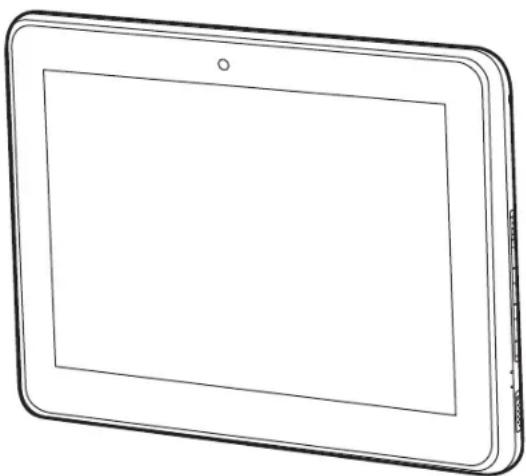
Figure 1. STYLISTIC M532 Android Tablet
Locating the Connectors and Controls
Features and controls that you use to operate your Android Tablet are outlined below and illustrated in Figures 2 and 3. Details on using these features and controls are provided later in this manual.
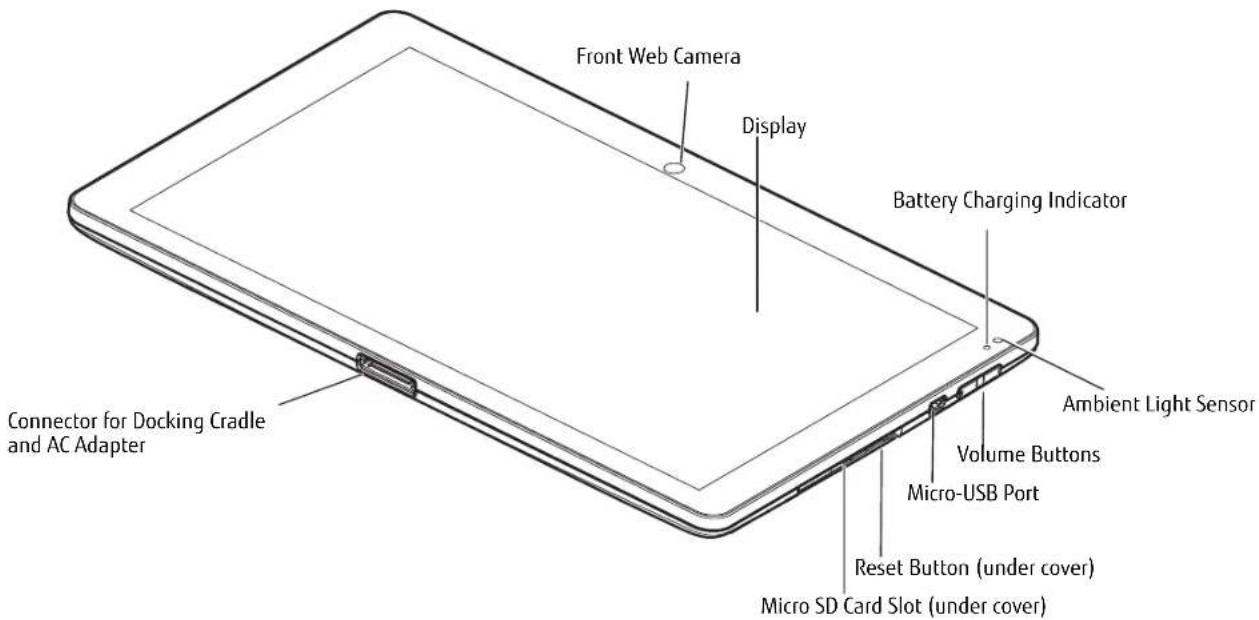
Figure 2. STYLISTIC M532 Android Tablet Features (Bottom, Right View)
Front Features
Front Web Camera
The front-facing VGA web camera allows you to take pictures of yourself to send over the internet.
Display
The 10.1" Wide XGA display offers wide vertical and horizontal viewing angles.
Battery Charging Indicator
The battery charging indicator displays the current power condition of the internal battery. (See "Battery charging indicator" on page 18).
Ambient Light Sensor
The ambient light sensor automatically recognizes lighting conditions and adjusts the display to provide optimum battery life.
Volume Buttons
The volume buttons allow you to adjust the system volume. (See "Android Tablet buttons" on page 20).
Micro-USB Port
The Micro USB port allows you to connect a USB device by using a Micro USB adapter (See "Connecting USB devices" on page 52).
Reset Button
The Reset Button allows you to do a hard reset of your system in the event the device no longer reacts to input or the ON/OFF switch. (See "Using the Reset Button" on page 56)
Micro SD Card Slot
The Micro SD card allows you to save data on removable Micro SD memory cards. (See "Memory cards" on page 23)
Docking Cradle and AC Adapter Connector
Allows you to connect the optional STYLISTIC Docking Cradle (see "Using the optional cradle" on page 25) or an AC Adapter (see "Power Sources" on page 16).
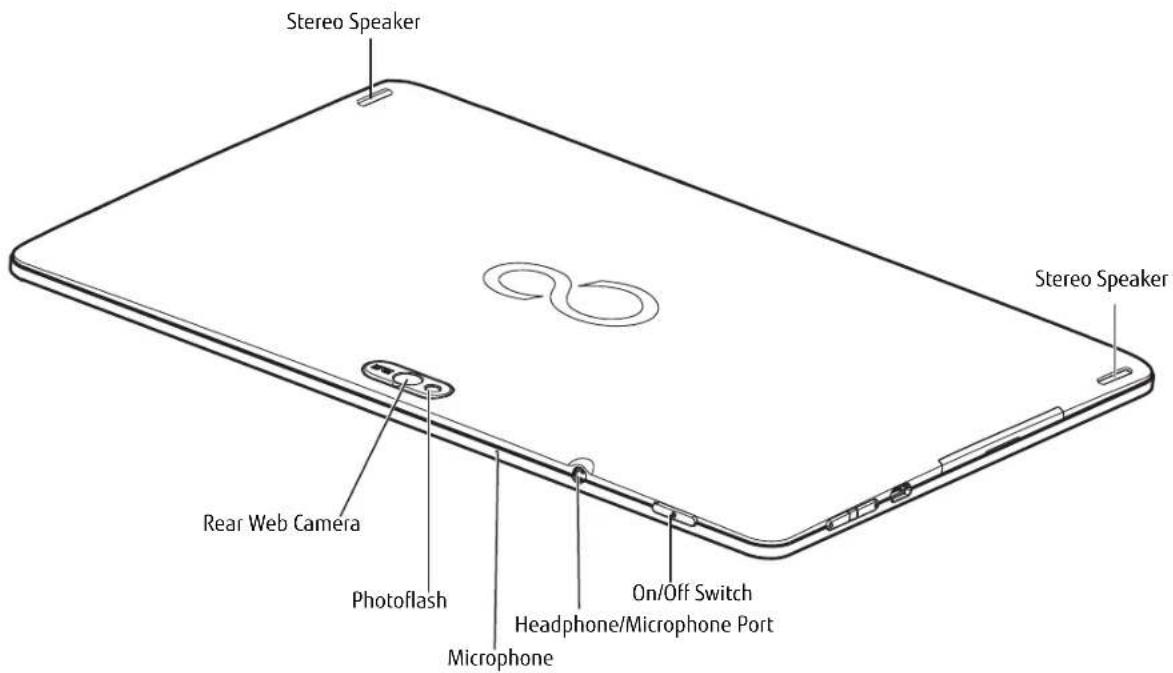
Figure 3. STYLISTIC M532 Android Tablet Features (Back View)
Back Features
Stereo Speakers
The built-in dual speakers allow for stereo sound.
On/Off Switch
The On/Off Switch allows you to power your system on and off (see "Turning on the system the first time" on page 17).
Headphone/Microphone Port
The headphone/microphone port allows you to set up connect headphones, a microphone or external loudspeakers to your Android Tablet. (See "Headphone/Microphone port" on page 54)
Microphone
The internal microphone allows you to record audio files.
Photoflash
The Photoflash acts as a flash device when you are using the rear-facing web camera.
Rear Web Camera
The rear web camera allows you to take pictures of objects in front of you for sharing over the internet.
Chapter 2
Getting Started with Your Android Tablet
First-time setup of your tablet

- THE NECESSARY HARDWARE DRIVERS AND THE SUPPLIED SOFTWARE FOR THE DEVICE ARE ALREADY PRE-INSTALLED.
BEFORE YOU SWITCH ON THE DEVICE FOR THE FIRST TIME, CONNECT IT TO THE POWER USING THE AC ADAPTER. THE AC ADAPTER MUST BE CONNECTED DURING THE ENTIRE INSTALLATION PROCESS. - A SYSTEM TEST IS PERFORMED WHEN YOUR DEVICE IS FIRST SWITCHED ON. VARIOUS MESSAGES CAN APPEAR. THE DISPLAY MAY REMAIN DARK FOR A SHORT TIME OR MAY FlickER.
- PLEASE FOLLOW THE INSTRUCTIONS ON THE SCREEN.
- NEVER SWITCH OFF YOUR DEVICE DURING THE FIRST-TIME SETUP PROCESS.
The battery is permanently installed in the system and must be charged if you want to use your device under battery operation.
When used on the move, the built-in battery provides the device with the necessary power. You can increase the operating time by using the available energy-saving functions.
Please refer to "Connecting External Devices" on page 52 for instructions on how to connect external devices (e.g., mouse, flash storage) to your device.
Unpacking and checking the device

SHOULD YOU DISCOVER ANY MISSING ITEMS OR DAMAGE THAT OCCURED DURING TRANSPORTATION, CONTACT YOUR SUPPORT REPRESENTATIVE:
TOLL FREE: 1-800-8FUJITSU (1-800-838-5487)
WEB SITE: HTTP://SOLUTIONS.US.FUJITSU.COM/WWW/CONTENT/SUPPORT/CONTACT/INDEX.PHP
1 Unpack all the individual parts from the packing box.
2 Check your device and peripherals for any visible damage which may have occurred during transportation.
3 Save the packaging in the event you need it to transport your system in the future.
Selecting a suitable location
There are several factors to consider when choosing a location for your system. Please observe the following precautions when doing so.

NEVER PLACE THE DEVICE OR THE AC ADAPTER ON A HEAT-SENSITIVE SURFACE. THE SURFACE COULD BE DAMAGED AS A RESULT.
- THE UNDERSIDE OF THE DEVICE HEATS UP DURING NORMAL OPERATION. PROLONGED CONTACT WITH THE SKIN MAY BECOME UNPLEASANTLY HOT.
- KEEP OTHER OBJECTS AT LEAST 100 MM AWAY FROM THE DEVICE AND ITS AC ADAPTER TO ENSURE ADEQUATE VENTILATION.
DO NOT EXPOSE THE DEVICE TO EXTREME ENVIRONMENTAL CONDITIONS. PROTECT THE DEVICE AGAINST DUST, HUMIDITY AND HEAT.
Power Sources
Your Fujitsu STYLISTIC Android Tablet has three possible power sources: an internal Lithium Polymer battery, an AC adapter or an optional docking cradle.
Connecting the AC Adapter
The AC adapter provides power for operating your Android Tablet and charges the battery.
1 Plug the AC Adapter cable into the AC Adapter connector on the bottom edge of your tablet. (Figure 4)
2 Plug the AC adapter into an AC electrical outlet.
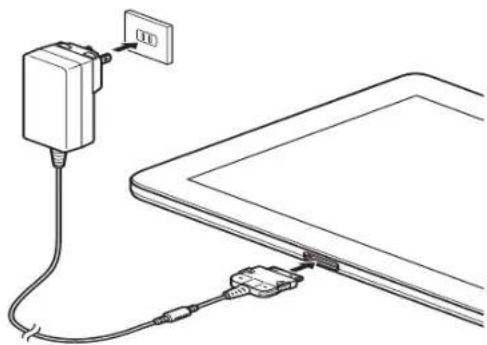
Figure 4. Connecting the AC Adapter
Turning on the system the first time
When you switch on the device for the first time, the supplied software is installed and configured. Because this procedure must NOT be interrupted, you should set aside enough time for it to be fully completed and connect the device to power using the AC adapter.
During the installation process, DO NOT restart the device unless you are requested to do so. To make it easier to use your device for the first time, the operating system is pre-installed.
1Press the On/Off switch (1) for 2 seconds to switch the Android Tablet on.
2 During installation, follow the instructions on screen.
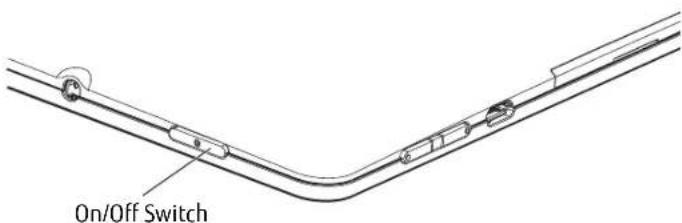
Figure 5. Powering on the system
Chapter 3
Working with Your Android Tablet
This chapter describes the basics for operating your Android Tablet. Even if you are already familiar with operating a computer, you should read this chapter to ensure you are familiar with all of the features.
Tablet Features
Battery charging indicator
When the AC adapter is connected, the battery charging indicator provides information on the state of the power supply.
Battery LED Condition
Description
Red, lit The battery is being charged.
White, lit The battery is 100% charged
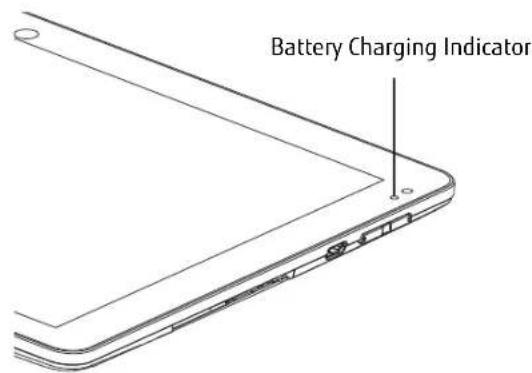
Figure 6. Battery Charging Indicator
Turning the Tablet On and Off
To turn the tablet on: Press the On/Off switch (Figure 7) for two seconds. The tablet may vibrate slightly while it is starting up.
To turn the tablet off: Press the On/Off switch until a message appears asking if you want to turn off the tablet. Confirm that you do. The tablet may vibrate slightly while it is shutting down.
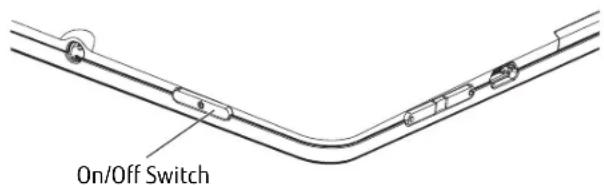
Figure 7. Powering the system on and off
Touchscreen
High-quality TFT displays are installed in Fujitsu Android Tablets. TFT monitors are manufactured for a specific resolution. An optimal, clear picture can only be ensured with the correct resolution intended for the relevant TFT monitor. A monitor resolution that differs from the specification can result in an unclear picture.
The screen resolution of your Android Tablet's touchscreen is optimally set at the factory.
Background lighting
TFT monitors are operated with background lighting. The luminosity of the background lighting can decrease while the tablet is in use; however, you can set the brightness of your monitor individually.
Selecting display orientation
You can choose to use either portrait (vertical) or landscape (horizontal) orientation for the display.
The alignment of the screen adapts automatically to the alignment in which you are using the tablet. If you hold the tablet in portrait orientation, the image will be shown in portrait format. If you hold the tablet in landscape orientation, the image will be shown in landscape format.
If you want to disable automatic matching of the alignment, proceed as follows:
1From All apps, select the Settingsoption and select Display.
2Uncheck Auto-rotate screen. When the checkmark on the setting disappears, automatic alignment matching is disabled.
3 To re-enable matching of the alignment, tap again on the setting Auto-rotate screen. When the checkmark on the setting appears, automatic alignment matching is enabled.
Android Tablet buttons
Your tablet has three tablet buttons: On/Off, Volume Up and Down, and Reset.
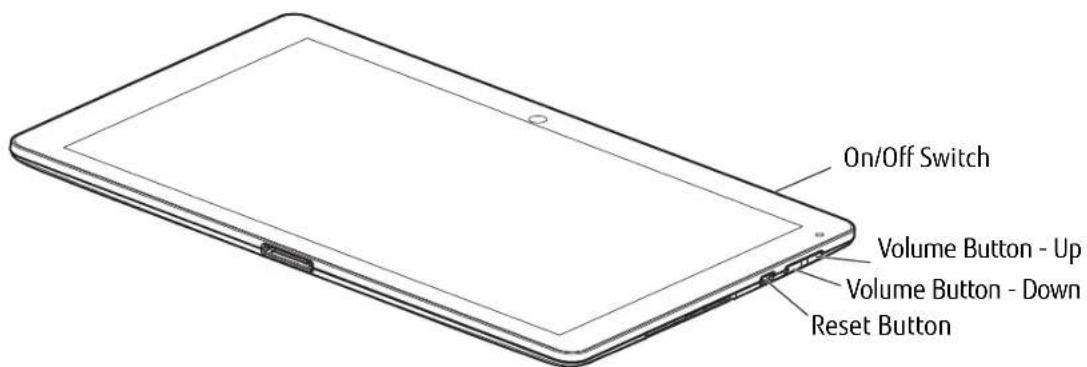
Figure 8. Tablet Buttons
Button Description
On/Off Switch Switch the tablet on and off
Volume Button - Up Increase the volume
Volume Button - Down Decrease the volume.
Reset Button
If the device no longer reacts to input and does not respond to the ON/OFF switch, use the Reset button to restart the device (See "Using the Reset Button" on page 56.).
Web Cam s
Your device has two webcams: one on the front side of the device and one on the rear.
Depending on the software used, you can use your web cam to take pictures, record video clips or take part in web chats.
- The picture quality depends on the lighting conditions and the software being used.
- You can only operate the webcam with a particular application (e.g., an Internet telephony program or a video conferencing program which supports a webcam).
- When using the webcam, the tablet support must not wobble.
- The webcam automatically adjusts itself to the current light level. For this reason the touchscreen may flicker while the light level is being adjusted.
Rechargeable battery
For mobile use, the built-in battery provides the tablet with the necessary power. You can increase the life of the battery by caring for the battery properly. The average battery life is around 500 charge/discharge cycles. In the event you should need to have your battery replaced, please contact your Fujitsu Support Representative.
You can also extend the battery life by taking advantage of the available energy saving functions.
Charging, caring for and maintaining the battery
The Android Tablet battery can only be charged when the ambient temperature is between 5^ and 35^ .
You can charge the battery by connecting the tablet to the AC adapter
(see "Power Sources" on page 16).
If the battery is running low you will hear a warning alarm. If you do not connect the AC adapter within five minutes of the warning alarm described above, your tablet will switch off automatically.
Monitoring the battery charging level
In the system bar / status display there is a battery symbol shown for monitoring the battery capacity.
The battery symbol shows you the remaining battery charge.
Using the power-management features
The Android Tablet uses less power when the power management features are enabled. That allows you to work longer when using the battery before having to recharge it.
When you use the power-management features, power efficiency is increased and environmental pollution reduced. By choosing the best power options, you can make significant savings while helping to protect the environment.
We recommend the following settings: Hibernate the Tablet after 5 minutes without activity.
To change your power settings, select Settings > Display and set the desired value for Hibernate.
When the Android Tablet is in power saving mode, you must remember the following:
- During power saving mode, open files are held in the main memory or in a swap file.
- Never switch off the tablet while it is in a power saving mode. If the built-in battery is nearly discharged, close the open files and do not go into power saving mode.
If you do not intend to use your tablet for a long period of time:
- Exit the power saving mode if necessary via touching the screen or by switching on the tablet.
- Close all opened programs and completely shut down the tablet.
User-Installable Devices
Memory cards
Your Android Tablet is equipped with an integrated memory card reader. Be sure to observe the manufacturer's instructions when handling memory cards.
Supported format
The memory card reader supports the following format:
- MicroSD Card
Inserting a memory card
To insert a MicroSD card:
1Open the slot cover (Figure 9, #1).
2 Position the card so that the card label is facing upwards.
3Gently push the memory card into the slot (Figure 9, #2) until you feel it click into place. Do not use too much force, otherwise the sensitive contact surfaces could be damaged.
4Replace the slot cover.
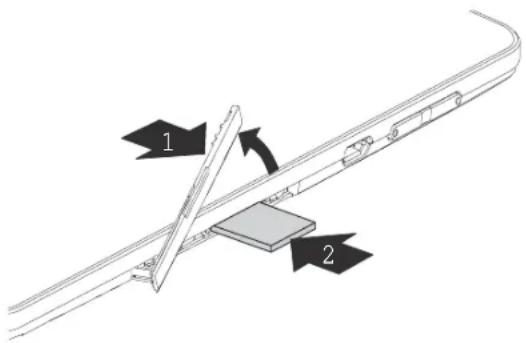
Figure 9. Inserting a MicroSD Card
Removing a memory card
It is very important that the correct procedure be used for removing the memory card. Failure to do so could result in data loss.
To remove a MicroSD card, you must log the memory card out of the system before you can remove it. Proceed as follows:
1Select Settings > Memory. In Memory, all the memory components are displayed.
2Select Remove SD card.
3Confirm the message with OK The memory card is logged out.
4Press the memory card slightly inwards so that the catch disengages.
5 Pull the memory card out of the slot (Figure 10, #1).
6 Replace the slot cover (Figure 10, #2)10
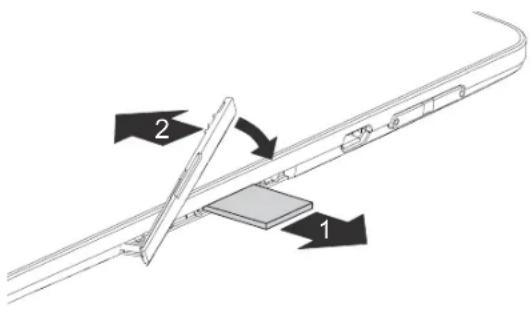
Figure 10. Removing a MicroSD Card
Switching the wireless components on and off
WLAN and Bluetooth
1Select Settings.
2Set the switch for WLAN or Bluetooth to ON.
3Click on WLAN and select your preferred network.
4Click on Bluetooth and select the Bluetooth device with which you would like to connect your tablet.
GPS
Your device is equipped with an integrated GPS module. With the aid of suitable software, you can therefore use your device as a navigation system.
Using the optional cradle
The optional cradle is a device with which you can quickly connect your Android Tablet to your peripheral devices such as a display screen, keyboard, mouse, headphones, etc.
You only need to dock the tablet in order to work with your peripheral devices.
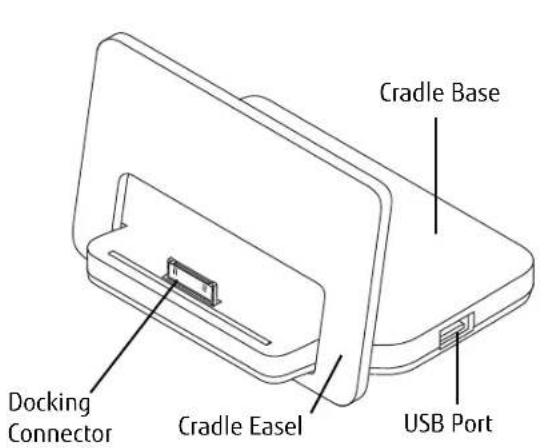
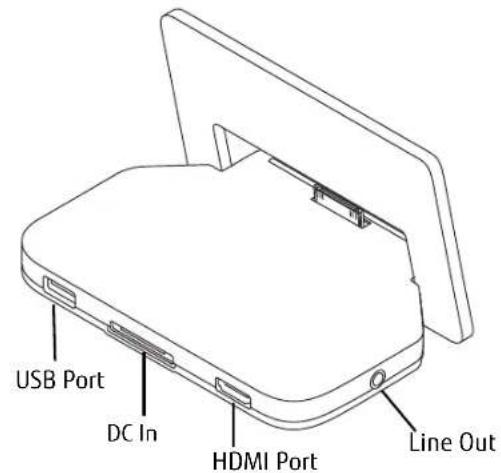
Figure 11. Cradle - Front Figure 12. Cradle - Rear
Figure 13. Docking Cradle Components
Setting up the Cradle
Select a suitable location for the cradle before setting it up. Observe the following conditions when doing so:
- Place the cradle on a flat, stable, non-slippery surface.
- Never place the cradle and the AC adapter on a heat-sensitive surface.
- Do not expose the cradle to extreme environmental conditions.
- Protect the cradle from dust, humidity and heat.
Assembling the Cradle
The cradle consists of two pieces: The cradle base and the cradle easel.
To assemble the cradle, simply slide the narrow end of the base into the slot in the easel until the notches in the bottom of the base are aligned above the alignment point. Rest the base on the easel.
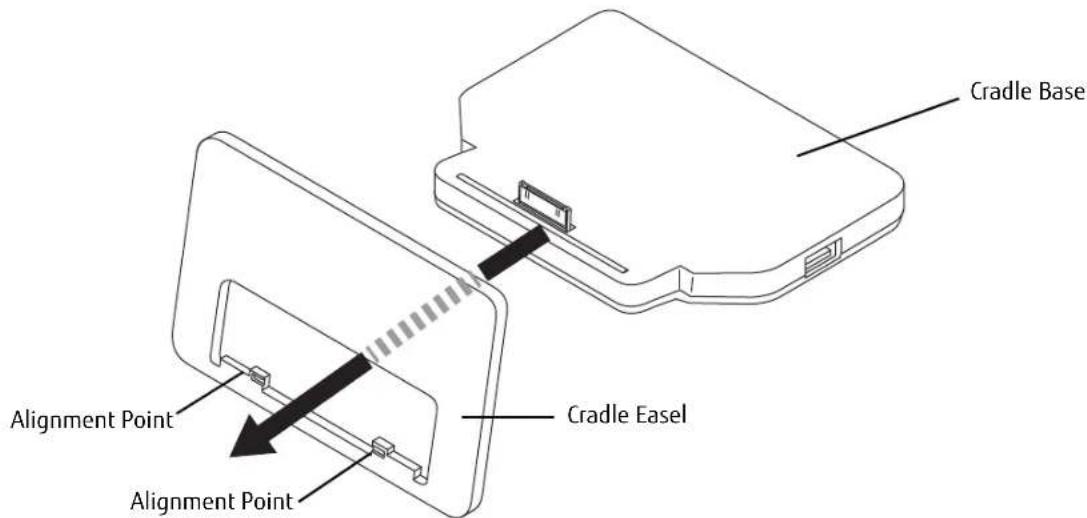
Figure 14. Assembling the Cradle
Connecting the Tablet to the Cradle

IF YOU CONNECT THE TABLET TO THE CRADLE DURING OPERATION, PROBLEMS CAN OCCUR WE RECOMMEND THAT YOU SWITCH OFF THE TABLET BEFOREHAND.
IF THE TABLET IS CONNECTED TO THE CRADLE, YOU MUST CONNECT THE AC ADAPTER TO THE CRADLE IN ORDER TO CHARGE OR POWER THE TABLET.
1Switch off the tablet.
2 If connected, remove the AC adapter cable from the DC in connector on the rear of the cradle base (Figure 16).
3 Position the tablet so that the docking connector on the bottom of the unit is aligned with the docking connector on the cradle base (Figure 15).
4 Push the tablet onto the cradle in the direction of the arrow until it engages with the plug.
5 Plug the AC adapter into the DC In connector on the rear of the cradle.
6Plug the AC adapter cable into an AC socket.
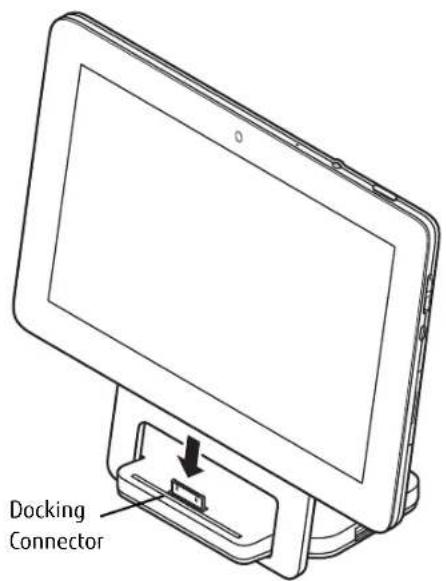
Figure 15. Connecting the tablet to the cradle
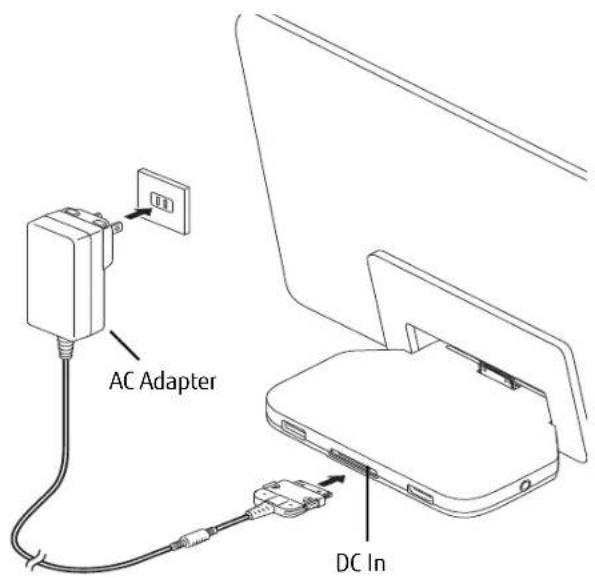
Figure 16. Powering the tablet with the cradle
Disconnecting the Tablet from the Cradle
If you connect the tablet to the cradle during operation, problems can occur. We recommend that the tablet be switched off or that the appropriate undocking function provided by the operating system is executed.
1Switch off the tablet.
2 Lift the tablet from the cradle while supporting the underneath of the cradle.
Chapter 4
Working with Android
Getting Started with Android
Your Android Tablet is pre-installed with the Android 4.0 operating system and many useful apps. Android 4.0 has been specially optimized for the operation of Android Tablets using the finger, so that you will quickly become familiar with it, without any long training periods.
Initial setup of your device with Android
When you switch on your device for the first time the welcome page is displayed. Follow the onscreen instructions. You can choose your language on the welcome screen. If you wish to set another language, select it from the menu by tapping on it and then confirm with Start.
You will be asked for your Google account information during the installation process. If you have not already set this up, you can do so now.

YOU CAN SKIP SETTING UP THE GOOGLE ACCOUNT AND PUT YOUR ANDROID TABLET INTO OPERATION WITHOUT A GOOGLE ACCOUNT.
HOWEVER, SOME APPLICATIONS REQUIRE THAT A GOOGLE ACCOUNT IS SET UP, FOR INSANTE GMAIL / GOOGLE MAIL. YOU CAN SET UP THE GOOGLE ACCOUNT AT A LATER TIME ("PERSONAL SETTINGS" ON PAGE 42). WHEN YOU SET UP A GOOGLE ACCOUNT, ALL EMAILS, CONTACTS, CALENDAR EVENTS AND OTHER DATA WHICH ARE LINKED TO THIS ACCOUNT WILL AUTOMATICALLY BE SYNCHRONISED WITH YOUR TABLET.
When the installation process is complete, the home page will be displayed.
Home Page
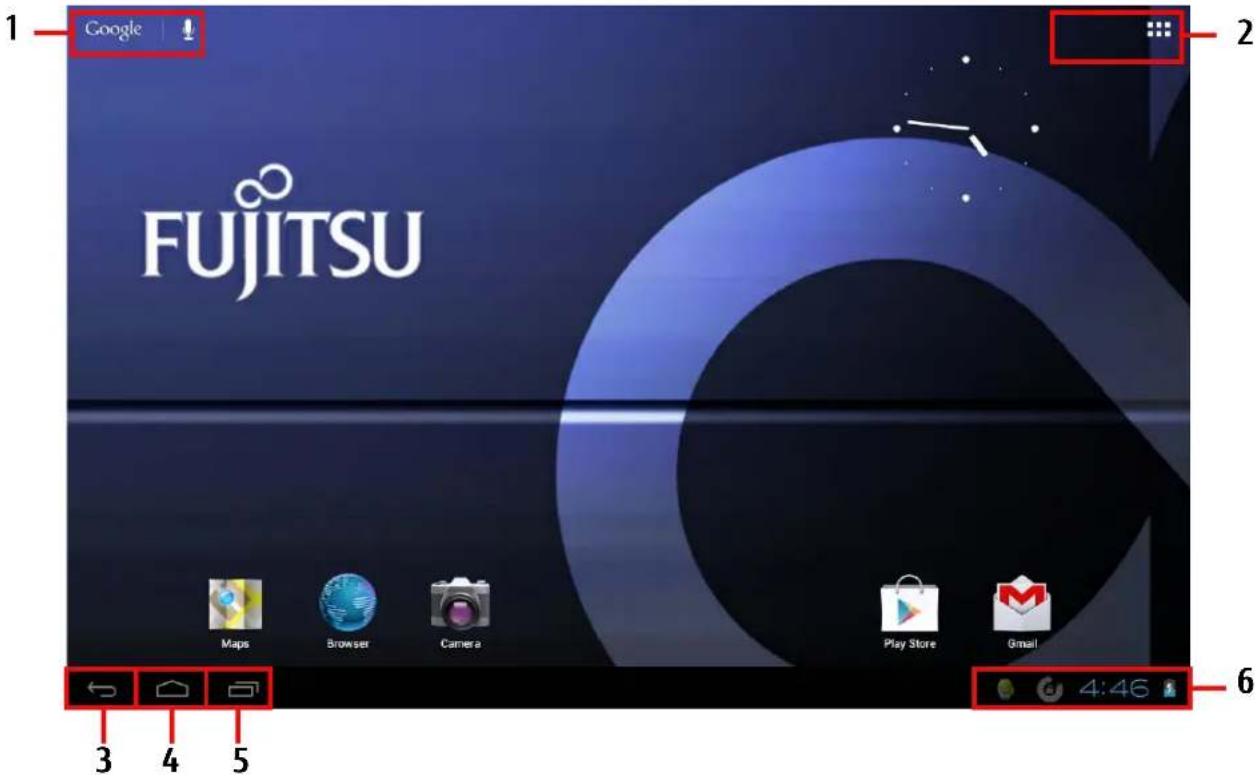
1: Google Search
4: Desktop
2: Applications and Widgets
5: Recently Used Apps
3:Back
6: System Bar / Status Display
Navigating on the home page
There are three navigation buttons shown on the lower left of the home page. These buttons are always available while your Android Tablet is operating.

IF THE BUTTONS HAVE NOT BEEN USED FOR SOME TIME, THEY MAY BE HIDDEN OR REPLACED BY SMALL DOTS, DEPENDING ON THE APP. THEY ARE STILL ACTIVE HOWEVER; SIMPLY TOUCH THE DOT OR THE CORRESPONDING POSITION.
Button Description

Back Button:
Opens the previously used page. This can also return to another app.

Desktop Button (homepage):
Displays your primary home page.

Recently Used Apps Button:
Shows a list of the apps you have most recently used. Includes thumbnails for quick identification.
To open one of the listed apps, tap on it.
To delete an app from the list, swipe it to the left or right.
Customizing the home page
Changing between home pages
Five home pages are available. You are on the third screen by default (the central home page).
- To change between the five home pages, stroke the home page toward the left or right with your finger.
- To return to the central home page, tap on the desktop button.
Changing the background
-
To change the background for all home pages, tap and hold your finger at a free position on a home page. A list of options will be displayed, from which you can choose a background:
-
Gallery:
- Select a photo which you have taken with the camera or which you have downloaded.
- Select the layout and tap on Cut to select the background from the gallery.
- Live background: Select an animated background.
Backgrounds: - Select a background from the system.
- You can select additional backgrounds from the Android Market.
Operation
Using fingers
You can use your finger on the touch screen to execute commands and start applications.
| Action | Description |
| Tapping | Tap on a symbol, menu, button or folder to select this option or to activate it. |
| Tap and hold | Tap on a button and let your finger stay there longer until the action is taken. |
| Dragging | Tap and hold a symbol and drag it to another place. You can - for instance - drag apps or widgets onto the home page in this way. |
| Stroke or slide | Stroke your finger quickly on the screen in one direction. In this way you can switch between different home pages. |
| Double-tap | To enlarge a view, quickly tap twice on a web page, map or another screen. When you double-tap on an image in a web browser, it will be enlarged and another double-tap will make it smaller again. |
| Zoom in/Zoom out | With some apps (maps, browser and gallery) you can enlarge by putting two fingers on the screen and moving them apart, and make smaller by moving the fingers together. |
| Input fields | Data must be entered for some apps, such as on an Internet page or your name and password. |
| When you tap on the input field, an on-screen keyboard opens, with which you can enter your data. |
Entering text via the on-screen keyboard
If you tap on an input field, an on-screen keyboard opens and you can enter text.
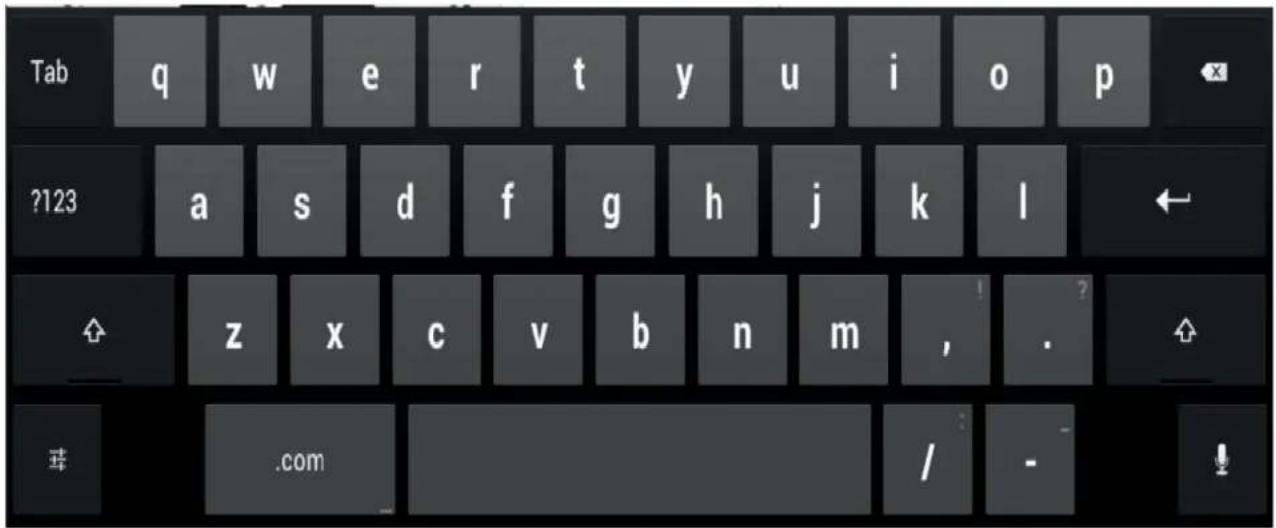
Action Description
Enter text
Move the cursor to the position where you wish to enter text. A tab will be shown under the position.
To move the cursor, pull the tab

[Clear] Button
Delete text or letters before the cursor
Tap on Clear. The text or letters before the cursor will be cleared.
| Selecting text | > Tap and hold or double-tap on the text. The nearest word will be highlighted and a tab will be shown at the start and end of the selection. > To change the selection, pull the tabs. The tabs will disappear after a certain time. If you tap on the text again, they will reappear. |
| Cutting, copying, inserting text | > Select a text. > Tap on the Cut, Copy or Insert buttons in the top right-hand corner. |
| Entering an uppercase letter > Tap the shift key. | |
| Entering several letters in uppercase | > Hold the shift key during the input. > To switch back to lower case letters, release the shift key. or > Double-tap on the Caps Lock key. > To switch back to lower case letters, tap the shift key again. |
| Entering numbers and symbols | > Tap on the [?123] key. > To show a wider selection, tap on the [=\\>] key. |
| Quickly show common punctuation marks and symbols | > Press and hold the key to the right of the space bar. |
| Entering special characters | Special characters are shown on the keyboard as small grey colored fields in the corner. > Press and hold down the shift key while you tap on the key for the special character. > Press and hold any key to show alternative characters, symbols or numbers. |
| Changing the entry language for the keyboard | Tap on the key for the keyboard settings at the lower left on the keyboard. |
Using the dictation function
A mobile or WiFi network is required to be able to use this function.
Using the speech recognition facility from Google, you can enter text by dictation. At most places where you can enter text via the keyboard, you can also use the dictation function.
To use the speech recognition, tap on the field where you would like to enter text. The on-screen keyboard is displayed.

Press the microphone key on the on-screen keyboard.
When you see the microphone symbol, speak your text.
If you pause, the spoken words are converted into text by the speech recognition program and displayed in the text field with underscore.
The underscore disappears if you enter more text via the keyboard or via the dictation function. You can delete the underscored text using the delete key.
For punctuation, say "comma", "full stop", "question mark" or "exclamation mark".
Messages, status and system symbols
You will be informed of new messages, calendar events, warning messages and app updates, etc.
In the system bar or status display (lower right on the home page), there is a digital clock, with status symbols displayed on its left and system symbols on its right. Status symbols represent app messages. System symbols show the current strength of the wireless and network connections, battery state of charge, etc.
Managing messages
Action Description
Display messages > Tap on the clock or the symbols
Reacting to messages > Tap on the message
Discarding a message > Slide the message away to the left or right
Discarding all messages > Tap on the X in the bottom right-hand corner
When the list with the messages is displayed, you can call up the Settings menu by tapping on the "Quick settings" symbol.
Working with apps⁺/devices
Action
"All Apps" button

Show all apps
Switching between apps and widgets
Starting an app or widget
Installing additional apps/ widgets
from the Android Market (now called Google Play Store)
Description
With the button on the top right of your screen, you can navigate to all the apps and widgets which are installed on your Android Tablet.
Tap on All apps.
All the apps and widgets will be displayed on the lower right at the edge of the screen.
Stroke to the left or right
or
Tap on the Apps or Widgets tab. A list of the apps/widgets is shown.
Tap on the app or widget.Tap on the Apps tab.
Tap on the Market symbol (now the PlayStore symbol) in the list of apps. or
Tap on the shop symbol in the right lower corner.
Placing an app or widget on a home page
Tap on All apps.
All the apps and widgets will be displayed on the lower right at the edge of the screen.
Tap on the corresponding symbol and then hold it. The home page is displayed.
Slide the symbol to a free place on your home page.
As soon as the symbol is at the desired place, lift the finger. The app or widget is placed at this location.
Putting apps or widgets in a folder
Note: Widgets can have different sizes. If there is not enough space where the app or widget should be placed, it will not be added to the home page.
Drag the app⁺/widget to another app⁺/widget and put it down there.
A folder with these two apps⁺/windows will be created.
You can add further apps/wildcards to this folder and use various folders to categorize the apps/wildcards on your home page.
Opening a folder
Tap on the folder.
The list of the apps or widgets contained in this folder will be displayed.
Changing a folder name
Open the folder on the home page and type on the name.
Removing an app, folder or widget from a home page.
Tap and hold the symbol and slide it upwards onto the edge of the screen.
Settings
Managing the WiFi network
Everywhere that there is a wireless access point, you can make a connection to a network.
| Action | Description |
| Making a network connection | > From All apps, select the option Settings. |
| > Select Wireless networks and networks. | |
| > To switch on the WiFi or WLAN, slide the switch to ON. | |
| Your Android Tablet searches for available WiFi networks and displays a list of those it has found. | |
| > Select a network. You will be asked to enter your logon information. | |
| Entering the proxy server for the network | Proxy settings are used by browser apps but not by other apps. |
| > If network requires a proxy server, tap and hold the network name in the WiFi settings. | |
| > Select Change network. | |
| If you select Display advanced options, you can make the proxy settings manually. | |
| Changing existing network connections | > Tap on the network name and hold the network name. |
| > Select Change. | |
| If you save these network settings, the next time that you are in this district your device will automatically make a connection. | |
| Removing network connection (deactivating automatic connection or if this will no longer be used) | > Tap on the network name and hold the network name. |
| > Select Discard. | |
| Customizing WiFi information, rules and other advanced options | > Tap on the menu button. |
| > Select Advanced. |
Establishing a Bluetooth connection
Switch on the Bluetooth function of your tablet.
FromAllapps,selecttheoptionSettings.
Select Wireless networks and networks.
To switch on the Bluetooth, slide the switch to ONA list of the available Bluetooth devices in your vicinity is displayed.

WHEN YOU USE A NEW BLUETOOTH DEVICE FOR THE FIRST TIME, THE TWO DEVICES MUST BE "PAIRED" SO THAT A SECURE CONNECTION CAN BE MADE. AFTERWARDS, THE DEVICES AUTOMATICALLY CREATE A CONNECTION. THE DEVICES STAY PAIRED UNTIL YOU CANCEL THE CONNECTION.
Under Settings-Wireless networks and networks select the option Bluetooth.
Your device searches for Bluetooth devices within range and shows them.
Select the device with which you wish to connect your tablet and follow the instructions.
Limiting data volumes for mobile data use
You can give your mobile data use a limit, so that the mobile network switches off when the data volume is reached.
From All apps, select the option Settings.
Select Data usage.
The previous data volume usage will be shown. You can specify a limit for mobile data.
Airplane Mode, VPN, Tethering and Portable Hotspot, and WiFi Direct
FromAll app_i select the option Settings.
Select Further... to make further settings.
The following options are possible:
DEVICE SETTINGS
Option Description
Airplane Mode
All radio connections of your Android Tablet will be disabled when this mode is set.
VPN
Permits connection to virtual private networks.
Tethering and Portable Hotspot
Tethering allows the use of your Android Tablet as a modem, so that external devices which are connected via USB, WiFi or Bluetooth can make an Internet connection.
WiFi Direct
Manage all the settings and options for mobile data networks. This includes the activation/deactivation of mobile data networks and data roaming, as well as the management of APNs (Access Point Names) and network administrators.

IF YOUR NETWORK SETTINGS ARE NOT AUTOMATICALLY CONFIGURED, PLEASE ASK YOUR MOBILE NETWORK PROVIDER FOR THE SETTINGS AND ENTER THIS DATA UNDER WFI DIRECT.
FromAllapps,selecttheoptionSettings.
Select Device, to make further settings.
Option Description
Sounds
For setting the volume, ring tone and vibration alarm
| Display | To set the brightness, background, automatic rotation, time until sleep mode and font size information. Ambient light sensor The ambient light sensor adapts the brightness depending on the ambient light. You can enable and disable automatic brightness in the Brightnessmenu. Sensor for recognizing the screen orientation The sensor detects the orientation and changes the screen view accordingly. You can enable or disable automatic turning of the screen display via the Automatically turn display control box. |
| Memory | Informs you of the internal and external memory usage and free memory space and allows you to clear the SD card. |
| Battery | Shows the battery state of charge and battery consumption data as well as a list of the applications and their battery consumptions in percent. |
| Apps | Displays the following app lists: • All the pre-installed apps and in addition the apps installed from the Android Market (now called Play Store) • Only additionally installed apps • Apps on the SD card • Only active applications By tapping on an app you can de-install it (if it was additionally installed from the Android Market), cancel the application or erase data and cache. |
Personal settings
FromAllapps,selecttheoptionSettings.
Select Personal..., to make further settings.
The following options are possible:
Option Description
Accounts and Sync.
You can use several Google accounts and Microsoft Exchange ActiveSync accounts on your device. Depending on your apps, you can possibly also add or delete other accounts.
Location services
You can enable or disable Google location services and GPS satellites.
Security/screen security
You may wish to lock your tablet to prevent unauthorized access. If a screen lock was set up, the screen locks automatically when your tablet switches to the quiescent state.
There are the following options for the screen lock:
Move finger
Offers no protection. You do however reach the home screen quickly or can open the camera immediately with a stroking movement. To unlock and return to the home screen, stroke towards the right. Stroke upwards to the left to open the camera.
Unlocking through face recognition
Offers minimal protection. The device can be unlocked by recognition of your face via the front camera.
Pattern
Offers minimal protection. The locking can be overridden by a simple pattern with the finger.
Security/screen security (continued)
Password
At least four or more characters are required. The best security is offered by a password with 8 characters, consisting of digits, letters and special characters and which does not contain any easy to guess words or phrases.
Owner information
You can enter a text such as name and telephone number via the owner information; these will then be displayed on the locked screen.
Security/encryption
You can encrypt all the data on your Android Tablet: Google accounts, application data, music and other media, downloaded information etc. Encryption offers additional protection if your tablet is stolen and it may be required or recommended in some companies.
If there is encryption however, every time your tablet is switched on you have to enter a numeric PIN or a password. Please note that this must be the same password or the same PIN that you have used to lock the screen. A separate password cannot be set up.
Warning: An encryption is irreversible. The only way to remove an encryption is to reset your tablet to the factory settings.
Setting up encryption
Contact your system administrator before you set up encryption. In many cases, the PIN or the password for the encryption is managed by the system administrator. Before you enable encryption, make the following preparations:
Enter a PIN or a password for the screen locking.
Connect your Android Tablet with the AC Adapter.
> Fully charge the battery.
Plan for about one hour for the encryption process: The encryption process must not be interrupted; an interruption will cause you to lose some or all data.
| Language and entry | You can change the language, enable or disable spelling and change the keyboard and language settings. |
| Backup and reset | You can perform a backup of your settings and other data which are associated with one or more of your Google accounts. If you replace your device or have to reset it to the factory settings, you can access your previously saved data on this account and restore your data. |
| Backup and reset / backup my data | When you enable this option, a major part of your data is automatically saved by a backup, this also includes: • your Wi-Fi passwords • your browser bookmarks • the list of your apps which you have installed via the App Market (now Play Store app) • the words which you have entered in the dictionary used by the on-screen keyboard • most of the settings which you have made Some apps from third-party suppliers can also use this function, so that you can recreate your data after reinstallation of an app. If you disable this option, your data will no longer be secured through a backup and the existing backups will be deleted from your Google accounts. |
| Backup and reset / backup account | Shows the Google accounts where the information is backed up. On a new or reset device, you must register for one or more accounts to be able to access the corresponding information. > To add a new account, select Backup account- Add account. |
Backup and reset / automatic restore
Enable this option to restore the settings and other data when an app is reinstalled. This function requires that you back up your data via a Google account and that the app uses the backup service.
Backup and reset / reset to the factory data
Deletes all personal data on the internal memory, including information on your Google account, other accounts, your system and app settings, downloaded applications, your music, photos, videos and other files.
To reset the Android Tablet to the factory data, select Reset to factory state. After resetting your tablet, you must enter the same data that you entered during the first setup. If you have backed up the data on a Google account, you can restore the data during the setup.
System settings
From All apps, select the option Settings.
Select System to make further settings.
The following options are possible:
- Date and time: To set the date, time and time zone. Select the time format (12 hour or 24 hour clock) and the display format for the date
- Input aids such as TalkBack, large fonts, automatic turning of the screen or spoken password input
- Developer options such as USB debugging or user interface options
- Via the tablet: serial number of the tablet, unique IMEI number, status and detailed tablet information. You will find the serial number in the status menu.
System updates
Fujitsu can make system updates available for your tablet, to resolve problems or to update the operating system or applications.
You can choose between two update methods:
-Over-the-air (OTA):Updating over the Internet directly from your Android Tablet.
- Updating via an external memory card (micro SD card)

FUJITSU ACCEPTS NO RESPONSIBILITY FOR LOSS OF YOUR DATA AFTER A SYSTEM UPDATE.
BEFORE AN UPDATE, YOU SHOULD WITHOUT FAIL PERFORM A DATA BACKUP.
Over-the-air (OTA)
1 Go to Settings and select About Tablet. Click on System Updates. You will automatically be sent to the OTA portal and will be presented with either index.html or noupdate.html.
2Follow the instructions on the screen to complete the procedure.
Updating via an external memory card (micro SD card)
10pen the Internet browser on your tablet or another computer.
2 Navigate to "http://support.ts.fujitsu.com".
3Select Drivers & Downloads
4Search for your tablet in the list of devices.
5 Download the current system update package which is identified as an SD card update.
6 Copy this system update package onto an external memory card (micro SD card).
7Slide the memory card (micro SD card) into your tablet.
8 Switch your tablet off by one long press of the ON/OFF switch and confirm the question on the shut down with OK.
9Switch your tablet on again.
10 When you see the Android logo on the screen, press the ON/OFF switch and the volume button (increase volume) and keep them pressed for 2 seconds and then release them. After a few seconds you reach the restore mode.

IF THE FUJITSU LOGO APPEARS ON THE SCREEN, THEN YOU HAVE NOT REACHED THE RESTORE MODE. REPEAT THE ABOVE STEP UNTIL YOU REACH THE RESTORE MODE.
11 Select wipe data/ factory reset

NAVIGATE AS FOLLOWS THROUGH THE MENU:
VOLUME BUTTON (INCREASE VOLUME) TO SELECT AN OPTION ABOVE THE CURRENT OPTION
VOLUME BUTTON (DECREASE VOLUME) TO SELECT AN OPTION BELOW THE CURRENT OPTION
ON/OFF SWITCH TO CONFIRM THE SELECTION
12 Follow the instructions on the screen to perform the system update. After the system update has completed, you will be in the restore mode again.
13Select Reboot system now to finish the system update.
Apps
In the following section you will find a list of some of the practical apps which are pre-installed on your Android Tablet. Via the Android Market (whose new name is Play Store), you have direct access to practical apps for games and much more, which you can download and install on your tablet.

TO GAIN ACCESS TO THE ANDROID MARKET (NOW CALLED PLAY STORE), YOU NEED A GOOGLE ACCOUNT AND INTERNET ACCESS.
FUJITSU IS NOT LIABLE FOR MALFUNCTIONS WHICH ARE CAUSED BY ADDITIONAL APPS WHICH YOU HAVE INSTALLED. IN SUCH CASES, A REPAIR IS CHARGEABLE, EVEN WITHIN THE WARRANTY PERIOD.
FUJITSU IS NOT LIABLE FOR ANY DAMAGES INCurred BY YOU OR A THIRD PARTY PROVIDER, ARISING FROM AN INSTALLATION PERFORMED BY YOU.
ALWAYS CHECK THE SECURITY OF ADDITIONAL APPLICATIONS. INSTALLATION IS CARRIED OUT AT YOUR OWN RISK. A NORTON SECURITY PACKAGE IS PRE-INSTALLED ON YOUR TABLET. ACTIVATE THIS SOFTWARE TO PROTECT YOURSELF AGAINST ATTACKS FROM THE INTERNET AND FROM MALICIOUS SOFTWARE.

IF THEY WERE NOT PRE-INSTALLED ON YOUR TABLET, FUJITSU DOES NOT FURNISH ANY GUARANTEE NOR GIVE ANY SUPPORT FOR APPS FROM THIRD PARTY SUPPLIERS.

SOME APPLICATIONS AUTOMATICALLY MAKE AN INTERNET CONNECTION AND COMMUNICATE. PLEASE NOTE THAT THIS MAY LEAD TO HIGHER TELECOMMUNICATION COSTS.

Applications
App Description
| Browser | Displays web pages from the Internet |
| Downloads | Offers easy access to downloaded files |
| Settings | Allows system and personal settings on your tablet Email |
| Manages your emails from various accounts | |
| Gallery | Displays pictures and videos on your tablet |
| Google Mail/GMail | Manages your Google mail |
| Google+ | Enables updates and social networking |
| Calendar | Calendar applications |
| Camera | Creates recordings and videos with the rear or front camera |
| Contacts | Manages your contacts |
| Latitude | Exchanges your own location and that of your friends and shows these on a map |
| Maps | Shows your location and much more on a map |
| Music | Plays your favorite music |
| Navigation | Shows the route to your destination |
| Places | Classifies places and gives recommendations |
| Android Market (now Play Store) | Offers access to Android apps, games and more |
Sound Recorder
Allows recordings of messages
Talk
Allows you to chat with your Google Talk contacts
Video Studio
Allows video editing
YouTube
Shows YouTube videos
Absolute® Computrace®
Your Android Tablet is equipped with Computrace® persistence technology from Absolute® Software.
Once enabled, the Computrace persistence technology creates a permanent connection to your device. If the device is lost or stolen, it can be frozen with this technology, data can be deleted and other remote security or administrative functions can be performed.
Note: This technology is disabled by default. A separate license is required to enable the Computrace persistence technology. Contact your local dealer.
Provider: Absolute Software Web page: "http://wwwabsolute.com/absolute-tablet"
Chapter 5
Connecting External Devices
Peripheral Device Connections

- ALWAYS READ THE DOCUMENTATION SUPPLIED WITH THE DEVICE YOU WISH TO CONNECT. NEVER CONNECT OR DISCONNECT CABLES DURING A THUNDERSTORM.
- NEVER PULL AT A CABLE WHEN DISCONNECTING IT. ALWAYS GRASP THE PLUG.
- WITH SOME DEVICES, SUCH AS USB DEVICES, IT IS NOT NECESSARY TO SWITCH OFF THE TABLET AND THE DEVICE BEFORE CONNECTING/DISCONNECTING. FOR MORE INFORMATION ABOUT WHETHER OR NOT DEVICES NEED TO BE SWITCHED OFF, PLEASE REFER TO THE DOCUMENTATION SUPPLIED WITH THE EXTERNAL DEVICE.
Connecting USB devices
If your external USB devices have a micro USB interface, you can connect external devices to the USB port. If they have a traditional USB interface, you can also connect devices to the optionally available docking cradle (e.g., a keyboard, mouse or memory stick).

USB DEVICES ARE HOT-PLUGGABLE. THIS MEANS YOU CAN CONNECT AND DISCONNECT DEVICES WHILE YOUR OPERATING SYSTEM IS RUNNING.
- USB 2.0 HAS A DATA TRANSFER RATE OF UP TO 480 Mbit/s.
- ADDITIONAL INFORMATION CAN BE FOUND IN THE DOCUMENTATION FOR THE USB DEVICES.
To connect a USB device to your tablet:
1Connect the data cable to the external device.
2Connect the data cable to a USB port or to the cradle of the tablet.
To remove a USB device from your tablet:
Always correctly remove the device according to the steps below, to ensure that none of your data is lost.
1Select Settings > Memory > Remove USB memory. It is now safe to remove the USB device.
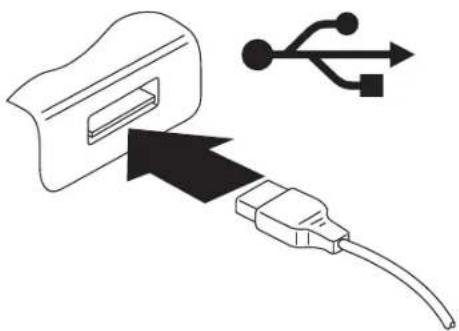
Figure 17. Connecting a USB Device

DEVICE DRIVERS
USB DEVICES WILL BE AUTOMATICALLY RECOGNIZED AND INSTALLED BY YOUR OPERATING SYSTEM.
HDMI port
You can use the optionally available cradle to connect HDMI-capable end devices such as an LCD, plasma TV or video projector.
2Place the tablet in the cradle.
3Connect the data cable to the HDMI port of the cradle.
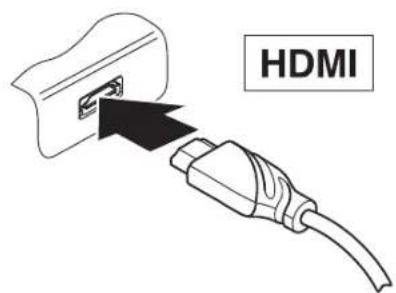
Figure 18. Connecting an HDMI Device
Headphone/Microphone port
You can connect headphones, a microphone or external loudspeakers to your tablet via the headphones port.
1Connect the audio cable to the external device.
2Connect the audio cable to the headphone port of the tablet.
The internal speakers are disabled when the external device is plugged in.
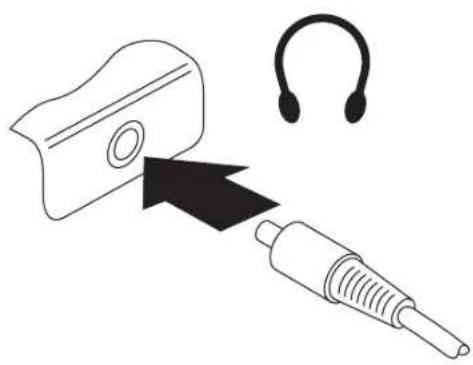
Figure 19. Connecting a Headphone Device

IF YOU PURCHASE A CABLE FROM A RETAILER, PLEASE NOTE THE FOLLOWING INFORMATION: THE HEADPHONE PORT ON YOUR TABLET IS A "3.5 MM JACK SOCKET".
IF YOU WANT TO CONNECT HEADPHONES OR A SPEAKER YOU WILL NEED A "3.5 MM JACK PLUG".
Chapter 6
Troubleshooting Your Android Tablet
Troubleshooting
There may be occasions when you encounter simple setup or operating problems that you can solve on the spot, or problems with peripheral devices that can be solved by replacing the device. The information in this section helps you isolate and resolve some of these straightforward issues and identify failures that require service.
Identifying the Problem
If you encounter a problem, go through the following procedure before pursuing complex troubleshooting:
1Turn off your STYLISTIC Android Tablet.
2 Make sure the AC adapter is plugged into your tablet and to an active AC power source.
3 Make sure that any devices connected to the external connectors are plugged in properly. You can also disconnect such devices, thus eliminating them as possible causes of failure.
4 Turn on your tablet. Make sure it has been off at least 10 seconds before you turn it back on.
5 If the problem has not been resolved, try resetting your system with the Reset Button (See "Using the Reset Button" on page 56). If that doesn't solve the problem, refer to the Troubleshooting Table for more detailed troubleshooting information.

IF YOU KEEP NOTES ABOUT WHAT YOU HAVE TRIED, YOUR SUPPORT REPRESENTATIVE MAY BE ABLE TO HELP YOU MORE QUICKLY BY GIVING ADDITIONAL SUGGESTIONS OVER THE PHONE.
If you have tried the solutions suggested in the Troubleshooting Table without success, contact your support representative:
Toll free: 1-800-8Fujitsu (1-800-838-5487)
Web site: http://solutions.us.fujitsu.com/www/content/support/contact/index.php
Before you place the call, you should have the following information ready so that the customer supports representative can provide you with the fastest possible solution:
- Product name
- Product configuration number
- Product serial number
Purchase date - Conditions under which the problem occurred
-Any error messages that have occurred
-Type of device connected, if any
See the Configuration Label on the bottom of your tablet for configuration and serial numbers.
Using the Reset Button
If the device no longer reacts to input or the ON/OFF switch, use the Reset key to restart the device.
1Disconnect the tablet from the AC adapter.
2Open the slot cover of the memory card.
3 Press a small, rigid wire (e.g., a paper clip) into the opening of the Reset key for approximately five seconds to restart the device.
4Replace the slot cover.
5Connect the AC adapter to the device again.
Specific Problems
Using the Troubleshooting Table
If you have problems with your Android Tablet, try to find the symptoms under the Problem column of the troubleshooting table for the feature giving you difficulty. You will find a description of common causes for that symptom under the column Possible Cause and what, if anything, you can do to correct the condition under Possible Solutions. All possible causes or solutions may not apply to your tablet.
Troubleshooting Table
| Problem Possible Cause Possible Solutions | |
| The Android Tablet's date or time is incorrect | Time and date are incorrect. Select Settings > Date & Time, then adjust the settings. |
| Date and time are still set incorrectly after switching on the tablet. Please contact your sales outlet or our Service and Support. | |
| The display on the touch-screen is difficult to read | Reflected glare ·Move the tablet into a different position. ·Increase the brightness of the screen. |
| The external monitor remains blank | Monitor is switched off Switch the external monitor on. |
| Power saving has been activated (monitor is blank). Press a key (external keyboard) or tap on the touchscreen. | |
| Brightness is set too dark. Adjust the brightness of the monitor. | |
| The external monitor's power cable or data cable is not connected properly. Switch off the Android Tablet and the external monitor. ·Check whether the power cable is plugged properly into the external monitor and into the power socket. ·Check whether the data cable is properly connected to the tablet and the external monitor (if it is plugged in with a connector). ·Switch on the tablet and the external monitor. |
| Problem Possible Cause Possible Solutions | ||
| The tablet does not start after powering on | The power adapter is not connected correctly. | ·Check whether the AC adapter is connected correctly to the tablet. ·Switch on the tablet. |
| The tablet stops working The tablet is in energy saving mode. | Leave the energy saving mode: Press the ON/OFF switch. | |
| An application has caused the malfunction. | Close the application program or restart the tablet (by restarting the operating system or switching the device off and back on again). | |
| The battery is dead. | Charge the battery, or, connect the AC adapter to the Tablet. | |
| The tablet does not respond to inputs. | Restart the tablet manually (see “Using the Reset Button” on page 56). | |
| The radio connection to a net-work does not work | Switch the radio component on. | |
| The wireless component is disabled. | Check that the wireless connection is correctly set up via the Settings. | |
| The wireless component is enabled. Despite this, the wireless connection to a network does not work. | ||
| The battery discharges too quickly | You may have an application running that consumes a great deal of power due to frequent accessing of radio, GPS or network connections. | ·Use the AC adapter as frequently as possible. ·Close unnecessary applications, reduce the frequency of the access to radio components or the network or switch off the radio components in a targeted way via the settings. |
| The maximum brightness may have been set for the screen. | Reduce the brightness of the screen to lower energy consumption: you will find the adjustment under Settings > Display > Brightness. | |
| Acoustic warnings | A beep sounds every few seconds., indicating the battery is almost empty. | Charge the battery. |
Chapter 7
System Specifications
Specifications
This section provides the hardware and environmental specifications for your Fujitsu STYLISTIC Android Tablet. Specifications of particular configurations will vary.
Android Tablet
| General Specs | |
| Processor | NVIDIA® Tetra® 3 T30S, Quad Core ARM Cortex A9 (1.4 GHz) |
| Main Memory (SO DIMM) 1GB LPDDR2 onboard | |
| Electrical | |
| Safety Regulations CE | |
| Protection Class II | |
| Maximum power consumption: (Tablet on with battery charging) | 30 W |
| Touchscreen | |
| Size 10.1" (25.7 cm) TFT WXGA | |
| Resolution 1280 x 800 pixels | |
| Pixel Class II | |
| Technology Wide-view high brightness LED display with rugged glass | |
| Cameras | Front: 2 megapixels Rear: 8 megapixels with auto focus and flash |
| Maximum external display resolution Full HD 1920 x 1080 pixels | |
| Dimensions | |
| Width x depth x height 10.3" x 6.9" x 0.35" (26x2.6 mm x 175.4 mm x 8.6 mm) | |
| Weight 1.23 lb. (.56 kg) | |
| Input Devices | |
| Tablet Buttons 3 keys | |
| Slots | |
| Memory Card Slot 1 x MicroSD | |
| Ports | |
| HDMI Port 1 x (optionally via cradle) | |
| Headphone Port/Line Out 3.5 mm stereo mini jack | |
| Docking Port 1 x | |
| Micro USB Port 1 x USB 2.0 | |
| Ambient Conditions | |
| Environment Class DIN IEC 721 7K1 | |
| Mechanism Class DIN IEC 721 7M2 | |
| Operating Temperature 41° to 104°F (5° to 40°C) | |
| Transport Temperature 5° to 140°F (-15° to 60°C) | |
Rechargeable Battery
| Type 2-cell Lithium Polymer 3170 mAh rechargeable battery | |
| Rated Voltage 12 V | |
| Rated Capacity 38 Wh | |
AC Adapter
| Rated Voltage 19 V | |
| Maximum Rated Current 1.58 A |
Optional Cradle
| Electrical | |
| Safety Regulations CE | |
| Protection Class II | |
| Ports | |
| Universal Serial Bus (USB) 2 x USB 2.0 | |
| Docking Port 30-pin | |
| Ambient Conditions | |
| Environment Class DIN IEC 721 7K1 | |
| Mechanism Class DIN IEC 721 7M2 | |
| Operating Temperature 41° to 95° F (5° to 35°C) | |
| Transport Temperature 5° to 140° F (-15° to 60°C) | |
Chapter 8
Regulatory Information

IF THERE IS NO FCC LOGO OR FCC ID ON THE DEVICE THEN THIS DEVICE IS NOT APPROVED BY THE FEDERAL COMMUNICATIONS COMMISSION (FCC) OF THE USA. ALTHOUGH IT IS NOT EXPLICITLY FORBIDDEN TO TRAVEL IN THE US TRADE AREA CARRYING THIS DEVICE, TO AVOID TROUBLE AT CUSTOMS CLEARANCE, FUJITSU RECOMMENDS NOT TO BRING THIS DEVICE INTO THE US TRADE AREA.
Regulatory information for Android Tablets without radio device
NOTICE:
Changes or modifications not expressly approved by Fujitsu could void this user's authority to operate the equipment.
Notice to Users of Radios and Television
These limits are designed to provide reasonable protection against harmful interference in a residential installation. This equipment generates, uses, and can radiate radio frequency energy and, if not installed and used in accordance with the instructions, may cause harmful interference to radio communications. However, there is no guarantee that interference will not occur in a particular installation. If this equipment does cause harmful interference to radio or television reception, which can be determined by turning the equipment off and on, the user is encouraged to try to correct the interference by one or more of the following measures:
- Reorient or relocate the receiving antenna.
-
Increase the separation between the equipment and receiver.
-
Connect the equipment into an outlet that is on a different circuit than the receiver.
- Consult the dealer or an experienced radio/TV technician for help.
DOC (Industry CANADA) notices
Notice to Users of Radios and Television
This Class B digital apparatus meets all requirements of Canadian Interference-Causing Equipment Regulations.
FCC Regulatory information for Android Tablets with radio device
Federal Communications Commission statement
This device complies with Part 15 of FCC Rules. Operation is subject to the following two conditions: (1) this device may not cause interference, and (2) this device must accept any interference, including interference that may cause undesired operation of this device.
FCC Interference Statement
This equipment has been tested and found to comply with the limits for a Class B digital device, pursuant to Part 15 of the FCC Rules. These limits are designed to provide reasonable protection against harmful interference in a residential installation. This equipment generates, uses, and can radiate radio frequency energy. If not installed and used in accordance with the instructions, it may cause harmful interference to radio communications.
However, there is no guarantee that interference will not occur in a particular installation. If this equipment does cause harmful interference to radio or television reception, which can be determined by turning the equipment off and on, the user is encouraged to try to correct the interference by one or more of the following measures:
- Reorient or relocate the receiving antenna.
- Increase the distance between the equipment and the receiver.
- Connect the equipment to an outlet on a circuit different from the one the receiver is connected to.
- Consult the dealer or an experienced radio/TV technician for help.
Please note the following regulatory information related to the optional radio device.
RF Exposure Information (SAR)
This device is in compliance with Specific Absorption Rate (SAR) for general population /uncontrolled exposure limits in ANSI/IEEE C95.1-1999 and has been tested in accordance with the measurement methods and procedures specified in OET Bulletin 65 Supplement C. This equipment complies with FCC RF radiation exposure limits set forth for an uncontrolled environment. This device was tested for operations with the device contacted directly to the human body to the back side of the EUT. To maintain compliance with FCC RF exposure compliance requirements, avoid direct contact with the transmitted antenna during transmitting.
OPERATION ON THE 5.15-5.2 5GHz FREQUENCY BAND IS RESTRICTED TO INDOOR USE ONLY. THE FCC REQUIREES INDOOR USE FOR THE 5.15-5.25 GHz BAND TO REDUCE THE POTENTIAL FOR HARMFUL INTERFERENCE TO CO-CHANNEL MOBILE SATELLITE SYSTEMS. THEREFORE, IT WILL ONLY TRANSMIT ON THE 5.25-5.35 GHz, 5.47-5.725 GHz AND 5.725 -5.850 GHz BAND WHEN ASSOCIATED WITH AN ACCESS POINT (AP).
LE PRESENT APPAREIL EST CONFORME AUX CNR D'INDUSTRIE CANADA APPLICABLES AUX APPAREILS RADIO EXEMPTS DE LICENCE.
L'EXPLOitation EST AUTORISEE AUX DEUX CONDITIONS SUIVANTES:
(1) L'APPAREIL NE DOIT PAS PRODUIRE DE BROUILAGE, ET
(2) L'UTILISATEUR DE L'APPEARI DELT ACCEPTER TOUT BROUILAGE RADIOELECTRIQUE SUBI, MÉME SI LE BROUILAGE EST SUSCEPTIBLE D'EN COMPROMETTURE LE FONCTIONNEMENT."

THE DEVICE COULD AUTOMATICALLY DISCONTINUE TRANSMISSION IN CASE OF ABSENCE OF INFORMATION TO TRANSMIT, OR OPERATIONAL FAILURE. NOTE THAT THIS IS NOT INTENDED TO PROHIBIT TRANSMISSION OF CONTROL OR SIGNALING INFORMATION OR THE USE OF REPETITIVE CODES WHERE REQUIRED BY THE TECHNOLOGY.
THE DEVICE FOR THE BAND 5150-5250 MHz IS ONLY FOR INDOOR USAGE TO REDUCE POTENTIAL FOR HARMFUL INTERFERENCE TO CO-CHANNEL MOBILE SATELLITE SYSTEMS; THE MAXIMUM ANTENNA GAIN PERMITTED (FOR DEVICES IN THE BANDS 5250-5350 MHz AND 5470-5725 MHz) TO COMPLY WITH THE E.I.R.P. LIMIT; AND THE MAXIMUM ANTENNA GAIN PERMITTED (FOR DEVICES IN THE BAND 5725-5850 MHz) TO COMPLY WITH THE E.I.R.P. LIMITS SPECIFIED FOR POINT-TO-POINT AND NON POINT-TO-POINT OPERATION AS APPROPRIATE, AS STATED IN SECTION A9.2(3). IN ADDITION, HIGH-Power RADARS ARE ALLOCATED AS PRIMARY USERS (MEANING THEY HAVE PRIORITY) OF THE BAND 5250-5350 MHz AND THIS RADAR COULD CAUSE INTERFERENCE AND/OR DAMAGE TO LE-LAN DEVICES.
THE COUNTY CODE SELECTION FEATURE IS DISABLED FOR PRODUCTS MARKETED IN THE US/CANADA. FOR PRODUCT AVAILABLE IN THE USA/ CANADA MARKETS, ONLY CHANNEL 1~11 CAN BE OPERATED. SELECTION OF OTHER CHANNELS IS NOT POSSIBLE.
Regulatory Notes and Statements
Radio device, health and authorization for use
Radio-frequency electromagnetic energy is emitted from the wireless devices. The energy levels of these emissions, however, are far much less than the electromagnetic energy emissions from wireless devices such as mobile phones. Radio devices are safe for use by consumers because they operate within the guidelines found in radio frequency safety standards and recommendations.
The use of the radio devices may be restricted in some situations or environments, such as:
on board an airplane, or
in an explosive environment, or
- in situations where the interference risk to other devices or services is perceived or identified as harmful.
In cases in which the policy regarding use of radio devices in specific environments is not clear (e.g., airports, hospitals, chemical/oil/gas industrial plants, private buildings), obtain authorization to use these devices prior to operating the equipment.
Regulatory Information/Disclaimers
Installation and use of this radio device must be in strict accordance with the instructions included in the user documentation provided with the product. Any changes or modifications made to this device that are not expressly approved by the manufacturer may void the user's authority to operate the equipment. The manufacturer is not responsible for any radio or television interference caused by unauthorized modification of this device, or the substitution or attachment of connecting cables and equipment other than those specified by the manufacturer. It is the responsibility of the user to correct any interference caused by such unauthorized modification, substitution or attachment. The manufacturer and its authorized resellers or distributors will assume no liability for any damage or violation of government regulations arising from failure to comply with these guidelines.
Export restrictions
This product or software contains encryption code which may not be exported or transferred from the US or Canada without an approved US Department of Commerce export license. This device complies with Part 15 of FCC Rules, as well as ICES 003 B / NMB 003 B. Operation is subject to the following two conditions:
(1) this device may not cause harmful interference, and
(2) this device must accept any interference received, including interference that may cause undesirable operation.
Modifications not expressly authorized by Fujitsu may invalidate the user's right to operate this equipment.
Guide d'utilisation
Batterie rechargeable. 61
Service et assistance
Batterie rechargeable
Application Description
Specifications techniques
Spécifications
Batterie rechargeable